VISTA OPERATING SYSTEM 1 WINDOWS AERO Sometimes called
- Slides: 42
VISTA OPERATING SYSTEM 1
WINDOWS AERO • Sometimes called “Aero Glass” • Gives your PC a whole new look and feel • Special effects include • • • 2 Translucent title bars Thumbnail previews, etc new Windows Aero features: Windows Flip • Windows Flip 3 D • Manage the windows on your desktop by arranging them in a visually striking & convenient way. 2
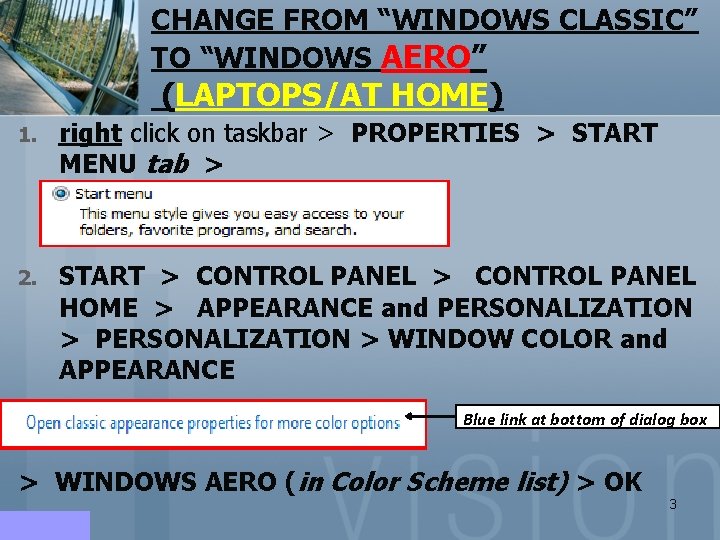
CHANGE FROM “WINDOWS CLASSIC” TO “WINDOWS AERO” (LAPTOPS/AT HOME) 1. right click on taskbar > PROPERTIES > START MENU tab > 2. START > CONTROL PANEL > CONTROL PANEL HOME > APPEARANCE and PERSONALIZATION > PERSONALIZATION > WINDOW COLOR and APPEARANCE Blue link at bottom of dialog box > WINDOWS AERO (in Color Scheme list) > OK 3
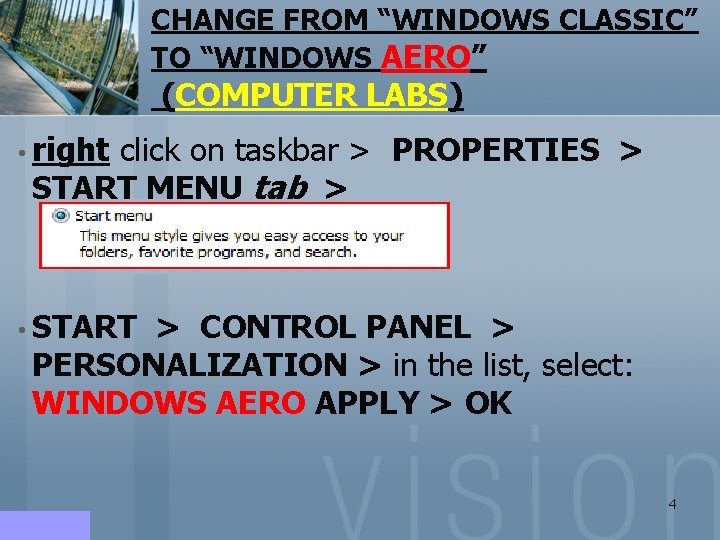
CHANGE FROM “WINDOWS CLASSIC” TO “WINDOWS AERO” (COMPUTER LABS) • right click on taskbar > PROPERTIES > START MENU tab > • START > CONTROL PANEL > PERSONALIZATION > in the list, select: WINDOWS AERO APPLY > OK 4
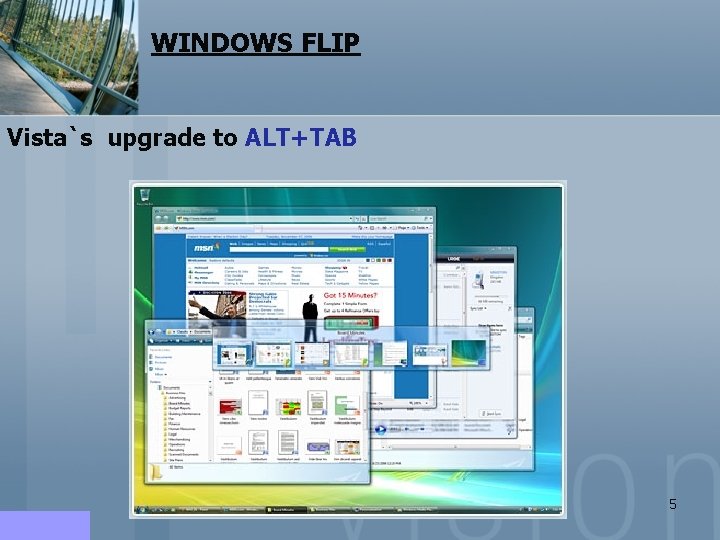
WINDOWS FLIP Vista`s upgrade to ALT+TAB 5
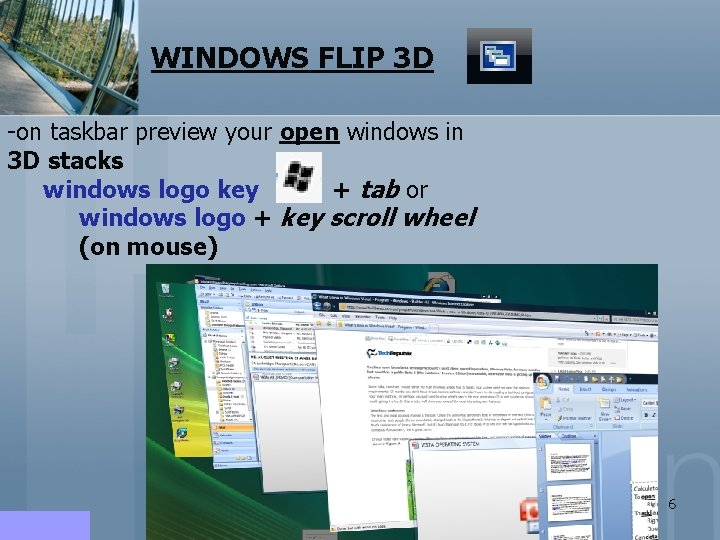
WINDOWS FLIP 3 D -on taskbar preview your open windows in 3 D stacks windows logo key + tab or windows logo + key scroll wheel (on mouse) 6
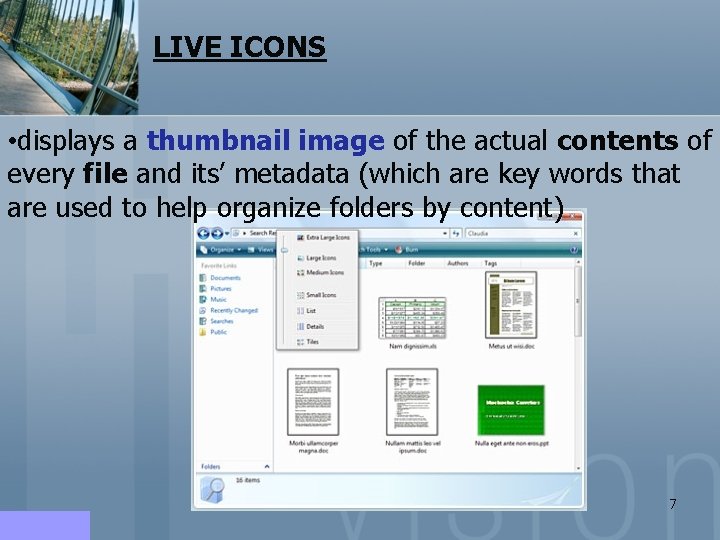
LIVE ICONS • displays a thumbnail image of the actual contents of every file and its’ metadata (which are key words that are used to help organize folders by content) 7
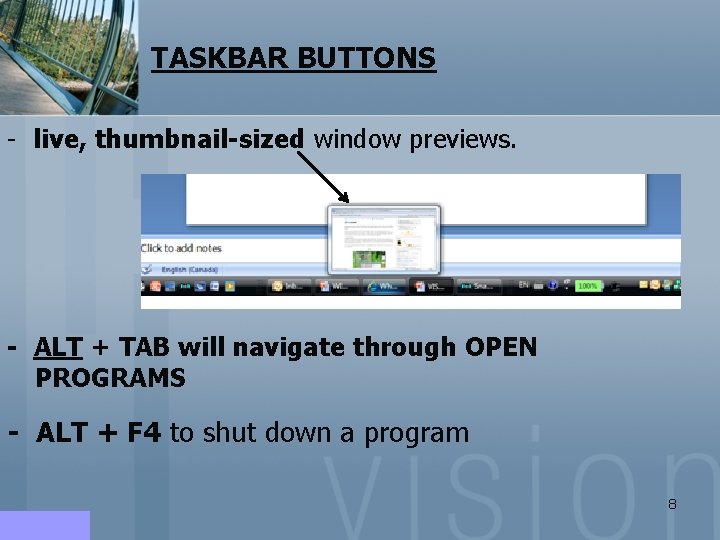
TASKBAR BUTTONS - live, thumbnail-sized window previews. - ALT + TAB will navigate through OPEN PROGRAMS - ALT + F 4 to shut down a program 8
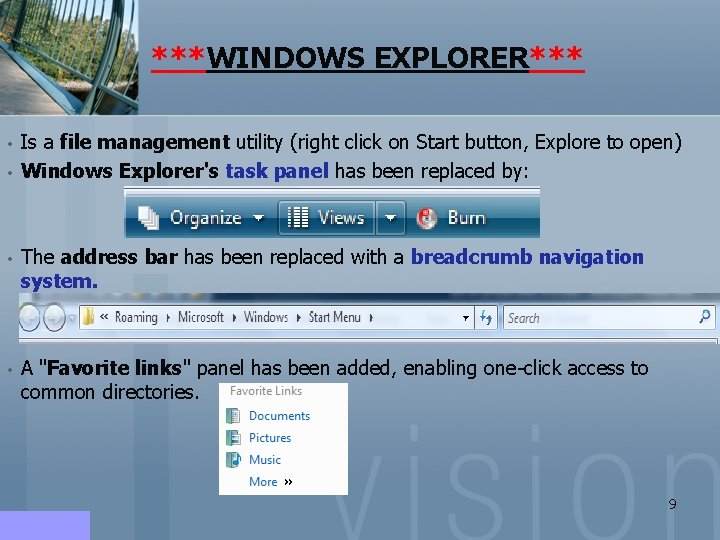
***WINDOWS EXPLORER*** • • Is a file management utility (right click on Start button, Explore to open) Windows Explorer's task panel has been replaced by: • The address bar has been replaced with a breadcrumb navigation system. • A "Favorite links" panel has been added, enabling one-click access to common directories. 9
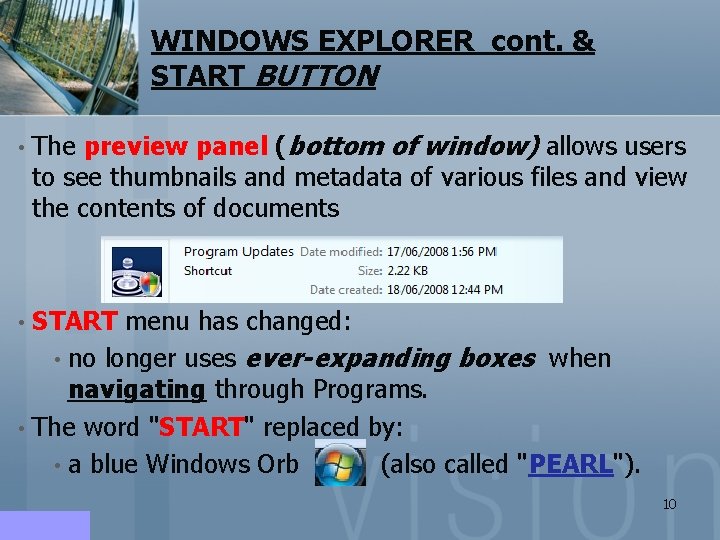
WINDOWS EXPLORER cont. & START BUTTON • The preview panel (bottom of window) allows users to see thumbnails and metadata of various files and view the contents of documents START menu has changed: • no longer uses ever-expanding boxes when navigating through Programs. • The word "START" replaced by: • a blue Windows Orb (also called "PEARL"). • 10
START BUTTON Cont. • • At the left is the navigation pane, which lists the commonly used folders: • DOCUMENTS, PICTURES, MUSIC, SEARCH, & • RECENT ITEMS • a list of all files and e-mail messages that you have edited in the: • LAST 30 DAYS PIN a program icon to the Start menu • Create a shortcut to a program • Pinned program icons appear on the left side of the START MENU, above the horizontal line. • Right-click the program icon you want to pin to the Start 11 menu, and then click Pin to Start Menu.
START MENU • List of folders embedded in left pane • No longer submenus • TREE VIEW DIRECTORY: “Branch off” to start any program • Can expand collapse any folder • Even multiple folders • • INSTANT SEARCH FEATURE • Can key in a program/document “incrementally”: • As you type in each letter of the name of the program/document, the list is then constrained 12 to display your search string
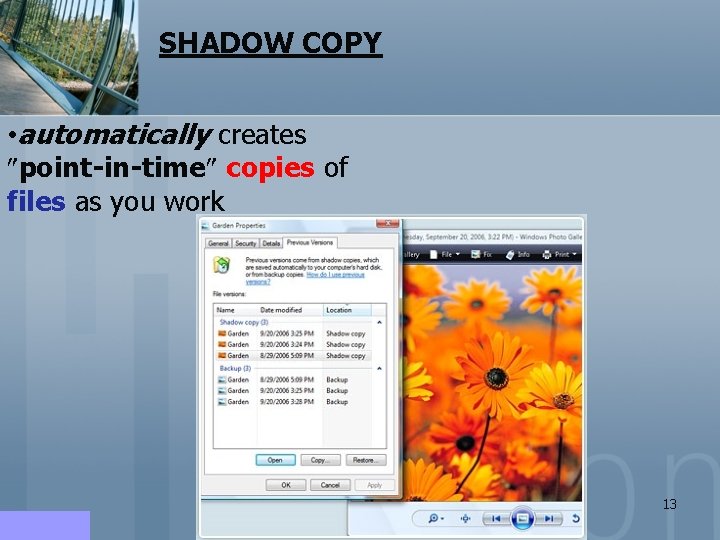
SHADOW COPY • automatically creates point-in-time copies of files as you work 13
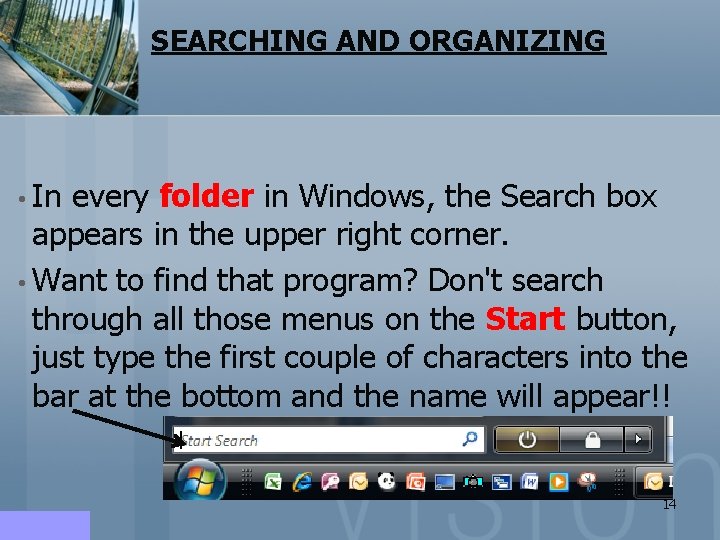
SEARCHING AND ORGANIZING • In every folder in Windows, the Search box appears in the upper right corner. • Want to find that program? Don't search through all those menus on the Start button, just type the first couple of characters into the bar at the bottom and the name will appear!! 14
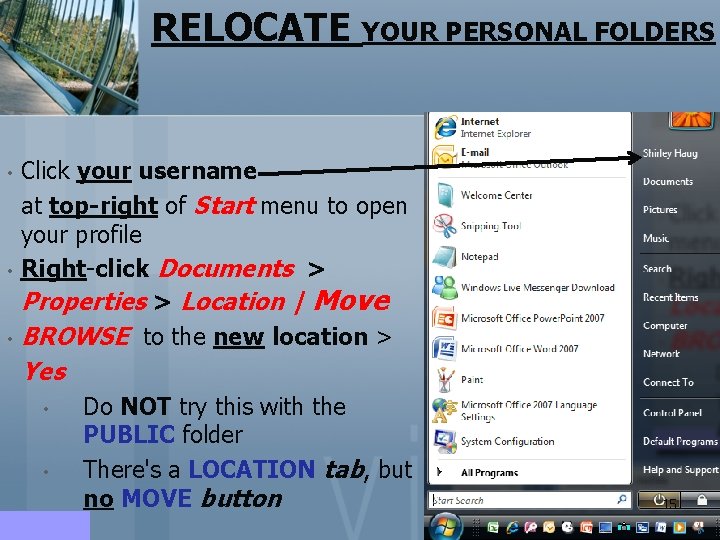
RELOCATE YOUR PERSONAL FOLDERS Click your username at top-right of Start menu to open your profile • Right-click Documents > Properties > Location | Move • BROWSE to the new location > • Yes • • Do NOT try this with the PUBLIC folder There's a LOCATION tab, but no MOVE button 15
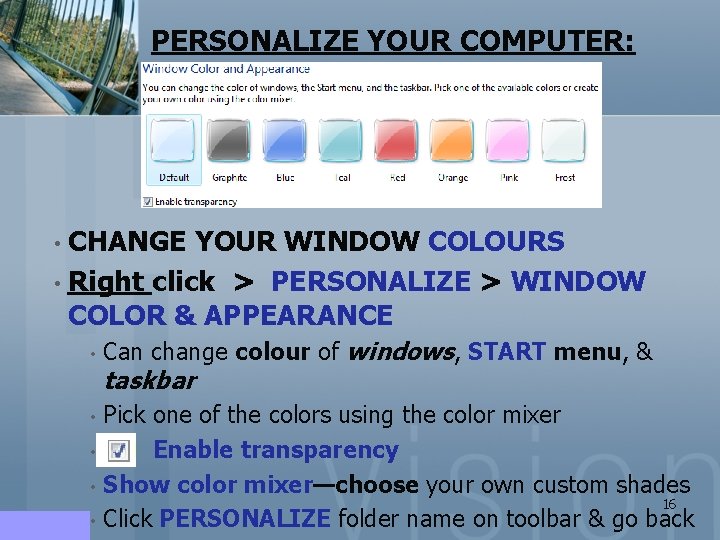
PERSONALIZE YOUR COMPUTER: • CHANGE YOUR WINDOW COLOURS • Right click > PERSONALIZE > WINDOW COLOR & APPEARANCE • Can change colour of windows, START menu, & taskbar Pick one of the colors using the color mixer • Enable transparency • Show color mixer—choose your own custom shades 16 • Click PERSONALIZE folder name on toolbar & go back •
PERSONALIZE YOUR COMPUTER cont. : • DESKTOP BACKGROUND • Can choose black & white, pictures, textures, or vistas • • Or solid color, or any picture on your computer As you select one--background instantly changes • SCREEN SAVER • Windows selection, OR a slide show of your own pictures • THEME • sets the background, sound, icons, & other elements 17 all at once
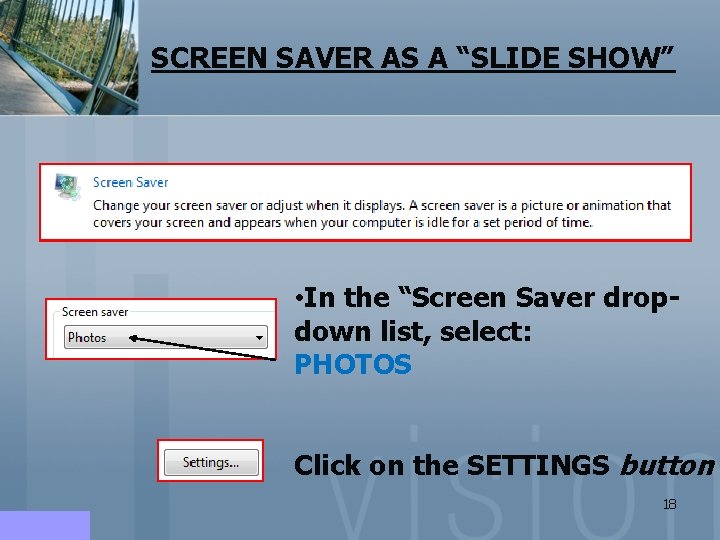
SCREEN SAVER AS A “SLIDE SHOW” • In the “Screen Saver dropdown list, select: PHOTOS Click on the SETTINGS button 18
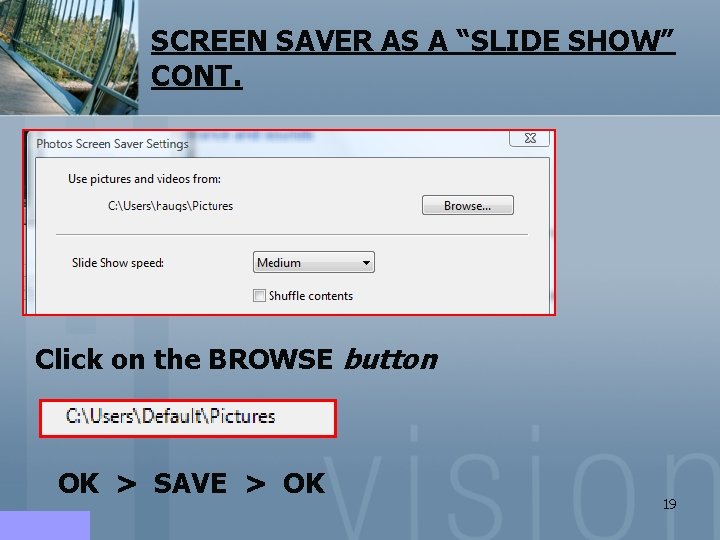
SCREEN SAVER AS A “SLIDE SHOW” CONT. Click on the BROWSE button OK > SAVE > OK 19
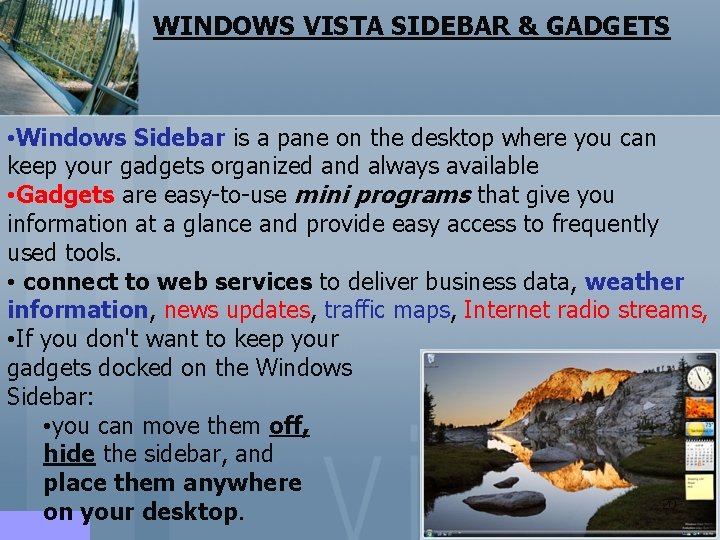
WINDOWS VISTA SIDEBAR & GADGETS • Windows Sidebar is a pane on the desktop where you can keep your gadgets organized and always available • Gadgets are easy-to-use mini programs that give you information at a glance and provide easy access to frequently used tools. • connect to web services to deliver business data, weather information, news updates, traffic maps, Internet radio streams, • If you don't want to keep your gadgets docked on the Windows Sidebar: • you can move them off, hide the sidebar, and place them anywhere 20 on your desktop.
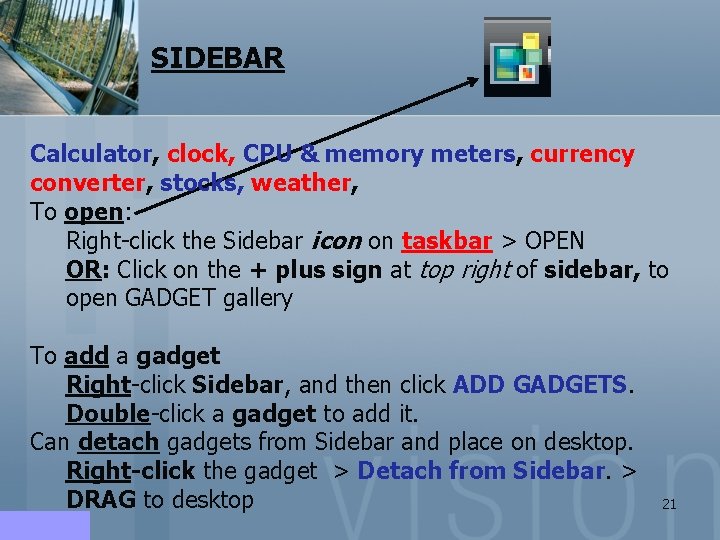
SIDEBAR Calculator, clock, CPU & memory meters, currency converter, stocks, weather, To open: Right-click the Sidebar icon on taskbar > OPEN OR: Click on the + plus sign at top right of sidebar, to open GADGET gallery To add a gadget Right-click Sidebar, and then click ADD GADGETS. Double-click a gadget to add it. Can detach gadgets from Sidebar and place on desktop. Right-click the gadget > Detach from Sidebar. > DRAG to desktop 21
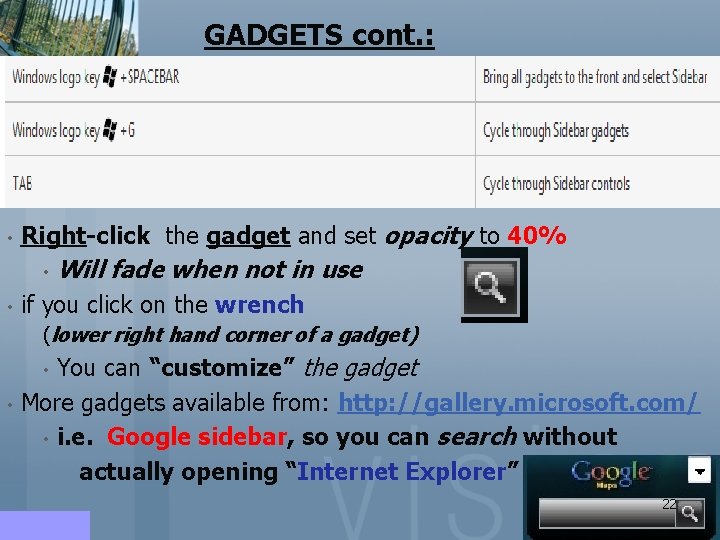
GADGETS cont. : • Right-click the gadget and set opacity to 40% • • Will fade when not in use if you click on the wrench (lower right hand corner of a gadget) You can “customize” the gadget More gadgets available from: http: //gallery. microsoft. com/ • i. e. Google sidebar, so you can search without actually opening “Internet Explorer” • • 22
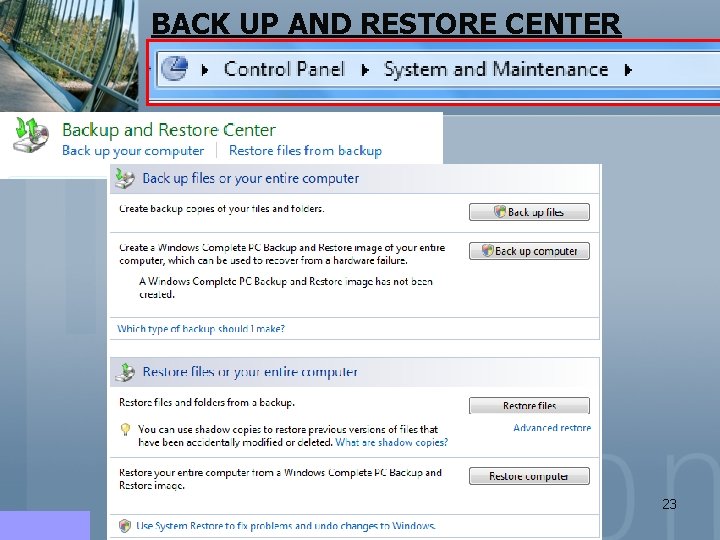
BACK UP AND RESTORE CENTER 23
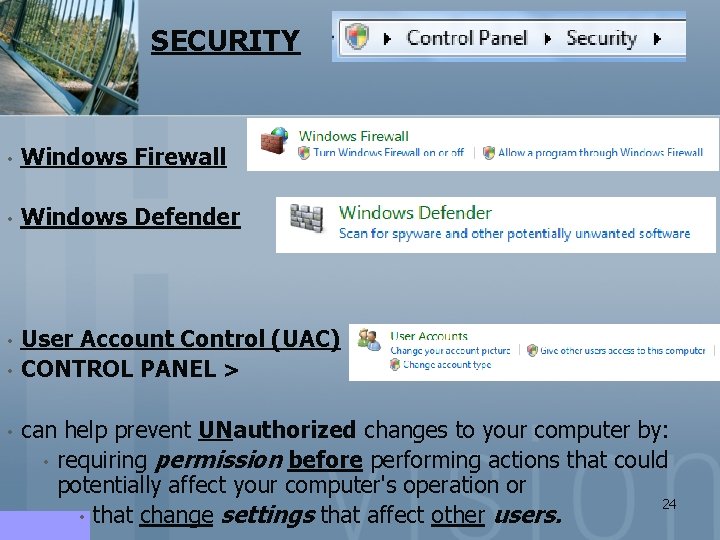
SECURITY • Windows Firewall • Windows Defender • User Account Control (UAC) CONTROL PANEL > • • can help prevent UNauthorized changes to your computer by: • requiring permission before performing actions that could potentially affect your computer's operation or 24 • that change settings that affect other users.
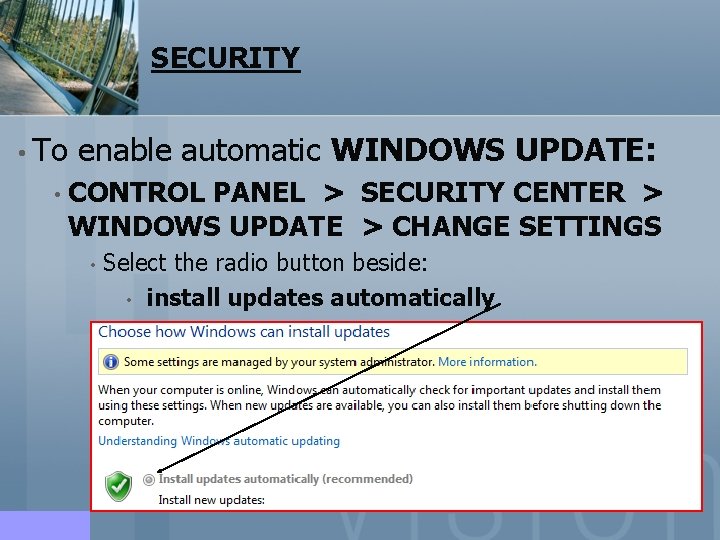
SECURITY • To enable automatic WINDOWS UPDATE: • CONTROL PANEL > SECURITY CENTER > WINDOWS UPDATE > CHANGE SETTINGS • Select the radio button beside: • install updates automatically 25
REMOTE DESKTOP • This feature is used to access another employee’s computer without leaving your desk. • To connect to a remote computer: • that computer must be turned on • it must have a network connection • Remote Desktop must be enabled 26
REMOTE DESKTOP • you must have network access to the remote computer (this could be through the Internet) • you must have permission to connect via the System properties dialogue box 27
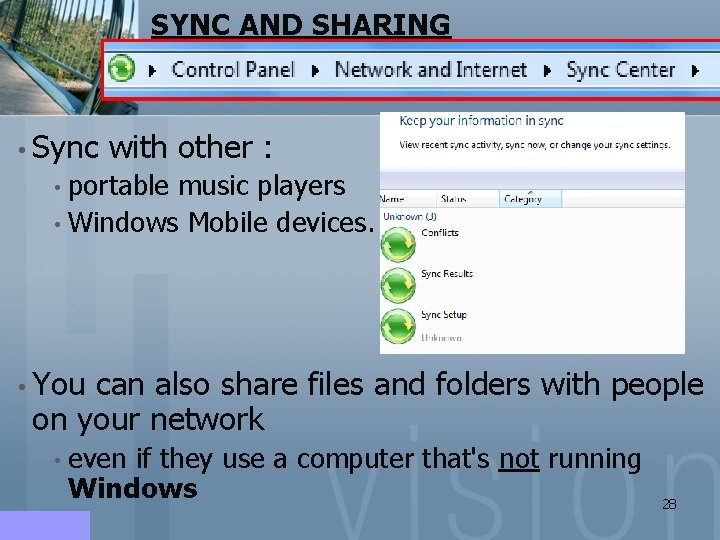
SYNC AND SHARING • Sync with other : • portable music players • Windows Mobile devices. • You can also share files and folders with people on your network • even if they use a computer that's not running Windows 28
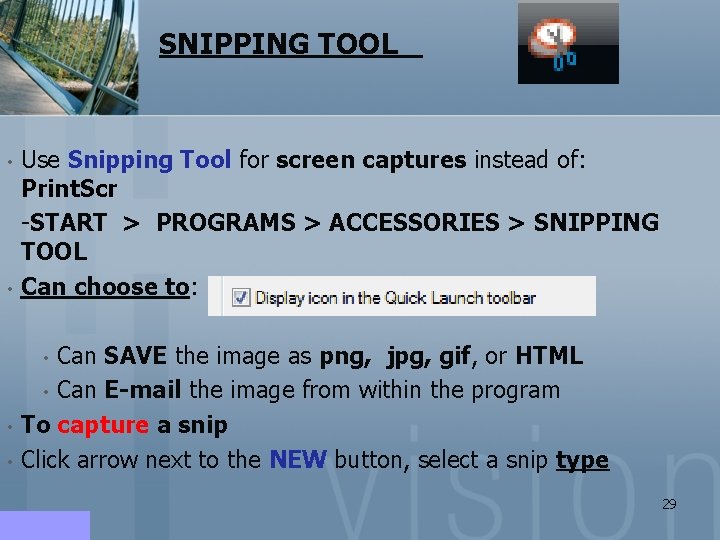
SNIPPING TOOL • • Use Snipping Tool for screen captures instead of: Print. Scr -START > PROGRAMS > ACCESSORIES > SNIPPING TOOL Can choose to: Can SAVE the image as png, jpg, gif, or HTML • Can E-mail the image from within the program To capture a snip Click arrow next to the NEW button, select a snip type • • • 29
SNIPPING TOOL cont. : • Can highlight a snip • To annotate a snip Use a mouse or tablet pen to write on or around the snip. Note: When SNIPPING TOOL is open, a white overlay appears on screen (until you capture a snip) • To turn off the overlay, open ``Snipping Tool` > OPTIONS dialog box > clear the Show screen overlay when Snipping Tool is active > OK. • • 30
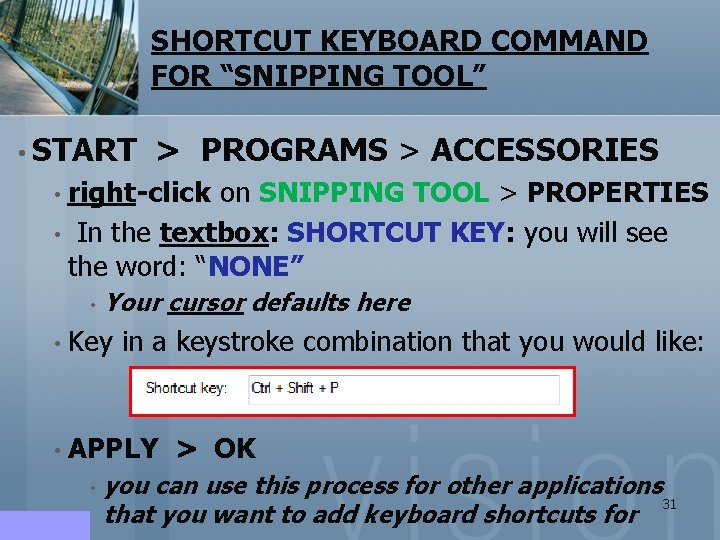
SHORTCUT KEYBOARD COMMAND FOR “SNIPPING TOOL” • START > PROGRAMS > ACCESSORIES • right-click on SNIPPING TOOL > PROPERTIES • In the textbox: SHORTCUT KEY: you will see the word: “NONE” • Your cursor defaults here • Key in a keystroke combination that you would like: • APPLY > OK • you can use this process for other applications 31 that you want to add keyboard shortcuts for
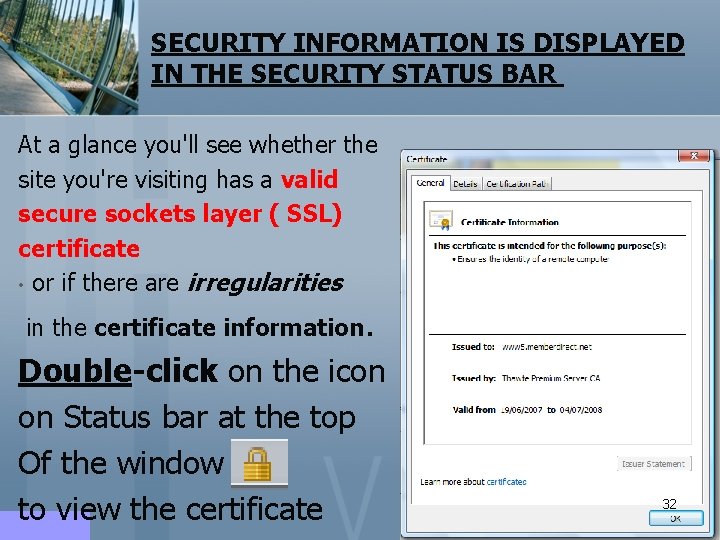
SECURITY INFORMATION IS DISPLAYED IN THE SECURITY STATUS BAR At a glance you'll see whether the site you're visiting has a valid secure sockets layer ( SSL) certificate • or if there are irregularities in the certificate information. Double-click on the icon on Status bar at the top Of the window to view the certificate 32
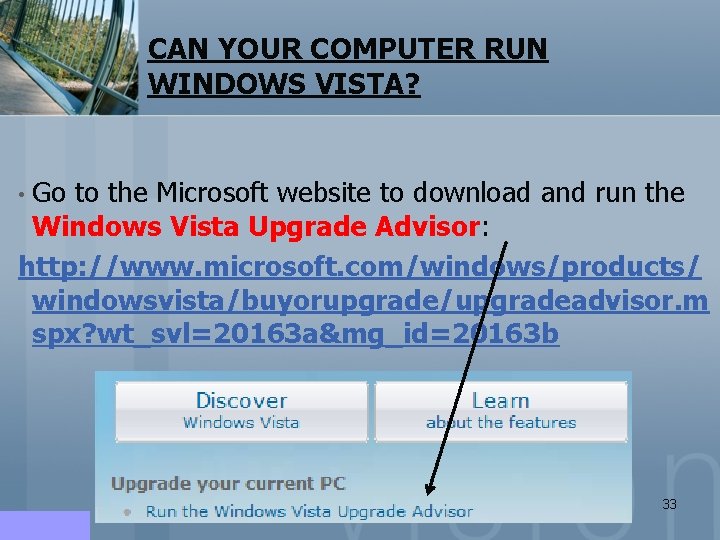
CAN YOUR COMPUTER RUN WINDOWS VISTA? • Go to the Microsoft website to download and run the Windows Vista Upgrade Advisor: http: //www. microsoft. com/windows/products/ windowsvista/buyorupgrade/upgradeadvisor. m spx? wt_svl=20163 a&mg_id=20163 b 33
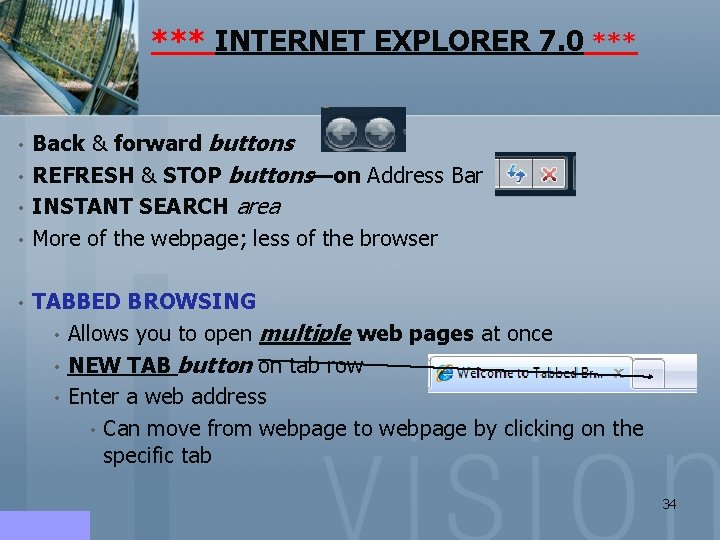
*** INTERNET EXPLORER 7. 0 *** • • • Back & forward buttons REFRESH & STOP buttons—on Address Bar INSTANT SEARCH area More of the webpage; less of the browser TABBED BROWSING • Allows you to open multiple web pages at once • NEW TAB button on tab row • Enter a web address • Can move from webpage to webpage by clicking on the specific tab 34
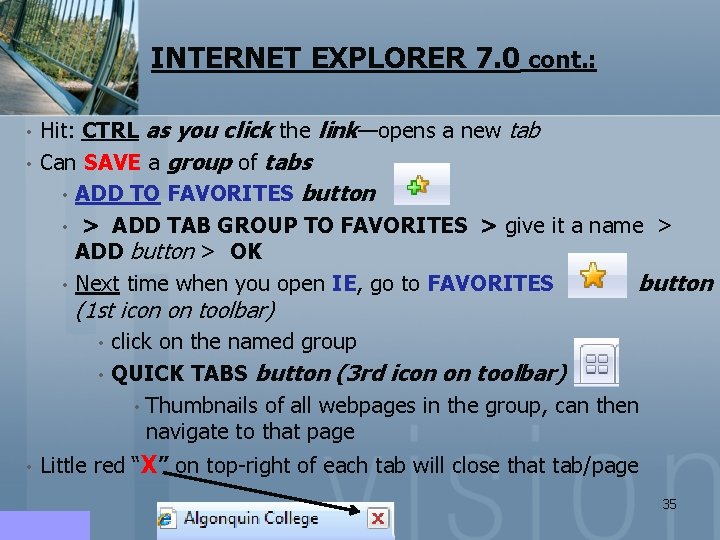
INTERNET EXPLORER 7. 0 cont. : • • Hit: CTRL as you click the link—opens a new tab Can SAVE a group of tabs • ADD TO FAVORITES button • > ADD TAB GROUP TO FAVORITES > give it a name > ADD button > OK • Next time when you open IE, go to FAVORITES button (1 st icon on toolbar) click on the named group • QUICK TABS button (3 rd icon on toolbar) • Thumbnails of all webpages in the group, can then navigate to that page • • Little red “X” on top-right of each tab will close that tab/page 35
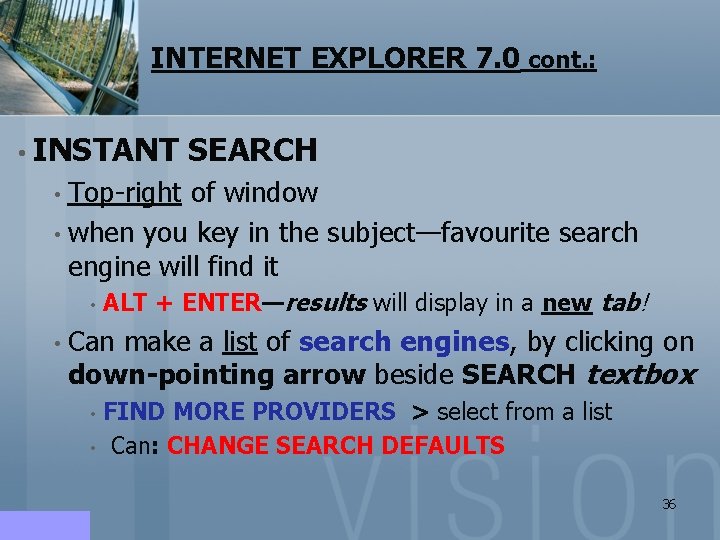
INTERNET EXPLORER 7. 0 cont. : • INSTANT SEARCH • Top-right of window • when you key in the subject—favourite search engine will find it • ALT + ENTER—results will display in a new tab! • Can make a list of search engines, by clicking on down-pointing arrow beside SEARCH textbox FIND MORE PROVIDERS > select from a list • Can: CHANGE SEARCH DEFAULTS • 36
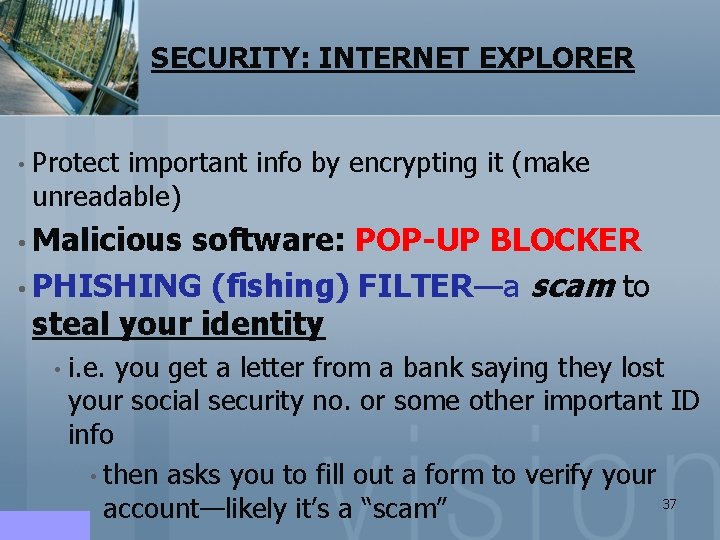
SECURITY: INTERNET EXPLORER • Protect important info by encrypting it (make unreadable) • Malicious software: POP-UP BLOCKER • PHISHING (fishing) FILTER—a steal your identity • i. e. scam to you get a letter from a bank saying they lost your social security no. or some other important ID info • then asks you to fill out a form to verify your 37 account—likely it’s a “scam”
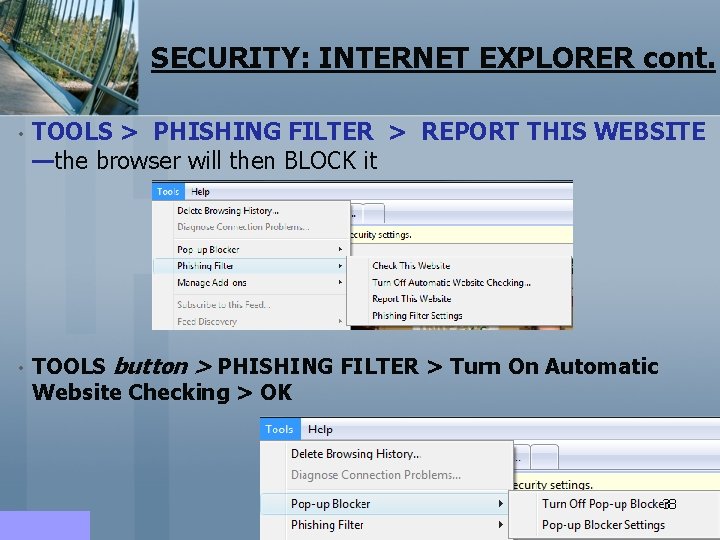
SECURITY: INTERNET EXPLORER cont. • TOOLS > PHISHING FILTER > REPORT THIS WEBSITE —the browser will then BLOCK it • TOOLS button > PHISHING FILTER > Turn On Automatic Website Checking > OK 38
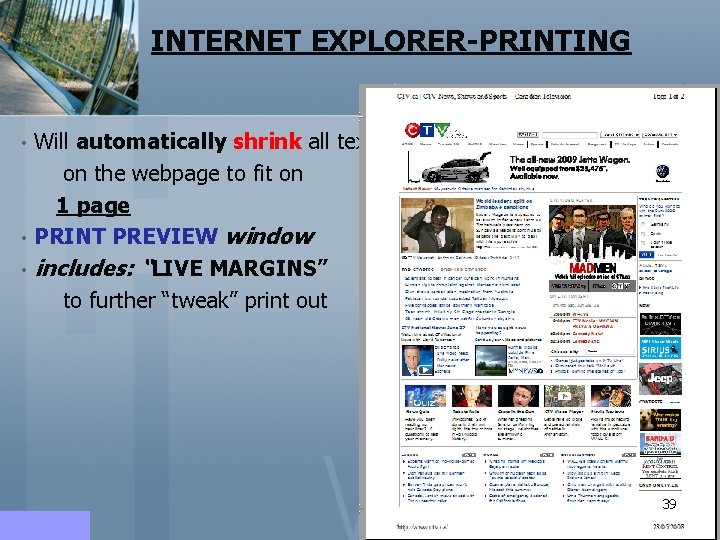
INTERNET EXPLORER-PRINTING • • • Will automatically shrink all text on the webpage to fit on 1 page PRINT PREVIEW window includes: “LIVE MARGINS” to further “tweak” print out 39
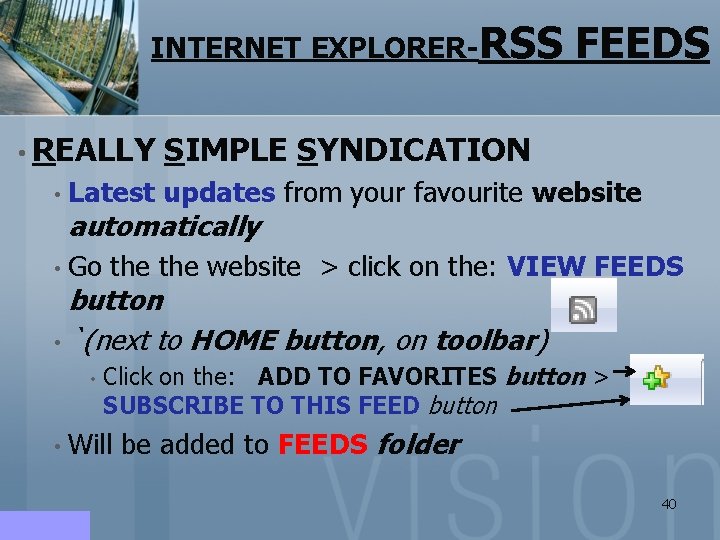
INTERNET EXPLORER-RSS FEEDS • REALLY SIMPLE SYNDICATION • Latest updates from automatically • Go your favourite website the website > click on the: VIEW FEEDS button • `(next to HOME button, on toolbar) • Click on the: ADD TO FAVORITES button > SUBSCRIBE TO THIS FEED button • Will be added to FEEDS folder 40
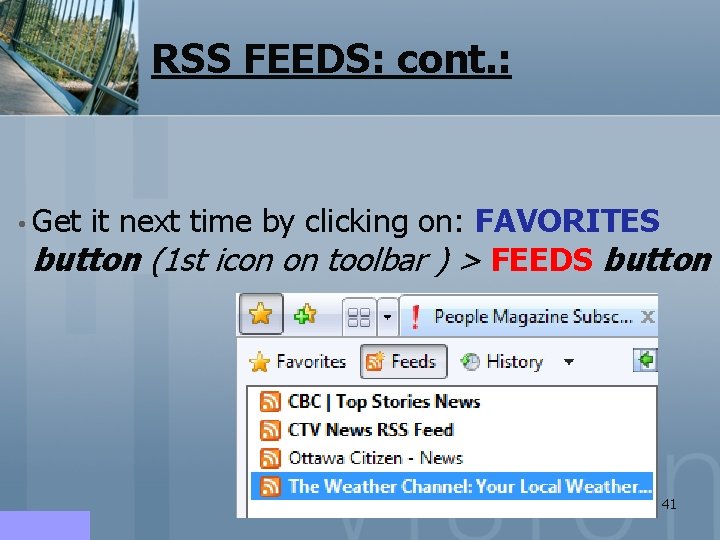
RSS FEEDS: cont. : • Get it next time by clicking on: FAVORITES button (1 st icon on toolbar ) > FEEDS button 41
FREE TIP(S) OF THE WEEK: • BONUS: COME TO CLASS EVERY WEEK TO GET: “FREE TIP(S) OF THE WEEK!!!” 42