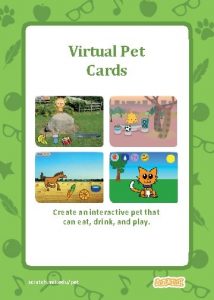
Virtual Pet Cards Create an interactive pet that
- Slides: 16
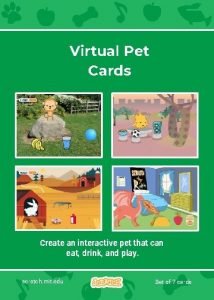
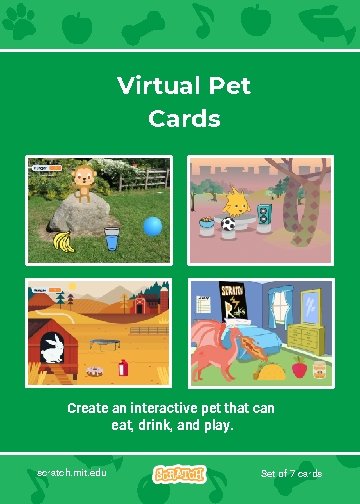
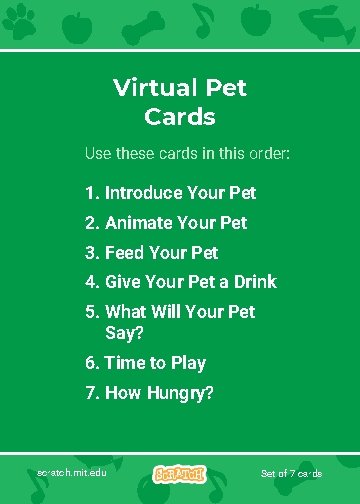
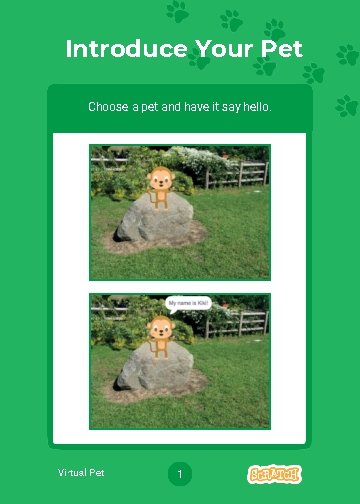
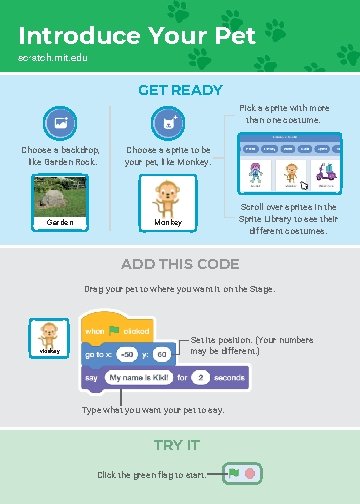
Virtual Pet Cards Create an interactive pet that can eat, drink, and play. scratch. mit. edu Set of 7 cards
Virtual Pet Cards Use these cards in this order: 1. Introduce Your Pet 2. Animate Your Pet 3. Feed Your Pet 4. Give Your Pet a Drink 5. What Will Your Pet Say? 6. Time to Play 7. How Hungry? scratch. mit. edu Set of 7 cards
Introduce Your Pet Choose a pet and have it say hello. Virtual Pet 1
Introduce Your Pet scratch. mit. edu GET READY Pick a sprite with more than one costume. Choose a backdrop, like Garden Rock. Garden Choose a sprite to be your pet, like Monkey. Scroll over sprites in the Sprite Library to see their different costumes. Monkey ADD THIS CODE Drag your pet to where you want it on the Stage. Monkey Set its position. (Your numbers may be different. ) Type what you want your pet to say. TRY IT Click the green flag to start.
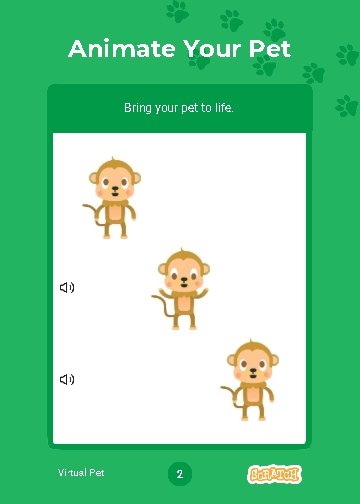
Animate Your Pet Bring your pet to life. Virtual Pet 2
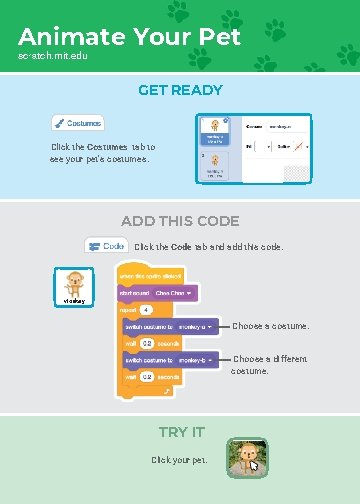
Animate Your Pet scratch. mit. edu GET READY Click the Costumes tab to see your pet’s costumes. ADD THIS CODE Click the Code tab and add this code. Monkey Choose a costume. Choose a different costume. TRY IT Click your pet.
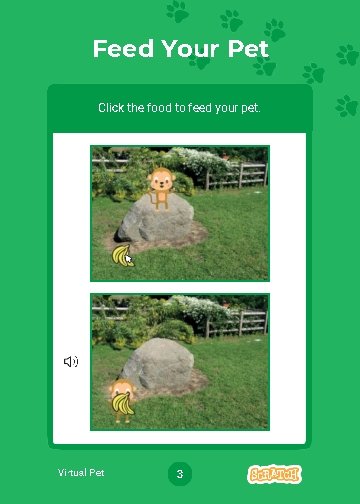
Feed Your Pet Click the food to feed your pet. Virtual Pet 3
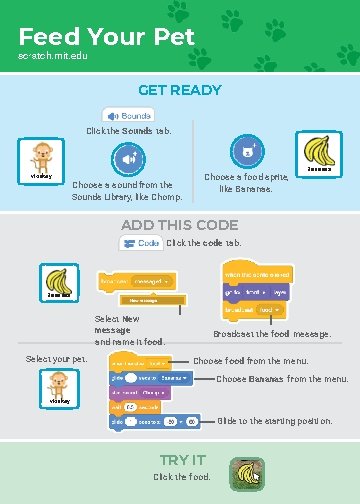
Feed Your Pet scratch. mit. edu GET READY Click the Sounds tab. Monkey Choose a sound from the Sounds Library, like Chomp. Choose a food sprite, like Bananas ADD THIS CODE Click the code tab. Bananas Select New message and name it food. Select your pet. Broadcast the food message. Choose food from the menu. Choose Bananas from the menu. Monkey Glide to the starting position. TRY IT Click the food.
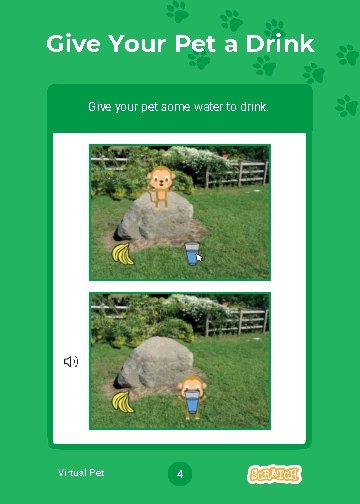
Give Your Pet a Drink Give your pet some water to drink. Virtual Pet 4
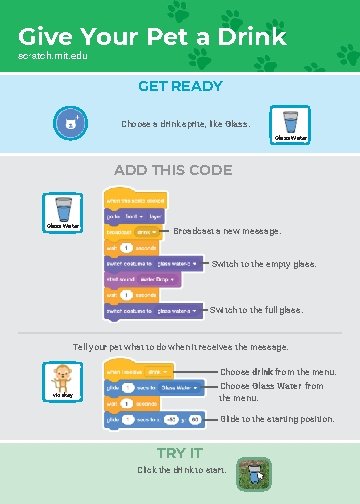
Give Your Pet a Drink scratch. mit. edu GET READY Choose a drink sprite, like Glass Water ADD THIS CODE Glass Water Broadcast a new message. Switch to the empty glass. Switch to the full glass. Tell your pet what to do when it receives the message. Choose drink from the menu. Choose Glass Water from the menu. Monkey Glide to the starting position. TRY IT Click the drink to start.
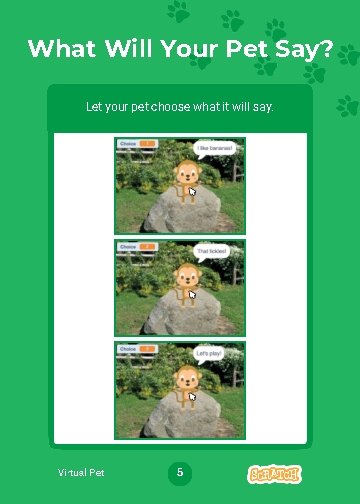
What Will Your Pet Say? Let your pet choose what it will say. Virtual Pet 5
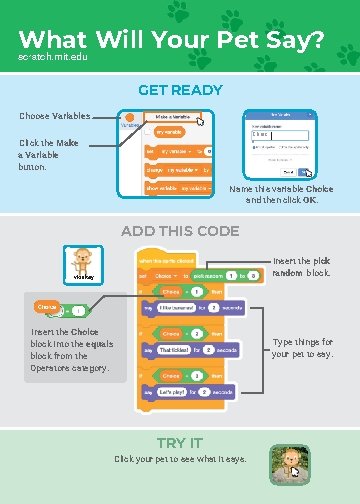
What Will Your Pet Say? scratch. mit. edu GET READY Choose Variables. Choic e Click the Make a Variable button. Name this variable Choice and then click OK. ADD THIS CODE Insert the pick random block. Monkey Insert the Choice block into the equals block from the Operators category. Type things for your pet to say. TRY IT Click your pet to see what it says.
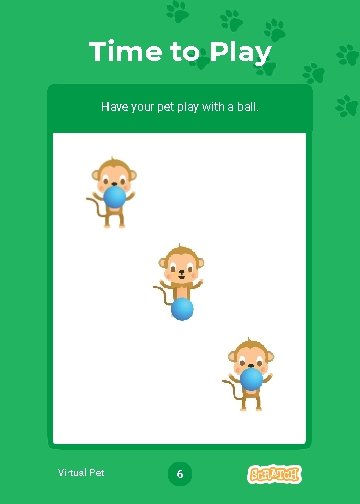
Time to Play Have your pet play with a ball. Virtual Pet 6
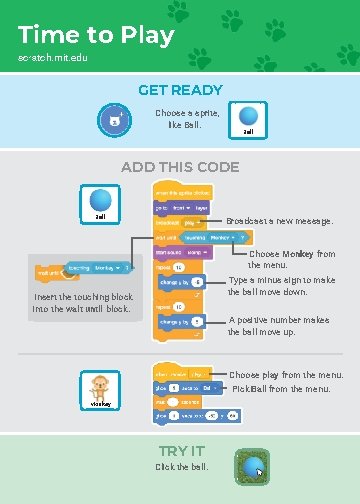
Time to Play scratch. mit. edu GET READY Choose a sprite, like Ball ADD THIS CODE Ball Broadcast a new message. Choose Monkey from the menu. Type a minus sign to make the ball move down. Insert the touching block into the wait until block. A positive number makes the ball move up. Choose play from the menu. Pick Ball from the menu. Monkey TRY IT Click the ball.
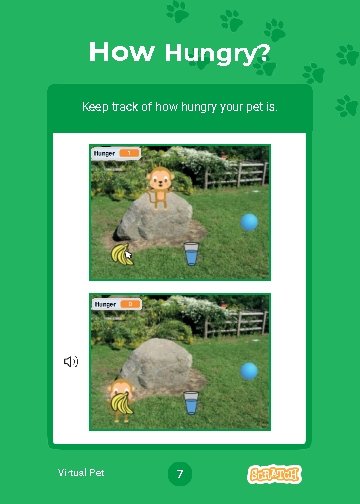
How Hungry? Keep track of how hungry your pet is. Virtual Pet 7
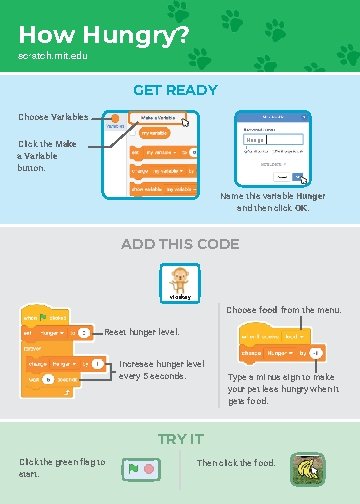
How Hungry? scratch. mit. edu GET READY Choose Variables. Hunge r Click the Make a Variable button. Name this variable Hunger and then click OK. ADD THIS CODE Monkey Choose food from the menu. Reset hunger level. Increase hunger level every 5 seconds. Type a minus sign to make your pet less hungry when it gets food. TRY IT Click the green flag to start. Then click the food.