Unit 1 Digital Content Computer Concepts 2016 ENHANCED




- Slides: 81
Unit 1 Digital Content Computer Concepts 2016 ENHANCED EDITION
1 Unit Contents Ø Section A: Digital Basics Ø Section B: Digital Sound Ø Section C: Bitmap Graphics Ø Section D: Vector Graphics Ø Section E: Digital Video Unit 1: Digital Content 2
1 Section A: Digital Basics Ø Data Representation Basics Ø Representing Numbers Ø Representing Text Ø Bits and Bytes Ø Compression Unit 1: Digital Content 3
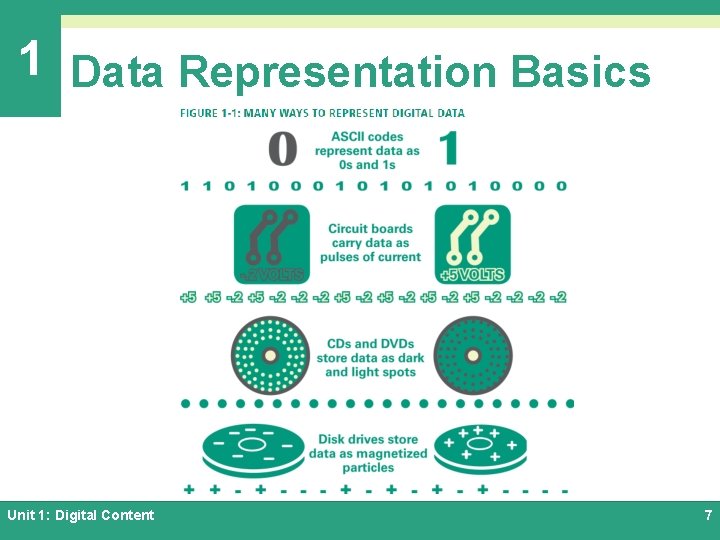
1 Data Representation Basics Ø Data refers to the symbols that represent people, events, things, and ideas. Data can be a name, a number, the colors in a photograph, or the notes in a musical composition Ø Data Representation refers to the form in which data is stored, processed, and transmitted Ø Devices such as smartphones, i. Pods, and computers store data in digital formats that can be handled by electronic circuitry Unit 1: Digital Content 4
1 Data Representation Basics Ø Digitization is the process of converting text, numbers, sound, photos, and video into data that can be processed by digital devices Ø The digital revolution has evolved through four phases, beginning with big, expensive, standalone computers, and progressing to today’s digital world in which small, inexpensive digital devices are everywhere Unit 1: Digital Content 5
1 Data Representation Basics Ø The 0 s and 1 s used to represent digital data are referred to as binary digits – from this term we get the word bit which stands for binary digit Ø A bit is a 0 or 1 used in the digital representation of data Ø A digital file, usually referred to simply as a file, is a named collection of data that exits on a storage medium, such as a hard disk, CD, DVD, or flash drive Unit 1: Digital Content 6
1 Data Representation Basics Unit 1: Digital Content 7
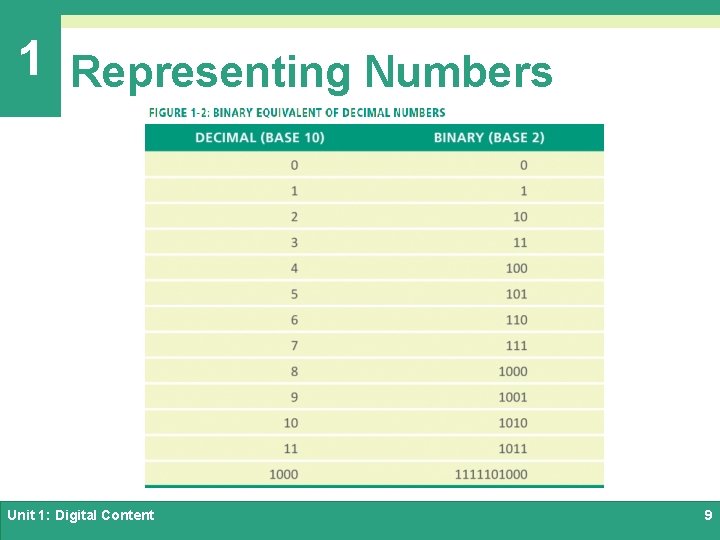
1 Representing Numbers Ø Numeric data consists of numbers that can be used in arithmetic operations Ø Digital devices represent numeric data using the binary number system, also called base 2 Ø The binary number system only has two digits: 0 and 1 Ø No numeral like 2 exists in the system, so the number “two” is represented in binary as 10 (pronounced “one zero”) Unit 1: Digital Content 8
1 Representing Numbers Unit 1: Digital Content 9
1 Representing Text Ø Character data is composed of letters, symbols, and numerals that are not used in calculations Ø Examples of character data include your name, address, and hair color Ø Character data is commonly referred to as “text” Unit 1: Digital Content 10
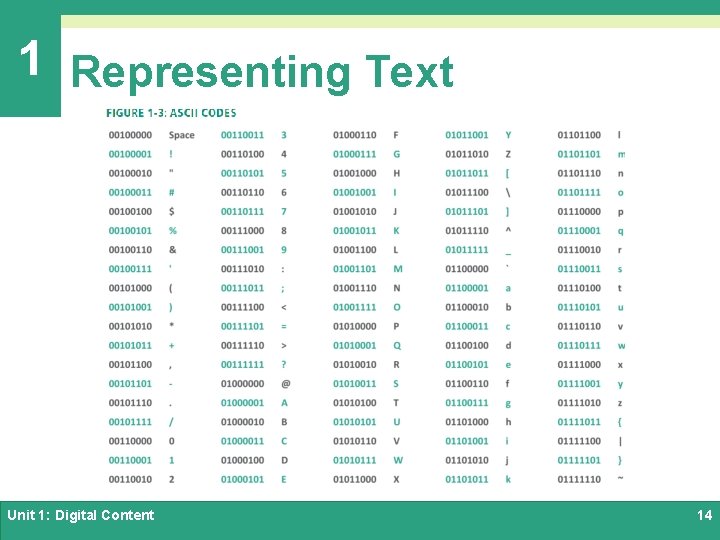
1 Representing Text Ø Digital devices employ several types of codes to represent character data, including ASCII, Unicode and their variants Ø ASCII (American Standard Code for Information Interchange, pronounced “ASK ee”) requires seven bits for each character Ø The ASCII code for an uppercase A is 1000001 Unit 1: Digital Content 11
1 Representing Text Ø Extended ASCII is a superset of ASCII that uses eight bits for each character Ø For example, Extended ASCII represents the uppercase letter A as 01000001 Ø Using eight bits allows Extended ASCII to provide codes for 256 characters Unit 1: Digital Content 12
1 Representing Text Ø Unicode (pronounced “YOU ni code”) uses sixteen bits and provides codes or 65, 000 characters Ø This is a bonus for representing the alphabets of multiple languages Unit 1: Digital Content 13
1 Representing Text Unit 1: Digital Content 14
1 Representing Text Ø ASCII codes are used for numerals, such as Social Security numbers and phone numbers Ø Plain, unformatted text is sometimes called ASCII text and is stored in a so-called “text file” with a name ending in. txt Ø On Apple devices these files are labeled “Plain Text”; in Windows, these files are labeled “Text Document” Unit 1: Digital Content 15
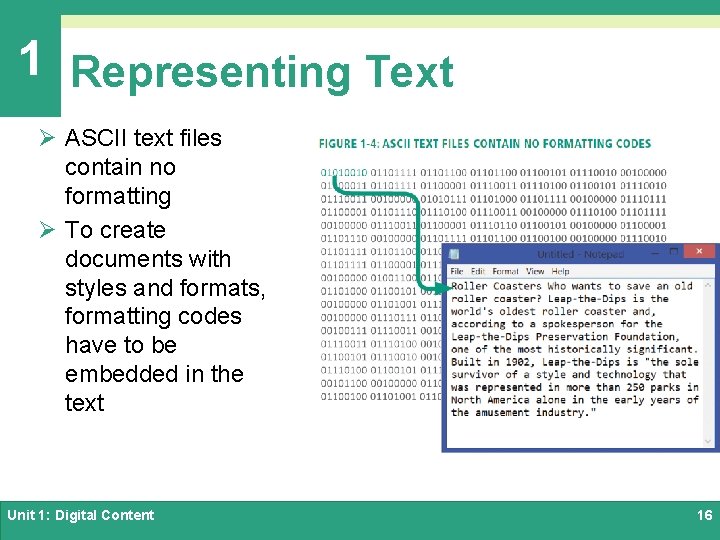
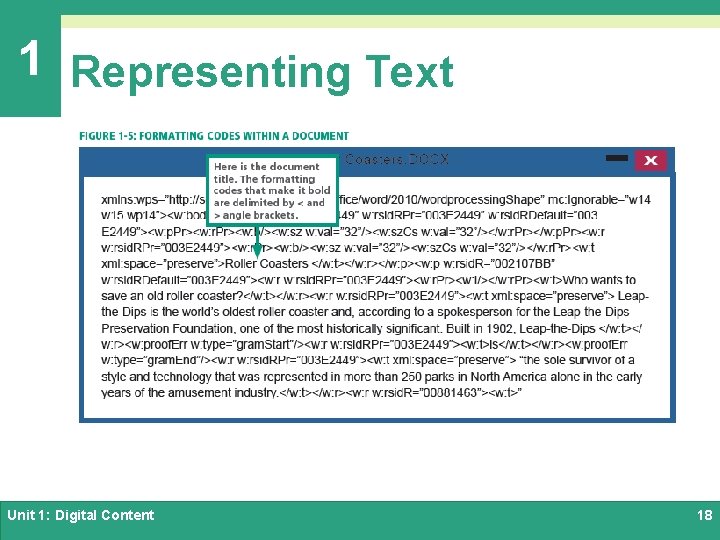
1 Representing Text Ø ASCII text files contain no formatting Ø To create documents with styles and formats, formatting codes have to be embedded in the text Unit 1: Digital Content 16
1 Representing Text Ø Microsoft Word produces formatted text and creates documents in DOCX format Ø i. Work Pages produces documents in PAGES format Ø Adobe Acrobat produces documents in PDF format Ø HTML markup language used for Web pages produces documents in HTML format Unit 1: Digital Content 17
1 Representing Text Unit 1: Digital Content 18
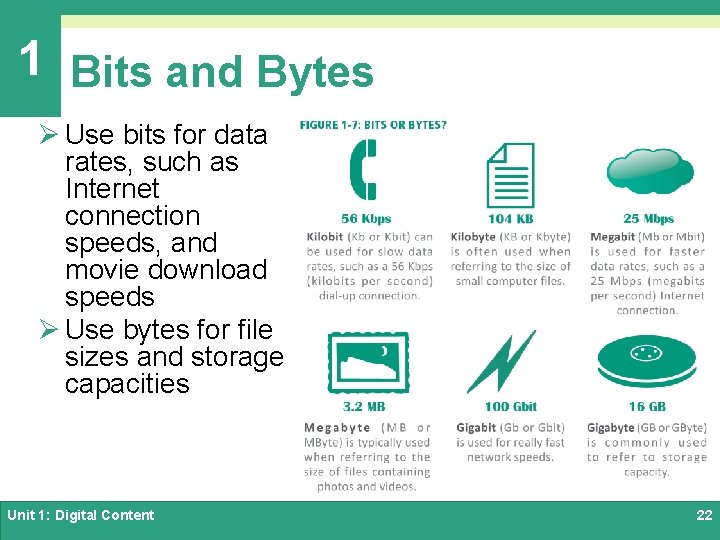
1 Bits and Bytes Ø All of the data stored and transmitted by digital devices is encoded as bits Ø Terminology related to bits and bytes is extensively used to describe storage capacity and network access speed Ø The word bit, an abbreviation for binary digit, can be further abbreviated as a lowercase b Ø A group of eight bits is called a byte and is usually abbreviated as an uppercase B Unit 1: Digital Content 19
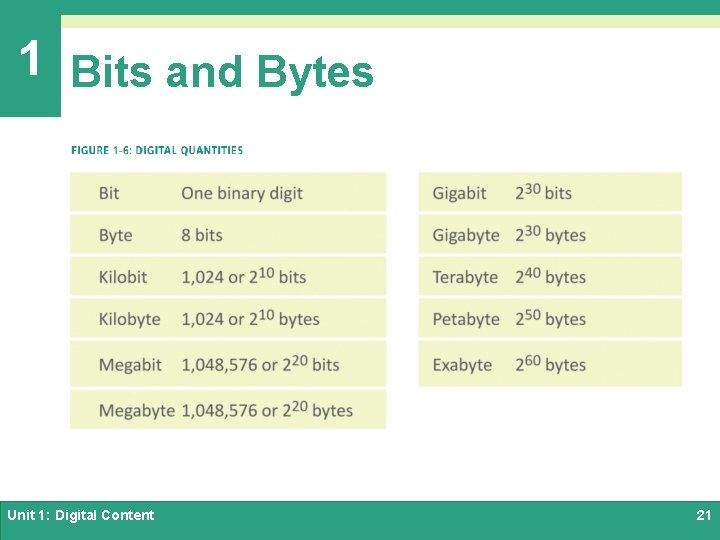
1 Bits and Bytes Ø When reading about digital devices, you’ll frequently encounter references such as 50 kilobits per second, 1. 44 megabytes, 2. 8 gigahertz, and 2 terabytes. Ø Kilo, mega, giga, tera, and similar terms are used to quantify digital data Unit 1: Digital Content 20
1 Bits and Bytes Unit 1: Digital Content 21
1 Bits and Bytes Ø Use bits for data rates, such as Internet connection speeds, and movie download speeds Ø Use bytes for file sizes and storage capacities Unit 1: Digital Content 22
1 Compression Ø To reduce file size and transmission times, digital data can be compressed Ø Data compression refers to any technique that recodes the data in a file so that it contains fewer bits Ø Compression is commonly referred to as “zipping” Unit 1: Digital Content 23
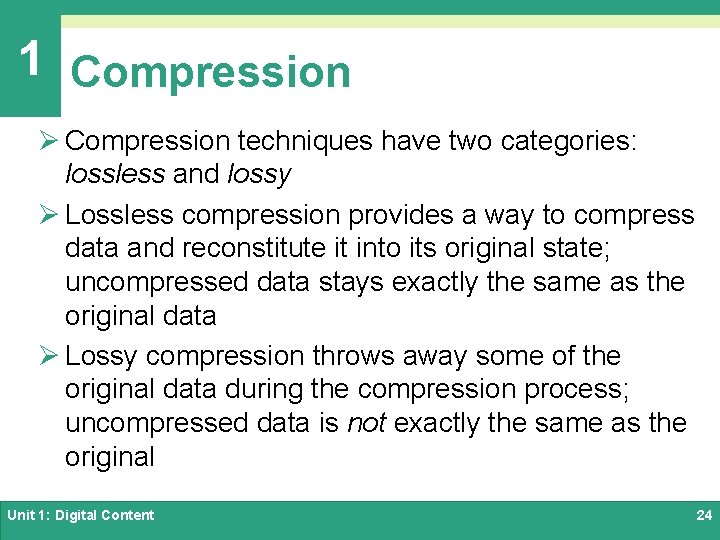
1 Compression Ø Compression techniques have two categories: lossless and lossy Ø Lossless compression provides a way to compress data and reconstitute it into its original state; uncompressed data stays exactly the same as the original data Ø Lossy compression throws away some of the original data during the compression process; uncompressed data is not exactly the same as the original Unit 1: Digital Content 24
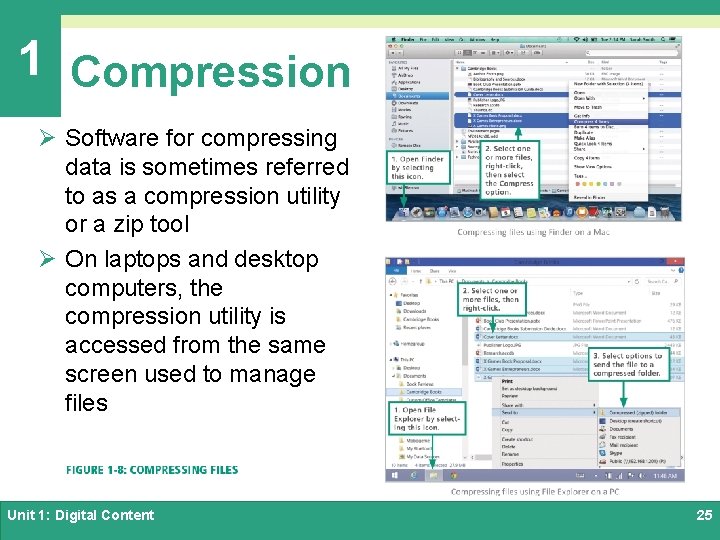
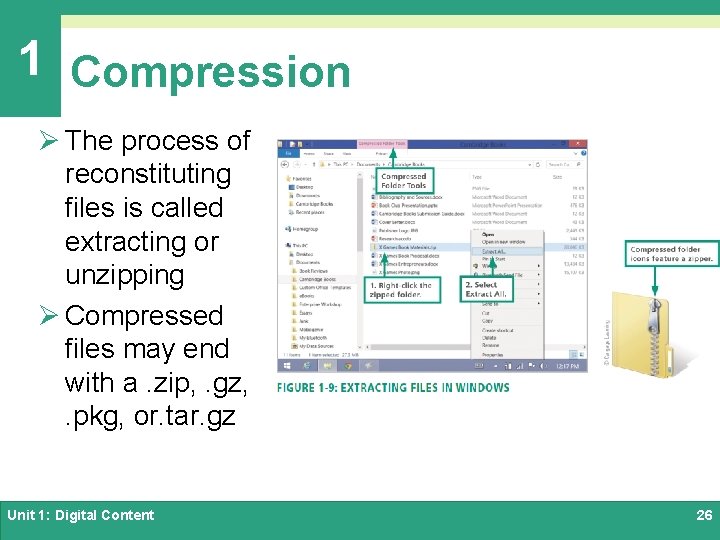
1 Compression Ø Software for compressing data is sometimes referred to as a compression utility or a zip tool Ø On laptops and desktop computers, the compression utility is accessed from the same screen used to manage files Unit 1: Digital Content 25
1 Compression Ø The process of reconstituting files is called extracting or unzipping Ø Compressed files may end with a. zip, . gz, . pkg, or. tar. gz Unit 1: Digital Content 26
1 Section B: Digital Sound Ø Digital Audio Basics Ø Digital Audio File Formats Ø MIDI Ø Digitized Speech Unit 1: Digital Content 27
1 Digital Audio Basics Ø Digital audio is music, speech, and other sounds represented in binary format for use in digital devices Ø Most digital devices have a built-in microphone and audio software, so recording external sounds is easy Ø To digitally record sound samples of a sound wave are collected at periodic intervals and stored as numeric data in an audio file Ø Sound waves are sampled many times per second by an analog-to-digital converter Ø A digital-to-analog converter transforms the digital bits into analog sound waves Unit 1: Digital Content 28
1 Digital Audio Basics Unit 1: Digital Content 29
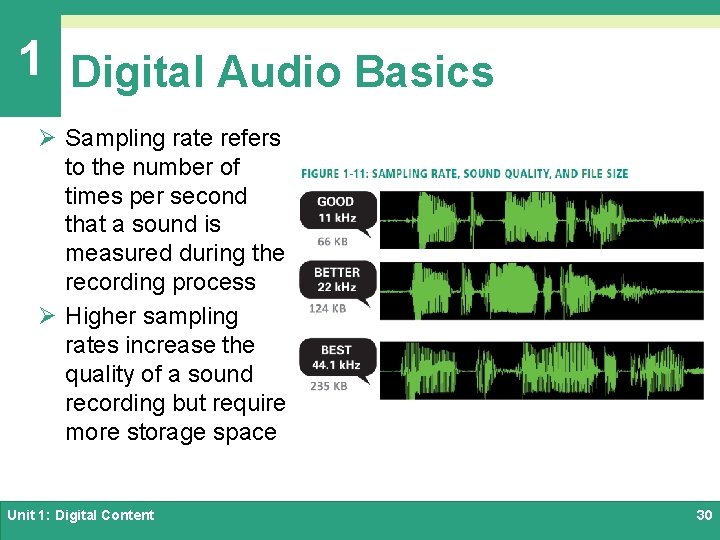
1 Digital Audio Basics Ø Sampling rate refers to the number of times per second that a sound is measured during the recording process Ø Higher sampling rates increase the quality of a sound recording but require more storage space Unit 1: Digital Content 30
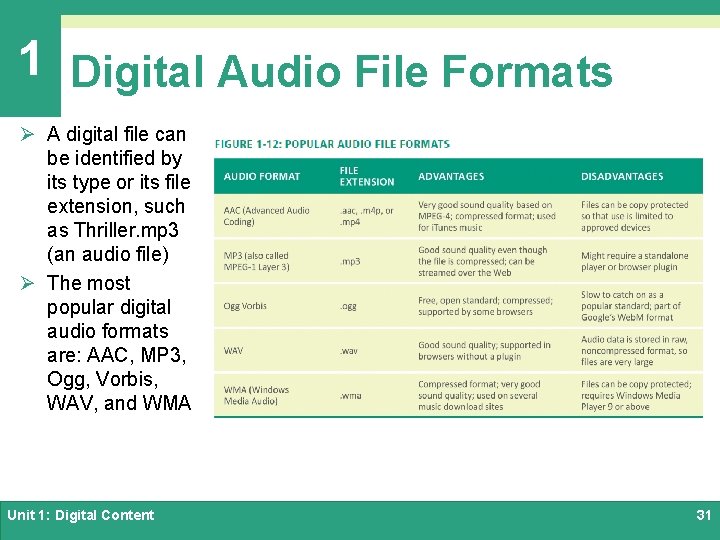
1 Digital Audio File Formats Ø A digital file can be identified by its type or its file extension, such as Thriller. mp 3 (an audio file) Ø The most popular digital audio formats are: AAC, MP 3, Ogg, Vorbis, WAV, and WMA Unit 1: Digital Content 31
1 Digital Audio File Formats Ø To play a digital audio file, you must use some type of audio software, such as: Ø Audio Software: General-purpose software and apps used for recording, playing, and modifying audio files, such as i. Tunes Ø Audio Players: Small standalone software application or mobile app that offers tools for listening to digital audio and managing playlists, typically included with your computer’s OS (operating system) Ø Audio Plugins: Software that works in conjunction with your computer’s browser to manage and play audio from a Web page Unit 1: Digital Content 32
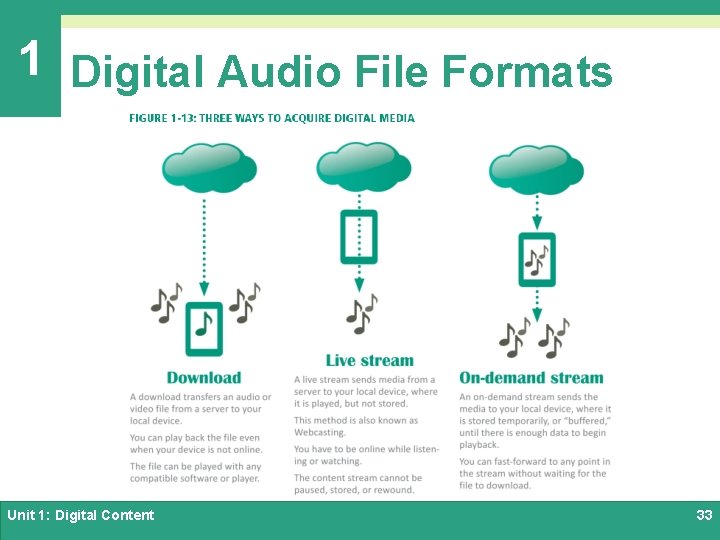
1 Digital Audio File Formats Unit 1: Digital Content 33
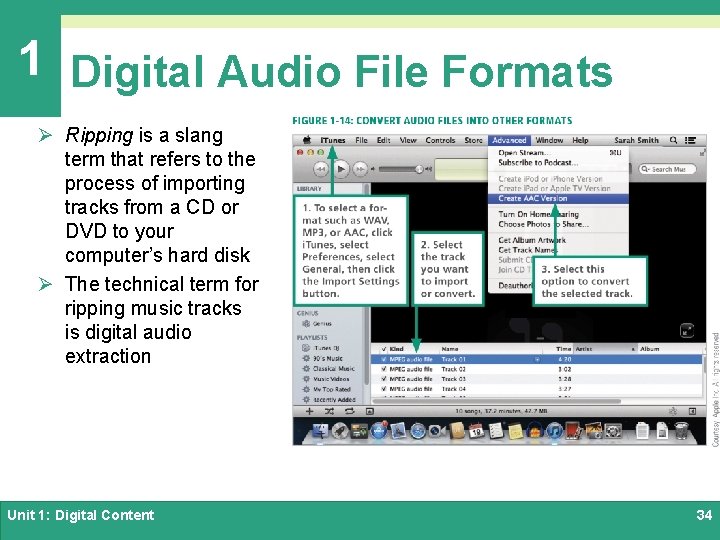
1 Digital Audio File Formats Ø Ripping is a slang term that refers to the process of importing tracks from a CD or DVD to your computer’s hard disk Ø The technical term for ripping music tracks is digital audio extraction Unit 1: Digital Content 34
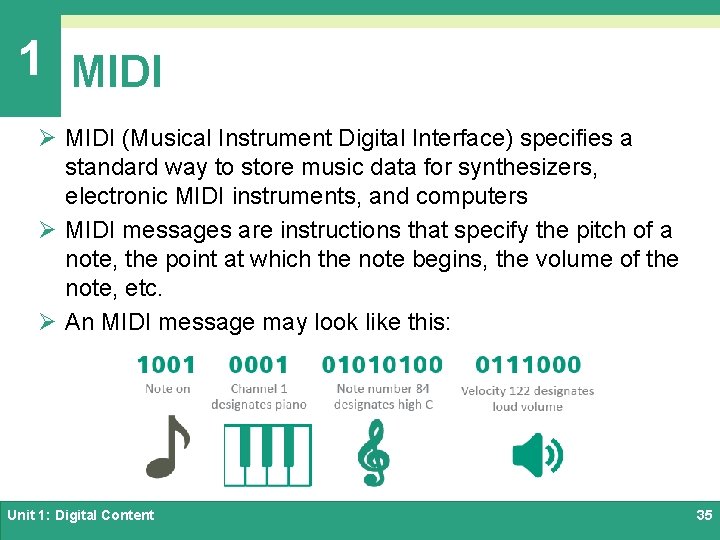
1 MIDI Ø MIDI (Musical Instrument Digital Interface) specifies a standard way to store music data for synthesizers, electronic MIDI instruments, and computers Ø MIDI messages are instructions that specify the pitch of a note, the point at which the note begins, the volume of the note, etc. Ø An MIDI message may look like this: Unit 1: Digital Content 35
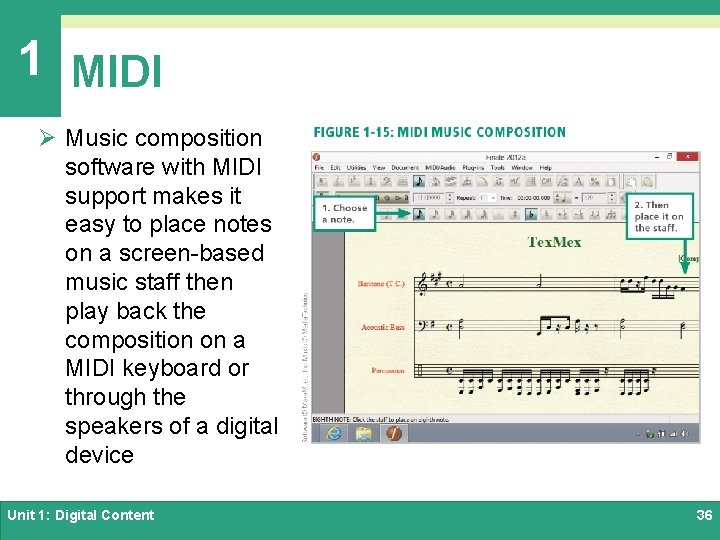
1 MIDI Ø Music composition software with MIDI support makes it easy to place notes on a screen-based music staff then play back the composition on a MIDI keyboard or through the speakers of a digital device Unit 1: Digital Content 36
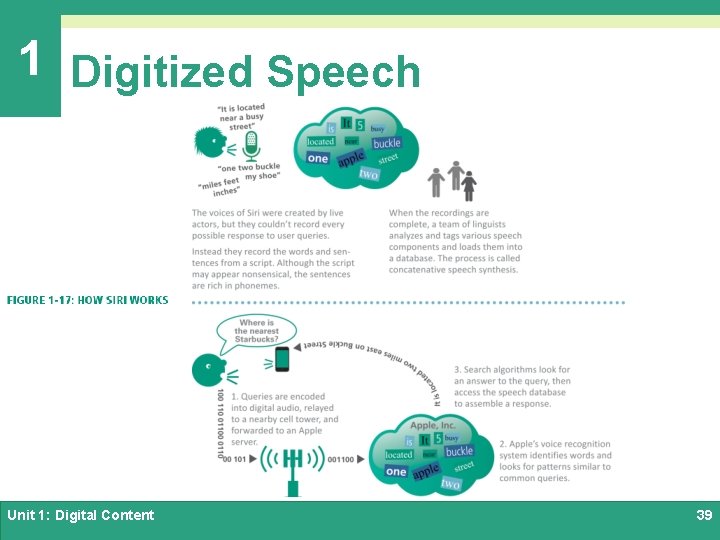
1 Digitized Speech ØSpeech synthesis is the process by which machines produce sound that resembles spoken words ØSpeech recognition (or voice recognition) refers to the ability of a machine to understand spoken words Unit 1: Digital Content 37
1 Digitized Speech Ø Speech recognition software analyzes the sounds of your voice and converts each word into groups of phonemes (basic sound units) Ø The software then compares the groups to the words in a digital dictionary to find a match Ø When a match is found, the software can display the word on the screen or use it to carry out a command Unit 1: Digital Content 38
1 Digitized Speech Unit 1: Digital Content 39
1 Section C: Bitmap Graphics Ø Bitmap Basics Ø Bitmap Data Representation Ø Bitmap Resolution Ø Image Compression Ø Modifying Bitmap Images Unit 1: Digital Content 40
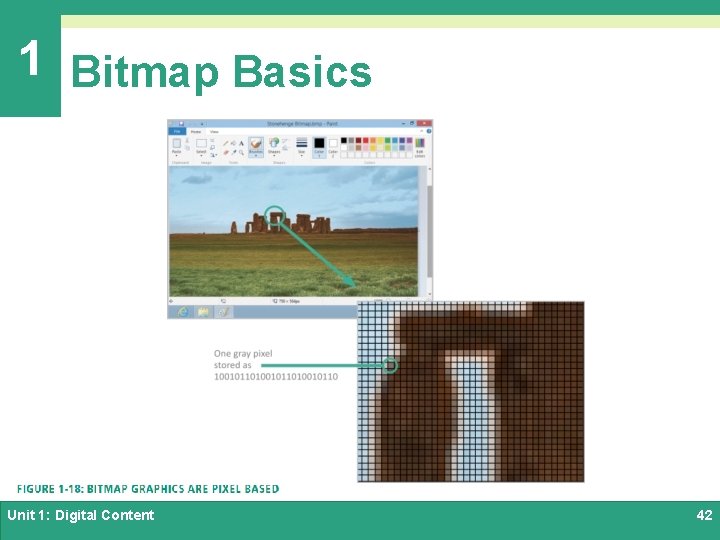
1 Bitmap Basics Ø As digital devices gained the ability to display images, two types of computer graphics evolved: bitmap & vector Ø A bitmap graphic is composed of a grid of tiny rectangular cells Ø Each cell is a picture element, commonly called a pixel Ø Each pixel is assigned a color, which is stored as a binary number Unit 1: Digital Content 41
1 Bitmap Basics Unit 1: Digital Content 42
1 Bitmap Basics Ø You can create a bitmap graphic from scratch using the tools provided by graphics software – specifically a category of graphics software referred to as paint software Ø Examples of paint software are, Adobe photoshop, i. Photo, and Microsoft Paint Unit 1: Digital Content 43
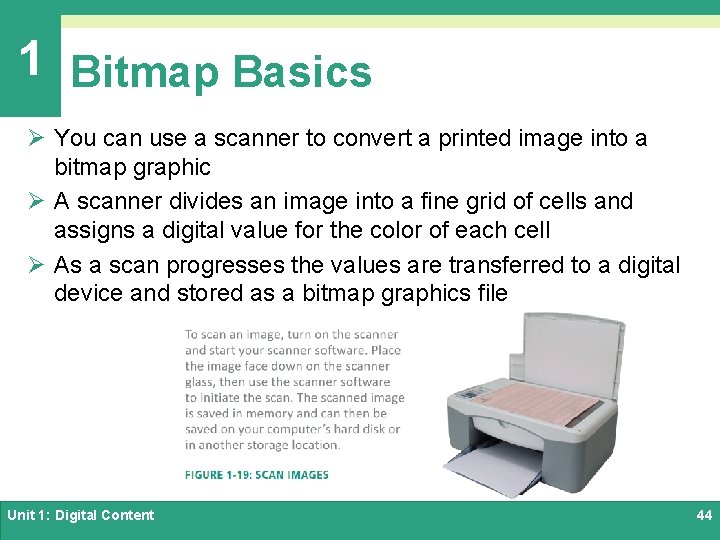
1 Bitmap Basics Ø You can use a scanner to convert a printed image into a bitmap graphic Ø A scanner divides an image into a fine grid of cells and assigns a digital value for the color of each cell Ø As a scan progresses the values are transferred to a digital device and stored as a bitmap graphics file Unit 1: Digital Content 44
1 Bitmap Basics Ø In a digital camera, the lens focuses light from the image onto a small image sensor called a CCD (charge-coupled device) Ø A CCD contains a grid of tiny light sensitive diodes called photosites Ø Photosites correspond to pixels; the more pixels used to capture an image, the higher its resolution Ø Cameras, scanners, and graphics software offer a choice of bitmap formats, such as BMP, RAW, TIFF, JPEG, GIF, and PNG Unit 1: Digital Content 45
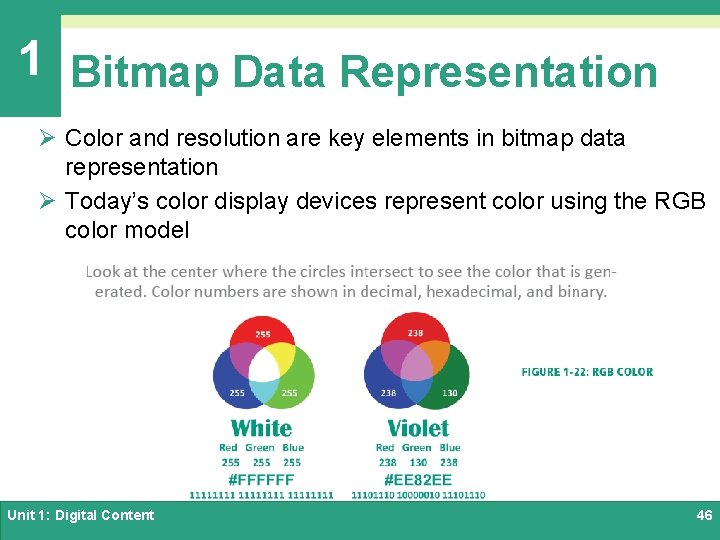
1 Bitmap Data Representation Ø Color and resolution are key elements in bitmap data representation Ø Today’s color display devices represent color using the RGB color model Unit 1: Digital Content 46
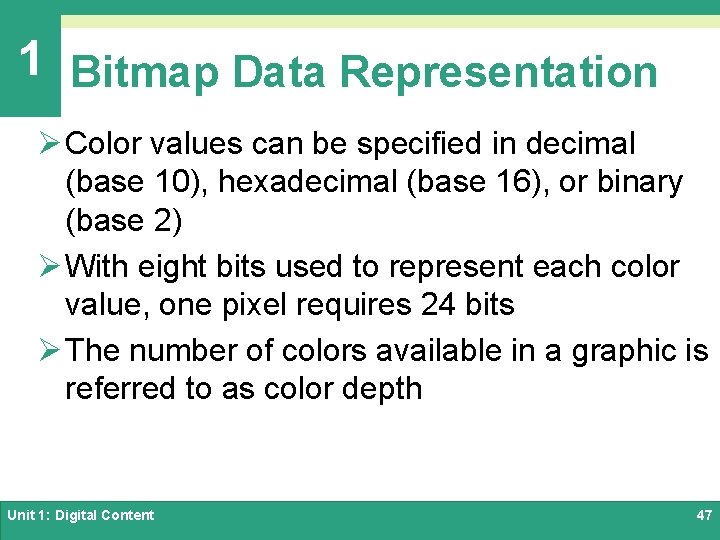
1 Bitmap Data Representation Ø Color values can be specified in decimal (base 10), hexadecimal (base 16), or binary (base 2) Ø With eight bits used to represent each color value, one pixel requires 24 bits Ø The number of colors available in a graphic is referred to as color depth Unit 1: Digital Content 47
1 Bitmap Resolution Ø The dimensions of the grid that forms a bitmap graphic are referred to as image resolution Ø High-resolution graphics contain more data than low-resolution graphics; more data makes it possible to display and print highquality images that are sharper and clearer Unit 1: Digital Content 48
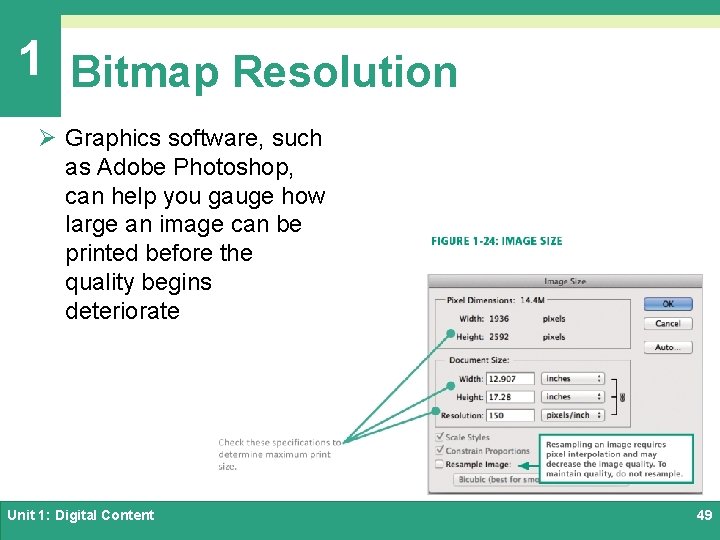
1 Bitmap Resolution Ø Graphics software, such as Adobe Photoshop, can help you gauge how large an image can be printed before the quality begins deteriorate Unit 1: Digital Content 49
1 Image Compression Ø Image compression refers to any technique that recodes the data in an image file so that it contains fewer bits Ø Run-length encoding (RLE) is a type of lossless compression that replaces a series of similarly colored pixels with a binary code that indicates the number of pixels and their colors Unit 1: Digital Content 50
1 Image Compression Ø Lossy compression techniques discard some data from an image to shrink its file size Ø For many images, lossy compression results in only a minor reduction in the sharpness of the images Unit 1: Digital Content 51
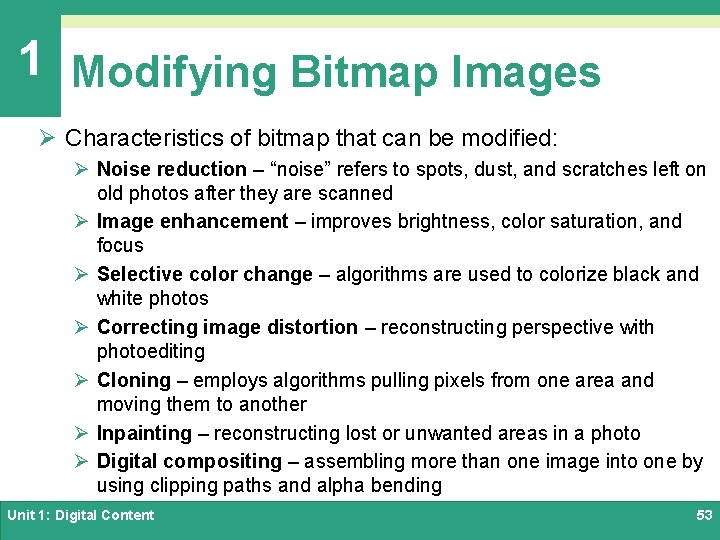
1 Modifying Bitmap Images Ø Photoshop software and a host of local and online apps make it easy to modify digital images Ø Photoediting software includes sophisticated tools based on graphics algorithms that produce amazing transformations of digital images Unit 1: Digital Content 52
1 Modifying Bitmap Images Ø Characteristics of bitmap that can be modified: Ø Noise reduction – “noise” refers to spots, dust, and scratches left on old photos after they are scanned Ø Image enhancement – improves brightness, color saturation, and focus Ø Selective color change – algorithms are used to colorize black and white photos Ø Correcting image distortion – reconstructing perspective with photoediting Ø Cloning – employs algorithms pulling pixels from one area and moving them to another Ø Inpainting – reconstructing lost or unwanted areas in a photo Ø Digital compositing – assembling more than one image into one by using clipping paths and alpha bending Unit 1: Digital Content 53
1 Section D: Vector Graphics Ø Vector Graphics Basics Ø Vector Tools Ø 3 -D Graphics Unit 1: Digital Content 54
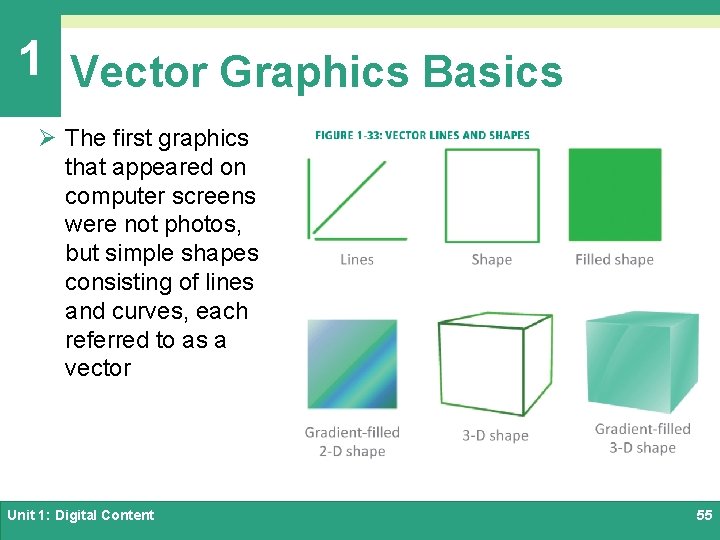
1 Vector Graphics Basics Ø The first graphics that appeared on computer screens were not photos, but simple shapes consisting of lines and curves, each referred to as a vector Unit 1: Digital Content 55
1 Vector Graphics Basics Ø A vector graphic consists of a set of instructions for creating a picture Ø Vector graphics include standard shapes such as circles and rectangles Unit 1: Digital Content 56
1 Vector Graphics Basics Ø Vector Graphics vs. Bitmap Graphics ØResize better than bitmaps ØRequire less storage space ØNot as realistic as bitmap images ØEditing an object is easier than in bitmap Unit 1: Digital Content 57
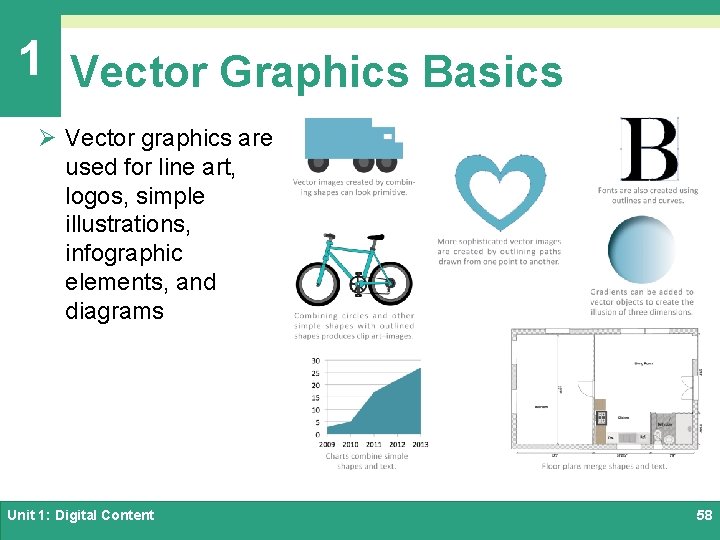
1 Vector Graphics Basics Ø Vector graphics are used for line art, logos, simple illustrations, infographic elements, and diagrams Unit 1: Digital Content 58
1 Vector Tools Ø Vector graphics are created from scratch using drawing software such as: ØAdobe Illustrator ØLibre. Office Draw ØOpen source Inkscape ØVarious vector drawing apps Unit 1: Digital Content 59
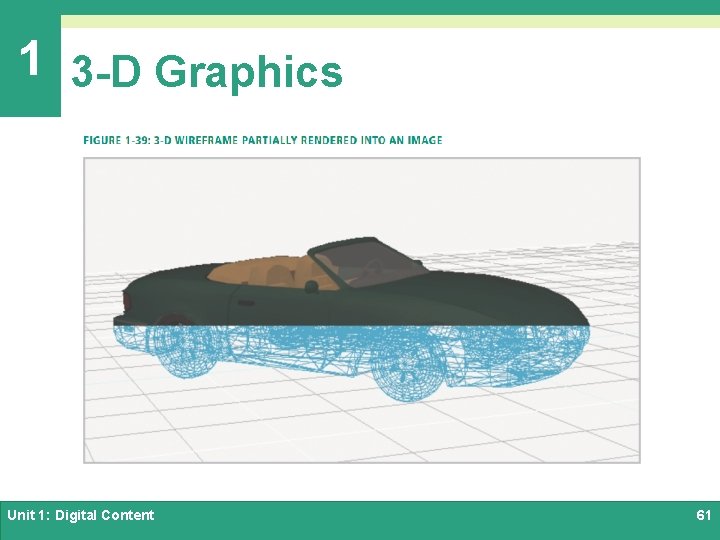
1 3 -D Graphics Ø 3 -D Graphics are based on vectors stored as a set of instructions describing the coordinates for lines and shapes in a three-dimensional space Ø Vectors form a wireframe that works like the framework for a tent Ø The process of covering the wireframe surface with color and texture is called rendering Ø The technique for adding light and shadows to a 3 -D image is called ray tracing Unit 1: Digital Content 60
1 3 -D Graphics Unit 1: Digital Content 61
1 3 -D Graphics Ø 3 -D graphics can be animated to produce special effects for movies or to create interactive, animated characters and environments for 3 -D computer games Ø An enormous amount of processing power is needed to create 3 -D computer animation Ø The classic computer game Doom presented in 24 -bit color requires 34, 560, 000 bits for each frame of animation Unit 1: Digital Content 62
1 Section E: Digital Video Ø Digital Video Basics Ø Video Compression Ø Video File Formats Unit 1: Digital Content 63
1 Digital Video Basics Ø Digital video uses bits to store color and brightness data for each video frame, a process similar to storing the data for a series of bitmap images in which the color of each pixel is represented by a binary number Ø Footage from home movies, VHS tapes, and other older sources can be digitized using video capture equipment Ø You can shoot footage for digital video with: Ø A consumer-quality camcorder Ø A Webcam Ø A Cell phone camera Unit 1: Digital Content 64
1 Digital Video Basics Ø Digital cinematography is used in the motion picture industry; it captures moving images as bits, rather than on film Ø Digital video is a core technology for digital television, videoconferencing systems, and video messaging. Unit 1: Digital Content 65
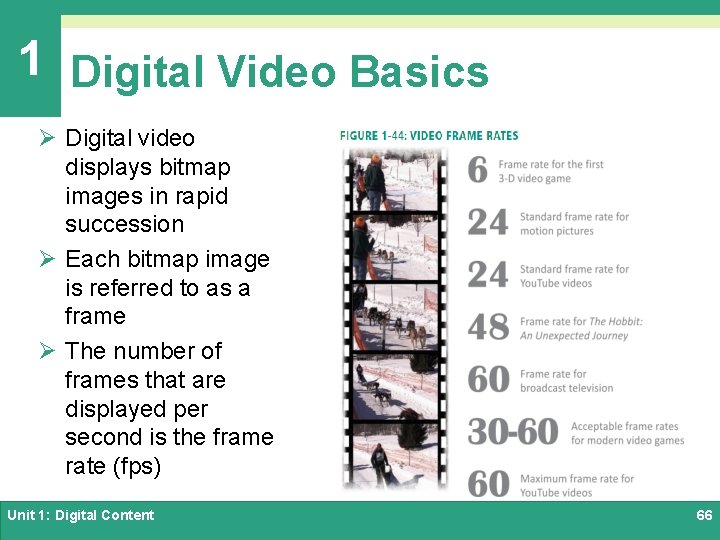
1 Digital Video Basics Ø Digital video displays bitmap images in rapid succession Ø Each bitmap image is referred to as a frame Ø The number of frames that are displayed per second is the frame rate (fps) Unit 1: Digital Content 66
1 Digital Video Basics Ø Video resolutions can be expressed as width x height, as the horizontal resolution, or as the vertical resolution Ø Cameras used for digital cinematography capture video with a resolution of 2040 x 1536 Ø This resolution is referred to as 2 K because the horizontal resolution is about 2, 000 pixels Unit 1: Digital Content 67
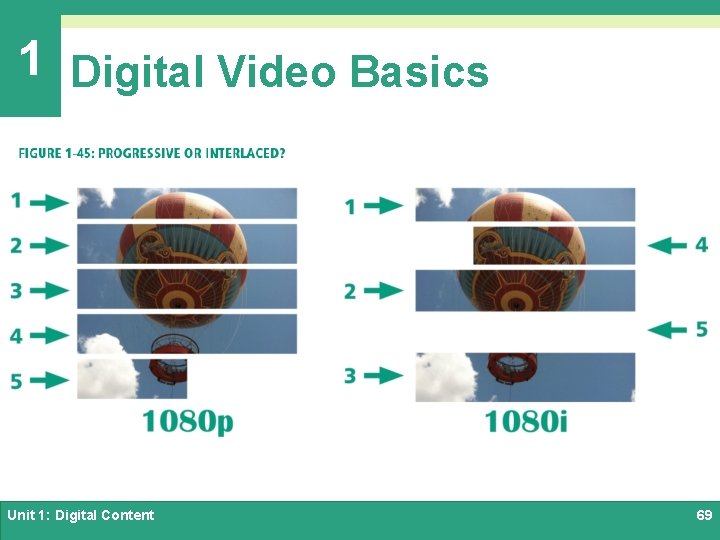
1 Digital Video Basics Ø Vertical resolutions are expressed with a “p” for progressive scan, in which the frame is drawn line by line in sequence from top to bottom Ø An interlaced scan is a contrasting scanning technique that produces an image by drawing every other line, then going back and filling in the inbetween lines Ø Digital video for computers typically uses progressive scanning; digital television uses interlaced scanning Unit 1: Digital Content 68
1 Digital Video Basics Unit 1: Digital Content 69
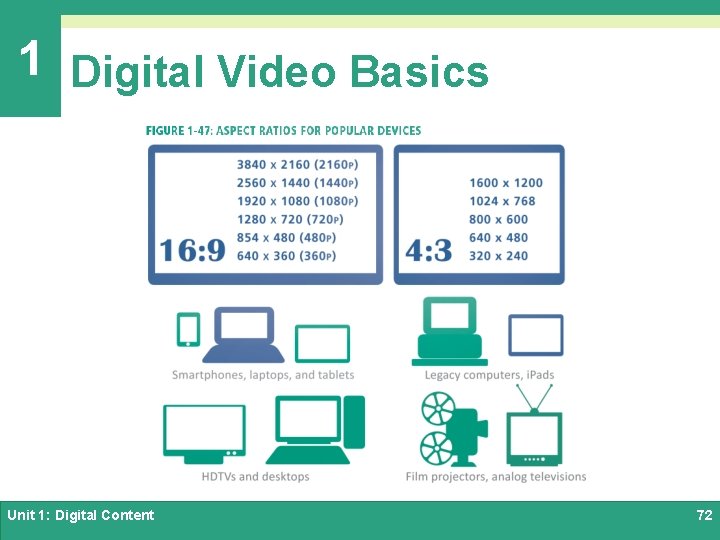
1 Digital Video Basics Ø Aspect ratio is the proportional relation between the width and height of an image or video frame Øi. Pads use a 4: 3 aspect ratio ØWidescreen devices, such as Laptops and Smartphones, use a 16: 9 aspect ratio Unit 1: Digital Content 70
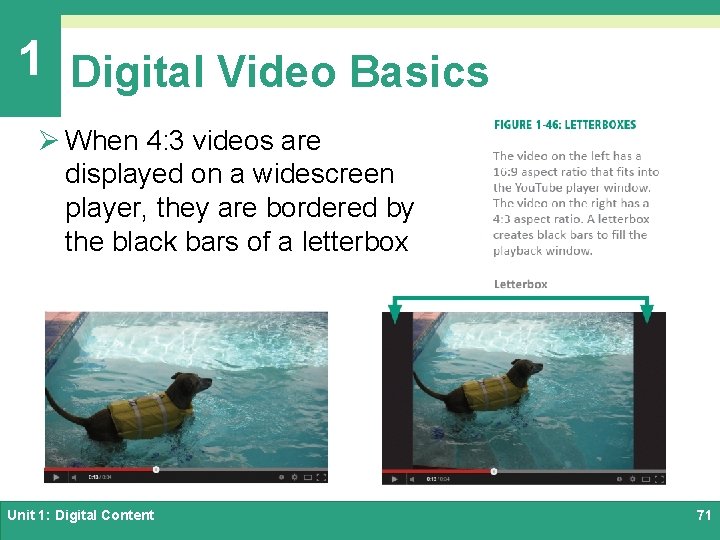
1 Digital Video Basics Ø When 4: 3 videos are displayed on a widescreen player, they are bordered by the black bars of a letterbox Unit 1: Digital Content 71
1 Digital Video Basics Unit 1: Digital Content 72
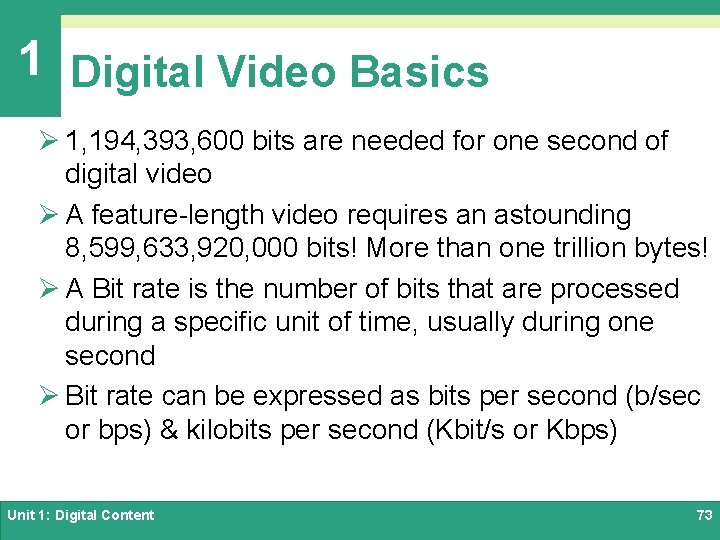
1 Digital Video Basics Ø 1, 194, 393, 600 bits are needed for one second of digital video Ø A feature-length video requires an astounding 8, 599, 633, 920, 000 bits! More than one trillion bytes! Ø A Bit rate is the number of bits that are processed during a specific unit of time, usually during one second Ø Bit rate can be expressed as bits per second (b/sec or bps) & kilobits per second (Kbit/s or Kbps) Unit 1: Digital Content 73
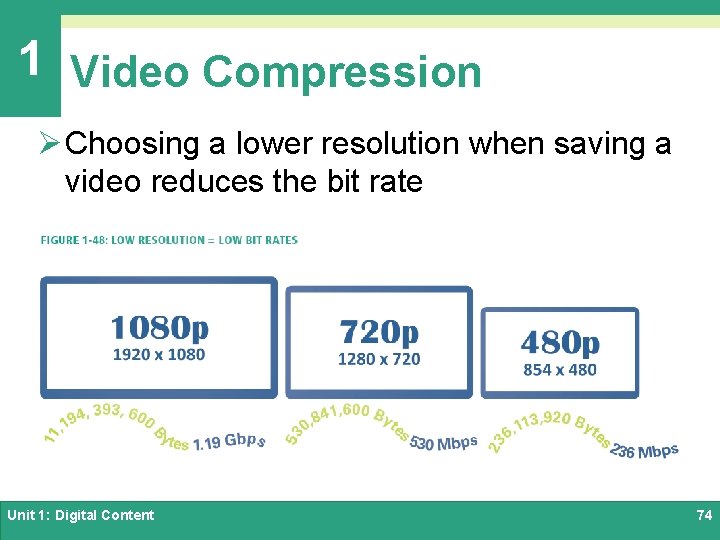
1 Video Compression Ø Choosing a lower resolution when saving a video reduces the bit rate Unit 1: Digital Content 74
1 Video Compression Ø Compression removes some of the data (bits) through the following techniques: Ø Compressor/decompressor software ØImage compression – frames of a video are compressed using lossy and lossless compression ØInterframe compression – stores only the pixels that change color from one frame to the next Unit 1: Digital Content 75
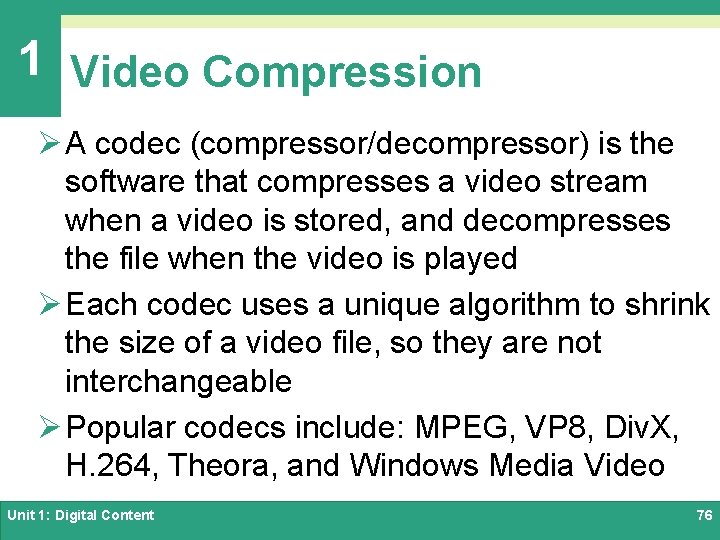
1 Video Compression Ø A codec (compressor/decompressor) is the software that compresses a video stream when a video is stored, and decompresses the file when the video is played Ø Each codec uses a unique algorithm to shrink the size of a video file, so they are not interchangeable Ø Popular codecs include: MPEG, VP 8, Div. X, H. 264, Theora, and Windows Media Video Unit 1: Digital Content 76
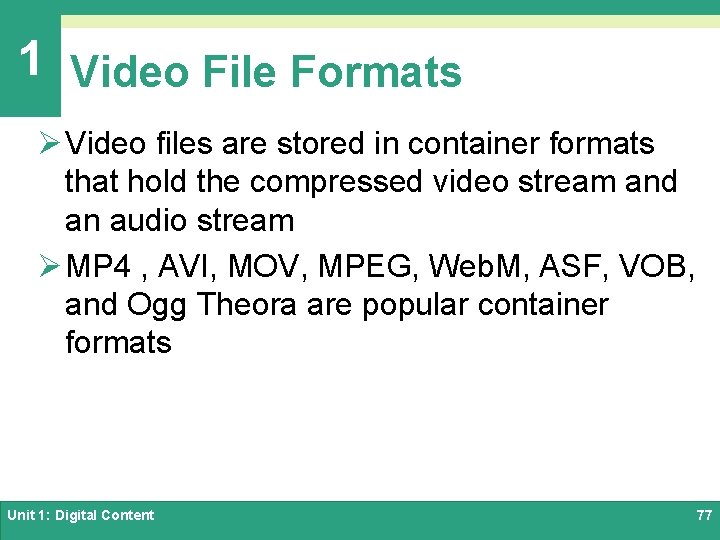
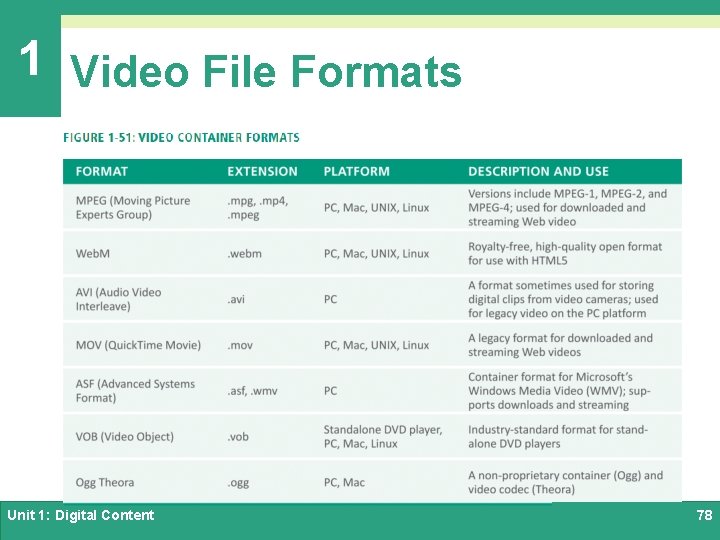
1 Video File Formats Ø Video files are stored in container formats that hold the compressed video stream and an audio stream Ø MP 4 , AVI, MOV, MPEG, Web. M, ASF, VOB, and Ogg Theora are popular container formats Unit 1: Digital Content 77
1 Video File Formats Unit 1: Digital Content 78
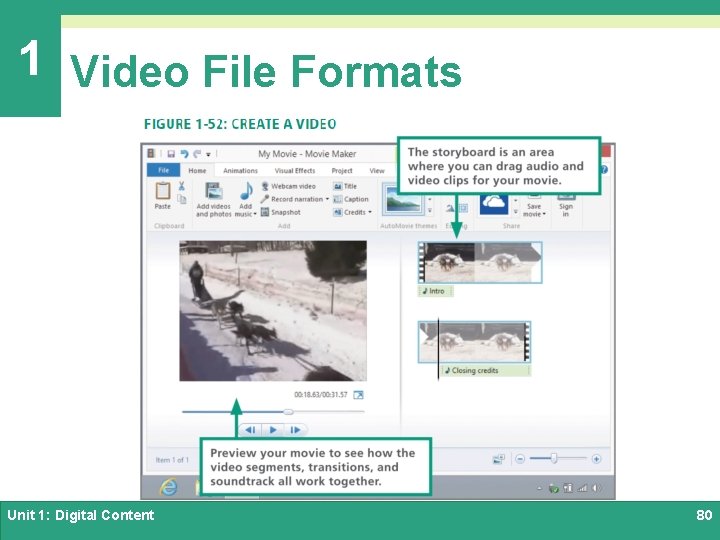
1 Video File Formats Ø Browsers support several video formats and Web developers sometimes have to provide a video in multiple formats Ø Digital videos can be converted from one format to another through a process called transcoding Ø Basic video editing tools are used to arrange video clips, add a soundtrack, insert captions and choose output format Unit 1: Digital Content 79
1 Video File Formats Unit 1: Digital Content 80
Unit 1 Complete Computer Concepts 2016