
CUCM 9 x Licensing Jason Wiatr 7252012 Topics



- Slides: 112
CUCM 9. x Licensing Jason Wiatr 7/25/2012
Topics • Centralized Licensing Overview • User Count Tool (UCT) • Enterprise License Manager (ELM)
Centralized Licensing Overview EDCS-1129928
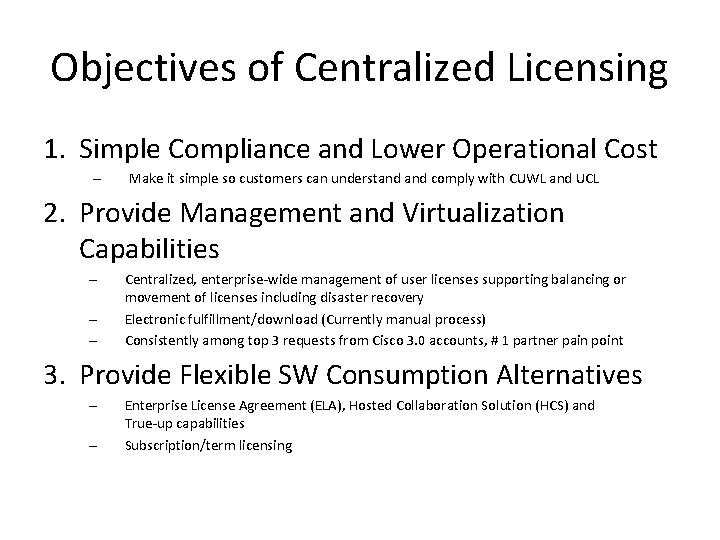
Objectives of Centralized Licensing 1. Simple Compliance and Lower Operational Cost – Make it simple so customers can understand comply with CUWL and UCL 2. Provide Management and Virtualization Capabilities – – – Centralized, enterprise-wide management of user licenses supporting balancing or movement of licenses including disaster recovery Electronic fulfillment/download (Currently manual process) Consistently among top 3 requests from Cisco 3. 0 accounts, # 1 partner pain point 3. Provide Flexible SW Consumption Alternatives – – Enterprise License Agreement (ELA), Hosted Collaboration Solution (HCS) and True-up capabilities Subscription/term licensing
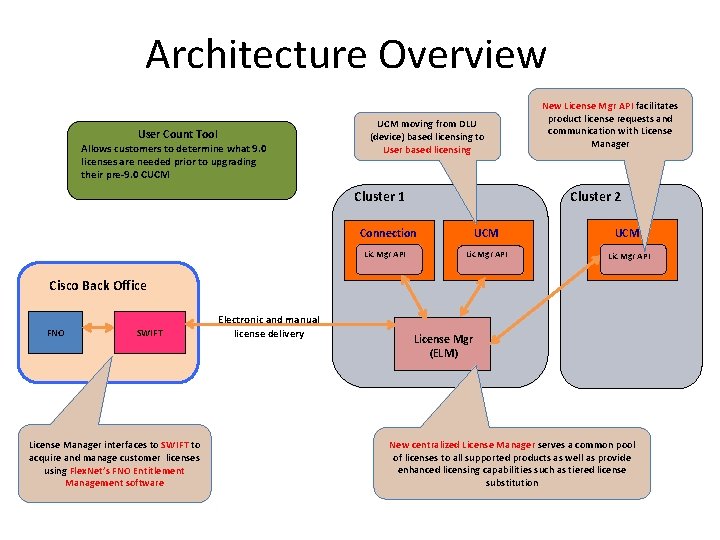
Architecture Overview User Count Tool Allows customers to determine what 9. 0 licenses are needed prior to upgrading their pre-9. 0 CUCM moving from DLU (device) based licensing to User based licensing Cluster 1 Cluster 2 Connection Lic Mgr API New License Mgr API facilitates product license requests and communication with License Manager UCM Lic Mgr API Cisco Back Office FNO SWIFT License Manager interfaces to SWIFT to acquire and manage customer licenses using Flex. Net’s FNO Entitlement Management software Electronic and manual license delivery License Mgr (ELM) New centralized License Manager serves a common pool of licenses to all supported products as well as provide enhanced licensing capabilities such as tiered license substitution
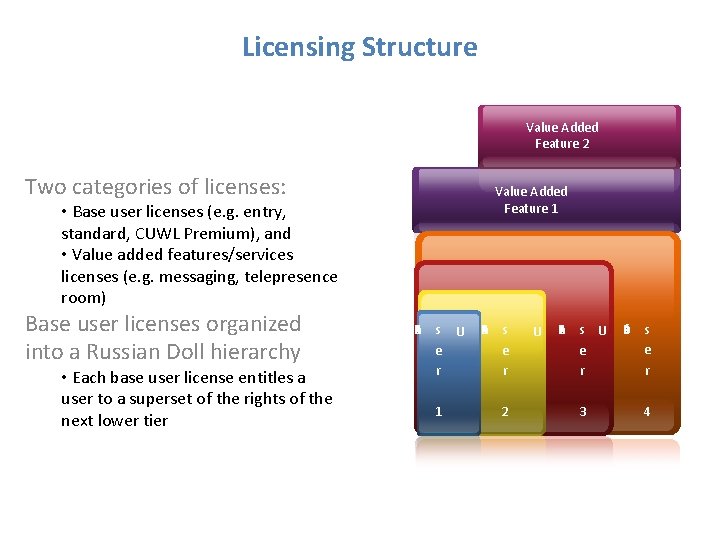
Licensing Structure Value Added Feature 2 Two categories of licenses: Value Added Feature 1 • Base user licenses (e. g. entry, standard, CUWL Premium), and • Value added features/services licenses (e. g. messaging, telepresence room) Base user licenses organized into a Russian Doll hierarchy • Each base user license entitles a user to a superset of the rights of the next lower tier U eas s B e r 1 U eas s B e r 2 U eas s U B e r 3 eas s B e r 4
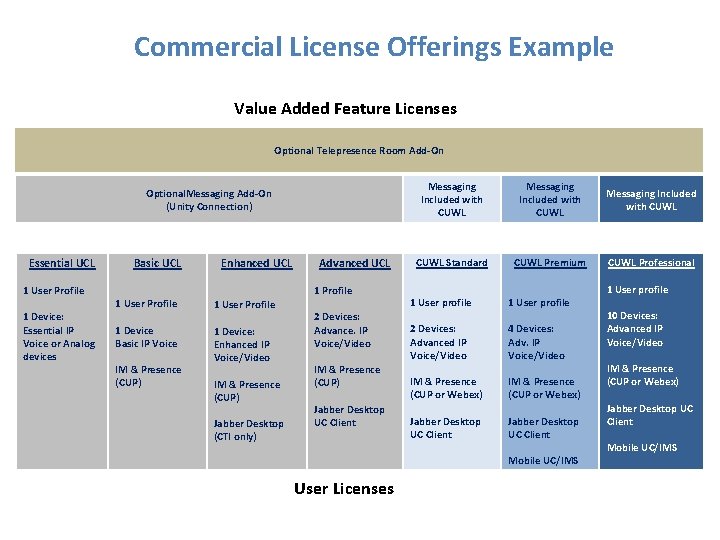
Commercial License Offerings Example Value Added Feature Licenses Optional Telepresence Room Add-On Optional. Messaging Add-On (Unity Connection) Essential UCL 1 User Profile 1 Device: Essential IP Voice or Analog devices Basic UCL Enhanced UCL 1 Profile 1 User Profile 1 Device Basic IP Voice 1 Device: Enhanced IP Voice/Video IM & Presence (CUP) Advanced UCL IM & Presence (CUP) Jabber Desktop (CTI only) 2 Devices: Advance. IP Voice/Video IM & Presence (CUP) Jabber Desktop UC Client Messaging Included with CUWL Standard CUWL Premium CUWL Professional 1 User profile 2 Devices: Advanced IP Voice/Video 4 Devices: Adv. IP Voice/Video IM & Presence (CUP or Webex) Jabber Desktop UC Client Mobile UC/IMS User Licenses 1 User profile 10 Devices: Advanced IP Voice/Video IM & Presence (CUP or Webex) Jabber Desktop UC Client Mobile UC/IMS
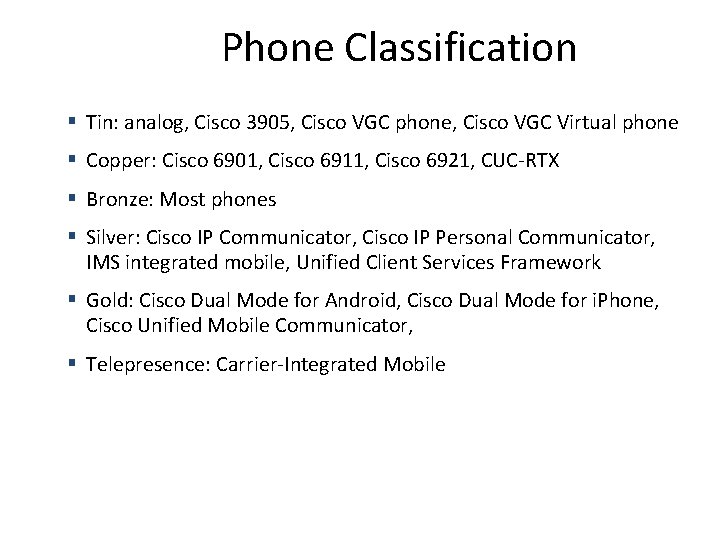
Phone Classification § Tin: analog, Cisco 3905, Cisco VGC phone, Cisco VGC Virtual phone § Copper: Cisco 6901, Cisco 6911, Cisco 6921, CUC-RTX § Bronze: Most phones § Silver: Cisco IP Communicator, Cisco IP Personal Communicator, IMS integrated mobile, Unified Client Services Framework § Gold: Cisco Dual Mode for Android, Cisco Dual Mode for i. Phone, Cisco Unified Mobile Communicator, § Telepresence: Carrier-Integrated Mobile
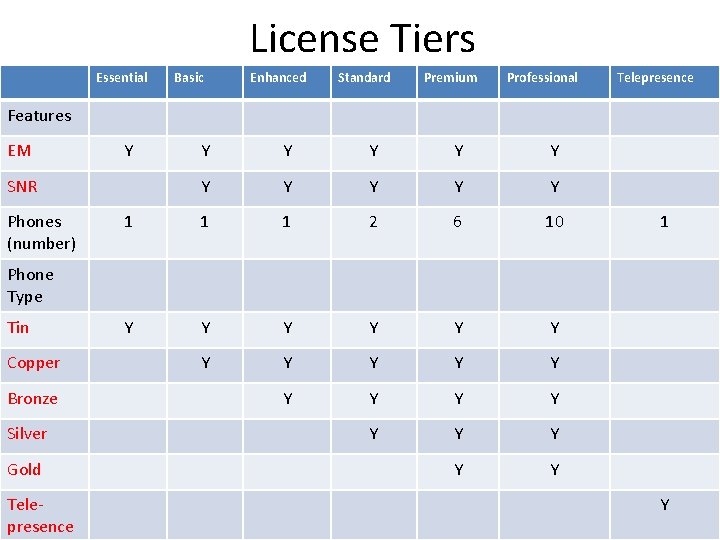
License Tiers Essential Basic Enhanced Standard Premium Professional Telepresence Features EM Y Y Y 1 1 1 2 6 10 Y Y Y Y Y SNR Phones (number) 1 Phone Type Tin Copper Bronze Silver Gold Telepresence Y
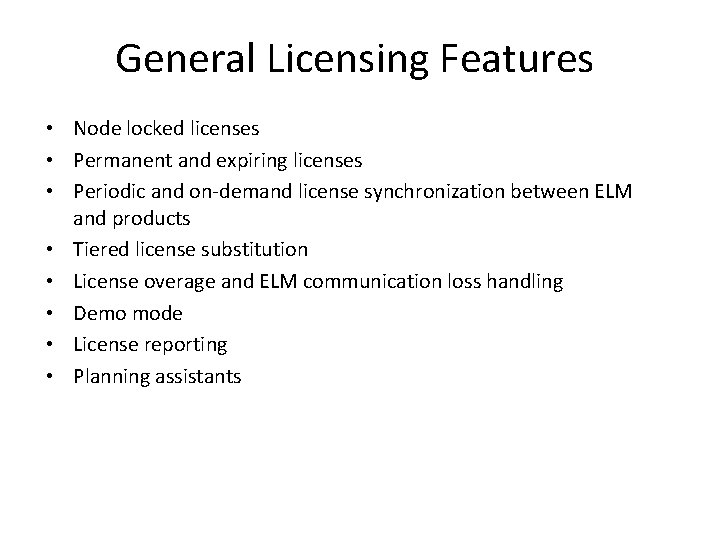
General Licensing Features • Node locked licenses • Permanent and expiring licenses • Periodic and on-demand license synchronization between ELM and products • Tiered license substitution • License overage and ELM communication loss handling • Demo mode • License reporting • Planning assistants
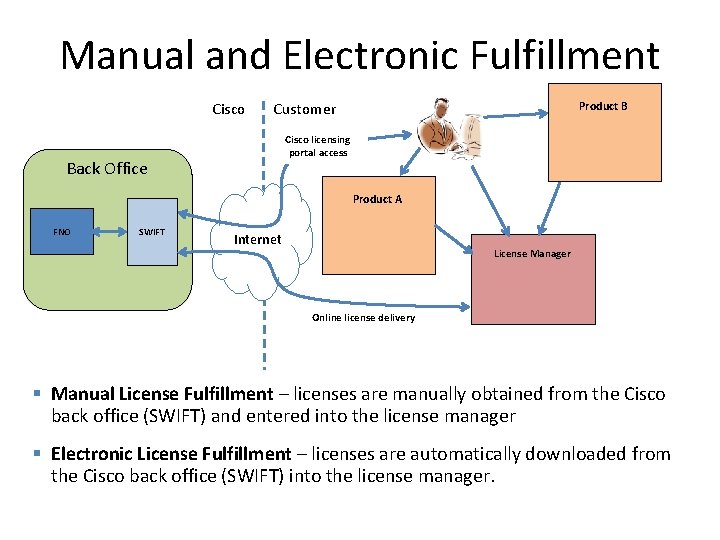
Manual and Electronic Fulfillment Cisco Customer Product B Cisco licensing portal access Back Office Product A FNO SWIFT Internet License Manager Online license delivery § Manual License Fulfillment – licenses are manually obtained from the Cisco back office (SWIFT) and entered into the license manager § Electronic License Fulfillment – licenses are automatically downloaded from the Cisco back office (SWIFT) into the license manager.
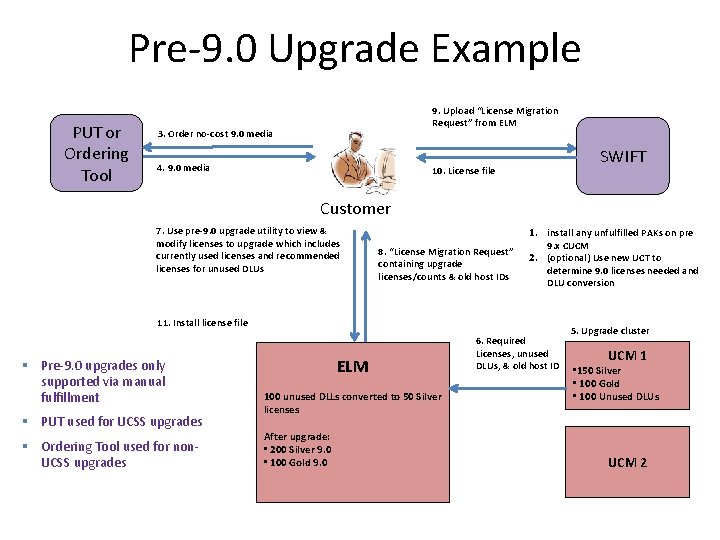
Pre-9. 0 Upgrade Example PUT or Ordering Tool 9. Upload “License Migration Request” from ELM 3. Order no-cost 9. 0 media 4. 9. 0 media SWIFT 10. License file Customer 7. Use pre-9. 0 upgrade utility to view & modify licenses to upgrade which includes currently used licenses and recommended licenses for unused DLUs 8. “License Migration Request” containing upgrade licenses/counts & old host IDs 1. install any unfulfilled PAKs on pre 9. x CUCM 2. (optional) Use new UCT to determine 9. 0 licenses needed and DLU conversion 11. Install license file § Pre-9. 0 upgrades only supported via manual fulfillment § PUT used for UCSS upgrades § Ordering Tool used for non. UCSS upgrades ELM 100 unused DLLs converted to 50 Silver licenses After upgrade: • 200 Silver 9. 0 • 100 Gold 9. 0 6. Required Licenses, unused DLUs, & old host ID 5. Upgrade cluster UCM 1 • 150 Silver • 100 Gold • 100 Unused DLUs UCM 2
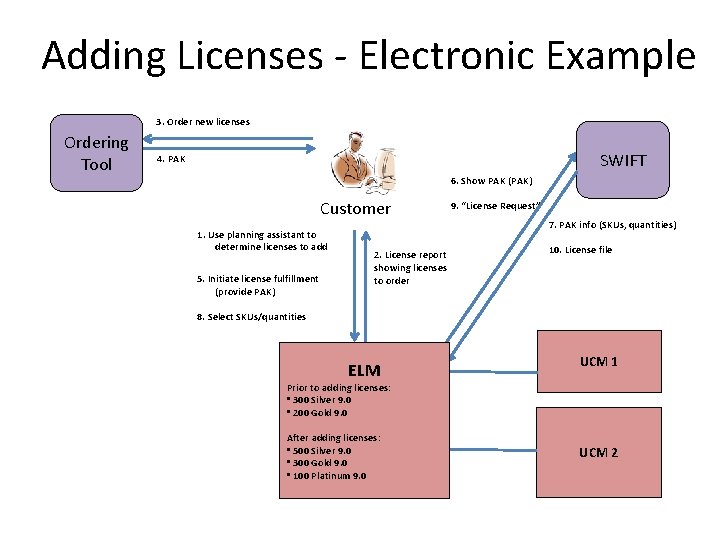
Adding Licenses - Electronic Example 3. Order new licenses Ordering Tool SWIFT 4. PAK 6. Show PAK (PAK) Customer 1. Use planning assistant to determine licenses to add 5. Initiate license fulfillment (provide PAK) 2. License report showing licenses to order 9. “License Request” 7. PAK info (SKUs, quantities) 10. License file 8. Select SKUs/quantities ELM UCM 1 Prior to adding licenses: • 300 Silver 9. 0 • 200 Gold 9. 0 After adding licenses: • 500 Silver 9. 0 • 300 Gold 9. 0 • 100 Platinum 9. 0 UCM 2
User Count Tool (UCT)Licensing EDCS-1124741
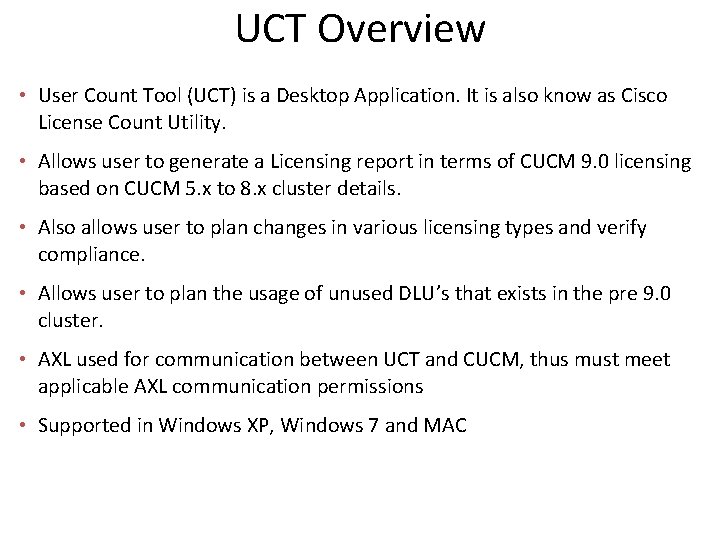
UCT Overview • User Count Tool (UCT) is a Desktop Application. It is also know as Cisco License Count Utility. • Allows user to generate a Licensing report in terms of CUCM 9. 0 licensing based on CUCM 5. x to 8. x cluster details. • Also allows user to plan changes in various licensing types and verify compliance. • Allows user to plan the usage of unused DLU’s that exists in the pre 9. 0 cluster. • AXL used for communication between UCT and CUCM, thus must meet applicable AXL communication permissions • Supported in Windows XP, Windows 7 and MAC
Download/ Install/ Start Up /Start Over
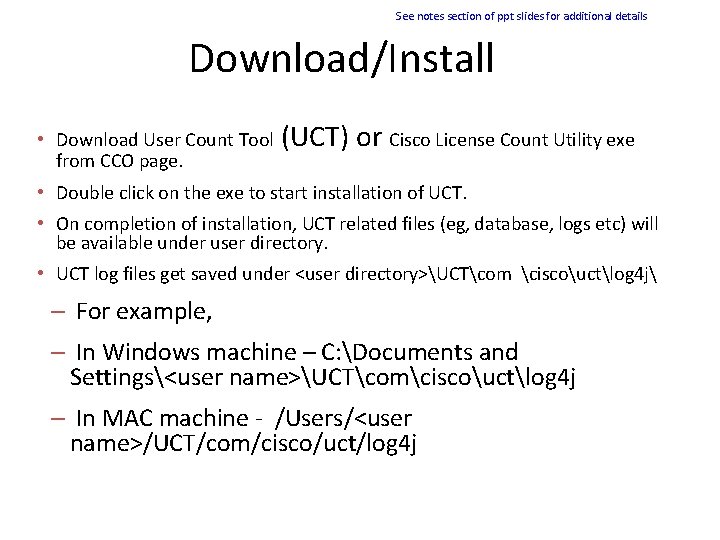
See notes section of ppt slides for additional details Download/Install • Download User Count Tool (UCT) or Cisco License Count Utility exe from CCO page. • Double click on the exe to start installation of UCT. • On completion of installation, UCT related files (eg, database, logs etc) will be available under user directory. • UCT log files get saved under <user directory>UCTcom ciscouctlog 4 j – For example, – In Windows machine – C: Documents and Settings<user name>UCTcomciscouctlog 4 j – In MAC machine - /Users/<user name>/UCT/com/cisco/uct/log 4 j
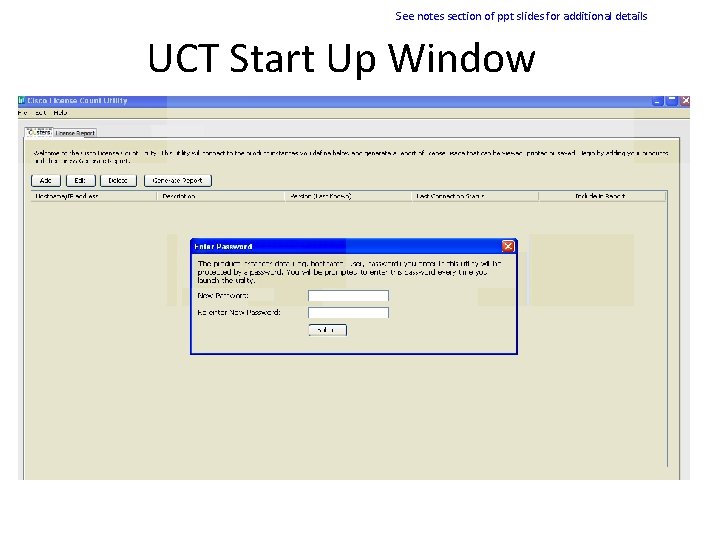
See notes section of ppt slides for additional details UCT Start Up Window
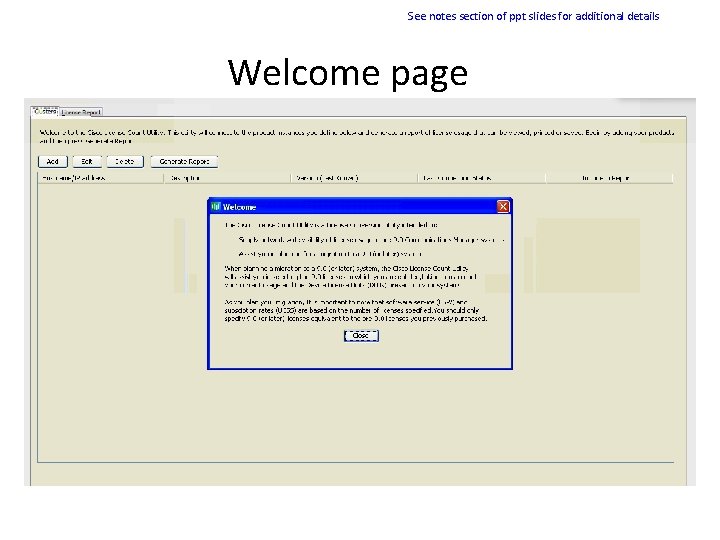
See notes section of ppt slides for additional details Welcome page
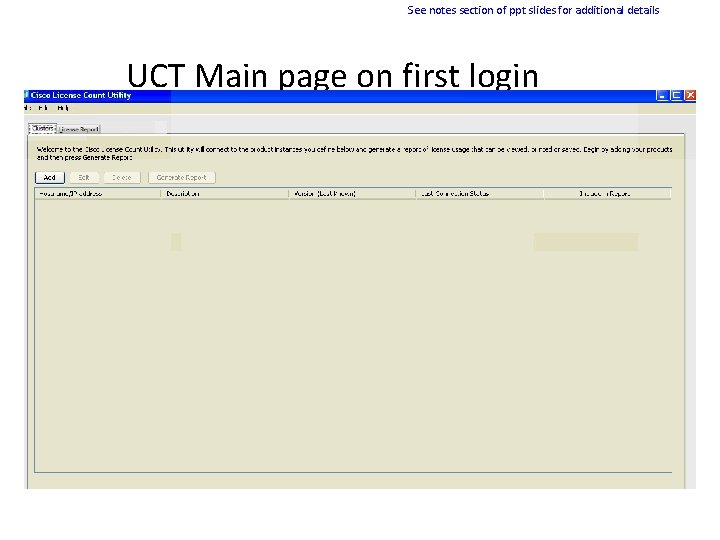
See notes section of ppt slides for additional details UCT Main page on first login
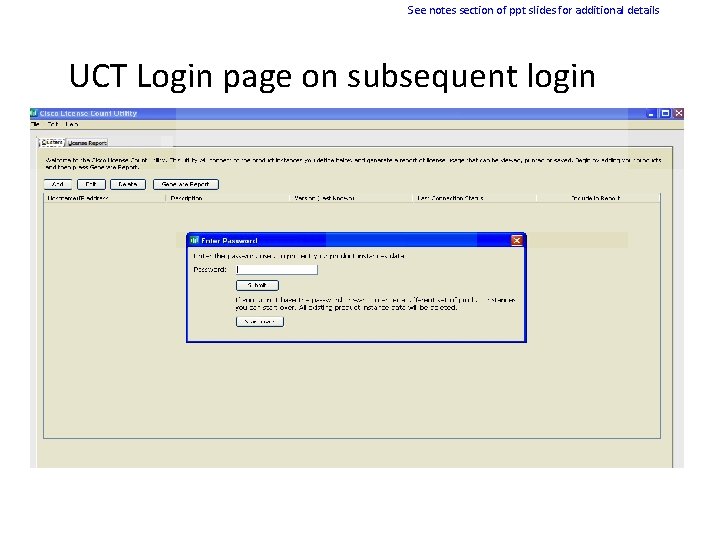
See notes section of ppt slides for additional details UCT Login page on subsequent login
Add/Edit/Delete Product Instances
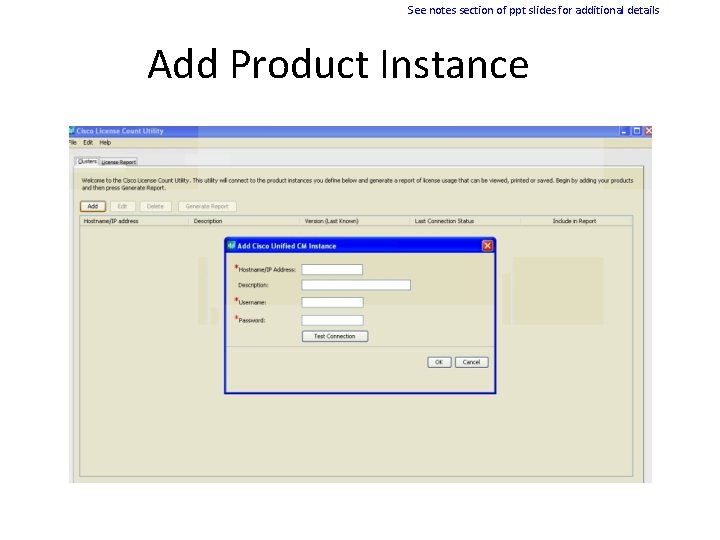
See notes section of ppt slides for additional details Add Product Instance
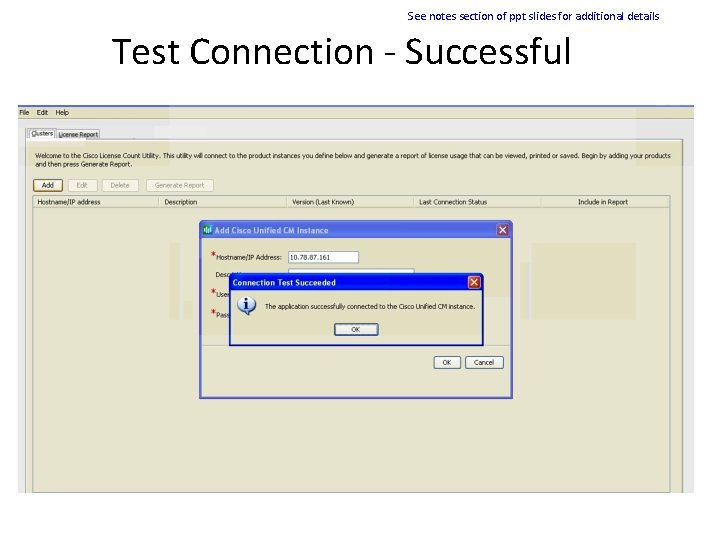
See notes section of ppt slides for additional details Test Connection - Successful
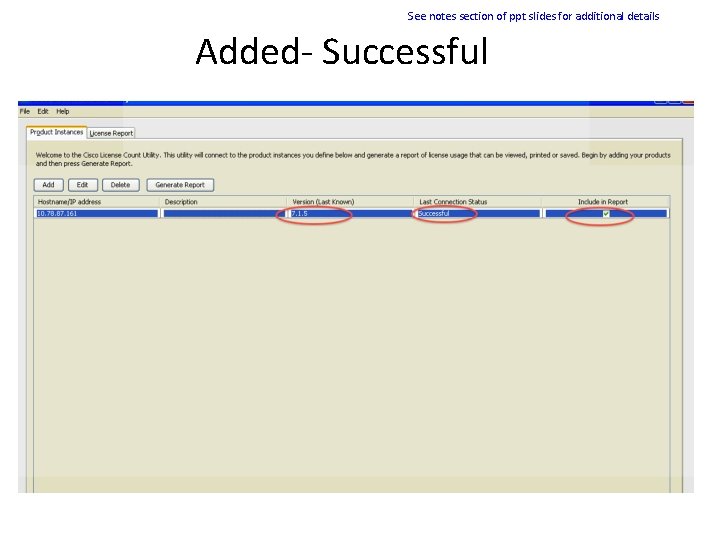
See notes section of ppt slides for additional details Added- Successful
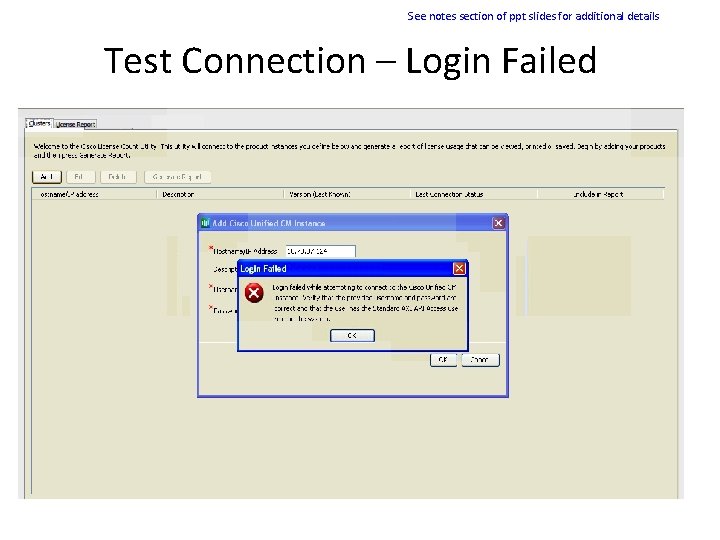
See notes section of ppt slides for additional details Test Connection – Login Failed
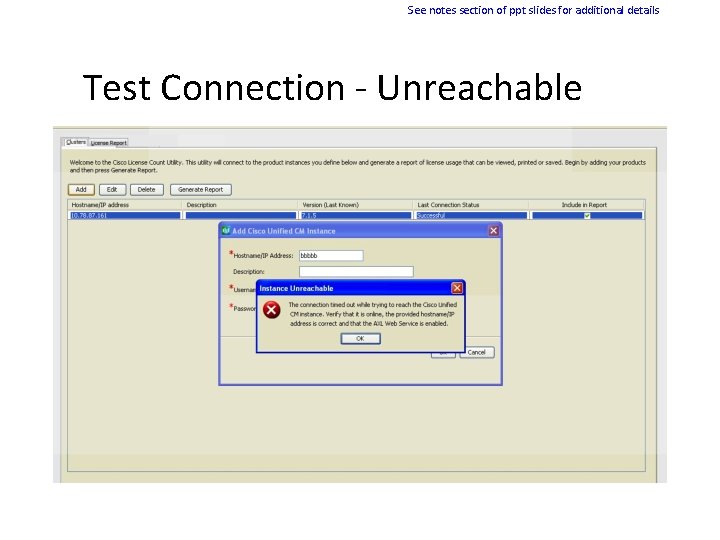
See notes section of ppt slides for additional details Test Connection - Unreachable
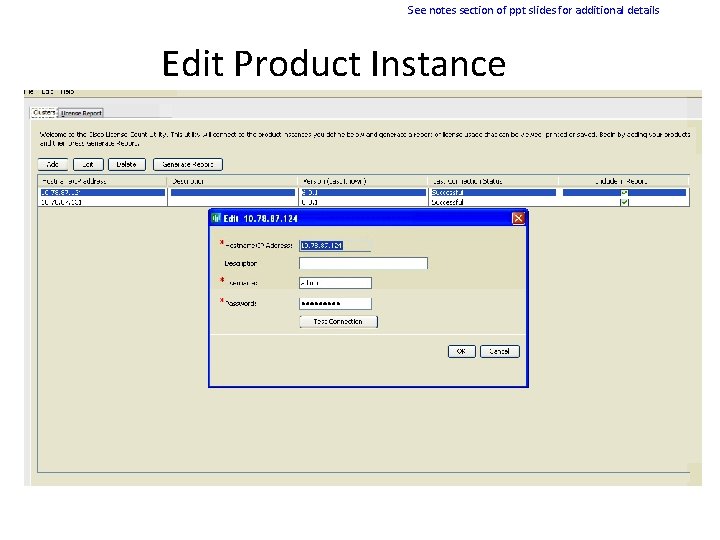
See notes section of ppt slides for additional details Edit Product Instance
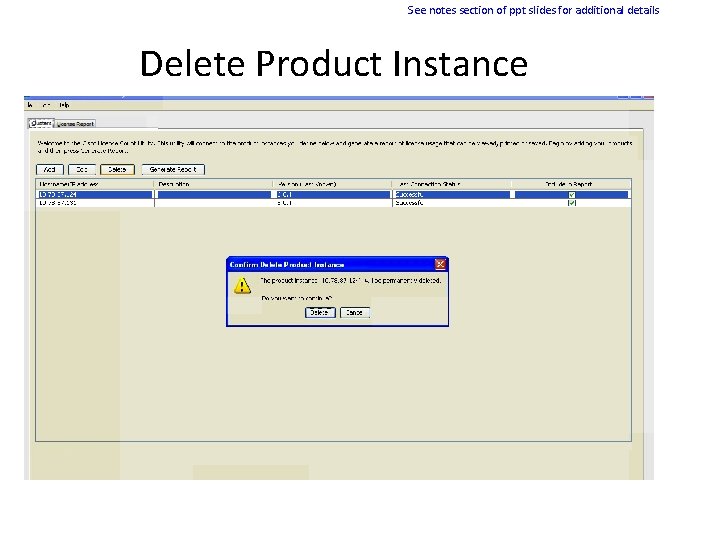
See notes section of ppt slides for additional details Delete Product Instance
Generate Report
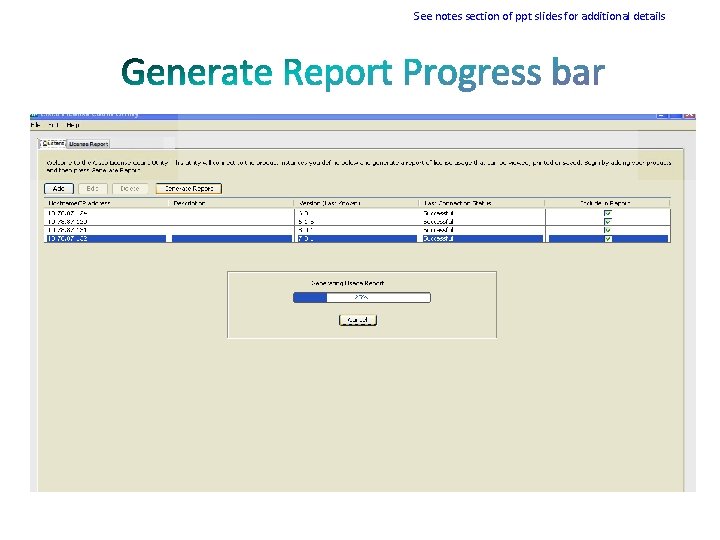
See notes section of ppt slides for additional details
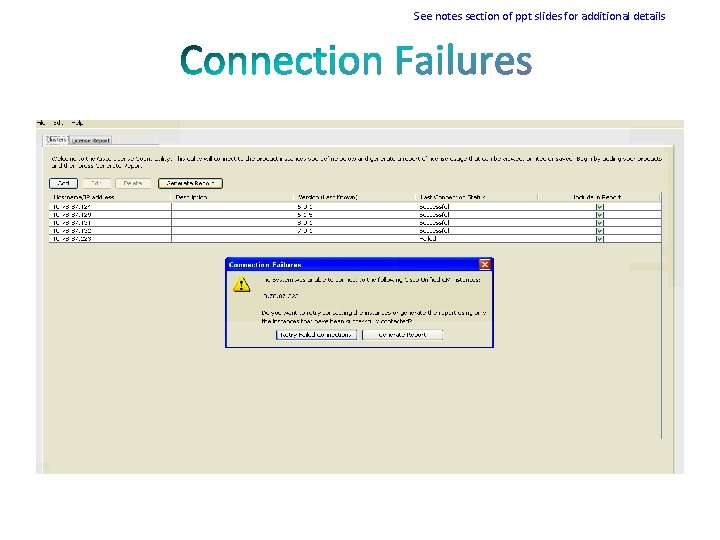
See notes section of ppt slides for additional details
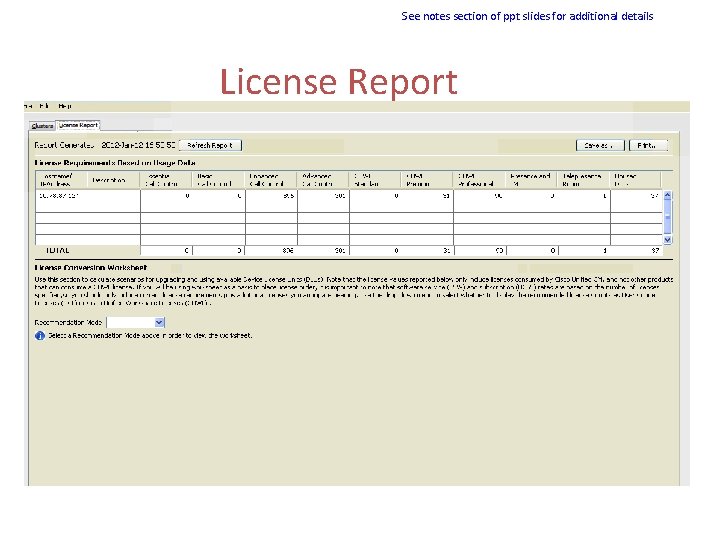
See notes section of ppt slides for additional details License Report
Recommendation Mode
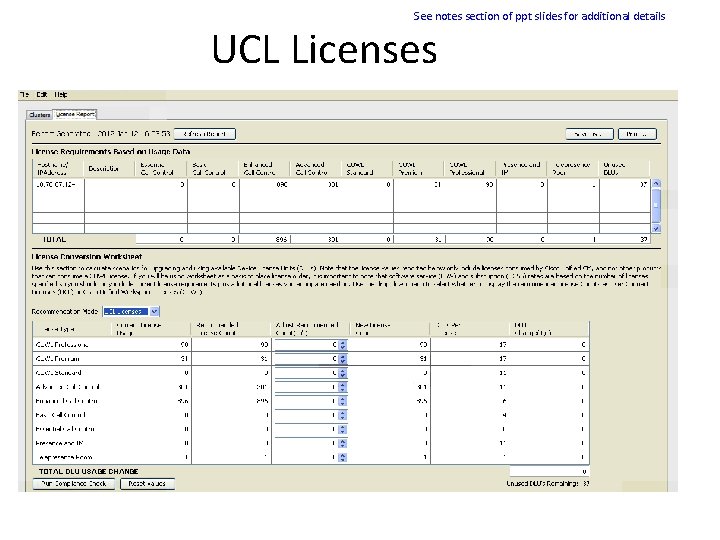
See notes section of ppt slides for additional details UCL Licenses
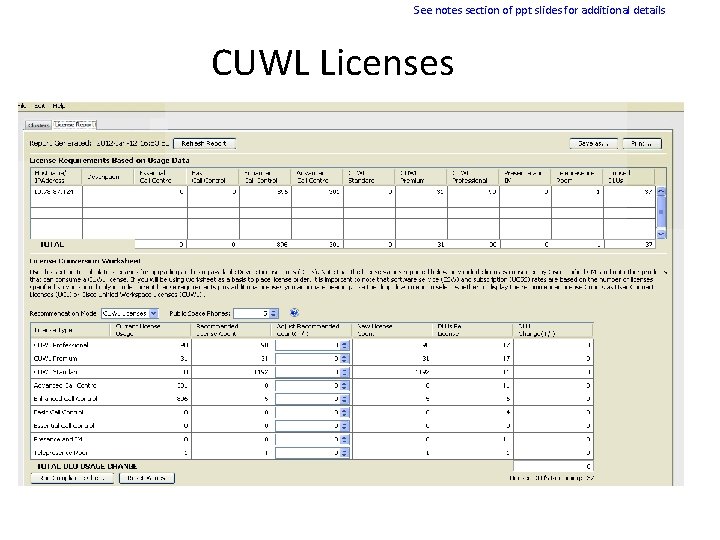
See notes section of ppt slides for additional details CUWL Licenses
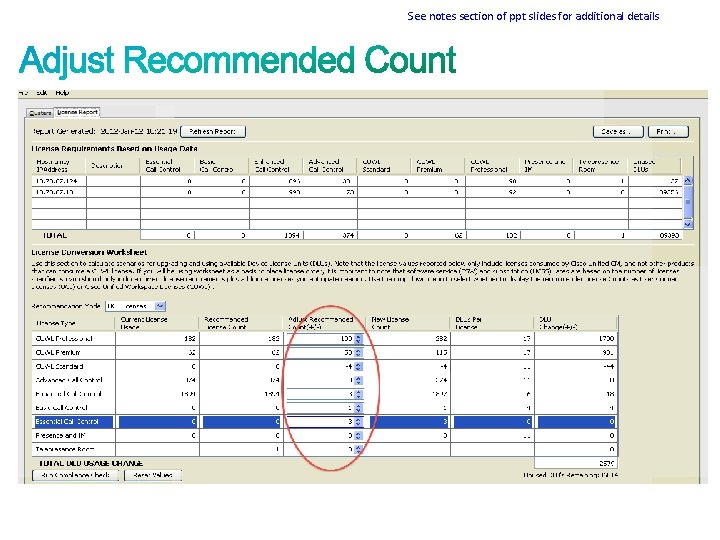
Modify License Conversion Worksheet
See notes section of ppt slides for additional details
Run Compliance Check
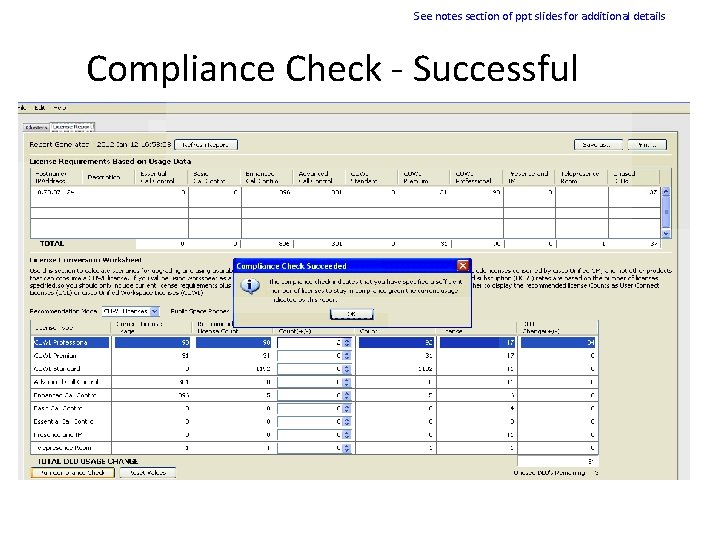
See notes section of ppt slides for additional details Compliance Check - Successful
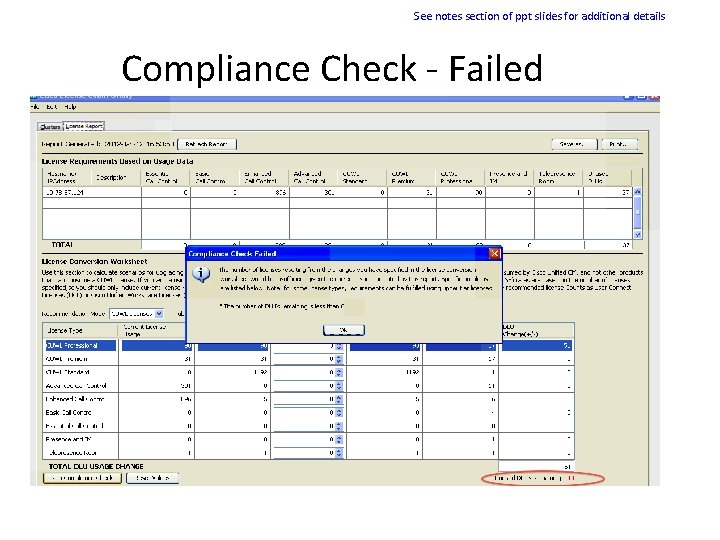
See notes section of ppt slides for additional details Compliance Check - Failed
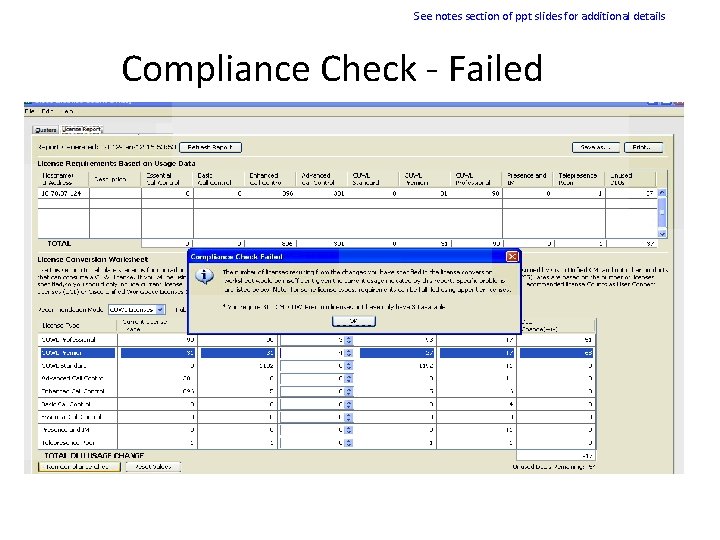
See notes section of ppt slides for additional details Compliance Check - Failed
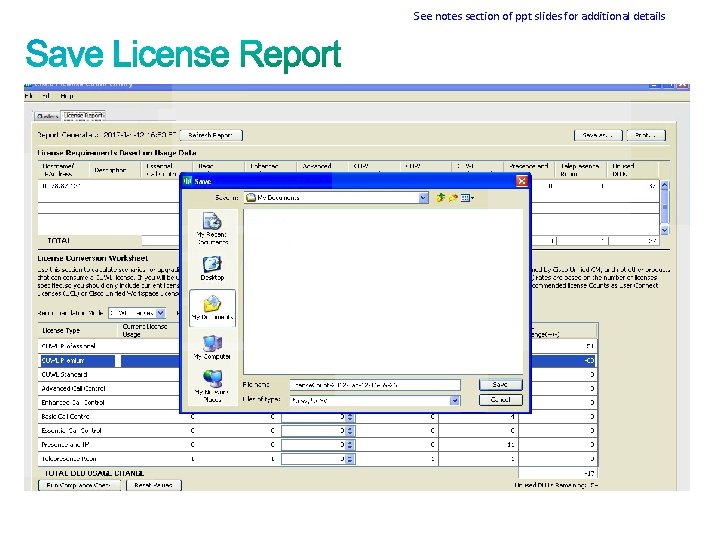
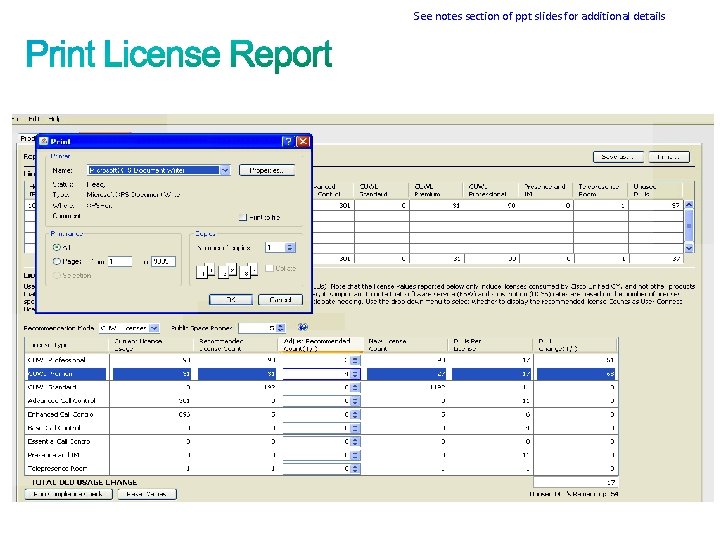
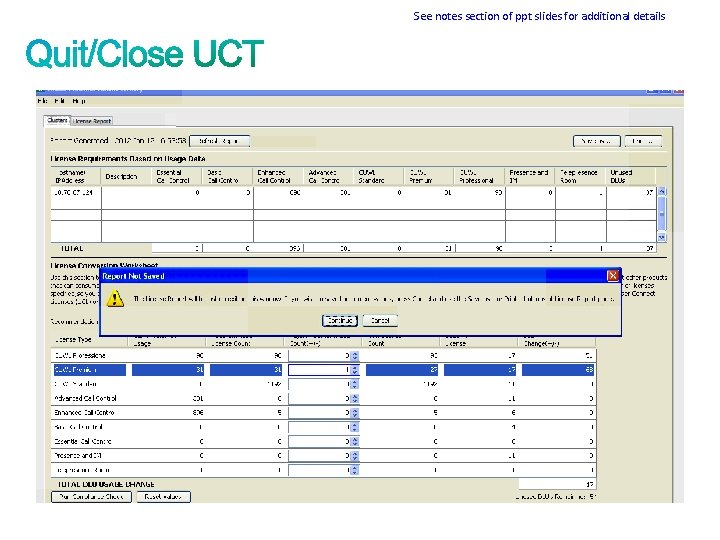
Refresh/Save/Print report
See notes section of ppt slides for additional details
See notes section of ppt slides for additional details
See notes section of ppt slides for additional details
See notes section of ppt slides for additional details
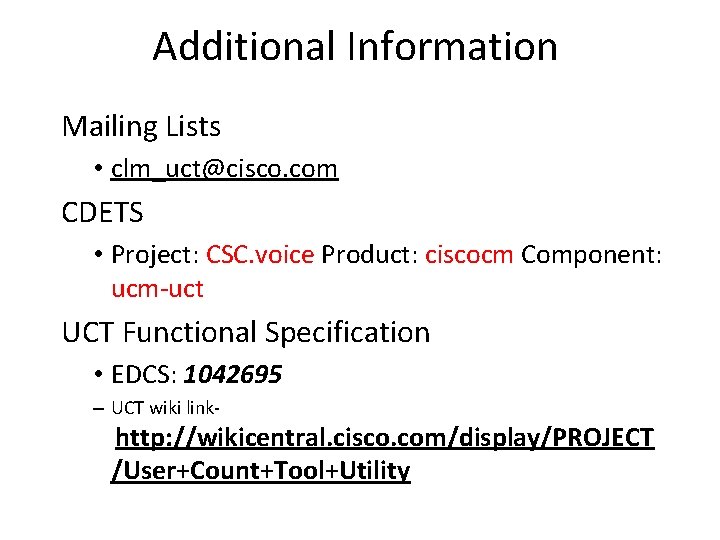
Additional Information Mailing Lists • clm_uct@cisco. com CDETS • Project: CSC. voice Product: ciscocm Component: ucm-uct UCT Functional Specification • EDCS: 1042695 – UCT wiki link- http: //wikicentral. cisco. com/display/PROJECT /User+Count+Tool+Utility
Enterprise License Manager (ELM) EDCS-1127367
• New product - feature introduced in Kirra. • Licenses are now managed by an Enterprise License Manager (ELM) • ELM can run on a separate server or co-resident with product • ELM stores all the licenses the enterprise/SP purchased for the UC solution. • ELM tracks the "feature usage" of each product registered for license management and then evaluates the overall license status of the features under use. • Based on the feature usage evaluation and the availability of licenses for the features, each product is notified of its license status i. e. , whether or not the product is in compliance. • UC products (UCM, UC, BE 5 K, BE 6 K) will be supported in 9. 0 as well CUP via UCM and HCS.
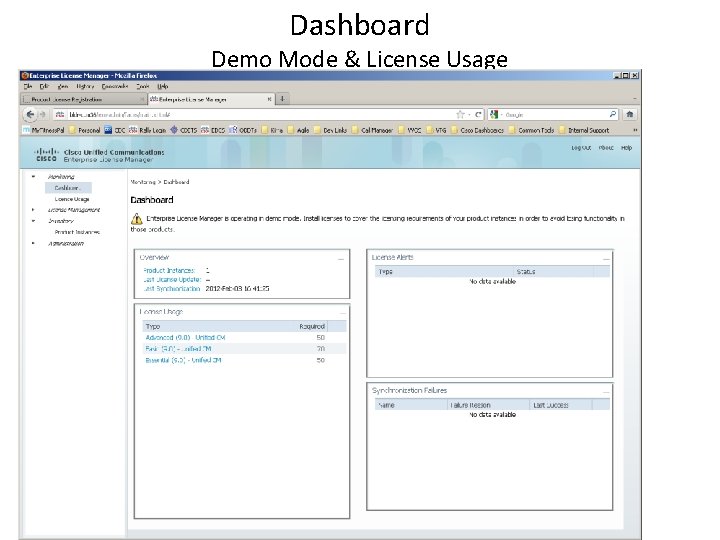
• Products will initially run in demo mode until ELM is configured to manage product and a license file is loaded. • Once a product is associated with an ELM, license usage will be reported to the ELM. The ELM will reconcile usage against license availability and report licensing status (compliance or non-compliance – overage) back to product. • Customers will have 60 days to operate in overage before a license must be obtained and uploaded.
• Each product determines how they enforce demo mode. • For UCM, • There are NO restraints placed on the use of the system during demo mode. All features can be configured and the number of users and phones is not limited. • The demo period is limited to 60 days. Upon expiration, • The system will remain operational with provisioning restrictions • Additional users and phones can not be provisioned • Existing users and phones can not be de-provisioned • For CUC, • All features can be configured however the number of users is limited. • Demo mode never expires. • Upgrading does not reset the product to demo mode.
• Each product determines how they enforce overage mode. • For UCM, the overage period is limited to 60 days. Upon expiration, • The system will remain operational with provisioning restrictions • Additional users and phones can not be provisioned • Existing users and phones can not be de-provisioned • For CUC, the overage period is limited to 60 days. Upon expiration, • The system will no longer be operational. • No voicemail may be left or retrieved. • Upgrading does not reset overage. • Rebooting can extend expiration by 1 day.
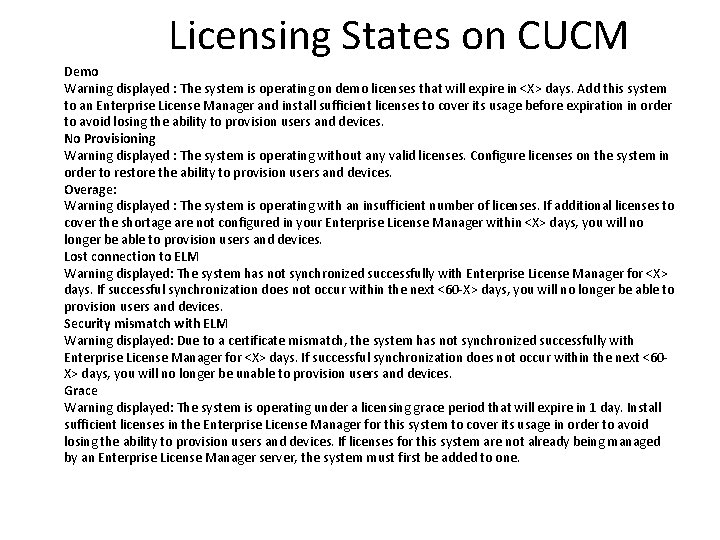
Licensing States on CUCM Demo Warning displayed : The system is operating on demo licenses that will expire in <X> days. Add this system to an Enterprise License Manager and install sufficient licenses to cover its usage before expiration in order to avoid losing the ability to provision users and devices. No Provisioning Warning displayed : The system is operating without any valid licenses. Configure licenses on the system in order to restore the ability to provision users and devices. Overage: Warning displayed : The system is operating with an insufficient number of licenses. If additional licenses to cover the shortage are not configured in your Enterprise License Manager within <X> days, you will no longer be able to provision users and devices. Lost connection to ELM Warning displayed: The system has not synchronized successfully with Enterprise License Manager for <X> days. If successful synchronization does not occur within the next <60 -X> days, you will no longer be able to provision users and devices. Security mismatch with ELM Warning displayed: Due to a certificate mismatch, the system has not synchronized successfully with Enterprise License Manager for <X> days. If successful synchronization does not occur within the next <60 X> days, you will no longer be unable to provision users and devices. Grace Warning displayed: The system is operating under a licensing grace period that will expire in 1 day. Install sufficient licenses in the Enterprise License Manager for this system to cover its usage in order to avoid losing the ability to provision users and devices. If licenses for this system are not already being managed by an Enterprise License Manager server, the system must first be added to one.
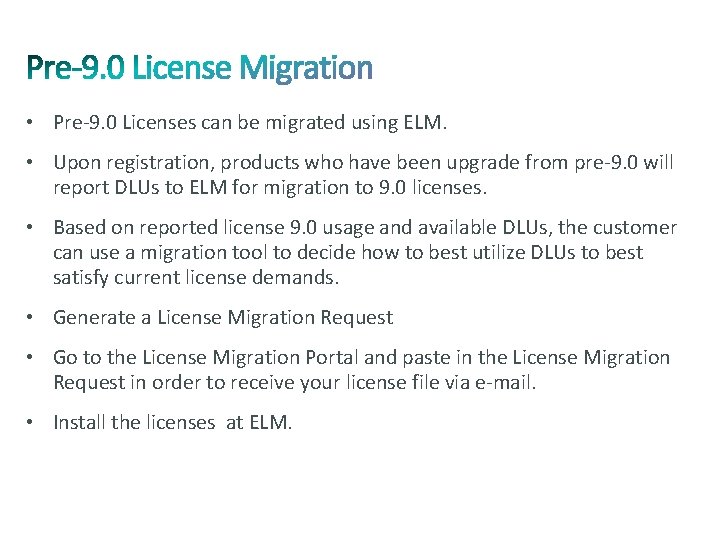
• Pre-9. 0 Licenses can be migrated using ELM. • Upon registration, products who have been upgrade from pre-9. 0 will report DLUs to ELM for migration to 9. 0 licenses. • Based on reported license 9. 0 usage and available DLUs, the customer can use a migration tool to decide how to best utilize DLUs to best satisfy current license demands. • Generate a License Migration Request • Go to the License Migration Portal and paste in the License Migration Request in order to receive your license file via e-mail. • Install the licenses at ELM.
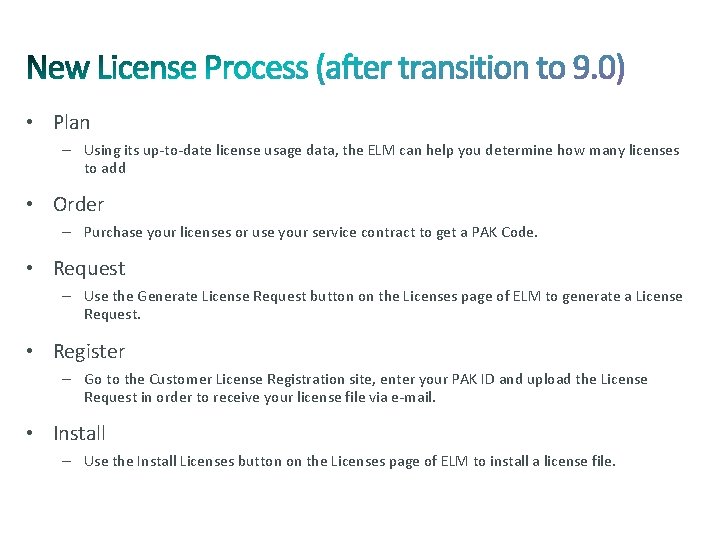
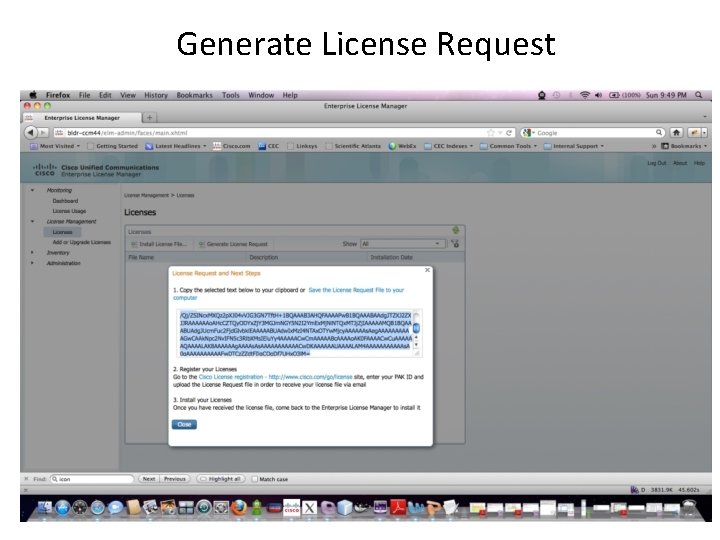
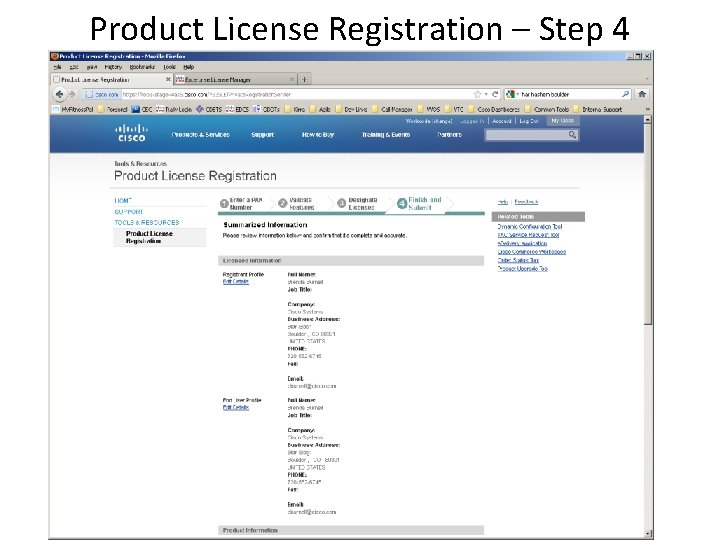
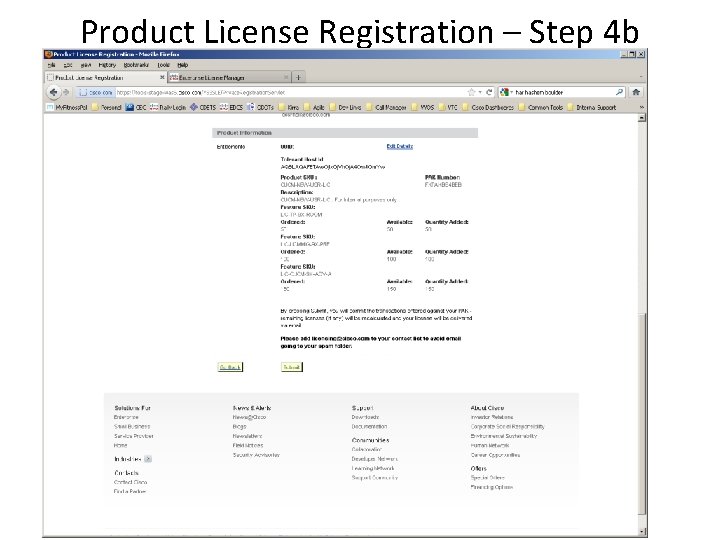
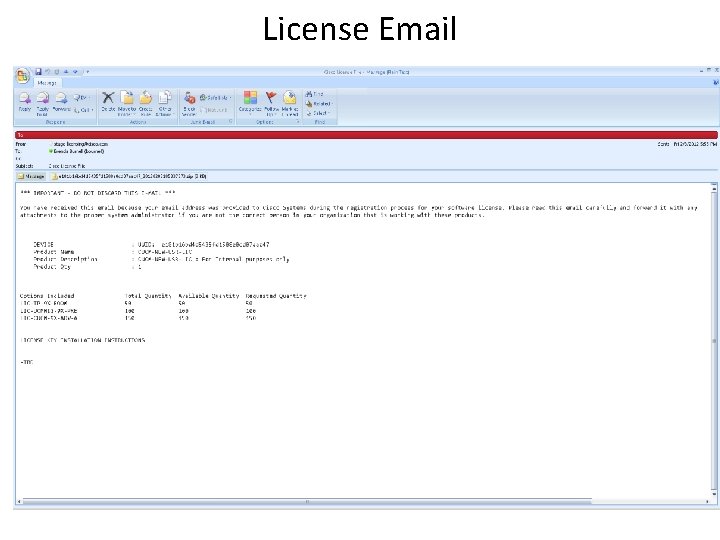
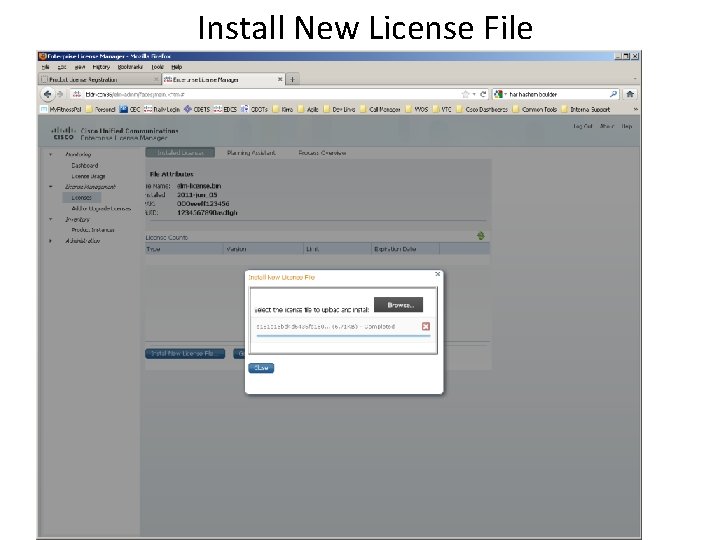
• Plan – Using its up-to-date license usage data, the ELM can help you determine how many licenses to add • Order – Purchase your licenses or use your service contract to get a PAK Code. • Request – Use the Generate License Request button on the Licenses page of ELM to generate a License Request. • Register – Go to the Customer License Registration site, enter your PAK ID and upload the License Request in order to receive your license file via e-mail. • Install – Use the Install Licenses button on the Licenses page of ELM to install a license file.
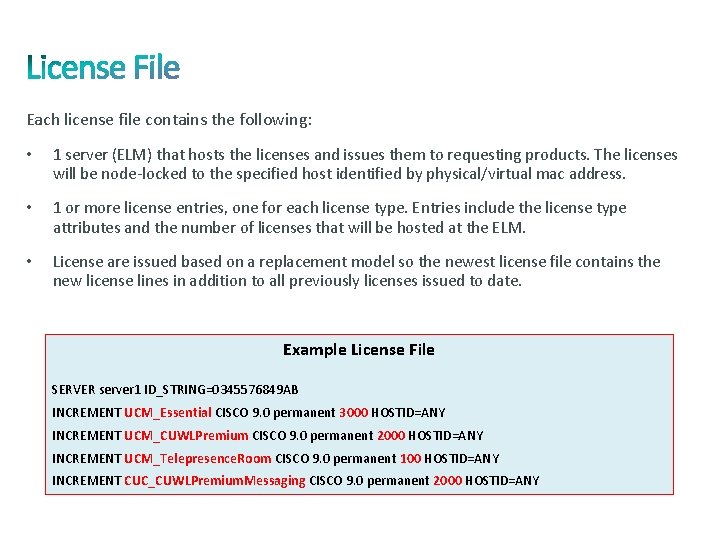
Each license file contains the following: • 1 server (ELM) that hosts the licenses and issues them to requesting products. The licenses will be node-locked to the specified host identified by physical/virtual mac address. • 1 or more license entries, one for each license type. Entries include the license type attributes and the number of licenses that will be hosted at the ELM. • License are issued based on a replacement model so the newest license file contains the new license lines in addition to all previously licenses issued to date. Example License File SERVER server 1 ID_STRING=0345576849 AB INCREMENT UCM_Essential CISCO 9. 0 permanent 3000 HOSTID=ANY INCREMENT UCM_CUWLPremium CISCO 9. 0 permanent 2000 HOSTID=ANY INCREMENT UCM_Telepresence. Room CISCO 9. 0 permanent 100 HOSTID=ANY INCREMENT CUC_CUWLPremium. Messaging CISCO 9. 0 permanent 2000 HOSTID=ANY
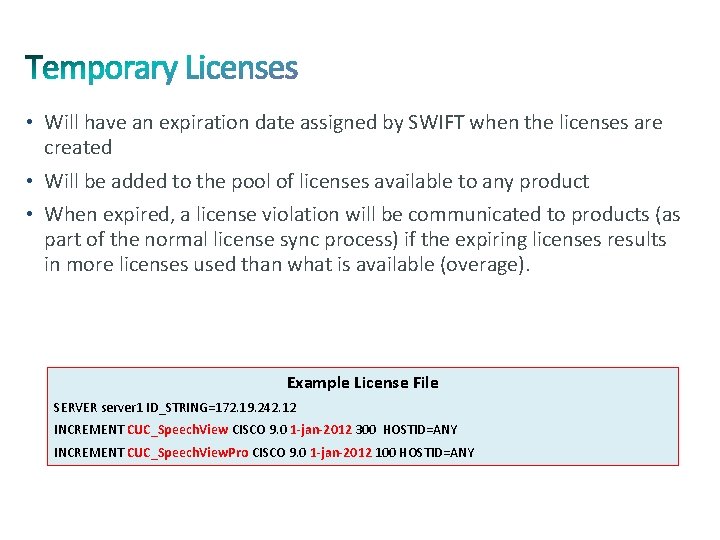
• Will have an expiration date assigned by SWIFT when the licenses are created • Will be added to the pool of licenses available to any product • When expired, a license violation will be communicated to products (as part of the normal license sync process) if the expiring licenses results in more licenses used than what is available (overage). Example License File SERVER server 1 ID_STRING=172. 19. 242. 12 INCREMENT CUC_Speech. View CISCO 9. 0 1 -jan-2012 300 HOSTID=ANY INCREMENT CUC_Speech. View. Pro CISCO 9. 0 1 -jan-2012 100 HOSTID=ANY
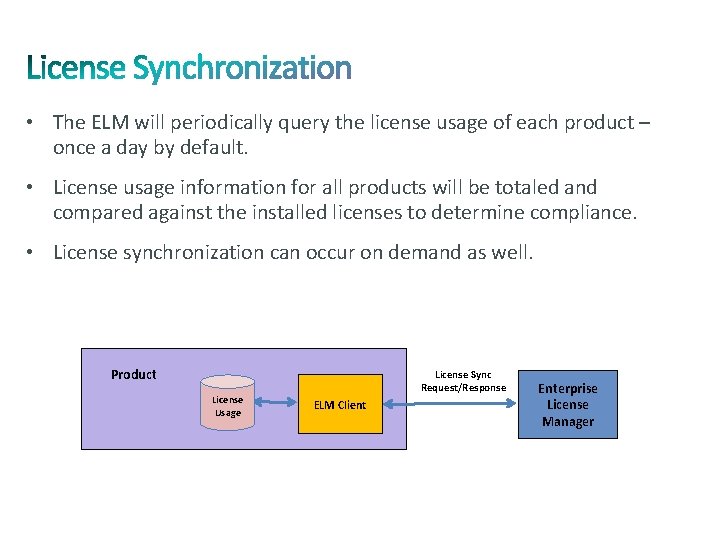
• The ELM will periodically query the license usage of each product – once a day by default. • License usage information for all products will be totaled and compared against the installed licenses to determine compliance. • License synchronization can occur on demand as well. Product License Sync Request/Response CCM License Usage ELM Client Enterprise License Manager
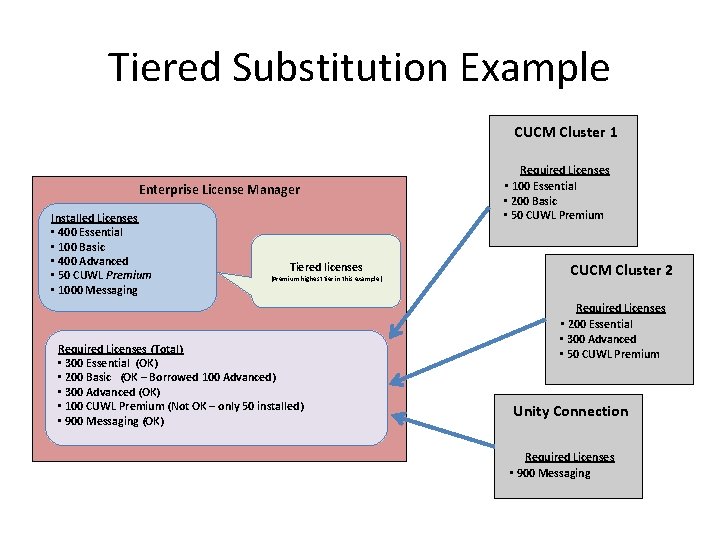
• Licenses will be structured such that the higher tiered (more expensive) licenses will include all capabilities of the lower tiered licenses below it (Russian doll license model) • If the quantity of a license the products require is not available, the ELM will substitute higher tier licenses if they are available • Substituted license information will be available in the ELM reports • When additional licenses become available (e. g. additional licenses purchased) higher-tiered licenses will automatically no longer be substituted
Tiered Substitution Example CUCM Cluster 1 Enterprise License Manager Installed Licenses • 400 Essential • 100 Basic • 400 Advanced • 50 CUWL Premium • 1000 Messaging Tiered licenses (Premium highest tier in this example) Required Licenses (Total) • 300 Essential (OK) • 200 Basic (OK – Borrowed 100 Advanced) • 300 Advanced (OK) • 100 CUWL Premium (Not OK – only 50 installed) • 900 Messaging (OK) Required Licenses • 100 Essential • 200 Basic • 50 CUWL Premium CUCM Cluster 2 Required Licenses • 200 Essential • 300 Advanced • 50 CUWL Premium Unity Connection Required Licenses • 900 Messaging
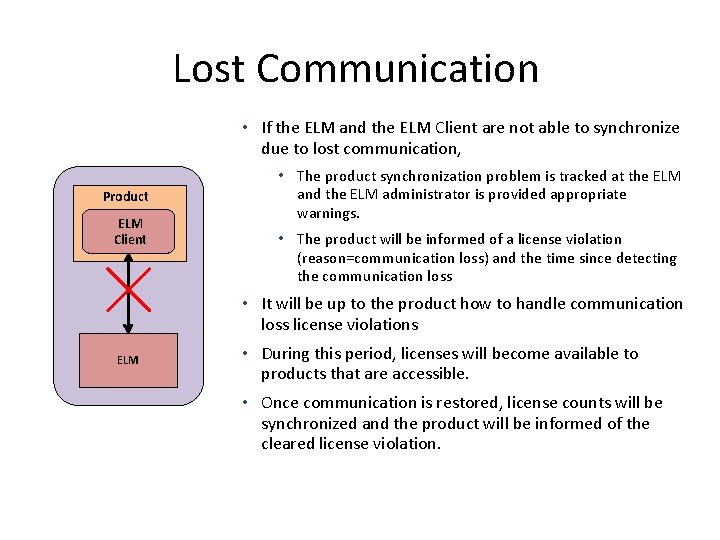
Lost Communication • If the ELM and the ELM Client are not able to synchronize due to lost communication, Product ELM Client • The product synchronization problem is tracked at the ELM and the ELM administrator is provided appropriate warnings. • The product will be informed of a license violation (reason=communication loss) and the time since detecting the communication loss • It will be up to the product how to handle communication loss license violations ELM • During this period, licenses will become available to products that are accessible. • Once communication is restored, license counts will be synchronized and the product will be informed of the cleared license violation.
ELM Administration
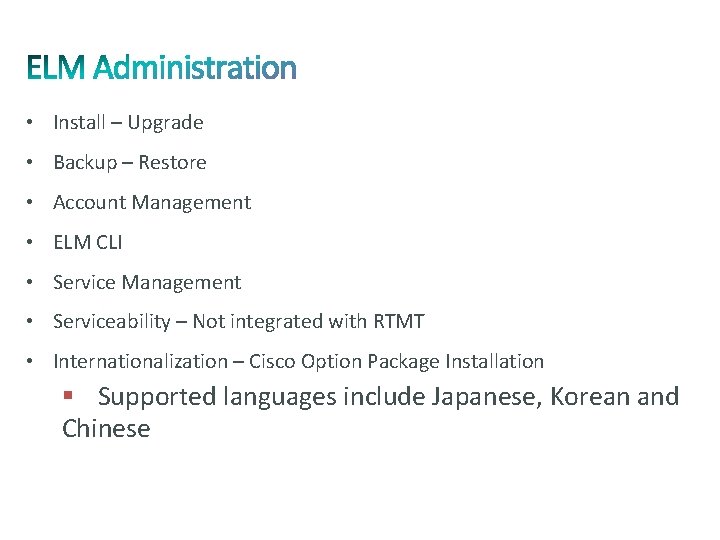
• Install – Upgrade • Backup – Restore • Account Management • ELM CLI • Service Management • Serviceability – Not integrated with RTMT • Internationalization – Cisco Option Package Installation § Supported languages include Japanese, Korean and Chinese
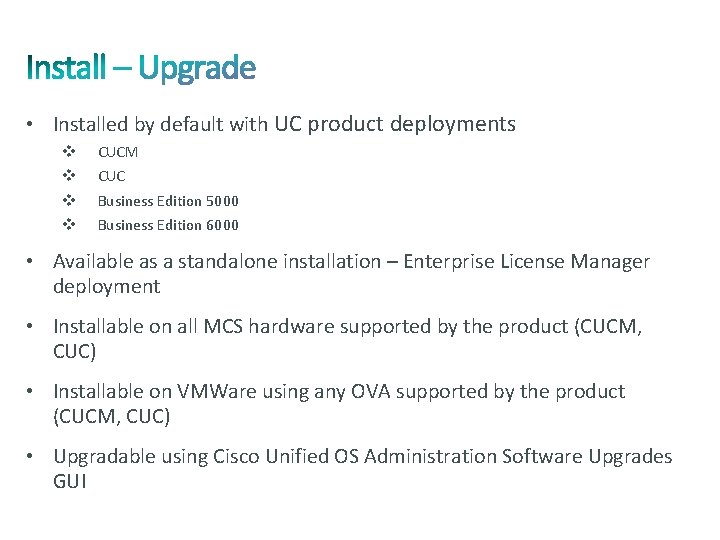
• Installed by default with UC product deployments v v CUCM CUC Business Edition 5000 Business Edition 6000 • Available as a standalone installation – Enterprise License Manager deployment • Installable on all MCS hardware supported by the product (CUCM, CUC) • Installable on VMWare using any OVA supported by the product (CUCM, CUC) • Upgradable using Cisco Unified OS Administration Software Upgrades GUI
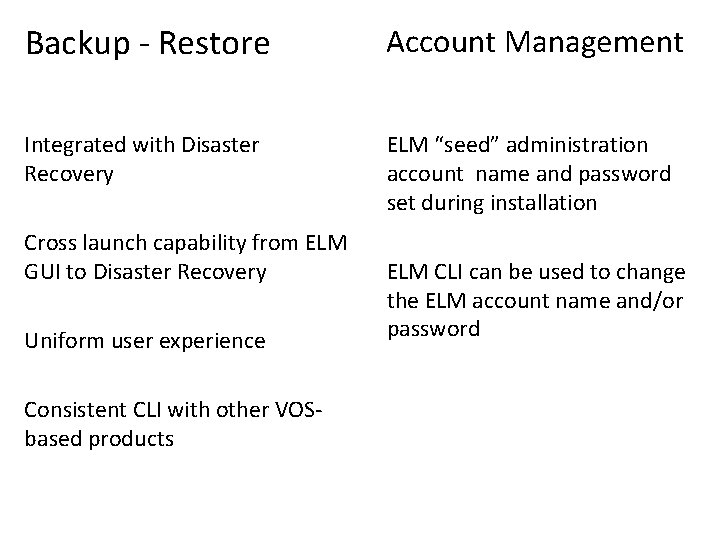
Backup - Restore Account Management Integrated with Disaster Recovery ELM “seed” administration account name and password set during installation Cross launch capability from ELM GUI to Disaster Recovery Uniform user experience Consistent CLI with other VOSbased products ELM CLI can be used to change the ELM account name and/or password
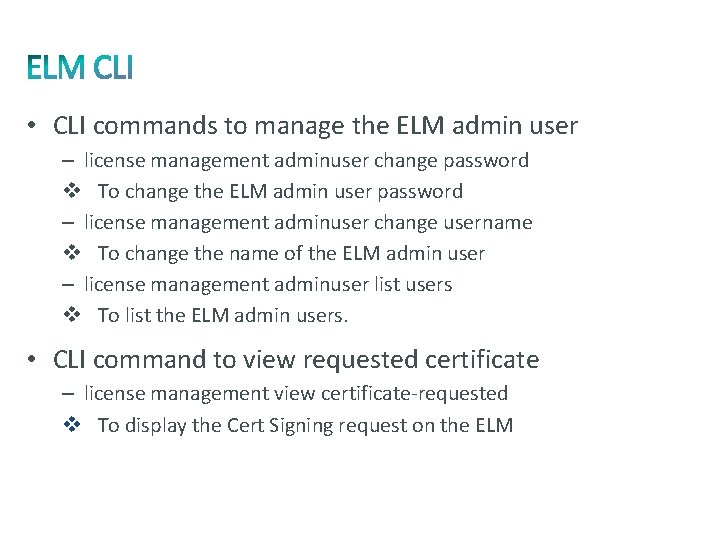
• CLI commands to manage the ELM admin user – license management adminuser change password v To change the ELM admin user password – license management adminuser change username v To change the name of the ELM admin user – license management adminuser list users v To list the ELM admin users. • CLI command to view requested certificate – license management view certificate-requested v To display the Cert Signing request on the ELM
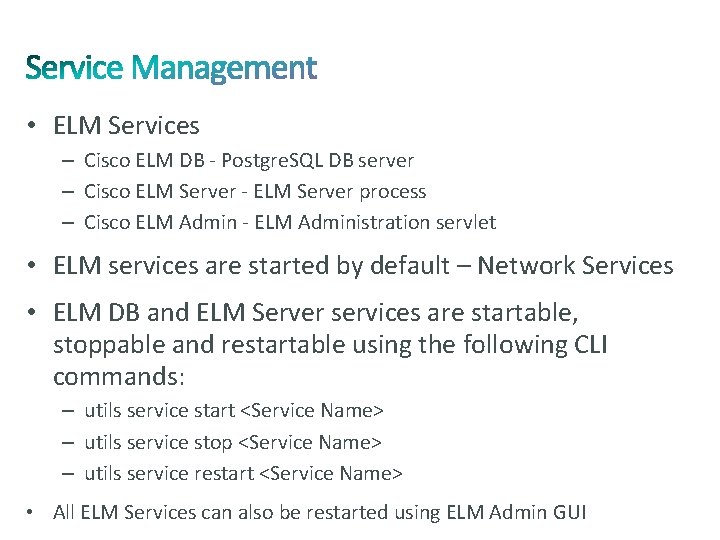
• ELM Services – Cisco ELM DB - Postgre. SQL DB server – Cisco ELM Server - ELM Server process – Cisco ELM Admin - ELM Administration servlet • ELM services are started by default – Network Services • ELM DB and ELM Server services are startable, stoppable and restartable using the following CLI commands: – utils service start <Service Name> – utils service stop <Service Name> – utils service restart <Service Name> • All ELM Services can also be restarted using ELM Admin GUI
ELM Internals
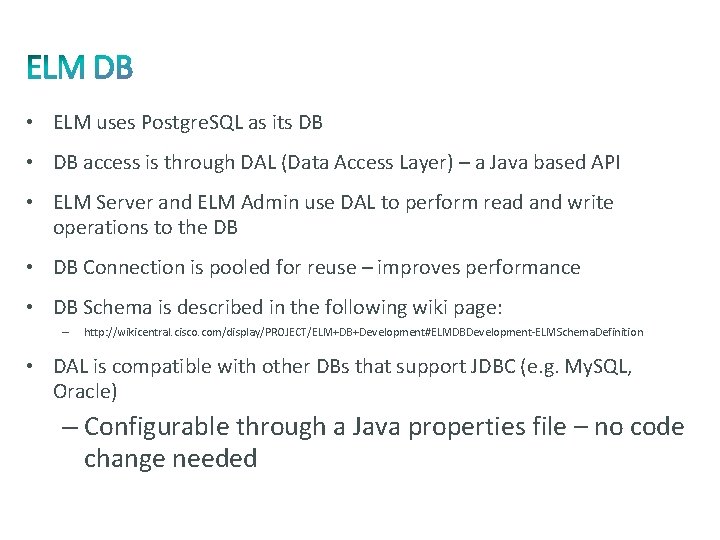
• ELM uses Postgre. SQL as its DB • DB access is through DAL (Data Access Layer) – a Java based API • ELM Server and ELM Admin use DAL to perform read and write operations to the DB • DB Connection is pooled for reuse – improves performance • DB Schema is described in the following wiki page: – http: //wikicentral. cisco. com/display/PROJECT/ELM+DB+Development#ELMDBDevelopment-ELMSchema. Definition • DAL is compatible with other DBs that support JDBC (e. g. My. SQL, Oracle) – Configurable through a Java properties file – no code change needed
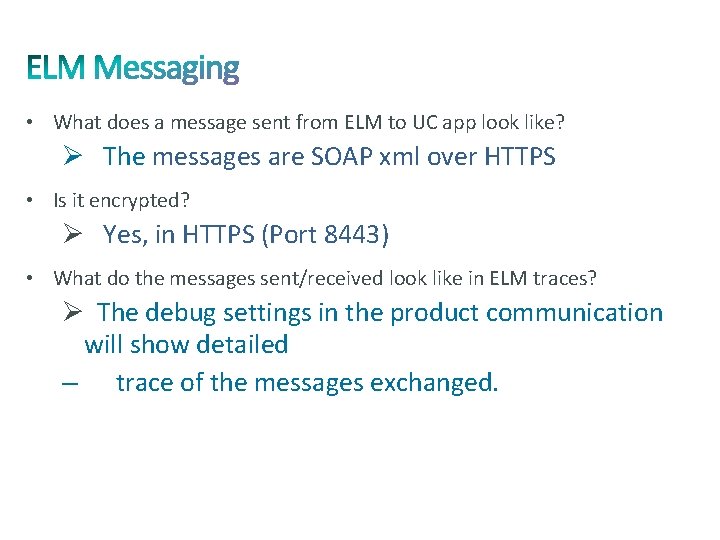
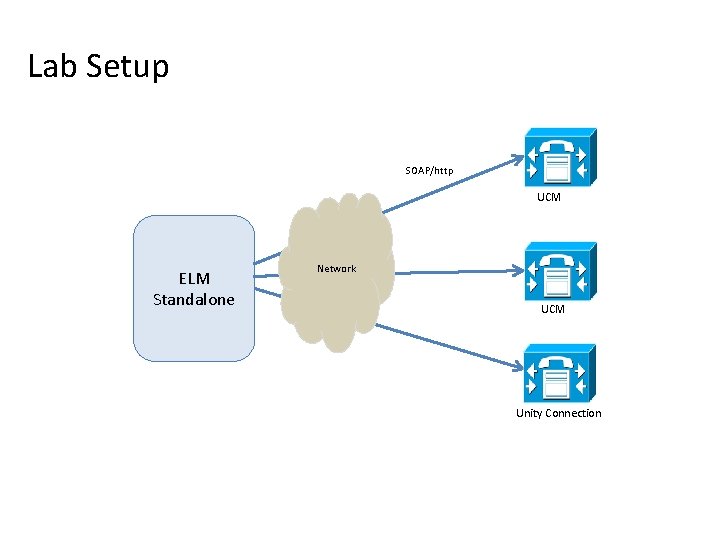
• What does a message sent from ELM to UC app look like? Ø The messages are SOAP xml over HTTPS • Is it encrypted? Ø Yes, in HTTPS (Port 8443) • What do the messages sent/received look like in ELM traces? Ø The debug settings in the product communication will show detailed – trace of the messages exchanged.
Slide Demo
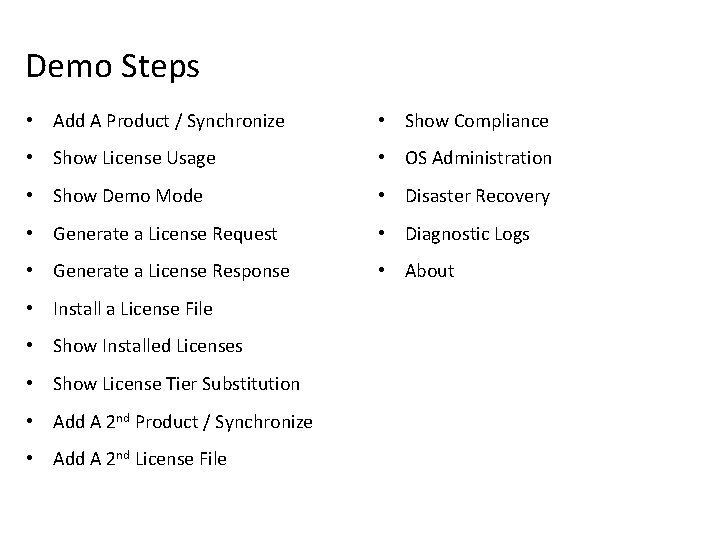
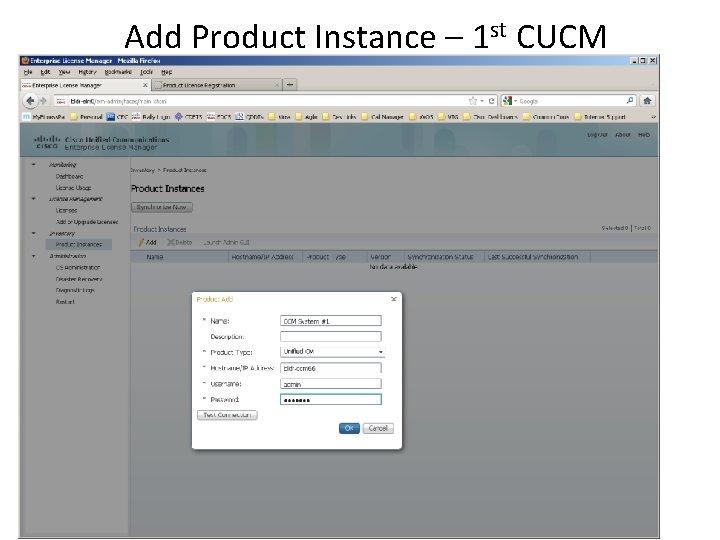
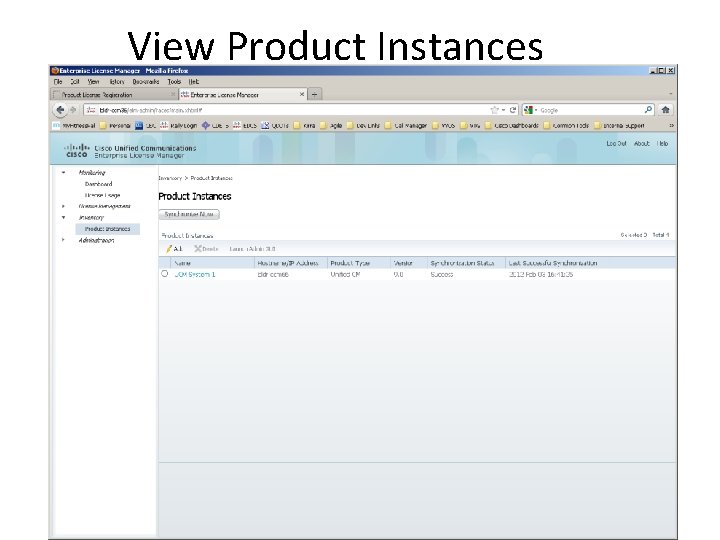
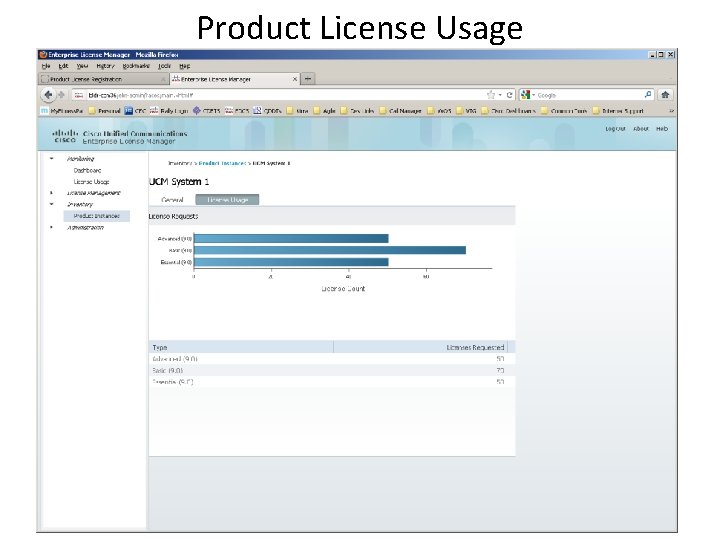
Demo Steps • Add A Product / Synchronize • Show Compliance • Show License Usage • OS Administration • Show Demo Mode • Disaster Recovery • Generate a License Request • Diagnostic Logs • Generate a License Response • About • Install a License File • Show Installed Licenses • Show License Tier Substitution • Add A 2 nd Product / Synchronize • Add A 2 nd License File
Lab Setup SOAP/http UCM ELM Standalone Network UCM Unity Connection
Add Product Instance – 1 st CUCM
View Product Instances
Product License Usage
Dashboard Demo Mode & License Usage
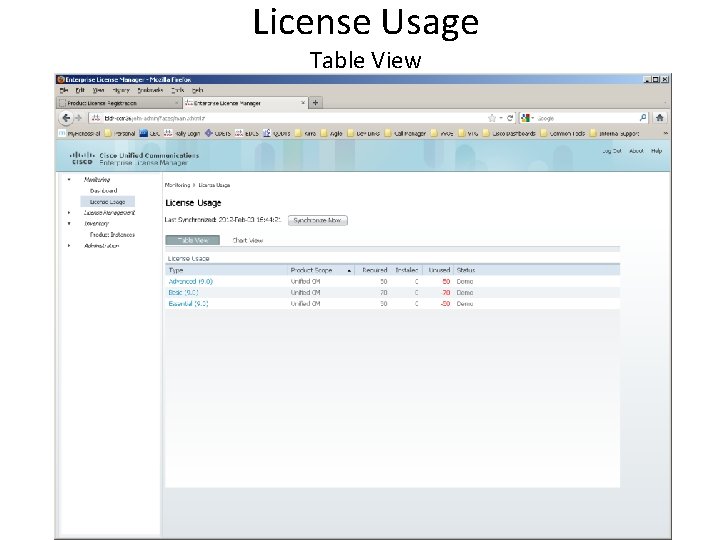
License Usage Table View
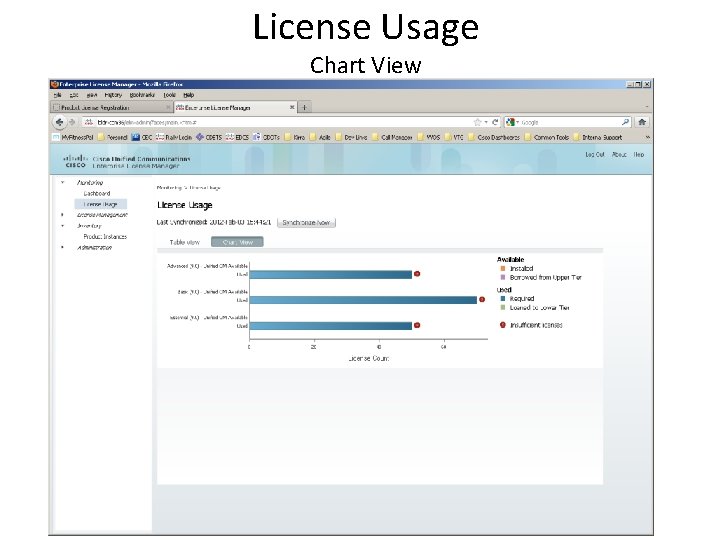
License Usage Chart View
Manual License Fulfillment Process
Generate License Request
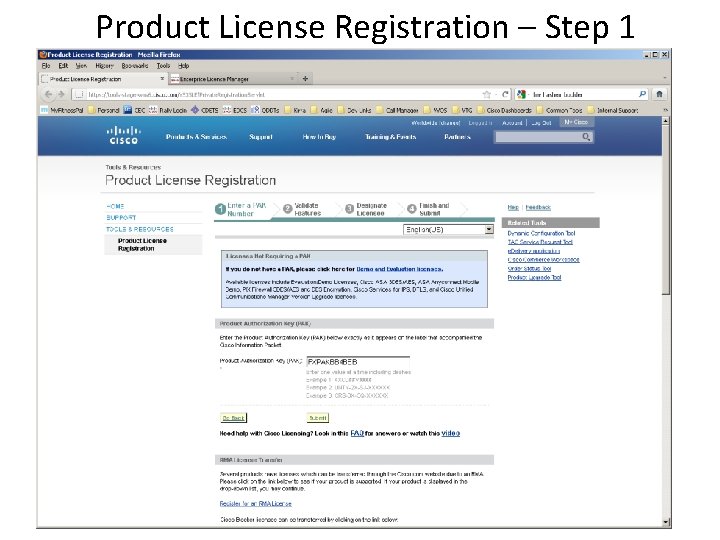
Product License Registration – Step 1
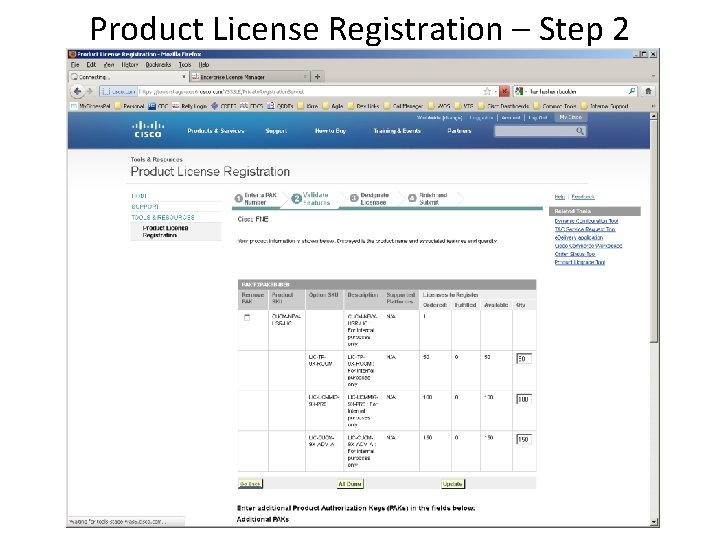
Product License Registration – Step 2
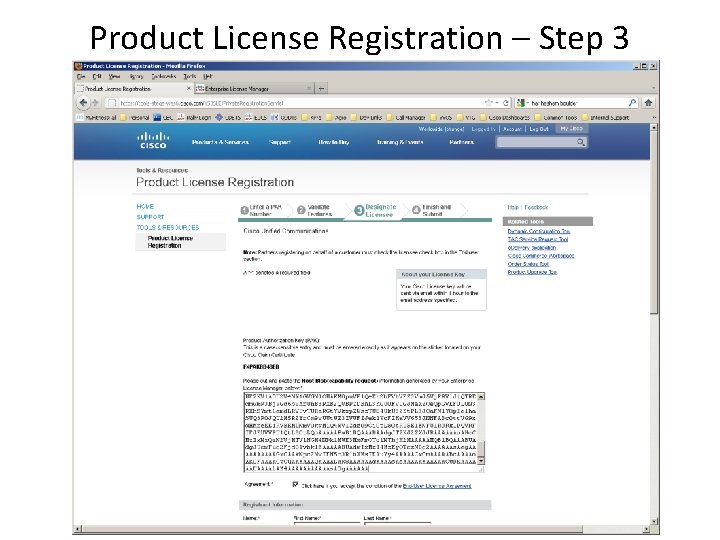
Product License Registration – Step 3
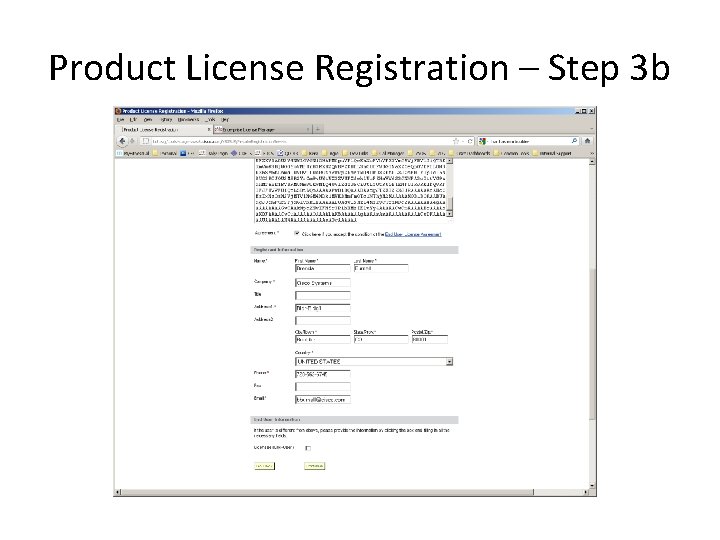
Product License Registration – Step 3 b
Product License Registration – Step 4
Product License Registration – Step 4 b
License Email
Install New License File
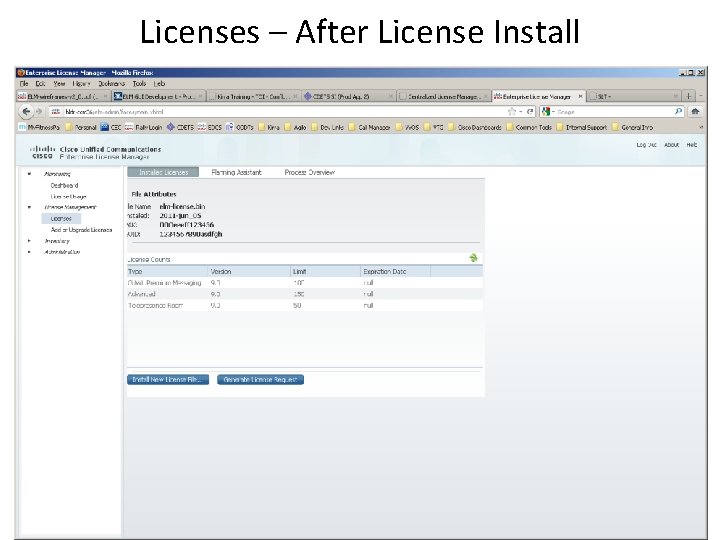
Licenses – After License Install
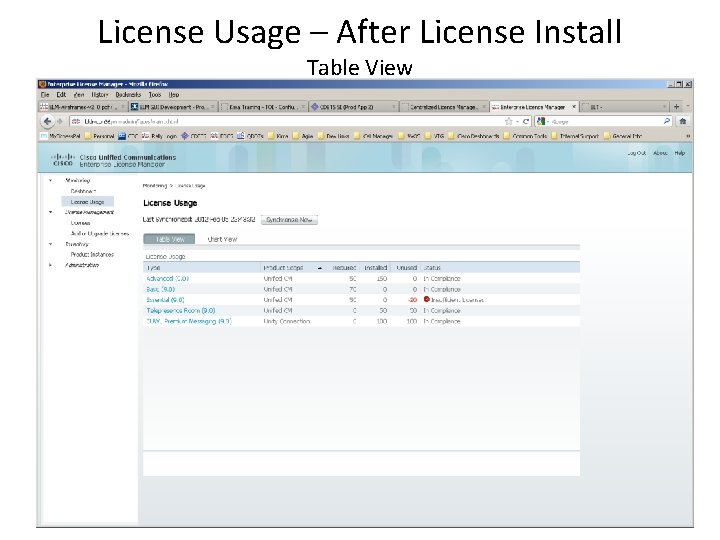
License Usage – After License Install Table View
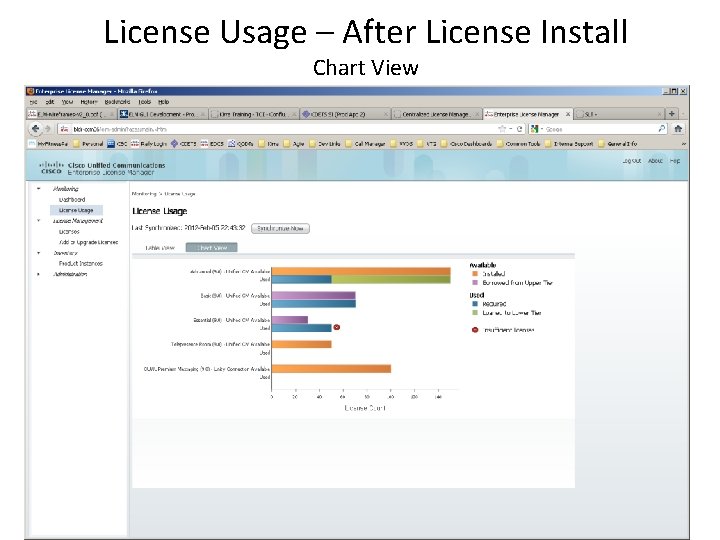
License Usage – After License Install Chart View
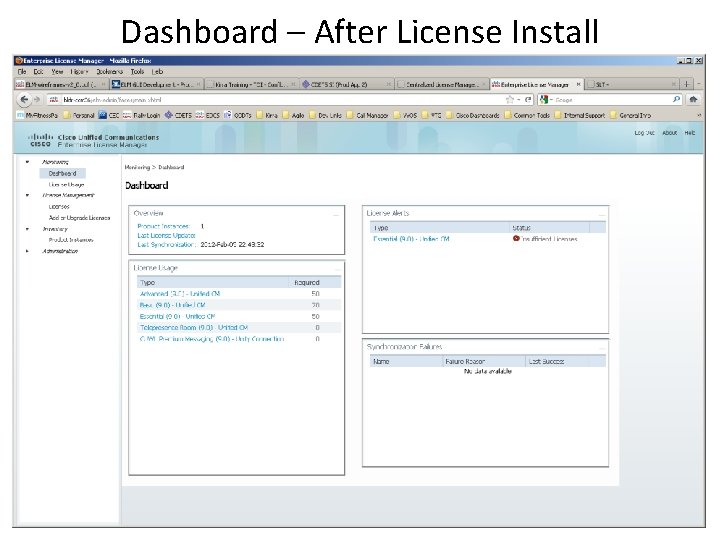
Dashboard – After License Install
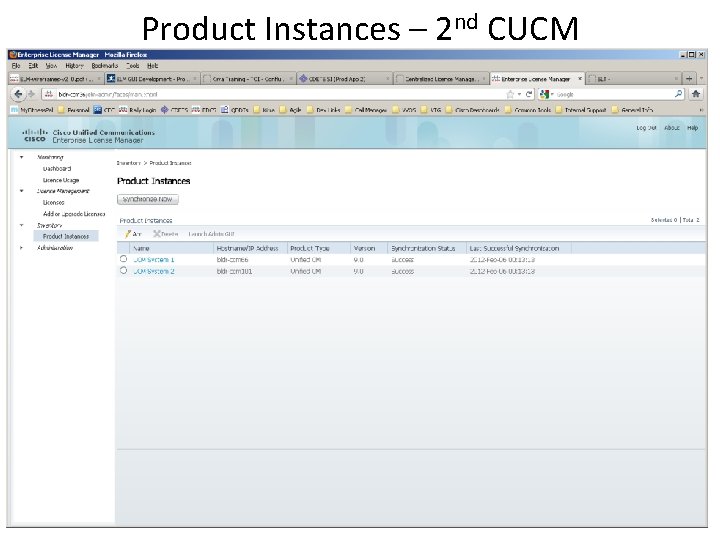
Product Instances – 2 nd CUCM
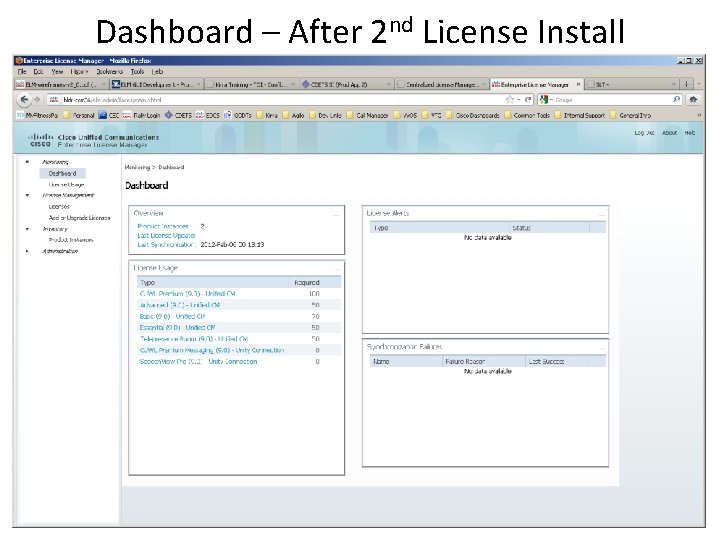
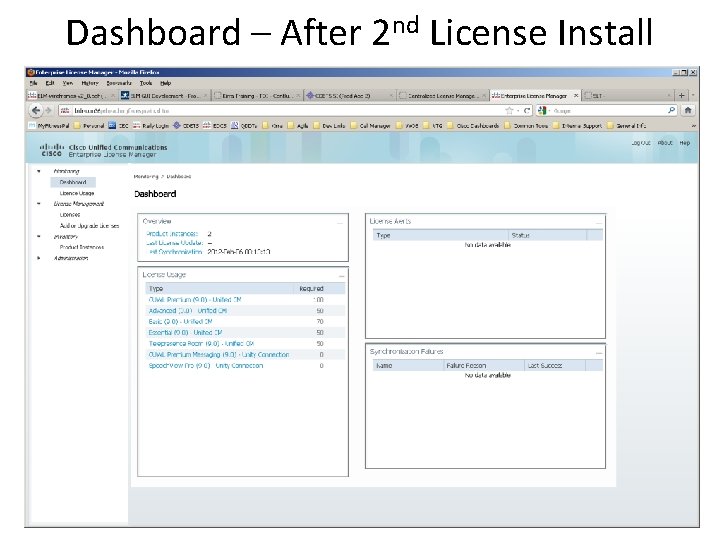
Dashboard – After 2 nd License Install
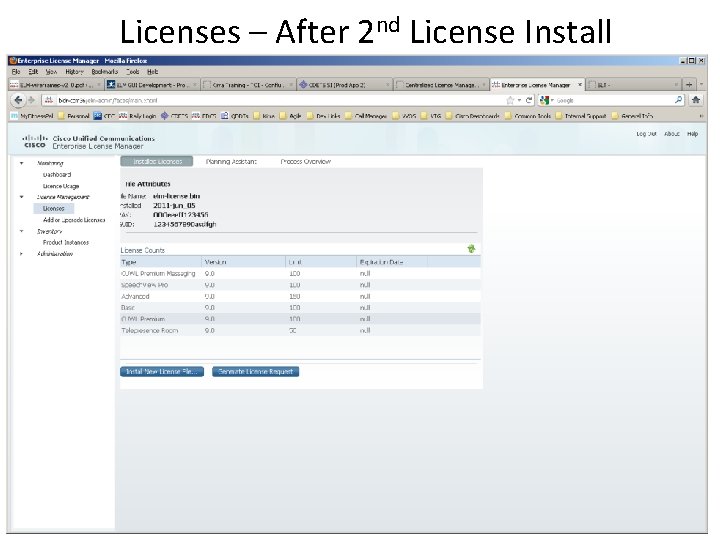
Licenses – After 2 nd License Install
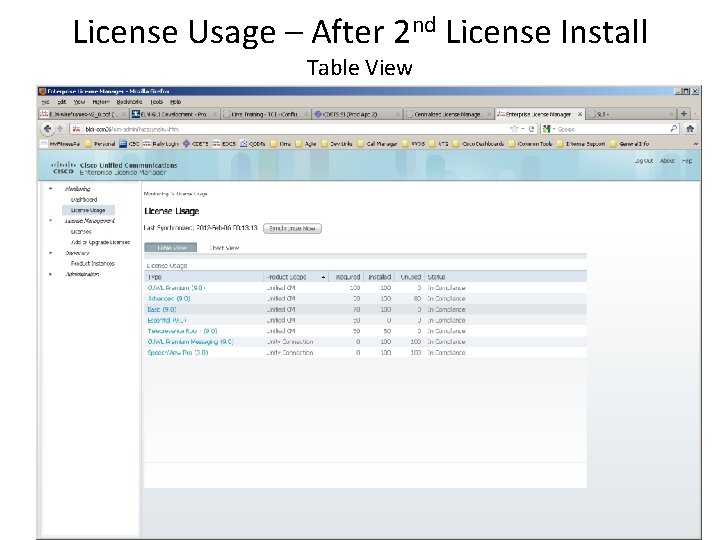
License Usage – After 2 nd License Install Table View
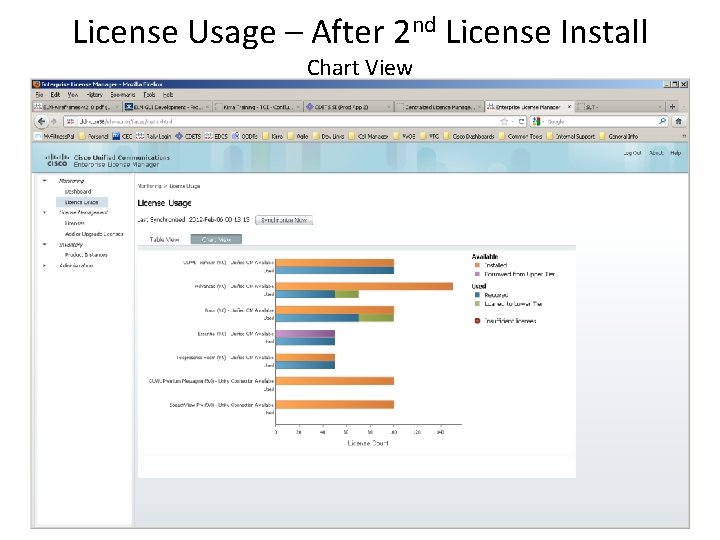
License Usage – After 2 nd License Install Chart View
Dashboard – After 2 nd License Install
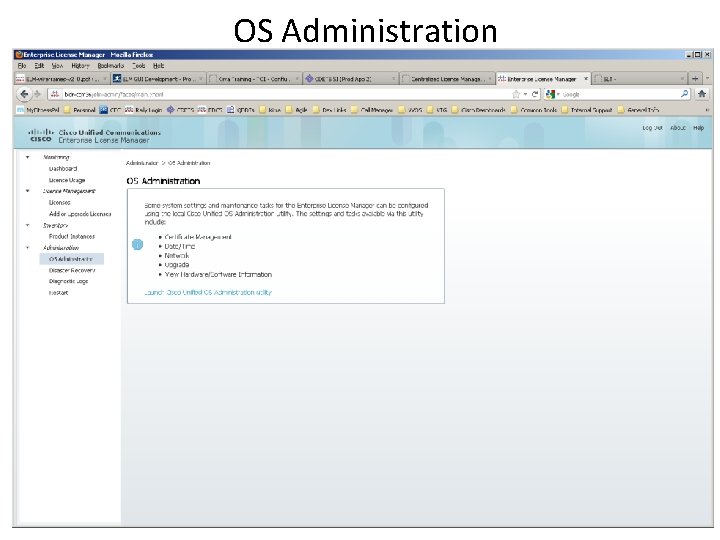
OS Administration
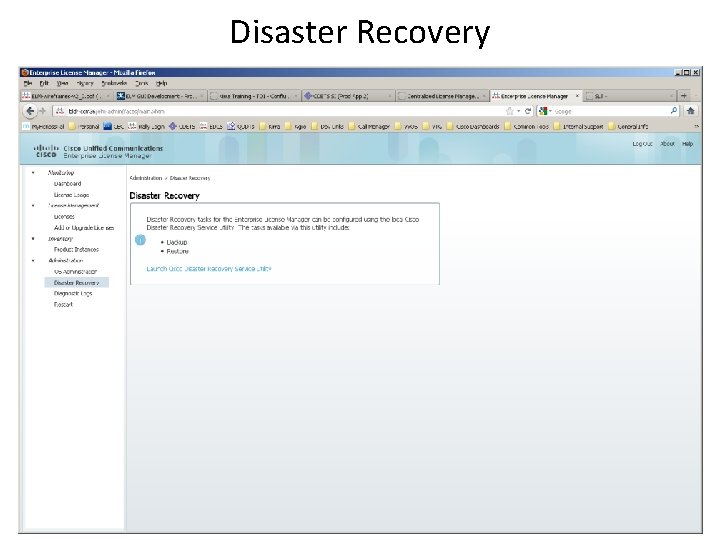
Disaster Recovery
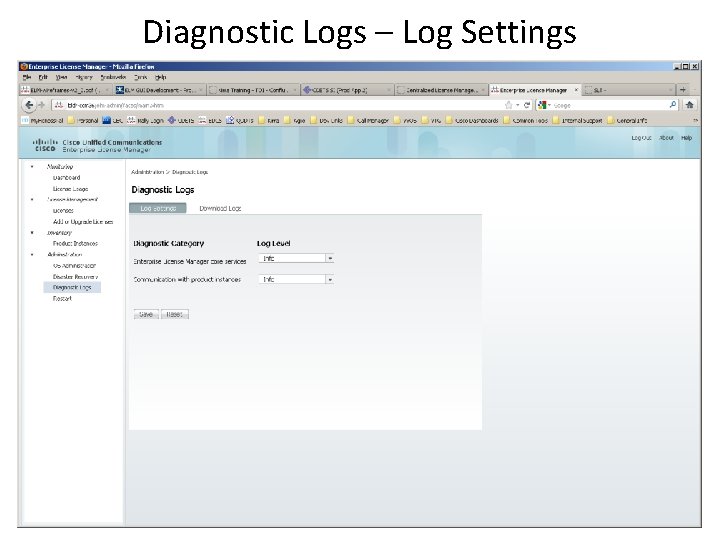
Diagnostic Logs – Log Settings
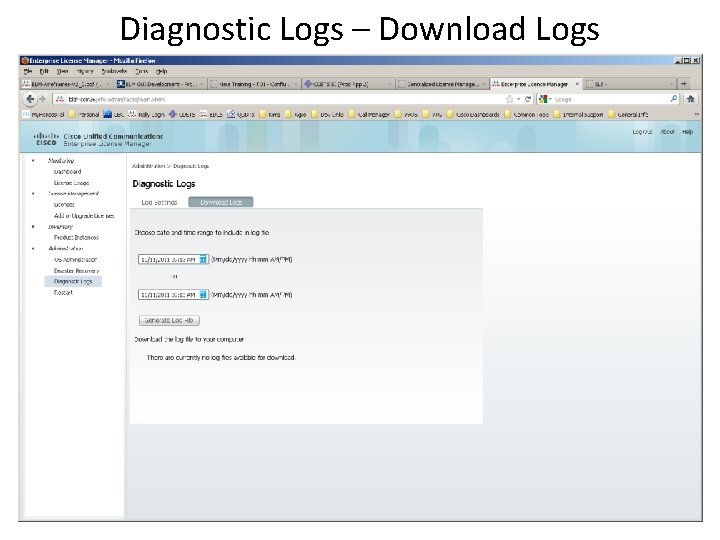
Diagnostic Logs – Download Logs
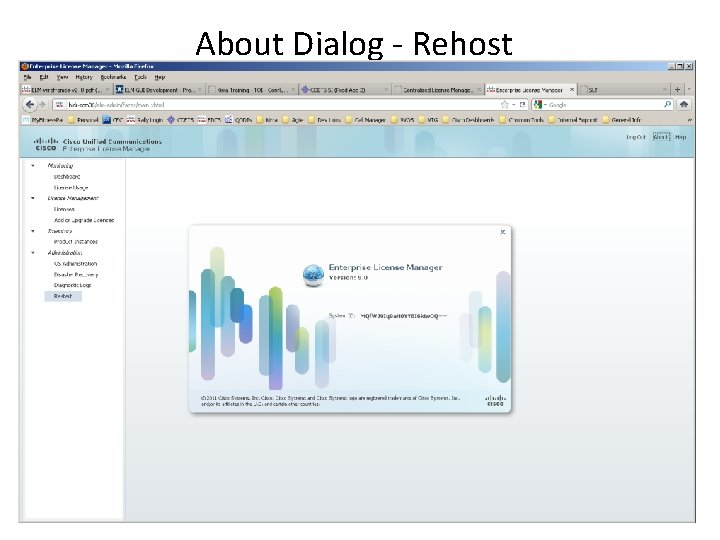
About Dialog - Rehost
Troubleshooting
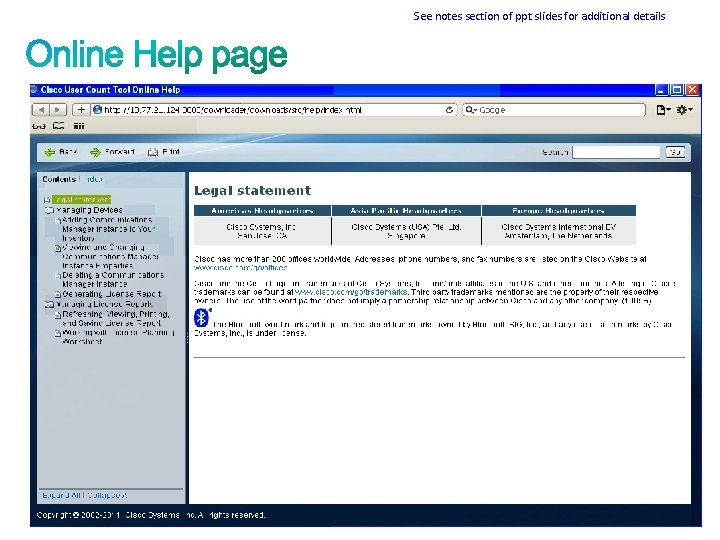
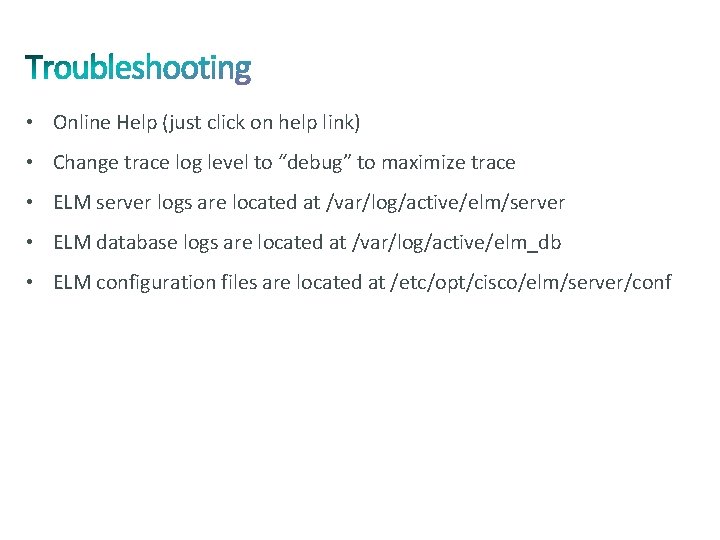
• Online Help (just click on help link) • Change trace log level to “debug” to maximize trace • ELM server logs are located at /var/log/active/elm/server • ELM database logs are located at /var/log/active/elm_db • ELM configuration files are located at /etc/opt/cisco/elm/server/conf
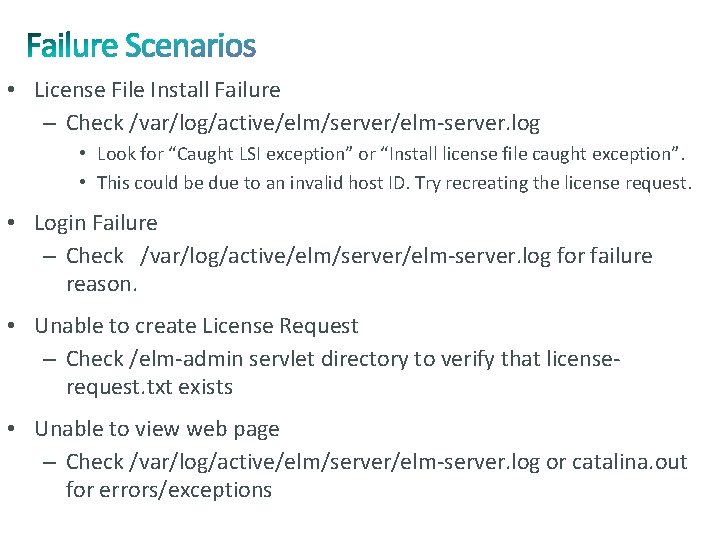
• License File Install Failure – Check /var/log/active/elm/server/elm-server. log • Look for “Caught LSI exception” or “Install license file caught exception”. • This could be due to an invalid host ID. Try recreating the license request. • Login Failure – Check /var/log/active/elm/server/elm-server. log for failure reason. • Unable to create License Request – Check /elm-admin servlet directory to verify that licenserequest. txt exists • Unable to view web page – Check /var/log/active/elm/server/elm-server. log or catalina. out for errors/exceptions
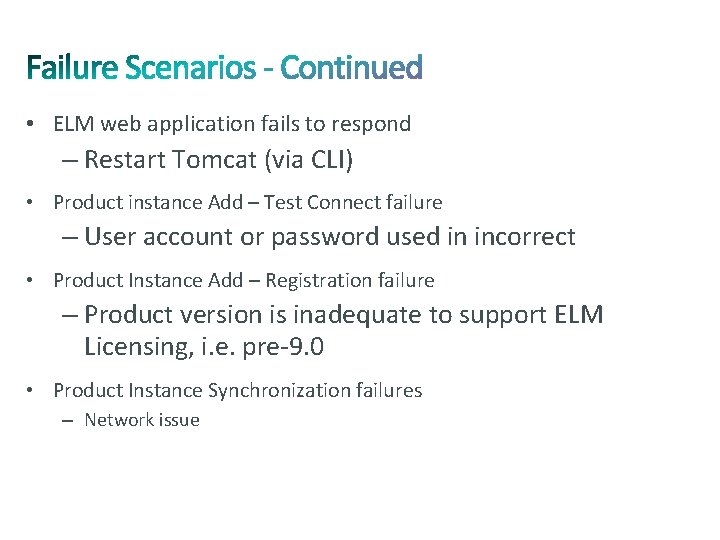
• ELM web application fails to respond – Restart Tomcat (via CLI) • Product instance Add – Test Connect failure – User account or password used in incorrect • Product Instance Add – Registration failure – Product version is inadequate to support ELM Licensing, i. e. pre-9. 0 • Product Instance Synchronization failures – Network issue
More Information
• Dev Wiki http: //wikicentral. cisco. com/display/PROJECT/Centralized+License+Management • Interface Specification – EDCS-1083630 • FFS – EDCS-1030929 • Test Wiki http: //zed. cisco. com/confluence/display/CCM/Kirra+Licensing+Test
Thank you.