Records Management Network 23 May 2017 Agenda 1

- Slides: 40
Records Management Network 23 May 2017
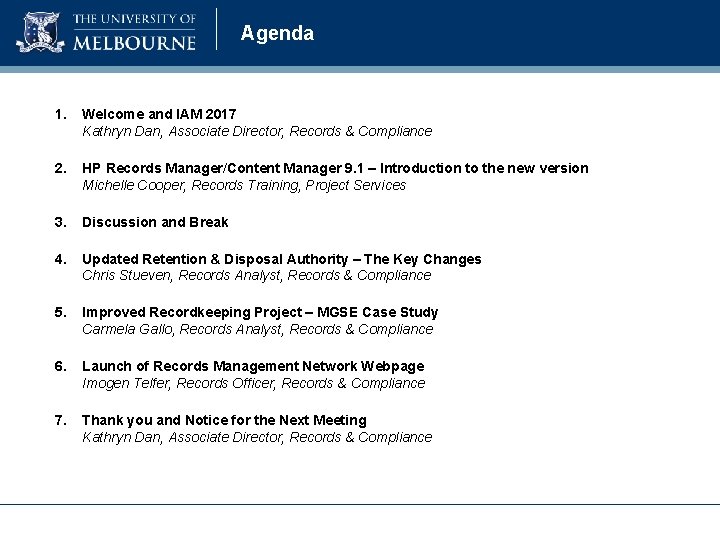
Agenda 1. Welcome and IAM 2017 Kathryn Dan, Associate Director, Records & Compliance 2. HP Records Manager/Content Manager 9. 1 – Introduction to the new version Michelle Cooper, Records Training, Project Services 3. Discussion and Break 4. Updated Retention & Disposal Authority – The Key Changes Chris Stueven, Records Analyst, Records & Compliance 5. Improved Recordkeeping Project – MGSE Case Study Carmela Gallo, Records Analyst, Records & Compliance 6. Launch of Records Management Network Webpage Imogen Telfer, Records Officer, Records & Compliance 7. Thank you and Notice for the Next Meeting Kathryn Dan, Associate Director, Records & Compliance
Information Awareness Month 2017
Records System Software Upgrade 22 May 2017
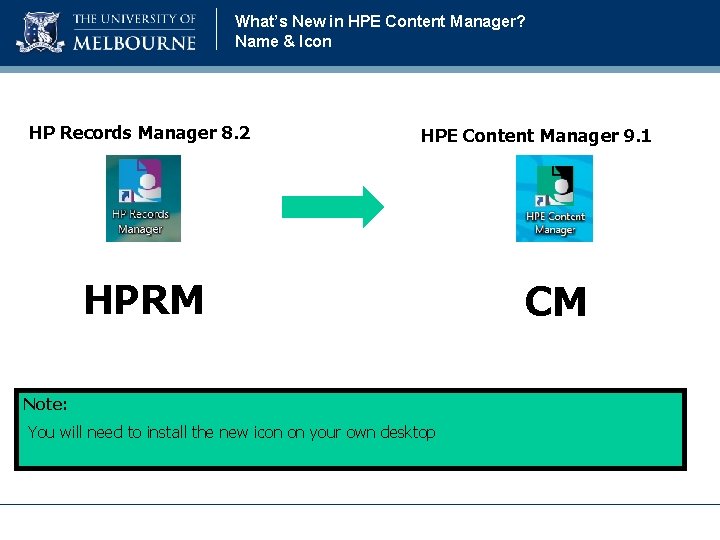
What’s New in HPE Content Manager? Name & Icon HP Records Manager 8. 2 HPE Content Manager 9. 1 HPRM Note: You will need to install the new icon on your own desktop CM
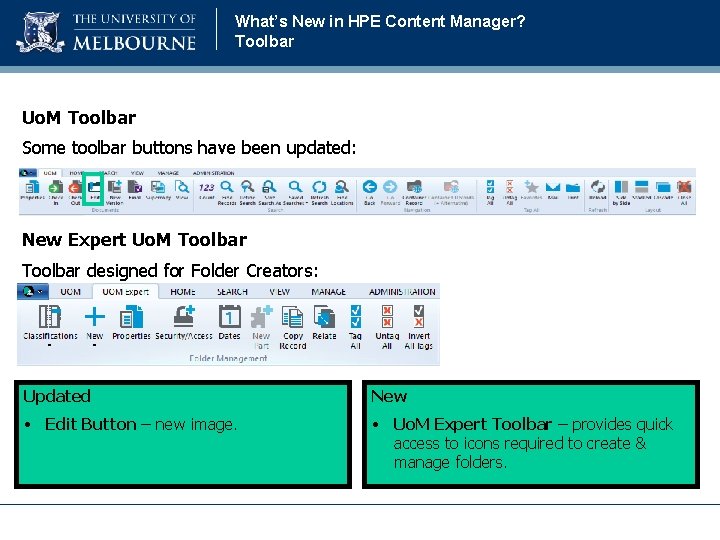
What’s New in HPE Content Manager? Toolbar Uo. M Toolbar Some toolbar buttons have been updated: New Expert Uo. M Toolbar designed for Folder Creators: Updated New • Edit Button – new image. • Uo. M Expert Toolbar – provides quick access to icons required to create & manage folders.
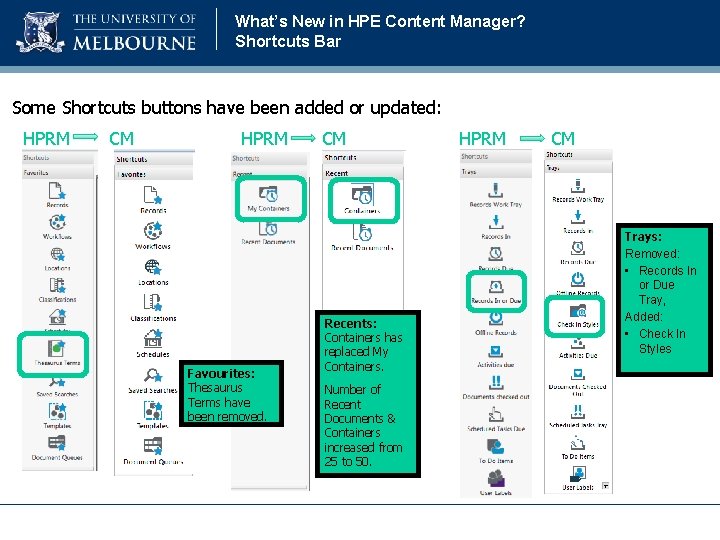
What’s New in HPE Content Manager? Shortcuts Bar Some Shortcuts buttons have been added or updated: HPRM CM HPRM Favourites: Thesaurus Terms have been removed. CM Recents: Containers has replaced My Containers. Number of Recent Documents & Containers increased from 25 to 50. HPRM CM Trays: Removed: • Records In or Due Tray, Added: • Check In Styles
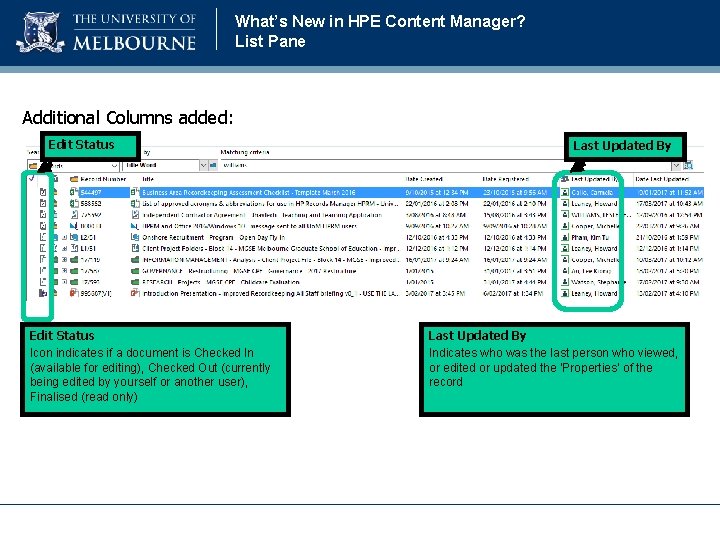
What’s New in HPE Content Manager? List Pane Additional Columns added: Edit Status Icon indicates if a document is Checked In (available for editing), Checked Out (currently being edited by yourself or another user), Finalised (read only) Last Updated By Indicates who was the last person who viewed, or edited or updated the ‘Properties’ of the record
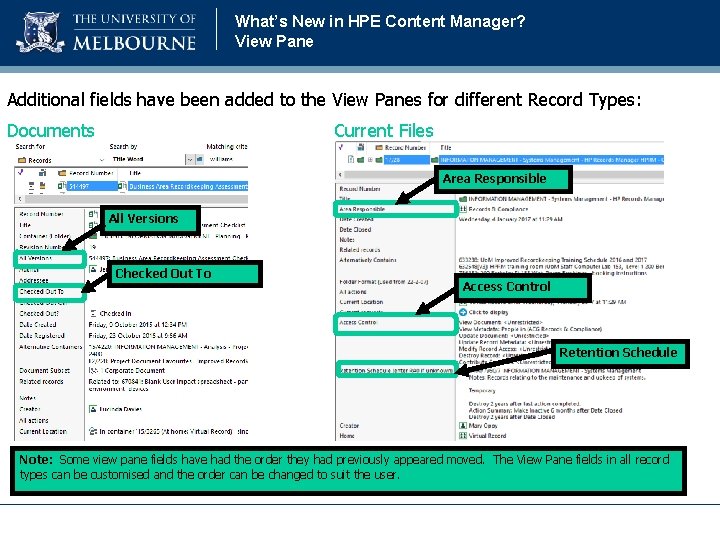
What’s New in HPE Content Manager? View Pane Additional fields have been added to the View Panes for different Record Types: Documents Current Files Area Responsible All Versions Checked Out To Access Control Retention Schedule Note: Some view pane fields have had the order they had previously appeared moved. The View Pane fields in all record types can be customised and the order can be changed to suit the user.
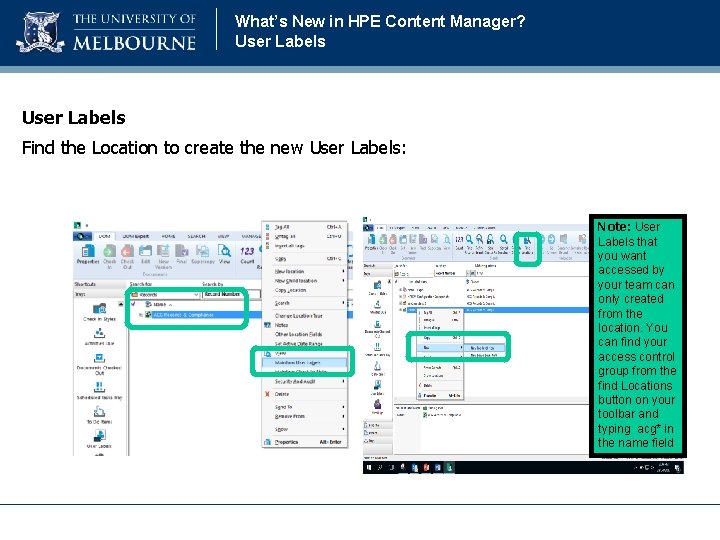
What’s New in HPE Content Manager? User Labels Find the Location to create the new User Labels: Note: User Labels that you want accessed by your team can only created from the location. You can find your access control group from the find Locations button on your toolbar and typing acg* in the name field
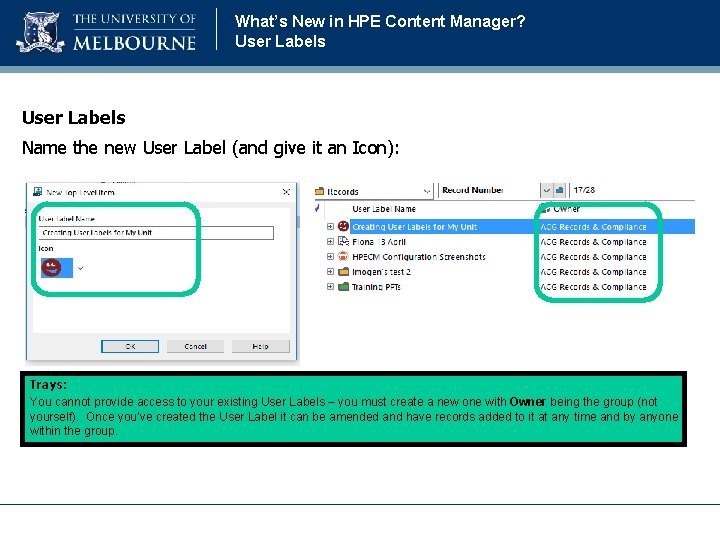
What’s New in HPE Content Manager? User Labels Name the new User Label (and give it an Icon): Trays: You cannot provide access to your existing User Labels – you must create a new one with Owner being the group (not yourself). Once you’ve created the User Label it can be amended and have records added to it at any time and by anyone within the group.
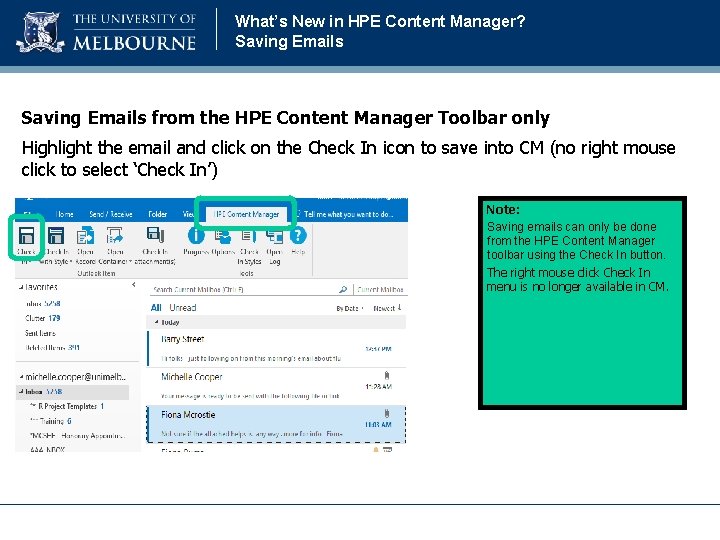
What’s New in HPE Content Manager? Saving Emails from the HPE Content Manager Toolbar only Highlight the email and click on the Check In icon to save into CM (no right mouse click to select ‘Check In’) Note: Saving emails can only be done from the HPE Content Manager toolbar using the Check In button. The right mouse click Check In menu is no longer available in CM.
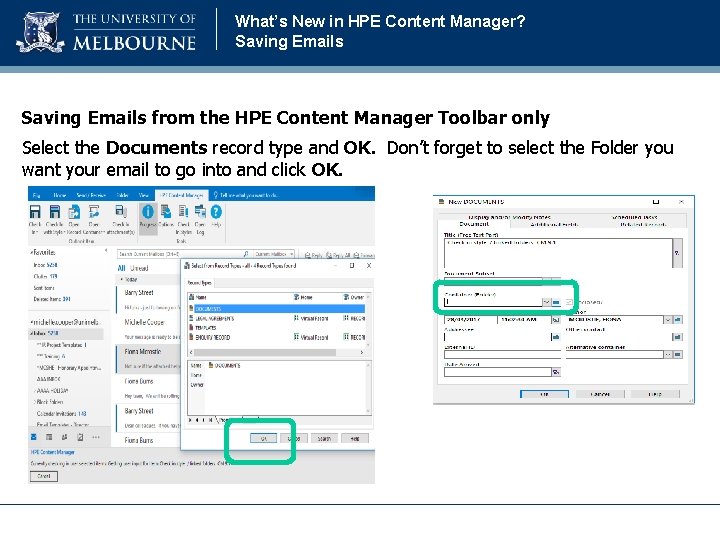
What’s New in HPE Content Manager? Saving Emails from the HPE Content Manager Toolbar only Select the Documents record type and OK. Don’t forget to select the Folder you want your email to go into and click OK.
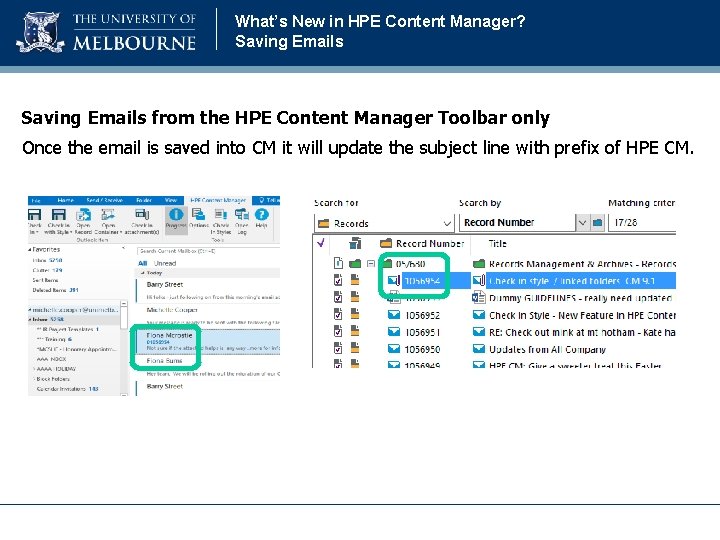
What’s New in HPE Content Manager? Saving Emails from the HPE Content Manager Toolbar only Once the email is saved into CM it will update the subject line with prefix of HPE CM.
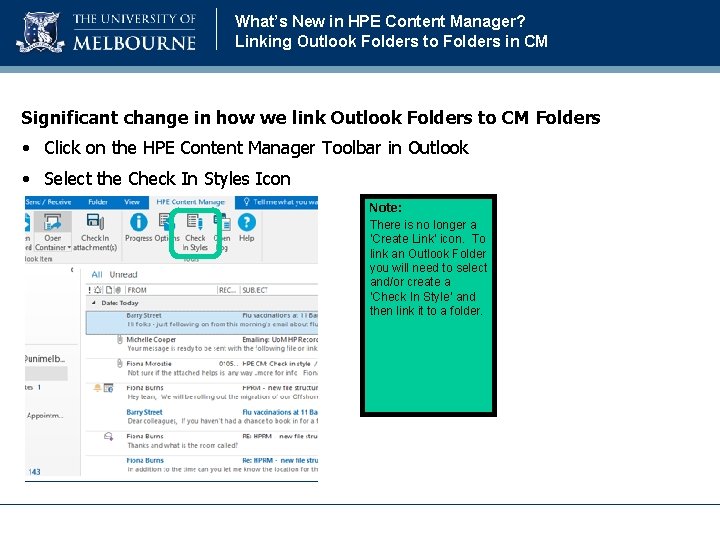
What’s New in HPE Content Manager? Linking Outlook Folders to Folders in CM Significant change in how we link Outlook Folders to CM Folders • Click on the HPE Content Manager Toolbar in Outlook • Select the Check In Styles Icon Note: There is no longer a ‘Create Link’ icon. To link an Outlook Folder you will need to select and/or create a ‘Check In Style’ and then link it to a folder.
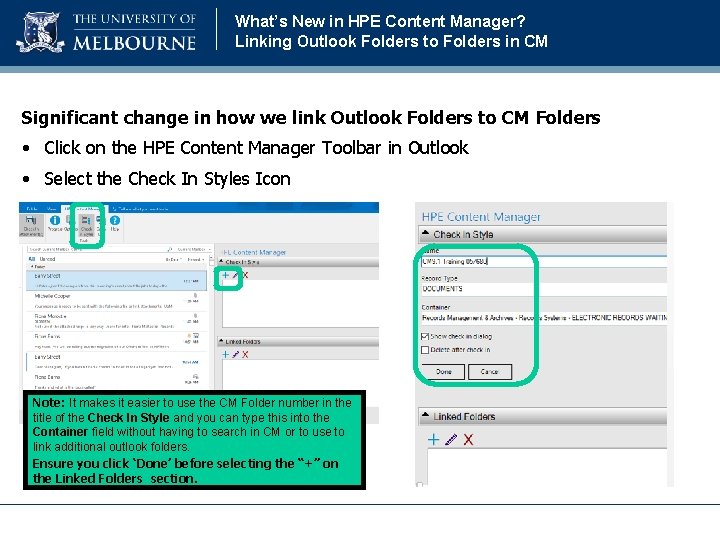
What’s New in HPE Content Manager? Linking Outlook Folders to Folders in CM Significant change in how we link Outlook Folders to CM Folders • Click on the HPE Content Manager Toolbar in Outlook • Select the Check In Styles Icon Note: It makes it easier to use the CM Folder number in the title of the Check In Style and you can type this into the Container field without having to search in CM or to use to link additional outlook folders. Ensure you click ‘Done’ before selecting the “+” on the Linked Folders section.
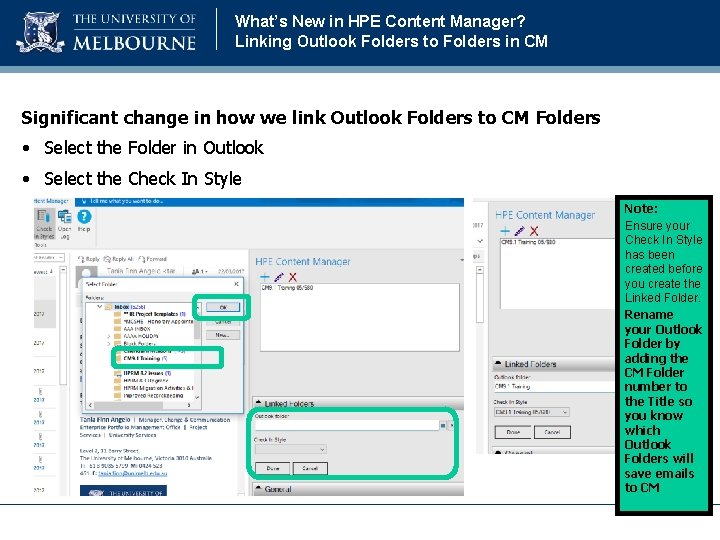
What’s New in HPE Content Manager? Linking Outlook Folders to Folders in CM Significant change in how we link Outlook Folders to CM Folders • Select the Folder in Outlook • Select the Check In Style Note: Ensure your Check In Style has been created before you create the Linked Folder. Rename your Outlook Folder by adding the CM Folder number to the Title so you know which Outlook Folders will save emails to CM
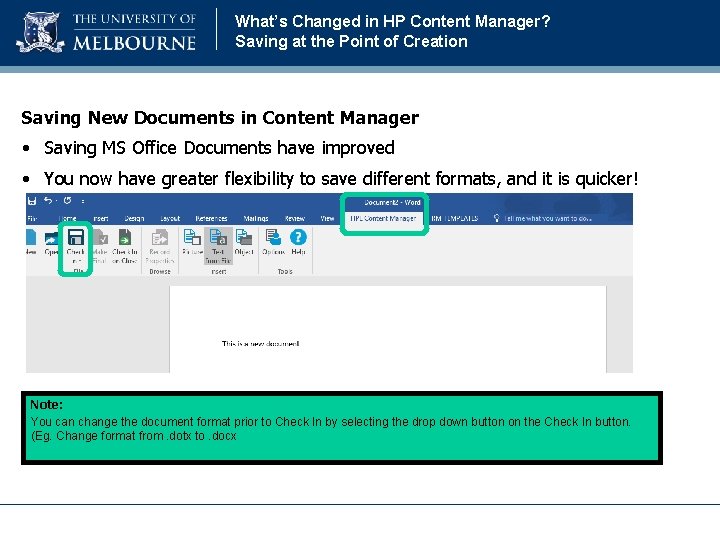
What’s Changed in HP Content Manager? Saving at the Point of Creation Saving New Documents in Content Manager • Saving MS Office Documents have improved • You now have greater flexibility to save different formats, and it is quicker! Note: You can change the document format prior to Check In by selecting the drop down button on the Check In button. (Eg. Change format from. dotx to. docx
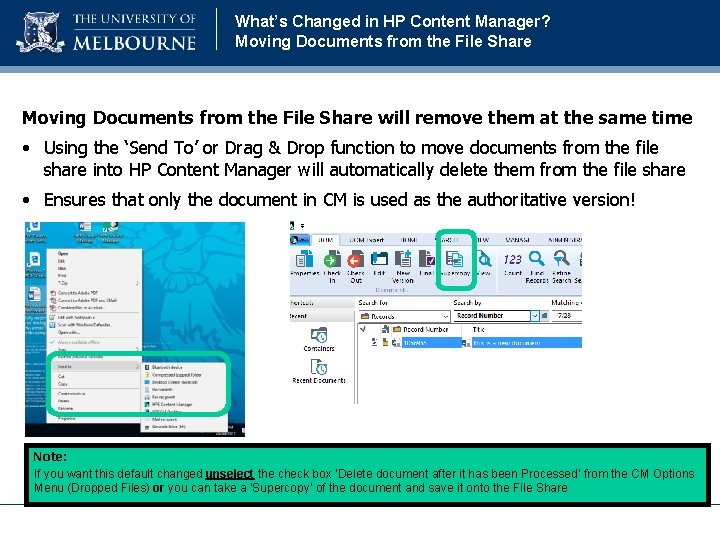
What’s Changed in HP Content Manager? Moving Documents from the File Share will remove them at the same time • Using the ‘Send To’ or Drag & Drop function to move documents from the file share into HP Content Manager will automatically delete them from the file share • Ensures that only the document in CM is used as the authoritative version! Note: If you want this default changed unselect the check box ‘Delete document after it has been Processed’ from the CM Options Menu (Dropped Files) or you can take a ‘Supercopy’ of the document and save it onto the File Share
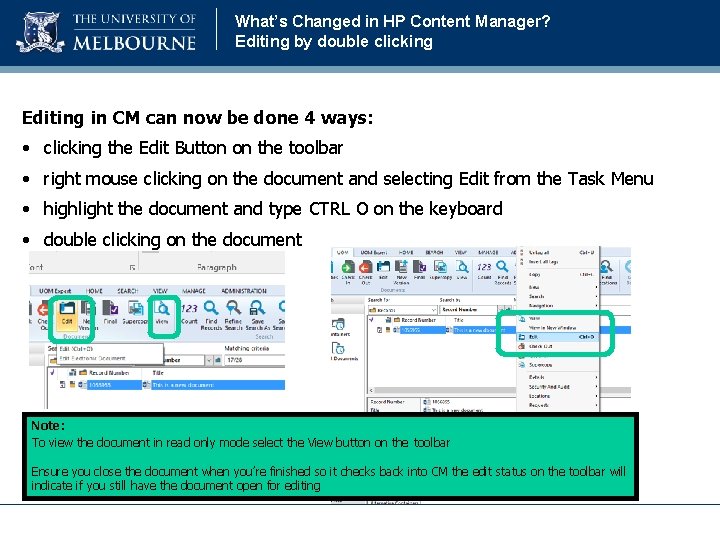
What’s Changed in HP Content Manager? Editing by double clicking Editing in CM can now be done 4 ways: • clicking the Edit Button on the toolbar • right mouse clicking on the document and selecting Edit from the Task Menu • highlight the document and type CTRL O on the keyboard • double clicking on the document Note: To view the document in read only mode select the View button on the toolbar Ensure you close the document when you’re finished so it checks back into CM the edit status on the toolbar will indicate if you still have the document open for editing
HP Software Upgrade Information Session Questions? QUESTIONS?
Updated Retention & Disposal Authority – The Key Changes Chris Stueven, Records Analyst, Records & Compliance
Contents 1. 2. 3. 4. 5. University Records Introduction to the Retention & Disposal Authority Why the changes? Staff Resources More Information
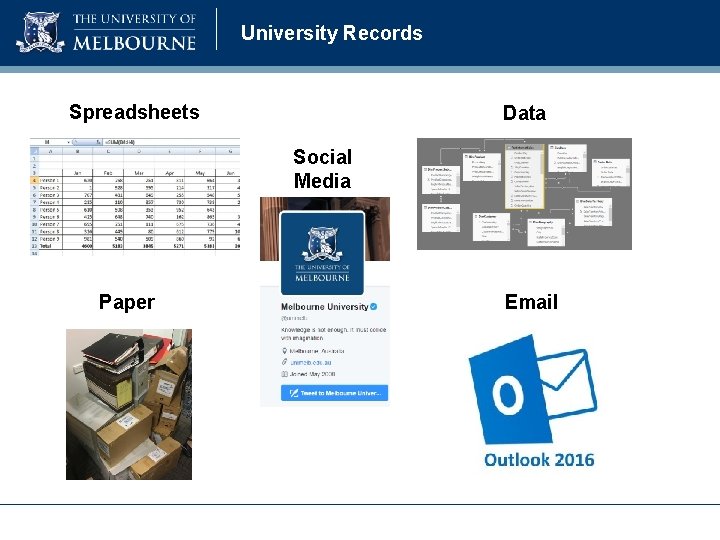
University Records Spreadsheets Data Social Media Paper Email
What is a Record? ‘…recorded information, in any format (e. g. electronic, paper, image) created or received by staff of the University in the course of conducting their University duties. ’ Records Management Policy (MPF 1106)
University Retention & Disposal Authority The University Retention & Disposal Authority sets out the requirements for the destruction of information, in line with legislative and University business needs. http: //info. records. unimelb. edu. au/RDA/
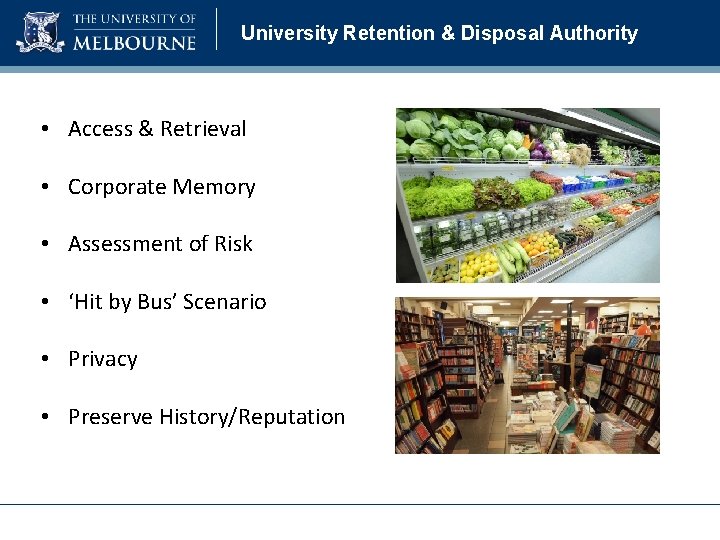
University Retention & Disposal Authority • Access & Retrieval • Corporate Memory • Assessment of Risk • ‘Hit by Bus’ Scenario • Privacy • Preserve History/Reputation
Sorting Hat
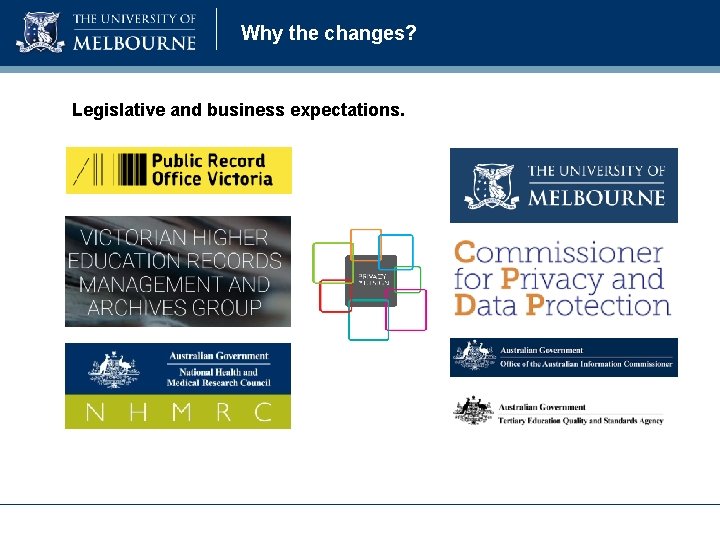
Why the changes? Legislative and business expectations.
Why the changes? …and your feedback!
Resources RETENTION & DISPOSAL AUTHORITY ENTERPRISE CLASSIFICATION SCHEME MAPPING DOCUMENT University Records have documented the key changes that detail the transition from the previous Retention & Disposal Authority and Enterprise Classification Scheme, to the current version.
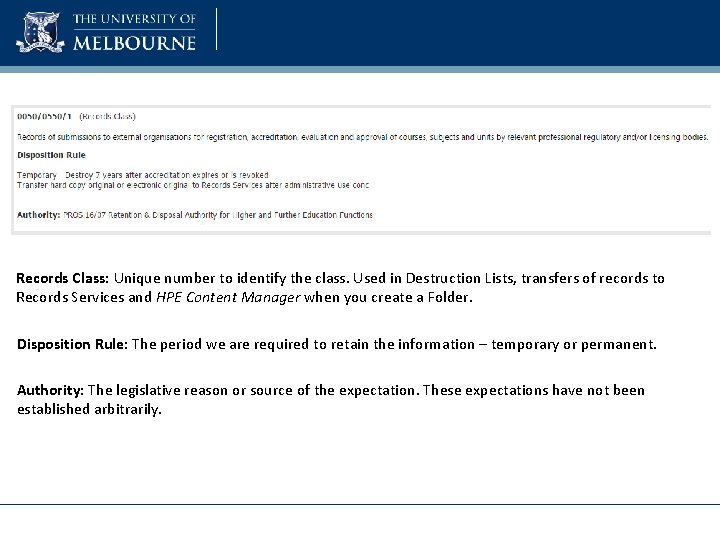
Records Class: Unique number to identify the class. Used in Destruction Lists, transfers of records to Records Services and HPE Content Manager when you create a Folder. Disposition Rule: The period we are required to retain the information – temporary or permanent. Authority: The legislative reason or source of the expectation. These expectations have not been established arbitrarily.
Spotlights RESEARCH - Agreements – 0600/0700/8: Legal Agreements that contain intellectual property clauses were retained for 7 years however are now Permanent. STUDENT MANAGEMENT – Graduations - : Uncollected testamur retention amended from 2 to 7 years after action completed. [EACH FUNCTION] – Compliance: Documentation that demonstrates our compliance with external legal or accreditation obligations. 10 year retention. RESEARCH – Ethics: Ethics proposals, approvals and amendments relating to research projects. Previously 7 years, now Permanent. RESEARCH – Commercialisation: Identification and investigation of commercial opportunities where the commercial activity did not proceed. New class, 7 years after last action completed.
Live on Thursday 1 June 2017
Contact us Chris Stueven, Records Analyst, Records & Compliance Ph: 834 45210 E: cstueven@unimelb. edu. au
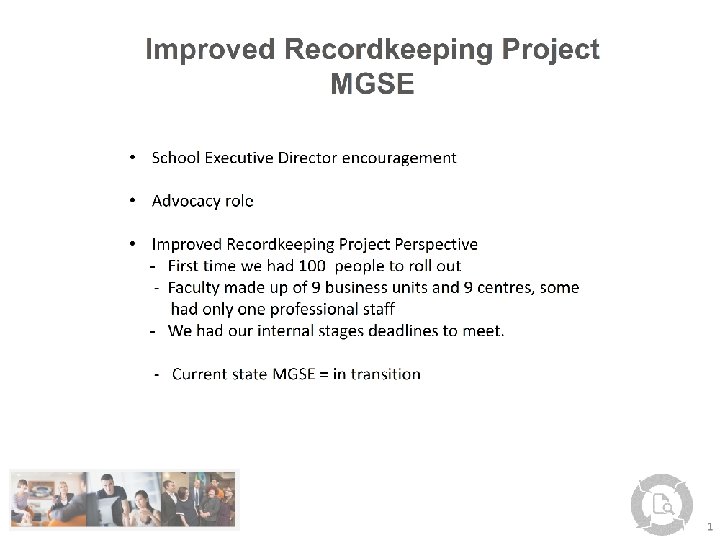
Improved Recordkeeping Project MGSE Carmela Gallo, Records Analyst, Project Services
Improved Recordkeeping Project MGSE Carmela Gallo, Records Analyst, Project Services
Launch of Records Management Network Webpage Imogen Telfer, Records Officer
A resource for you http: //records. unimelb. edu. au/services/records-management-network • How can we make this page as useful for you as possible? – Contact list of HPE Content Manager (HPRM) Local Experts? – List of people who attend these meetings? – Links to other University/outside resources? – …? – Let us know at records-services@unimelb. edu. au https: //staff. unimelb. edu. au/human-resources/salary-benefitsleave/professional-networks
© Copyright The University of Melbourne 2011