Paratext 9 Planning for success Project Plan Setup

- Slides: 24
Paratext 9 Planning for success Project Plan Setup Laying a firm but flexible foundation [for Administrators only]
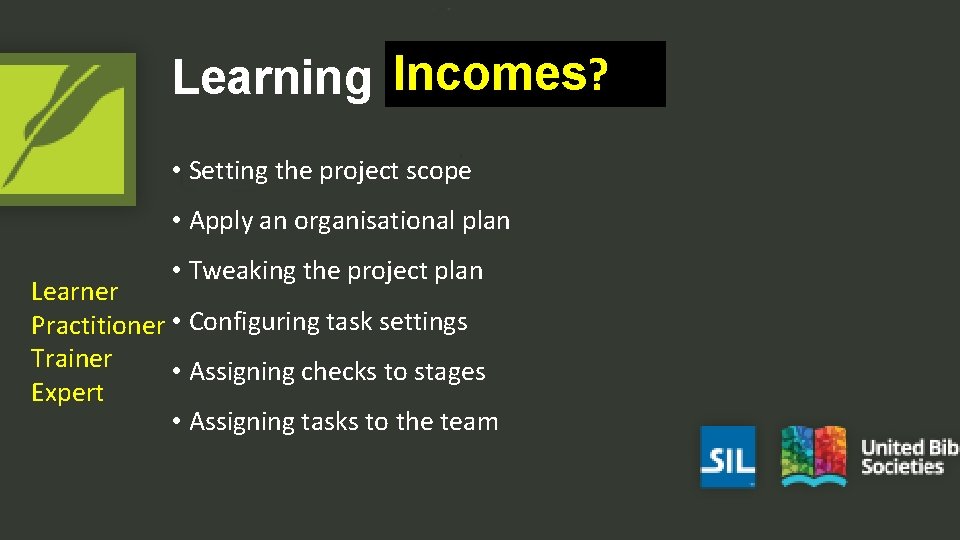
Incomes? Learning Outcomes • Setting the project scope • Apply an organisational plan • Tweaking the project plan Learner Practitioner • Configuring task settings Trainer • Assigning checks to stages Expert • Assigning tasks to the team
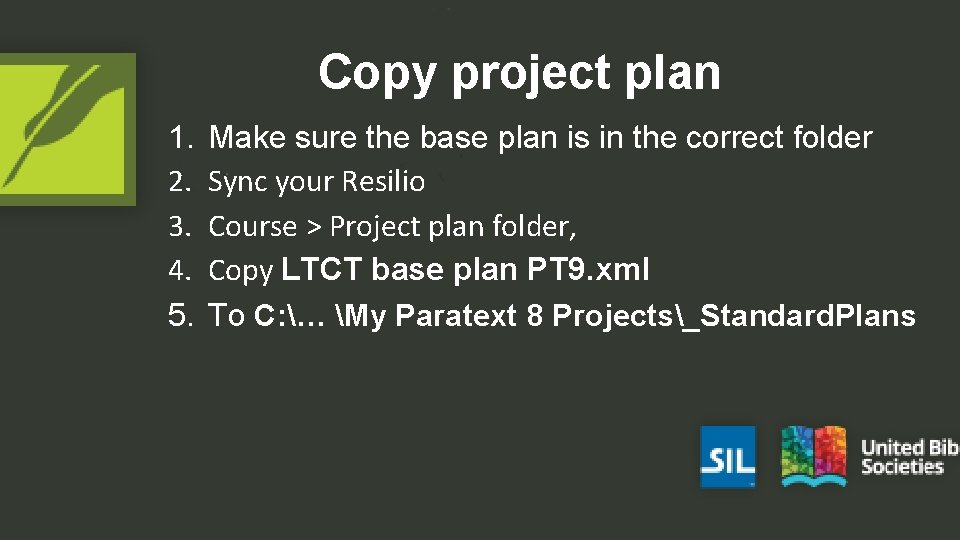
Copy project plan 1. 2. 3. 4. 5. Make sure the base plan is in the correct folder Sync your Resilio Course > Project plan folder, Copy LTCT base plan PT 9. xml To C: … My Paratext 8 Projects_Standard. Plans
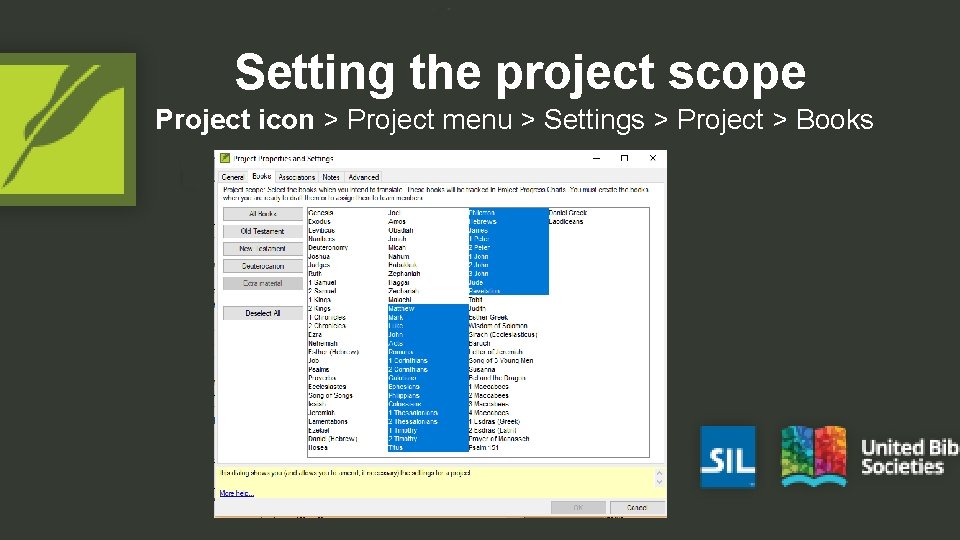
Setting the project scope Project icon > Project menu > Settings > Project > Books
Managing a project plan q Select a base plan and copy it to the project 1. Click the Project icon, then in the Project menu, choose Settings, then click Project Plan 2. Click Manage Plans button 3. Select a base plan from the Show Base plan list 4. Click Copy Plan 5. Click OK
Your turn • Send/Receive LT 19 using Internet • Work in pairs, administrator needs to add plan to project • Send/Receive using USB
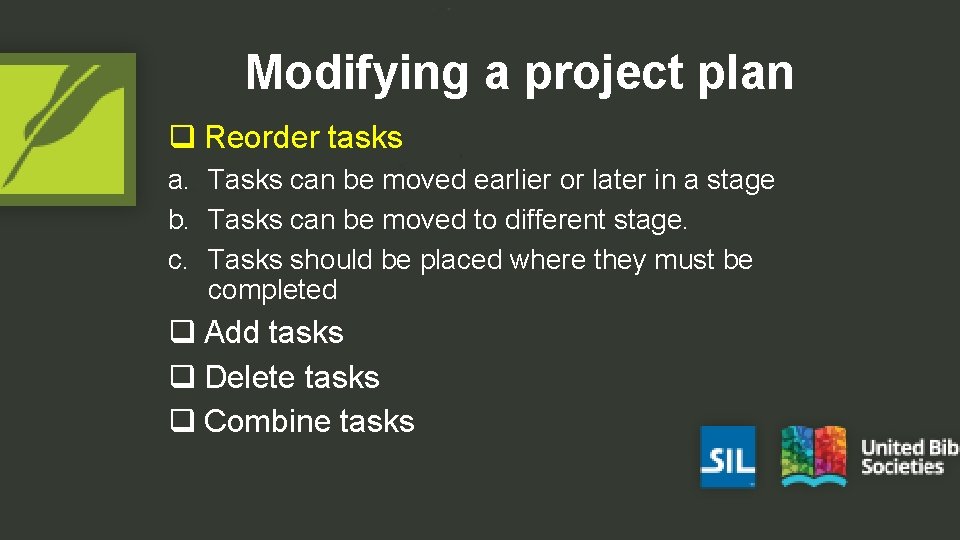
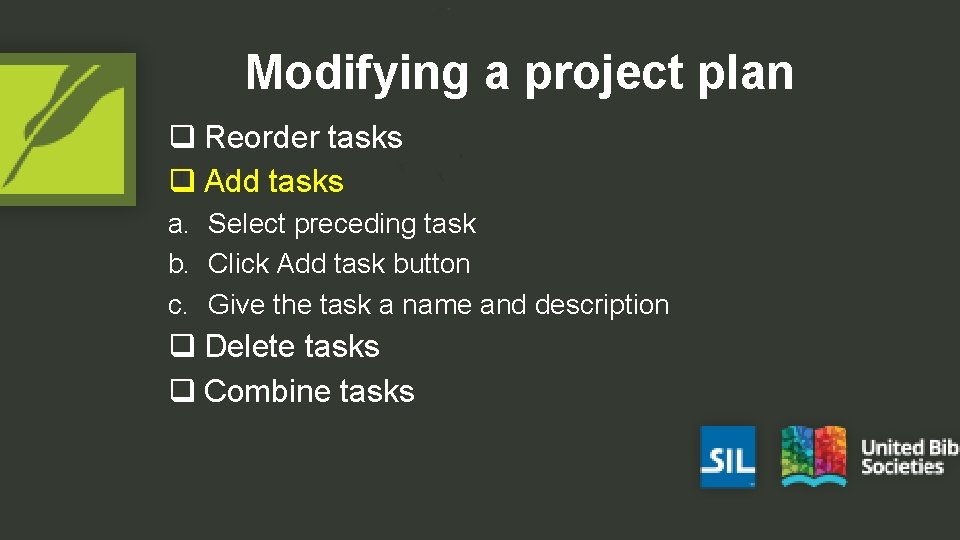
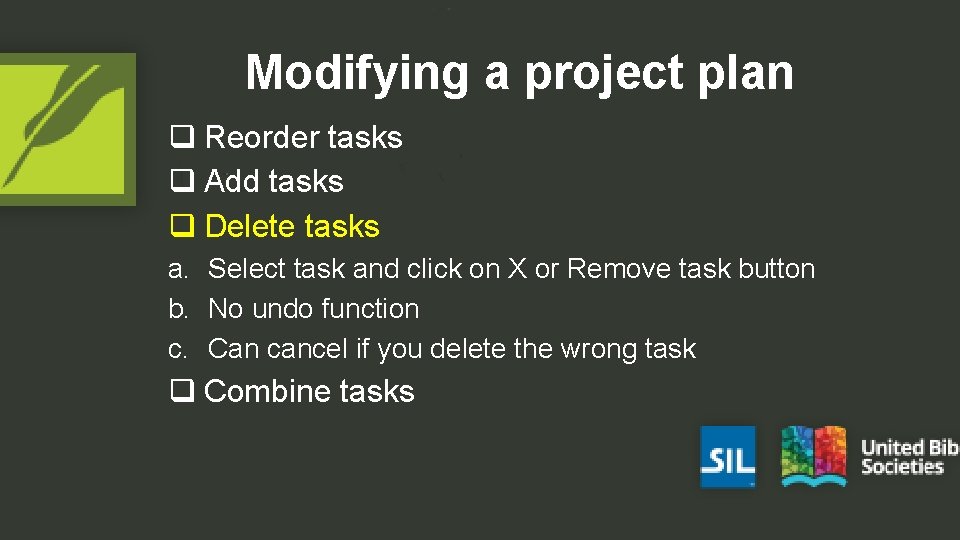
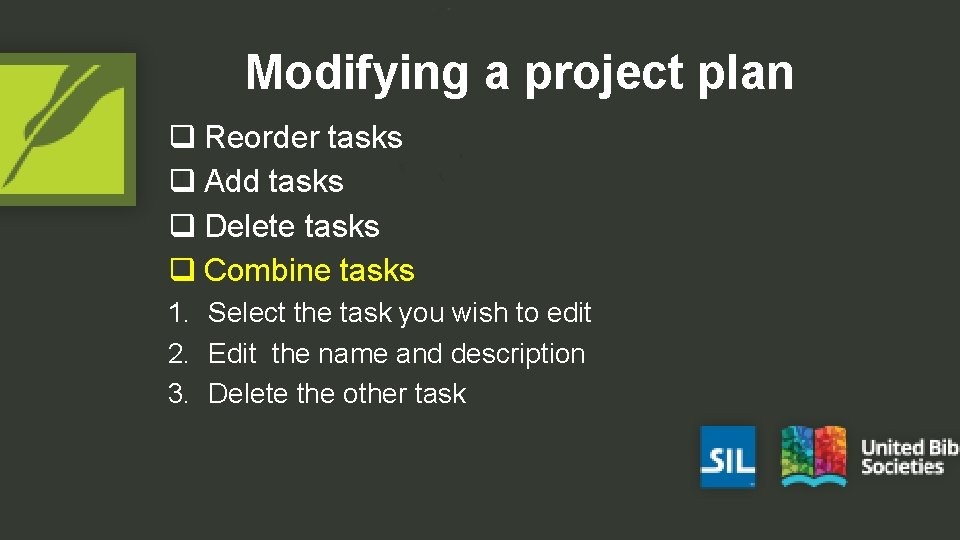
Modifying a project plan q Reorder tasks q Add tasks q Delete tasks q Combine tasks
Modifying a project plan q Reorder tasks a. Tasks can be moved earlier or later in a stage b. Tasks can be moved to different stage. c. Tasks should be placed where they must be completed q Add tasks q Delete tasks q Combine tasks
Modifying a project plan q Reorder tasks q Add tasks a. Select preceding task b. Click Add task button c. Give the task a name and description q Delete tasks q Combine tasks
Modifying a project plan q Reorder tasks q Add tasks q Delete tasks a. Select task and click on X or Remove task button b. No undo function c. Can cancel if you delete the wrong task q Combine tasks
Modifying a project plan q Reorder tasks q Add tasks q Delete tasks q Combine tasks 1. Select the task you wish to edit 2. Edit the name and description 3. Delete the other task
Configuring task settings q Three task settings 1. Mark task as complete 2. When can this task start 3. Requires Editing
Configuring task settings q Three task settings 1. Mark task as complete a. By chapter of a book b. By entire book c. By entire project 2. When can this task start 3. Requires Editing
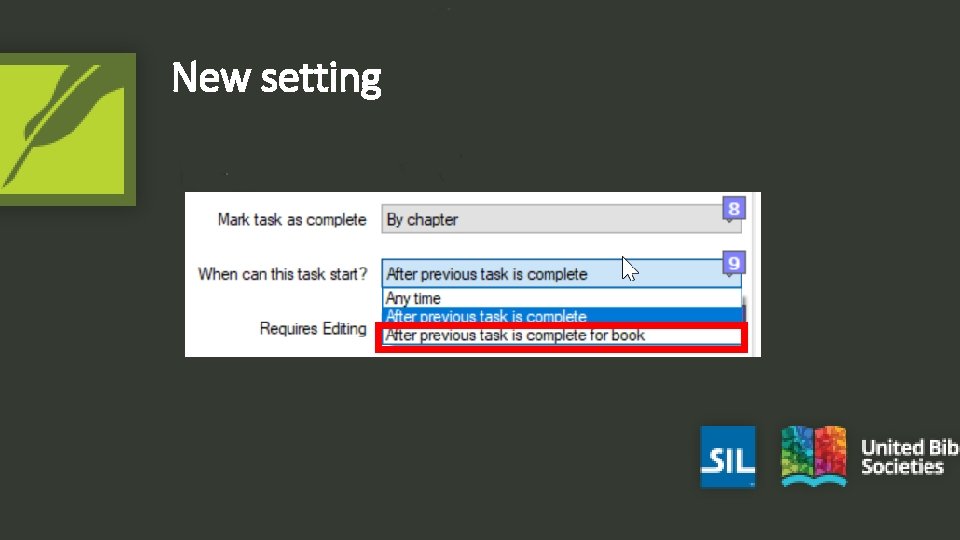
Configuring task settings q Three task settings 1. Mark task as complete 2. When can this task start a. Dependent tasks: after a previous task for chapter or for book or after a previous stage b. Non-dependent tasks can be set to begin Effects the task shown on the translator’s to do list 3. Requires Editing
New setting
Configuring task settings q Three task settings 1. Mark task as complete 2. When can this task start 3. Requires Editing a. Yes b. No
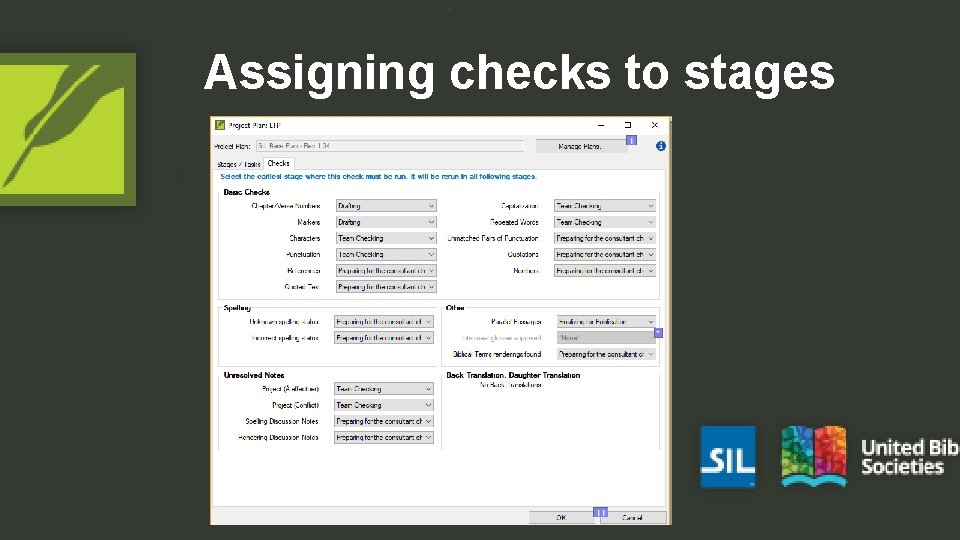
Assigning checks to stages q Automatic checks are set at the stage level q In Checks tab in the Project Plan dialog box q At least 20 check available to you q There are five categories of checks: Basic, Spelling, Unresolved Notes, Back Translation and Other q Each Note tag will have a potential check
Assigning checks to stages
Assigning tasks to the team q There are three kinds of activity 1) Editing the text 2) Resolving issues 3) Marking progress
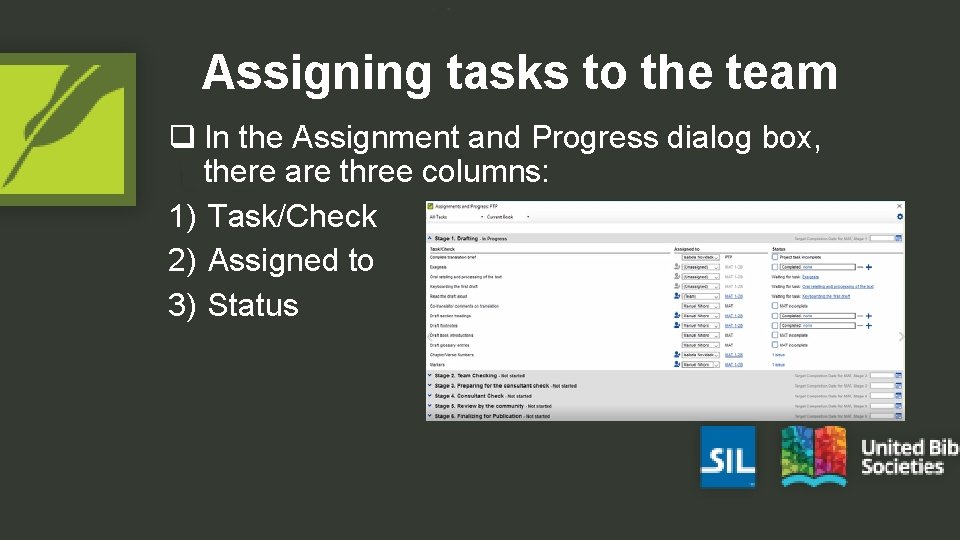
Assigning tasks to the team q In the Assignment and Progress dialog box, there are three columns: 1) Task/Check 2) Assigned to 3) Status
Assigning tasks to the team q In the Assigned to column, there are options to select: 1) Unassigned 2) One team member 3) Status
Your Turn 1. 2. 3. 4. 5. 6. 7. 8. Make sure you can copy a plan. Move a task Delete a task Modify a task Add a task Change when a task can start Add checks Assign tasks
Summary • A project plan is built upon an _______ plan. • To add a task to the plan, you select the ______ task, click the _______ button and give the task a name and _____. • You can mark a task as complete by chapter, by ______ or by _______. Answers: organizational, preceding, Add task, description, book, project
Learning Outcomes? • Setting the project scope • Apply an organisational plan • Tweaking the project plan Learner Practitioner • Configuring task settings Trainer • Assigning checks to stages Expert • Assigning tasks to the team