MUNSOFT SCM vs CSD INTEGRATION SETUP FUNCTIONALITY INDEX


- Slides: 42
MUNSOFT SCM vs CSD INTEGRATION, SETUP & FUNCTIONALITY
INDEX q Munsoft Master File setup vs CSD supplier additions q Quotation Setup, Processes and Documentation q Functionality and Rotation of suppliers
What will be explained and performed? This slideshow have been created to show the users how Munsoft captures the information for suppliers without the help of CSD. As we go through the Munsoft process for adding a new supplier we will touch on the CSD information listed to clearly understand how Munsoft utilised the functionality of CSD. We will then go through the CSD process to add a new supplier as well as go through a SCM process were we will outline the following: q Commodities setup and functionality q Requesting of quotations q Rotation of suppliers in a fair and reasonable way q Different Reports that can be extracted for various accounting reasons.
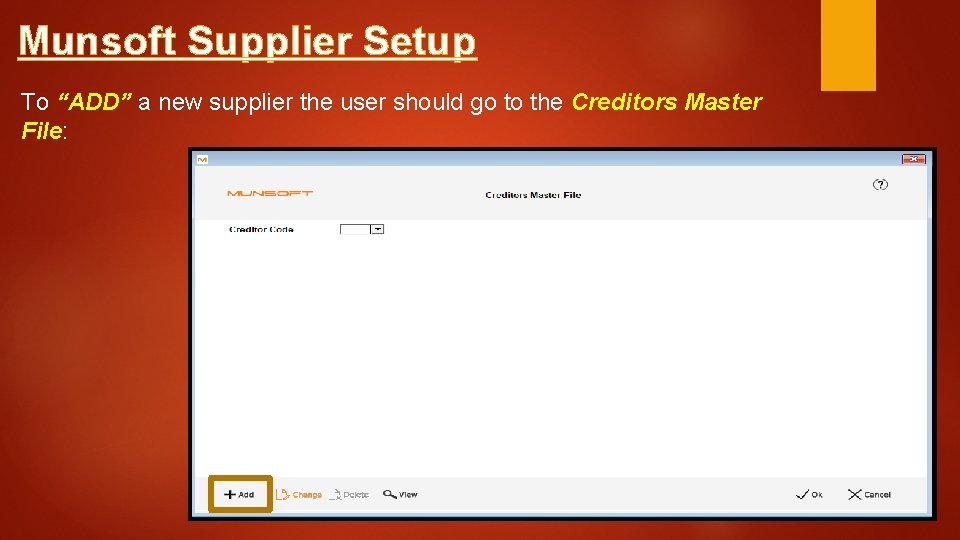
Munsoft Supplier Setup To “ADD” a new supplier the user should go to the Creditors Master File:
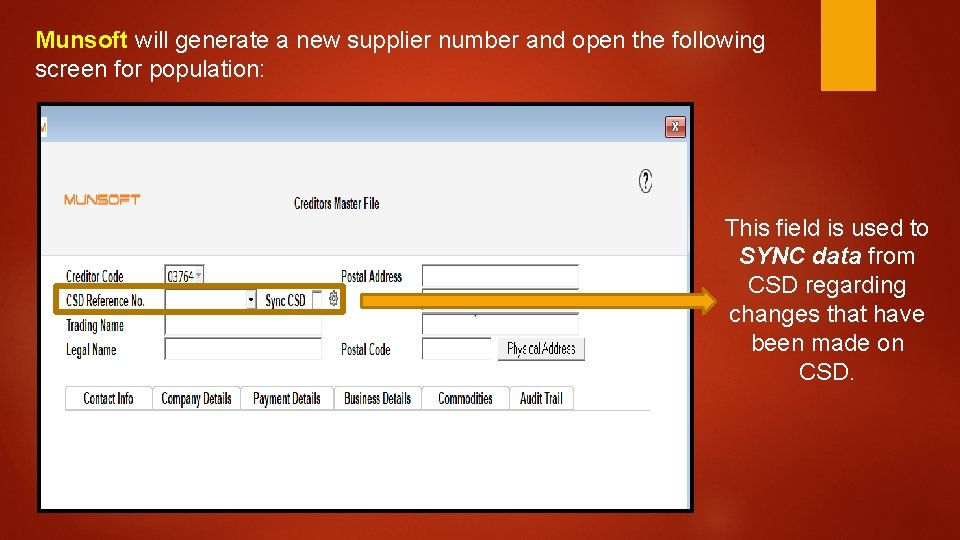
Munsoft will generate a new supplier number and open the following screen for population: This field is used to SYNC data from CSD regarding changes that have been made on CSD.
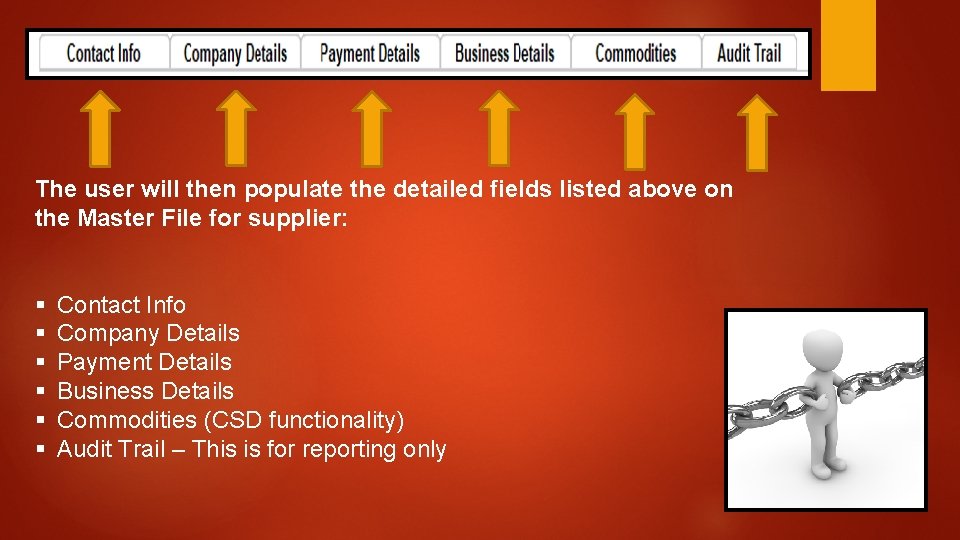
The user will then populate the detailed fields listed above on the Master File for supplier: § § § Contact Info Company Details Payment Details Business Details Commodities (CSD functionality) Audit Trail – This is for reporting only
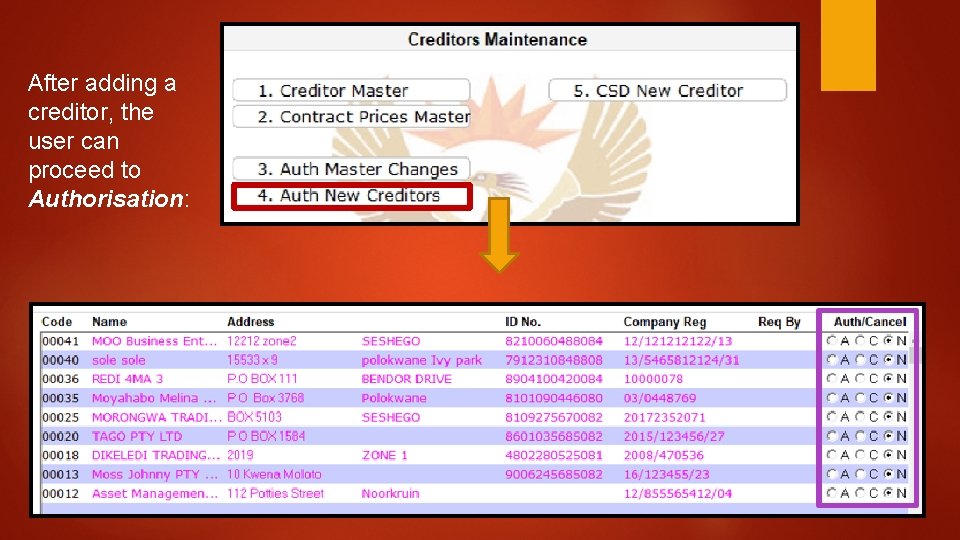
After adding a creditor, the user can proceed to Authorisation:
CSD Supplier Setup Quick background on how Munsoft is setup and integrated with CSD § Munsoft have integrated with CSD that allows the user to add suppliers that have registered themselves on CSD. § Before any user start using CSD on Munsoft, they have to start with the setup of Parameters. § The CSD parameters that requires setup will be explained as we go through the SCM Process to generate quotes.
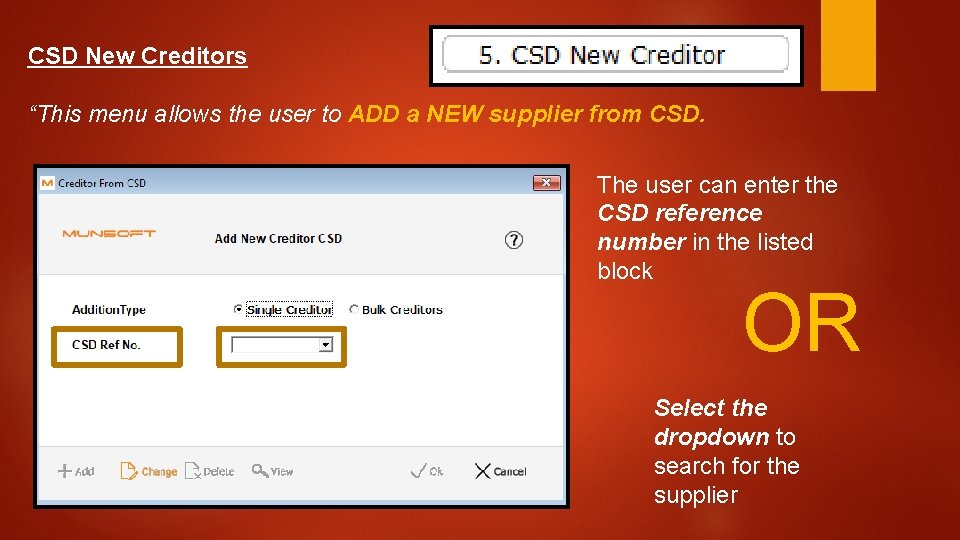
CSD New Creditors “This menu allows the user to ADD a NEW supplier from CSD. The user can enter the CSD reference number in the listed block OR Select the dropdown to search for the supplier
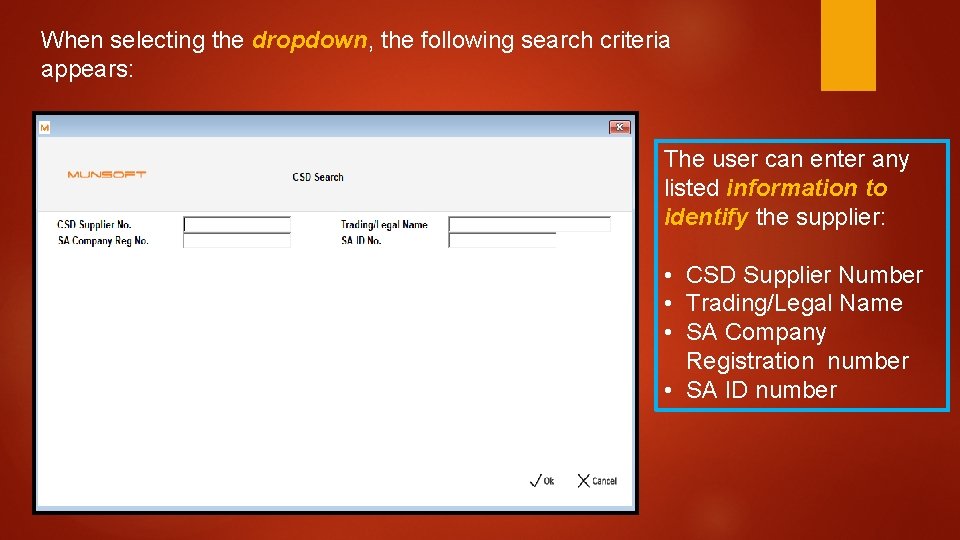
When selecting the dropdown, the following search criteria appears: The user can enter any listed information to identify the supplier: • CSD Supplier Number • Trading/Legal Name • SA Company Registration number • SA ID number
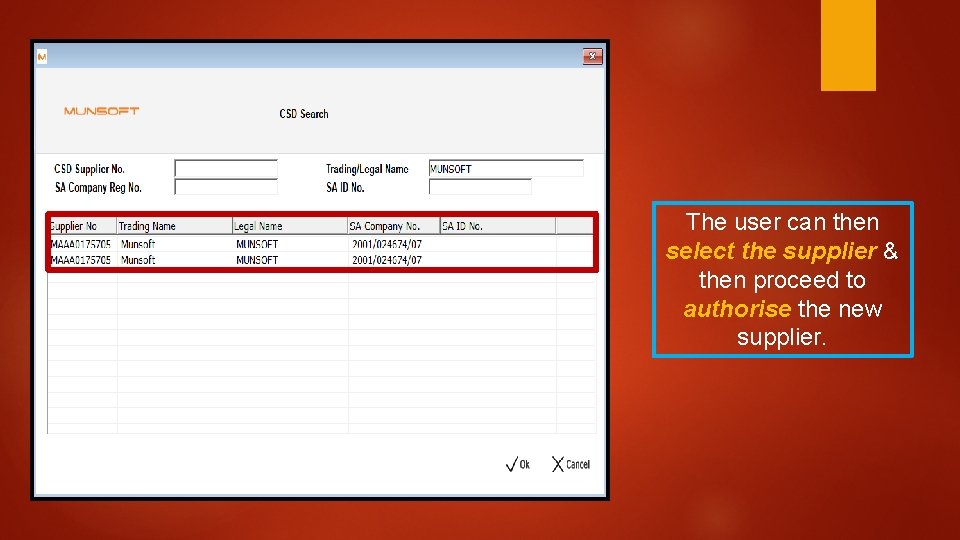
The user can then select the supplier & then proceed to authorise the new supplier.
Parameters for CSD The following parameters requires setup for CSD functionality: § § CSD Rules SCM Quote Range SCM Control Commodities – if needed to create own commodity
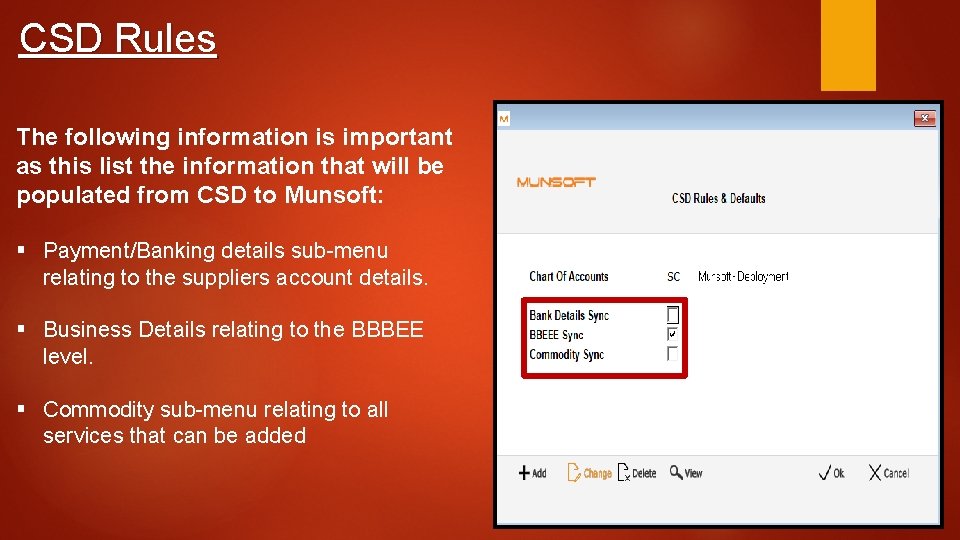
CSD Rules The following information is important as this list the information that will be populated from CSD to Munsoft: § Payment/Banking details sub-menu relating to the suppliers account details. § Business Details relating to the BBBEE level. § Commodity sub-menu relating to all services that can be added
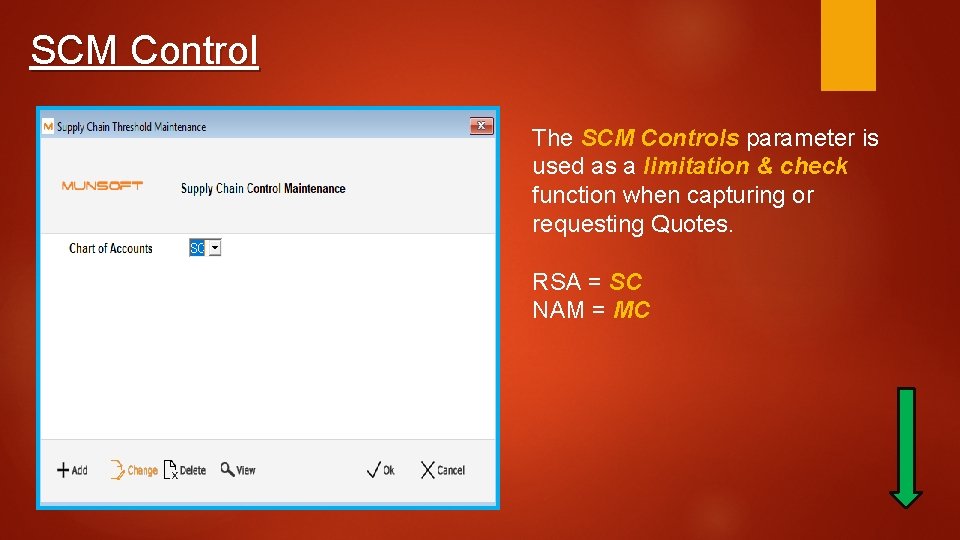
SCM Control The SCM Controls parameter is used as a limitation & check function when capturing or requesting Quotes. RSA = SC NAM = MC
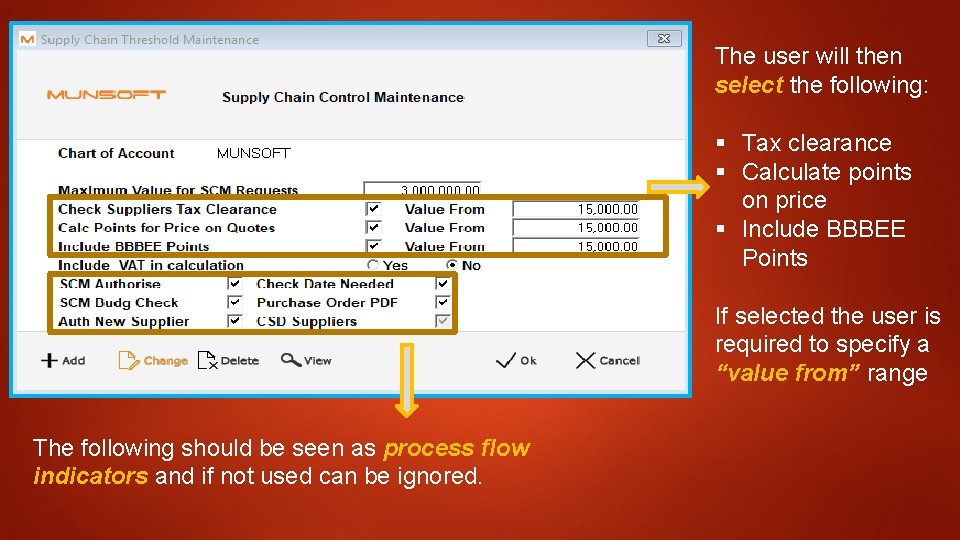
The user will then select the following: § Tax clearance § Calculate points on price § Include BBBEE Points If selected the user is required to specify a “value from” range The following should be seen as process flow indicators and if not used can be ignored.
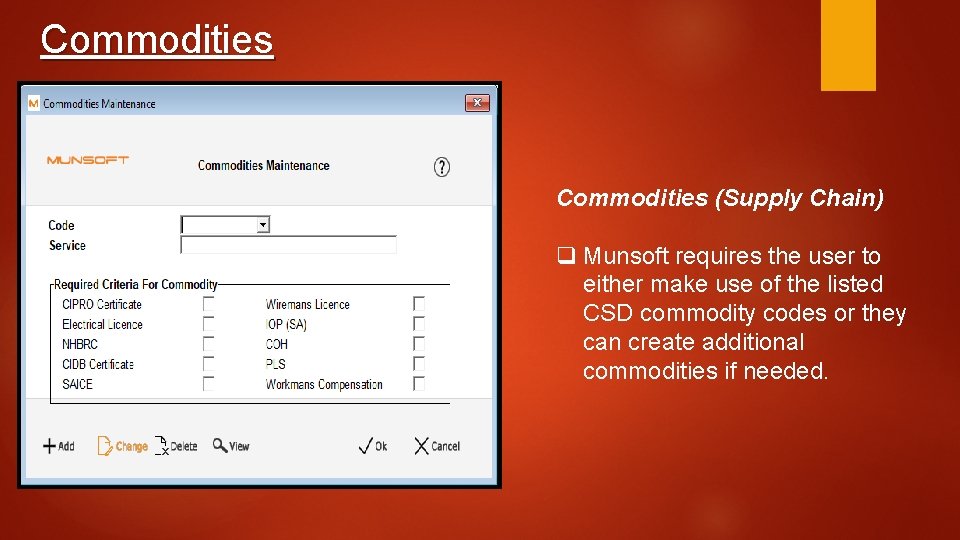
Commodities (Supply Chain) q Munsoft requires the user to either make use of the listed CSD commodity codes or they can create additional commodities if needed.
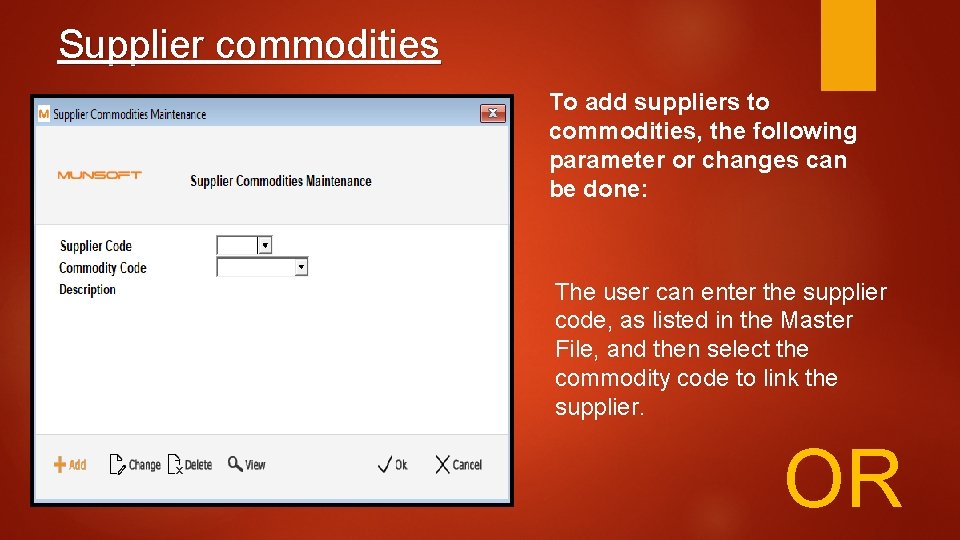
Supplier commodities To add suppliers to commodities, the following parameter or changes can be done: The user can enter the supplier code, as listed in the Master File, and then select the commodity code to link the supplier. OR
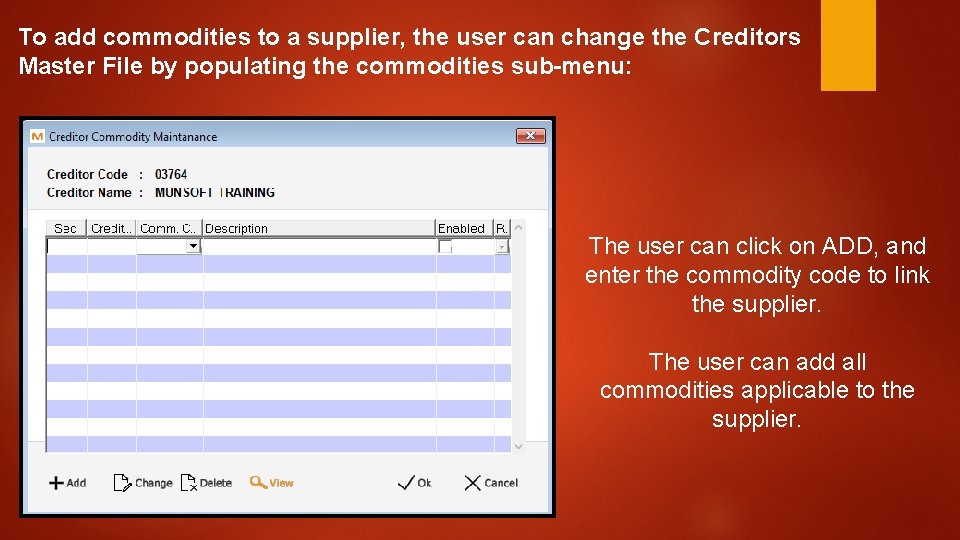
To add commodities to a supplier, the user can change the Creditors Master File by populating the commodities sub-menu: The user can click on ADD, and enter the commodity code to link the supplier. The user can add all commodities applicable to the supplier.
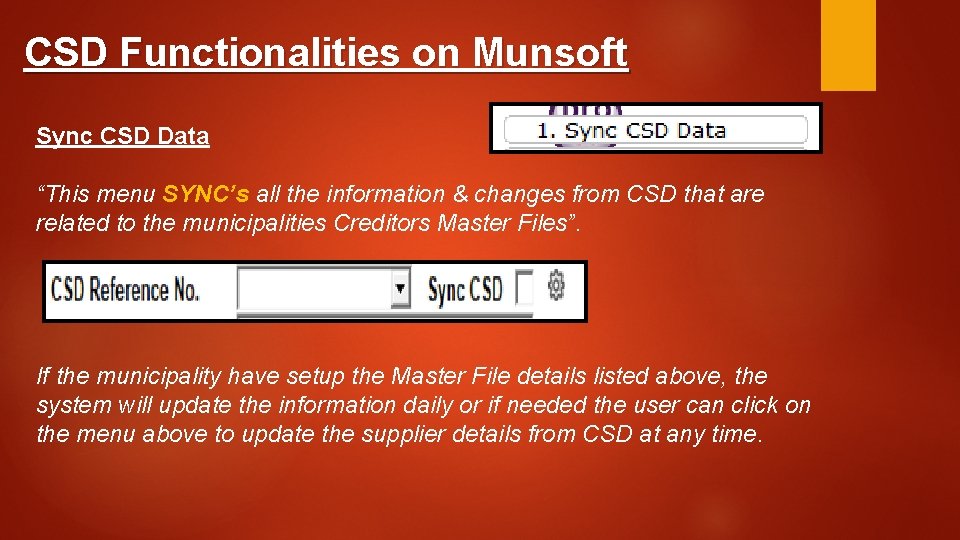
CSD Functionalities on Munsoft Sync CSD Data “This menu SYNC’s all the information & changes from CSD that are related to the municipalities Creditors Master Files”. If the municipality have setup the Master File details listed above, the system will update the information daily or if needed the user can click on the menu above to update the supplier details from CSD at any time.
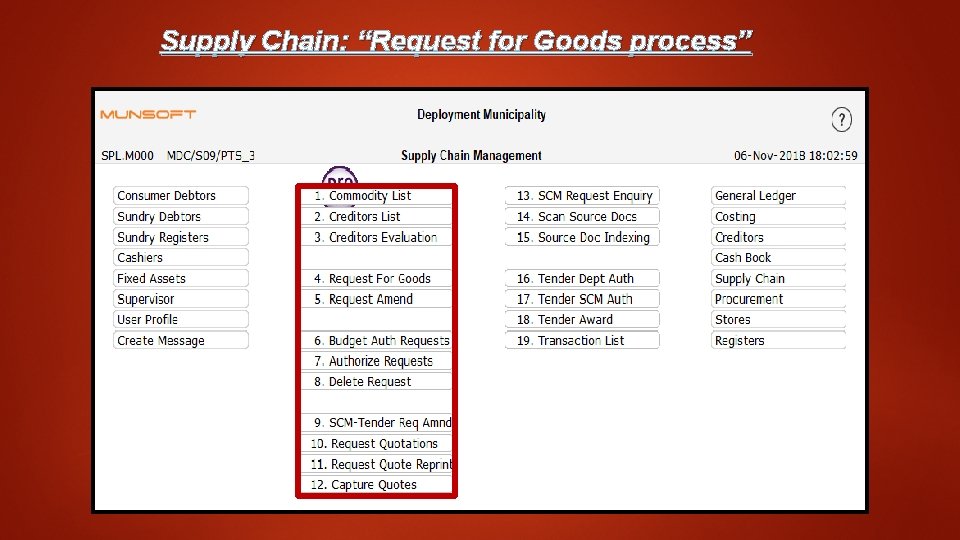
Supply Chain: “Request for Goods process”
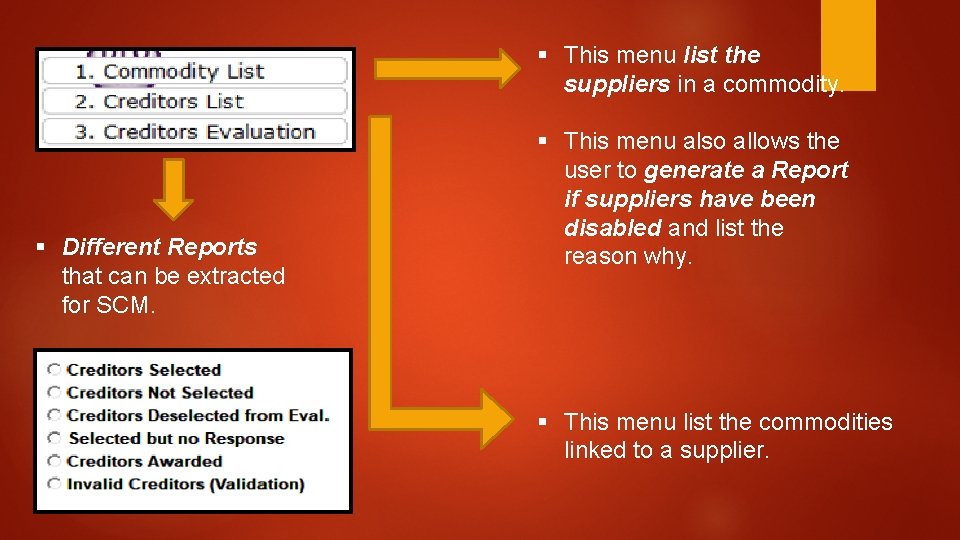
§ This menu list the suppliers in a commodity. § Different Reports that can be extracted for SCM. § This menu also allows the user to generate a Report if suppliers have been disabled and list the reason why. § This menu list the commodities linked to a supplier.
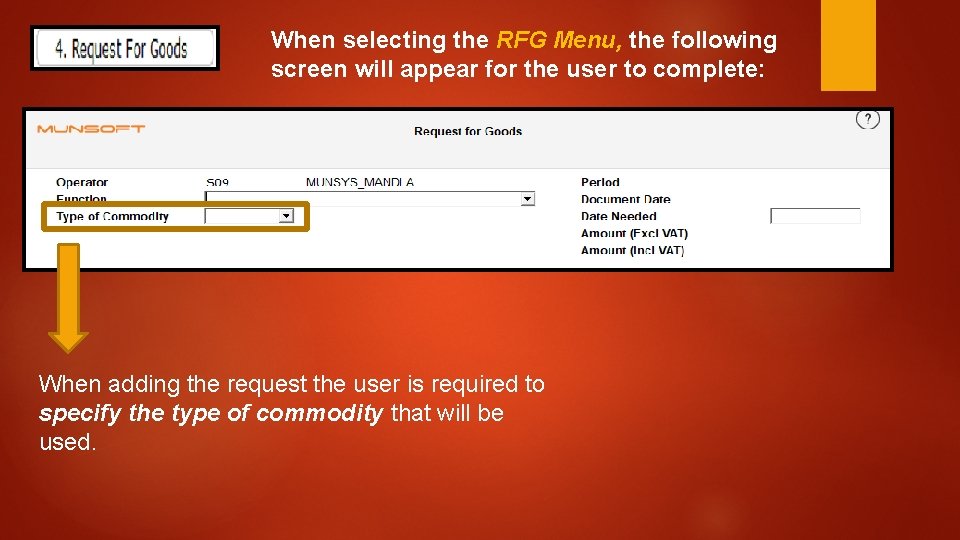
When selecting the RFG Menu, the following screen will appear for the user to complete: When adding the request the user is required to specify the type of commodity that will be used.
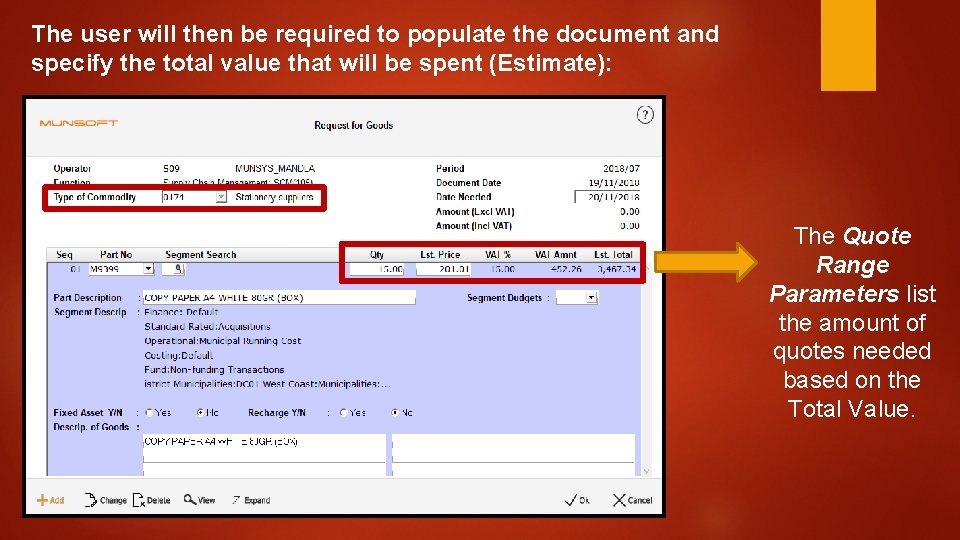
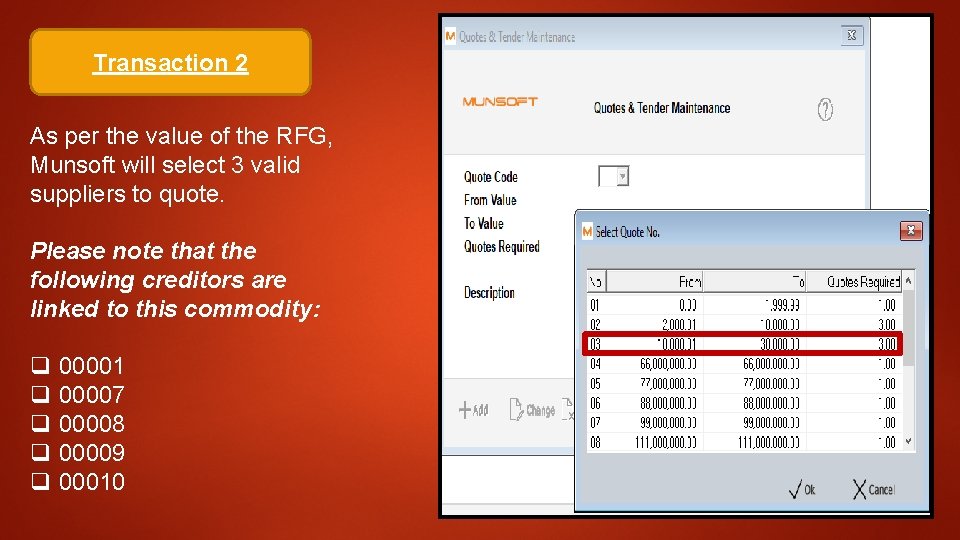
The user will then be required to populate the document and specify the total value that will be spent (Estimate): The Quote Range Parameters list the amount of quotes needed based on the Total Value.
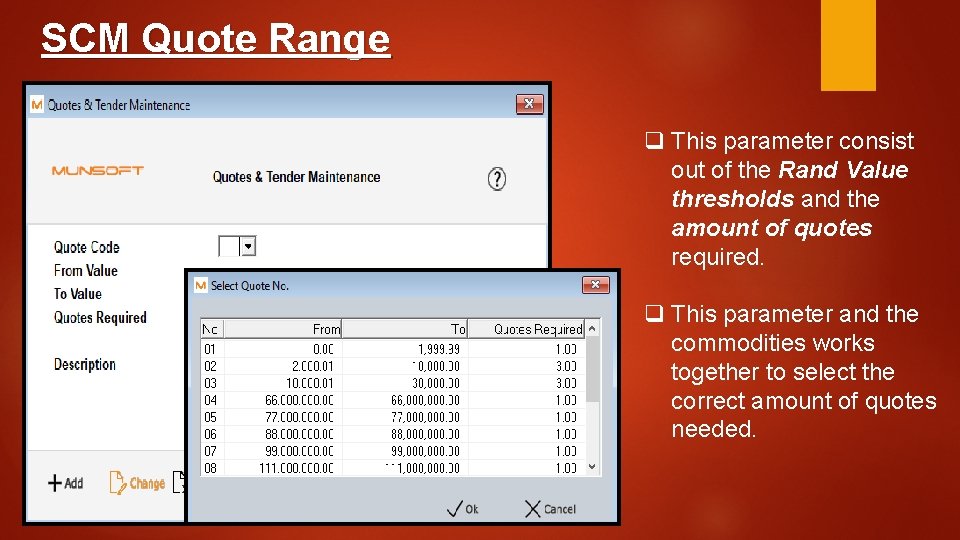
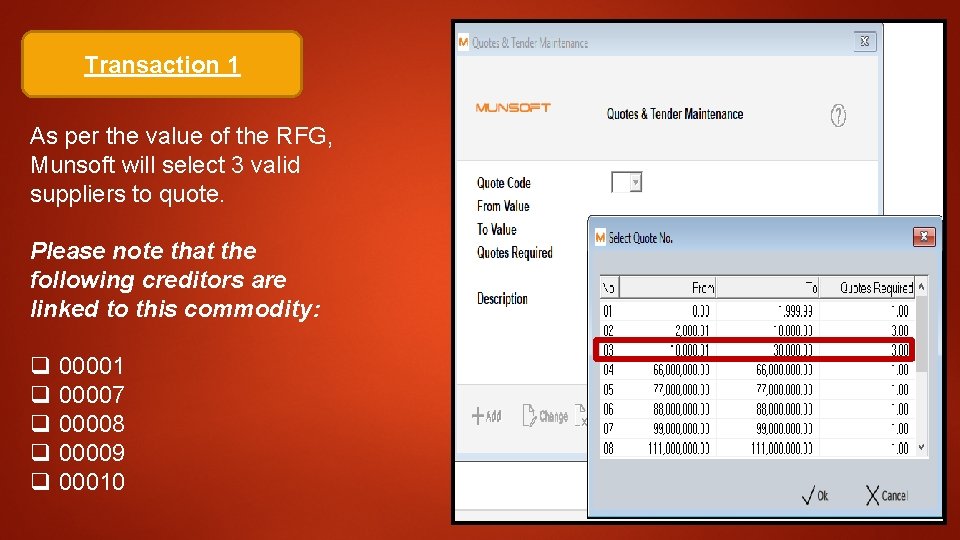
SCM Quote Range q This parameter consist out of the Rand Value thresholds and the amount of quotes required. q This parameter and the commodities works together to select the correct amount of quotes needed.
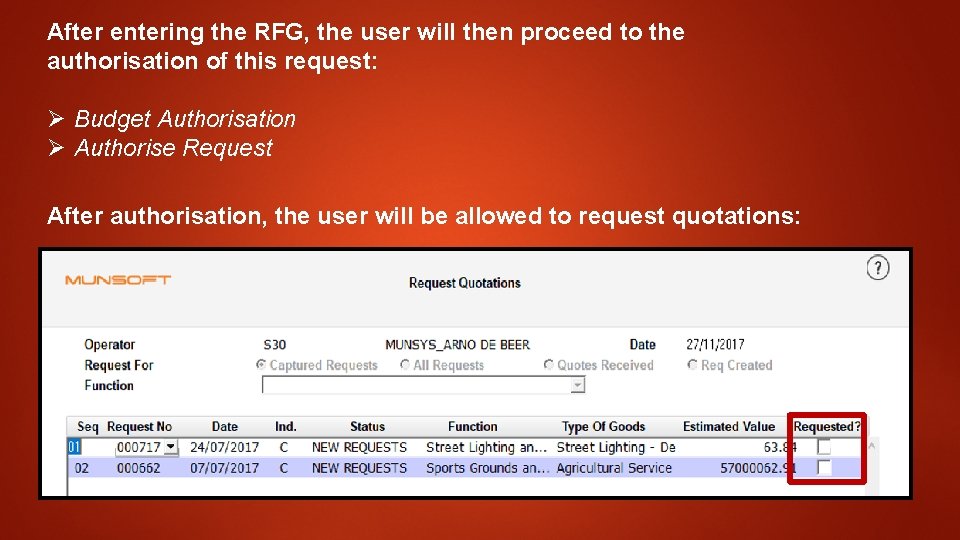
After entering the RFG, the user will then proceed to the authorisation of this request: Ø Budget Authorisation Ø Authorise Request After authorisation, the user will be allowed to request quotations:
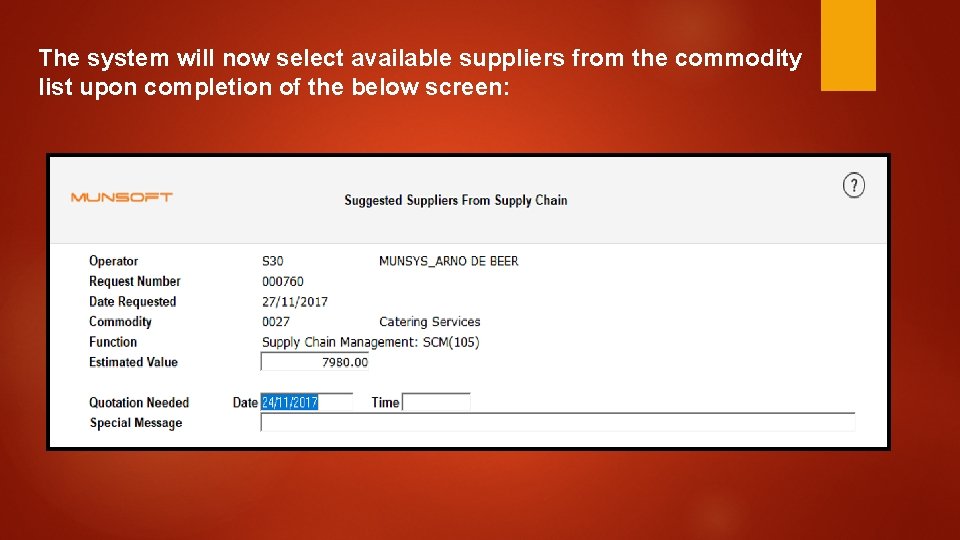
The system will now select available suppliers from the commodity list upon completion of the below screen:
The system will now validate and select the commodity suppliers next in line. A validation is done for the commodities criteria to ensure that the supplier’s details are in order and valid. If any of the suppliers are deselected the system will print a report indicating the reasons for creditors not being eligible for selection. After listing of the selected suppliers, continue to print quotations for the selected suppliers. Munsoft consist of a reprint option, but only for the selected suppliers on the RFG.
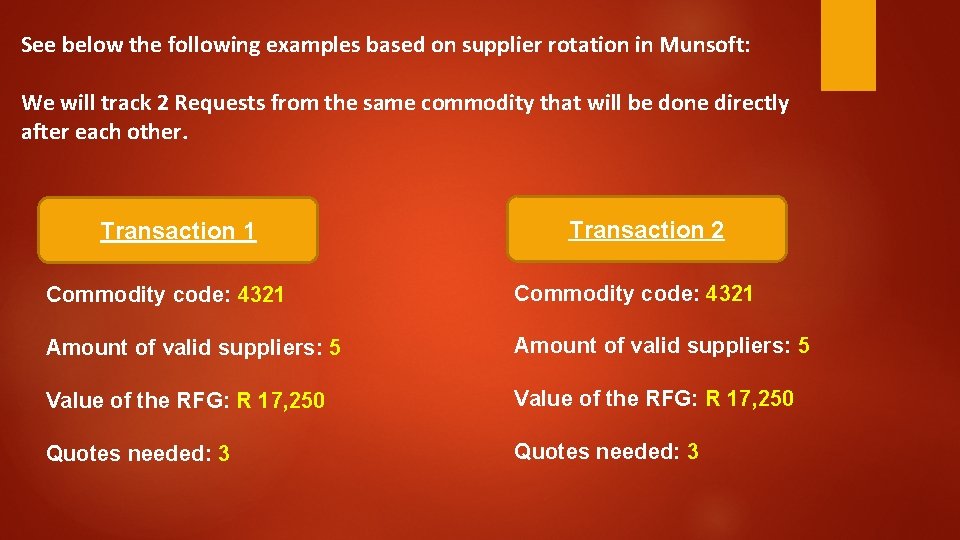
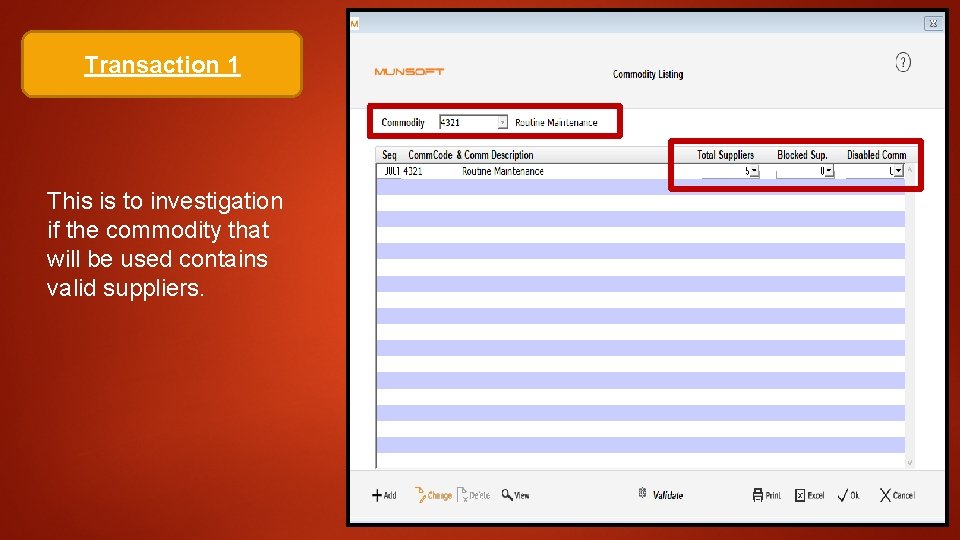
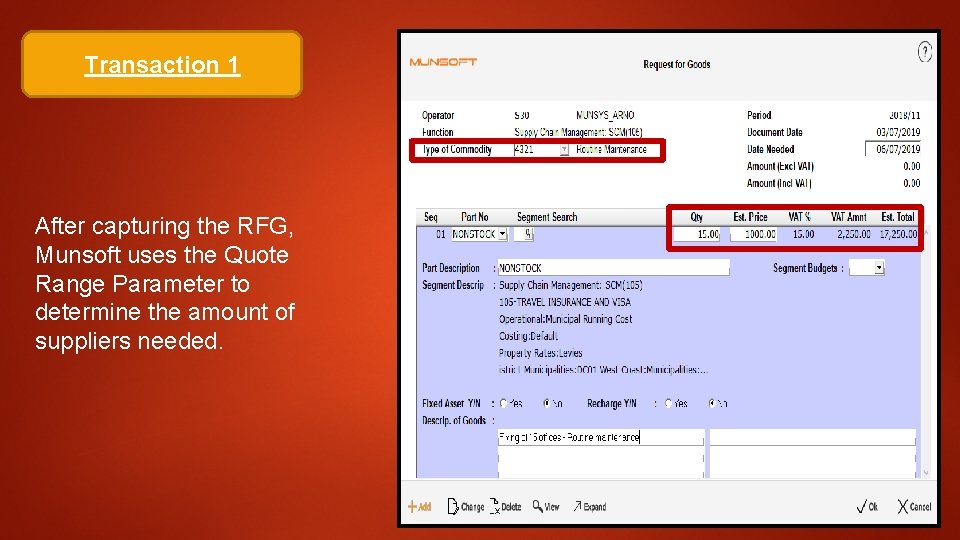
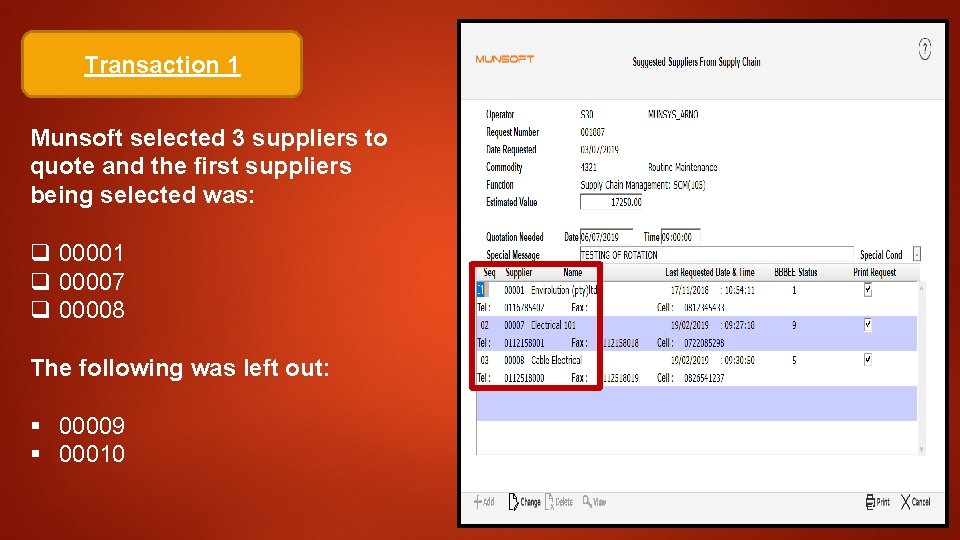
See below the following examples based on supplier rotation in Munsoft: We will track 2 Requests from the same commodity that will be done directly after each other. Transaction 1 Transaction 2 Commodity code: 4321 Amount of valid suppliers: 5 Value of the RFG: R 17, 250 Quotes needed: 3
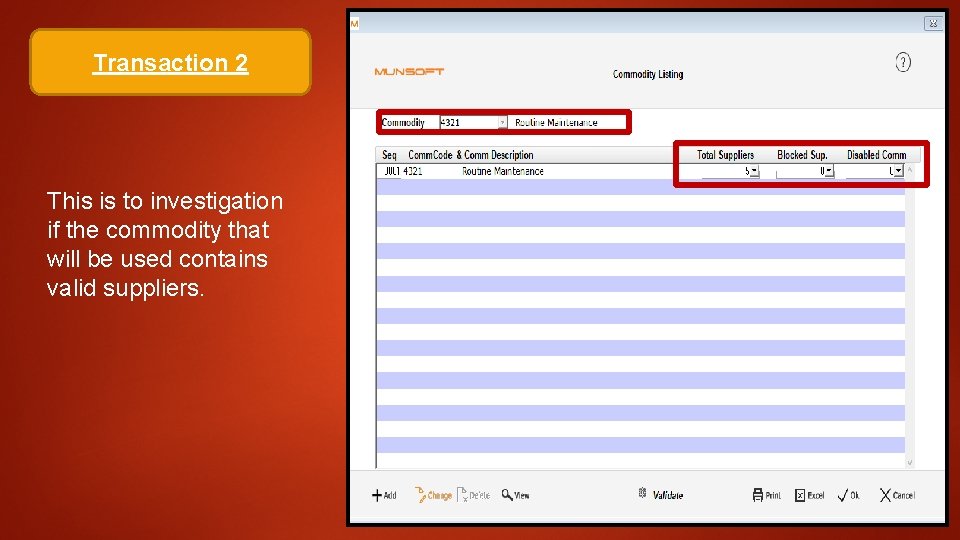
Transaction 1 This is to investigation if the commodity that will be used contains valid suppliers.
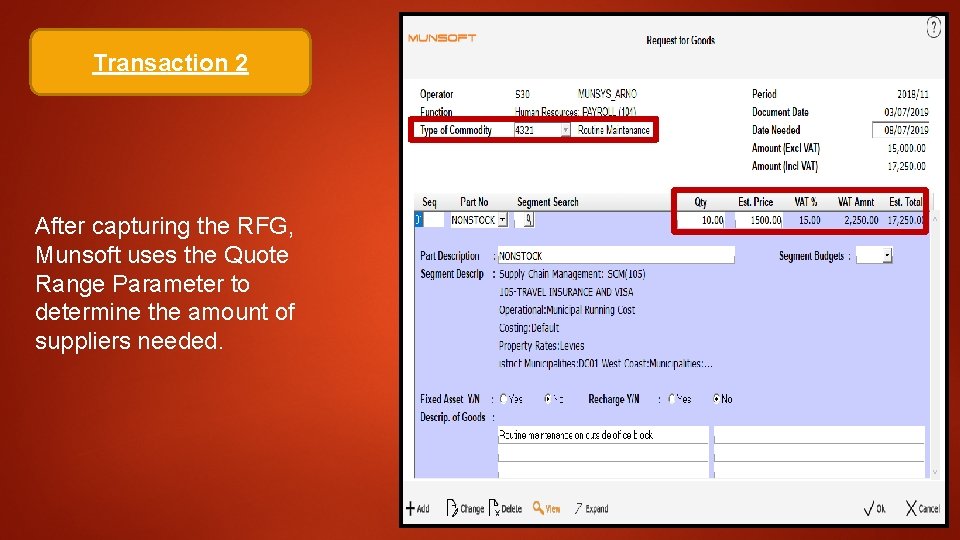
Transaction 1 After capturing the RFG, Munsoft uses the Quote Range Parameter to determine the amount of suppliers needed.
Transaction 1 As per the value of the RFG, Munsoft will select 3 valid suppliers to quote. Please note that the following creditors are linked to this commodity: q 00001 q 00007 q 00008 q 00009 q 00010
Transaction 1 Munsoft selected 3 suppliers to quote and the first suppliers being selected was: q 00001 q 00007 q 00008 The following was left out: § 00009 § 00010
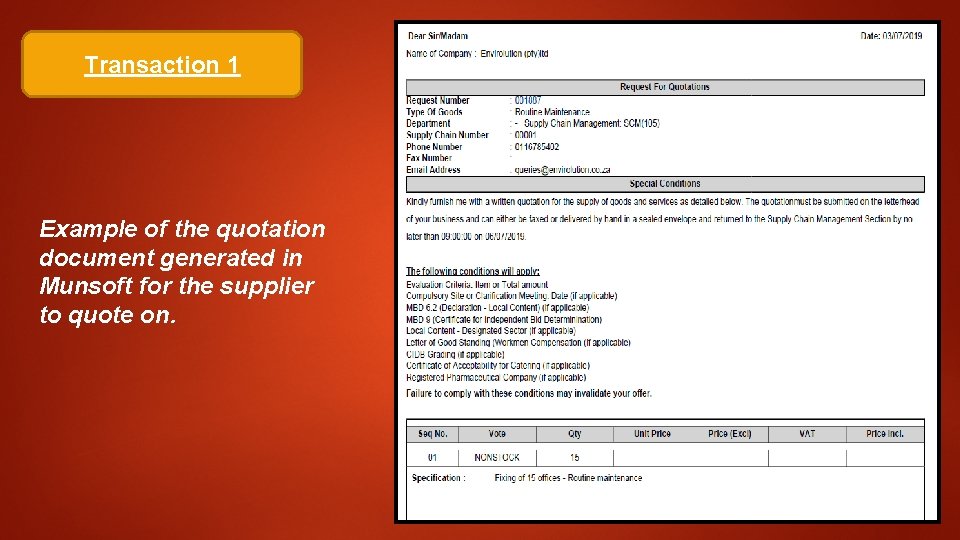
Transaction 1 Example of the quotation document generated in Munsoft for the supplier to quote on.
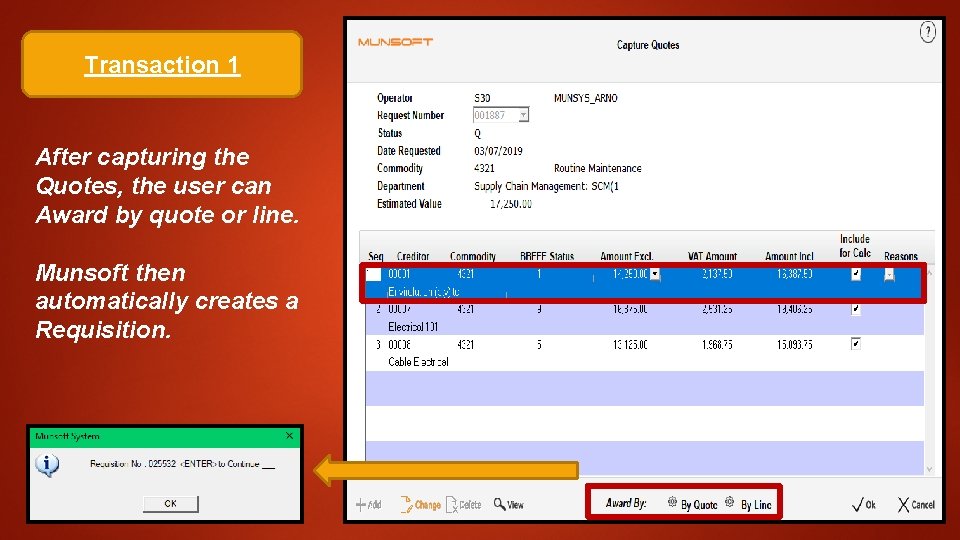
Transaction 1 After capturing the Quotes, the user can Award by quote or line. Munsoft then automatically creates a Requisition.
Transaction 2 This is to investigation if the commodity that will be used contains valid suppliers.
Transaction 2 After capturing the RFG, Munsoft uses the Quote Range Parameter to determine the amount of suppliers needed.
Transaction 2 As per the value of the RFG, Munsoft will select 3 valid suppliers to quote. Please note that the following creditors are linked to this commodity: q 00001 q 00007 q 00008 q 00009 q 00010
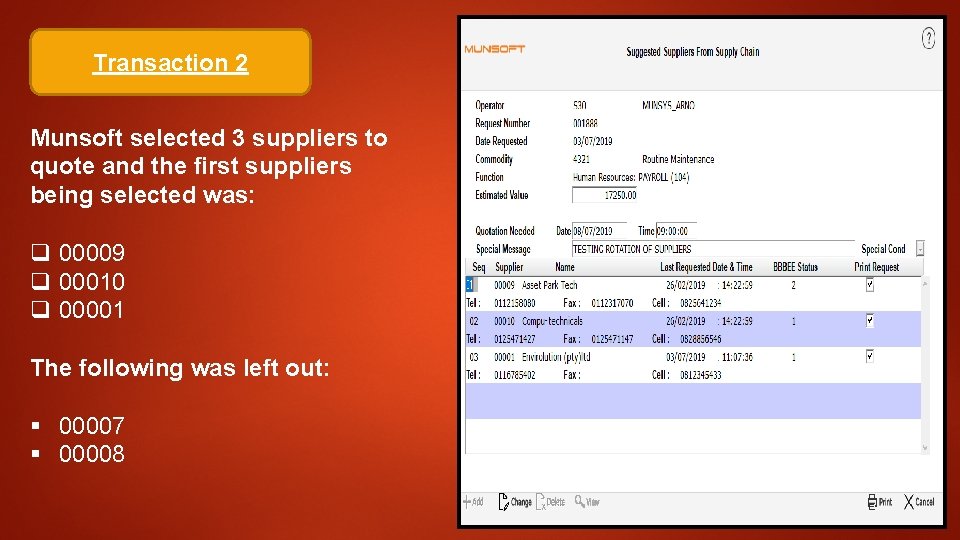
Transaction 2 Munsoft selected 3 suppliers to quote and the first suppliers being selected was: q 00009 q 00010 q 00001 The following was left out: § 00007 § 00008
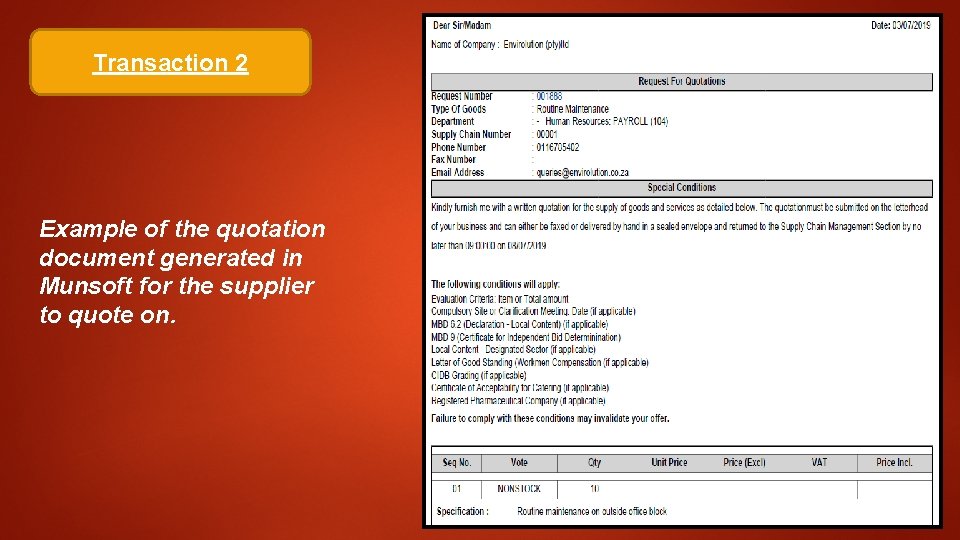
Transaction 2 Example of the quotation document generated in Munsoft for the supplier to quote on.
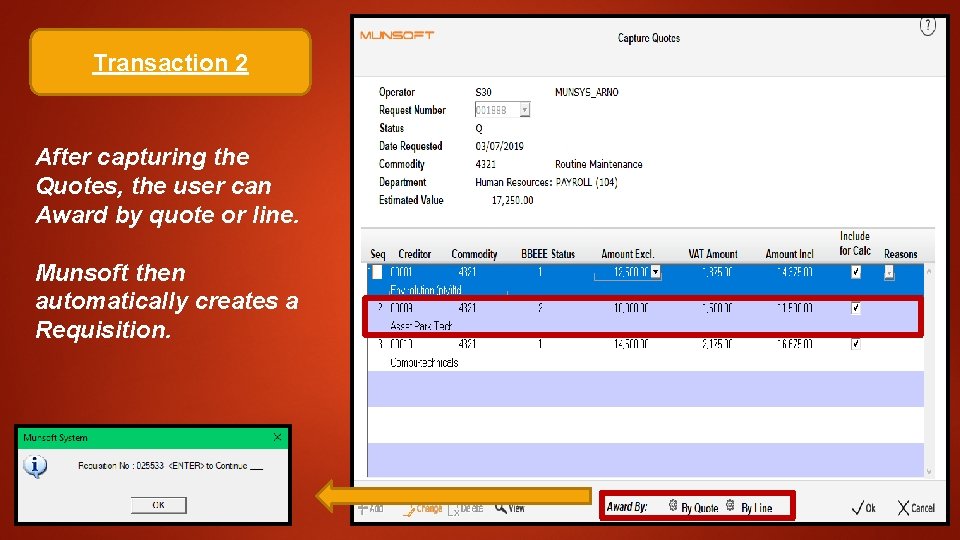
Transaction 2 After capturing the Quotes, the user can Award by quote or line. Munsoft then automatically creates a Requisition.
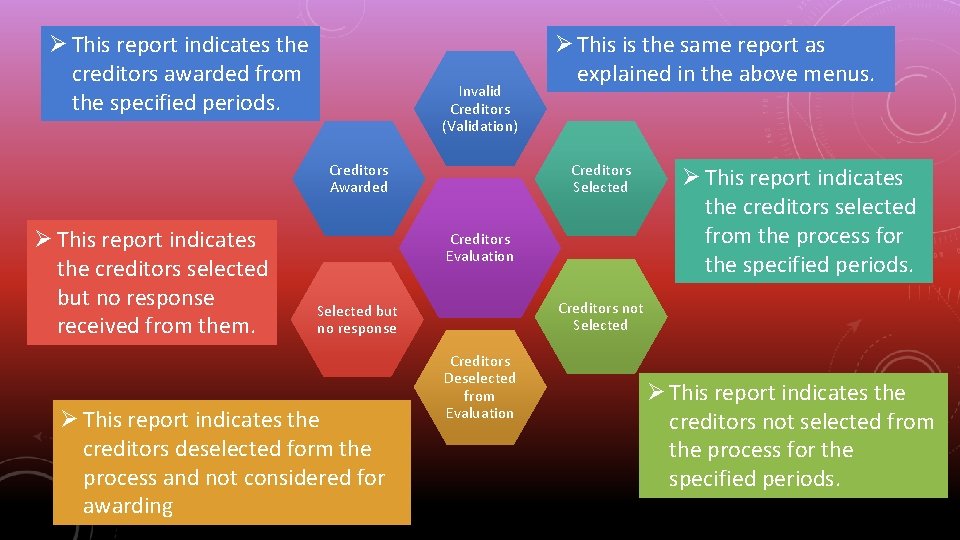
Ø This report indicates the creditors awarded from the specified periods. Invalid Creditors (Validation) Creditors Awarded Ø This report indicates the creditors selected but no response received from them. Ø This is the same report as explained in the above menus. Creditors Selected Creditors Evaluation Creditors not Selected but no response Ø This report indicates the creditors deselected form the process and not considered for awarding Ø This report indicates the creditors selected from the process for the specified periods. Creditors Deselected from Evaluation Ø This report indicates the creditors not selected from the process for the specified periods.