Malware Analysis with Volatility Module 1 23062016 1
![Reference ● [1] LIGH, M. The Art of Memory Forensics. Wiley, p. 583. Malware](https://slidetodoc.com/presentation_image/2c3099abbe04c8dd6265135529d4a070/image-21.jpg "Reference ● [1] LIGH, M. The Art of Memory Forensics. Wiley, p. 583. Malware")
- Slides: 21
Malware Analysis with Volatility Module 1 23/06/2016 1
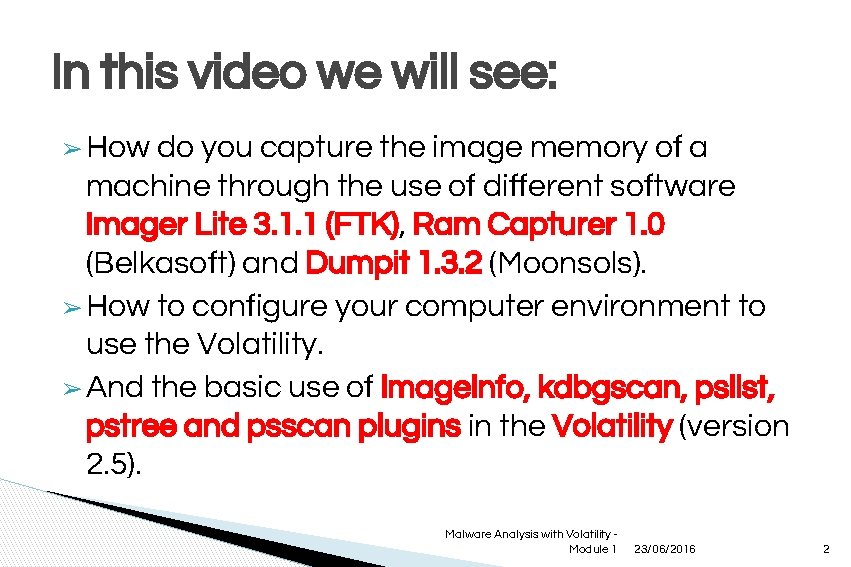
In this video we will see: ➢ How do you capture the image memory of a machine through the use of different software Imager Lite 3. 1. 1 (FTK), Ram Capturer 1. 0 (Belkasoft) and Dumpit 1. 3. 2 (Moonsols). ➢ How to configure your computer environment to use the Volatility. ➢ And the basic use of imageinfo, kdbgscan, pslist, pstree and psscan plugins in the Volatility (version 2. 5). Malware Analysis with Volatility Module 1 23/06/2016 2
Memory tools for Live Analysis ● ● First let's start with the RAM capture tools. In a modern school of live analysis a forensic analyst should have more than one tool at your disposal. I will show the use of memory tools for live analysis. Malware Analysis with Volatility Module 1 23/06/2016 3
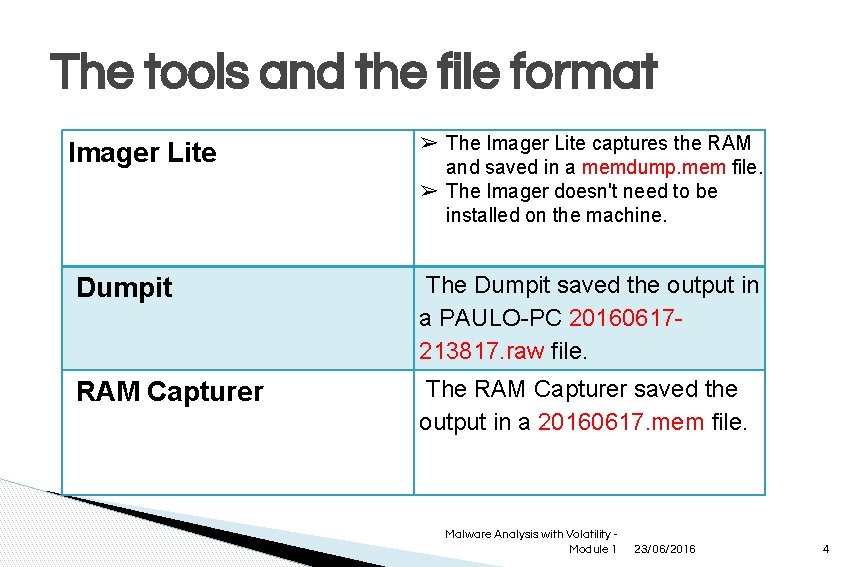
The tools and the file format Imager Lite ➢ The Imager Lite captures the RAM and saved in a memdump. mem file. ➢ The Imager doesn't need to be installed on the machine. Dumpit The Dumpit saved the output in a PAULO-PC 20160617213817. raw file. RAM Capturer The RAM Capturer saved the output in a 20160617. mem file. Malware Analysis with Volatility Module 1 23/06/2016 4
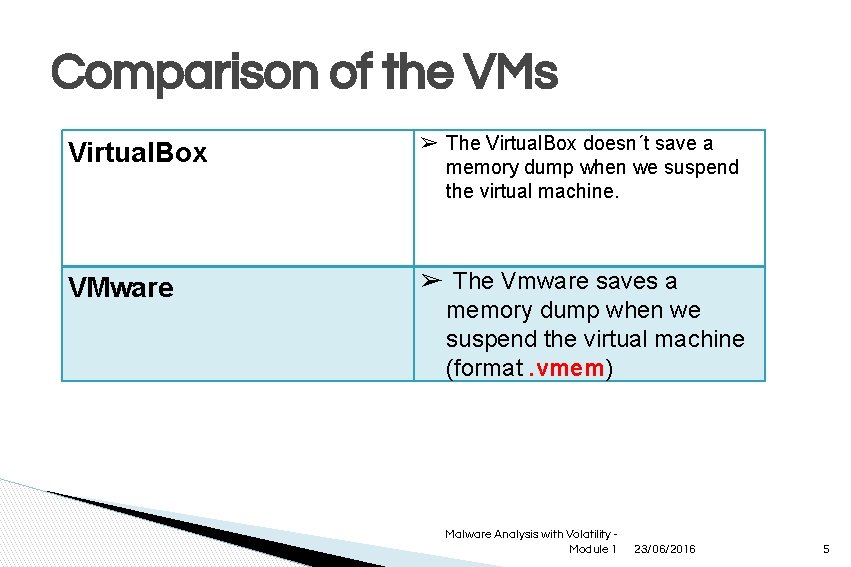
Comparison of the VMs Virtual. Box ➢ The Virtual. Box doesn´t save a memory dump when we suspend the virtual machine. VMware ➢ The Vmware saves a memory dump when we suspend the virtual machine (format. vmem) Malware Analysis with Volatility Module 1 23/06/2016 5
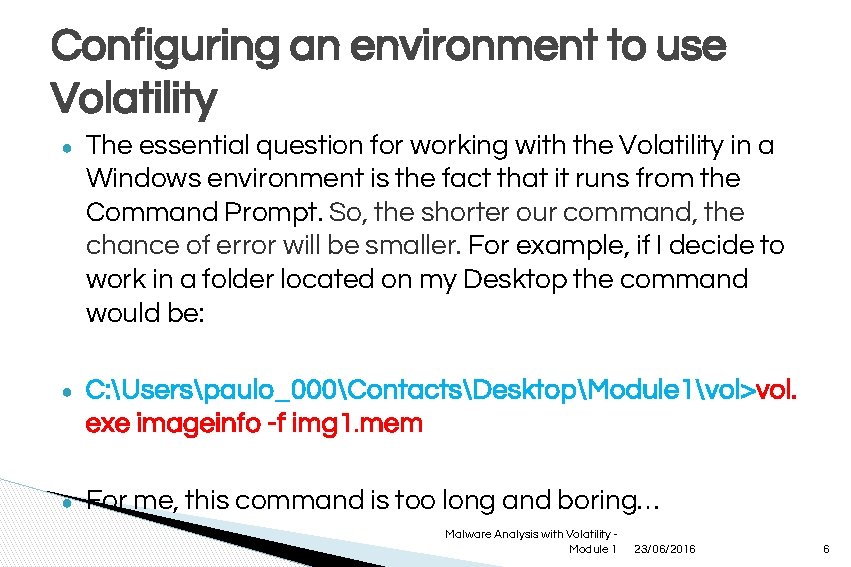
Configuring an environment to use Volatility ● The essential question for working with the Volatility in a Windows environment is the fact that it runs from the Command Prompt. So, the shorter our command, the chance of error will be smaller. For example, if I decide to work in a folder located on my Desktop the command would be: ● C: Userspaulo_000ContactsDesktopModule 1vol>vol. exe imageinfo -f img 1. mem ● For me, this command is too long and boring… Malware Analysis with Volatility Module 1 23/06/2016 6
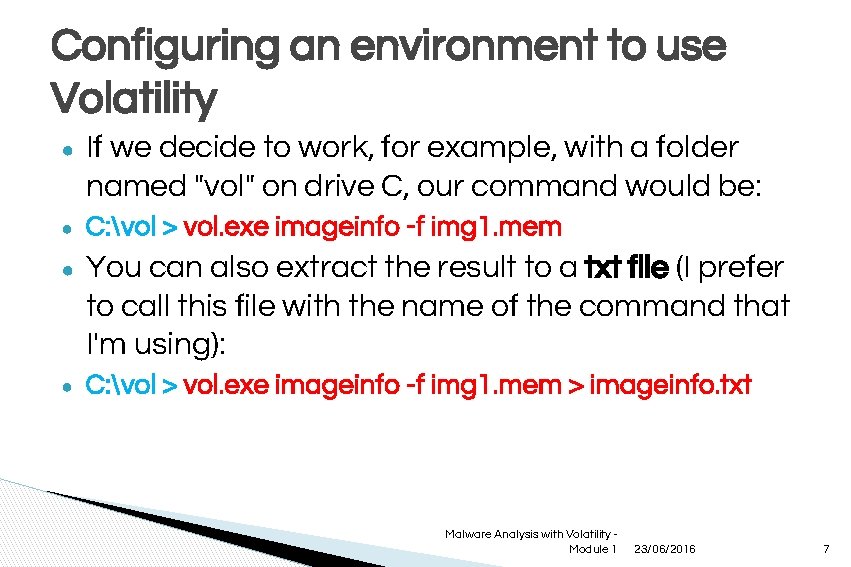
Configuring an environment to use Volatility ● If we decide to work, for example, with a folder named "vol" on drive C, our command would be: ● C: vol > vol. exe imageinfo -f img 1. mem ● You can also extract the result to a txt file (I prefer to call this file with the name of the command that I'm using): ● C: vol > vol. exe imageinfo -f img 1. mem > imageinfo. txt Malware Analysis with Volatility Module 1 23/06/2016 7
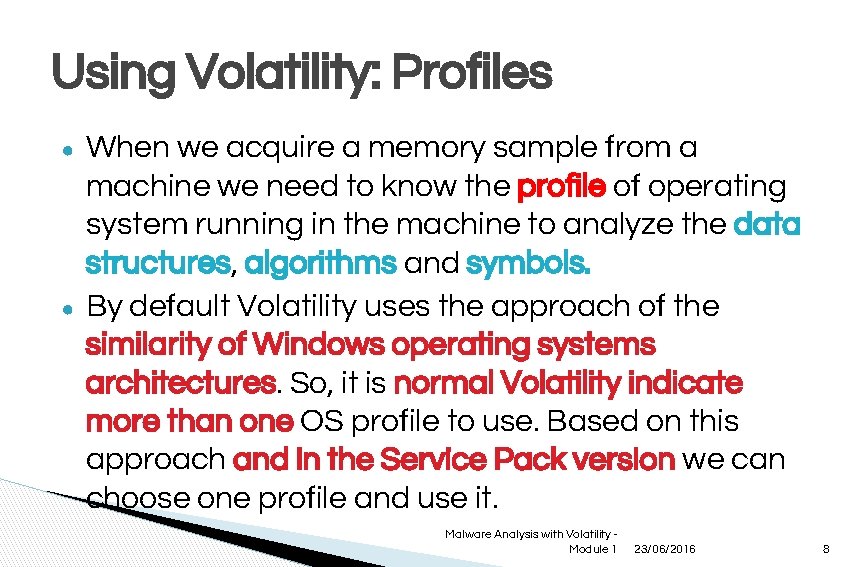
Using Volatility: Profiles ● ● When we acquire a memory sample from a machine we need to know the profile of operating system running in the machine to analyze the data structures, algorithms and symbols. By default Volatility uses the approach of the similarity of Windows operating systems architectures. So, it is normal Volatility indicate more than one OS profile to use. Based on this approach and in the Service Pack version we can choose one profile and use it. Malware Analysis with Volatility Module 1 23/06/2016 8
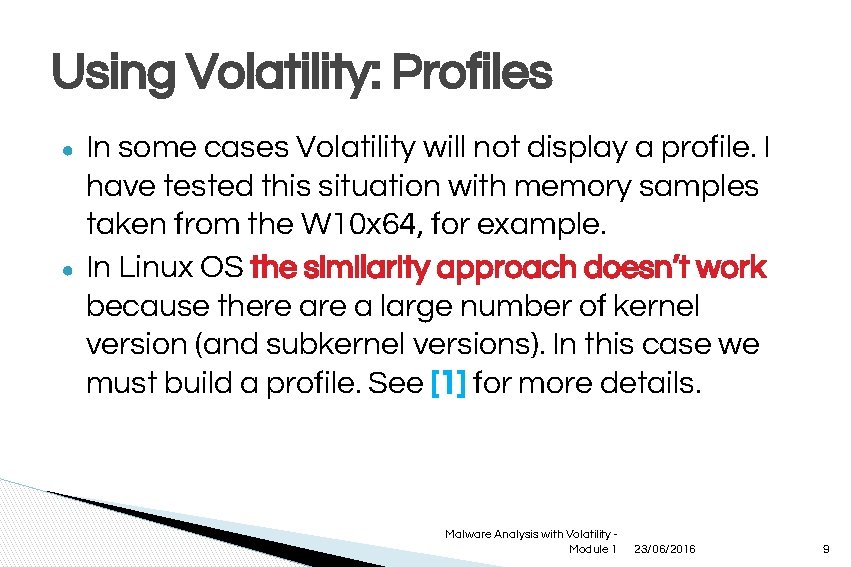
Using Volatility: Profiles ● ● In some cases Volatility will not display a profile. I have tested this situation with memory samples taken from the W 10 x 64, for example. In Linux OS the similarity approach doesn’t work because there a large number of kernel version (and subkernel versions). In this case we must build a profile. See [1] for more details. Malware Analysis with Volatility Module 1 23/06/2016 9
Using Volatility: Imageinfo plugin ● ● When we don’t know the profile of the memory sample, the basic usage of Volatility starts with the imageinfo command to discovery the profile of a memory sample. This command shows only the profile, if there is one associated with the KDBG (Kernel Debugger data block). Let me show you! Malware Analysis with Volatility Module 1 23/06/2016 10
Using Volatility: kdbgscan plugin ● The command kdbgscan shows more information about the memory sample image. Since we have a profile, we can use it for other plugins. ● Let's take a look! Malware Analysis with Volatility Module 1 23/06/2016 11
Using Volatility: Defaut profile ● Volatility uses Win. XPSP 2 x 86 as the default profile. We don’t need to specify a profile in this case. ● Now, I will show the use of some commands. ● Let's start with an example! Malware Analysis with Volatility Module 1 23/06/2016 12
Case Study ● ● You received a memory sample for analysis. But there is no indication what operating system this image is from. In this case, you must use the commands imageinfo and kdbgscan to determine a profile. The file is saved as test 1. vmem. Did you setup your environment? Ok, let’s go! Malware Analysis with Volatility Module 1 23/06/2016 13
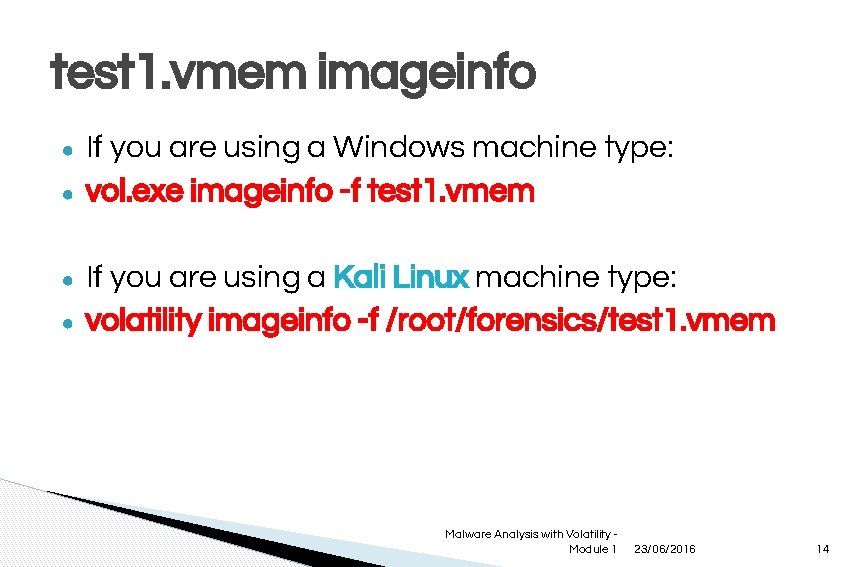
test 1. vmem imageinfo ● ● If you are using a Windows machine type: vol. exe imageinfo -f test 1. vmem If you are using a Kali Linux machine type: volatility imageinfo -f /root/forensics/test 1. vmem Malware Analysis with Volatility Module 1 23/06/2016 14
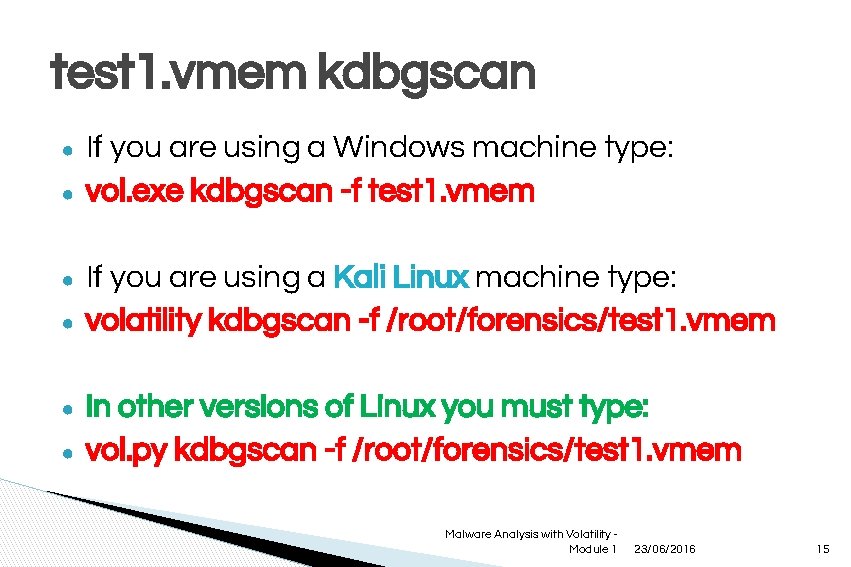
test 1. vmem kdbgscan ● ● ● If you are using a Windows machine type: vol. exe kdbgscan -f test 1. vmem If you are using a Kali Linux machine type: volatility kdbgscan -f /root/forensics/test 1. vmem In other versions of Linux you must type: vol. py kdbgscan -f /root/forensics/test 1. vmem Malware Analysis with Volatility Module 1 23/06/2016 15
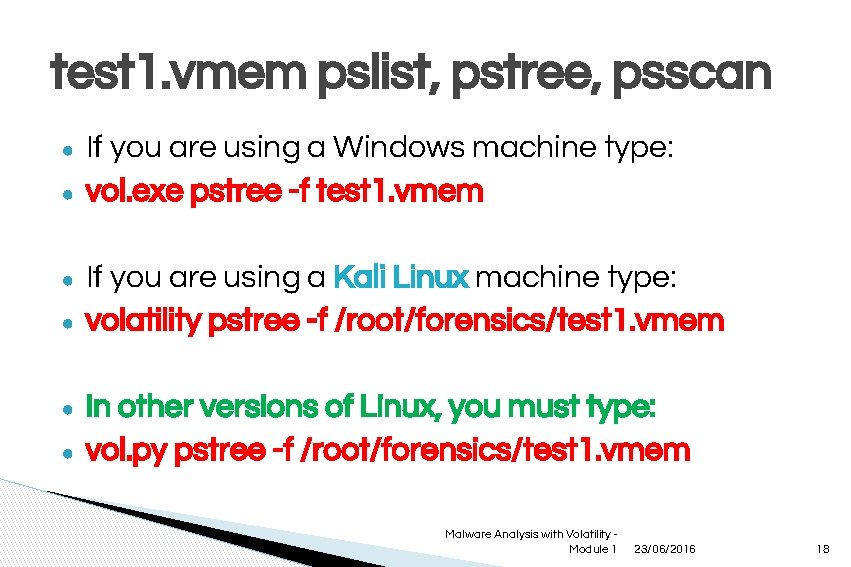
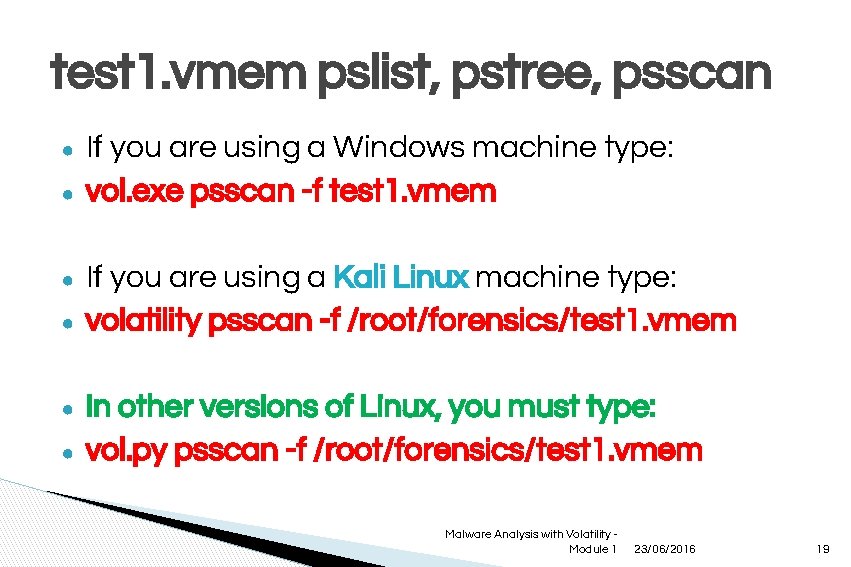
test 1. vmem pslist, pstree, psscan ● ● When we are searching for the process that was run in the machine in the moment that we capture the memory sample we use pslist and pstree (no hidden process is shown). On the other hand, if we are interested in finding out if a malware hid some process on the machine, we should use the psscan plugin. Malware Analysis with Volatility Module 1 23/06/2016 16
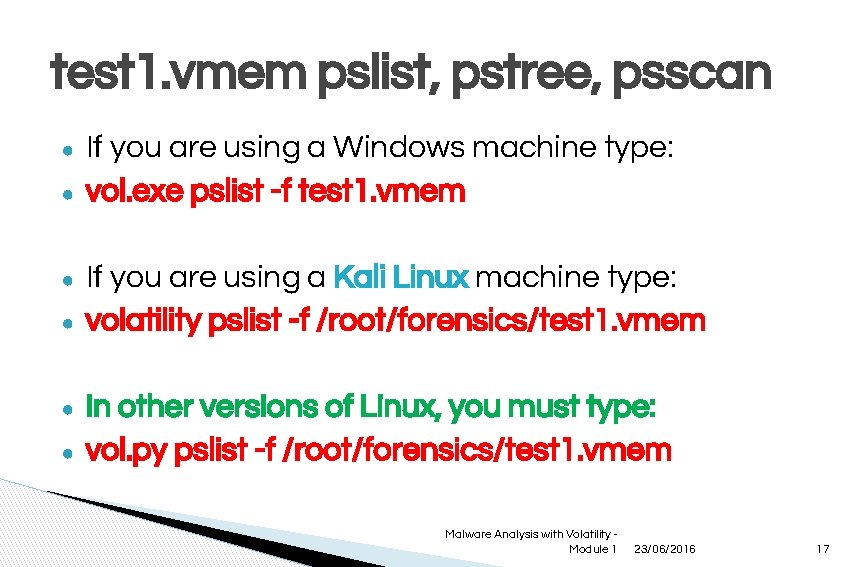
test 1. vmem pslist, pstree, psscan ● ● ● If you are using a Windows machine type: vol. exe pslist -f test 1. vmem If you are using a Kali Linux machine type: volatility pslist -f /root/forensics/test 1. vmem In other versions of Linux, you must type: vol. py pslist -f /root/forensics/test 1. vmem Malware Analysis with Volatility Module 1 23/06/2016 17
test 1. vmem pslist, pstree, psscan ● ● ● If you are using a Windows machine type: vol. exe pstree -f test 1. vmem If you are using a Kali Linux machine type: volatility pstree -f /root/forensics/test 1. vmem In other versions of Linux, you must type: vol. py pstree -f /root/forensics/test 1. vmem Malware Analysis with Volatility Module 1 23/06/2016 18
test 1. vmem pslist, pstree, psscan ● ● ● If you are using a Windows machine type: vol. exe psscan -f test 1. vmem If you are using a Kali Linux machine type: volatility psscan -f /root/forensics/test 1. vmem In other versions of Linux, you must type: vol. py psscan -f /root/forensics/test 1. vmem Malware Analysis with Volatility Module 1 23/06/2016 19
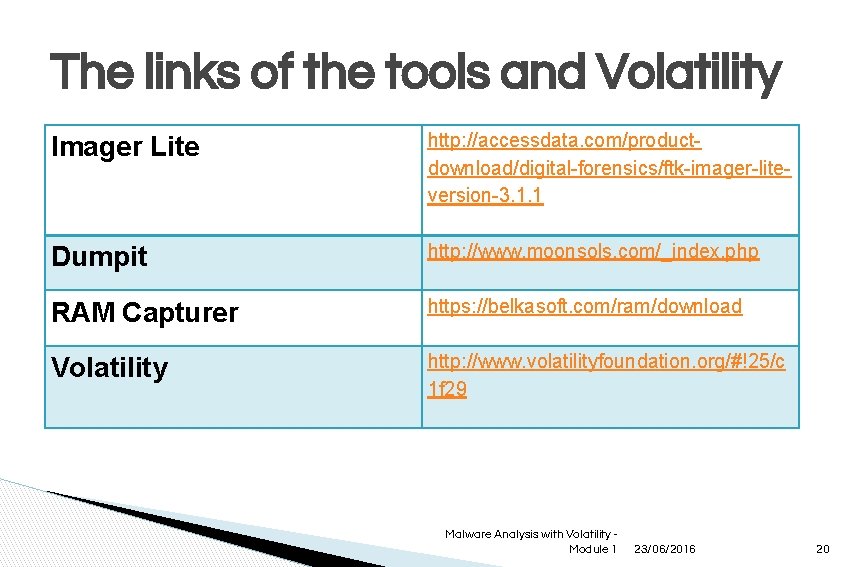
The links of the tools and Volatility Imager Lite Dumpit RAM Capturer Volatility http: //accessdata. com/productdownload/digital-forensics/ftk-imager-liteversion-3. 1. 1 http: //www. moonsols. com/_index. php https: //belkasoft. com/ram/download http: //www. volatilityfoundation. org/#!25/c 1 f 29 Malware Analysis with Volatility Module 1 23/06/2016 20
Reference ● [1] LIGH, M. The Art of Memory Forensics. Wiley, p. 583. Malware Analysis with Volatility Module 1 23/06/2016 21