Jared Hansen City of Mesa Jared HansenMesa AZ
![Dynamically Change Columns – First Create a variable [v. Column 1] = “Default Value”](https://slidetodoc.com/presentation_image_h/ce1a1ec0f1b1bf74fbe14cb9889670bd/image-23.jpg "Dynamically Change Columns – First Create a variable [v. Column 1] = “Default Value”")
![Dynamically Change Columns – Subsequent Create a variable [v. Column 2] = “None” Use](https://slidetodoc.com/presentation_image_h/ce1a1ec0f1b1bf74fbe14cb9889670bd/image-24.jpg "Dynamically Change Columns – Subsequent Create a variable [v. Column 2] = “None” Use")
- Slides: 26
Jared Hansen City of Mesa Jared. Hansen@Mesa. AZ. gov 480 -644 -4476 Creating Interactive Dashboards in Web Intelligence Using document linking and input controls to create dynamic and interactive reports
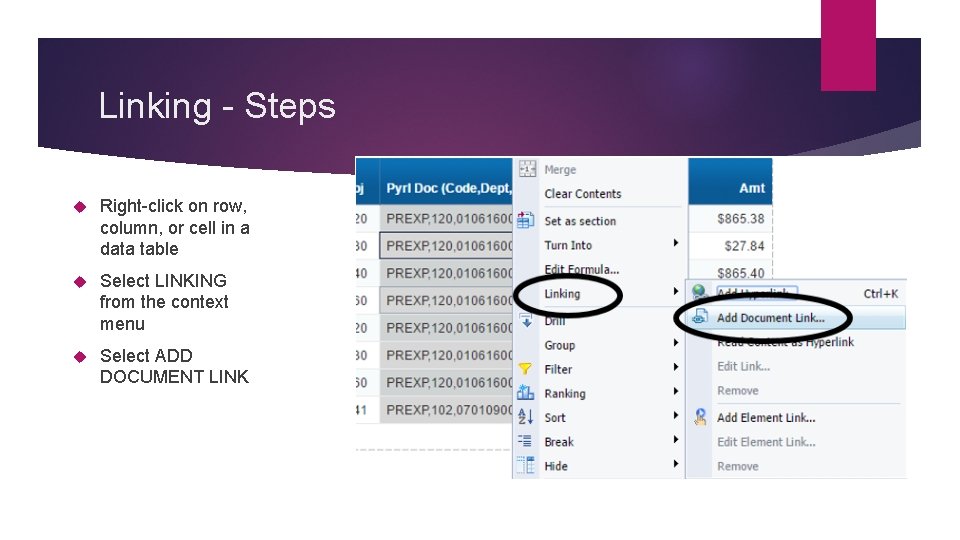
Linking Create hyperlinks to other documents Parameters can be passed between documents Linking can be made to specific report tabs or report elements Creates a more cohesive and guided analytical solution Use HTML mode (under preferences) to use the “wizard”, otherwise the Add Document Link option isn’t available and you have to manually add the link using the Open. Document() function.
Linking - Steps Right-click on row, column, or cell in a data table Select LINKING from the context menu Select ADD DOCUMENT LINK
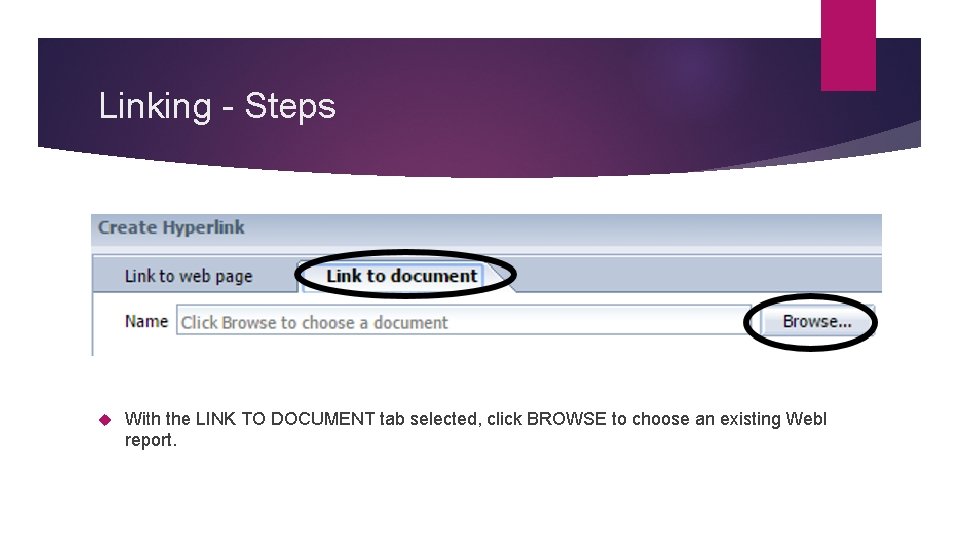
Linking - Steps With the LINK TO DOCUMENT tab selected, click BROWSE to choose an existing Web. I report.
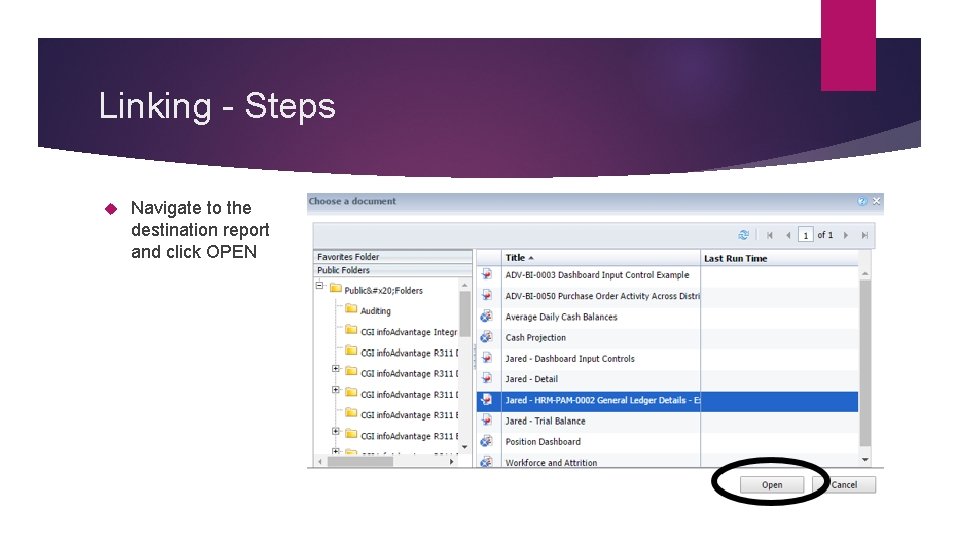
Linking - Steps Navigate to the destination report and click OPEN
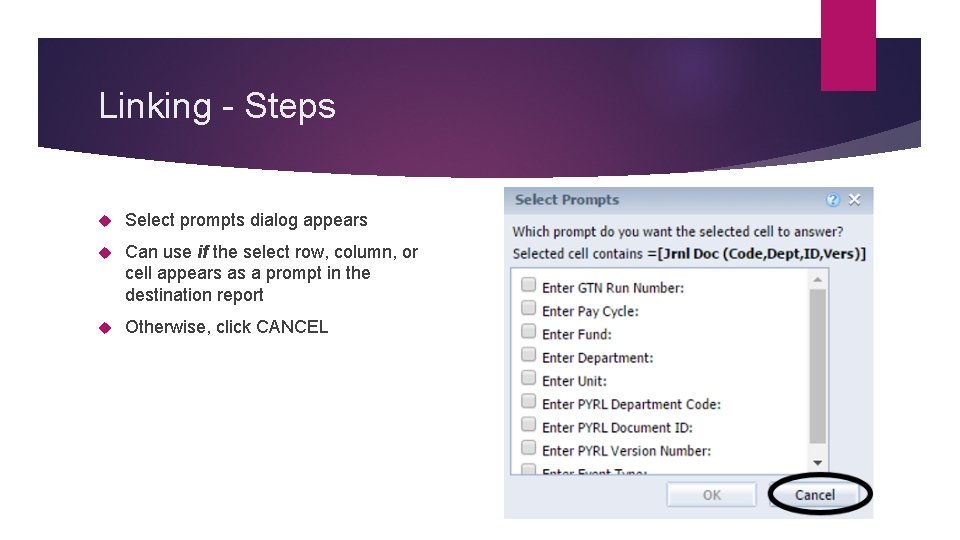
Linking - Steps Select prompts dialog appears Can use if the select row, column, or cell appears as a prompt in the destination report Otherwise, click CANCEL
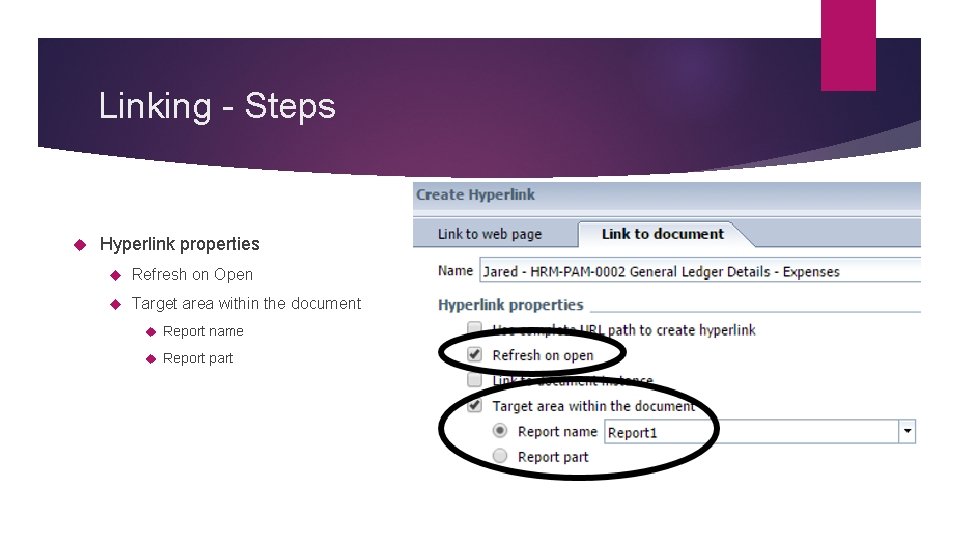
Linking - Steps Hyperlink properties Refresh on Open Target area within the document Report name Report part
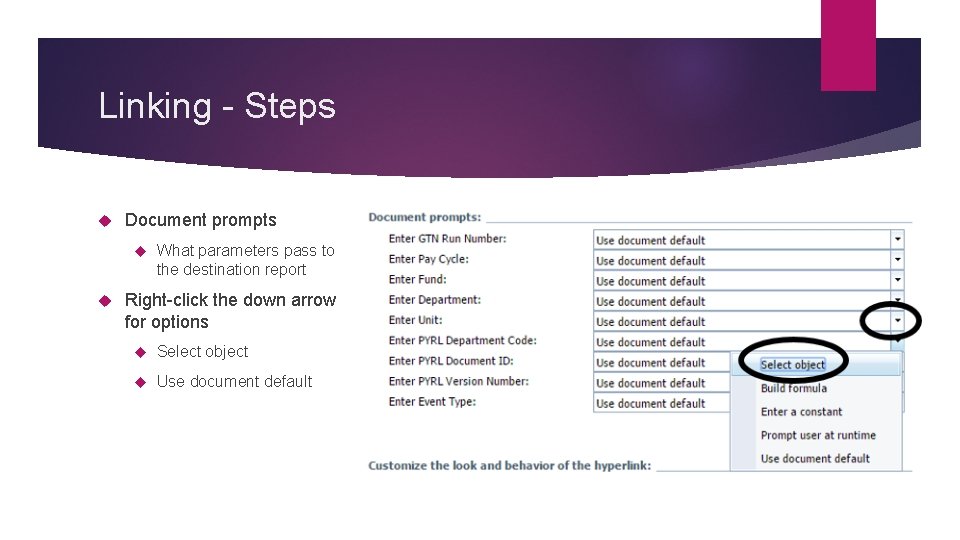
Linking - Steps Document prompts What parameters pass to the destination report Right-click the down arrow for options Select object Use document default
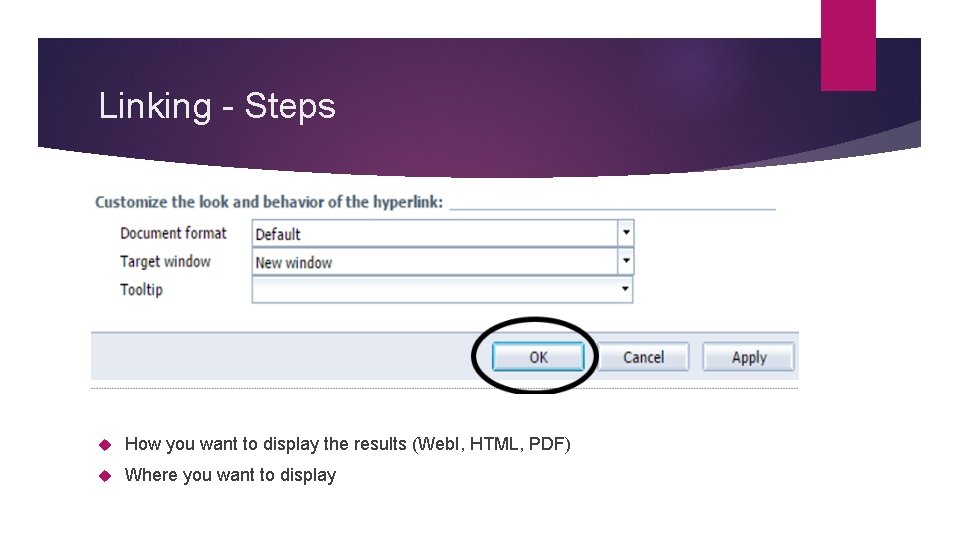
Linking - Steps How you want to display the results (Web. I, HTML, PDF) Where you want to display
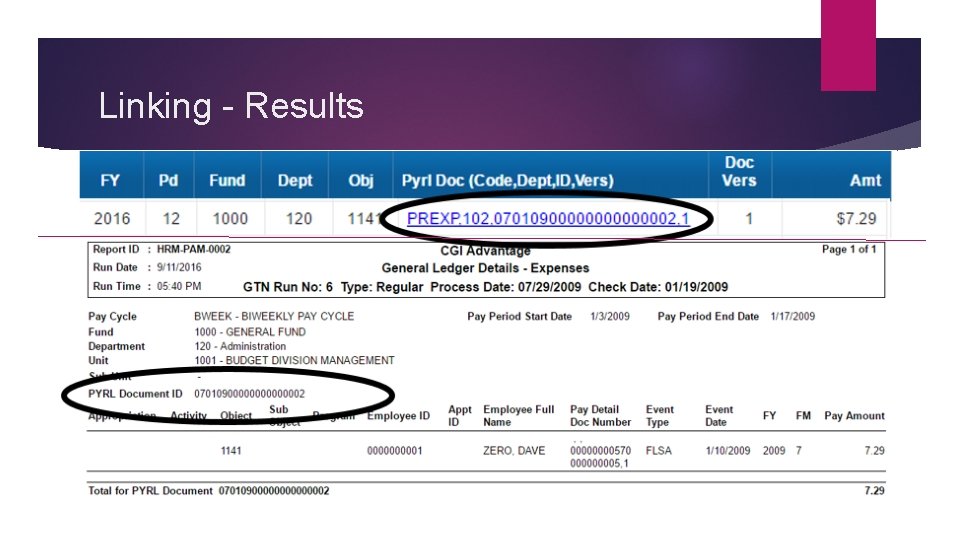
Linking - Results
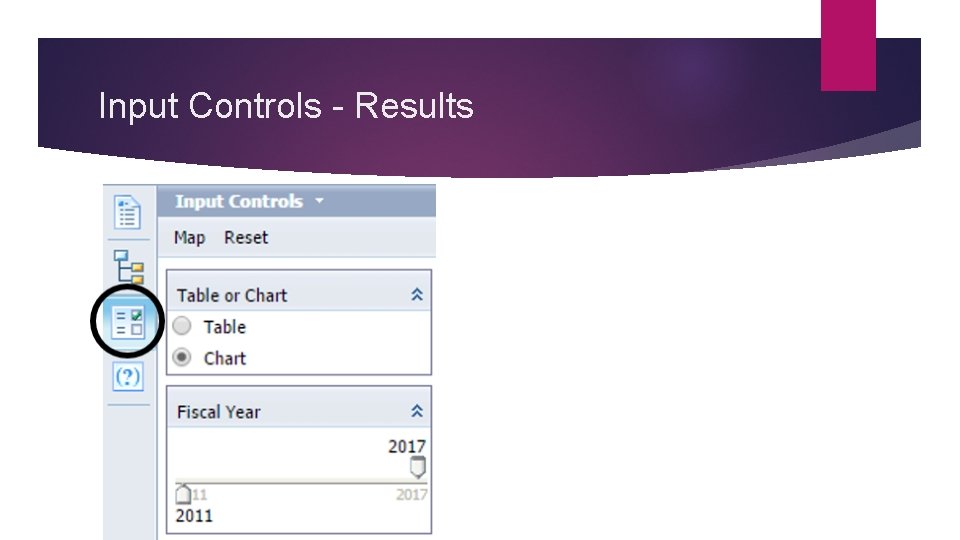
Input Controls Allows users to slice, dice, and interact with data while reading a report One of the most powerful filtering tools you can add to a report to encourage interactivity Uses the retrieved dimension, measures, or variables
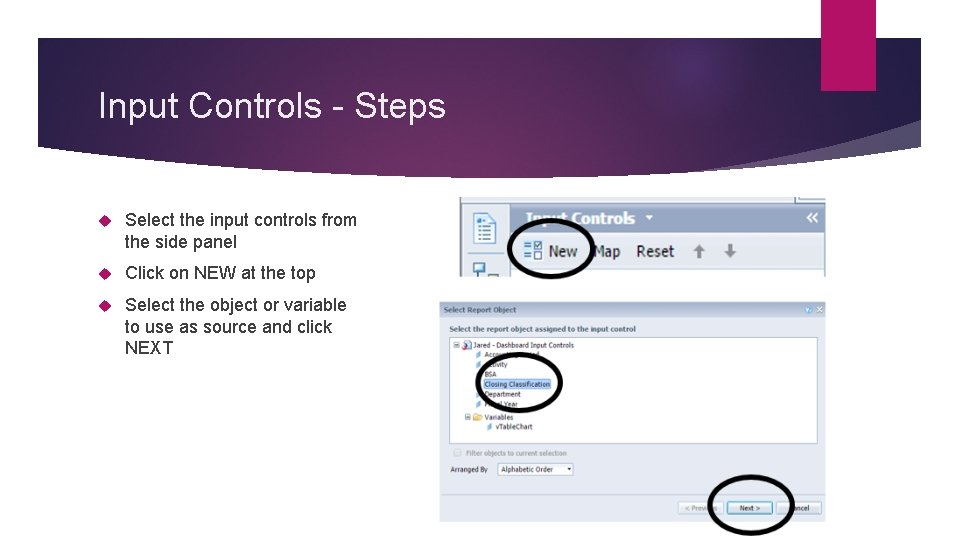
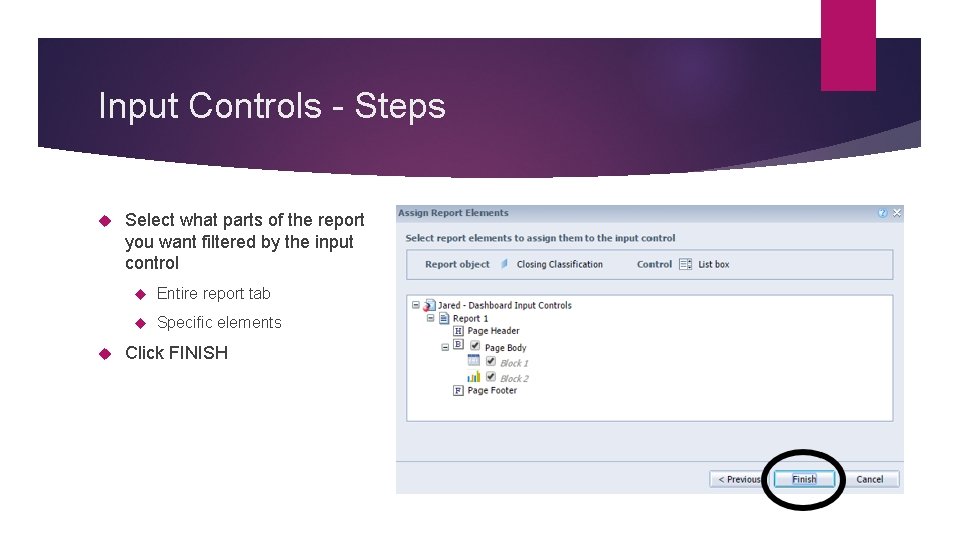
Input Controls - Steps Select the input controls from the side panel Click on NEW at the top Select the object or variable to use as source and click NEXT
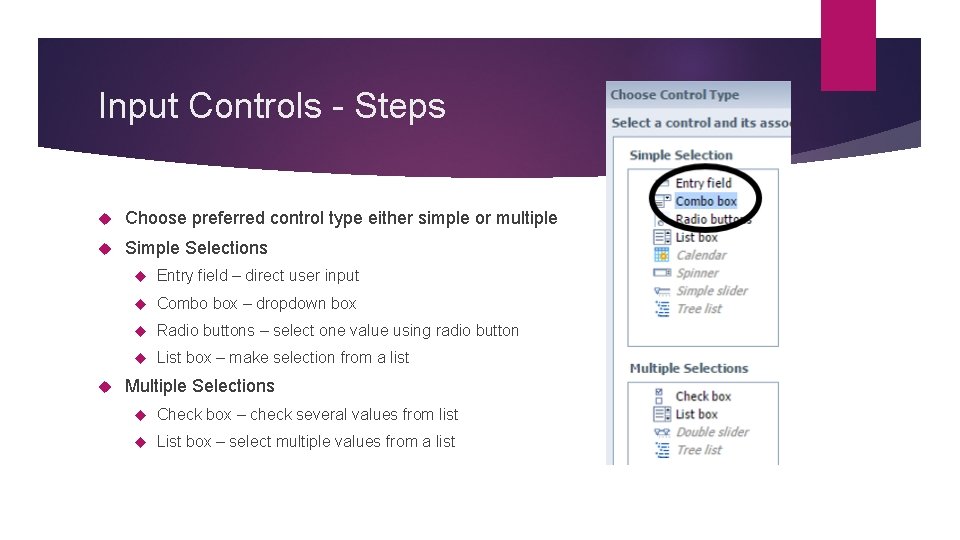
Input Controls - Steps Choose preferred control type either simple or multiple Simple Selections Entry field – direct user input Combo box – dropdown box Radio buttons – select one value using radio button List box – make selection from a list Multiple Selections Check box – check several values from list List box – select multiple values from a list
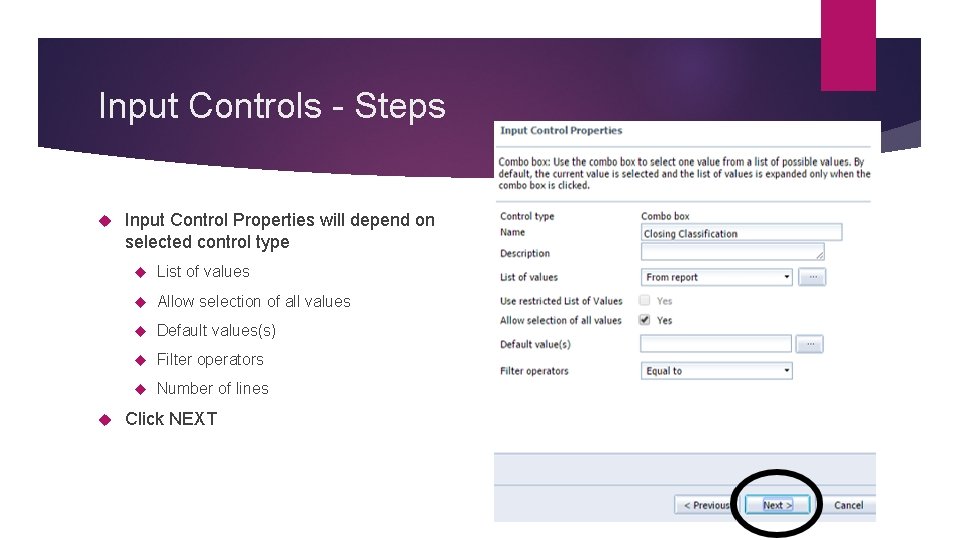
Input Controls - Steps Input Control Properties will depend on selected control type List of values Allow selection of all values Default values(s) Filter operators Number of lines Click NEXT
Input Controls - Steps Select what parts of the report you want filtered by the input control Entire report tab Specific elements Click FINISH
Input Controls - Results
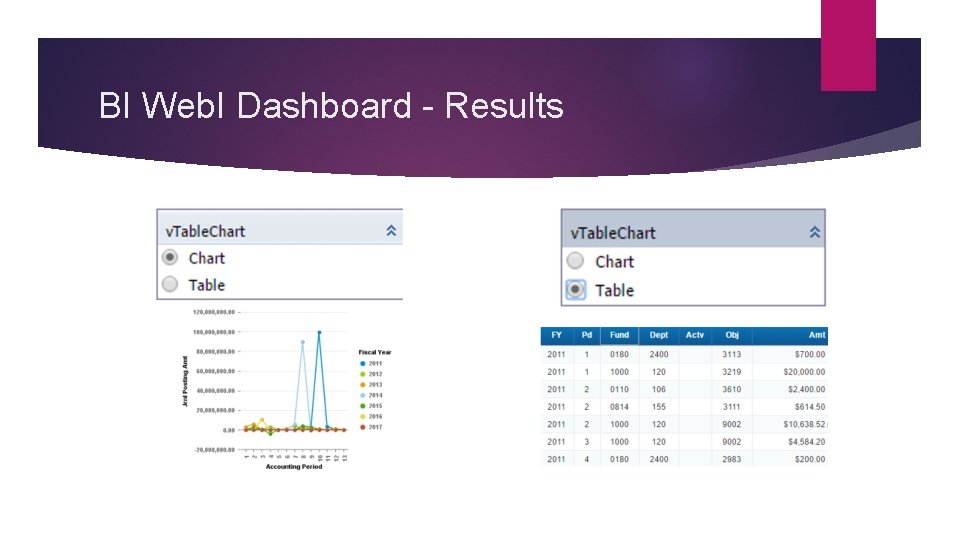
BI Web. I Dashboard Way to create an interactive report in Web. I that functions similarly to a Dashboard Multiple report elements Use Input Controls to show/hide specific report elements Use Input Controls to dynamically change columns Add Linking for further details/functionality
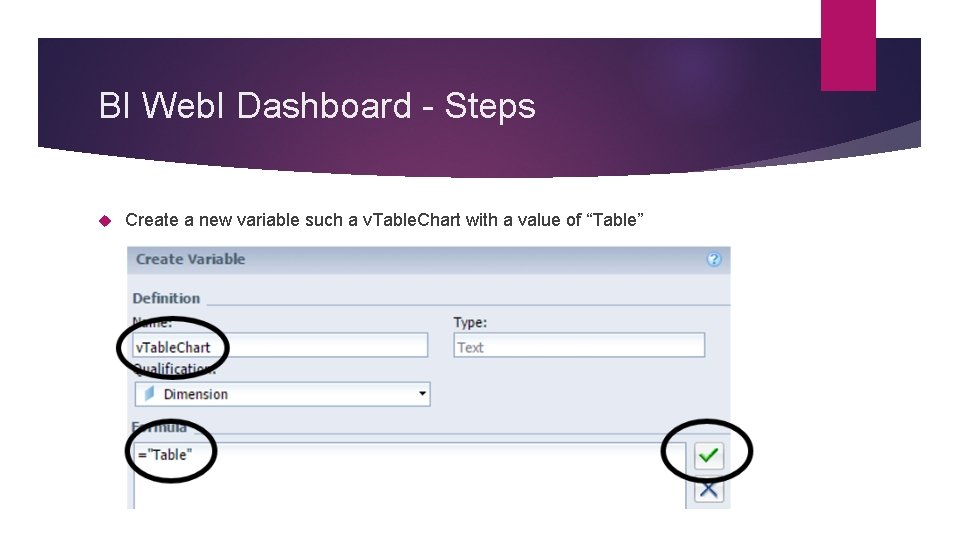
BI Web. I Dashboard - Steps Create a new variable such a v. Table. Chart with a value of “Table”
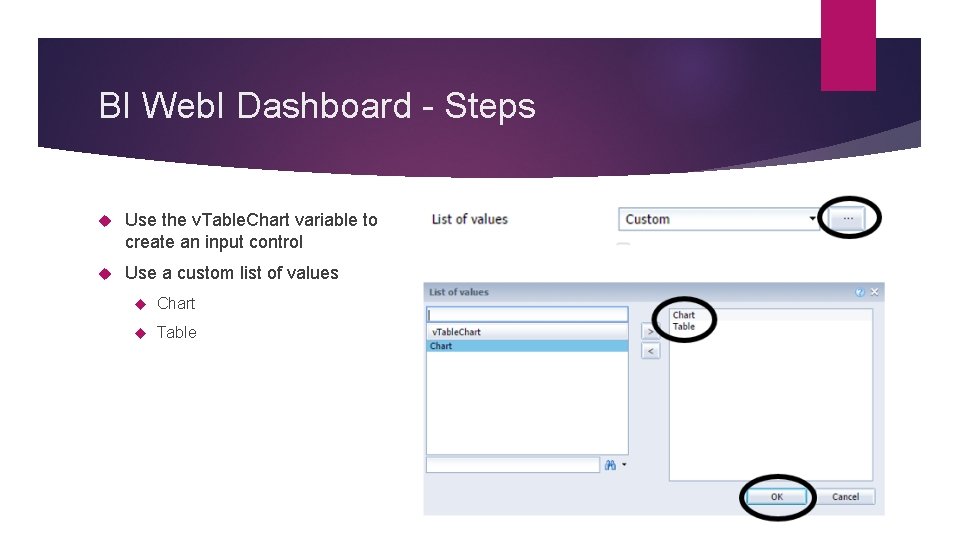
BI Web. I Dashboard - Steps Use the v. Table. Chart variable to create an input control Use a custom list of values Chart Table
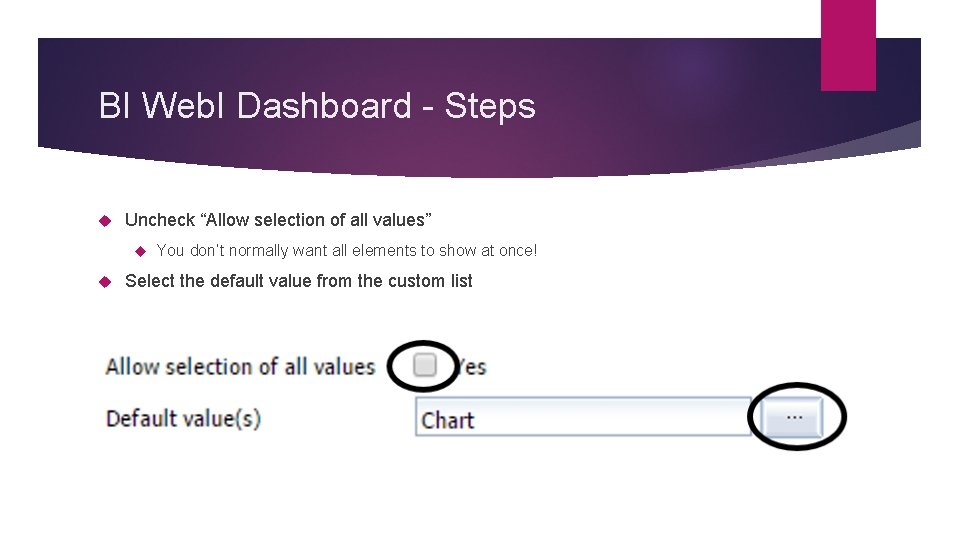
BI Web. I Dashboard - Steps Uncheck “Allow selection of all values” You don’t normally want all elements to show at once! Select the default value from the custom list
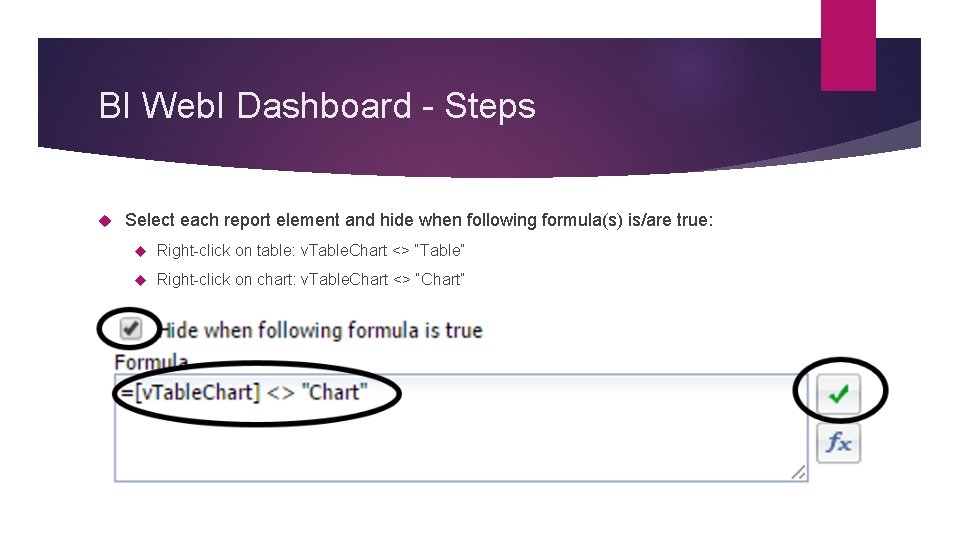
BI Web. I Dashboard - Steps Select each report element and hide when following formula(s) is/are true: Right-click on table: v. Table. Chart <> “Table” Right-click on chart: v. Table. Chart <> “Chart”
BI Web. I Dashboard - Results
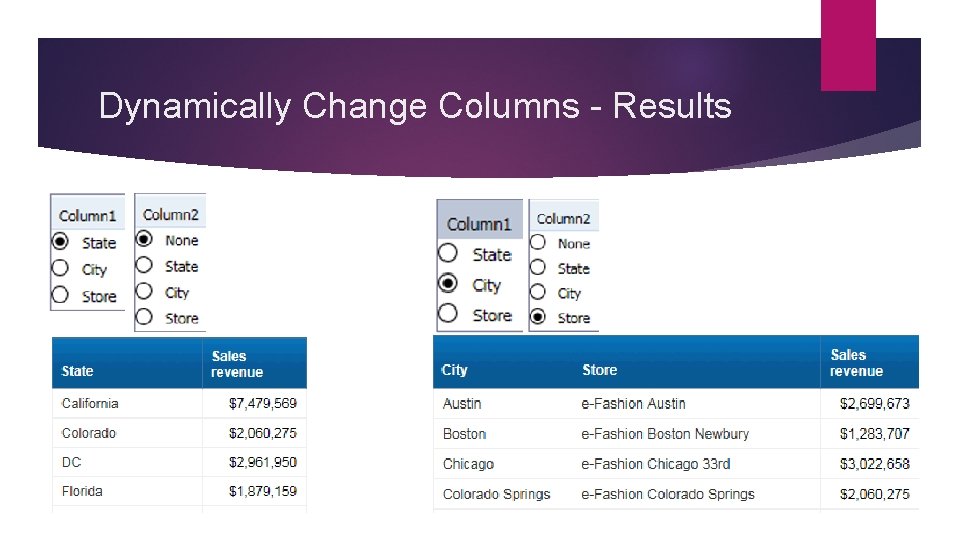
Dynamically Change Columns – First Create a variable [v. Column 1] = “Default Value” Use an input control for each value you want Use the following formula in the table =If [v. Column 1] = “Value 1” Then [Value 1] Else. If [v. Column 1] = “Value 2” Then [Value 2] Else. If [v. Column 1] = “Value 3” Then [Value 3] Else [Default. Value] Use the following in the table heading =If [v. Column 1]="None" Then "" Else [Column 1]
Dynamically Change Columns – Subsequent Create a variable [v. Column 2] = “None” Use an input control for each value you want Use the following formula in the table =If [v. Column 2] = “Value 1” Then [Value 1] Else. If [v. Column 2] = “Value 2” Then [Value 2] Else. If [v. Column 2] = “Value 3” Then [Value 3] Else “” Use the following in the table heading =If [v. Column 2]="None" Then "" Else [Column 2]
Dynamically Change Columns - Results
Web. I Resources SAP Business. Objects Web Intelligence: The Comprehensive Guide 3 rd Edition Let’s Speak BO Web Series – events. infosol. com/lets-speak-bo How to Create a Dashboard in Web Intelligence - youtu. be/l. Hv. Kc. AValc. I SAP Product Tutorials – sap. com/Learn. BI Book – sap-press. com/sap-businessobjects-web-intelligence_3673 You. Tube Training Videos – youtube. com/SAPAnalytics. Training SAP Community Network – scn. sap. com/Welcome Web. I – scn. sap. com/communities/businessobjects-web-intelligence Web. I 4. x Tips and Tricks – scn. sap. com/doc/DOC-50171 Wiki – wiki. scn. sap. com/wiki/display/BOBJ/Business+Intelligence BOBJ Board – forumtopics. com/busobj