EPOCH 1000 DACTVG Software Features and Options EPOCH

![Dynamic DAC/TVG Setup 4. Under the Sizing Option Menu (page 4/5) press [P 1]](https://slidetodoc.com/presentation_image/20d6c4e6a1ba437c1d1960409aca6cca/image-6.jpg "Dynamic DAC/TVG Setup 4. Under the Sizing Option Menu (page 4/5) press [P 1]")
![Dynamic DAC/TVG Setup 8. Press [P 1] to add the point. ** A purple](https://slidetodoc.com/presentation_image/20d6c4e6a1ba437c1d1960409aca6cca/image-8.jpg "Dynamic DAC/TVG Setup 8. Press [P 1] to add the point. ** A purple")
- Slides: 15
EPOCH 1000 DAC/TVG Software Features and Options
EPOCH 1000 – Dynamic DAC/TVG The EPOCH 1000 includes DAC and TVG capabilities as a standard feature. The EPOCH 1000 includes the following standard DAC/TVG modes: u u u ASME-3 JIS 20 -80 Custom TVG Table For this presentation we will build an ASME-3 as an example 2
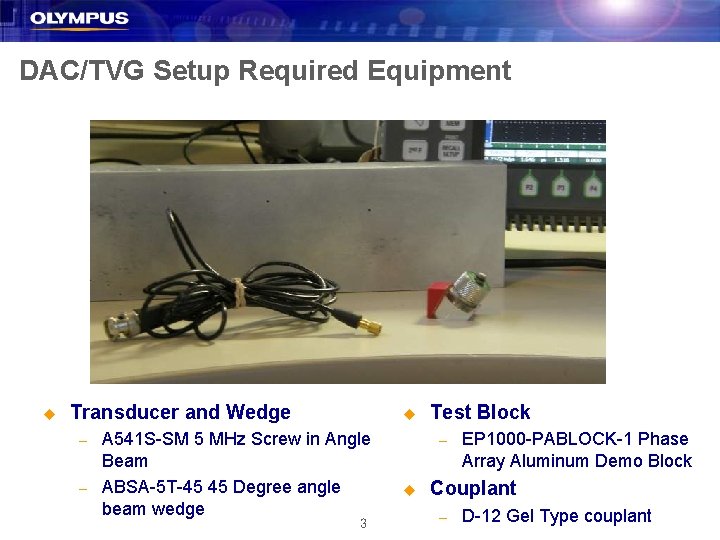
DAC/TVG Setup Required Equipment u Transducer and Wedge – – u A 541 S-SM 5 MHz Screw in Angle Beam ABSA-5 T-45 45 Degree angle beam wedge 3 Test Block – u EP 1000 -PABLOCK-1 Phase Array Aluminum Demo Block Couplant – D-12 Gel Type couplant
DAC/TVG Setup 4
Dynamic DAC/TVG Initial Setup 1. 2. 3. Calibrate the instrument for the intended material. • Appropriate Pulser and Receiver adjustments (filters, energy, square wave pulser, etc) • • Velocity – Set Shear Wave Velocity for Aluminum, 0. 1230 in/µs Angle to 45 degrees Calibration for probe delay (zero offset) and material velocity Appropriate screen range selection • Range – Set to 5 inches for best visibility 5
Dynamic DAC/TVG Setup 4. Under the Sizing Option Menu (page 4/5) press [P 1] to open the DAC/TVG menu. 5. Press P 3 to select the ASME-3 DAC curve and press the [ESCAPE] key to begin setting up the DAC curve. Accessing the DAC/TVG feature 6
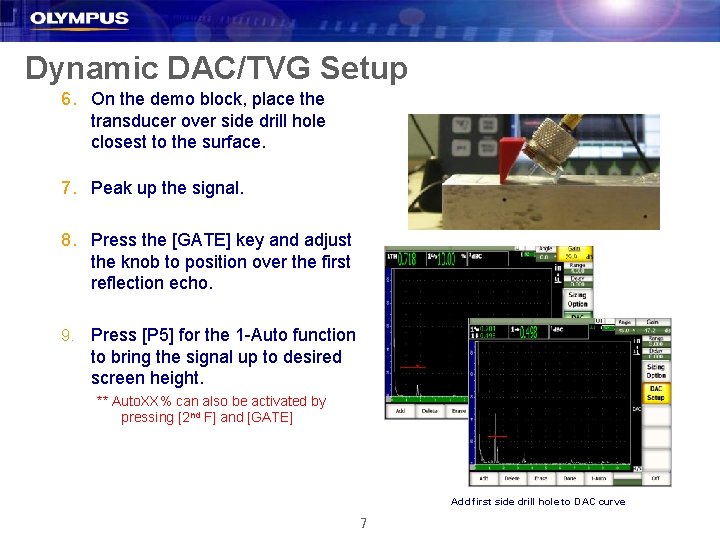
Dynamic DAC/TVG Setup 6. On the demo block, place the transducer over side drill hole closest to the surface. 7. Peak up the signal. 8. Press the [GATE] key and adjust the knob to position over the first reflection echo. 9. Press [P 5] for the 1 -Auto function to bring the signal up to desired screen height. ** Auto. XX% can also be activated by pressing [2 nd F] and [GATE] Add first side drill hole to DAC curve 7
Dynamic DAC/TVG Setup 8. Press [P 1] to add the point. ** A purple X should indicate that the first point has been added. 9. Couple the transducer over to the next flaw and peak up the signal. 10. Press [P 5] to bring the signal up to the desired screen height. 11. Press [P 1] to add the second point. ** Lines between point 1 and point 2 will appear to form the first section of the DAC curve. Building the DAC curve using Phase array Demo Block 8
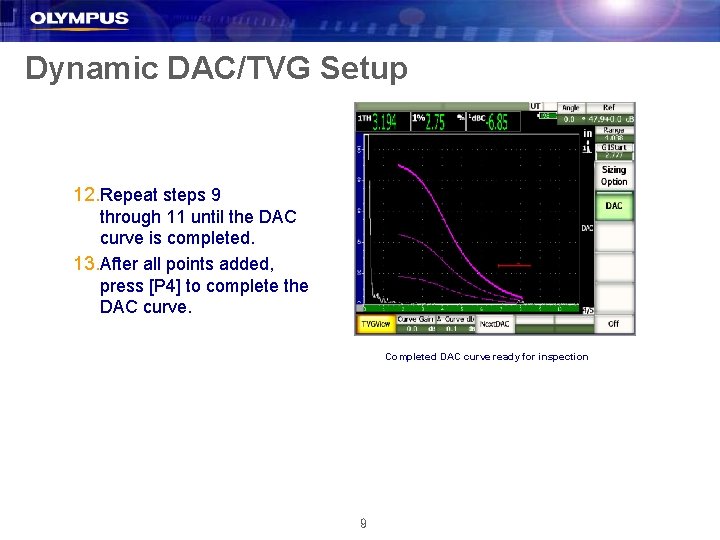
Dynamic DAC/TVG Setup 12. Repeat steps 9 through 11 until the DAC curve is completed. 13. After all points added, press [P 4] to complete the DAC curve. Completed DAC curve ready for inspection 9
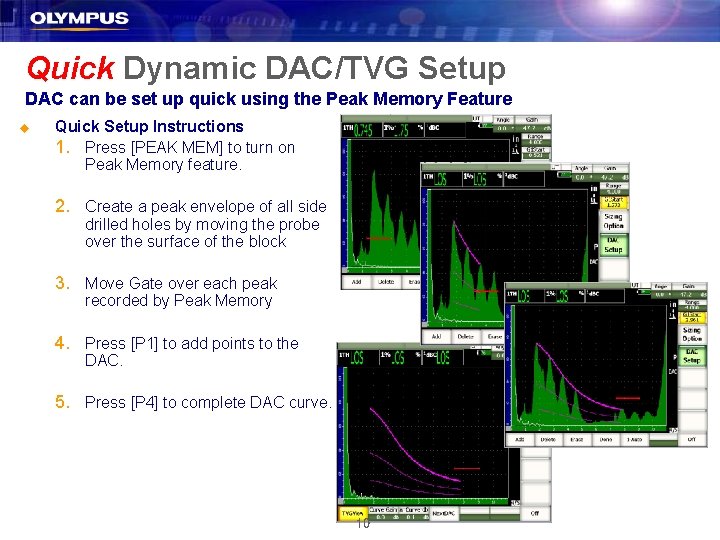
Quick Dynamic DAC/TVG Setup DAC can be set up quick using the Peak Memory Feature u Quick Setup Instructions 1. Press [PEAK MEM] to turn on Peak Memory feature. 2. Create a peak envelope of all side drilled holes by moving the probe over the surface of the block 3. Move Gate over each peak recorded by Peak Memory 4. Press [P 1] to add points to the DAC. 5. Press [P 4] to complete DAC curve. 10
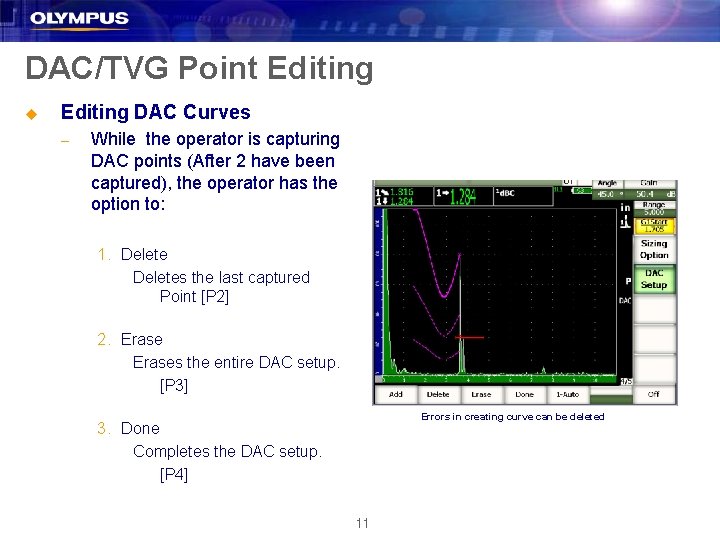
DAC/TVG Point Editing u Editing DAC Curves – While the operator is capturing DAC points (After 2 have been captured), the operator has the option to: 1. Deletes the last captured Point [P 2] 2. Erases the entire DAC setup. [P 3] Errors in creating curve can be deleted 3. Done Completes the DAC setup. [P 4] 11
DAC/TVG Inspection/Usage 12
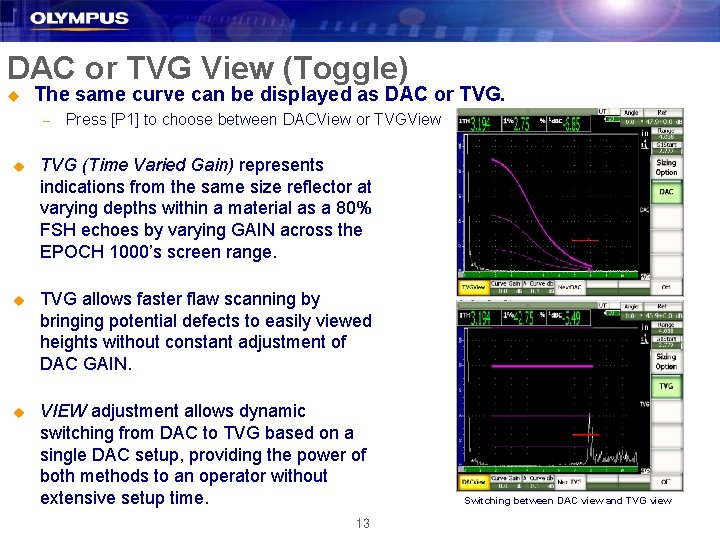
DAC or TVG View (Toggle) u The same curve can be displayed as DAC or TVG. – Press [P 1] to choose between DACView or TVGView u TVG (Time Varied Gain) represents indications from the same size reflector at varying depths within a material as a 80% FSH echoes by varying GAIN across the EPOCH 1000’s screen range. u TVG allows faster flaw scanning by bringing potential defects to easily viewed heights without constant adjustment of DAC GAIN. u VIEW adjustment allows dynamic switching from DAC to TVG based on a single DAC setup, providing the power of both methods to an operator without extensive setup time. 13 Switching between DAC view and TVG view
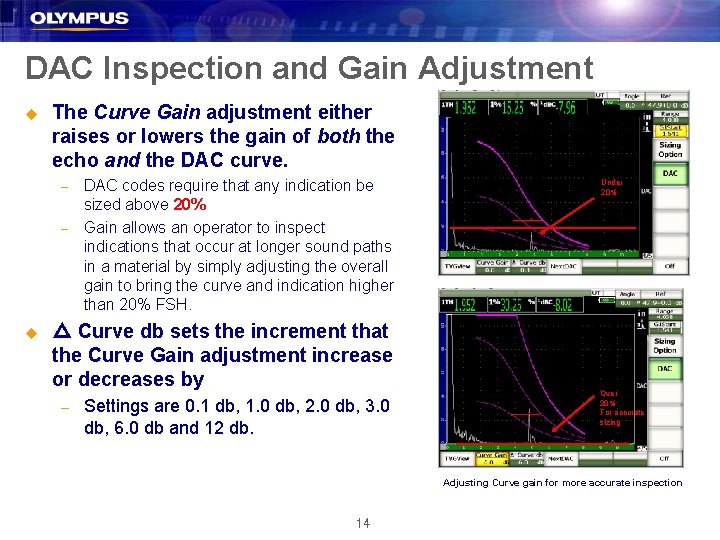
DAC Inspection and Gain Adjustment u The Curve Gain adjustment either raises or lowers the gain of both the echo and the DAC curve. – – u DAC codes require that any indication be sized above 20% Gain allows an operator to inspect indications that occur at longer sound paths in a material by simply adjusting the overall gain to bring the curve and indication higher than 20% FSH. △ Curve db sets the increment that the Curve Gain adjustment increase or decreases by – Settings are 0. 1 db, 1. 0 db, 2. 0 db, 3. 0 db, 6. 0 db and 12 db. Under 20% Over 20% For accurate sizing Adjusting Curve gain for more accurate inspection 14
DAC/TVG Reference Correct u Reference Correction: While inspecting using DAC/TVG, it is common to digitally compare the height of a reflector to the height of the curve. It is also common to use scanning gain while inspecting for defects. Scanning gain increases the height of the echo without changing the level of the curve. An echo compared to a curve (in % or d. B) while using scanning gain will not yield a true digital comparison. Reference Correction automatically removes scanning gain from the digital comparison only to allow the inspector to scan with scanning gain while still making a correct digital comparison between the echo and the curve. u Activate the REF CORRECT control prior to creating a DAC/TVG curve. (See Slide 4) 15