CSE 111 Introduction to Computer Applications Lecture 10
- Slides: 42
CSE 111 Introduction to Computer Applications Lecture 10 Introduction to MS Excel 2010 -Part 2 Prepared by Asst. Prof. Dr. Mohamed KURDI Revised and presented by Asst. Prof. Dr. Samsun M. BAŞARICI
Summary of the Last week • Exploring & identifying MS Excel user interface elements. • Moving around worksheets. • Selecting cells, rows, and columns. • • • • Editing & formatting worksheets. Inserting & deleting rows and columns. Deleting rows & columns. Changing row heights & column widths. Hiding & unhiding rows & columns. Selecting worksheets Navigating between worksheets Renaming worksheets Inserting & deleting worksheets Moving & copying worksheets Switching between MS Excel views Freezing & unfreezing panes Using templates
Learning Objectives Understand apply the following skills: • How to enter a formula. • How to edit a formula. • How to use parentheses to change the operators precendence. • How to copy/paste a formula. • How to choose between the paste options (Paste, Values, Formulas, Formatting, and Pase Special). • How to insert a function. • How to use the count functions (Count, Countif, and Countifs). • How to use the sum functions (Sum, Sumif, and Sumifs). • How to use the logical functions (If, And, and Or). • How to use the statistical functions (Average, Averageif, Median, Mode, Standard Deviation, Min, Max, Large, and Small).
Outlines § Formulas and Functions § Entering a Formula § Editing a Formula § Changing the Operators Precedence § Copying/Pasting a Formula § Paste Options • Paste • Values • Formulas • Formatting • Pase Special § Inserting a Function § Count Functions (Count, Countifs) § Sum Functions (Sum, Sumifs) § Logical Functions (If, And, Or) § Statistical Functions (Average, Averageif, Median, Mode, Standard Deviation, Min, Max, Large, and Small).
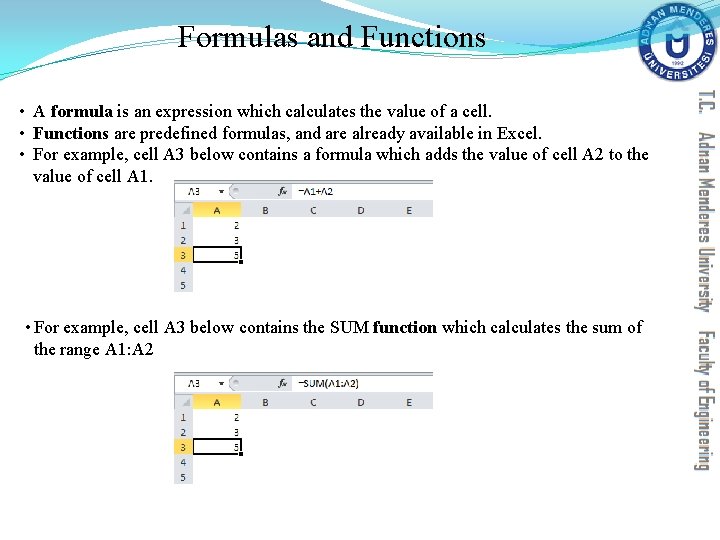
Formulas and Functions • A formula is an expression which calculates the value of a cell. • Functions are predefined formulas, and are already available in Excel. • For example, cell A 3 below contains a formula which adds the value of cell A 2 to the value of cell A 1. • For example, cell A 3 below contains the SUM function which calculates the sum of the range A 1: A 2
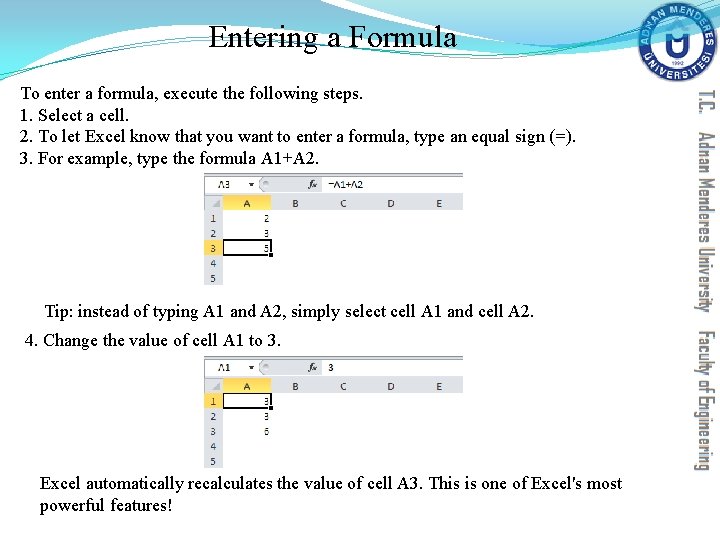
Entering a Formula To enter a formula, execute the following steps. 1. Select a cell. 2. To let Excel know that you want to enter a formula, type an equal sign (=). 3. For example, type the formula A 1+A 2. Tip: instead of typing A 1 and A 2, simply select cell A 1 and cell A 2. 4. Change the value of cell A 1 to 3. Excel automatically recalculates the value of cell A 3. This is one of Excel's most powerful features!
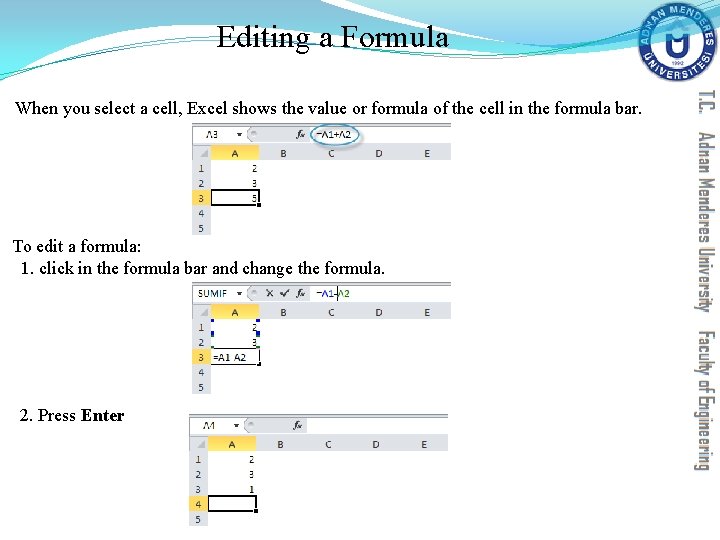
Editing a Formula When you select a cell, Excel shows the value or formula of the cell in the formula bar. To edit a formula: 1. click in the formula bar and change the formula. 2. Press Enter
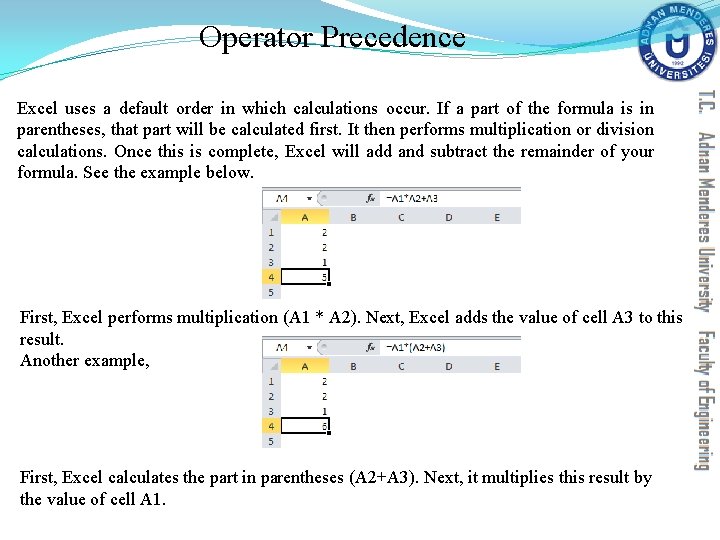
Operator Precedence Excel uses a default order in which calculations occur. If a part of the formula is in parentheses, that part will be calculated first. It then performs multiplication or division calculations. Once this is complete, Excel will add and subtract the remainder of your formula. See the example below. First, Excel performs multiplication (A 1 * A 2). Next, Excel adds the value of cell A 3 to this result. Another example, First, Excel calculates the part in parentheses (A 2+A 3). Next, it multiplies this result by the value of cell A 1.
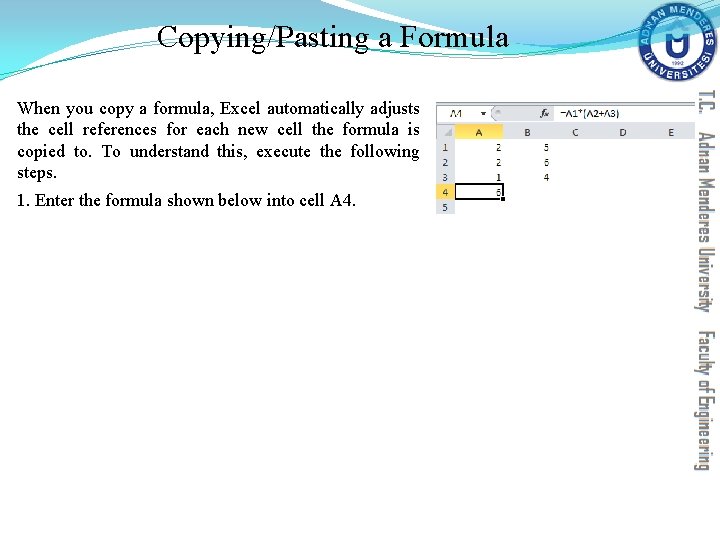
Copying/Pasting a Formula When you copy a formula, Excel automatically adjusts the cell references for each new cell the formula is copied to. To understand this, execute the following steps.
Copying/Pasting a Formula When you copy a formula, Excel automatically adjusts the cell references for each new cell the formula is copied to. To understand this, execute the following steps. 1. Enter the formula shown below into cell A 4.
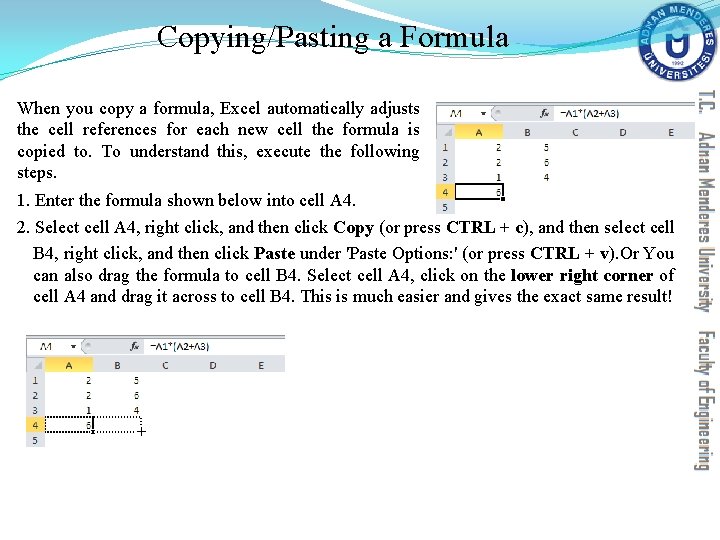
Copying/Pasting a Formula When you copy a formula, Excel automatically adjusts the cell references for each new cell the formula is copied to. To understand this, execute the following steps. 1. Enter the formula shown below into cell A 4. 2. Select cell A 4, right click, and then click Copy (or press CTRL + c), and then select cell B 4, right click, and then click Paste under 'Paste Options: ' (or press CTRL + v). Or You can also drag the formula to cell B 4. Select cell A 4, click on the lower right corner of cell A 4 and drag it across to cell B 4. This is much easier and gives the exact same result!
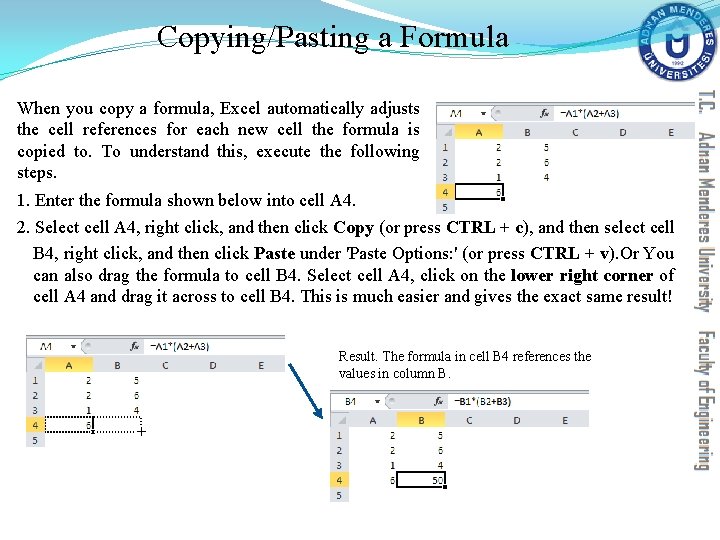
Copying/Pasting a Formula When you copy a formula, Excel automatically adjusts the cell references for each new cell the formula is copied to. To understand this, execute the following steps. 1. Enter the formula shown below into cell A 4. 2. Select cell A 4, right click, and then click Copy (or press CTRL + c), and then select cell B 4, right click, and then click Paste under 'Paste Options: ' (or press CTRL + v). Or You can also drag the formula to cell B 4. Select cell A 4, click on the lower right corner of cell A 4 and drag it across to cell B 4. This is much easier and gives the exact same result! Result. The formula in cell B 4 references the values in column B.
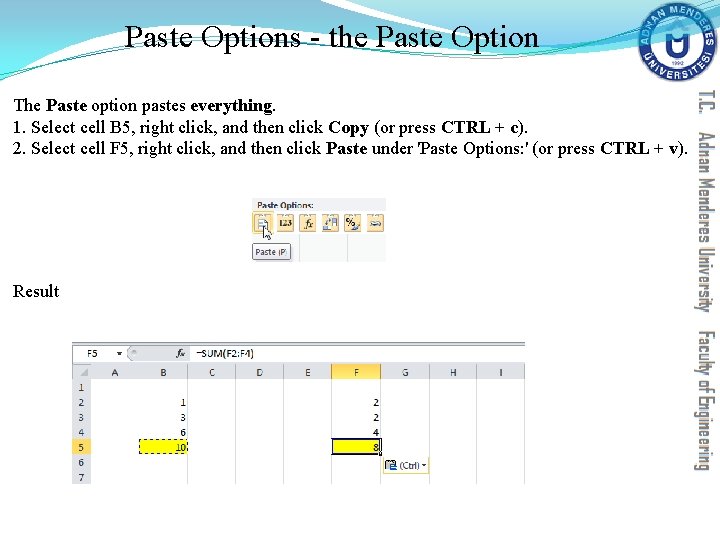
Paste Options - the Paste Option The Paste option pastes everything. 1. Select cell B 5, right click, and then click Copy (or press CTRL + c). 2. Select cell F 5, right click, and then click Paste under 'Paste Options: ' (or press CTRL + v). Result
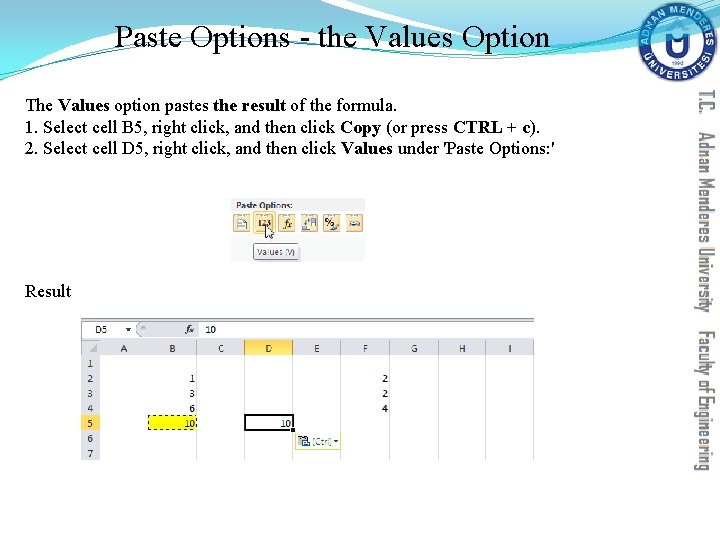
Paste Options - the Values Option The Values option pastes the result of the formula. 1. Select cell B 5, right click, and then click Copy (or press CTRL + c). 2. Select cell D 5, right click, and then click Values under 'Paste Options: ' Result
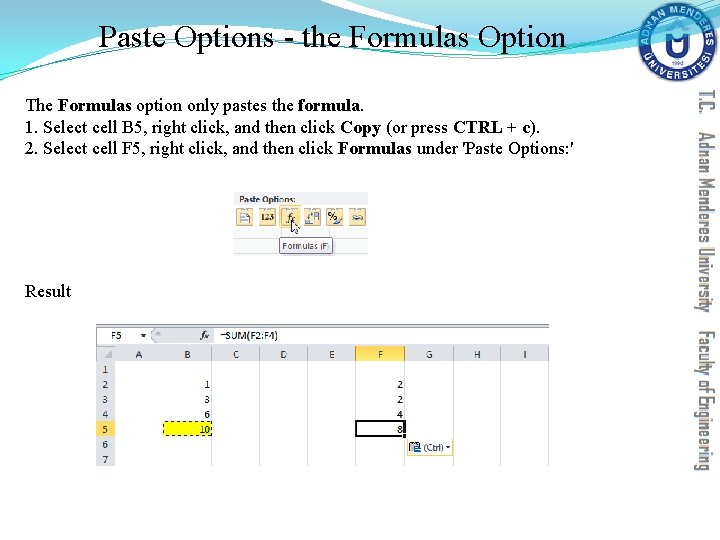
Paste Options - the Formulas Option The Formulas option only pastes the formula. 1. Select cell B 5, right click, and then click Copy (or press CTRL + c). 2. Select cell F 5, right click, and then click Formulas under 'Paste Options: ' Result
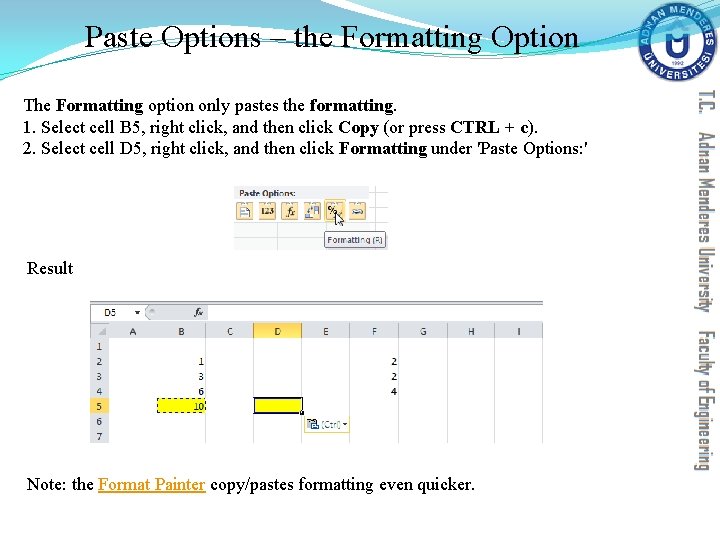
Paste Options – the Formatting Option The Formatting option only pastes the formatting. 1. Select cell B 5, right click, and then click Copy (or press CTRL + c). 2. Select cell D 5, right click, and then click Formatting under 'Paste Options: ' Result Note: the Format Painter copy/pastes formatting even quicker.
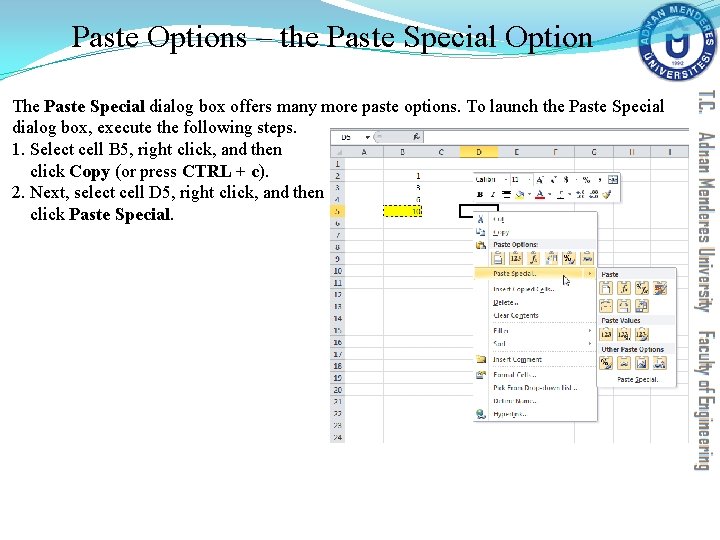
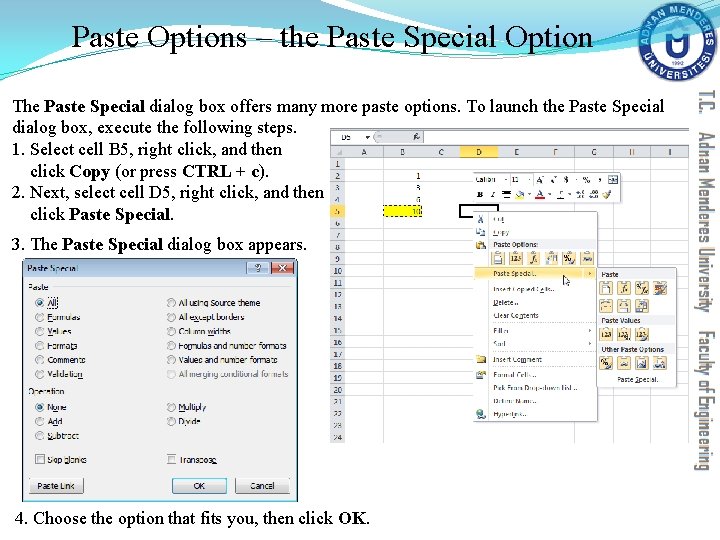
Paste Options – the Paste Special Option The Paste Special dialog box offers many more paste options. To launch the Paste Special dialog box, execute the following steps. 1. Select cell B 5, right click, and then click Copy (or press CTRL + c). 2. Next, select cell D 5, right click, and then click Paste Special.
Paste Options – the Paste Special Option The Paste Special dialog box offers many more paste options. To launch the Paste Special dialog box, execute the following steps. 1. Select cell B 5, right click, and then click Copy (or press CTRL + c). 2. Next, select cell D 5, right click, and then click Paste Special. 3. The Paste Special dialog box appears. 4. Choose the option that fits you, then click OK.
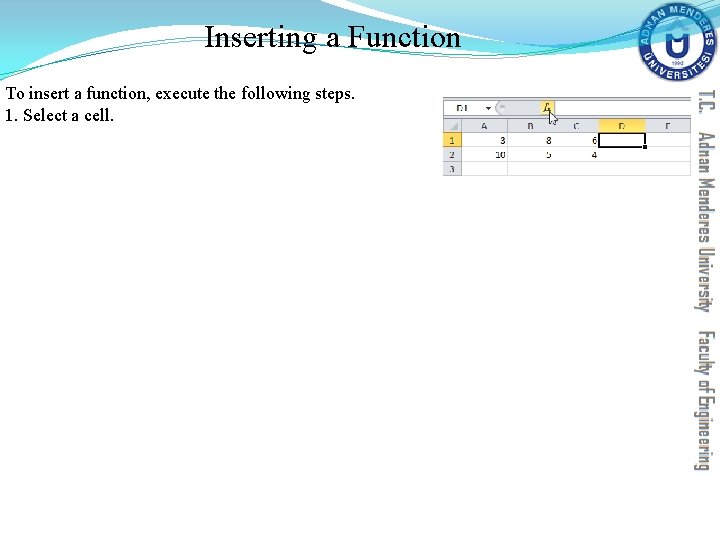
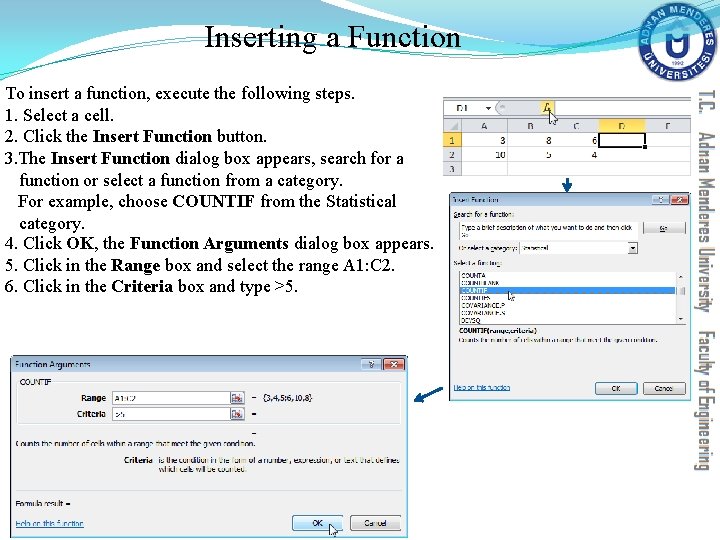
Inserting a Function To insert a function, execute the following steps. 1. Select a cell.
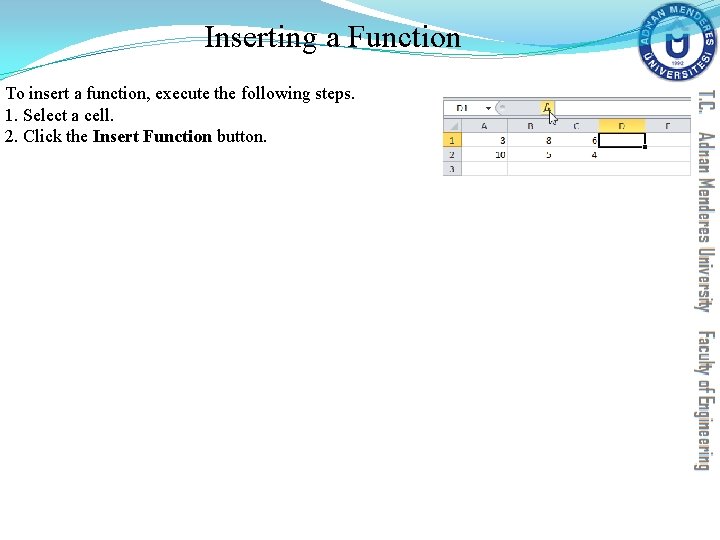
Inserting a Function To insert a function, execute the following steps. 1. Select a cell. 2. Click the Insert Function button.
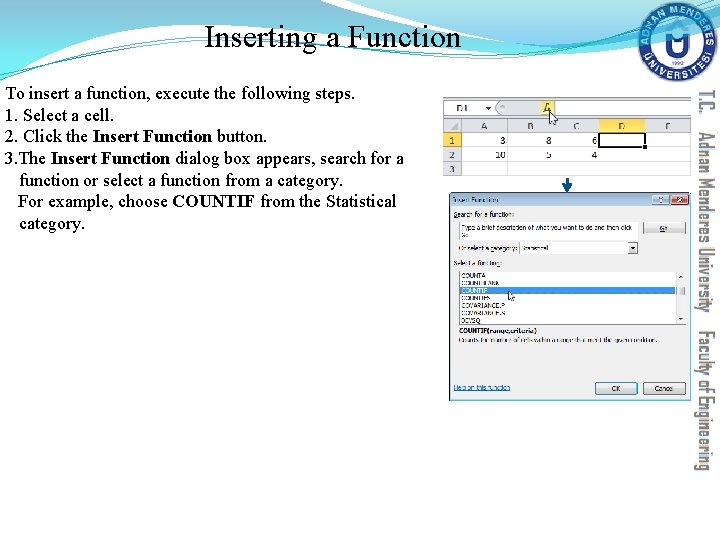
Inserting a Function To insert a function, execute the following steps. 1. Select a cell. 2. Click the Insert Function button. 3. The Insert Function dialog box appears, search for a function or select a function from a category. For example, choose COUNTIF from the Statistical category.
Inserting a Function To insert a function, execute the following steps. 1. Select a cell. 2. Click the Insert Function button. 3. The Insert Function dialog box appears, search for a function or select a function from a category. For example, choose COUNTIF from the Statistical category. 4. Click OK, the Function Arguments dialog box appears. 5. Click in the Range box and select the range A 1: C 2. 6. Click in the Criteria box and type >5.
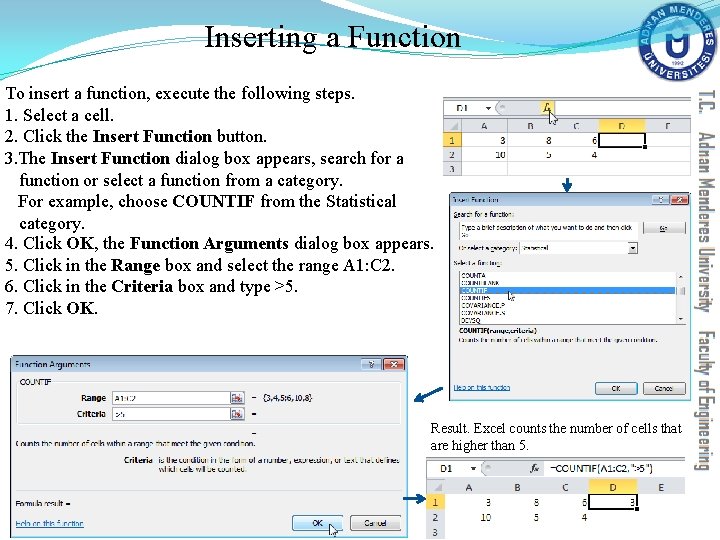
Inserting a Function To insert a function, execute the following steps. 1. Select a cell. 2. Click the Insert Function button. 3. The Insert Function dialog box appears, search for a function or select a function from a category. For example, choose COUNTIF from the Statistical category. 4. Click OK, the Function Arguments dialog box appears. 5. Click in the Range box and select the range A 1: C 2. 6. Click in the Criteria box and type >5. 7. Click OK. Result. Excel counts the number of cells that are higher than 5.
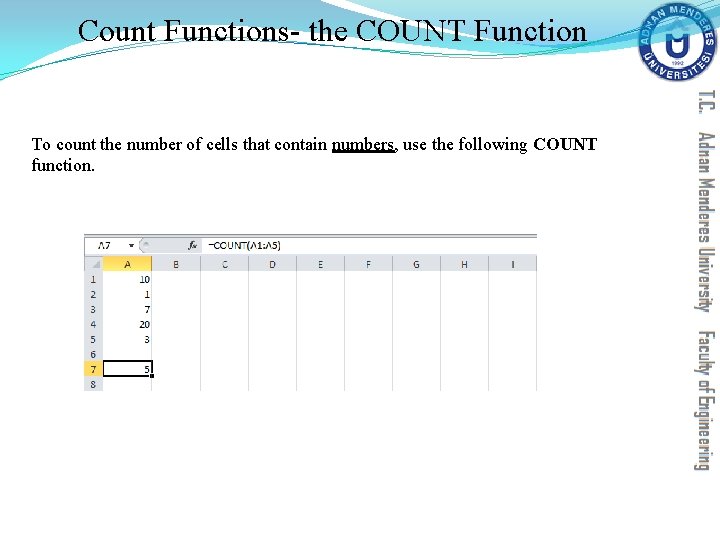
Count Functions- the COUNT Function To count the number of cells that contain numbers, use the following COUNT function.
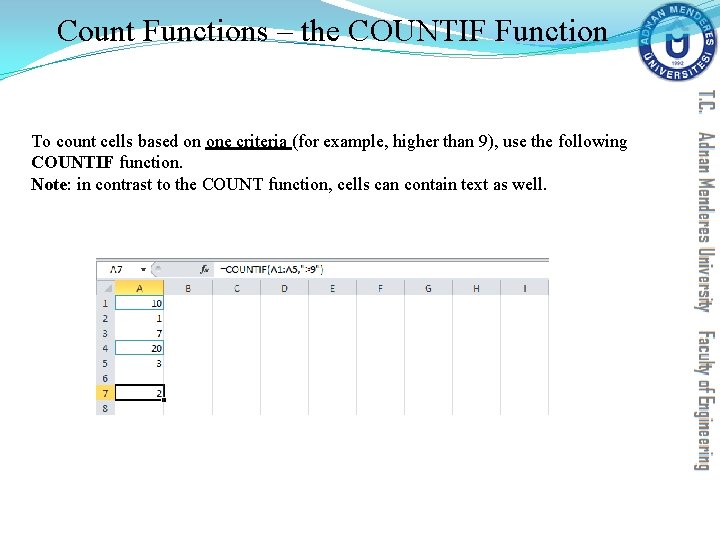
Count Functions – the COUNTIF Function To count cells based on one criteria (for example, higher than 9), use the following COUNTIF function. Note: in contrast to the COUNT function, cells can contain text as well.
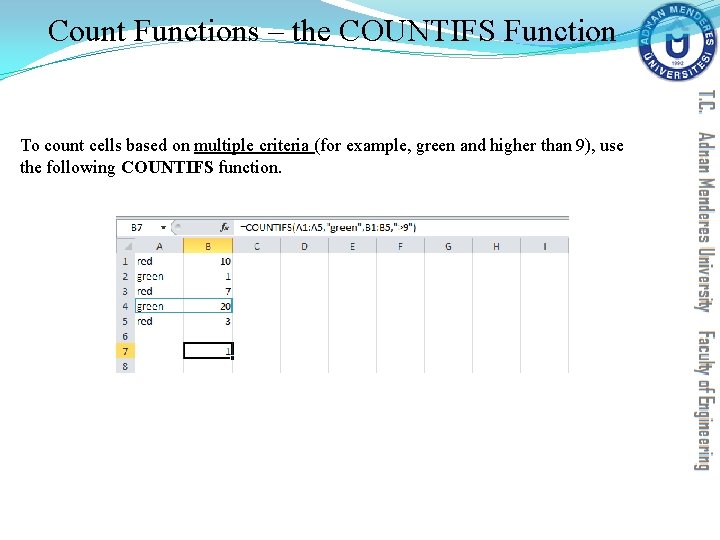
Count Functions – the COUNTIFS Function To count cells based on multiple criteria (for example, green and higher than 9), use the following COUNTIFS function.
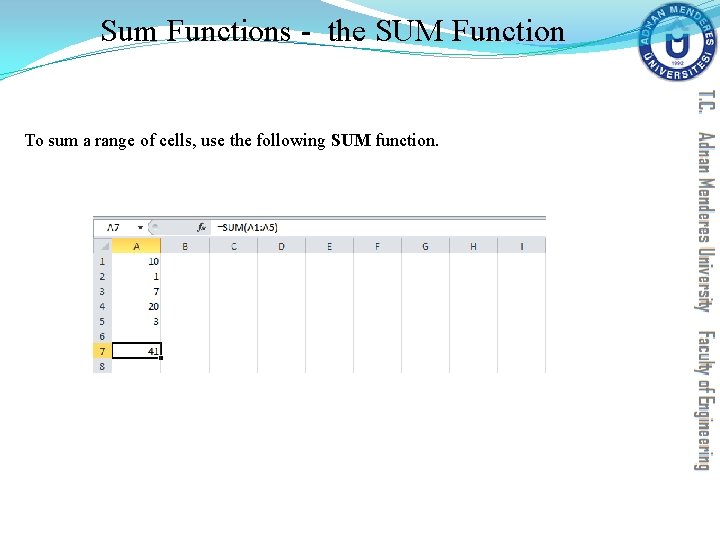
Sum Functions - the SUM Function To sum a range of cells, use the following SUM function.
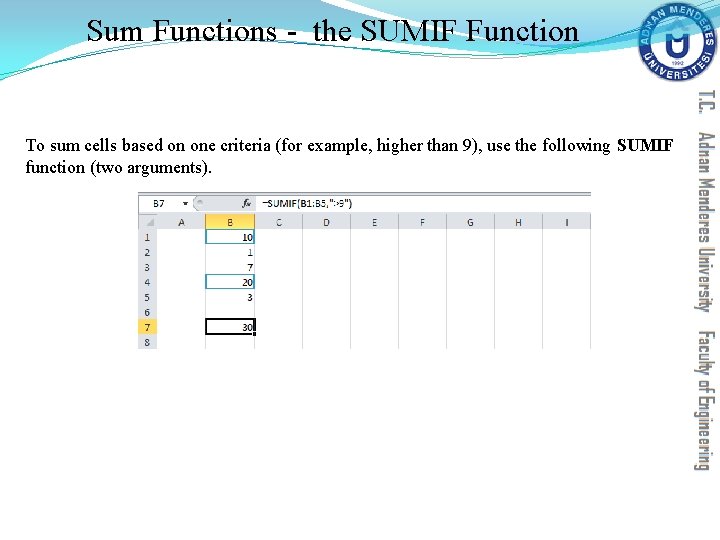
Sum Functions - the SUMIF Function To sum cells based on one criteria (for example, higher than 9), use the following SUMIF function (two arguments).
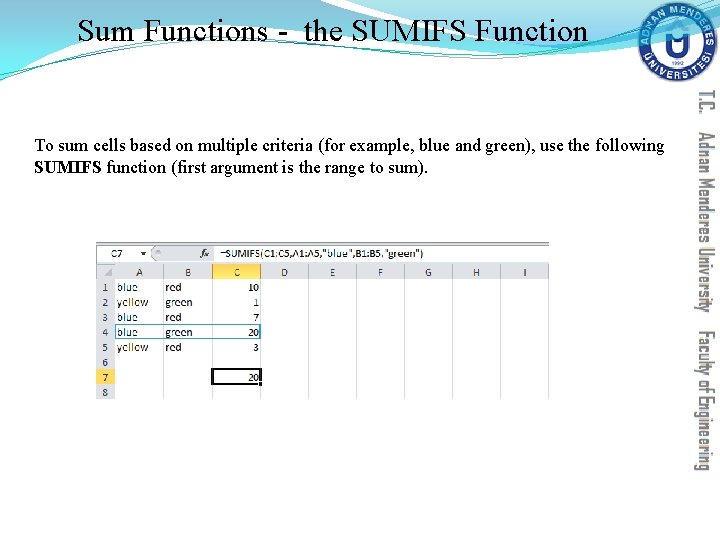
Sum Functions - the SUMIFS Function To sum cells based on multiple criteria (for example, blue and green), use the following SUMIFS function (first argument is the range to sum).
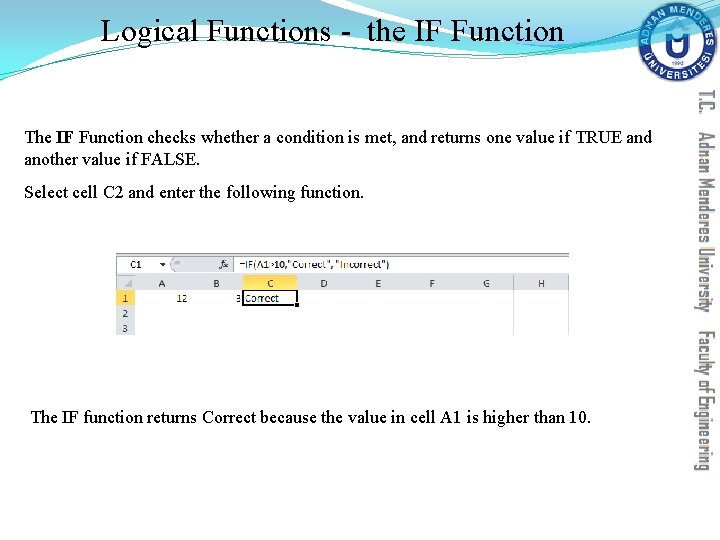
Logical Functions - the IF Function The IF Function checks whether a condition is met, and returns one value if TRUE and another value if FALSE. Select cell C 2 and enter the following function. The IF function returns Correct because the value in cell A 1 is higher than 10.
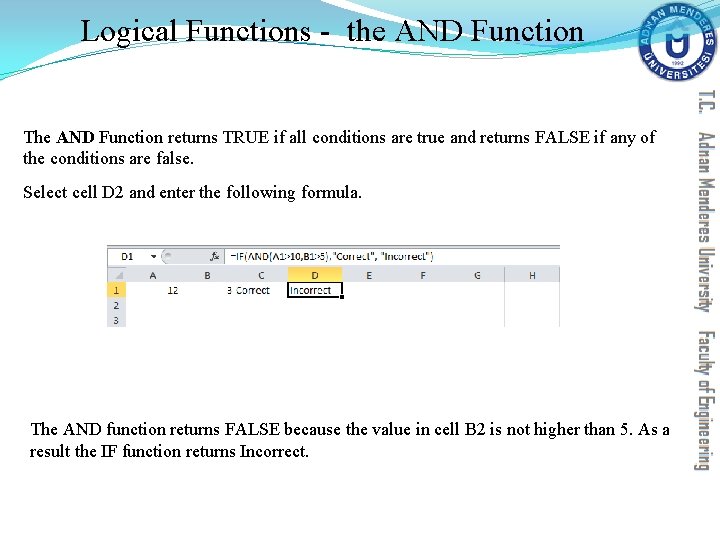
Logical Functions - the AND Function The AND Function returns TRUE if all conditions are true and returns FALSE if any of the conditions are false. Select cell D 2 and enter the following formula. The AND function returns FALSE because the value in cell B 2 is not higher than 5. As a result the IF function returns Incorrect.
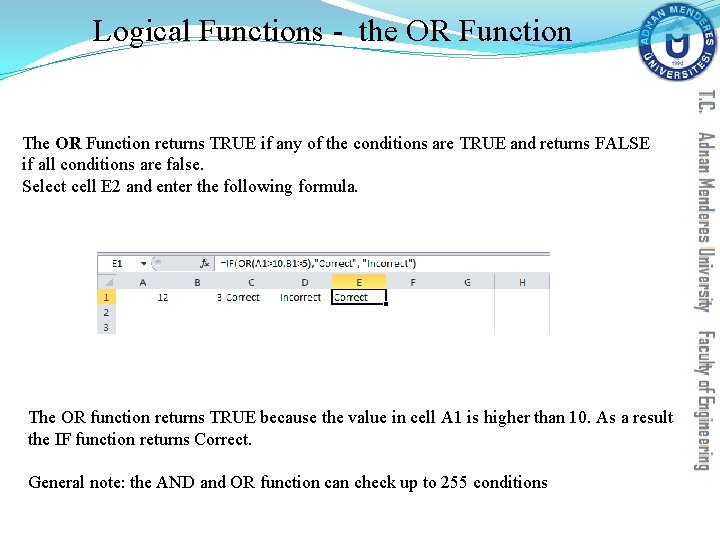
Logical Functions - the OR Function The OR Function returns TRUE if any of the conditions are TRUE and returns FALSE if all conditions are false. Select cell E 2 and enter the following formula. The OR function returns TRUE because the value in cell A 1 is higher than 10. As a result the IF function returns Correct. General note: the AND and OR function can check up to 255 conditions
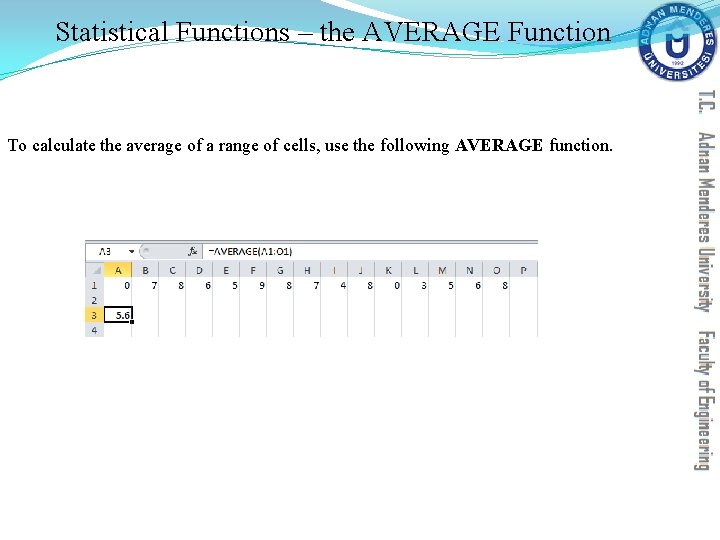
Statistical Functions – the AVERAGE Function To calculate the average of a range of cells, use the following AVERAGE function.
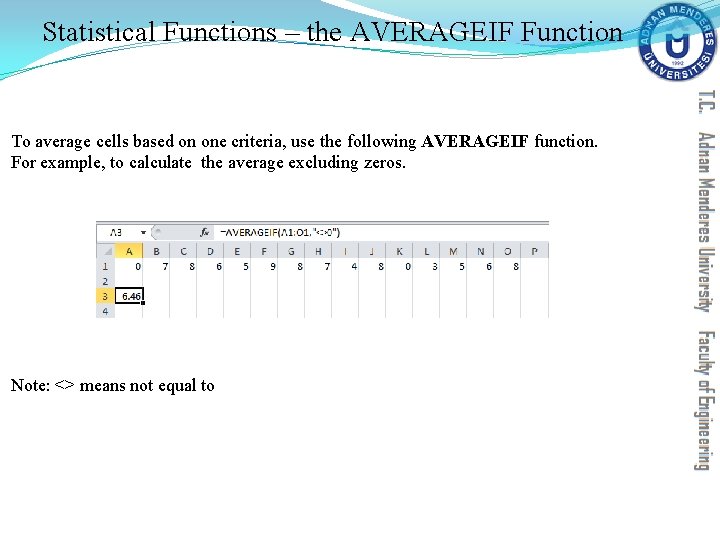
Statistical Functions – the AVERAGEIF Function To average cells based on one criteria, use the following AVERAGEIF function. For example, to calculate the average excluding zeros. Note: <> means not equal to
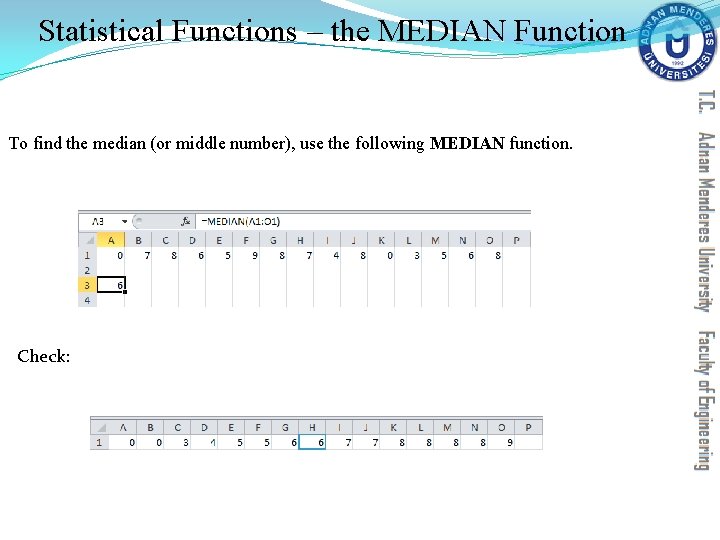
Statistical Functions – the MEDIAN Function To find the median (or middle number), use the following MEDIAN function. Check:
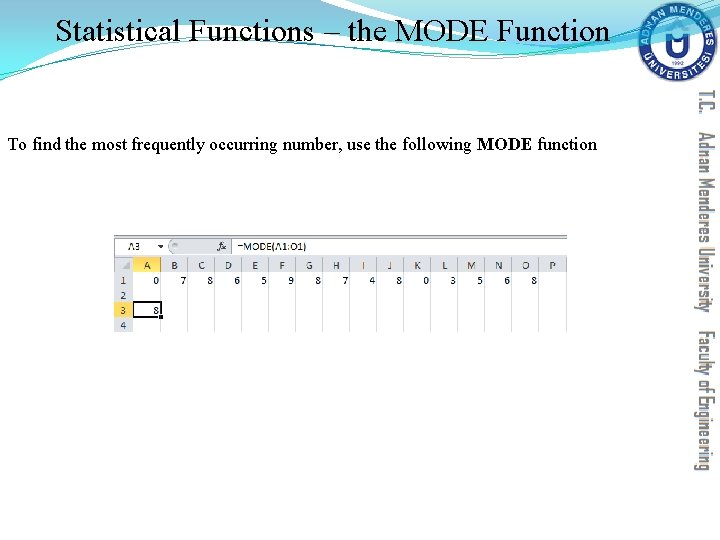
Statistical Functions – the MODE Function To find the most frequently occurring number, use the following MODE function
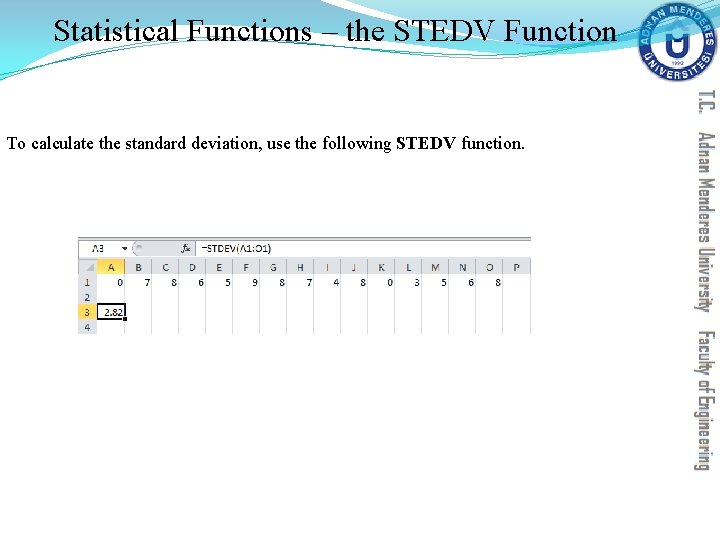
Statistical Functions – the STEDV Function To calculate the standard deviation, use the following STEDV function.
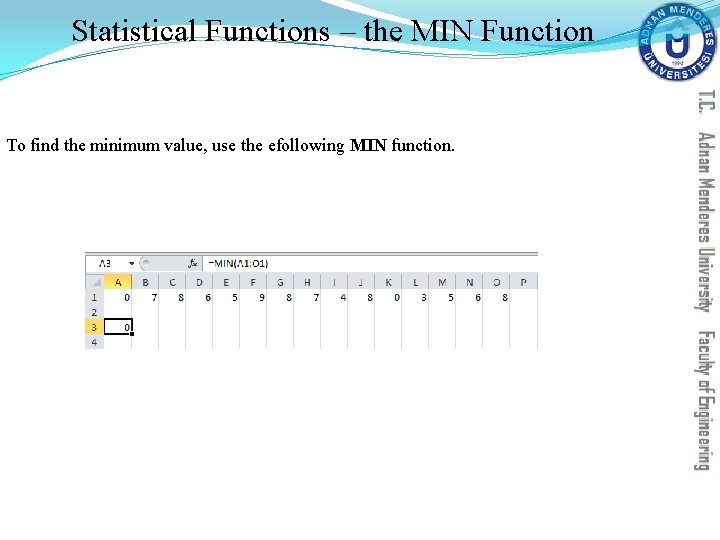
Statistical Functions – the MIN Function To find the minimum value, use the efollowing MIN function.
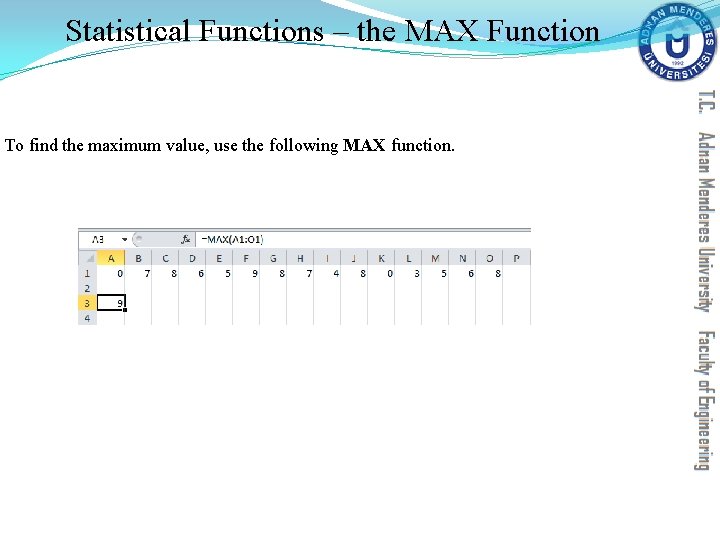
Statistical Functions – the MAX Function To find the maximum value, use the following MAX function.
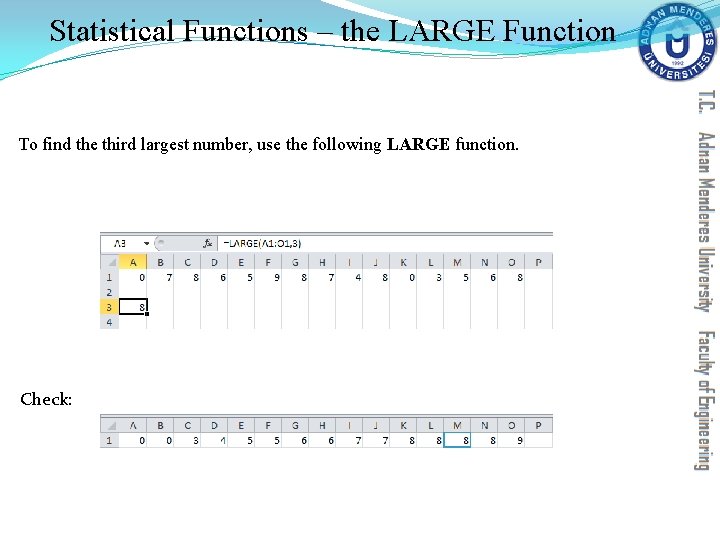
Statistical Functions – the LARGE Function To find the third largest number, use the following LARGE function. Check:
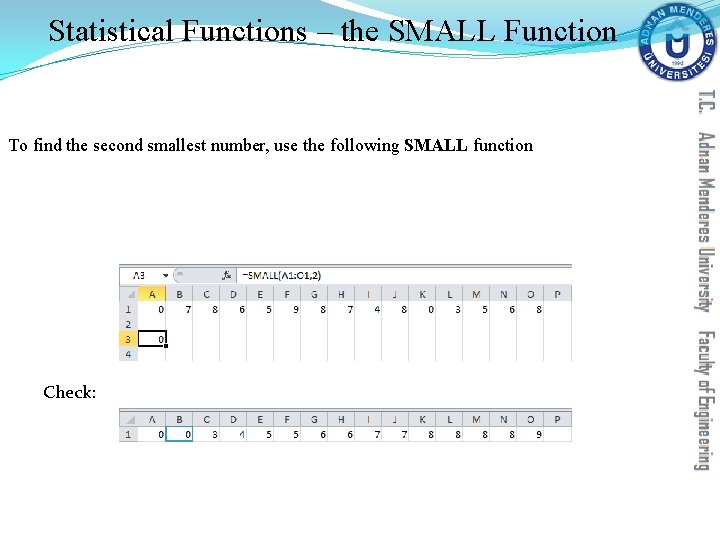
Statistical Functions – the SMALL Function To find the second smallest number, use the following SMALL function Check:
References All the materials presented in this lecture are copyrighted by http: //www. excel-easy. com