CIS 493EEC 492 Android Sensor Programming Lecture 9
![The Pedometer app Steps. Tracker. DBHelper. java public int [] get. Steps. By. Date(String](https://slidetodoc.com/presentation_image_h2/3ab20217e490477ebb04aa32bf8d0076/image-43.jpg "The Pedometer app Steps. Tracker. DBHelper. java public int [] get. Steps. By. Date(String")
- Slides: 49
CIS 493/EEC 492 Android Sensor Programming Lecture 9 Wenbing Zhao Department of Electrical Engineering and Computer Science Cleveland State University wenbing@ieee. org 5/18/2021 CIS 470: Mobile App Development 1
Sensor Fundamentals n n n The Step Counter and Detector Sensors Pedometer App The Pedometer App with Custom Algorithm 5/18/2021 Android Sensor Programming 2
The Step Counter and Detector Sensors Understanding the requirements for the pedometer app using the step n n n n detector and accelerometer sensors Understanding the step detector and step counter sensors How to use the step counter sensor in activity and show the number of steps taken since the phone's last reboot How to use the step detector sensor in service and show the number of steps taken per day using the SQLite database Understanding the accelerometer sensor's behavior during walking, jogging, and fast running activities How to develop an algorithm to detect the types of steps (walking, jogging, and fast running) using the accelerometer sensor data and also achieve battery optimization using the sensor fusion between the step detector and accelerometer sensors How to derive the pedometer data matrix (total steps, distance, duration, average speed, average step frequency, calories burned, and type of steps) by using our steps detected algorithm 5/18/2021 Android Sensor Programming 3
Pedometer App n n Create a pedometer application that works in the background and tracks physical activity automatically The pedometer application should be battery optimized and should go to sleep when there is no physical activity The pedometer application should be able to differentiate between three physical activity types, that is, normal walking, jogging, or fast walking and fast running The pedometer application should be able to log (in database), derive, and show (in the user interface) the following data matrix: q q q q The total steps taken (per day) The total distance travelled (per day) The total duration (per day) The average speed (per day) The average step frequency (per day) The calories burned (per day) The type of physical activity (walking, jogging, or fast running) 5/18/2021 Android Sensor Programming 4
Understanding the step counter and step detector sensors n n n The step counter and step detector sensors are very similar to each other and are used to count the steps Both the sensors are based on a common hardware sensor that internally uses the accelerometer, but Android still treats them as logically separate sensors Both of these sensors are highly battery optimized and consume very little power 5/18/2021 Android Sensor Programming 5
Step Counter Sensor n The step counter sensor is used to get the total number of steps taken by the user since the last reboot of the phone q q n n Unlike other sensors, your app doesn't need to tell the sensor when to start counting the steps and when to stop counting them. It automatically starts counting as soon as the phone is powered on. The value of the step counter sensor is reset to zero on reboot In the on. Sensor. Changed() method, the number of steps is given by event. value[0] The event timestamp represents the time at which the last step was taken This sensor is especially useful for those applications that don't want to run in the background and maintain the history of steps themselves This sensor works in the batch and continuous modes. If we specify 0 or no latency in the Sensor. Manager. register. Listener() method, then it works in continuous mode, otherwise, if we specify any latency, then it groups the events in batches and reports them at a specified latency 5/18/2021 Android Sensor Programming 6
Step Detector Sensor n n n The step detector sensor triggers an event each time a step is taken by the user The value reported in the on. Sensor. Changed() method is always one, the fractional part is always zero, and the event timestamp is the moment that the user's foot hits the ground The step detector sensor has lower accuracy and produces more false positives compared to the step counter sensor The step counter sensor is more accurate, but it has more latency in reporting the steps, as it uses extra time after each step to remove any false positive values The step detector sensor is recommended for those applications that want to track the steps in real time and maintain their own history of each and every step with their timestamp 5/18/2021 Android Sensor Programming 7
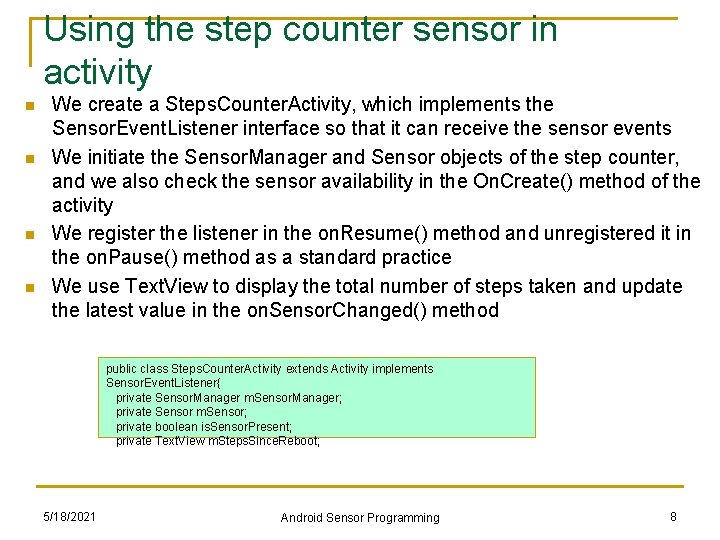
Using the step counter sensor in activity n n We create a Steps. Counter. Activity, which implements the Sensor. Event. Listener interface so that it can receive the sensor events We initiate the Sensor. Manager and Sensor objects of the step counter, and we also check the sensor availability in the On. Create() method of the activity We register the listener in the on. Resume() method and unregistered it in the on. Pause() method as a standard practice We use Text. View to display the total number of steps taken and update the latest value in the on. Sensor. Changed() method public class Steps. Counter. Activity extends Activity implements Sensor. Event. Listener{ private Sensor. Manager m. Sensor. Manager; private Sensor m. Sensor; private boolean is. Sensor. Present; private Text. View m. Steps. Since. Reboot; 5/18/2021 Android Sensor Programming 8
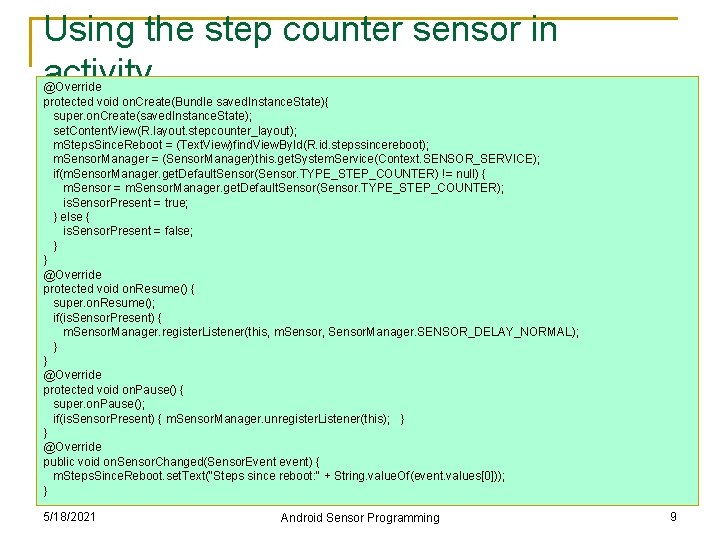
Using the step counter sensor in activity @Override protected void on. Create(Bundle saved. Instance. State){ super. on. Create(saved. Instance. State); set. Content. View(R. layout. stepcounter_layout); m. Steps. Since. Reboot = (Text. View)find. View. By. Id(R. id. stepssincereboot); m. Sensor. Manager = (Sensor. Manager)this. get. System. Service(Context. SENSOR_SERVICE); if(m. Sensor. Manager. get. Default. Sensor(Sensor. TYPE_STEP_COUNTER) != null) { m. Sensor = m. Sensor. Manager. get. Default. Sensor(Sensor. TYPE_STEP_COUNTER); is. Sensor. Present = true; } else { is. Sensor. Present = false; } } @Override protected void on. Resume() { super. on. Resume(); if(is. Sensor. Present) { m. Sensor. Manager. register. Listener(this, m. Sensor, Sensor. Manager. SENSOR_DELAY_NORMAL); } } @Override protected void on. Pause() { super. on. Pause(); if(is. Sensor. Present) { m. Sensor. Manager. unregister. Listener(this); } } @Override public void on. Sensor. Changed(Sensor. Event event) { m. Steps. Since. Reboot. set. Text("Steps since reboot: " + String. value. Of(event. values[0])); } 5/18/2021 Android Sensor Programming 9
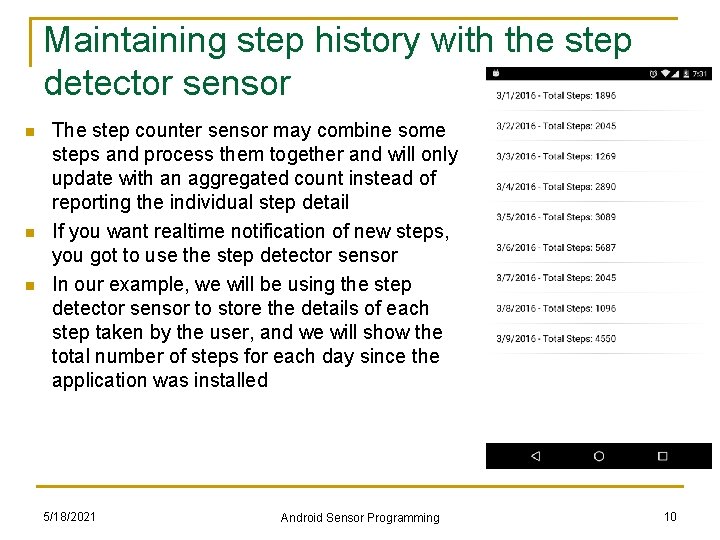
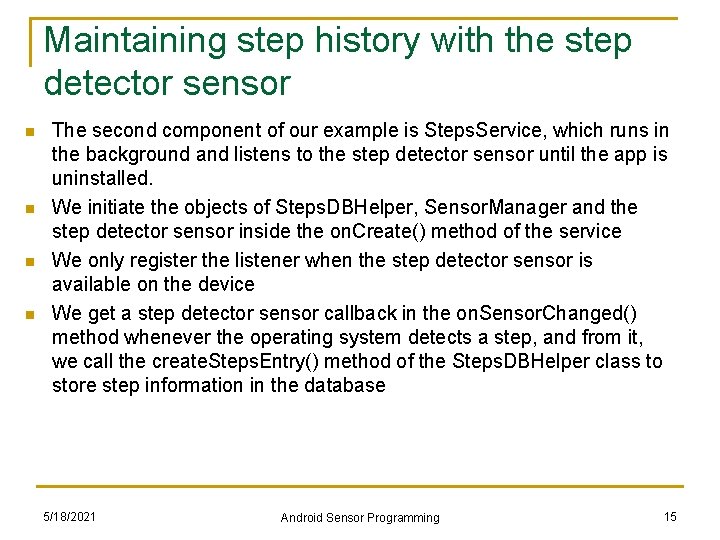
Maintaining step history with the step detector sensor n n n The step counter sensor may combine some steps and process them together and will only update with an aggregated count instead of reporting the individual step detail If you want realtime notification of new steps, you got to use the step detector sensor In our example, we will be using the step detector sensor to store the details of each step taken by the user, and we will show the total number of steps for each day since the application was installed 5/18/2021 Android Sensor Programming 10
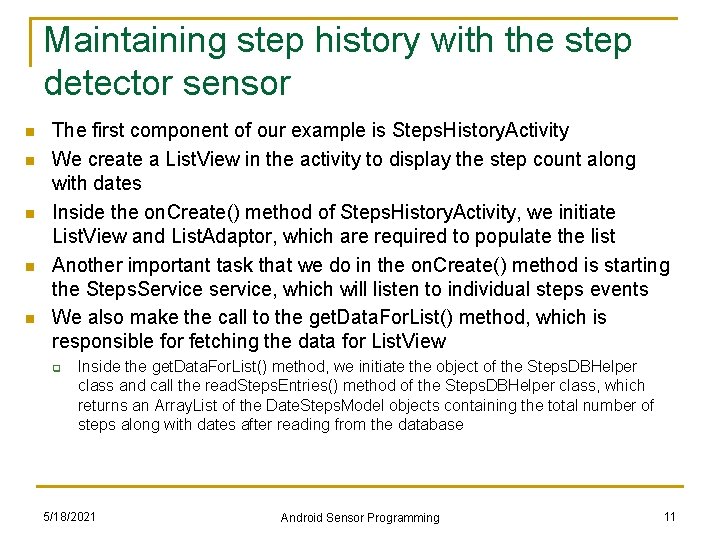
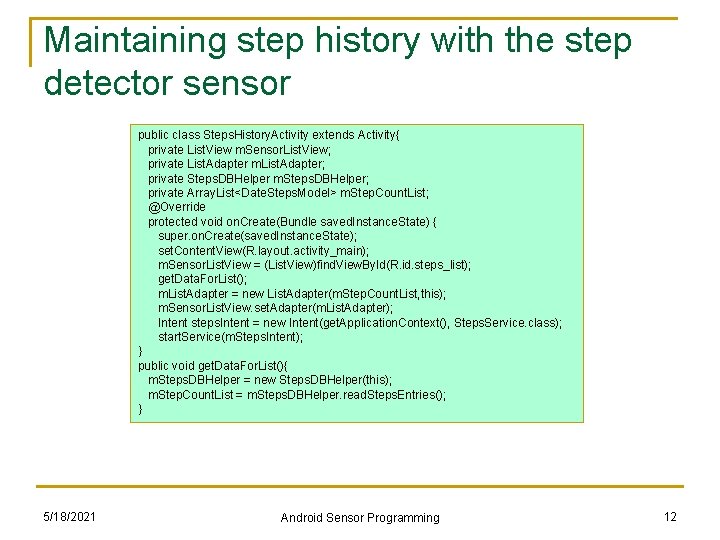
Maintaining step history with the step detector sensor n n n The first component of our example is Steps. History. Activity We create a List. View in the activity to display the step count along with dates Inside the on. Create() method of Steps. History. Activity, we initiate List. View and List. Adaptor, which are required to populate the list Another important task that we do in the on. Create() method is starting the Steps. Service service, which will listen to individual steps events We also make the call to the get. Data. For. List() method, which is responsible for fetching the data for List. View q Inside the get. Data. For. List() method, we initiate the object of the Steps. DBHelper class and call the read. Steps. Entries() method of the Steps. DBHelper class, which returns an Array. List of the Date. Steps. Model objects containing the total number of steps along with dates after reading from the database 5/18/2021 Android Sensor Programming 11
Maintaining step history with the step detector sensor public class Steps. History. Activity extends Activity{ private List. View m. Sensor. List. View; private List. Adapter m. List. Adapter; private Steps. DBHelper m. Steps. DBHelper; private Array. List<Date. Steps. Model> m. Step. Count. List; @Override protected void on. Create(Bundle saved. Instance. State) { super. on. Create(saved. Instance. State); set. Content. View(R. layout. activity_main); m. Sensor. List. View = (List. View)find. View. By. Id(R. id. steps_list); get. Data. For. List(); m. List. Adapter = new List. Adapter(m. Step. Count. List, this); m. Sensor. List. View. set. Adapter(m. List. Adapter); Intent steps. Intent = new Intent(get. Application. Context(), Steps. Service. class); start. Service(m. Steps. Intent); } public void get. Data. For. List(){ m. Steps. DBHelper = new Steps. DBHelper(this); m. Step. Count. List = m. Steps. DBHelper. read. Steps. Entries(); } 5/18/2021 Android Sensor Programming 12
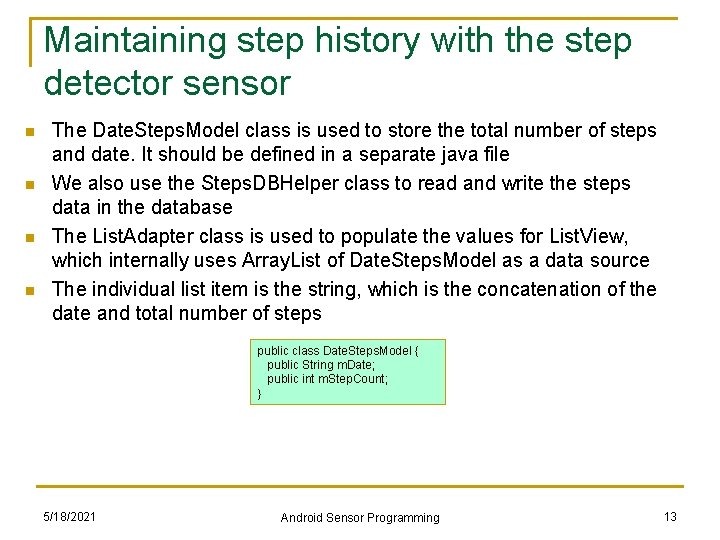
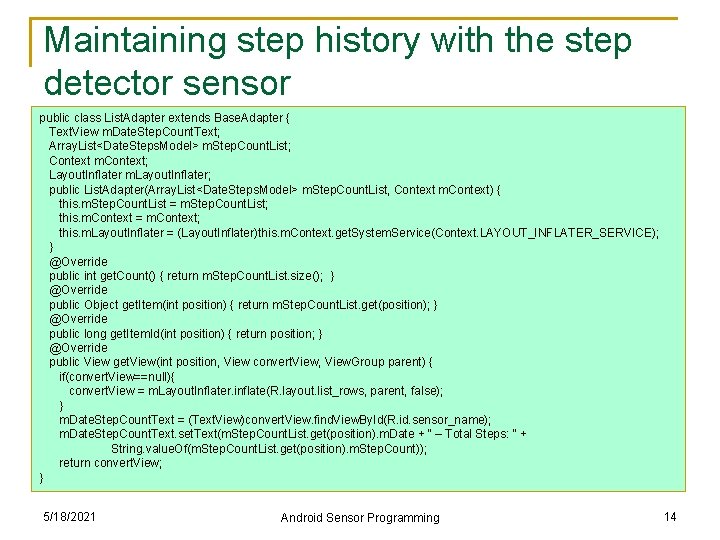
Maintaining step history with the step detector sensor n n The Date. Steps. Model class is used to store the total number of steps and date. It should be defined in a separate java file We also use the Steps. DBHelper class to read and write the steps data in the database The List. Adapter class is used to populate the values for List. View, which internally uses Array. List of Date. Steps. Model as a data source The individual list item is the string, which is the concatenation of the date and total number of steps public class Date. Steps. Model { public String m. Date; public int m. Step. Count; } 5/18/2021 Android Sensor Programming 13
Maintaining step history with the step detector sensor public class List. Adapter extends Base. Adapter { Text. View m. Date. Step. Count. Text; Array. List<Date. Steps. Model> m. Step. Count. List; Context m. Context; Layout. Inflater m. Layout. Inflater; public List. Adapter(Array. List<Date. Steps. Model> m. Step. Count. List, Context m. Context) { this. m. Step. Count. List = m. Step. Count. List; this. m. Context = m. Context; this. m. Layout. Inflater = (Layout. Inflater)this. m. Context. get. System. Service(Context. LAYOUT_INFLATER_SERVICE); } @Override public int get. Count() { return m. Step. Count. List. size(); } @Override public Object get. Item(int position) { return m. Step. Count. List. get(position); } @Override public long get. Item. Id(int position) { return position; } @Override public View get. View(int position, View convert. View, View. Group parent) { if(convert. View==null){ convert. View = m. Layout. Inflater. inflate(R. layout. list_rows, parent, false); } m. Date. Step. Count. Text = (Text. View)convert. View. find. View. By. Id(R. id. sensor_name); m. Date. Step. Count. Text. set. Text(m. Step. Count. List. get(position). m. Date + " – Total Steps: " + String. value. Of(m. Step. Count. List. get(position). m. Step. Count)); return convert. View; } 5/18/2021 Android Sensor Programming 14
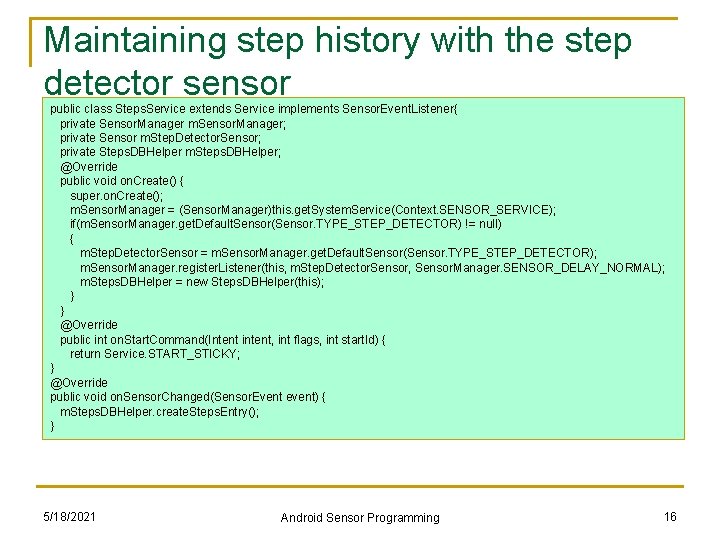
Maintaining step history with the step detector sensor n n The second component of our example is Steps. Service, which runs in the background and listens to the step detector sensor until the app is uninstalled. We initiate the objects of Steps. DBHelper, Sensor. Manager and the step detector sensor inside the on. Create() method of the service We only register the listener when the step detector sensor is available on the device We get a step detector sensor callback in the on. Sensor. Changed() method whenever the operating system detects a step, and from it, we call the create. Steps. Entry() method of the Steps. DBHelper class to store step information in the database 5/18/2021 Android Sensor Programming 15
Maintaining step history with the step detector sensor public class Steps. Service extends Service implements Sensor. Event. Listener{ private Sensor. Manager m. Sensor. Manager; private Sensor m. Step. Detector. Sensor; private Steps. DBHelper m. Steps. DBHelper; @Override public void on. Create() { super. on. Create(); m. Sensor. Manager = (Sensor. Manager)this. get. System. Service(Context. SENSOR_SERVICE); if(m. Sensor. Manager. get. Default. Sensor(Sensor. TYPE_STEP_DETECTOR) != null) { m. Step. Detector. Sensor = m. Sensor. Manager. get. Default. Sensor(Sensor. TYPE_STEP_DETECTOR); m. Sensor. Manager. register. Listener(this, m. Step. Detector. Sensor, Sensor. Manager. SENSOR_DELAY_NORMAL); m. Steps. DBHelper = new Steps. DBHelper(this); } } @Override public int on. Start. Command(Intent intent, int flags, int start. Id) { return Service. START_STICKY; } @Override public void on. Sensor. Changed(Sensor. Event event) { m. Steps. DBHelper. create. Steps. Entry(); } 5/18/2021 Android Sensor Programming 16
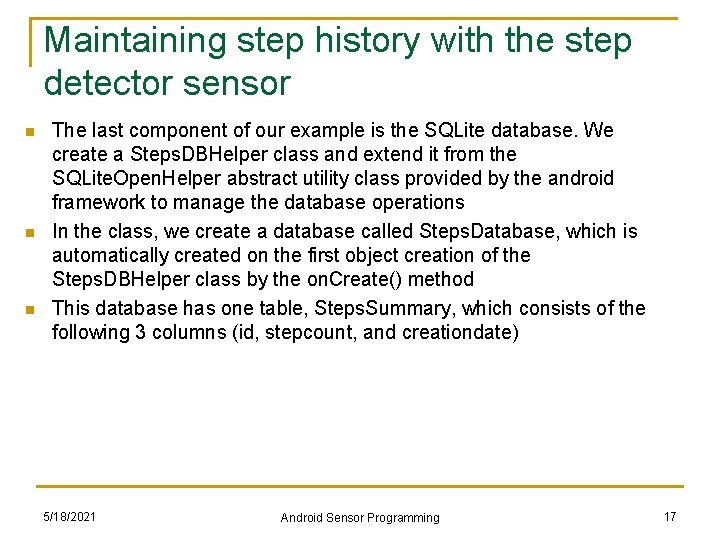
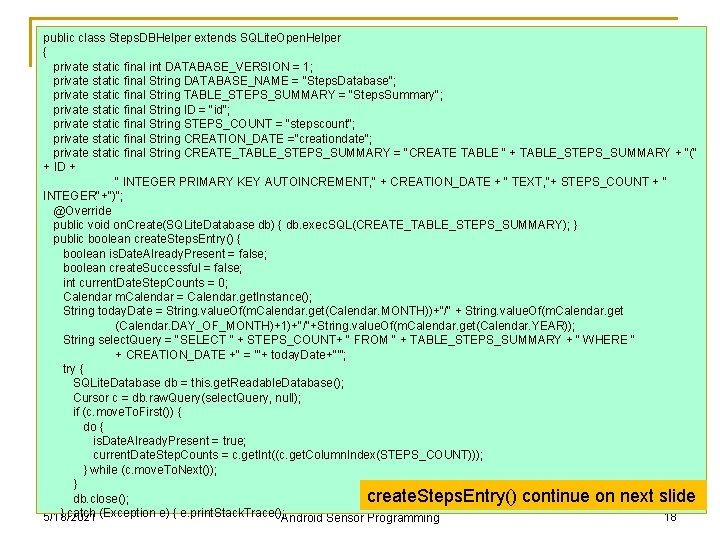
Maintaining step history with the step detector sensor n n n The last component of our example is the SQLite database. We create a Steps. DBHelper class and extend it from the SQLite. Open. Helper abstract utility class provided by the android framework to manage the database operations In the class, we create a database called Steps. Database, which is automatically created on the first object creation of the Steps. DBHelper class by the on. Create() method This database has one table, Steps. Summary, which consists of the following 3 columns (id, stepcount, and creationdate) 5/18/2021 Android Sensor Programming 17
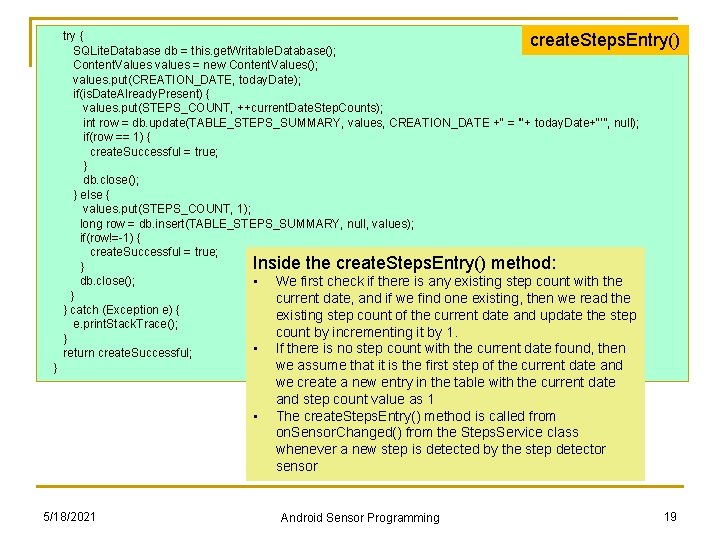
public class Steps. DBHelper extends SQLite. Open. Helper { private static final int DATABASE_VERSION = 1; private static final String DATABASE_NAME = "Steps. Database"; private static final String TABLE_STEPS_SUMMARY = "Steps. Summary"; private static final String ID = "id"; private static final String STEPS_COUNT = "stepscount"; private static final String CREATION_DATE ="creationdate"; private static final String CREATE_TABLE_STEPS_SUMMARY = "CREATE TABLE “ + TABLE_STEPS_SUMMARY + "(" + ID + " INTEGER PRIMARY KEY AUTOINCREMENT, " + CREATION_DATE + " TEXT, "+ STEPS_COUNT + “ INTEGER"+")"; @Override public void on. Create(SQLite. Database db) { db. exec. SQL(CREATE_TABLE_STEPS_SUMMARY); } public boolean create. Steps. Entry() { boolean is. Date. Already. Present = false; boolean create. Successful = false; int current. Date. Step. Counts = 0; Calendar m. Calendar = Calendar. get. Instance(); String today. Date = String. value. Of(m. Calendar. get(Calendar. MONTH))+"/" + String. value. Of(m. Calendar. get (Calendar. DAY_OF_MONTH)+1)+"/"+String. value. Of(m. Calendar. get(Calendar. YEAR)); String select. Query = "SELECT " + STEPS_COUNT+ " FROM " + TABLE_STEPS_SUMMARY + " WHERE " + CREATION_DATE +" = '"+ today. Date+“’”; try { SQLite. Database db = this. get. Readable. Database(); Cursor c = db. raw. Query(select. Query, null); if (c. move. To. First()) { do { is. Date. Already. Present = true; current. Date. Step. Counts = c. get. Int((c. get. Column. Index(STEPS_COUNT))); } while (c. move. To. Next()); } create. Steps. Entry() continue on next slide db. close(); } catch (Exception e) { e. print. Stack. Trace(); Android Sensor Programming 5/18/2021 18
try { create. Steps. Entry() SQLite. Database db = this. get. Writable. Database(); Content. Values values = new Content. Values(); values. put(CREATION_DATE, today. Date); if(is. Date. Already. Present) { values. put(STEPS_COUNT, ++current. Date. Step. Counts); int row = db. update(TABLE_STEPS_SUMMARY, values, CREATION_DATE +" = '"+ today. Date+“’”, null); if(row == 1) { create. Successful = true; } db. close(); } else { values. put(STEPS_COUNT, 1); long row = db. insert(TABLE_STEPS_SUMMARY, null, values); if(row!=-1) { create. Successful = true; Inside the create. Steps. Entry() method: } db. close(); • We first check if there is any existing step count with the } current date, and if we find one existing, then we read the } catch (Exception e) { existing step count of the current date and update the step e. print. Stack. Trace(); count by incrementing it by 1. } • If there is no step count with the current date found, then return create. Successful; } • 5/18/2021 we assume that it is the first step of the current date and we create a new entry in the table with the current date and step count value as 1 The create. Steps. Entry() method is called from on. Sensor. Changed() from the Steps. Service class whenever a new step is detected by the step detector sensor Android Sensor Programming 19
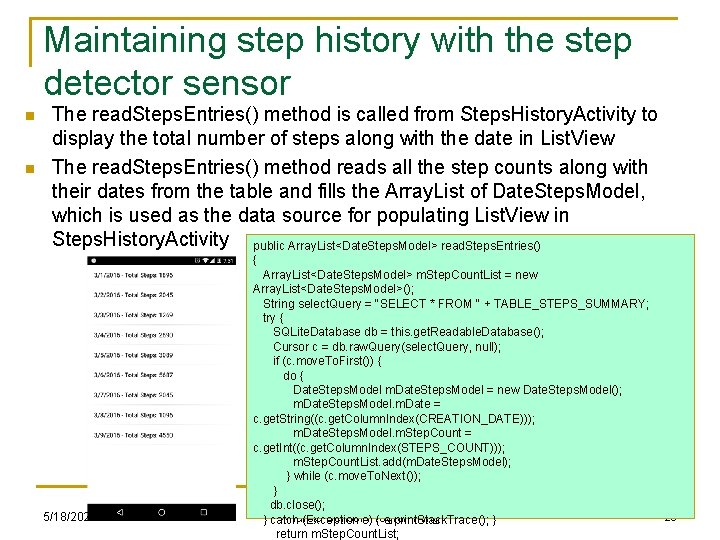
Maintaining step history with the step detector sensor n n The read. Steps. Entries() method is called from Steps. History. Activity to display the total number of steps along with the date in List. View The read. Steps. Entries() method reads all the step counts along with their dates from the table and fills the Array. List of Date. Steps. Model, which is used as the data source for populating List. View in Steps. History. Activity public Array. List<Date. Steps. Model> read. Steps. Entries() { 5/18/2021 Array. List<Date. Steps. Model> m. Step. Count. List = new Array. List<Date. Steps. Model>(); String select. Query = "SELECT * FROM " + TABLE_STEPS_SUMMARY; try { SQLite. Database db = this. get. Readable. Database(); Cursor c = db. raw. Query(select. Query, null); if (c. move. To. First()) { do { Date. Steps. Model m. Date. Steps. Model = new Date. Steps. Model(); m. Date. Steps. Model. m. Date = c. get. String((c. get. Column. Index(CREATION_DATE))); m. Date. Steps. Model. m. Step. Count = c. get. Int((c. get. Column. Index(STEPS_COUNT))); m. Step. Count. List. add(m. Date. Steps. Model); } while (c. move. To. Next()); } db. close(); Android Sensore)Programming } catch (Exception { e. print. Stack. Trace(); } return m. Step. Count. List; 20
n n Understanding the walking, jogging, and running signatures using the accelerometer The step counter and step detector sensors are really useful, but they sensor's data fail to provide advanced information on steps, such as what the type of step was (running, jogging, or walking), and what the duration of each step was For developing an advanced pedometer app or a health and fitness app, the duration and type of step is valuable information As a learning exercise, we will develop our own algorithm to detect the type of step and the duration of each step using the accelerometer sensor The first step in developing the algorithm is to understand how a step looks on the accelerometer sensor 5/18/2021 Android Sensor Programming 21
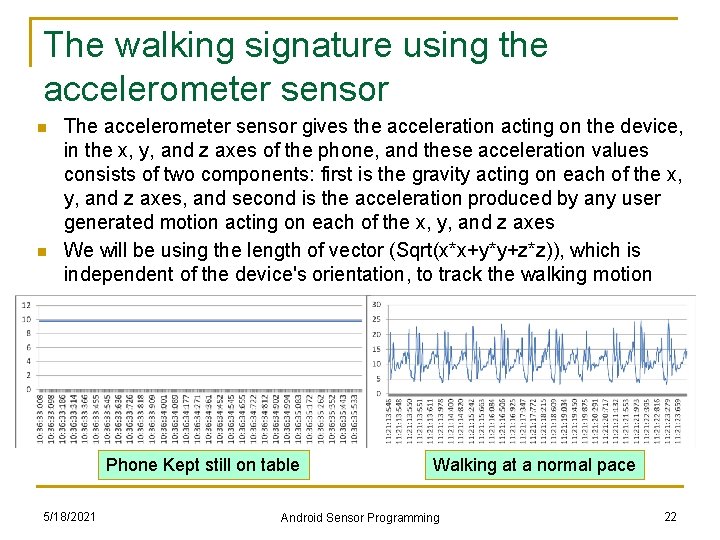
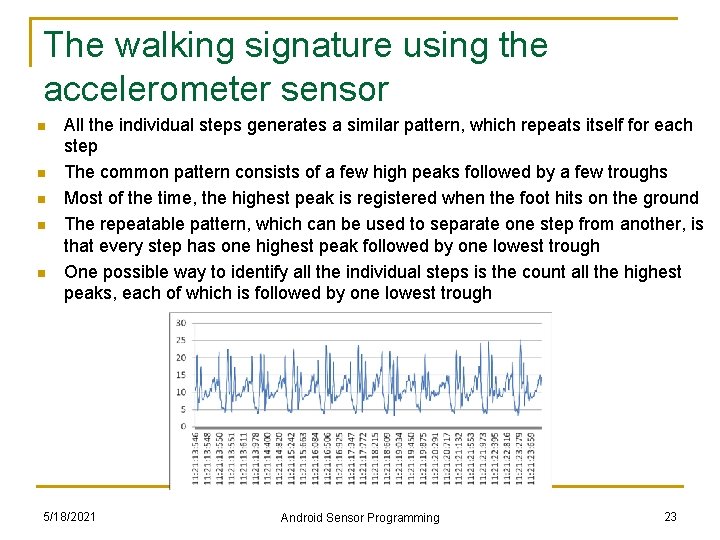
The walking signature using the accelerometer sensor n n The accelerometer sensor gives the acceleration acting on the device, in the x, y, and z axes of the phone, and these acceleration values consists of two components: first is the gravity acting on each of the x, y, and z axes, and second is the acceleration produced by any user generated motion acting on each of the x, y, and z axes We will be using the length of vector (Sqrt(x*x+y*y+z*z)), which is independent of the device's orientation, to track the walking motion Phone Kept still on table 5/18/2021 Walking at a normal pace Android Sensor Programming 22
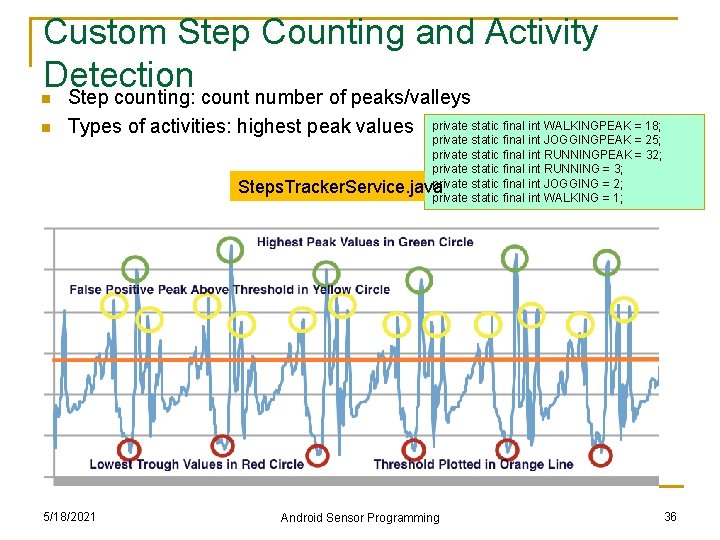
The walking signature using the accelerometer sensor n n n All the individual steps generates a similar pattern, which repeats itself for each step The common pattern consists of a few high peaks followed by a few troughs Most of the time, the highest peak is registered when the foot hits on the ground The repeatable pattern, which can be used to separate one step from another, is that every step has one highest peak followed by one lowest trough One possible way to identify all the individual steps is the count all the highest peaks, each of which is followed by one lowest trough 5/18/2021 Android Sensor Programming 23
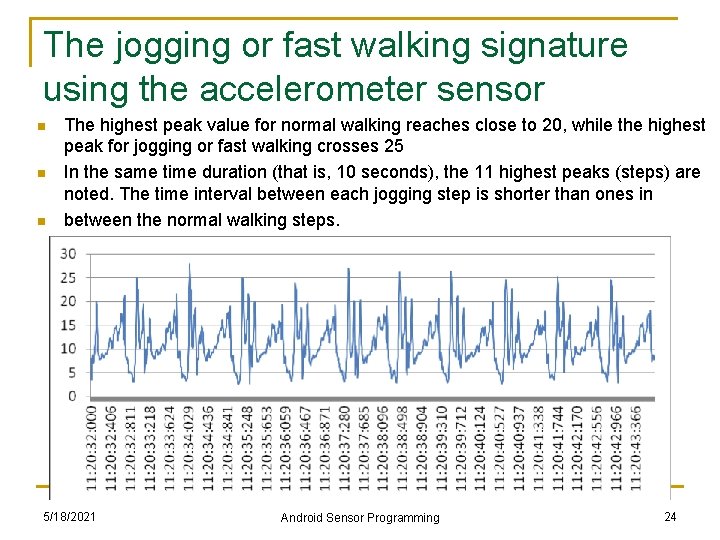
The jogging or fast walking signature using the accelerometer sensor n n n The highest peak value for normal walking reaches close to 20, while the highest peak for jogging or fast walking crosses 25 In the same time duration (that is, 10 seconds), the 11 highest peaks (steps) are noted. The time interval between each jogging step is shorter than ones in between the normal walking steps. 5/18/2021 Android Sensor Programming 24
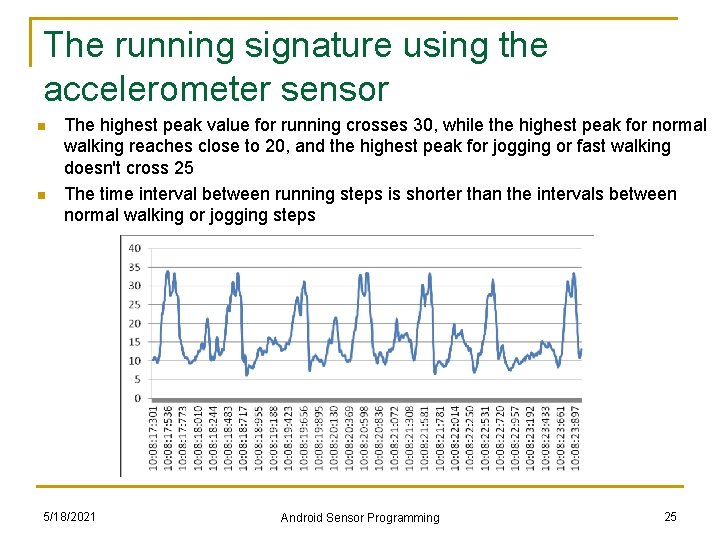
The running signature using the accelerometer sensor n n The highest peak value for running crosses 30, while the highest peak for normal walking reaches close to 20, and the highest peak for jogging or fast walking doesn't cross 25 The time interval between running steps is shorter than the intervals between normal walking or jogging steps 5/18/2021 Android Sensor Programming 25
The type of step detection algorithm n n We observed, from the accelerometer data plotted on graphs, that every type of step (walking, jogging, and running) has a unique signature pattern Every step registers a high variation in acceleration when the foot hits the ground This highest peak is followed by the lowest trough in the graph, and a pair comprising highest peak and lowest trough corresponds to a complete step. We will be extending the same logic in our algorithm to count the total number of steps. We will be identifying all the highest peaks, which are followed by lowest troughs, to get the total number of steps taken by the user The difference in the magnitude of their highest peak values will help us differentiate between the types of steps q q The relative difference between peak values of running steps versus jogging steps is close to 5, and similarly, the relative difference between peak values of jogging steps versus walking steps is also approximately 5 We will be using this relative difference between the peaks to identify the type of step (walking, jogging, and running). The difference in peak values might vary depending on a lot of factors such as the ground, shoes, location of the phone, and so on 5/18/2021 Android Sensor Programming 26
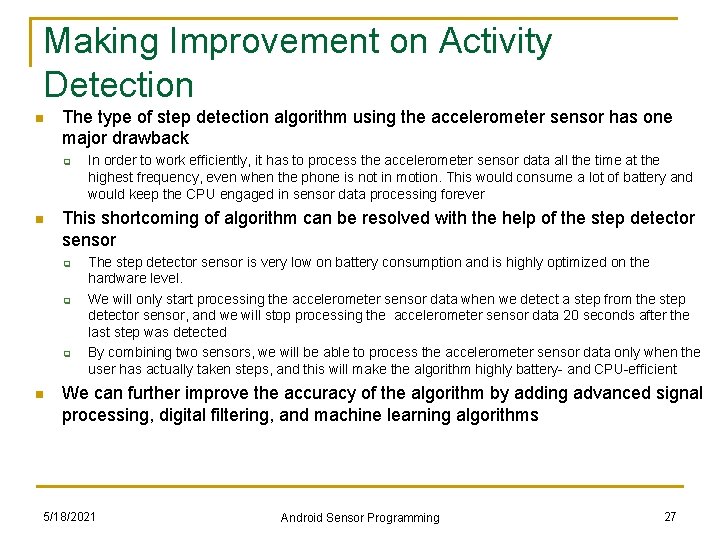
Making Improvement on Activity Detection n The type of step detection algorithm using the accelerometer sensor has one major drawback q n This shortcoming of algorithm can be resolved with the help of the step detector sensor q q q n In order to work efficiently, it has to process the accelerometer sensor data all the time at the highest frequency, even when the phone is not in motion. This would consume a lot of battery and would keep the CPU engaged in sensor data processing forever The step detector sensor is very low on battery consumption and is highly optimized on the hardware level. We will only start processing the accelerometer sensor data when we detect a step from the step detector sensor, and we will stop processing the accelerometer sensor data 20 seconds after the last step was detected By combining two sensors, we will be able to process the accelerometer sensor data only when the user has actually taken steps, and this will make the algorithm highly battery- and CPU-efficient We can further improve the accuracy of the algorithm by adding advanced signal processing, digital filtering, and machine learning algorithms 5/18/2021 Android Sensor Programming 27
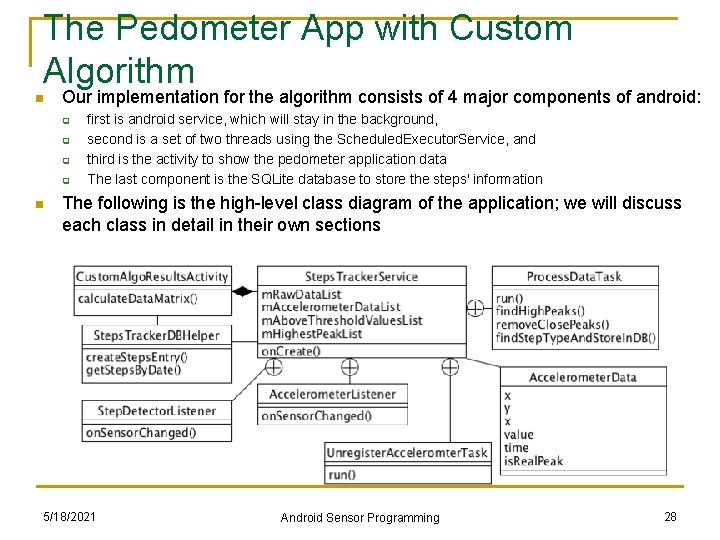
The Pedometer App with Custom Algorithm n Our implementation for the algorithm consists of 4 major components of android: q q n first is android service, which will stay in the background, second is a set of two threads using the Scheduled. Executor. Service, and third is the activity to show the pedometer application data The last component is the SQLite database to store the steps' information The following is the high-level class diagram of the application; we will discuss each class in detail in their own sections 5/18/2021 Android Sensor Programming 28
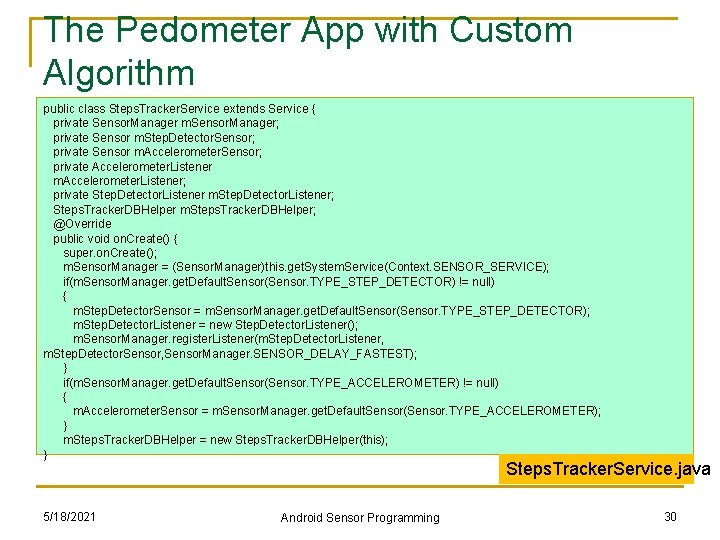
The Pedometer App with Custom Algorithm n The first component of the algorithm is the Steps. Tracker. Service service, which will remain in the background and provide a container for execution q q q Inside this service, we create the Step. Detector. Listener and Accelerometer. Listener classes and implement them with the Sensor. Event. Listener interface so that they can receive the sensor events In the on. Create() method of the service, we initiate Sensor. Manager and the step detector sensor object after checking its availability We register the Step. Detector. Listener with Sensor. Manager as soon as the service is created In order to make the algorithm battery and CPU efficient, we will only register the accelerometer listener and start processing the data when any step is detected using the step detector sensor We also create the object of the Steps. Tracker. DBHelper class, which is our SQLite database utility for handling all the database operations 5/18/2021 Android Sensor Programming 29
The Pedometer App with Custom Algorithm public class Steps. Tracker. Service extends Service { private Sensor. Manager m. Sensor. Manager; private Sensor m. Step. Detector. Sensor; private Sensor m. Accelerometer. Sensor; private Accelerometer. Listener m. Accelerometer. Listener; private Step. Detector. Listener m. Step. Detector. Listener; Steps. Tracker. DBHelper m. Steps. Tracker. DBHelper; @Override public void on. Create() { super. on. Create(); m. Sensor. Manager = (Sensor. Manager)this. get. System. Service(Context. SENSOR_SERVICE); if(m. Sensor. Manager. get. Default. Sensor(Sensor. TYPE_STEP_DETECTOR) != null) { m. Step. Detector. Sensor = m. Sensor. Manager. get. Default. Sensor(Sensor. TYPE_STEP_DETECTOR); m. Step. Detector. Listener = new Step. Detector. Listener(); m. Sensor. Manager. register. Listener(m. Step. Detector. Listener, m. Step. Detector. Sensor, Sensor. Manager. SENSOR_DELAY_FASTEST); } if(m. Sensor. Manager. get. Default. Sensor(Sensor. TYPE_ACCELEROMETER) != null) { m. Accelerometer. Sensor = m. Sensor. Manager. get. Default. Sensor(Sensor. TYPE_ACCELEROMETER); } m. Steps. Tracker. DBHelper = new Steps. Tracker. DBHelper(this); } Steps. Tracker. Service. java 5/18/2021 Android Sensor Programming 30
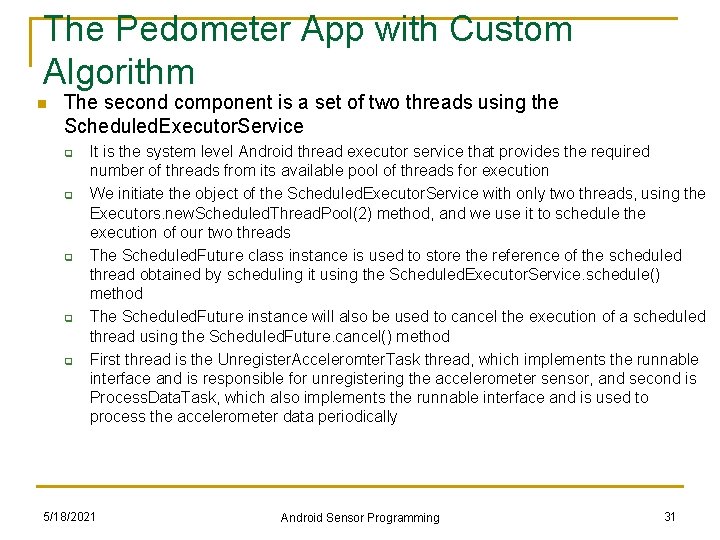
The Pedometer App with Custom Algorithm n The second component is a set of two threads using the Scheduled. Executor. Service q q q It is the system level Android thread executor service that provides the required number of threads from its available pool of threads for execution We initiate the object of the Scheduled. Executor. Service with only two threads, using the Executors. new. Scheduled. Thread. Pool(2) method, and we use it to schedule the execution of our two threads The Scheduled. Future class instance is used to store the reference of the scheduled thread obtained by scheduling it using the Scheduled. Executor. Service. schedule() method The Scheduled. Future instance will also be used to cancel the execution of a scheduled thread using the Scheduled. Future. cancel() method First thread is the Unregister. Acceleromter. Task thread, which implements the runnable interface and is responsible for unregistering the accelerometer sensor, and second is Process. Data. Task, which also implements the runnable interface and is used to process the accelerometer data periodically 5/18/2021 Android Sensor Programming 31
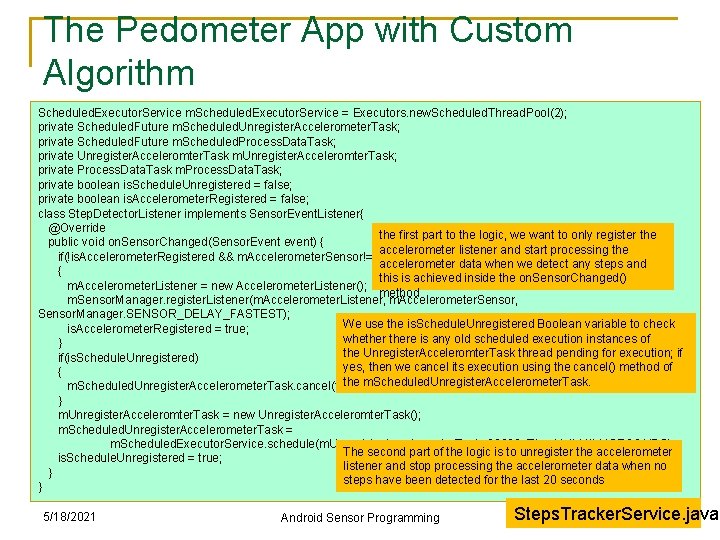
The Pedometer App with Custom Algorithm Scheduled. Executor. Service m. Scheduled. Executor. Service = Executors. new. Scheduled. Thread. Pool(2); private Scheduled. Future m. Scheduled. Unregister. Accelerometer. Task; private Scheduled. Future m. Scheduled. Process. Data. Task; private Unregister. Acceleromter. Task m. Unregister. Acceleromter. Task; private Process. Data. Task m. Process. Data. Task; private boolean is. Schedule. Unregistered = false; private boolean is. Accelerometer. Registered = false; class Step. Detector. Listener implements Sensor. Event. Listener{ @Override the first part to the logic, we want to only register the public void on. Sensor. Changed(Sensor. Event event) { accelerometer listener and start processing the if(!is. Accelerometer. Registered && m. Accelerometer. Sensor!=null) accelerometer data when we detect any steps and { this is achieved inside the on. Sensor. Changed() m. Accelerometer. Listener = new Accelerometer. Listener(); method m. Sensor. Manager. register. Listener(m. Accelerometer. Listener, m. Accelerometer. Sensor, Sensor. Manager. SENSOR_DELAY_FASTEST); We use the is. Schedule. Unregistered Boolean variable to check is. Accelerometer. Registered = true; whethere is any old scheduled execution instances of } the Unregister. Acceleromter. Task thread pending for execution; if if(is. Schedule. Unregistered) yes, then we cancel its execution using the cancel() method of { the m. Scheduled. Unregister. Accelerometer. Task. cancel(true); } m. Unregister. Acceleromter. Task = new Unregister. Acceleromter. Task(); m. Scheduled. Unregister. Accelerometer. Task = m. Scheduled. Executor. Service. schedule(m. Unregister. Acceleromter. Task, 20000, Time. Unit. MILLISECONDS); The second part of the logic is to unregister the accelerometer is. Schedule. Unregistered = true; listener and stop processing the accelerometer data when no } steps have been detected for the last 20 seconds } 5/18/2021 Android Sensor Programming Steps. Tracker. Service. java 32
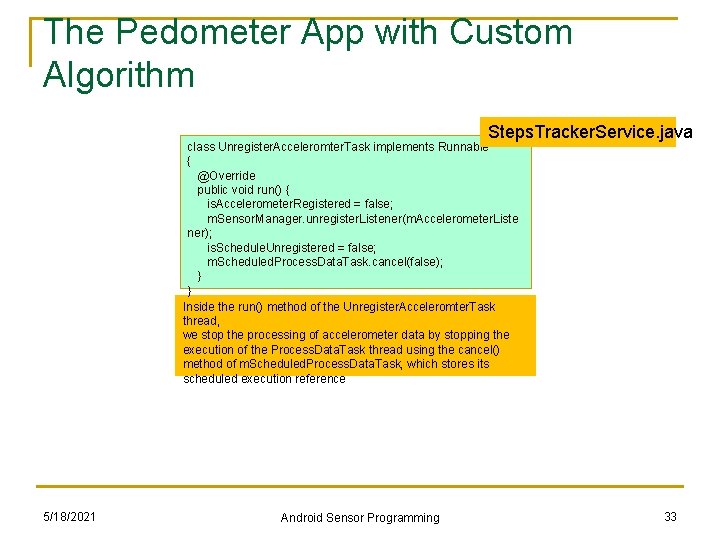
The Pedometer App with Custom Algorithm Steps. Tracker. Service. java class Unregister. Acceleromter. Task implements Runnable { @Override public void run() { is. Accelerometer. Registered = false; m. Sensor. Manager. unregister. Listener(m. Accelerometer. Liste ner); is. Schedule. Unregistered = false; m. Scheduled. Process. Data. Task. cancel(false); } } Inside the run() method of the Unregister. Acceleromter. Task thread, we stop the processing of accelerometer data by stopping the execution of the Process. Data. Task thread using the cancel() method of m. Scheduled. Process. Data. Task, which stores its scheduled execution reference 5/18/2021 Android Sensor Programming 33
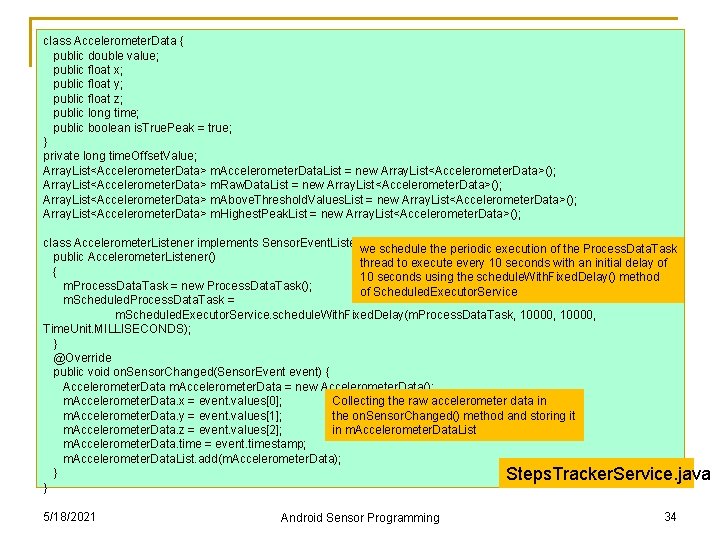
class Accelerometer. Data { public double value; public float x; public float y; public float z; public long time; public boolean is. True. Peak = true; } private long time. Offset. Value; Array. List<Accelerometer. Data> m. Accelerometer. Data. List = new Array. List<Accelerometer. Data>(); Array. List<Accelerometer. Data> m. Raw. Data. List = new Array. List<Accelerometer. Data>(); Array. List<Accelerometer. Data> m. Above. Threshold. Values. List = new Array. List<Accelerometer. Data>(); Array. List<Accelerometer. Data> m. Highest. Peak. List = new Array. List<Accelerometer. Data>(); class Accelerometer. Listener implements Sensor. Event. Listener we {schedule the periodic execution of the Process. Data. Task public Accelerometer. Listener() thread to execute every 10 seconds with an initial delay of { 10 seconds using the schedule. With. Fixed. Delay() method m. Process. Data. Task = new Process. Data. Task(); of Scheduled. Executor. Service m. Scheduled. Process. Data. Task = m. Scheduled. Executor. Service. schedule. With. Fixed. Delay(m. Process. Data. Task, 10000, Time. Unit. MILLISECONDS); } @Override public void on. Sensor. Changed(Sensor. Event event) { Accelerometer. Data m. Accelerometer. Data = new Accelerometer. Data(); Collecting the raw accelerometer data in m. Accelerometer. Data. x = event. values[0]; the on. Sensor. Changed() method and storing it m. Accelerometer. Data. y = event. values[1]; in m. Accelerometer. Data. List m. Accelerometer. Data. z = event. values[2]; m. Accelerometer. Data. time = event. timestamp; m. Accelerometer. Data. List. add(m. Accelerometer. Data); } Steps. Tracker. Service. java } 5/18/2021 Android Sensor Programming 34
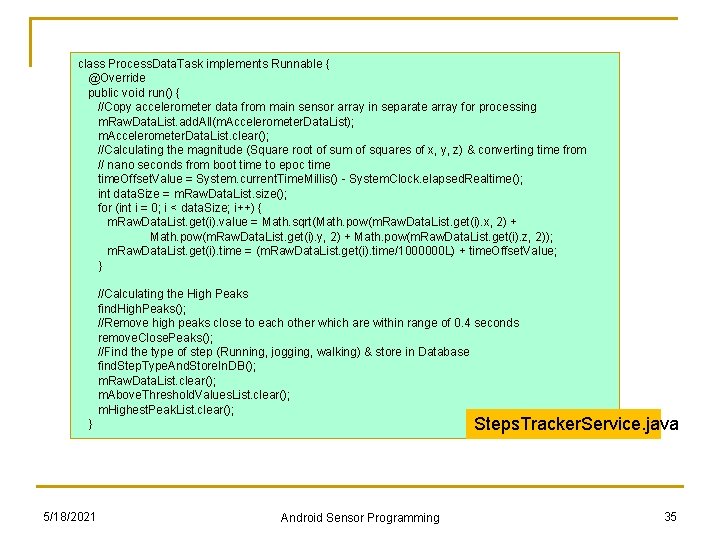
class Process. Data. Task implements Runnable { @Override public void run() { //Copy accelerometer data from main sensor array in separate array for processing m. Raw. Data. List. add. All(m. Accelerometer. Data. List); m. Accelerometer. Data. List. clear(); //Calculating the magnitude (Square root of sum of squares of x, y, z) & converting time from // nano seconds from boot time to epoc time. Offset. Value = System. current. Time. Millis() - System. Clock. elapsed. Realtime(); int data. Size = m. Raw. Data. List. size(); for (int i = 0; i < data. Size; i++) { m. Raw. Data. List. get(i). value = Math. sqrt(Math. pow(m. Raw. Data. List. get(i). x, 2) + Math. pow(m. Raw. Data. List. get(i). y, 2) + Math. pow(m. Raw. Data. List. get(i). z, 2)); m. Raw. Data. List. get(i). time = (m. Raw. Data. List. get(i). time/1000000 L) + time. Offset. Value; } //Calculating the High Peaks find. High. Peaks(); //Remove high peaks close to each other which are within range of 0. 4 seconds remove. Close. Peaks(); //Find the type of step (Running, jogging, walking) & store in Database find. Step. Type. And. Store. In. DB(); m. Raw. Data. List. clear(); m. Above. Threshold. Values. List. clear(); m. Highest. Peak. List. clear(); Steps. Tracker. Service. java } 5/18/2021 Android Sensor Programming 35
Custom Step Counting and Activity Detection Step counting: count number of peaks/valleys n n Types of activities: highest peak values 5/18/2021 private static final int WALKINGPEAK = 18; private static final int JOGGINGPEAK = 25; private static final int RUNNINGPEAK = 32; private static final int RUNNING = 3; private static final int JOGGING = 2; Steps. Tracker. Service. java private static final int WALKING = 1; Android Sensor Programming 36
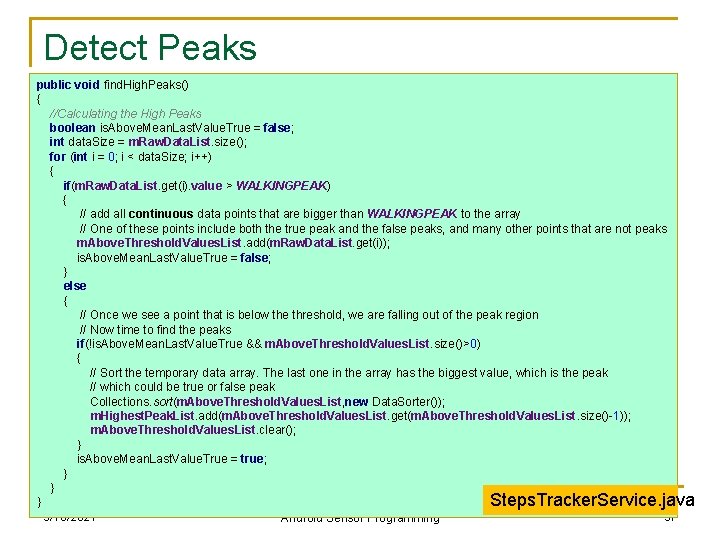
Detect Peaks public void find. High. Peaks() { //Calculating the High Peaks boolean is. Above. Mean. Last. Value. True = false; int data. Size = m. Raw. Data. List. size(); for (int i = 0; i < data. Size; i++) { if(m. Raw. Data. List. get(i). value > WALKINGPEAK) { // add all continuous data points that are bigger than WALKINGPEAK to the array // One of these points include both the true peak and the false peaks, and many other points that are not peaks m. Above. Threshold. Values. List. add(m. Raw. Data. List. get(i)); is. Above. Mean. Last. Value. True = false; } else { // Once we see a point that is below the threshold, we are falling out of the peak region // Now time to find the peaks if(!is. Above. Mean. Last. Value. True && m. Above. Threshold. Values. List. size()>0) { // Sort the temporary data array. The last one in the array has the biggest value, which is the peak // which could be true or false peak Collections. sort(m. Above. Threshold. Values. List, new Data. Sorter()); m. Highest. Peak. List. add(m. Above. Threshold. Values. List. get(m. Above. Threshold. Values. List. size()-1)); m. Above. Threshold. Values. List. clear(); } is. Above. Mean. Last. Value. True = true; } } Steps. Tracker. Service. java } 5/18/2021 37 Android Sensor Programming
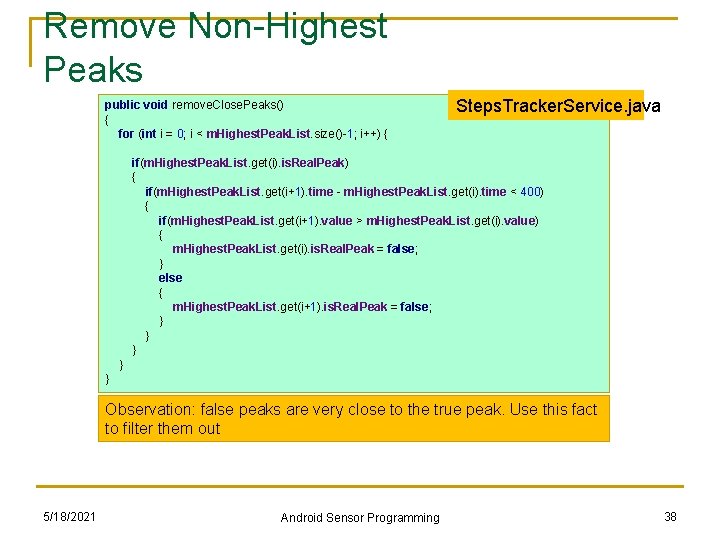
Remove Non-Highest Peaks public void remove. Close. Peaks() { for (int i = 0; i < m. Highest. Peak. List. size()-1; i++) { Steps. Tracker. Service. java if(m. Highest. Peak. List. get(i). is. Real. Peak) { if(m. Highest. Peak. List. get(i+1). time - m. Highest. Peak. List. get(i). time < 400) { if(m. Highest. Peak. List. get(i+1). value > m. Highest. Peak. List. get(i). value) { m. Highest. Peak. List. get(i). is. Real. Peak = false; } else { m. Highest. Peak. List. get(i+1). is. Real. Peak = false; } } } Observation: false peaks are very close to the true peak. Use this fact to filter them out 5/18/2021 Android Sensor Programming 38
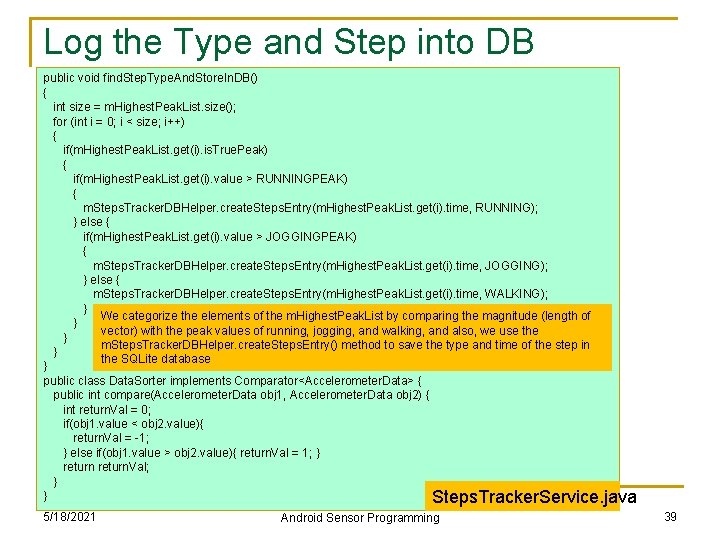
Log the Type and Step into DB public void find. Step. Type. And. Store. In. DB() { int size = m. Highest. Peak. List. size(); for (int i = 0; i < size; i++) { if(m. Highest. Peak. List. get(i). is. True. Peak) { if(m. Highest. Peak. List. get(i). value > RUNNINGPEAK) { m. Steps. Tracker. DBHelper. create. Steps. Entry(m. Highest. Peak. List. get(i). time, RUNNING); } else { if(m. Highest. Peak. List. get(i). value > JOGGINGPEAK) { m. Steps. Tracker. DBHelper. create. Steps. Entry(m. Highest. Peak. List. get(i). time, JOGGING); } else { m. Steps. Tracker. DBHelper. create. Steps. Entry(m. Highest. Peak. List. get(i). time, WALKING); } We categorize the elements of the m. Highest. Peak. List by comparing the magnitude (length of } vector) with the peak values of running, jogging, and walking, and also, we use the } m. Steps. Tracker. DBHelper. create. Steps. Entry() method to save the type and time of the step in } the SQLite database } public class Data. Sorter implements Comparator<Accelerometer. Data> { public int compare(Accelerometer. Data obj 1, Accelerometer. Data obj 2) { int return. Val = 0; if(obj 1. value < obj 2. value){ return. Val = -1; } else if(obj 1. value > obj 2. value){ return. Val = 1; } return. Val; } } Steps. Tracker. Service. java 5/18/2021 Android Sensor Programming 39
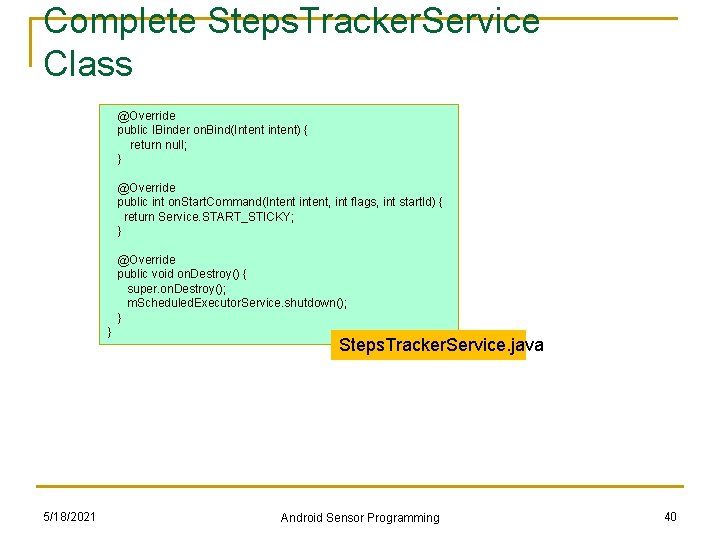
Complete Steps. Tracker. Service Class @Override public IBinder on. Bind(Intent intent) { return null; } @Override public int on. Start. Command(Intent intent, int flags, int start. Id) { return Service. START_STICKY; } @Override public void on. Destroy() { super. on. Destroy(); m. Scheduled. Executor. Service. shutdown(); } } 5/18/2021 Steps. Tracker. Service. java Android Sensor Programming 40
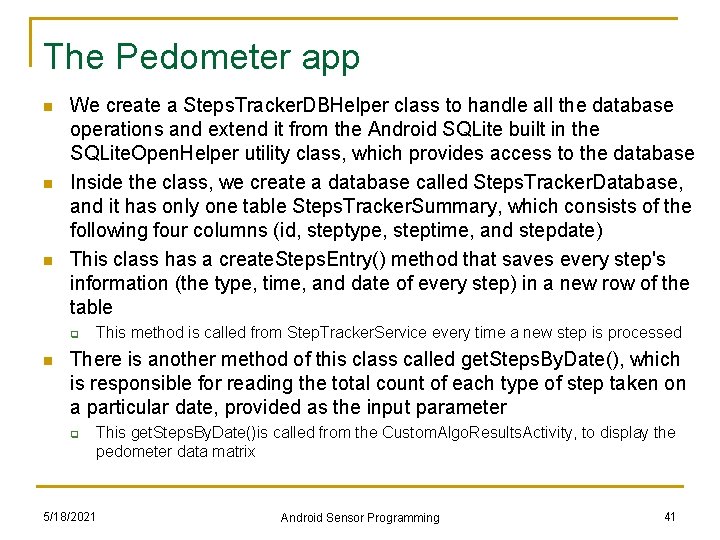
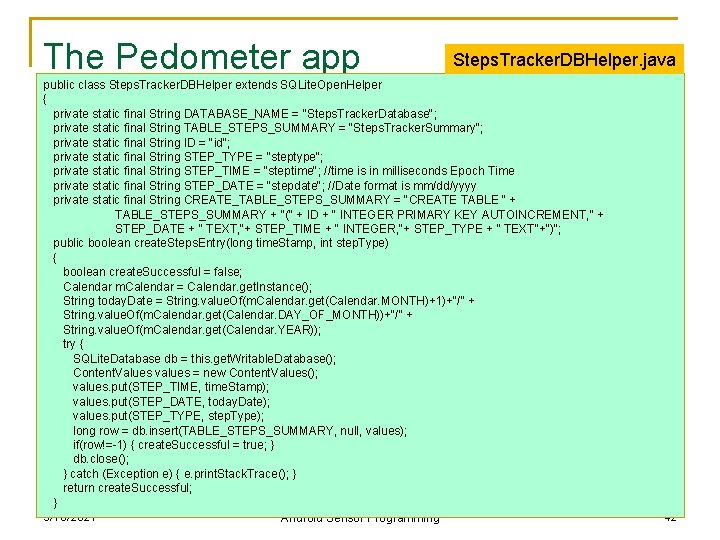
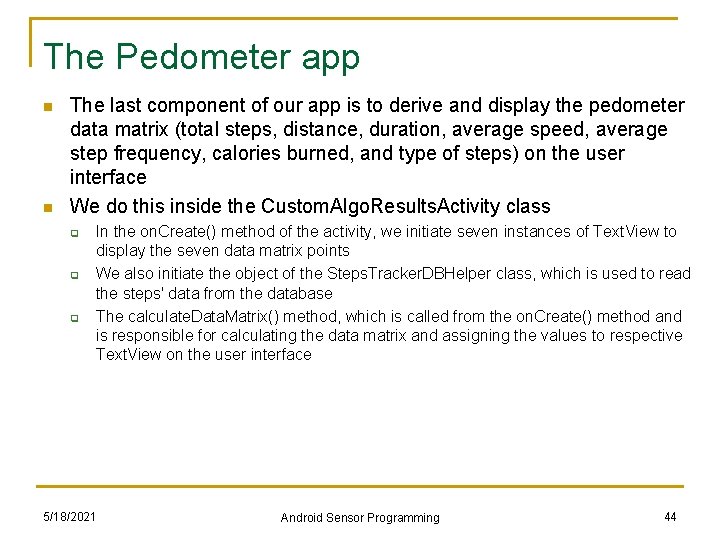
The Pedometer app n n n We create a Steps. Tracker. DBHelper class to handle all the database operations and extend it from the Android SQLite built in the SQLite. Open. Helper utility class, which provides access to the database Inside the class, we create a database called Steps. Tracker. Database, and it has only one table Steps. Tracker. Summary, which consists of the following four columns (id, steptype, steptime, and stepdate) This class has a create. Steps. Entry() method that saves every step's information (the type, time, and date of every step) in a new row of the table q n This method is called from Step. Tracker. Service every time a new step is processed There is another method of this class called get. Steps. By. Date(), which is responsible for reading the total count of each type of step taken on a particular date, provided as the input parameter q This get. Steps. By. Date()is called from the Custom. Algo. Results. Activity, to display the pedometer data matrix 5/18/2021 Android Sensor Programming 41
The Pedometer app Steps. Tracker. DBHelper. java public class Steps. Tracker. DBHelper extends SQLite. Open. Helper { private static final String DATABASE_NAME = "Steps. Tracker. Database"; private static final String TABLE_STEPS_SUMMARY = "Steps. Tracker. Summary"; private static final String ID = "id"; private static final String STEP_TYPE = "steptype"; private static final String STEP_TIME = "steptime"; //time is in milliseconds Epoch Time private static final String STEP_DATE = "stepdate"; //Date format is mm/dd/yyyy private static final String CREATE_TABLE_STEPS_SUMMARY = "CREATE TABLE " + TABLE_STEPS_SUMMARY + "(" + ID + " INTEGER PRIMARY KEY AUTOINCREMENT, " + STEP_DATE + " TEXT, "+ STEP_TIME + " INTEGER, "+ STEP_TYPE + " TEXT"+")"; public boolean create. Steps. Entry(long time. Stamp, int step. Type) { boolean create. Successful = false; Calendar m. Calendar = Calendar. get. Instance(); String today. Date = String. value. Of(m. Calendar. get(Calendar. MONTH)+1)+"/" + String. value. Of(m. Calendar. get(Calendar. DAY_OF_MONTH))+"/" + String. value. Of(m. Calendar. get(Calendar. YEAR)); try { SQLite. Database db = this. get. Writable. Database(); Content. Values values = new Content. Values(); values. put(STEP_TIME, time. Stamp); values. put(STEP_DATE, today. Date); values. put(STEP_TYPE, step. Type); long row = db. insert(TABLE_STEPS_SUMMARY, null, values); if(row!=-1) { create. Successful = true; } db. close(); } catch (Exception e) { e. print. Stack. Trace(); } return create. Successful; } 5/18/2021 Android Sensor Programming 42
The Pedometer app Steps. Tracker. DBHelper. java public int [] get. Steps. By. Date(String date) { int step. Type[] = new int[3]; String select. Query = "SELECT " + STEP_TYPE + " FROM " + TABLE_STEPS_SUMMARY +" WHERE " + STEP_DATE +" = '"+date + ”’”; try { SQLite. Database db = this. get. Readable. Database(); Cursor c = db. raw. Query(select. Query, null); if (c. move. To. First()) { do { switch(c. get. Int((c. get. Column. Index(STEP_TYPE)))) { case WALKING: ++step. Type[0]; break; case JOGGING: ++step. Type[1]; break; case RUNNING: ++step. Type[2]; break; } } while (c. move. To. Next()); } db. close(); } catch (Exception e) { e. print. Stack. Trace(); } return step. Type; } } 5/18/2021 Android Sensor Programming 43
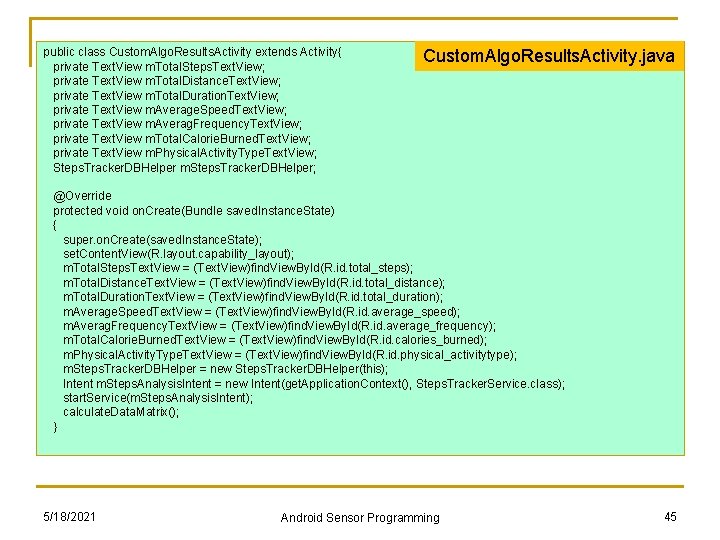
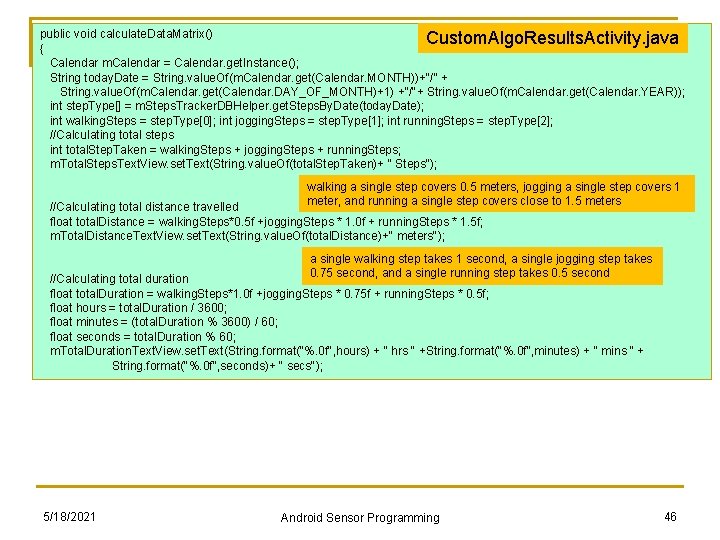
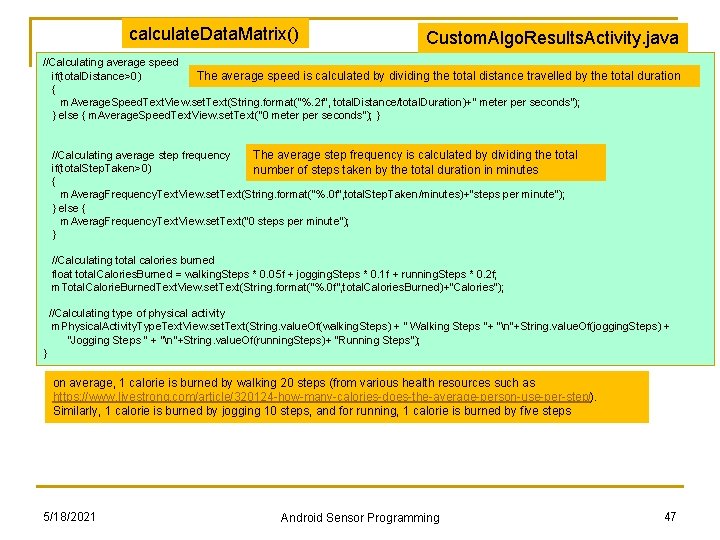
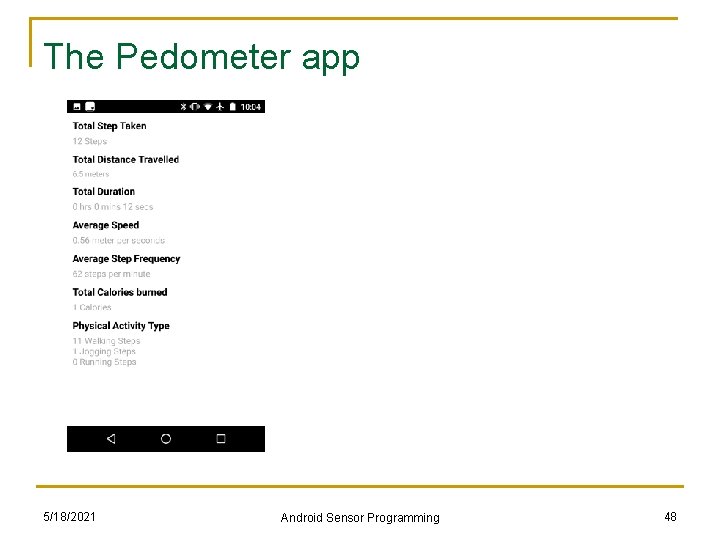
The Pedometer app n n The last component of our app is to derive and display the pedometer data matrix (total steps, distance, duration, average speed, average step frequency, calories burned, and type of steps) on the user interface We do this inside the Custom. Algo. Results. Activity class q q q In the on. Create() method of the activity, we initiate seven instances of Text. View to display the seven data matrix points We also initiate the object of the Steps. Tracker. DBHelper class, which is used to read the steps' data from the database The calculate. Data. Matrix() method, which is called from the on. Create() method and is responsible for calculating the data matrix and assigning the values to respective Text. View on the user interface 5/18/2021 Android Sensor Programming 44
public class Custom. Algo. Results. Activity extends Activity{ private Text. View m. Total. Steps. Text. View; private Text. View m. Total. Distance. Text. View; private Text. View m. Total. Duration. Text. View; private Text. View m. Average. Speed. Text. View; private Text. View m. Averag. Frequency. Text. View; private Text. View m. Total. Calorie. Burned. Text. View; private Text. View m. Physical. Activity. Type. Text. View; Steps. Tracker. DBHelper m. Steps. Tracker. DBHelper; Custom. Algo. Results. Activity. java @Override protected void on. Create(Bundle saved. Instance. State) { super. on. Create(saved. Instance. State); set. Content. View(R. layout. capability_layout); m. Total. Steps. Text. View = (Text. View)find. View. By. Id(R. id. total_steps); m. Total. Distance. Text. View = (Text. View)find. View. By. Id(R. id. total_distance); m. Total. Duration. Text. View = (Text. View)find. View. By. Id(R. id. total_duration); m. Average. Speed. Text. View = (Text. View)find. View. By. Id(R. id. average_speed); m. Averag. Frequency. Text. View = (Text. View)find. View. By. Id(R. id. average_frequency); m. Total. Calorie. Burned. Text. View = (Text. View)find. View. By. Id(R. id. calories_burned); m. Physical. Activity. Type. Text. View = (Text. View)find. View. By. Id(R. id. physical_activitytype); m. Steps. Tracker. DBHelper = new Steps. Tracker. DBHelper(this); Intent m. Steps. Analysis. Intent = new Intent(get. Application. Context(), Steps. Tracker. Service. class); start. Service(m. Steps. Analysis. Intent); calculate. Data. Matrix(); } 5/18/2021 Android Sensor Programming 45
public void calculate. Data. Matrix() Custom. Algo. Results. Activity. java { Calendar m. Calendar = Calendar. get. Instance(); String today. Date = String. value. Of(m. Calendar. get(Calendar. MONTH))+"/" + String. value. Of(m. Calendar. get(Calendar. DAY_OF_MONTH)+1) +"/"+ String. value. Of(m. Calendar. get(Calendar. YEAR)); int step. Type[] = m. Steps. Tracker. DBHelper. get. Steps. By. Date(today. Date); int walking. Steps = step. Type[0]; int jogging. Steps = step. Type[1]; int running. Steps = step. Type[2]; //Calculating total steps int total. Step. Taken = walking. Steps + jogging. Steps + running. Steps; m. Total. Steps. Text. View. set. Text(String. value. Of(total. Step. Taken)+ " Steps"); walking a single step covers 0. 5 meters, jogging a single step covers 1 meter, and running a single step covers close to 1. 5 meters //Calculating total distance travelled float total. Distance = walking. Steps*0. 5 f +jogging. Steps * 1. 0 f + running. Steps * 1. 5 f; m. Total. Distance. Text. View. set. Text(String. value. Of(total. Distance)+" meters"); a single walking step takes 1 second, a single jogging step takes 0. 75 second, and a single running step takes 0. 5 second //Calculating total duration float total. Duration = walking. Steps*1. 0 f +jogging. Steps * 0. 75 f + running. Steps * 0. 5 f; float hours = total. Duration / 3600; float minutes = (total. Duration % 3600) / 60; float seconds = total. Duration % 60; m. Total. Duration. Text. View. set. Text(String. format("%. 0 f", hours) + " hrs " +String. format("%. 0 f", minutes) + " mins " + String. format("%. 0 f", seconds)+ " secs"); 5/18/2021 Android Sensor Programming 46
calculate. Data. Matrix() Custom. Algo. Results. Activity. java //Calculating average speed if(total. Distance>0) The average speed is calculated by dividing the total distance travelled by the total duration { m. Average. Speed. Text. View. set. Text(String. format("%. 2 f", total. Distance/total. Duration)+" meter per seconds"); } else { m. Average. Speed. Text. View. set. Text("0 meter per seconds"); } //Calculating average step frequency The average step frequency is calculated by dividing the total if(total. Step. Taken>0) number of steps taken by the total duration in minutes { m. Averag. Frequency. Text. View. set. Text(String. format("%. 0 f", total. Step. Taken/minutes)+"steps per minute"); } else { m. Averag. Frequency. Text. View. set. Text("0 steps per minute"); } //Calculating total calories burned float total. Calories. Burned = walking. Steps * 0. 05 f + jogging. Steps * 0. 1 f + running. Steps * 0. 2 f; m. Total. Calorie. Burned. Text. View. set. Text(String. format("%. 0 f", total. Calories. Burned)+"Calories"); //Calculating type of physical activity m. Physical. Activity. Type. Text. View. set. Text(String. value. Of(walking. Steps) + " Walking Steps "+ "n"+String. value. Of(jogging. Steps) + "Jogging Steps " + "n"+String. value. Of(running. Steps)+ ”Running Steps"); } on average, 1 calorie is burned by walking 20 steps (from various health resources such as https: //www. livestrong. com/article/320124 -how-many-calories-does-the-average-person-use-per-step/). Similarly, 1 calorie is burned by jogging 10 steps, and for running, 1 calorie is burned by five steps 5/18/2021 Android Sensor Programming 47
The Pedometer app 5/18/2021 Android Sensor Programming 48
Homework# 21 n Build the improved pedometer app with custom activity detection algorithm 5/18/2021 CIS 470: Mobile App Development 49