Chapter 14 Advanced Printers and Scanners IT Essentials


- Slides: 28
Chapter 14: Advanced Printers and Scanners IT Essentials: PC Hardware and Software v 4. 1 ITE PC v 4. 1 Chapter 14 © 2007 -2010 Cisco Systems, Inc. All rights reserved. Cisco Public 1
Chapter 14 Objectives § 14. 1 Describe potential safety hazards and safety procedures associated with printers and scanners § 14. 2 Install and configure a local printer and scanner § 14. 3 Describe how to share a printer and a scanner on a network § 14. 4 Upgrade and configure printers and scanners § 14. 5 Describe printer and scanner preventive maintenance techniques § 14. 6 Troubleshoot printers and scanners ITE PC v 4. 1 Chapter 14 © 2007 -2010 Cisco Systems, Inc. All rights reserved. Cisco Public 2
Hazards of Printers and Scanners § Always follow safety procedures when working on any computer, printer or scanner. • Always lift equipment by using the strength in your legs and knees, not your back. • Wear appropriate work clothes and shoes. • Do not wear loose jewelry or baggy clothes when servicing computer equipment. • Turn off equipment and allow it to cool before beginning any repairs on internal components. • Only qualified technicians should perform advanced repairs on laser printers due to high voltage potential. ITE PC v 4. 1 Chapter 14 © 2007 -2010 Cisco Systems, Inc. All rights reserved. Cisco Public 3
Install and configure a local printer and scanner § Before you install a local device, such as a printer or scanner, be sure that you remove all packing material. § Depending upon the manufacturer, local printers may communicate with computers using serial, parallel, USB, Fire. Wire, or SCSI ports and cables. § Wireless technologies such as Bluetooth and infrared are also used to connect these devices. § Printers can be shared over a network. Connecting a printer to a network requires cabling that is compatible with the network. ITE PC v 4. 1 Chapter 14 © 2007 -2010 Cisco Systems, Inc. All rights reserved. Cisco Public 4
Drivers and Software § When you connect a new printer device to a computer, Windows XP tries to locate and install a default driver. § If Windows cannot find the necessary driver on the computer, it will try to connect to the Internet to find one. § To install and update a printer driver, it is necessary locate the newest driver version, install it and test it. § It is also important determine if the correct Page Description Language (PDL) has been used. • • ITE PC v 4. 1 Chapter 14 GDI PS © 2007 -2010 Cisco Systems, Inc. All rights reserved. Cisco Public 5
Options and Default Settings § Common printer options that can be configured by the user include media control and printer output. § Some printers have control switches on the printer for users to select options. Other printers use the printer driver options. Two methods of selecting options are the global and per-document methods. • Global method • Per-Document method § Calibrating a device is one of the first tasks after installing a driver. Printers and Scanners come with a bundled software to perform this procedure. ITE PC v 4. 1 Chapter 14 © 2007 -2010 Cisco Systems, Inc. All rights reserved. Cisco Public 6
Verify Functionality § Installation is complete only after successfully testing all device functions. § Print Test • Use the Print Test Page option from the printer. • Use the Print Test Page option from Windows. • Use the print function of an application. • Send a file directly to a parallel port printer using the command line. § Scanner Test • Test the scanner by scanning a document. • Use the automatic scanning. • Initiate scans from the scanner software. § All-in-one Test • Fax - Fax to another known working fax. • Copy - Create a copy of a document. • Scan - Scan a document. • Print - Print a document. ITE PC v 4. 1 Chapter 14 © 2007 -2010 Cisco Systems, Inc. All rights reserved. Cisco Public 7
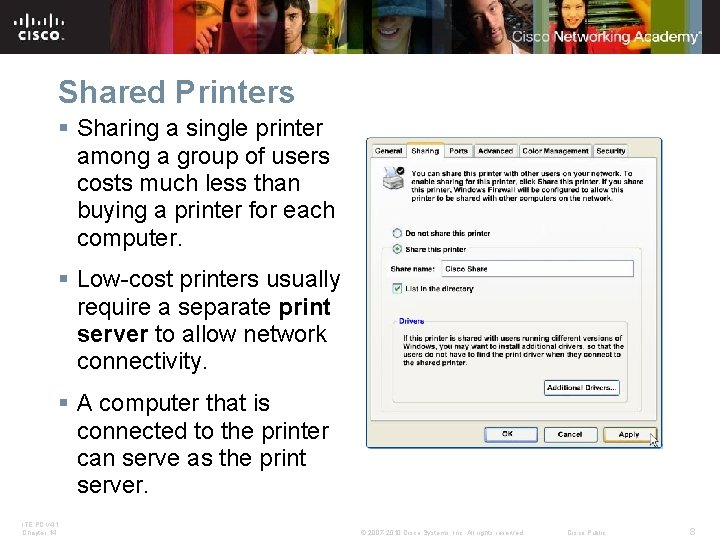
Shared Printers § Sharing a single printer among a group of users costs much less than buying a printer for each computer. § Low-cost printers usually require a separate print server to allow network connectivity. § A computer that is connected to the printer can serve as the print server. ITE PC v 4. 1 Chapter 14 © 2007 -2010 Cisco Systems, Inc. All rights reserved. Cisco Public 8
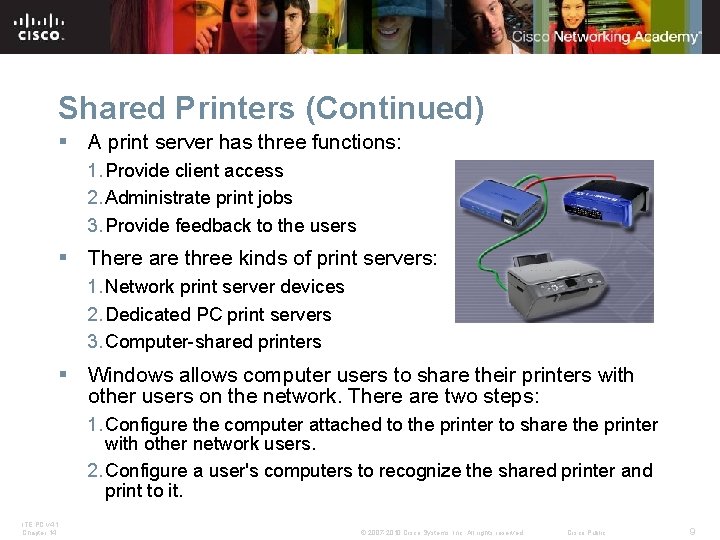
Shared Printers (Continued) § A print server has three functions: 1. Provide client access 2. Administrate print jobs 3. Provide feedback to the users § There are three kinds of print servers: 1. Network print server devices 2. Dedicated PC print servers 3. Computer-shared printers § Windows allows computer users to share their printers with other users on the network. There are two steps: 1. Configure the computer attached to the printer to share the printer with other network users. 2. Configure a user's computers to recognize the shared printer and print to it. ITE PC v 4. 1 Chapter 14 © 2007 -2010 Cisco Systems, Inc. All rights reserved. Cisco Public 9
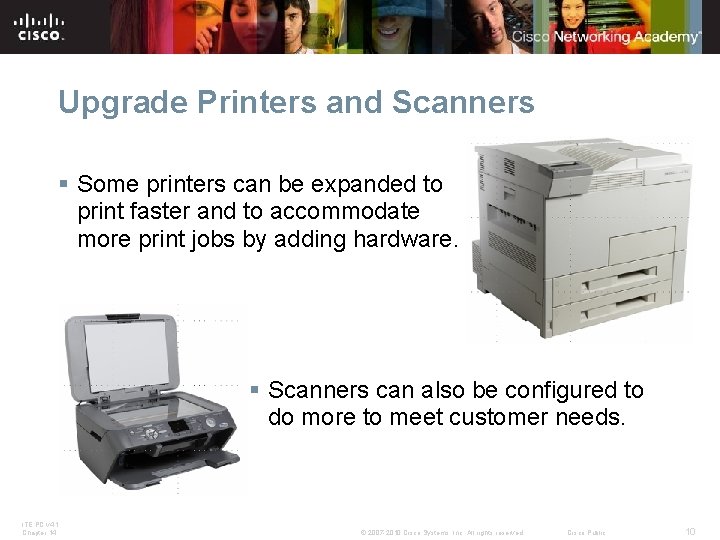
Upgrade Printers and Scanners § Some printers can be expanded to print faster and to accommodate more print jobs by adding hardware. § Scanners can also be configured to do more to meet customer needs. ITE PC v 4. 1 Chapter 14 © 2007 -2010 Cisco Systems, Inc. All rights reserved. Cisco Public 10
Printer Upgrades § Upgrade printer memory: • Improves printing speed • Enhances ability to perform complex print jobs • Improves printer efficiency (Job buffering, page creation, photo printing, and graphics) § Additional printer upgrades include: • Duplex printing to enable dual-sided printing • Extra trays to hold more paper • Specialized tray types for different media • Network cards to access a wired or wireless network • Firmware upgrades to add functionality or to fix bugs ITE PC v 4. 1 Chapter 14 © 2007 -2010 Cisco Systems, Inc. All rights reserved. Cisco Public 11
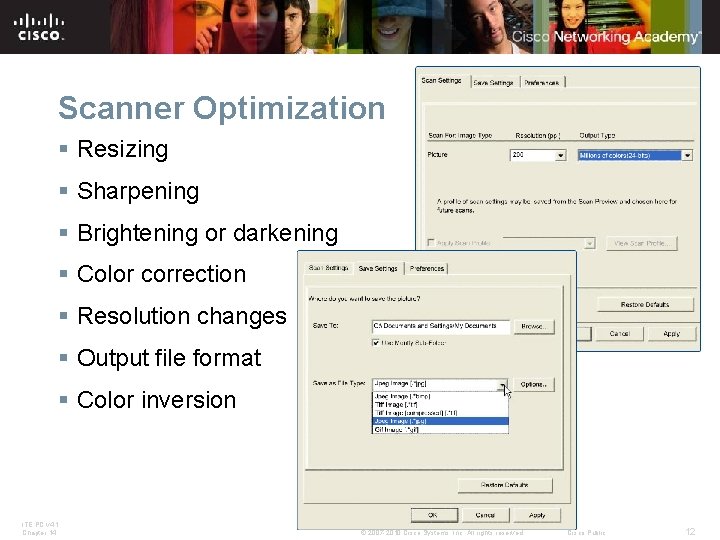
Scanner Optimization § Resizing § Sharpening § Brightening or darkening § Color correction § Resolutionchanges § Output file format § Color inversion ITE PC v 4. 1 Chapter 14 © 2007 -2010 Cisco Systems, Inc. All rights reserved. Cisco Public 12
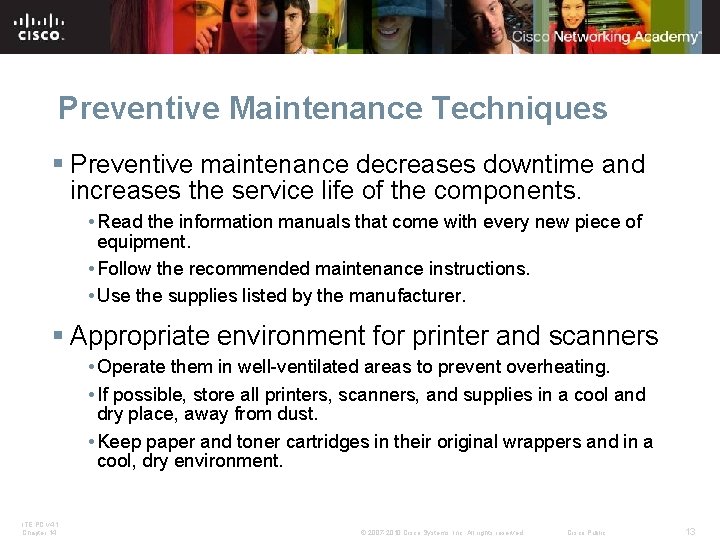
Preventive Maintenance Techniques § Preventive maintenance decreases downtime and increases the service life of the components. • Read the information manuals that come with every new piece of equipment. • Follow the recommended maintenance instructions. • Use the supplies listed by the manufacturer. § Appropriate environment for printer and scanners • Operate them in well-ventilated areas to prevent overheating. • If possible, store all printers, scanners, and supplies in a cool and dry place, away from dust. • Keep paper and toner cartridges in their original wrappers and in a cool, dry environment. ITE PC v 4. 1 Chapter 14 © 2007 -2010 Cisco Systems, Inc. All rights reserved. Cisco Public 13
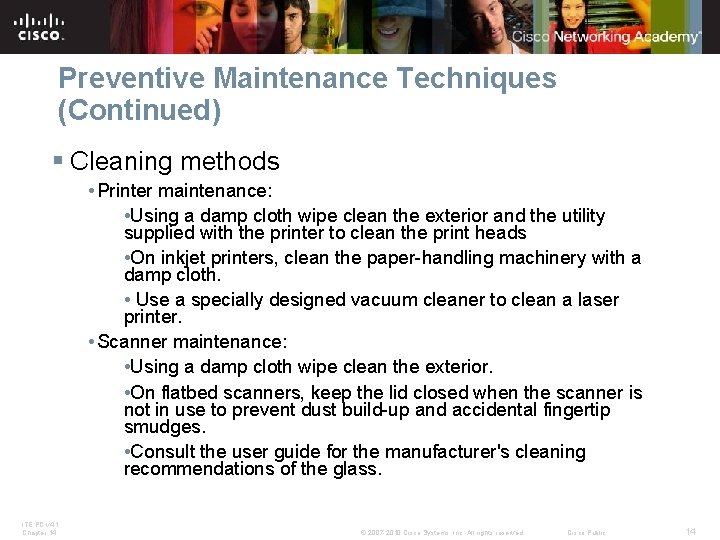
Preventive Maintenance Techniques (Continued) § Cleaning methods • Printer maintenance: • Using a damp cloth wipe clean the exterior and the utility supplied with the printer to clean the print heads • On inkjet printers, clean the paper-handling machinery with a damp cloth. • Use a specially designed vacuum cleaner to clean a laser printer. • Scanner maintenance: • Using a damp cloth wipe clean the exterior. • On flatbed scanners, keep the lid closed when the scanner is not in use to prevent dust build-up and accidental fingertip smudges. • Consult the user guide for the manufacturer's cleaning recommendations of the glass. ITE PC v 4. 1 Chapter 14 © 2007 -2010 Cisco Systems, Inc. All rights reserved. Cisco Public 14
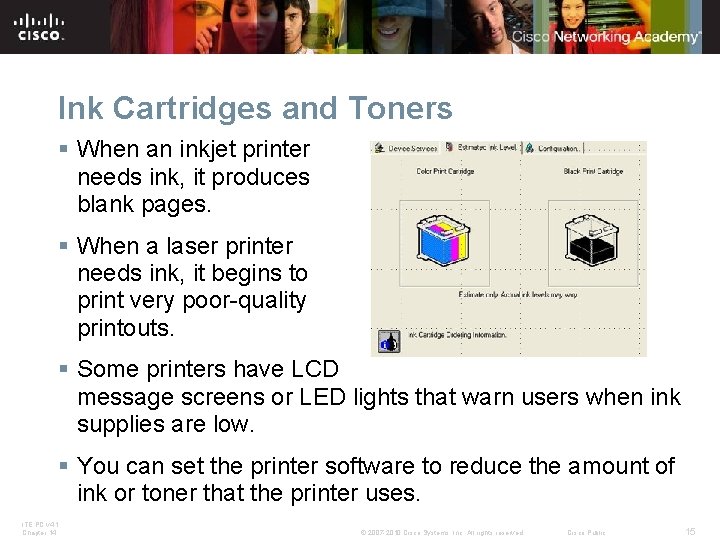
Ink Cartridges and Toners § When an inkjet printer needs ink, it produces blank pages. § When a laser printer needs ink, it begins to print very poor-quality printouts. § Some printers have LCD message screens or LED lights that warn users when ink supplies are low. § You can set the printer software to reduce the amount of ink or toner that the printer uses. ITE PC v 4. 1 Chapter 14 © 2007 -2010 Cisco Systems, Inc. All rights reserved. Cisco Public 15
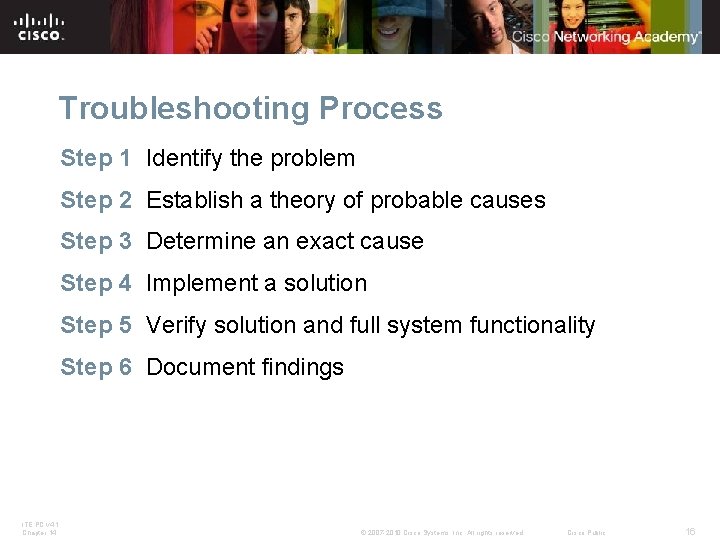
Troubleshooting Process Step 1 Identify the problem Step 2 Establish a theory of probable causes Step 3 Determine an exact cause Step 4 Implement a solution Step 5 Verify solution and full system functionality Step 6 Document findings ITE PC v 4. 1 Chapter 14 © 2007 -2010 Cisco Systems, Inc. All rights reserved. Cisco Public 16
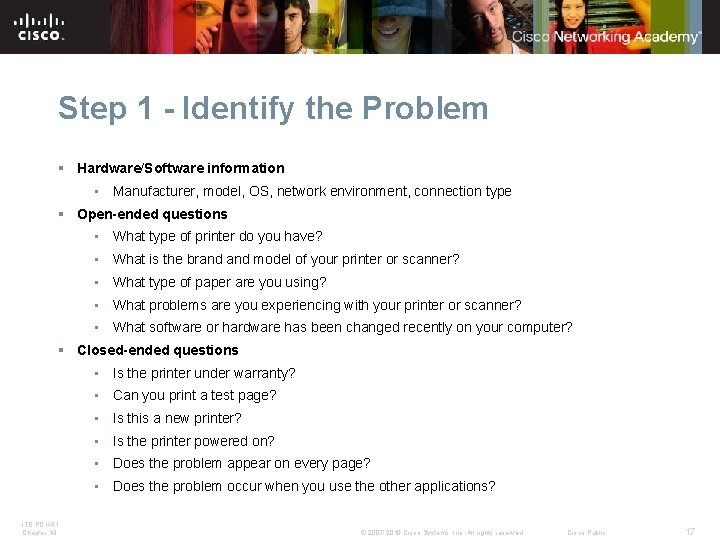
Step 1 - Identify the Problem § Hardware/Software information • Manufacturer, model, OS, network environment, connection type § Open-ended questions • What type of printer do you have? • What is the brand model of your printer or scanner? • What type of paper are you using? • What problems are you experiencing with your printer or scanner? • What software or hardware has been changed recently on your computer? § Closed-ended questions • Is the printer under warranty? • Can you print a test page? • Is this a new printer? • Is the printer powered on? • Does the problem appear on every page? • Does the problem occur when you use the other applications? ITE PC v 4. 1 Chapter 14 © 2007 -2010 Cisco Systems, Inc. All rights reserved. Cisco Public 17
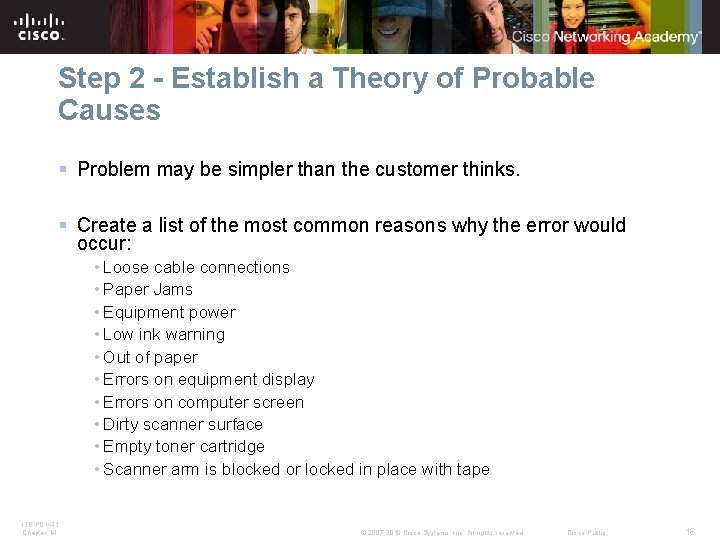
Step 2 - Establish a Theory of Probable Causes § Problem may be simpler than the customer thinks. § Create a list of the most common reasons why the error would occur: • Loose cable connections • Paper Jams • Equipment power • Low ink warning • Out of paper • Errors on equipment display • Errors on computer screen • Dirty scanner surface • Empty toner cartridge • Scanner arm is blocked or locked in place with tape ITE PC v 4. 1 Chapter 14 © 2007 -2010 Cisco Systems, Inc. All rights reserved. Cisco Public 18
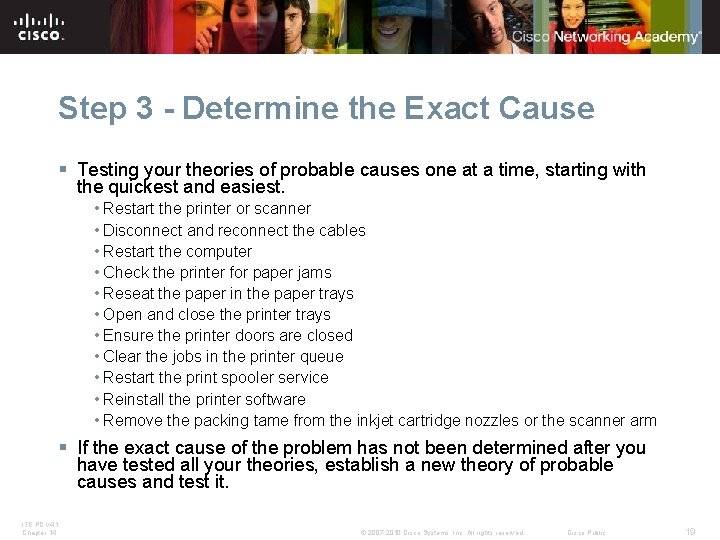
Step 3 - Determine the Exact Cause § Testing your theories of probable causes one at a time, starting with the quickest and easiest. • Restart the printer or scanner • Disconnect and reconnect the cables • Restart the computer • Check the printer for paper jams • Reseat the paper in the paper trays • Open and close the printer trays • Ensure the printer doors are closed • Clear the jobs in the printer queue • Restart the print spooler service • Reinstall the printer software • Remove the packing tame from the inkjet cartridge nozzles or the scanner arm § If the exact cause of the problem has not been determined after you have tested all your theories, establish a new theory of probable causes and test it. ITE PC v 4. 1 Chapter 14 © 2007 -2010 Cisco Systems, Inc. All rights reserved. Cisco Public 19
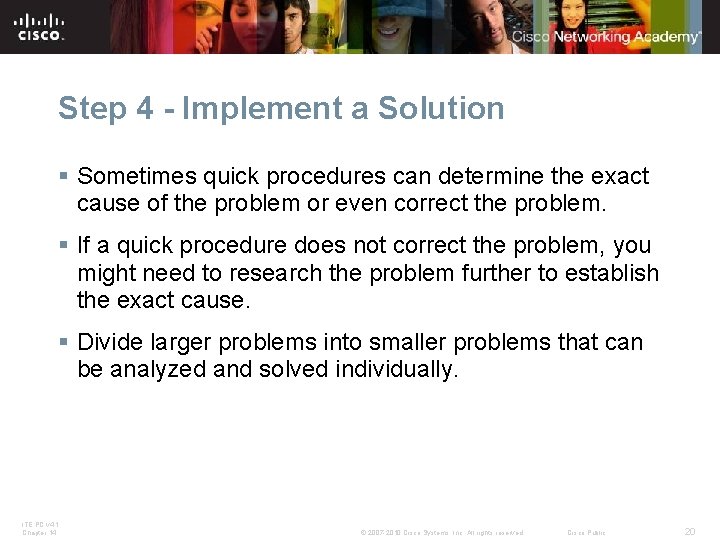
Step 4 - Implement a Solution § Sometimes quick procedures can determine the exact cause of the problem or even correct the problem. § If a quick procedure does not correct the problem, you might need to research the problem further to establish the exact cause. § Divide larger problems into smaller problems that can be analyzed and solved individually. ITE PC v 4. 1 Chapter 14 © 2007 -2010 Cisco Systems, Inc. All rights reserved. Cisco Public 20
Step 5 - Verify Solution and System Functionality § Verifying full system functionality and implementing any preventive measures if needed. Ensures that you have not created another problem while repairing the computer. • Reboot the computer • Reboot the printer • Print a test page from the printer control panel • Print a document from an application • Reprint the customer’s problem document § Have the customer verify the solution and system functionality. ITE PC v 4. 1 Chapter 14 © 2007 -2010 Cisco Systems, Inc. All rights reserved. Cisco Public 21
Step 6 - Document Findings § Discuss the solution with the customer § Have the customer confirm that the problem has been solved § Document the process • Problem description • Solution • Components used • Amount of time spent in solving the problem ITE PC v 4. 1 Chapter 14 © 2007 -2010 Cisco Systems, Inc. All rights reserved. Cisco Public 22
Common Problems and Solutions § Printer and scanner problems can be attributed to hardware, software, networks, or some combination of the three. You will resolve some types of printer and scanner problems more often than others. ITE PC v 4. 1 Chapter 14 © 2007 -2010 Cisco Systems, Inc. All rights reserved. Cisco Public 23
Apply Troubleshooting Skills § It is time to apply your listening and diagnostic skills. ITE PC v 4. 1 Chapter 14 © 2007 -2010 Cisco Systems, Inc. All rights reserved. Cisco Public 24
Chapter 14 Summary § This chapter reviewed and discussed information about printers and scanners. The chapter explored hazards and safety procedures associated with printers and scanners. You have learned preventive maintenance methods, and have installed, configured, and upgraded a printer or scanner, both locally and on a network. Here are some other important facts covered in this chapter: § Always follow safety procedures when working with printers and scanners. There are many parts inside printers that contain high voltage or become very hot with use. ITE PC v 4. 1 Chapter 14 © 2007 -2010 Cisco Systems, Inc. All rights reserved. Cisco Public 25
Chapter 14 Summary § Use the device manual and software to install a printer or scanner. After the installation, update the drivers and firmware to fix problems and increase functionality. § Use the Windows interface to share printers and scanners across the network. § Consult the customers to determine how best to upgrade and configure printers and scanners to meet their needs. ITE PC v 4. 1 Chapter 14 © 2007 -2010 Cisco Systems, Inc. All rights reserved. Cisco Public 26
Chapter 14 Summary § Keep printers, scanners, and supplies clean and dry. Keep supplies in their original packaging to prevent breakdowns and downtime. Develop a maintenance schedule to clean and check devices on a regular basis. § Use a sequence of steps to fix a problem. Start with simple tasks before you decide on a course of action. Call a qualified or certified printer technician when a problem is too difficult for you to fix. ITE PC v 4. 1 Chapter 14 © 2007 -2010 Cisco Systems, Inc. All rights reserved. Cisco Public 27
ITE PC v 4. 1 Chapter 14 © 2007 -2010 Cisco Systems, Inc. All rights reserved. Cisco Public 28