Squirrel Tutorial Pre PreProcess Steps Modify Single Ion
- Slides: 27
Squirrel Tutorial Pre – Pre-Process Steps ü Modify Single Ion (SI) ü M/z Calibration Fitting ü Baseline Fitting Donna Sueper Aerodyne, University of Colorado, Boulder
Pre – Pre-Process Steps Tutorial Outline Squirrel Quick-Look Flow Chart Review Squirrel Complete Analysis Flow Chart MS Stick Calculation discussion, Screen Shots ü modify SI (Results = 1 wave) ü m/z fitting (Results = 3 waves) ü baseline fitting (Results = 10 parameters)
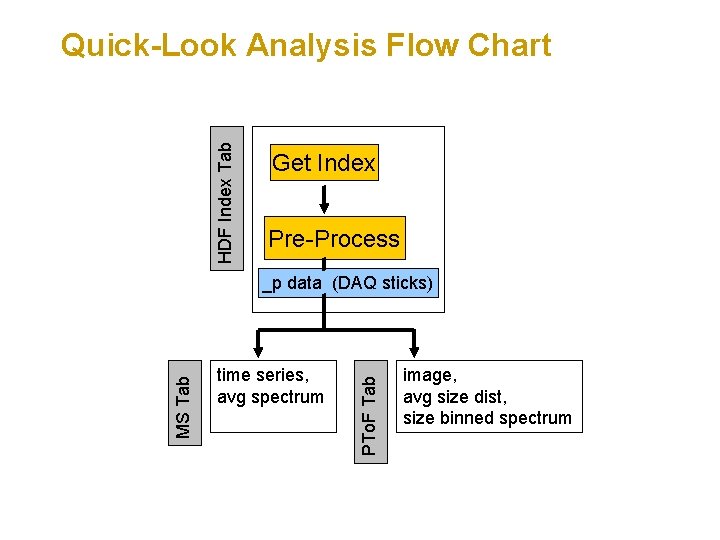
HDF Index Tab Quick-Look Analysis Flow Chart Get Index Pre-Process time series, avg spectrum PTo. F Tab MS Tab _p data (DAQ sticks) image, avg size dist, size binned spectrum
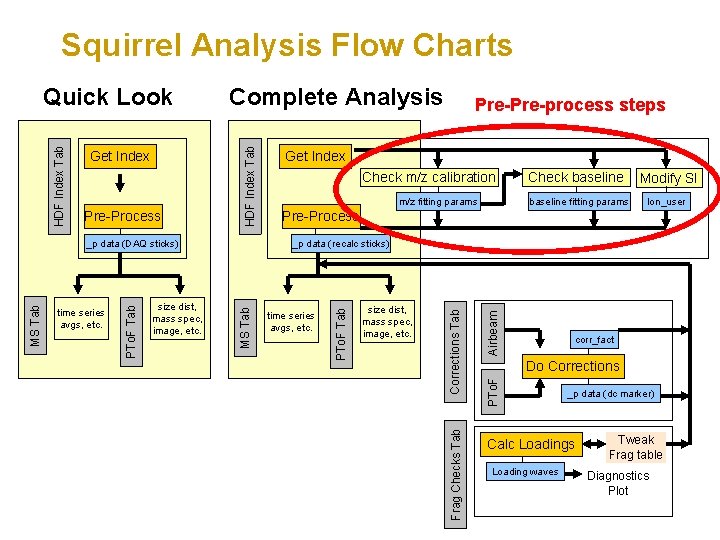
Squirrel Analysis Flow Charts baseline fitting params Modify SI Ion_user Pre-Process Airbeam size dist, mass spec, image, etc. corr_fact Do Corrections PTo. F time series avgs, etc. Corrections Tab size dist, mass spec, image, etc. m/z fitting params Check baseline _p data (recalc sticks) MS Tab time series avgs, etc. PTo. F Tab MS Tab _p data (DAQ sticks) Check m/z calibration Frag Checks Tab Pre-Process Pre-process steps Get Index PTo. F Tab Get Index Complete Analysis HDF Index Tab Quick Look _p data (dc marker) Calc Loadings Loading waves Tweak Frag table Diagnostics Plot
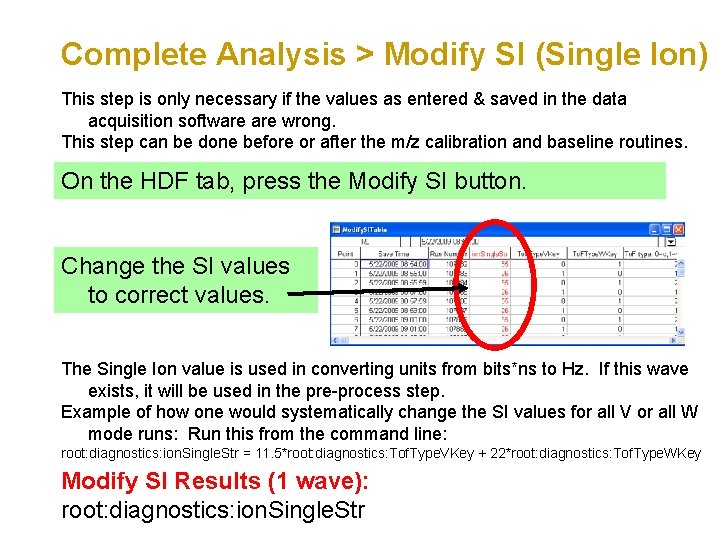
Complete Analysis > Modify SI (Single Ion) This step is only necessary if the values as entered & saved in the data acquisition software wrong. This step can be done before or after the m/z calibration and baseline routines. On the HDF tab, press the Modify SI button. Change the SI values to correct values. The Single Ion value is used in converting units from bits*ns to Hz. If this wave exists, it will be used in the pre-process step. Example of how one would systematically change the SI values for all V or all W mode runs: Run this from the command line: root: diagnostics: ion. Single. Str = 11. 5*root: diagnostics: Tof. Type. VKey + 22*root: diagnostics: Tof. Type. WKey Modify SI Results (1 wave): root: diagnostics: ion. Single. Str
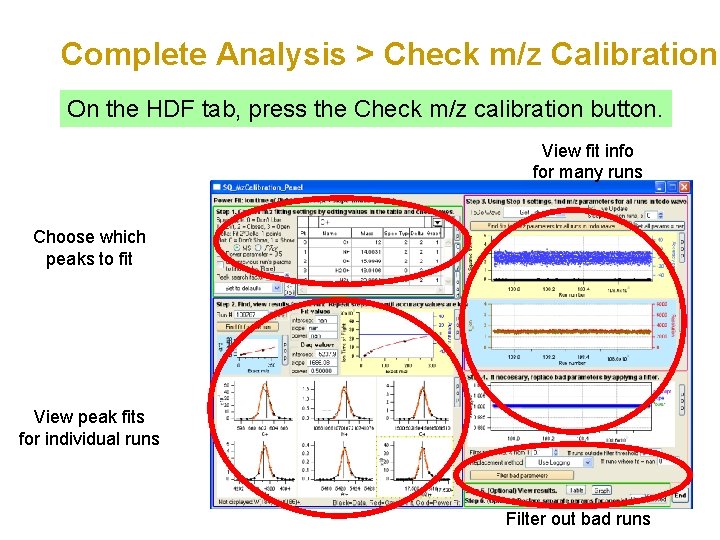
Complete Analysis > Check m/z Calibration On the HDF tab, press the Check m/z calibration button. View fit info for many runs Choose which peaks to fit View peak fits for individual runs Filter out bad runs
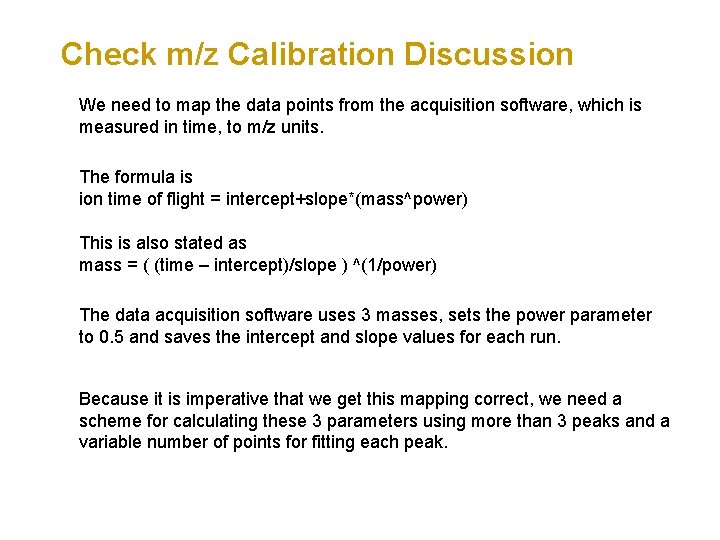
Check m/z Calibration Discussion We need to map the data points from the acquisition software, which is measured in time, to m/z units. The formula is ion time of flight = intercept+slope*(mass^power) This is also stated as mass = ( (time – intercept)/slope ) ^(1/power) The data acquisition software uses 3 masses, sets the power parameter to 0. 5 and saves the intercept and slope values for each run. Because it is imperative that we get this mapping correct, we need a scheme for calculating these 3 parameters using more than 3 peaks and a variable number of points for fitting each peak.
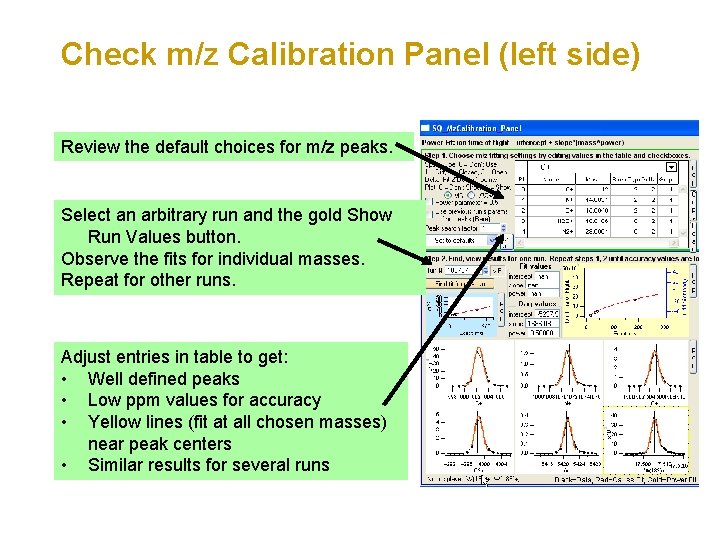
Check m/z Calibration Panel (left side) Review the default choices for m/z peaks. Select an arbitrary run and the gold Show Run Values button. Observe the fits for individual masses. Repeat for other runs. Adjust entries in table to get: • Well defined peaks • Low ppm values for accuracy • Yellow lines (fit at all chosen masses) near peak centers • Similar results for several runs
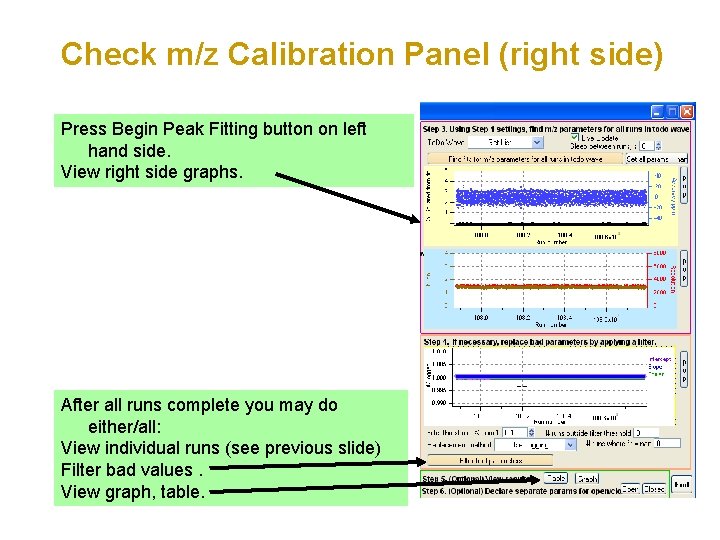
Check m/z Calibration Panel (right side) Press Begin Peak Fitting button on left hand side. View right side graphs. After all runs complete you may do either/all: View individual runs (see previous slide) Filter bad values. View graph, table.
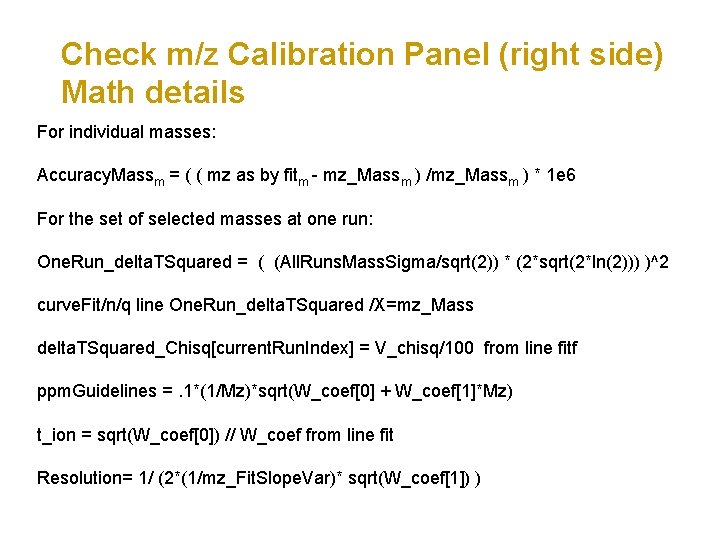
Check m/z Calibration Panel (right side) Math details For individual masses: Accuracy. Massm = ( ( mz as by fitm - mz_Massm ) /mz_Massm ) * 1 e 6 For the set of selected masses at one run: One. Run_delta. TSquared = ( (All. Runs. Mass. Sigma/sqrt(2)) * (2*sqrt(2*ln(2))) )^2 curve. Fit/n/q line One. Run_delta. TSquared /X=mz_Mass delta. TSquared_Chisq[current. Run. Index] = V_chisq/100 from line fitf ppm. Guidelines =. 1*(1/Mz)*sqrt(W_coef[0] + W_coef[1]*Mz) t_ion = sqrt(W_coef[0]) // W_coef from line fit Resolution= 1/ (2*(1/mz_Fit. Slope. Var)* sqrt(W_coef[1]) )
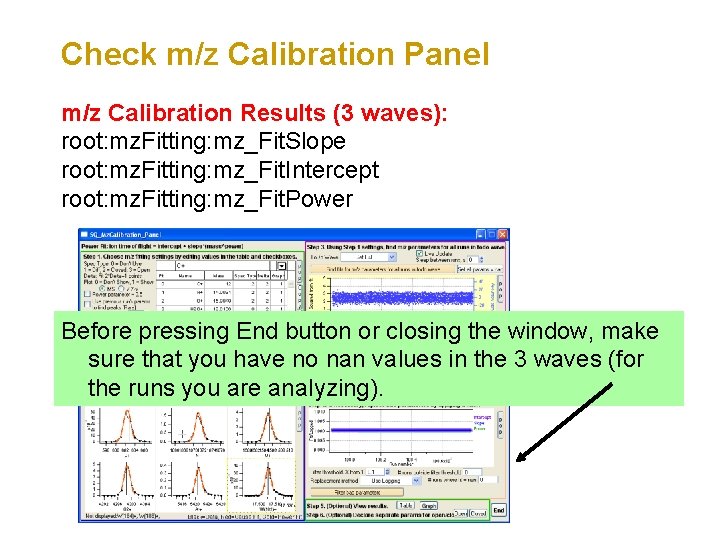
Check m/z Calibration Panel m/z Calibration Results (3 waves): root: mz. Fitting: mz_Fit. Slope root: mz. Fitting: mz_Fit. Intercept root: mz. Fitting: mz_Fit. Power Before pressing End button or closing the window, make sure that you have no nan values in the 3 waves (for the runs you are analyzing).
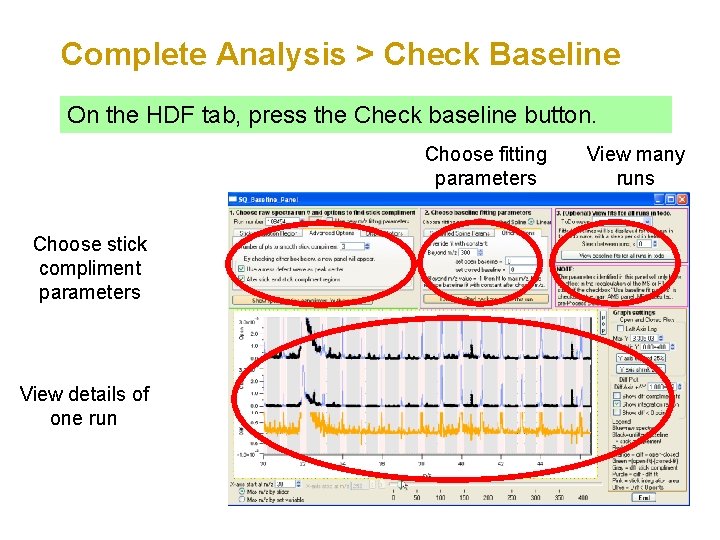
Complete Analysis > Check Baseline On the HDF tab, press the Check baseline button. Choose fitting parameters Choose stick compliment parameters View details of one run View many runs
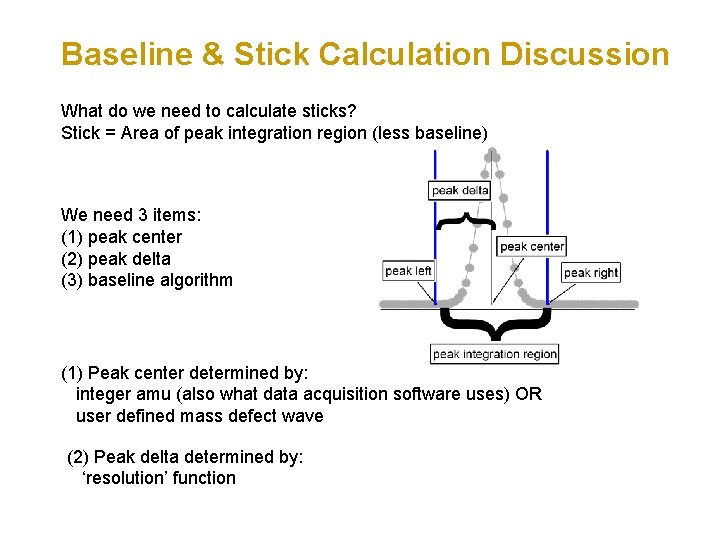
Baseline & Stick Calculation Discussion What do we need to calculate sticks? Stick = Area of peak integration region (less baseline) We need 3 items: (1) peak center (2) peak delta (3) baseline algorithm (1) Peak center determined by: integer amu (also what data acquisition software uses) OR user defined mass defect wave (2) Peak delta determined by: ‘resolution’ function
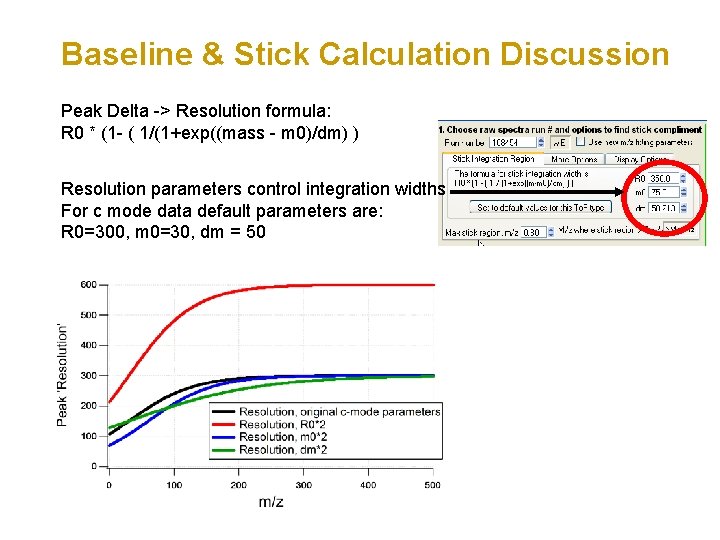
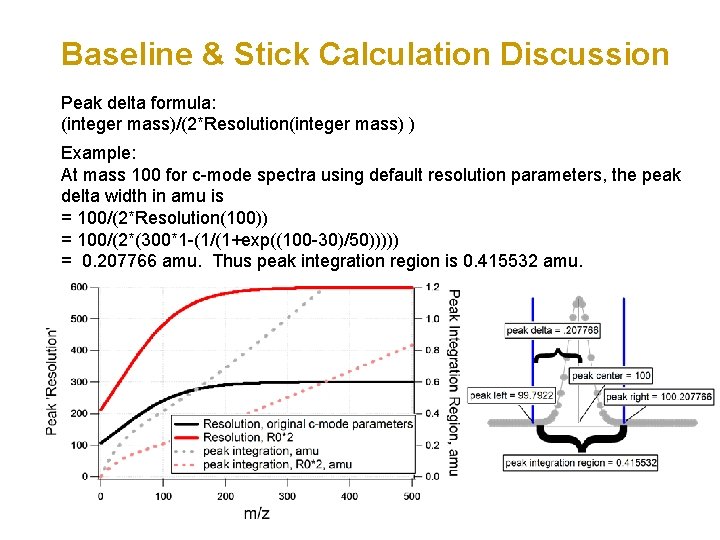
Baseline & Stick Calculation Discussion Peak Delta -> Resolution formula: R 0 * (1 - ( 1/(1+exp((mass - m 0)/dm) ) Resolution parameters control integration widths For c mode data default parameters are: R 0=300, m 0=30, dm = 50
Baseline & Stick Calculation Discussion Peak delta formula: (integer mass)/(2*Resolution(integer mass) ) Example: At mass 100 for c-mode spectra using default resolution parameters, the peak delta width in amu is = 100/(2*Resolution(100)) = 100/(2*(300*1 -(1/(1+exp((100 -30)/50))))) = 0. 207766 amu. Thus peak integration region is 0. 415532 amu.
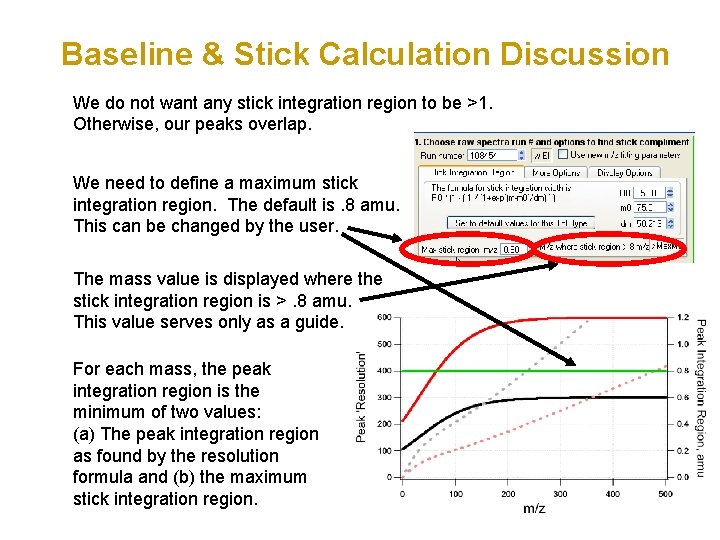
Baseline & Stick Calculation Discussion We do not want any stick integration region to be >1. Otherwise, our peaks overlap. We need to define a maximum stick integration region. The default is. 8 amu. This can be changed by the user. The mass value is displayed where the stick integration region is >. 8 amu. This value serves only as a guide. For each mass, the peak integration region is the minimum of two values: (a) The peak integration region as found by the resolution formula and (b) the maximum stick integration region.
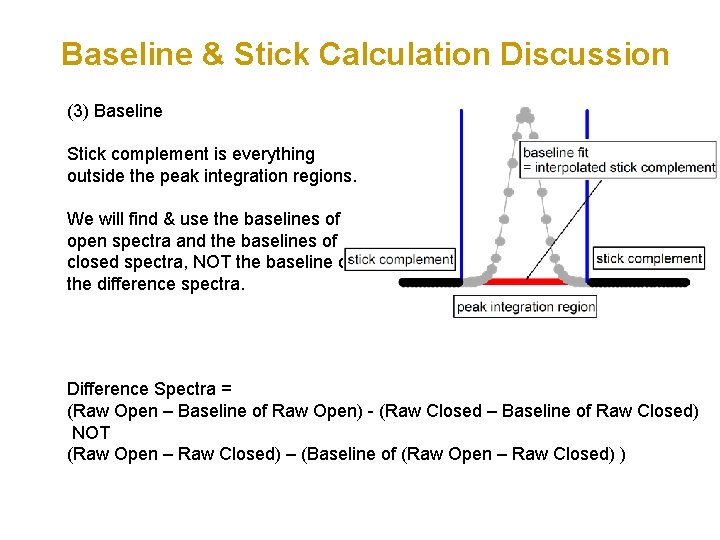
Baseline & Stick Calculation Discussion (3) Baseline Stick complement is everything outside the peak integration regions. We will find & use the baselines of open spectra and the baselines of closed spectra, NOT the baseline of the difference spectra. Difference Spectra = (Raw Open – Baseline of Raw Open) - (Raw Closed – Baseline of Raw Closed) NOT (Raw Open – Raw Closed) – (Baseline of (Raw Open – Raw Closed) )
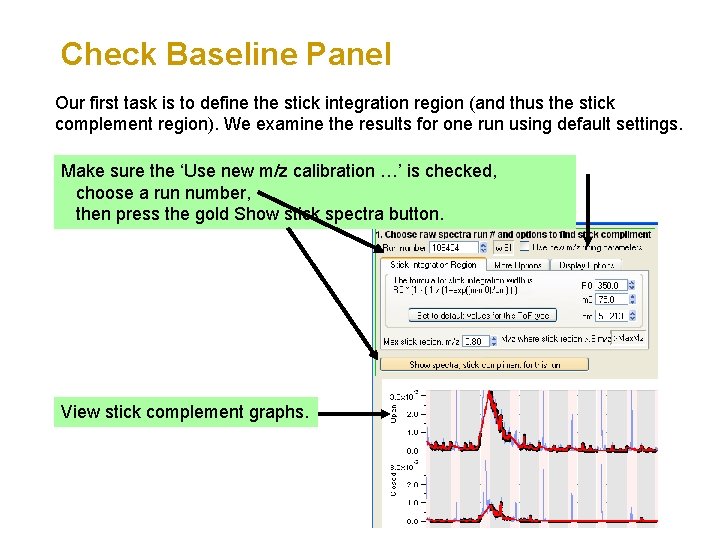
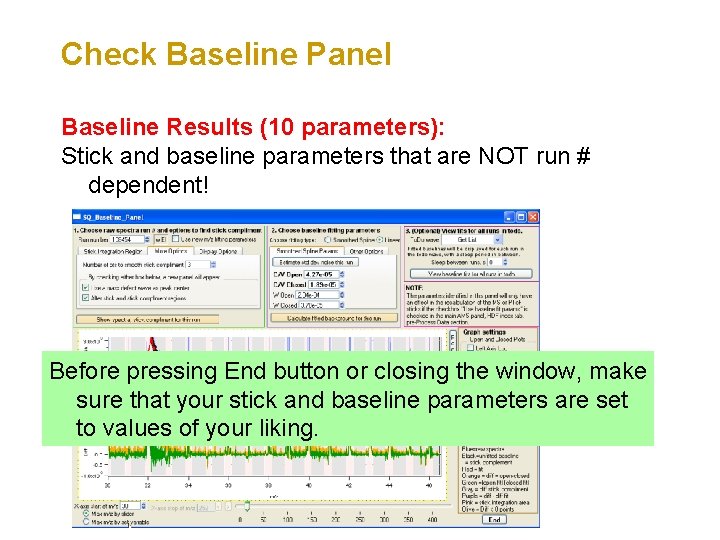
Check Baseline Panel Our first task is to define the stick integration region (and thus the stick complement region). We examine the results for one run using default settings. Make sure the ‘Use new m/z calibration …’ is checked, choose a run number, then press the gold Show stick spectra button. View stick complement graphs.
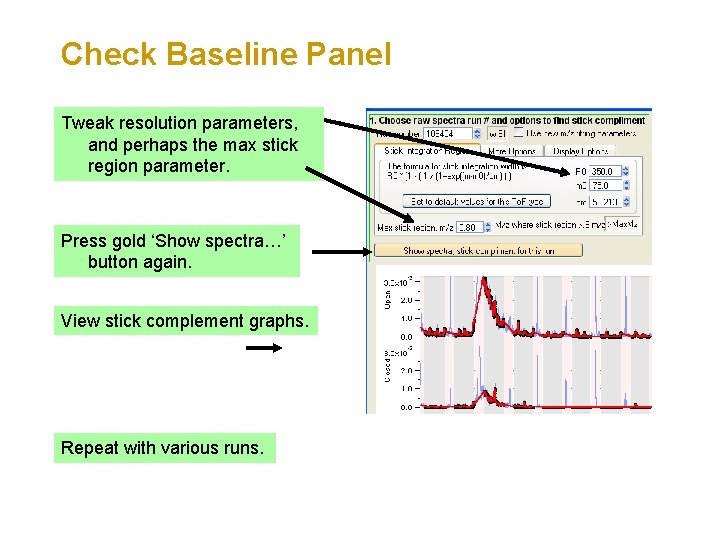
Check Baseline Panel Tweak resolution parameters, and perhaps the max stick region parameter. Press gold ‘Show spectra…’ button again. View stick complement graphs. Repeat with various runs.
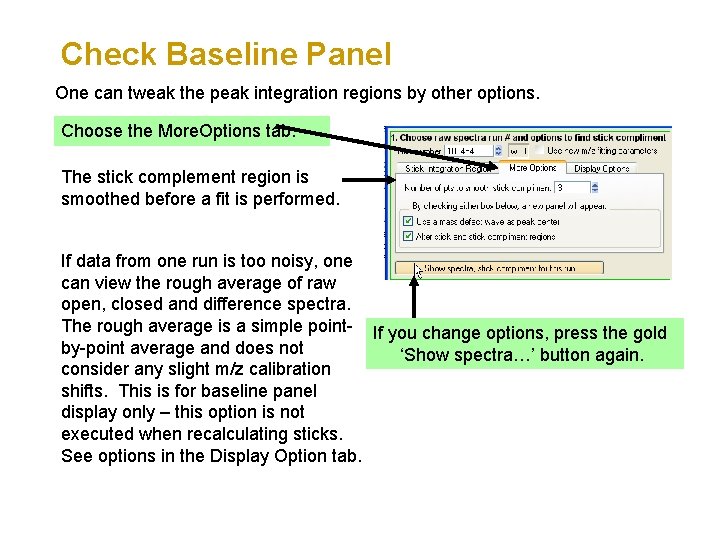
Check Baseline Panel One can tweak the peak integration regions by other options. Choose the More. Options tab. The stick complement region is smoothed before a fit is performed. If data from one run is too noisy, one can view the rough average of raw open, closed and difference spectra. The rough average is a simple point- If you change options, press the gold by-point average and does not ‘Show spectra…’ button again. consider any slight m/z calibration shifts. This is for baseline panel display only – this option is not executed when recalculating sticks. See options in the Display Option tab.
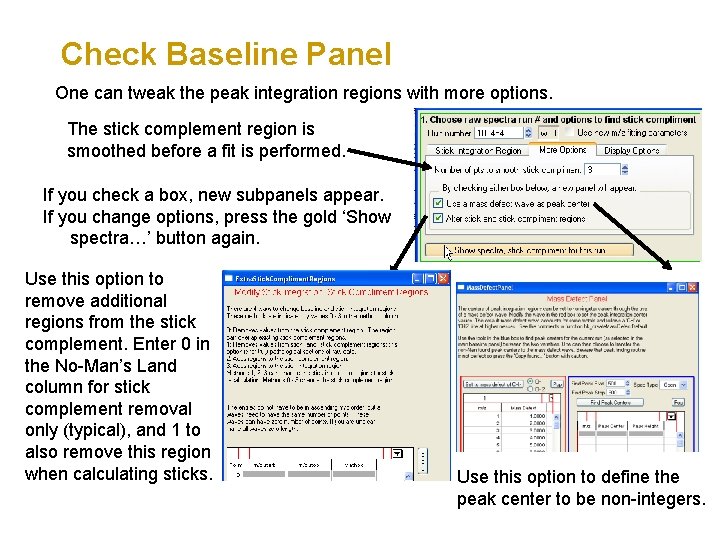
Check Baseline Panel One can tweak the peak integration regions with more options. The stick complement region is smoothed before a fit is performed. If you check a box, new subpanels appear. If you change options, press the gold ‘Show spectra…’ button again. Use this option to remove additional regions from the stick complement. Enter 0 in the No-Man’s Land column for stick complement removal only (typical), and 1 to also remove this region when calculating sticks. Use this option to define the peak center to be non-integers.
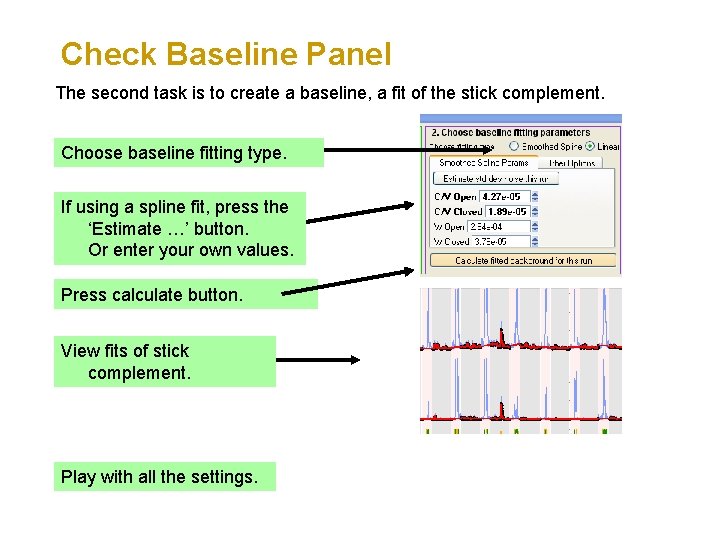
Check Baseline Panel The second task is to create a baseline, a fit of the stick complement. Choose baseline fitting type. If using a spline fit, press the ‘Estimate …’ button. Or enter your own values. Press calculate button. View fits of stick complement. Play with all the settings.
Check Baseline Panel Baseline Results (10 parameters): Stick and baseline parameters that are NOT run # dependent! Before pressing End button or closing the window, make sure that your stick and baseline parameters are set to values of your liking.
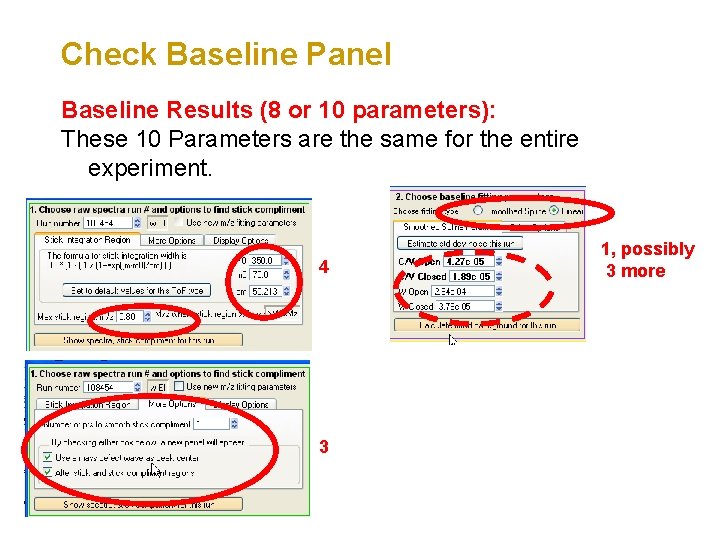
Check Baseline Panel Baseline Results (8 or 10 parameters): These 10 Parameters are the same for the entire experiment. 4 3 1, possibly 3 more
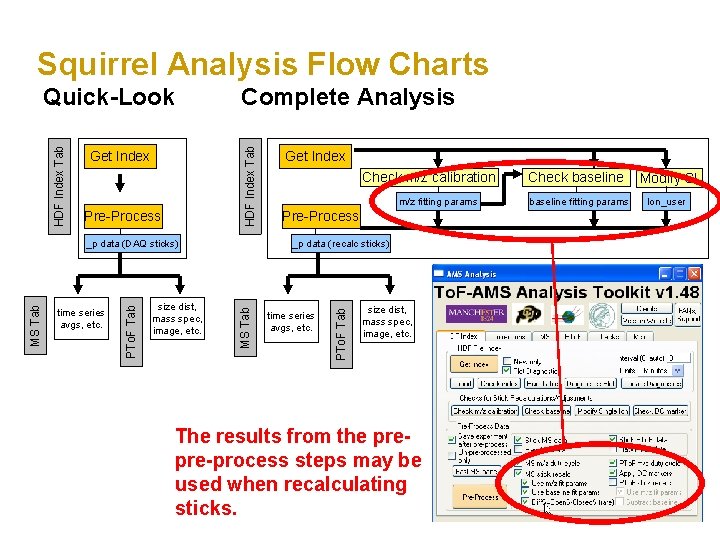
Squirrel Analysis Flow Charts Complete Analysis HDF Index Tab Get Index Pre-Process size dist, mass spec, image, etc. Check m/z calibration m/z fitting params Pre-Process _p data (recalc sticks) MS Tab time series avgs, etc. PTo. F Tab MS Tab _p data (DAQ sticks) Get Index time series avgs, etc. PTo. F Tab HDF Index Tab Quick-Look size dist, mass spec, image, etc. The results from the prepre-process steps may be used when recalculating sticks. Check baseline fitting params Modify SI Ion_user
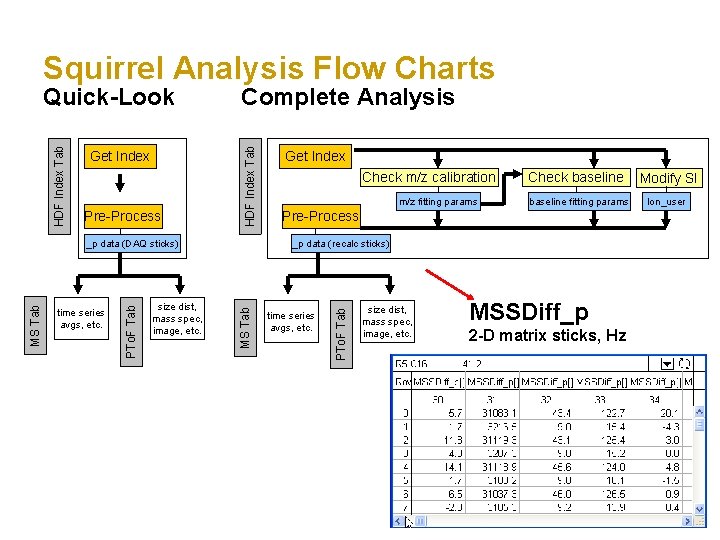
Squirrel Analysis Flow Charts Pre-Process size dist, mass spec, image, etc. Check m/z calibration m/z fitting params Check baseline fitting params Pre-Process _p data (recalc sticks) MS Tab time series avgs, etc. PTo. F Tab MS Tab _p data (DAQ sticks) Get Index time series avgs, etc. PTo. F Tab Get Index Complete Analysis HDF Index Tab Quick-Look size dist, mass spec, image, etc. MSSDiff_p 2 -D matrix sticks, Hz Modify SI Ion_user
Pre – Pre-Process Completion: Once we have pre-processed MS (and/or PTo. F sticks) we have a matrix of integrated signal of difference spectra. This stick matrix will essentially remain unchanged after the pre-process step. We use this matrix to generate time series or average mass spectra. Subsequent analysis steps deal with corrections (i. e. AB correction) and customizations (i. e. Frag table adjustments) based on this stick data.