LEARNING THE SEEING EYE GPS APP Sendero Group
- Slides: 51
LEARNING THE SEEING EYE GPS APP Sendero Group www. Sendero. Group. com www. Accessible. GPS. com Support: i. Phone@Sendero. Group. com Contents of this Power. Point were developed under a grant from the National Institute on Disability, Independent Living, and Rehabilitation Research (NIDILRR grant number 90 BISB 0003 -01 -02).
WHAT IS ACCESSIBLE GPS “Accessibility for persons with vision impairments is usually a matter of having the right information at the right time. Having information means having choices and the ability to make the correct choice the first time: it means not having to engage in time-consuming deductive reasoning from imprecise clues or frequently having to ask for information or assistance. ” Bentzen, B. L. (1997), Environmental Accessibility. In Blasch, Weiner and Welsh (Eds. ), Foundations of Orientation and Mobility, 2 nd Edition. AFB: NY.
BENEFITS OF ACCESSIBLE GPS Access to Location Information • Person can learn about their surroundings and have access to “signage” that they miss out on. • The GPS often identifies an unknown point of interest or a street name (“I didn’t know that was there”) • User can “look around” to gather information about the travel environment, including street names, intersections, points of interest, city, etc. • GPS can help with mental mapping skills • The GPS can help to confirm their current location.
BENEFITS OF ACCESSIBLE GPS Introduces Important Concepts • • Left and right concepts Introduces Cardinal Directions Clock face directions Applies geography and social studies core curriculum concepts • Environmental concepts including shapes of intersections, direction of travel, sidewalks, types of streets etc.
BENEFITS OF ACCESSIBLE GPS Problem Solving Skills/ Safety • Allows user to determine distance and direction to a destination • Confirms direction of travel • Gives user immediate access to addresses and phone numbers in case they are lost or need to call for help
FREQUENTLY ASKED QUESTIONS Which i. Devices are supported? i. Phone 4 and later, i. Pad with cellular service. Is a data plan required? Yes, a cellular data plan is required to use this app because the maps and points of interest are stored on a server rather than on the phone. Is the app self-voicing? The app uses Voice. Over, it is not self-voicing. Can I try the app before purchasing? A one month trial version is currently available.
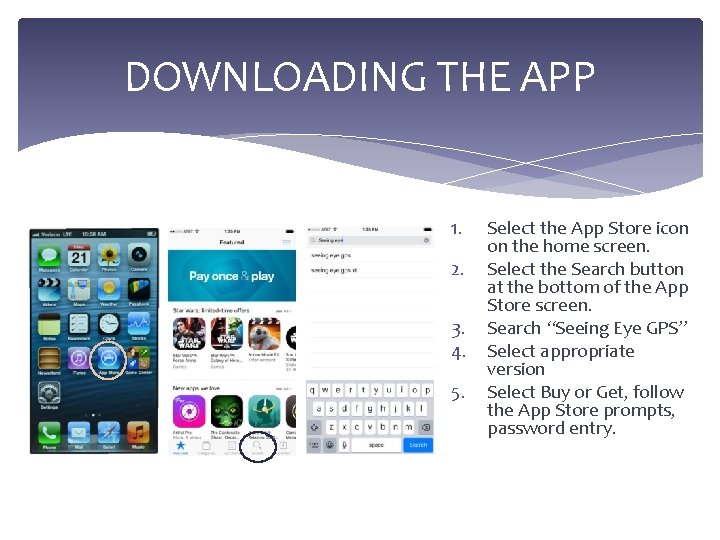
DOWNLOADING THE APP 1. 2. 3. 4. 5. Select the App Store icon on the home screen. Select the Search button at the bottom of the App Store screen. Search “Seeing Eye GPS” Select appropriate version Select Buy or Get, follow the App Store prompts, password entry.
PURCHASING There are two versions of the Seeing Eye GPS app. They are identical in terms of functions, but we have made two separate apps: (1) Seeing Eye GPS XT, non-subscription, one-time purchase fee and, (2) Seeing Eye GPS, free to download with in-app subscription purchases.
SUBSCRIPTION VERSION The Subscription version is free to download, but requires an active subscription to function. After you download and open it the first time, select “New Subscription” or “Use Existing Subscription” 30 -day trial or Purchase subscription 1 -month or 1 -year Register your copy, enter your email and set a password. Doesn’t have to be the same as i. Tunes password. At the end of your subscription, it does not automatically renew the subscription
APP UPDATES If you have a valid subscription for Seeing Eye GPS or the Seeing Eye GPS XT version, app updates are included. This process might even be automatic depending on your phone settings, but if it isn’t, follow these instructions to update the app: 1. Select the App Store icon on your home screen. 2. Select the Updates tab on the bottom right of the screen. 3. Select the Purchased link 4. Select the Update button next to the Seeing Eye GPS app
HOW DOES SEEING EYE GPS WORK? The Seeing Eye GPS for i. Phones and i. Pads is an accessible GPS app designed for people who are visually impaired. The app uses the i. Phone’s on-board location sensors (GPS Wi. Fi, Cellular, compass), server-based maps and Voice. Over screen-reader to provide location and routing information in an outdoor environment. With the information provided by this system, a blind traveler can explore an unknown area, find businesses and services, create and follow a route to a selected destination, and travel more efficiently and safely.
GPS ACCURACY The Seeing Eye GPS provides accuracy of a location between 5 and 30 feet on average. The GPS receiver only works when it has satellite reception. This means that it works best with a clear view of the sky. Keep in mind that: Overhead leaves, awnings, or even hills may reduce satellite reception. Tall buildings can create an "urban canyon effect" which reduces or even blocks satellite reception. GPS signals can bounce off objects, such as trees or buildings, causing “GPS multipath, ” causing GPS signals to become distorted and therefore less accurate. As the satellites move through space they can vibrate slightly. This small motion can create a phenomenon called “GPS drift” where a stationary GPS may report that its position is drifting very slightly back and forth across the map.
MAP ACCURACY Maps are an integral part of the GPS software's capabilities. The advantage of having maps stored on the server is that you get instantaneous map and point of interest data updates. If you lose cell coverage, keep in mind: The Seeing Eye GPS cannot download the online map and POI data. Automatic Look. Around announcements such as intersections and POIs will not be announced. If you have a route loaded, it will continue to work if you stay on that route but you will not be able to recalculate a route until the cell data connection has been reestablished.
WHAT CAN SEEING EYE GPS DO? Provide “Look. Around” information: street names, addresses, POIs, heading direction Search for a Point of Interest (POI) Create turn-by-turn Routes to a POI, address, or a predetermined location Create Waypoint Routes – think Hansel and Gretel breadcrumbs Destination Travel
LOADING THE APP FOR THE FIRST TIME When you load the app for the first time, you will need to make the following selections: 1. Allow Location services, Select “Yes. ” This is very important. If you answer “No” the app will not be able to place you on the map. 2. Read and Accept the agreement to proceed. The first screen you will see is the Location Screen
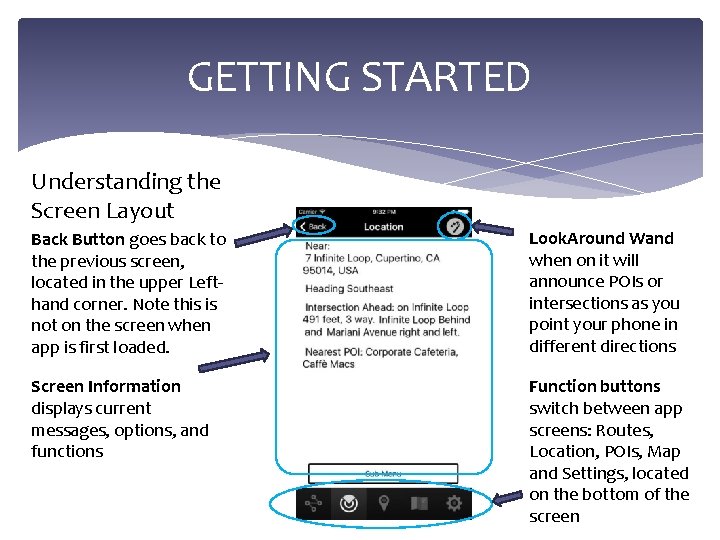
GETTING STARTED Understanding the Screen Layout Back Button goes back to the previous screen, located in the upper Lefthand corner. Note this is not on the screen when app is first loaded. Look. Around Wand when on it will announce POIs or intersections as you point your phone in different directions Screen Information displays current messages, options, and functions Function buttons switch between app screens: Routes, Location, POIs, Map and Settings, located on the bottom of the screen
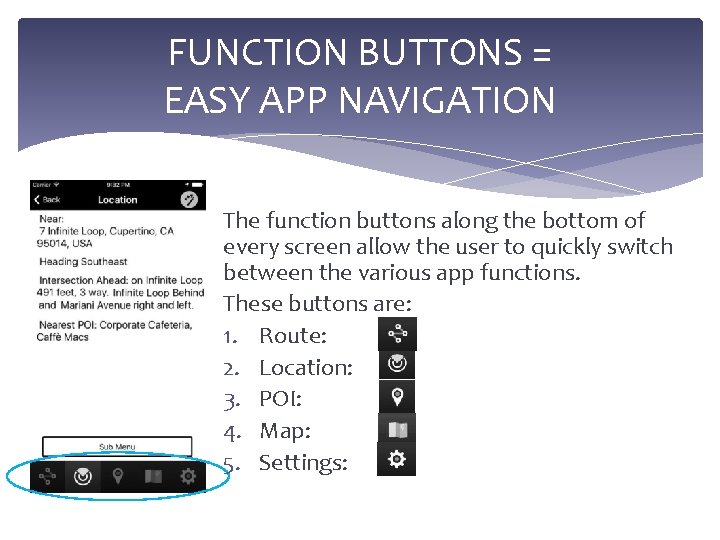
FUNCTION BUTTONS = EASY APP NAVIGATION The function buttons along the bottom of every screen allow the user to quickly switch between the various app functions. These buttons are: 1. Route: 2. Location: 3. POI: 4. Map: 5. Settings:
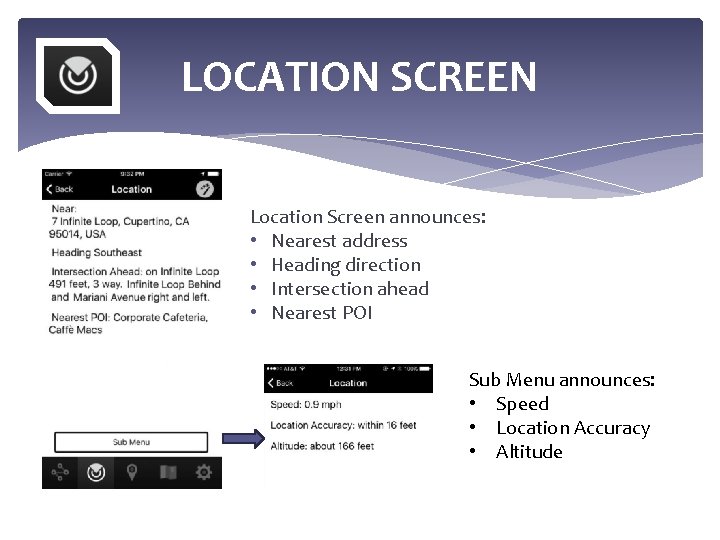
LOCATION SCREEN Location Screen announces: • Nearest address • Heading direction • Intersection ahead • Nearest POI Sub Menu announces: • Speed • Location Accuracy • Altitude
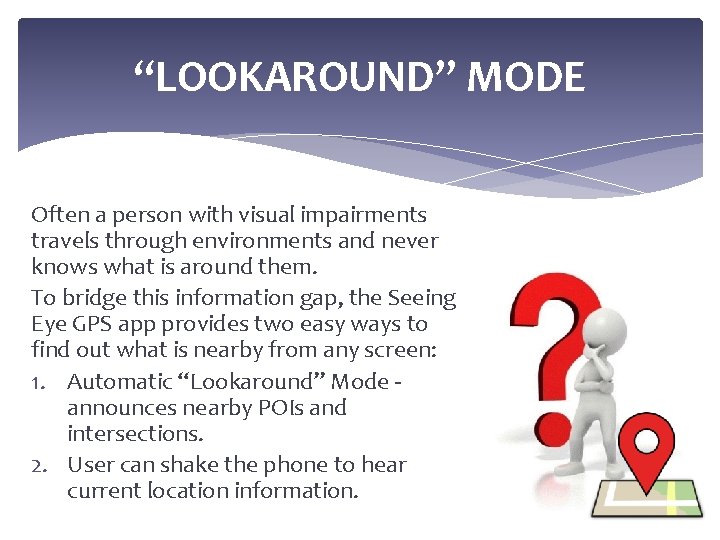
“LOOKAROUND” MODE Often a person with visual impairments travels through environments and never knows what is around them. To bridge this information gap, the Seeing Eye GPS app provides two easy ways to find out what is nearby from any screen: 1. Automatic “Lookaround” Mode - announces nearby POIs and intersections. 2. User can shake the phone to hear current location information.
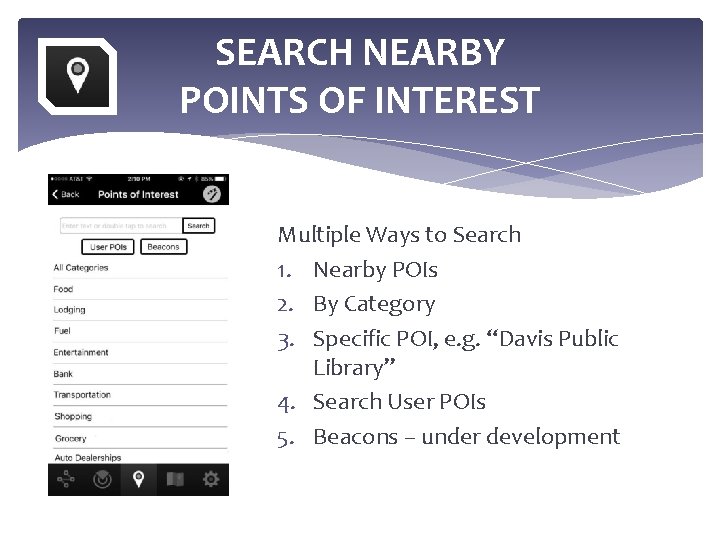
SEARCH NEARBY POINTS OF INTEREST Multiple Ways to Search 1. Nearby POIs 2. By Category 3. Specific POI, e. g. “Davis Public Library” 4. Search User POIs 5. Beacons – under development
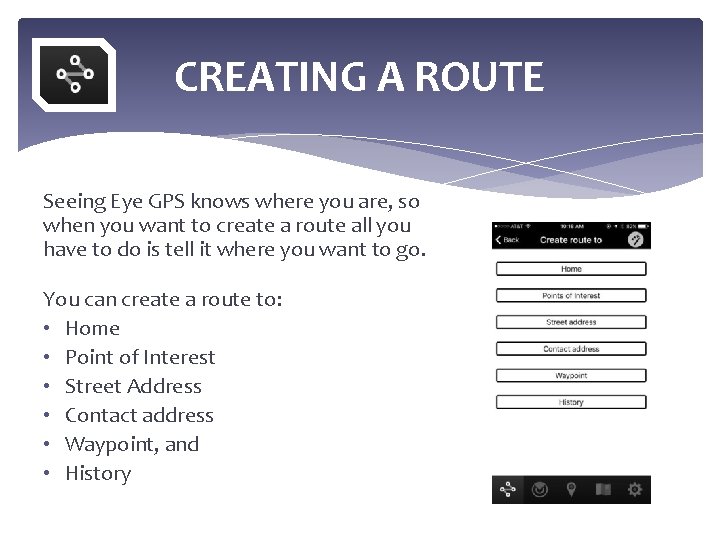
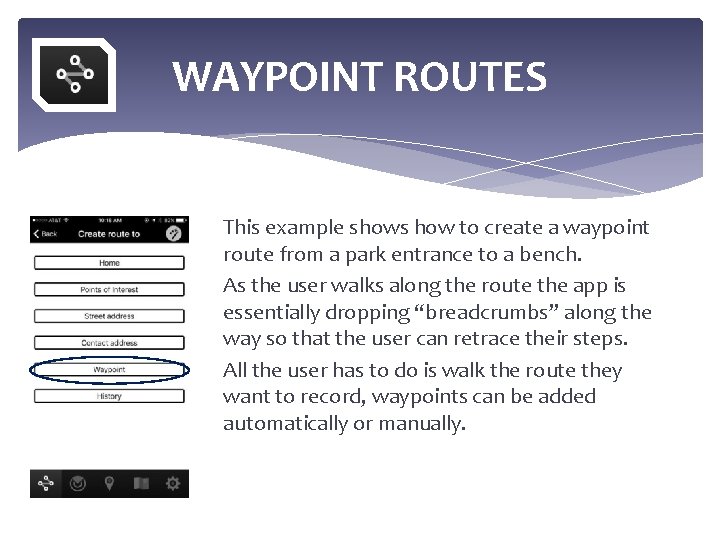
CREATING A ROUTE Seeing Eye GPS knows where you are, so when you want to create a route all you have to do is tell it where you want to go. You can create a route to: • Home • Point of Interest • Street Address • Contact address • Waypoint, and • History
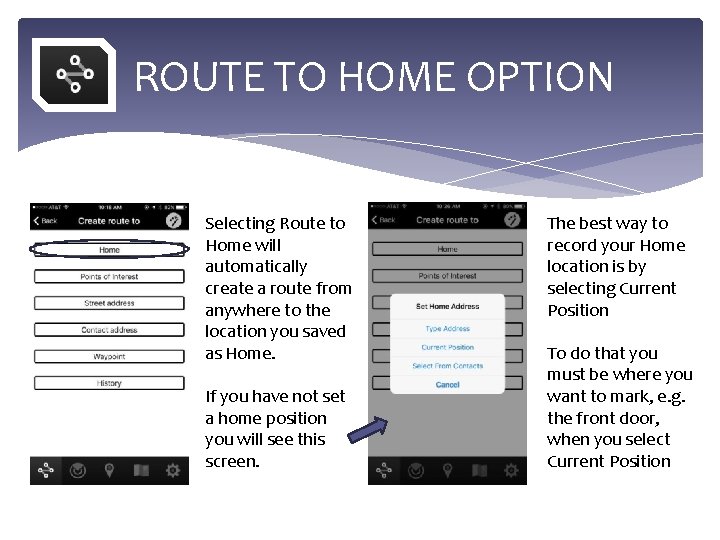
ROUTE TO HOME OPTION Selecting Route to Home will automatically create a route from anywhere to the location you saved as Home. If you have not set a home position you will see this screen. The best way to record your Home location is by selecting Current Position To do that you must be where you want to mark, e. g. the front door, when you select Current Position
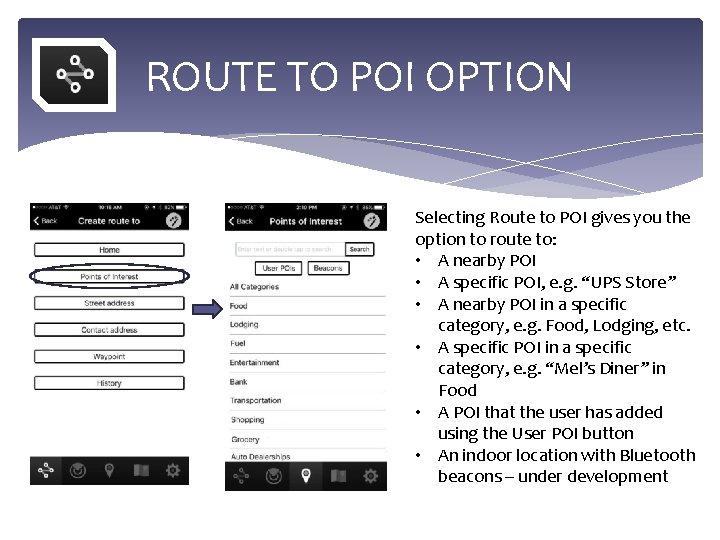
ROUTE TO POI OPTION Selecting Route to POI gives you the option to route to: • A nearby POI • A specific POI, e. g. “UPS Store” • A nearby POI in a specific category, e. g. Food, Lodging, etc. • A specific POI in a specific category, e. g. “Mel’s Diner” in Food • A POI that the user has added using the User POI button • An indoor location with Bluetooth beacons – under development
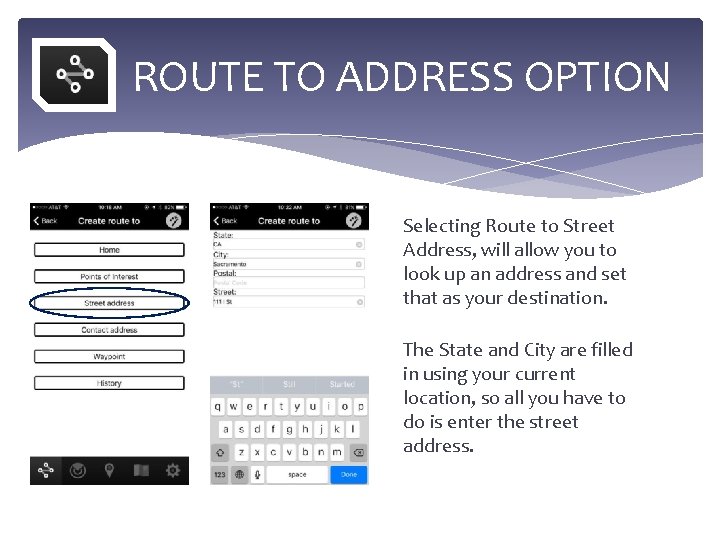
ROUTE TO ADDRESS OPTION Selecting Route to Street Address, will allow you to look up an address and set that as your destination. The State and City are filled in using your current location, so all you have to do is enter the street address.
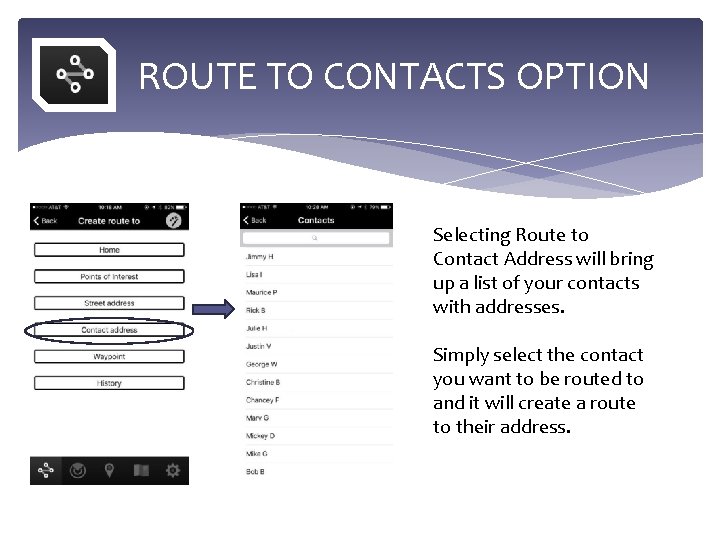
ROUTE TO CONTACTS OPTION Selecting Route to Contact Address will bring up a list of your contacts with addresses. Simply select the contact you want to be routed to and it will create a route to their address.
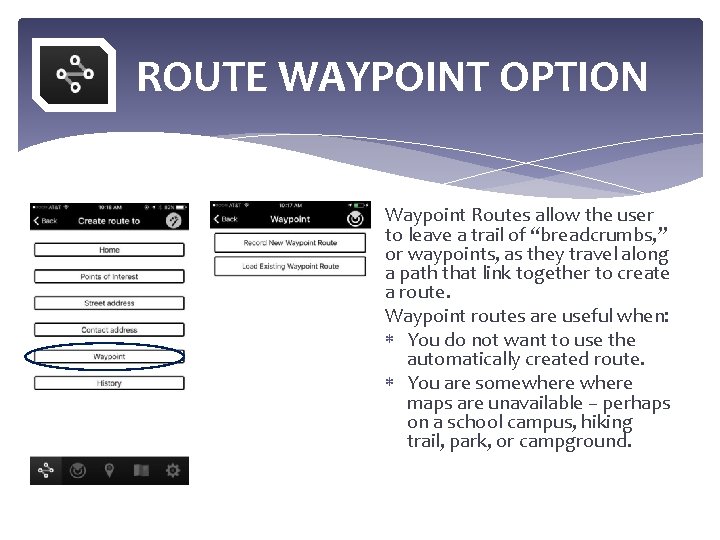
ROUTE WAYPOINT OPTION Waypoint Routes allow the user to leave a trail of “breadcrumbs, ” or waypoints, as they travel along a path that link together to create a route. Waypoint routes are useful when: You do not want to use the automatically created route. You are somewhere maps are unavailable – perhaps on a school campus, hiking trail, park, or campground.
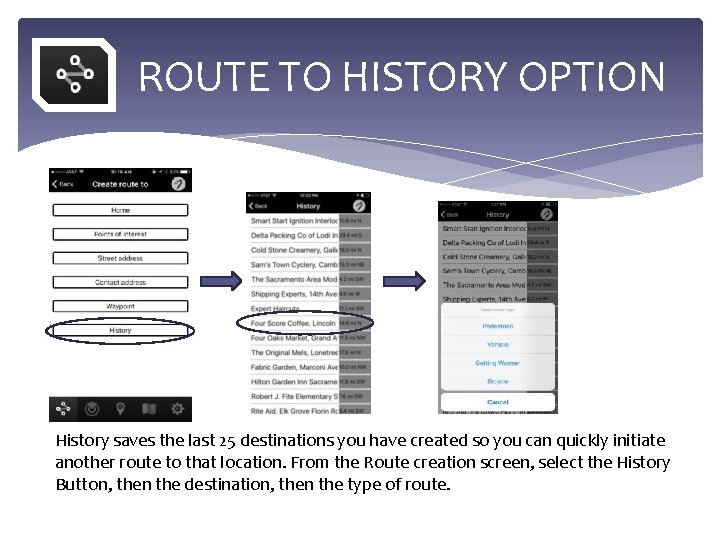
ROUTE TO HISTORY OPTION History saves the last 25 destinations you have created so you can quickly initiate another route to that location. From the Route creation screen, select the History Button, then the destination, then the type of route.
PRACTICING WITH THE APP This tutorial will provide examples of how to create a: 1. Route to POI 2. Route to Address 3. Waypoint Route 4. User POI But the best way to learn is to try it out for yourself!
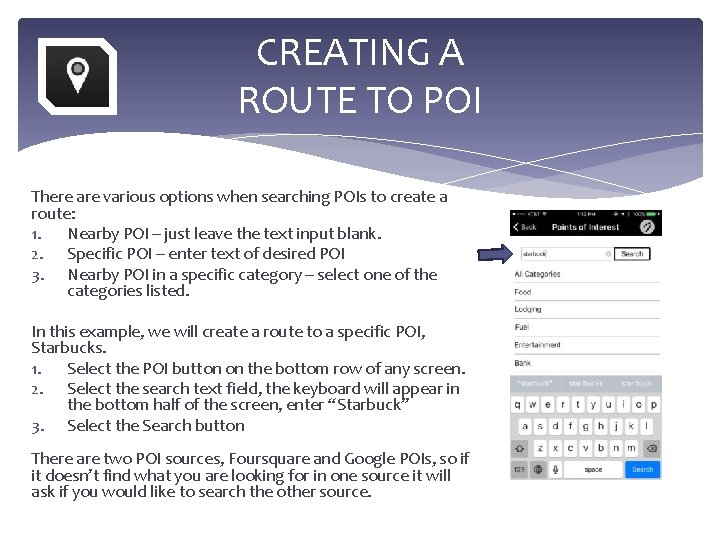
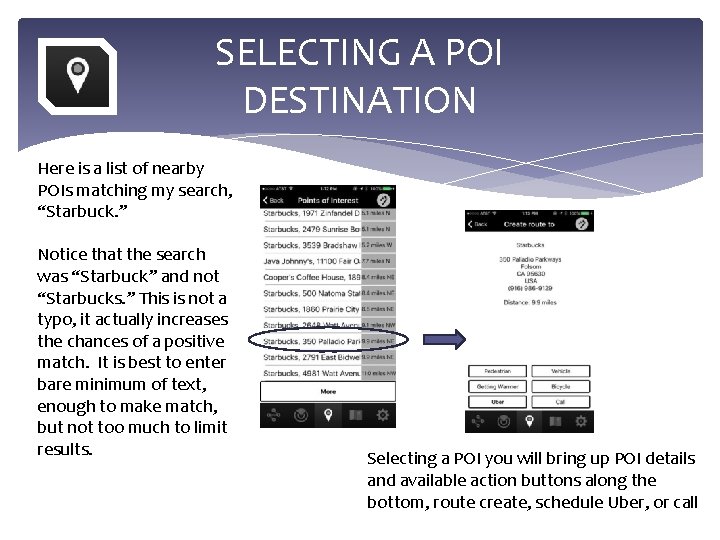
CREATING A ROUTE TO POI There are various options when searching POIs to create a route: 1. Nearby POI – just leave the text input blank. 2. Specific POI – enter text of desired POI 3. Nearby POI in a specific category – select one of the categories listed. In this example, we will create a route to a specific POI, Starbucks. 1. Select the POI button on the bottom row of any screen. 2. Select the search text field, the keyboard will appear in the bottom half of the screen, enter “Starbuck” 3. Select the Search button There are two POI sources, Foursquare and Google POIs, so if it doesn’t find what you are looking for in one source it will ask if you would like to search the other source.
SELECTING A POI DESTINATION Here is a list of nearby POIs matching my search, “Starbuck. ” Notice that the search was “Starbuck” and not “Starbucks. ” This is not a typo, it actually increases the chances of a positive match. It is best to enter bare minimum of text, enough to make match, but not too much to limit results. Selecting a POI you will bring up POI details and available action buttons along the bottom, route create, schedule Uber, or call
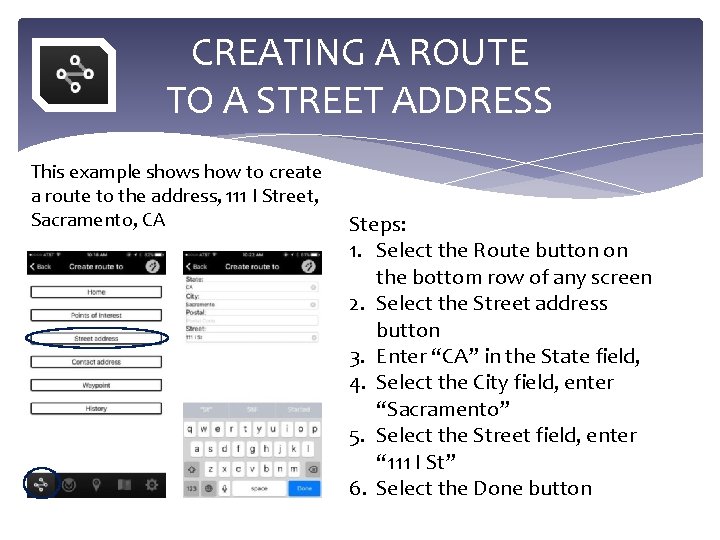
CREATING A ROUTE TO A STREET ADDRESS This example shows how to create a route to the address, 111 I Street, Sacramento, CA Steps: 1. Select the Route button on the bottom row of any screen 2. Select the Street address button 3. Enter “CA” in the State field, 4. Select the City field, enter “Sacramento” 5. Select the Street field, enter “ 111 I St” 6. Select the Done button
HELPFUL TIPS Some address can be challenging, to increase your chance of a successful address match: • The State and City fields are automatically filled in with the current location. • To input a different city or state, clear the text field using the X button on the right side of that field. • Use the Postal code field, if you know it, when no address is found using City/State. • Enter bare minimum of text for street field, enough to make match, but not too much to limit results. In this case, I input “ 111 I St” for the address “ 111 I Street”
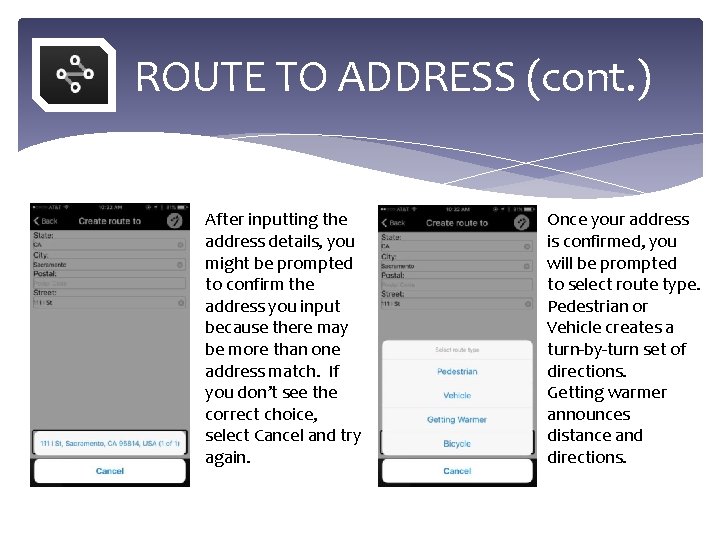
ROUTE TO ADDRESS (cont. ) After inputting the address details, you might be prompted to confirm the address you input because there may be more than one address match. If you don’t see the correct choice, select Cancel and try again. Once your address is confirmed, you will be prompted to select route type. Pedestrian or Vehicle creates a turn-by-turn set of directions. Getting warmer announces distance and directions.
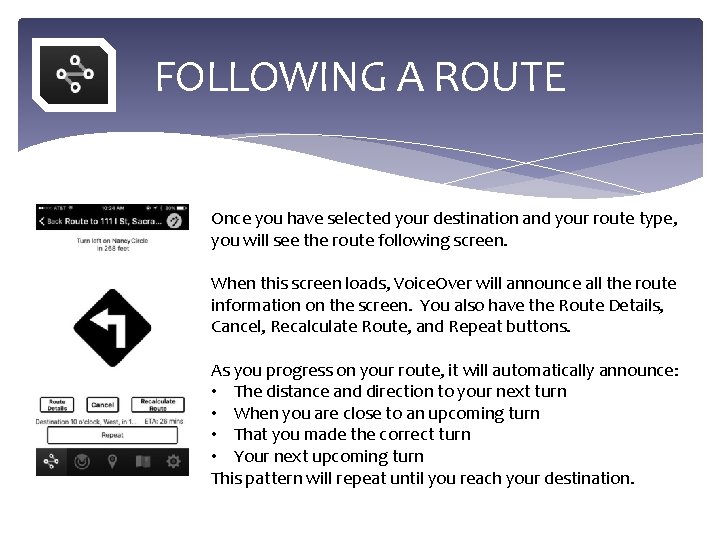
FOLLOWING A ROUTE Once you have selected your destination and your route type, you will see the route following screen. When this screen loads, Voice. Over will announce all the route information on the screen. You also have the Route Details, Cancel, Recalculate Route, and Repeat buttons. As you progress on your route, it will automatically announce: • The distance and direction to your next turn • When you are close to an upcoming turn • That you made the correct turn • Your next upcoming turn This pattern will repeat until you reach your destination.
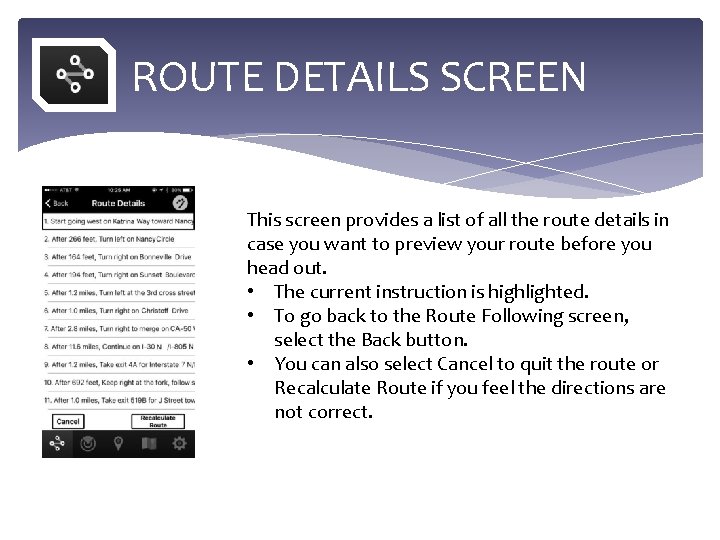
ROUTE DETAILS SCREEN This screen provides a list of all the route details in case you want to preview your route before you head out. • The current instruction is highlighted. • To go back to the Route Following screen, select the Back button. • You can also select Cancel to quit the route or Recalculate Route if you feel the directions are not correct.
WAYPOINT ROUTES This example shows how to create a waypoint route from a park entrance to a bench. As the user walks along the route the app is essentially dropping “breadcrumbs” along the way so that the user can retrace their steps. All the user has to do is walk the route they want to record, waypoints can be added automatically or manually.
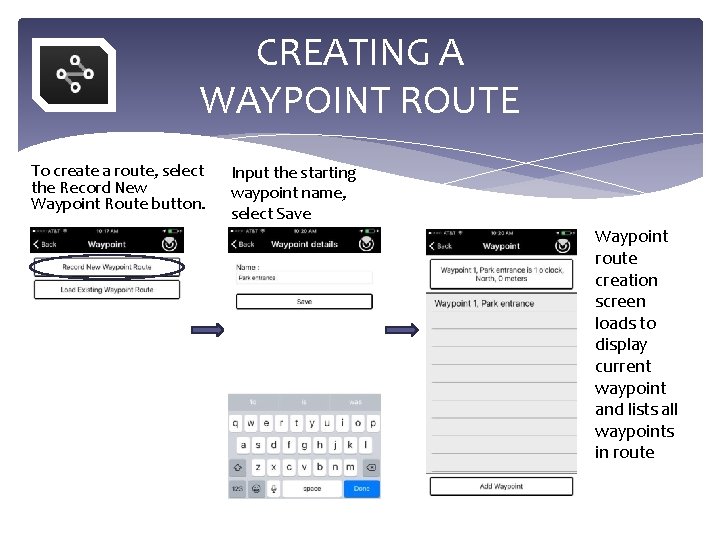
CREATING A WAYPOINT ROUTE To create a route, select the Record New Waypoint Route button. Input the starting waypoint name, select Save Waypoint route creation screen loads to display current waypoint and lists all waypoints in route
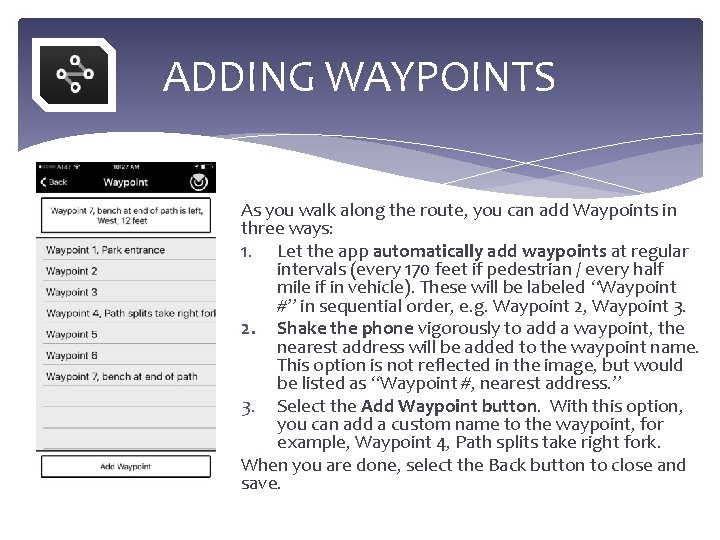
ADDING WAYPOINTS As you walk along the route, you can add Waypoints in three ways: 1. Let the app automatically add waypoints at regular intervals (every 170 feet if pedestrian / every half mile if in vehicle). These will be labeled “Waypoint #” in sequential order, e. g. Waypoint 2, Waypoint 3. 2. Shake the phone vigorously to add a waypoint, the nearest address will be added to the waypoint name. This option is not reflected in the image, but would be listed as “Waypoint #, nearest address. ” 3. Select the Add Waypoint button. With this option, you can add a custom name to the waypoint, for example, Waypoint 4, Path splits take right fork. When you are done, select the Back button to close and save.
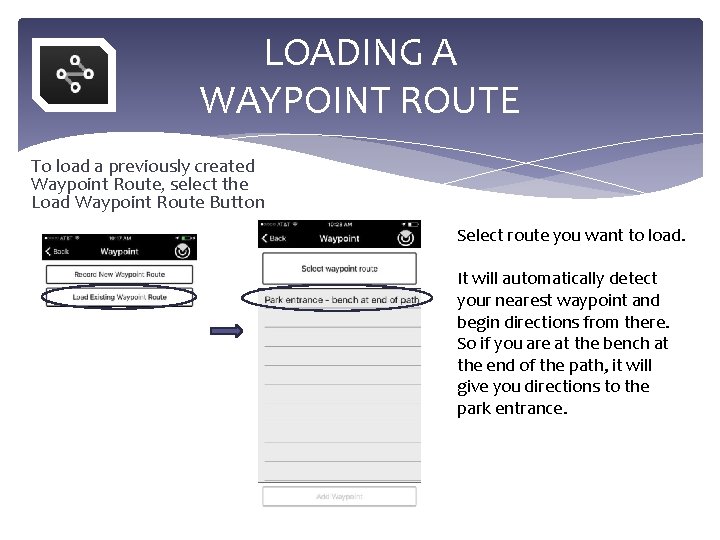
LOADING A WAYPOINT ROUTE To load a previously created Waypoint Route, select the Load Waypoint Route Button Select route you want to load. It will automatically detect your nearest waypoint and begin directions from there. So if you are at the bench at the end of the path, it will give you directions to the park entrance.
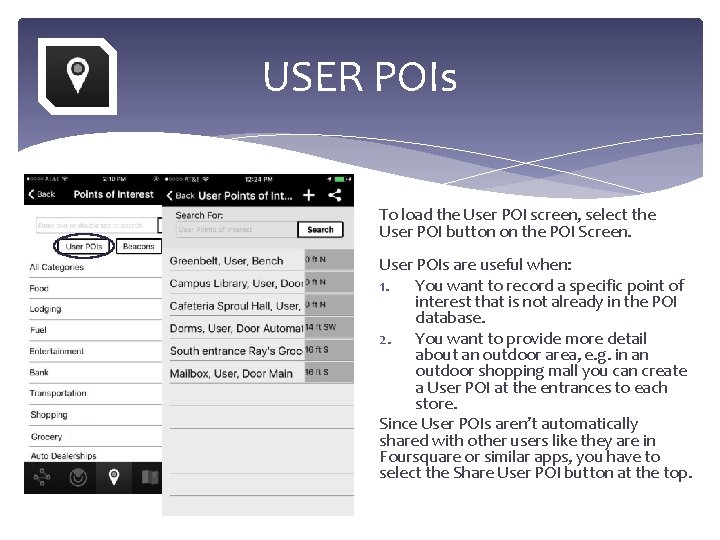
USER POIs To load the User POI screen, select the User POI button on the POI Screen. User POIs are useful when: 1. You want to record a specific point of interest that is not already in the POI database. 2. You want to provide more detail about an outdoor area, e. g. in an outdoor shopping mall you can create a User POI at the entrances to each store. Since User POIs aren’t automatically shared with other users like they are in Foursquare or similar apps, you have to select the Share User POI button at the top.
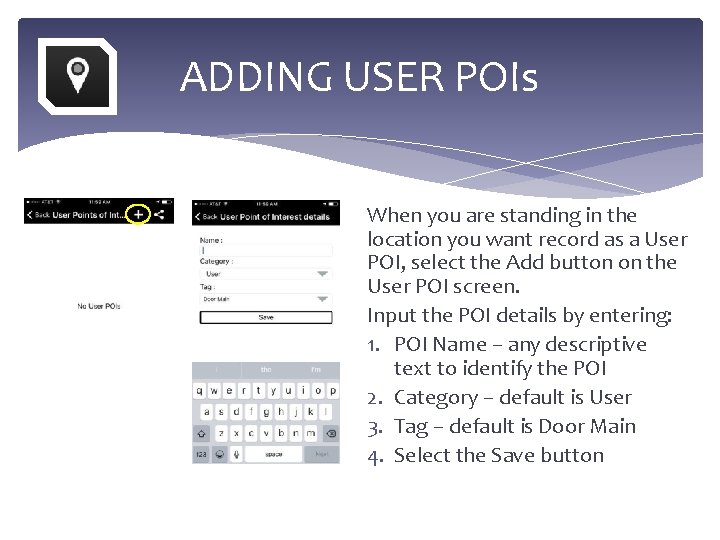
ADDING USER POIs When you are standing in the location you want record as a User POI, select the Add button on the User POI screen. Input the POI details by entering: 1. POI Name – any descriptive text to identify the POI 2. Category – default is User 3. Tag – default is Door Main 4. Select the Save button
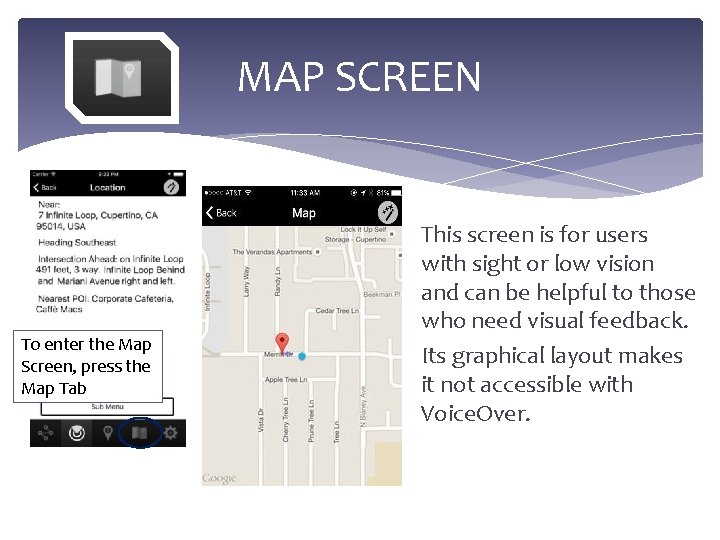
MAP SCREEN To enter the Map Screen, press the Map Tab This screen is for users with sight or low vision and can be helpful to those who need visual feedback. Its graphical layout makes it not accessible with Voice. Over.
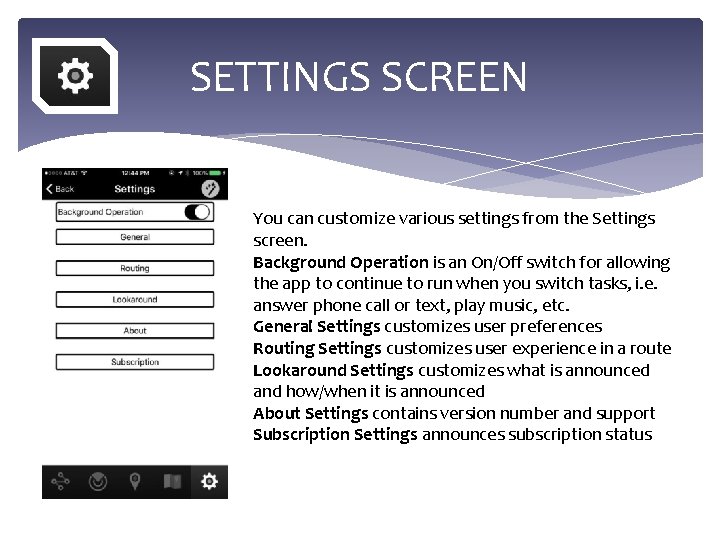
SETTINGS SCREEN You can customize various settings from the Settings screen. Background Operation is an On/Off switch for allowing the app to continue to run when you switch tasks, i. e. answer phone call or text, play music, etc. General Settings customizes user preferences Routing Settings customizes user experience in a route Lookaround Settings customizes what is announced and how/when it is announced About Settings contains version number and support Subscription Settings announces subscription status
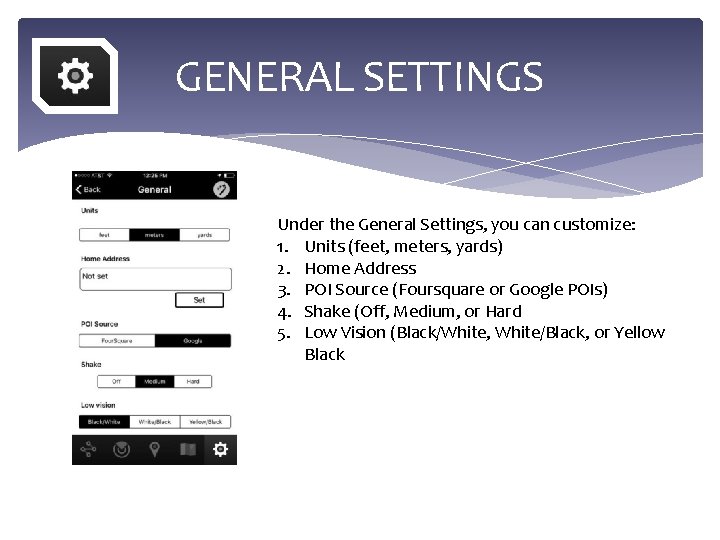
GENERAL SETTINGS Under the General Settings, you can customize: 1. Units (feet, meters, yards) 2. Home Address 3. POI Source (Foursquare or Google POIs) 4. Shake (Off, Medium, or Hard 5. Low Vision (Black/White, White/Black, or Yellow Black
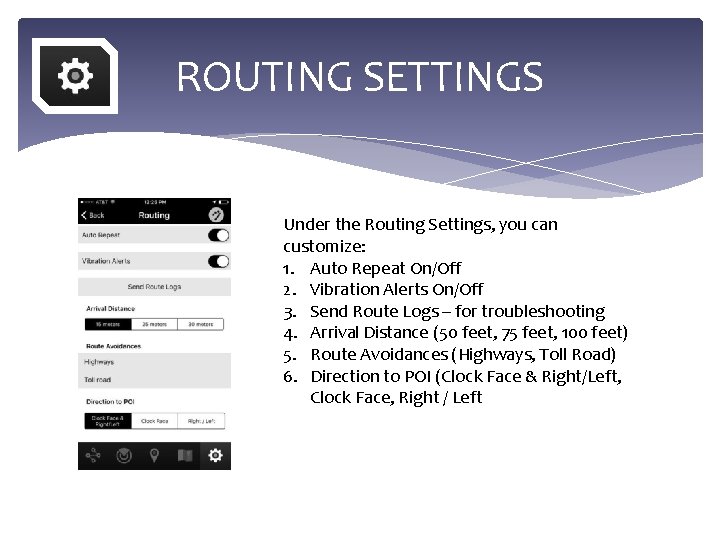
ROUTING SETTINGS Under the Routing Settings, you can customize: 1. Auto Repeat On/Off 2. Vibration Alerts On/Off 3. Send Route Logs – for troubleshooting 4. Arrival Distance (50 feet, 75 feet, 100 feet) 5. Route Avoidances (Highways, Toll Road) 6. Direction to POI (Clock Face & Right/Left, Clock Face, Right / Left
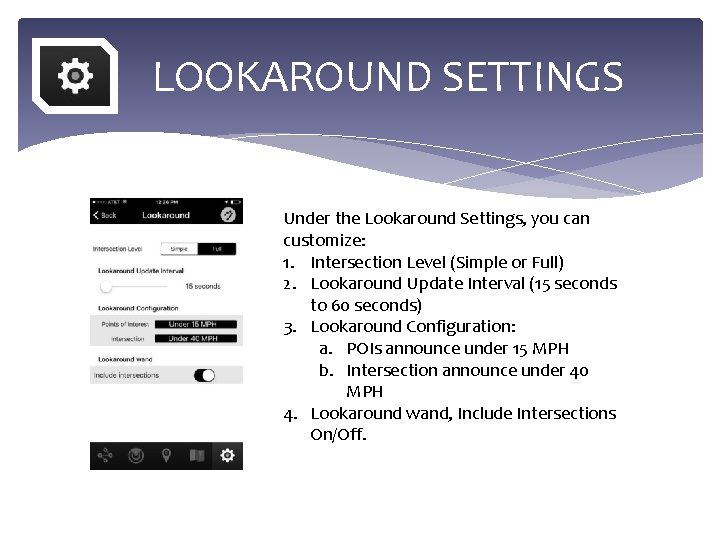
LOOKAROUND SETTINGS Under the Lookaround Settings, you can customize: 1. Intersection Level (Simple or Full) 2. Lookaround Update Interval (15 seconds to 60 seconds) 3. Lookaround Configuration: a. POIs announce under 15 MPH b. Intersection announce under 40 MPH 4. Lookaround wand, Include Intersections On/Off.
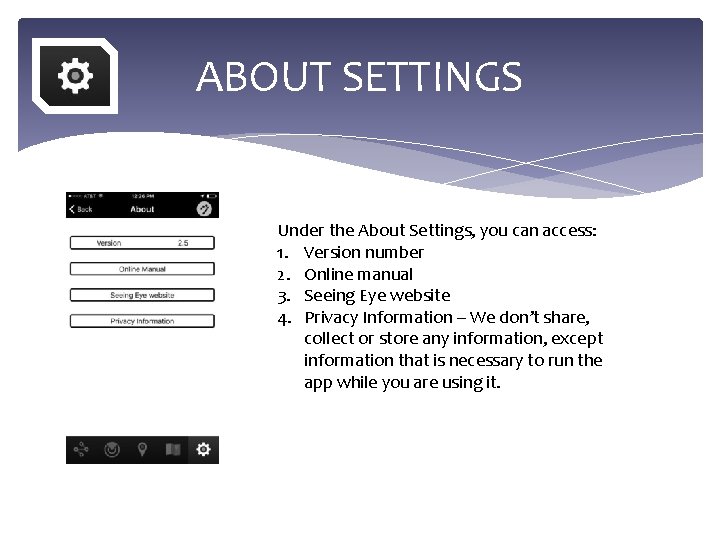
ABOUT SETTINGS Under the About Settings, you can access: 1. Version number 2. Online manual 3. Seeing Eye website 4. Privacy Information – We don’t share, collect or store any information, except information that is necessary to run the app while you are using it.
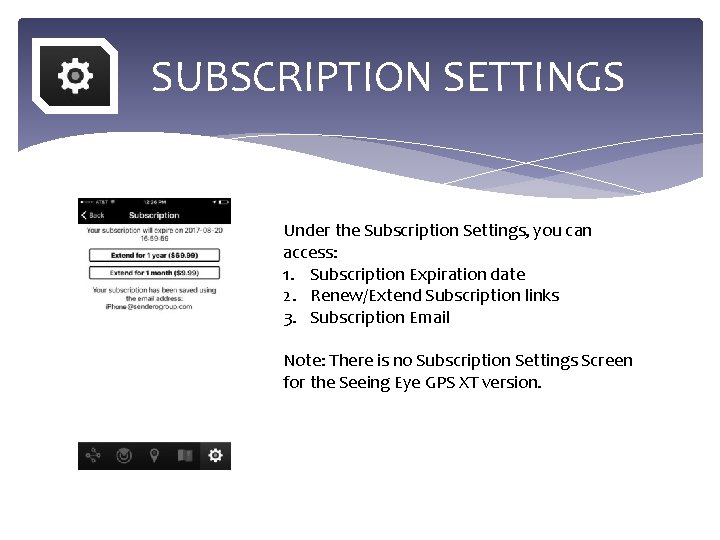
SUBSCRIPTION SETTINGS Under the Subscription Settings, you can access: 1. Subscription Expiration date 2. Renew/Extend Subscription links 3. Subscription Email Note: There is no Subscription Settings Screen for the Seeing Eye GPS XT version.
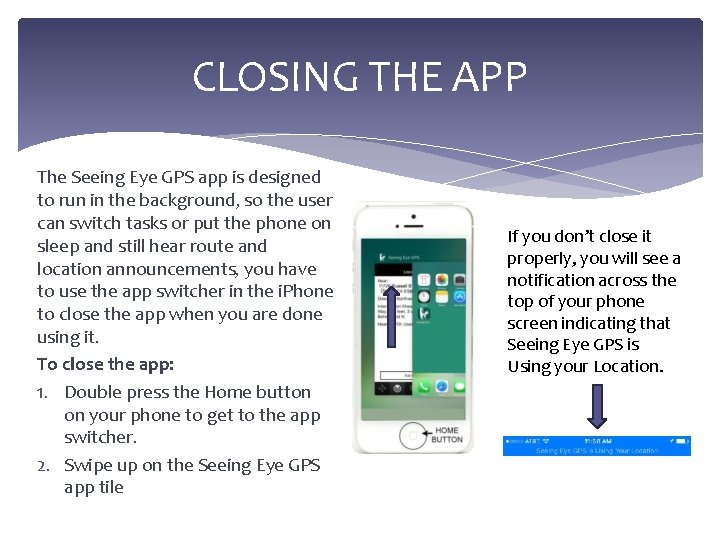
CLOSING THE APP The Seeing Eye GPS app is designed to run in the background, so the user can switch tasks or put the phone on sleep and still hear route and location announcements, you have to use the app switcher in the i. Phone to close the app when you are done using it. To close the app: 1. Double press the Home button on your phone to get to the app switcher. 2. Swipe up on the Seeing Eye GPS app tile If you don’t close it properly, you will see a notification across the top of your phone screen indicating that Seeing Eye GPS is Using your Location.
A FEW TIPS AND REMINDERS WHEN USING SEEING EYE GPS Seeing Eye GPS does not replace basic O&M skills. If the signal strength is low causing poor accuracy or the phone battery has run out, the user will need to rely on their O&M skills. Heading information is most accurate when you are moving in a consistent direction. Frequent stops and turn-arounds can cause inaccurate heading announcements.
A FEW TIPS AND REMINDERS WHEN USING SEEING EYE GPS As with any GPS application, the phone's battery will drain significantly when the GPS app is active. When searching for a POI or an address, it is best to enter the bare minimum of text, because the search engine can be picky sometimes. For example, if you search for Mel's Flower Shop by typing "Mel's Flower Shop" and it returns no results, try searching for "Mel" only.