Introduction to Pymol http www pymol org http
- Slides: 36
Introduction to Pymol http: //www. pymol. org http: //pymolwiki. org
• how do I load DPB file? – Plugin -> PDB Loader Service (2 bhg) – File -> Open (locally stored) – command: load • fetch 2 bhg, load 2 bhg • command is a keyword, followed optionally by one or more comma-separated arguments • color red, hetatm • color red • help show
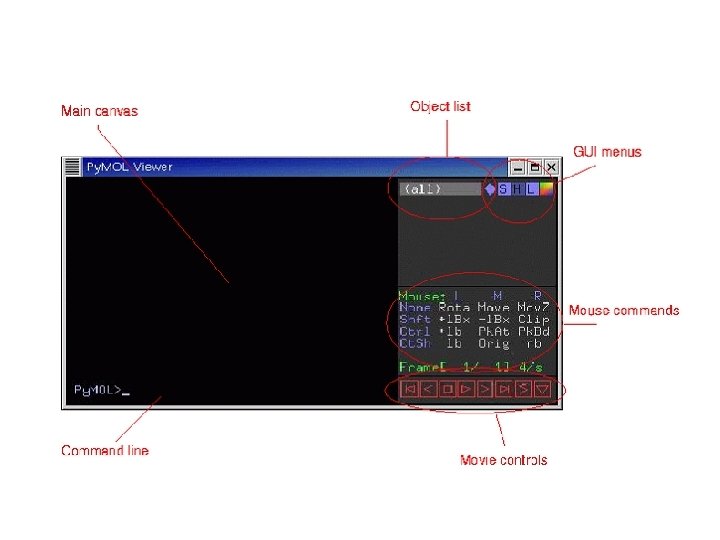
Using the mouse • Unmodified controls – Left - rotate molecule (x, y and, at edges, z) – Middle - translate molecule (x, y) – Right - zoom (=Mov. Z) – Wheel - slab/clip
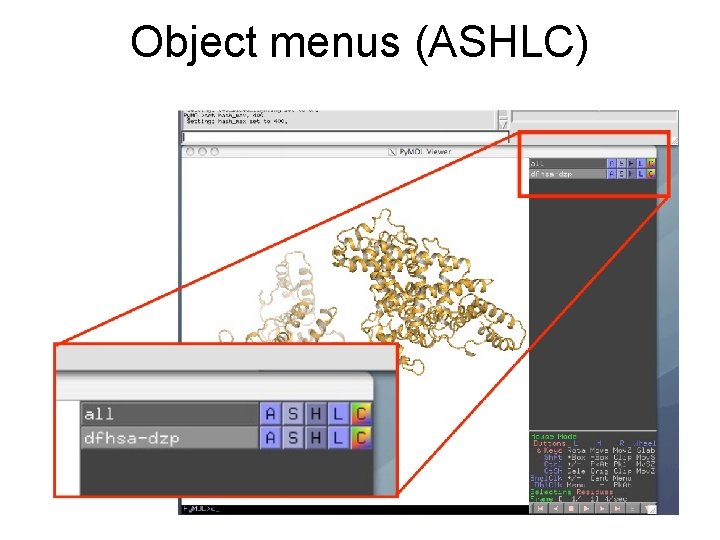
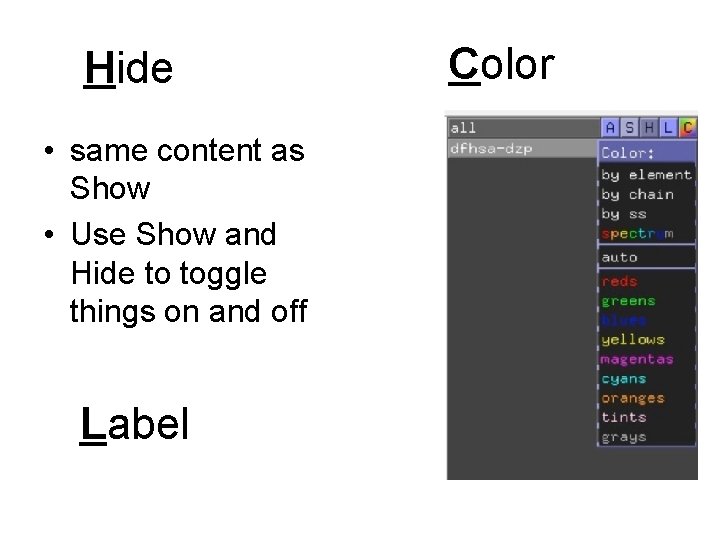
Object menus (ASHLC)
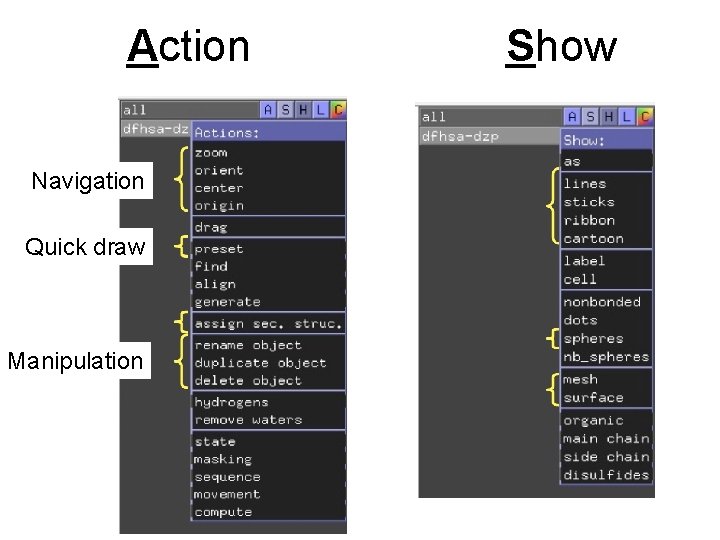
Action Navigation Quick draw Manipulation Show
Hide • same content as Show • Use Show and Hide to toggle things on and off Label Color
• Rule: Once a selection is shown (S) it must be selectively hidden (H) as it is not removed when another selection (S) is made. Selections are therefore additive, which allows for the creation of images with mixed graphical representations. • S -> Cartoon, H -> Lines • S -> as – you do not have to click S, H • Most options can be set within the “Setting” menu within the top menu bar. • Settings -> Cartoon
• Changing the background to white: – Display -> Background -> White • The “Display” menu within the top menu bar contains options for most options pertinent to displaying the image witin the Py. Mol viewer. • “fog” within the back of the molecule – Display -> Depth Cue
Contextual menus • Left double click or right single click to activate – click on object or part of object you want to manipulate – more or less the same menus as ASHLC
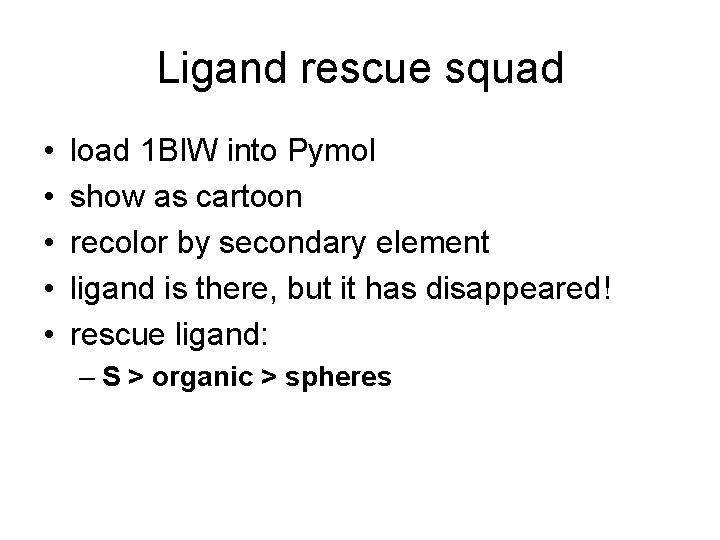
Ligand rescue squad • • • load 1 BIW into Pymol show as cartoon recolor by secondary element ligand is there, but it has disappeared! rescue ligand: – S > organic > spheres
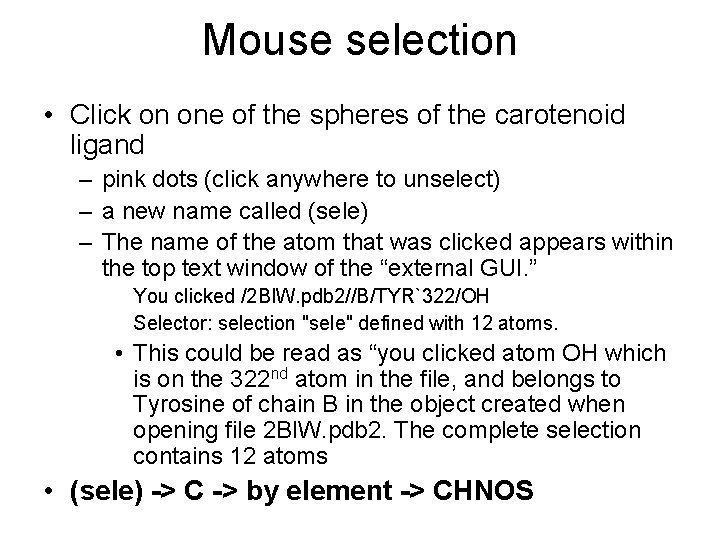
Mouse selection • Click on one of the spheres of the carotenoid ligand – pink dots (click anywhere to unselect) – a new name called (sele) – The name of the atom that was clicked appears within the top text window of the “external GUI. ” You clicked /2 BIW. pdb 2//B/TYR`322/OH Selector: selection "sele" defined with 12 atoms. • This could be read as “you clicked atom OH which is on the 322 nd atom in the file, and belongs to Tyrosine of chain B in the object created when opening file 2 BIW. pdb 2. The complete selection contains 12 atoms • (sele) -> C -> by element -> CHNOS
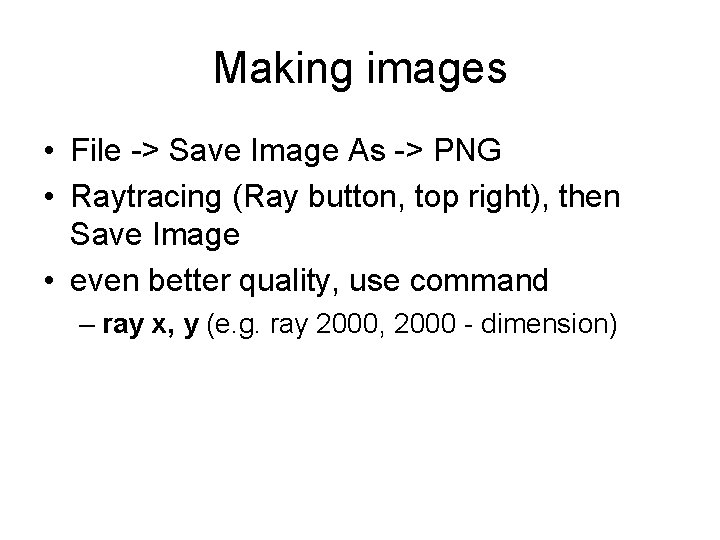
Making images • File -> Save Image As -> PNG • Raytracing (Ray button, top right), then Save Image • even better quality, use command – ray x, y (e. g. ray 2000, 2000 - dimension)
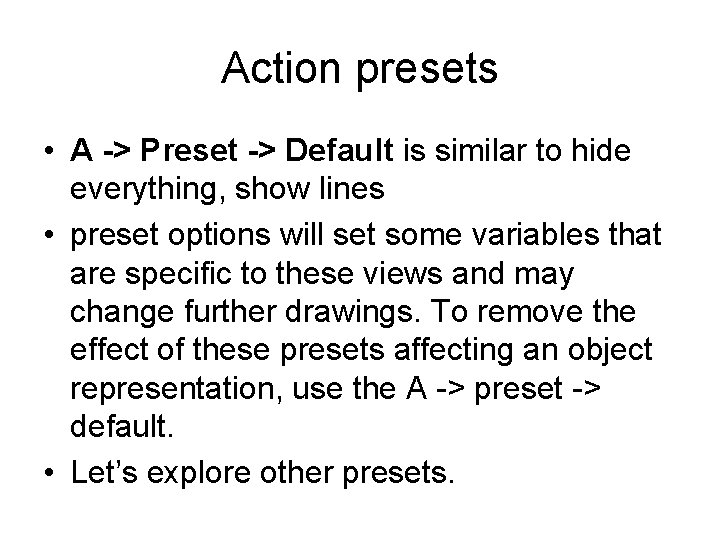
Action presets • A -> Preset -> Default is similar to hide everything, show lines • preset options will set some variables that are specific to these views and may change further drawings. To remove the effect of these presets affecting an object representation, use the A -> preset -> default. • Let’s explore other presets.
• simple • b factor putty – The segments with the highest temperature factor are shown as thicker cylinders. Regions of better resolution have thinner diameter and are usually found at the core of the protein. Mostly loops in the outside of the protein wobble: the core portions of the proteins usually appear more stable than the external loops. This is mostly useful for crystallographers but is a cool representation. • technical – Color domains in separate rainbow colors and shows backbone and side chains. • pretty and publication
• ligands – zoom in on the ligand site and show the protein as backbone except in the near vicinity of the ligand where side chains are shown. The ligand is depicted as a thicker cylinder – to zoom out, simply click on the A > Zoom • ligand sites – pertinent to looking closely at the ligand in it’s binding pocket – solid surface, 2 biw > C > Yellows > Sand, select ligand stick, sele > C > Blues > slate – Note: If you are preparing a figure for a black and white print publication, it might be advantageous to use the various gray scales, black, and white within the “grays” option. – explore others by yourself
Measuring distances • from menu: Wizard -> Masurement • click on the first atom in ligand, click on the second atom in ligand • change the color to white (ASHLC) • When you are done using the “Measurement” panel on the bottom right click Done. • If you no longer need to display the distance object, click Delete All Measurements. Alternatively you can use the corresponding “A” menu and select the delete option.
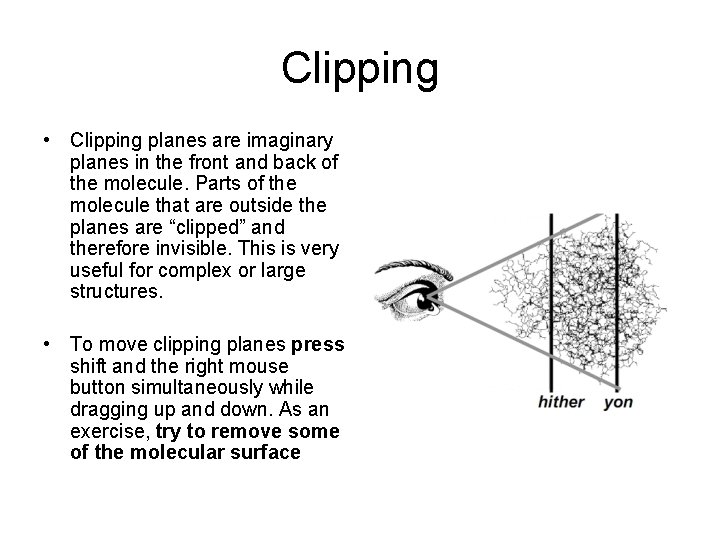
Clipping • Clipping planes are imaginary planes in the front and back of the molecule. Parts of the molecule that are outside the planes are “clipped” and therefore invisible. This is very useful for complex or large structures. • To move clipping planes press shift and the right mouse button simultaneously while dragging up and down. As an exercise, try to remove some of the molecular surface
Save your work • File -> Save session – *. pse, binary file – save your objects, settings • File -> Open
Pymol command language
• most interaction with Py. MOL is via a scripting language, not all functions are available from menus • keyword followed optionally by one or more comma-separated arguments, e. g. color red, hetatm – colors all nonprotein atoms red, color red – all atoms are red • in most cases 1 st argument is specific to command used, while the 2 nd argument is the name of the object/selection
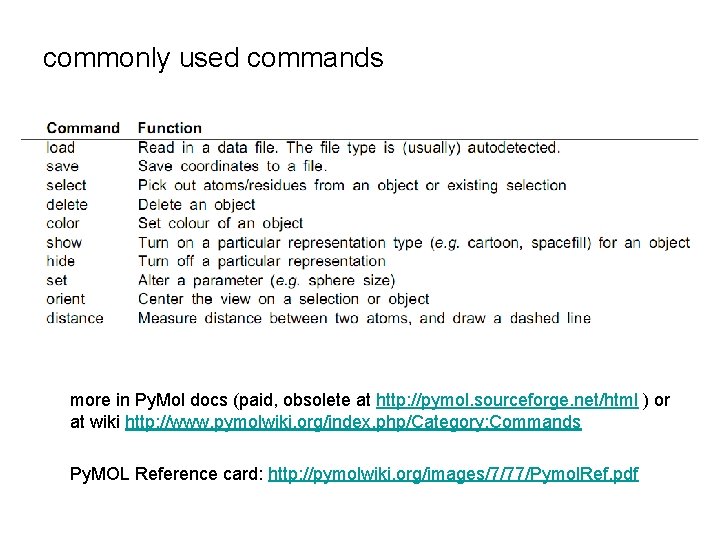
commonly used commands more in Py. Mol docs (paid, obsolete at http: //pymol. sourceforge. net/html ) or at wiki http: //www. pymolwiki. org/index. php/Category: Commands Py. MOL Reference card: http: //pymolwiki. org/images/7/77/Pymol. Ref. pdf
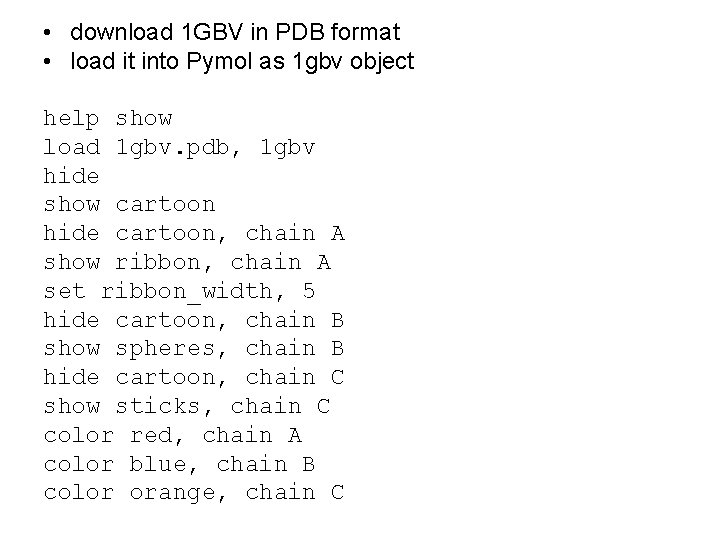
• download 1 GBV in PDB format • load it into Pymol as 1 gbv object help show load 1 gbv. pdb, 1 gbv hide show cartoon hide cartoon, chain A show ribbon, chain A set ribbon_width, 5 hide cartoon, chain B show spheres, chain B hide cartoon, chain C show sticks, chain C color red, chain A color blue, chain B color orange, chain C
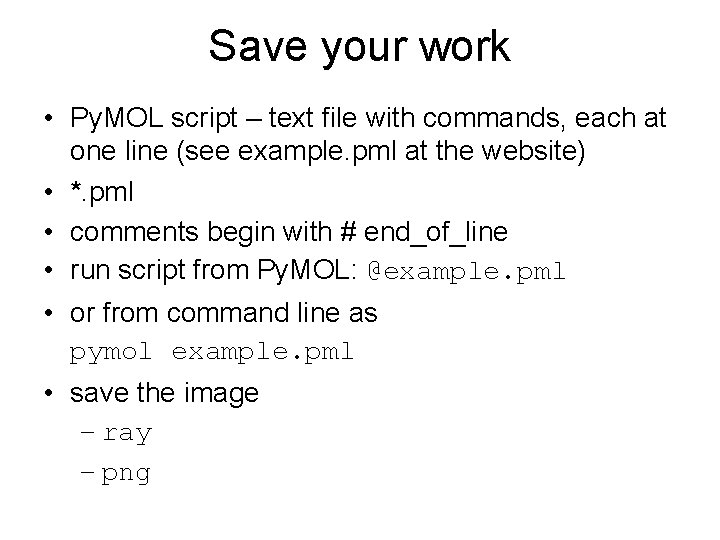
Save your work • Py. MOL script – text file with commands, each at one line (see example. pml at the website) • *. pml • comments begin with # end_of_line • run script from Py. MOL: @example. pml • or from command line as pymol example. pml • save the image – ray – png
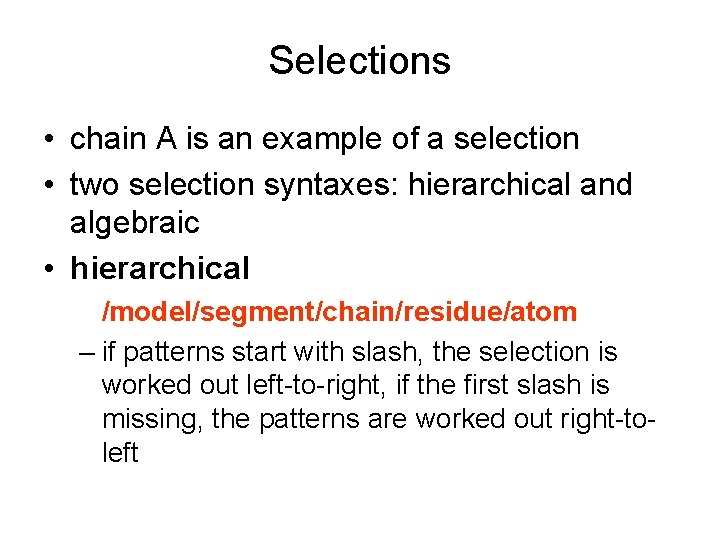
Selections • chain A is an example of a selection • two selection syntaxes: hierarchical and algebraic • hierarchical /model/segment/chain/residue/atom – if patterns start with slash, the selection is worked out left-to-right, if the first slash is missing, the patterns are worked out right-toleft
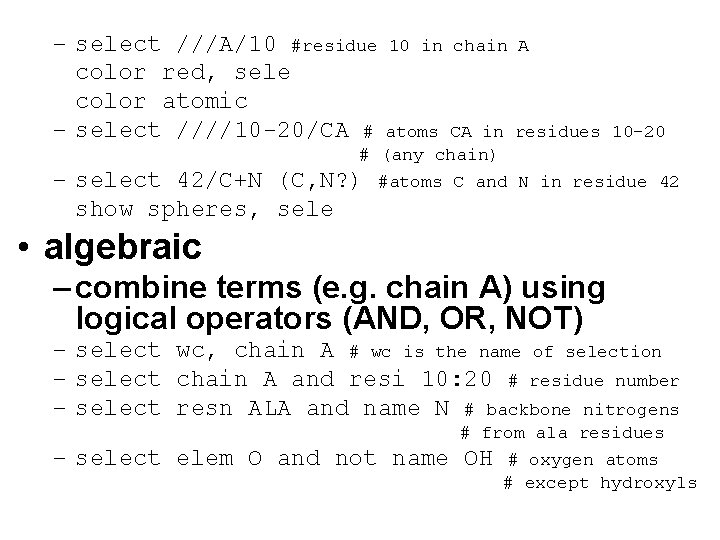
– select ///A/10 #residue 10 in chain A color red, sele color atomic – select ////10 -20/CA # atoms CA in residues 10 -20 # (any chain) – select 42/C+N (C, N? ) show spheres, sele #atoms C and N in residue 42 • algebraic – combine terms (e. g. chain A) using logical operators (AND, OR, NOT) – select wc, chain A # wc is the name of selection – select chain A and resi 10: 20 # residue number – select resn ALA and name N # backbone nitrogens # from ala residues – select elem O and not name OH # oxygen atoms # except hydroxyls
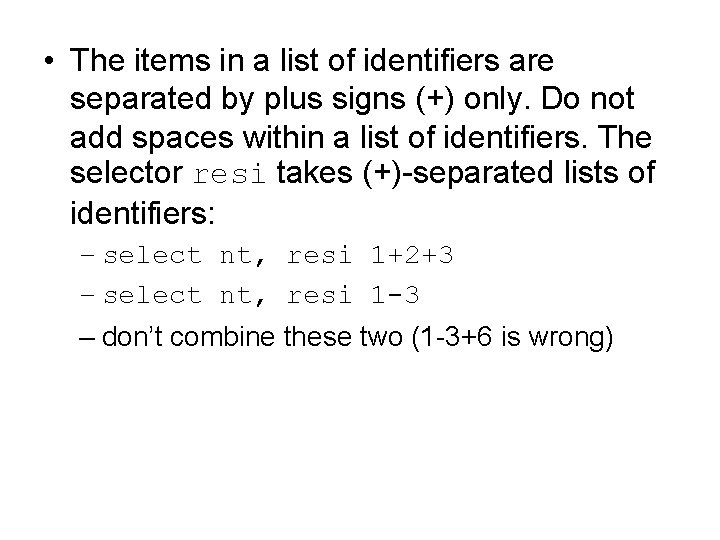
• The items in a list of identifiers are separated by plus signs (+) only. Do not add spaces within a list of identifiers. The selector resi takes (+)-separated lists of identifiers: – select nt, resi 1+2+3 – select nt, resi 1 -3 – don’t combine these two (1 -3+6 is wrong)
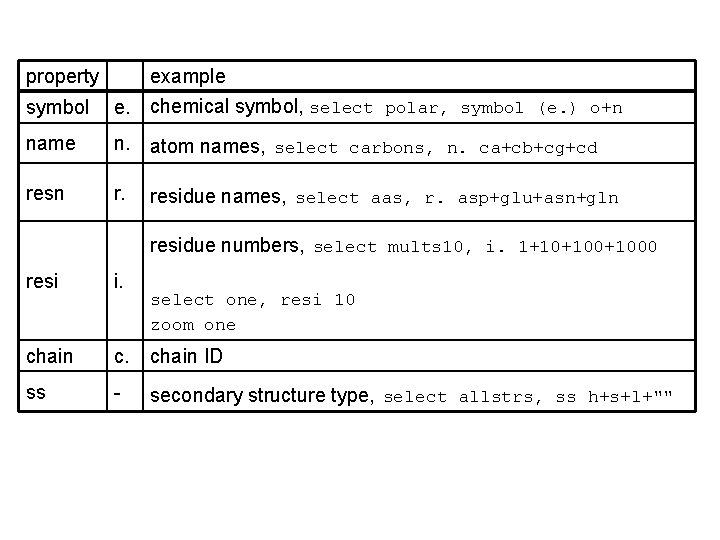
property example symbol e. chemical symbol, select polar, symbol (e. ) o+n name n. atom names, select carbons, n. ca+cb+cg+cd resn r. residue names, select aas, r. asp+glu+asn+gln residue numbers, select mults 10, i. 1+10+1000 resi i. chain c. chain ID ss - secondary structure type, select allstrs, ss h+s+l+"" select one, resi 10 zoom one
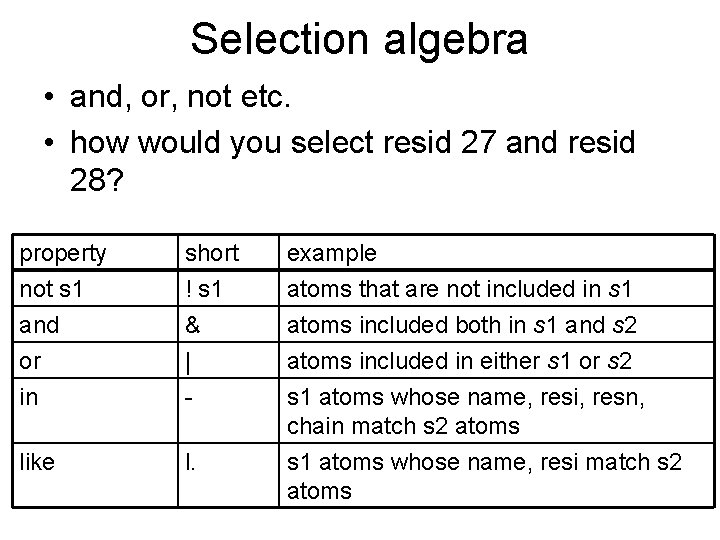
Selection algebra • and, or, not etc. • how would you select resid 27 and resid 28? property short example not s 1 ! s 1 atoms that are not included in s 1 and & atoms included both in s 1 and s 2 or | atoms included in either s 1 or s 2 in - s 1 atoms whose name, resi, resn, chain match s 2 atoms like l. s 1 atoms whose name, resi match s 2 atoms
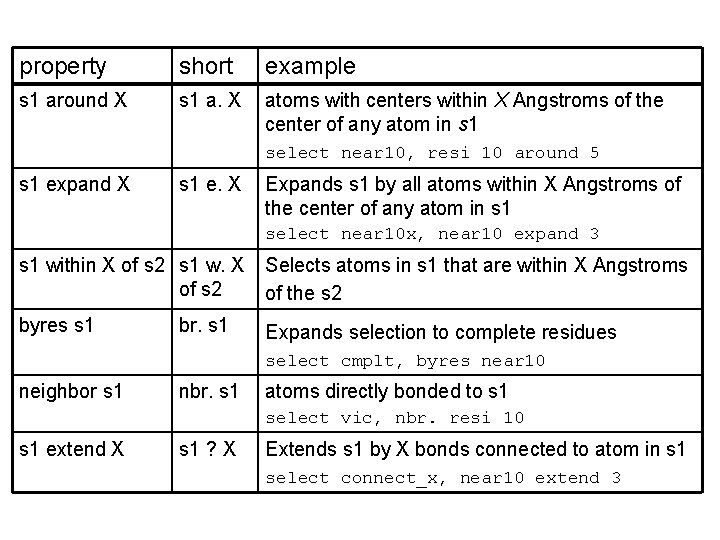
property short example s 1 around X s 1 a. X atoms with centers within X Angstroms of the center of any atom in s 1 select near 10, resi 10 around 5 s 1 expand X s 1 e. X Expands s 1 by all atoms within X Angstroms of the center of any atom in s 1 select near 10 x, near 10 expand 3 s 1 within X of s 2 s 1 w. X Selects atoms in s 1 that are within X Angstroms of s 2 of the s 2 byres s 1 br. s 1 Expands selection to complete residues select cmplt, byres near 10 neighbor s 1 nbr. s 1 atoms directly bonded to s 1 select vic, nbr. resi 10 s 1 extend X s 1 ? X Extends s 1 by X bonds connected to atom in s 1 select connect_x, near 10 extend 3
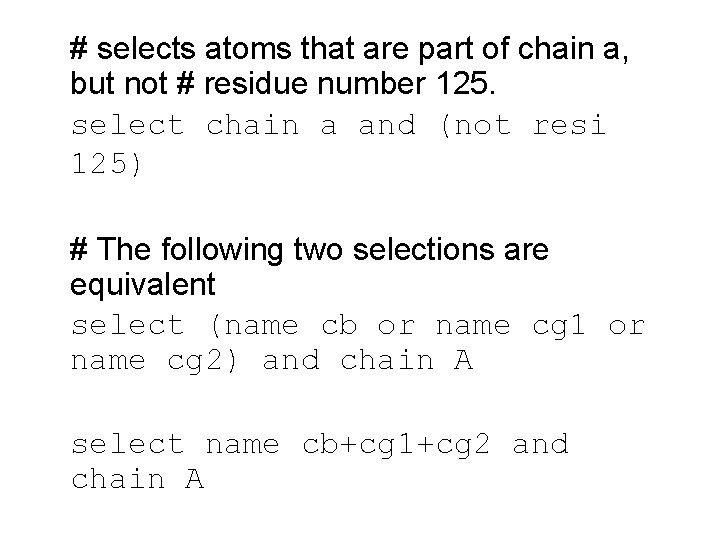
# selects atoms that are part of chain a, but not # residue number 125. select chain a and (not resi 125) # The following two selections are equivalent select (name cb or name cg 1 or name cg 2) and chain A select name cb+cg 1+cg 2 and chain A
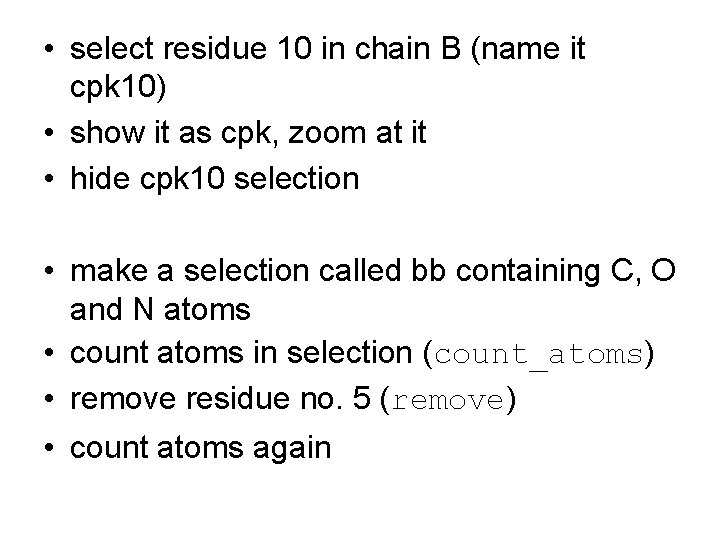
• select residue 10 in chain B (name it cpk 10) • show it as cpk, zoom at it • hide cpk 10 selection • make a selection called bb containing C, O and N atoms • count atoms in selection (count_atoms) • remove residue no. 5 (remove) • count atoms again
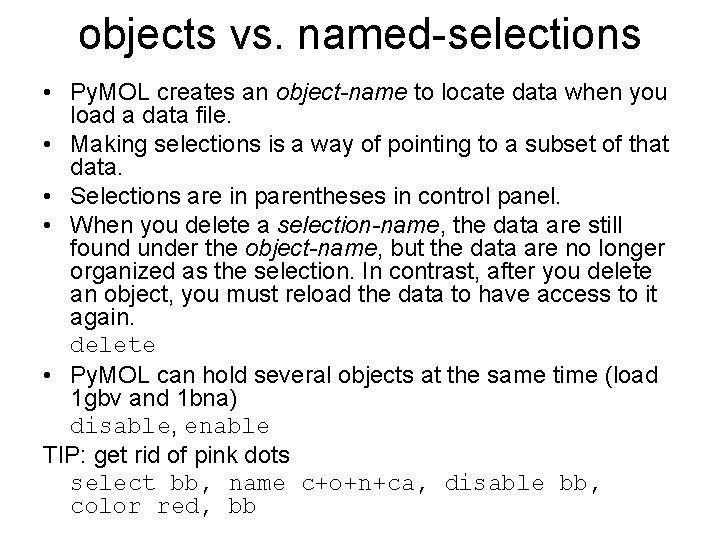
objects vs. named-selections • Py. MOL creates an object-name to locate data when you load a data file. • Making selections is a way of pointing to a subset of that data. • Selections are in parentheses in control panel. • When you delete a selection-name, the data are still found under the object-name, but the data are no longer organized as the selection. In contrast, after you delete an object, you must reload the data to have access to it again. delete • Py. MOL can hold several objects at the same time (load 1 gbv and 1 bna) disable, enable TIP: get rid of pink dots select bb, name c+o+n+ca, disable bb, color red, bb
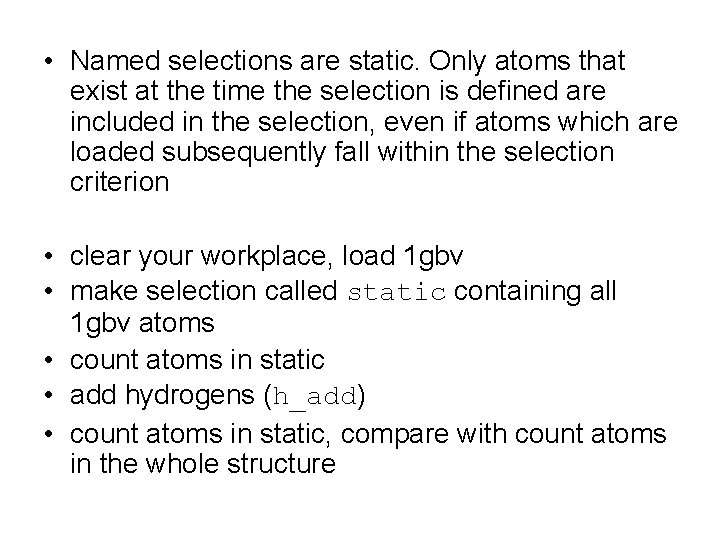
• Named selections are static. Only atoms that exist at the time the selection is defined are included in the selection, even if atoms which are loaded subsequently fall within the selection criterion • clear your workplace, load 1 gbv • make selection called static containing all 1 gbv atoms • count atoms in static • add hydrogens (h_add) • count atoms in static, compare with count atoms in the whole structure
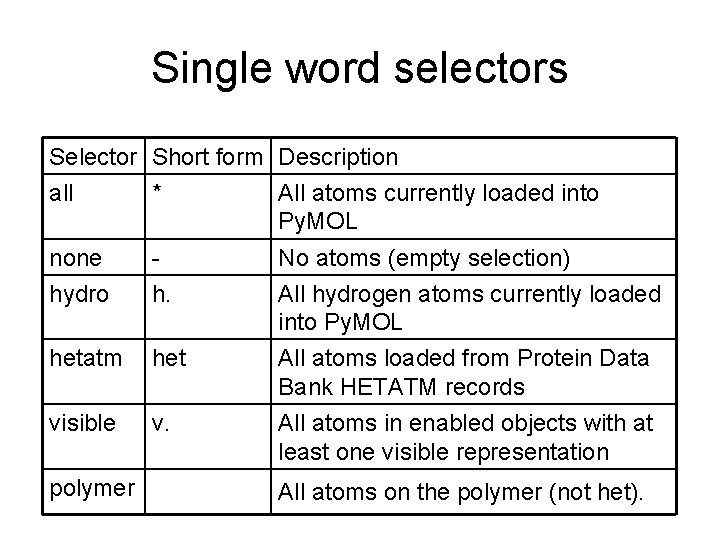
Single word selectors Selector Short form Description all * All atoms currently loaded into Py. MOL none - No atoms (empty selection) hydro h. All hydrogen atoms currently loaded into Py. MOL hetatm het All atoms loaded from Protein Data Bank HETATM records visible v. All atoms in enabled objects with at least one visible representation polymer All atoms on the polymer (not het).
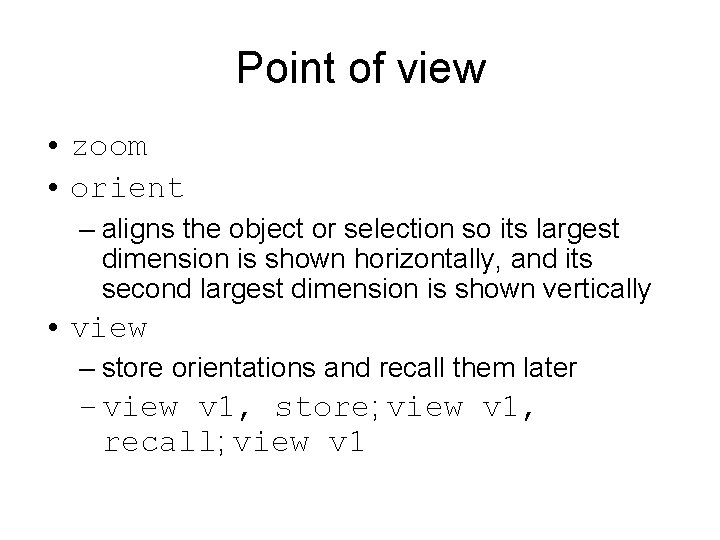
Point of view • zoom • orient – aligns the object or selection so its largest dimension is shown horizontally, and its second largest dimension is shown vertically • view – store orientations and recall them later – view v 1, store; view v 1, recall; view v 1