
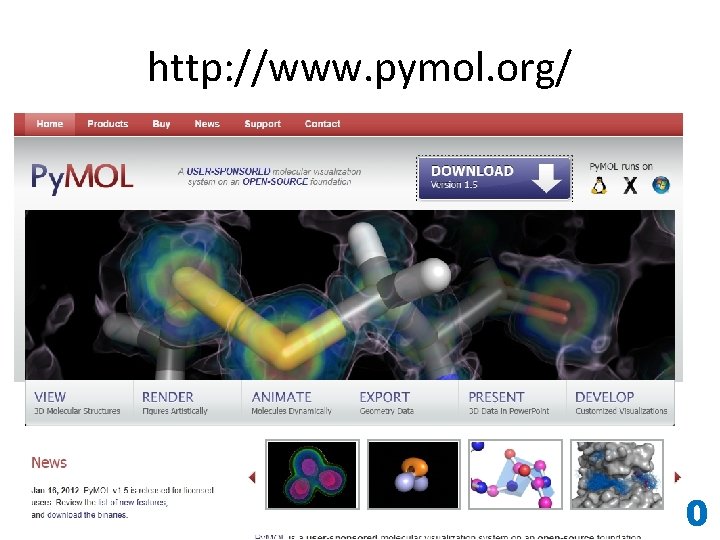
http www pymol org 0 Download Py MOL
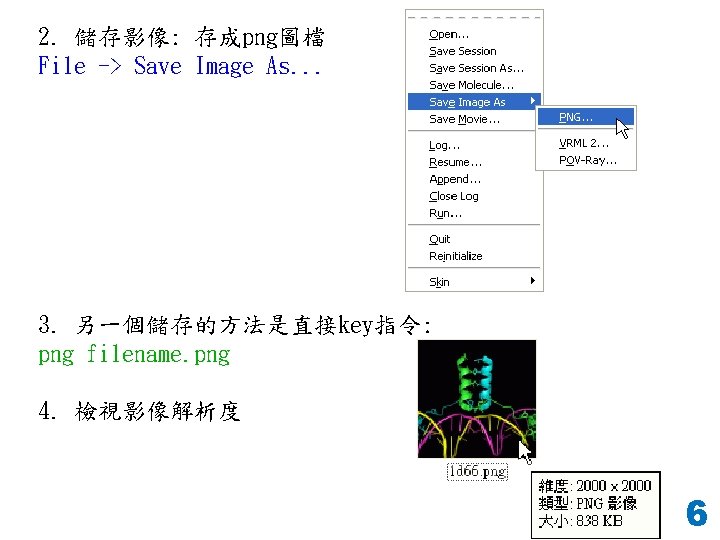
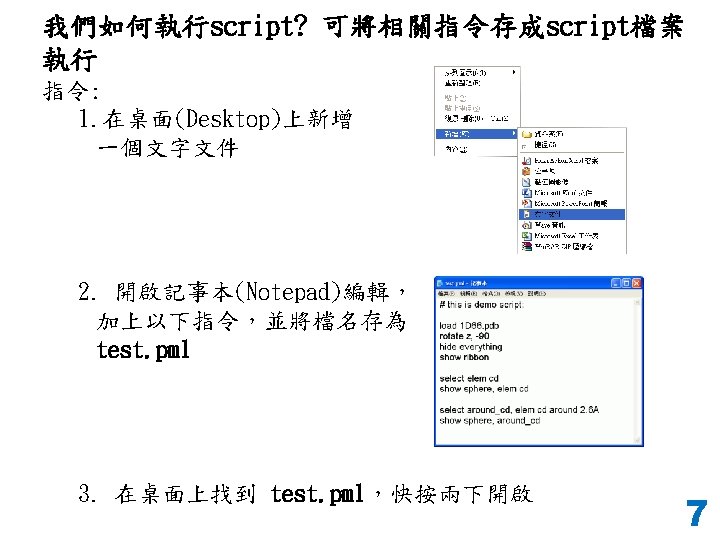
- Slides: 53
http: //www. pymol. org/ 0
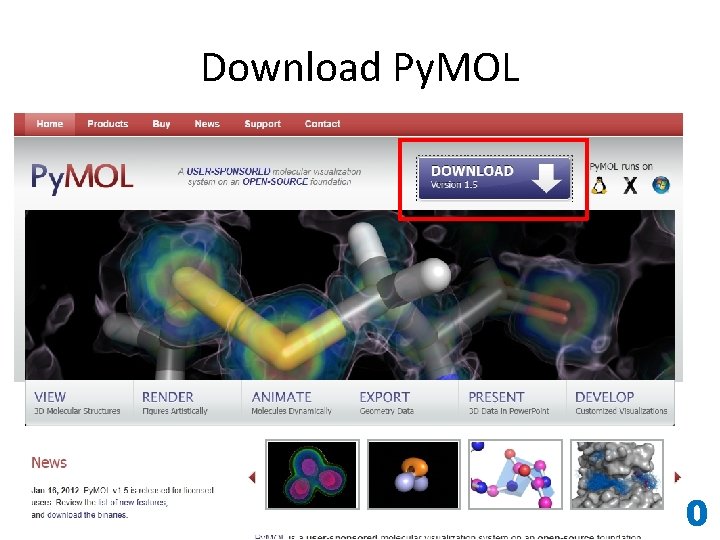
Download Py. MOL 0
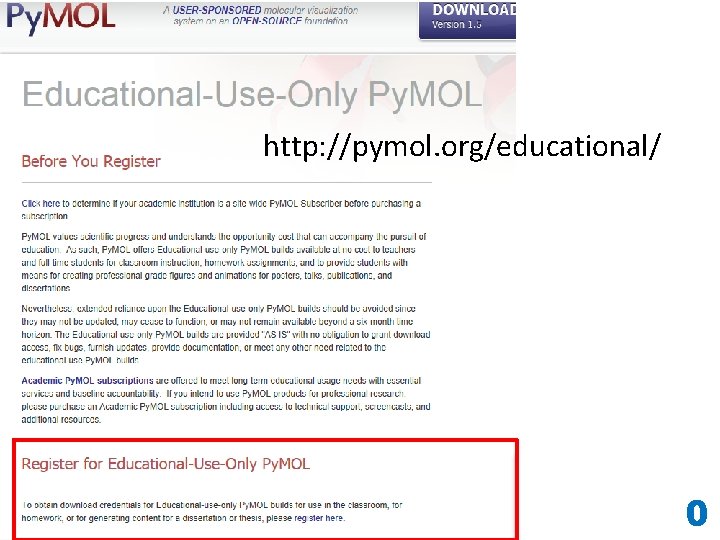
http: //pymol. org/educational/ 0
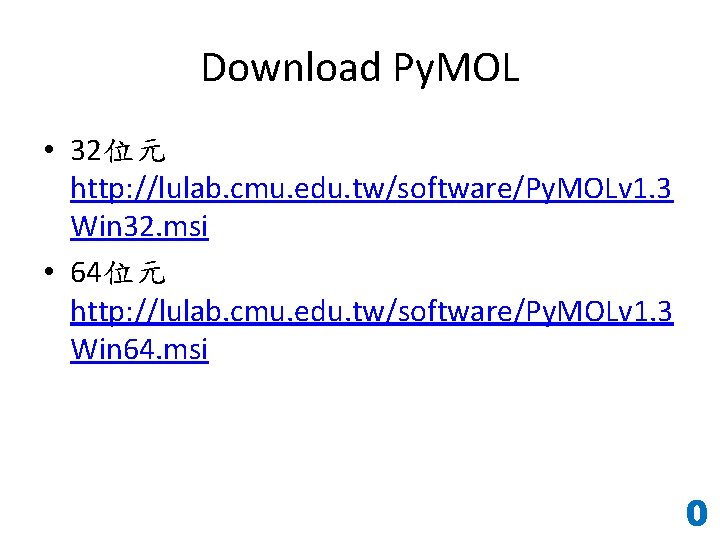
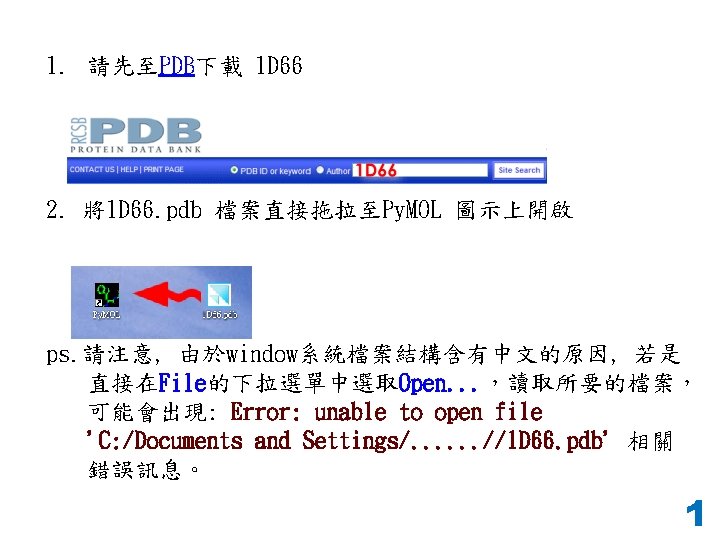
Download Py. MOL • 32位元 http: //lulab. cmu. edu. tw/software/Py. MOLv 1. 3 Win 32. msi • 64位元 http: //lulab. cmu. edu. tw/software/Py. MOLv 1. 3 Win 64. msi 0
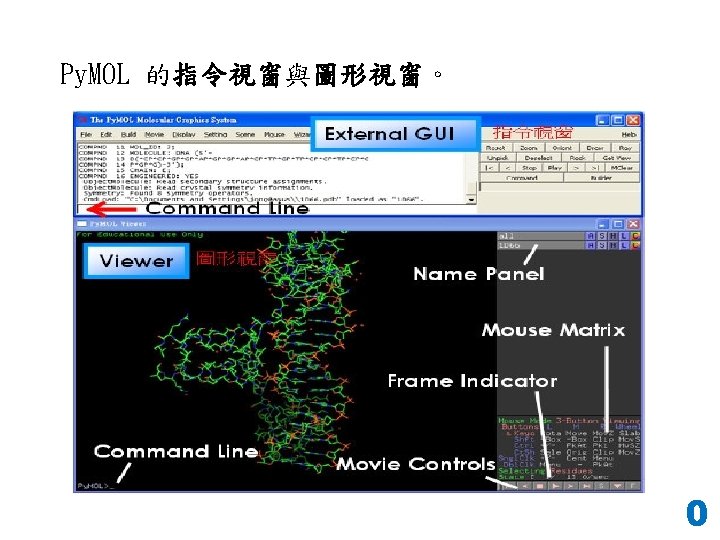
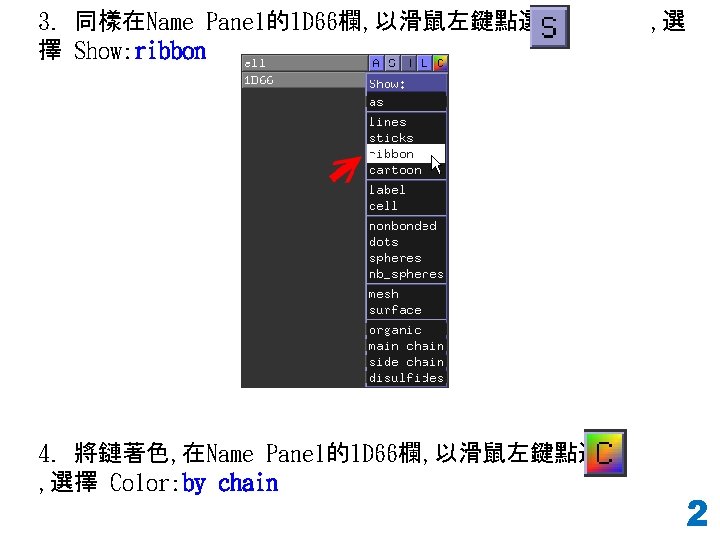
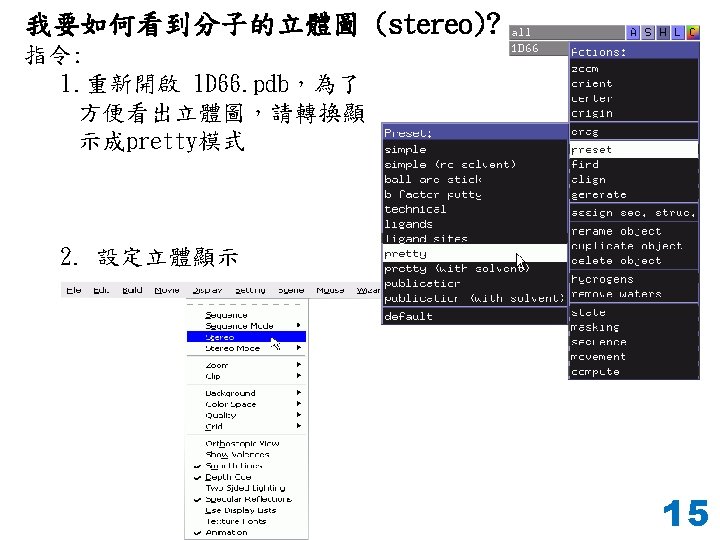
在Name Panel處, 請先了解這幾個button的用途: A: action S: show H: hide L: label C: color 0
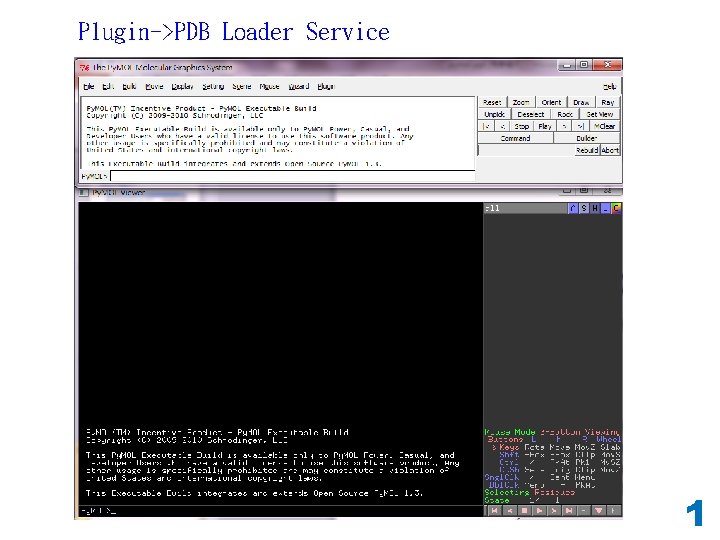
Plugin->PDB Loader Service 1
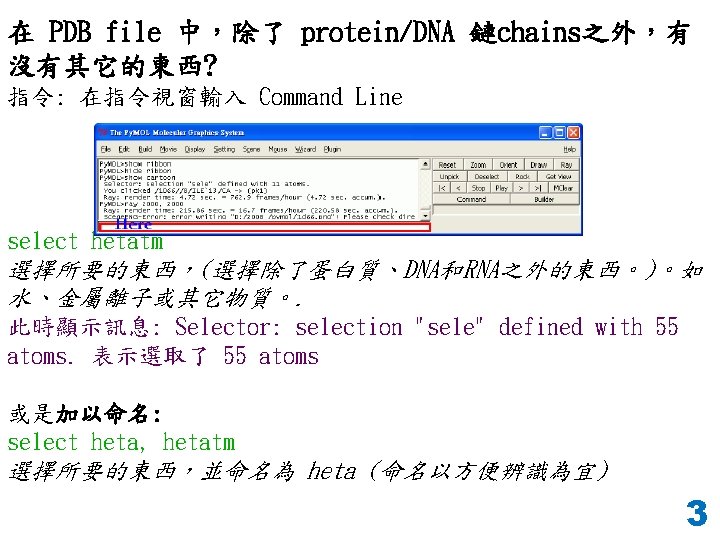
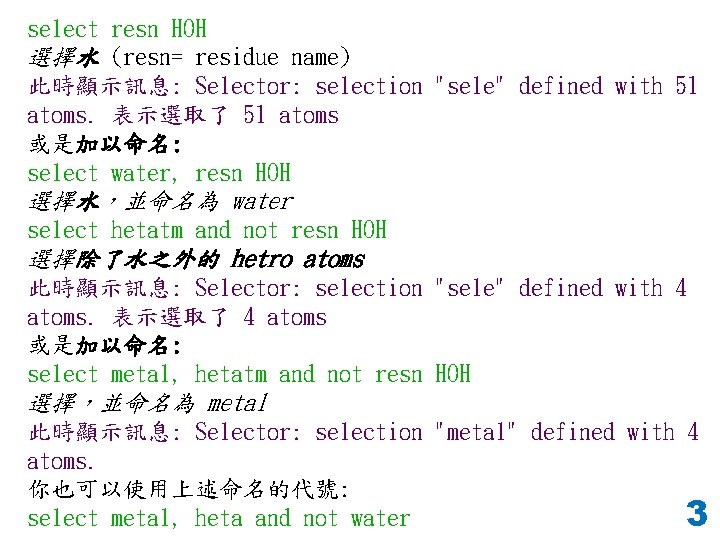
select resn HOH 選擇水 (resn= residue name) 此時顯示訊息: Selector: selection "sele" defined with 51 atoms. 表示選取了 51 atoms 或是加以命名: select water, resn HOH 選擇水,並命名為 water select hetatm and not resn HOH 選擇除了水之外的 hetro atoms 此時顯示訊息: Selector: selection "sele" defined with 4 atoms. 表示選取了 4 atoms 或是加以命名: select metal, hetatm and not resn HOH 選擇,並命名為 metal 此時顯示訊息: Selector: selection "metal" defined with 4 atoms. 你也可以使用上述命名的代號: select metal, heta and not water 3
show spheres, metal 請貼圖 3
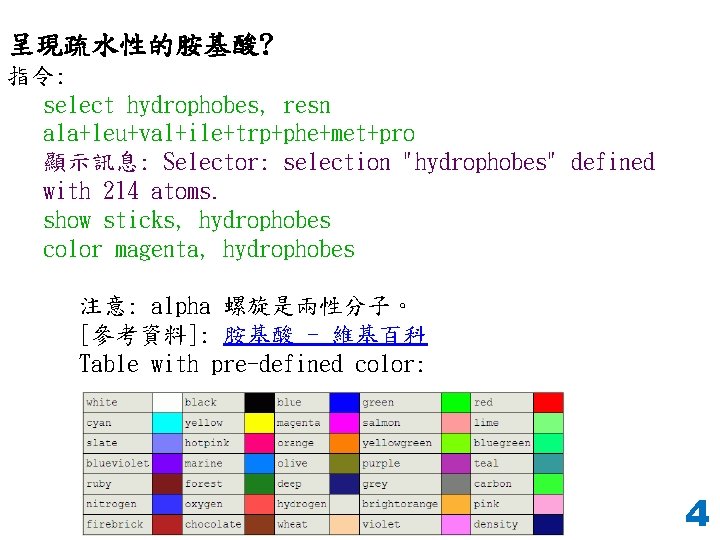
呈現疏水性的胺基酸? 指令: select hydrophobes, resn ala+leu+val+ile+trp+phe+met+pro 顯示訊息: Selector: selection "hydrophobes" defined with 214 atoms. show sticks, hydrophobes color magenta, hydrophobes 注意: alpha 螺旋是兩性分子。 [參考資料]: 胺基酸 - 維基百科 Table with pre-defined color: 4
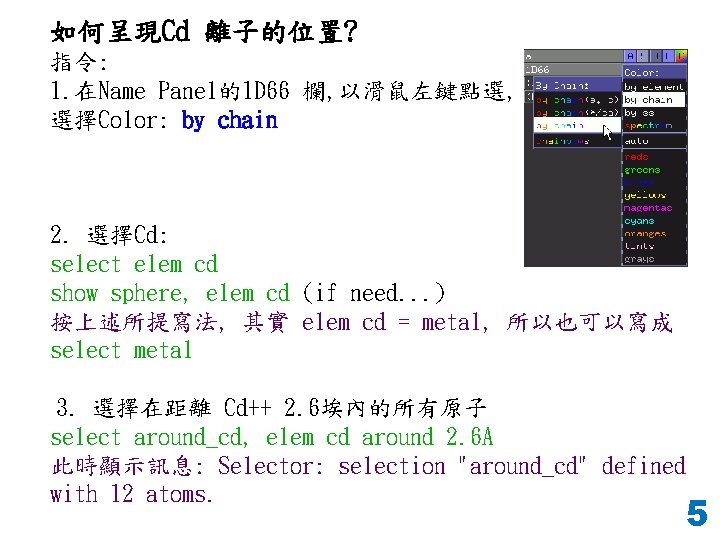
如何呈現Cd 離子的位置? 指令: 1. 在Name Panel的1 D 66 欄, 以滑鼠左鍵點選, 選擇Color: by chain 2. 選擇Cd: select elem cd show sphere, elem cd (if need. . . ) 按上述所提寫法, 其實 elem cd = metal, 所以也可以寫成 select metal 3. 選擇在距離 Cd++ 2. 6埃內的所有原子 select around_cd, elem cd around 2. 6 A 此時顯示訊息: Selector: selection "around_cd" defined with 12 atoms. 5
show sphere, around_cd 在 Name Panel 的 around_cd 欄, 以滑鼠左鍵點選 擇 Color: by element , 選 請貼圖 5
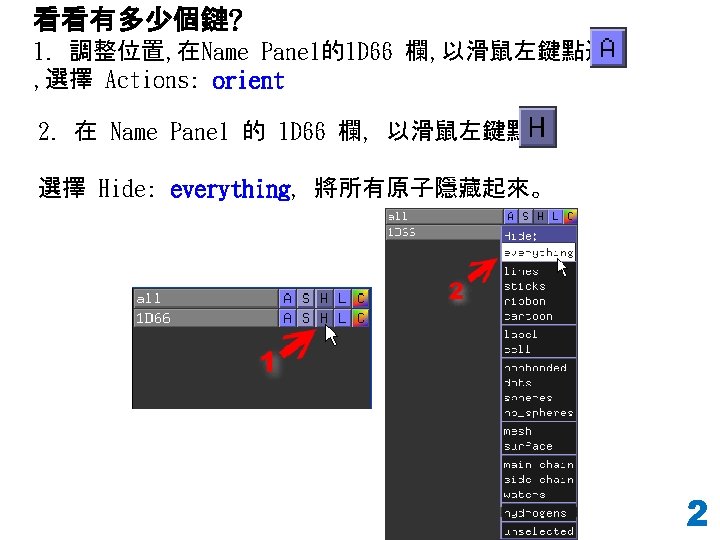
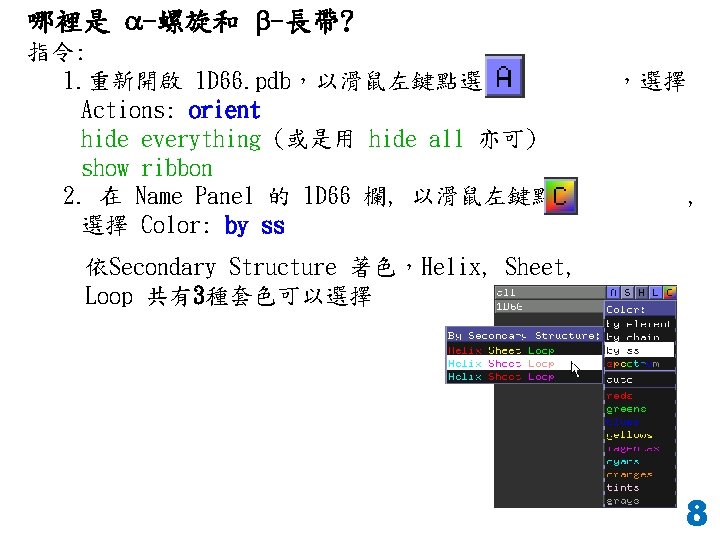
哪裡是 a-螺旋和 b-長帶? 指令: 1. 重新開啟 1 D 66. pdb,以滑鼠左鍵點選 Actions: orient hide everything (或是用 hide all 亦可) show ribbon 2. 在 Name Panel 的 1 D 66 欄, 以滑鼠左鍵點選 選擇 Color: by ss ,選擇 , 依Secondary Structure 著色,Helix, Sheet, Loop 共有3種套色可以選擇 8
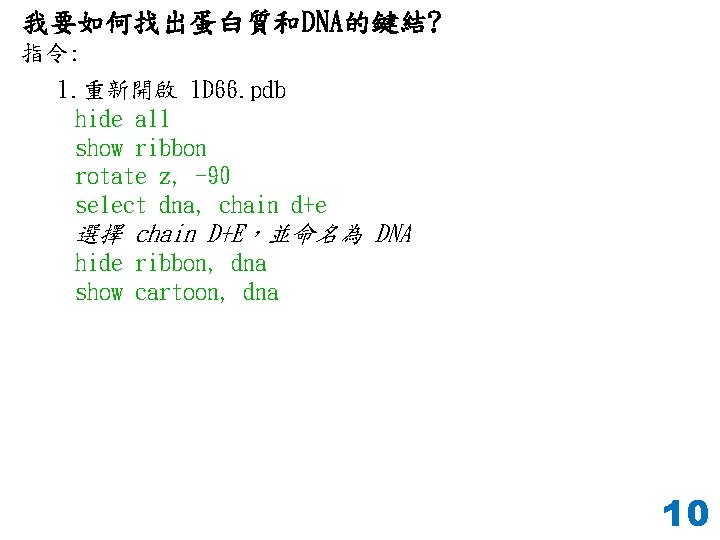
我要如何找出蛋白質和DNA的鍵結? 指令: 1. 重新開啟 1 D 66. pdb hide all show ribbon rotate z, -90 select dna, chain d+e 選擇 chain D+E,並命名為 DNA hide ribbon, dna show cartoon, dna 10
select atom 01, dna around 3. 1 and not dna 選擇距離 DNA 3. 1 A內,但不選擇 DNA! 上列的指令應該會選 出 35個原子! 顯示訊息: Selector: selection "atom 01" defined with 35 atoms. show dots, atom 01 現在可滾動滑鼠中鍵滾輪,查看相對位置 請貼圖 10
hide dots, atom 01 select atom 02, atom 01 and not resn HOH 刪去 water. 按下 Enter,總共選擇了19個原子 顯示訊息: Selector: selection "atom 02" defined with 19 atoms. show sphere, atom 02 請貼圖 10
select protein, chain a+b select atom 03, protein around 3. 1 and dna 顯示訊息: Selector: selection "atom 03" defined with 22 atoms. hide cartoon, dna show sticks, dna 請貼圖 改變DNA為 sticks 顯示模式,便於評估氫鍵 10
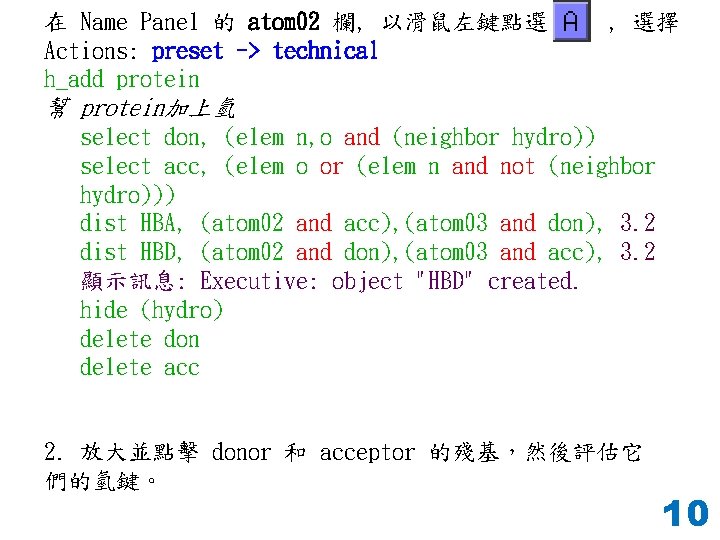
在 Name Panel 的 atom 02 欄, 以滑鼠左鍵點選 Actions: preset -> technical h_add protein , 選擇 幫 protein加上氫 select don, (elem n, o and (neighbor hydro)) select acc, (elem o or (elem n and not (neighbor hydro))) dist HBA, (atom 02 and acc), (atom 03 and don), 3. 2 dist HBD, (atom 02 and don), (atom 03 and acc), 3. 2 顯示訊息: Executive: object "HBD" created. hide (hydro) delete don delete acc 2. 放大並點擊 donor 和 acceptor 的殘基,然後評估它 們的氫鍵。 10
我要如何看到一個分子的內部? 指令: orient 1 d 66 remove resn HOH 刪去水分子 顯示訊息: Remove: eliminated 51 atoms in model "1 D 66". util. cbaw 1 d 66 # color the 1 D 66 model by element CHNOS #7 (carbon white) hide lines show sphere zoom 1 d 66, -20 設定負值=>放大, 正值=>縮小) 滾動滑鼠中鍵滾輪,執行平板面模式(slab mode) 呈現剖面圖,在剖面之前的原子將看不到,只看到剖面之後 的物質。 11
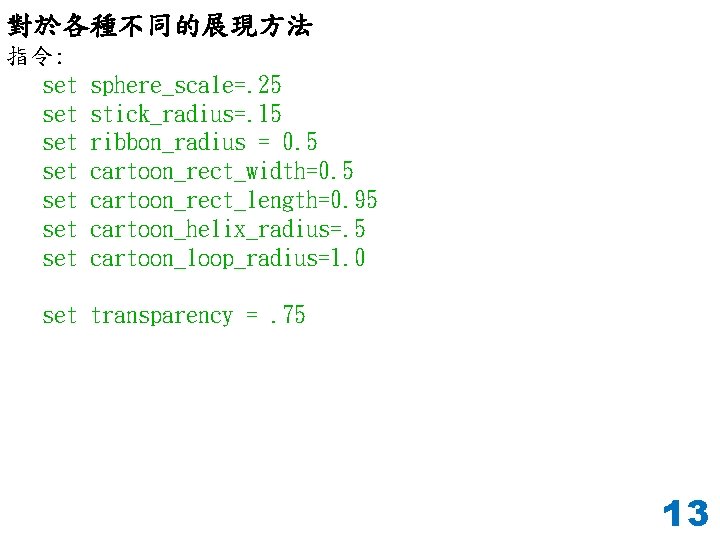
對於各種不同的展現方法 指令: set set sphere_scale=. 25 stick_radius=. 15 ribbon_radius = 0. 5 cartoon_rect_width=0. 5 cartoon_rect_length=0. 95 cartoon_helix_radius=. 5 cartoon_loop_radius=1. 0 set transparency =. 75 13
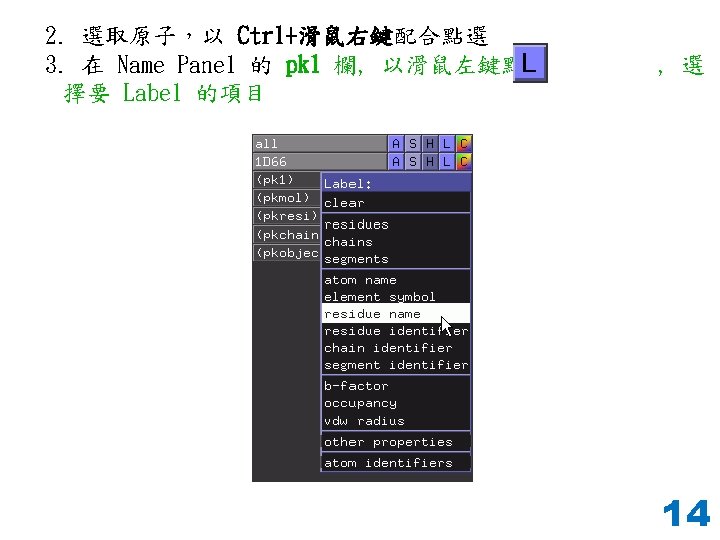
我要如何標示原子? 指令: 1. 重新開啟 1 D 66. pdb orient 1 d 66 zoom 1 d 66, -30 move y, -25 請貼圖 14
show sticks, (resi 59) 將 1 D 66 (PDB編號 59)以棒狀形式呈現,包括 chain A 和 chain B 請貼圖 16
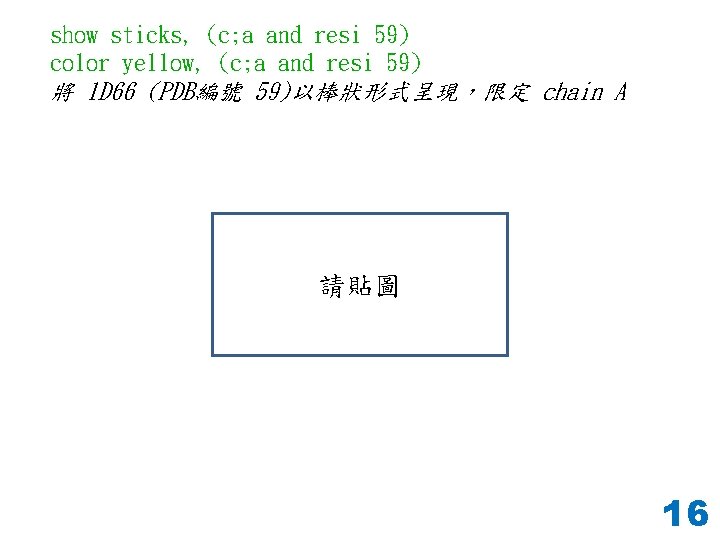
show sticks, (c; a and resi 59) color yellow, (c; a and resi 59) 將 1 D 66 (PDB編號 59)以棒狀形式呈現,限定 chain A 請貼圖 16
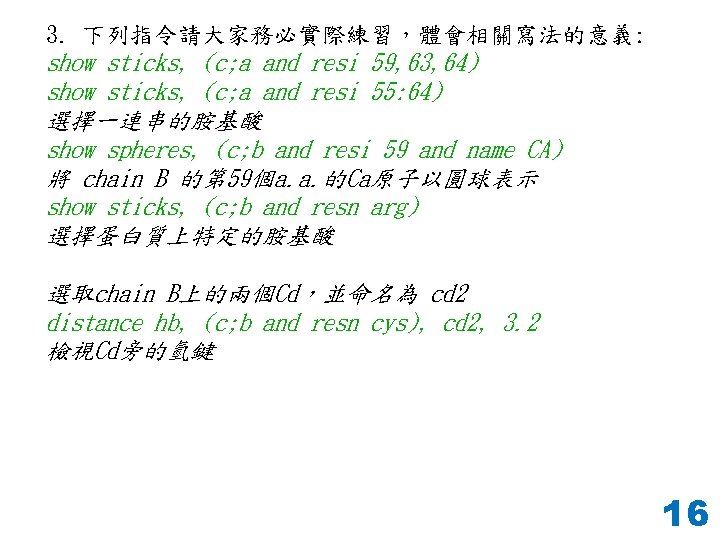
3. 下列指令請大家務必實際練習,體會相關寫法的意義: show sticks, (c; a and resi 59, 63, 64) show sticks, (c; a and resi 55: 64) 選擇一連串的胺基酸 show spheres, (c; b and resi 59 and name CA) 將 chain B 的第 59個a. a. 的Ca原子以圓球表示 show sticks, (c; b and resn arg) 選擇蛋白質上特定的胺基酸 選取chain B上的兩個Cd,並命名為 cd 2 distance hb, (c; b and resn cys), cd 2, 3. 2 檢視Cd旁的氫鍵 16
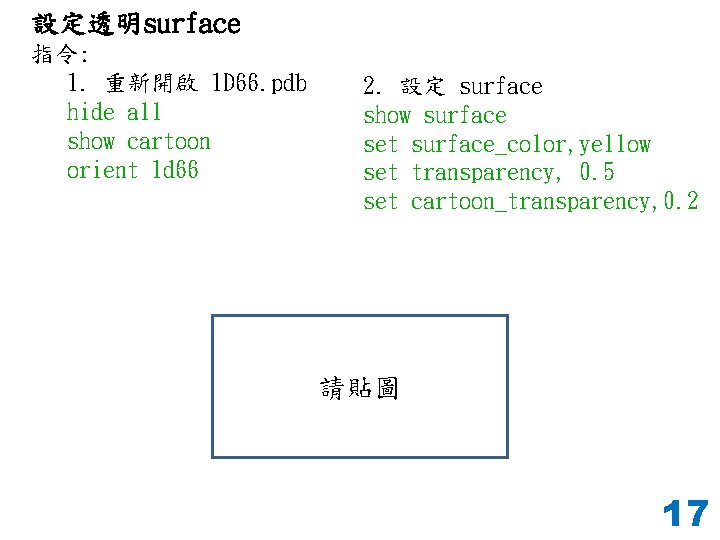
設定透明surface 指令: 1. 重新開啟 1 D 66. pdb hide all show cartoon orient 1 d 66 2. 設定 surface show surface set surface_color, yellow set transparency, 0. 5 set cartoon_transparency, 0. 2 請貼圖 17
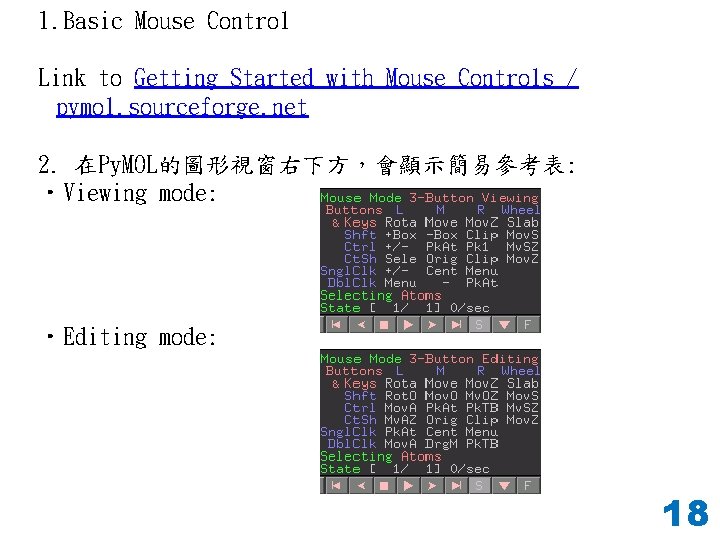
1. Basic Mouse Control Link to Getting Started with Mouse Controls / pymol. sourceforge. net 2. 在Py. MOL的圖形視窗右下方,會顯示簡易參考表: • Viewing mode: • Editing mode: 18
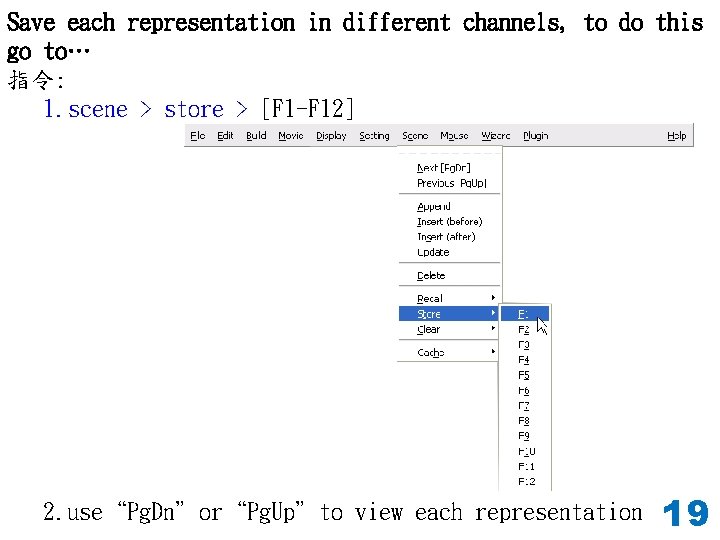
Save each representation in different channels, to do this go to… 指令: 1. scene > store > [F 1 -F 12] 2. use“Pg. Dn”or“Pg. Up”to view each representation 19