Instructors Guide to Teaching Solid Works Software Lesson
- Slides: 38
Instructor’s Guide to Teaching Solid. Works Software Lesson 2 Ι © Dassault Systèmes Ι Confidential Information Ι School’s Name Teacher’s Name Date 1
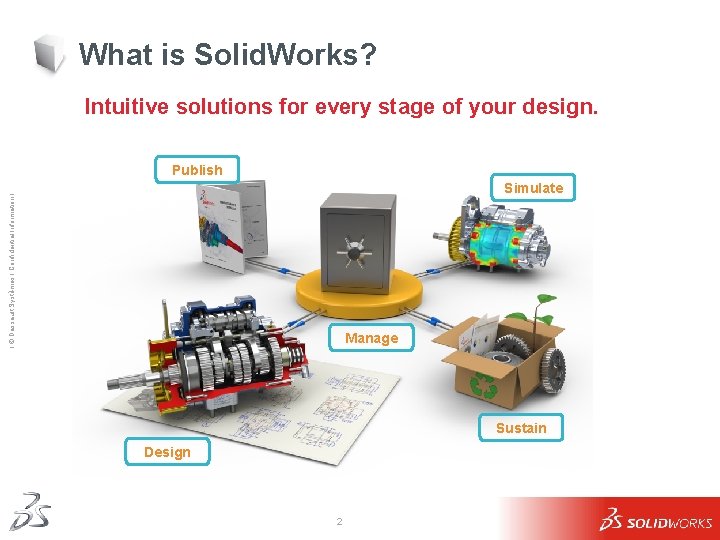
What is Solid. Works? Intuitive solutions for every stage of your design. Publish Ι © Dassault Systèmes Ι Confidential Information Ι Simulate Manage Sustain Design 2
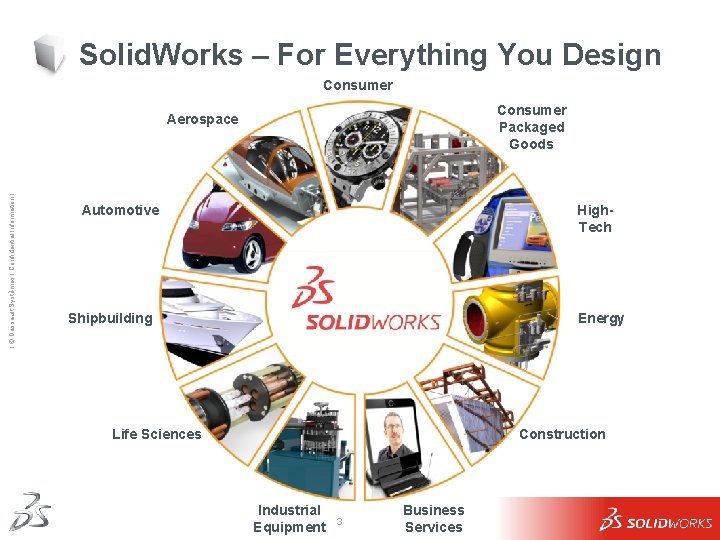
Solid. Works – For Everything You Design Consumer Packaged Goods Ι © Dassault Systèmes Ι Confidential Information Ι Aerospace Automotive High. Tech Shipbuilding Energy Life Sciences Construction Industrial Equipment 3 Business Services
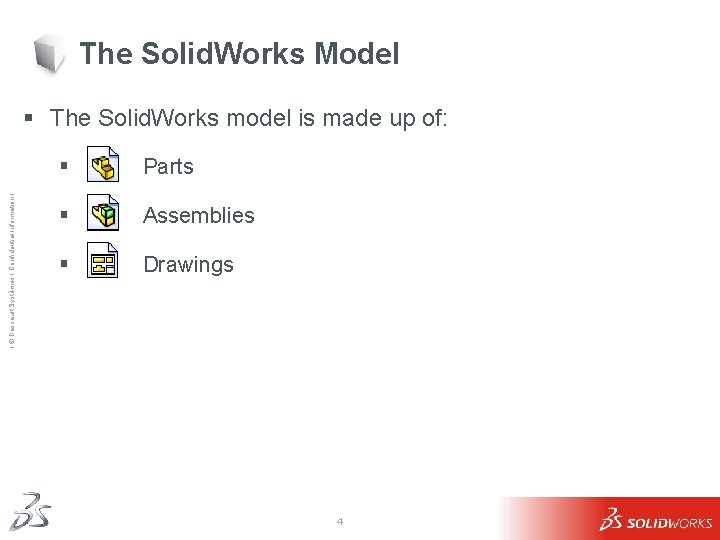
The Solid. Works Model Ι © Dassault Systèmes Ι Confidential Information Ι § The Solid. Works model is made up of: § Parts § Assemblies § Drawings 4
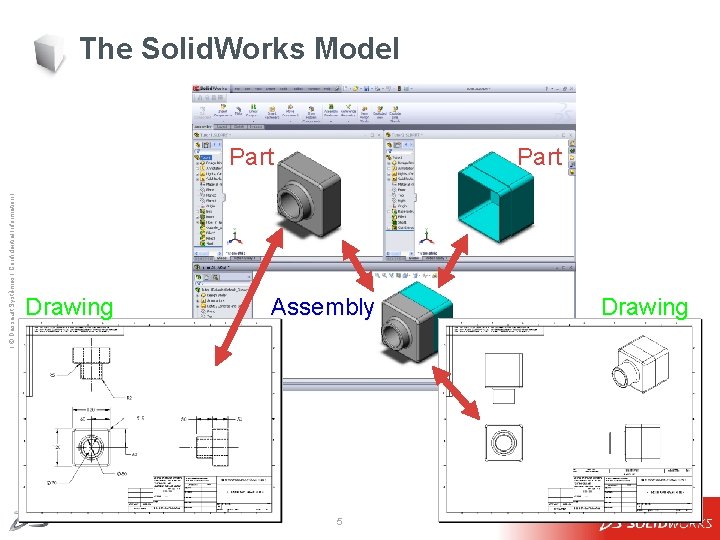
The Solid. Works Model Ι © Dassault Systèmes Ι Confidential Information Ι Part Drawing Part Assembly 5 Drawing
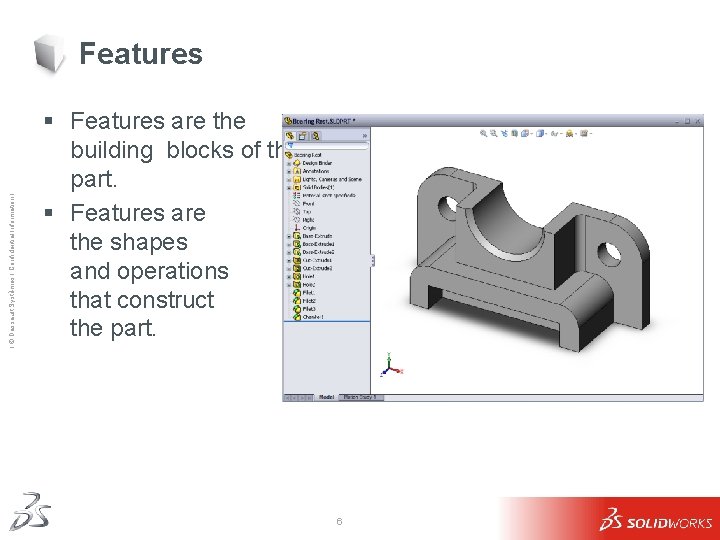
Ι © Dassault Systèmes Ι Confidential Information Ι Features § Features are the building blocks of the part. § Features are the shapes and operations that construct the part. 6
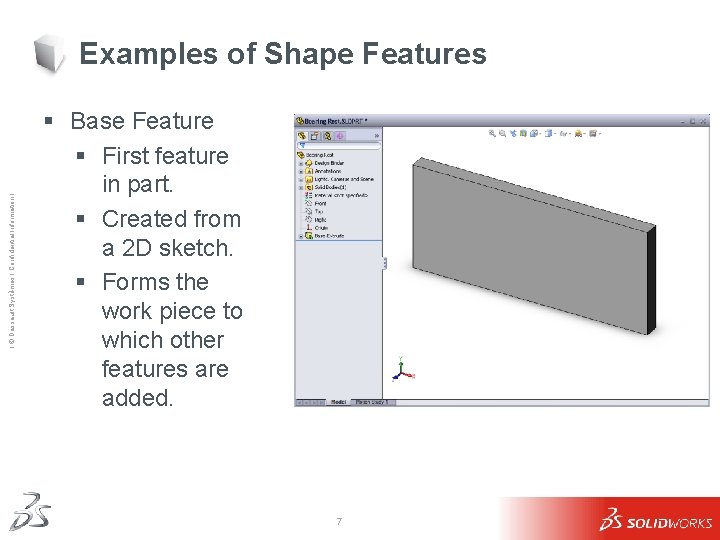
Ι © Dassault Systèmes Ι Confidential Information Ι Examples of Shape Features § Base Feature § First feature in part. § Created from a 2 D sketch. § Forms the work piece to which other features are added. 7
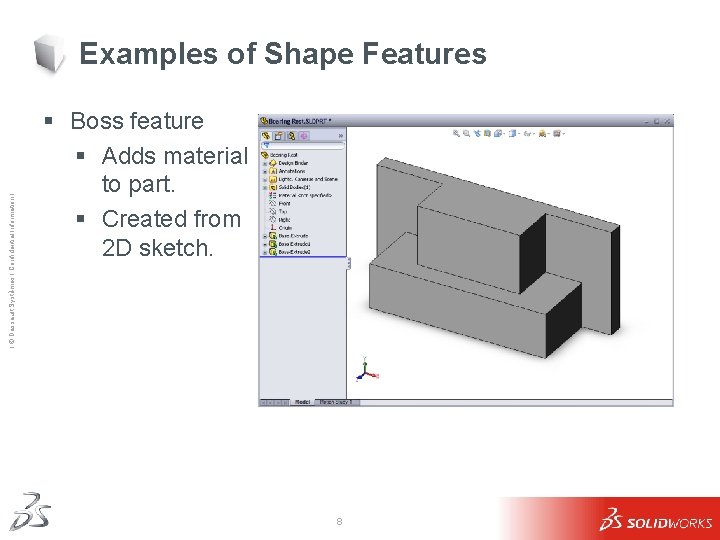
Ι © Dassault Systèmes Ι Confidential Information Ι Examples of Shape Features § Boss feature § Adds material to part. § Created from 2 D sketch. 8
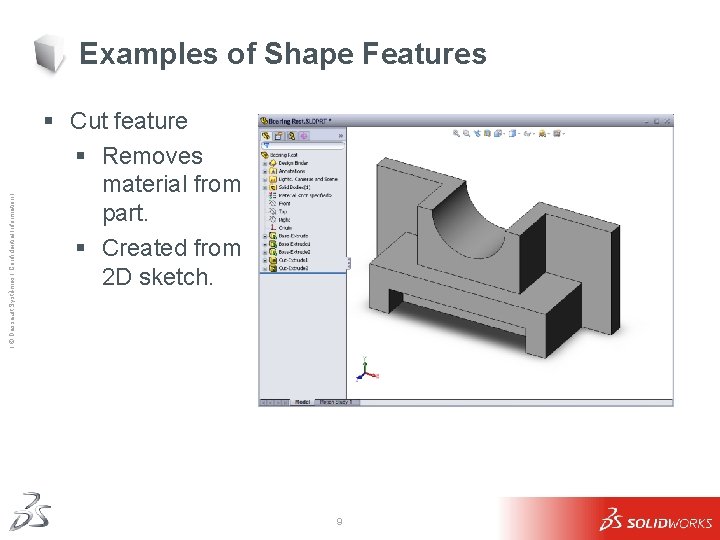
Ι © Dassault Systèmes Ι Confidential Information Ι Examples of Shape Features § Cut feature § Removes material from part. § Created from 2 D sketch. 9
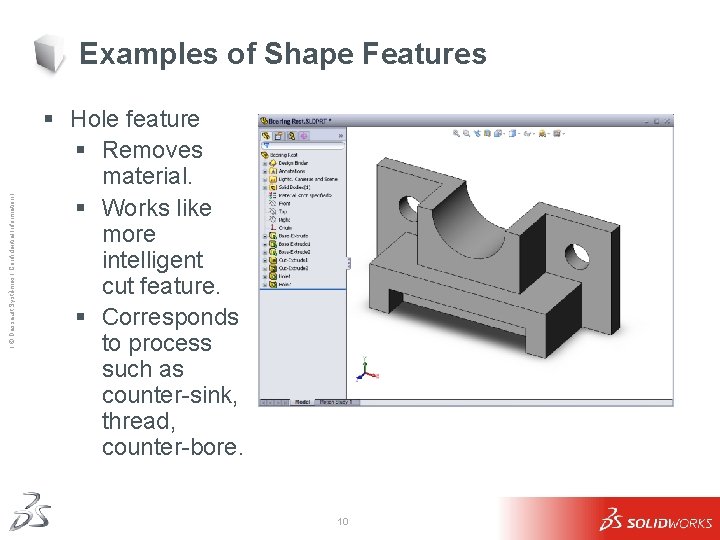
Ι © Dassault Systèmes Ι Confidential Information Ι Examples of Shape Features § Hole feature § Removes material. § Works like more intelligent cut feature. § Corresponds to process such as counter-sink, thread, counter-bore. 10
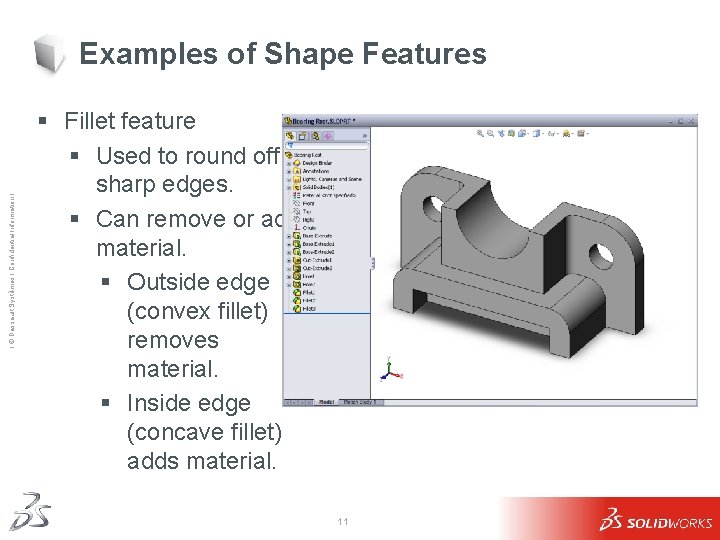
Ι © Dassault Systèmes Ι Confidential Information Ι Examples of Shape Features § Fillet feature § Used to round off sharp edges. § Can remove or add material. § Outside edge (convex fillet) removes material. § Inside edge (concave fillet) adds material. 11
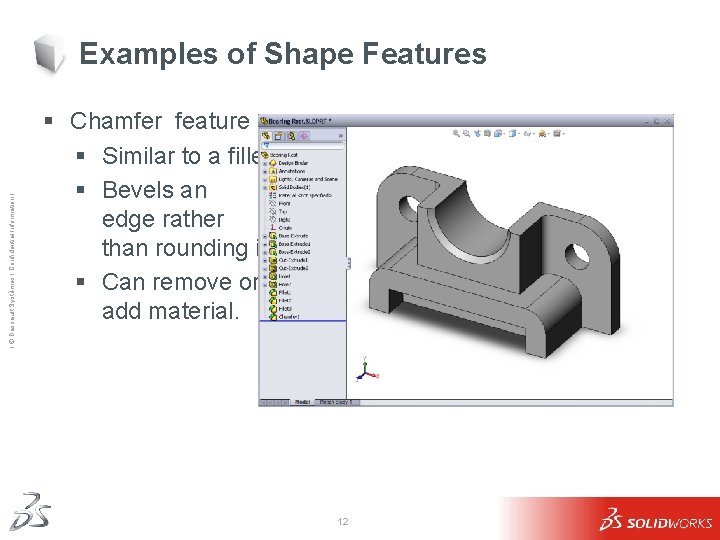
Ι © Dassault Systèmes Ι Confidential Information Ι Examples of Shape Features § Chamfer feature § Similar to a fillet. § Bevels an edge rather than rounding it. § Can remove or add material. 12
Ι © Dassault Systèmes Ι Confidential Information Ι Sketched Features & Operation Features § Sketched Features § Shape features have sketches. § Sketched features are built from 2 D profiles. § Operation Features § Operation features do not have sketches. § Applied directly to the work piece by selecting edges or faces. 13
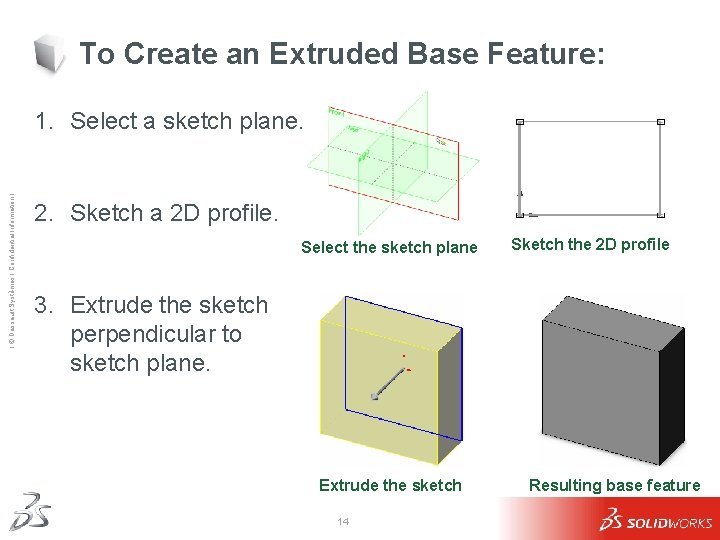
To Create an Extruded Base Feature: Ι © Dassault Systèmes Ι Confidential Information Ι 1. Select a sketch plane. 2. Sketch a 2 D profile. Select the sketch plane Sketch the 2 D profile 3. Extrude the sketch perpendicular to sketch plane. Extrude the sketch 14 Resulting base feature
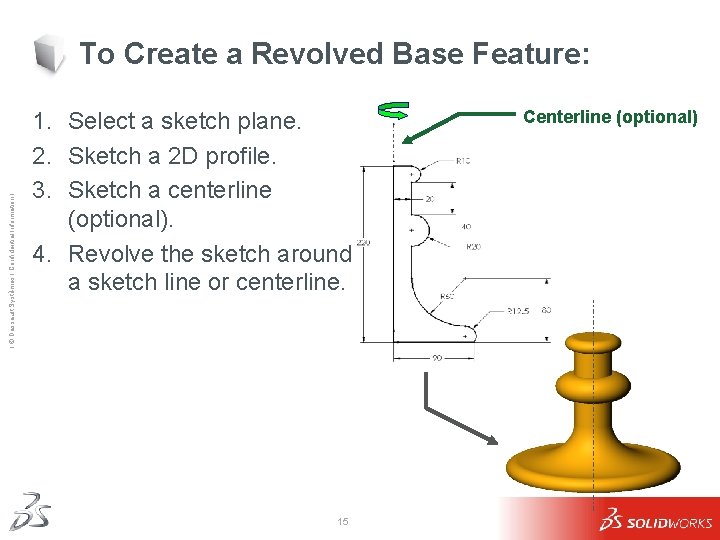
Ι © Dassault Systèmes Ι Confidential Information Ι To Create a Revolved Base Feature: 1. Select a sketch plane. 2. Sketch a 2 D profile. 3. Sketch a centerline (optional). 4. Revolve the sketch around a sketch line or centerline. 15 Centerline (optional)
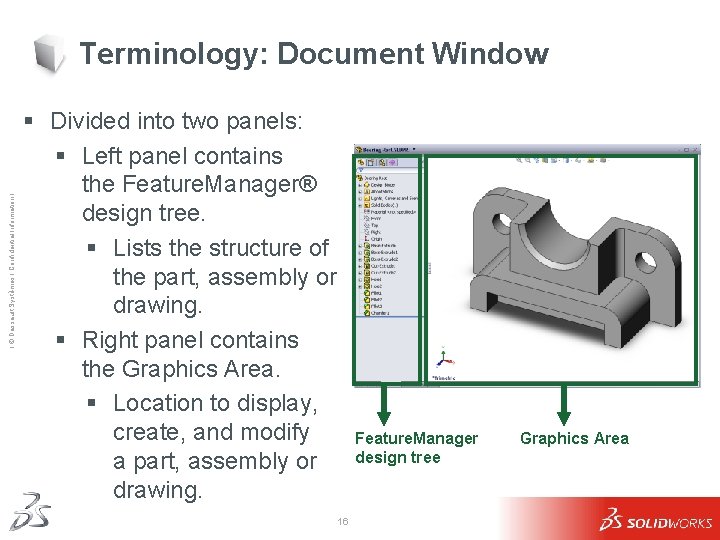
Ι © Dassault Systèmes Ι Confidential Information Ι Terminology: Document Window § Divided into two panels: § Left panel contains the Feature. Manager® design tree. § Lists the structure of the part, assembly or drawing. § Right panel contains the Graphics Area. § Location to display, create, and modify a part, assembly or drawing. Feature. Manager design tree 16 Graphics Area
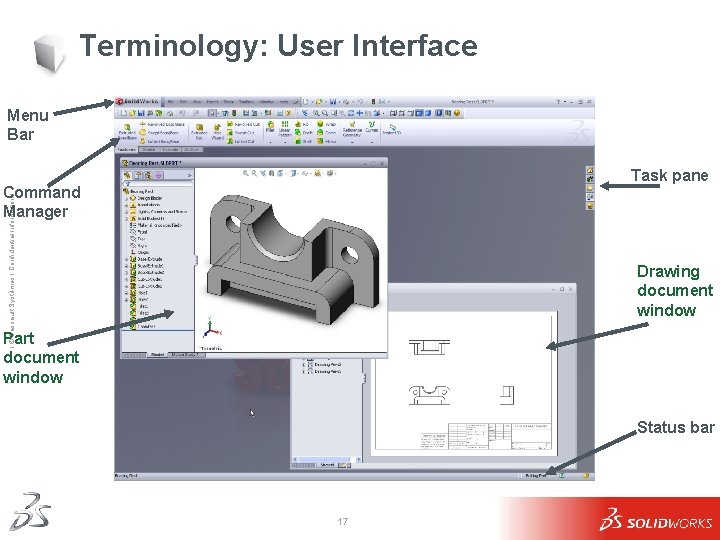
Terminology: User Interface Menu Bar Task pane Ι © Dassault Systèmes Ι Confidential Information Ι Command Manager Drawing document window Part document window Status bar 17
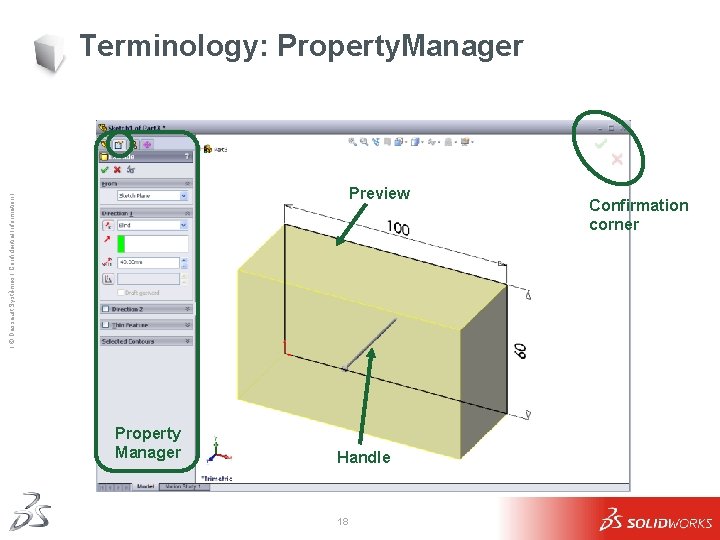
Terminology: Property. Manager Ι © Dassault Systèmes Ι Confidential Information Ι Preview Property Manager Handle 18 Confirmation corner
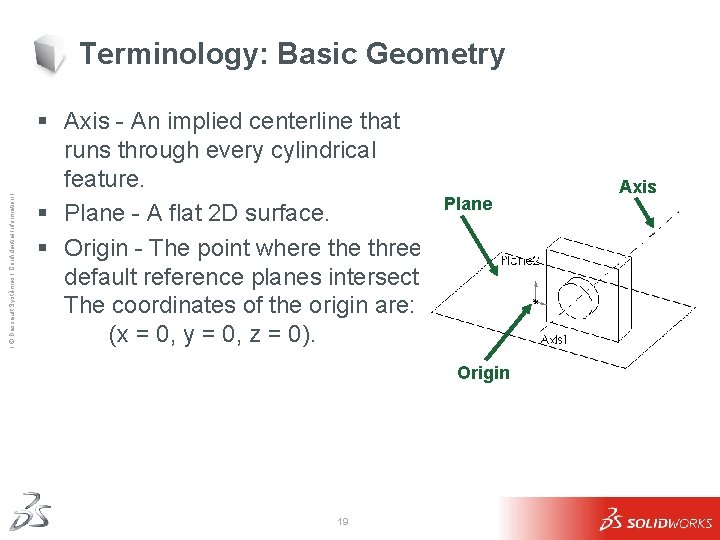
Ι © Dassault Systèmes Ι Confidential Information Ι Terminology: Basic Geometry § Axis - An implied centerline that runs through every cylindrical feature. § Plane - A flat 2 D surface. § Origin - The point where three default reference planes intersect. The coordinates of the origin are: (x = 0, y = 0, z = 0). Plane Origin 19 Axis
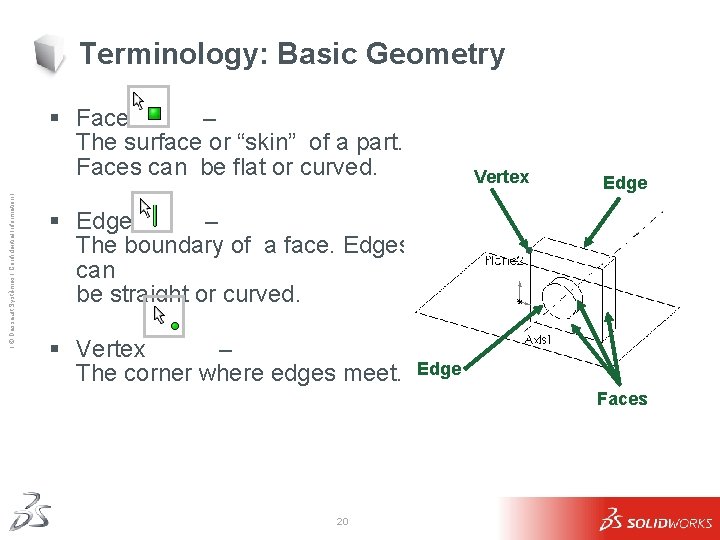
Terminology: Basic Geometry Ι © Dassault Systèmes Ι Confidential Information Ι § Face – The surface or “skin” of a part. Faces can be flat or curved. Vertex Edge § Edge – The boundary of a face. Edges can be straight or curved. § Vertex – The corner where edges meet. Edge Faces 20
Ι © Dassault Systèmes Ι Confidential Information Ι Features and Commands Base feature § The Base feature is the first feature that is created. § The Base feature is the foundation of the part. § The Base feature geometry for the box is an extrusion. § The extrusion is named Extrude 1. 21
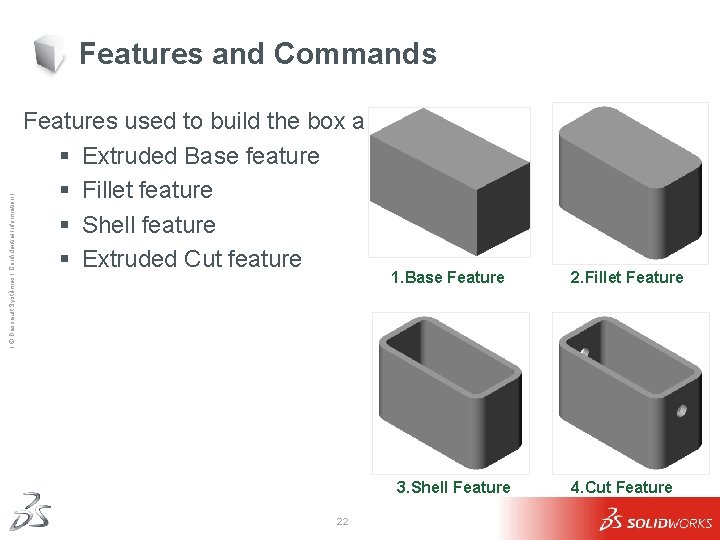
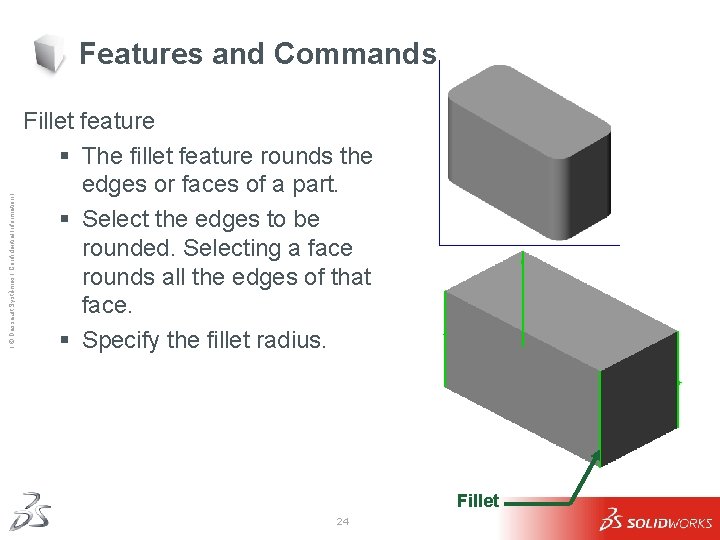
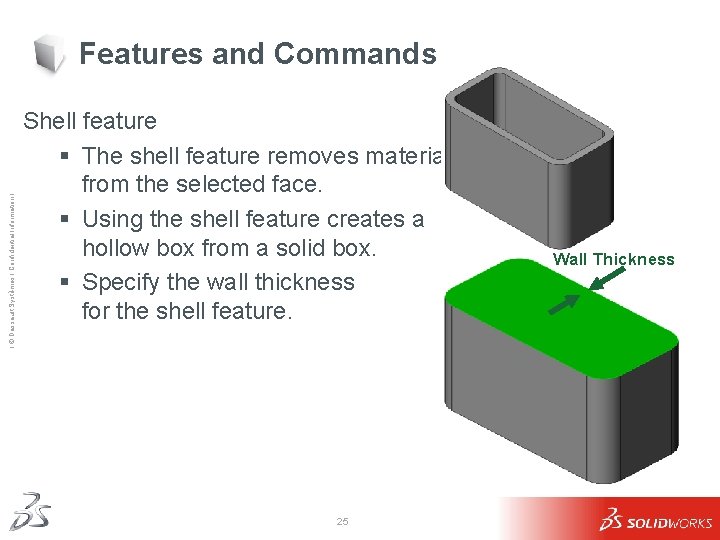
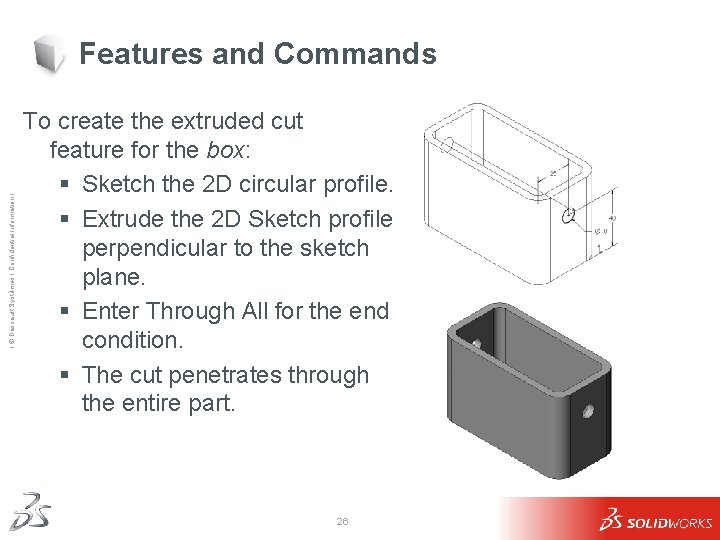
Ι © Dassault Systèmes Ι Confidential Information Ι Features and Commands Features used to build the box are: § Extruded Base feature § Fillet feature § Shell feature § Extruded Cut feature 1. Base Feature 3. Shell Feature 22 2. Fillet Feature 4. Cut Feature
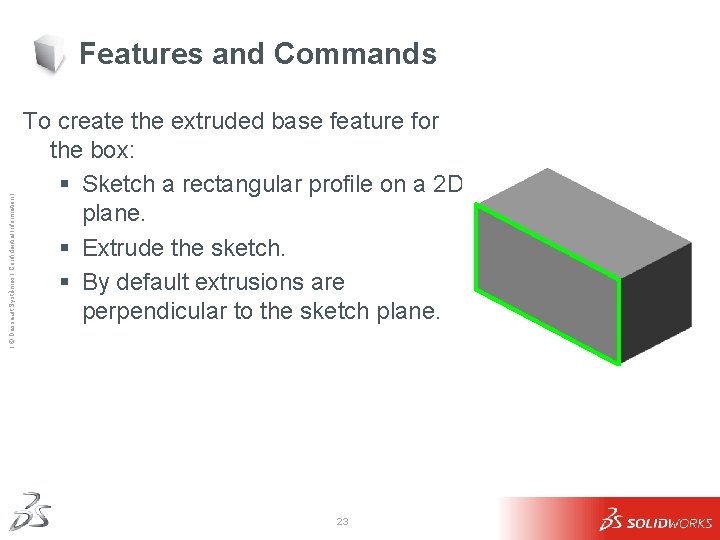
Ι © Dassault Systèmes Ι Confidential Information Ι Features and Commands To create the extruded base feature for the box: § Sketch a rectangular profile on a 2 D plane. § Extrude the sketch. § By default extrusions are perpendicular to the sketch plane. 23
Ι © Dassault Systèmes Ι Confidential Information Ι Features and Commands Fillet feature § The fillet feature rounds the edges or faces of a part. § Select the edges to be rounded. Selecting a face rounds all the edges of that face. § Specify the fillet radius. Fillet 24
Ι © Dassault Systèmes Ι Confidential Information Ι Features and Commands Shell feature § The shell feature removes material from the selected face. § Using the shell feature creates a hollow box from a solid box. § Specify the wall thickness for the shell feature. 25 Wall Thickness
Ι © Dassault Systèmes Ι Confidential Information Ι Features and Commands To create the extruded cut feature for the box: § Sketch the 2 D circular profile. § Extrude the 2 D Sketch profile perpendicular to the sketch plane. § Enter Through All for the end condition. § The cut penetrates through the entire part. 26
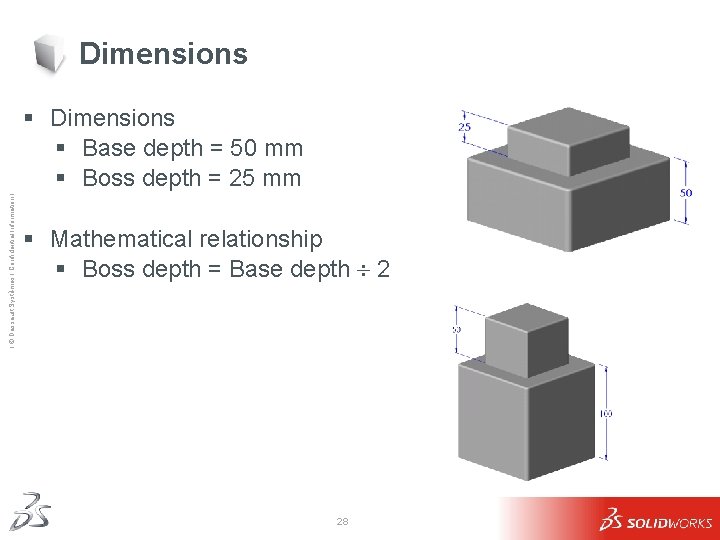
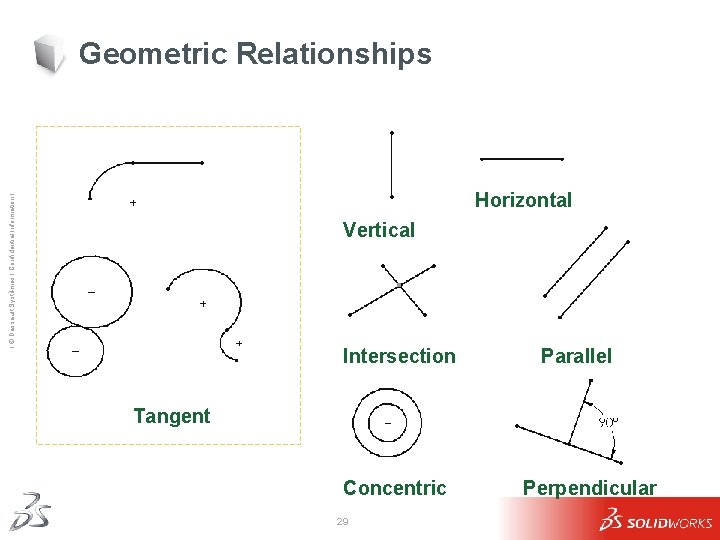
Ι © Dassault Systèmes Ι Confidential Information Ι Dimensions and Geometric Relationships § Specify dimensions and geometric relationships between features and sketches. § Dimensions change the size and shape of the part. § Mathematical relationships between dimensions can be controlled by equations. § Geometric relationships are the rules that control the behavior of sketch geometry. § Geometric relationships help capture design intent. 27
Dimensions Ι © Dassault Systèmes Ι Confidential Information Ι § Dimensions § Base depth = 50 mm § Boss depth = 25 mm § Mathematical relationship § Boss depth = Base depth 2 28
Geometric Relationships Ι © Dassault Systèmes Ι Confidential Information Ι Horizontal Vertical Intersection Parallel Tangent Concentric 29 Perpendicular
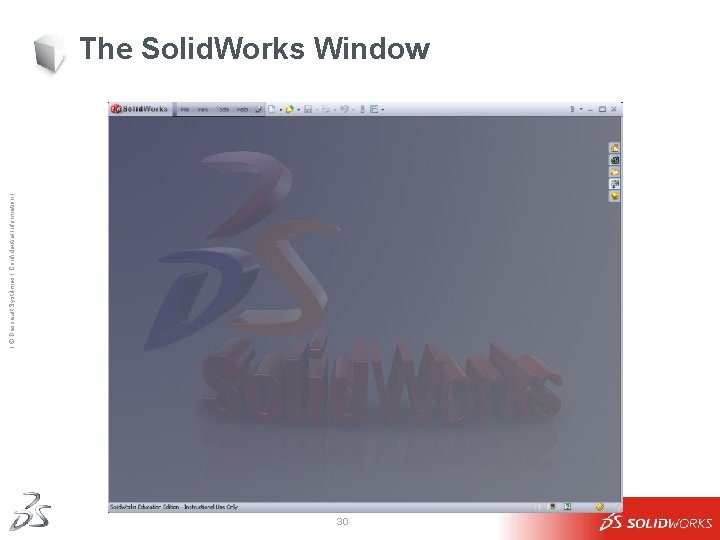
Ι © Dassault Systèmes Ι Confidential Information Ι The Solid. Works Window 30
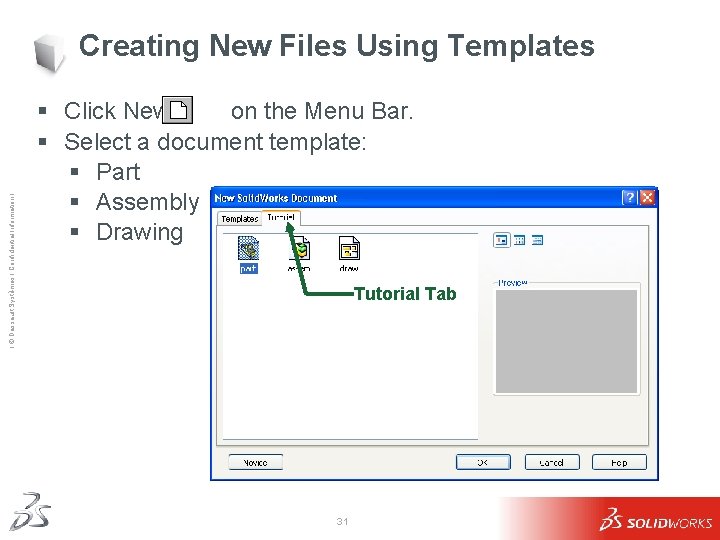
Ι © Dassault Systèmes Ι Confidential Information Ι Creating New Files Using Templates § Click New on the Menu Bar. § Select a document template: § Part § Assembly § Drawing Tutorial Tab 31
Ι © Dassault Systèmes Ι Confidential Information Ι Document Templates § Document Templates control the units, grid, text, and other settings for the model. § The Tutorial document templates are required to complete the exercises in the Online Tutorials. § The templates are located in the Tutorial tab on the New Solid. Works Document dialog box. § Document properties are saved in templates. 32
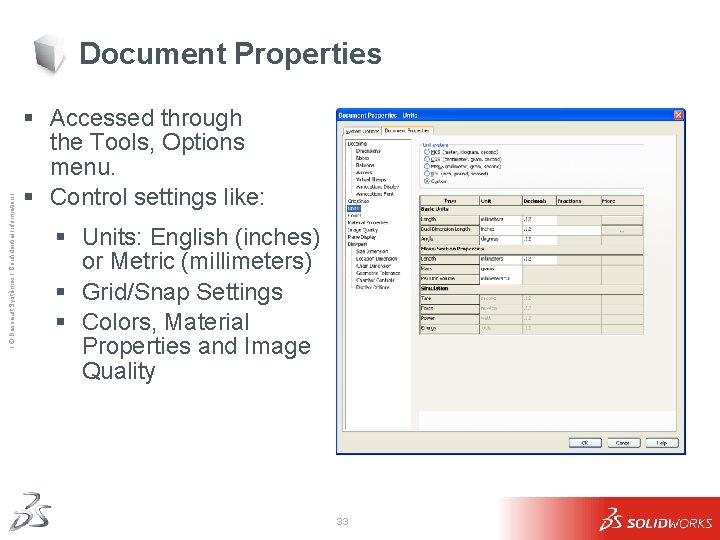
Ι © Dassault Systèmes Ι Confidential Information Ι Document Properties § Accessed through the Tools, Options menu. § Control settings like: § Units: English (inches) or Metric (millimeters) § Grid/Snap Settings § Colors, Material Properties and Image Quality 33
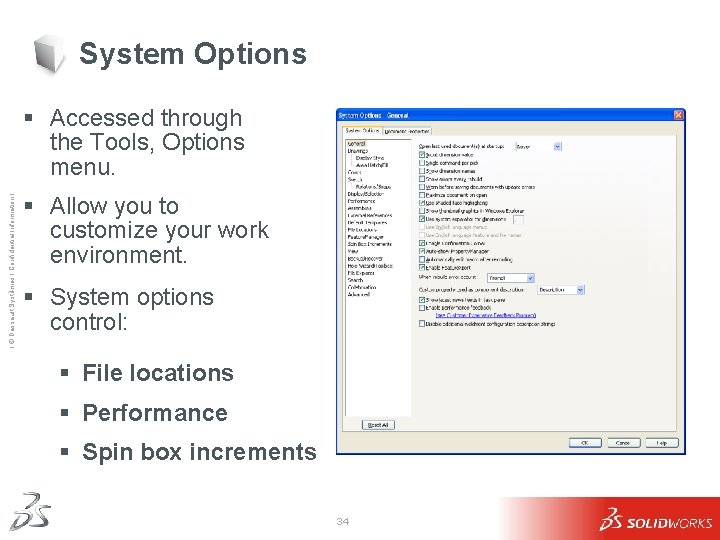
System Options Ι © Dassault Systèmes Ι Confidential Information Ι § Accessed through the Tools, Options menu. § Allow you to customize your work environment. § System options control: § File locations § Performance § Spin box increments 34
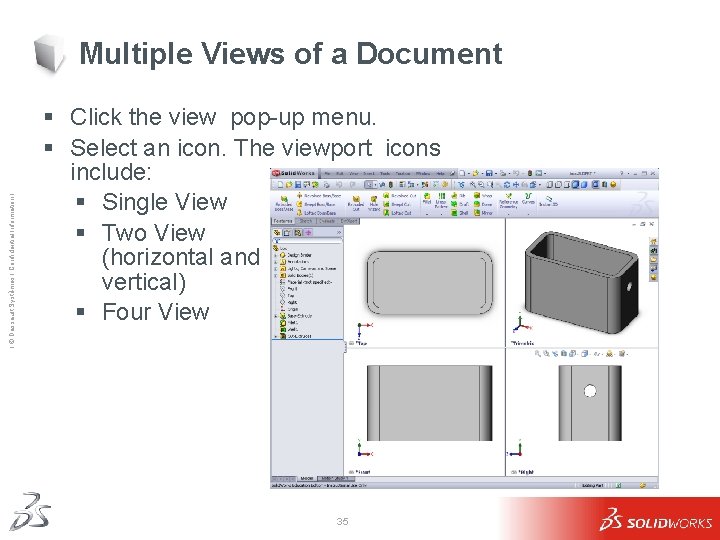
Ι © Dassault Systèmes Ι Confidential Information Ι Multiple Views of a Document § Click the view pop-up menu. § Select an icon. The viewport icons include: § Single View § Two View (horizontal and vertical) § Four View 35
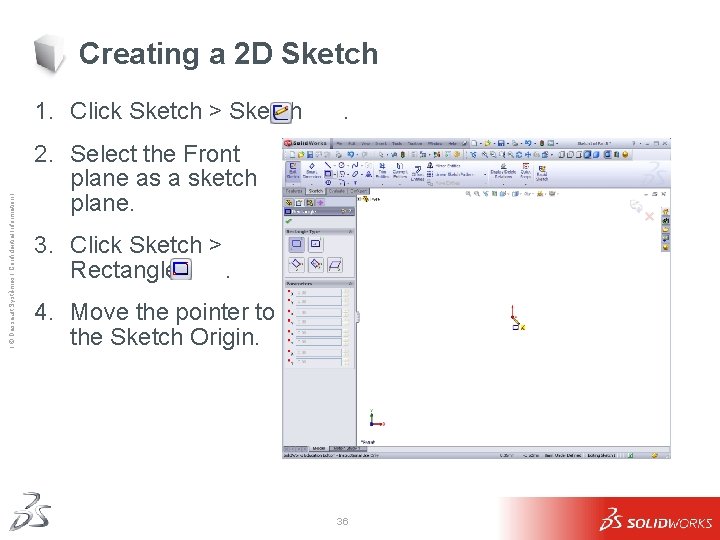
Creating a 2 D Sketch Ι © Dassault Systèmes Ι Confidential Information Ι 1. Click Sketch > Sketch . 2. Select the Front plane as a sketch plane. 3. Click Sketch > Rectangle. 4. Move the pointer to the Sketch Origin. 36
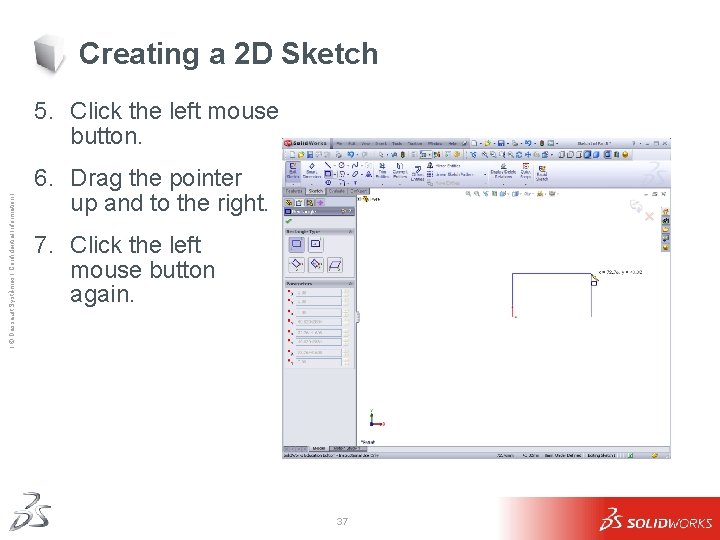
Creating a 2 D Sketch Ι © Dassault Systèmes Ι Confidential Information Ι 5. Click the left mouse button. 6. Drag the pointer up and to the right. 7. Click the left mouse button again. 37
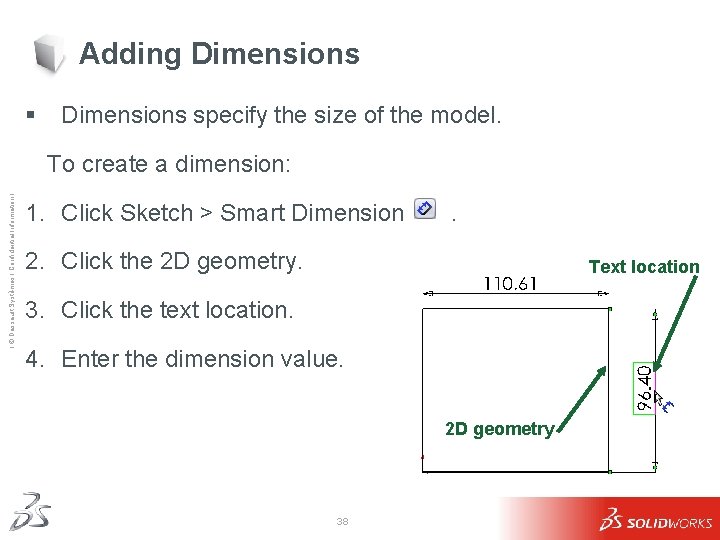
Adding Dimensions § Dimensions specify the size of the model. Ι © Dassault Systèmes Ι Confidential Information Ι To create a dimension: 1. Click Sketch > Smart Dimension . 2. Click the 2 D geometry. Text location 3. Click the text location. 4. Enter the dimension value. 2 D geometry 38