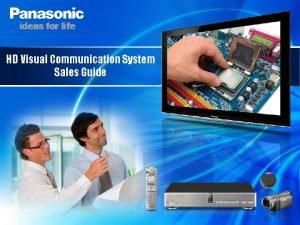
HD Visual Communication System Sales Guide Introduction Having
![HD Visual Communication System [Sales Manual] Basic Knowledge Introduces the concept and features of](https://slidetodoc.com/presentation_image_h/acc65b8be7e7891e7d44afa708d3719a/image-3.jpg "HD Visual Communication System [Sales Manual] Basic Knowledge Introduces the concept and features of")
![The secret of producing the feeling of "being there" [Full HD] What's the difference](https://slidetodoc.com/presentation_image_h/acc65b8be7e7891e7d44afa708d3719a/image-6.jpg "The secret of producing the feeling of \"being there\" [Full HD] What's the difference")
![The secret of producing the feeling of "being there" [H. 264] Basic Knowledge Thrilling](https://slidetodoc.com/presentation_image_h/acc65b8be7e7891e7d44afa708d3719a/image-7.jpg "The secret of producing the feeling of \"being there\" [H. 264] Basic Knowledge Thrilling")
![The secret of producing the feeling of "being there" [AAC] Basic Knowledge Good sound,](https://slidetodoc.com/presentation_image_h/acc65b8be7e7891e7d44afa708d3719a/image-8.jpg "The secret of producing the feeling of \"being there\" [AAC] Basic Knowledge Good sound,")
![The secret of producing the feeling of "being there" [SIP] Basic Knowledge What is](https://slidetodoc.com/presentation_image_h/acc65b8be7e7891e7d44afa708d3719a/image-9.jpg "The secret of producing the feeling of \"being there\" [SIP] Basic Knowledge What is")
![HD Visual Communication System [Product Features]](https://slidetodoc.com/presentation_image_h/acc65b8be7e7891e7d44afa708d3719a/image-10.jpg "HD Visual Communication System [Product Features]")
![Basic Knowledge Main Specifications ■Main Unit [HD Visual Communication Unit: KX-VC 500] ■Boundary Microphone](https://slidetodoc.com/presentation_image_h/acc65b8be7e7891e7d44afa708d3719a/image-16.jpg "Basic Knowledge Main Specifications ■Main Unit [HD Visual Communication Unit: KX-VC 500] ■Boundary Microphone")
![Sales Knowledge Practical Communication Scenarios [Office] Example (2) Effective video conference between different offices](https://slidetodoc.com/presentation_image_h/acc65b8be7e7891e7d44afa708d3719a/image-21.jpg "Sales Knowledge Practical Communication Scenarios [Office] Example (2) Effective video conference between different offices")
![Sales Knowledge Practical Communication Scenarios [University/Vocational school] Example (7) A new education system with](https://slidetodoc.com/presentation_image_h/acc65b8be7e7891e7d44afa708d3719a/image-25.jpg "Sales Knowledge Practical Communication Scenarios [University/Vocational school] Example (7) A new education system with")
![Sales Knowledge Practical Communication Scenarios [Private Industry] Example (8) Video conference with input from](https://slidetodoc.com/presentation_image_h/acc65b8be7e7891e7d44afa708d3719a/image-26.jpg "Sales Knowledge Practical Communication Scenarios [Private Industry] Example (8) Video conference with input from")
![Sales Support Basic Operation [Before starting communication] [Starting communication] ①Make sure that all components](https://slidetodoc.com/presentation_image_h/acc65b8be7e7891e7d44afa708d3719a/image-33.jpg "Sales Support Basic Operation [Before starting communication] [Starting communication] ①Make sure that all components")
![Sales Support Basic Operation [Convenient functions: Video] [Convenient functions: Audio] ①Changing the screen layout](https://slidetodoc.com/presentation_image_h/acc65b8be7e7891e7d44afa708d3719a/image-34.jpg "Sales Support Basic Operation [Convenient functions: Video] [Convenient functions: Audio] ①Changing the screen layout")
![Sales Support Basic Operation [3 -point communication] ①Registration for multipoint conferencing Before conducting a](https://slidetodoc.com/presentation_image_h/acc65b8be7e7891e7d44afa708d3719a/image-35.jpg "Sales Support Basic Operation [3 -point communication] ①Registration for multipoint conferencing Before conducting a")
- Slides: 51
HD Visual Communication System Sales Guide
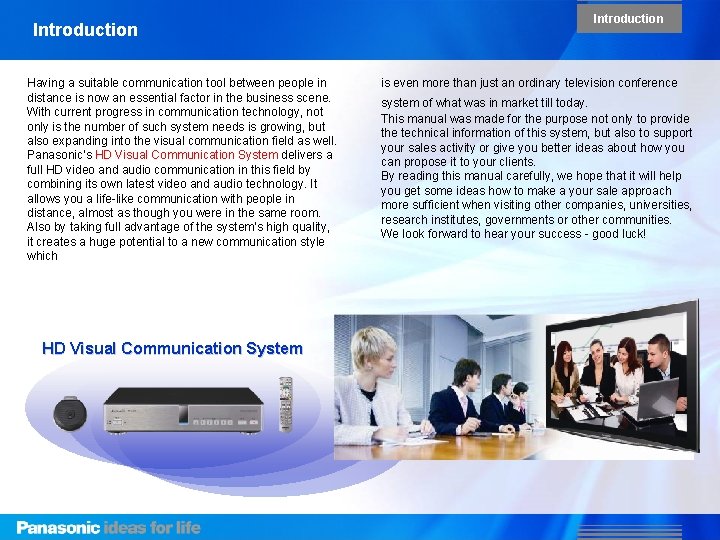
Introduction Having a suitable communication tool between people in distance is now an essential factor in the business scene. With current progress in communication technology, not only is the number of such system needs is growing, but also expanding into the visual communication field as well. Panasonic’s HD Visual Communication System delivers a full HD video and audio communication in this field by combining its own latest video and audio technology. It allows you a life-like communication with people in distance, almost as though you were in the same room. Also by taking full advantage of the system's high quality, it creates a huge potential to a new communication style which HD Visual Communication System Introduction is even more than just an ordinary television conference system of what was in market till today. This manual was made for the purpose not only to provide the technical information of this system, but also to support your sales activity or give you better ideas about how you can propose it to your clients. By reading this manual carefully, we hope that it will help you get some ideas how to make a your sale approach more sufficient when visiting other companies, universities, research institutes, governments or other communities. We look forward to hear your success - good luck!
HD Visual Communication System [Sales Manual] Basic Knowledge Introduces the concept and features of the system, AV and IT configuration techniques, etc.
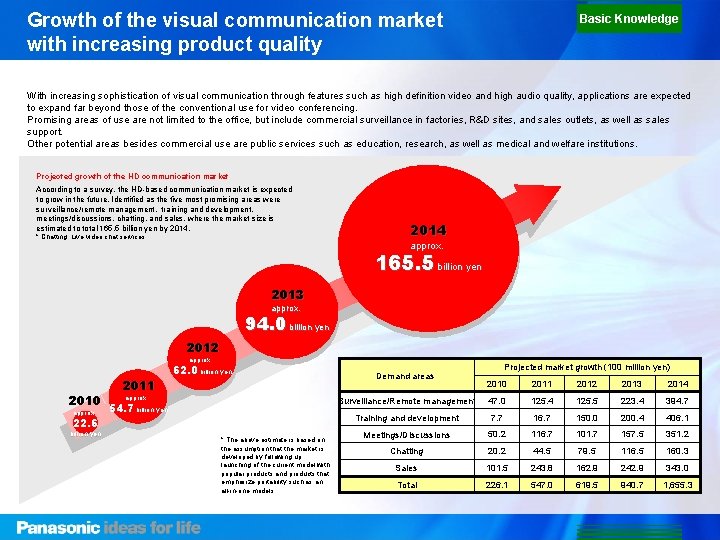
Growth of the visual communication market with increasing product quality Basic Knowledge With increasing sophistication of visual communication through features such as high definition video and high audio quality, applications are expected to expand far beyond those of the conventional use for video conferencing. Promising areas of use are not limited to the office, but include commercial surveillance in factories, R&D sites, and sales outlets, as well as sales support. Other potential areas besides commercial use are public services such as education, research, as well as medical and welfare institutions. Projected growth of the HD communication market According to a survey, the HD-based communication market is expected to grow in the future. Identified as the five most promising areas were surveillance/remote management, training and development, meetings/discussions, chatting, and sales, where the market size is estimated to total 165. 5 billion yen by 2014. * Chatting: Live video chat services 2014 approx. 2014年 1, 655 billion yen 165. 5 約 億円 2013 approx. 2013年 約940 billion 億円 yen 94. 0 2011 approx. 2011年 2010 54. 7 billion approx. 約547 億円yen 2012 approx. 2012年 62. 0 billion 約620 億円yen 22. 6 billion yen * The above estimate is based on the assumption that the market is developed by following up launching of the current model with popular products and products that emphasize portability such as an all-in-one models. Demand areas Projected market growth (100 million yen) 2010 2011 2012 2013 2014 Surveillance/Remote management 47. 0 125. 4 125. 5 223. 4 394. 7 Training and development 7. 7 16. 7 150. 0 200. 4 406. 1 Meetings/Discussions 50. 2 116. 7 101. 7 157. 5 351. 2 Chatting 20. 2 44. 5 79. 5 116. 5 160. 3 Sales 101. 5 243. 8 162. 9 242. 9 343. 0 Total 226. 1 547. 0 619. 5 940. 7 1, 655. 3
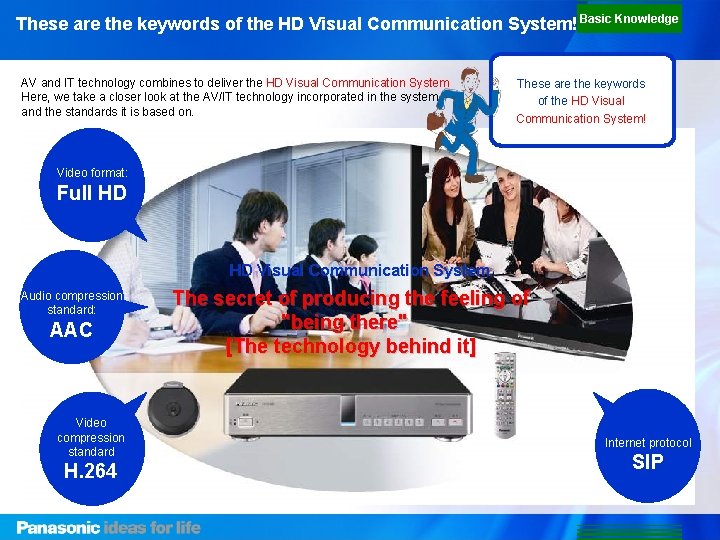
These are the keywords of the HD Visual Communication System! Basic Knowledge AV and IT technology combines to deliver the HD Visual Communication System Here, we take a closer look at the AV/IT technology incorporated in the system and the standards it is based on. These are the keywords of the HD Visual Communication System! Video format: Full HD HD Visual Communication System Audio compression standard: AAC Video compression standard H. 264 The secret of producing the feeling of "being there" [The technology behind it] Internet protocol SIP
The secret of producing the feeling of "being there" [Full HD] What's the difference between SD, HD and Full HD? Basic Knowledge The impact of the big screen, beautiful picture. . . SD and HD refer to the image quality and resolution of TV broadcasts. SD is the abbreviation for "Standard Definition", the standard image quality used in conventional analog broadcasting. HD or "High Definition" image quality appeared with the advent of digital broadcasting. While the number of horizontal scan lines on the TV screen used to be 480 for SD, HD has increased this number to 720 or 1080 lines, and the aspects ratio, which used to be 4: 3 for SD was widened to 16: 9 in HD, resulting in a wider screen format. The expression "Full HD" we hear a lot these days refers to a video component capable of accepting HD signals and able to display the full HD resolution of 1920 x 1080 (approx, 2. 07 million pixels). And with the digitalization of TV and the marketing of network-ready components, techniques to compress video data became increasingly important. One of these is MPEG. IMPEG (Moving Picture Experts Group) was formed by the ISO (International Organization for Standardization) to set standards for audio and video compression and transmission. There are different standards for different media, as shown below. Main video standards HD HD 4: 3 Format (640× 480) 16: 9 Format (1920× 1080) Comparison of SD and HD SD HD 480 effective scan lines 1080 effective scan lines HD, with its greater number of scan lines, can deliver a more finely resolved picture. * See the image above. Resolution Remarks 480 i 640× 480 Analog broadcasting 480 p 640× 480 PC Standards Use Image quality 720 p 1280× 720 Digital broadcasting, PC, game machines MPEG-1 Video CD Image quality 1080 i 1920× 1080 Digital broadcasting MPEG-2 Digital broadcasting, DVD Hi-vision only 1080 p 1920× 1080 PC MPEG-4 Cell phones, etc. , mobile communication Standards SD SD Video compression standards
The secret of producing the feeling of "being there" [H. 264] Basic Knowledge Thrilling moments anywhere anytime. . . What is H 264? A video compression standard applicable to a wide variety of applications, from cell phones to HD television. 「H. 264」 is one of a family of standards recommended in by the ITU (International Telecommunication Union) in 2003 to standardize video coding techniques. It is used widely as standard format for moving pictures in a wide range of applications, including a terrestrial digital broadcasting service for cell phones called One Seg, Blu-ray Disc, portable video players, and game machines. Compared to conventional DVDs, MPEG-2 for digital broadcasting, and MPEG -4 for cell phones, H. 264 is designed for a much wider variety of applications and offers 1. 5 to 2 times the compression ratio. At the same video quality, it can reduce the data volume to nearly half. The H. 264 technique is recommended by ISO (International Organization for Standardization), which cooperated with ITU in its development and formulation, to form a part of MPEG-4 (MPEG-4 Part 10 Advanced Video Coding). Therefore, both names are normally used in the combined form "H. 264/MPEG-4 AVC" or "H. 264/AVC" when you read or hear about them. ISO MPEG-2 MPEG-4 AVC ITU H. 262 H. 263 H. 264 Main applications DVD. BS digital broadcasting Cell phones, webcasting Terrestrial broadcasts aimed at cell phones, webasting Formulation of standard・ Recommended period 1994 1998 2003 Image size 720× 480 - 1920× 1080 176× 144 - 352× 288 320× 240 - 1920× 1080 Bit rate 4 M - 24 Mbit/s 32 k - 384 kbit/s 16 k - 10 Mbit/s Motion compensation block size 16× 8, 16× 16 (2 types) 8× 8, 16× 16 (2 types) 4× 4 - 16× 16 (7 types) Name of standard Orthogonal transform coding system 8× 8 (discrete cosine transform) 4× 4、8× 8 (integer transform) Panasonic solutions using H. 264 Network camera for surveillance and monitoring Blue ray/DIGA DVD Recorders VIEr. A Plasma/Liquid Crystal Television Digital Video Cameras/LUMIX Cell Phones/Car AV Equipment Web-based video distribution solutions for digital-ready TVs, such as ac. TVila (Video Full) Digital broadcasting solutions/equipment and more
The secret of producing the feeling of "being there" [AAC] Basic Knowledge Good sound, anywhere, a lot of ・・・ What is AAC? AAC is an advanced audio compression and encoding scheme that achieves better sound quality with smaller files. As part of the MPEG audio compression specifications, the official name of AAC (Advanced Audio Coding) is MPEG-2 AAC. With 1. 4 times the compression ratio of the previously used MP 3 format, it is becoming the standard audio format in wireless communication, such as digital broadcasting and cell phones, as well as webasting. AAC is also used in MPEG-4, and an advanced form of AAC called HE (High Efficiency)-AAC has evolved through adoption of a technique for bandwidth extension. Changes undergone by main audio compression standards MPEG-1 MPEG-2 AAC MPEG-1 Audio Layer 2 MPEG-2 Audio Layer 2 MPEG-1 Audio Layer 3* MPEG-2 Audio Layer 3 *MP 3: High audio quality Extension MPEG-2 AAC Bandwidth Extension MPEG-4 Audio AAC Bandwidth Extension
The secret of producing the feeling of "being there" [SIP] Basic Knowledge What is SIP? SIP is a protocol for exchanging video and audio data between multiple parties and strongly favored in real time communication. A communications protocol is needed to control communication between PCs over a network. It follows certain rules and procedures to ensure that the system works properly. That is how the worldwide interchange of data over the Internet is made possible. SIP is an application layer-controlled protocol and falls into the 7 th of the standardized layer model shown below. Other protocols are the standard Internet protocols IP in Layer 3 (Network), and TCP/UDP in Layer 4 (Transport), and the web and e-mail protocols HTTP and POP in Layer 5 (Session). The SIP (Session Initiation Protocol) is a Vo. IP (Voice Over IP) protocol widely used for controlling multimedia communication sessions such as voice and video calls over Internet Protocol (IP). Layer 5 Session HTTP SMTP FTP POP 3 SIP Layer 4 Transport TCP/UDP Layer 7 Application Layer 6 Presentation Layer 3 Network Because of its simple and highly scalable architecture and its high degree of Internet affinity making it easy to implement, SIP is used in a wide variety of applications such as IP telephony, video telephony, and video conferencing. It also supports multimedia communications sessions such as voice, video, audio and text over the Internet, making it the ideal protocol for software designed for real time communication and collaboration. IP Layer 2 Data Link Layer 1 Physical The secret of producing the feeling of ‘’being there”・・・
HD Visual Communication System [Product Features]
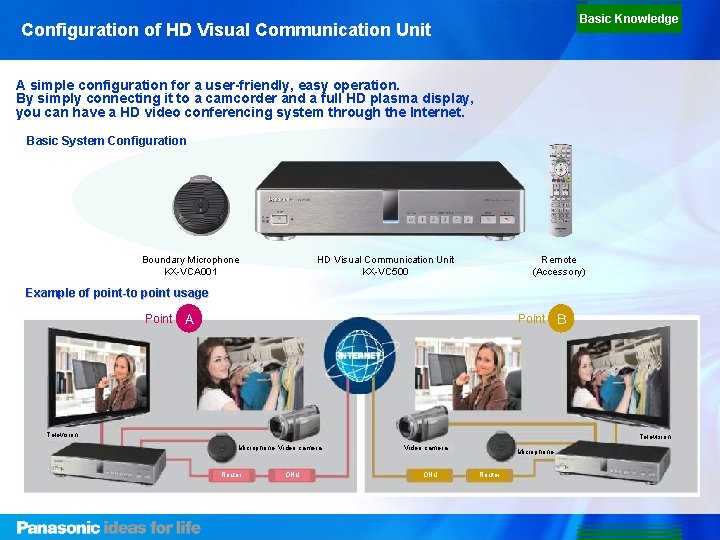
Basic Knowledge Configuration of HD Visual Communication Unit A simple configuration for a user-friendly, easy operation. By simply connecting it to a camcorder and a full HD plasma display, you can have a HD video conferencing system through the Internet. Basic System Configuration Boundary Microphone KX-VCA 001 HD Visual Communication Unit KX-VC 500 Remote (Accessory) Example of point-to point usage Point A Point B Television Microphone Video camera Router ONU Video camera ONU Microphone Router
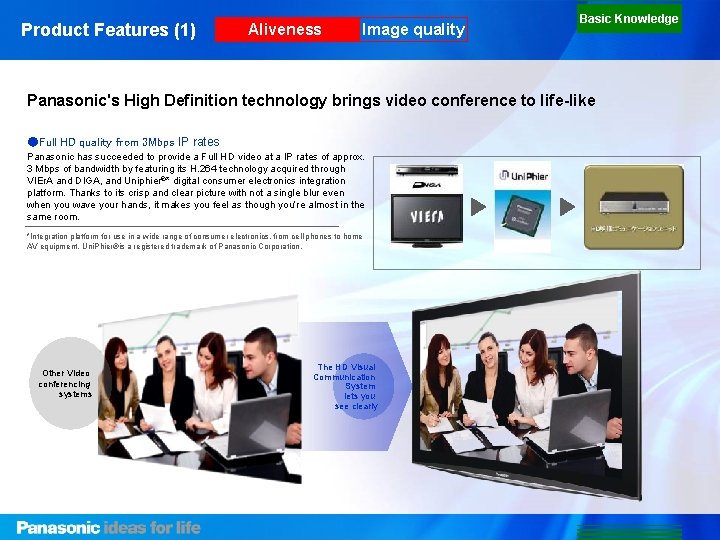
Product Features (1) Aliveness Image quality Basic Knowledge Panasonic's High Definition technology brings video conference to life-like ●Full HD quality from 3 Mbps IP rates Panasonic has succeeded to provide a Full HD video at a IP rates of approx. 3 Mbps of bandwidth by featuring its H. 264 technology acquired through VIEr. A and DIGA, and Uniphier®* digital consumer electronics integration platform. Thanks to its crisp and clear picture with not a single blur even when you wave your hands, it makes you feel as though you’re almost in the same room. *Integration platform for use in a wide range of consumer electronics, from cell phones to home AV equipment. Uni. Phier®is a registered trademark of Panasonic Corporation. Other Video conferencing systems The HD Visual Communication System lets you see clearly
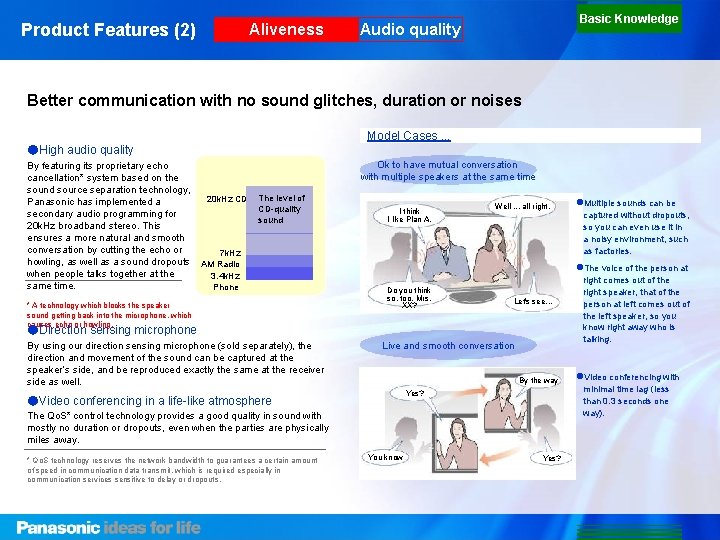
Product Features (2) Aliveness Basic Knowledge Audio quality Better communication with no sound glitches, duration or noises Model Cases. . . ●High audio quality By featuring its proprietary echo cancellation* system based on the sound source separation technology, Panasonic has implemented a secondary audio programming for 20 k. Hz broadband stereo. This ensures a more natural and smooth conversation by cutting the echo or howling, as well as a sound dropouts when people talks together at the same time. Ok to have mutual conversation with multiple speakers at the same time 20 k. Hz CD The level of CD-quality sound 7 k. Hz AM Radio 3. 4 k. Hz Phone * A technology which blocks the speaker sound getting back into the microphone, which causes echo or howling. I think I like Plan A. Well. . . all right. Do you think so, too, Mrs. XX? Let's see. . . Live and smooth conversation By the way Yes? ●Video conferencing in a life-like atmosphere The Qo. S* control technology provides a good quality in sound with mostly no duration or dropouts, even when the parties are physically miles away. * Qo. S technology reserves the network bandwidth to guarantees a certain amount of speed in communication data transmit, which is required especially in communication services sensitive to delay or dropouts. captured without dropouts, so you can even use it in a noisy environment, such as factories. The voice of the person at ●Direction sensing microphone By using our direction sensing microphone (sold separately), the direction and movement of the sound can be captured at the speaker’s side, and be reproduced exactly the same at the receiver side as well. Multiple sounds can be You know Yes? right comes out of the right speaker, that of the person at left comes out of the left speaker, so you know right away who is talking. Video conferencing with minimal time lag (less than 0. 3 seconds one way).
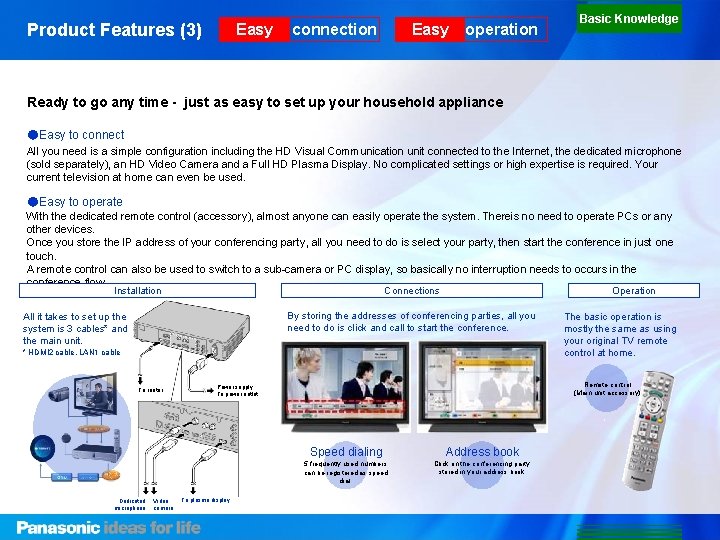
Product Features (3) Easy connection Easy operation Basic Knowledge Ready to go any time - just as easy to set up your household appliance ●Easy to connect All you need is a simple configuration including the HD Visual Communication unit connected to the Internet, the dedicated microphone (sold separately), an HD Video Camera and a Full HD Plasma Display. No complicated settings or high expertise is required. Your current television at home can even be used. ●Easy to operate With the dedicated remote control (accessory), almost anyone can easily operate the system. Thereis no need to operate PCs or any other devices. Once you store the IP address of your conferencing party, all you need to do is select your party, then start the conference in just one touch. A remote control can also be used to switch to a sub-camera or PC display, so basically no interruption needs to occurs in the conference flow. Installation Connections Operation By storing the addresses of conferencing parties, all you need to do is click and call to start the conference. All it takes to set up the system is 3 cables* and the main unit. * HDMI 2 cable, LAN 1 cable To router Dedicated microphone Video camera Remote control (Main unit accessory) Power supply To power outlet To plasma display The basic operation is mostly the same as using your original TV remote control at home. Speed dialing Address book 5 frequently used numbers can be registered as speed dial. Click on the conferencing party stored in your address book.
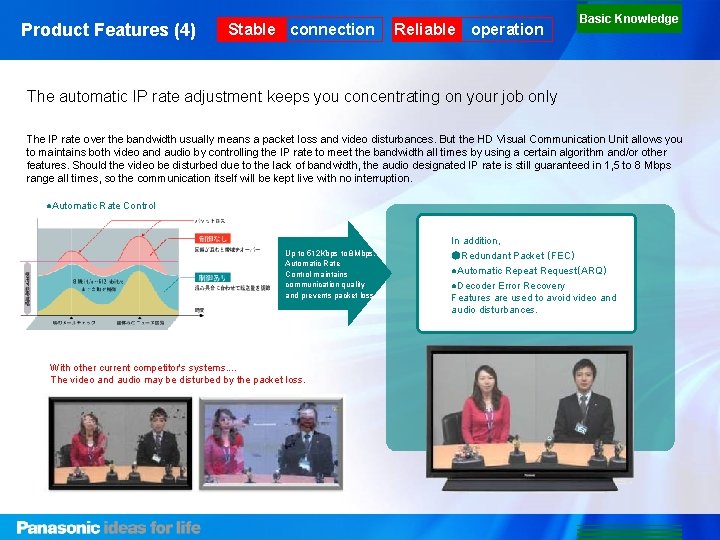
Product Features (4) Stable connection Reliable operation Basic Knowledge The automatic IP rate adjustment keeps you concentrating on your job only The IP rate over the bandwidth usually means a packet loss and video disturbances. But the HD Visual Communication Unit allows you to maintains both video and audio by controlling the IP rate to meet the bandwidth all times by using a certain algorithm and/or other features. Should the video be disturbed due to the lack of bandwidth, the audio designated IP rate is still guaranteed in 1, 5 to 8 Mbps range all times, so the communication itself will be kept live with no interruption. ●Automatic Rate Control Up to 512 Kbps to 8 Mbps, Automatic Rate Control maintains communication quality and prevents packet loss. With other current competitor's systems. . The video and audio may be disturbed by the packet loss. In addition, ●Redundant Packet (FEC) ●Automatic Repeat Request(ARQ) ●Decoder Error Recovery Features are used to avoid video and audio disturbances.
Basic Knowledge Main Specifications ■Main Unit [HD Visual Communication Unit: KX-VC 500] ■Boundary Microphone (KX-VCA 001) Video input HDMI 1 (main camera) Input resolution: 1080 i video only Standard pickup area approx. 2 meter radius, 360° HDMI 2 (video sub- Input resolution: 1080 i video only Support video camera connection only (Blu-ray Disc/DVD Player is not supported) Maximum pickup area approx. 3 meter radius, 360° Pickup method Stereo (right/left channel set automatically, 1 microphone connected) Monaural (2 to 4 microphones connected) Microphone unit Unidirectional Electret condenser microphone x 4 Number of connections Maximum 4 microphones Band frequency 150 Hz to 10 k. Hz Maximum input sound pressure 110 d. Bspl Sampling frequency 48 k. Hz camera) Audio input Video output VGA mini D-sub 15(RGB IN) Input resolution: XGA, SVGA, VGA Boundary Microphone Separately sold Boundary Microphone only (KX-VCA 001) Supports up to 4 Boundary Microphones* 1 RCA pin jack (audio input) Max. line input: 1. 2 Vrms Supported device: Stand microphone (via microphone amplifier), audio mixer, etc. Applies echo canceling Boundary Microphone and RCA inputs can be used at the same time HDMI (television) Resolution: 1080 i Delay Less than 1 ms Components Resolution: 1080 i Microphone cable connectors 2 Mute button Push-and-return switch LED 2 color LED (red, green) to indicate mute status Red: Mute on Green: active Orange: Start-up (blinks for approx. 1 second) Off: Inactive Dimensions (W x D x H) 120 mm (diameter)× 25 mm / 4. 7 in. (diameter)× 1. 0 in. Length of accessory cable approx. 8. 5 m / 334. 6 in. Voltage and frequency Supplied from main unit via dedicated cable output) Audio output (video (HDMI) Connected television (with speakers) RCA pin jack Connected television (with speakers), AV amplifier, active speaker (Audio input) Maximum conference points 3*2 Content sharing Personal computer (VGA terminal), video sub-camera (2 HDMI video terminals only) Video codec ITU-T H. 264 high-profile, level 4. 0 (B picture is not supported) Audio codec MPEG-4 AAC-LD (LATM format) Weight approx. 280 g / 0. 6 lb Encrypted transmission AES-CM/proprietary Operating temperature 0 ℃~ 40 ℃ / 32 ゜F~ 104 ゜F Network RJ 45 (LAN) 100 BASE-TX full duplex only Operating humidity 10 % to 90 %(non-condensing) Control RS-232 C Connection for terminal control (by straight cable) D-sub 9 pin ■Accessories Remote control with batteries (size AA manganese battery x 2, power cable) (serial) Dimensions (W x D x H) approx. 430 mm× 280 mm× 83 mm approx. 16. 9 in. × 11. 0 in. × 3. 3 in. (including legs) Weight approx. 4 kg / 8. 8 lb Voltage and frequency AC 100 -240 V, 50/60 Hz Power consumption During operation: approx. 32 W During stand-by: approx. 30 W Operating temperature 0 ℃~ 40 ℃ / 32 ゜F~ 104 ゜F Operating humidity 10 % to 90 %(non-condensing) *1 Monaural when connecting more than 1 microphone. *2 Some limitations apply* when using 3 conference points.
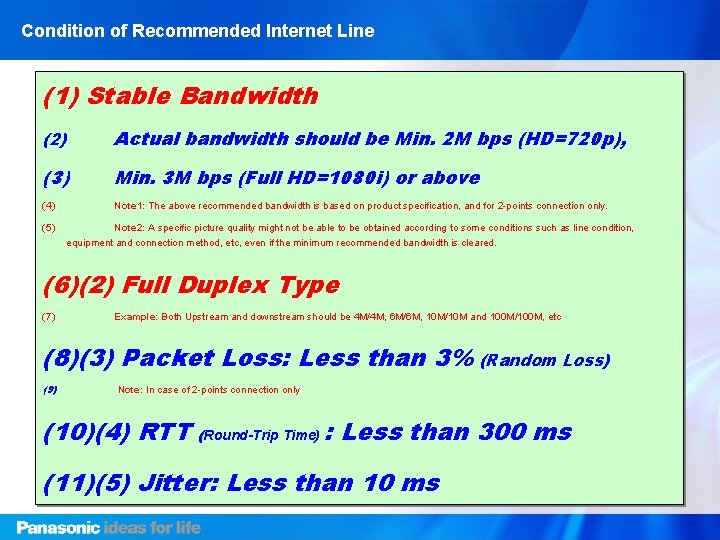
Condition of Recommended Internet Line (1) Stable Bandwidth (2) Actual bandwidth should be Min. 2 M bps (HD=720 p), (3) Min. 3 M bps (Full HD=1080 i) or above (4) Note 1: The above recommended bandwidth is based on product specification, and for 2 -points connection only. (5) Note 2: A specific picture quality might not be able to be obtained according to some conditions such as line condition, equipment and connection method, etc, even if the minimum recommended bandwidth is cleared. (6)(2) Full Duplex Type (7) Example: Both Upstream and downstream should be 4 M/4 M, 6 M/6 M, 10 M/10 M and 100 M/100 M, etc (8)(3) Packet Loss: Less than 3% (Random Loss) (9) Note: In case of 2 -points connection only (10)(4) RTT (Round-Trip Time) : Less than 300 ms (11)(5) Jitter: Less than 10 ms
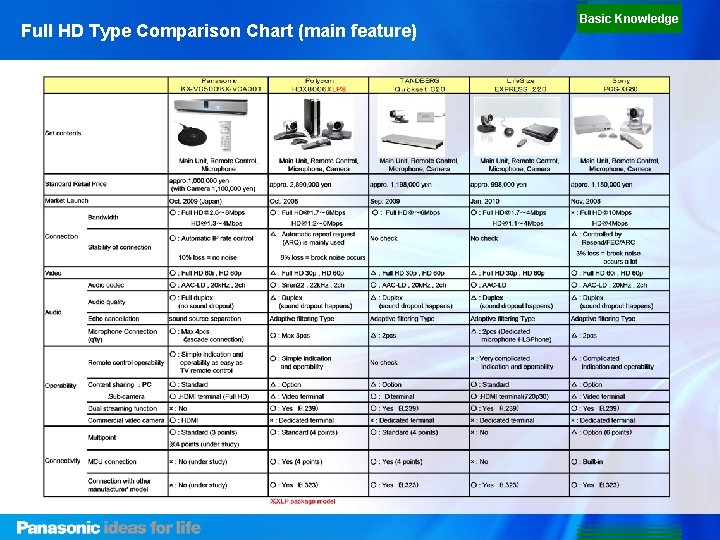
Full HD Type Comparison Chart (main feature) Basic Knowledge
19 HD Visual Communication System [Sales Ma Sales Knowledge This chapter introduces the schedule from sales offer to startup of the system, as well as model cases of concrete applications, the standard price of one conference point, and so on.
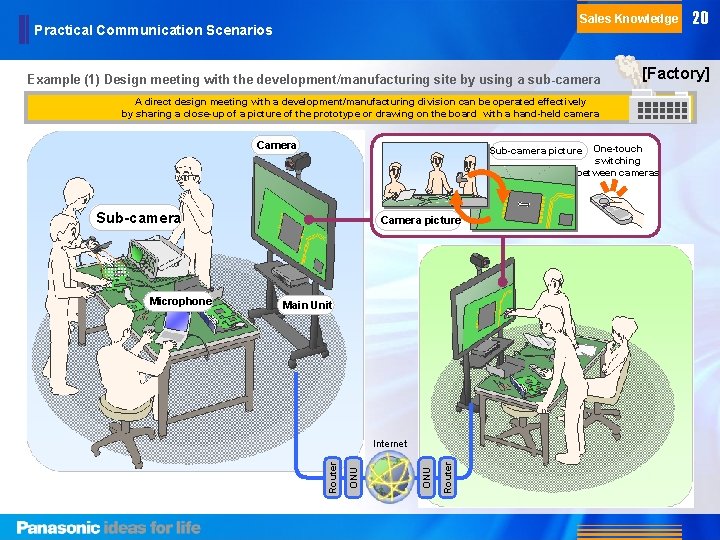
Sales Knowledge Practical Communication Scenarios Example (1) Design meeting with the development/manufacturing site by using a sub-camera [Factory] A direct design meeting with a development/manufacturing division can be operated effectively by sharing a close-up of a picture of the prototype or drawing on the board with a hand-held camera Camera One-touch switching between cameras Sub-camera picture Sub-camera Main Unit Router ONU Internet Router Microphone Camera picture 20
Sales Knowledge Practical Communication Scenarios [Office] Example (2) Effective video conference between different offices by sharing PC materials Video conference can be productively operated by sharing same charts and materials together. It can also helps cutting traveling fee and carbon, and may even prevent expansion of an epidemic disease. Camera PC screen PC Camera picture Microphone Main Unit Router ONU Router Internet One-touch switching between cameras 21
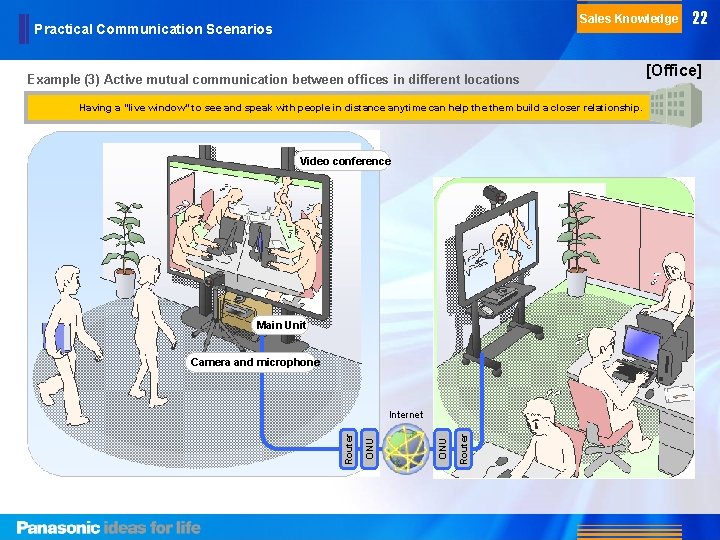
Sales Knowledge Practical Communication Scenarios Example (3) Active mutual communication between offices in different locations Having a “live window” to see and speak with people in distance anytime can help them build a closer relationship. Video conference Main Unit Camera and microphone Router ONU Router Internet 22 [Office]
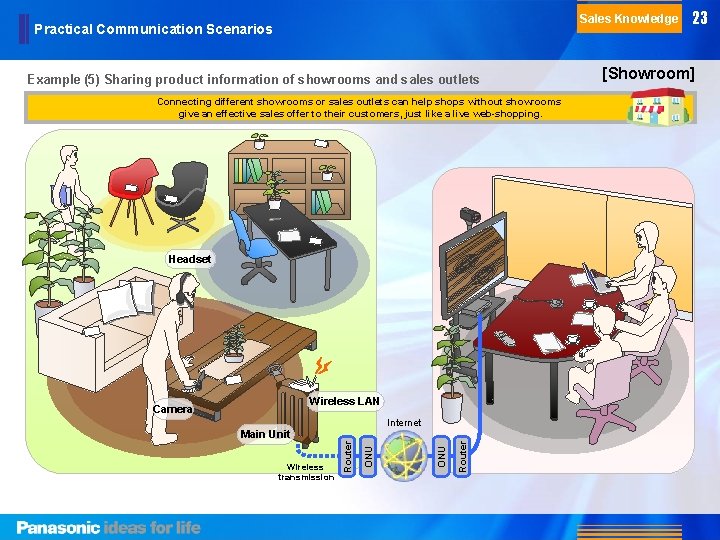
Sales Knowledge Practical Communication Scenarios Example (5) Sharing product information of showrooms and sales outlets Connecting different showrooms or sales outlets can help shops without showrooms give an effective sales offer to their customers, just like a live web-shopping. Headset Wireless LAN Camera Router ONU Wireless transmission Router Internet Main Unit 23 [Showroom]
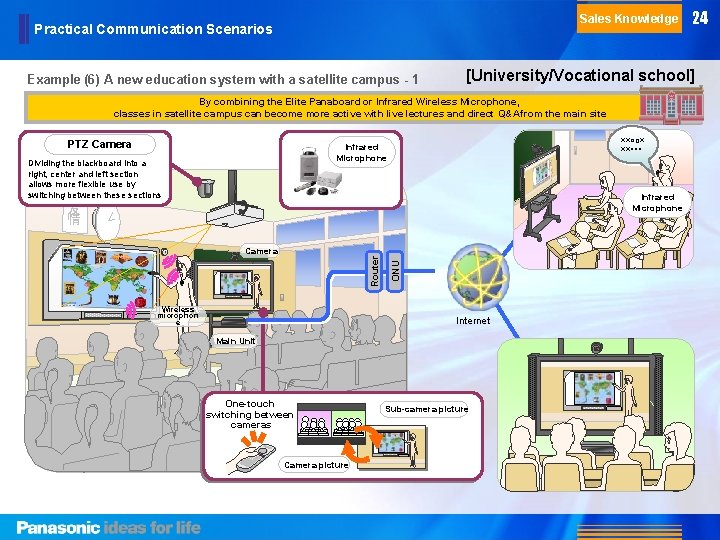
Sales Knowledge Practical Communication Scenarios Example (6) A new education system with a satellite campus - 1 [University/Vocational school] By combining the Elite Panaboard or Infrared Wireless Microphone, classes in satellite campus can become more active with live lectures and direct Q&A from the main site PTZ Camera ××○□× ××・・・ Infrared Microphone Dividing the blackboard into a right, center and left section allows more flexible use by switching between these sections Infrared Microphone Router Wireless microphon e ONU 友 情 Camera Internet Main Unit One-touch switching between cameras Camera picture 24 Sub-camera picture
Sales Knowledge Practical Communication Scenarios [University/Vocational school] Example (7) A new education system with a satellite campus - 2 Sharing lab researches with a sub-camera can create a new education/lecture style in school/private industries Sub-camera Microphone Main Unit Remote control Router ONU Internet Router 25
Sales Knowledge Practical Communication Scenarios [Private Industry] Example (8) Video conference with input from onsite surveillance cameras An input from a surveillance camera can be easily shared in a conference, by switching the image in just one touch. While the image is being switched, audio are kept connected to continue the communication. Surveillance Camera WV-CP 55 V/50 V, etc. PC screen Hard Disk Recorder WJ-HD 616/716 Surveillance Camera System Camera PC Microphone Main Unit Router ONU Internet Router Remote control 26 One-touch switching between inputs
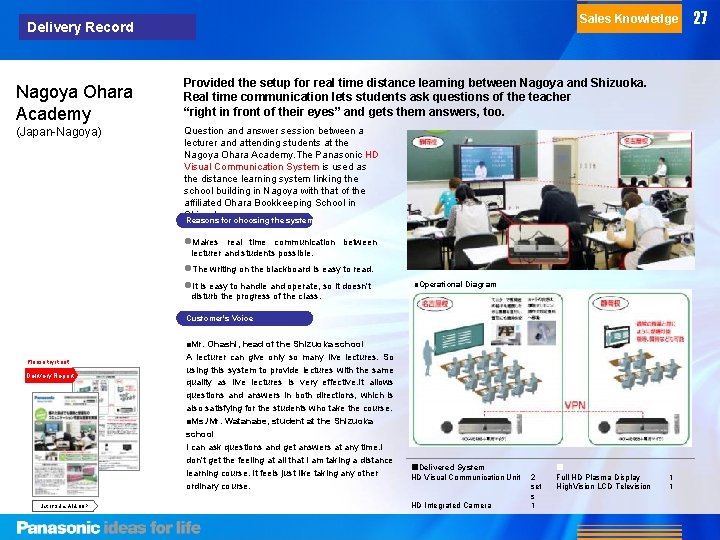
Sales Knowledge Delivery Record Nagoya Ohara Academy (Japan-Nagoya) Provided the setup for real time distance learning between Nagoya and Shizuoka. Real time communication lets students ask questions of the teacher “right in front of their eyes” and gets them answers, too. Question and answer session between a lecturer and attending students at the Nagoya Ohara Academy. The Panasonic HD Visual Communication System is used as the distance learning system linking the school building in Nagoya with that of the affiliated Ohara Bookkeeping School in Shizuoka. Reasons for choosing the system Makes real time communication between lecturer and students possible. The writing on the blackboard is easy to read. It is easy to handle and operate, so it doesn't ■Operational Diagram disturb the progress of the class. Customer's Voice Please try it out! Delivery Report List of Sales Aids 00 P ■Mr. Ohashi, head of the Shizuoka school A lecturer can give only so many live lectures. So using this system to provide lectures with the same quality as live lectures is very effective. It allows questions and answers in both directions, which is also satisfying for the students who take the course. ■Ms. /Mr. Watanabe, student at the Shizuoka school I can ask questions and get answers at any time. I don't get the feeling at all that I am taking a distance learning course. It feels just like taking any other ordinary course. ■Delivered System HD Visual Communication Unit HD Integrated Camera 2 set s 1 ■ Full HD Plasma Display High. Vision LCD Television 1 1 27
28 HD Visual Communication System [Sales Ma Sales Support The first half of this chapter deals with the information you will need when delivering the system or giving a demonstration, including connection, installation and network design. The latter half introduces a list of sales aids designed to expand your sales.
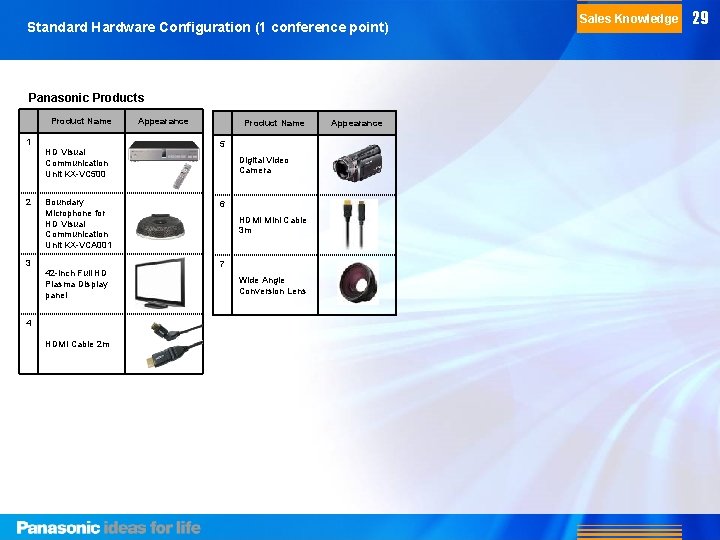
Standard Hardware Configuration (1 conference point) Panasonic Products Product Name 1 HD Visual Communication Unit KX-VC 500 2 Boundary Microphone for HD Visual Communication Unit KX-VCA 001 3 42 -inch Full HD Plasma Display panel 4 HDMI Cable 2 m Appearance Product Name 5 Digital Video Camera 6 HDMI Mini Cable 3 m 7 Wide Angle Conversion Lens Appearance Sales Knowledge 29
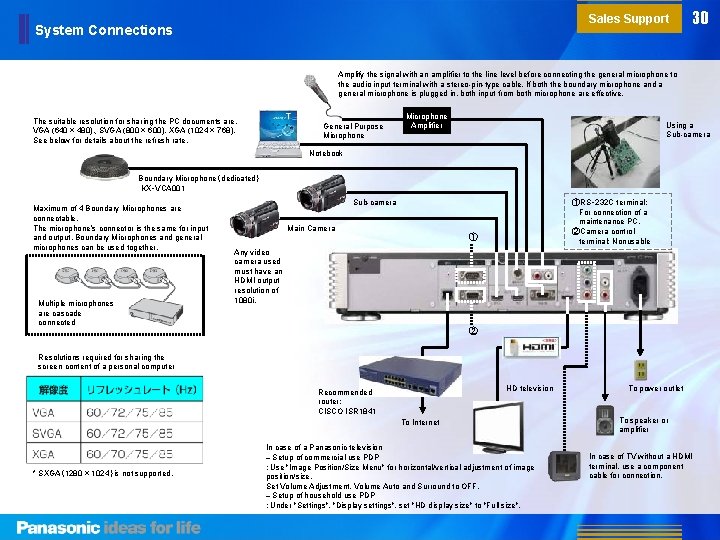
Sales Support System Connections 30 Amplify the signal with an amplifier to the line level before connecting the general microphone to the audio input terminal with a stereo-pin-type cable, If both the boundary microphone and a general microphone is plugged in, both input from both microphone are effective. The suitable resolution for sharing the PC documents are, VGA (640 × 480)、SVGA (800 × 600), XGA (1024 × 768). See below for details about the refresh rate. General Purpose Microphone Amplifier Using a Sub-camera Notebook Boundary Microphone(dedicated) KX‑VCA 001 Maximum of 4 Boundary Microphones are connectable. The microphone’s connector is the same for input and output. Boundary Microphones and general microphones can be used together. Multiple microphones are cascade connected Sub-camera Main Camera ①RS‑ 232 C terminal: For connection of a maintenance PC. ②Camera control terminal: Nonusable ① Any video camera used must have an HDMI output resolution of 1080 i. ② Resolutions required for sharing the screen content of a personal computer HD television Recommended router: CISCO ISR 1841 To Internet * SXGA(1280 × 1024)is not supported. In case of a Panasonic television – Setup of commercial use PDP :Use "Image Position/Size Menu" for horizontal/vertical adjustment of image position/size. Set Volume Adjustment, Volume Auto and Surround to OFF. – Setup of household use PDP :Under "Settings", "Display settings", set "HD display size" to "Full size". To power outlet To speaker or amplifier In case of TV without a HDMI terminal, use a component cable for connection.
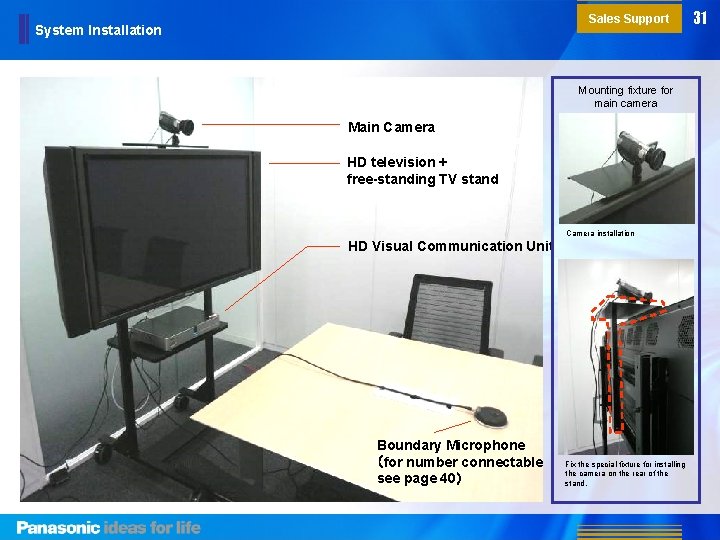
Sales Support System Installation Mounting fixture for main camera Main Camera HD television + free-standing TV stand Camera installation HD Visual Communication Unit Boundary Microphone (for number connectable see page 40) Fix the special fixture for installing the camera on the rear of the stand. 31
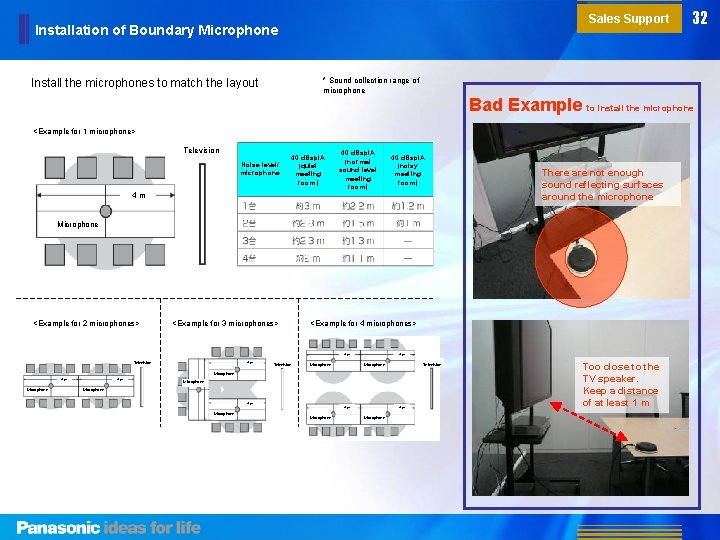
Sales Support Installation of Boundary Microphone 32 * Sound collection range of microphone Install the microphones to match the layout Bad Example to install the microphone <Example for 1 microphone> Television Noise level/ microphone 40 d. Bspl. A (quiet meeting room) 40 d. Bspl. A (normal sound level meeting room) 40 d. Bspl. A (noisy meeting room) 4 m There are not enough sound reflecting surfaces around the microphone Microphone <Example for 2 microphones> <Example for 3 microphones> <Example for 4 microphones> 4 m Television Microphone Microphone 4 m Microphone 4 m Microphone Too close to the TV speaker. Keep a distance of at least 1 m
Sales Support Basic Operation [Before starting communication] [Starting communication] ①Make sure that all components other than the Main Unit (television, video camera, microphone, etc. ) are powered up. ①-1 When using a speed dial Select speed dialing For details see the Operating Procedure in the appendix Press [Start] to start transmission <From Main Unit> <From remote control> ②Turn on the Main Unit. ①-2 When using the address book Press [Menu] 33 Use [▲][▼] to select "Open address book" and press "Set“ Press [Start] to start transmission Use [▲][▼][◄][►] to select your contact ③The home screen appears. ② Answering an incoming call When you hear the ringtone and the dialog box appears, press [Start] <From remote control > <From Main Unit> If you have selected automatic answering, it will connects automatically when the call comes in.
Sales Support Basic Operation [Convenient functions: Video] [Convenient functions: Audio] ①Changing the screen layout (2 conference points) ①Mute the microphone Press [Layout] during a communication • Each time you press the button, the screen layout changes in the sequence shown below. During a 2 -point communication Layout 1 For details see the Operating Procedure in the appendix If you do not want the other party to hear your voice during a communication, you can turn off the microphone. <From remote control> <From the microphone> Layout 2 Layout 3 Red light: Green light: Communication ongoing A:Other party B:Local image Microphone off ②Screen content/video sharing PC screen You can connect a computer to the Main Unit and display your PC screen content on the other party's television screen. • SXGA resolution is not supported. Local point ②Adjust the audio volume/quality The sound volume/quality can be adjusted during communication. Remote point [+] higher [‒] lower Internet Sub-camera image Connect one more video camera to the Main Unit and display the image of that camera on the other party's television screen. Local point The sound quality can be adjusted during communication. Remote point Internet 34 The mode returns to "Standard" when the communication ends.
Sales Support Basic Operation [3 -point communication] ①Registration for multipoint conferencing Before conducting a 3 -point video conference, the conference parties need to be registered as a group. Select Party 1 and Party 2 to establish a multipoint conference group from the address book. If the IP addresses of the parties in a 3 -point conference are not listed in the address book, first register their IP addresses, then register them in the group for a 3 -point conference. A maximum of 99 addresses can be stored in the address book. ②Multipoint communication Followings are the procedures for a 3 -point conference: ・Call out using the speed dialing ・Call out using the home screen (operation from the Main Unit) ・Call out using the home screen (operation from the remote control) ・Call out using the menu screen (operation from the remote control) ・Call out using the address book * If only one party responds to a 3 -point conference call, it automatically becomes a 2 -point conference. *Call out from the menu screen allows you to select your conference parties from maximum of 99 speed dial numbers (1 to 99) (Call out using the home screen allows you to select conference parties from a maximum of 5 parties (1 to 5) speed dial numbers). Example of a 3 -point connection screen For details see the Operating Procedure in the appendix Each time you press 【Layout】 the screen layout changes in the sequence shown below. Pressing 【Blue】, 【Red】, 【 Green】 changes the screen layout directly to the pattern displayed on the screen buttons. Conference point A Conference point B (Local conference point) Party 1/Party 2 Party 1 (Party 2) 35 Party 1 (Party 2) Local point image Constraints in 3 -point conferencing ・You cannot make a call out for a 3 -point conferencing by inputing the IP addresses directly (The other 2 remote conference points for a 3 -point conference must be stored beforehand). ・You cannot call out for a 3 -point conference from the calling history. ・You cannot set up a 3 -point conference by adding another new party while having a 2 -point conference. ・When one party in a 3 -point conference cuts the connection, the remaining 2 parties also will be cut off.
36 HD Visual Communication System [Sales Ma Appendix This chapter presents a roundup of descriptions for detailed setting of components, related equipment, and a Q&A section. It also provides definitions of frequently used terms.
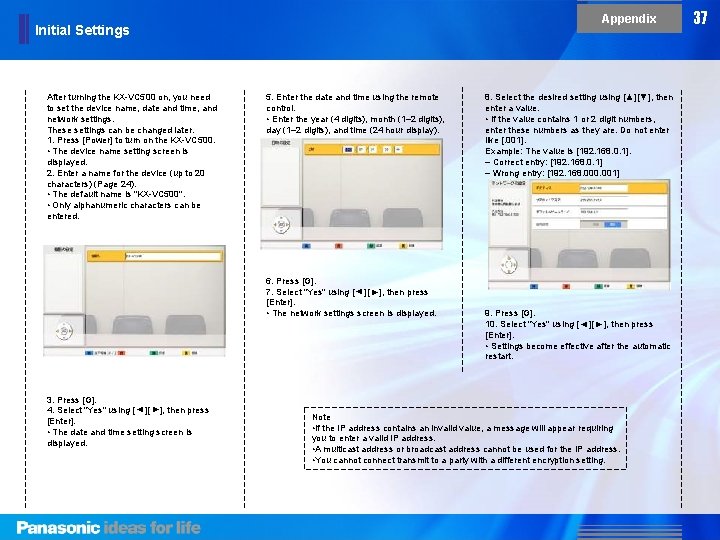
Appendix Initial Settings After turning the KX-VC 500 on, you need to set the device name, date and time, and network settings. These settings can be changed later. 1. Press [Power] to turn on the KX-VC 500. • The device name setting screen is displayed. 2. Enter a name for the device (up to 20 characters) (Page 24). • The default name is "KX-VC 500". • Only alphanumeric characters can be entered. 5. Enter the date and time using the remote control. • Enter the year (4 digits), month (1– 2 digits), day (1– 2 digits), and time (24 hour display). ▲ ▲ 3. Press [G]. 4. Select "Yes" using [ ][ ], then press [Enter]. • The date and time setting screen is displayed. ▲ 9. Press [G]. 10. Select "Yes" using [ ][ ], then press [Enter]. • Settings become effective after the automatic restart. ▲ ▲ ▲ 6. Press [G]. 7. Select "Yes" using [ ][ ], then press [Enter]. • The network settings screen is displayed. 8. Select the desired setting using [▲][▼], then enter a value. • If the value contains 1 or 2 digit numbers, enter these numbers as they are. Do not enter like [. 001]. Example: The value is [192. 168. 0. 1]. – Correct entry: [192. 168. 0. 1] – Wrong entry: [192. 168. 000. 001] Note • If the IP address contains an invalid value, a message will appear requiring you to enter a valid IP address. • A multicast address or broadcast address cannot be used for the IP address. • You cannot connect transmit to a party with a different encryption setting. 37
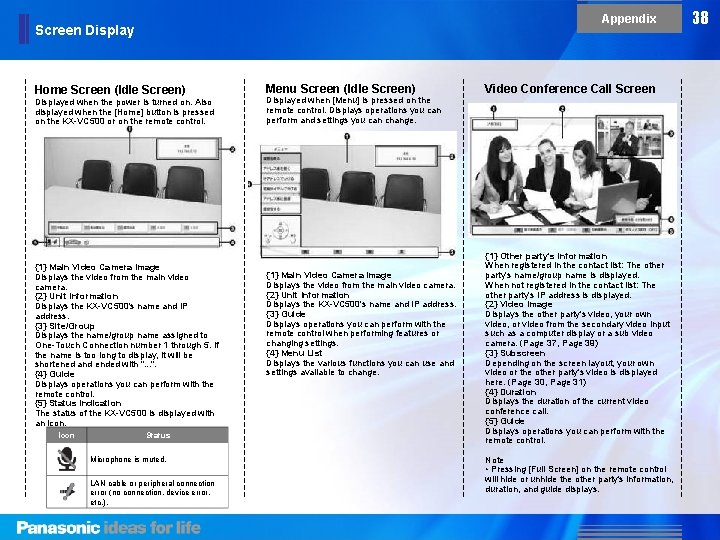
Appendix Screen Display Home Screen (Idle Screen) Displayed when the power is turned on. Also displayed when the [Home] button is pressed on the KX-VC 500 or on the remote control. {1} Main Video Camera Image Displays the video from the main video camera. {2} Unit Information Displays the KX-VC 500's name and IP address. {3} Site/Group Displays the name/group name assigned to One-Touch Connection number 1 through 5. If the name is too long to display, it will be shortened and ended with ". . . ". {4} Guide Displays operations you can perform with the remote control. {5} Status Indication The status of the KX-VC 500 is displayed with an icon. Icon Status Microphone is muted. LAN cable or peripheral connection error (no connection, device error, etc. ). Menu Screen (Idle Screen) Displayed when [Menu] is pressed on the remote control. Displays operations you can perform and settings you can change. {1} Main Video Camera Image Displays the video from the main video camera. {2} Unit Information Displays the KX-VC 500's name and IP address. {3} Guide Displays operations you can perform with the remote control when performing features or changing settings. {4} Menu List Displays the various functions you can use and settings available to change. Video Conference Call Screen {1} Other party's information When registered in the contact list: The other party's name/group name is displayed. When not registered in the contact list: The other party's IP address is displayed. {2} Video Image Displays the other party's video, your own video, or video from the secondary video input such as a computer display or a sub video camera. (Page 37, Page 39) {3} Subscreen Depending on the screen layout, your own video or the other party's video is displayed here. (Page 30, Page 31) {4} Duration Displays the duration of the current video conference call. {5} Guide Displays operations you can perform with the remote control. Note • Pressing [Full Screen] on the remote control will hide or unhide the other party's information, duration, and guide displays. 38
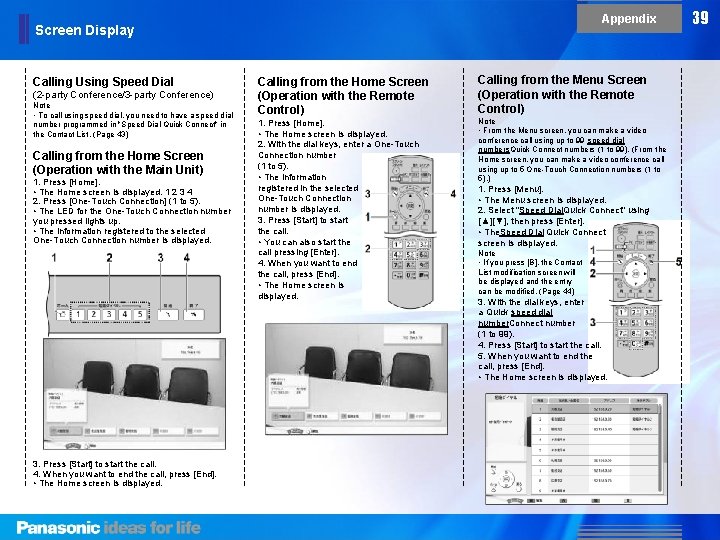
Appendix Screen Display Calling Using Speed Dial (2 -party Conference/3 -party Conference) Note • To call using speed dial, you need to have a speed dial number programmed in "Speed Dial Quick Connect" in the Contact List. (Page 43) Calling from the Home Screen (Operation with the Main Unit) 1. Press [Home]. • The Home screen is displayed. 1 2 3 4 2. Press [One-Touch Connection] (1 to 5). • The LED for the One-Touch Connection number you pressed lights up. • The information registered to the selected One-Touch Connection number is displayed. 3. Press [Start] to start the call. 4. When you want to end the call, press [End]. • The Home screen is displayed. Calling from the Home Screen (Operation with the Remote Control) 1. Press [Home]. • The Home screen is displayed. 2. With the dial keys, enter a One-Touch Connection number (1 to 5). • The information registered in the selected One-Touch Connection number is displayed. 3. Press [Start] to start the call. • You can also start the call pressing [Enter]. 4. When you want to end the call, press [End]. • The Home screen is displayed. Calling from the Menu Screen (Operation with the Remote Control) Note • From the Menu screen, you can make a video conference call using up to 99 speed dial numbers. Quick Connect numbers (1 to 99). (From the Home screen, you can make a video conference call using up to 5 One-Touch Connection numbers (1 to 5). ) 1. Press [Menu]. • The Menu screen is displayed. 2. Select "Speed Dial. Quick Connect" using [▲][▼], then press [Enter]. • The. Speed Dial Quick Connect screen is displayed. Note • If you press [B], the Contact List modification screen will be displayed and the entry can be modified. (Page 44) 3. With the dial keys, enter a Quick speed dial number. Connect number (1 to 99). 4. Press [Start] to start the call. 5. When you want to end the call, press [End]. • The Home screen is displayed. 39
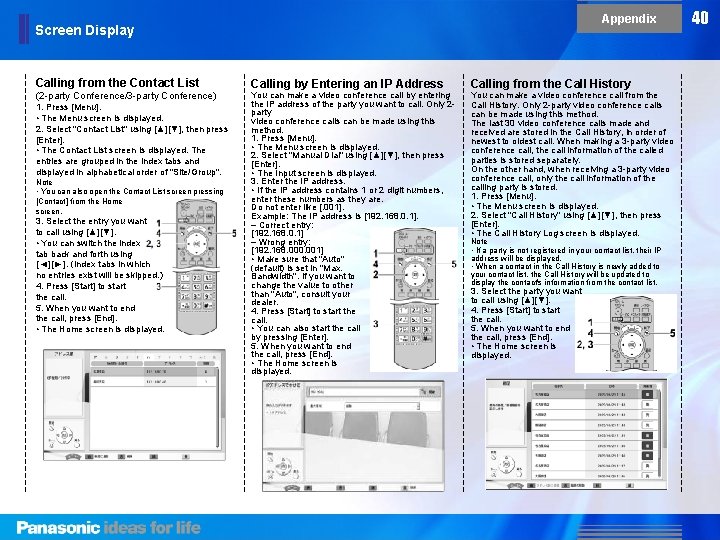
Appendix Screen Display Calling from the Contact List (2 -party Conference/3 -party Conference) 1. Press [Menu]. • The Menu screen is displayed. 2. Select "Contact List" using [▲][▼], then press [Enter]. • The Contact List screen is displayed. The entries are grouped in the index tabs and displayed in alphabetical order of "Site/Group". Note • You can also open the Contact List screen pressing [Contact] from the Home screen. ▲ ▲ 3. Select the entry you want to call using [▲][▼]. • You can switch the index tab back and forth using [ ][ ]. (Index tabs in which no entries exist will be skipped. ) 4. Press [Start] to start the call. 5. When you want to end the call, press [End]. • The Home screen is displayed. Calling by Entering an IP Address You can make a video conference call by entering the IP address of the party you want to call. Only 2 party video conference calls can be made using this method. 1. Press [Menu]. • The Menu screen is displayed. 2. Select "Manual Dial" using [▲][▼], then press [Enter]. • The Input screen is displayed. 3. Enter the IP address. • If the IP address contains 1 or 2 digit numbers, enter these numbers as they are. Do not enter like [. 001]. Example: The IP address is [192. 168. 0. 1]. – Correct entry: [192. 168. 0. 1] – Wrong entry: [192. 168. 000. 001] • Make sure that "Auto" (default) is set in "Max. Bandwidth". If you want to change the value to other than "Auto", consult your dealer. 4. Press [Start] to start the call. • You can also start the call by pressing [Enter]. 5. When you want to end the call, press [End]. • The Home screen is displayed. Calling from the Call History You can make a video conference call from the Call History. Only 2 -party video conference calls can be made using this method. The last 30 video conference calls made and received are stored in the Call History, in order of newest to oldest call. When making a 3 -party video conference call, the call information of the called parties is stored separately. On the other hand, when receiving a 3 -party video conference call, only the call information of the calling party is stored. 1. Press [Menu]. • The Menu screen is displayed. 2. Select "Call History" using [▲][▼], then press [Enter]. • The Call History Log screen is displayed. Note • If a party is not registered in your contact list, their IP address will be displayed. • When a contact in the Call History is newly added to your contact list, the Call History will be updated to display the contact's information from the contact list. 3. Select the party you want to call using [▲][▼]. 4. Press [Start] to start the call. 5. When you want to end the call, press [End]. • The Home screen is displayed. 40
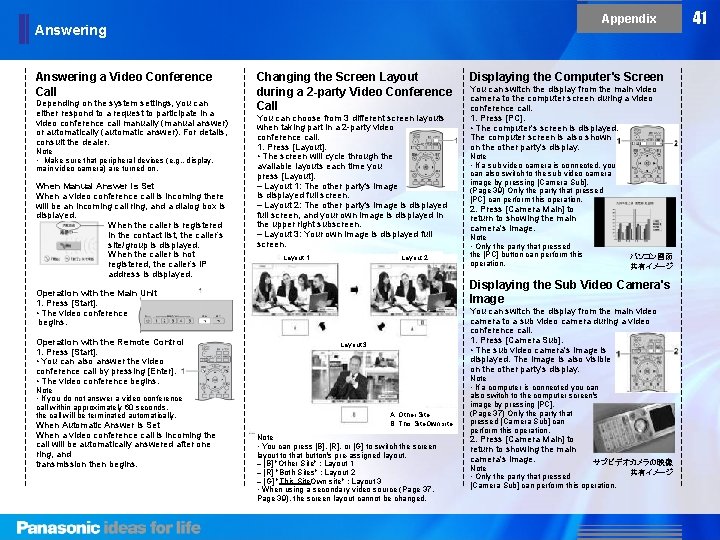
Appendix Answering a Video Conference Call Depending on the system settings, you can either respond to a request to participate in a video conference call manually (manual answer) or automatically (automatic answer). For details, consult the dealer. Note • Make sure that peripheral devices (e. g. , display, main video camera) are turned on. When Manual Answer is Set When a video conference call is incoming there will be an incoming call ring, and a dialog box is displayed. When the caller is registered in the contact list, the caller’s site/group is displayed. When the caller is not registered, the caller’s IP address is displayed. Changing the Screen Layout during a 2 -party Video Conference Call You can choose from 3 different screen layouts when taking part in a 2 -party video conference call. 1. Press [Layout]. • The screen will cycle through the available layouts each time you press [Layout]. – Layout 1: The other party's image is displayed full screen. – Layout 2: The other party's image is displayed full screen, and your own image is displayed in the upper right subscreen. – Layout 3: Your own image is displayed full screen. Layout 1 Layout 2 Note • If you do not answer a video conference call within approximately 60 seconds, the call will be terminated automatically. When Automatic Answer is Set When a video conference call is incoming the call will be automatically answered after one ring, and transmission then begins. You can switch the display from the main video camera to the computer screen during a video conference call. 1. Press [PC]. • The computer's screen is displayed. The computer screen is also shown on the other party's display. Note • If a sub video camera is connected, you can also switch to the sub video camera image by pressing [Camera Sub]. (Page 39) Only the party that pressed [PC] can perform this operation. 2. Press [Camera Main] to return to showing the main camera's image. Note • Only the party that pressed the [PC] button can perform this operation. パソコン画面 共有イメージ Displaying the Sub Video Camera's Image Operation with the Main Unit 1. Press [Start]. • The video conference begins. Operation with the Remote Control 1. Press [Start]. • You can also answer the video conference call by pressing [Enter]. • The video conference begins. Displaying the Computer's Screen You can switch the display from the main video camera to a sub video camera during a video conference call. 1. Press [Camera Sub]. • The sub video camera's image is displayed. The image is also visible on the other party's display. Layout 3 A: Other Site B: This Site. Own site Note • You can press [B], [R], or [G] to switch the screen layout to that button's pre-assigned layout. – [B] "Other Site" : Layout 1 – [R] "Both Sites" : Layout 2 – [G] "This Site. Own site" : Layout 3 • When using a secondary video source (Page 37, Page 39), the screen layout cannot be changed. Note • If a computer is connected you can also switch to the computer screen's image by pressing [PC]. (Page 37) Only the party that pressed [Camera Sub] can perform this operation. 2. Press [Camera Main] to return to showing the main camera's image. サブビデオカメラの映像 Note 共有イメージ • Only the party that pressed [Camera Sub] can perform this operation. 41
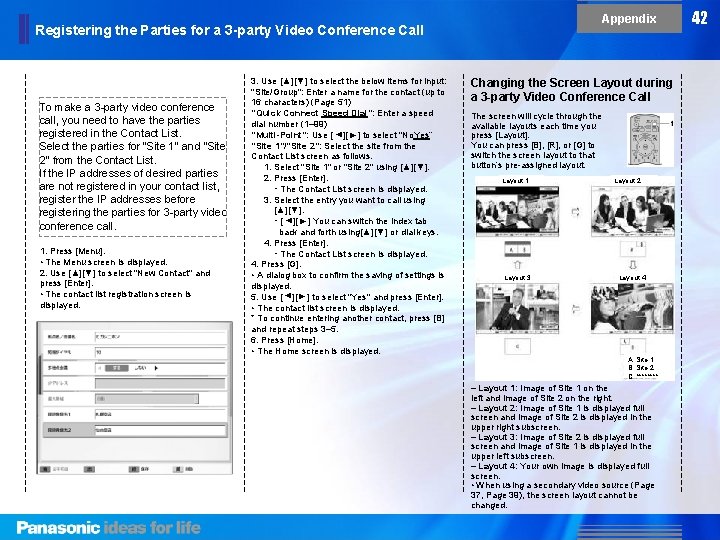
Appendix Registering the Parties for a 3 -party Video Conference Call ▲ ▲ The screen will cycle through the available layouts each time you press [Layout]. You can press [B], [R], or [G] to switch the screen layout to that button’s pre-assigned layout. Layout 1 Layout 2 Layout 3 Layout 4 ▲ 1. Press [Menu]. • The Menu screen is displayed. 2. Use [▲][▼] to select "New Contact" and press [Enter]. • The contact list registration screen is displayed. Changing the Screen Layout during a 3 -party Video Conference Call ▲ To make a 3 -party video conference call, you need to have the parties registered in the Contact List. Select the parties for "Site 1" and "Site 2" from the Contact List. If the IP addresses of desired parties are not registered in your contact list, register the IP addresses before registering the parties for 3 -party video conference call. 3. Use [▲][▼] to select the below items for input: "Site/Group": Enter a name for the contact (up to 16 characters) (Page 51) "Quick Connect Speed Dial": Enter a speed dial number (1– 99) "Multi-Point": Use [ ][ ] to select "No. Yes“ "Site 1"/"Site 2": Select the site from the Contact List screen as follows. 1. Select "Site 1" or "Site 2" using [▲][▼]. 2. Press [Enter]. ・ The Contact List screen is displayed. 3. Select the entry you want to call using [▲][▼]. ・ [ ][ ] You can switch the index tab back and forth using[▲][▼] or dial keys. 4. Press [Enter]. ・ The Contact List screen is displayed. 4. Press [G]. • A dialog box to confirm the saving of settings is displayed. 5. Use [ ][ ] to select "Yes" and press [Enter]. • The contact list screen is displayed. * To continue entering another contact, press [B] and repeat steps 3– 5. 6. Press [Home]. • The Home screen is displayed. A: Site 1 B: Site 2 C: **** – Layout 1: Image of Site 1 on the left and image of Site 2 on the right. – Layout 2: Image of Site 1 is displayed full screen and image of Site 2 is displayed in the upper right subscreen. – Layout 3: Image of Site 2 is displayed full screen and image of Site 1 is displayed in the upper left subscreen. – Layout 4: Your own image is displayed full screen. • When using a secondary video source (Page 37, Page 39), the screen layout cannot be changed. 42
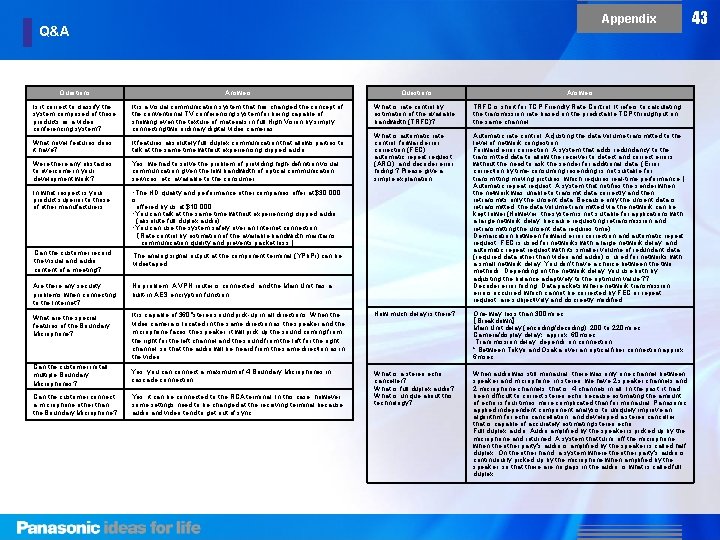
Appendix Q&A Questions Answers Is it correct to classify the system comprised of these products as a video conferencing system? It is a visual communication system that has changed the concept of the conventional TV conferencing system for being capable of showing even the texture of materials in full High Vision by simply connecting two ordinary digital video cameras. What is rate control by estimation of the available bandwidth (TRFC)? TRFC is short for TCP Friendly Rate Control. It refers to calculating the transmission rate based on the predictable TCP throughput on the same channel. What novel features does it have? It features absolutely full duplex communication that allows parties to talk at the same time without experiencing clipped audio. Were there any obstacles to overcome in your development work? Yes, we had to solve the problem of providing high-definition visual communication given the low bandwidth of optical communication services, etc. available to the consumer. What is automatic rate control, forward error correction (FEC), automatic repeat request (ARQ), and decoder error hiding ? Please give a simple explanation. In what respect is your product superior to those of other manufacturers. ・The HD quality and performance other companies offer at $30, 000 is offered by us at $10, 000. ・You can talk at the same time without experiencing clipped audio (absolute full duplex audio) ・You can use the system safely over an Internet connection. (Rate control by estimation of the available bandwidth maintains communication quality and prevents packet loss. ) Can the customer record the visual and audio content of a meeting? The analog signal output at the component terminal (YPb. Pr) can be videotaped. Are there any security problems when connecting to the Internet? No problem. A VPN router is connected, and the Main Unit has a built-in AES encryption function. Automatic rate control: Adjusting the data volume transmitted to the level of network congestion Forward error correction: A system that adds redundancy to the transmitted data to allow the receiver to detect and correct errors without the need to ask the sender for additional data. (Error correction by time-consuming resending is not suitable for transmitting moving pictures, which requires real-time performance. ) Automatic repeat request: A system that notifies the sender when the network was unable to transmit data correctly and then retransmits only the unsent data. Because only the unsent data is retransmitted, the data volume transmitted via the network can be kept lower (However, the system is not suitable for applications with a large network delay, because requesting retransmission and retransmitting the unsent data requires time) Demarcation between forward error correction and automatic repeat request: FEC is used for networks with a large network delay, and automatic repeat request with its smaller volume of redundant data (required data other than video and audio) is used for networks with a small network delay. You don't have a choice between the two methods. Depending on the network delay, you use both by adjusting the balance adaptively to the optimum value. ? ? Decoder error hiding: Data packets where network transmission errors occurred, which cannot be corrected by FEC or repeat request, are subjectively and discreetly modified What are the special features of the Boundary Microphone? It is capable of 360°stereo sound pick-up in all directions. When the video camera is located in the same direction as the speaker and the microphone faces the speaker, it will pick up the sound coming from the right for the left channel and the sound from the left for the right channel, so that the audio will be heard from the same direction as in the video. How much delay is there? One-way: less than 300 msec 【Breakdown】 Main Unit delay (encoding/decoding): 200 to 220 msec Camera/display delay: approx. 60 msec Transmission delay: depends on connection * Between Tokyo and Osaka over an optical fiber connection approx. 6 msec Can the customer install multiple Boundary Microphones? Yes, you can connect a maximum of 4 Boundary Microphones in cascade connection. Can the customer connect a microphone other than the Boundary Microphone? Yes, it can be connected to the RCA terminal. In this case, however, some settings need to be changed at the receiving terminal because audio and video tend to get out of sync. What is a stereo echo canceller? What is full duplex audio? What is unique about this technology? When audio was still monaural, there was only one channel between speaker and microphone; in stereo, we have 2 speaker channels and 2 microphone channels, that is, 4 channels in all. In the past, it had been difficult to correct stereo echo because estimating the amount of echo is four times more complicated than for monaural. Panasonic applied independent component analysis to uniquely improve an algorithm for echo cancellation, and developed a stereo canceller that is capable of accurately estimating stereo echo. Full duplex audio: Audio amplified by the speaker is picked up by the microphone and returned. A system that turns off the microphone when the other party's audio is amplified by the speaker is called half duplex. On the other hand, a system where the other party's audio is continuously picked up by the microphone when amplified by the speaker, so that there are no gaps in the audio, is what is called full duplex. 43
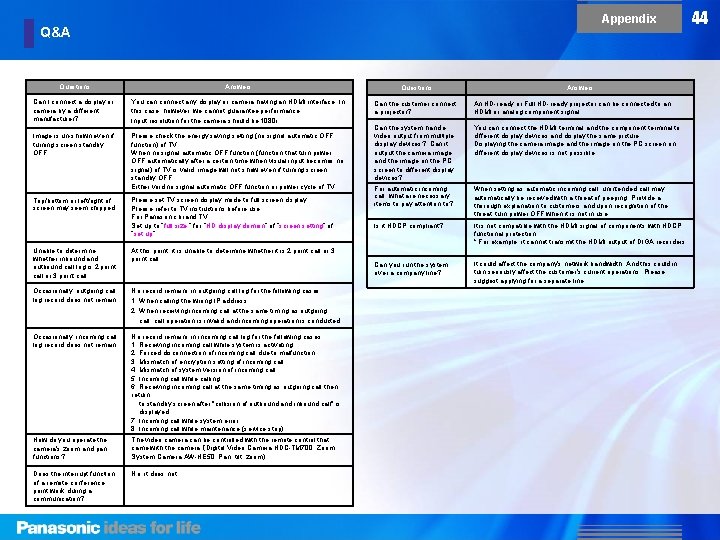
Appendix Q&A Questions Answers Questions Can I connect a display or camera by a different manufacturer? You can connect any display or camera having an HDMI interface. In this case, however, we cannot guarantee performance. Input resolution for the camera should be 1080 i. Can the customer connect a projector? An HD-ready or Full HD-ready projector can be connected to an HDMI or analog component signal. Image is un-shown even if turning screen standby OFF. Please check the energy saving setting (no signal automatic OFF function) of TV. When no signal automatic OFF function (function that turn power OFF automatically after a certain time when visual input becomes no signal) of TV is valid, image will not show even if turning screen standby OFF. Either void no signal automatic OFF function or power cycle of TV. Can the system handle video output from multiple display devices? Can it output the camera image and the image on the PC screen to different display devices? You can connect the HDMI terminal and the component terminal to different display devices and display the same picture. Displaying the camera image and the image on the PC screen on different display devices is not possible. Top/bottom or left/right of screen may seem chipped. Please set TV screen display mode to full screen display. Please refer to TV instructions before use. For Panasonic brand TV: Set up to “full size ” for “HD display domain” of “screen setting” of “set up”. For automatic incoming call, what are necessary items to pay attention to? When setting as automatic incoming call, unintended call may automatically be received with a threat of peeping. Provide a thorough explanation to customers and upon recognition of the threat, turn power OFF when it is not in use. Is it HDCP compliant? It is not compatible with the HDMI signal of components with HDCP functional protection. * For example, it cannot transmit the HDMI output of DIGA recorders. Can you run the system over a company line? It could affect the company's network bandwidth. And this could in turn seriously affect the customer's current operations. Please suggest applying for a separate line. Unable to determine whether inbound and outbound call log is 2 point call or 3 point call. At this point, it is unable to determine whether it is 2 point call or 3 point call. Occasionally, outgoing call log record does not remain. No record remains in outgoing call log for the following cases. 1, When calling the wrong IP address 2, When receiving incoming call at the same timing as outgoing call, call operation is invalid and incoming operation is conducted. Occasionally, incoming call log record does not remain. No record remains in incoming call log for the following cases. 1, Receiving incoming call while system is activating 2, Forced disconnection of incoming call due to malfunction 3, Mismatch of encryption setting of incoming call 4, Mismatch of system version of incoming call 5, Incoming call while calling 6, Receiving incoming call at the same timing as outgoing call then return to standby screen after "collision of outbound and inbound call" is displayed 7, Incoming call while system error 8, Incoming call while maintenance (service stop) How do you operate the camera's zoom and pan functions? The video camera can be controlled with the remote control that came with the camera. (Digital Video Camera HDC-TM 700: Zoom, System Camera AW-HE 50: Pan, tilt, zoom) Does the interrupt function of a remote conference point work during a communication? No, it does not. Answers 44
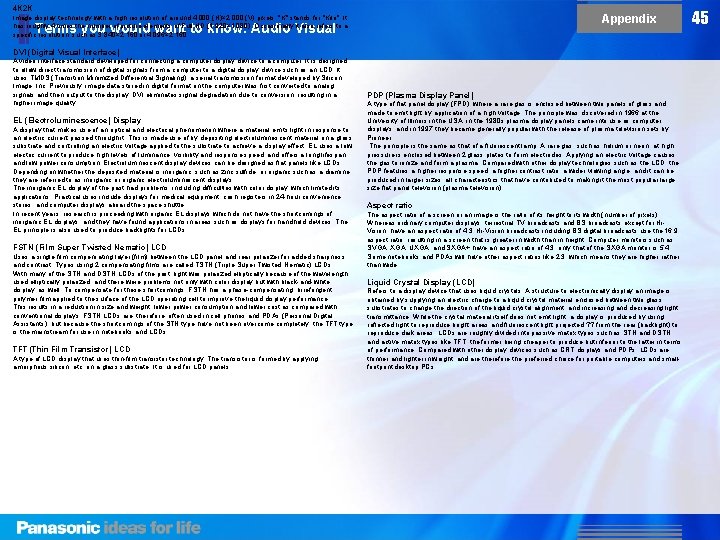
4 K 2 K Appendix Image display technology with a high resolution of around 4, 000 (H)× 2, 000 (V) pixels. "K" stands for "Kilo". It has roughly 4 times the number of picture elements of Full HD (1, 920× 1, 080). Occasionally it also refers to a specific resolution, such as 3, 840× 2, 160 or 4, 096× 2, 160. Terms you would want to know: Audio Visual DVI (Digital Visual Interface) A video interface standard developed for connecting a computer display device to a computer. It is designed to allow direct transmission of digital signals from a computer to a digital display device such as an LCD. It uses TMDS (Transition Minimized Differential Signaling), a serial transmission format developed by Silicon Image, Inc. Previously, image data stored in digital format on the computer was first converted to analog signals and then output to the display. DVI eliminates signal degradation due to conversion, resulting in a higher image quality. EL (Electroluminescence) Display A display that makes use of an optical and electrical phenomenon where a material emits light in response to an electric current passed through it. This is made use of by depositing electroluminescent material on a glass substrate and controlling an electric voltage applied to the substrate to achieve a display effect. EL uses a low electric current to produce high levels of luminance, visibility and response speed, and offers a long lifespan and low power consumption. Electroluminescent display devices can be designed as flat panels like LCDs. Depending on whether the deposited material is inorganic, such as zinc sulfide, or organic such as a diamine, they are referred to as inorganic or organic electroluminescent displays. The inorganic EL display of the past had problems, including difficulties with color display, which limited its applications. Practical uses include displays for medical equipment, cash registers in 24 -hour convenience stores, and computer displays aboard the space shuttle. In recent years, research is proceeding with organic EL displays which do not have the shortcomings of inorganic EL displays, and they have found applications in areas such as displays for handheld devices. The EL principle is also used to produce backlights for LCDs. FSTN (Film Super Twisted Nematic) LCD Uses a single film compensating layer (film) between the LCD panel and rear polarizer for added sharpness and contrast. Types using 2 compensating films are called TSTN (Triple Super Twisted Nematic) LCDs. With many of the STN and DSTN LCDs of the past, light was polarized elliptically because of the wavelength used elliptically polarized, and there were problems not only with color display but with black-and-white display, as well. To compensate for these shortcomings, FSTN has a phase-compensating, birefringent polymer film applied to the surface of the LCD operating cell to improve the liquid display performance. This results in a reduction in size and weight, lower power consumption and lower cost as compared with conventional displays. FSTN LCDs are, therefore, often used in cell phones and PDAs (Personal Digital Assistants), but because the shortcomings of the STN type have not been overcome completely, the TFT type is the mainstream for use in notebooks and LCDs. TFT (Thin Film Transistor) LCD A type of LCD display that uses thin-film transistor technology. The transistor is formed by applying amorphous silicon, etc. on a glass substrate. It is used for LCD panels. PDP (Plasma Display Panel) A type of flat panel display (FPD), where a rare gas is enclosed between two panels of glass and made to emit light by application of a high voltage. The principle was discovered in 1966 at the University of Illinois in the USA, in the 1980 s plasma display panels came into use as computer displays, and in 1997 they became generally popular with the release of plasma television sets by Pioneer. The principle is the same as that of a fluorescent lamp. A rare gas, such as helium or neon, at high pressure is enclosed between 2 glass plates to form electrodes. Applying an electric voltage causes the gas to ionize and form a plasma. Compared with other display technologies such as the LCD, the PDP features a higher response speed, a higher contrast ratio, a wider viewing angle, and it can be produced in larger sizes, all characteristics that have contributed to making it the most popular large size flat panel television (plasma television). Aspect ratio The aspect ratio of a screen or an image is the ratio of its height to its width (number of pixels). Whereas ordinary computer displays, terrestrial TV broadcasts and BS broadcasts except for Hi. Vision, have an aspect ratio of 4: 3, Hi-Vision broadcasts including BS digital broadcasts use the 16: 9 aspect ratio, resulting in a screen that is greater in width than in height. Computer monitors such as SVGA, XGA, UXGA, and SXGA+ have an aspect ratio of 4: 3, only that of the SXGA monitor is 5: 4. Some notebooks and PDAs will have other aspect ratios like 2: 3, which means they are higher rather than wide. Liquid Crystal Display (LCD) Refers to a display device that uses liquid crystals. A structure to electronically display an image is obtained by supplying an electric charge to a liquid crystal material enclosed between two glass substrates to change the direction of the liquid crystal alignment, and increasing and decreasing light transmittance. While the crystal material itself does not emit light, a display is produced by using reflected light to reproduce bright areas and fluorescent light projected ? ? from the rear (backlight) to reproduce dark areas. LCDs are roughly divided into passive matrix types such as STN and DSTN, and active matrix types like TFT, the former being cheaper to produce but inferior to the latter in terms of performance. Compared with other display devices such as CRT displays and PDPs, LCDs are thinner and lighter in weight, and are therefore the preferred choice for portable computers and smallfootprint desktop PCs. 45
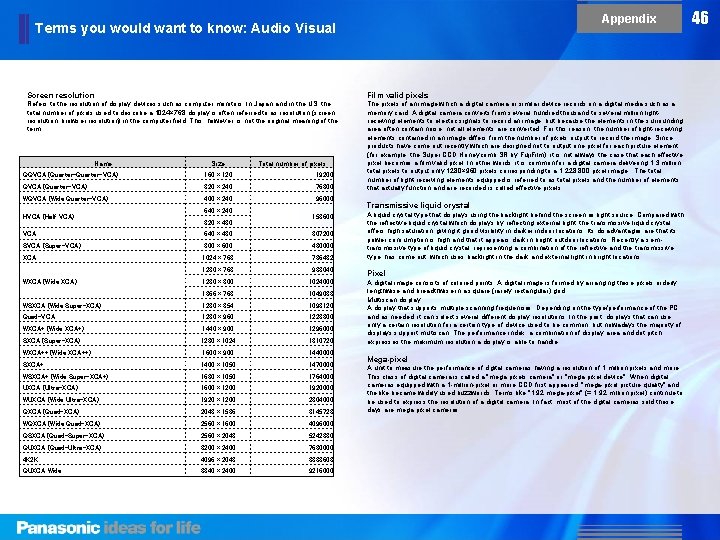
Appendix Terms you would want to know: Audio Visual Screen resolution Film valid pixels Refers to the resolution of display devices such as computer monitors. In Japan and in the US, the total number of pixels used to describe a 1024× 768 display is often referred to as resolution (screen resolution, browser resolution) in the computer field. This, however, is not the original meaning of the term. The pixels of an image which a digital camera or similar device records on a digital media such as a memory card. A digital camera converts from several hundred thousand to several million lightreceiving elements to electric signals to record an image, but because the elements in the surrounding area often contain noise, not all elements are converted. For this reason, the number of light-receiving elements contained in an image differs from the number of pixels output to record the image. Since products have come out recently which are designed not to output one pixel for each picture element (for example, the Super CCD Honeycomb SR by Fuji. Film), it is not always the case that each effective pixel becomes a film valid pixel. In other words, it is common for a digital camera delivering 1. 3 million total pixels to output only 1280× 960 pixels corresponding to a 1, 228, 800 pixel image. The total number of light-receiving elements equipped is referred to as total pixels and the number of elements that actually function and are recorded is called effective pixels. Name Size Total number of pixels QQVGA (Quarter-VGA) 160× 120 19200 QVGA (Quarter-VGA) 320× 240 76800 WQVGA (Wide Quarter-VGA) 400× 240 96000 HVGA (Half VGA) 640× 240 320× 480 153600 VGA 640× 480 307200 SVGA (Super-VGA) 800× 600 480000 XGA 1024× 768 786432 1280× 768 983040 1280× 800 1024000 1366× 768 1049088 WSXGA (Wide Super-XGA) 1280× 854 1093120 Quad-VGA 1280× 960 1228800 WXGA+ (Wide XGA+) 1440× 900 1296000 SXGA (Super-XGA) 1280× 1024 1310720 WXGA++ (Wide XGA++) 1600× 900 1440000 SXGA+ 1400× 1050 1470000 WSXGA+ (Wide Super-XGA+) 1680× 1050 1764000 UXGA (Ultra-XGA) 1600× 1200 1920000 WUXGA (Wide Ultra-XGA) 1920× 1200 2304000 QXGA (Quad-XGA) 2048× 1536 3145728 WQXGA (Wide Quad-XGA) 2560× 1600 4096000 QSXGA (Quad-Super-XGA) 2560× 2048 5242880 QUXGA (Quad-Ultra-XGA) 3200× 2400 7680000 4 K 2 K 4096× 2048 8388608 QUXGA Wide 3840× 2400 9216000 WXGA (Wide XGA) Transmissive liquid crystal A liquid crystal type that displays using the backlight behind the screen as light source. Compared with the reflective liquid crystal which displays by reflecting external light, the transmissive liquid crystal offers high saturation, giving it good visibility in darker indoor locations. Its disadvantages are that its power consumption is high and that it appears dark in bright outdoor locations. Recently a semitransmissive type of liquid crystal, representing a combination of the reflective and the transmissive type, has come out, which uses backlight in the dark and external light in bright locations. Pixel A digital image consists of colored points. A digital image is formed by arranging these pixels orderly lengthwise and breadthwise in a square (rarely rectangular) grid. Multiscan display A display that supports multiple scanning frequencies. Depending on the type/performance of the PC and as needed, it can select several different display resolutions. In the past, displays that can use only a certain resolution for a certain type of device used to be common, but nowadays the majority of displays support multiscan. The performance index, a combination of display area and dot pitch, expresses the maximum resolution a display is able to handle. Mega-pixel A unit to measure the performance of digital cameras having a resolution of 1 million pixels and more. This class of digital camera is called a "mega-pixels camera" or "mega-pixel device". When digital cameras equipped with a 1 -million-pixel or more CCD first appeared, "mega-pixel picture quality" and the like became widely used buzzwords. Terms like "1. 92 mega-pixel" (= 1. 92 million pixel) continue to be used to express the resolution of a digital camera. In fact, most of the digital cameras sold these days are mega-pixel cameras. 46
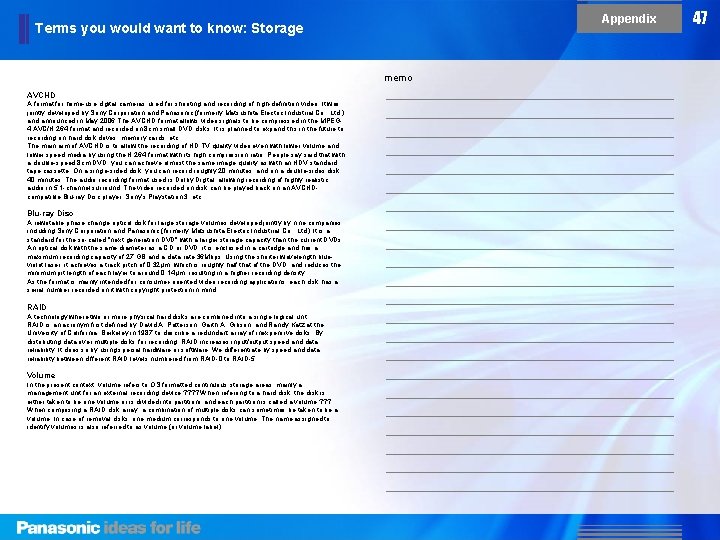
Appendix Terms you would want to know: Storage memo AVCHD A format for home-use digital cameras used for shooting and recording of high-definition video. It was jointly developed by Sony Corporation and Panasonic (formerly Matsushita Electric Industrial Co. , Ltd. ) and announced in May 2006. The AVCHD format allows video signals to be compressed in the MPEG 4 AVC/H. 264 format and recorded on 8 cm small DVD disks. It is planned to expand this in the future to recording on hard disk drives, memory cards, etc. The main aim of AVCHD is to allow the recording of HD TV quality video even with lower volume and lower speed media by using the H. 264 format with its high compression ratio. People say said that with a double-speed 8 cm DVD, you can achieve almost the same image quality as with an HDV standard tape cassette. On a single-sided disk, you can record roughly 20 minutes, and on a double-sides disk 40 minutes. The audio recording format used is Dolby Digital, allowing recording of highly realistic audio in 5. 1 -channel surround. The video recorded on disk can be played back on an AVCHDcompatible Blu-ray Disc player, Sony's Playstation 3, etc. Blu-ray Disc A rewritable phase change optical disk for large storage volumes developed jointly by nine companies, including Sony Corporation and Panasonic (formerly Matsushita Electric Industrial Co. , Ltd. ). It is a standard for the so-called "next generation DVD" with a larger storage capacity than the current DVDs. An optical disk with the same diameter as a CD or DVD, it is enclosed in a cartridge and has a maximum recording capacity of 27 GB and a data rate 36 Mbps. Using the shorter wavelength blueviolet laser, it achieves a track pitch of 0. 32μm, which is roughly half that of the DVD, and reduces the minimum pit length of each layer to around 0. 14μm, resulting in a higher recording density. As the format is mainly intended for consumer-oriented video recording applications, each disk has a serial number recorded on it with copyright protection in mind. RAID A technology where two or more physical hard disks are combined into a single logical unit. RAID is an acronym first defined by David A. Patterson, Garth A. Gibson, and Randy Katz at the University of California, Berkeley in 1987 to describe a redundant array of inexpensive disks. By distributing data over multiple disks for recording, RAID increases input/output speed and data reliability. It does so by using special hardware or software. We differentiate by speed and data reliability between different RAID levels numbered from RAID-0 to RAID-5. Volume In the present context, volume refers to OS formatted continuous storage areas, mainly a management unit for an external recording device. ? ? When referring to a hard disk, the disk is either taken to be one volume or is divided into partitions and each partition is called a volume. ? ? ? When composing a RAID disk array, a combination of multiple disks can sometimes be taken to be a volume. In case of removal disks, one medium corresponds to one volume. The name assigned to identify volumes is also referred to as volume (or volume label). 47
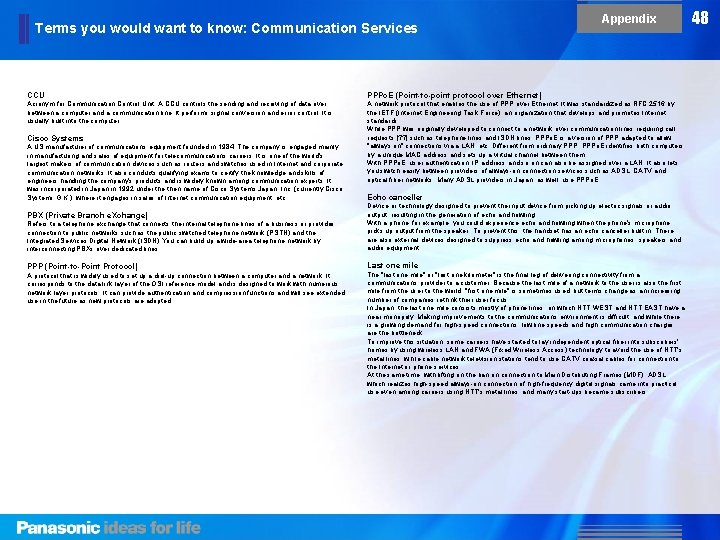
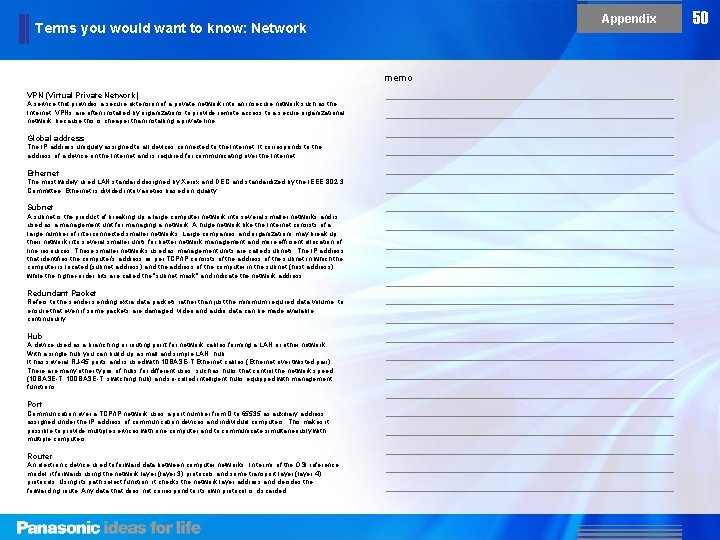
Terms you would want to know: Communication Services Appendix CCU PPPo. E (Point-to-point protocol over Ethernet) Acronym for Communication Control Unit. A CCU controls the sending and receiving of data over between a computer and a communication line. It performs signal conversion and error control. It is usually built into the computer. A network protocol that enables the use of PPP over Ethernet. It was standardized as RFC 2516 by the IETF (Internet Engineering Task Force), an organization that develops and promotes Internet standards, While PPP was originally developed to connect to a network over communication lines requiring call requests [? ? ] such as telephone lines and ISDN lines, PPPo. E is a version of PPP adapted to allow "always on" connections via a LAN, etc. Different from ordinary PPP, PPPo. E identifies both computers by a unique MAC address and sets up a virtual channel between them. With PPPo. E, user authentication, IP address and so on can also be assigned over a LAN. It also lets you switch easily between providers of always-on connection services such as ADSL, CATV and optical fiber networks. Many ADSL providers in Japan, as well, use PPPo. E. Cisco Systems A US manufacturer of communications equipment founded in 1984. The company is engaged mainly in manufacturing and sales of equipment for telecommunications carriers. It is one of the world's largest makers of communication devices such as routers and switches used in Internet and corporate communication networks. It also conducts qualifying exams to certify the knowledge and skills of engineers handling the company's products and is widely known among communication experts. It was incorporated in Japan in 1992 under then name of Cisco Systems Japan, Inc. (currently Cisco Systems G. K. ), where it engages in sales of Internet communication equipment, etc. Echo canceller Refers to a telephone exchange that connects the internal telephone lines of a business or provides connection to public networks such as the public switched telephone network (PSTN) and the Integrated Services Digital Network (ISDN). You can build up a wide-area telephone network by interconnecting PBXs over dedicated lines. Device or technology designed to prevent the input device from picking up electric signals or audio output, resulting in the generation of echo and howling. With a phone, for example, you could experience echo and howling when the phone's microphone picks up output from the speaker. To prevent this, the handset has an echo canceller built in. There also external devices designed to suppress echo and howling among microphones, speakers and audio equipment. PPP (Point-to-Point Protocol) Last one mile PBX (Private Branch e. Xchange) A protocol that is widely used to set up a dial-up connection between a computer and a network. It corresponds to the data link layer of the OSI reference model and is designed to work with numerous network layer protocols. It can provide authentication and compression functions and will see extended use in the future as new protocols are adopted. , The "last one mile" or "last one kilometer" is the final leg of delivering connectivity from a communications provider to a customer. Because the last mile of a network to the user is also the first mile from the user to the world, "first one mile" is sometimes used, but terms change as an increasing number of companies rethink their user focus. In Japan, the last one mile consists mostly of phone lines, on which NTT WEST and NTT EAST have a near monopoly. Making improvements to the communications environment is difficult, and while there is a growing demand for high-speed connections, low line speeds and high communication charges are the bottleneck. To improve this situation, some carriers have started to lay independent optical fiber into subscribers' homes by using wireless LAN and FWA (Fixed Wireless Access) technology to avoid the use of NTT's metal lines, while cable network television stations tend to use CATV coaxial cables for connection to the Internet or phone services. At the same time, with lifting on the ban on connection to Main Distributing Frames (MDF), ADSL which realizes high-speed always-on connection of high-frequency digital signals came into practical use even among carriers using NTT's metal lines, and many start-ups became subscribers. 48
Appendix Terms you would want to know: Network 100 BASE-T IPv 6 (Internet Protocol Version 6) A cable standard developed by the IEEE 802. 3 Committee for Ethernet networks running at 100 Mbps. The standard covers twisted pair cables for a transmission distance of 100 m in star connection. The categories concerned are UTP (Unshielded Twisted Pair) or STP (Shielded Twisted Pair) category 5 cables or higher. A next generation Internet protocol (IP) designed to succeed IPv 4, which is threatened with address exhaustion in the foreseeable future, to implement improvements such as a vastly larger address space, additional security features, and hierarchical route aggregation. DHCP (Dynamic Host Configuration Protocol) A protocol that automatically assigns the necessary configuration information such as an IP address to computers that are temporarily connected to a network like the Internet. It allows users to connect with the appropriate settings without having to configure the network connection manually, so that even inexperienced users can easily establish a connection. It also facilitates uniform management of a large number of clients by a network administrator. DNS(Domain Name System) This system matches host names to IP addresses on the Internet. It serves as a distributed database to which DNS servers worldwide contribute. It can resolve IP addresses based on host names and vice versa. Each DNS server possesses information on the domain it administers and stores its domain name and address in the 10 root servers in operation worldwide. H. 323 A protocol used in the implementation of videophone systems, etc. that defines the audio, video, and compression/decompression system for sending and receiving one-to-one audio and video over a network. Designed for handling everything from Vo. IP to video conferencing, H. 323 has found many applications. As network speeds keep increasing and computers become ever more powerful, it has come to be recognized as a useful protocol. A typical example of an H. 323 application is Microsoft Net. Meeting included with Microsoft's browser. HTTP A protocol used by web servers and clients (web browser, etc. _) to send and receive data. It can be used to transfer files containing HTML text, images, and audio/video associated with text, together with information such as semantic representations. IEEE 802. 1 x A standard that provides an authentication mechanism for LAN users. IEEE 802. 11 b, in particular, is widely recognized as a user authentication specification for wireless LAN users and also supports wired LAN. It prevents all communication from clients whose authentification fails (except authentication request) and allows establishment of a connection only for authenticated clients. It also allows for regular re-authentication to prevent port scanning by other users. IP(Internet Protocol) A protocol developed by the Network Project of the U. S. Department of Defense. It corresponds to the third layer (network layer) of the OSI reference model and defines methods for assigning addresses (addressing) to devices using the network and selecting the communication path (routing) inside multiple interconnected networks. Because it is a connectionless protocol, it needs to be used concurrently with TCP in the next higher layer to ensure that data reaches its destination without fail. MCU (Multipoint Control Unit) The Multipoint Control Unit (MCU) is an endpoint on the LAN that provides TV conference systems with the capability for 3 or more terminals to participate in a multipoint conference. Some MCUs are integrated with the TV conference terminal. MTU(Maximum Transmission Unit) MTU is the size (in bytes) of the largest protocol data unit that the layer can pass onwards. The value of the MTU can be fixed at the sending terminal. If the MTU of the sending host is greater than that of the receiving host, the sending terminal will repartition the data according to the MTU on the receiving side before sending it. Given that error data is retransmitted in units designated by the MTU, choosing a smaller MTU under bad communication conditions can result in a higher transfer rate. The MTU is expressed in bytes; the appropriate value for Ethernet is about 1500 bytes, that for a dial-up connection is around 576 bytes. ONU (Optical Network Unit) The ONU is a device for connecting a terminal such as a computer to an optical fiber subscriber network. It is installed in the subscriber's home. SMTP (Simple Mail Transfer Protocol) A protocol for sending electronic mail (e-mail) across the Internet or an intranet. It is used for transferring e-mail between servers and for sending e-mail from the client to the server. T 1 A standard for Digital Private Lines (DPL) established by ANSI (American National Standard Institute) and used in Japan and North America. It applies to the 1. 5 Mbps (=24 x 64 kbps) bandwidth. In Japan it is implemented by optical fiber. As video conferencing usually takes place over ISDN-PRI lines, it is used with 23 B channels + 1 D channel or 24 B channels. In video conferencing, it is applied mainly to the MCU or GW. The corresponding standard in regions other than Japan and North America is E 1。 T. 120 An international standard for multimedia conferencing recommended by the. It deals mainly with subjects such as whiteboards, application sharing, and file transfer. An example of T. 120 compliant software is Microsoft's Net. Meeting. TCP/IP (Transmission Control Protocol/Internet Protocol) A set of communications protocols used for the Internet, intranets and other similar networks. It is the result of a process to develop a computer network that would not fail in its entirety even if the U. S. Department of Defense was partially destroyed by a nuclear attack. 49
Appendix Terms you would want to know: Network memo VPN (Virtual Private Network) A service that provides a secure extension of a private network into an insecure network such as the Internet. VPNs are often installed by organizations to provide remote access to a secure organizational network, because this is cheaper than installing a private line. Global address The IP address uniquely assigned to all devices connected to the Internet. It corresponds to the address of a device on the Internet and is required for communicating over the Internet. Ethernet The most widely used LAN standard designed by Xerox and DEC and standardized by the IEEE 802. 3. Committee. Ethernet is divided into varieties based on quality. Subnet A subnet is the product of breaking up a large computer network into several smaller networks and is used as a management unit for managing a network. A huge network like the Internet consists of a large number of interconnected smaller networks. Large companies and organizations may break up their network into several smaller units for better network management and more efficient allocation of line resources. These smaller networks used as management units are called subnets. The IP address that identifies the computer's address as per TCP/IP consists of the address of the subnet in which the computer is located (subnet address) and the address of the computer in the subnet (host address), while the higher-order bits are called the "subnet mask" and indicate the network address. Redundant Packet Refers to the sender sending extra data packets rather than just the minimum required data volume, to ensure that even if some packets are damaged, video and audio data can be made available continuously. Hub A device used as a branching or routing point for network cables forming a LAN or other network. With a single hub you can build up a small and simple LAN. hub. It has several RJ-45 ports and is used with 10 BASE-T Ethernet cables (Ethernet over twisted pair). There are many other types of hubs for different uses, such as hubs that control the network speed (10 BASE-T, 100 BASE-T, switching hub) and so-called intelligent hubs equipped with management functions. Port Communication over a TCP/IP network uses a port number from 0 to 65535 as auxiliary address assigned under the IP address of communication devices and individual computers. This makes it possible to provide multiple services with one computer and to communicate simultaneously with multiple computers. Router An electronic device used to forward data between computer networks. In terms of the OSI reference model, it forwards using the network layer (layer 3) protocols and some transport layer (layer 4) protocols. Using its path select function, it checks the network layer address and decides the forwarding route. Any data that does not correspond to its own protocol is discarded. 50
Appendix Terms you would want to know: Multi Media DLNA (Digital Living Network Alliance) Pan/Tilt A standard used by manufacturers of consumer electronics to allow entertainment devices within the home to share their content with each other across a home area network (HAN). The term is also used to refer to devices that have it built in. Panning of the camera refers to its rotation in a horizontal plane, tilting refers to its rotation in a vertical plane. fps A term to express the smoothness of video images. fps refers to the number of frames displayed per second. HDMI (High-Definition Multimedia Interface) A standard for a digital audio/video input/output interface, applicable mainly to electronic household appliances and audio/video equipment, that was formulated in December 2002. HDV (High-Definition Video) A recording method for digital video, that records video in HDTV equivalent quality on DV cassettes. NTSC (National Television System Committee) Frame rate Describes the frequency (rate) at which an imaging device produces unique consecutive images per second when playing back video. White balance In the context of cameras, this refers to a function that corrects neutral colors such as white, to ensure that they are reproduced correctly under light sources of varying color temperatures. Without applying white balance, a color that appears natural to the naked eye, will look unnatural when photographed with a camera. For example, when shooting with daylight film or using daylight white balance under fluorescent light, the image will appear unnaturally greenish. On the other hand, when shooting an object lit by incandescent light using daylight film, the image appears slightly orange colored. This is compensated by white balance. Name of the U. S. standardization body that developed the standard for the ground-wave analog color television broadcasting system. The standard adopted 525 horizontal scan lines and 30 interlaced frames per second (image is refreshed 30 times per second), a horizontal scan frequency of 15. 75 k. Hz and a vertical scan frequency 60 Hz. 720 p PAL (Phase Alternating Line) A video standard for an HDTV video mode with an aspect ratio of 16: 9, 1920 (H) x 1080 (V) pixels, and interlaced scan. A method for ground-wave analog television broadcasting. A broadcast television system developed in Germany in 1967 that was adopted in large parts of the world, including Western Europe except France, China and other countries in Asia, and Africa. The standard adopted 625 horizontal san lines (525 in Brazil) and 25 interlaced frames per second (image is refreshed 25 times per second). VOD (Video On Demand) A service which allows users to select and watch video content on demand. A video standard for an HDTV video mode with an aspect ratio of 16: 9, 1280 (H) x 720 (V) pixels, and progressive scan. 1080 i 1080 p A video standard for an HDTV video mode with an aspect ratio of 16: 9, 1920 (H) x 1080 (V) pixels, and progressive scan. Interlaced scan Composite video A monitor display format also called interlaced scan. A small "i" is often attached to the name of video standards such as 1080 i to make the distinction between interlaced and progressive scan. It alternately scans or displays the odd lines and the even lines of an image. It uses half the bandwidth that would be required for a full progressive scan while maintaining the necessary refresh rate to prevent flicker. A system for transmitting video signals by combining the luminance signal and the color signal into one signal. Progressive scan Drop frames are frames which for some reason are dropped from a video (not played back). Component Video A system for transmitting video signals where the color components are separated from the video signal and processed independently. For connection between equipment, there are three terminals to which the component cable, composed of three bundled cables compatible with each of the terminals, is connected. ? ? ? Howling (Audio feedback) This refers to a phenomenon where the sound output by a speaker is picked up by a microphone and fed back to the speaker, resulting in a continuous sound loop accompanied by a high-pitched squealing noise. A monitor display format also called non-interlaced scan. A small "p" is often attached to the name of video standards such as 1080 i to make the distinction between progressive and interlaced scan. It scans or displays the lines of each frame in numerical sequence. Progressive scan requires higher bandwidth than interlaced video, but suppresses screen flicker. 51