Google Visualization ISYS 650 Google Visualization API http
- Slides: 18
Google Visualization ISYS 650
Google Visualization API http: //code. google. com/apis/visualization/documentation/index. html • We can use the Google Visualization API to embed an interactive chart, graph, or other graphic onto your web page. • Visualizations are interactive, and also expose events, such as user mouse clicks.
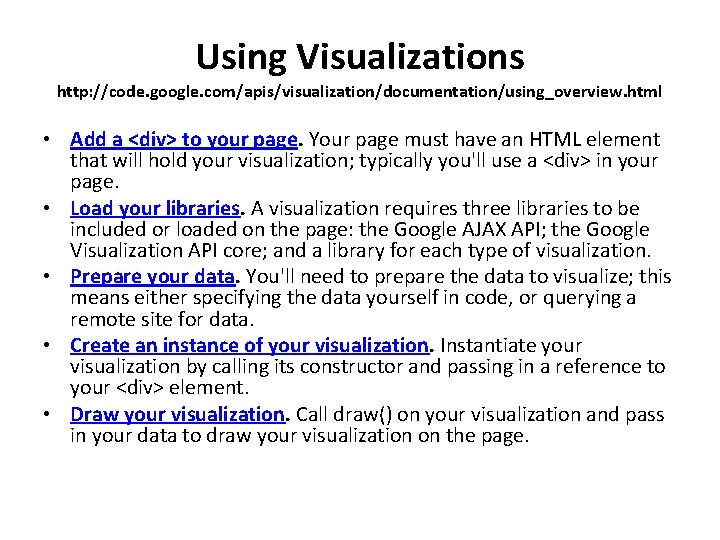
Using Visualizations http: //code. google. com/apis/visualization/documentation/using_overview. html • Add a <div> to your page. Your page must have an HTML element that will hold your visualization; typically you'll use a <div> in your page. • Load your libraries. A visualization requires three libraries to be included or loaded on the page: the Google AJAX API; the Google Visualization API core; and a library for each type of visualization. • Prepare your data. You'll need to prepare the data to visualize; this means either specifying the data yourself in code, or querying a remote site for data. • Create an instance of your visualization. Instantiate your visualization by calling its constructor and passing in a reference to your <div> element. • Draw your visualization. Call draw() on your visualization and pass in your data to draw your visualization on the page.
Code Play. Ground • Google's Code Playground lets you play around without opening an external editor, and all of the APIs are loaded for you in the Pick an API box.
Using the Code Playground • Pick an API • Edit Code – View Docs – Edit HTML • Debug/Run code • Output
Example: Pie chart • Change the template and see the result • Click Edit Html to generate html code • Copy the code and paste to an text editor to create a html file
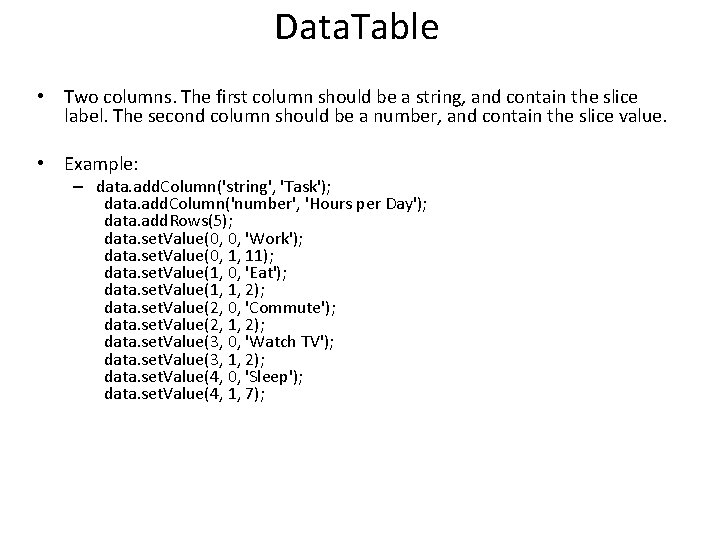
Data. Table • Two columns. The first column should be a string, and contain the slice label. The second column should be a number, and contain the slice value. • Example: – data. add. Column('string', 'Task'); data. add. Column('number', 'Hours per Day'); data. add. Rows(5); data. set. Value(0, 0, 'Work'); data. set. Value(0, 1, 11); data. set. Value(1, 0, 'Eat'); data. set. Value(1, 1, 2); data. set. Value(2, 0, 'Commute'); data. set. Value(2, 1, 2); data. set. Value(3, 0, 'Watch TV'); data. set. Value(3, 1, 2); data. set. Value(4, 0, 'Sleep'); data. set. Value(4, 1, 7);
Examples • Geo. Map – Adding two other countries: • China, 100 • Vietnam: 80 – Data. Table • Gauge • Motion Chart
Gadgets http: //code. google. com/apis/gadgets/ • Gadgets are simple HTML and Java. Script applications that can be embedded in webpages and other apps.
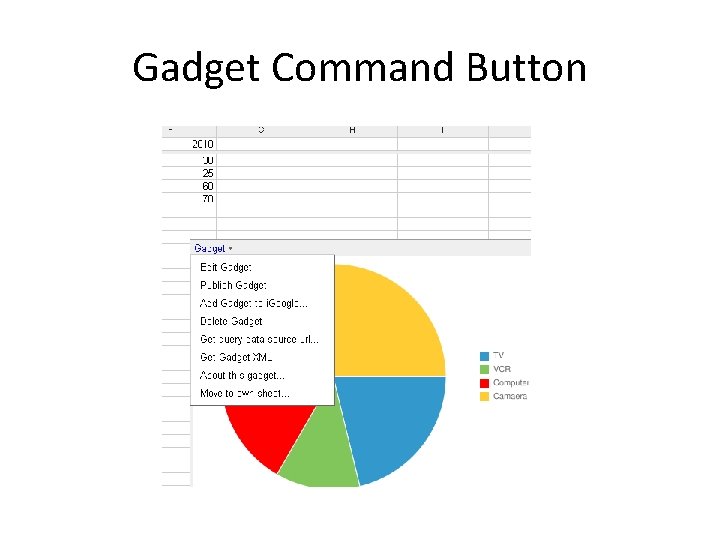
Creating gadget Using Google Spreadsheet • Create the spreadsheet with data for charting – You need Google Doc account to create a Google Spreadsheet • Select the data range for charting • Insert/Gadget – Choose the gadget to create
Gadget Command Button
To publish a gadget • Gadget/Publish Gadget • Copy and paste code to a web page
Data Queries http: //code. google. com/apis/visualization/documentation/queries. html • Send a request to a data source that supports the Visualization API (such as a Google Spreadsheet). • Step 1: To send a request, create a Query object, specify a URL for the data source, and then send the request. • Step 2: Processing the Response – response handler function – If the request was successful, the response contains a data table. If the request failed, the response contains information about the error, and no Data. Table.
Using a Google Spreadsheet as a Data Source • Finding out the proper URL to use for a sheet or a range of cells in a spreadsheet to which it has access, and using that URL as a data source URL. • Spreadsheet must set to share
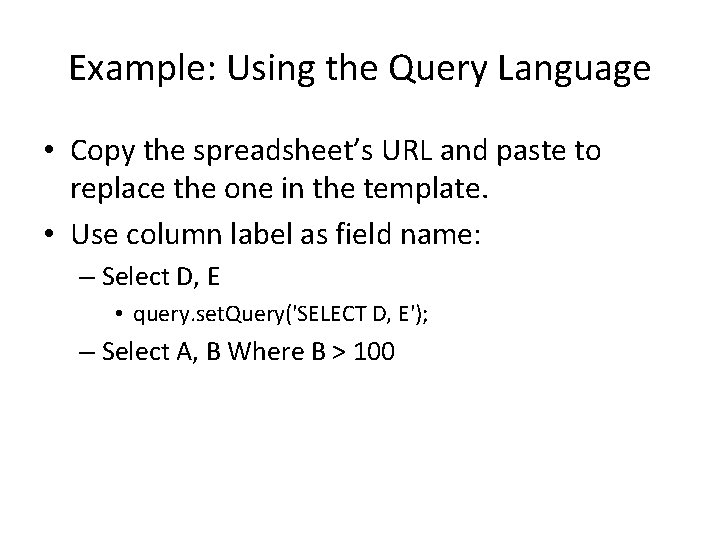
Example: Using the Query Language • Copy the spreadsheet’s URL and paste to replace the one in the template. • Use column label as field name: – Select D, E • query. set. Query('SELECT D, E'); – Select A, B Where B > 100
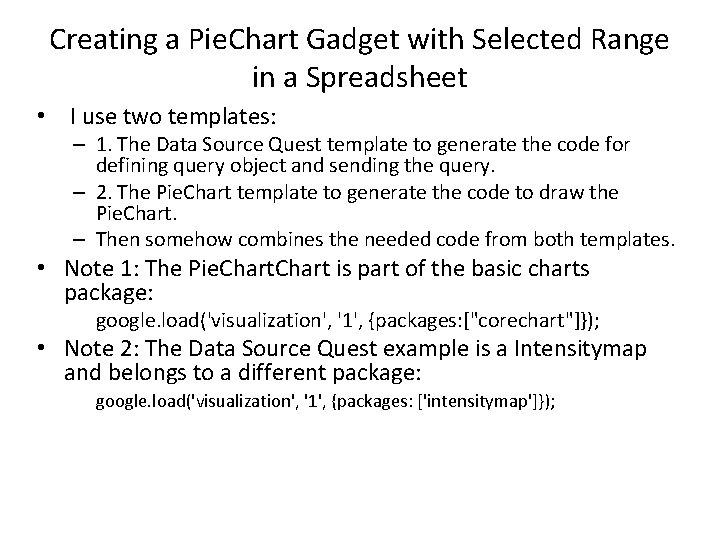
Creating a Pie. Chart Gadget with Selected Range in a Spreadsheet • I use two templates: – 1. The Data Source Quest template to generate the code for defining query object and sending the query. – 2. The Pie. Chart template to generate the code to draw the Pie. Chart. – Then somehow combines the needed code from both templates. • Note 1: The Pie. Chart is part of the basic charts package: google. load('visualization', '1', {packages: ["corechart"]}); • Note 2: The Data Source Quest example is a Intensitymap and belongs to a different package: google. load('visualization', '1', {packages: ['intensitymap']});
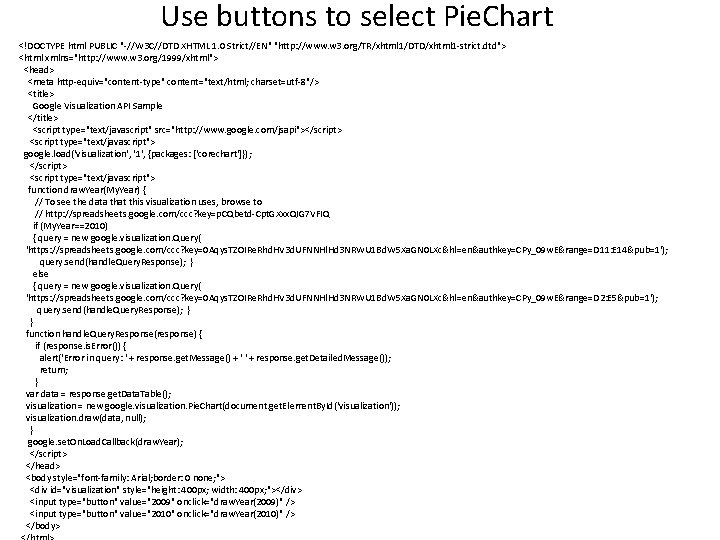
Use buttons to select Pie. Chart <!DOCTYPE html PUBLIC "-//W 3 C//DTD XHTML 1. 0 Strict//EN" "http: //www. w 3. org/TR/xhtml 1/DTD/xhtml 1 -strict. dtd"> <html xmlns="http: //www. w 3. org/1999/xhtml"> <head> <meta http-equiv="content-type" content="text/html; charset=utf-8"/> <title> Google Visualization API Sample </title> <script type="text/javascript" src="http: //www. google. com/jsapi"></script> <script type="text/javascript"> google. load('visualization', '1', {packages: ['corechart']}); </script> <script type="text/javascript"> function draw. Year(My. Year) { // To see the data that this visualization uses, browse to // http: //spreadsheets. google. com/ccc? key=p. CQbetd-Cpt. GXxx. QIG 7 VFIQ if (My. Year==2010) { query = new google. visualization. Query( 'https: //spreadsheets. google. com/ccc? key=0 Aqys. TZOIRe. Rhd. HV 3 d. UFNNHl. Hd 3 NRWU 1 Bd. W 5 Xa. GN 0 LXc&hl=en&authkey=CPy_09 w. E&range=D 11: E 14&pub=1'); query. send(handle. Query. Response); } else { query = new google. visualization. Query( 'https: //spreadsheets. google. com/ccc? key=0 Aqys. TZOIRe. Rhd. HV 3 d. UFNNHl. Hd 3 NRWU 1 Bd. W 5 Xa. GN 0 LXc&hl=en&authkey=CPy_09 w. E&range=D 2: E 5&pub=1'); query. send(handle. Query. Response); } } function handle. Query. Response(response) { if (response. is. Error()) { alert('Error in query: ' + response. get. Message() + ' ' + response. get. Detailed. Message()); return; } var data = response. get. Data. Table(); visualization = new google. visualization. Pie. Chart(document. get. Element. By. Id('visualization')); visualization. draw(data, null); } google. set. On. Load. Callback(draw. Year); </script> </head> <body style="font-family: Arial; border: 0 none; "> <div id="visualization" style="height: 400 px; width: 400 px; "></div> <input type="button" value="2009" onclick="draw. Year(2009)" /> <input type="button" value="2010" onclick="draw. Year(2010)" /> </body>
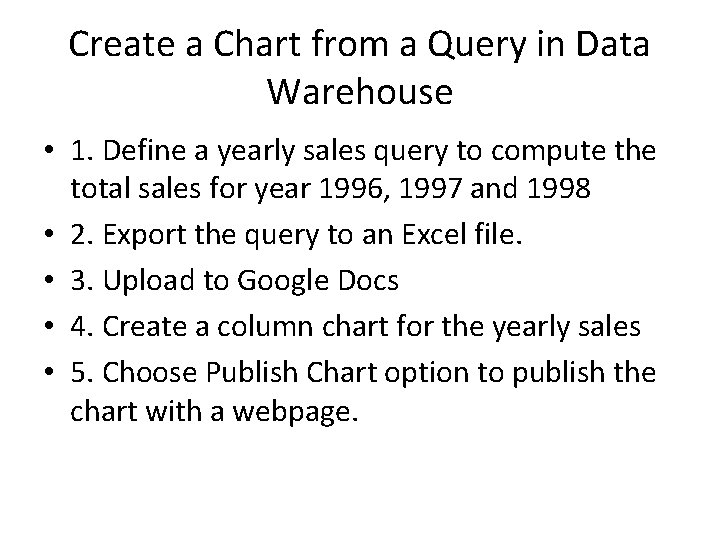
Create a Chart from a Query in Data Warehouse • 1. Define a yearly sales query to compute the total sales for year 1996, 1997 and 1998 • 2. Export the query to an Excel file. • 3. Upload to Google Docs • 4. Create a column chart for the yearly sales • 5. Choose Publish Chart option to publish the chart with a webpage.