Chapter 14 LINQ and the ADO NET Entity

- Slides: 40
Chapter 14 LINQ and the ADO. NET Entity Framework
Objectives • What LINQ is and what its syntax looks like • The different forms of LINQ that are available and when they are appropriate to use • How to use the ADO. NET Entity Framework • How to use Model Binding to access the ADO. NET Entity Framework • How to use the List. View and Data. Pager controls
LINQ • LINQ is the Language-Integrated Query is the query language tightly integrated with the programming languages in the. NET Framework. • LINQ syntax has been modeled partially after the SQL language, making it easier for programmers familiar with SQL to get started with LINQ. • Can Access in-memory data, XML, . NET Data Sets, and databases. • Modelled after SQL
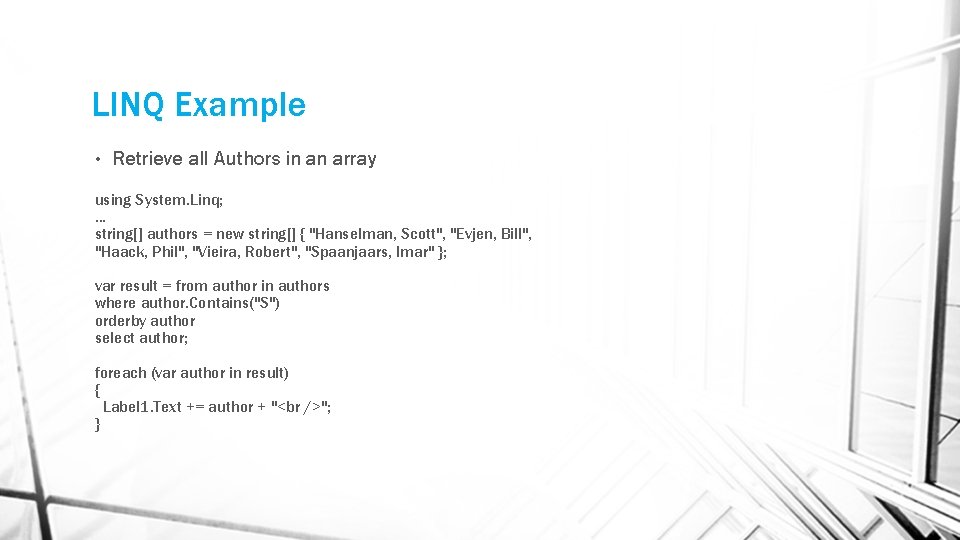
LINQ Example • Retrieve all Authors in an array using System. Linq; . . . string[] authors = new string[] { "Hanselman, Scott", "Evjen, Bill", "Haack, Phil", "Vieira, Robert", "Spaanjaars, Imar" }; var result = from author in authors where author. Contains("S") orderby author select author; foreach (var author in result) { Label 1. Text += author + " "; }
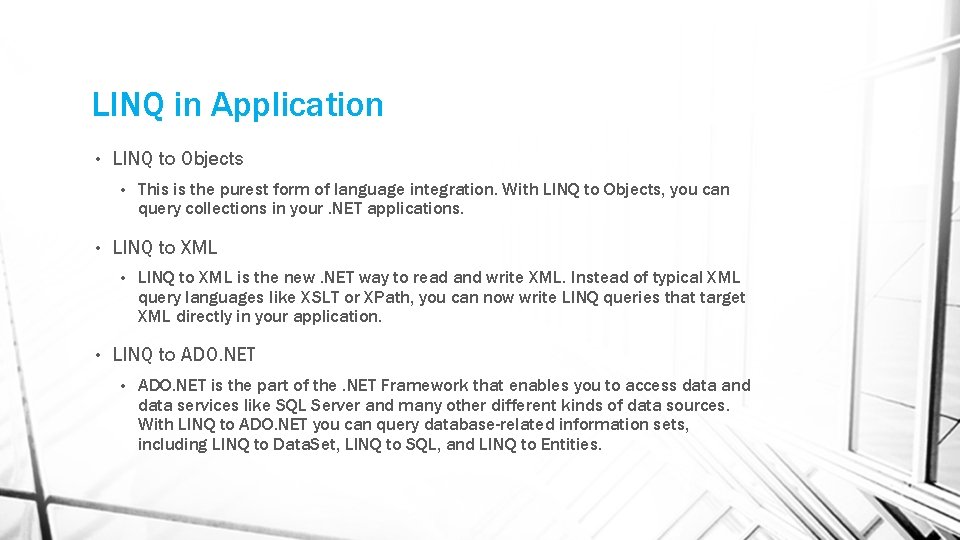
LINQ in Application • LINQ to Objects • • LINQ to XML • • This is the purest form of language integration. With LINQ to Objects, you can query collections in your. NET applications. LINQ to XML is the new. NET way to read and write XML. Instead of typical XML query languages like XSLT or XPath, you can now write LINQ queries that target XML directly in your application. LINQ to ADO. NET • ADO. NET is the part of the. NET Framework that enables you to access data and data services like SQL Server and many other different kinds of data sources. With LINQ to ADO. NET you can query database-related information sets, including LINQ to Data. Set, LINQ to SQL, and LINQ to Entities.
ADO. NET Entity Framework • Entity Framework is an Object Relational Mapper (ORM) that can take database tables and turn them into. NET Objects. • EF also enables you to do the reverse: design an object model first and then let EF create the necessary database structure for you. • When you drop more than one related database table on your diagram, the designer detects the relationships between the tables and then replicates these relationships in your object model. • EF creates a layer between your. NET application and your SQL Server database. The Entity Designer takes care of most of the work for you, providing access to a clean object model that you can use in your application.
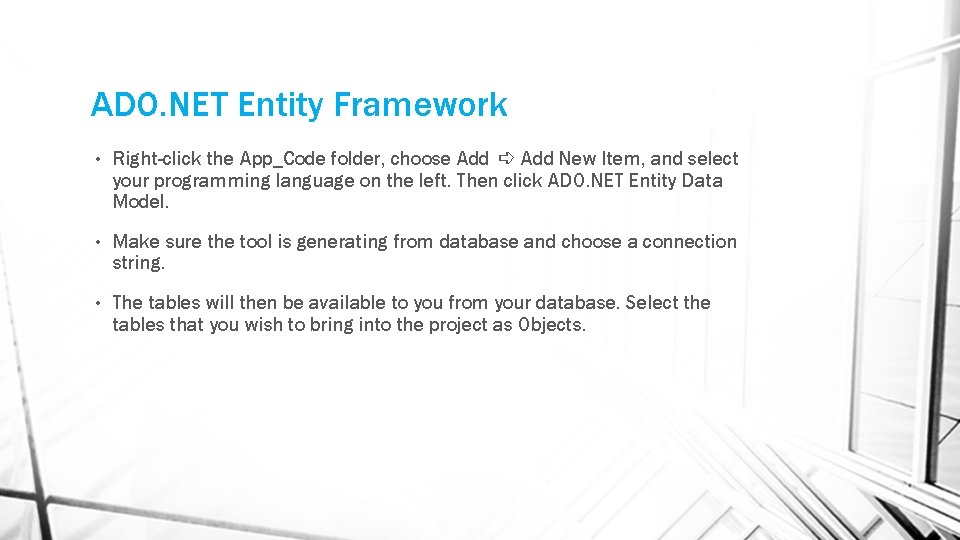
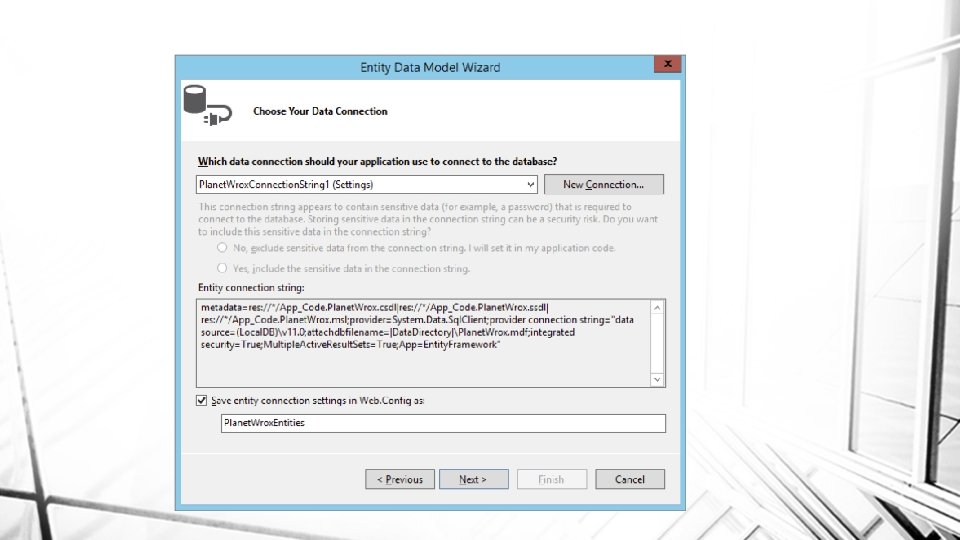
ADO. NET Entity Framework • Right-click the App_Code folder, choose Add ➪ Add New Item, and select your programming language on the left. Then click ADO. NET Entity Data Model. • Make sure the tool is generating from database and choose a connection string. • The tables will then be available to you from your database. Select the tables that you wish to bring into the project as Objects.
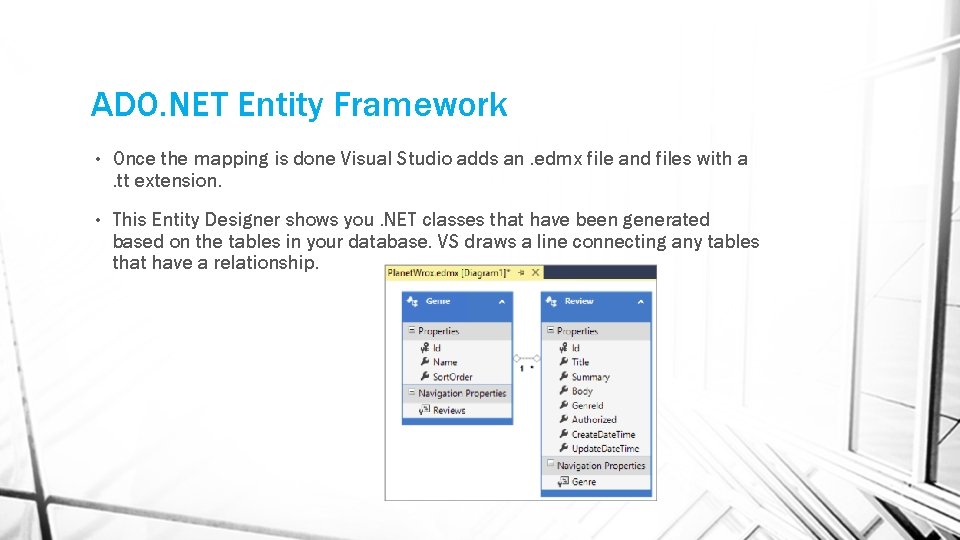
ADO. NET Entity Framework • Once the mapping is done Visual Studio adds an. edmx file and files with a. tt extension. • This Entity Designer shows you. NET classes that have been generated based on the tables in your database. VS draws a line connecting any tables that have a relationship.
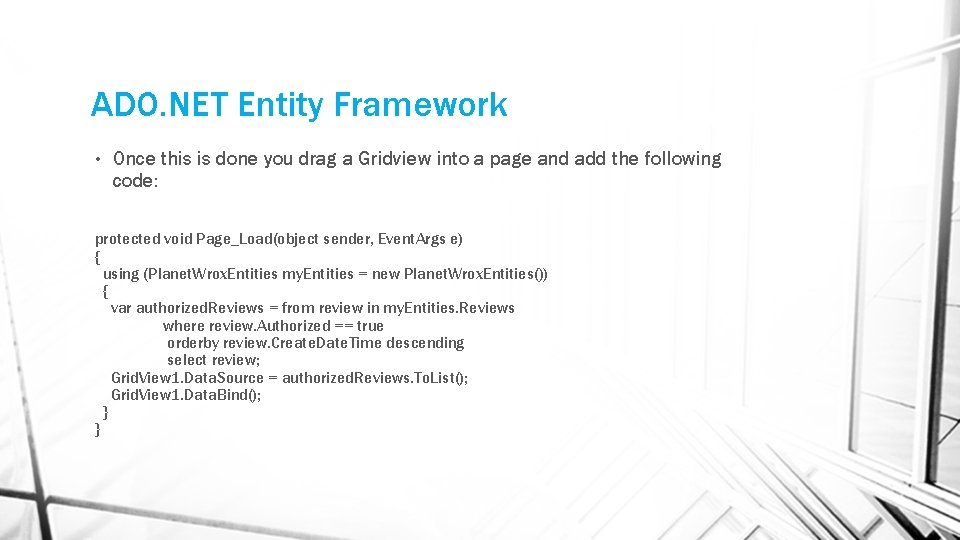
ADO. NET Entity Framework • Once this is done you drag a Gridview into a page and add the following code: protected void Page_Load(object sender, Event. Args e) { using (Planet. Wrox. Entities my. Entities = new Planet. Wrox. Entities()) { var authorized. Reviews = from review in my. Entities. Reviews where review. Authorized == true orderby review. Create. Date. Time descending select review; Grid. View 1. Data. Source = authorized. Reviews. To. List(); Grid. View 1. Data. Bind(); } }
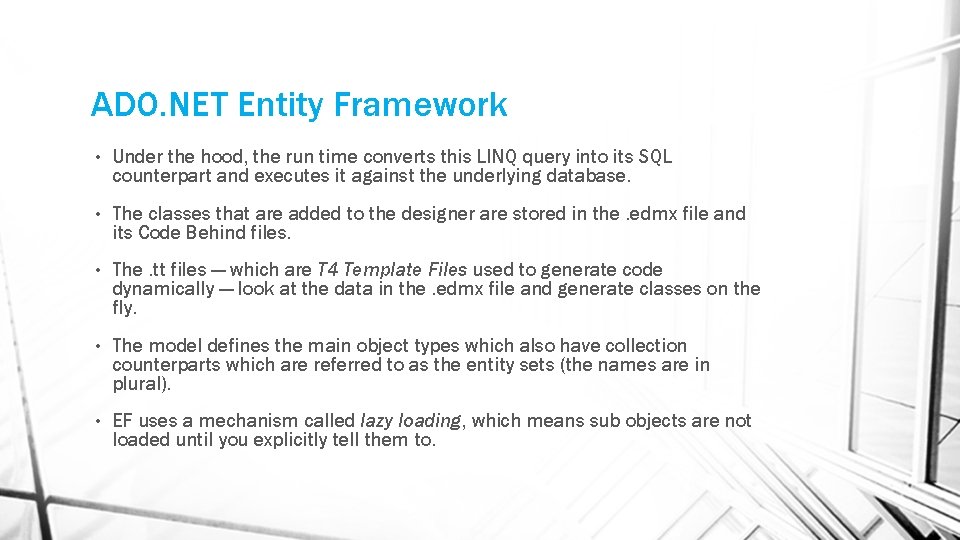
ADO. NET Entity Framework • Under the hood, the run time converts this LINQ query into its SQL counterpart and executes it against the underlying database. • The classes that are added to the designer are stored in the. edmx file and its Code Behind files. • The. tt files — which are T 4 Template Files used to generate code dynamically — look at the data in the. edmx file and generate classes on the fly. • The model defines the main object types which also have collection counterparts which are referred to as the entity sets (the names are in plural). • EF uses a mechanism called lazy loading, which means sub objects are not loaded until you explicitly tell them to.
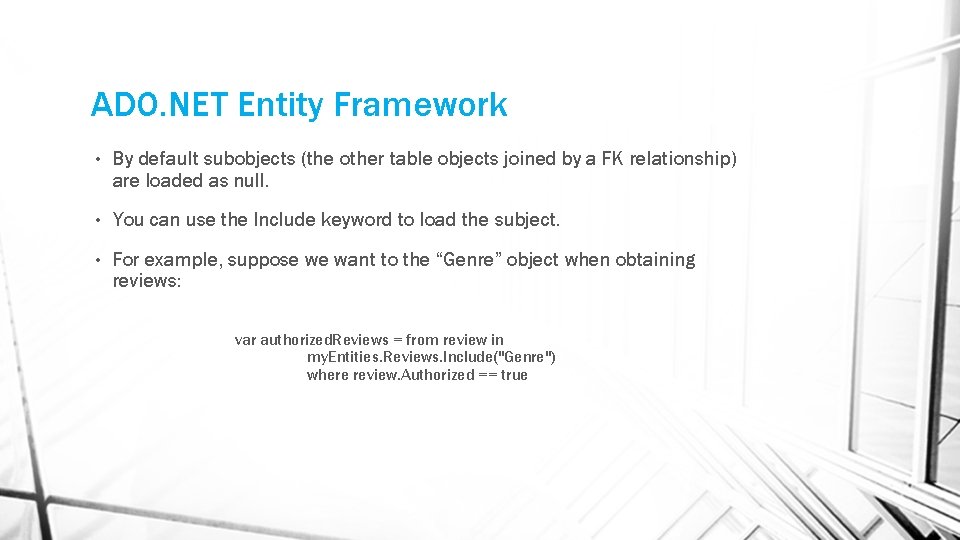
ADO. NET Entity Framework • By default subobjects (the other table objects joined by a FK relationship) are loaded as null. • You can use the Include keyword to load the subject. • For example, suppose we want to the “Genre” object when obtaining reviews: var authorized. Reviews = from review in my. Entities. Reviews. Include("Genre") where review. Authorized == true
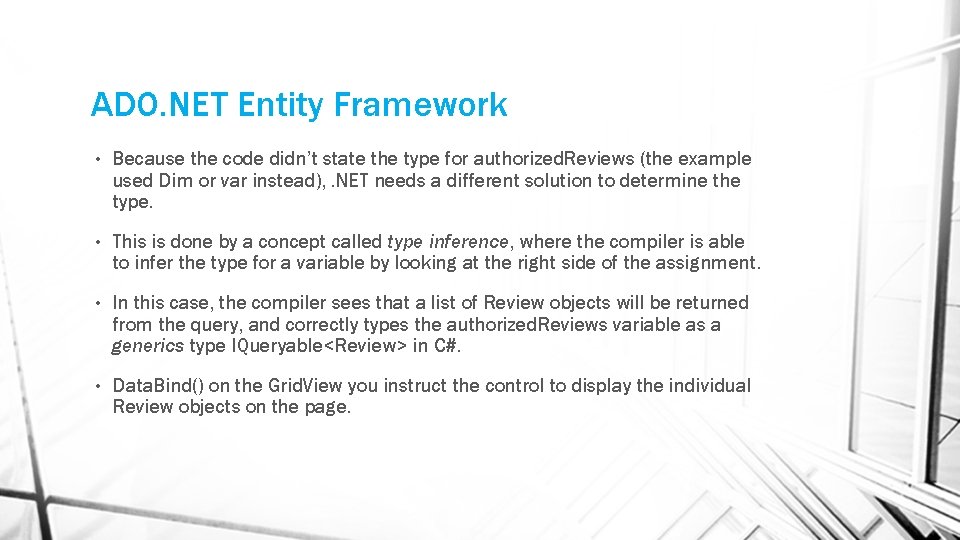
ADO. NET Entity Framework • Because the code didn’t state the type for authorized. Reviews (the example used Dim or var instead), . NET needs a different solution to determine the type. • This is done by a concept called type inference, where the compiler is able to infer the type for a variable by looking at the right side of the assignment. • In this case, the compiler sees that a list of Review objects will be returned from the query, and correctly types the authorized. Reviews variable as a generics type IQueryable<Review> in C#. • Data. Bind() on the Grid. View you instruct the control to display the individual Review objects on the page.
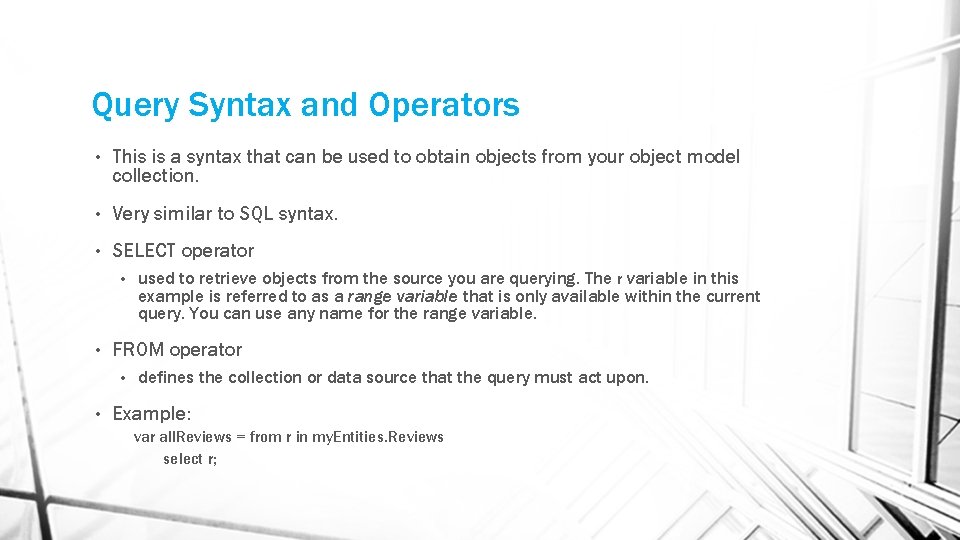
Query Syntax and Operators • This is a syntax that can be used to obtain objects from your object model collection. • Very similar to SQL syntax. • SELECT operator • • FROM operator • • used to retrieve objects from the source you are querying. The r variable in this example is referred to as a range variable that is only available within the current query. You can use any name for the range variable. defines the collection or data source that the query must act upon. Example: var all. Reviews = from r in my. Entities. Reviews select r;
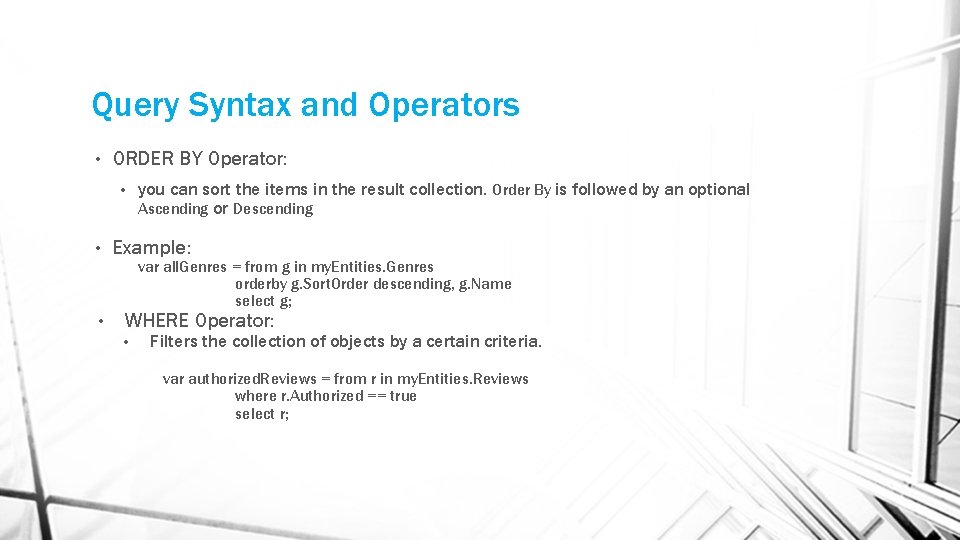
Query Syntax and Operators • ORDER BY Operator: you can sort the items in the result collection. Order By is followed by an optional Ascending or Descending • • • Example: var all. Genres = from g in my. Entities. Genres orderby g. Sort. Order descending, g. Name select g; WHERE Operator: • Filters the collection of objects by a certain criteria. var authorized. Reviews = from r in my. Entities. Reviews where r. Authorized == true select r;
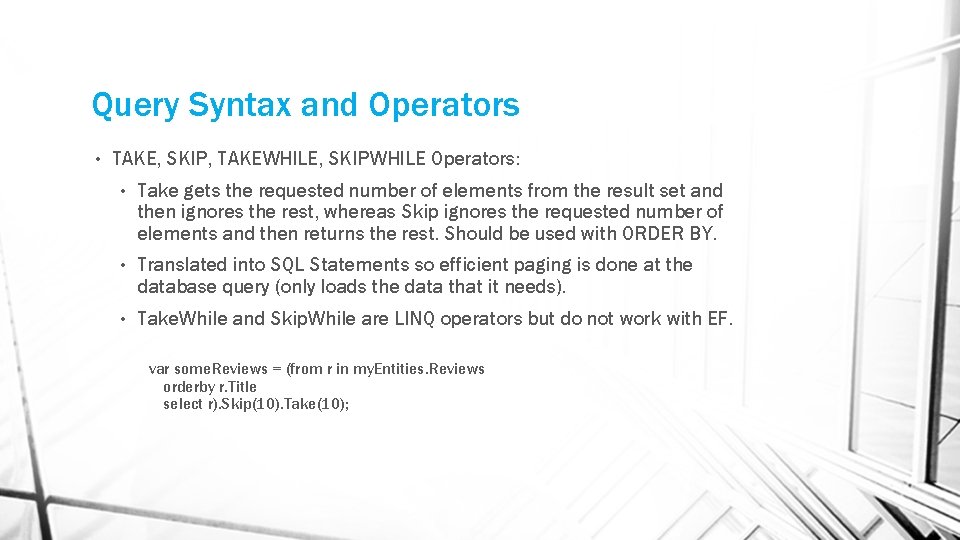
Query Syntax and Operators • TAKE, SKIP, TAKEWHILE, SKIPWHILE Operators: • Take gets the requested number of elements from the result set and then ignores the rest, whereas Skip ignores the requested number of elements and then returns the rest. Should be used with ORDER BY. • Translated into SQL Statements so efficient paging is done at the database query (only loads the data that it needs). • Take. While and Skip. While are LINQ operators but do not work with EF. var some. Reviews = (from r in my. Entities. Reviews orderby r. Title select r). Skip(10). Take(10);
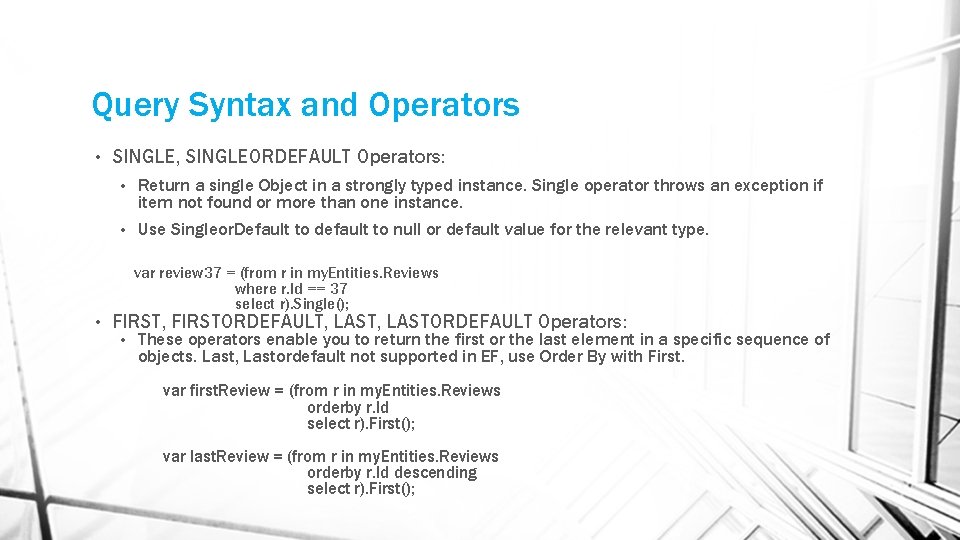
Query Syntax and Operators • SINGLE, SINGLEORDEFAULT Operators: • Return a single Object in a strongly typed instance. Single operator throws an exception if item not found or more than one instance. • Use Singleor. Default to default to null or default value for the relevant type. var review 37 = (from r in my. Entities. Reviews where r. Id == 37 select r). Single(); • FIRST, FIRSTORDEFAULT, LASTORDEFAULT Operators: • These operators enable you to return the first or the last element in a specific sequence of objects. Last, Lastordefault not supported in EF, use Order By with First. var first. Review = (from r in my. Entities. Reviews orderby r. Id select r). First(); var last. Review = (from r in my. Entities. Reviews orderby r. Id descending select r). First();
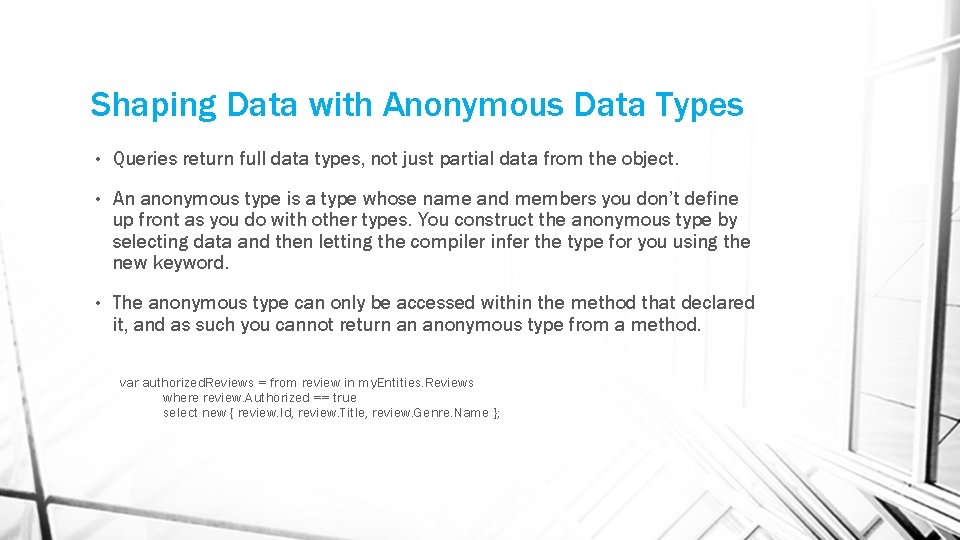
Shaping Data with Anonymous Data Types • Queries return full data types, not just partial data from the object. • An anonymous type is a type whose name and members you don’t define up front as you do with other types. You construct the anonymous type by selecting data and then letting the compiler infer the type for you using the new keyword. • The anonymous type can only be accessed within the method that declared it, and as such you cannot return an anonymous type from a method. var authorized. Reviews = from review in my. Entities. Reviews where review. Authorized == true select new { review. Id, review. Title, review. Genre. Name };
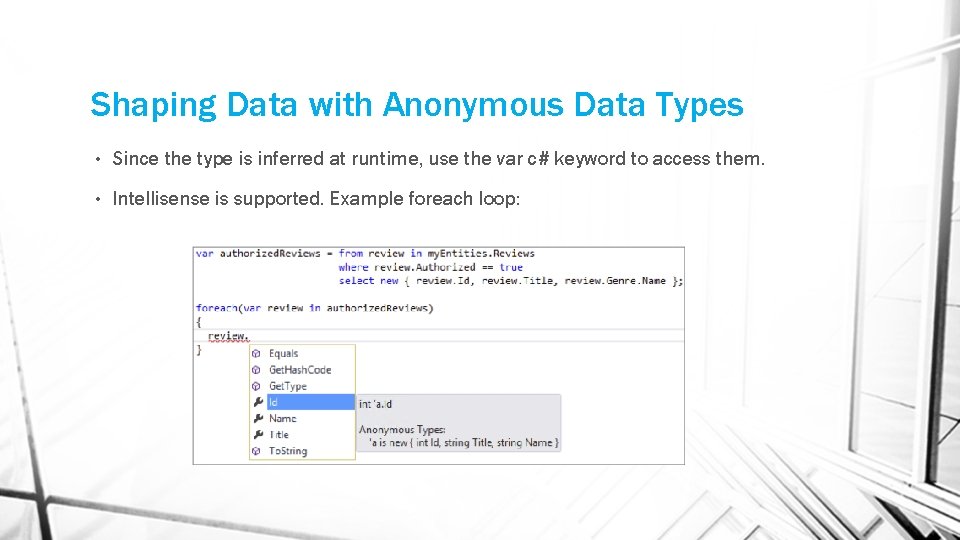
Shaping Data with Anonymous Data Types • Since the type is inferred at runtime, use the var c# keyword to access them. • Intellisense is supported. Example foreach loop:
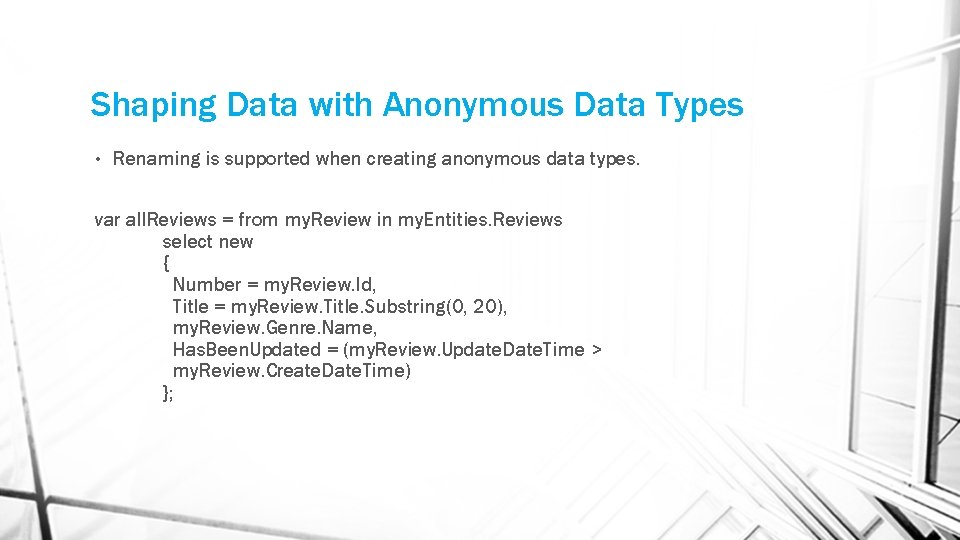
Shaping Data with Anonymous Data Types • Renaming is supported when creating anonymous data types. var all. Reviews = from my. Review in my. Entities. Reviews select new { Number = my. Review. Id, Title = my. Review. Title. Substring(0, 20), my. Review. Genre. Name, Has. Been. Updated = (my. Review. Update. Date. Time > my. Review. Create. Date. Time) };
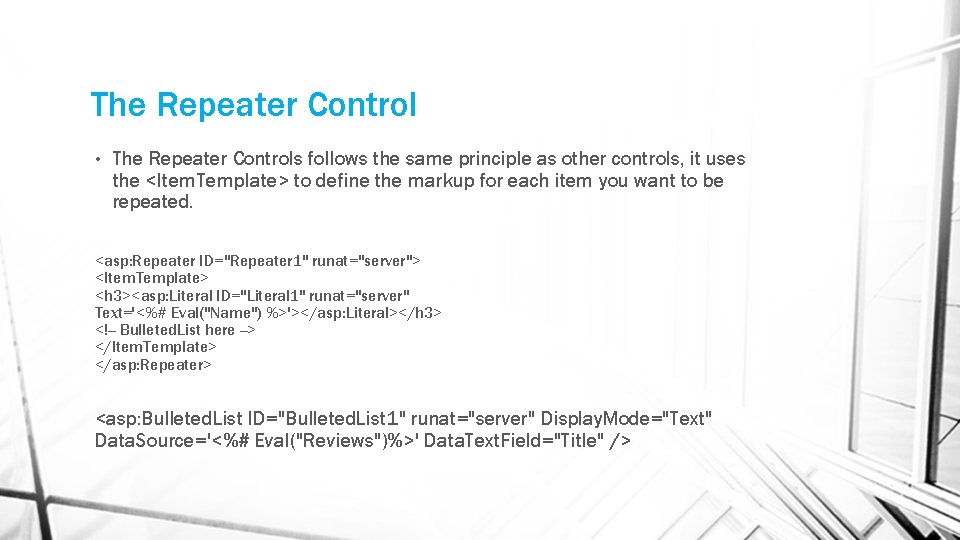
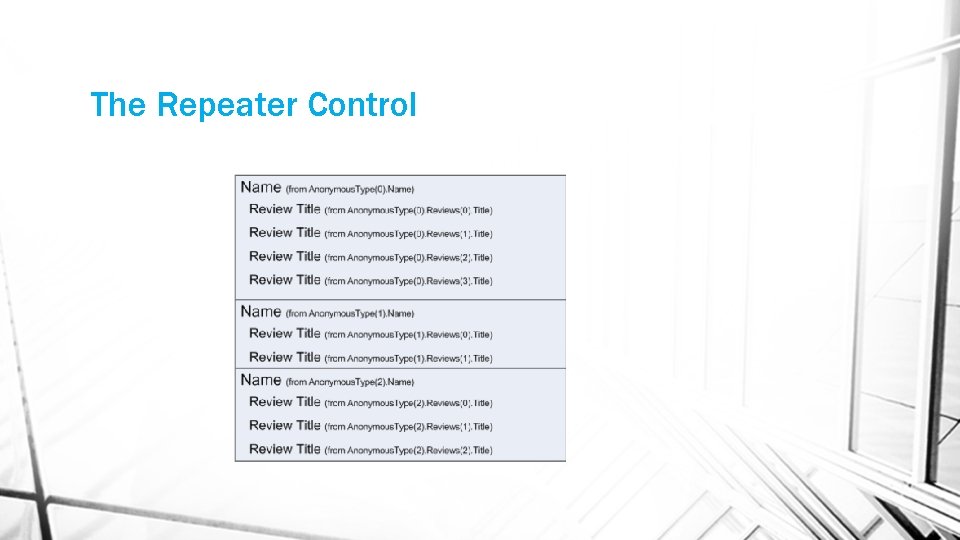
The Repeater Control • The Repeater Controls follows the same principle as other controls, it uses the <Item. Template> to define the markup for each item you want to be repeated. <asp: Repeater ID="Repeater 1" runat="server"> <Item. Template> <h 3><asp: Literal ID="Literal 1" runat="server" Text='<%# Eval("Name") %>'></asp: Literal></h 3> <!-- Bulleted. List here --> </Item. Template> </asp: Repeater> <asp: Bulleted. List ID="Bulleted. List 1" runat="server" Display. Mode="Text" Data. Source='<%# Eval("Reviews")%>' Data. Text. Field="Title" />
The Repeater Control After you have set up the Repeater and defined the query, you need to start the data-binding process. You do this by assigning the results of the query to the Data. Source property of the Repeater. • Repeater 1. Data. Source = all. Genres. To. List(); Repeater 1. Data. Bind();
The Repeater Control
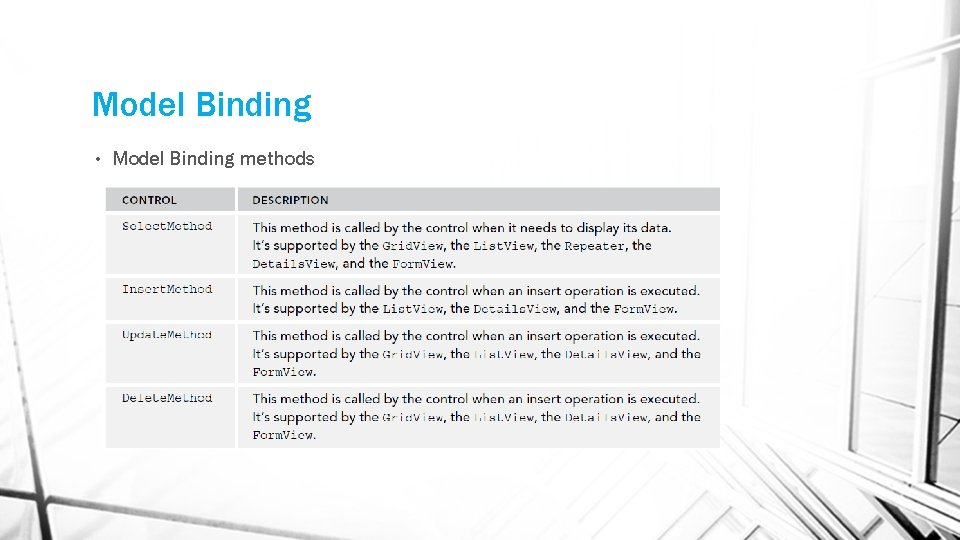
Model Binding • Model Binding is a capability built into the data-bound controls to execute CRUD operations against a data source. • Model Binding relies on methods that you can define in your code to supply the data and handle changes such as an insert, an update, or a delete operation. These methods can be defined in the Code Behind of the Web Forms that contains the data-bound controls, or in other classes in your project. • A very powerful feature of Model Binding is the ability to dynamically fill objects with data coming from the data-bound control when the insert, update, or delete methods are fired.
Model Binding • Model Binding methods
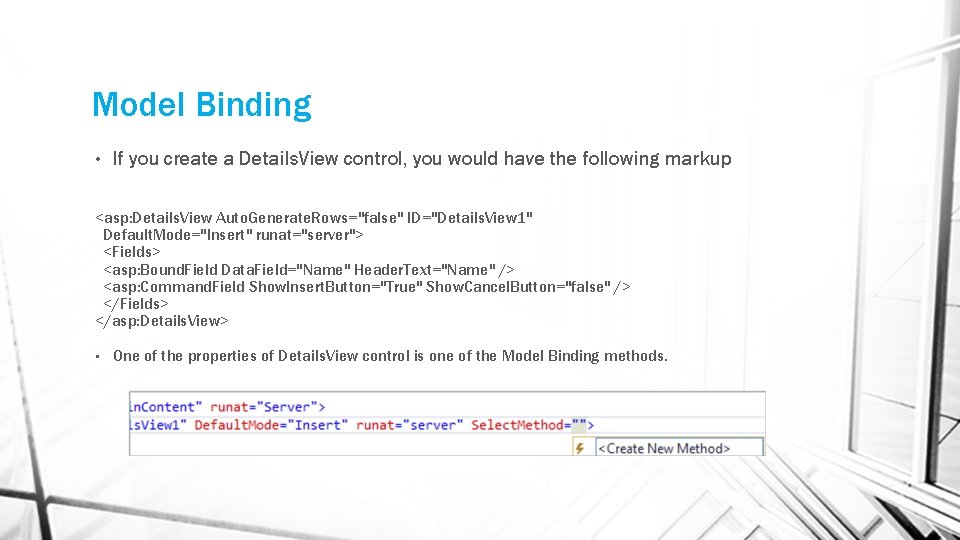
Model Binding • If you create a Details. View control, you would have the following markup <asp: Details. View Auto. Generate. Rows="false" ID="Details. View 1" Default. Mode="Insert" runat="server"> <Fields> <asp: Bound. Field Data. Field="Name" Header. Text="Name" /> <asp: Command. Field Show. Insert. Button="True" Show. Cancel. Button="false" /> </Fields> </asp: Details. View> • One of the properties of Details. View control is one of the Model Binding methods.
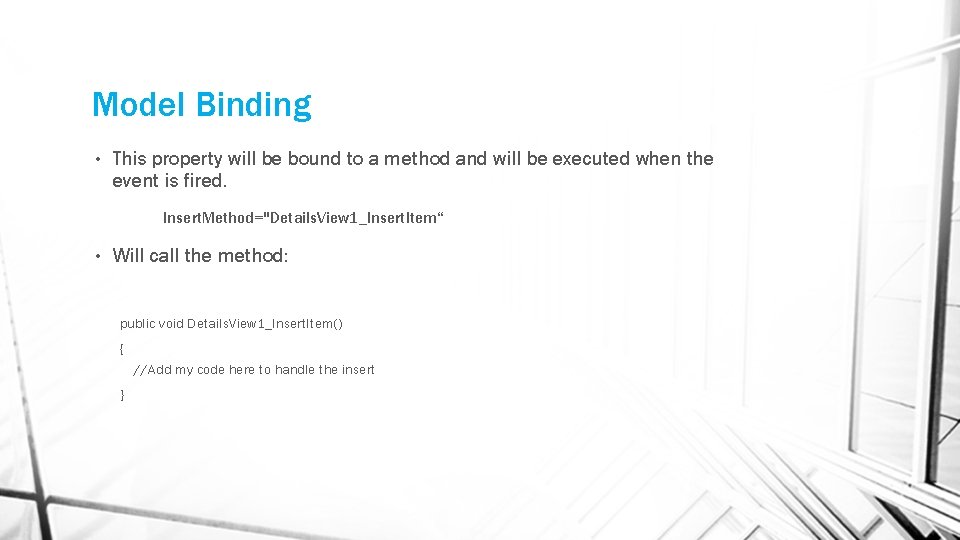
Model Binding • This property will be bound to a method and will be executed when the event is fired. Insert. Method="Details. View 1_Insert. Item“ • Will call the method: public void Details. View 1_Insert. Item() { //Add my code here to handle the insert }
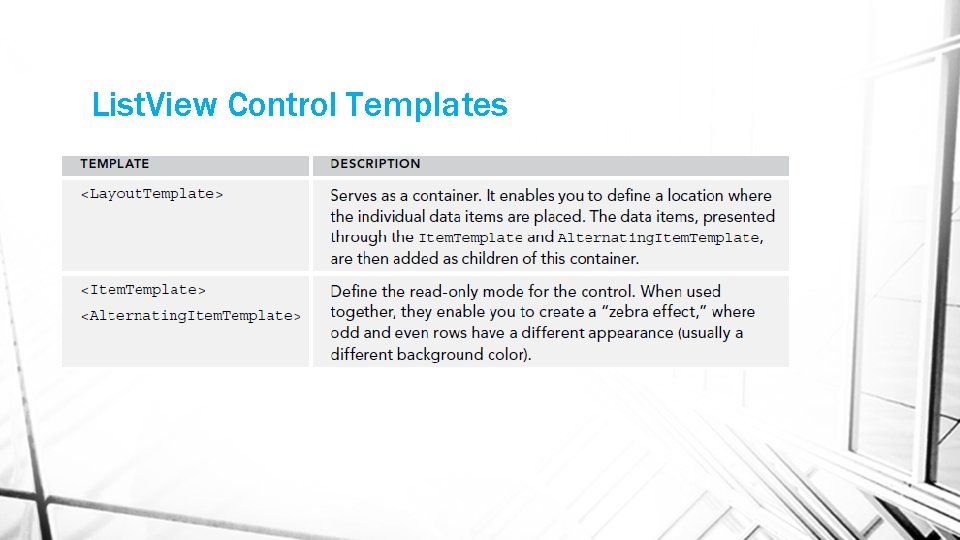
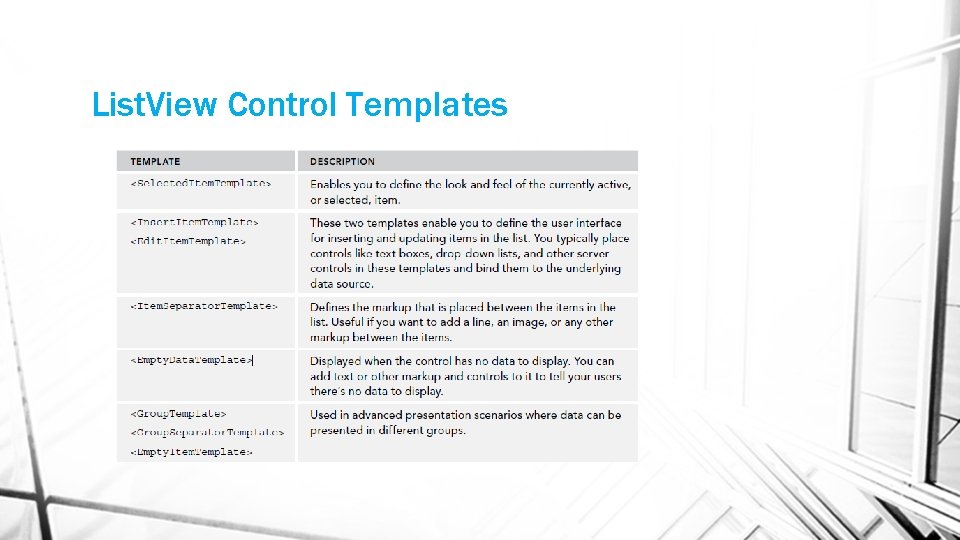
List. View Control • List. View is a “best of all worlds” control, combining the rich feature set of the Grid. View with the control over the markup that the Repeater gives you and adding the insert behavior of the Details. View. • The List. View displays and manages its data through templates that enable you to control many of the different views that the List. View gives you on its underlying data. • You add the control to the page, define or more templates (for example, one to display an item in read-only mode and another that lets you edit an item), and then use Model Binding to get data from the database and send updates back. • List. View has templates to add the content. The templates supported are: <Layout. Template>, <Item. Template>, <Alternating. Item. Template>, <Selected. Item. Template>, etc. .
List. View Control Templates
List. View Control Templates
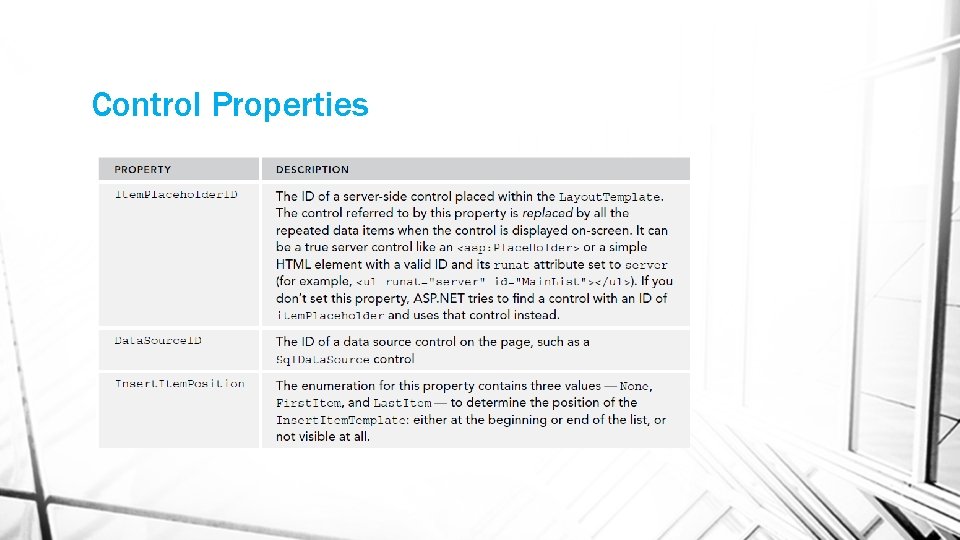
Control Properties
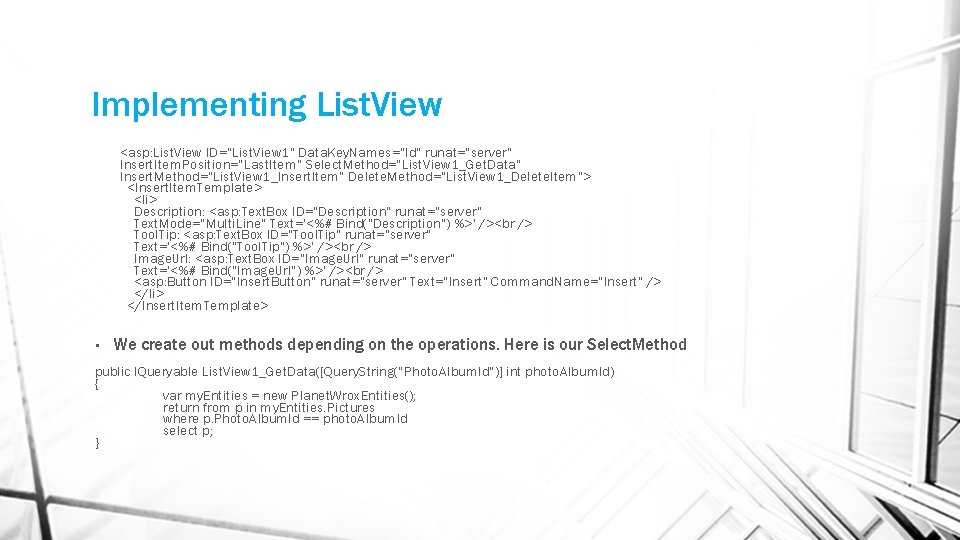
Implementing List. View <asp: List. View ID="List. View 1" Data. Key. Names="Id" runat="server" Insert. Item. Position="Last. Item" Select. Method="List. View 1_Get. Data" Insert. Method="List. View 1_Insert. Item" Delete. Method="List. View 1_Delete. Item"> <Insert. Item. Template> <li> Description: <asp: Text. Box ID="Description" runat="server" Text. Mode="Multi. Line" Text='<%# Bind("Description") %>' /> Tool. Tip: <asp: Text. Box ID="Tool. Tip" runat="server" Text='<%# Bind("Tool. Tip") %>' /> Image. Url: <asp: Text. Box ID="Image. Url" runat="server" Text='<%# Bind("Image. Url") %>' /> <asp: Button ID="Insert. Button" runat="server" Text="Insert" Command. Name="Insert" /> </li> </Insert. Item. Template> • We create out methods depending on the operations. Here is our Select. Method public IQueryable List. View 1_Get. Data([Query. String("Photo. Album. Id")] int photo. Album. Id) { var my. Entities = new Planet. Wrox. Entities(); return from p in my. Entities. Pictures where p. Photo. Album. Id == photo. Album. Id select p; }
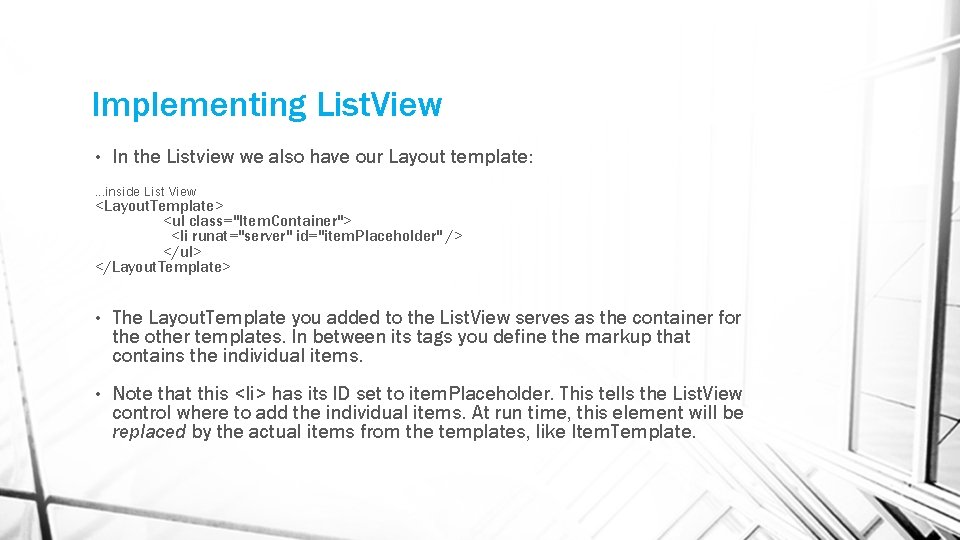
Implementing List. View • In the Listview we also have our Layout template: …inside List View <Layout. Template> <ul class="Item. Container"> <li runat="server" id="item. Placeholder" /> </ul> </Layout. Template> • The Layout. Template you added to the List. View serves as the container for the other templates. In between its tags you define the markup that contains the individual items. • Note that this <li> has its ID set to item. Placeholder. This tells the List. View control where to add the individual items. At run time, this element will be replaced by the actual items from the templates, like Item. Template.
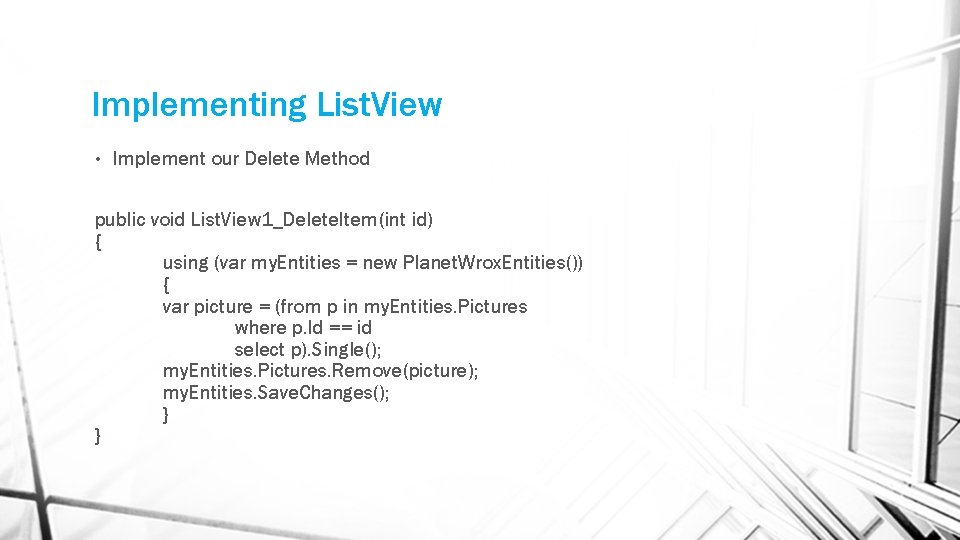
Implementing List. View • Implement our Delete Method public void List. View 1_Delete. Item(int id) { using (var my. Entities = new Planet. Wrox. Entities()) { var picture = (from p in my. Entities. Pictures where p. Id == id select p). Single(); my. Entities. Pictures. Remove(picture); my. Entities. Save. Changes(); } }
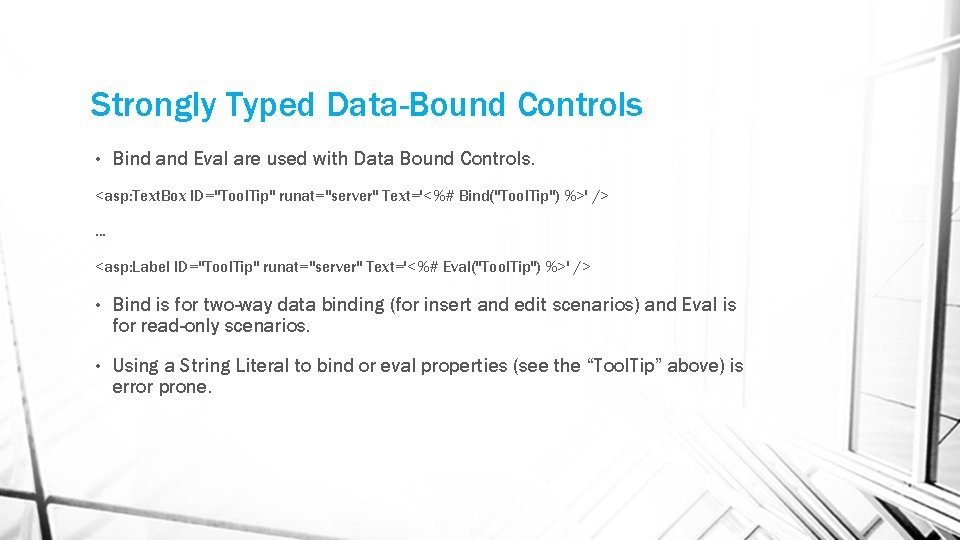
Strongly Typed Data-Bound Controls • Bind and Eval are used with Data Bound Controls. <asp: Text. Box ID="Tool. Tip" runat="server" Text='<%# Bind("Tool. Tip") %>' />. . . <asp: Label ID="Tool. Tip" runat="server" Text='<%# Eval("Tool. Tip") %>' /> • Bind is for two-way data binding (for insert and edit scenarios) and Eval is for read-only scenarios. • Using a String Literal to bind or eval properties (see the “Tool. Tip” above) is error prone.
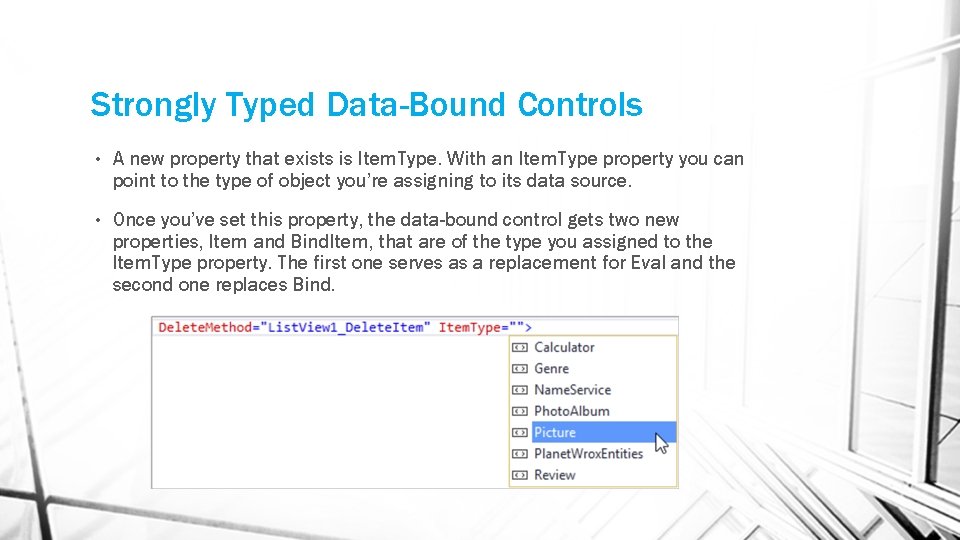
Strongly Typed Data-Bound Controls • A new property that exists is Item. Type. With an Item. Type property you can point to the type of object you’re assigning to its data source. • Once you’ve set this property, the data-bound control gets two new properties, Item and Bind. Item, that are of the type you assigned to the Item. Type property. The first one serves as a replacement for Eval and the second one replaces Bind.
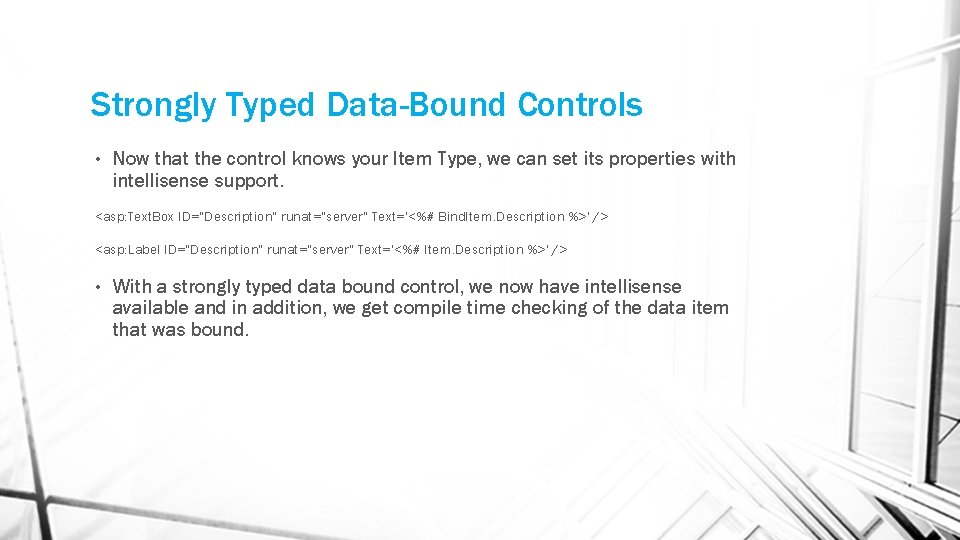
Strongly Typed Data-Bound Controls • Now that the control knows your Item Type, we can set its properties with intellisense support. <asp: Text. Box ID="Description" runat="server" Text='<%# Bind. Item. Description %>' /> <asp: Label ID="Description" runat="server" Text='<%# Item. Description %>' /> • With a strongly typed data bound control, we now have intellisense available and in addition, we get compile time checking of the data item that was bound.
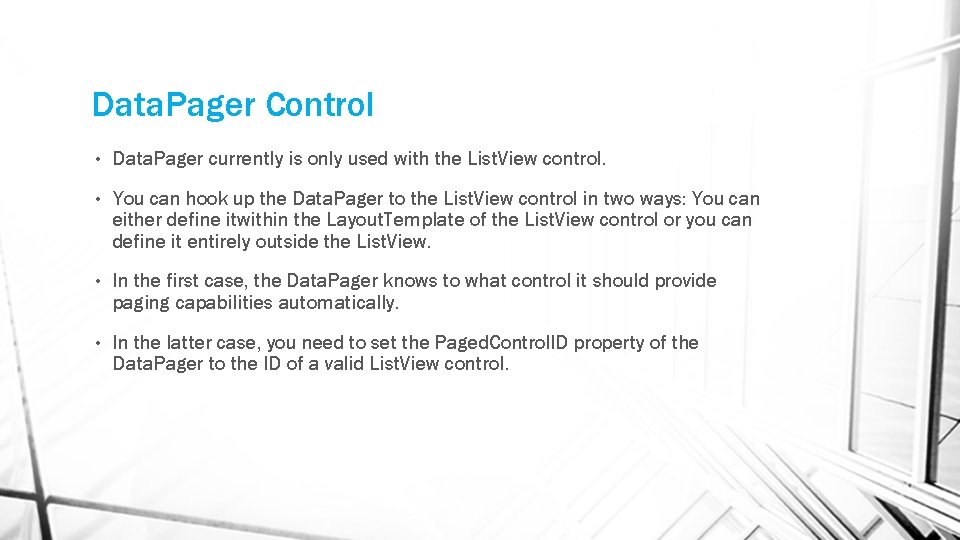
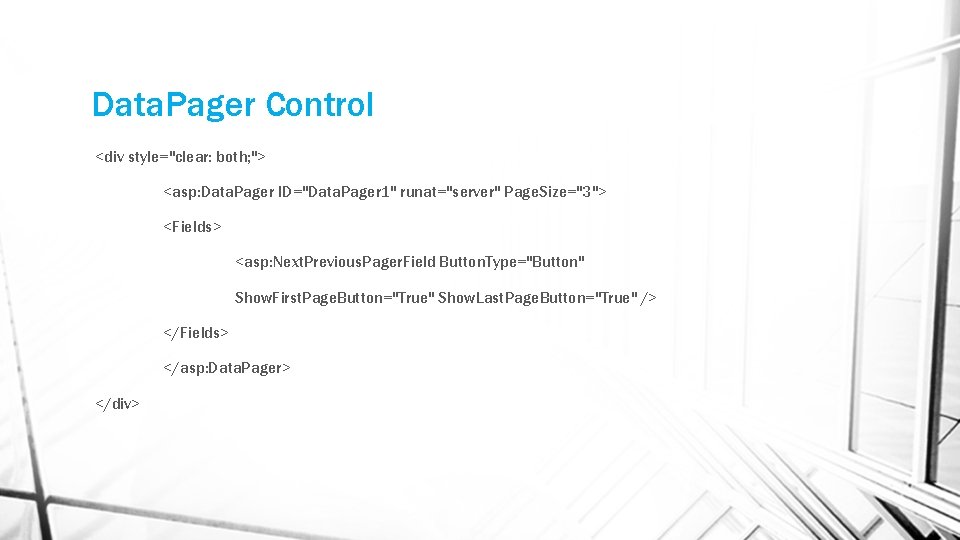
Data. Pager Control • Data. Pager currently is only used with the List. View control. • You can hook up the Data. Pager to the List. View control in two ways: You can either define itwithin the Layout. Template of the List. View control or you can define it entirely outside the List. View. • In the first case, the Data. Pager knows to what control it should provide paging capabilities automatically. • In the latter case, you need to set the Paged. Control. ID property of the Data. Pager to the ID of a valid List. View control.
Data. Pager Control <div style="clear: both; "> <asp: Data. Pager ID="Data. Pager 1" runat="server" Page. Size="3"> <Fields> <asp: Next. Previous. Pager. Field Button. Type="Button" Show. First. Page. Button="True" Show. Last. Page. Button="True" /> </Fields> </asp: Data. Pager> </div>
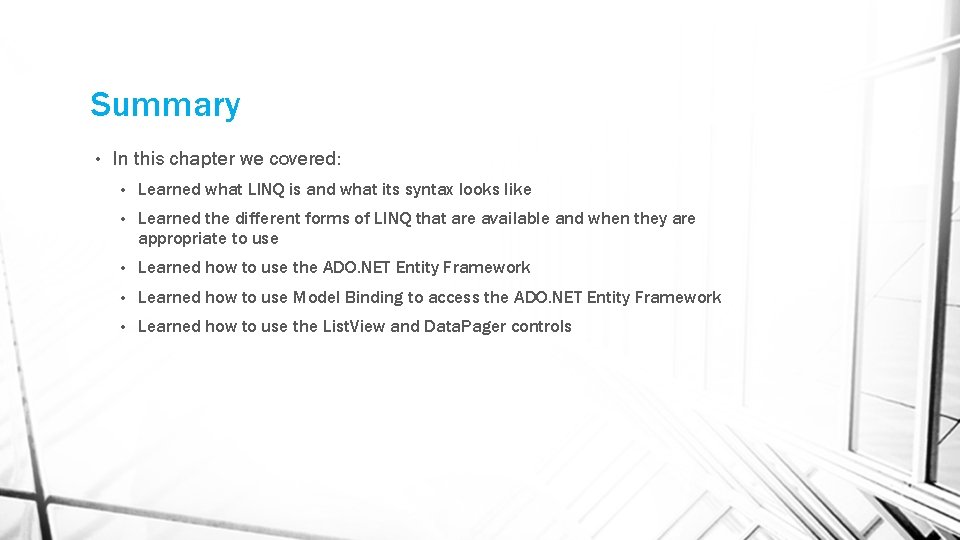
Summary • In this chapter we covered: • Learned what LINQ is and what its syntax looks like • Learned the different forms of LINQ that are available and when they are appropriate to use • Learned how to use the ADO. NET Entity Framework • Learned how to use Model Binding to access the ADO. NET Entity Framework • Learned how to use the List. View and Data. Pager controls