Trans CAD Using Themes to Present Information 992020
- Slides: 27
Trans. CAD Using Themes to Present Information 9/9/2020 1
Themes • Trans. CAD can assemble information about map features to create a map that illustrates the patterns in the data. This is called a thematic map. • Thematic maps use distinctive colors, symbols, and fill styles to portray data such as population, rainfall, sales, or income. The different styles highlight the similarities and differences among map 2 9/9/2020
Themes • Thematic maps illustrate the characteristics of map features, so that the characteristics are easy to see and understand. Trans. CAD has six theme types: – Color themes – Pattern themes – Dot-density themes – Pie and bar chart themes 9/9/2020 – Scaled-symbol themes 3
Deciding which Type of Theme to Use • You choose theme you want based on the number of fields of data you want to show and the types of data you wish to present: – Most theme types can be used with any point, line, and area layer. – Dot-density themes and prism maps, however, can only be used with area layers. – To illustrate the values of two or more fields, choose 9/9/2020 between using a chart – To illustrate the values of a single field, you can choose from all five theme types, using the following guidelines: • Counts or amounts (Population, Sales) – Use any kind of theme • Percentages, ratios, or averages (Avg. Income, % Hispanic) – Avoid dot-density themes • Negative number (Change in Population) – use color or pattern themes • Non-numeric information 4 (Zoning, First Name) – Use
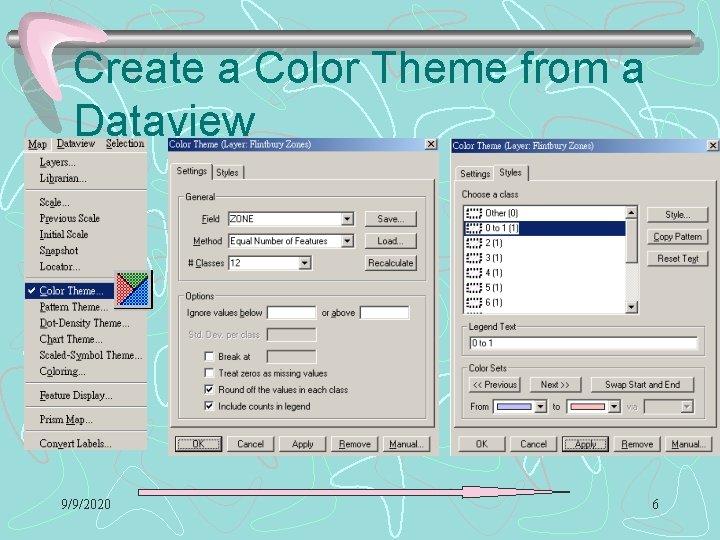
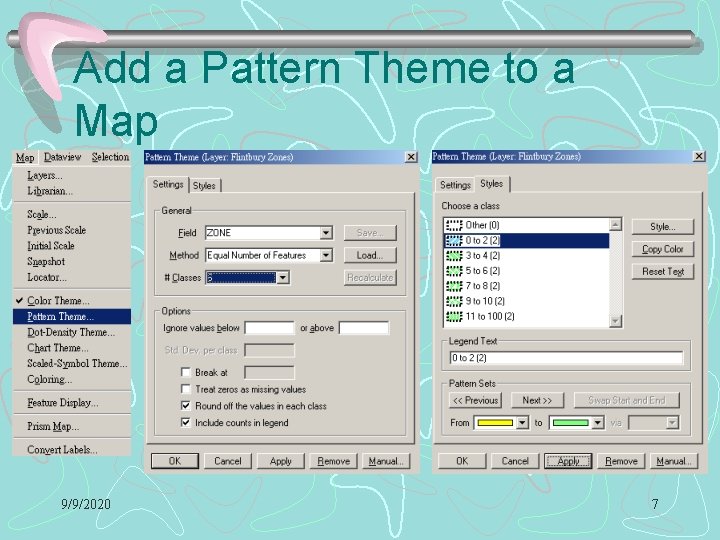
Color and Pattern Themes • Color themes and pattern themes work in the same way. They both group the features in a map layer into classes, based on the value of a data field. Each class contains all of the features with similar values for the chosen field. • When the map is drawn, the classes are displayed using different colors or patterns. 9/9/2020 5 • When you create a theme using a
Create a Color Theme from a Dataview 9/9/2020 6
Add a Pattern Theme to a Map 9/9/2020 7
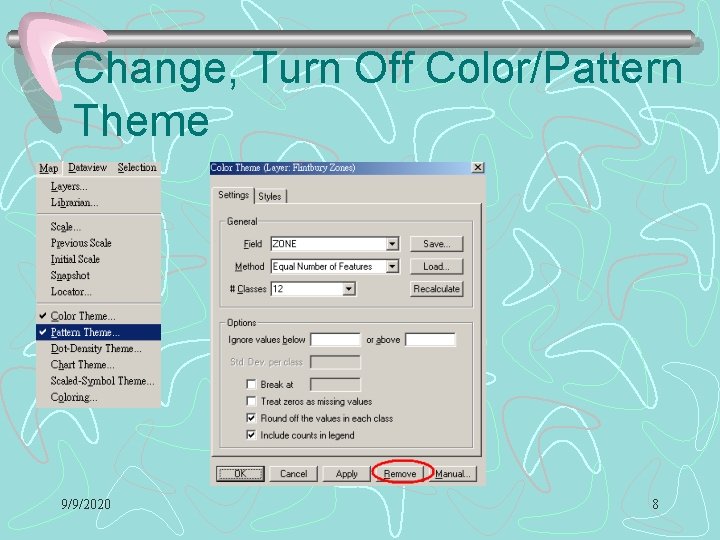
Change, Turn Off Color/Pattern Theme 9/9/2020 8
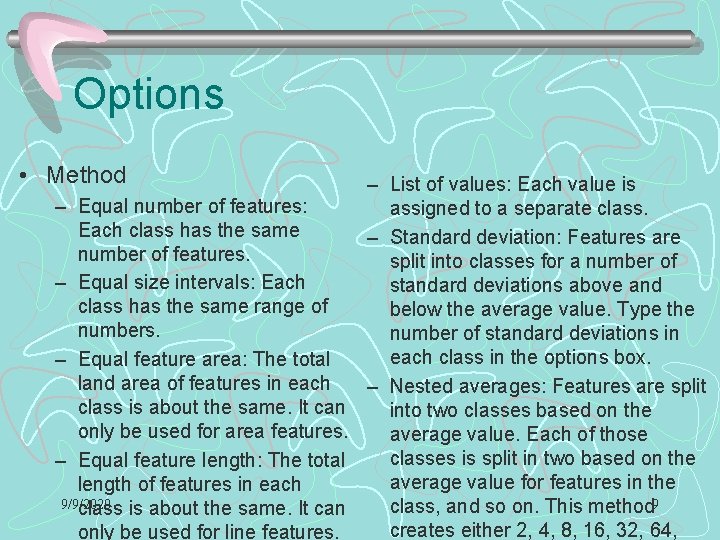
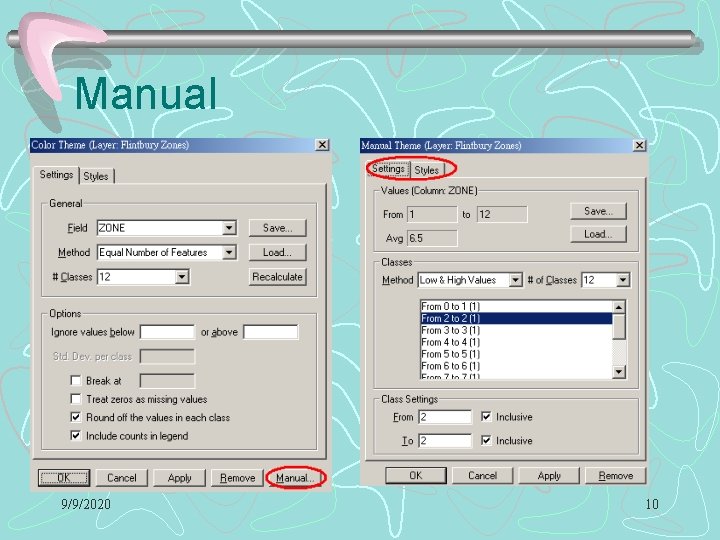
Options • Method – List of values: Each value is – Equal number of features: assigned to a separate class. Each class has the same – Standard deviation: Features are number of features. split into classes for a number of – Equal size intervals: Each standard deviations above and class has the same range of below the average value. Type the numbers. number of standard deviations in each class in the options box. – Equal feature area: The total land area of features in each – Nested averages: Features are split class is about the same. It can into two classes based on the only be used for area features. average value. Each of those classes is split in two based on the – Equal feature length: The total average value for features in the length of features in each 9/9/2020 class, and so on. This method 9 class is about the same. It can creates either 2, 4, 8, 16, 32, 64, only be used for line features.
Manual 9/9/2020 10
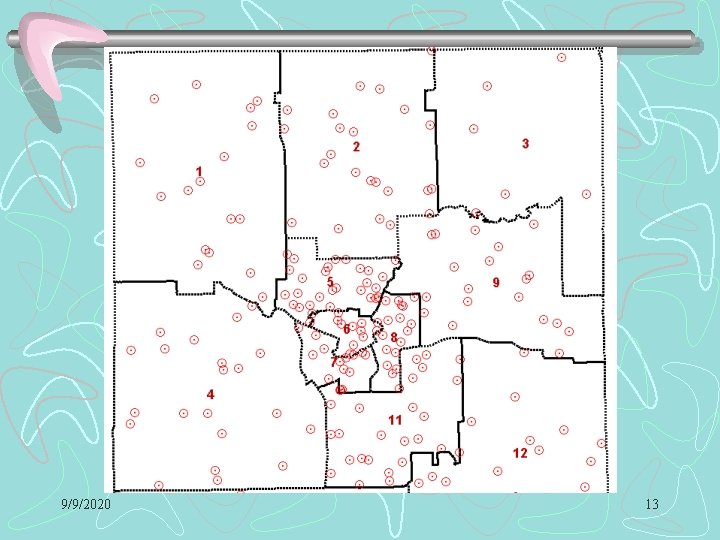
Dot-Density Themes • A dot-density theme uses dots or other symbols on the map to show the values of one or more numeric data fields. Each dot on a dot-density map represents some amount of data. • Dot-density themes can only be created on an area layer, such as ZIP codes, TAZs, census tracts, or sales districts. 9/9/2020 11
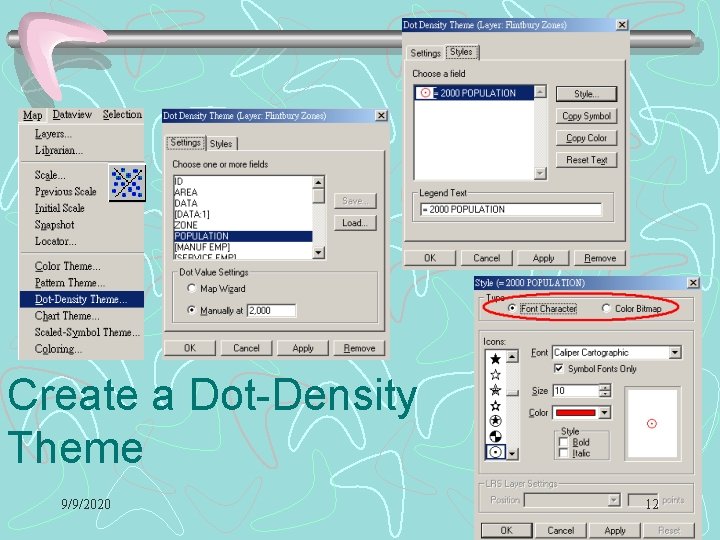
Create a Dot-Density Theme 9/9/2020 12
9/9/2020 13
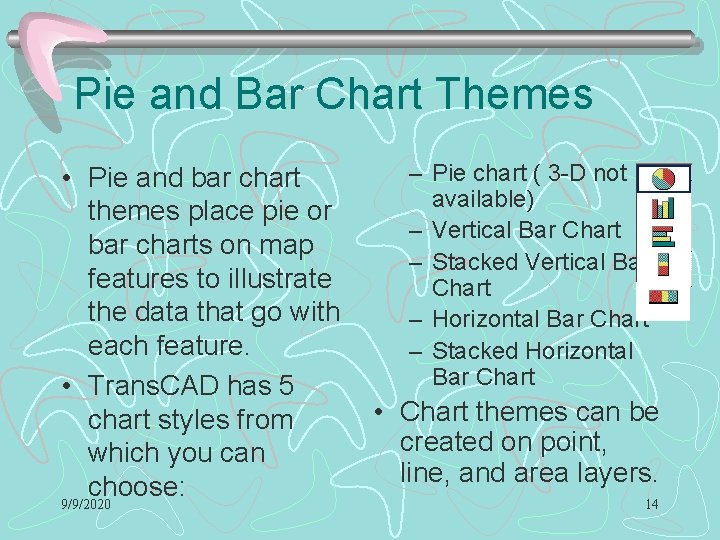
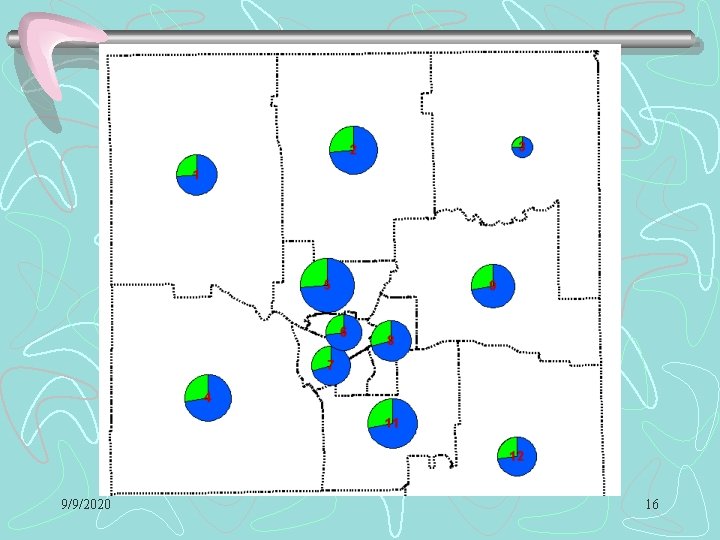
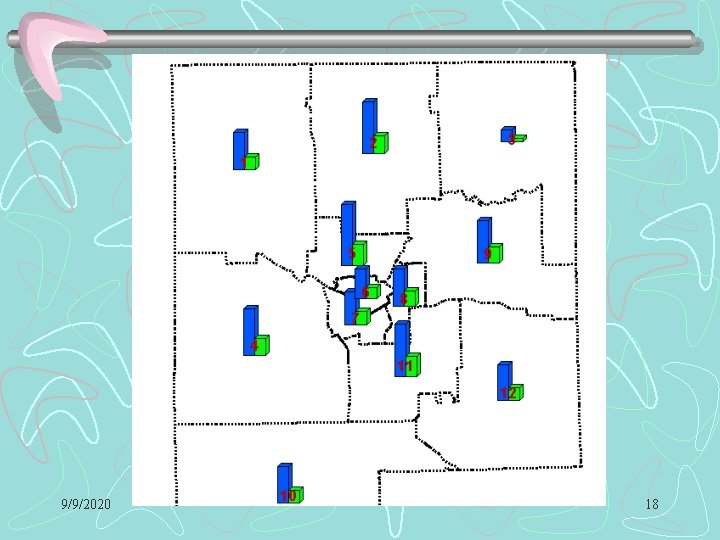
Pie and Bar Chart Themes • Pie and bar chart themes place pie or bar charts on map features to illustrate the data that go with each feature. • Trans. CAD has 5 chart styles from which you can choose: 9/9/2020 – Pie chart ( 3 -D not available) – Vertical Bar Chart – Stacked Vertical Bar Chart – Horizontal Bar Chart – Stacked Horizontal Bar Chart • Chart themes can be created on point, line, and area layers. 14
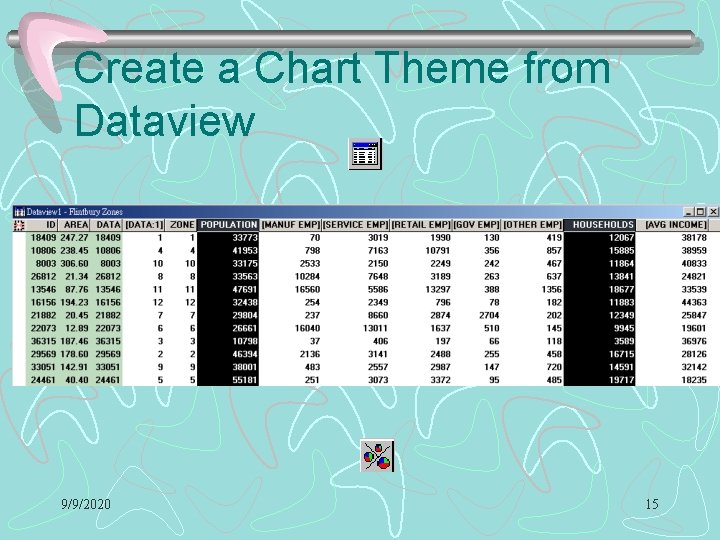
Create a Chart Theme from Dataview 9/9/2020 15
9/9/2020 16
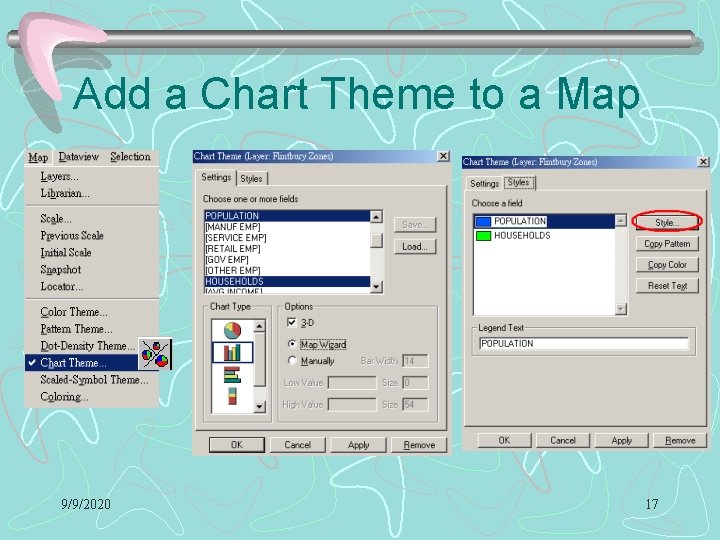
Add a Chart Theme to a Map 9/9/2020 17
9/9/2020 18
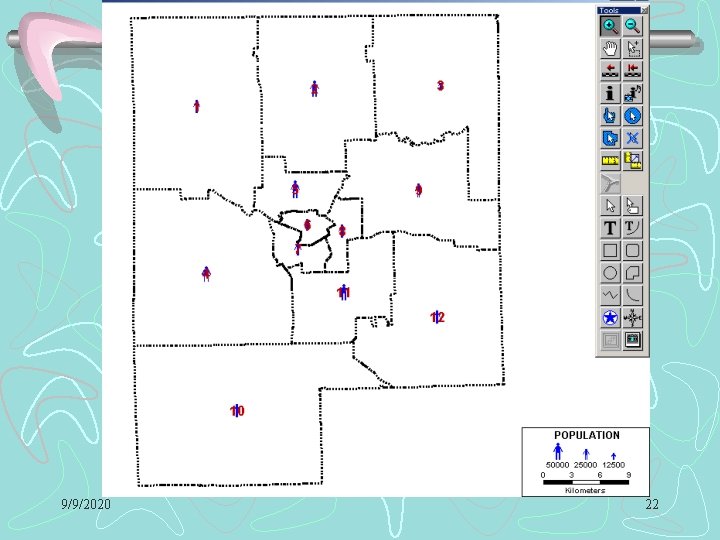
Scaled-Symbol Themes • A scaled-symbol theme uses symbols of different sizes or lines of different widths to show the value of a data field. • Scaled-symbol themes can be created on point, line, or area layers. On line layers, the lines are scaled in width based on the value for the chosen field. On point layers, the symbol that is used to display the point is scaled in size based on the value of the chosen field. On area layers, you choose the symbol you want to use, and Trans. CAD 9/9/2020 19 displays the symbol at the center of the area,
Scaled-Symbol Themes • Trans. CAD has a special dual-bandwidth feature for line layers that lets you see data that vary by direction. This feature can be used to show many different types of data, for example: – The number of cars traveling in both directions on a street network – The capacity of a transit line in passengers per hour – Highway pavement width – Commodity flows along rail lines • The layer must contain two fields that indicate 9/9/2020 the value of the field in each direction along 20
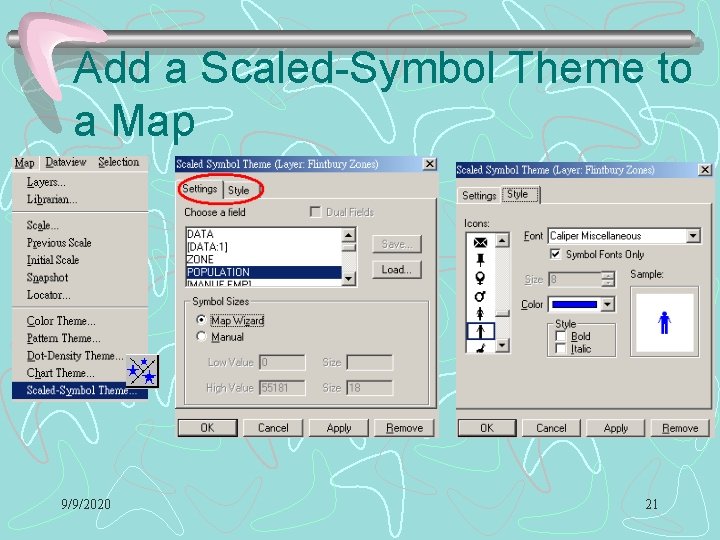
Add a Scaled-Symbol Theme to a Map 9/9/2020 21
9/9/2020 22
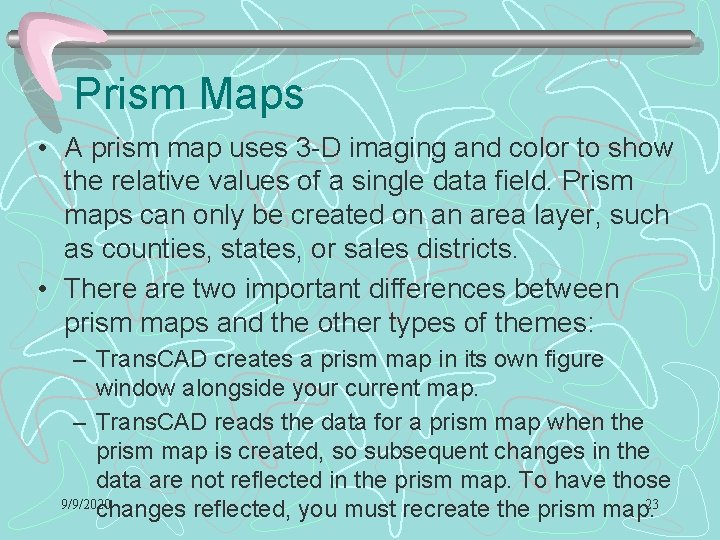
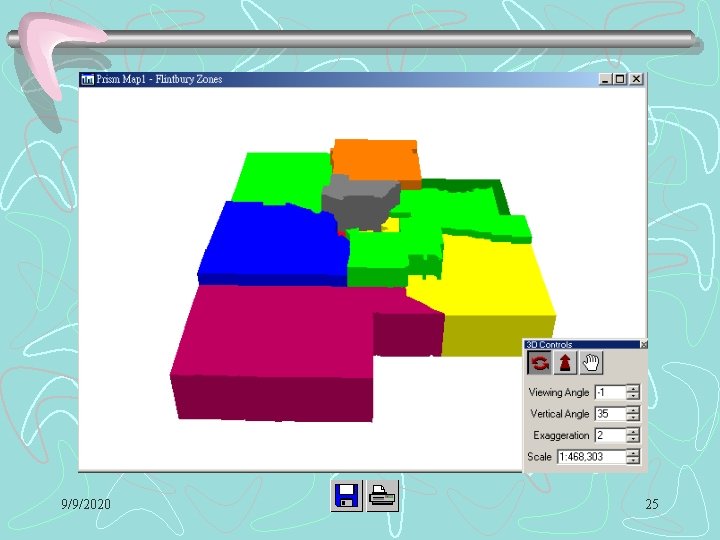
Prism Maps • A prism map uses 3 -D imaging and color to show the relative values of a single data field. Prism maps can only be created on an area layer, such as counties, states, or sales districts. • There are two important differences between prism maps and the other types of themes: – Trans. CAD creates a prism map in its own figure window alongside your current map. – Trans. CAD reads the data for a prism map when the prism map is created, so subsequent changes in the data are not reflected in the prism map. To have those 9/9/2020 changes reflected, you must recreate the prism map. 23
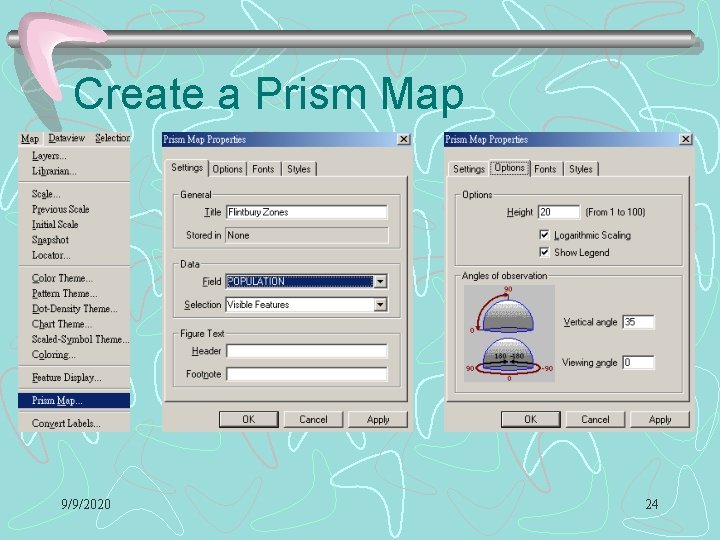
Create a Prism Map 9/9/2020 24
9/9/2020 25
Customizing a Prism Map • Trans. CAD allows you to customize a prism map in a variety of ways: – Add customized titles and footnotes – Change the initial height and the angle at which it is viewed – Add a legend – Apply logarithmic scaling to your data – Change the colors by selecting a predefined color set or by using the color ramp 9/9/2020 26
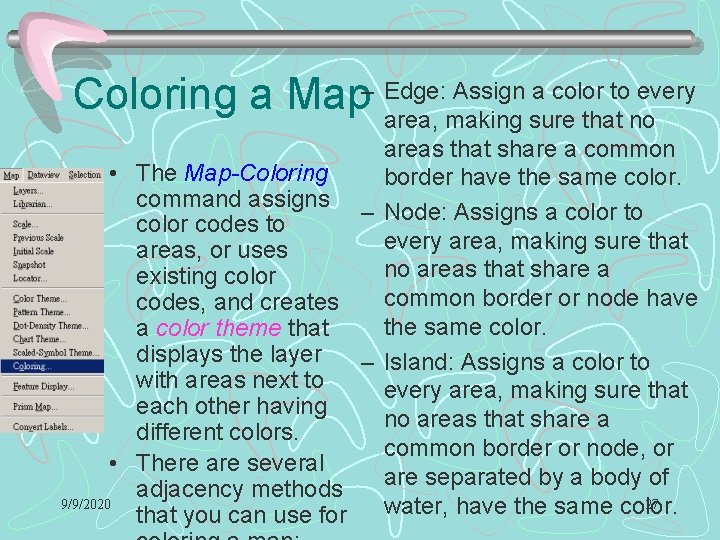
Assign a color to every Coloring a Map– Edge: area, making sure that no areas that share a common • The Map-Coloring border have the same color. command assigns – Node: Assigns a color to color codes to every area, making sure that areas, or uses no areas that share a existing color common border or node have codes, and creates the same color. a color theme that displays the layer – Island: Assigns a color to with areas next to every area, making sure that each other having no areas that share a different colors. common border or node, or • There are several are separated by a body of adjacency methods 9/9/2020 27 water, have the same color. that you can use for