This work is licensed under a Creative Commons
- Slides: 24
This work is licensed under a Creative Commons Attribution-Share. Alike 4. 0 International License. This presentation is released under Creative Commons-A 6 ribute, on 4. 0 License. You are free to use, distribute and modify it , including for commercial purposes, provided you acknowledge the source. Operating System Concepts – 8 th Edition 10. 1 Silberschatz, Galvin and Gagne © 2009
File-System Interface
File-System Interface n File Concept l File Attributes l File Operations l File Types l File Structures n Access Methods l Sequential Access l Direct Access l Other Access Methods n Disk Structure n Directory Structure. l Single - Level directory l Two - Level Directory l Tree - Structured Directory
Access Methods n Files store information and these files are stored permanently on to the secondary storage. n When file is used, this information must be accessed and read into computer memory. n There are various file access methods, as follows l Sequential Access l Direct Access
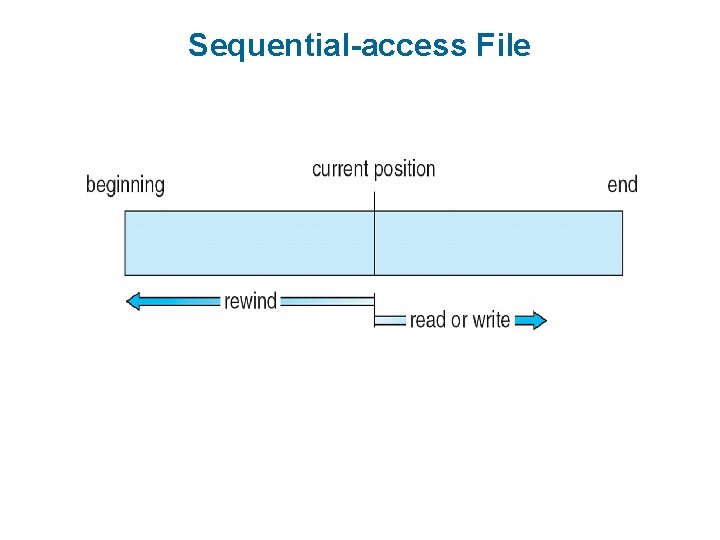
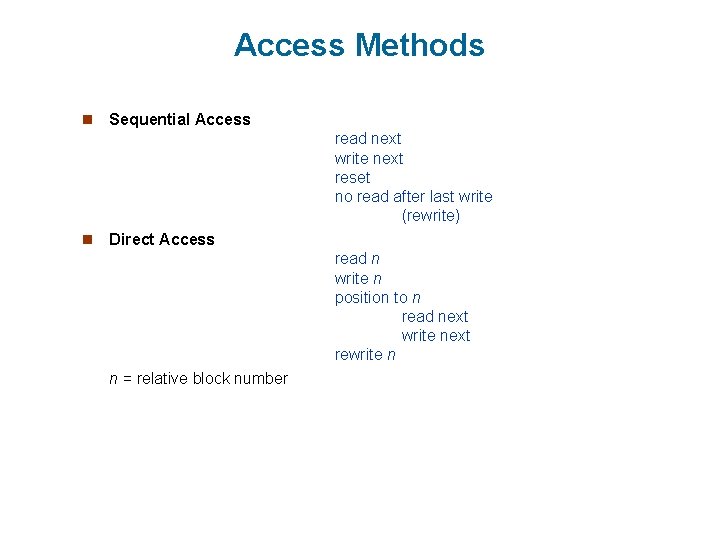
Sequential File Access. . n Sequential Access is the Simplest File access Method n Information in the file is processed, one record after the other. n Example, editors and compilers usually access files in this fashion. n Access to records in a Sequential file is serial. n To reach a particular record, all the preceding records must be read. n File operations l A read operation—read next—reads the next portion of the file and automatically advances a file pointer, which tracks the I/O location. l A write operation—write next—appends to the end of the file and advances to the end of the newly written material (the new end of file).
Sequential-access File
Direct File Access. . n it is also known as Relative access. n A file is made up of fixed length logical records. n The direct-access method is based on a disk model of a file, since disks allow random access to any file block. For direct access, the file is viewed as a numbered sequence of blocks or records. n There are no restrictions on the order of reading or writing for a direct- access file. n File operations: l the file operations must be modified to include the block number as a parameter. l Read Operation- read n, where n is the block number, rather than read next. l Write Operation - and write n rather than write next.
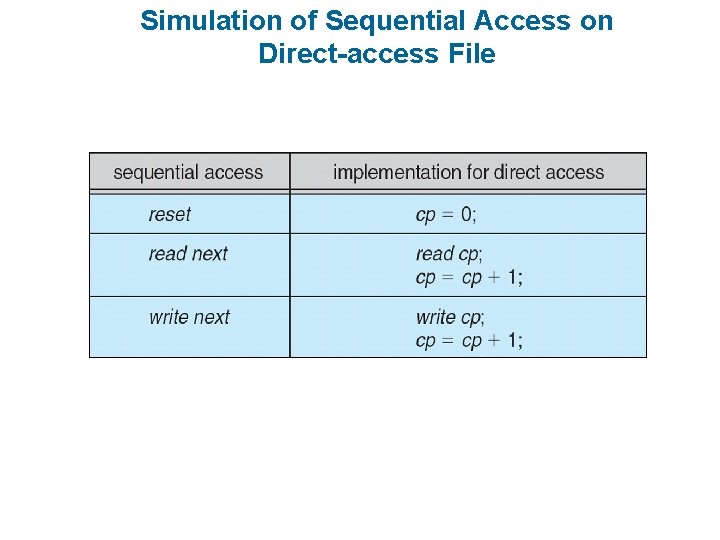
Direct File Access. . n The block number provided by the user to the operating system is normally a relative block number. n A relative block number is an index relative to the beginning of the file. n the first relative block of the file is 0, the next is 1, and so on, n Not all operating systems support both sequential and direct access for files. n Some systems allow only sequential file access; others allow only direct access. n Some systems require that a file be defined as sequential or direct when it is created n We can easily simulate sequential access on a direct-access file by simply keeping a variable cp that defines our current position, as shown in Figure
Access Methods n Sequential Access read next write next reset no read after last write (rewrite) n Direct Access read n write n position to n read next write next rewrite n n = relative block number
Simulation of Sequential Access on Direct-access File
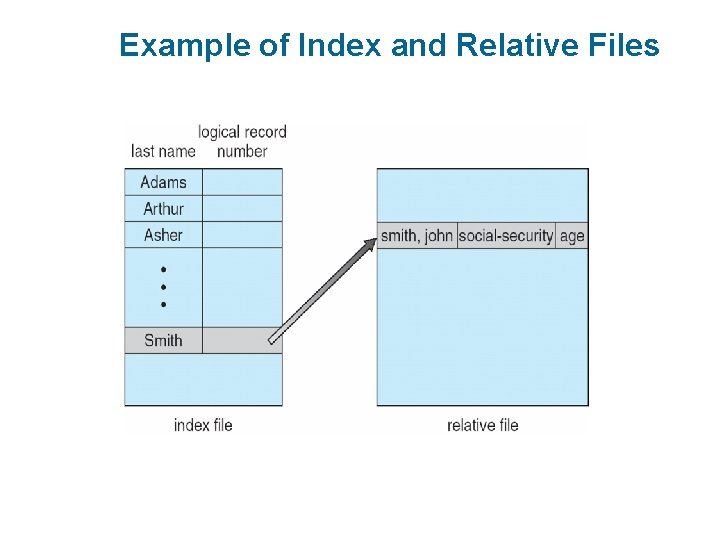
Example of Index and Relative Files
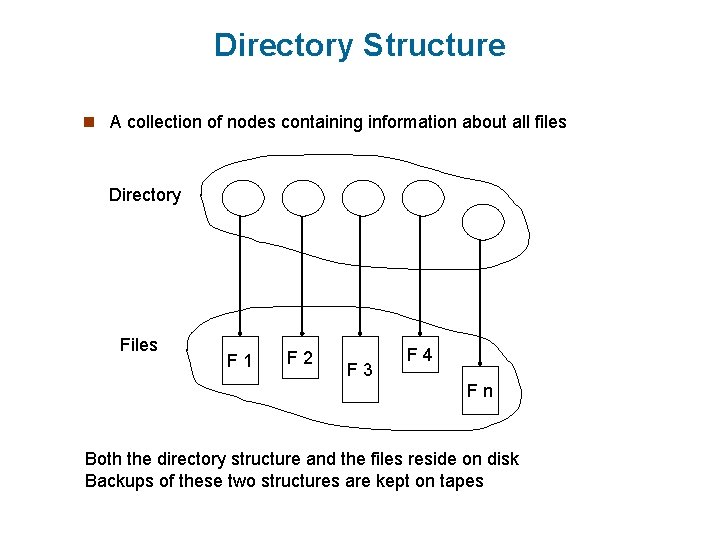
Directory Structure n A collection of nodes containing information about all files Directory Files F 1 F 2 F 3 F 4 Fn Both the directory structure and the files reside on disk Backups of these two structures are kept on tapes
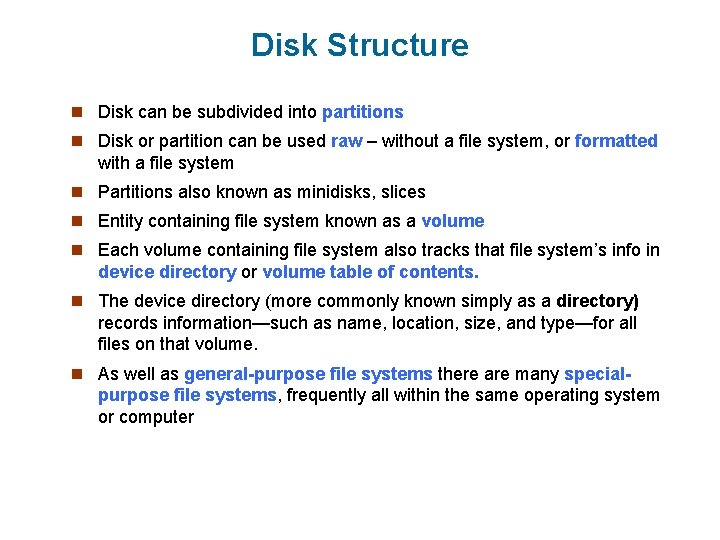
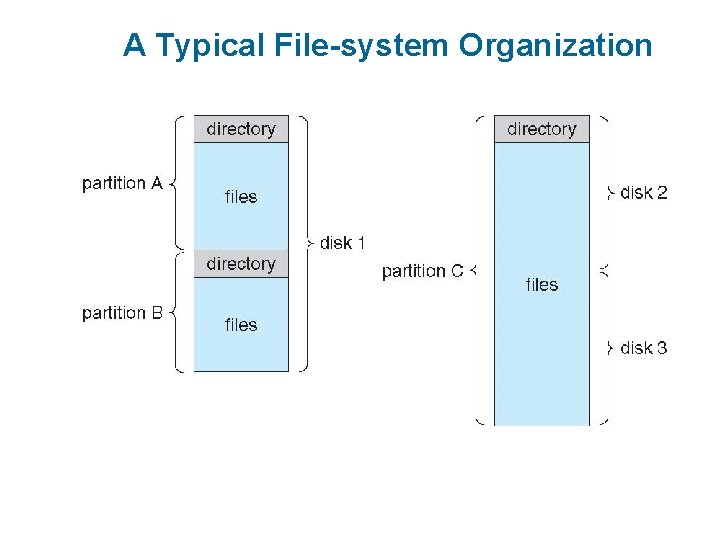
Disk Structure n Disk can be subdivided into partitions n Disk or partition can be used raw – without a file system, or formatted with a file system n Partitions also known as minidisks, slices n Entity containing file system known as a volume n Each volume containing file system also tracks that file system’s info in device directory or volume table of contents. n The device directory (more commonly known simply as a directory) records information—such as name, location, size, and type—for all files on that volume. n As well as general-purpose file systems there are many special- purpose file systems, frequently all within the same operating system or computer
A Typical File-system Organization
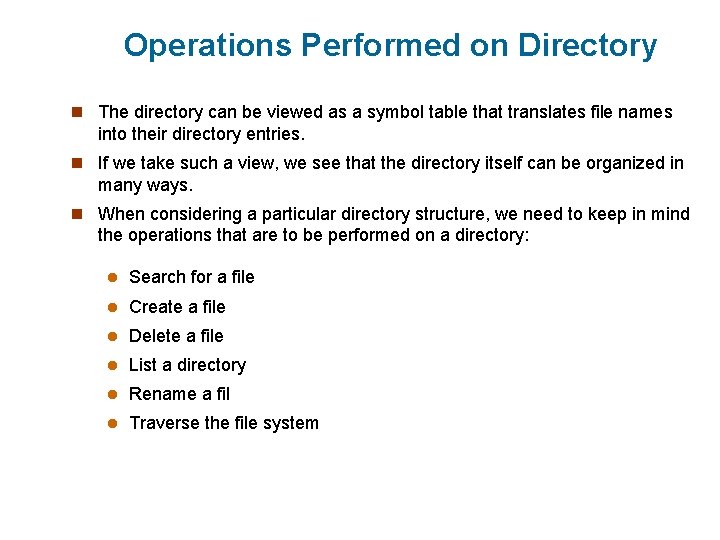
Operations Performed on Directory n The directory can be viewed as a symbol table that translates file names into their directory entries. n If we take such a view, we see that the directory itself can be organized in many ways. n When considering a particular directory structure, we need to keep in mind the operations that are to be performed on a directory: l Search for a file l Create a file l Delete a file l List a directory l Rename a fil l Traverse the file system
Organize the Directory (Logically) to Obtain n Efficiency – locating a file quickly n Naming – convenient to users l Two users can have same name for different files l The same file can have several different names n Grouping – logical grouping of files by properties, (e. g. , all Java programs, all games, …)
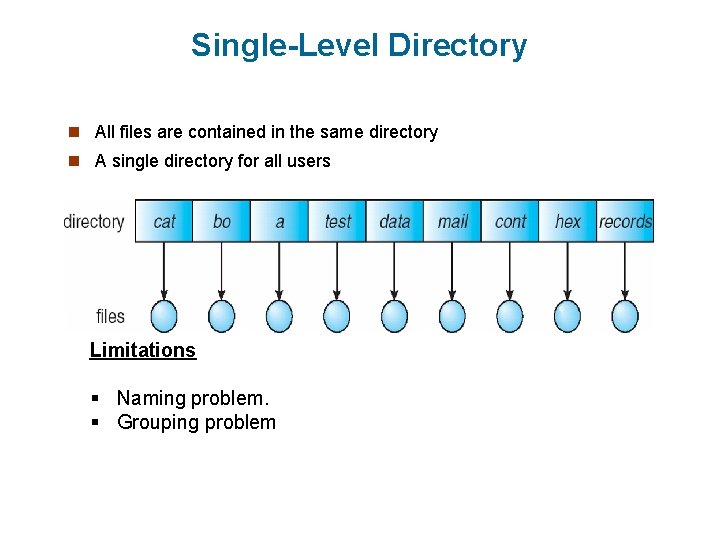
Single-Level Directory n All files are contained in the same directory n A single directory for all users Limitations § Naming problem. § Grouping problem
Single-Level Directory n Limitations l Naming problem: when the number of files increases or when the system has more than one user. Since all files are in the same directory, they must have unique names. l Length of the file name: Although file names are generally selected to reflect the content of the file, they are often limited in length, complicating the task of making file names unique. 4 The MS-DOS operating system allows only 11 -character file names. 4 UNIX, l in contrast, allows 255 characters. Grouping problem: confusion of file names among different users.
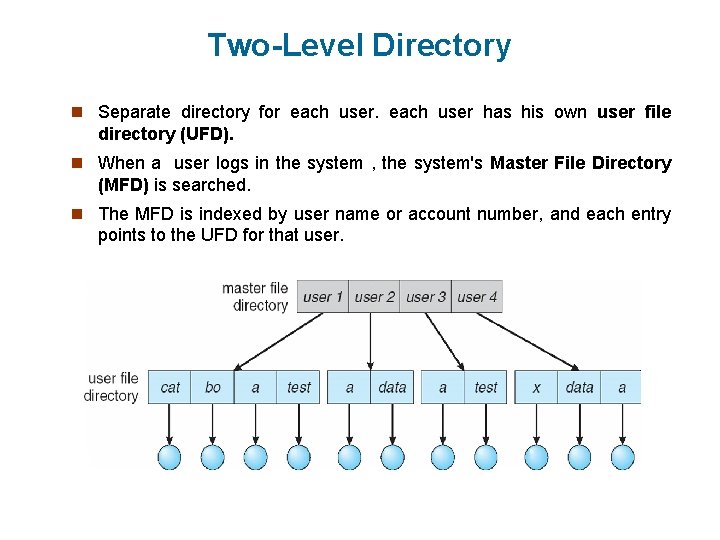
Two-Level Directory n Separate directory for each user has his own user file directory (UFD). n When a user logs in the system , the system's Master File Directory (MFD) is searched. n The MFD is indexed by user name or account number, and each entry points to the UFD for that user.
Two-Level Directory n When a user refers to a particular file, only his own UFD is searched. Thus, different users may have files with the same name, as long as all the file names within each UFD are unique n To create a file for a user, the operating system searches only that user's UFD to ascertain whether another file of that name exists. n To delete a file, the operating system confines its search to the local UFD; thus, it cannot accidentally delete another user's file that has the same name. n The user directories themselves must be created and deleted as necessary. n A special system program is run; The execution of this program might be restricted to system administrators. n The program creates a new UFD and adds an entry for it to the MFD.
Two-Level Directory n Advantages l Path name l Can have the same file name for different user l Efficient searching. l It solves the name-collision problem. n Disadvantages. l This structure effectively isolates one user from another. Isolation is an advantage where the users are completely independent but is a disadvantage when the users want to cooperate on some task and to access one another's files.
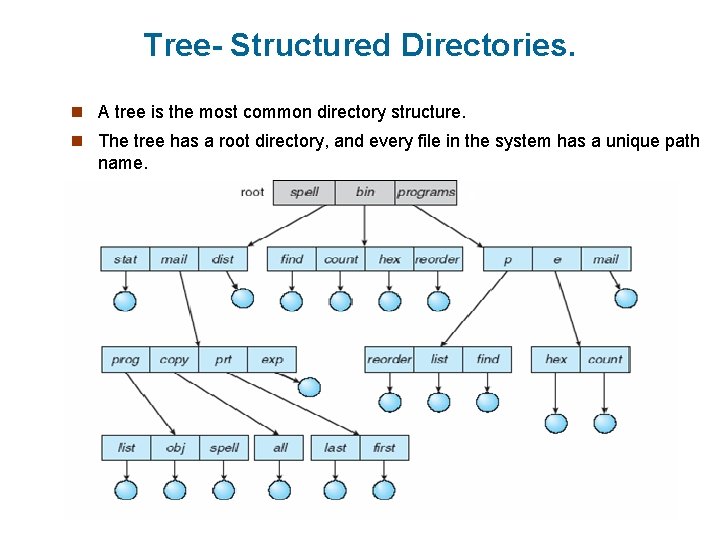
Tree- Structured Directories. n A tree is the most common directory structure. n The tree has a root directory, and every file in the system has a unique path name.
Tree-Structured Directories n Current Directoryl Each process has it’s current working directory. l should contain most of the files that are of current interest to the process. l When reference is made to a file, the current directory is searched. l If a file is needed that is not in the current directory, then the user usually must 4 either specify a path name. 4 change the current directory to be the directory holding that file. n Path names can be of two types: absolute and relative. l An absolute path name begins at the root and follows a path down to the specified file, giving the directory names on the path. l A relative path name defines a path from the current directory.
n Deleting directory l If a directory is empty. 4 l its entry in the directory that contains it can simply be deleted. If directory to be deleted is not empty(contains several files or subdirectories). One of two approaches can be taken. 4 Some system such as MS-DOS, will not delete a directory unless it is empty. 4 Thus, to delete a directory, the user must first delete all the files in that directory. 4 If 4 any subdirectories exist, this procedure must be applied recursively. This approach can result in a substantial amount of work. 4 An alternative approach, such as that taken by the UNIX rm command 4 When a request is made to delete a directory, all that directory's files and subdirectories are also to be deleted. 4 The later command is convenient but dangerous too.