
Programming your Robot Slides Many slides for the
Programming your Robot
Slides • Many slides for the robotics sections come from: • Elements of Robotics, Authors: Ben-Ari, Mordechai, Mondada, Francesco • Lego Material • https: //cs 4 hsev 3 robots. appspot. com/course

Steps
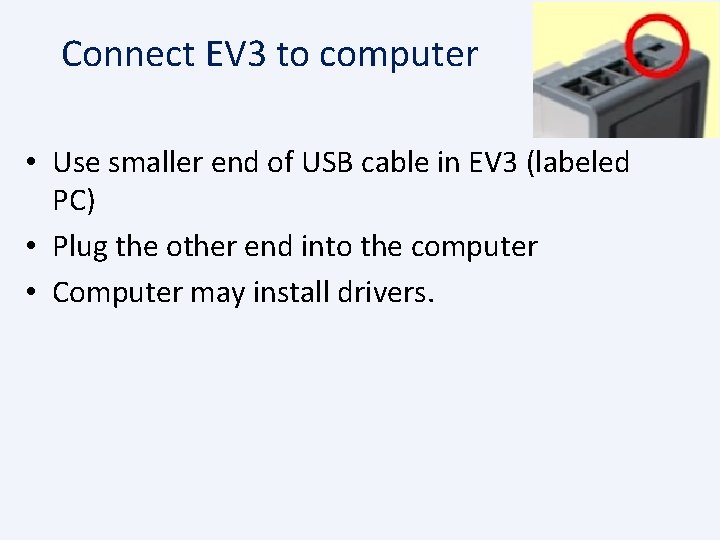
Connect EV 3 to computer • Use smaller end of USB cable in EV 3 (labeled PC) • Plug the other end into the computer • Computer may install drivers.
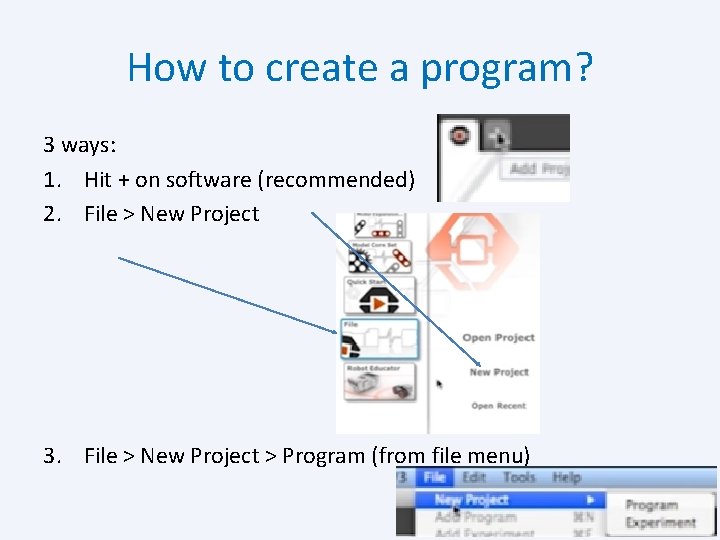
How to create a program? 3 ways: 1. Hit + on software (recommended) 2. File > New Project 3. File > New Project > Program (from file menu)
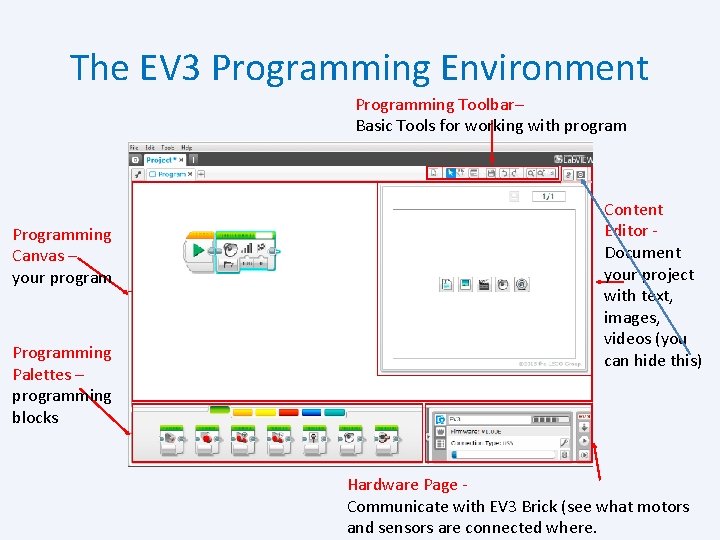
The EV 3 Programming Environment Programming Toolbar– Basic Tools for working with program Programming Canvas – your program Programming Palettes – programming blocks Content Editor Document your project with text, images, videos (you can hide this) Hardware Page Communicate with EV 3 Brick (see what motors and sensors are connected where.

Coding Blocks
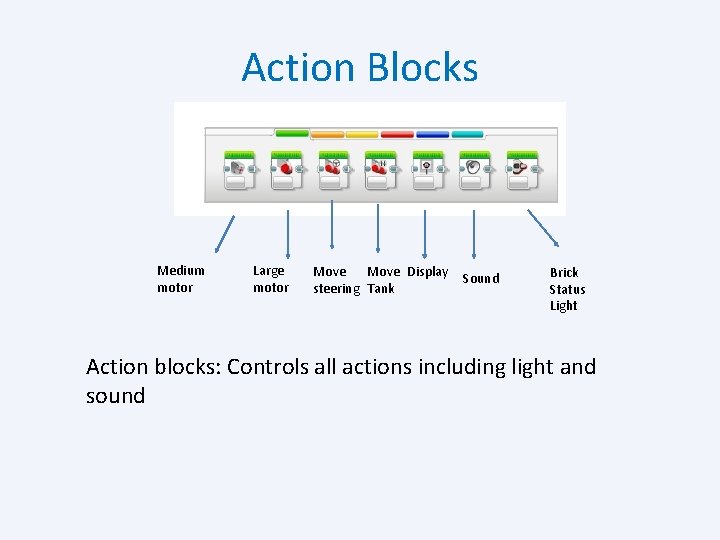
Action Blocks Medium motor Large motor Move Display steering Tank Sound Brick Status Light Action blocks: Controls all actions including light and sound
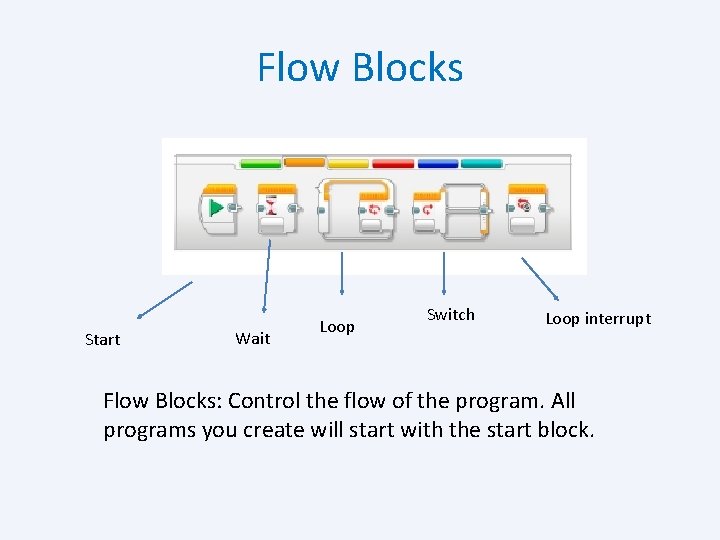
Flow Blocks Start Wait Loop Switch Loop interrupt Flow Blocks: Control the flow of the program. All programs you create will start with the start block.
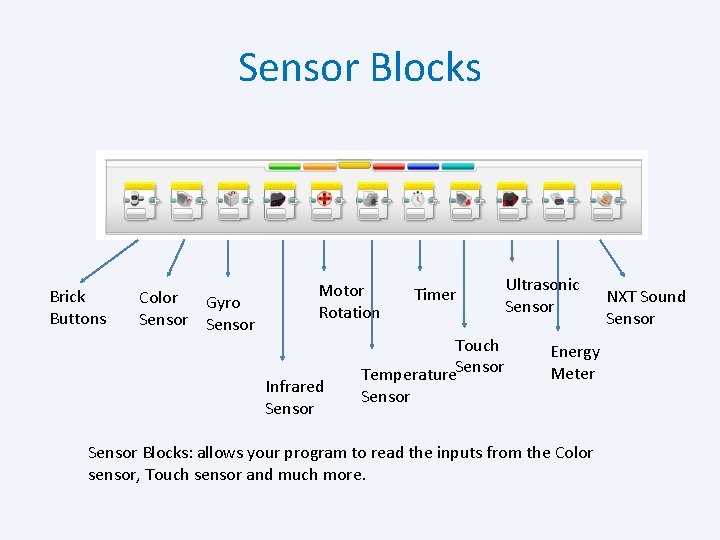
Sensor Blocks Brick Buttons Color Gyro Sensor Motor Rotation Infrared Sensor Timer Touch Temperature. Sensor Ultrasonic Sensor Energy Meter Sensor Blocks: allows your program to read the inputs from the Color sensor, Touch sensor and much more. NXT Sound Sensor
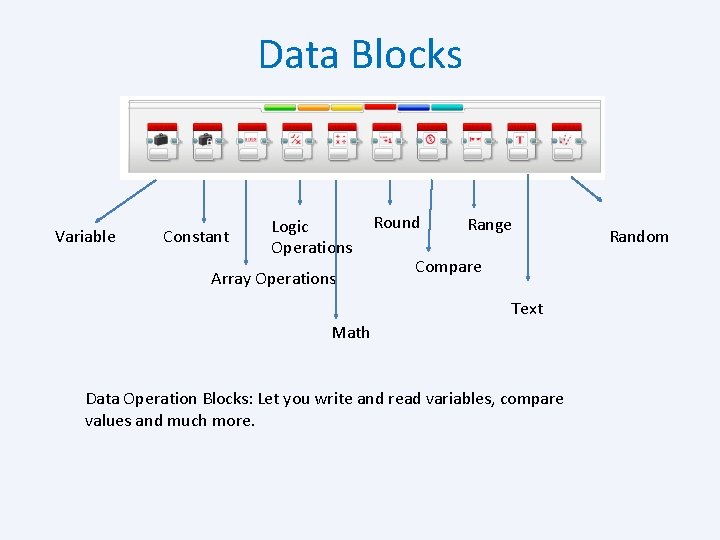
Data Blocks Variable Constant Logic Operations Array Operations Round Range Compare Text Math Data Operation Blocks: Let you write and read variables, compare values and much more. Random
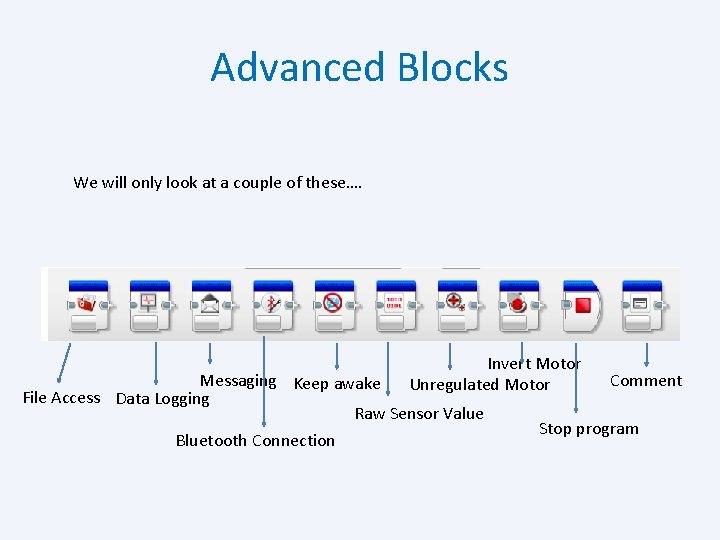
Advanced Blocks We will only look at a couple of these…. Invert Motor Unregulated Motor Messaging Keep awake File Access Data Logging Raw Sensor Value Bluetooth Connection Comment Stop program
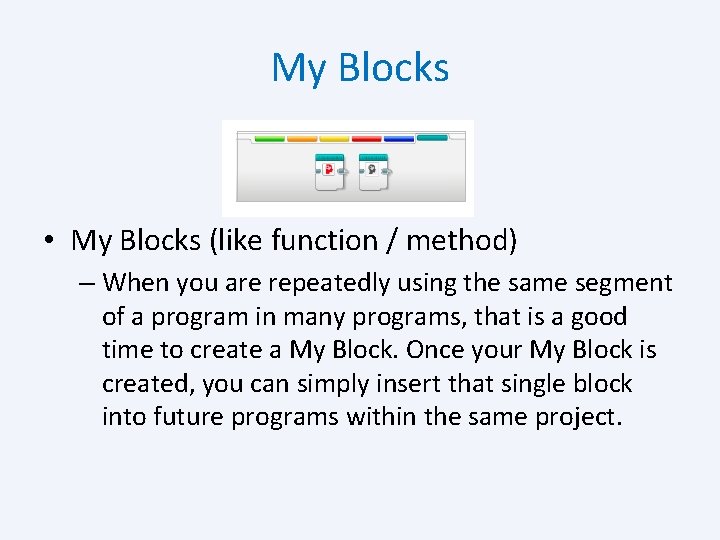
My Blocks • My Blocks (like function / method) – When you are repeatedly using the same segment of a program in many programs, that is a good time to create a My Block. Once your My Block is created, you can simply insert that single block into future programs within the same project.
Program vs. Project • May want a robot car to: – Drive safely – Parallel park – Play music • Project is high level concept • And the robot car project will have 3 programs – Drive around – Parallel Park – Play Music
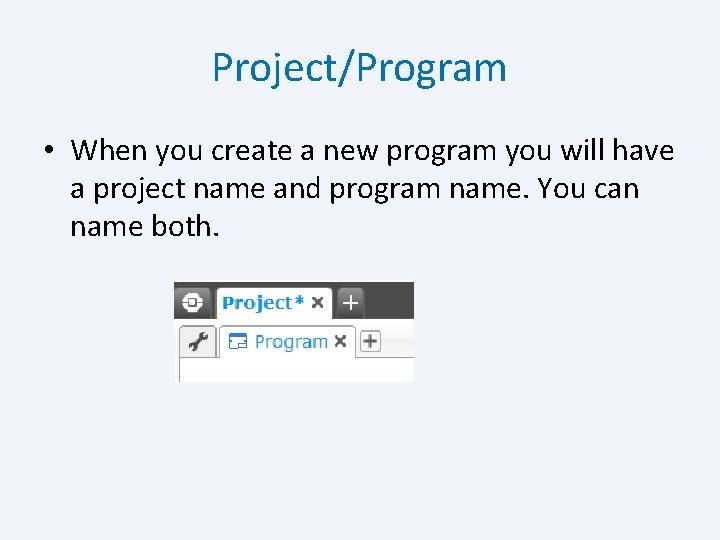
Project/Program • When you create a new program you will have a project name and program name. You can name both.
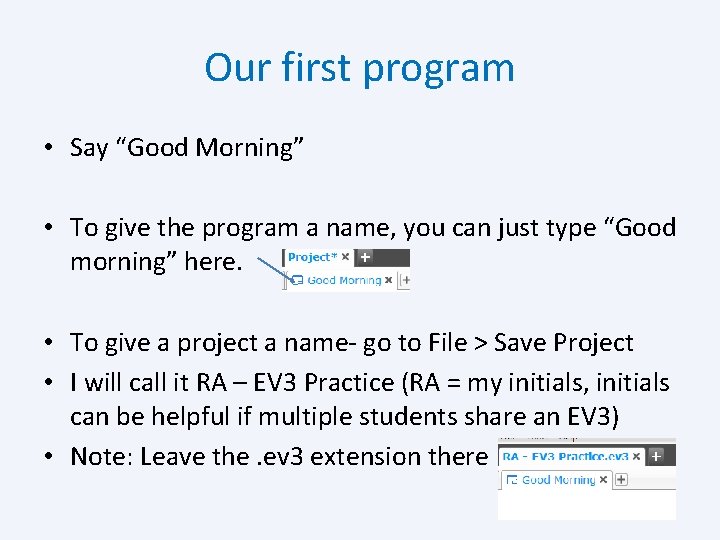
Our first program • Say “Good Morning” • To give the program a name, you can just type “Good morning” here. • To give a project a name- go to File > Save Project • I will call it RA – EV 3 Practice (RA = my initials, initials can be helpful if multiple students share an EV 3) • Note: Leave the. ev 3 extension there
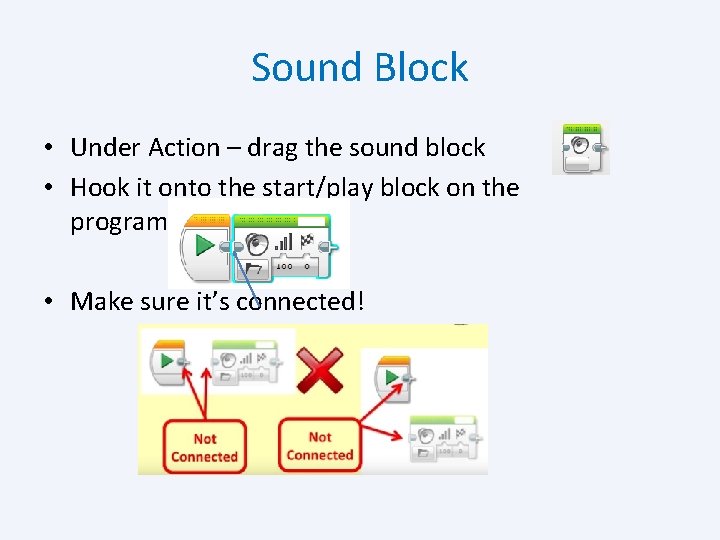
Sound Block • Under Action – drag the sound block • Hook it onto the start/play block on the programming canvas • Make sure it’s connected!
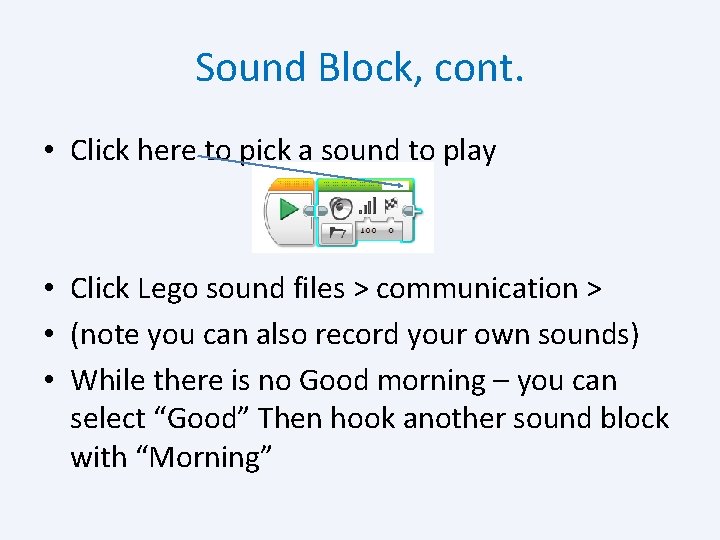
Sound Block, cont. • Click here to pick a sound to play • Click Lego sound files > communication > • (note you can also record your own sounds) • While there is no Good morning – you can select “Good” Then hook another sound block with “Morning”
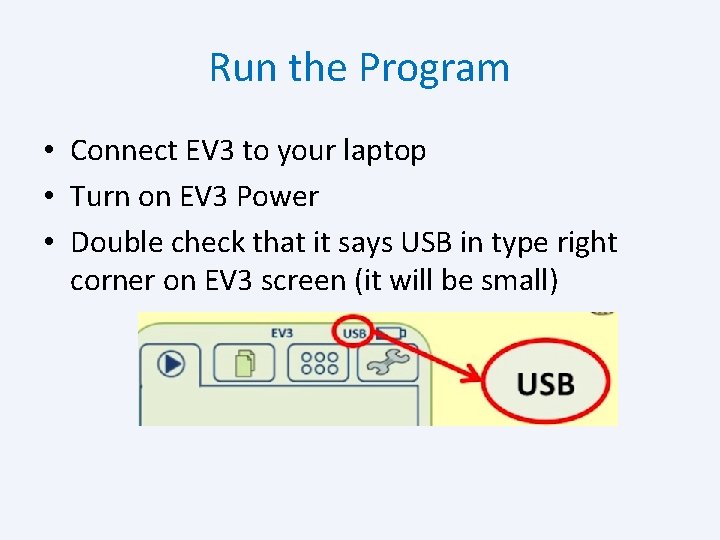
Run the Program • Connect EV 3 to your laptop • Turn on EV 3 Power • Double check that it says USB in type right corner on EV 3 screen (it will be small)
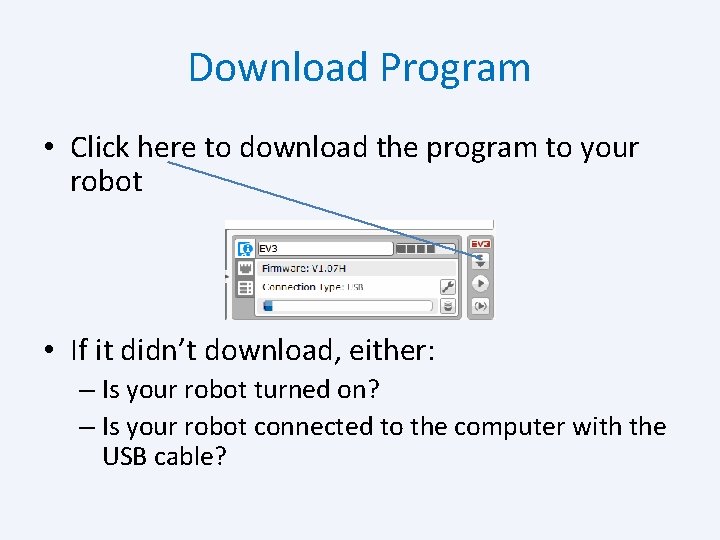
Download Program • Click here to download the program to your robot • If it didn’t download, either: – Is your robot turned on? – Is your robot connected to the computer with the USB cable?
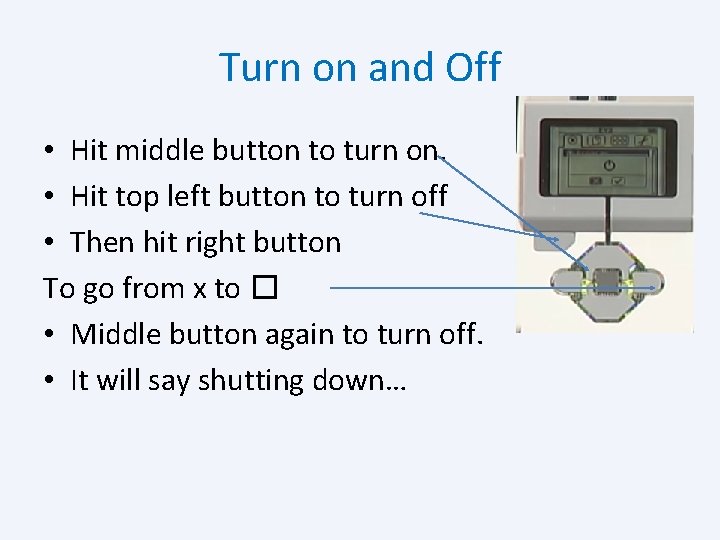
Turn on and Off • Hit middle button to turn on. • Hit top left button to turn off • Then hit right button To go from x to � • Middle button again to turn off. • It will say shutting down…
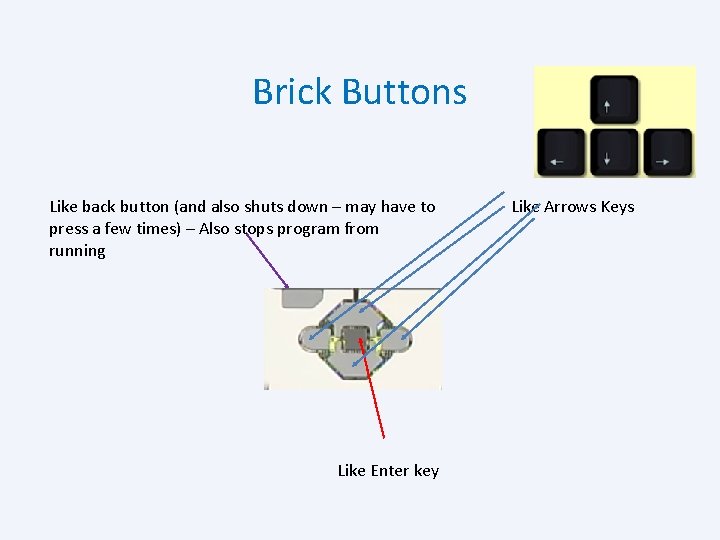
Brick Buttons Like back button (and also shuts down – may have to press a few times) – Also stops program from running Like Enter key Like Arrows Keys
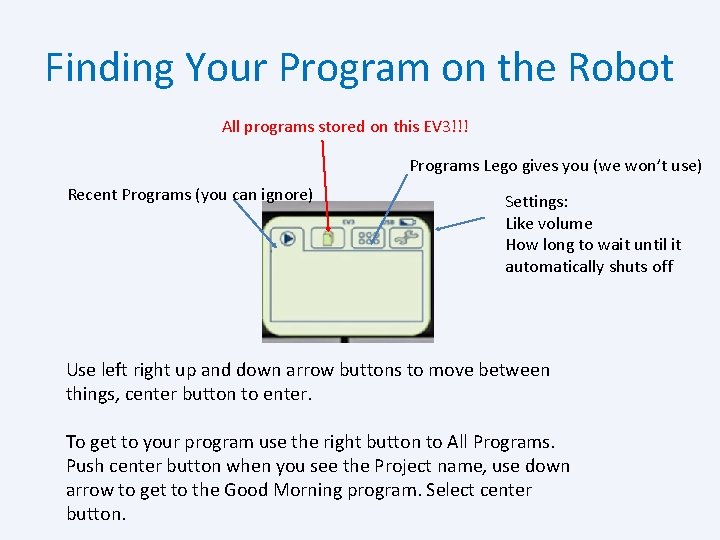
Finding Your Program on the Robot All programs stored on this EV 3!!! Programs Lego gives you (we won’t use) Recent Programs (you can ignore) Settings: Like volume How long to wait until it automatically shuts off Use left right up and down arrow buttons to move between things, center button to enter. To get to your program use the right button to All Programs. Push center button when you see the Project name, use down arrow to get to the Good Morning program. Select center button.
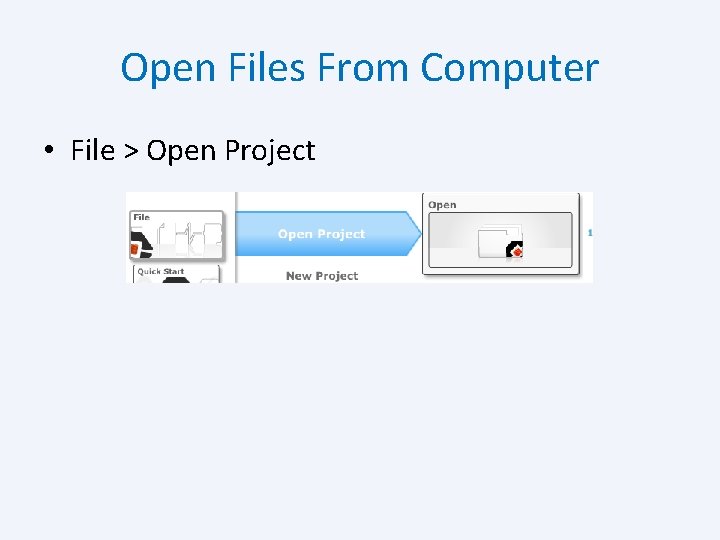
Open Files From Computer • File > Open Project
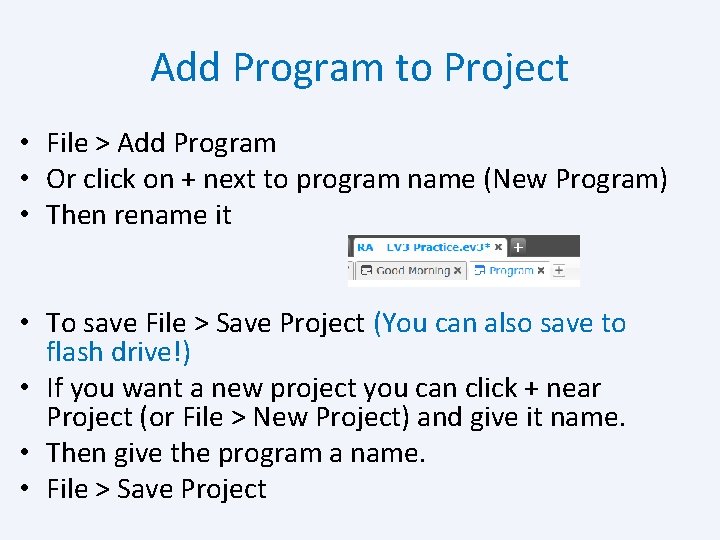
Add Program to Project • File > Add Program • Or click on + next to program name (New Program) • Then rename it • To save File > Save Project (You can also save to flash drive!) • If you want a new project you can click + near Project (or File > New Project) and give it name. • Then give the program a name. • File > Save Project
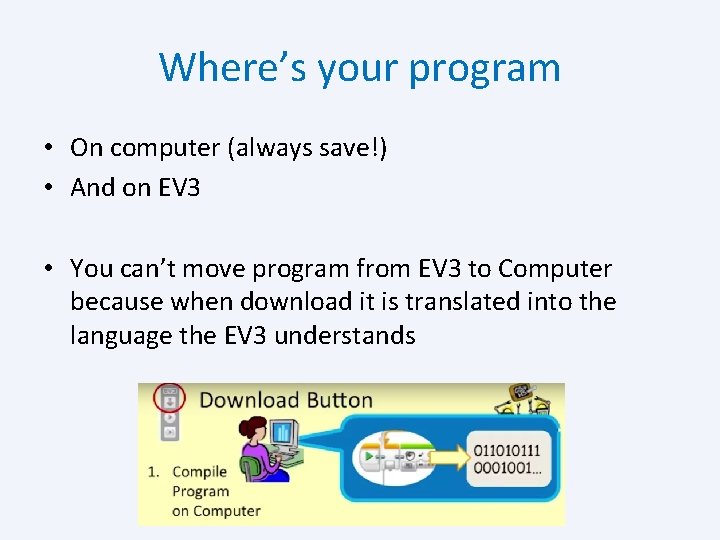
Where’s your program • On computer (always save!) • And on EV 3 • You can’t move program from EV 3 to Computer because when download it is translated into the language the EV 3 understands
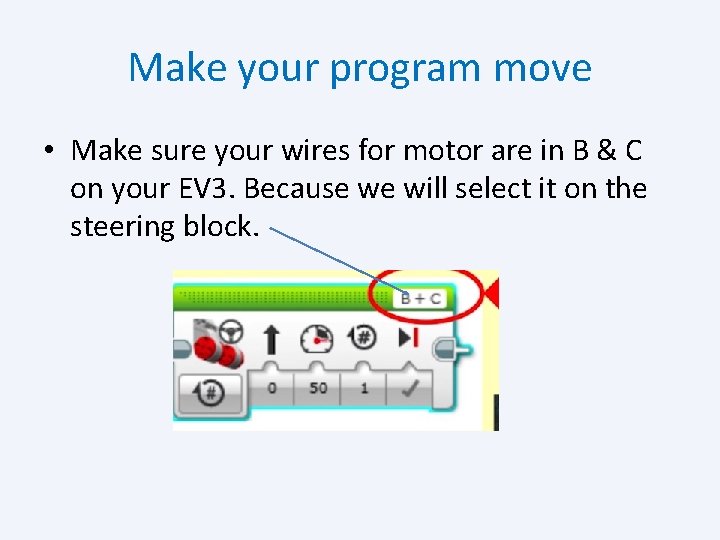
Make your program move • Make sure your wires for motor are in B & C on your EV 3. Because we will select it on the steering block.
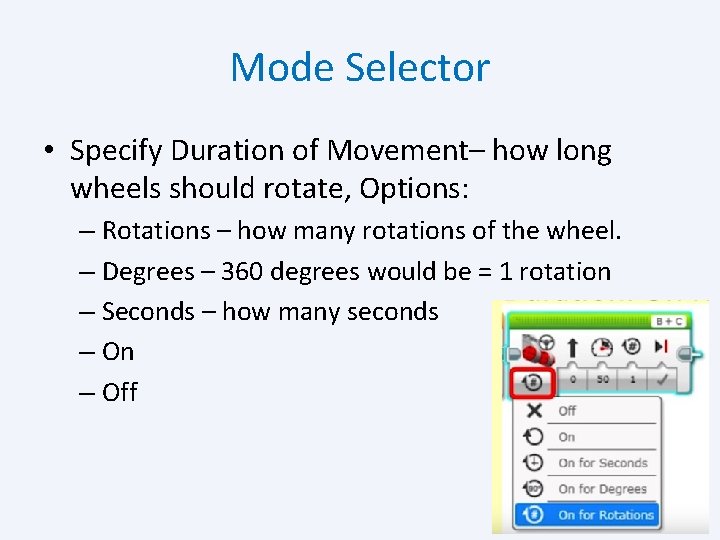
Mode Selector • Specify Duration of Movement– how long wheels should rotate, Options: – Rotations – how many rotations of the wheel. – Degrees – 360 degrees would be = 1 rotation – Seconds – how many seconds – On – Off
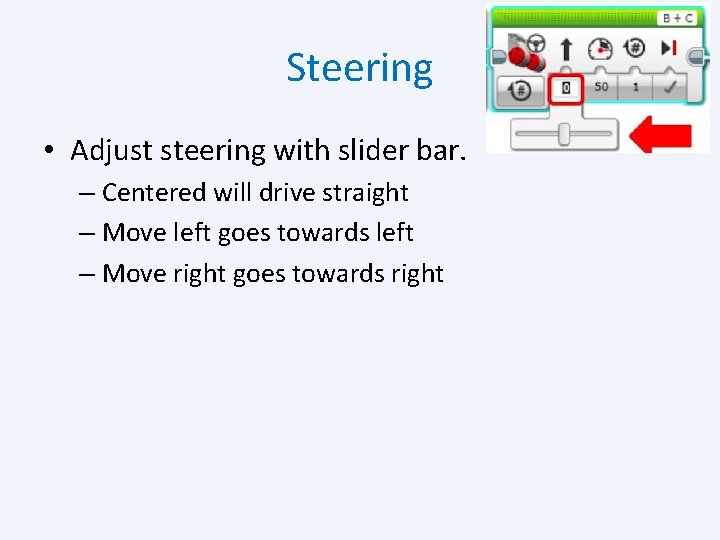
Steering • Adjust steering with slider bar. – Centered will drive straight – Move left goes towards left – Move right goes towards right
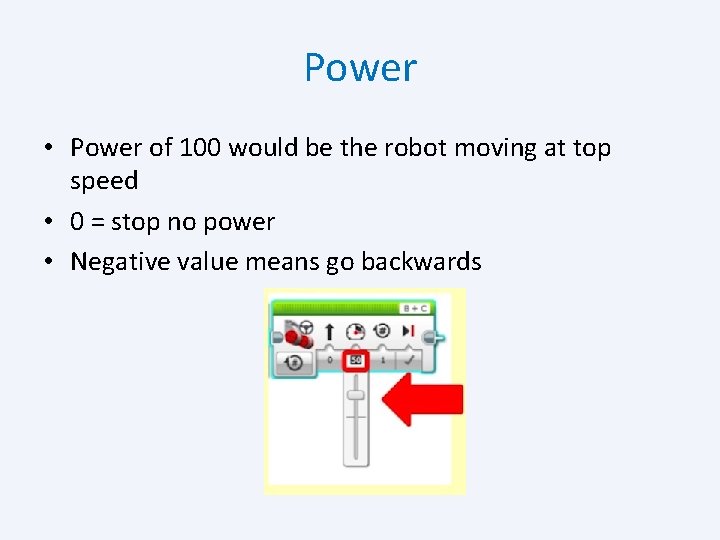
Power • Power of 100 would be the robot moving at top speed • 0 = stop no power • Negative value means go backwards
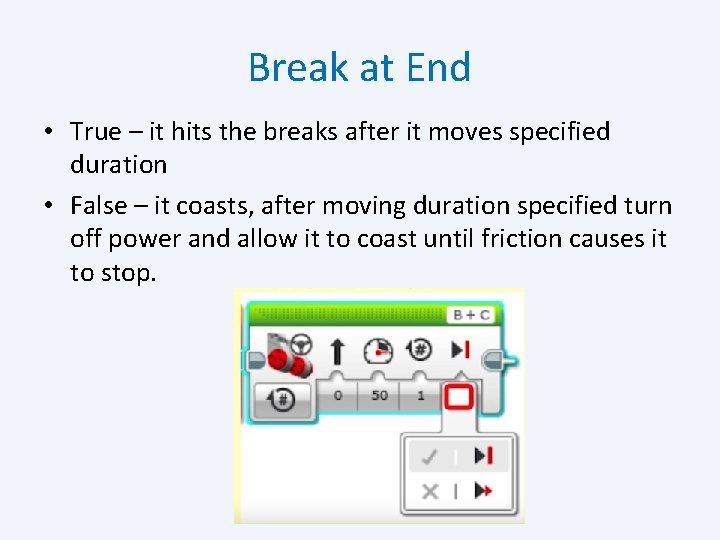
Break at End • True – it hits the breaks after it moves specified duration • False – it coasts, after moving duration specified turn off power and allow it to coast until friction causes it to stop.
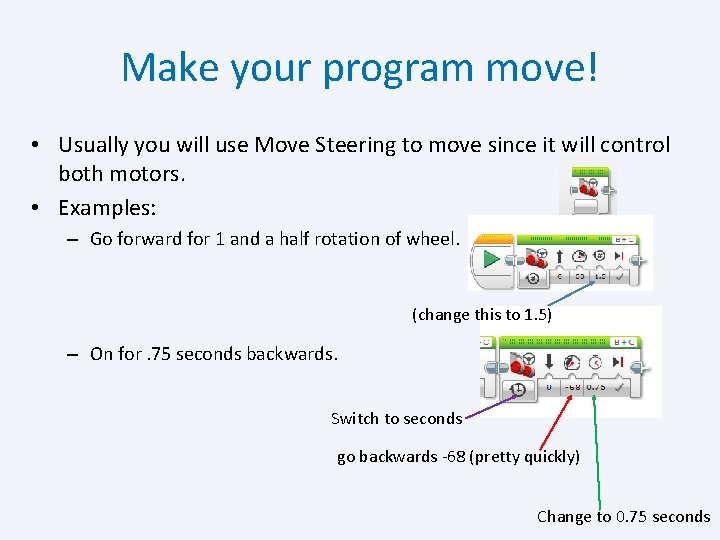
Make your program move! • Usually you will use Move Steering to move since it will control both motors. • Examples: – Go forward for 1 and a half rotation of wheel. (change this to 1. 5) – On for. 75 seconds backwards. Switch to seconds go backwards -68 (pretty quickly) Change to 0. 75 seconds
Run your program • Let’s see what happens when I write a program to drive for 1 second. • Steps: – Write the program – Connect the robot to computer. – Download the program. – Remember to disconnect it from the computer it after downloading! – Why disconnect?
Exercise Examples with Motion • Can get robot to: – Trace out geometric shapes – Estimate distance based on rotation of wheel and wheel size – Have the robot do a dance (can add background music) • To have multiple robots do the dance connect other robots to your computer and download the same program to them.
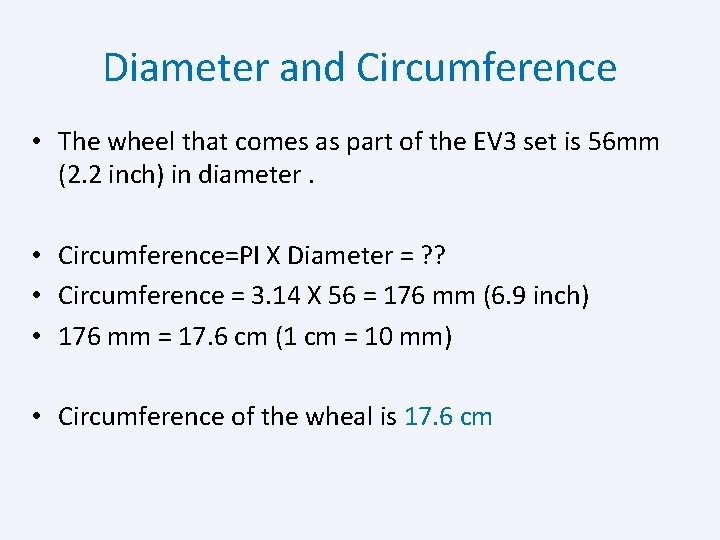
Diameter and Circumference • The wheel that comes as part of the EV 3 set is 56 mm (2. 2 inch) in diameter. • Circumference=PI X Diameter = ? ? • Circumference = 3. 14 X 56 = 176 mm (6. 9 inch) • 176 mm = 17. 6 cm (1 cm = 10 mm) • Circumference of the wheal is 17. 6 cm
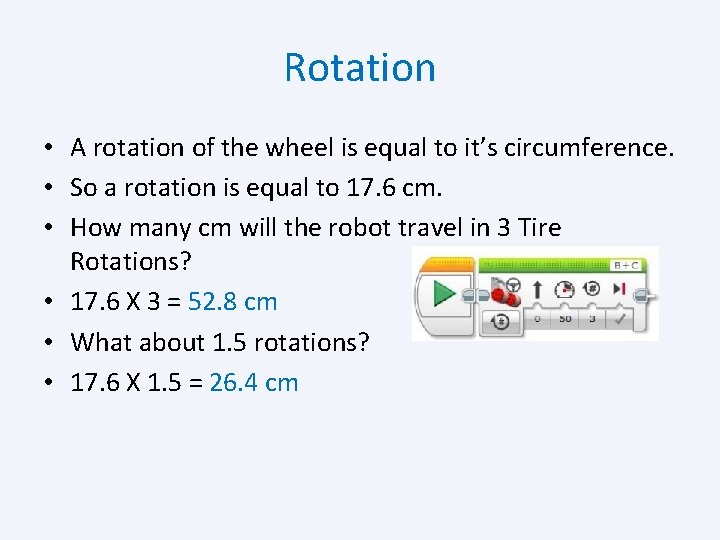
Rotation • A rotation of the wheel is equal to it’s circumference. • So a rotation is equal to 17. 6 cm. • How many cm will the robot travel in 3 Tire Rotations? • 17. 6 X 3 = 52. 8 cm • What about 1. 5 rotations? • 17. 6 X 1. 5 = 26. 4 cm
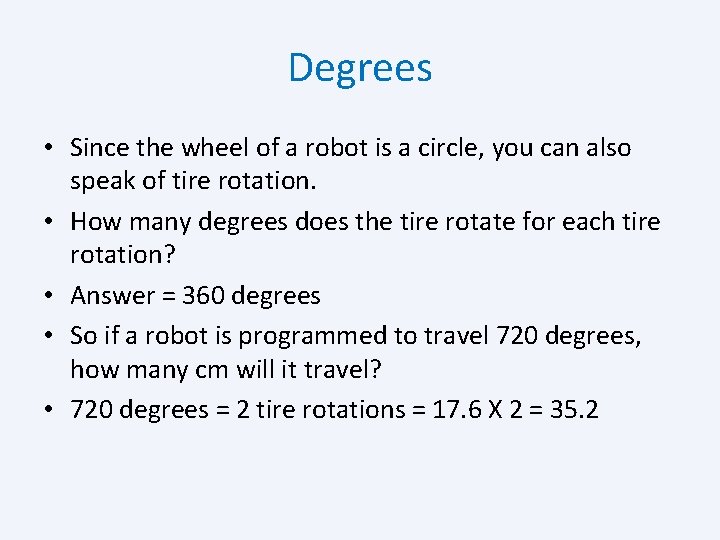
Degrees • Since the wheel of a robot is a circle, you can also speak of tire rotation. • How many degrees does the tire rotate for each tire rotation? • Answer = 360 degrees • So if a robot is programmed to travel 720 degrees, how many cm will it travel? • 720 degrees = 2 tire rotations = 17. 6 X 2 = 35. 2
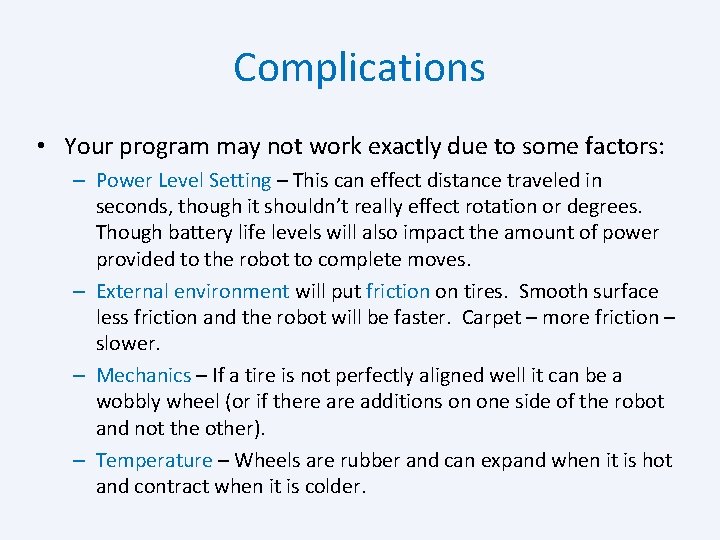
Complications • Your program may not work exactly due to some factors: – Power Level Setting – This can effect distance traveled in seconds, though it shouldn’t really effect rotation or degrees. Though battery life levels will also impact the amount of power provided to the robot to complete moves. – External environment will put friction on tires. Smooth surface less friction and the robot will be faster. Carpet – more friction – slower. – Mechanics – If a tire is not perfectly aligned well it can be a wobbly wheel (or if there additions on one side of the robot and not the other). – Temperature – Wheels are rubber and can expand when it is hot and contract when it is colder.
In Class Exercises: Using Math • Program your robot to move forward (straight) for 1 rotation. – How far did it go? Measure the distance with a ruler in cm. Was it approximately 17. 6? – Change it to 1. 5 rotations. Was it approximately 26. 4? • Groups with extra time: – Try switching it to 360 degrees instead of 1 rotation. Was it approximately the same (17. 6 cm)? – How many degrees would you need to reach 1. 5 rotations? Try it out. Was it approximately 26. 4 cm?
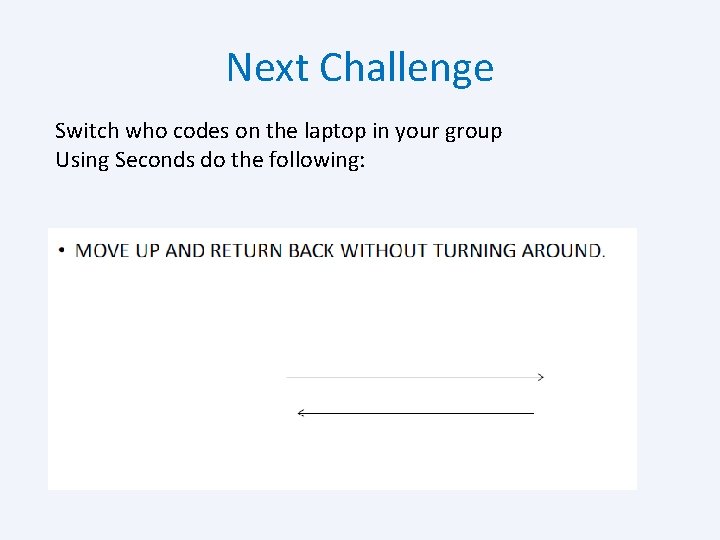
Next Challenge Switch who codes on the laptop in your group Using Seconds do the following:
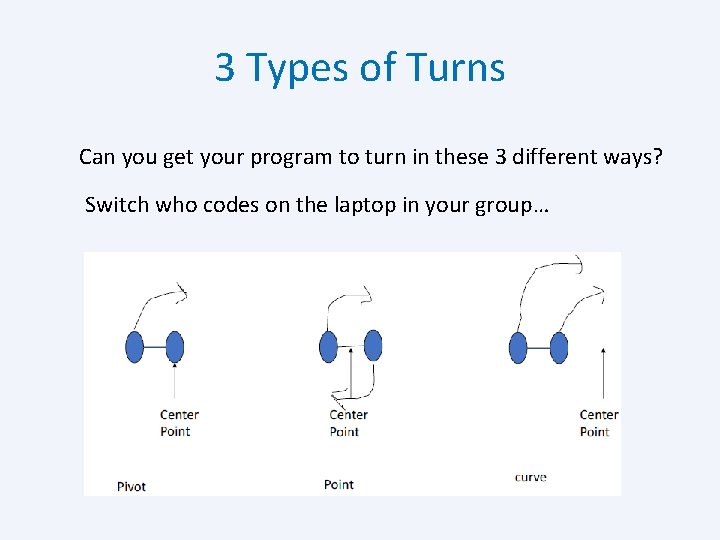
3 Types of Turns Can you get your program to turn in these 3 different ways? Switch who codes on the laptop in your group…
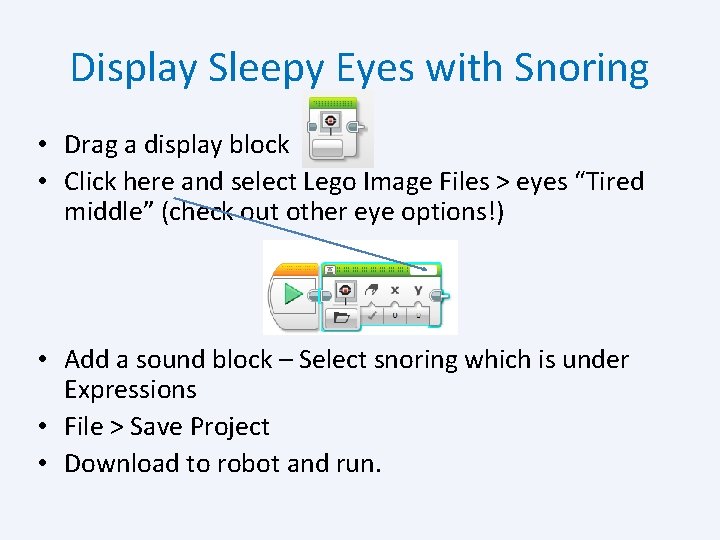
Display Sleepy Eyes with Snoring • Drag a display block • Click here and select Lego Image Files > eyes “Tired middle” (check out other eye options!) • Add a sound block – Select snoring which is under Expressions • File > Save Project • Download to robot and run.
What if we did the display at the end? • What do you think will happen?
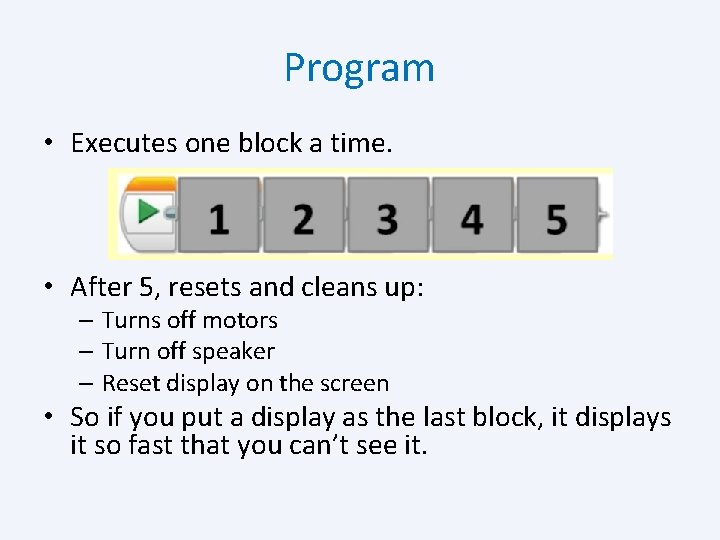
Program • Executes one block a time. • After 5, resets and cleans up: – Turns off motors – Turn off speaker – Reset display on the screen • So if you put a display as the last block, it displays it so fast that you can’t see it.
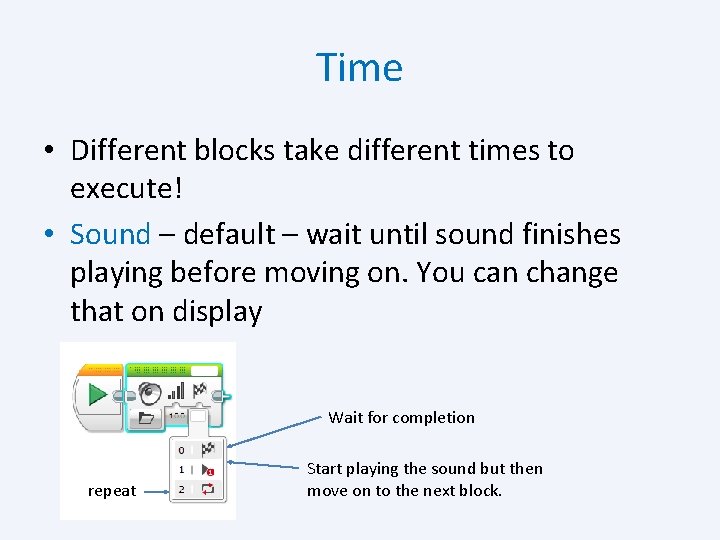
Time • Different blocks take different times to execute! • Sound – default – wait until sound finishes playing before moving on. You can change that on display Wait for completion repeat Start playing the sound but then move on to the next block.
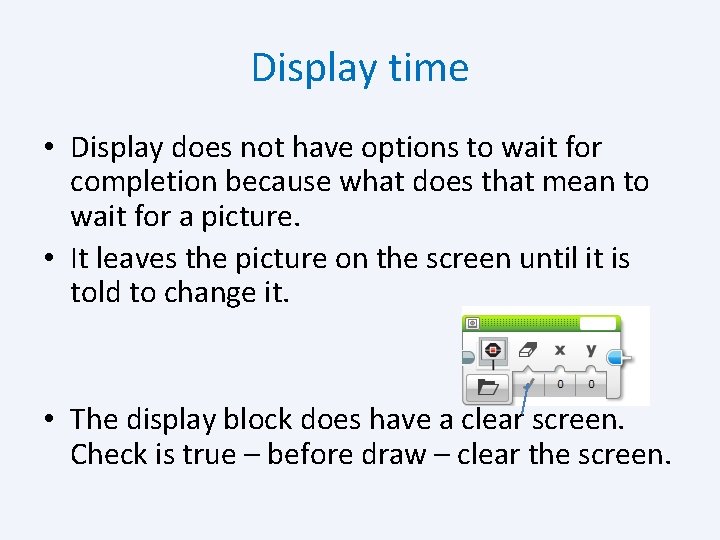
Display time • Display does not have options to wait for completion because what does that mean to wait for a picture. • It leaves the picture on the screen until it is told to change it. • The display block does have a clear screen. Check is true – before draw – clear the screen.
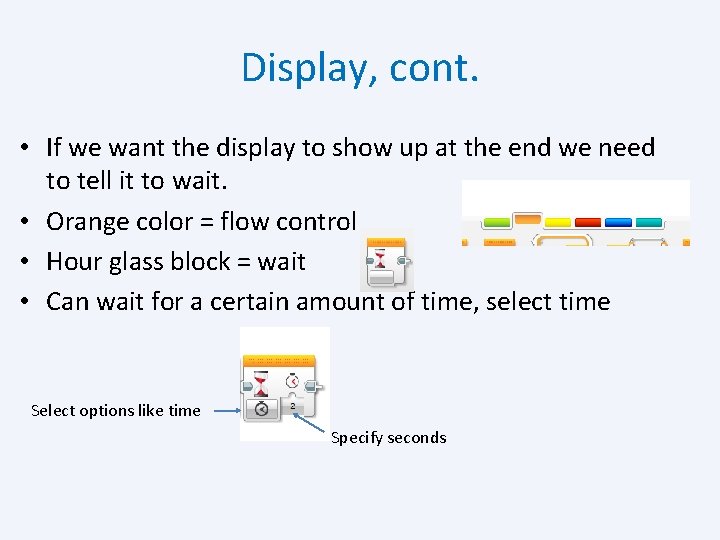
Display, cont. • If we want the display to show up at the end we need to tell it to wait. • Orange color = flow control • Hour glass block = wait • Can wait for a certain amount of time, select time Select options like time Specify seconds
Display Block, cont. • Display block has other features you can use. • You can draw your own image (if you don’t want to use lego’s) using the image editor. • Tools > image editor – can create any black/white image. Can add words with the Text tool option. When you exit make sure to save it. • Now it will show up under project images and you can use your image!
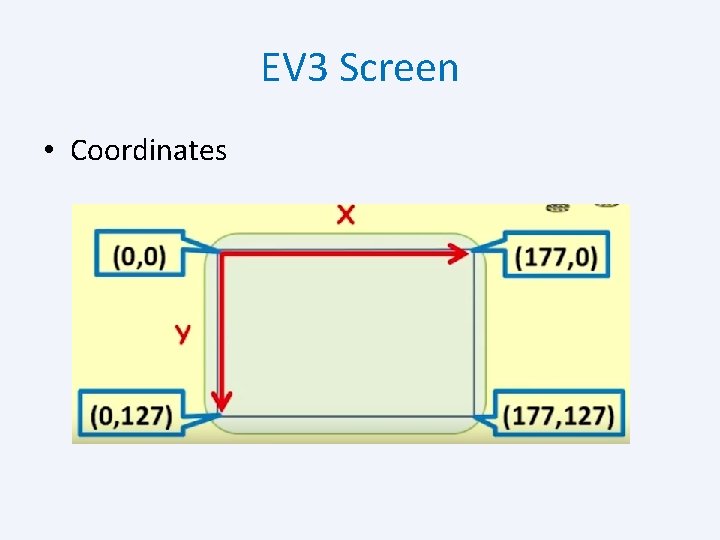
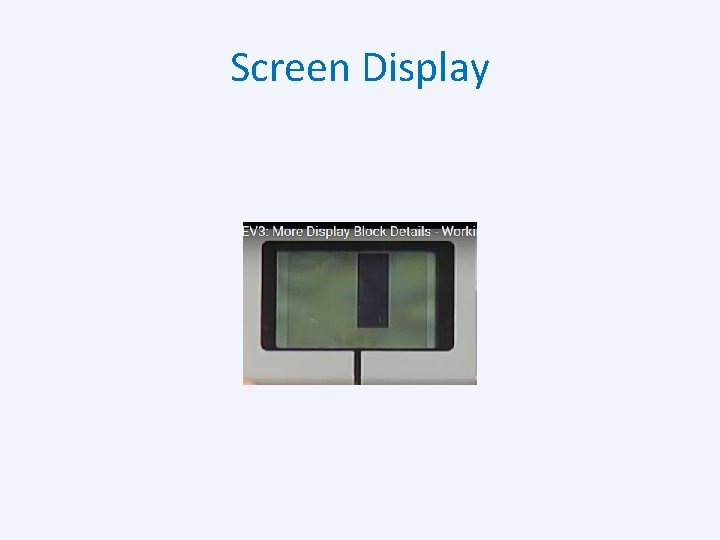
EV 3 Screen • Coordinates
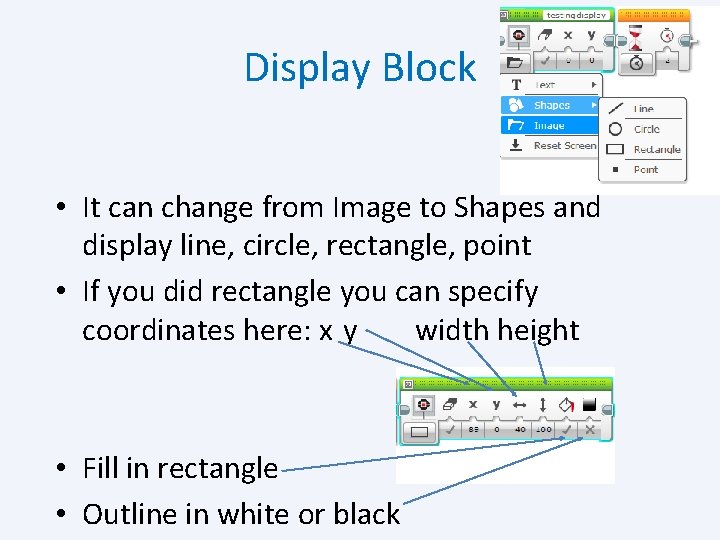
Display Block • It can change from Image to Shapes and display line, circle, rectangle, point • If you did rectangle you can specify coordinates here: x y width height • Fill in rectangle • Outline in white or black
Screen Display
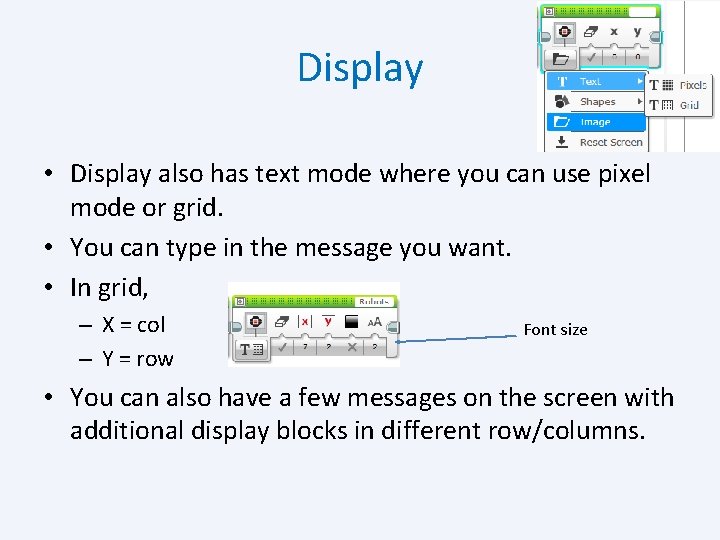
Display • Display also has text mode where you can use pixel mode or grid. • You can type in the message you want. • In grid, – X = col – Y = row Font size • You can also have a few messages on the screen with additional display blocks in different row/columns.
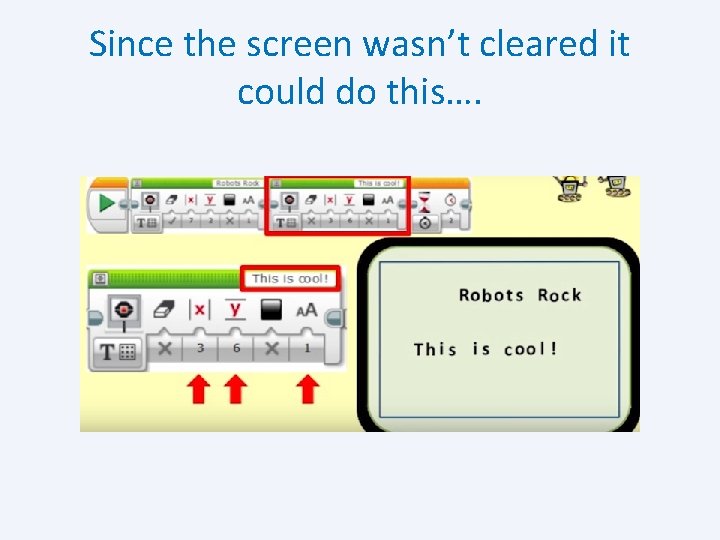
Since the screen wasn’t cleared it could do this….
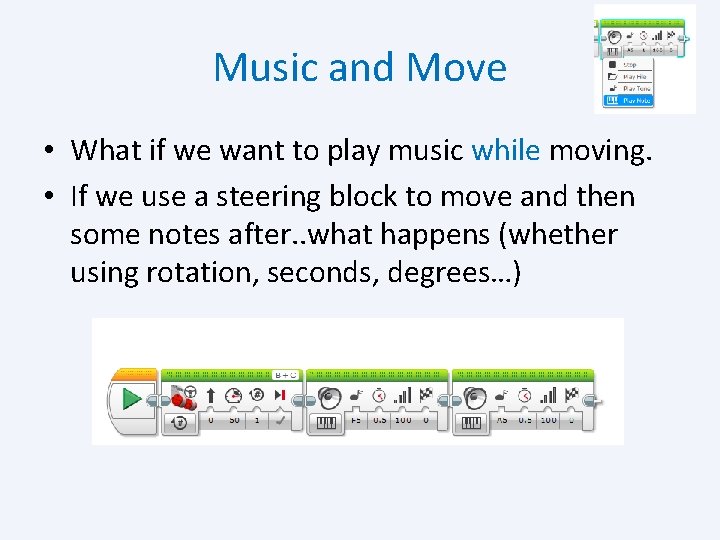
Music and Move • What if we want to play music while moving. • If we use a steering block to move and then some notes after. . what happens (whether using rotation, seconds, degrees…)
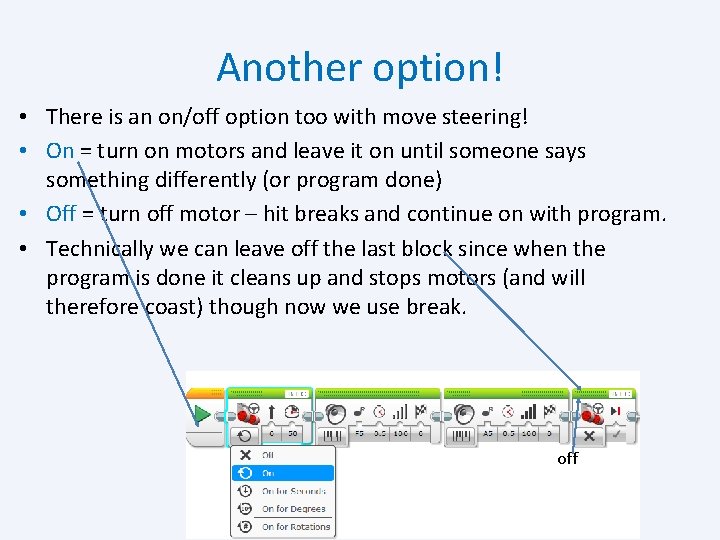
Another option! • There is an on/off option too with move steering! • On = turn on motors and leave it on until someone says something differently (or program done) • Off = turn off motor – hit breaks and continue on with program. • Technically we can leave off the last block since when the program is done it cleans up and stops motors (and will therefore coast) though now we use break. off
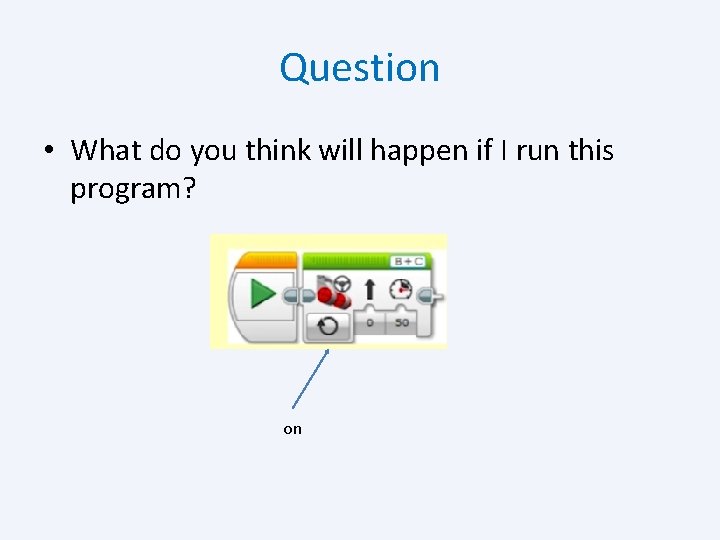
Question • What do you think will happen if I run this program? on
What happened? • Nothing – program cleaned up right after it turned on.
In Class Exercise • Program your robot to do a dance (you can move forward, backward, spin around, etc. ) • In addition, add sound!! • And add an image (eyes, or anything else!) • Have fun!
This work is licensed under the Creative Commons Attribution 4. 0 International License. To view a copy of the license, visit https: //creativecommons. org/licenses/by/4. 0/.
- Slides: 59