Intro To Photoshop Workspace To Open Photoshop Click
- Slides: 27
Intro To Photoshop Workspace
To Open Photoshop: �Click Start • All Programs • Adobe Design and Web Premium CS 6 • Adobe Photoshop CS 6
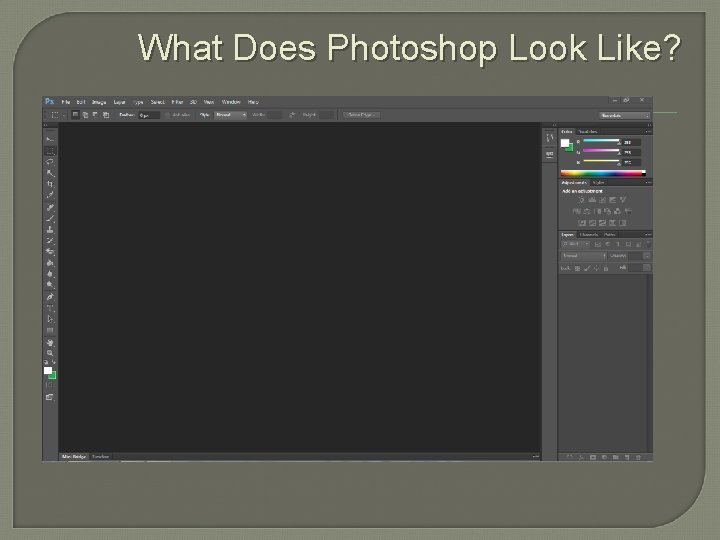
What Does Photoshop Look Like?
What if when I open Photoshop it does not look like that? � � � Then you need to reset your workspace. You can do this by clicking Window > Workspace > Reset Essentials. This will set your workspace back to the default.
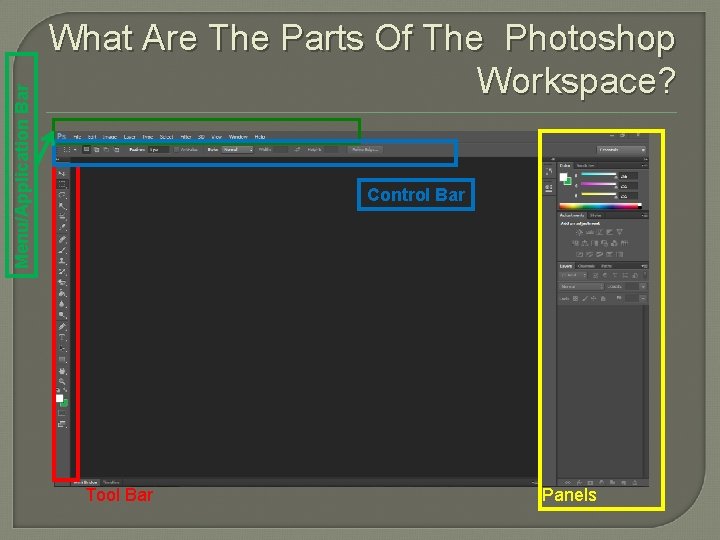
Menu/Application Bar What Are The Parts Of The Photoshop Workspace? Control Bar Tool Bar Panels
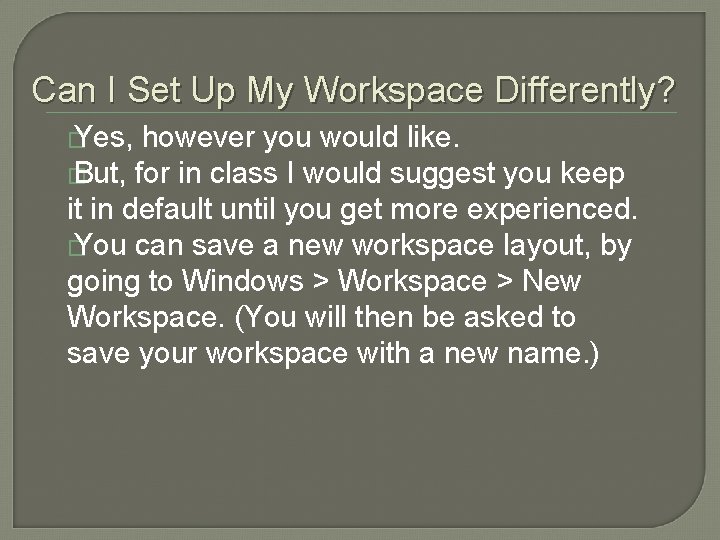
Can I Set Up My Workspace Differently? � Yes, however you would like. � But, for in class I would suggest you keep it in default until you get more experienced. � You can save a new workspace layout, by going to Windows > Workspace > New Workspace. (You will then be asked to save your workspace with a new name. )
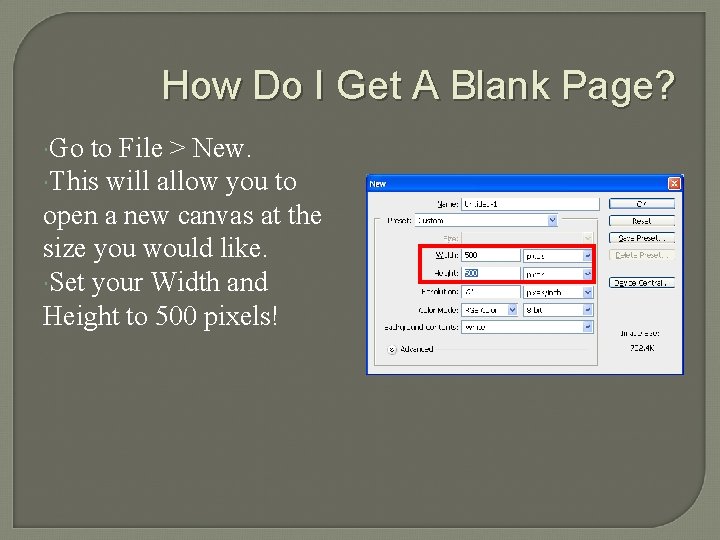
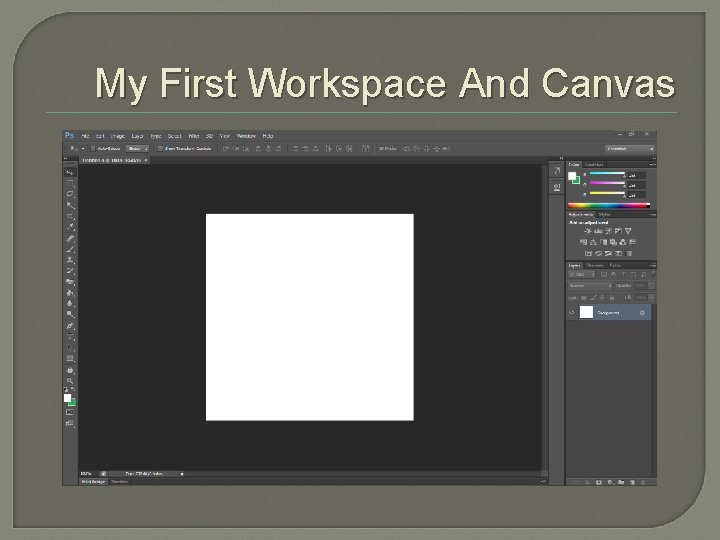
How Do I Get A Blank Page? Go to File > New. This will allow you to open a new canvas at the size you would like. Set your Width and Height to 500 pixels!
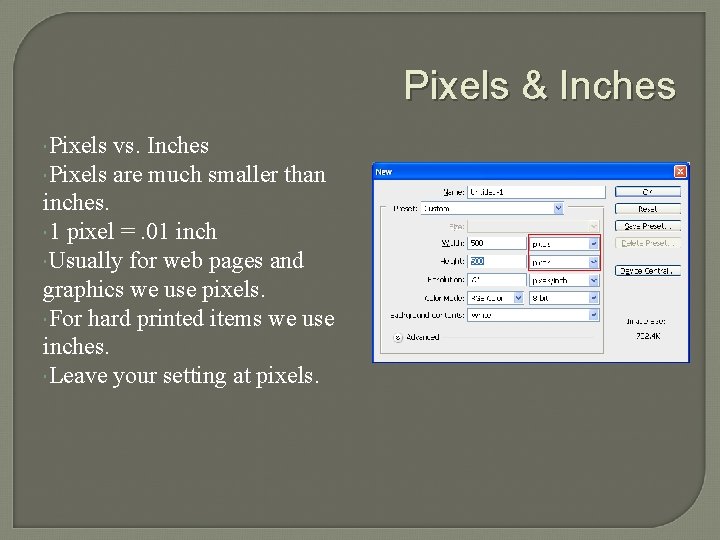
Pixels & Inches Pixels vs. Inches Pixels are much smaller than inches. 1 pixel =. 01 inch Usually for web pages and graphics we use pixels. For hard printed items we use inches. Leave your setting at pixels.
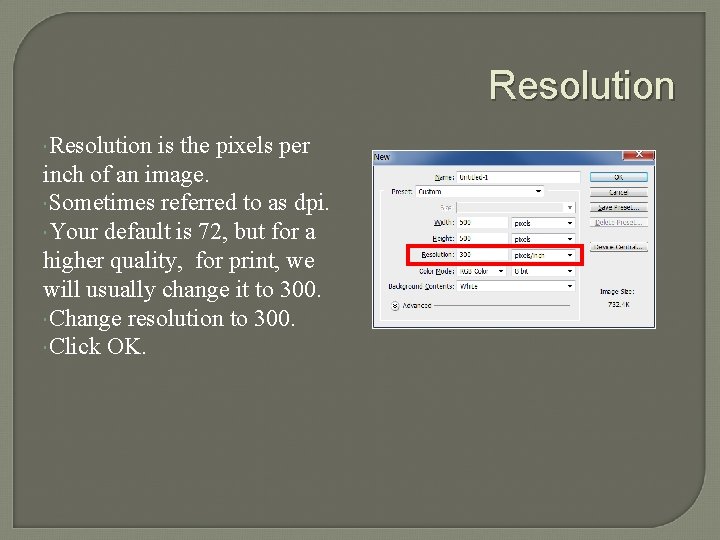
Resolution is the pixels per inch of an image. Sometimes referred to as dpi. Your default is 72, but for a higher quality, for print, we will usually change it to 300. Change resolution to 300. Click OK.
My First Workspace And Canvas
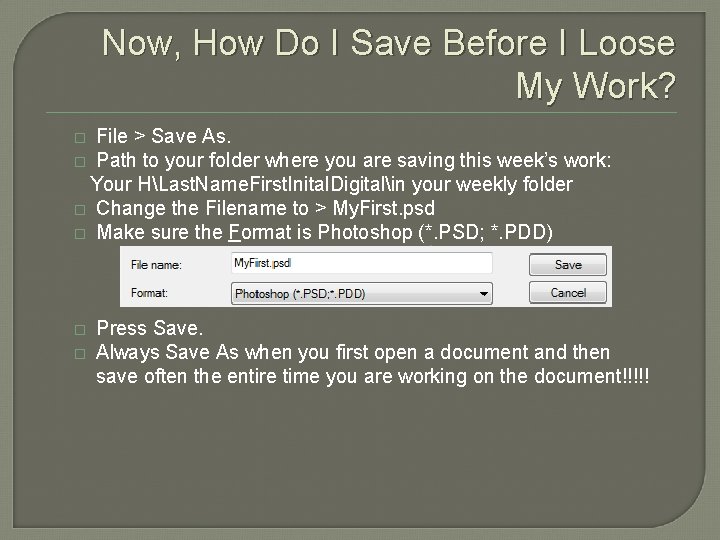
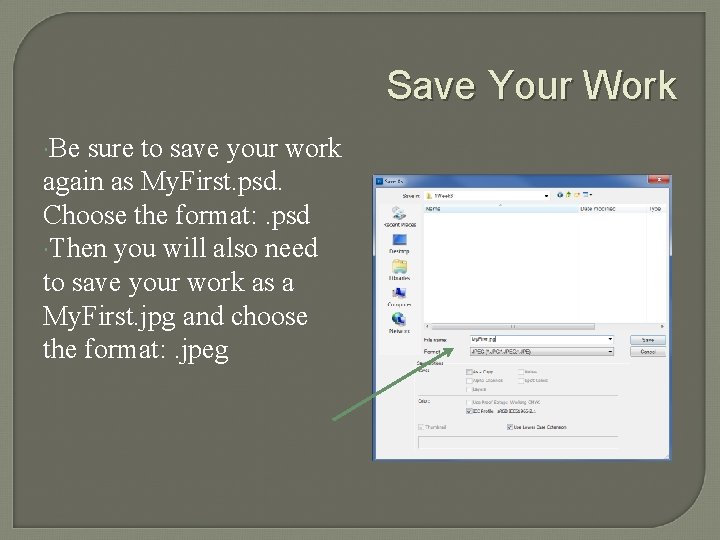
Now, How Do I Save Before I Loose My Work? File > Save As. � Path to your folder where you are saving this week’s work: Your HLast. Name. First. Inital. Digitalin your weekly folder � Change the Filename to > My. First. psd � Make sure the Format is Photoshop (*. PSD; *. PDD) � � � Press Save. Always Save As when you first open a document and then save often the entire time you are working on the document!!!!!
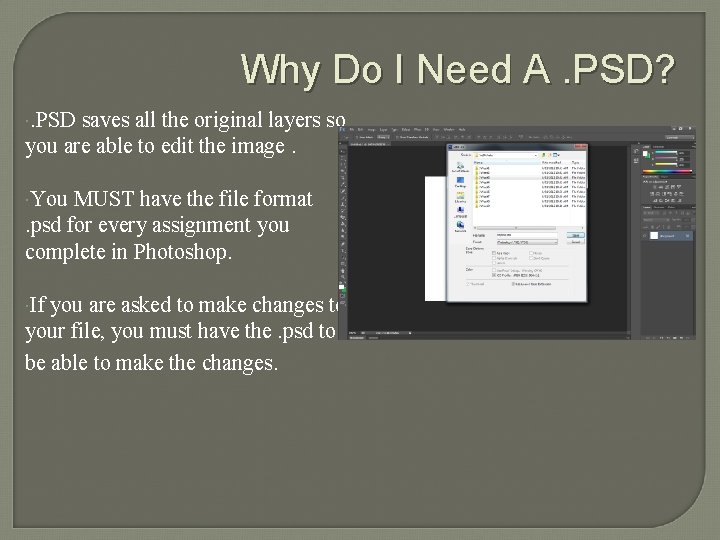
Why Do I Need A. PSD? . PSD saves all the original layers so you are able to edit the image. You MUST have the file format. psd for every assignment you complete in Photoshop. If you are asked to make changes to your file, you must have the. psd to be able to make the changes.
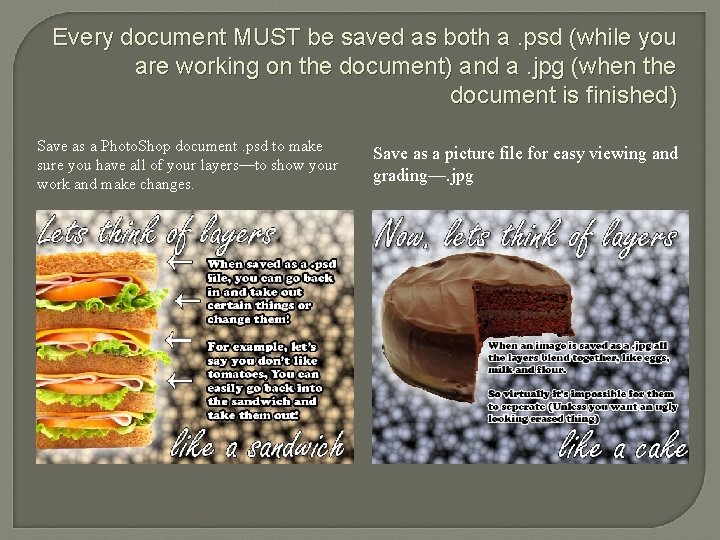
Every document MUST be saved as both a. psd (while you are working on the document) and a. jpg (when the document is finished) Save as a Photo. Shop document. psd to make sure you have all of your layers—to show your work and make changes. . Save as a picture file for easy viewing and grading—. jpg
Let’s Get Back To Our Canvas! Now, lets have some fun and draw a picture. � We first have to add a layer, then get our brush to draw on our canvas. (Just like in painting!) �
Why Add A Layer? � Many of our images will be complex. � Each time we add an image, text or anything you want to add a layer. � This will allow you to make easier changes as you create your masterpiece.
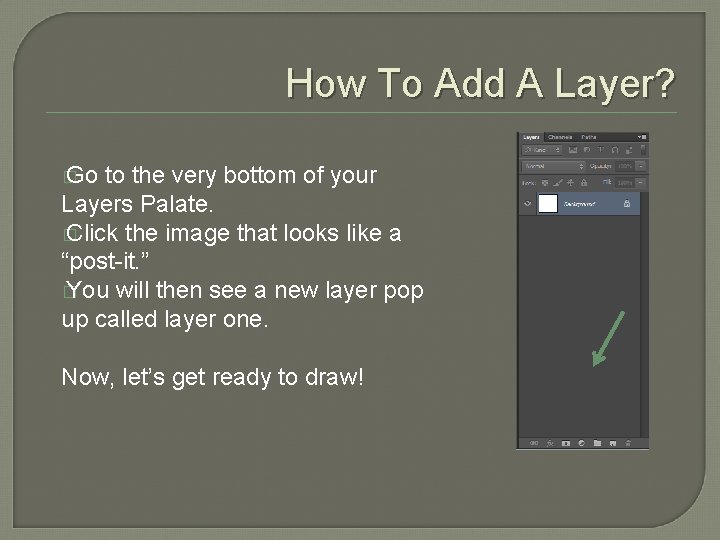
How To Add A Layer? � Go to the very bottom of your Layers Palate. � Click the image that looks like a “post-it. ” � You will then see a new layer pop up called layer one. Now, let’s get ready to draw!
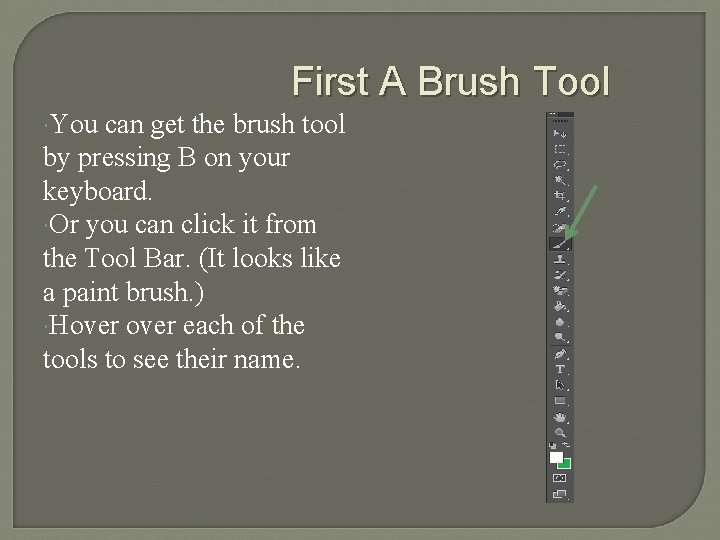
First A Brush Tool You can get the brush tool by pressing B on your keyboard. Or you can click it from the Tool Bar. (It looks like a paint brush. ) Hover each of the tools to see their name.
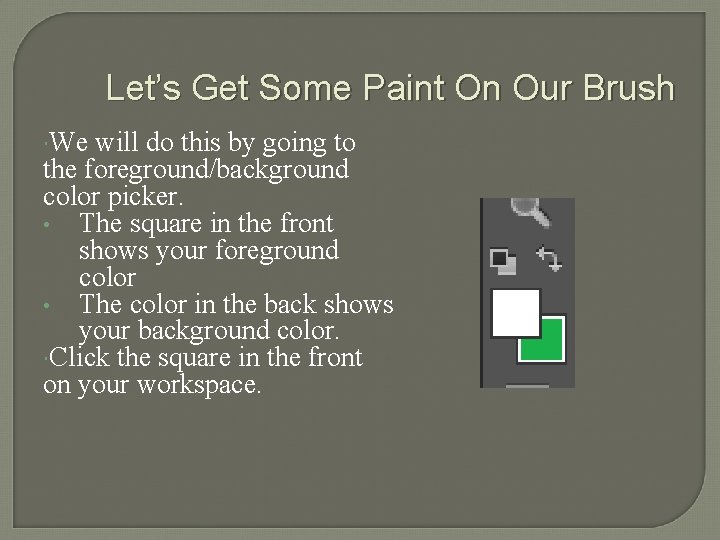
Let’s Get Some Paint On Our Brush We will do this by going to the foreground/background color picker. • The square in the front shows your foreground color • The color in the back shows your background color. Click the square in the front on your workspace.
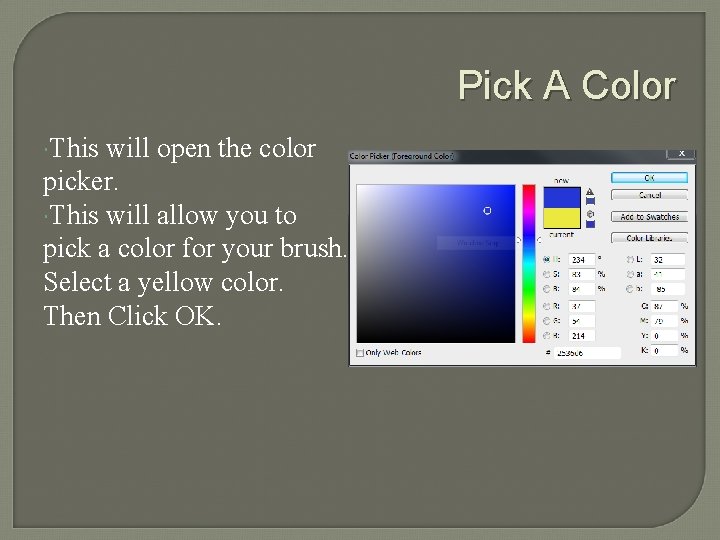
Pick A Color This will open the color picker. This will allow you to pick a color for your brush. Select a yellow color. Then Click OK.
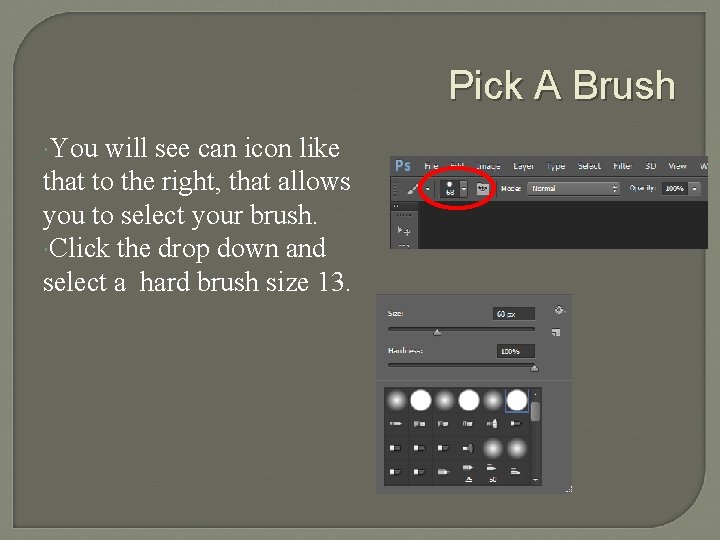
Pick A Brush You will see can icon like that to the right, that allows you to select your brush. Click the drop down and select a hard brush size 13.
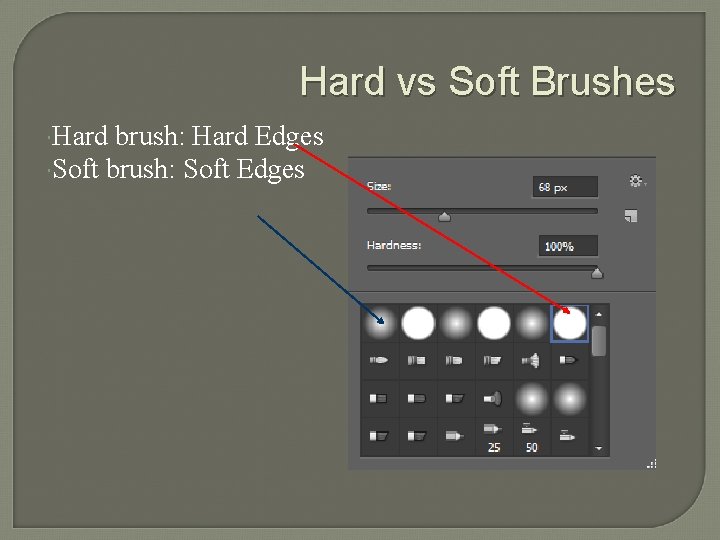
Hard vs Soft Brushes Hard brush: Hard Edges Soft brush: Soft Edges
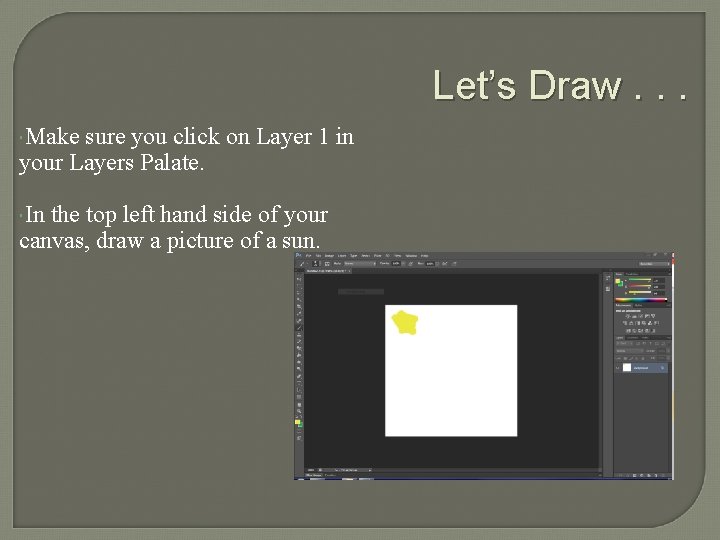
Let’s Draw. . . Make sure you click on Layer 1 in your Layers Palate. In the top left hand side of your canvas, draw a picture of a sun.
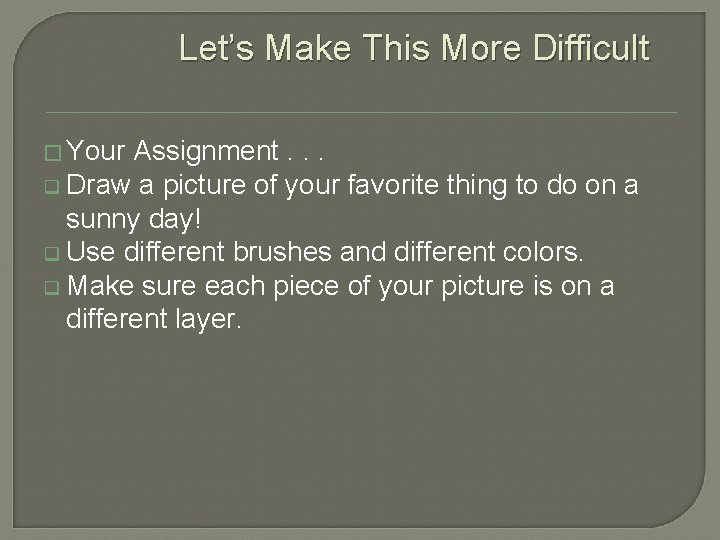
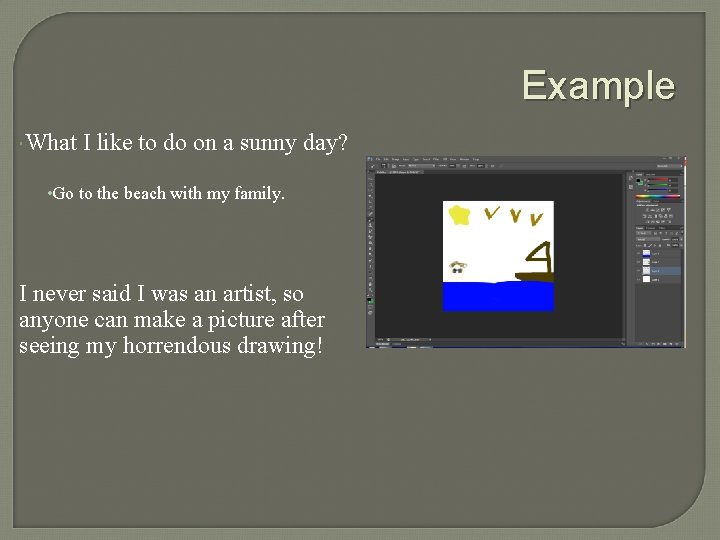
Let’s Make This More Difficult � Your Assignment. . . q Draw a picture of your favorite thing to do on a sunny day! q Use different brushes and different colors. q Make sure each piece of your picture is on a different layer.
Example What I like to do on a sunny day? • Go to the beach with my family. I never said I was an artist, so anyone can make a picture after seeing my horrendous drawing!
Save Your Work Be sure to save your work again as My. First. psd. Choose the format: . psd Then you will also need to save your work as a My. First. jpg and choose the format: . jpeg
Power. Point Presentation � Save your work in this week’s Power. Point Presentation PSL 1 in your weekly folder to showcase your weekly assignments. • First Slide: ___Week___, Your Name, Your Class Period. Save as ____Week_____Power. Point • Second Slide: • Title: Intro to the Photoshop Workspace • Insert Picture: Myfirst. jpg
What You Learned? Workspace Brushes Saving Brush New Workspaces Tool Bar Menu Bar Applications Bar Palates Opening A New Canvas Pixels vs Inches Resolution Tool Brush Types (Hard/Soft) Color Picker Foreground/Back Ground Color . psd &. jpg Adding Layers