Ingenico ICT 250 Download Instructions Dial CONFIDENTIAL ATTENTION
![Step 1 Press [F] key from home screen ***Please ensure your batch is settled](https://slidetodoc.com/presentation_image_h2/5e77820350df277cb90621f7562fd94e/image-3.jpg "Step 1 Press [F] key from home screen ***Please ensure your batch is settled")
![Step 5 Type 07 and press the [GREEN] key 7 © 2015 Vantiv, LLC.](https://slidetodoc.com/presentation_image_h2/5e77820350df277cb90621f7562fd94e/image-7.jpg "Step 5 Type 07 and press the [GREEN] key 7 © 2015 Vantiv, LLC.")
![Step 7 Press the [GREEN] key 9 © 2015 Vantiv, LLC. All rights reserved.](https://slidetodoc.com/presentation_image_h2/5e77820350df277cb90621f7562fd94e/image-9.jpg "Step 7 Press the [GREEN] key 9 © 2015 Vantiv, LLC. All rights reserved.")
![Step 9 The terminal will return to the TADU idle prompt. Press the [F]](https://slidetodoc.com/presentation_image_h2/5e77820350df277cb90621f7562fd94e/image-11.jpg "Step 9 The terminal will return to the TADU idle prompt. Press the [F]")
![Step 10 Select TADU and press the [GREEN] key 12 © 2015 Vantiv, LLC.](https://slidetodoc.com/presentation_image_h2/5e77820350df277cb90621f7562fd94e/image-12.jpg "Step 10 Select TADU and press the [GREEN] key 12 © 2015 Vantiv, LLC.")
![Step 11 Press [0] for CONFIGURE 13 © 2015 Vantiv, LLC. All rights reserved.](https://slidetodoc.com/presentation_image_h2/5e77820350df277cb90621f7562fd94e/image-13.jpg "Step 11 Press [0] for CONFIGURE 13 © 2015 Vantiv, LLC. All rights reserved.")
![Step 12 Press [0] for FULL 14 © 2015 Vantiv, LLC. All rights reserved.](https://slidetodoc.com/presentation_image_h2/5e77820350df277cb90621f7562fd94e/image-14.jpg "Step 12 Press [0] for FULL 14 © 2015 Vantiv, LLC. All rights reserved.")
![Step 13 Press [0] for DIAL 15 © 2015 Vantiv, LLC. All rights reserved.](https://slidetodoc.com/presentation_image_h2/5e77820350df277cb90621f7562fd94e/image-15.jpg "Step 13 Press [0] for DIAL 15 © 2015 Vantiv, LLC. All rights reserved.")
![Step 14 Confirm the phone number shown is 18002547170 If not press the [YELLOW]](https://slidetodoc.com/presentation_image_h2/5e77820350df277cb90621f7562fd94e/image-16.jpg "Step 14 Confirm the phone number shown is 18002547170 If not press the [YELLOW]")
![Step 15 Select [1] for 14400 17 © 2015 Vantiv, LLC. All rights reserved.](https://slidetodoc.com/presentation_image_h2/5e77820350df277cb90621f7562fd94e/image-17.jpg "Step 15 Select [1] for 14400 17 © 2015 Vantiv, LLC. All rights reserved.")
![Step 16 Confirm the model states ICT 250 and press the [GREEN] key If](https://slidetodoc.com/presentation_image_h2/5e77820350df277cb90621f7562fd94e/image-18.jpg "Step 16 Confirm the model states ICT 250 and press the [GREEN] key If")
![Step 17 Press the [YELLOW] key to clear the Application Name Enter the specific](https://slidetodoc.com/presentation_image_h2/5e77820350df277cb90621f7562fd94e/image-19.jpg "Step 17 Press the [YELLOW] key to clear the Application Name Enter the specific")
![Step 18 Press the [YELLOW] key to clear the Terminal ID. Type in the](https://slidetodoc.com/presentation_image_h2/5e77820350df277cb90621f7562fd94e/image-20.jpg "Step 18 Press the [YELLOW] key to clear the Terminal ID. Type in the")
![Step 19 Press [1] for DOWNLOAD 21 © 2015 Vantiv, LLC. All rights reserved.](https://slidetodoc.com/presentation_image_h2/5e77820350df277cb90621f7562fd94e/image-21.jpg "Step 19 Press [1] for DOWNLOAD 21 © 2015 Vantiv, LLC. All rights reserved.")

- Slides: 23
Ingenico ICT 250 Download Instructions Dial CONFIDENTIAL
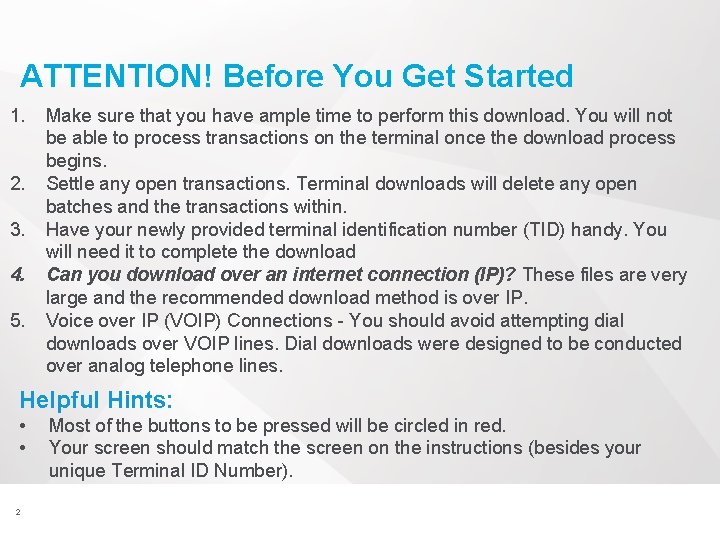
ATTENTION! Before You Get Started 1. 2. 3. 4. 5. Make sure that you have ample time to perform this download. You will not be able to process transactions on the terminal once the download process begins. Settle any open transactions. Terminal downloads will delete any open batches and the transactions within. Have your newly provided terminal identification number (TID) handy. You will need it to complete the download Can you download over an internet connection (IP)? These files are very large and the recommended download method is over IP. Voice over IP (VOIP) Connections - You should avoid attempting dial downloads over VOIP lines. Dial downloads were designed to be conducted over analog telephone lines. Helpful Hints: • • 2 Most of the buttons to be pressed will be circled in red. Your screen should match the screen on the instructions (besides your unique Terminal ID Number). © 2015 Vantiv, LLC. All rights reserved.
Step 1 Press [F] key from home screen ***Please ensure your batch is settled before you attempt any downloads. *** 3 © 2015 Vantiv, LLC. All rights reserved.
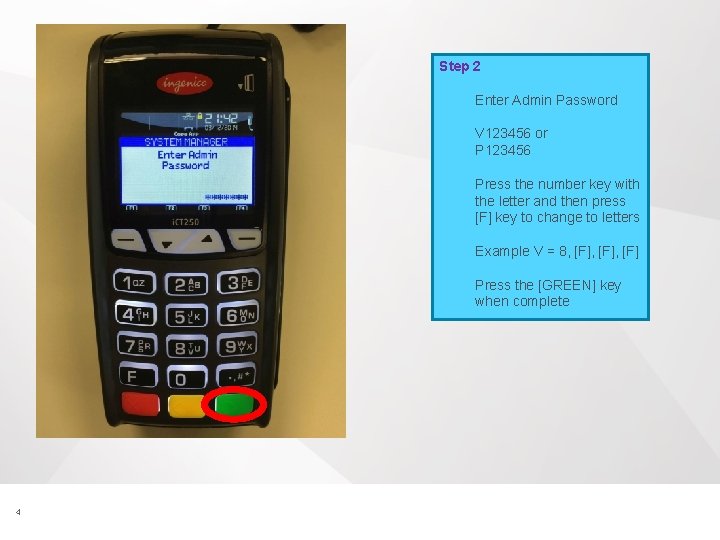
Step 2 Enter Admin Password V 123456 or P 123456 Press the number key with the letter and then press [F] key to change to letters Example V = 8, [F], [F] Press the [GREEN] key when complete 4 © 2015 Vantiv, LLC. All rights reserved.
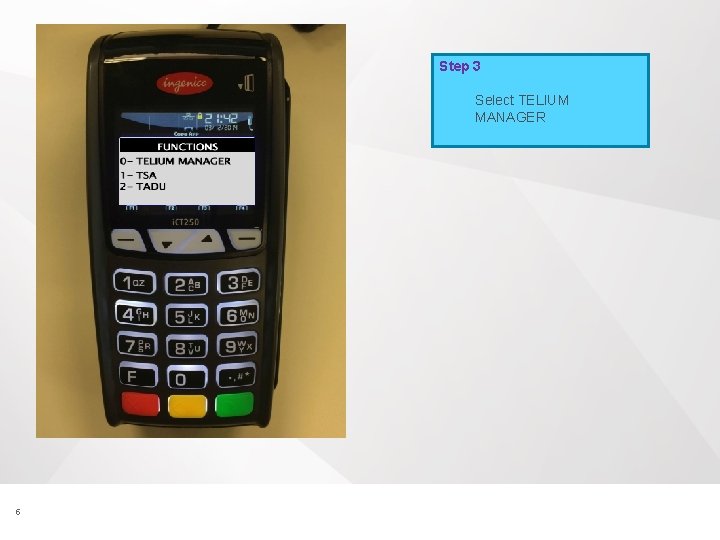
Step 3 Select TELIUM MANAGER 5 © 2015 Vantiv, LLC. All rights reserved.
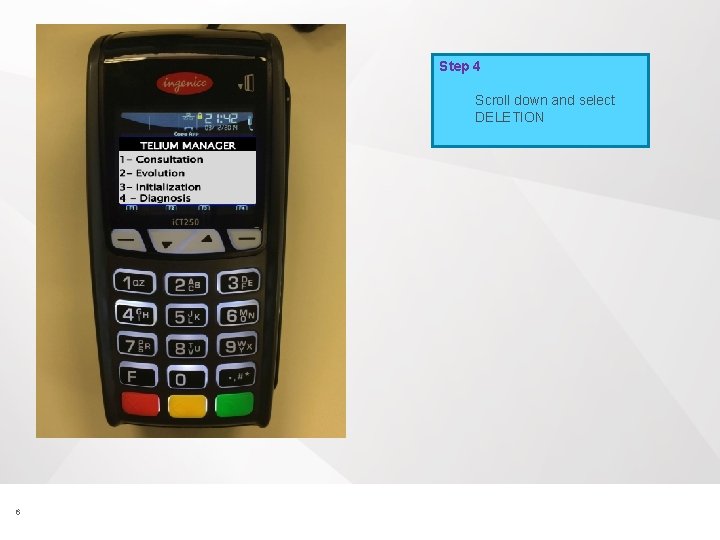
Step 4 Scroll down and select DELETION 6 © 2015 Vantiv, LLC. All rights reserved.
Step 5 Type 07 and press the [GREEN] key 7 © 2015 Vantiv, LLC. All rights reserved.
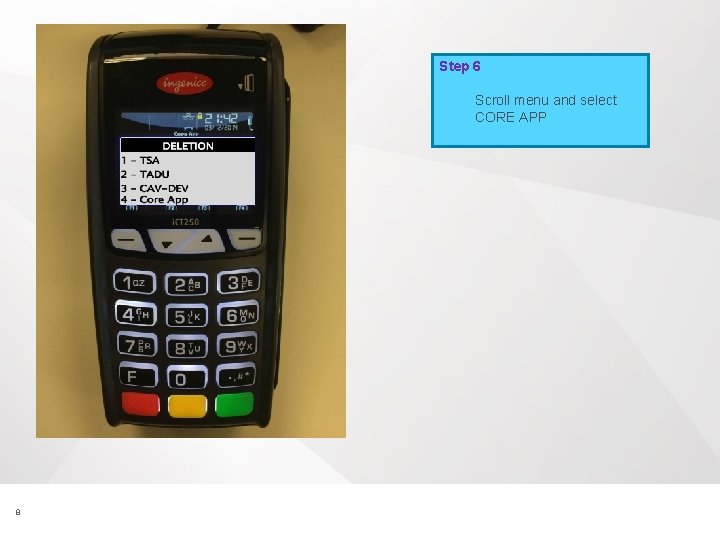
Step 6 Scroll menu and select CORE APP 8 © 2015 Vantiv, LLC. All rights reserved.
Step 7 Press the [GREEN] key 9 © 2015 Vantiv, LLC. All rights reserved.
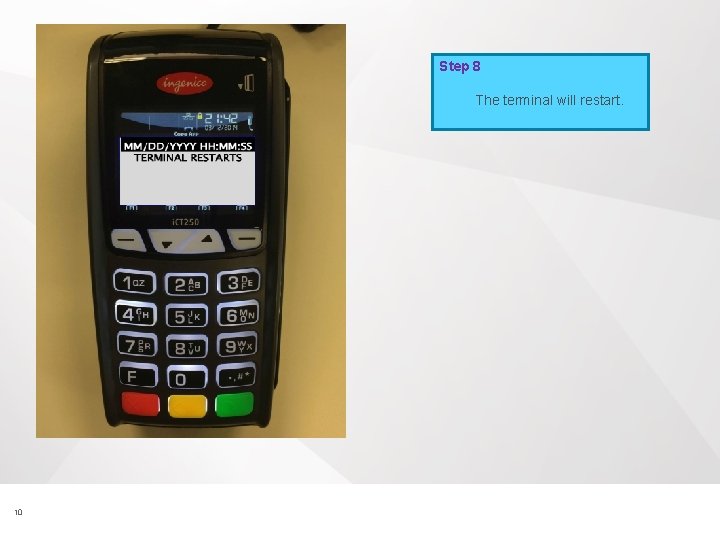
Step 8 The terminal will restart. 10 © 2015 Vantiv, LLC. All rights reserved.
Step 9 The terminal will return to the TADU idle prompt. Press the [F] key. 11 © 2015 Vantiv, LLC. All rights reserved.
Step 10 Select TADU and press the [GREEN] key 12 © 2015 Vantiv, LLC. All rights reserved.
Step 11 Press [0] for CONFIGURE 13 © 2015 Vantiv, LLC. All rights reserved.
Step 12 Press [0] for FULL 14 © 2015 Vantiv, LLC. All rights reserved.
Step 13 Press [0] for DIAL 15 © 2015 Vantiv, LLC. All rights reserved.
Step 14 Confirm the phone number shown is 18002547170 If not press the [YELLOW] key. Type in 18002547170 for the Phone Number. Press [GREEN] key to continue. Special Note – Dialing Prefix If you need to dial a special number to get an outside line, you will need to add that before the download phone number. Example: If you must dial a ‘ 9’ to get an outside line. You would enter 918002547170 for the download phone number. 16 © 2015 Vantiv, LLC. All rights reserved.
Step 15 Select [1] for 14400 17 © 2015 Vantiv, LLC. All rights reserved.
Step 16 Confirm the model states ICT 250 and press the [GREEN] key If not press the [YELLOW] key to clear. Enter ICT 250 To create letters you will press the corresponding number and then the [F] key until the correct letter appears Example: I = 4, [F], [F] Press the [GREEN] key when finished 18 © 2015 Vantiv, LLC. All rights reserved.
Step 17 Press the [YELLOW] key to clear the Application Name Enter the specific application name provided in the email from Vantiv. (Example: HRTS 250 VC) To create letters you will press the corresponding number and then the [F] key until the correct letter appears Example: H = 4, [F] Press the [GREEN] key when finished 19 © 2015 Vantiv, LLC. All rights reserved.
Step 18 Press the [YELLOW] key to clear the Terminal ID. Type in the Terminal ID provided in the email from Vantiv. Press the [GREEN] key when finished 20 © 2015 Vantiv, LLC. All rights reserved.
Step 19 Press [1] for DOWNLOAD 21 © 2015 Vantiv, LLC. All rights reserved.
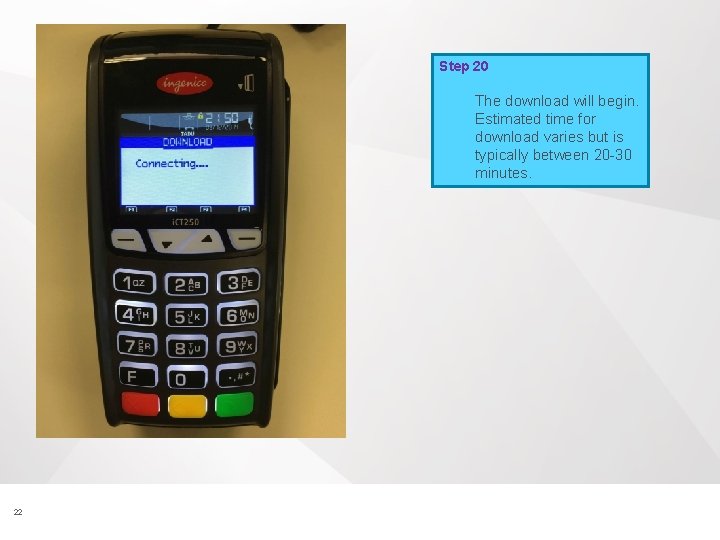
Step 20 The download will begin. Estimated time for download varies but is typically between 20 -30 minutes. 22 © 2015 Vantiv, LLC. All rights reserved.
© 2015 Vantiv, LLC. All rights reserved.