INFO ASSIST REPORT WRITING AN INTRODUCTION TO USING



- Slides: 62
INFO ASSIST REPORT WRITING AN INTRODUCTION TO USING AND BUILDING REPORTS USING INFOASSIST 1
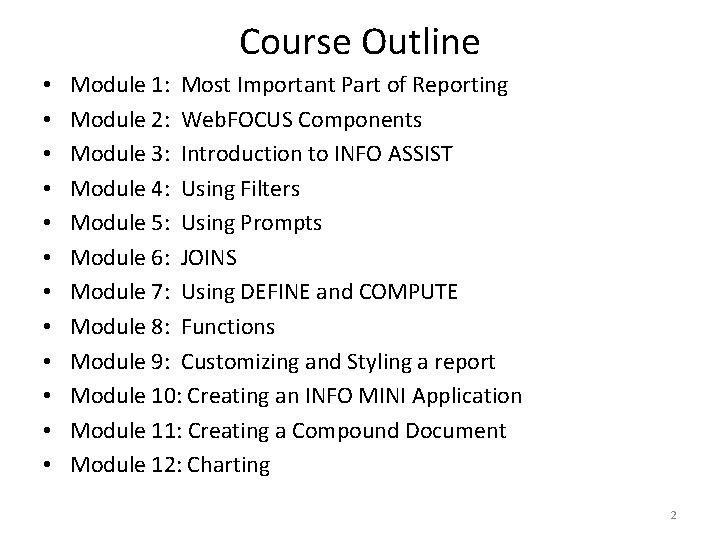
Course Outline • • • Module 1: Most Important Part of Reporting Module 2: Web. FOCUS Components Module 3: Introduction to INFO ASSIST Module 4: Using Filters Module 5: Using Prompts Module 6: JOINS Module 7: Using DEFINE and COMPUTE Module 8: Functions Module 9: Customizing and Styling a report Module 10: Creating an INFO MINI Application Module 11: Creating a Compound Document Module 12: Charting 2
Module 1 Know Your Data • ODS Reporting View Meta Data Reports https: //banneraux. appstate. edu: 9013/metadata /ODS_index. html • Dynamic Help on the Banner Form 3
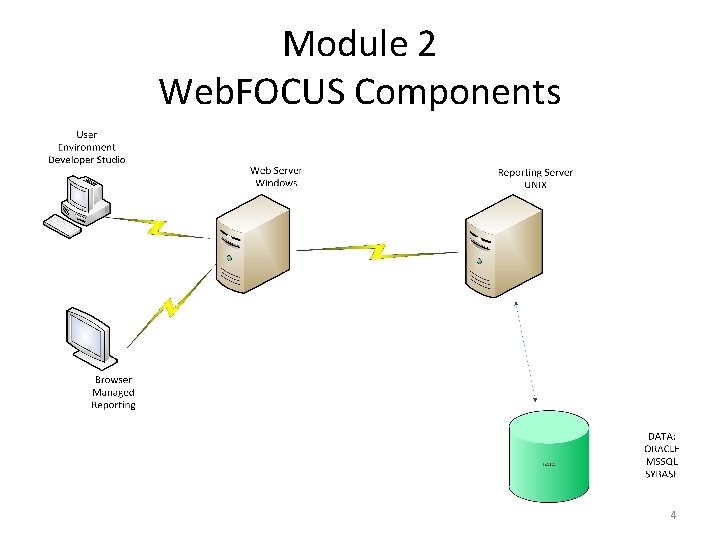
Module 2 Web. FOCUS Components 4
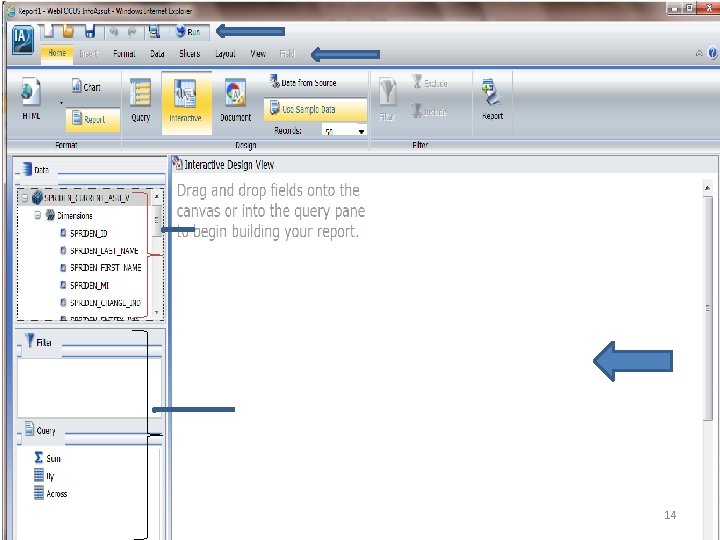
Module 3 Introduction to INFO ASSIST • With INFO ASSIST you can quickly and easily 1. Create highly complex reports, charts and documents without IT intervention. 2. Complete building a report with minimal clicks. 3. Publish and Share documents 4. Convert Reports to Charts and Charts to Reports 5. Output report data in a variety of formats 5
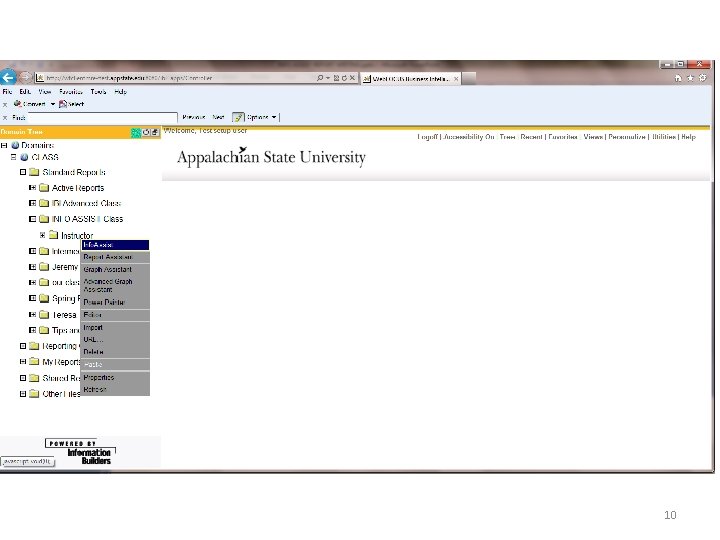
Accessing INFO ASSIST • http: //wfclientmretest. appstate. edu: 8080/ibi_apps/bid-login? 6
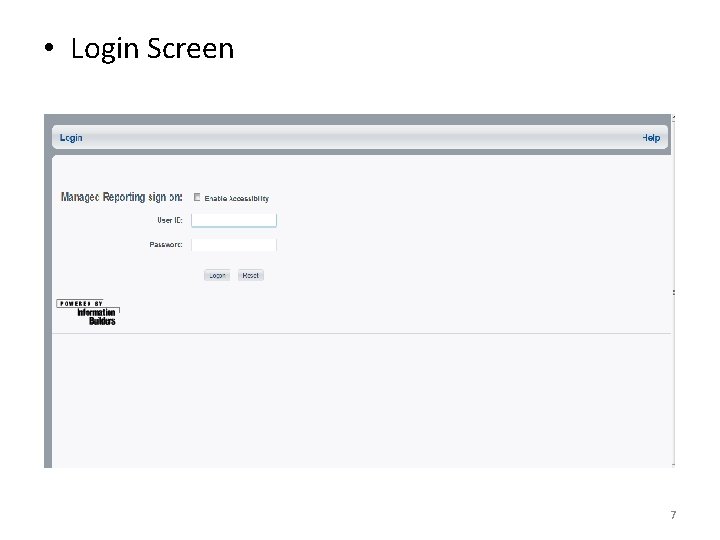
• Login Screen 7
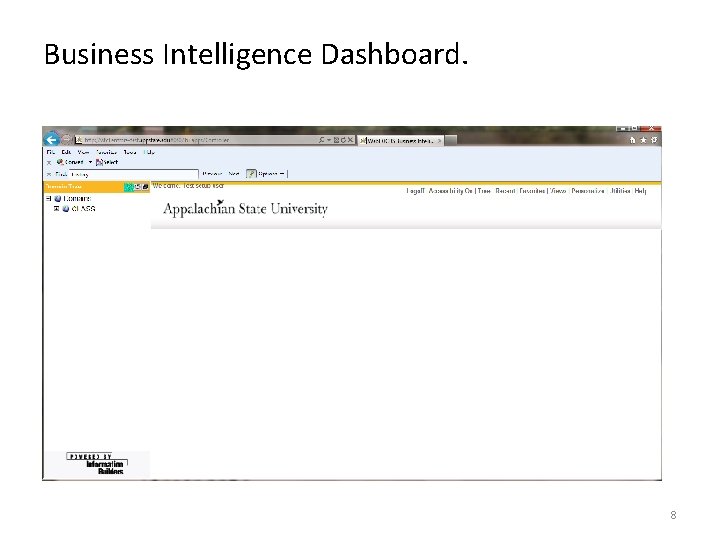
Business Intelligence Dashboard. 8
9
10
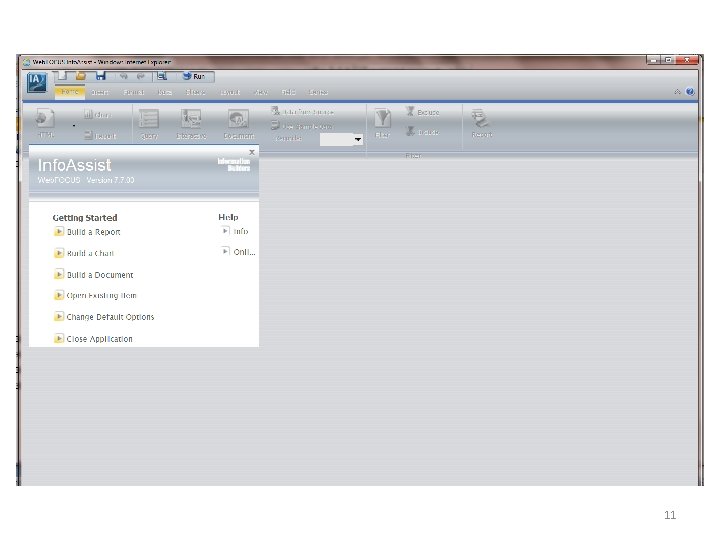
11
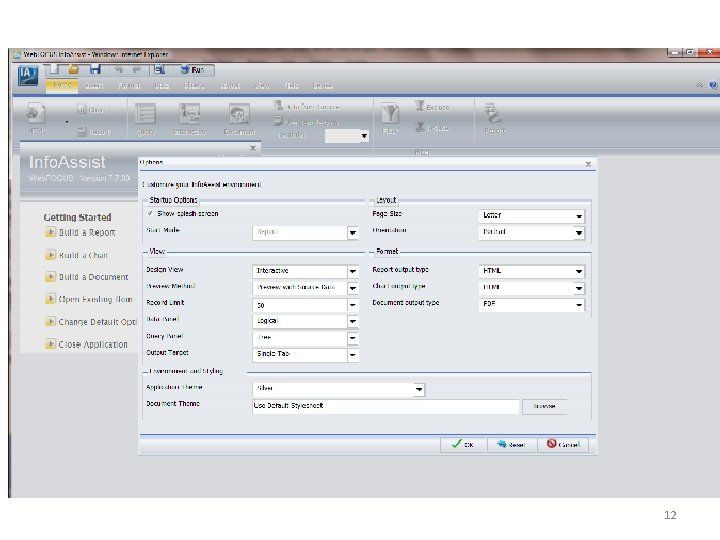
12
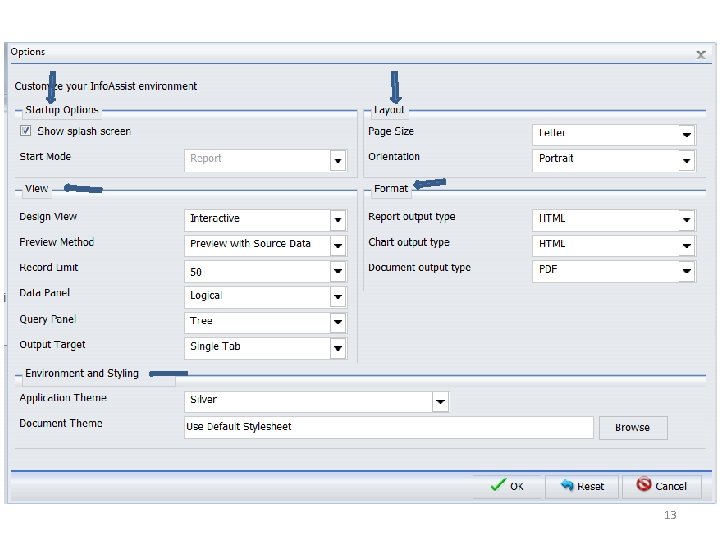
13
14
Exercise 3. 1 • In this exercise you will create your first report using Info. Assist. 15
Sorting • Sorting enables you to display the report information grouped in a particular order. This way information can be organized by rows or columns. • Info. Assist Sorting options include: • BY—for sorting rows • ACROSS—for sorting columns. • BY and ACROSS together—for creating a cross tabulation report. 16
Exercise 3. 2 • Sorting your report • Page Headings and Footings • Change a column heading 17
Exercise 3. 3 • Sorting • Summing • Across 18
Module 4: Using Filters • Testing for NULL values • Testing for a range of values • Testing for certain values in a field. 19
3 Phases of Processing a Selection Phase 1 – Analyze and Parse the request. Phase 2 – Build the internal table a. Selection of real data b. Selection of virtual fields Phase 3 – Process the internal table 20
Masking in Filters • Filters can accommodate the use of a masking character ($) accompanied by a wildcard (*) when performing a selection on part of an alpha numeric field. 21
Compound Filters • The filter statement supports the use of compound nested conditions • A single filter can be comprised of multiple values. 22
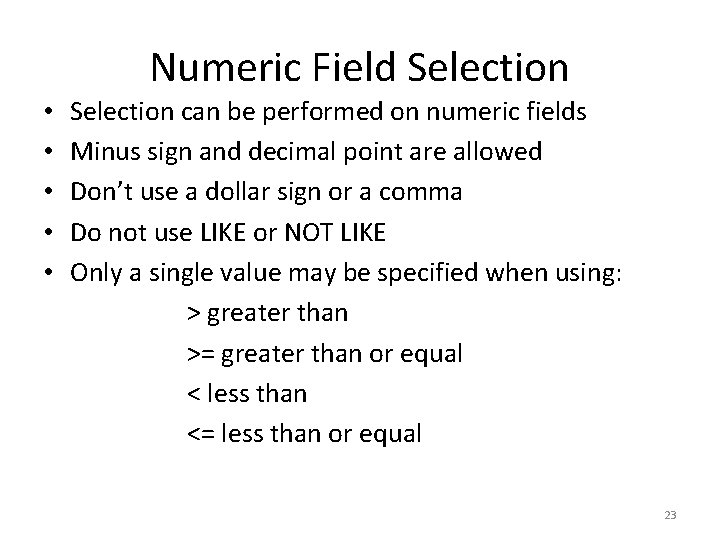
Numeric Field Selection • • • Selection can be performed on numeric fields Minus sign and decimal point are allowed Don’t use a dollar sign or a comma Do not use LIKE or NOT LIKE Only a single value may be specified when using: > greater than >= greater than or equal < less than <= less than or equal 23
Exercises Module 4 • • Exercise 4. 1 – create a simple filter Exercise 4. 2 – Using masking in a filter Exercise 4. 3 – Compound filters Exercise 4. 4 – Numeric filters 24
Module 5 Using PROMPTS • Dynamic • Static • Simple 25
Exercise 5. 1 Creating Prompts 26
Module 6: JOINS • A JOIN is a temporary virtual connection between two or more physical data sources that share at least one common field. 27
Types of JOINS • Single • Left Outer 28
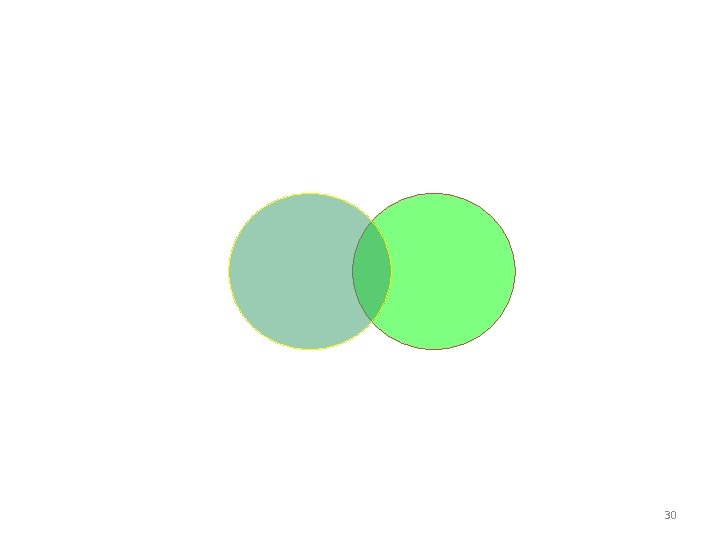
SARADAP SPRIDEN 29
SARADAP SPRIDEN 30
JOIN Exercises • Exercise 6. 1 - Single Inner JOIN • Exercise 6. 2 – Left Outer JOIN 31
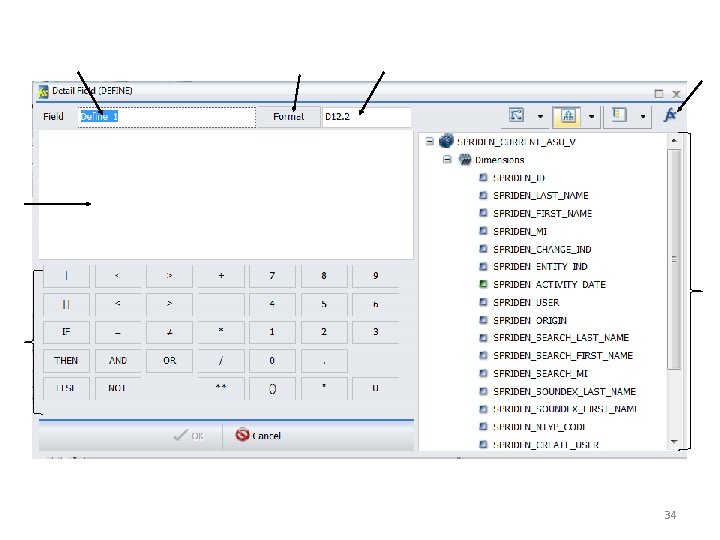
Module 7: Using DEFINE and COMPUTE • Virtual Field (DEFINE) • Calculated Field (COMPUTE) 32
The DEFINE Tool • This tool provides a graphical way in which temporary fields (DEFINES) can be created for use in reports. • Located on the data tab in Info. Assist 33
34
Exercise 7. 1 • Create a DEFINE field 35
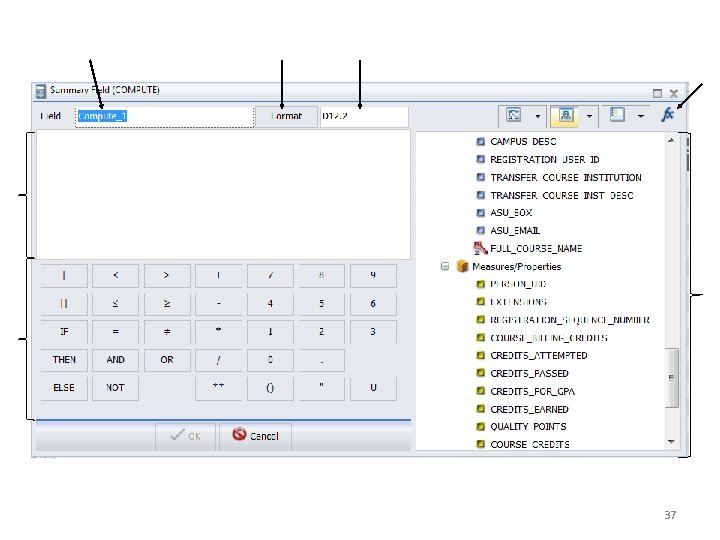
COMPUTE • Evaluated at the report level after all data is retrieved, summed, and sorted. • Created within the report itself and automatically listed as a column in the report. • It CANNOT be used as a primary sort field. 36
37
Exercise 7. 2 • Create a COMPUTE field 38
Module 8: FUNCTIONS 39
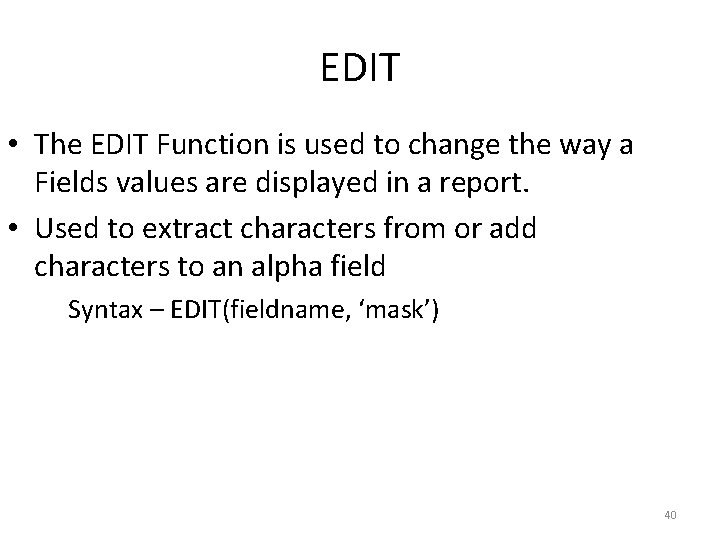
EDIT • The EDIT Function is used to change the way a Fields values are displayed in a report. • Used to extract characters from or add characters to an alpha field Syntax – EDIT(fieldname, ‘mask’) 40
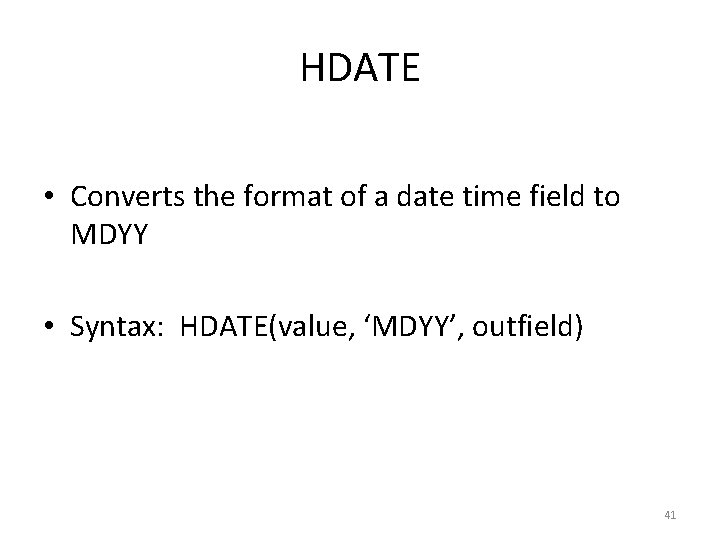
HDATE • Converts the format of a date time field to MDYY • Syntax: HDATE(value, ‘MDYY’, outfield) 41
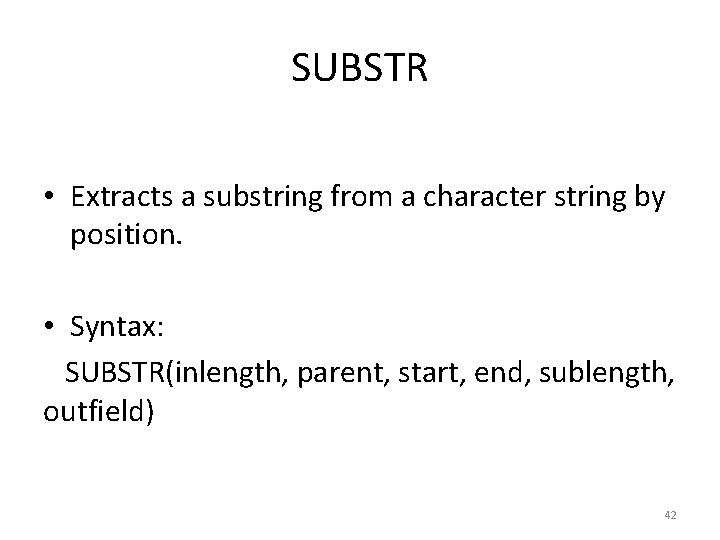
SUBSTR • Extracts a substring from a character string by position. • Syntax: SUBSTR(inlength, parent, start, end, sublength, outfield) 42
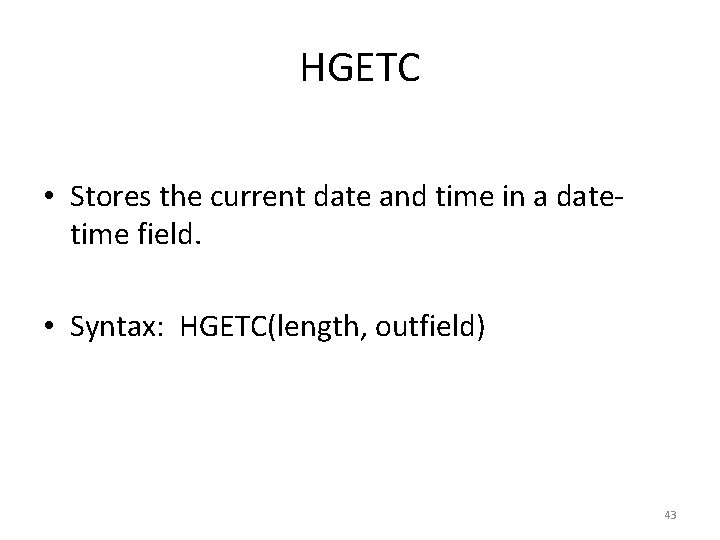
HGETC • Stores the current date and time in a datetime field. • Syntax: HGETC(length, outfield) 43
Functions Exercises • • Exercise 8. 1 – An example of EDIT Exercise 8. 2 – An example of HDATE Exercise 8. 3 – An example of SUBSTR Exercise 8. 4 – An example of HGETC 44
Module 9 Customizing and Styling • • Excel Output for Reports Styling Reports Using Custom Reporting Features Creating Customized Report Outputs 45
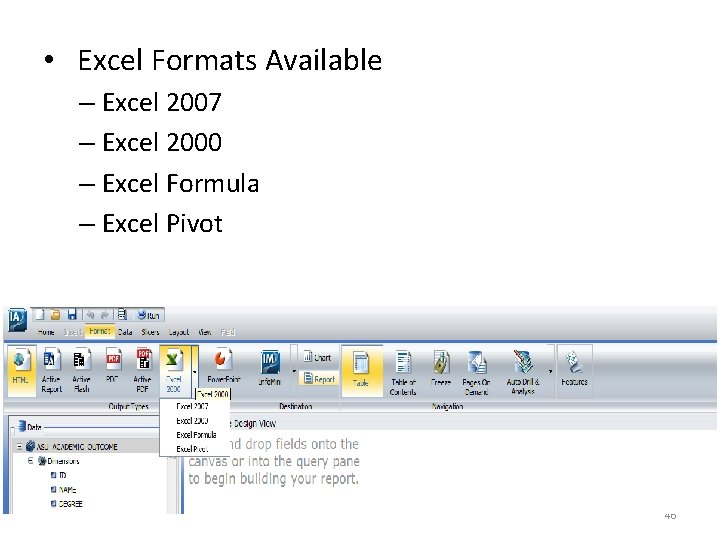
• Excel Formats Available – Excel 2007 – Excel 2000 – Excel Formula – Excel Pivot 46
Styling a report • • • Global Styling Style of Data and Column Fields Style Headings and Footings Style rows of data with alternating colors Apply traffic light conditional styling to data Increase or decrease amount of space inserted between rows and columns. 47
Custom Reporting Features • • • Rank Limit the variables of a column in a report Add page and line breaks Add subtotals Add column totals Add row totals Add subheadings and subfootings Pop-Up titles Add data visualization 48
Customized Report Outputs • Table of Contents • Freeze Column titles in a report • Create pages on Demand reports 49
Styling Exercises • • Exercise 9. 1 – Excel outputs Exercise 9. 2 – Styling, headings and footings. Exercise 9. 3 – Rank, Line breaks, Pop-up Titles. Exercise 9. 4 – Table of Contents, freezing columns, page on demand 50
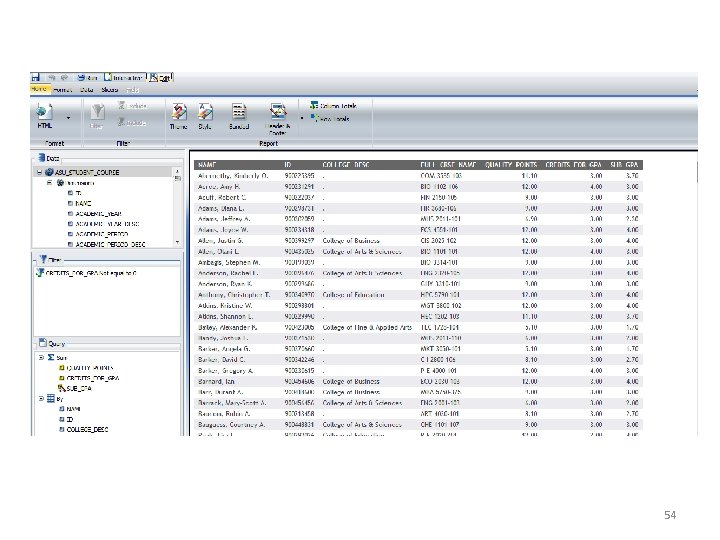
Module 10 INFO MINI • Built from an Info. Assist Report • Contains a subset of Info. Assist Functionality that is available at runtime. 51
• INFO MINI opens in it’s own browser window • Almost like working in Info. Assist for the end user except for the following – Main menu not accessible – View, open and code buttons not available on the quick access tool bar – Status bar not accessible – Navigation taskbar not accessible 52
53
54
Exercise 10. 1 • Create an INFO MINI application 55
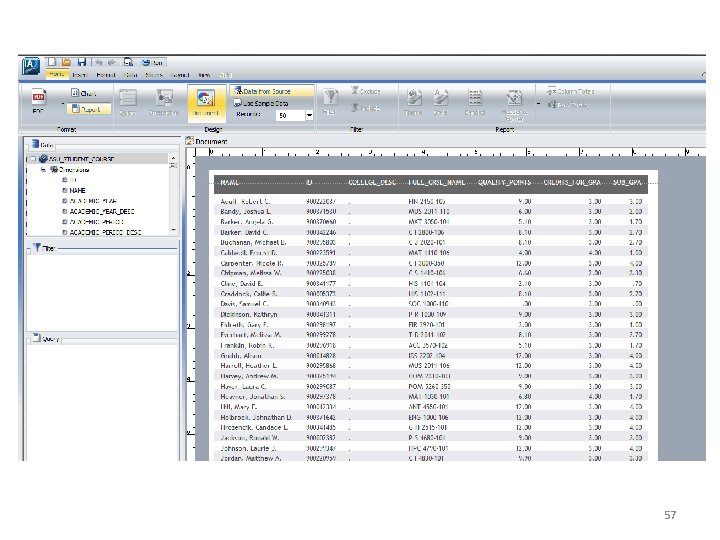
Module 11 Compound Document • Build a new Compound document. • Open an existing Compound document. • Generate a new Compound document from an existing single report. 56
57
Exercises Module 11 • Exercise 11. 1 - Build a compound document from an existing report. 58
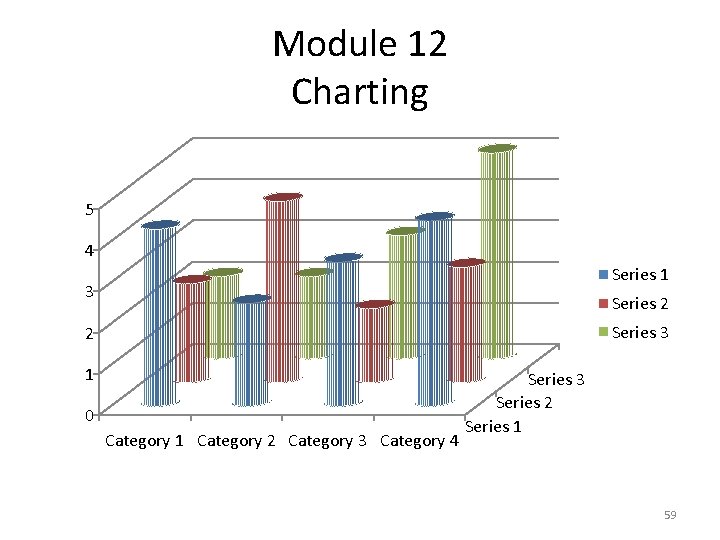
Module 12 Charting 5 4 Series 1 3 Series 2 Series 3 2 1 0 Category 1 Category 2 Category 3 Category 4 Series 3 Series 2 Series 1 59
Type of Charts Available • • • BAR Charts PIE Charts LINE Charts AREA Charts XY PLOT Charts 3 D Charts 60
Exercise 12. 1 • Create a Chart using Info. Assist. 61
THE END 62