ETERNUS DX 500 S 3 and DX 600

- Slides: 20
ETERNUS DX 500 S 3 and DX 600 S 3 Hardware Installation ETERNUS DX 500 S 3 and DX 600 S 3 0 Copyright Fujitsu, Release May 2014
Content Rack Mounting Power Cabling DX 500 S 3 / DX 600 S 3 Backend Architecture Backend Cabling QSFP Power On / Power Off Procedures CE Switch Panel - Function Buttons Hardware Installation ETERNUS DX 500 S 3 and DX 600 S 3 1 Copyright Fujitsu, Release May 2014
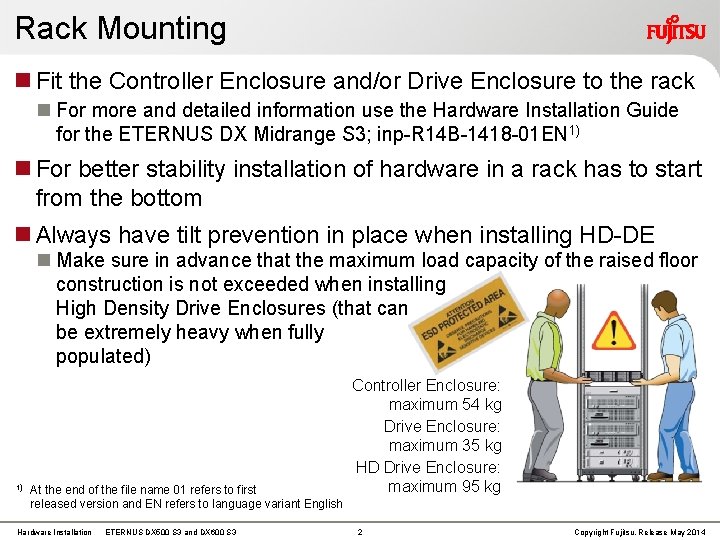
Rack Mounting Fit the Controller Enclosure and/or Drive Enclosure to the rack For more and detailed information use the Hardware Installation Guide for the ETERNUS DX Midrange S 3; inp-R 14 B-1418 -01 EN 1) For better stability installation of hardware in a rack has to start from the bottom Always have tilt prevention in place when installing HD-DE Make sure in advance that the maximum load capacity of the raised floor construction is not exceeded when installing High Density Drive Enclosures (that can be extremely heavy when fully populated) 1) At the end of the file name 01 refers to first released version and EN refers to language variant English Hardware Installation ETERNUS DX 500 S 3 and DX 600 S 3 Controller Enclosure: maximum 54 kg Drive Enclosure: maximum 35 kg HD Drive Enclosure: maximum 95 kg 2 Copyright Fujitsu, Release May 2014
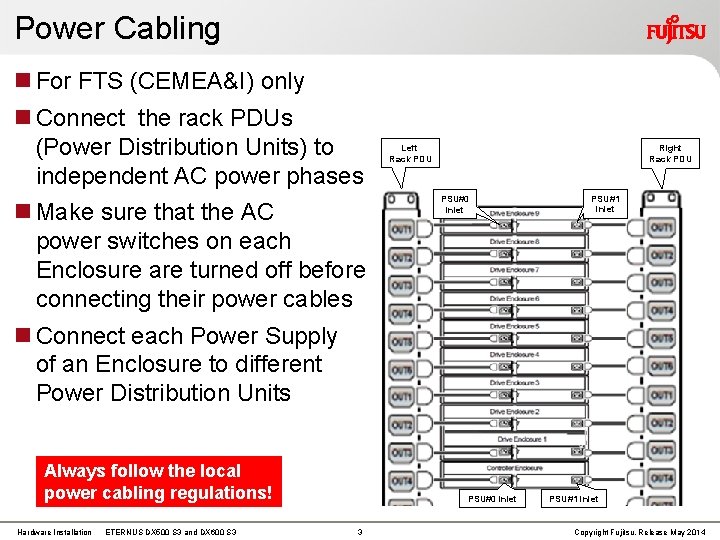
Power Cabling For FTS (CEMEA&I) only Connect the rack PDUs (Power Distribution Units) to independent AC power phases Make sure that the AC power switches on each Enclosure are turned off before connecting their power cables Left Rack PDU Right Rack PDU PSU#0 inlet PSU#1 inlet Connect each Power Supply of an Enclosure to different Power Distribution Units Always follow the local power cabling regulations! Hardware Installation ETERNUS DX 500 S 3 and DX 600 S 3 PSU#0 inlet 3 PSU#1 inlet Copyright Fujitsu, Release May 2014
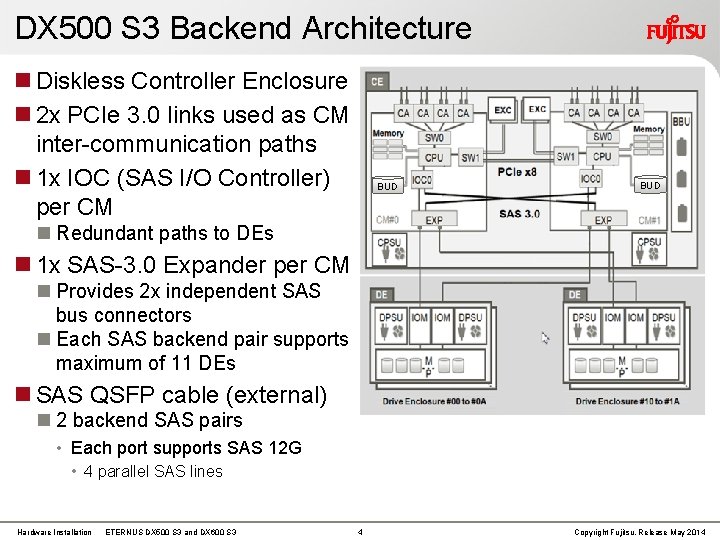
DX 500 S 3 Backend Architecture Diskless Controller Enclosure 2 x PCIe 3. 0 links used as CM inter-communication paths 1 x IOC (SAS I/O Controller) per CM BUD Redundant paths to DEs 1 x SAS-3. 0 Expander per CM Provides 2 x independent SAS bus connectors Each SAS backend pair supports maximum of 11 DEs SAS QSFP cable (external) 2 backend SAS pairs • Each port supports SAS 12 G • 4 parallel SAS lines Hardware Installation ETERNUS DX 500 S 3 and DX 600 S 3 4 Copyright Fujitsu, Release May 2014
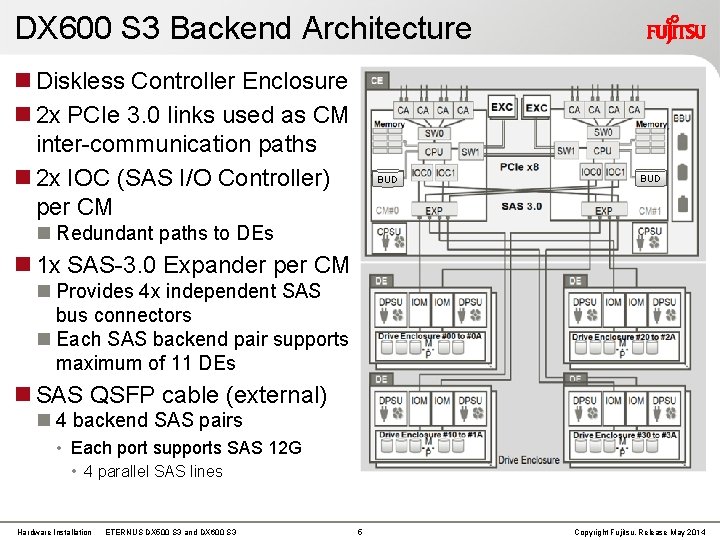
DX 600 S 3 Backend Architecture Diskless Controller Enclosure 2 x PCIe 3. 0 links used as CM inter-communication paths 2 x IOC (SAS I/O Controller) per CM BUD Redundant paths to DEs 1 x SAS-3. 0 Expander per CM Provides 4 x independent SAS bus connectors Each SAS backend pair supports maximum of 11 DEs SAS QSFP cable (external) 4 backend SAS pairs • Each port supports SAS 12 G • 4 parallel SAS lines Hardware Installation ETERNUS DX 500 S 3 and DX 600 S 3 5 Copyright Fujitsu, Release May 2014
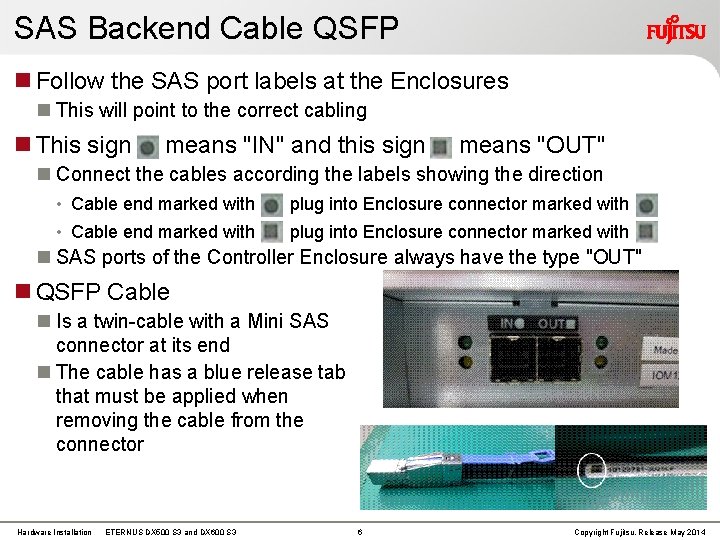
SAS Backend Cable QSFP Follow the SAS port labels at the Enclosures This will point to the correct cabling This sign means "IN" and this sign means "OUT" Connect the cables according the labels showing the direction • Cable end marked with plug into Enclosure connector marked with SAS ports of the Controller Enclosure always have the type "OUT" QSFP Cable Is a twin-cable with a Mini SAS connector at its end The cable has a blue release tab that must be applied when removing the cable from the connector Hardware Installation ETERNUS DX 500 S 3 and DX 600 S 3 6 Copyright Fujitsu, Release May 2014
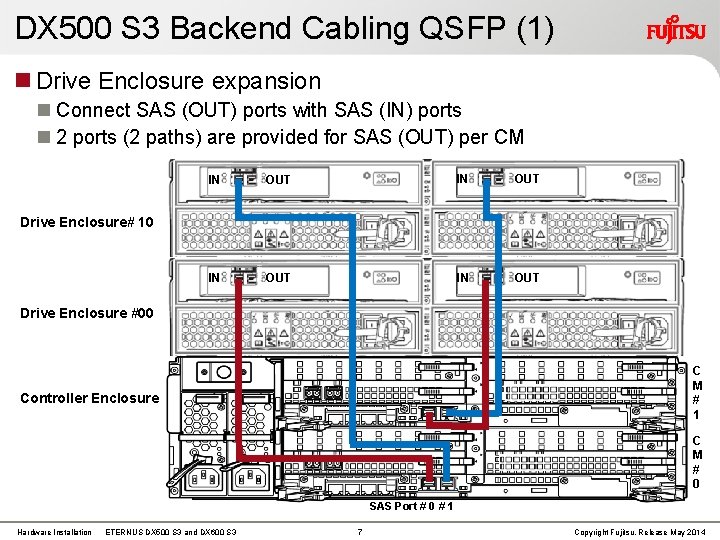
DX 500 S 3 Backend Cabling QSFP (1) Drive Enclosure expansion Connect SAS (OUT) ports with SAS (IN) ports 2 ports (2 paths) are provided for SAS (OUT) per CM IN OUT Drive Enclosure# 10 Drive Enclosure #00 C M # 1 Controller Enclosure SAS Port # 0 SAS Port # 1 C M # 0 SAS Port # 0 # 1 Hardware Installation ETERNUS DX 500 S 3 and DX 600 S 3 7 Copyright Fujitsu, Release May 2014
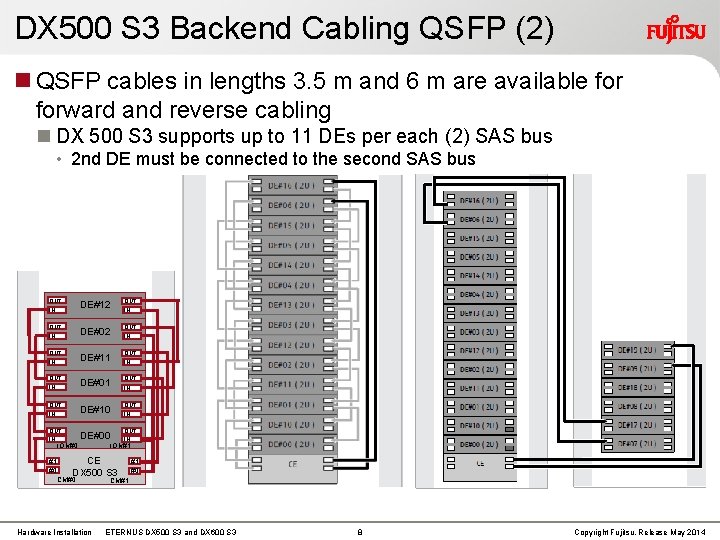
DX 500 S 3 Backend Cabling QSFP (2) QSFP cables in lengths 3. 5 m and 6 m are available forward and reverse cabling DX 500 S 3 supports up to 11 DEs per each (2) SAS bus • 2 nd DE must be connected to the second SAS bus OUT IN OUT IN DE#12 OUT DE#02 OUT IN OUT DE#11 IN DE#01 IN DE#10 IN OUT OUT IN DE#00 IOM#0 #1 #0 IN IOM#1 CE DX 500 S 3 CM#0 Hardware Installation #1 #0 CM#1 ETERNUS DX 500 S 3 and DX 600 S 3 8 Copyright Fujitsu, Release May 2014
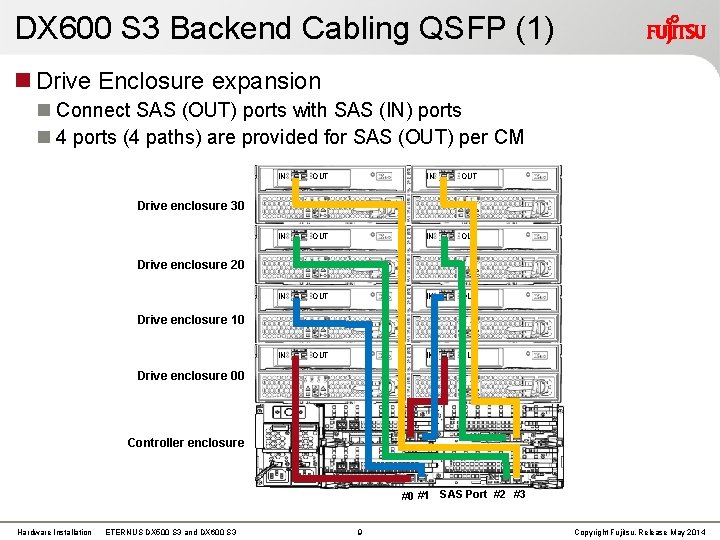
DX 600 S 3 Backend Cabling QSFP (1) Drive Enclosure expansion Connect SAS (OUT) ports with SAS (IN) ports 4 ports (4 paths) are provided for SAS (OUT) per CM IN OUT IN OUT Drive enclosure 30 Drive enclosure 20 Drive enclosure 10 Drive enclosure 00 Controller enclosure #0 #1 SAS Port #2 #3 Hardware Installation ETERNUS DX 500 S 3 and DX 600 S 3 9 Copyright Fujitsu, Release May 2014
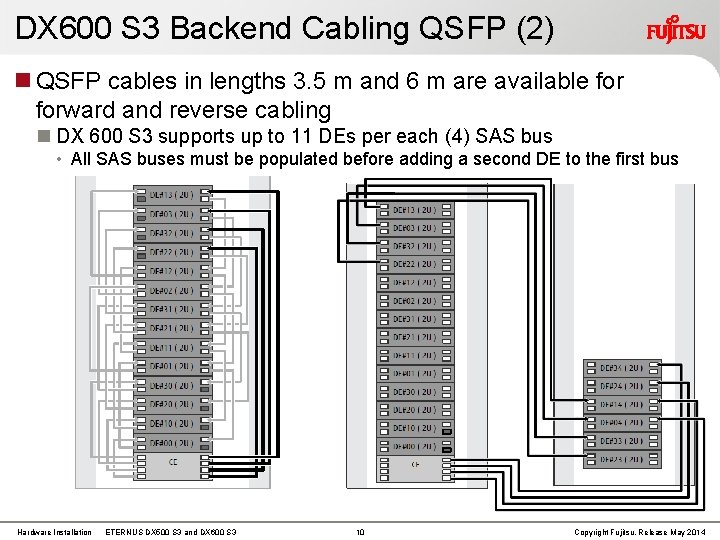
DX 600 S 3 Backend Cabling QSFP (2) QSFP cables in lengths 3. 5 m and 6 m are available forward and reverse cabling DX 600 S 3 supports up to 11 DEs per each (4) SAS bus • All SAS buses must be populated before adding a second DE to the first bus Hardware Installation ETERNUS DX 500 S 3 and DX 600 S 3 10 Copyright Fujitsu, Release May 2014
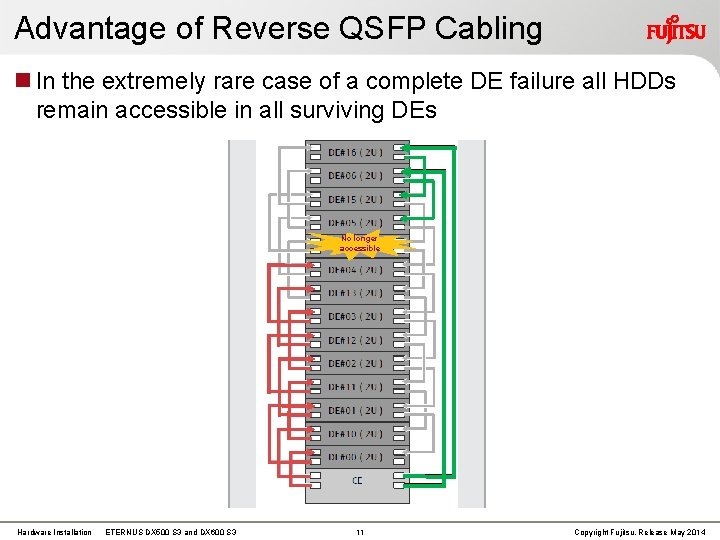
Advantage of Reverse QSFP Cabling In the extremely rare case of a complete DE failure all HDDs remain accessible in all surviving DEs No longer accessible Hardware Installation ETERNUS DX 500 S 3 and DX 600 S 3 11 Copyright Fujitsu, Release May 2014
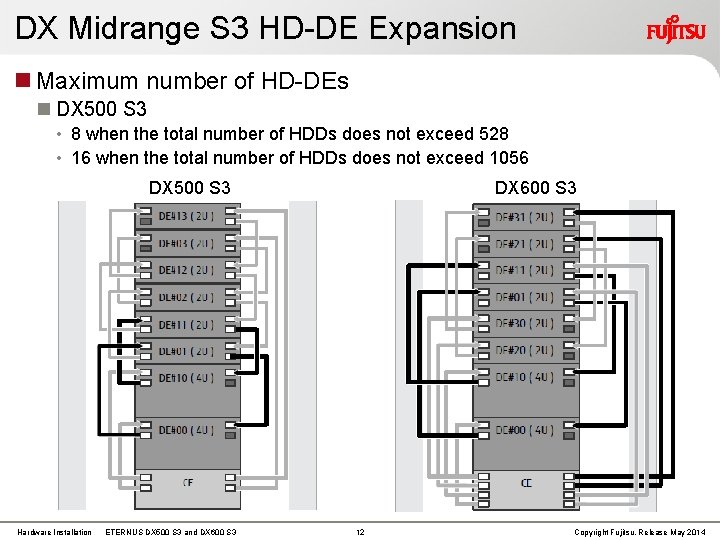
DX Midrange S 3 HD-DE Expansion Maximum number of HD-DEs DX 500 S 3 • 8 when the total number of HDDs does not exceed 528 • 16 when the total number of HDDs does not exceed 1056 DX 500 S 3 Hardware Installation ETERNUS DX 500 S 3 and DX 600 S 3 12 Copyright Fujitsu, Release May 2014
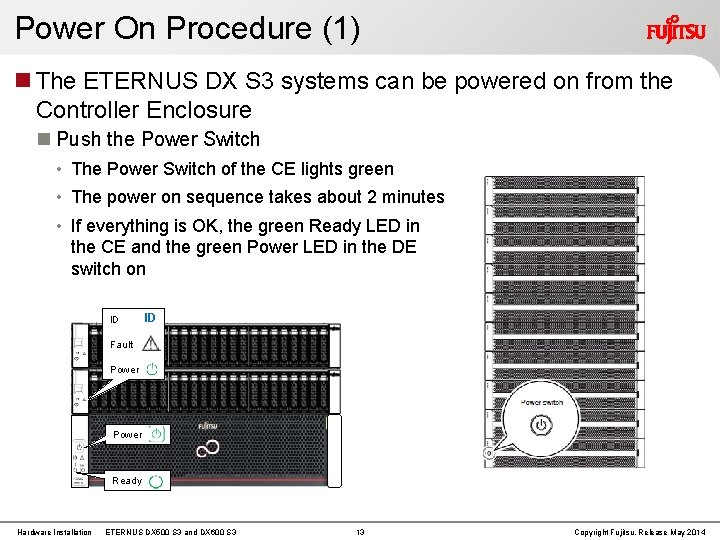
Power On Procedure (1) The ETERNUS DX S 3 systems can be powered on from the Controller Enclosure Push the Power Switch • The Power Switch of the CE lights green • The power on sequence takes about 2 minutes • If everything is OK, the green Ready LED in the CE and the green Power LED in the DE switch on ID ID Fault Power Ready Hardware Installation ETERNUS DX 500 S 3 and DX 600 S 3 13 Copyright Fujitsu, Release May 2014
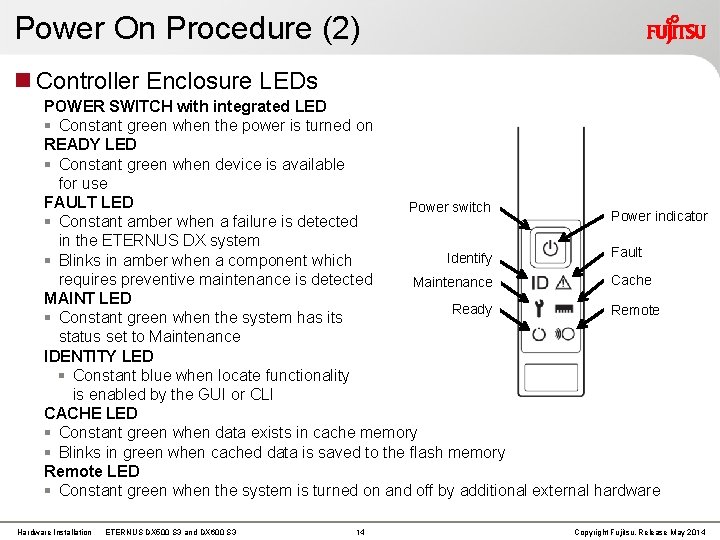
Power On Procedure (2) Controller Enclosure LEDs POWER SWITCH with integrated LED § Constant green when the power is turned on READY LED § Constant green when device is available for use FAULT LED Power switch Power indicator § Constant amber when a failure is detected in the ETERNUS DX system Fault Identify § Blinks in amber when a component which requires preventive maintenance is detected Cache Maintenance MAINT LED Ready Remote § Constant green when the system has its status set to Maintenance IDENTITY LED § Constant blue when locate functionality is enabled by the GUI or CLI CACHE LED § Constant green when data exists in cache memory § Blinks in green when cached data is saved to the flash memory Remote LED § Constant green when the system is turned on and off by additional external hardware Hardware Installation ETERNUS DX 500 S 3 and DX 600 S 3 14 Copyright Fujitsu, Release May 2014
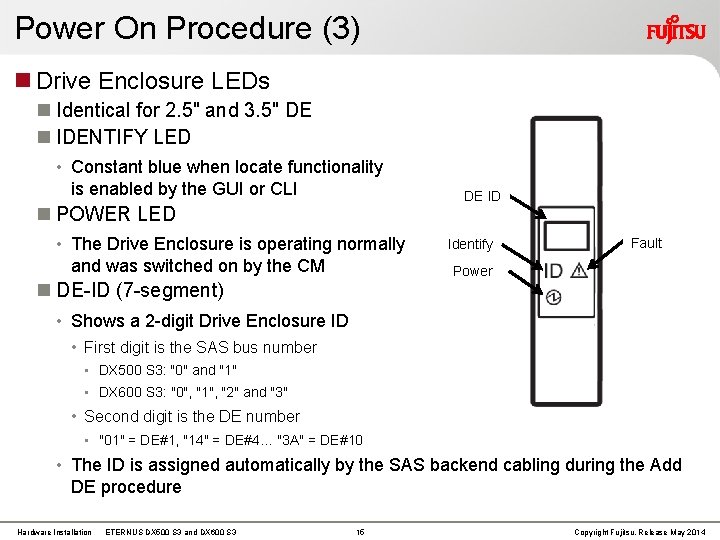
Power On Procedure (3) Drive Enclosure LEDs Identical for 2. 5" and 3. 5" DE IDENTIFY LED • Constant blue when locate functionality is enabled by the GUI or CLI POWER LED • The Drive Enclosure is operating normally and was switched on by the CM DE ID Identify Fault Power DE-ID (7 -segment) • Shows a 2 -digit Drive Enclosure ID • First digit is the SAS bus number • DX 500 S 3: "0" and "1" • DX 600 S 3: "0", "1", "2" and "3" • Second digit is the DE number • "01" = DE#1, "14" = DE#4… "3 A" = DE#10 • The ID is assigned automatically by the SAS backend cabling during the Add DE procedure Hardware Installation ETERNUS DX 500 S 3 and DX 600 S 3 15 Copyright Fujitsu, Release May 2014
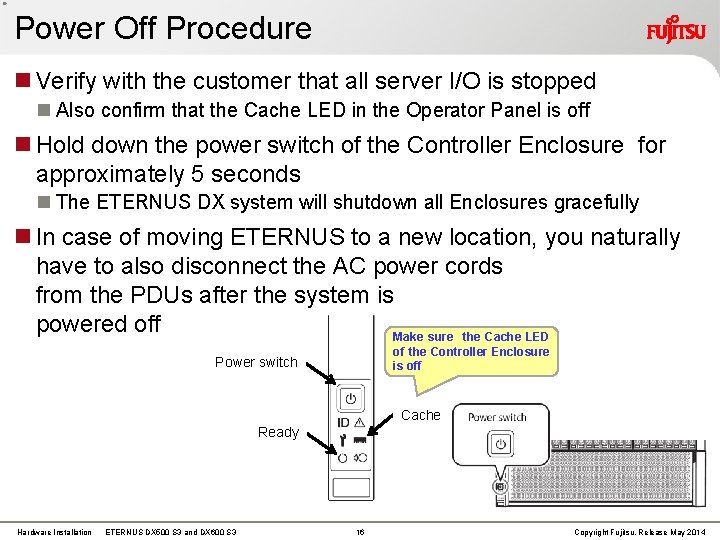
Power Off Procedure Verify with the customer that all server I/O is stopped Also confirm that the Cache LED in the Operator Panel is off Hold down the power switch of the Controller Enclosure for approximately 5 seconds The ETERNUS DX system will shutdown all Enclosures gracefully In case of moving ETERNUS to a new location, you naturally have to also disconnect the AC power cords from the PDUs after the system is powered off Make sure the Cache LED of the Controller Enclosure is off Power switch Cache Ready Hardware Installation ETERNUS DX 500 S 3 and DX 600 S 3 16 Copyright Fujitsu, Release May 2014
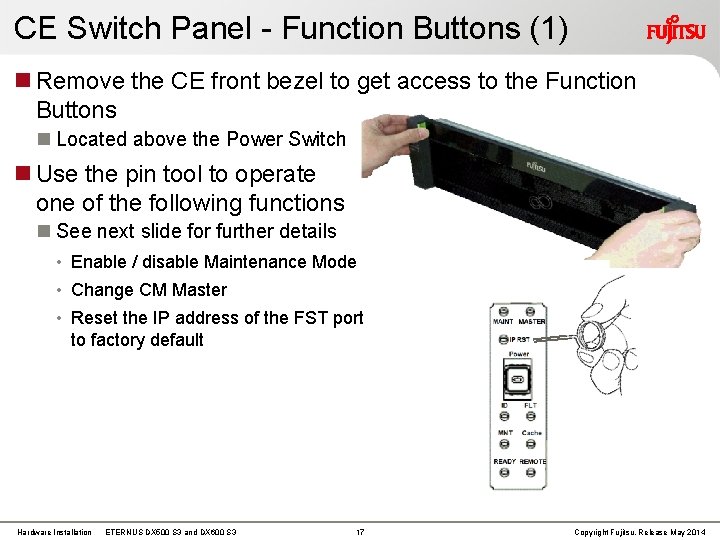
CE Switch Panel - Function Buttons (1) Remove the CE front bezel to get access to the Function Buttons Located above the Power Switch Use the pin tool to operate one of the following functions See next slide for further details • Enable / disable Maintenance Mode • Change CM Master • Reset the IP address of the FST port to factory default Hardware Installation ETERNUS DX 500 S 3 and DX 600 S 3 17 Copyright Fujitsu, Release May 2014
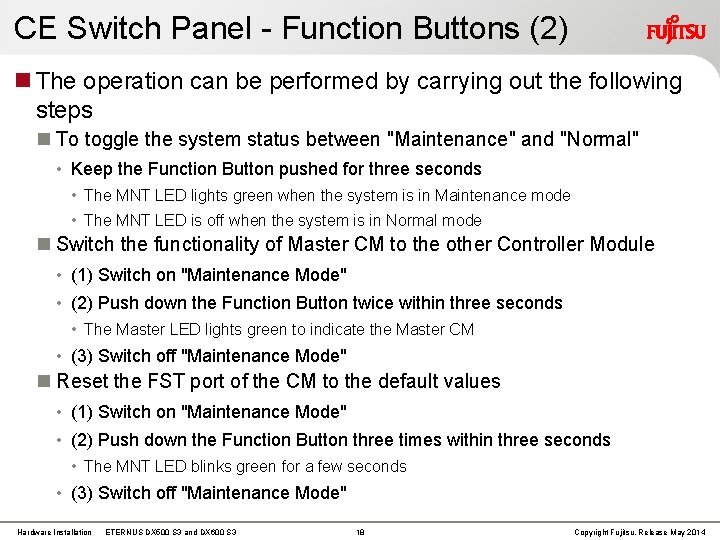
CE Switch Panel - Function Buttons (2) The operation can be performed by carrying out the following steps To toggle the system status between "Maintenance" and "Normal" • Keep the Function Button pushed for three seconds • The MNT LED lights green when the system is in Maintenance mode • The MNT LED is off when the system is in Normal mode Switch the functionality of Master CM to the other Controller Module • (1) Switch on "Maintenance Mode" • (2) Push down the Function Button twice within three seconds • The Master LED lights green to indicate the Master CM • (3) Switch off "Maintenance Mode" Reset the FST port of the CM to the default values • (1) Switch on "Maintenance Mode" • (2) Push down the Function Button three times within three seconds • The MNT LED blinks green for a few seconds • (3) Switch off "Maintenance Mode" Hardware Installation ETERNUS DX 500 S 3 and DX 600 S 3 18 Copyright Fujitsu, Release May 2014