Creating Effective Presentations TANNER WARD NOV 9 2017





- Slides: 26
Creating Effective Presentations TANNER WARD NOV. 9, 2017
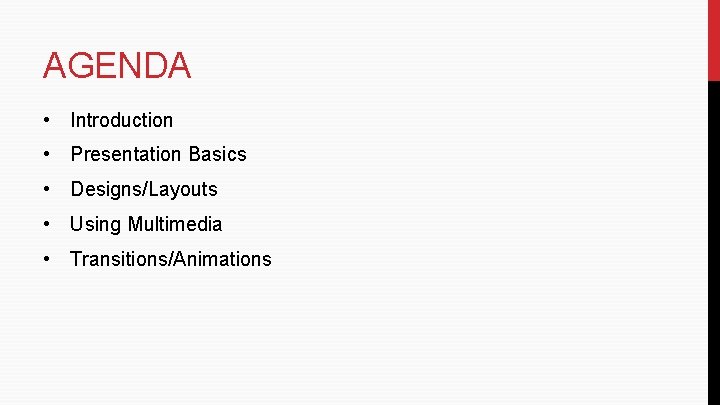
AGENDA • Introduction • Presentation Basics • Designs/Layouts • Using Multimedia • Transitions/Animations
TANNER WARD WORK: Senior Account Executive, Team SI SCHOOL: Ouachita Baptist University (Business, Communications) HOME: Saline County
Presentation Basics CREATING EFFECTIVE PRESENTATIONS
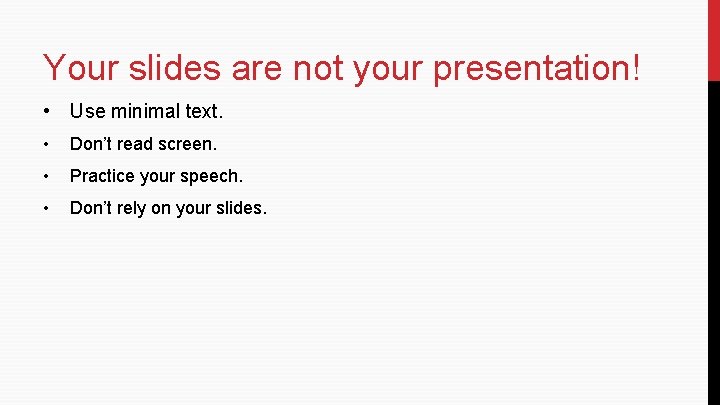
Your slides are not your presentation! • Use minimal text. • Don’t read screen. • Practice your speech. • Don’t rely on your slides.
Designs/Layouts CREATING EFFECTIVE PRESENTATIONS
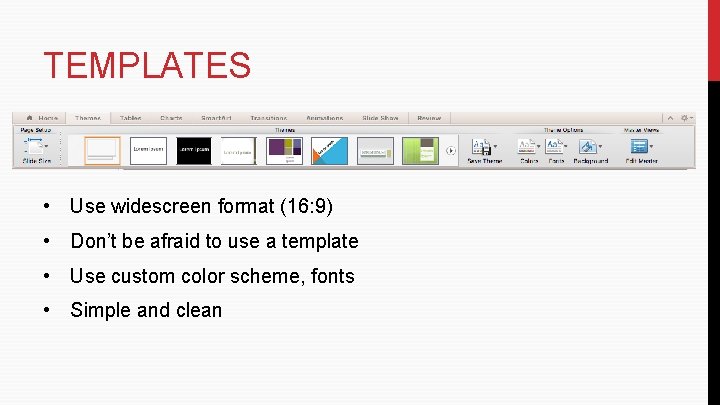
TEMPLATES • Use widescreen format (16: 9) • Don’t be afraid to use a template • Use custom color scheme, fonts • Simple and clean
SLIDE LAYOUT • Use pre-defined layouts • Avoid edges • Don’t crowd elements • Use linear arrangements (don’t tilt, angle, etc. ) • Left alignment
FONTS • Consistency is key • Font and text size must be legible from the back row • Choose one header font, one text font (and no more) • Serif vs. Sans Serif • Avoid paragraphs, too many bullet points per slide
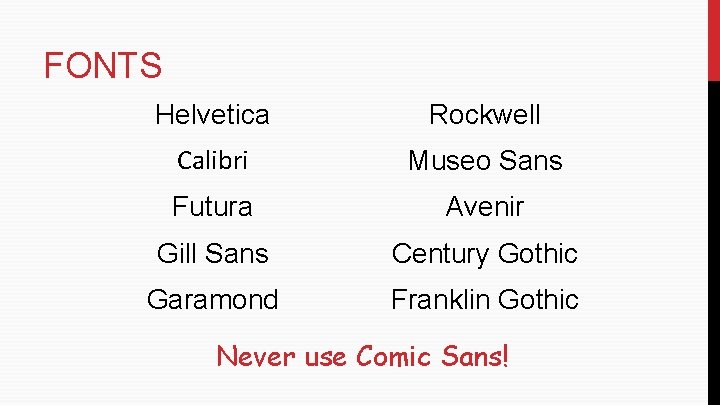
FONTS Helvetica Rockwell Calibri Museo Sans Futura Avenir Gill Sans Century Gothic Garamond Franklin Gothic Never use Comic Sans!
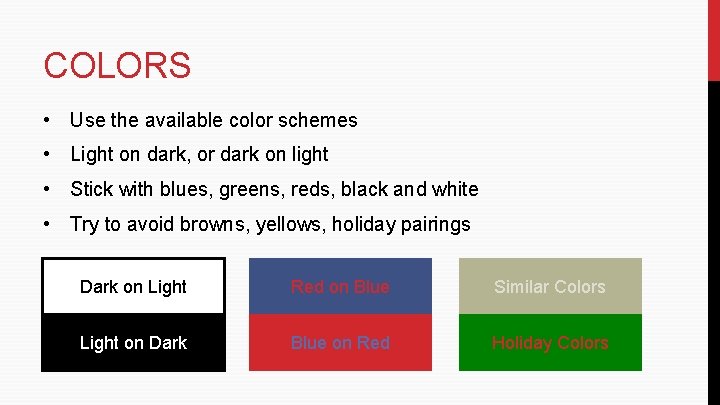
COLORS • Use the available color schemes • Light on dark, or dark on light • Stick with blues, greens, reds, black and white • Try to avoid browns, yellows, holiday pairings Dark on Light Red on Blue Similar Colors Light on Dark Blue on Red Holiday Colors
Using Multimedia CREATING EFFECTIVE PRESENTATIONS
PHOTOS • Avoid clipart • Use high-quality images • Make sure photos aren’t colliding with any text • Photos should fit overall theme (colors, style, subject, etc. ) • No photo backgrounds • Crop; don’t stretch
VIDEOS • Use high-quality video • Shorter clips are better • Take up the whole screen • Test audio, video beforehand
CHARTS/GRAPHS • Avoid tables full of data • Be careful of small font sizes • Consistent coloring, style • Should be legible in the back row
Transitions/Animation CREATING EFFECTIVE PRESENTATIONS
TRANSITIONS • Stick with a fade
ANIMATION • Keep them simple • Bullets: line-by-line • No sound effects • Timers, reordering, entrances/exits
Helpful Tips CREATING EFFECTIVE PRESENTATIONS
BEFORE • Save in multiple places • Have your presentation ready • Know your audience/room
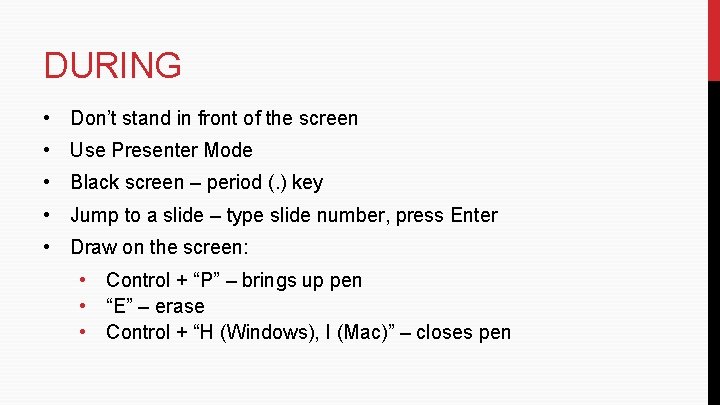
DURING • Don’t stand in front of the screen • Use Presenter Mode • Black screen – period (. ) key • Jump to a slide – type slide number, press Enter • Draw on the screen: • Control + “P” – brings up pen • “E” – erase • Control + “H (Windows), I (Mac)” – closes pen
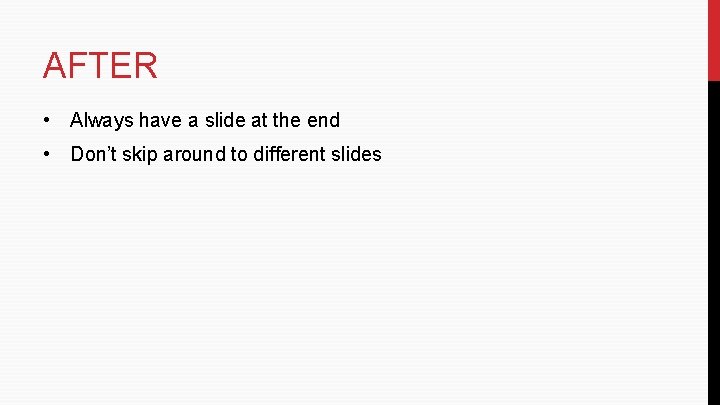
AFTER • Always have a slide at the end • Don’t skip around to different slides
Creating Effective Presentations TANNER WARD NOV. 9, 2017
Creating Effective Presentations TANNER WARD NOV. 9, 2017
Creating Effective Presentations TANNER WARD NOV. 9, 2017