CNC MillingLathe interface Introduction SYNTEC TECHNOLOGY CO LTD
- Slides: 28
CNC Milling/Lathe interface Introduction SYNTEC TECHNOLOGY CO. , LTD
Topics • • CNC Home screen (Milling) Program Edit Simulation/Step Execute Can Cycle Offset setting Lathe G-92 SYNTEC Syntec Technology Co. , LTD
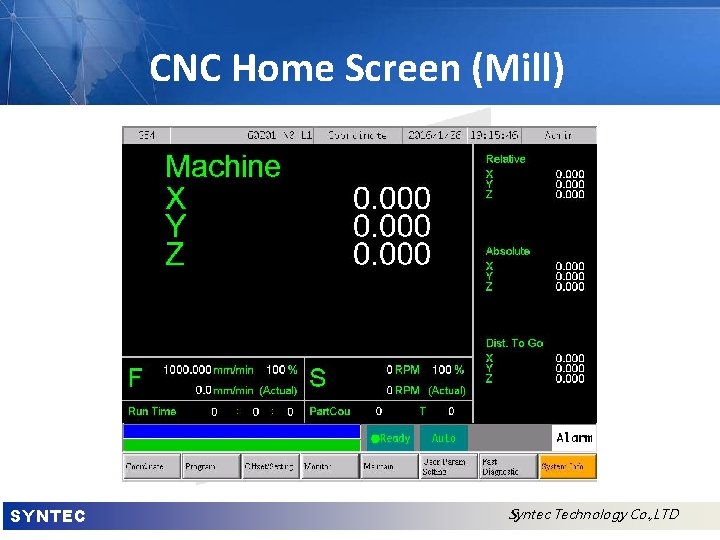
CNC Home Screen (Mill) SYNTEC Syntec Technology Co. , LTD
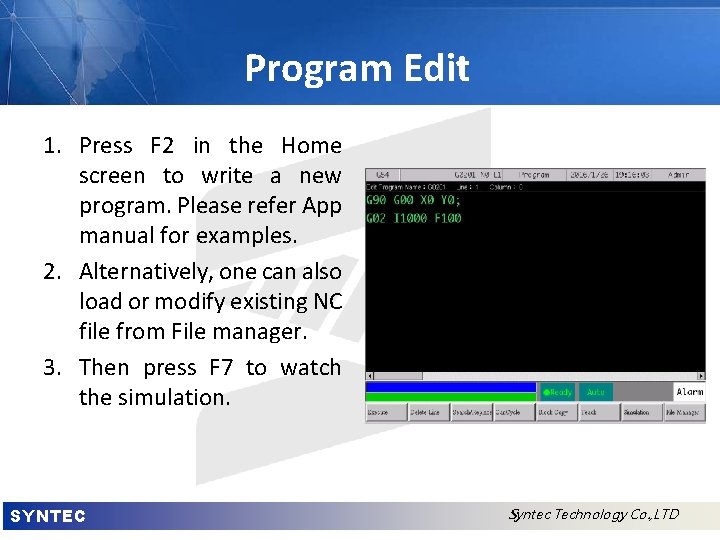
Program Edit 1. Press F 2 in the Home screen to write a new program. Please refer App manual for examples. 2. Alternatively, one can also load or modify existing NC file from File manager. 3. Then press F 7 to watch the simulation. SYNTEC Syntec Technology Co. , LTD
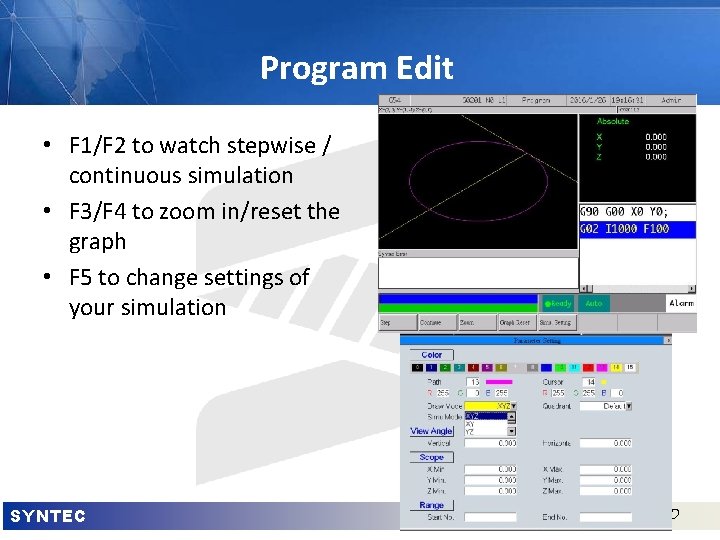
Program Edit • F 1/F 2 to watch stepwise / continuous simulation • F 3/F 4 to zoom in/reset the graph • F 5 to change settings of your simulation SYNTEC Syntec Technology Co. , LTD
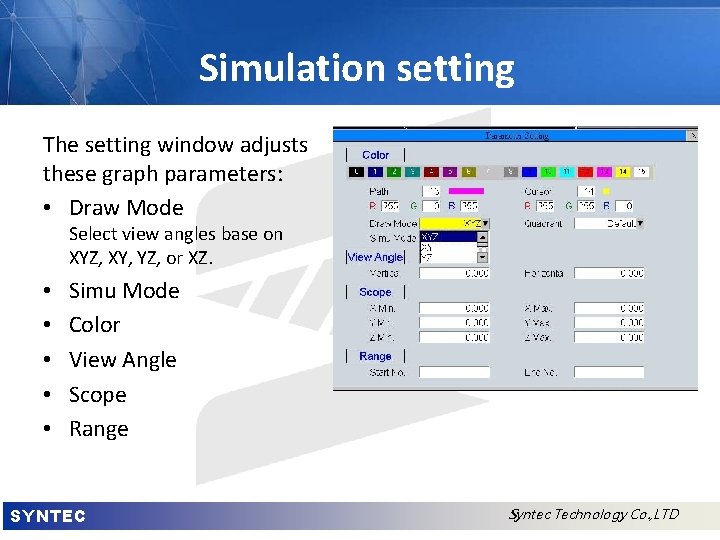
Simulation setting The setting window adjusts these graph parameters: • Draw Mode Select view angles base on XYZ, XY, YZ, or XZ. • • • Simu Mode Color View Angle Scope Range SYNTEC Syntec Technology Co. , LTD
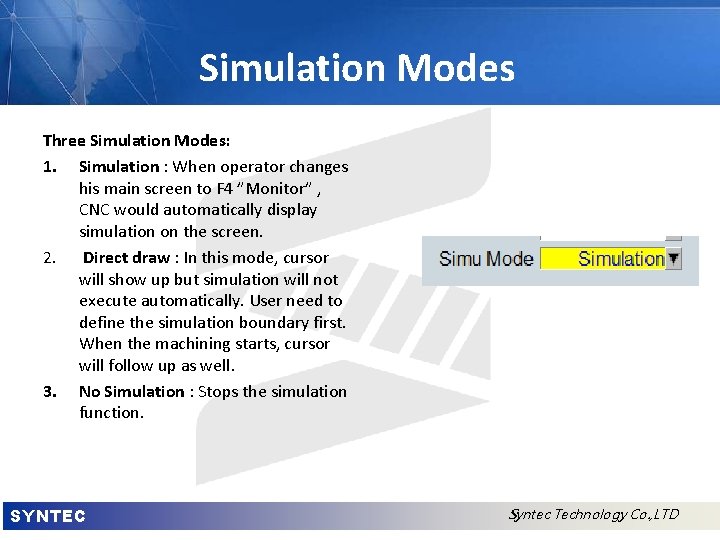
Simulation Modes Three Simulation Modes: 1. Simulation : When operator changes his main screen to F 4 ”Monitor” , CNC would automatically display simulation on the screen. 2. Direct draw : In this mode, cursor will show up but simulation will not execute automatically. User need to define the simulation boundary first. When the machining starts, cursor will follow up as well. 3. No Simulation : Stops the simulation function. SYNTEC Syntec Technology Co. , LTD
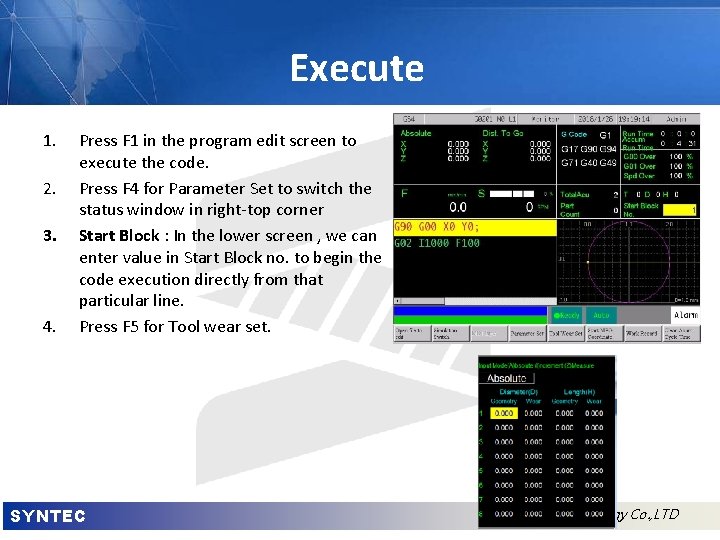
Execute 1. 2. 3. 4. Press F 1 in the program edit screen to execute the code. Press F 4 for Parameter Set to switch the status window in right-top corner Start Block : In the lower screen , we can enter value in Start Block no. to begin the code execution directly from that particular line. Press F 5 for Tool wear set. SYNTEC Syntec Technology Co. , LTD
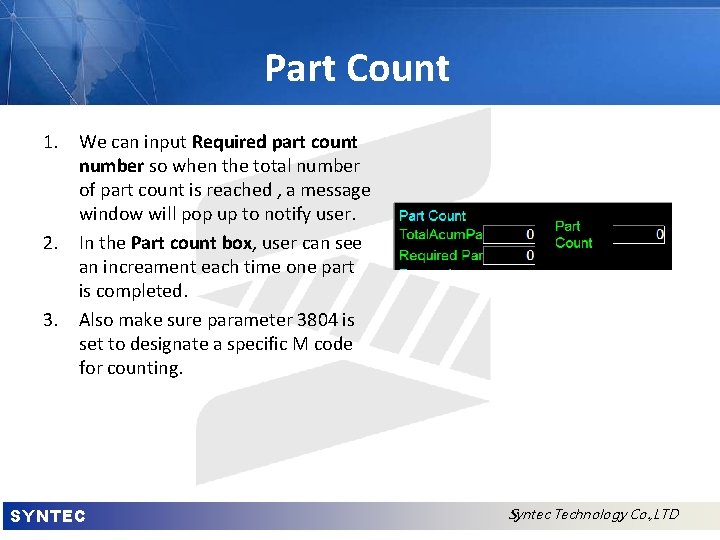
Part Count 1. We can input Required part count number so when the total number of part count is reached , a message window will pop up to notify user. 2. In the Part count box, user can see an increament each time one part is completed. 3. Also make sure parameter 3804 is set to designate a specific M code for counting. SYNTEC Syntec Technology Co. , LTD
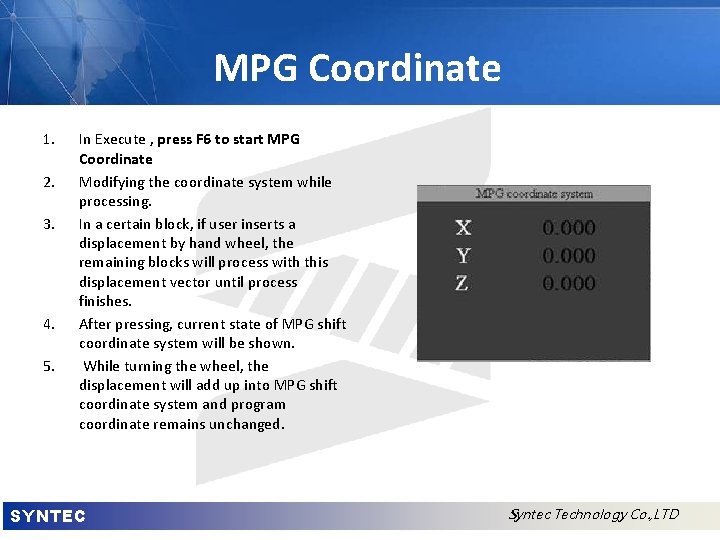
MPG Coordinate 1. 2. 3. 4. 5. In Execute , press F 6 to start MPG Coordinate Modifying the coordinate system while processing. In a certain block, if user inserts a displacement by hand wheel, the remaining blocks will process with this displacement vector until process finishes. After pressing, current state of MPG shift coordinate system will be shown. While turning the wheel, the displacement will add up into MPG shift coordinate system and program coordinate remains unchanged. SYNTEC Syntec Technology Co. , LTD
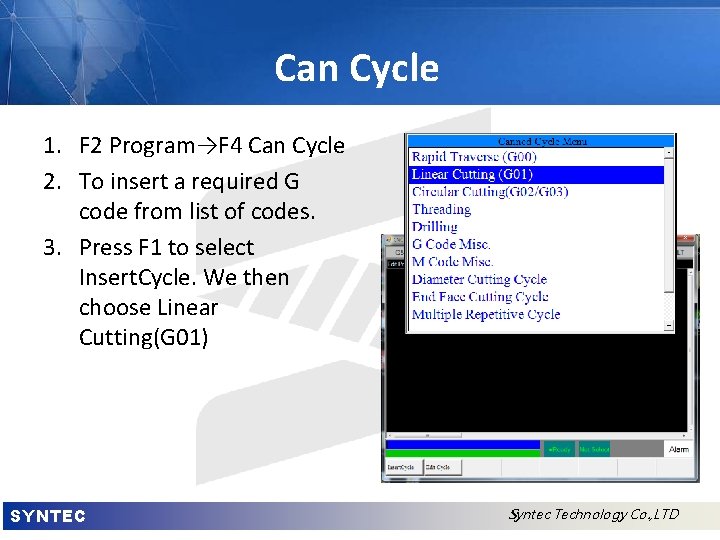
Can Cycle 1. F 2 Program→F 4 Can Cycle 2. To insert a required G code from list of codes. 3. Press F 1 to select Insert. Cycle. We then choose Linear Cutting(G 01) SYNTEC Syntec Technology Co. , LTD
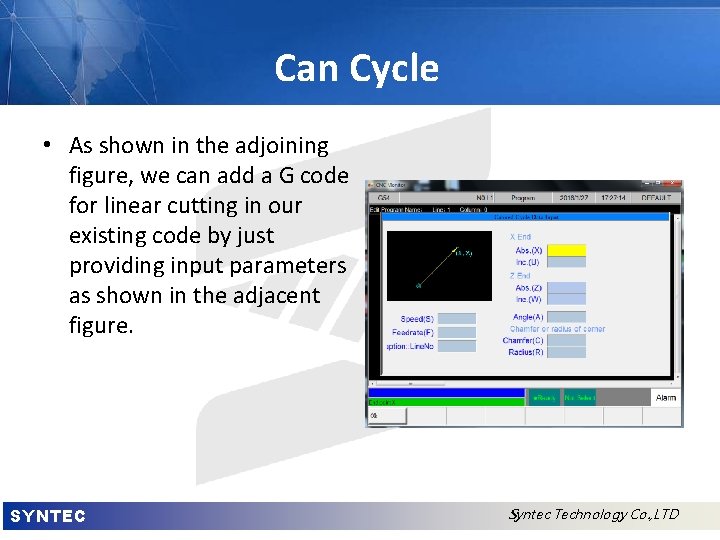
Can Cycle • As shown in the adjoining figure, we can add a G code for linear cutting in our existing code by just providing input parameters as shown in the adjacent figure. SYNTEC Syntec Technology Co. , LTD
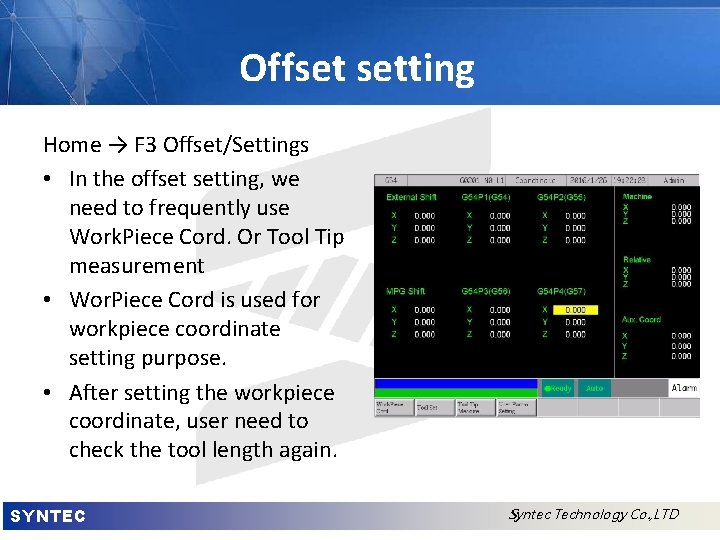
Offset setting Home → F 3 Offset/Settings • In the offset setting, we need to frequently use Work. Piece Cord. Or Tool Tip measurement • Wor. Piece Cord is used for workpiece coordinate setting purpose. • After setting the workpiece coordinate, user need to check the tool length again. SYNTEC Syntec Technology Co. , LTD
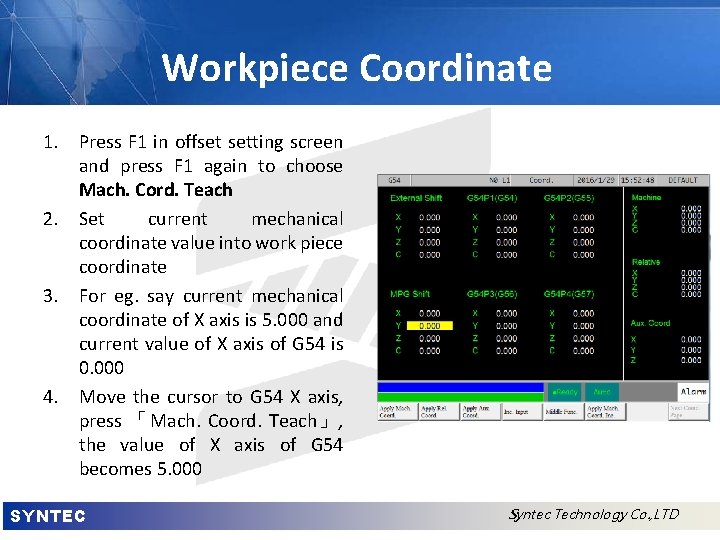
Workpiece Coordinate 1. Press F 1 in offset setting screen and press F 1 again to choose Mach. Cord. Teach 2. Set current mechanical coordinate value into work piece coordinate 3. For eg. say current mechanical coordinate of X axis is 5. 000 and current value of X axis of G 54 is 0. 000 4. Move the cursor to G 54 X axis, press 「Mach. Coord. Teach」, the value of X axis of G 54 becomes 5. 000 SYNTEC Syntec Technology Co. , LTD
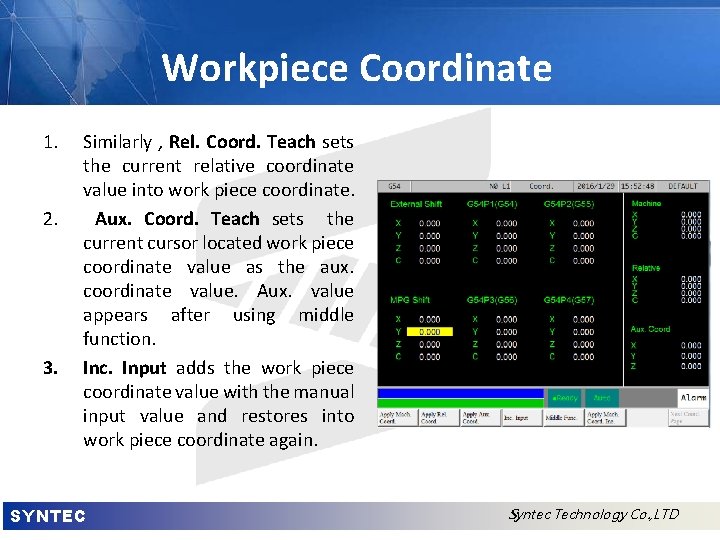
Workpiece Coordinate 1. 2. 3. Similarly , Rel. Coord. Teach sets the current relative coordinate value into work piece coordinate. Aux. Coord. Teach sets the current cursor located work piece coordinate value as the aux. coordinate value. Aux. value appears after using middle function. Inc. Input adds the work piece coordinate value with the manual input value and restores into work piece coordinate again. SYNTEC Syntec Technology Co. , LTD
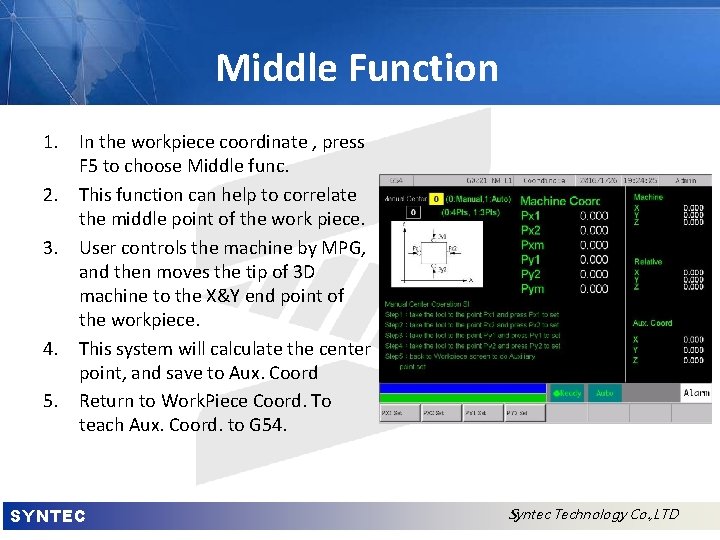
Middle Function 1. In the workpiece coordinate , press F 5 to choose Middle func. 2. This function can help to correlate the middle point of the work piece. 3. User controls the machine by MPG, and then moves the tip of 3 D machine to the X&Y end point of the workpiece. 4. This system will calculate the center point, and save to Aux. Coord 5. Return to Work. Piece Coord. To teach Aux. Coord. to G 54. SYNTEC Syntec Technology Co. , LTD
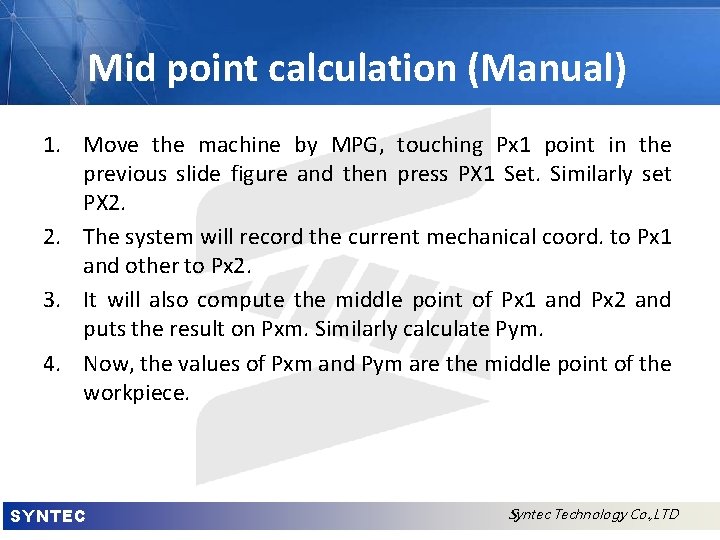
Mid point calculation (Manual) 1. Move the machine by MPG, touching Px 1 point in the previous slide figure and then press PX 1 Set. Similarly set PX 2. 2. The system will record the current mechanical coord. to Px 1 and other to Px 2. 3. It will also compute the middle point of Px 1 and Px 2 and puts the result on Pxm. Similarly calculate Pym. 4. Now, the values of Pxm and Pym are the middle point of the workpiece. SYNTEC Syntec Technology Co. , LTD
Mid point calculation (Auto) • User only needs to enter the dimension of the workpiece and enter the boundary coordinate. • Move the machine to the start point, system will find out the middle point automatically. SYNTEC Syntec Technology Co. , LTD
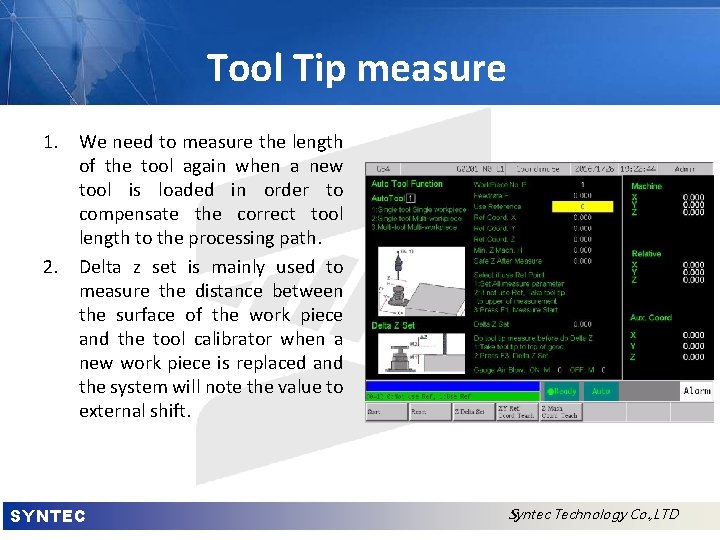
Tool Tip measure 1. We need to measure the length of the tool again when a new tool is loaded in order to compensate the correct tool length to the processing path. 2. Delta z set is mainly used to measure the distance between the surface of the work piece and the tool calibrator when a new work piece is replaced and the system will note the value to external shift. SYNTEC Syntec Technology Co. , LTD
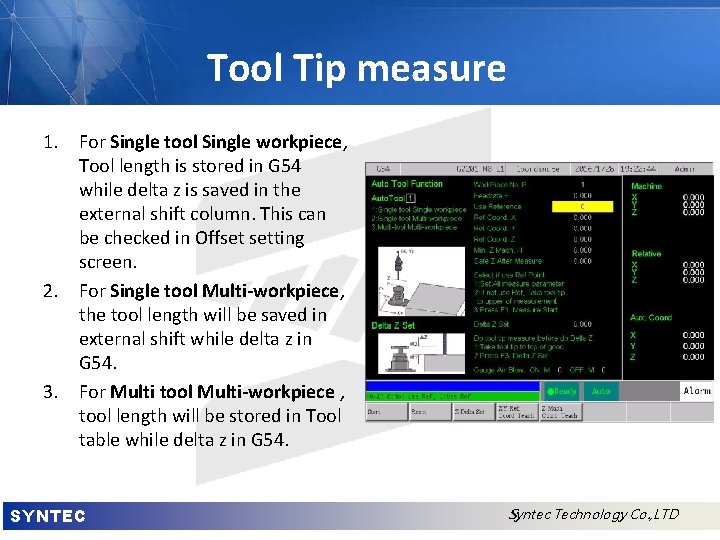
Tool Tip measure 1. For Single tool Single workpiece, Tool length is stored in G 54 while delta z is saved in the external shift column. This can be checked in Offset setting screen. 2. For Single tool Multi-workpiece, the tool length will be saved in external shift while delta z in G 54. 3. For Multi tool Multi-workpiece , tool length will be stored in Tool table while delta z in G 54. SYNTEC Syntec Technology Co. , LTD
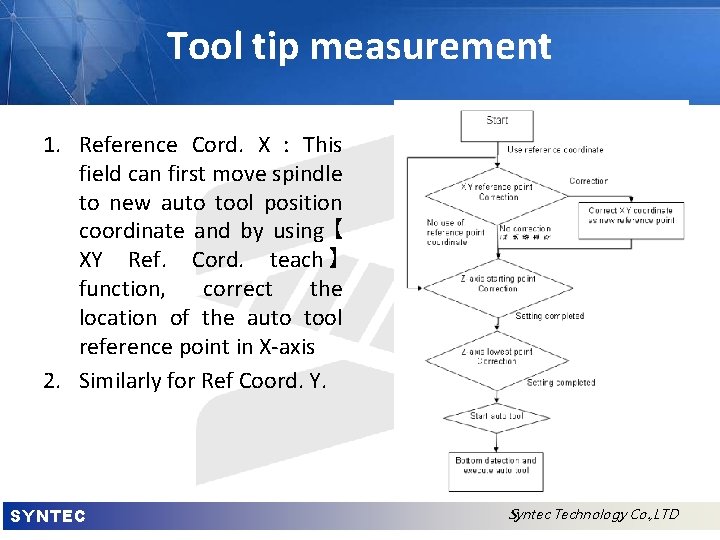
Tool tip measurement 1. Reference Cord. X : This field can first move spindle to new auto tool position coordinate and by using【 XY Ref. Cord. teach】 function, correct the location of the auto tool reference point in X-axis 2. Similarly for Ref Coord. Y. SYNTEC Syntec Technology Co. , LTD
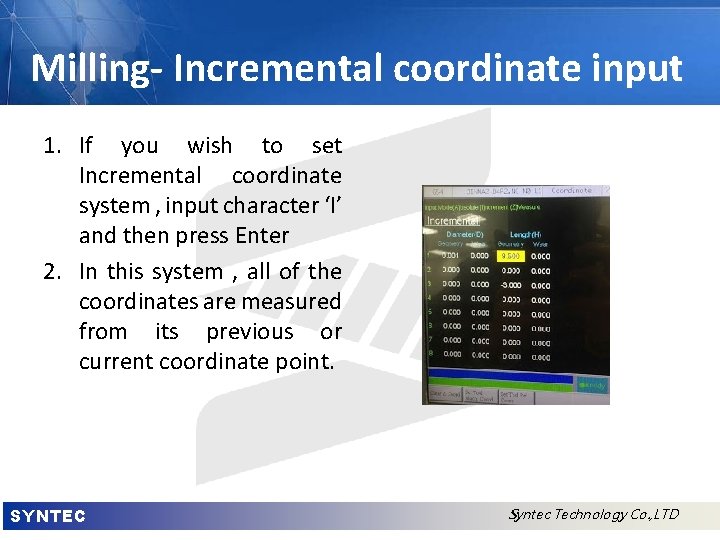
Milling- Incremental coordinate input 1. If you wish to set Incremental coordinate system , input character ‘I’ and then press Enter 2. In this system , all of the coordinates are measured from its previous or current coordinate point. SYNTEC Syntec Technology Co. , LTD
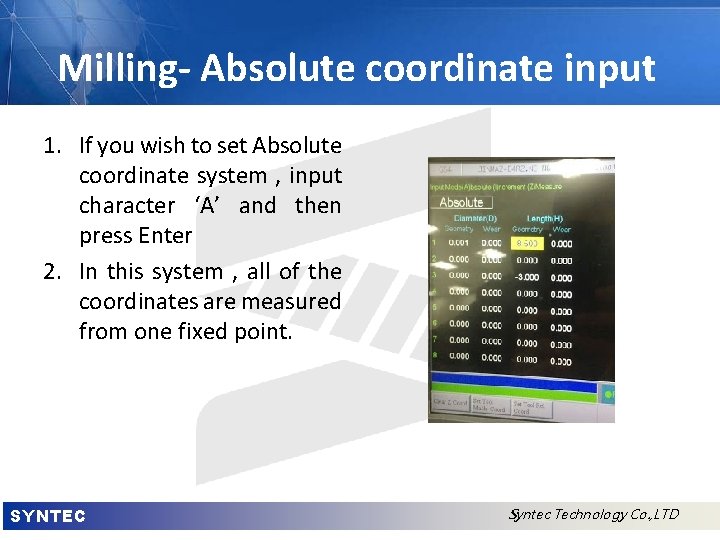
Milling- Absolute coordinate input 1. If you wish to set Absolute coordinate system , input character ‘A’ and then press Enter 2. In this system , all of the coordinates are measured from one fixed point. SYNTEC Syntec Technology Co. , LTD
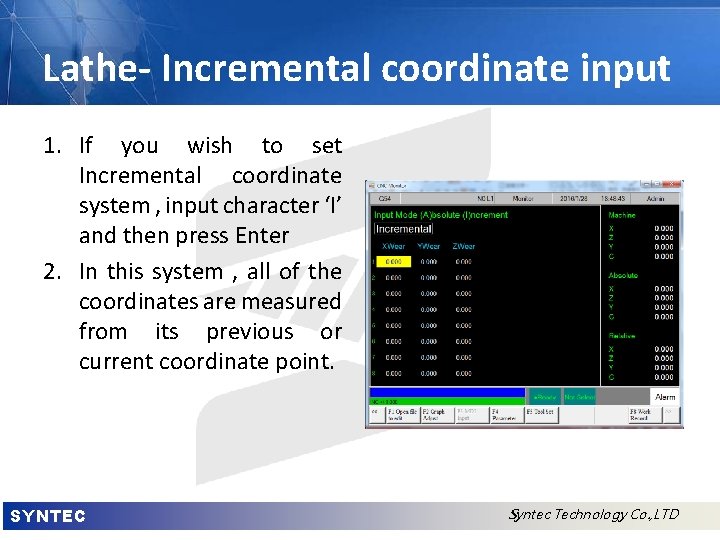
Lathe- Incremental coordinate input 1. If you wish to set Incremental coordinate system , input character ‘I’ and then press Enter 2. In this system , all of the coordinates are measured from its previous or current coordinate point. SYNTEC Syntec Technology Co. , LTD
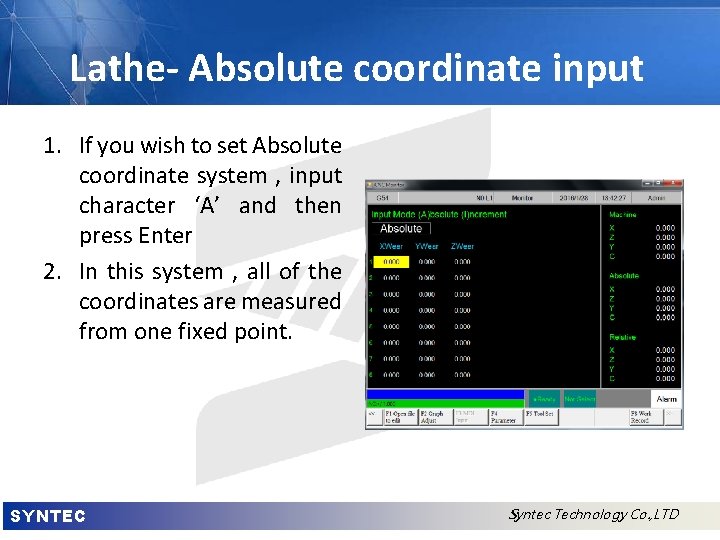
Lathe- Absolute coordinate input 1. If you wish to set Absolute coordinate system , input character ‘A’ and then press Enter 2. In this system , all of the coordinates are measured from one fixed point. SYNTEC Syntec Technology Co. , LTD
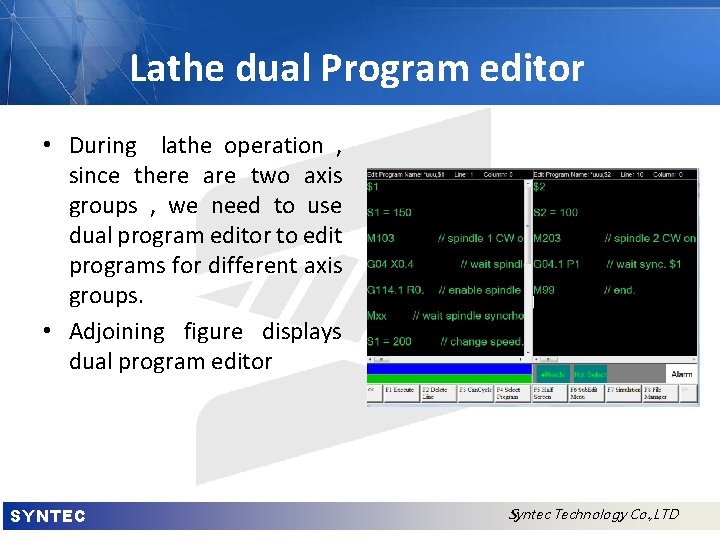
Lathe dual Program editor • During lathe operation , since there are two axis groups , we need to use dual program editor to edit programs for different axis groups. • Adjoining figure displays dual program editor SYNTEC Syntec Technology Co. , LTD
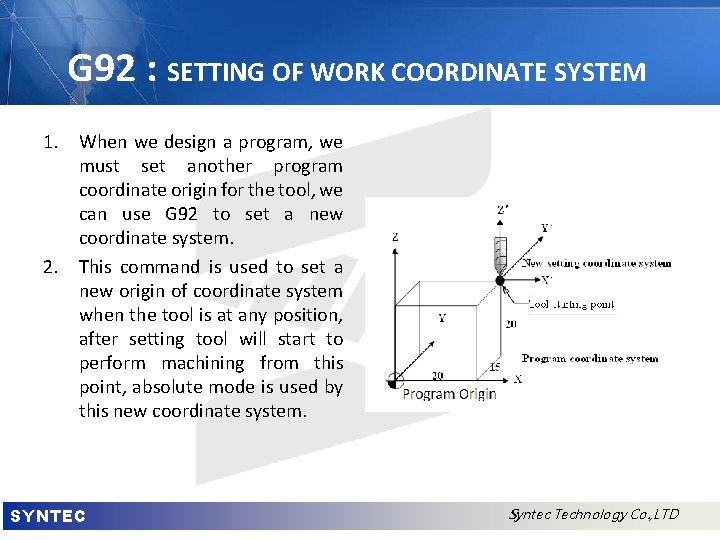
G 92 : SETTING OF WORK COORDINATE SYSTEM 1. When we design a program, we must set another program coordinate origin for the tool, we can use G 92 to set a new coordinate system. 2. This command is used to set a new origin of coordinate system when the tool is at any position, after setting tool will start to perform machining from this point, absolute mode is used by this new coordinate system. SYNTEC Syntec Technology Co. , LTD
Thank you SYNTEC Syntec Technology Co. , LTD