VMs Virtual Machines VM n What is a
- Slides: 21
VMs Virtual Machines
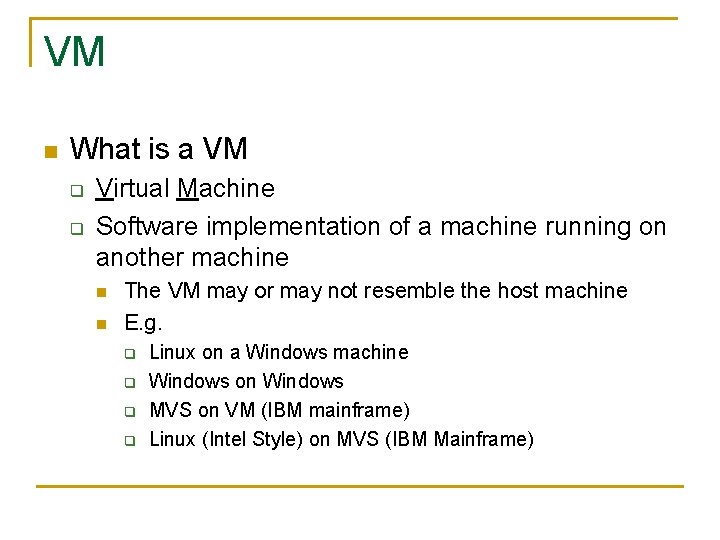
VM n What is a VM q q Virtual Machine Software implementation of a machine running on another machine n n The VM may or may not resemble the host machine E. g. q q Linux on a Windows machine Windows on Windows MVS on VM (IBM mainframe) Linux (Intel Style) on MVS (IBM Mainframe)
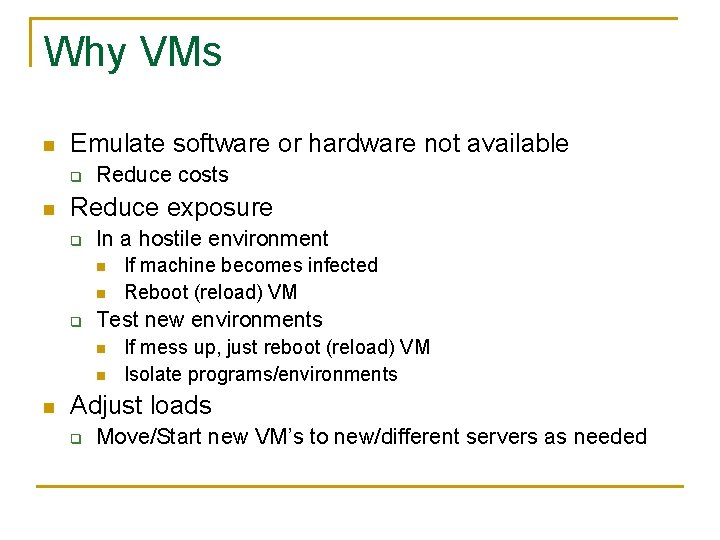
Why VMs n Emulate software or hardware not available q n Reduce costs Reduce exposure q In a hostile environment n n q Test new environments n n n If machine becomes infected Reboot (reload) VM If mess up, just reboot (reload) VM Isolate programs/environments Adjust loads q Move/Start new VM’s to new/different servers as needed
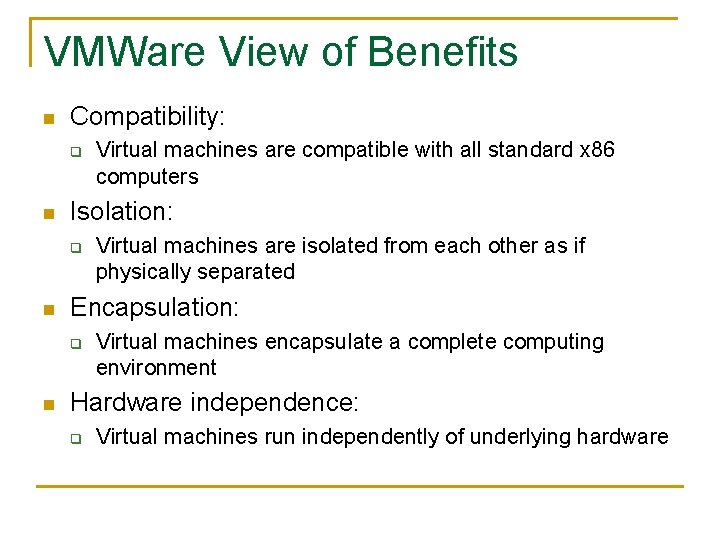
VMWare View of Benefits n Compatibility: q n Isolation: q n Virtual machines are isolated from each other as if physically separated Encapsulation: q n Virtual machines are compatible with all standard x 86 computers Virtual machines encapsulate a complete computing environment Hardware independence: q Virtual machines run independently of underlying hardware
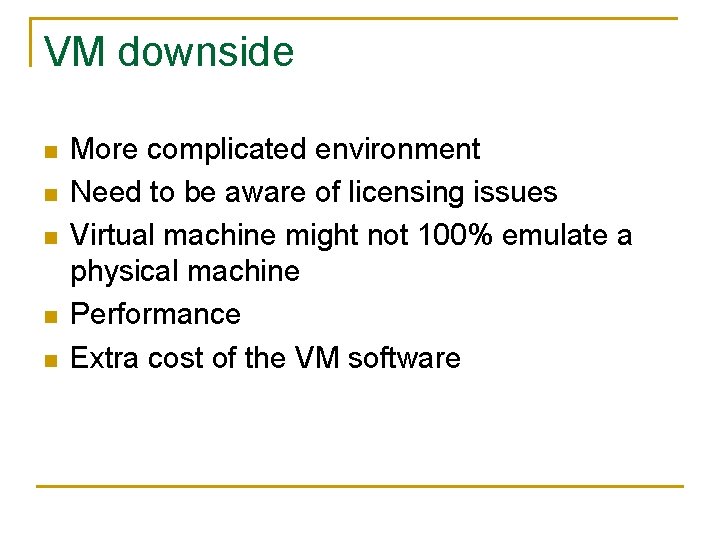
VM downside n n n More complicated environment Need to be aware of licensing issues Virtual machine might not 100% emulate a physical machine Performance Extra cost of the VM software
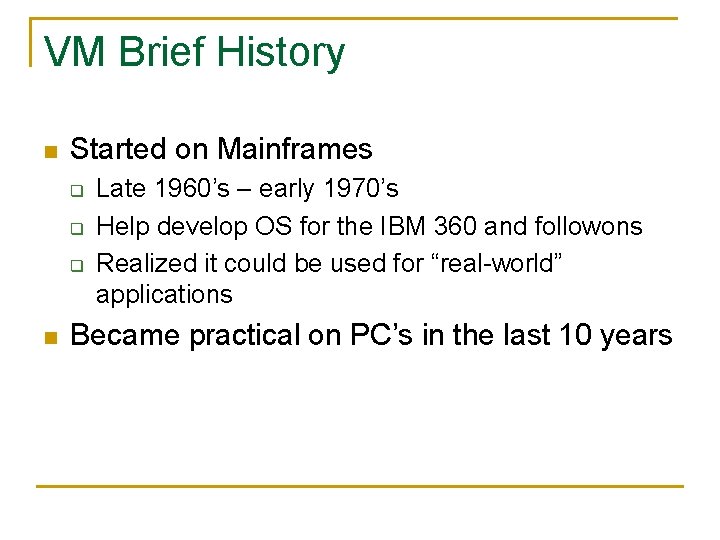
VM Brief History n Started on Mainframes q q q n Late 1960’s – early 1970’s Help develop OS for the IBM 360 and followons Realized it could be used for “real-world” applications Became practical on PC’s in the last 10 years
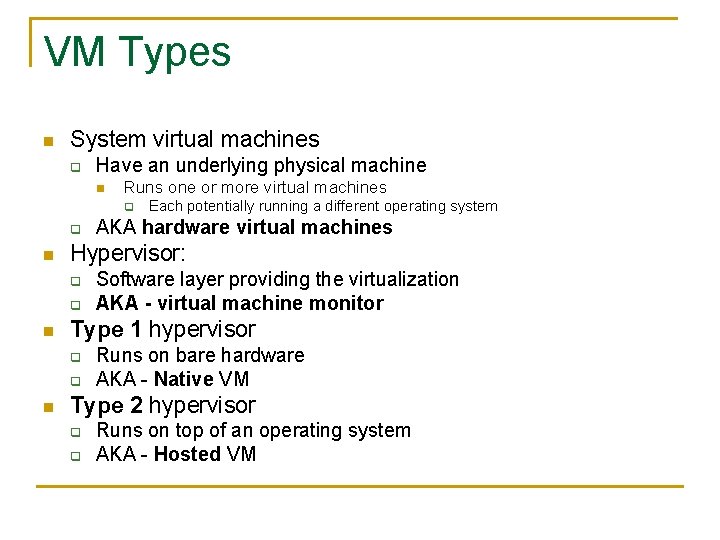
VM Types n System virtual machines q Have an underlying physical machine n Runs one or more virtual machines q q n q Software layer providing the virtualization AKA - virtual machine monitor Type 1 hypervisor q q n AKA hardware virtual machines Hypervisor: q n Each potentially running a different operating system Runs on bare hardware AKA - Native VM Type 2 hypervisor q q Runs on top of an operating system AKA - Hosted VM
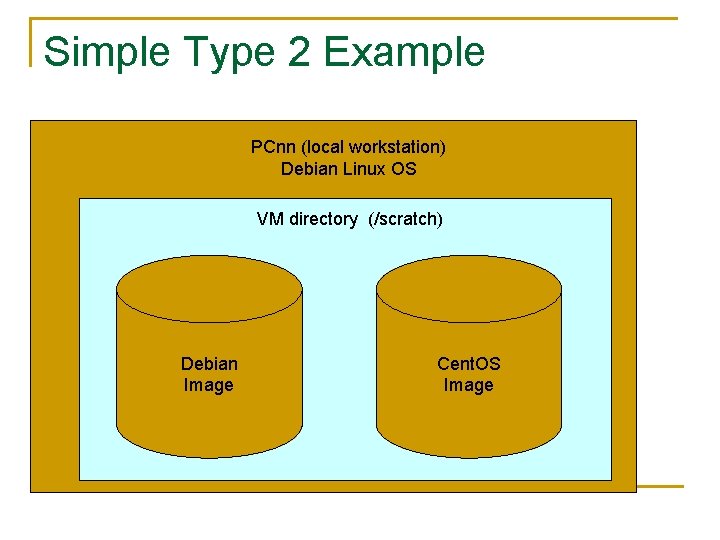
Simple Type 2 Example PCnn (local workstation) Debian Linux OS VM directory (/scratch) Debian Image Cent. OS Image
Practical View of use in 302 lab
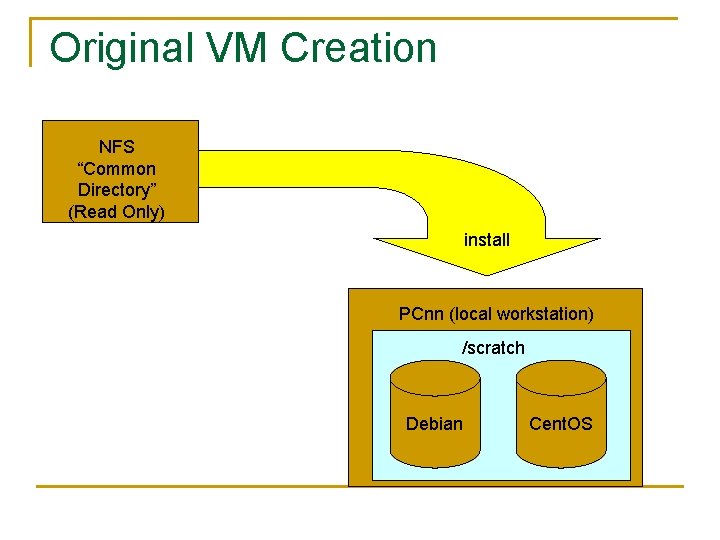
Original VM Creation NFS “Common Directory” (Read Only) install PCnn (local workstation) /scratch Debian Cent. OS
Each VM n Each VM q n Cannot write back to the source NFS directory q n Only exists on the targeted PC after installed Read only How to save?
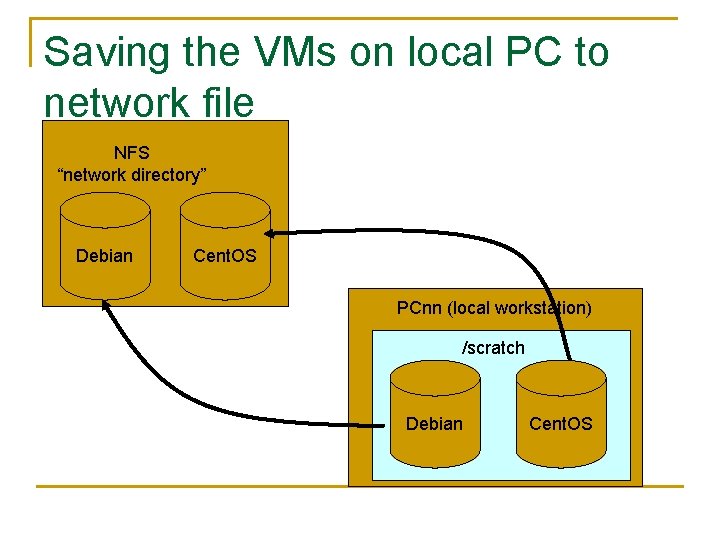
Saving VMs n Every lab workstation you log onto has a network directory: network_storage q q That network directory is located on the NFS server drive That network directory will follow you to any machine in the lab you log onto n n Actually follows the login ID Copy the VM to the network directory and run? q Two problems: n n Sometimes the VM won’t work properly from an NFS Drive Changes to the VM are “permanent” q q Make an error in the change saved version now has the error Bigger problem n VM dies when workstation removed from the lab network!
Saving VMs n Solution: q Make a copy of your VMs (Debian and Cent. OS) to your network NFS drive n “One time” copy q n Put in aptly name directories: q q n Backup copy myuserid. Debian myuserid. Cent. OS Takes about 3 -6 minutes to copy per OS q Longer if there is a lot of network traffic
Saving the VMs on local PC to network file NFS “network directory” Debian Cent. OS PCnn (local workstation) /scratch Debian Cent. OS
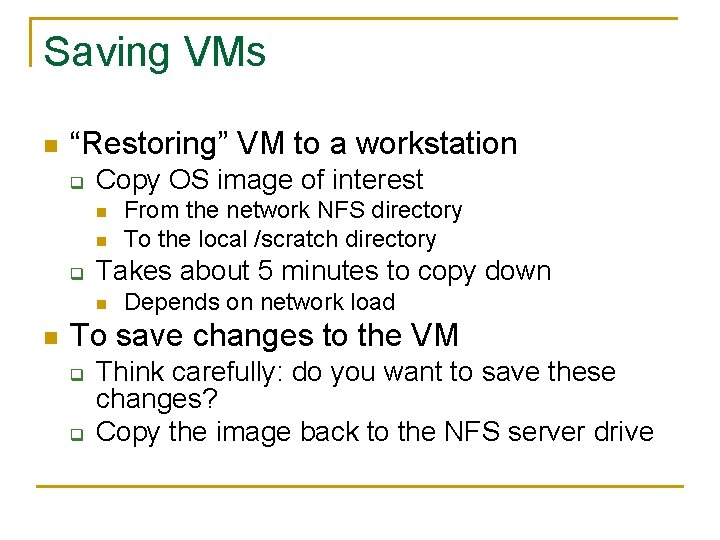
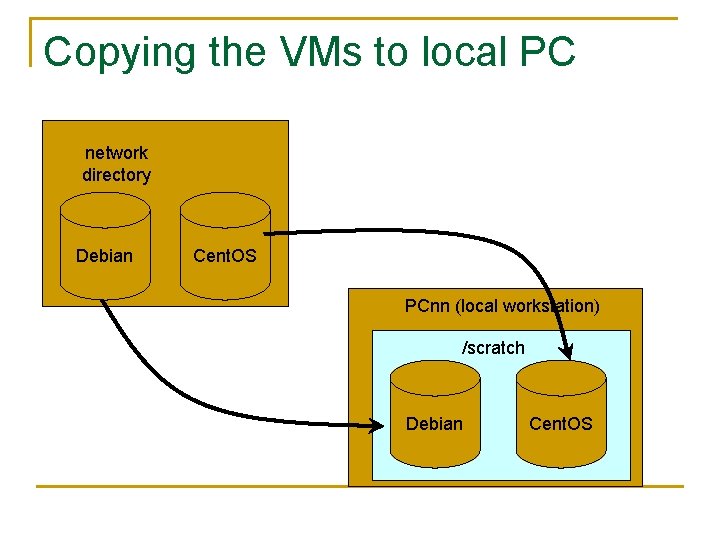
Saving VMs n “Restoring” VM to a workstation q Copy OS image of interest n n q Takes about 5 minutes to copy down n n From the network NFS directory To the local /scratch directory Depends on network load To save changes to the VM q q Think carefully: do you want to save these changes? Copy the image back to the NFS server drive
Copying the VMs to local PC network directory Debian Cent. OS PCnn (local workstation) /scratch Debian Cent. OS
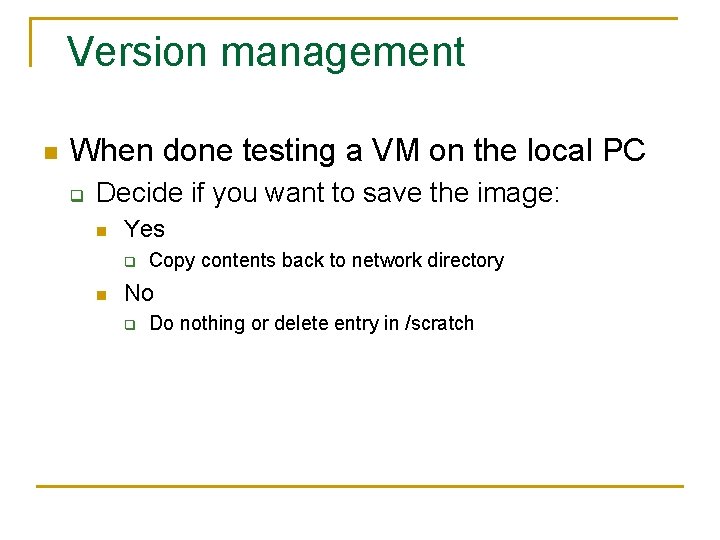
Version management n When done testing a VM on the local PC q Decide if you want to save the image: n Yes q n Copy contents back to network directory No q Do nothing or delete entry in /scratch
USB Drives n n The same is true for USB drives to keep copies Advantage: q q n Can take home with you Not effected if home_directory disappears Disadvantage q q Can easily loose May break
Home directory Space n “Home” directory q q q n Network Directory q n On the desktop On the local hard drive a. k. a. your userid on the NFS server Make a copy for each OS to the Network Directory q q q Have about 40 Gb available for your use on the NFS drive Easily 3 OSs worth Copy the whole directory n 2 critical entries: q q Name. vbox § XML file with “instructions” Name. vdi § VM itself
Ground rules n The PC’s /scratch directory is temporary q n Directories or data in /scratch may be deleted at any time q n When space is needed Clean up after yourself q n Don’t rely on contents being available next time Get rid of any directory you are done with Remember to properly shut down VM before saving or logging off PC q q May not save latest changes May corrupt images
Sanity Rules n NEVER run VM from network_storage directory q q q n Don’t run VM from USB device q q q n It will start It may fail It may corrupt your VM Start VM from its native directory q n It will start It will fail at the most critical time It will corrupt your VM Sometimes Note: USB devices may be accessed by: q q q The workstation A VM BUT NOT BOTH at the same time! n If the VM uses it the workstation will loose access! q the VM will die if you have started the VM from it!