The Parents Guide to Google Classroom What is
- Slides: 18
The Parents’ Guide to Google Classroom
What is Google Classroom? Think of Google Classroom (GC) as your child’s digital link to learning. Teachers use GC to share assignments, homework, newsletters, and much more with students AND parents!
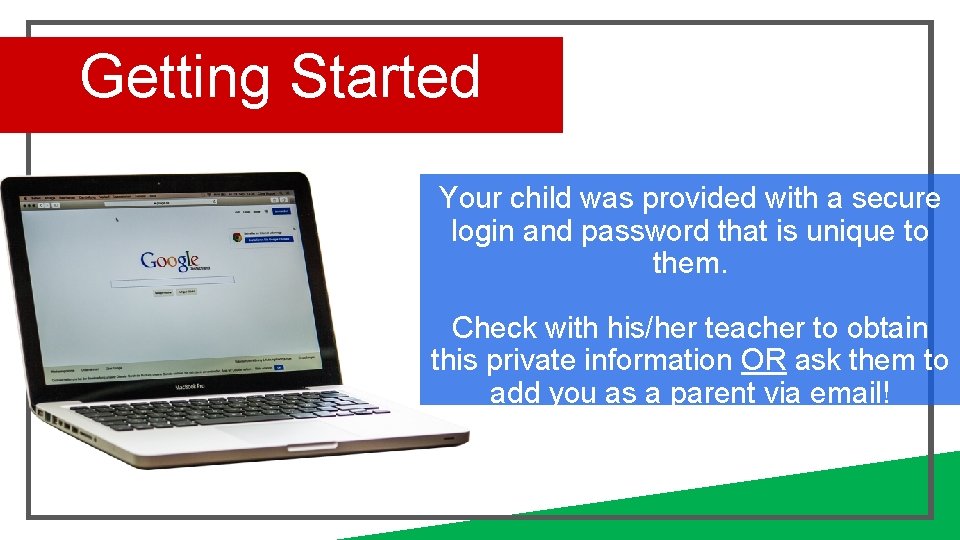
Getting Started Your child was provided with a secure login and password that is unique to them. Check with his/her teacher to obtain this private information OR ask them to add you as a parent via email!
Getting Started Click on the Google Chrome browser icon.
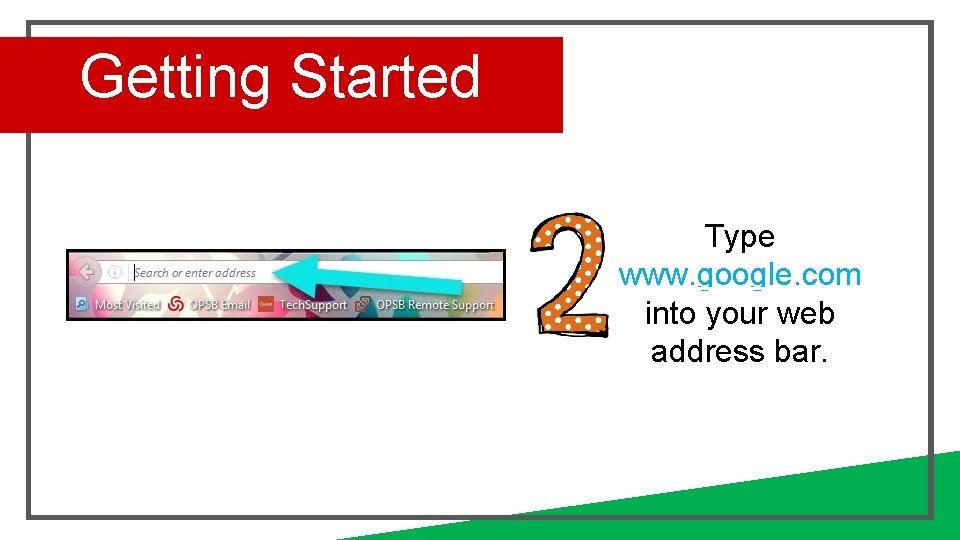
Getting Started Type www. google. com into your web address bar.
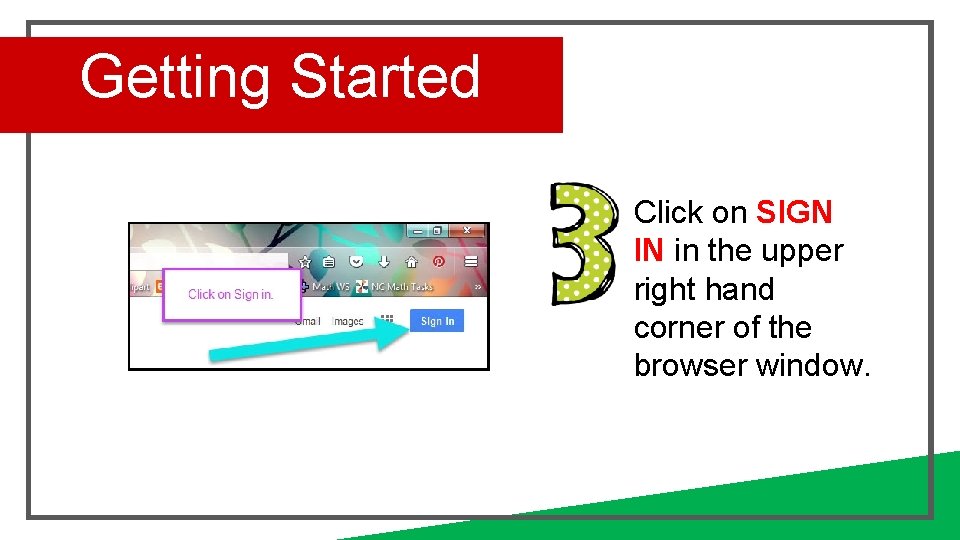
Getting Started Click on SIGN IN in the upper right hand corner of the browser window.
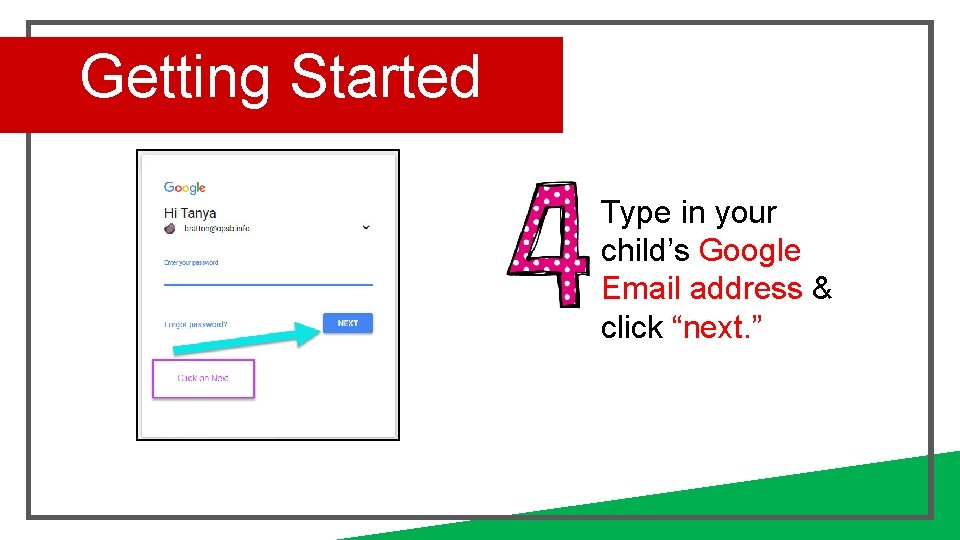
Getting Started Type in your child’s Google Email address & click “next. ”
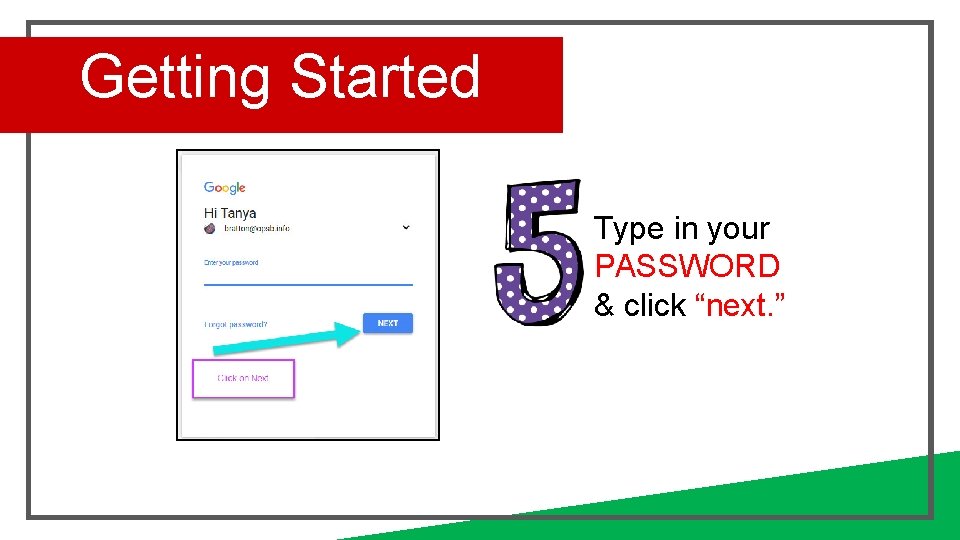
Getting Started Type in your PASSWORD & click “next. ”
Now you’ll see that you are signed in to your Google Apps for Education account!
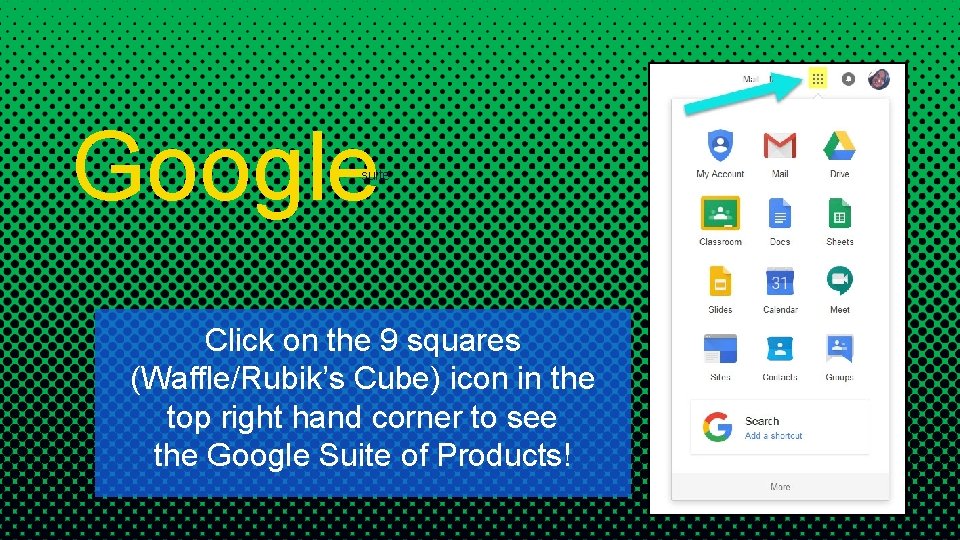
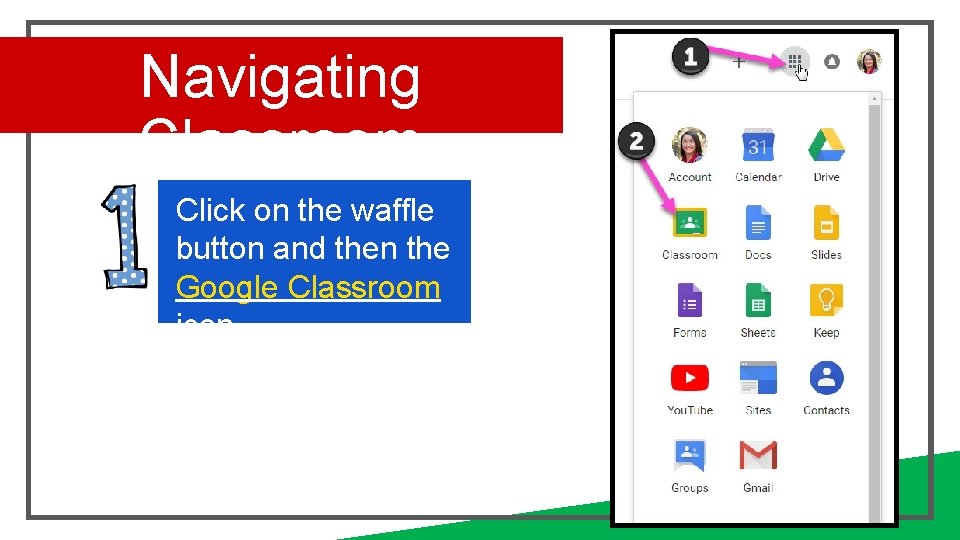
Google suite Click on the 9 squares (Waffle/Rubik’s Cube) icon in the top right hand corner to see the Google Suite of Products!
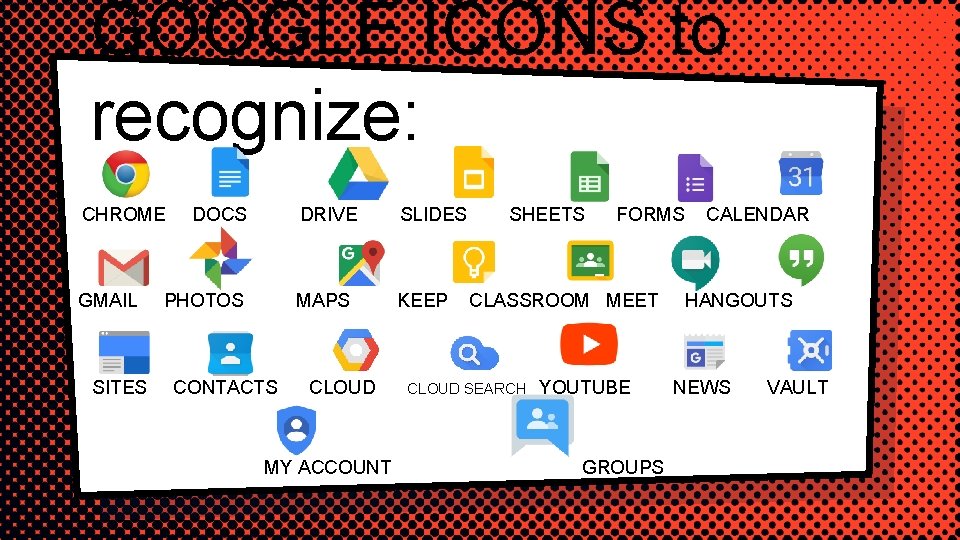
GOOGLE ICONS to recognize: CHROME GMAIL SITES DOCS PHOTOS CONTACTS DRIVE SLIDES MAPS KEEP CLOUD MY ACCOUNT SHEETS FORMS CLASSROOM MEET CLOUD SEARCH YOUTUBE GROUPS CALENDAR HANGOUTS NEWS VAULT
Navigating Classroom Click on the waffle button and then the Google Classroom icon.
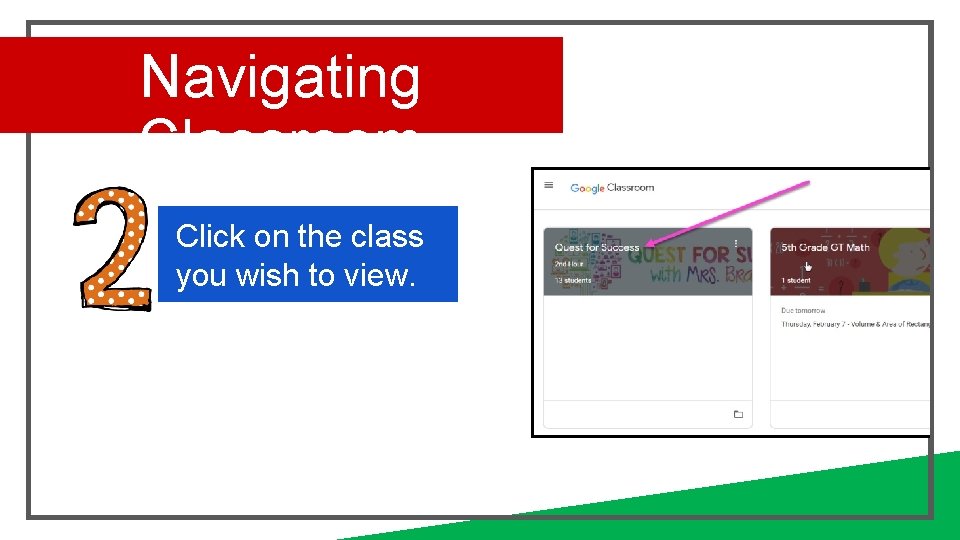
Navigating Classroom Click on the class you wish to view.
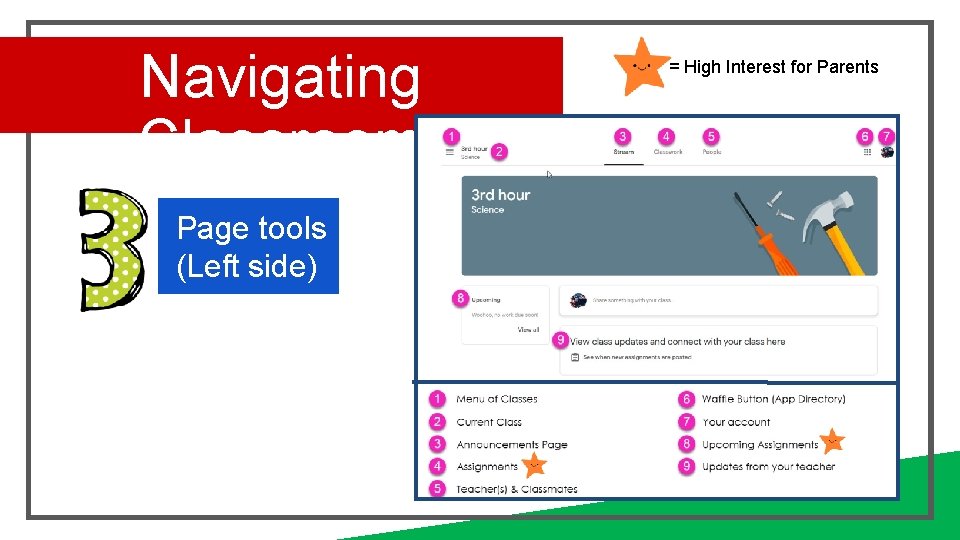
Navigating Classroom Page tools (Left side) = High Interest for Parents
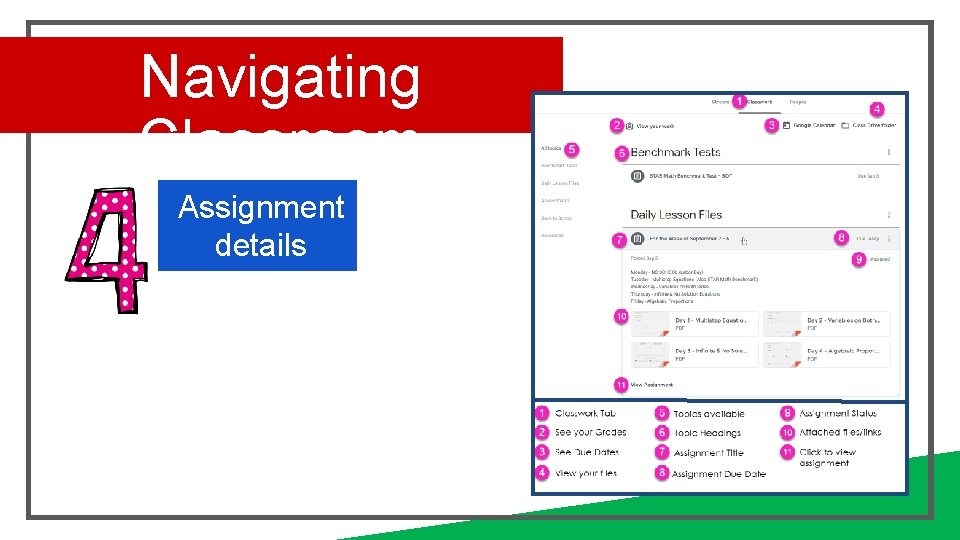
Navigating Classroom Assignment details
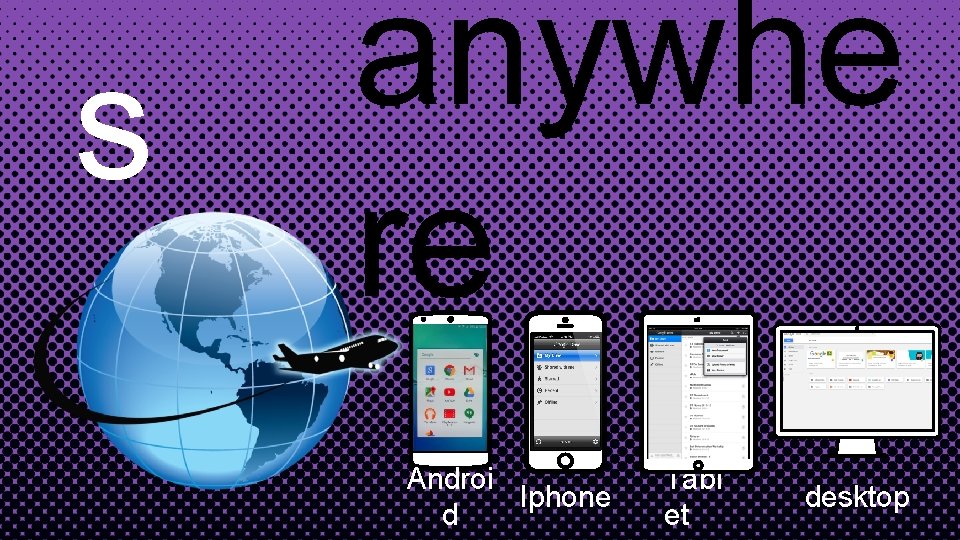
s anywhe re Androi Iphone d Tabl et desktop
GOOGLE APPS allow you to edit Google assignments from any device that is connected to the internet!
questions? Email me at cmorrissey@mcstemacademy. org