
Objectives Zoom Google Write an email Google Classroom
Objectives Zoom Google Write an email Google Classroom Computer Skills Student Email
Computer At the end of this training, students will be able to Skills ● Use Zoom-open a Zoom invite, connect audio Objectives and video, mute and unmute, chat, annotate and go into breakout rooms. ● Use their student email-log on, open, send and receive. ● Enter Google Classroom and open assignments, submit google forms and turn in assignments. HOME
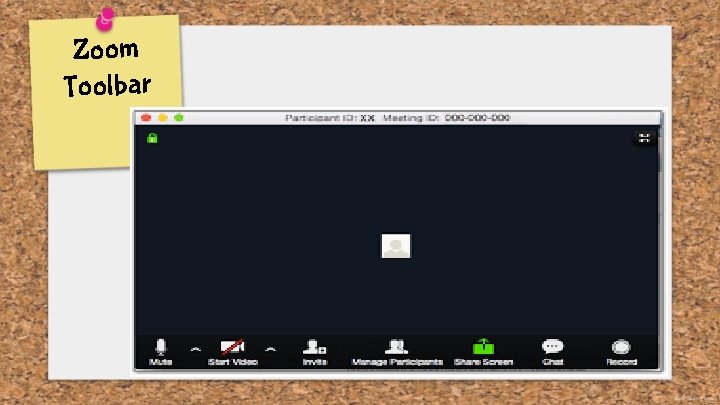
Zoom Toolbar
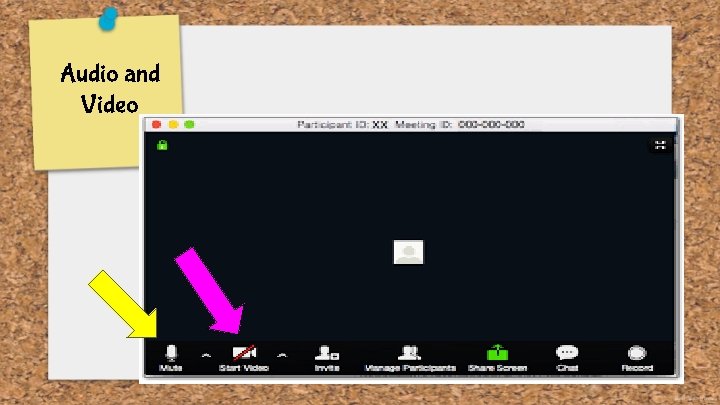
Audio and Video
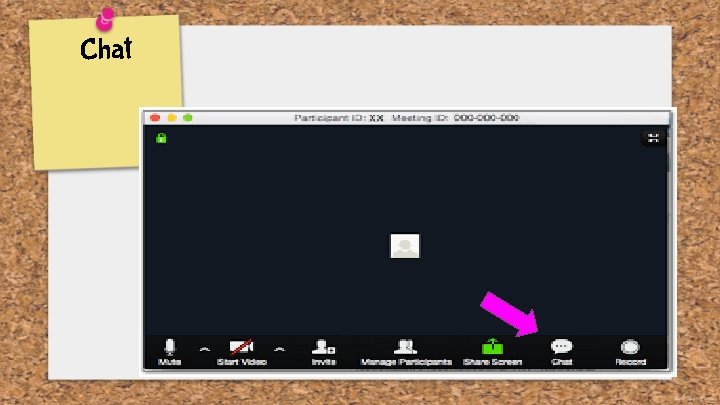
Chat
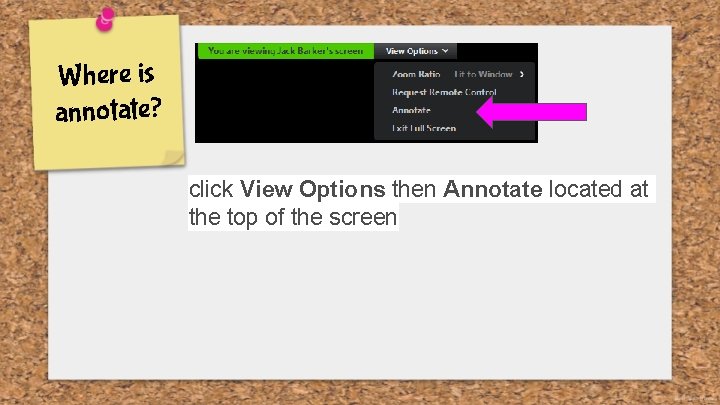
Where is annotate? click View Options then Annotate located at the top of the screen
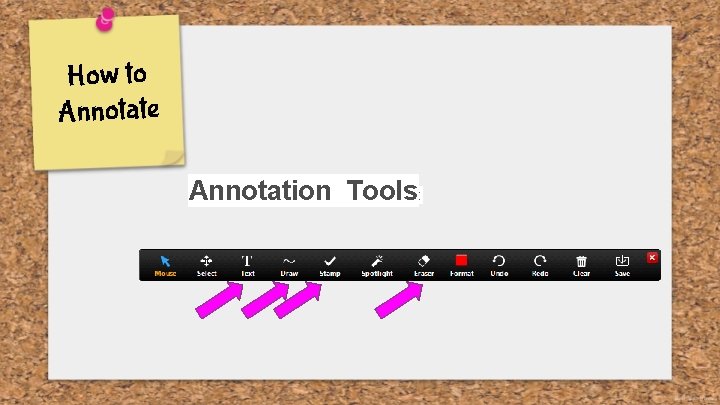
How to Annotate Annotation Tools:
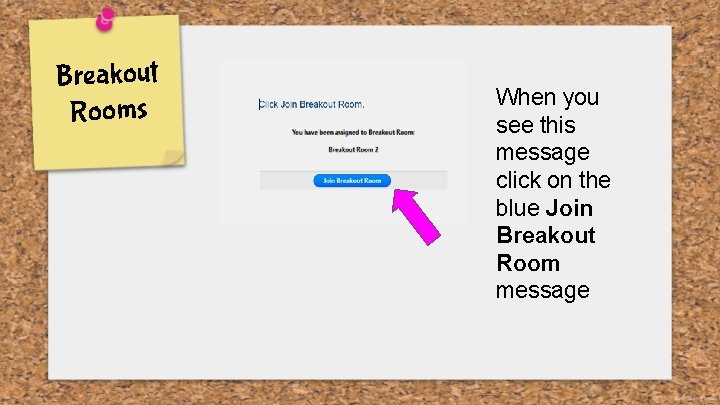
Breakout Rooms When you see this message click on the blue Join Breakout Room message
Student Email CACE Gmail account Works on any device HOME
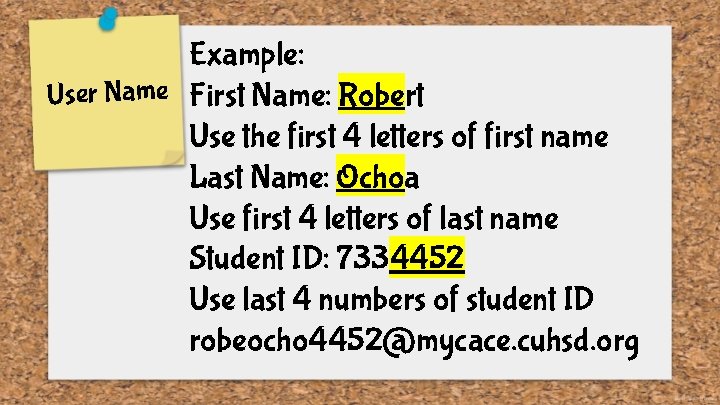
Example: User Name First Name: Robert Use the first 4 letters of first name Last Name: Ochoa Use first 4 letters of last name Student ID: 7334452 Use last 4 numbers of student ID robeocho 4452@mycace. cuhsd. org
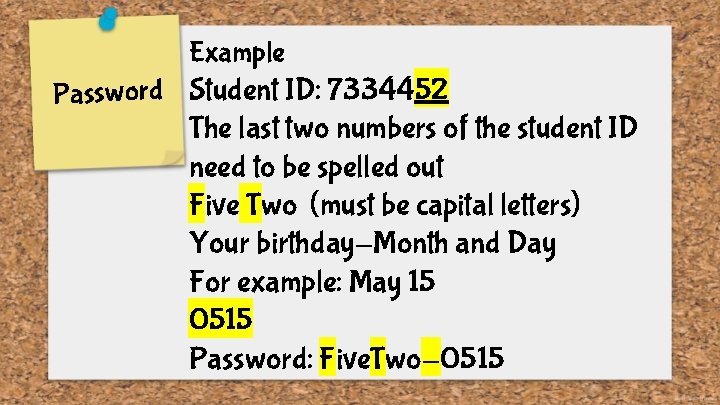
Example Password Student ID: 7334452 The last two numbers of the student ID need to be spelled out Five Two (must be capital letters) Your birthday-Month and Day For example: May 15 0515 Password: Five. Two-0515
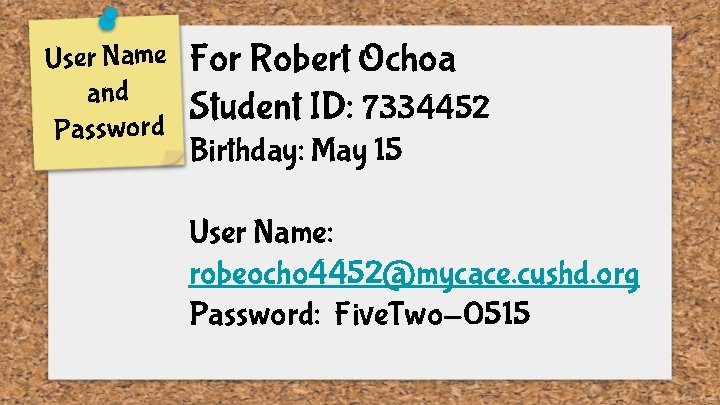
User Name and Password For Robert Ochoa Student ID: 7334452 Birthday: May 15 User Name: robeocho 4452@mycace. cushd. org Password: Five. Two-0515
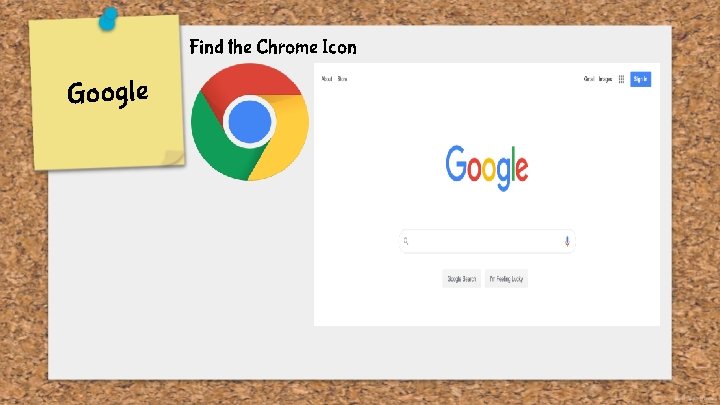
Find the Chrome Icon Google

All things Google Sometimes known as the waffle
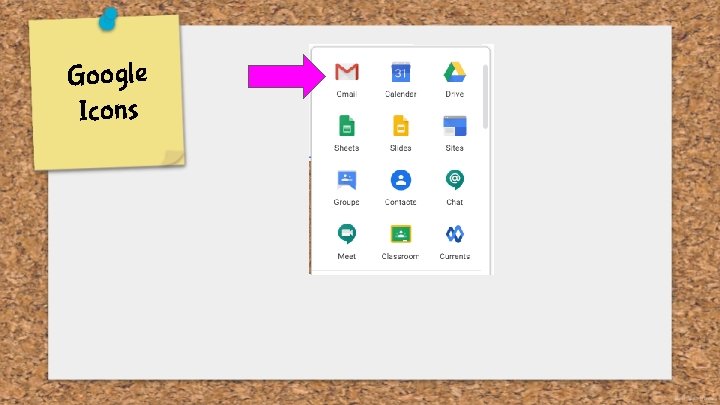
Google Icons
Open Gmail ● Log into your student gmail Compose an How to open email Email directions Compose To: Teacher’s email address Subject: Introduction Greeting Body of email: Name, Country, Length of time in US Closing
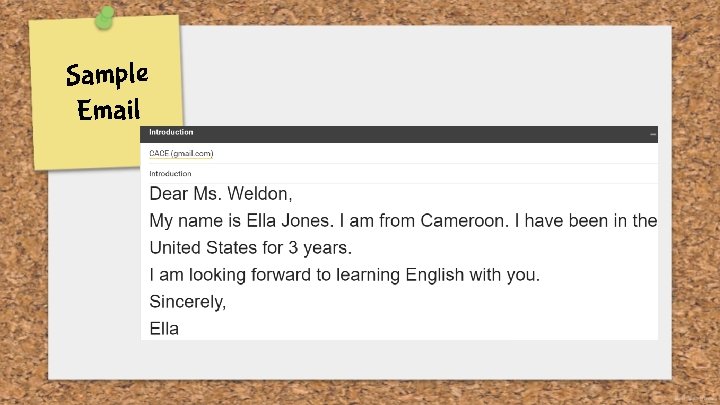
Sample Email
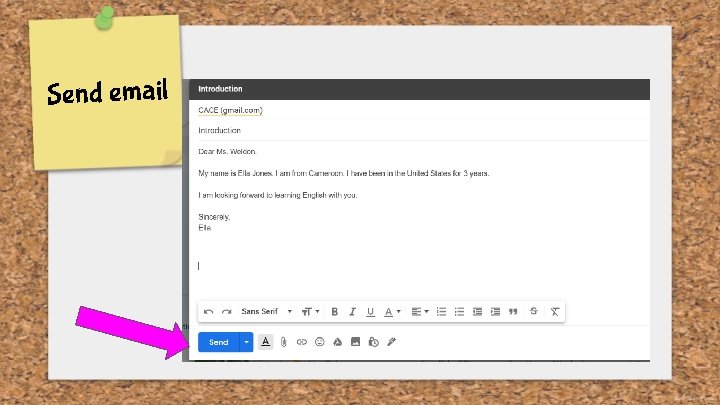
Send email
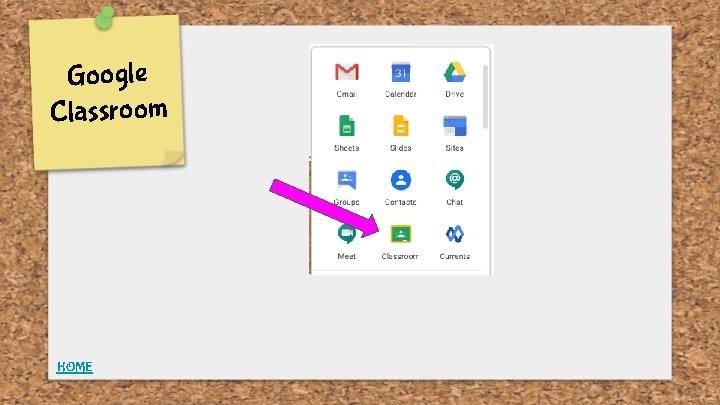
Google Classroom HOME
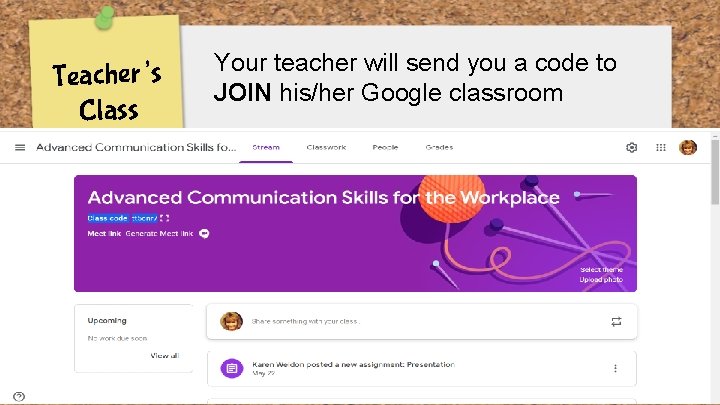
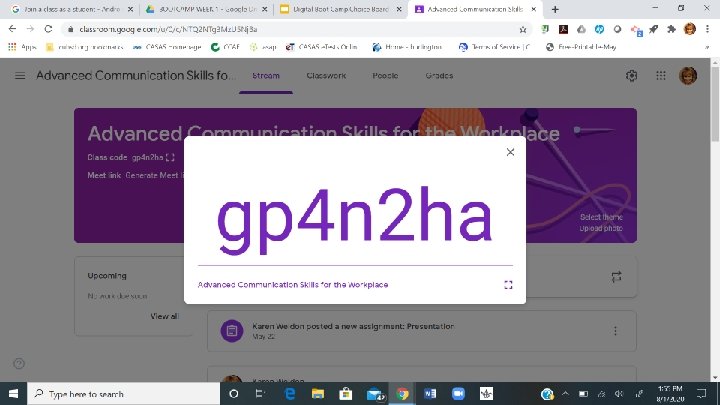
Teacher’s Class Your teacher will send you a code to JOIN his/her Google classroom
You can join a class in 2 ways: Join 1. Sign into Classroom and Enter the class code ________ OR 2. Accept an invite— Your teacher will send you an invite. You can accept the invite in your email. Note: After you join a class on one device, you're enrolled in that class for all devices.
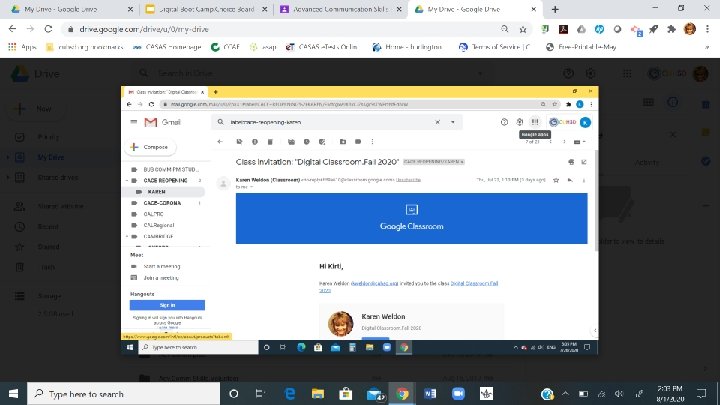
Invite to Join
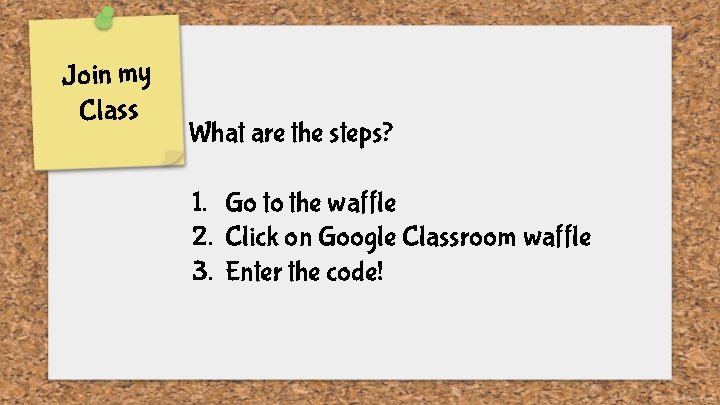
Join my Class What are the steps? 1. Go to the waffle 2. Click on Google Classroom waffle 3. Enter the code!
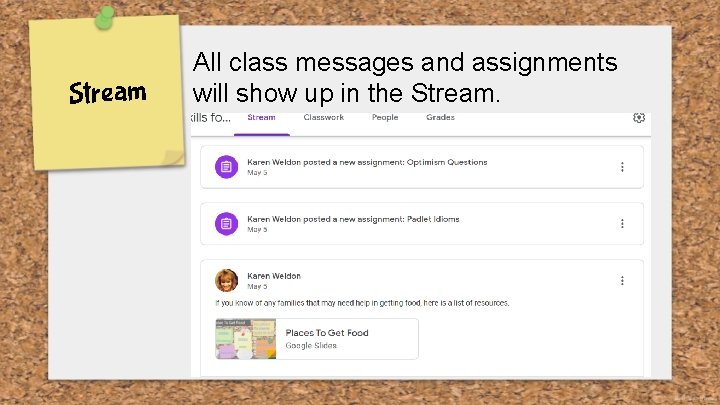
Stream All class messages and assignments will show up in the Stream.
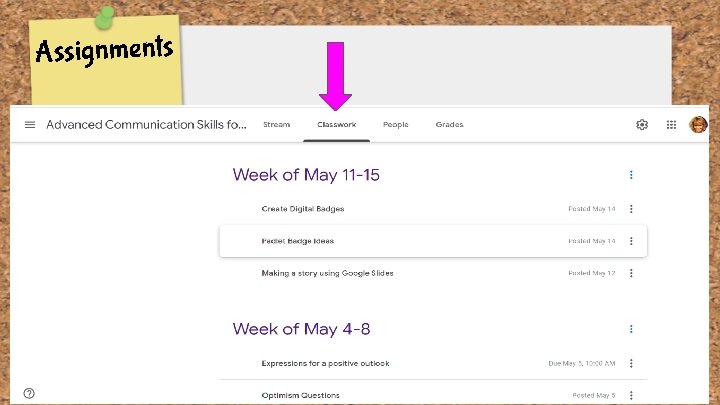
Assignments
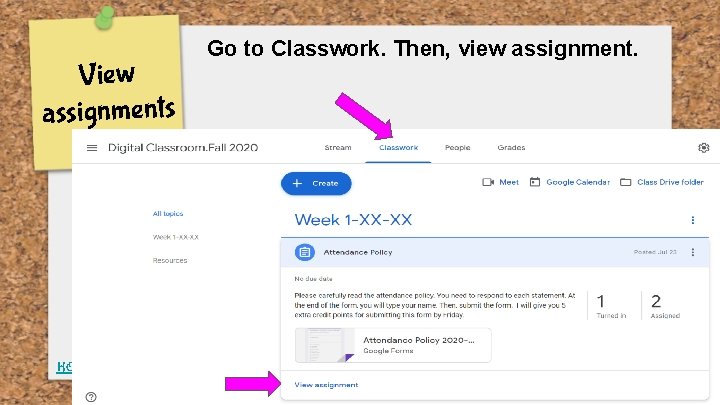
View assignments HOME Go to Classwork. Then, view assignment.
Practice Submit Form ● Go to assignments and click on Attendance Policy. ● Complete the form and submit.
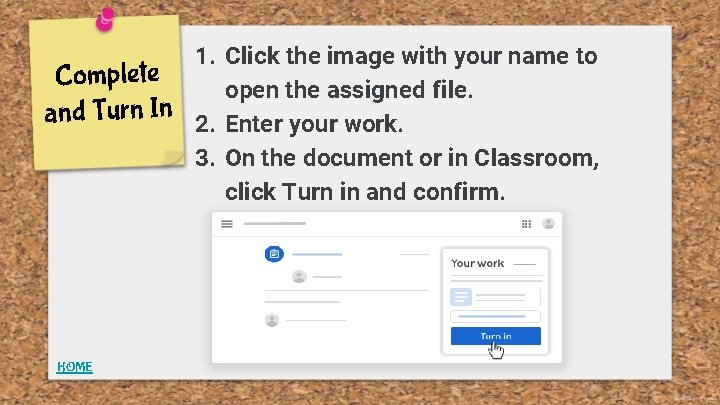
Complete and Turn In HOME 1. Click the image with your name to open the assigned file. 2. Enter your work. 3. On the document or in Classroom, click Turn in and confirm.
Assignment Go to Classwork and look for your assignment that is due today! What is the name of the assignment? When is it due? How many points is it worth? HOME
Turn it in! Practice: Turn it in!
- Slides: 31