Tellus e VV Claims 2 0 Trainer Lisa
- Slides: 28
Tellus e. VV Claims 2. 0 Trainer: Lisa Turner Powered By
Agenda 1. 2. 3. 4. 5. 6. 7. 8. 9. 2 What is EVV – Brief Review Training Objectives Tellus e. VV Solution Claims Processing Timeline & Controls Claims 2. 0 Demo Pay and Post Edit Payment Policy Information Timeline for EVV Need Help? Powered By
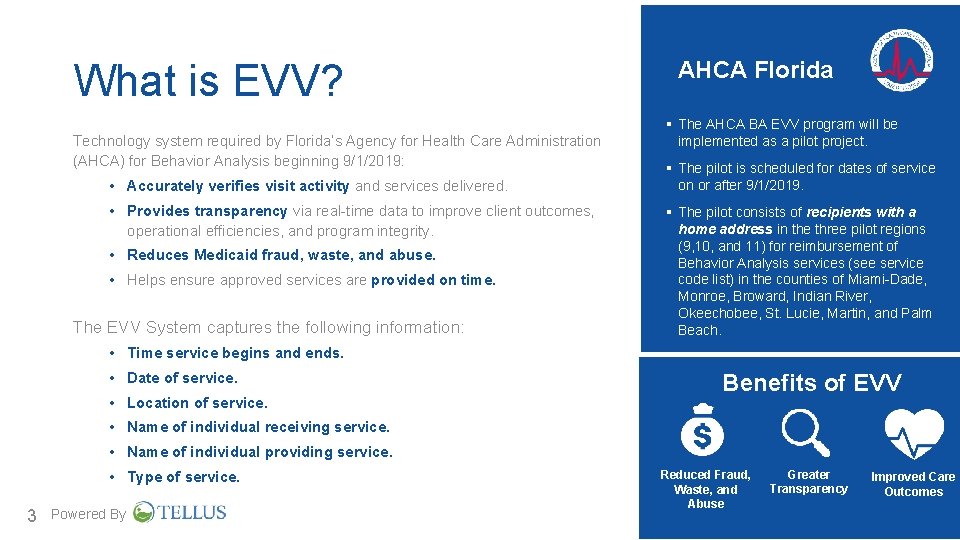
What is EVV? Technology system required by Florida’s Agency for Health Care Administration (AHCA) for Behavior Analysis beginning 9/1/2019: • Accurately verifies visit activity and services delivered. • Provides transparency via real-time data to improve client outcomes, operational efficiencies, and program integrity. • Reduces Medicaid fraud, waste, and abuse. • Helps ensure approved services are provided on time. The EVV System captures the following information: AHCA Florida § The AHCA BA EVV program will be implemented as a pilot project. § The pilot is scheduled for dates of service on or after 9/1/2019. § The pilot consists of recipients with a home address in the three pilot regions (9, 10, and 11) for reimbursement of Behavior Analysis services (see service code list) in the counties of Miami-Dade, Monroe, Broward, Indian River, Okeechobee, St. Lucie, Martin, and Palm Beach. . • Time service begins and ends. • Date of service. • Location of service. Benefits of EVV • Name of individual receiving service. • Name of individual providing service. • Type of service. 3 Powered By Reduced Fraud, Waste, and Abuse Greater Transparency Powered By Improved Care Outcomes
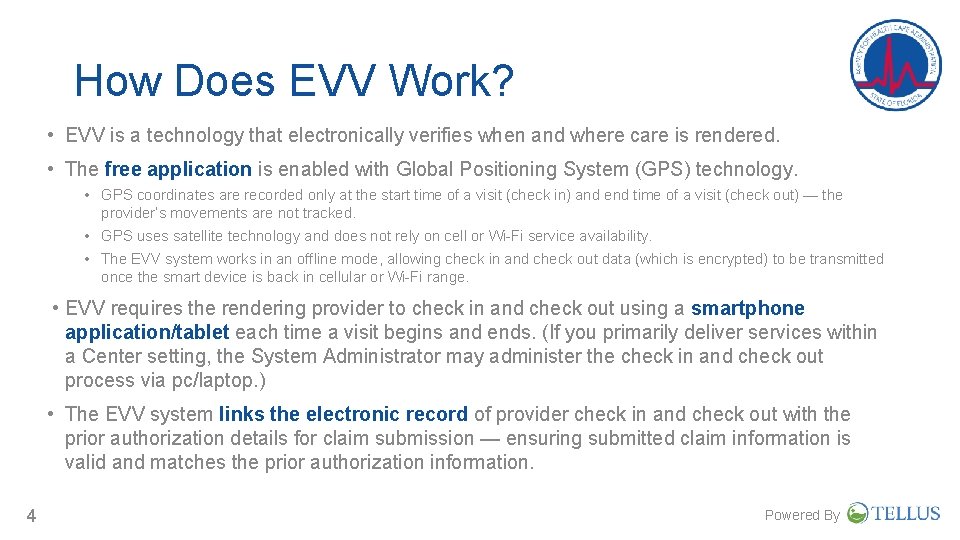
How Does EVV Work? • EVV is a technology that electronically verifies when and where care is rendered. • The free application is enabled with Global Positioning System (GPS) technology. • GPS coordinates are recorded only at the start time of a visit (check in) and end time of a visit (check out) — the provider’s movements are not tracked. • GPS uses satellite technology and does not rely on cell or Wi-Fi service availability. • The EVV system works in an offline mode, allowing check in and check out data (which is encrypted) to be transmitted once the smart device is back in cellular or Wi-Fi range. • EVV requires the rendering provider to check in and check out using a smartphone application/tablet each time a visit begins and ends. (If you primarily deliver services within a Center setting, the System Administrator may administer the check in and check out process via pc/laptop. ) • The EVV system links the electronic record of provider check in and check out with the prior authorization details for claim submission — ensuring submitted claim information is valid and matches the prior authorization information. 4 Powered By
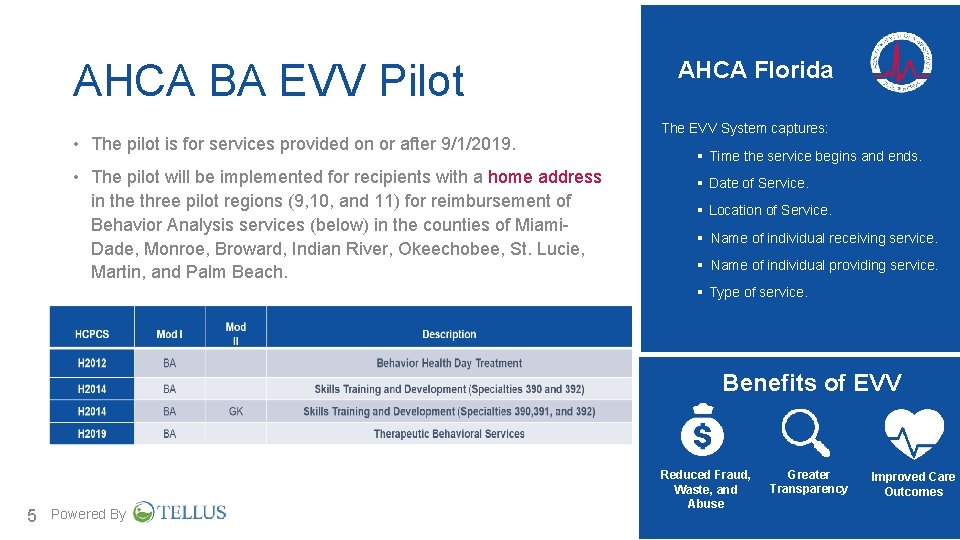
AHCA BA EVV Pilot • The pilot is for services provided on or after 9/1/2019. • The pilot will be implemented for recipients with a home address in the three pilot regions (9, 10, and 11) for reimbursement of Behavior Analysis services (below) in the counties of Miami. Dade, Monroe, Broward, Indian River, Okeechobee, St. Lucie, Martin, and Palm Beach. AHCA Florida The EVV System captures: § Time the service begins and ends. § Date of Service. § Location of Service. § Name of individual receiving service. § Name of individual providing service. § Type of service. Benefits of EVV 5 Powered By Reduced Fraud, Waste, and Abuse Greater Transparency Powered By Improved Care Outcomes
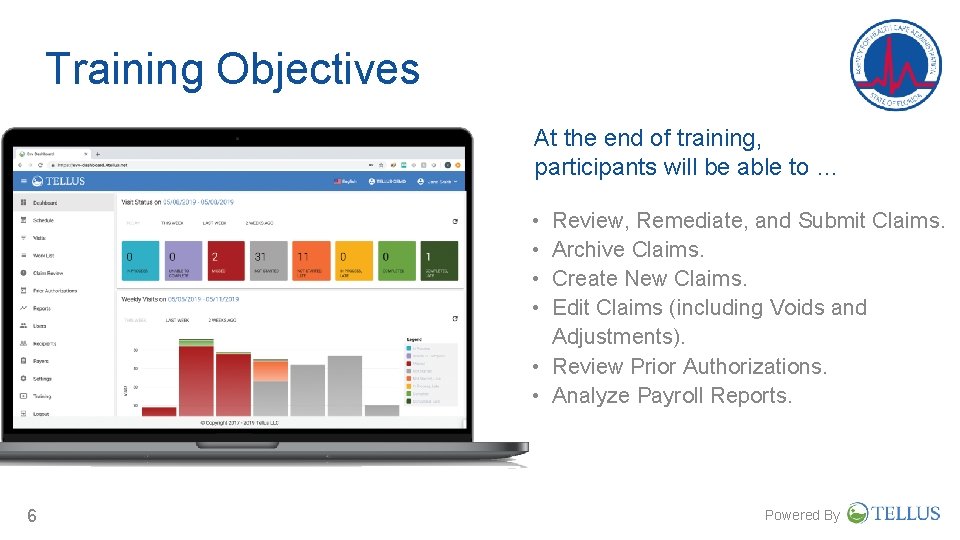
Training Objectives At the end of training, participants will be able to … • • Review, Remediate, and Submit Claims. Archive Claims. Create New Claims. Edit Claims (including Voids and Adjustments). • Review Prior Authorizations. • Analyze Payroll Reports. 6 Powered By
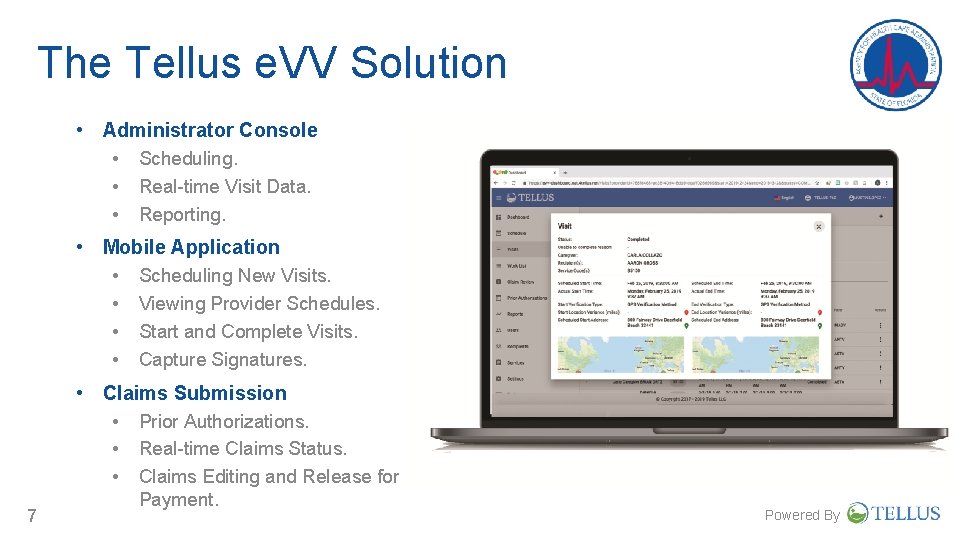
The Tellus e. VV Solution • Administrator Console • Scheduling. • Real-time Visit Data. • Reporting. • Mobile Application • Scheduling New Visits. • Viewing Provider Schedules. • Start and Complete Visits. • Capture Signatures. • Claims Submission • Prior Authorizations. • Real-time Claims Status. • Claims Editing and Release for 7 Payment. Powered By
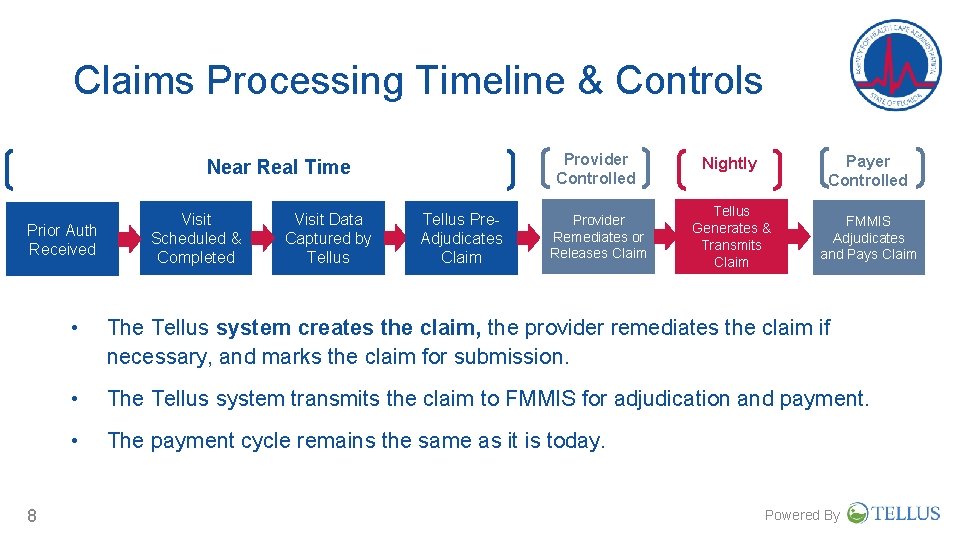
Claims Processing Timeline & Controls Provider Controlled Near Real Time Prior Auth Received 8 Visit Scheduled & Completed Visit Data Captured by Tellus Pre. Adjudicates Claim Provider Remediates or Releases Claim Payer Controlled Nightly Tellus Generates & Transmits Claim FMMIS Adjudicates and Pays Claim • The Tellus system creates the claim, the provider remediates the claim if necessary, and marks the claim for submission. • The Tellus system transmits the claim to FMMIS for adjudication and payment. • The payment cycle remains the same as it is today. Powered By
Claims Demonstration 9 Powered By
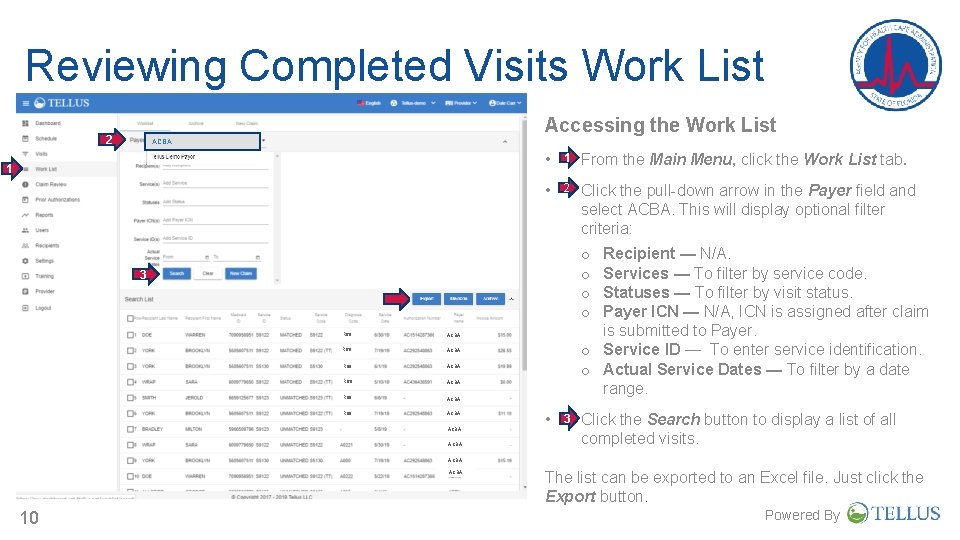
Reviewing Completed Visits Work List Accessing the Work List 2 ACBA 1 • 1 From the Main Menu, click the Work List tab. • 2 Click the pull-down arrow in the Payer field and select ACBA. This will display optional filter criteria: Recipient — N/A. Services — To filter by service code. Statuses — To filter by visit status. Payer ICN — N/A, ICN is assigned after claim is submitted to Payer. o Service ID — To enter service identification. o Actual Service Dates — To filter by a date range. o o 3 R 69 ACBA R 69 ACBA • 3 Click the Search button to display a list of all completed visits. ACBA 10 The list can be exported to an Excel file. Just click the Export button. Powered By
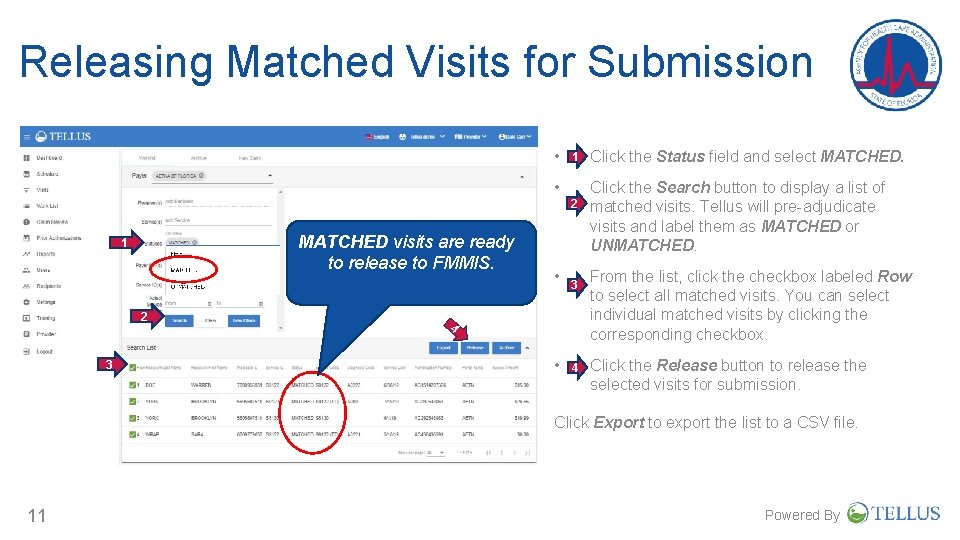
Releasing Matched Visits for Submission • 1 • 2 MATCHED visits are ready to release to FMMIS. 1 2 13 • 3 42 • 4 Click the Status field and select MATCHED. Click the Search button to display a list of matched visits. Tellus will pre-adjudicate visits and label them as MATCHED or UNMATCHED. From the list, click the checkbox labeled Row to select all matched visits. You can select individual matched visits by clicking the corresponding checkbox. Click the Release button to release the selected visits for submission. Click Export to export the list to a CSV file. 11 Powered By
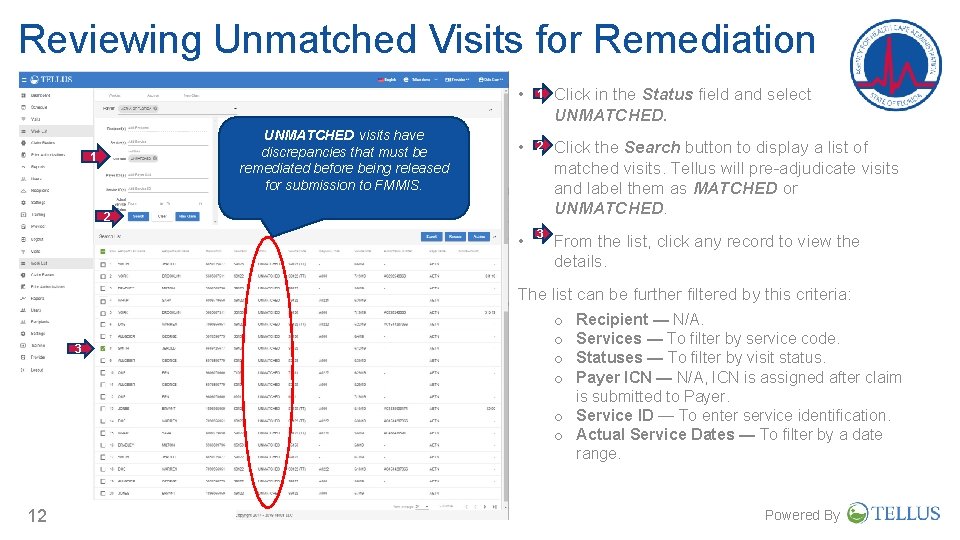
Reviewing Unmatched Visits for Remediation UNMATCHED visits have discrepancies that must be remediated before being released for submission to FMMIS. 1 • 1 Click in the Status field and select UNMATCHED. • 2 Click the Search button to display a list of matched visits. Tellus will pre-adjudicate visits and label them as MATCHED or UNMATCHED. • 3 From the list, click any record to view the details. 2 3 The list can be further filtered by this criteria: o Recipient — N/A. o Services — To filter by service code. o Statuses — To filter by visit status. o Payer ICN — N/A, ICN is assigned after claim is submitted to Payer. o Service ID — To enter service identification. o Actual Service Dates — To filter by a date range. 12 Powered By
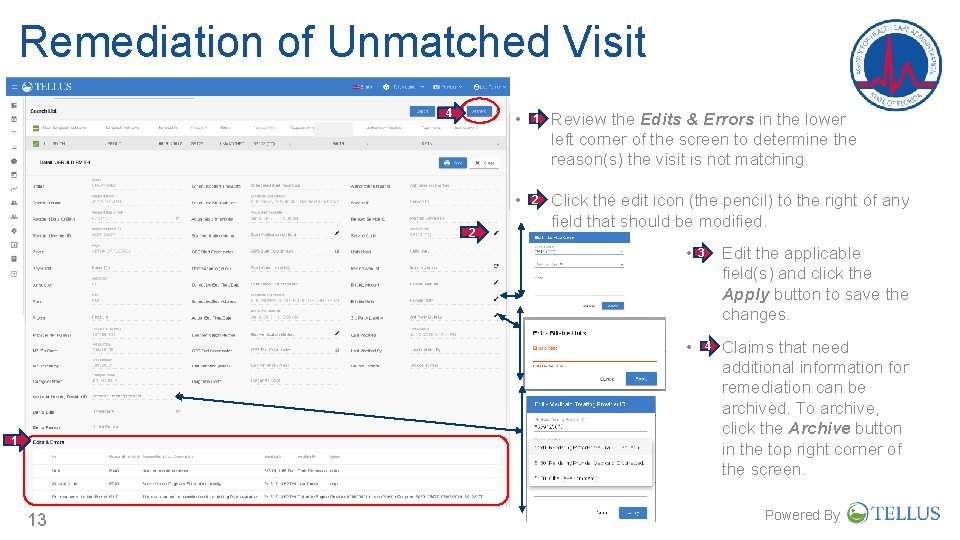
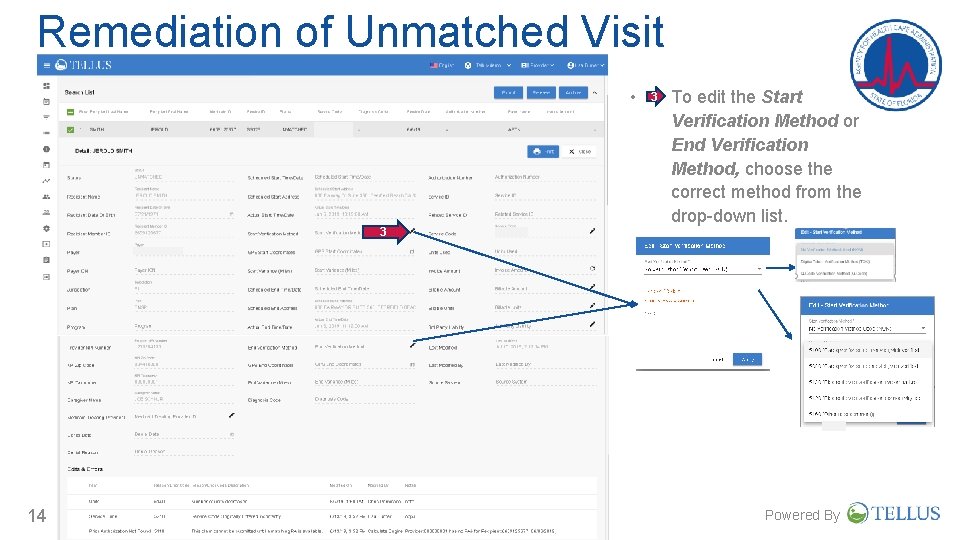
Remediation of Unmatched Visit 4 2 • 1 Review the Edits & Errors in the lower left corner of the screen to determine the reason(s) the visit is not matching. • 2 Click the edit icon (the pencil) to the right of any field that should be modified. • 3 • 1 13 Edit the applicable field(s) and click the Apply button to save the changes. 4 Claims that need additional information for remediation can be archived. To archive, click the Archive button in the top right corner of the screen. Powered By
Remediation of Unmatched Visit • 3 14 3 To edit the Start Verification Method or End Verification Method, choose the correct method from the drop-down list. Powered By
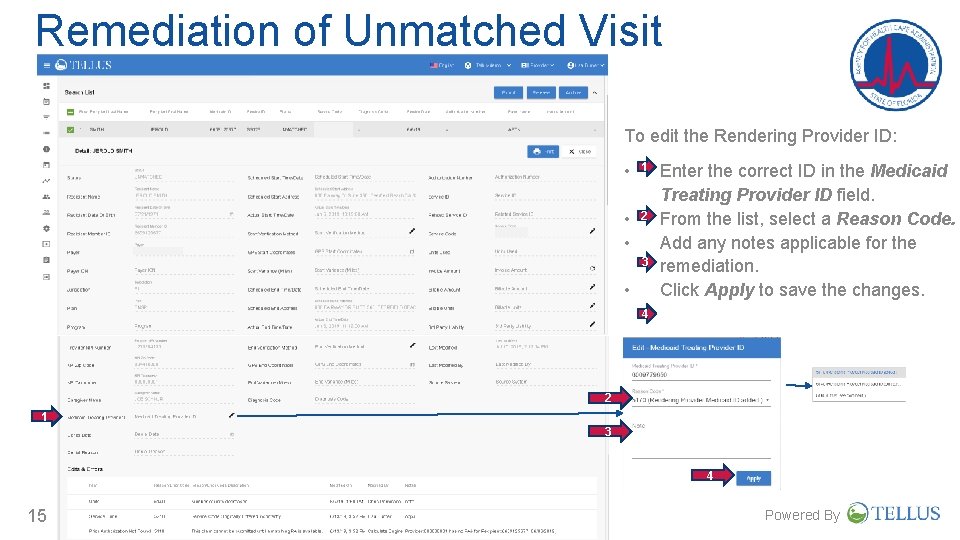
Remediation of Unmatched Visit To edit the Rendering Provider ID: • 1 • • 2 3 • Enter the correct ID in the Medicaid Treating Provider ID field. From the list, select a Reason Code. Add any notes applicable for the remediation. Click Apply to save the changes. 4 2 1 3 4 15 Powered By
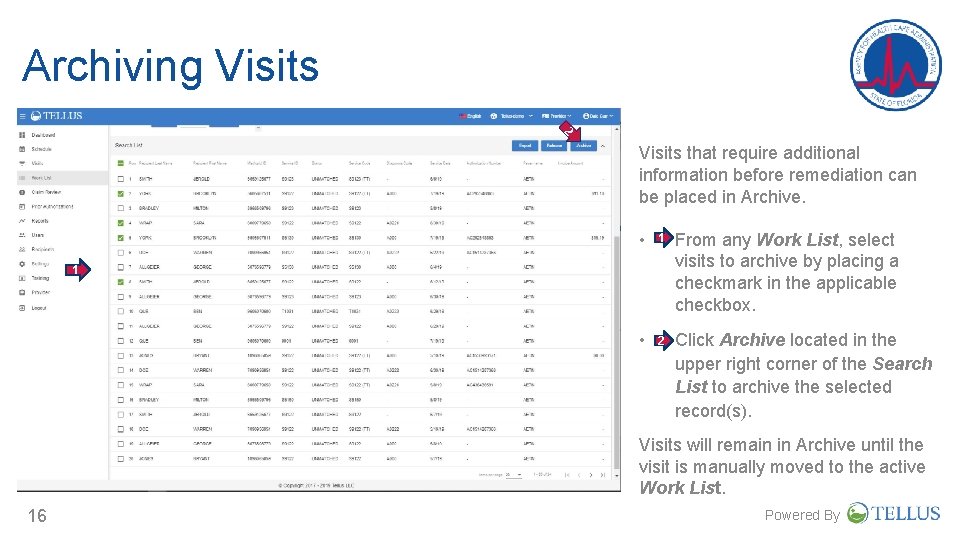
Archiving Visits 2 Visits that require additional information before remediation can be placed in Archive. • 1 From any Work List, select visits to archive by placing a checkmark in the applicable checkbox. • 2 Click Archive located in the upper right corner of the Search List to archive the selected record(s). 1 Visits will remain in Archive until the visit is manually moved to the active Work List. 16 Powered By
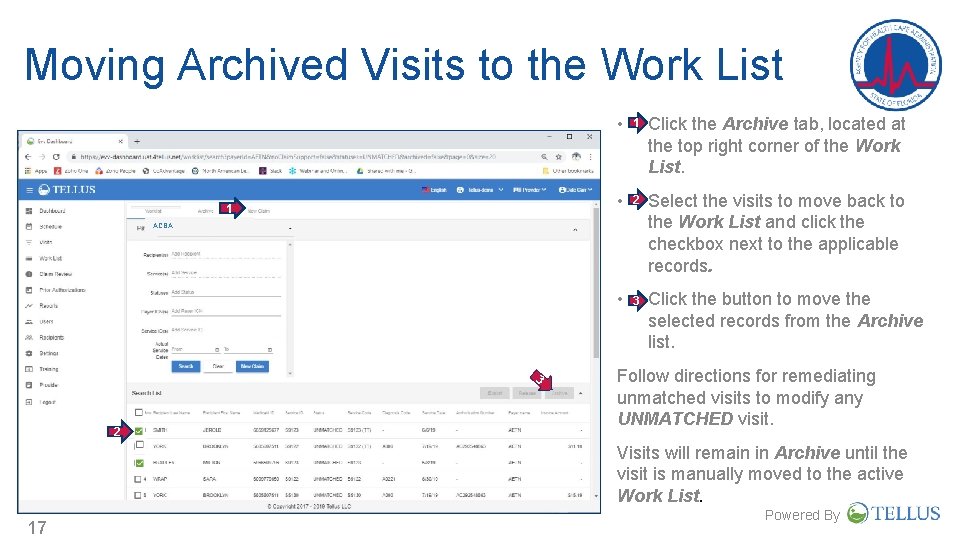
Moving Archived Visits to the Work List 1 • 1 Click the Archive tab, located at the top right corner of the Work List. • 2 Select the visits to move back to the Work List and click the checkbox next to the applicable records. • 3 Click the button to move the selected records from the Archive list. ACBA 3 2 Follow directions for remediating unmatched visits to modify any UNMATCHED visit. Visits will remain in Archive until the visit is manually moved to the active Work List. 17 Powered By
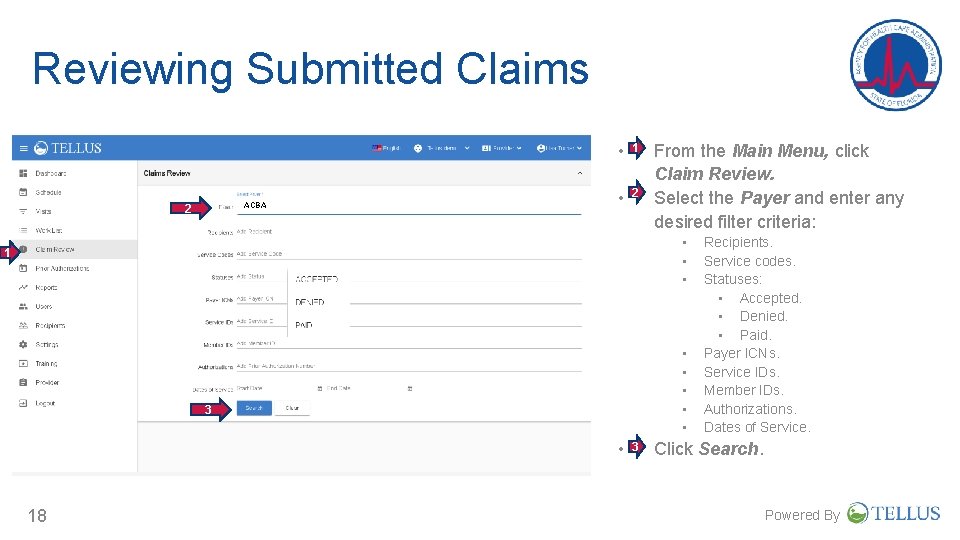
Reviewing Submitted Claims ACBA 2 • 1 • 2 From the Main Menu, click Claim Review. Select the Payer and enter any desired filter criteria: • • • 1 • • • 3 • 18 3 Recipients. Service codes. Statuses: • Accepted. • Denied. • Paid. Payer ICNs. Service IDs. Member IDs. Authorizations. Dates of Service. Click Search. Powered By
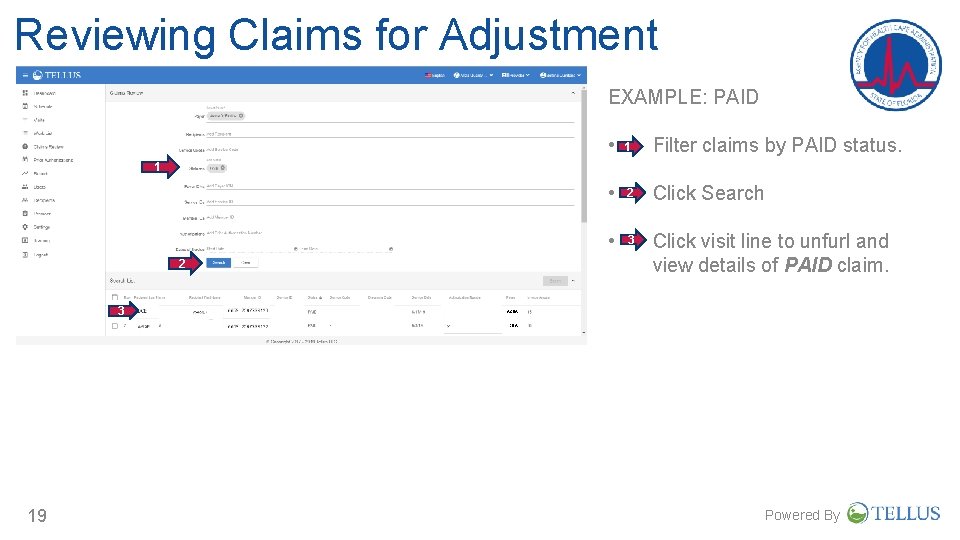
Reviewing Claims for Adjustment EXAMPLE: PAID • 1 Filter claims by PAID status. • 2 Click Search • 3 Click visit line to unfurl and view details of PAID claim. 1 2 3 19 R 68. 89 ACBA Powered By
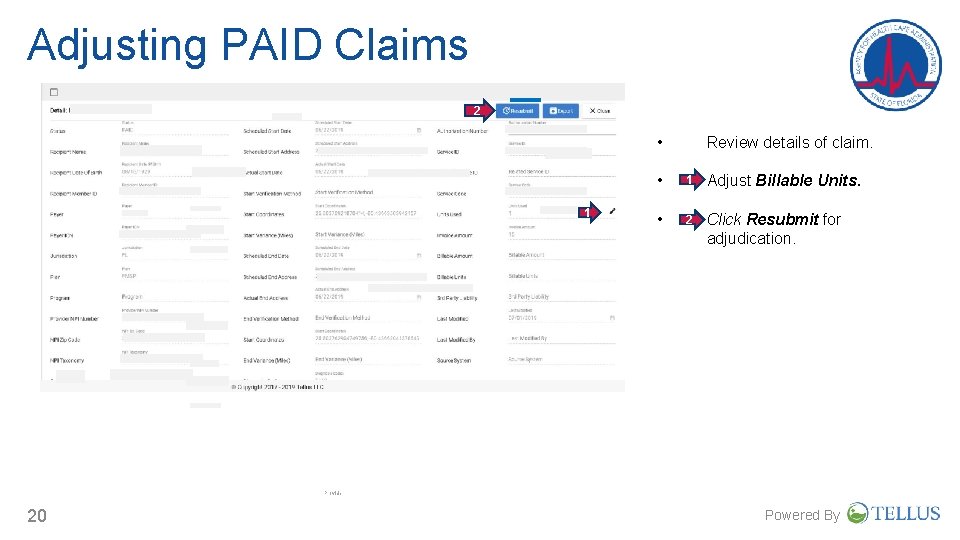
Adjusting PAID Claims 2 • 1 Review details of claim. • 1 Adjust Billable Units. • 2 Click Resubmit for adjudication. Provider 20 Powered By
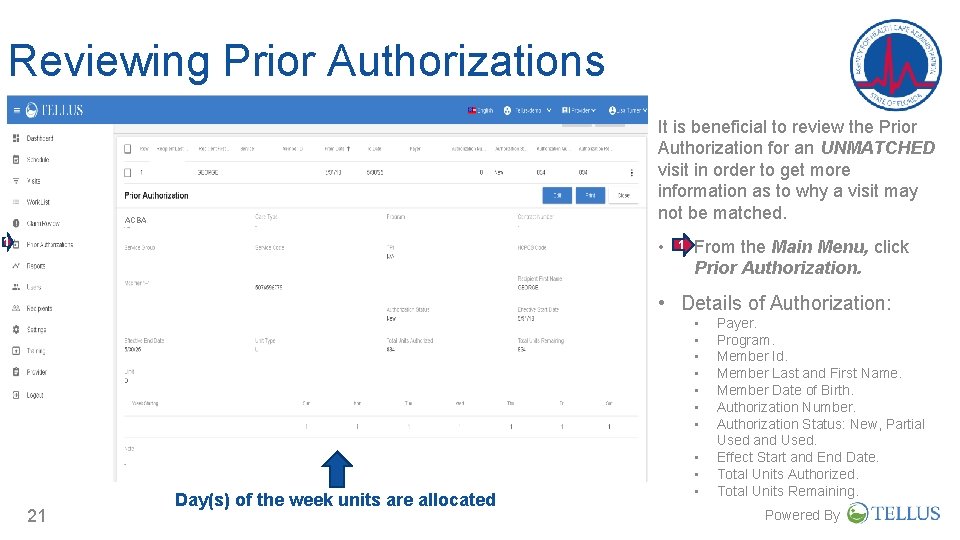
Reviewing Prior Authorizations It is beneficial to review the Prior Authorization for an UNMATCHED visit in order to get more information as to why a visit may not be matched. ACBA 1 • 1 From the Main Menu, click Prior Authorization. • Details of Authorization: • • 21 Day(s) of the week units are allocated • • • Payer. Program. Member Id. Member Last and First Name. Member Date of Birth. Authorization Number. Authorization Status: New, Partial Used and Used. Effect Start and End Date. Total Units Authorized. Total Units Remaining. Powered By
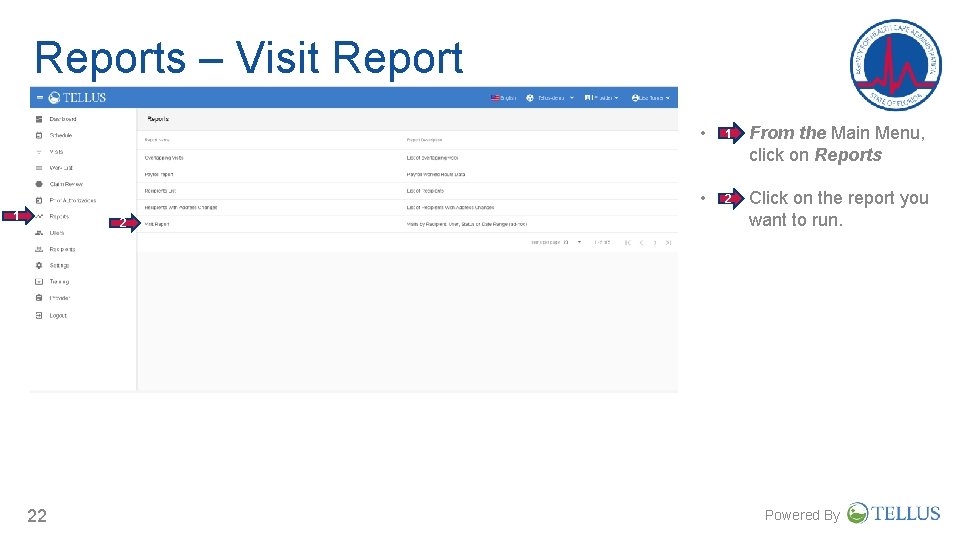
Reports – Visit Report 1 2 22 • 1 From the Main Menu, click on Reports • 2 Click on the report you want to run. Powered By
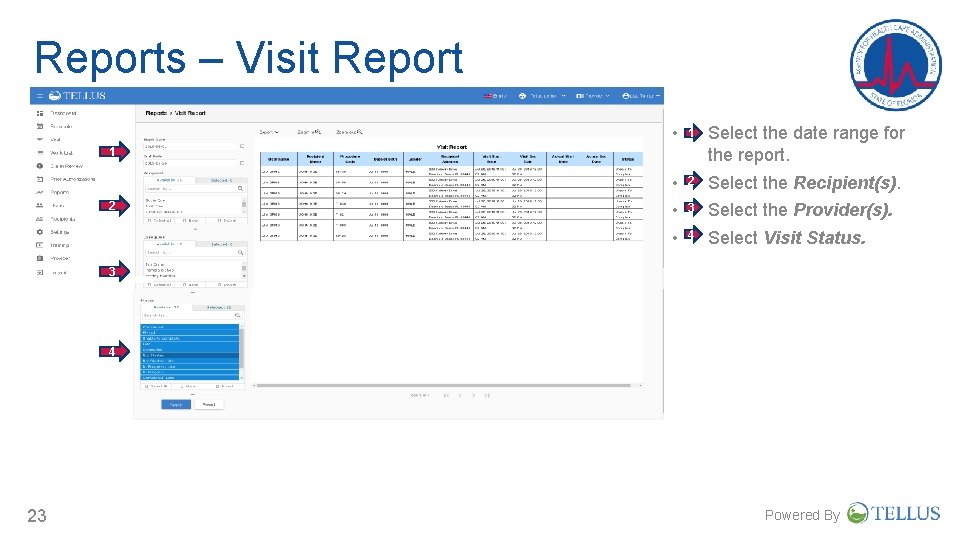
Reports – Visit Report • 1 Select the date range for the report. • • • 2 Select the Recipient(s). 3 Select the Provider(s). 4 Select Visit Status. 1 2 3 4 23 Powered By
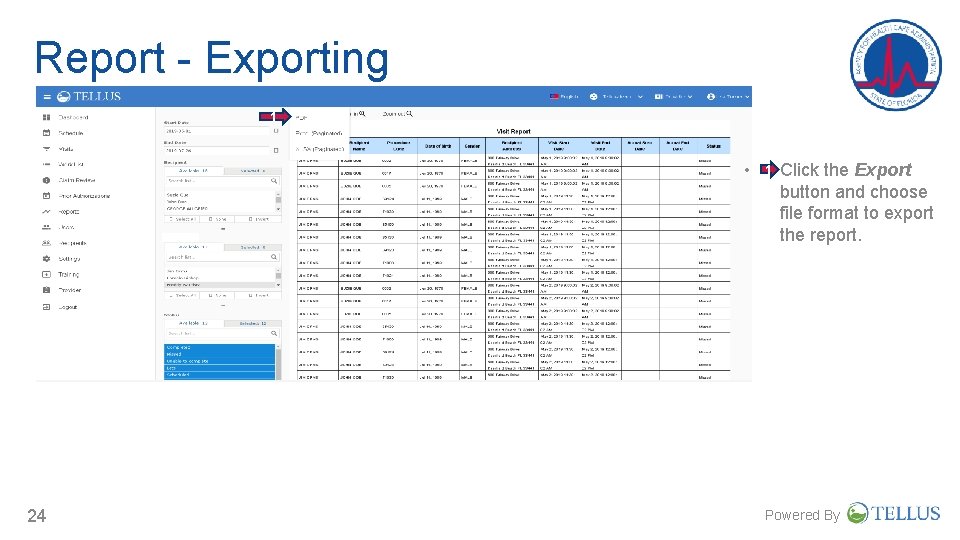
Report - Exporting 1 • 24 1 Click the Export button and choose file format to export the report. Powered By
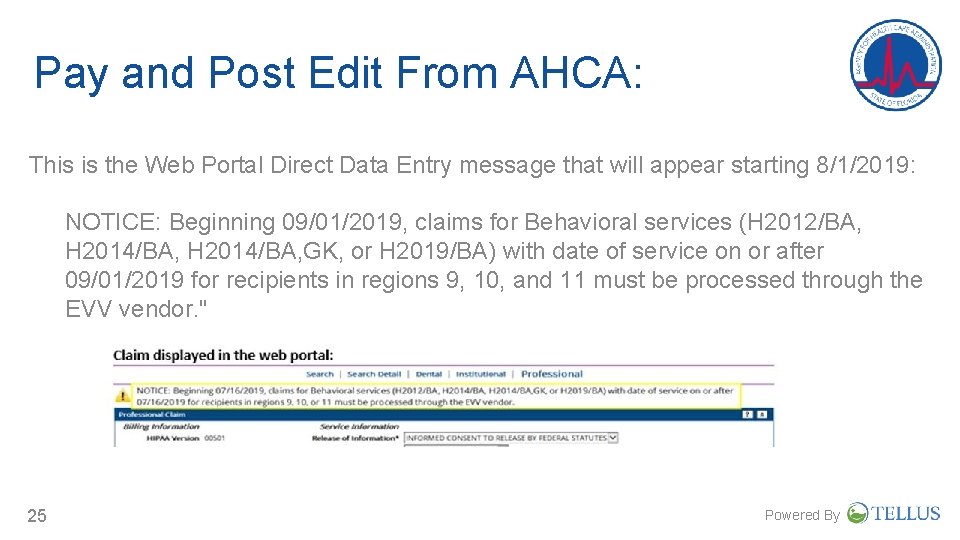
Pay and Post Edit From AHCA: This is the Web Portal Direct Data Entry message that will appear starting 8/1/2019: NOTICE: Beginning 09/01/2019, claims for Behavioral services (H 2012/BA, H 2014/BA, GK, or H 2019/BA) with date of service on or after 09/01/2019 for recipients in regions 9, 10, and 11 must be processed through the EVV vendor. " 25 Powered By
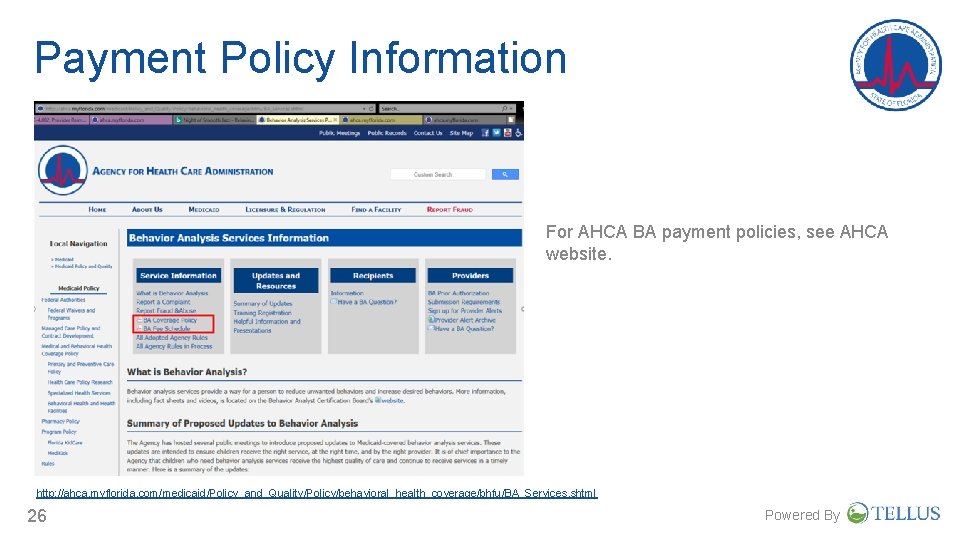
Payment Policy Information For AHCA BA payment policies, see AHCA website. http: //ahca. myflorida. com/medicaid/Policy_and_Quality/Policy/behavioral_health_coverage/bhfu/BA_Services. shtml 26 Powered By
The Timeline for EVV • Enroll and complete training sessions in July/August: https: //4 tellus. com/ahca-ba • System Administrators and Lead Analysts that submit their own claims: • Tellus e. VV Administrator Console and Scheduler (90 minutes). • Tellus e. VV Claims Console (60 minutes). • Providers (Users): • Tellus e. VV Mobile Application (60 minutes). • System Administrators and Lead Analysts that submit their own claims must register with Tellus to use the e. VV System. • See instructions in the Orientation #2 Webinar posted on Training and Resources tab at https: //4 tellus. com/ahca-ba. • Providers (Users) will receive their user name and password to the Tellus System via an automated email. System Administrators will trigger this process on the first day that scheduling is available. • Scheduling visits will begin soon, for dates of service 9/1/2019, or later. • Users to check in and check out using EVV on 9/1/2019. 27 Powered By
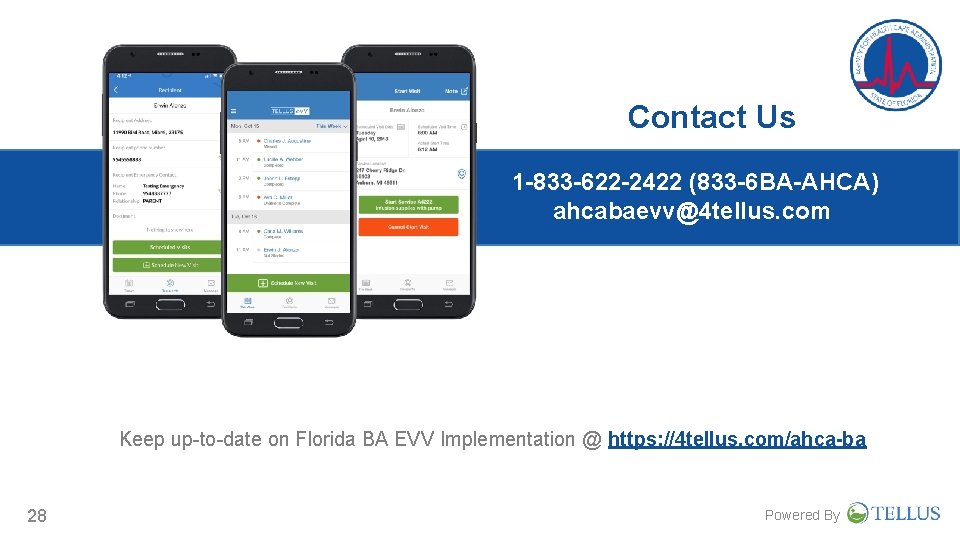
Contact Us 1 -833 -622 -2422 (833 -6 BA-AHCA) ahcabaevv@4 tellus. com Keep up-to-date on Florida BA EVV Implementation @ https: //4 tellus. com/ahca-ba 28 Powered By