NPrinting 17 Reload Data Workaround Gianluca Perin July
- Slides: 11
NPrinting 17 Reload Data Workaround Gianluca Perin July 20, 2016
NPrinting 17 Reload Data Workaround This document contains 2 workarounds. If possible we strongly recommend you use the first one which will work on “Server” connections only. If you need to use “local” connections, use the second work 2
NPrinting 17 Reload Data Workaround For “Server” Connection The issue: A lot of customers are complaining about the lack of an automatic way to handle the reload of data from a. qvw document within NPrinting 17. The workaround: At the moment there is no built-in solution for that (a final solution is in our roadmap) but, for documents deployed into Qlik. View Server, there is an easy workaround. 3
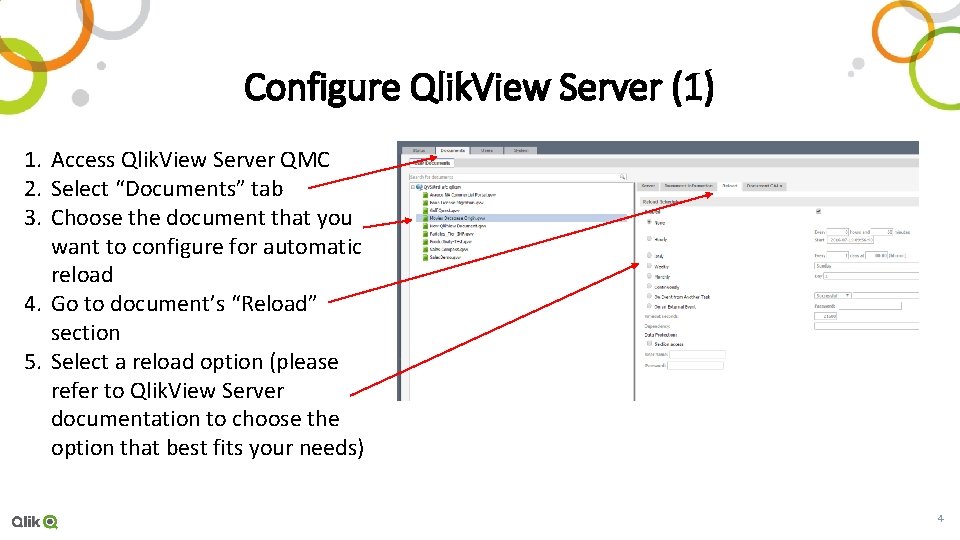
Configure Qlik. View Server (1) 1. Access Qlik. View Server QMC 2. Select “Documents” tab 3. Choose the document that you want to configure for automatic reload 4. Go to document’s “Reload” section 5. Select a reload option (please refer to Qlik. View Server documentation to choose the option that best fits your needs) 4
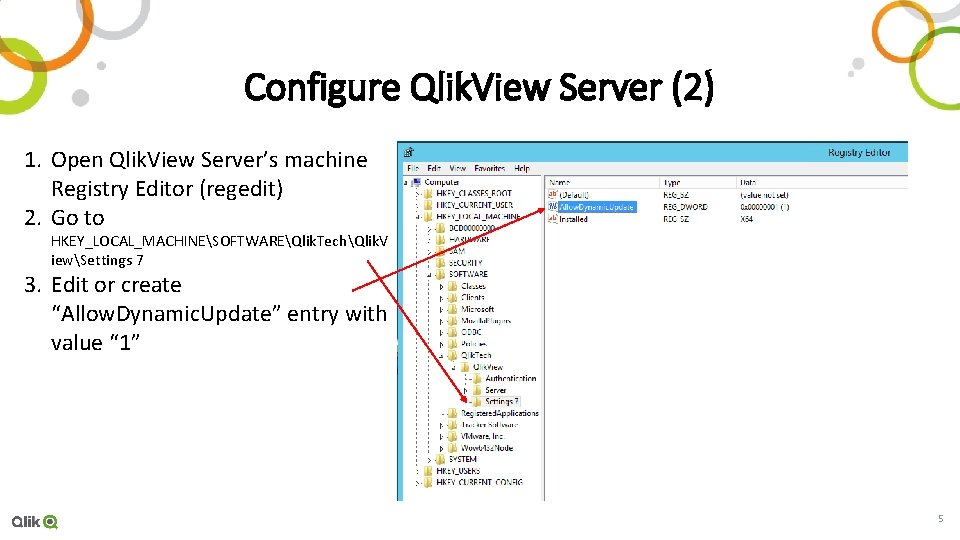
Configure Qlik. View Server (2) 1. Open Qlik. View Server’s machine Registry Editor (regedit) 2. Go to HKEY_LOCAL_MACHINESOFTWAREQlik. TechQlik. V iewSettings 7 3. Edit or create “Allow. Dynamic. Update” entry with value “ 1” 5
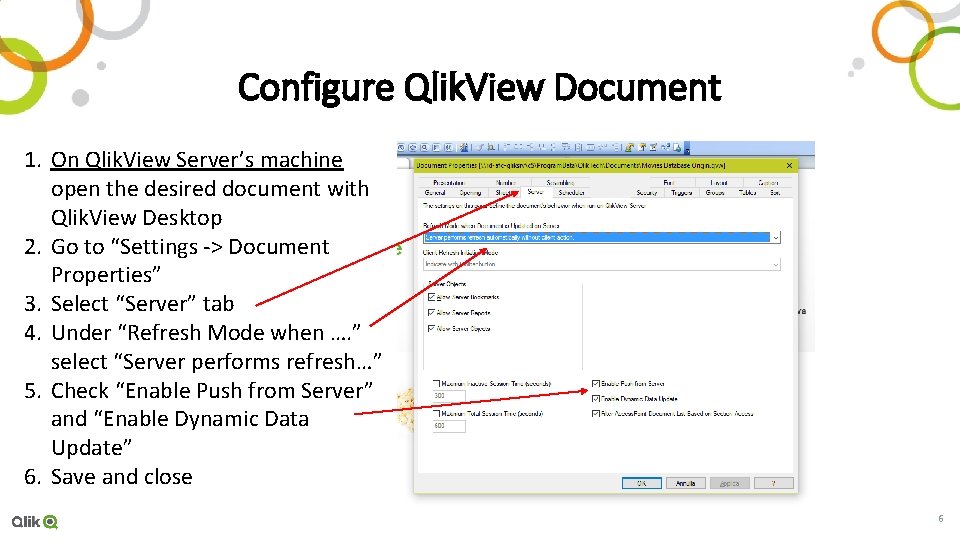
Configure Qlik. View Document 1. On Qlik. View Server’s machine open the desired document with Qlik. View Desktop 2. Go to “Settings -> Document Properties” 3. Select “Server” tab 4. Under “Refresh Mode when …. ” select “Server performs refresh…” 5. Check “Enable Push from Server” and “Enable Dynamic Data Update” 6. Save and close 6
That’s it! Now what? : Move to NPrinting and create a Qlik. View Server or Cluster connection to the configured document. The effect: Reports will be automatically generated with the new data, based upon the reload schedule settings chosen in Qlik. View Server. No action is needed in NPrinting to see the new data. If you add new objects to the document a manual “Reload Metadata” is required in NPrinting in order to see them into NPrinting Designer. 7
Workaround for “Local” Connection The issue: NPrinting 17. x doesn’t use the latest data when delivering reports based on a “local” connection The Solution: Running a Report Task which contains a connection for every core available to the NPrinting 17. x engine will create new sessions with new QVWs effectively clearing any old sessions. Tasks run after this will re-open connections to QVWs and therefore access the newest version of the QVW with the most recent data. 8
Assumptions 1. All connections in these Tasks are “local” connections 2. The NPrinting Engine can access a fixed number of cores (2 in our example) 3. It is possible to estimate how long Tasks will take to run to within an hour or so 4. Qlik. View reloads don’t happen while Tasks are being run 9
Solution 1. Build and schedule a Task to send your reports. We’ll refer to this as the “Report” Task. 2. Build and schedule a Task to clear your connections. We’ll call this Task the “Clearing” Task. This Task must have a connection to a unique QVW for every core to which the NPrinting engine has access. The QVWs used in the Clearing task must NOT be in connections used in the Report task. 3. Schedule the Clearing Task so that it runs daily at 0100 and lasts no more than 60 minutes. 4. Schedule the Report Task to run at 0230 (just in case). 10
Effect 1. Running the Clearing task will force NPrinting to close the connections which the Report task opens. 2. Then the Report task runs, it will be forced to re-open the connections to the QVWs it uses and therefore access the most recent version of the QVW. 11