Integrating Data From Multiple Schedules Michelle Colodzin PMP


- Slides: 32
Integrating Data From Multiple Schedules Michelle Colodzin, PMP, PMI-SP Sr. Project Manager Meta. Vista Consulting Group June 5, 2012 PMI-SVC Scheduling Forum Meeting - June 5, 2012 1
When Would You Integrate Data from Multiple Schedules? • On projects that have multiple teams and/or depend on work from external organizations – Each group should have its own schedule to manage its own work – This can be in the form of an Excel file, MS Project file, other scheduling tool file, Word doc, etc. . . • In this case, PMs need to have a master schedule in order to have an overview of all the project’s activities – This master schedule should be made up of key information from all of the detailed schedules – It should include key tasks as well as milestones – It should contain only the details that effect overall project performance PMI-SVC Scheduling Forum -Meeting - June 5, 2012 2
Discussion What Type of Information Should Go Into the Master Schedule? PMI-SVC Scheduling Forum Meeting - June 5, 2012 3
What Type of Information Should Go Into the Master Schedule? • Deliverables – Any deliverable listed in a contract, project charter or scope statement – Any work product that contributes to the completion of a deliverable • Any ‘hand-off’ point – Between teams, vendors, external organizations – Both when the project provides as well as when it receives information, deliverables, etc. from external sources • Tasks/deliverables that depend on specific, scarce, resources (people, equipment, etc. ) • All information that will be required in reports, particularly to executives and key stakeholders PMI-SVC Scheduling Forum Meeting - June 5, 2012 4
What Type of Information Should Go Into the Master Schedule? In short: • All information a PM needs to manage the project – but not so much that it becomes unmanageable • No two master schedules will contain exactly the same information PMI-SVC Scheduling Forum Meeting - June 5, 2012 5
Key Elements for Maintaining the Master Schedule • Control over the information coming in to preserve data integrity and ensure reporting capability • A repeatable, well-defined and documented task status update process that defines: – Who submits updates and when – Specific data to be provided – Format for submitting data • Excel, MS Project, Word, etc. – How data from other schedules/plans relates to the master schedule • I. e. , how do you know where the data goes? PMI-SVC Scheduling Forum Meeting - June 5, 2012 6
Manual vs. Automatic Updates • The master schedule can be updated in the following ways: – Manually – Automatically via dynamic linking – A combination of the two • Each method has its own challenges and benefits vs. • The ideal method for a particular project will depend on: – The maturity of the organization – Availability of a common network or system – Skill level of those responsible for maintaining master and detailed schedules PMI-SVC Scheduling Forum Meeting - June 5, 2012 7
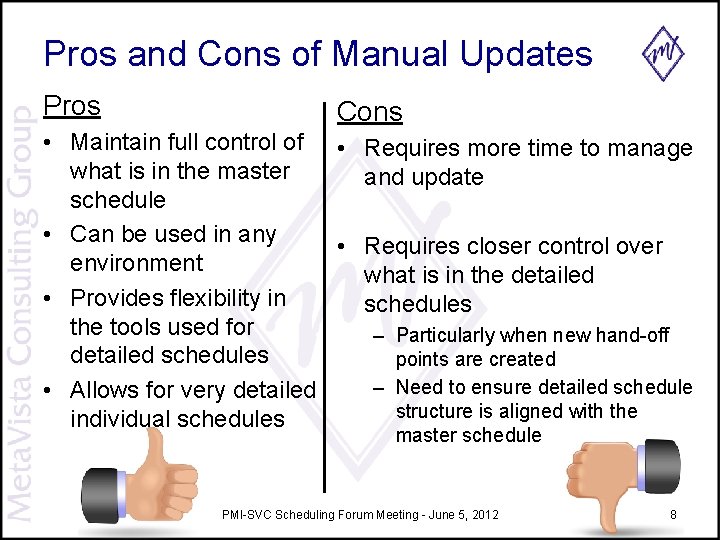
Pros and Cons of Manual Updates Pros Cons • Maintain full control of • Requires more time to manage what is in the master and update schedule • Can be used in any • Requires closer control over environment what is in the detailed • Provides flexibility in schedules the tools used for – Particularly when new hand-off detailed schedules points are created – Need to ensure detailed schedule • Allows for very detailed structure is aligned with the individual schedules master schedule PMI-SVC Scheduling Forum Meeting - June 5, 2012 8
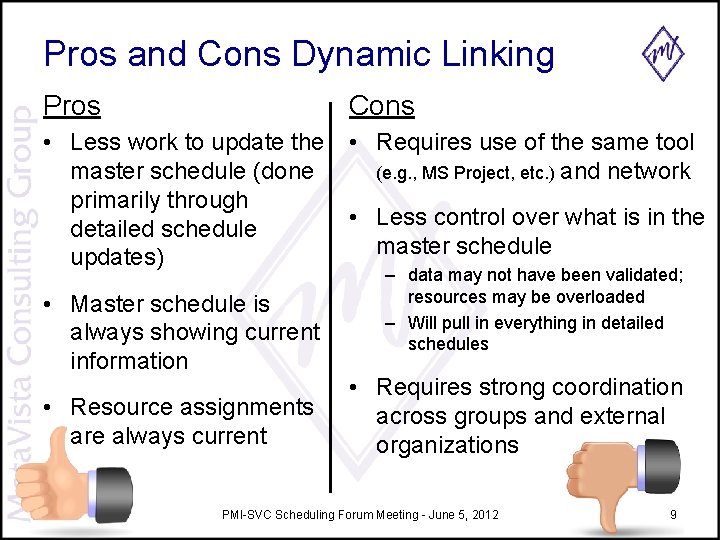
Pros and Cons Dynamic Linking Pros Cons • Less work to update the • Requires use of the same tool master schedule (done (e. g. , MS Project, etc. ) and network primarily through • Less control over what is in the detailed schedule master schedule updates) • Master schedule is always showing current information • Resource assignments are always current – data may not have been validated; resources may be overloaded – Will pull in everything in detailed schedules • Requires strong coordination across groups and external organizations PMI-SVC Scheduling Forum Meeting - June 5, 2012 9
MANUALLY UPDATING THE MASTER SCHEDULE PMI-SVC Scheduling Forum Meeting - June 5, 2012 10
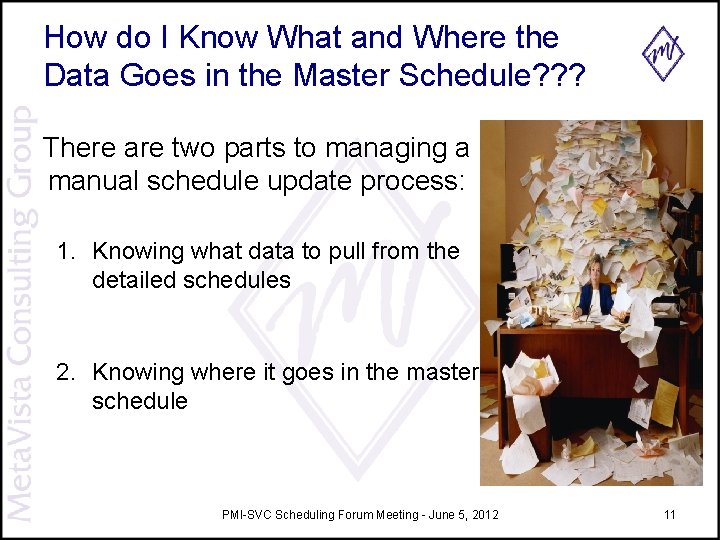
How do I Know What and Where the Data Goes in the Master Schedule? ? ? There are two parts to managing a manual schedule update process: 1. Knowing what data to pull from the detailed schedules 2. Knowing where it goes in the master schedule PMI-SVC Scheduling Forum Meeting - June 5, 2012 11
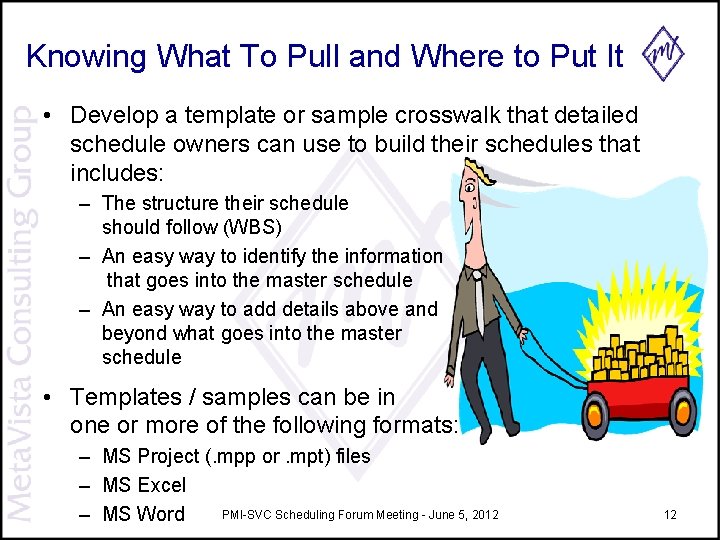
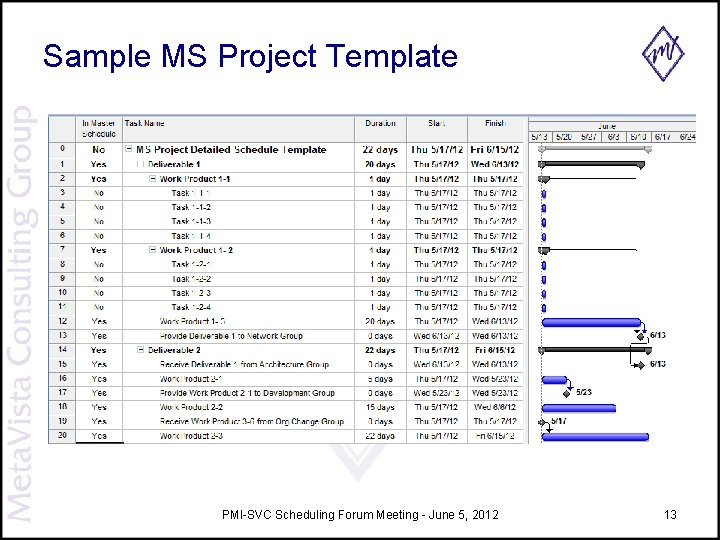
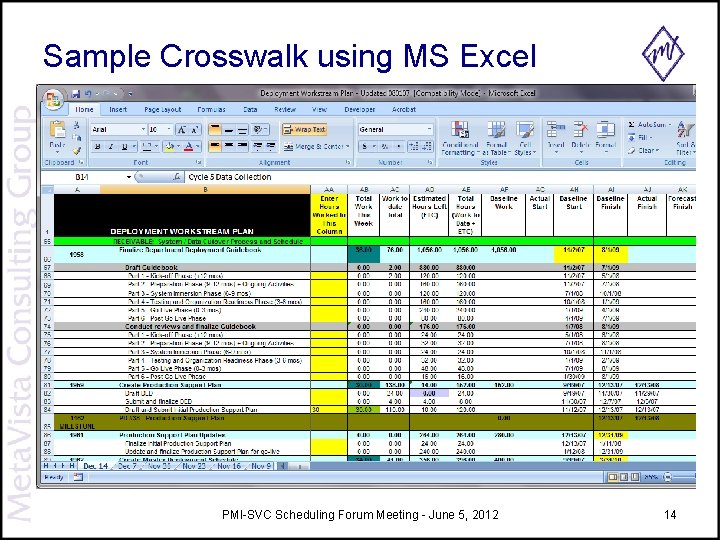
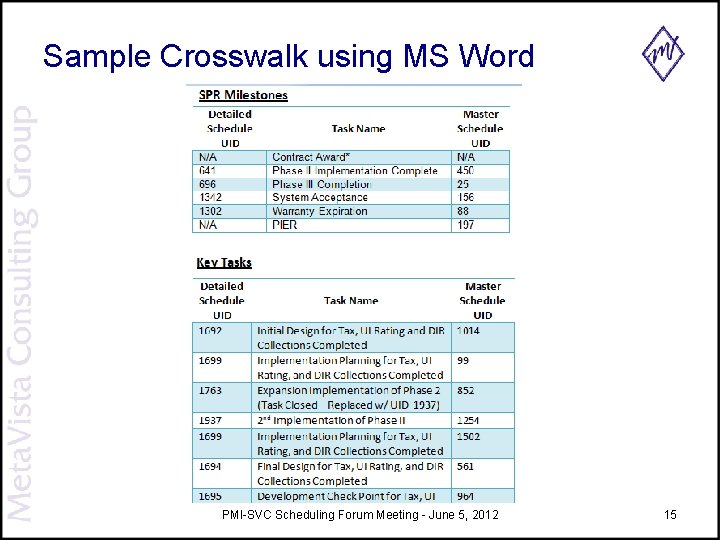
Knowing What To Pull and Where to Put It • Develop a template or sample crosswalk that detailed schedule owners can use to build their schedules that includes: – The structure their schedule should follow (WBS) – An easy way to identify the information that goes into the master schedule – An easy way to add details above and beyond what goes into the master schedule • Templates / samples can be in one or more of the following formats: – MS Project (. mpp or. mpt) files – MS Excel PMI-SVC Scheduling Forum Meeting - June 5, 2012 – MS Word 12
Sample MS Project Template PMI-SVC Scheduling Forum Meeting - June 5, 2012 13
Sample Crosswalk using MS Excel PMI-SVC Scheduling Forum Meeting - June 5, 2012 14
Sample Crosswalk using MS Word PMI-SVC Scheduling Forum Meeting - June 5, 2012 15
What About Resources? • With manual updates, resources can be managed in one of two ways: – Using a shared resource pool – Updating manually • Sharing Resources – Can be done only if all detailed schedules are developed and maintained using MS Project – All detailed schedules must connect to the shared resource pool – Detailed schedules should not have local resources (unless they are external to the project) • Updating Manually – Recommend assigning team instead of individual resources – Must include resource data when submitting updates PMI-SVC Scheduling Forum Meeting - June 5, 2012 16
AUTOMATICALLY UPDATING THE MASTER SCHEDULE PMI-SVC Scheduling Forum Meeting - June 5, 2012 17
Setting Up An MS Project Master Schedule Setting the Stage For this presentation, the following is assumed to be complete: – The detailed schedules have been built – Resources have been identified – Resources have not yet been assigned PMI-SVC Scheduling Forum Meeting - June 5, 2012 18
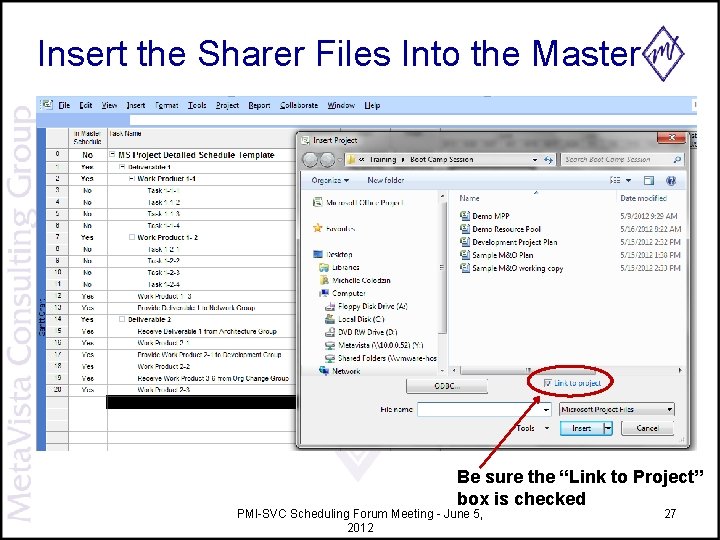
Building the Master Schedule 1. Build a resource pool – The master and detailed schedules must use the same resources from the same resource pool 2. Connect the resource pool to the master. mpp file and detailed files 3. Use the INSERT menu to insert each detailed schedule into the master – – Click on PROJECT Navigate to the. mpp file you want to add Ensure the “Link to Project” box is checked Click INSERT PMI-SVC Scheduling Forum Meeting - June 5, 2012 19
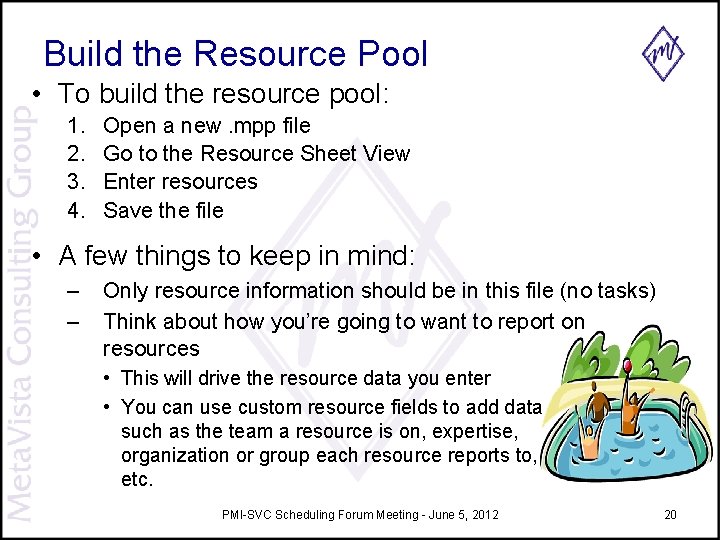
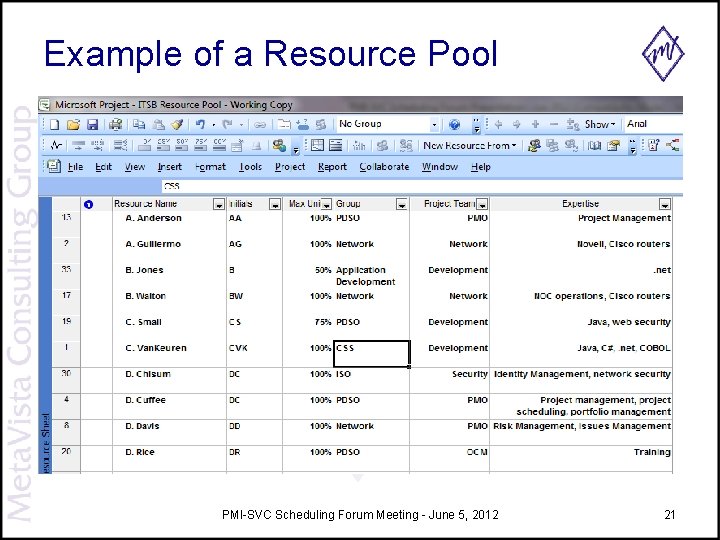
Build the Resource Pool • To build the resource pool: 1. 2. 3. 4. Open a new. mpp file Go to the Resource Sheet View Enter resources Save the file • A few things to keep in mind: – – Only resource information should be in this file (no tasks) Think about how you’re going to want to report on resources • This will drive the resource data you enter • You can use custom resource fields to add data such as the team a resource is on, expertise, organization or group each resource reports to, etc. PMI-SVC Scheduling Forum Meeting - June 5, 2012 20
Example of a Resource Pool PMI-SVC Scheduling Forum Meeting - June 5, 2012 21
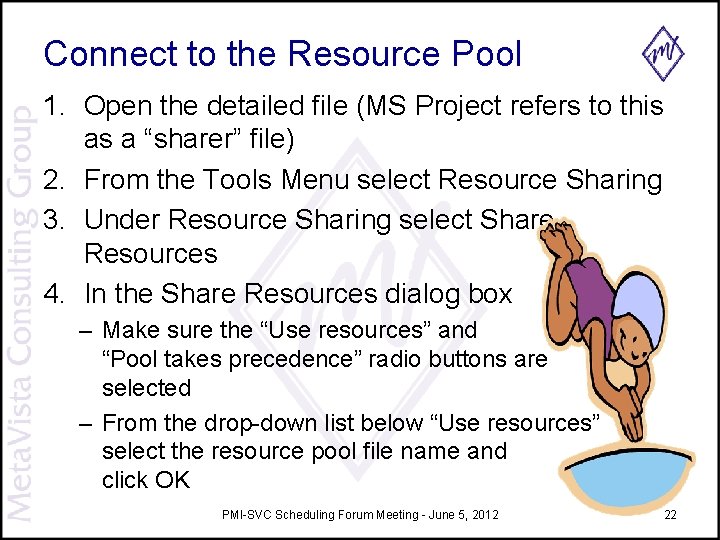
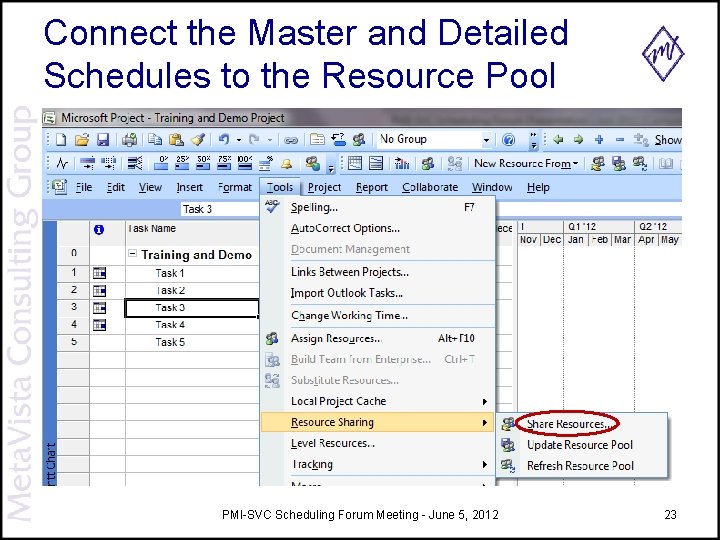
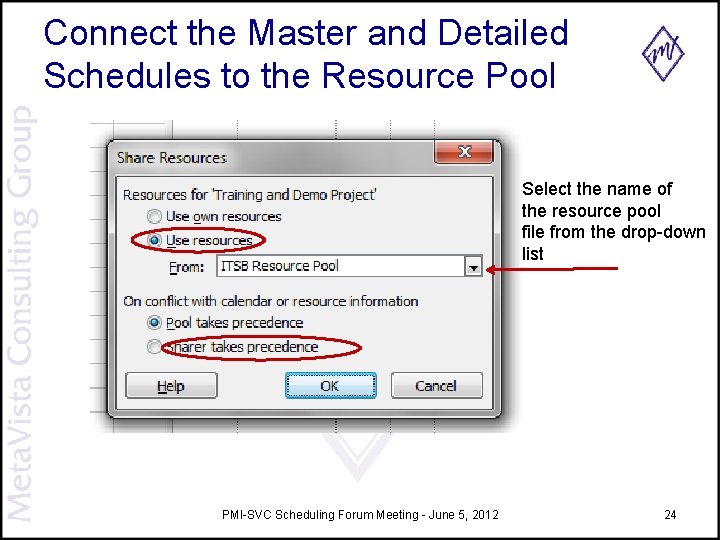
Connect to the Resource Pool 1. Open the detailed file (MS Project refers to this as a “sharer” file) 2. From the Tools Menu select Resource Sharing 3. Under Resource Sharing select Share Resources 4. In the Share Resources dialog box – Make sure the “Use resources” and “Pool takes precedence” radio buttons are selected – From the drop-down list below “Use resources” select the resource pool file name and click OK PMI-SVC Scheduling Forum Meeting - June 5, 2012 22
Connect the Master and Detailed Schedules to the Resource Pool PMI-SVC Scheduling Forum Meeting - June 5, 2012 23
Connect the Master and Detailed Schedules to the Resource Pool Select the name of the resource pool file from the drop-down list PMI-SVC Scheduling Forum Meeting - June 5, 2012 24
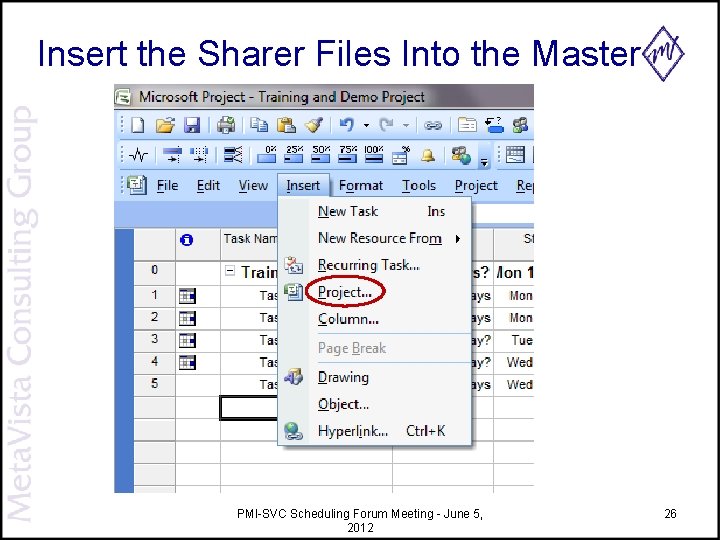
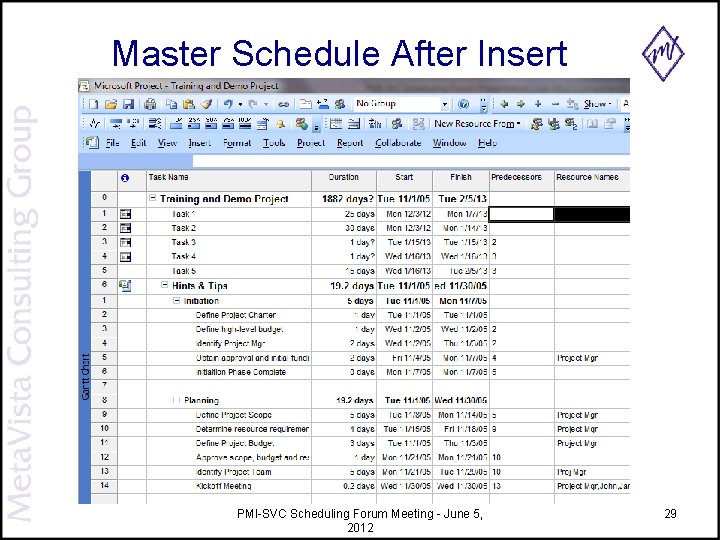
Insert the Sharer Files Into the Master • Open the master schedule – MS Project will prompt you to open the resource pool – Recommend opening the resource pool as read only for this process • From the Insert menu, select Project – Navigate to the first sharer file – Select the file – Make sure the “Link to Project” box is checked – Click Insert PMI-SVC Scheduling Forum Meeting - June 5, 2012 25
Insert the Sharer Files Into the Master PMI-SVC Scheduling Forum Meeting - June 5, 2012 26
Insert the Sharer Files Into the Master Be sure the “Link to Project” box is checked PMI-SVC Scheduling Forum Meeting - June 5, 2012 27
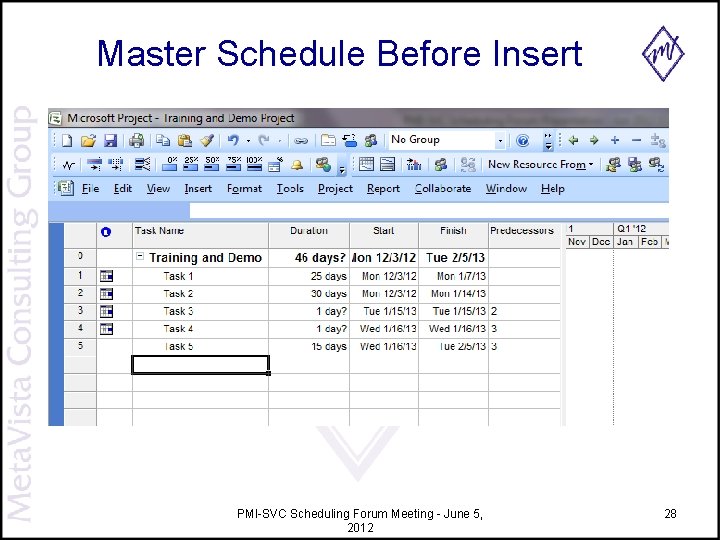
Master Schedule Before Insert PMI-SVC Scheduling Forum Meeting - June 5, 2012 28
Master Schedule After Insert PMI-SVC Scheduling Forum Meeting - June 5, 2012 29
Working with Linked Master and Sharer Files • Changes made to a sharer file will be automatically reflected in the master schedule • Changes made to the master schedule will be reflected in the sharer files PMI-SVC Scheduling Forum Meeting - June 5, 2012 30
QU ES TI ON S? ? PMI-SVC Scheduling Forum Meeting - June 5, 2012 31
THANK YOU! Don’t hesitate to contact me with questions or further information Contact Information: Michelle Colodzin, PMP, PMI-SP Phone: 530 -798 -1656 Email: mcolodzin@metavista. com PMI-SVC Scheduling Forum Meeting - June 5, 2012 32