INSTALLATION GUIDE FOR LEEENUX LINUX V 10 Download
- Slides: 17
INSTALLATION GUIDE FOR LEEENUX LINUX V 10
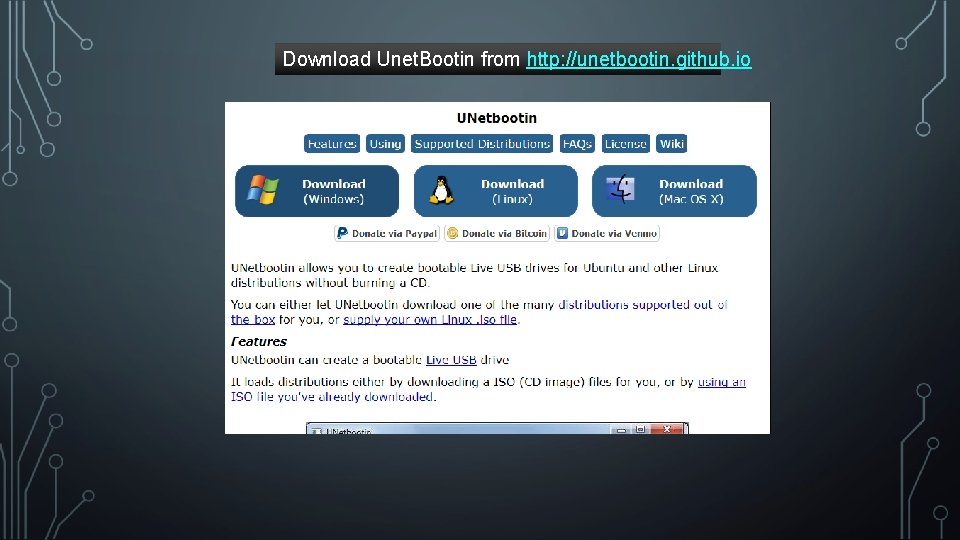
Download Unet. Bootin from http: //unetbootin. github. io
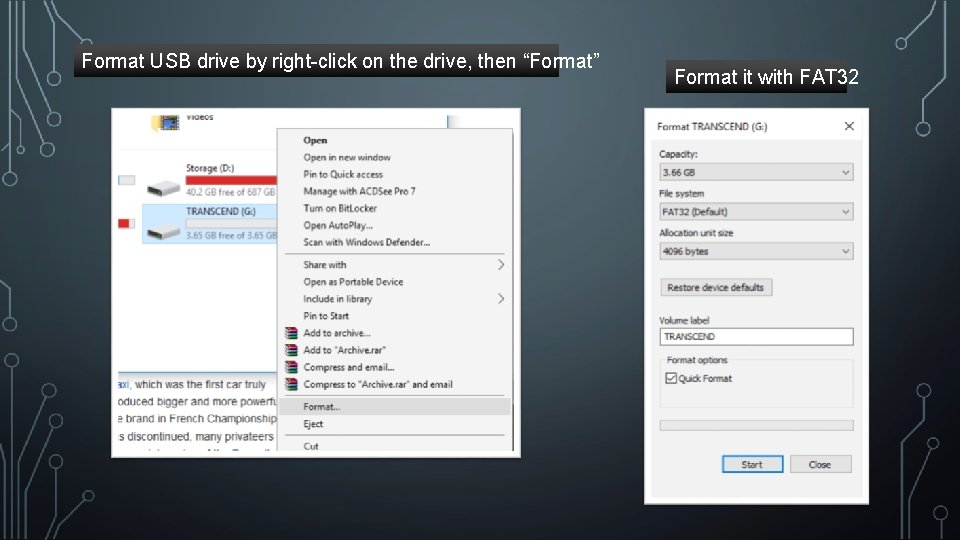
Format USB drive by right-click on the drive, then “Format” Format it with FAT 32
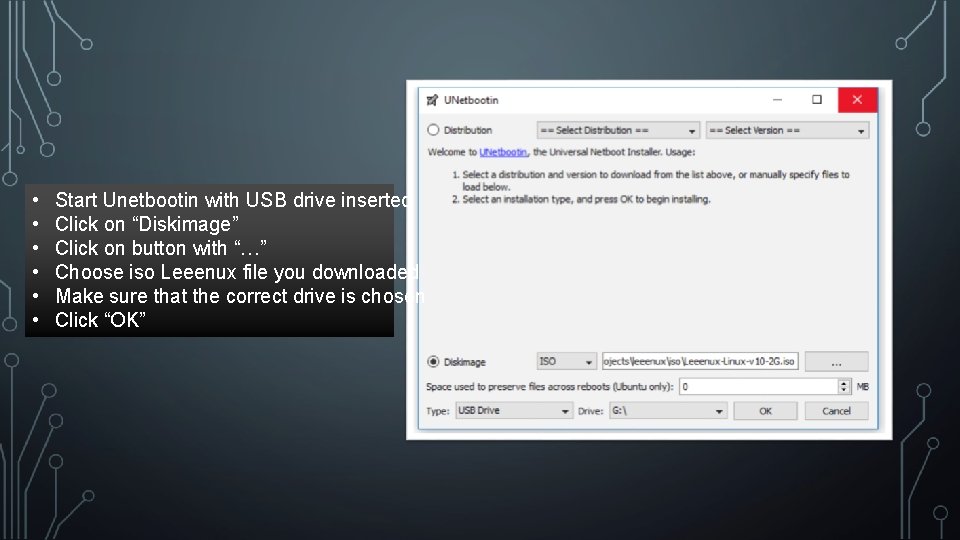
• • • Start Unetbootin with USB drive inserted Click on “Diskimage” Click on button with “…” Choose iso Leeenux file you downloaded Make sure that the correct drive is chosen Click “OK”
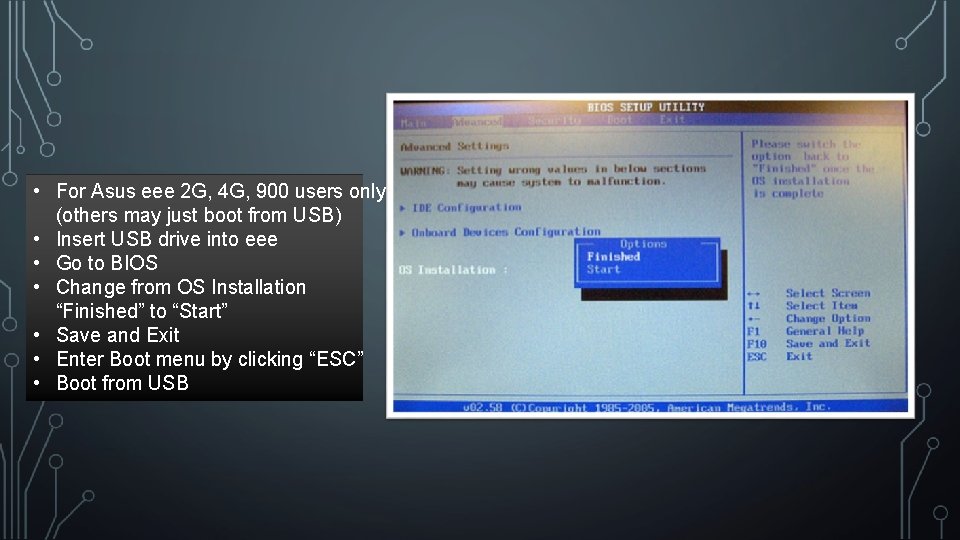
• For Asus eee 2 G, 4 G, 900 users only: (others may just boot from USB) • Insert USB drive into eee • Go to BIOS • Change from OS Installation “Finished” to “Start” • Save and Exit • Enter Boot menu by clicking “ESC” • Boot from USB
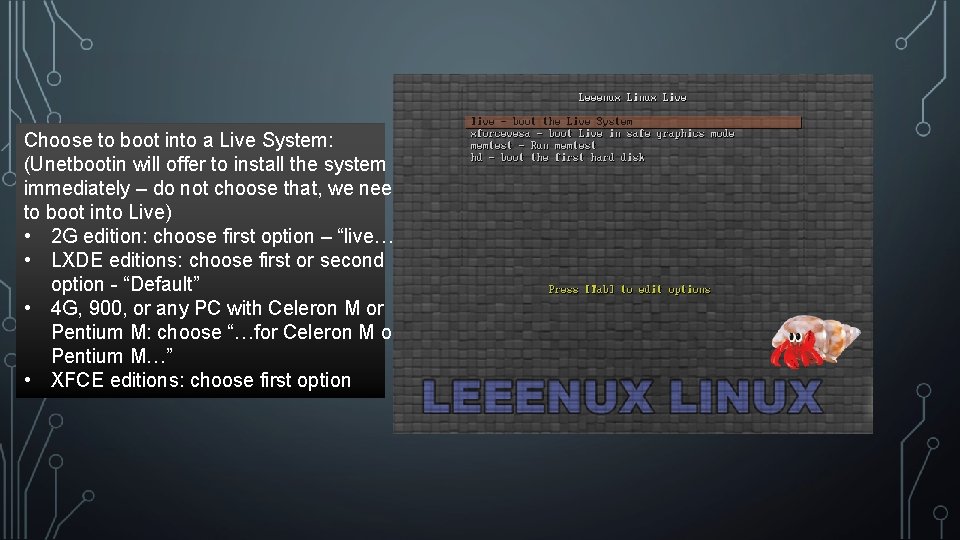
Choose to boot into a Live System: (Unetbootin will offer to install the system immediately – do not choose that, we need to boot into Live) • 2 G edition: choose first option – “live…” • LXDE editions: choose first or second option - “Default” • 4 G, 900, or any PC with Celeron M or Pentium M: choose “…for Celeron M or Pentium M…” • XFCE editions: choose first option
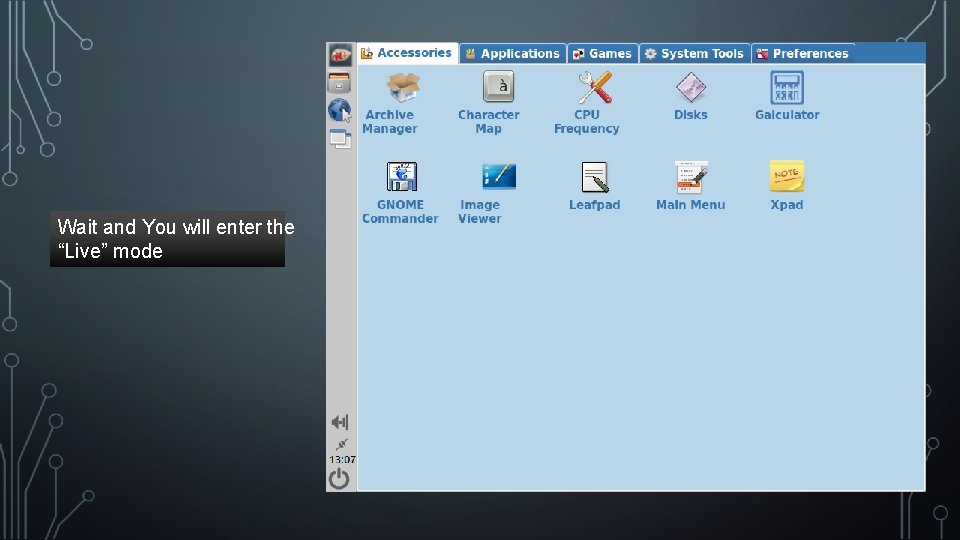
Wait and You will enter the “Live” mode
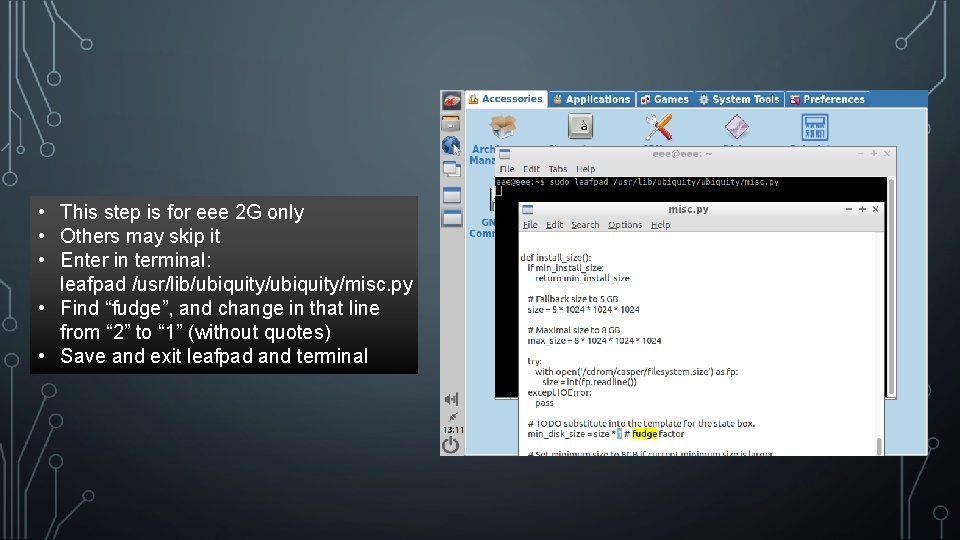
• This step is for eee 2 G only • Others may skip it • Enter in terminal: leafpad /usr/lib/ubiquity/misc. py • Find “fudge”, and change in that line from “ 2” to “ 1” (without quotes) • Save and exit leafpad and terminal
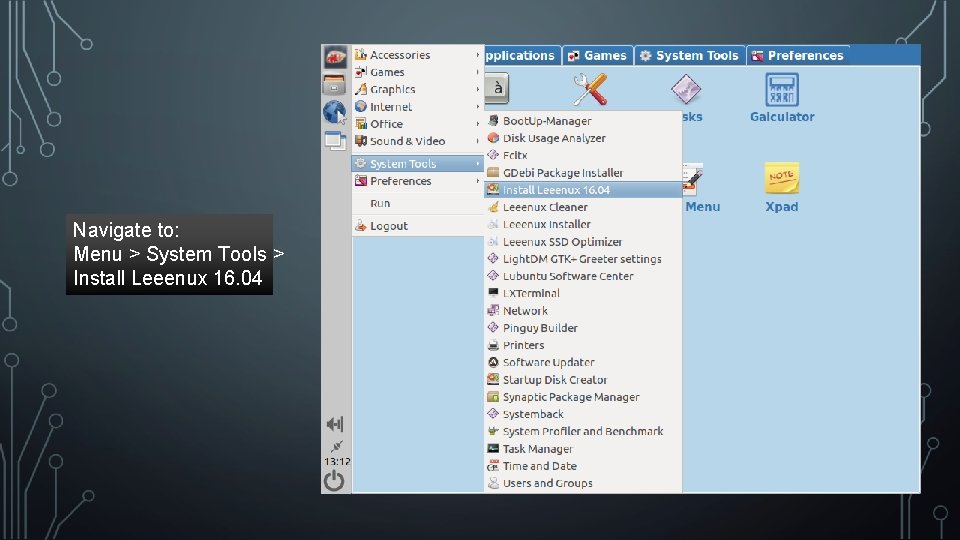
Navigate to: Menu > System Tools > Install Leeenux 16. 04
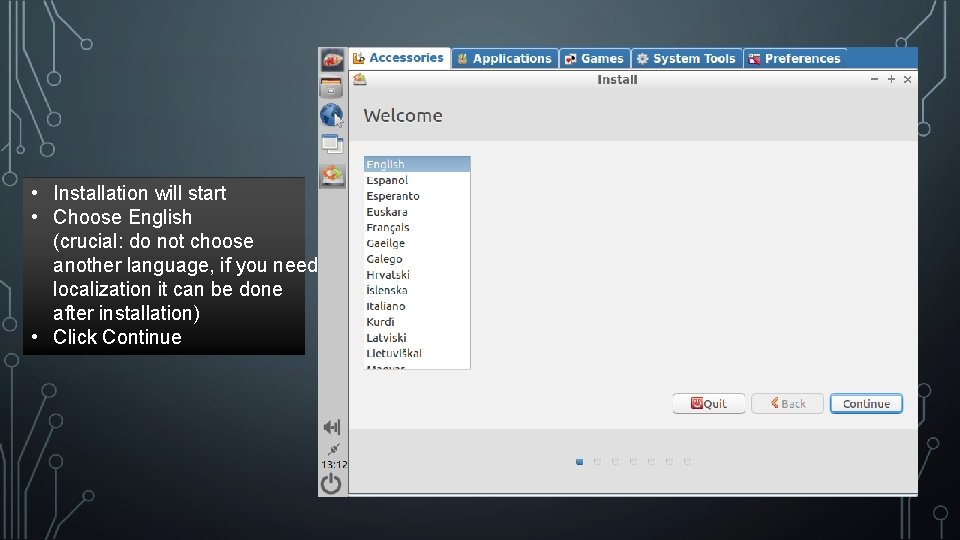
• Installation will start • Choose English (crucial: do not choose another language, if you need localization it can be done after installation) • Click Continue
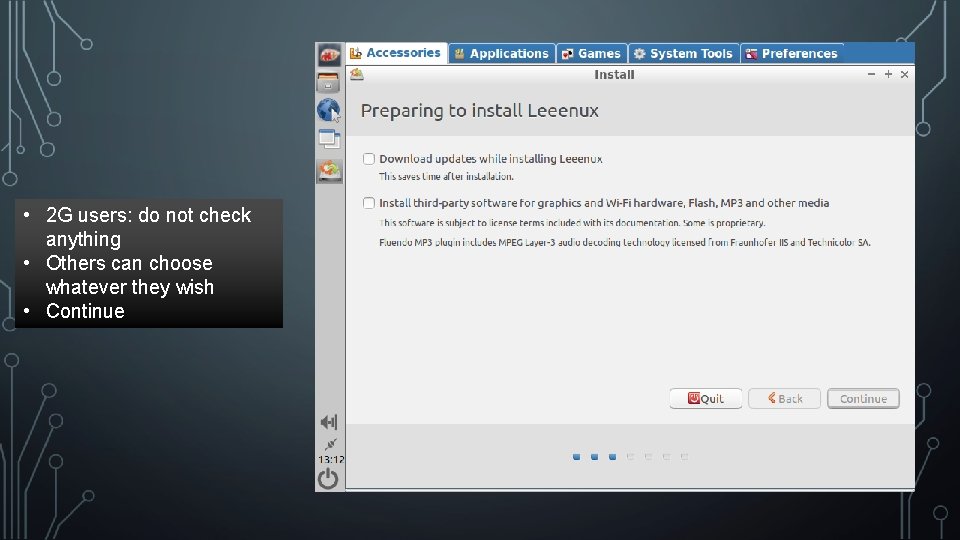
• 2 G users: do not check anything • Others can choose whatever they wish • Continue
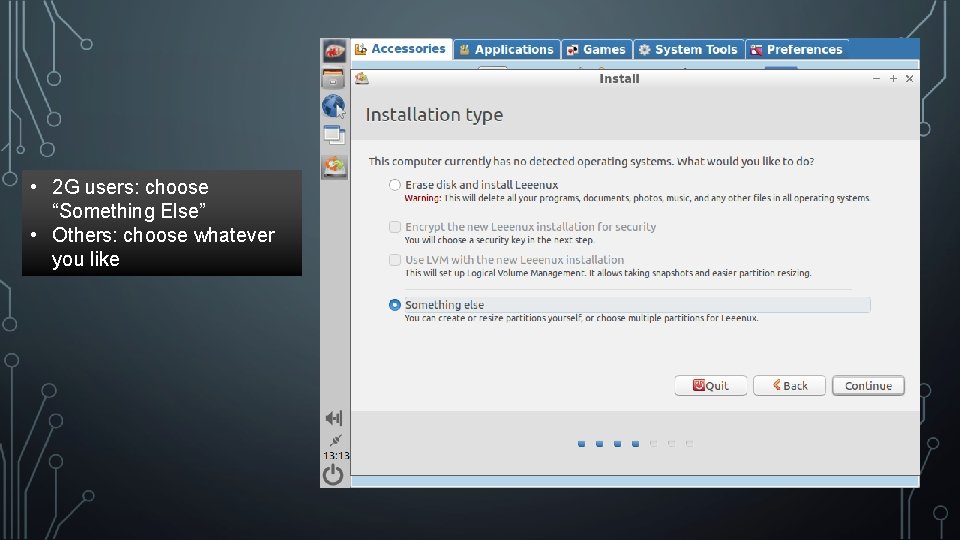
• 2 G users: choose “Something Else” • Others: choose whatever you like
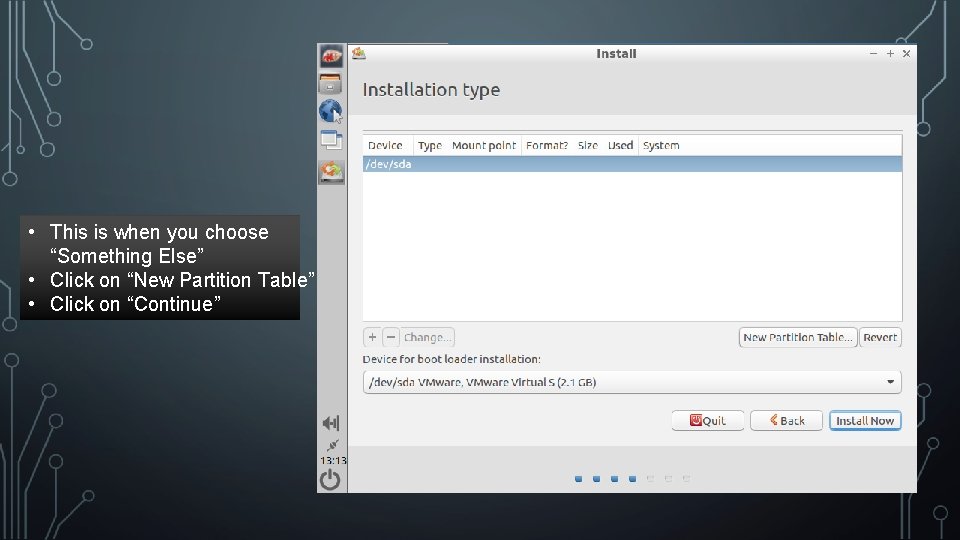
• This is when you choose “Something Else” • Click on “New Partition Table” • Click on “Continue”
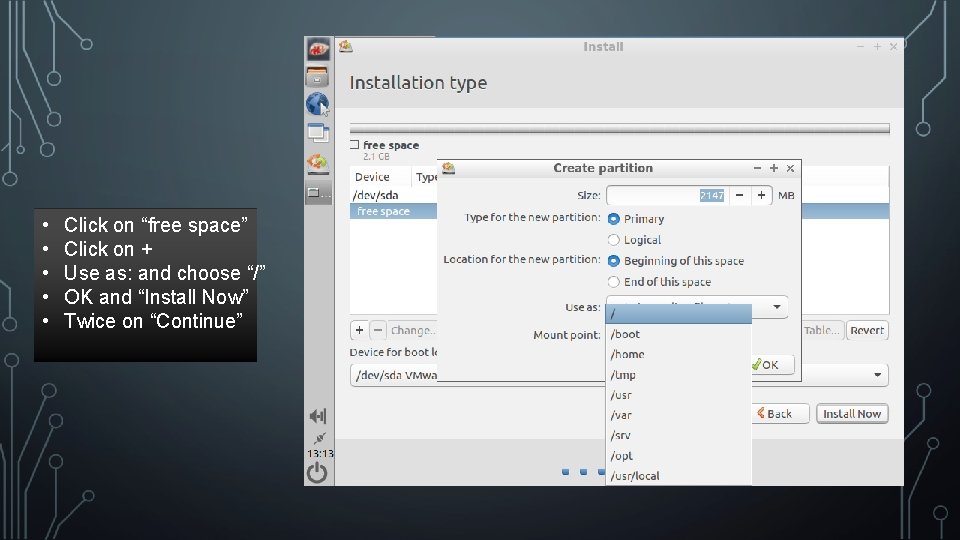
• • • Click on “free space” Click on + Use as: and choose “/” OK and “Install Now” Twice on “Continue”
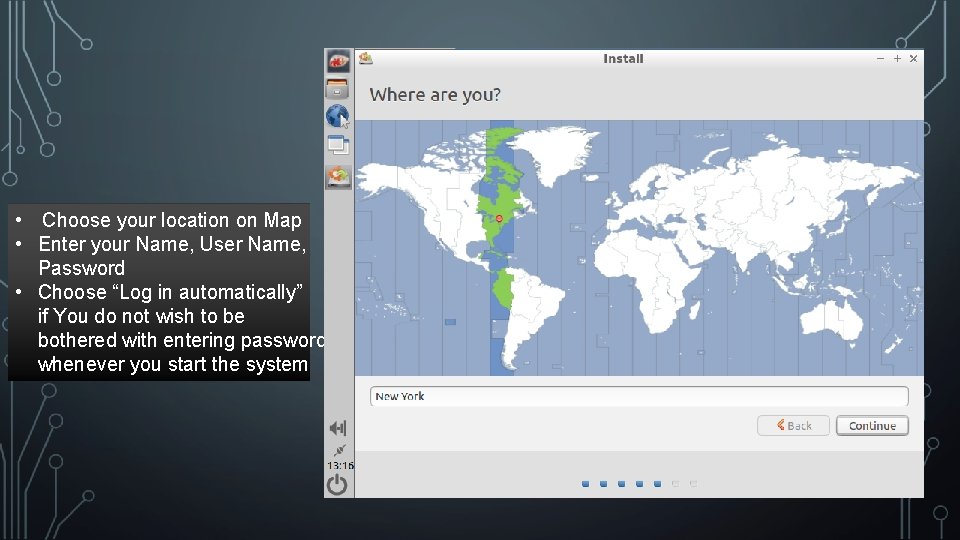
• Choose your location on Map • Enter your Name, User Name, Password • Choose “Log in automatically” if You do not wish to be bothered with entering password whenever you start the system
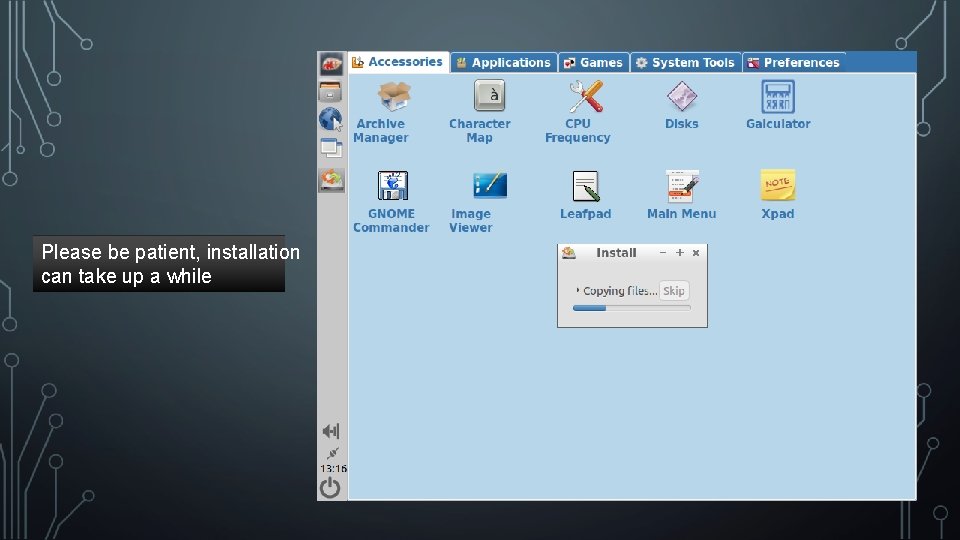
Please be patient, installation can take up a while
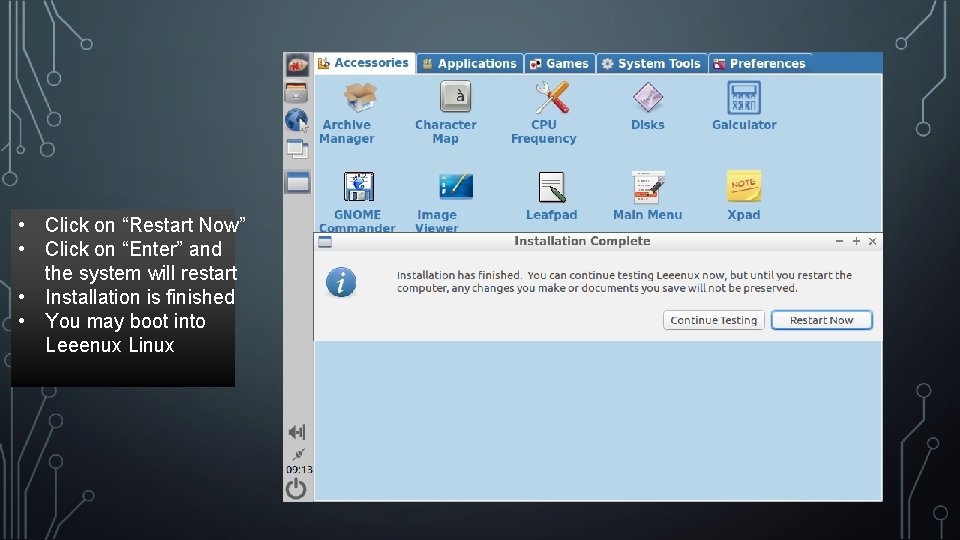
• Click on “Restart Now” • Click on “Enter” and the system will restart • Installation is finished • You may boot into Leeenux Linux