How to Use Office 365 Eagle Gate CollegeProvo
- Slides: 9
How to Use Office 365 Eagle Gate College/Provo College Group
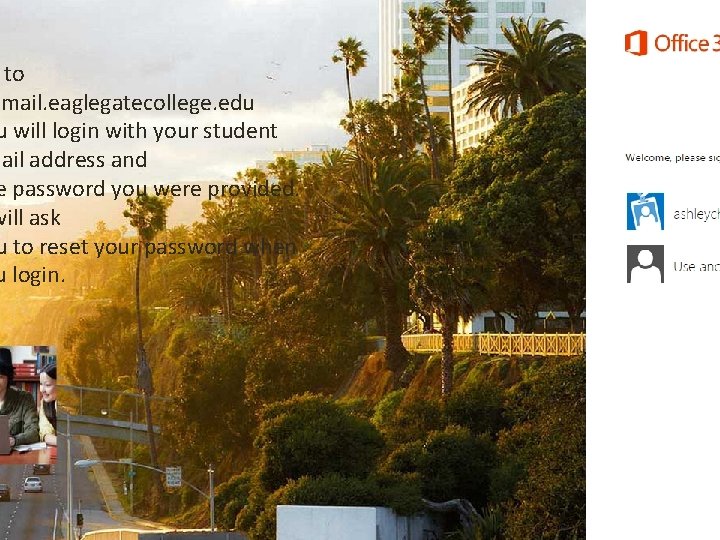
to ymail. eaglegatecollege. edu u will login with your student • First go to your mymail account that you would have received mail address whenand you signed up. e password you were provided. will ask u to reset your password when u login.
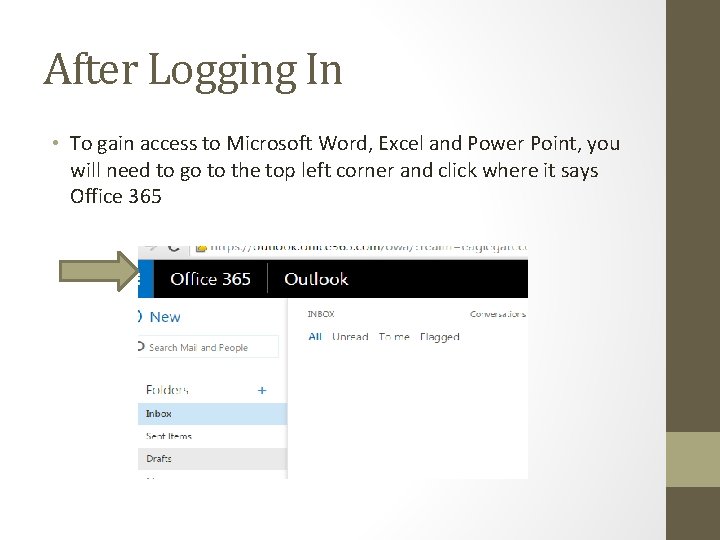
After Logging In • To gain access to Microsoft Word, Excel and Power Point, you will need to go to the top left corner and click where it says Office 365
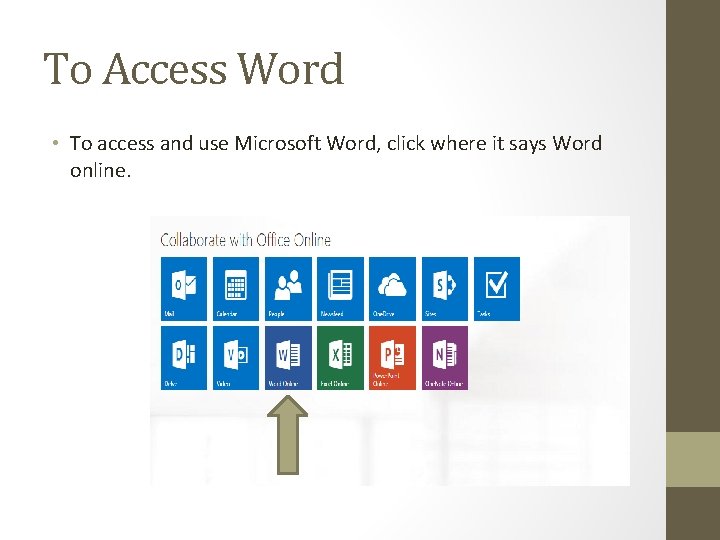
To Access Word • To access and use Microsoft Word, click where it says Word online.
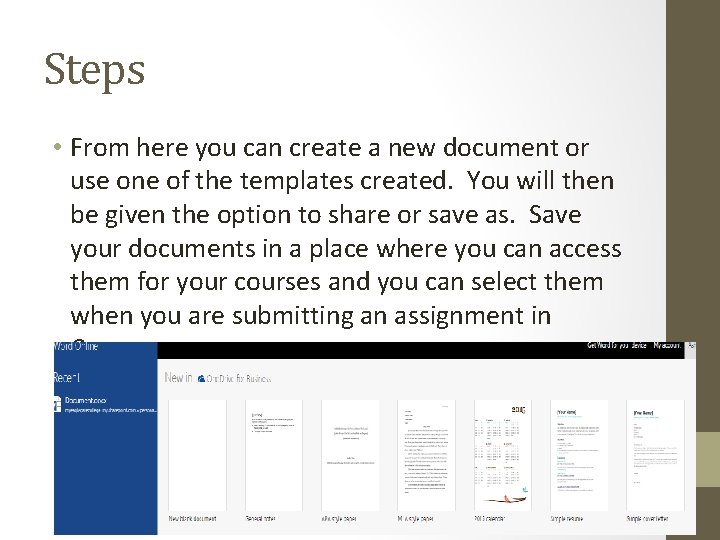
Steps • From here you can create a new document or use one of the templates created. You will then be given the option to share or save as. Save your documents in a place where you can access them for your courses and you can select them when you are submitting an assignment in Canvas.
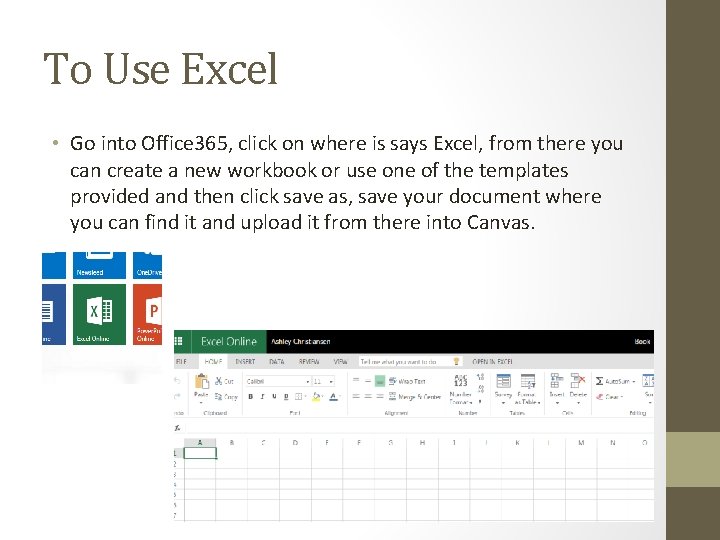
To Use Excel • Go into Office 365, click on where is says Excel, from there you can create a new workbook or use one of the templates provided and then click save as, save your document where you can find it and upload it from there into Canvas.
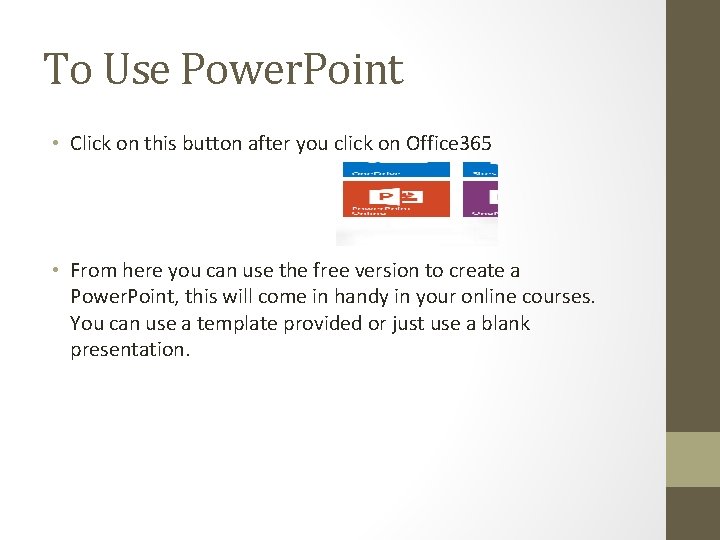
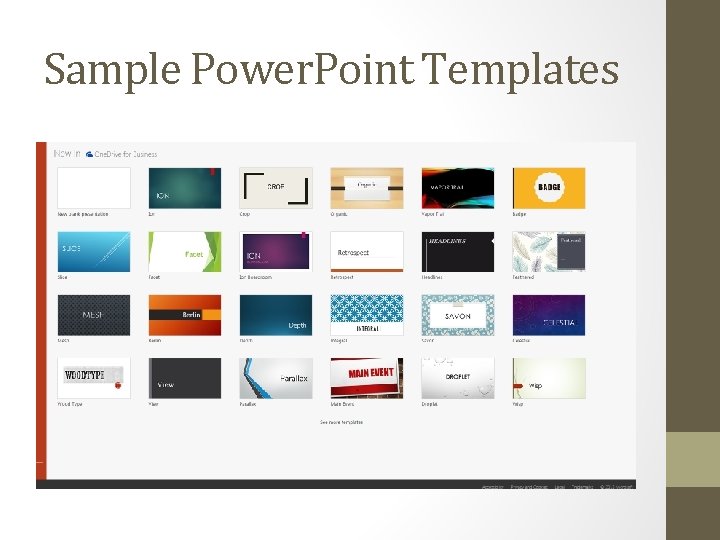
To Use Power. Point • Click on this button after you click on Office 365 • From here you can use the free version to create a Power. Point, this will come in handy in your online courses. You can use a template provided or just use a blank presentation.
Sample Power. Point Templates
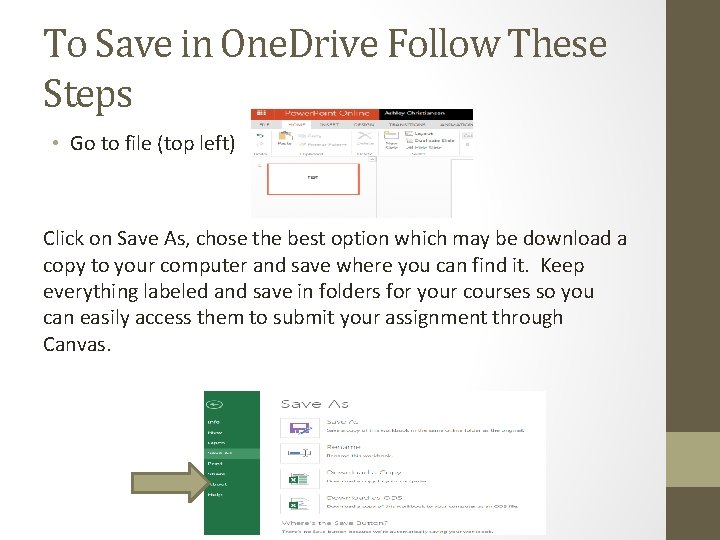
To Save in One. Drive Follow These Steps • Go to file (top left) Click on Save As, chose the best option which may be download a copy to your computer and save where you can find it. Keep everything labeled and save in folders for your courses so you can easily access them to submit your assignment through Canvas.