Commercial Card Expense Reporting CCER The Trustees of


- Slides: 25
Commercial Card Expense Reporting (CCER) The Trustees of Roanoke College An internet solution Accessed via Wells Fargo’s secure Commercial Electronic Office® (CEO) portal
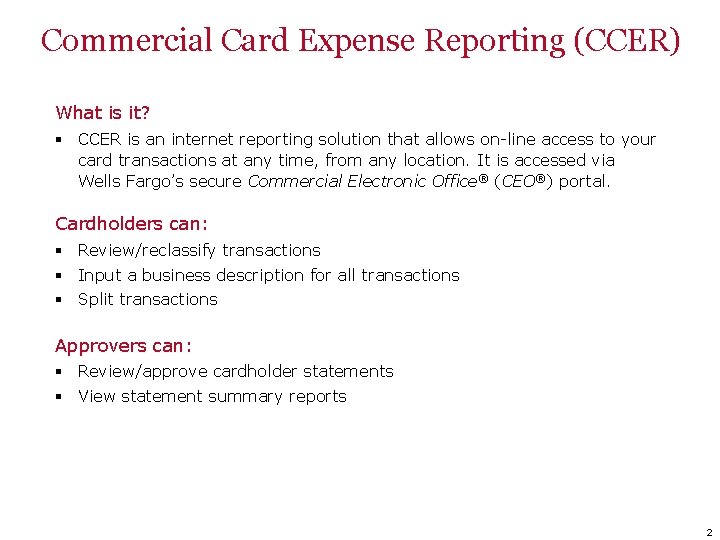
Commercial Card Expense Reporting (CCER) What is it? § CCER is an internet reporting solution that allows on-line access to your card transactions at any time, from any location. It is accessed via Wells Fargo’s secure Commercial Electronic Office® (CEO®) portal. Cardholders can: § Review/reclassify transactions § Input a business description for all transactions § Split transactions Approvers can: § Review/approve cardholder statements § View statement summary reports 2
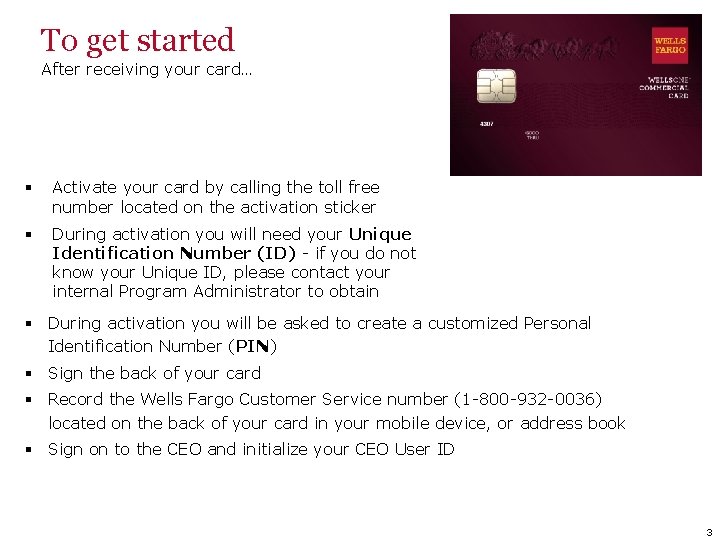
To get started After receiving your card… § Activate your card by calling the toll free number located on the activation sticker § During activation you will need your Unique Identification Number (ID) - if you do not know your Unique ID, please contact your internal Program Administrator to obtain § During activation you will be asked to create a customized Personal Identification Number (PIN) § Sign the back of your card § Record the Wells Fargo Customer Service number (1 -800 -932 -0036) located on the back of your card in your mobile device, or address book § Sign on to the CEO and initialize your CEO User ID 3
Chip and PIN Card Information To enhance the security of your credit card purchases, your new commercial card features chip and personal identification number (PIN) technology, in addition to a magnetic stripe. With this card, you will have added identity verification and more flexibility at chip-enabled and traditional magnetic stripe terminals. Please review the important information below to help you get started with your new card. About chip-enabled cards • Over the next year, U. S. merchants will begin using terminals that accept chip-enabled credit cards. Until then, you may use your card by swiping at the point of sale, just as you do today. • As chip-enabled terminals are already being used internationally, you may use your card to complete chipenabled transactions in Europe, Asia, South America, and Canada. Getting started with your new card 1. To activate your card, you will need your unique identification (ID) number. If you do not know your unique ID, please contact your program administrator. 2. Activate your new card immediately by calling 1 -800 -932 -0036, 24 hours a day, 7 days a week. • When dialing from outside the U. S. or Canada, dial 001 -800 -932 -0036. This is not a toll-free number when calling internationally. • If you need help internationally, please call customer service collect at 1 -612 -332 -2224. 3. When you activate your card, you will select a personal identification number (PIN). Use this PIN for chip-enabled transactions when prompted by the terminal. This same PIN will be used for cash advances, if you are authorized to make them. Depending on the terminal set-up, you may be prompted to provide your signature instead of your PIN. Once activated, the card is ready for use at either mag stripe terminals or chip enabled terminals. 4. If you forget or need to change your PIN, call the Wells. One Service Center at 1 -800 -932 -0036, option 2, option 1. 2. 4
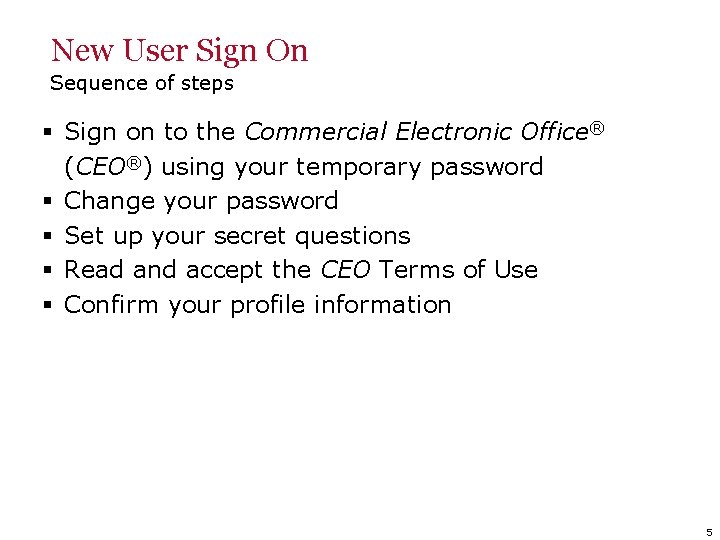
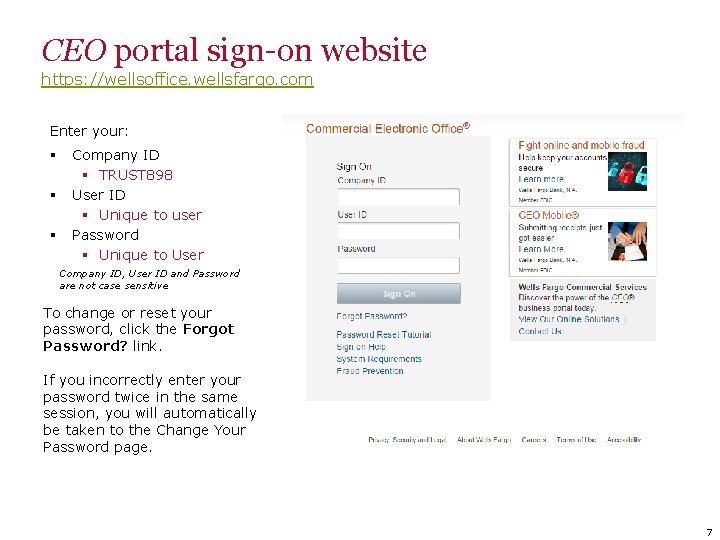
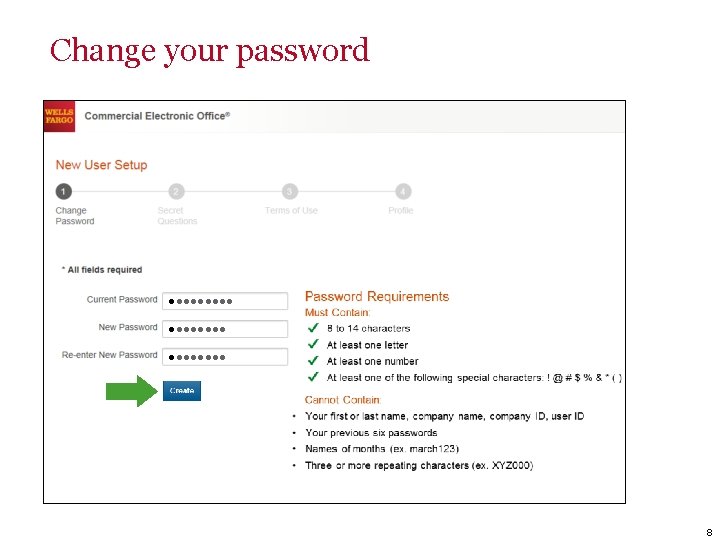
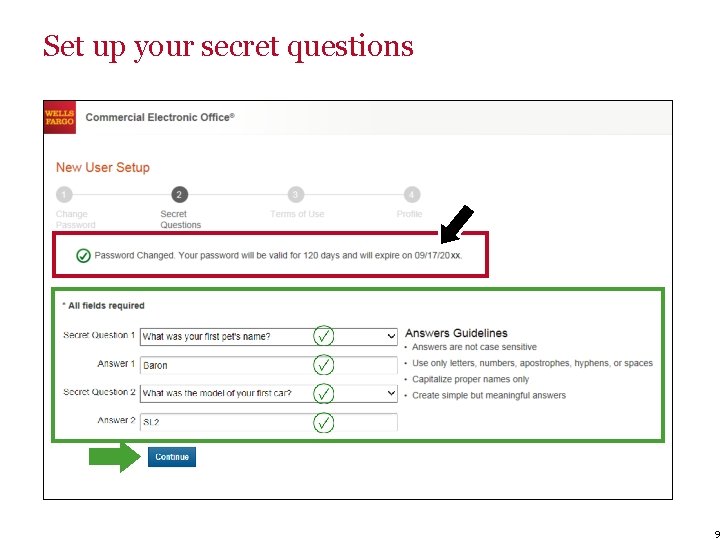
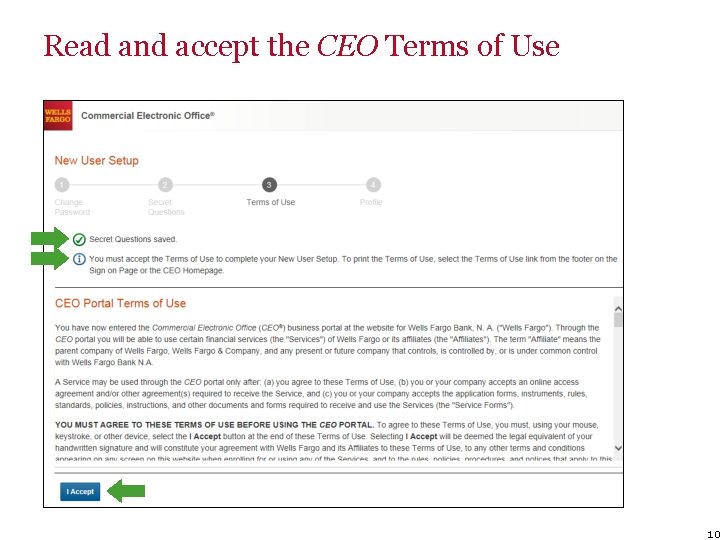
New User Sign On Sequence of steps § Sign on to the Commercial Electronic Office® (CEO®) using your temporary password § Change your password § Set up your secret questions § Read and accept the CEO Terms of Use § Confirm your profile information 5
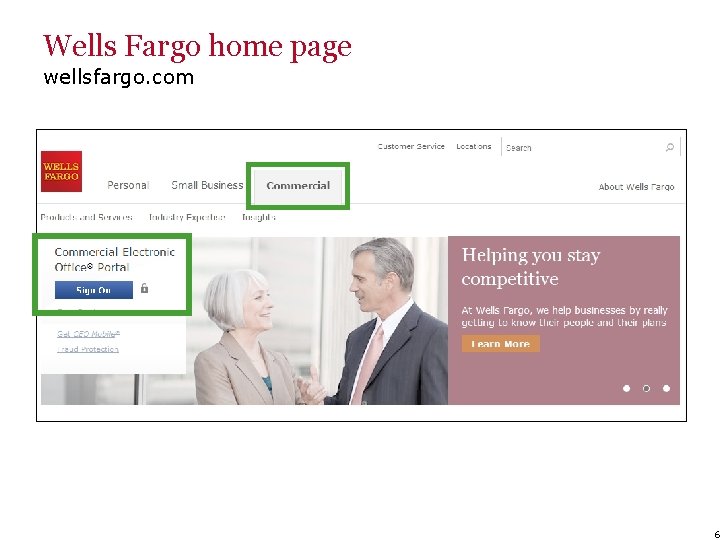
Wells Fargo home page wellsfargo. com 6
CEO portal sign-on website https: //wellsoffice. wellsfargo. com Enter your: § § § Company ID § TRUST 898 User ID § Unique to user Password § Unique to User Company ID, User ID and Password are not case sensitive To change or reset your password, click the Forgot Password? link. If you incorrectly enter your password twice in the same session, you will automatically be taken to the Change Your Password page. 7
Change your password ●●●●●●●● 8
Set up your secret questions 9
Read and accept the CEO Terms of Use 10
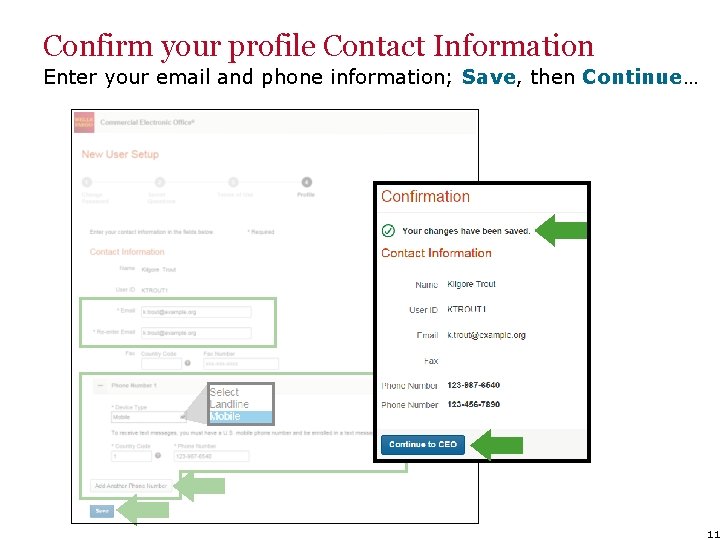
Confirm your profile Contact Information Enter your email and phone information; Save, then Continue… 11
12
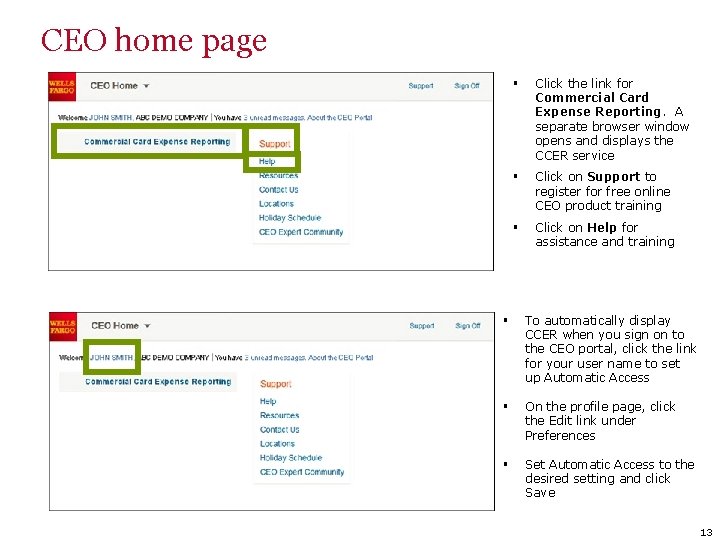
CEO home page § Click the link for Commercial Card Expense Reporting. A separate browser window opens and displays the CCER service § Click on Support to register for free online CEO product training § Click on Help for assistance and training § To automatically display CCER when you sign on to the CEO portal, click the link for your user name to set up Automatic Access § On the profile page, click the Edit link under Preferences § Set Automatic Access to the desired setting and click Save 13
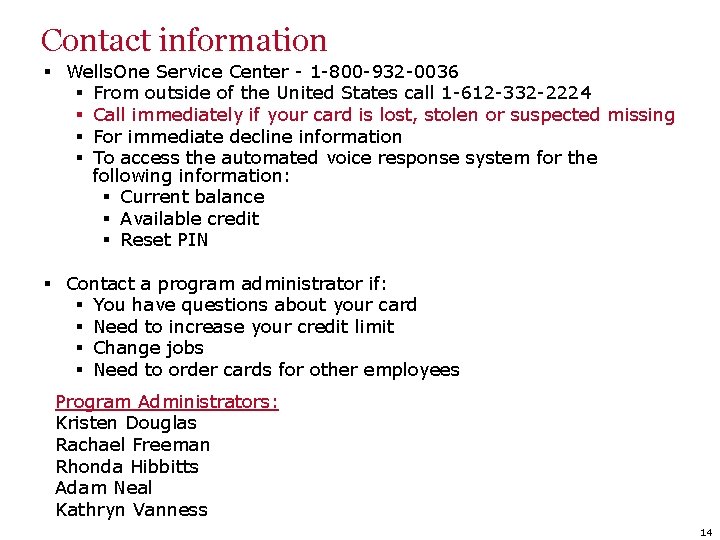
Contact information § Wells. One Service Center - 1 -800 -932 -0036 § From outside of the United States call 1 -612 -332 -2224 § Call immediately if your card is lost, stolen or suspected missing § For immediate decline information § To access the automated voice response system for the following information: § Current balance § Available credit § Reset PIN § Contact a program administrator if: § You have questions about your card § Need to increase your credit limit § Change jobs § Need to order cards for other employees Program Administrators: Kristen Douglas Rachael Freeman Rhonda Hibbitts Adam Neal Kathryn Vanness 14
Approver experience
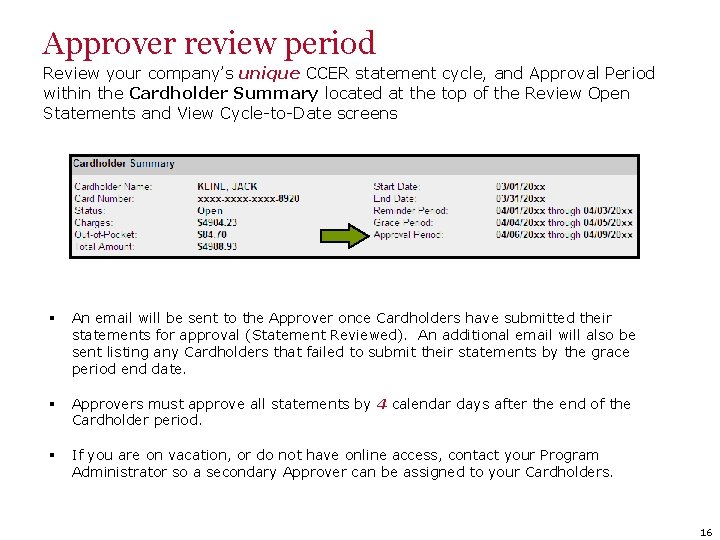
Approver review period Review your company’s unique CCER statement cycle, and Approval Period within the Cardholder Summary located at the top of the Review Open Statements and View Cycle-to-Date screens § An email will be sent to the Approver once Cardholders have submitted their statements for approval (Statement Reviewed). An additional email will also be sent listing any Cardholders that failed to submit their statements by the grace period end date. § Approvers must approve all statements by 4 calendar days after the end of the Cardholder period. § If you are on vacation, or do not have online access, contact your Program Administrator so a secondary Approver can be assigned to your Cardholders. 16
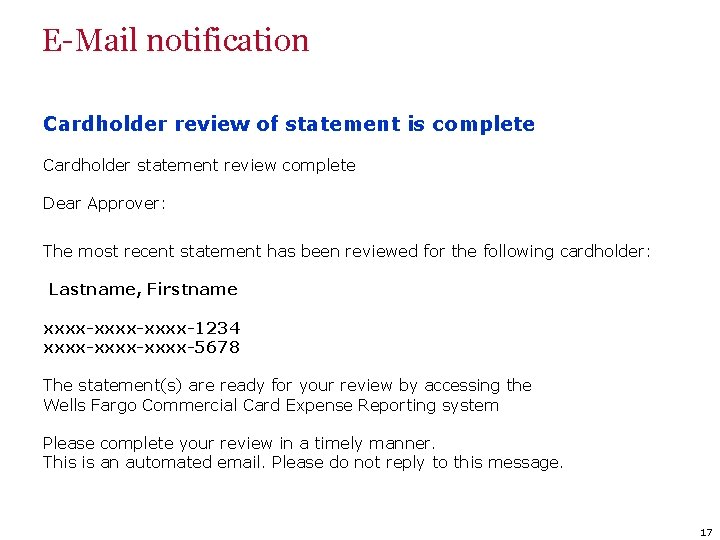
E-Mail notification Cardholder review of statement is complete Cardholder statement review complete Dear Approver: The most recent statement has been reviewed for the following cardholder: Lastname, Firstname xxxx-xxxx-1234 xxxx-xxxx-5678 The statement(s) are ready for your review by accessing the Wells Fargo Commercial Card Expense Reporting system Please complete your review in a timely manner. This is an automated email. Please do not reply to this message. 17
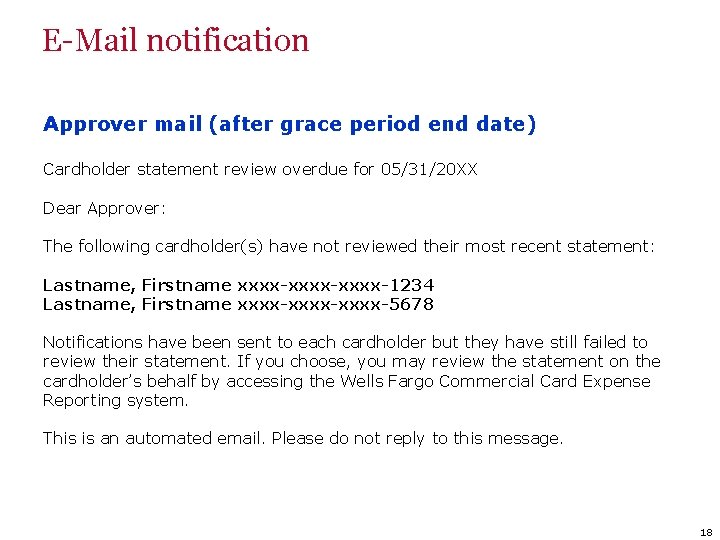
E-Mail notification Approver mail (after grace period end date) Cardholder statement review overdue for 05/31/20 XX Dear Approver: The following cardholder(s) have not reviewed their most recent statement: Lastname, Firstname xxxx-xxxx-1234 Lastname, Firstname xxxx-xxxx-5678 Notifications have been sent to each cardholder but they have still failed to review their statement. If you choose, you may review the statement on the cardholder’s behalf by accessing the Wells Fargo Commercial Card Expense Reporting system. This is an automated email. Please do not reply to this message. 18
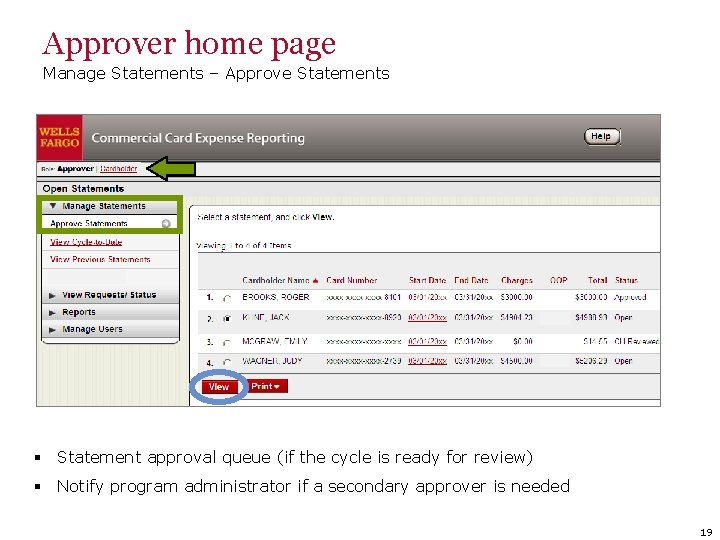
Approver home page Manage Statements – Approve Statements § Statement approval queue (if the cycle is ready for review) § Notify program administrator if a secondary approver is needed 19
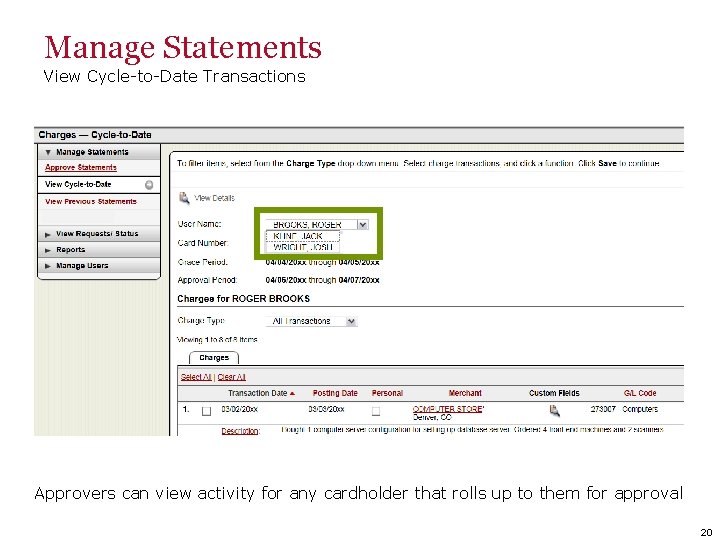
Manage Statements View Cycle-to-Date Transactions Approvers can view activity for any cardholder that rolls up to them for approval 20
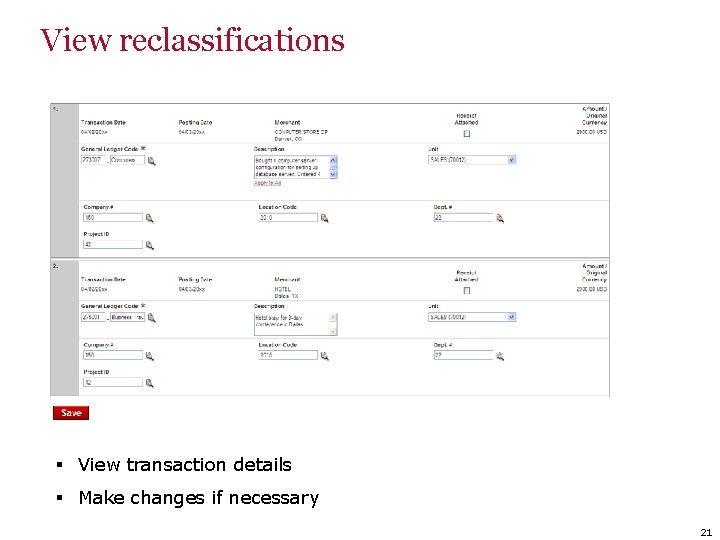
View reclassifications § View transaction details § Make changes if necessary 21
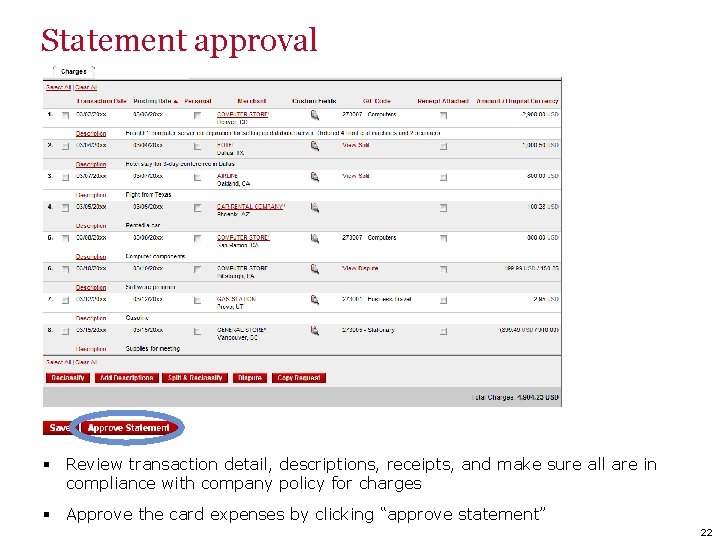
Statement approval § Review transaction detail, descriptions, receipts, and make sure all are in compliance with company policy for charges § Approve the card expenses by clicking “approve statement” 22
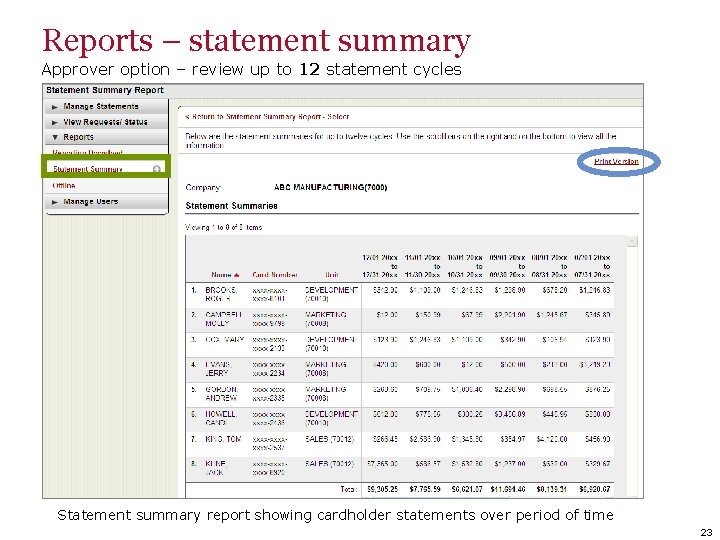
Reports – statement summary Approver option – review up to 12 statement cycles Statement summary report showing cardholder statements over period of time 23
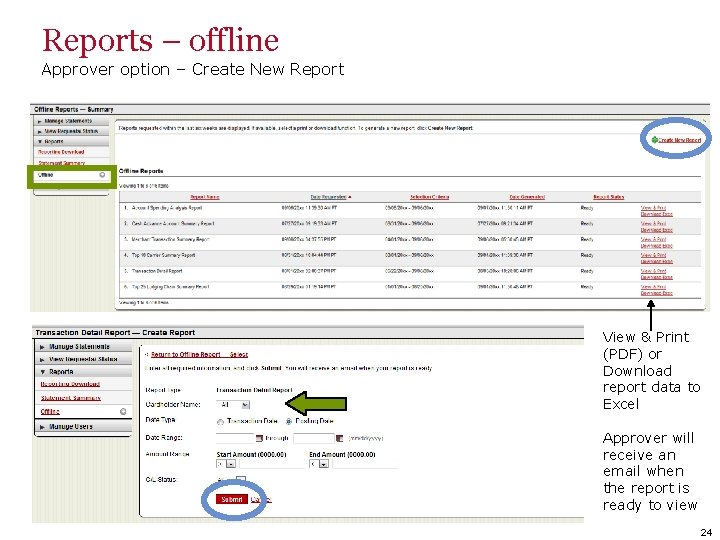
Reports – offline Approver option – Create New Report View & Print (PDF) or Download report data to Excel Approver will receive an email when the report is ready to view 24
Thank you! © 2016 Wells Fargo Bank, N. A. All rights reserved. Confidential.