Comm Operator Tutorial How to send the data
- Slides: 10
Comm Operator Tutorial How to send the data after receiving specific data automatically Serial Port Tool http: //www. serialporttool. com
Task Send the data after receiving specific data automatically Sample: Send data ’ 254 33’ after receiving data ’ 85’. Comm Operator Tutorial
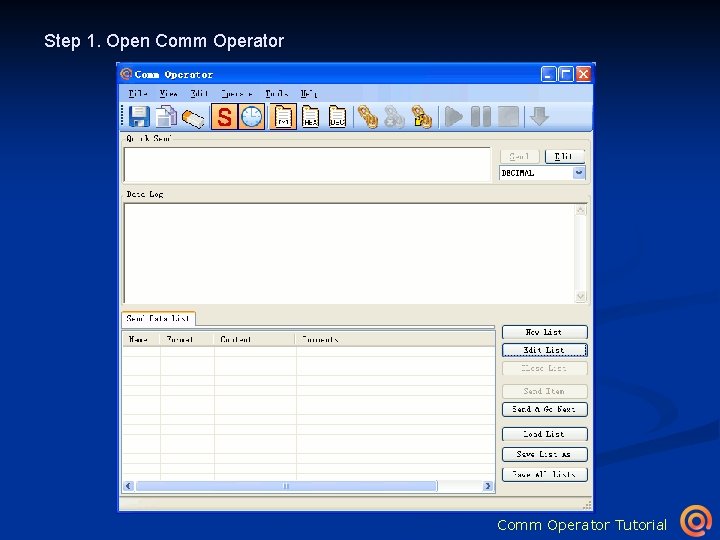
Step 1. Open Comm Operator Tutorial
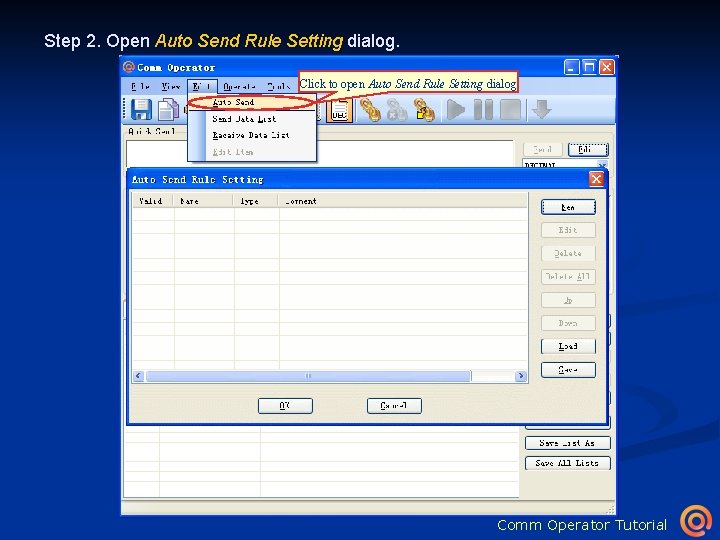
Step 2. Open Auto Send Rule Setting dialog. Click to open Auto Send Rule Setting dialog Comm Operator Tutorial
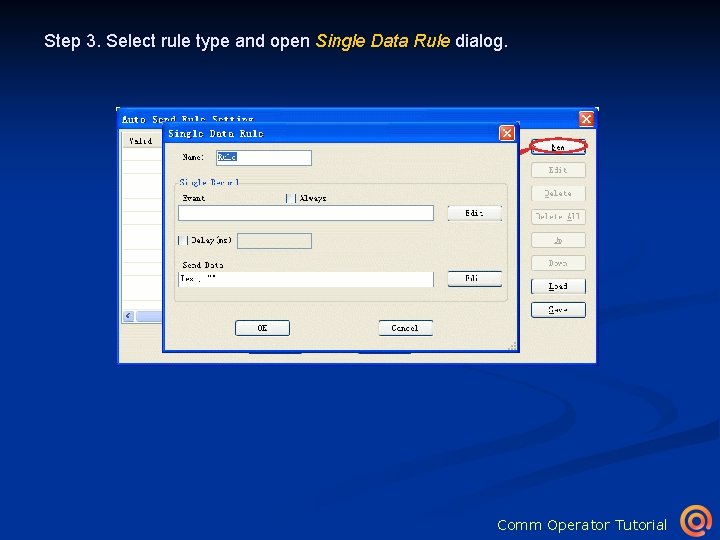
Step 3. Select rule type and open Single Data Rule dialog. Click to show Select Rule Type dialog Click to open Single Data Rule dialog Comm Operator Tutorial
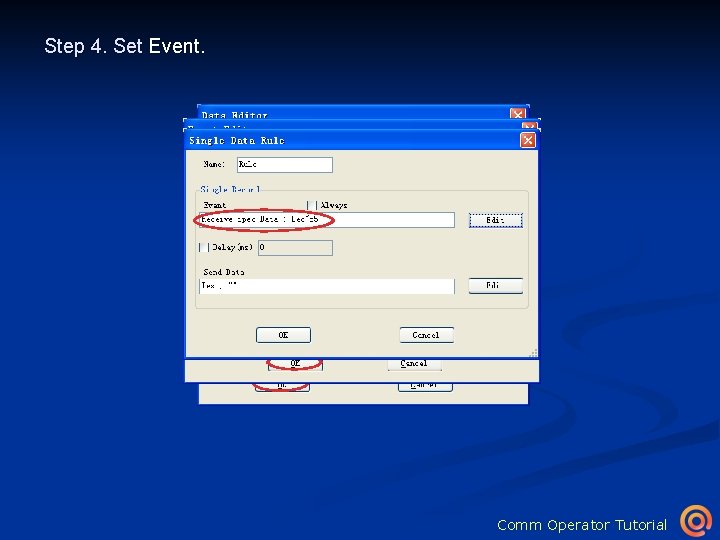
Step 4. Set Event. Click Editordialog Click to to open Event Data Editor Click to return Single Data Rule dialog Click to return Event Editor dialog Comm Operator Tutorial
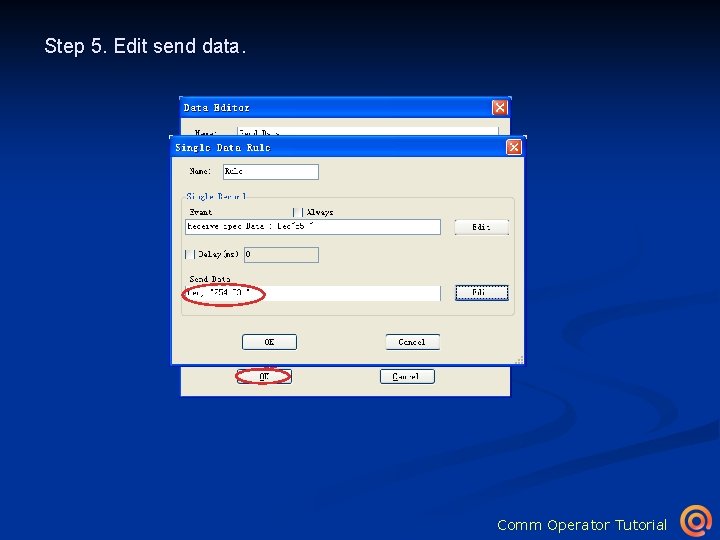
Step 5. Edit send data. Click to open Data Editor dialog Click to return Single Data Rule dialog Comm Operator Tutorial
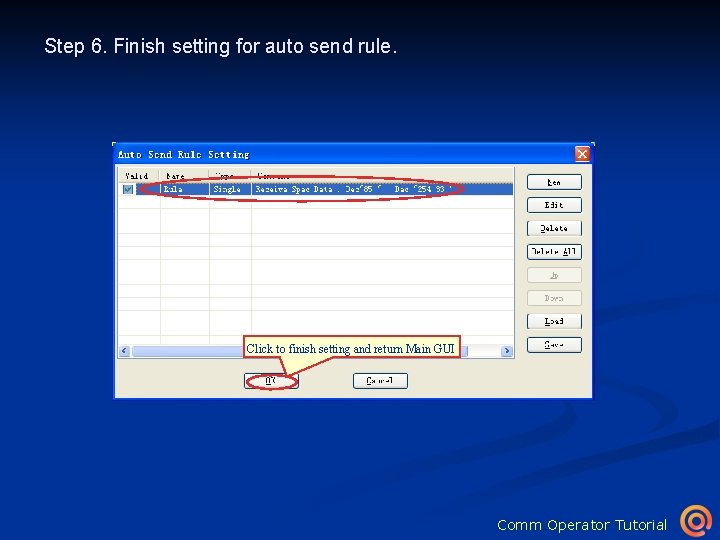
Step 6. Finish setting for auto send rule. Click to return Auto Send Rule Setting dialog Click to finish setting and return Main GUI Comm Operator Tutorial
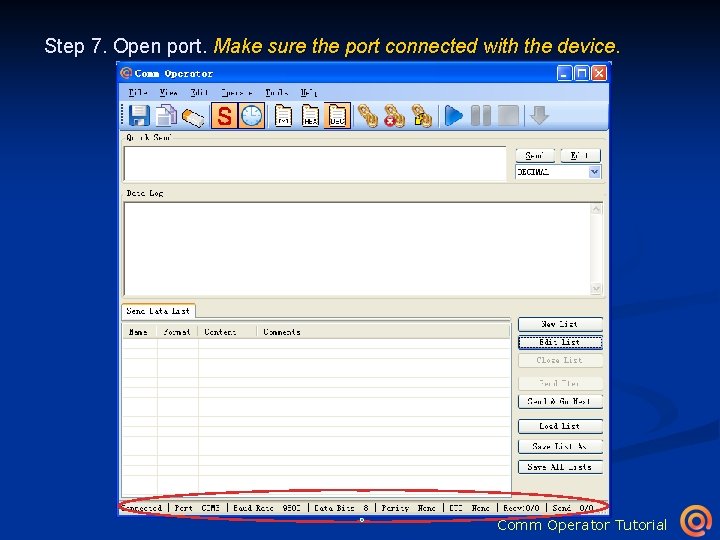
Step 7. Open port. Make sure the port connected with the device. Click to show Open Port dialog Click to show Select Link Type dialog Click to open port Click to select link type Comm Operator Tutorial
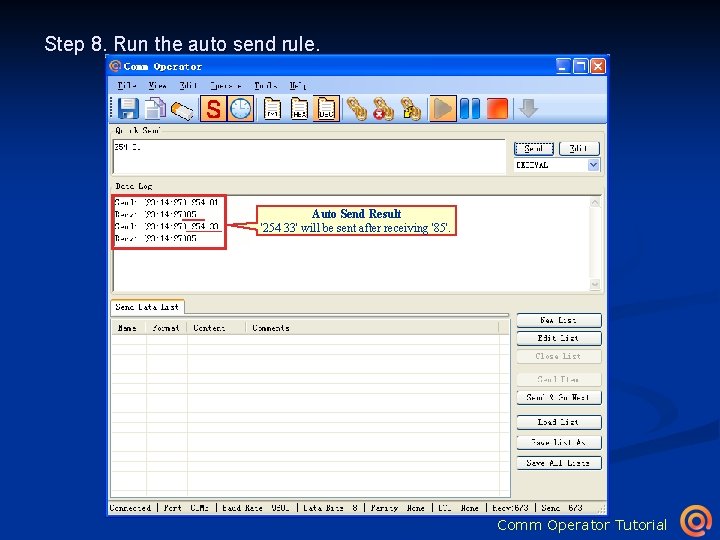
Step 8. Run the auto send rule. Click to start auto send Auto Send Result '254 33' will be sent after receiving '85'. Comm Operator Tutorial