Ref Works in 15 Minutes Agenda 1 2





- Slides: 40
Ref. Works in 15 Minutes
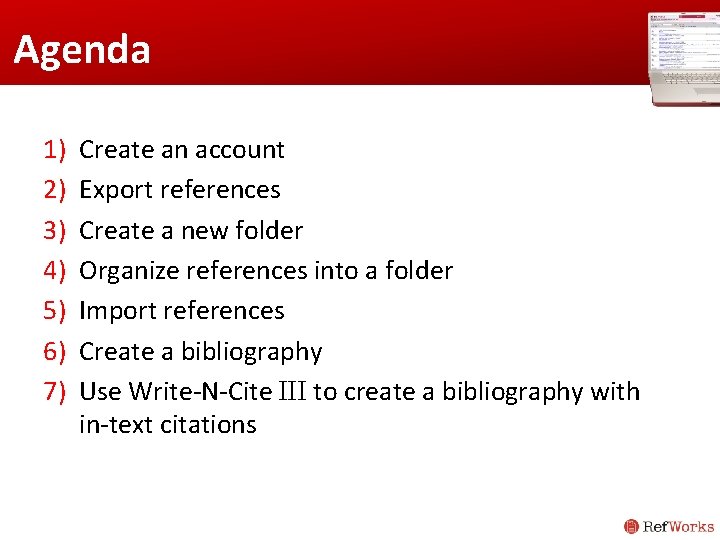
Agenda 1) 2) 3) 4) 5) 6) 7) Create an account Export references Create a new folder Organize references into a folder Import references Create a bibliography Use Write-N-Cite III to create a bibliography with in-text citations
Create An Account
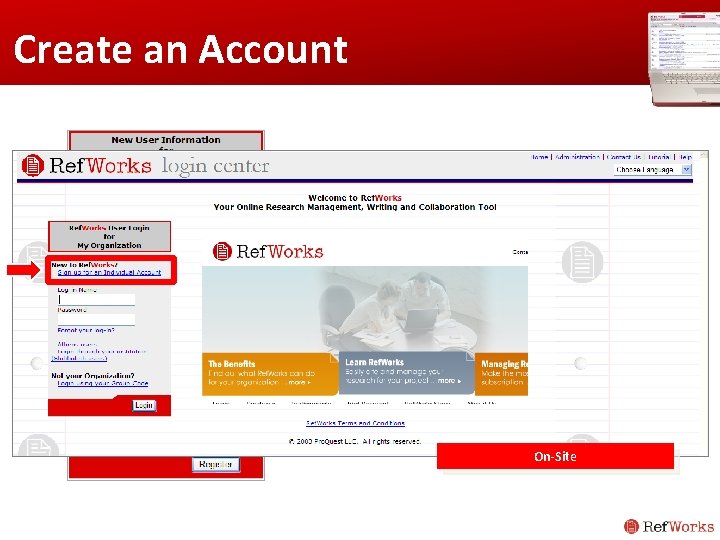
Create an Account On-Site
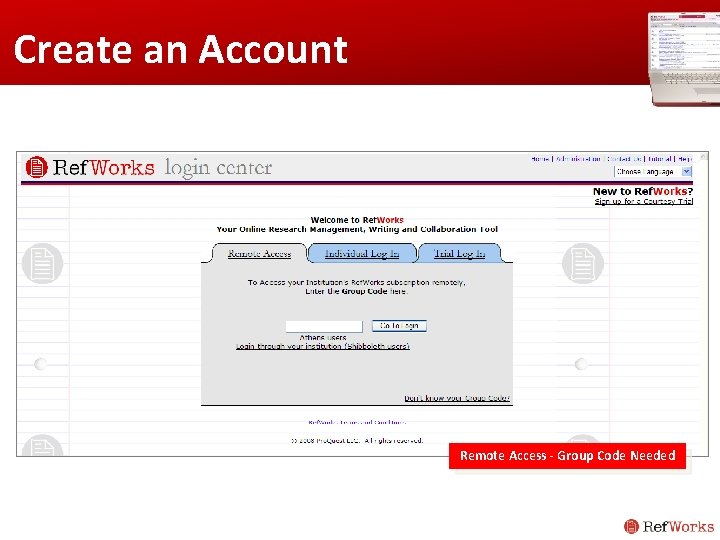
Create an Account Remote Access - Group Code Needed
Export References
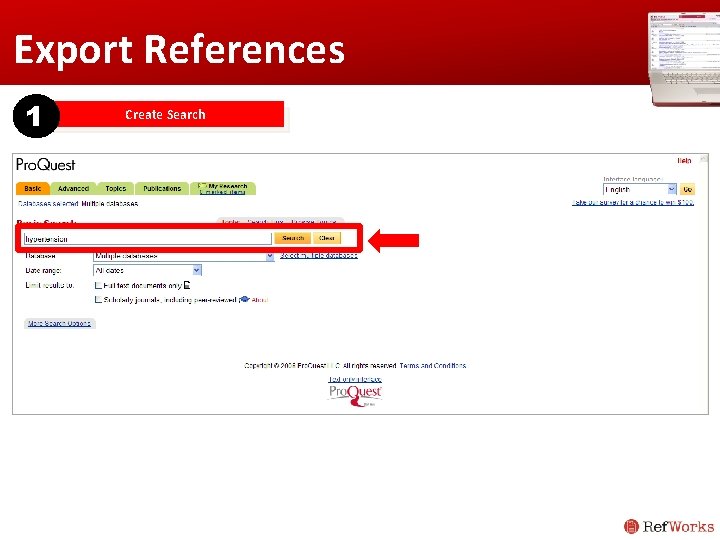
Export References 1 Create Search
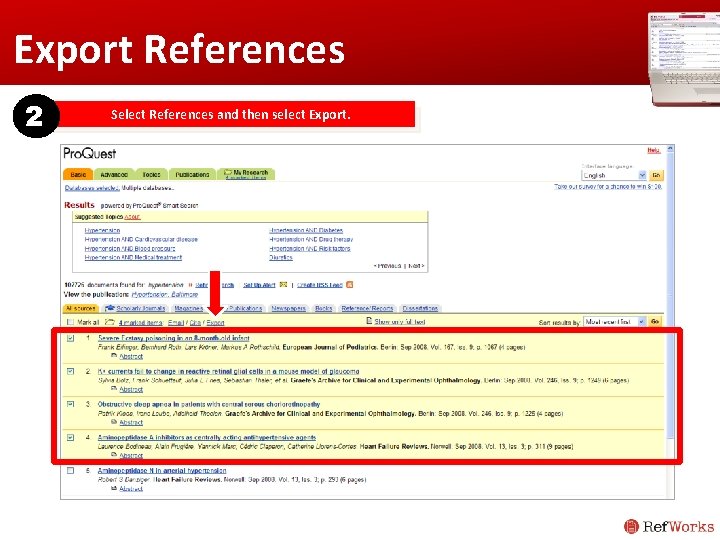
Export References 2 Select References and then select Export.
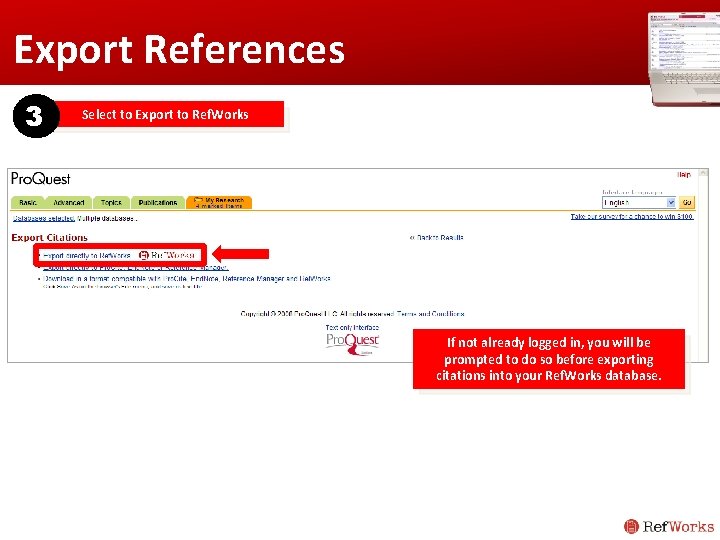
Export References 3 Select to Export to Ref. Works If not already logged in, you will be prompted to do so before exporting citations into your Ref. Works database.
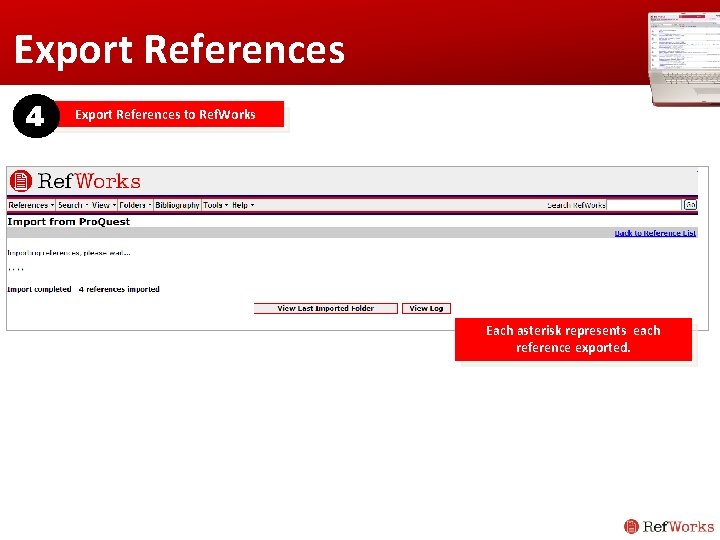
Export References 4 Export References to Ref. Works Each asterisk represents each reference exported.
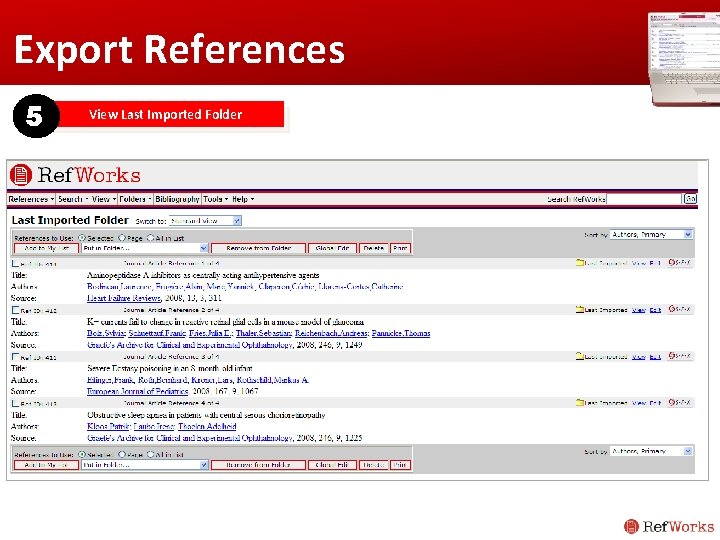
Export References 5 View Last Imported Folder
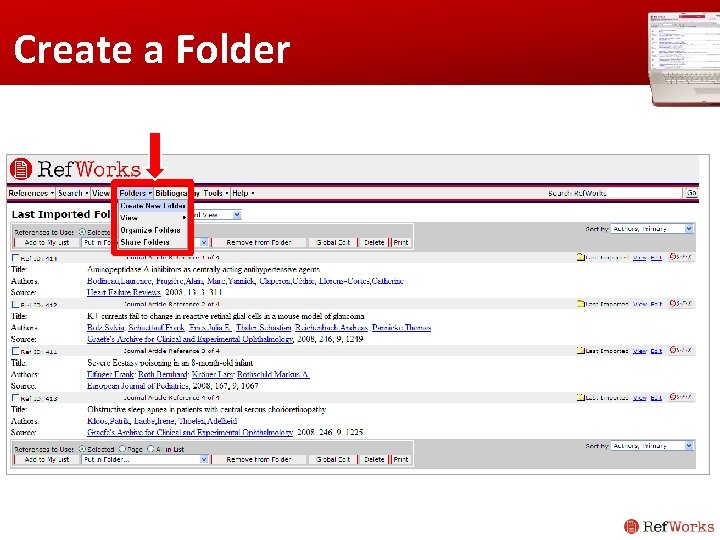
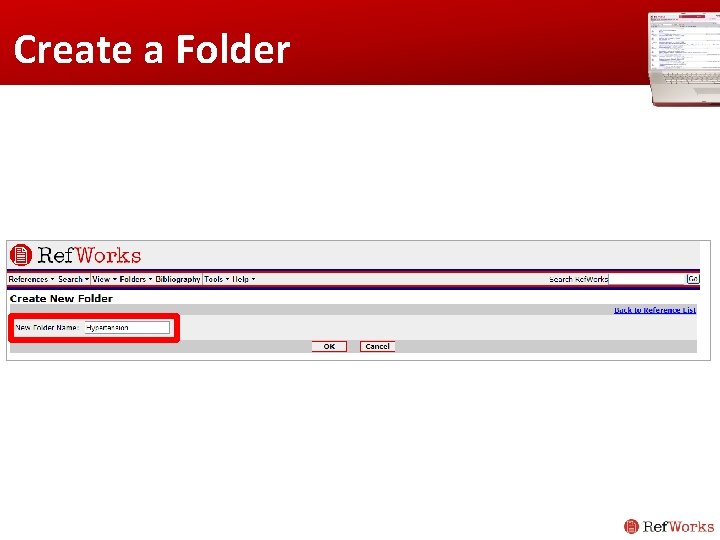
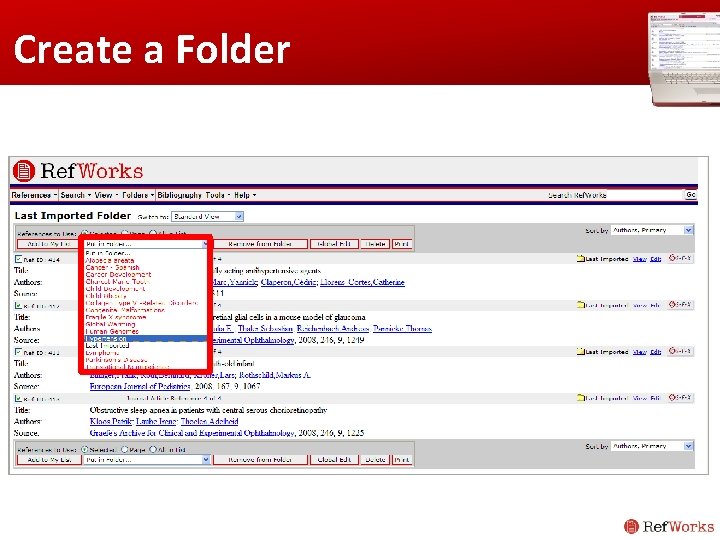
Create a Folder
Create a Folder
Create a Folder
Create a Folder
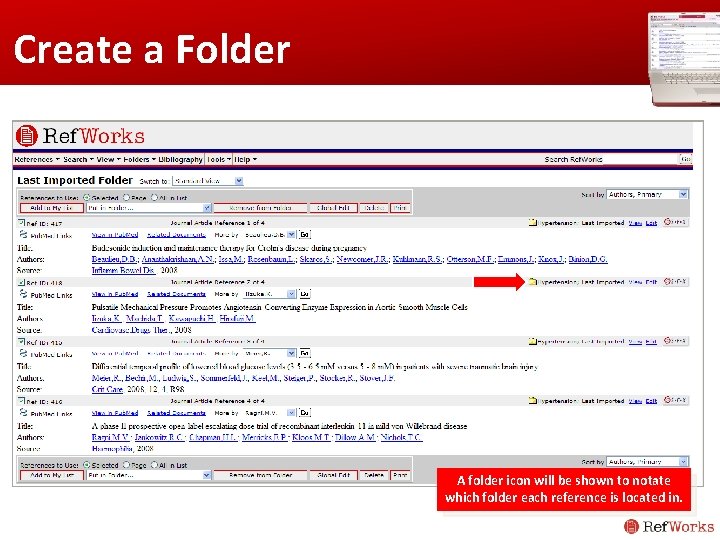
Create a Folder A folder icon will be shown to notate which folder each reference is located in.
Import References
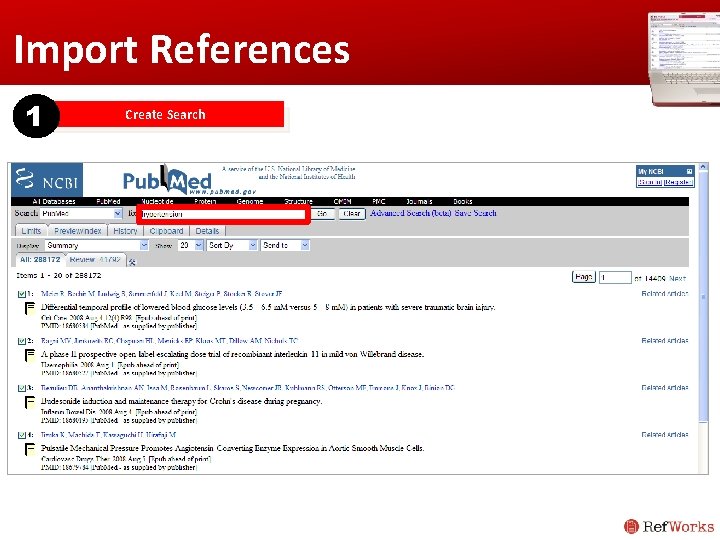
Import References 1 Create Search
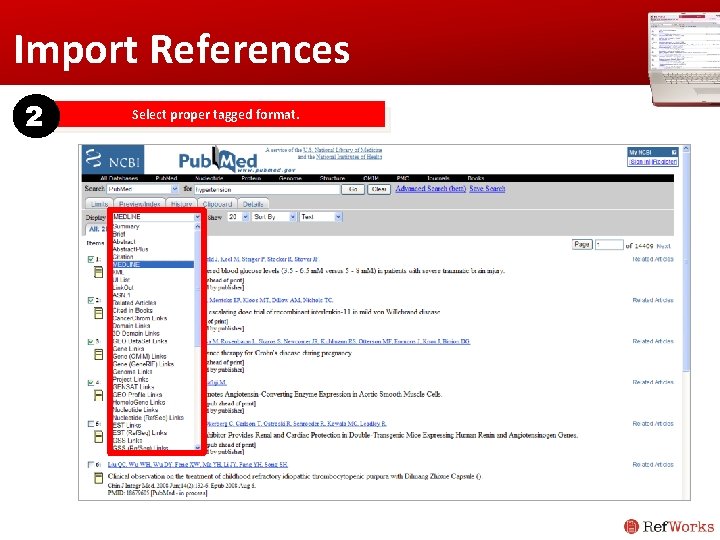
Import References 2 Select proper tagged format.
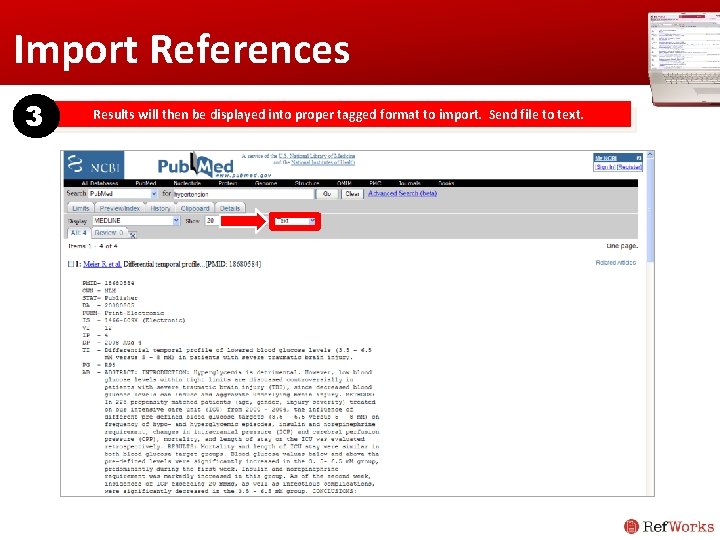
Import References 3 Results will then be displayed into proper tagged format to import. Send file to text.
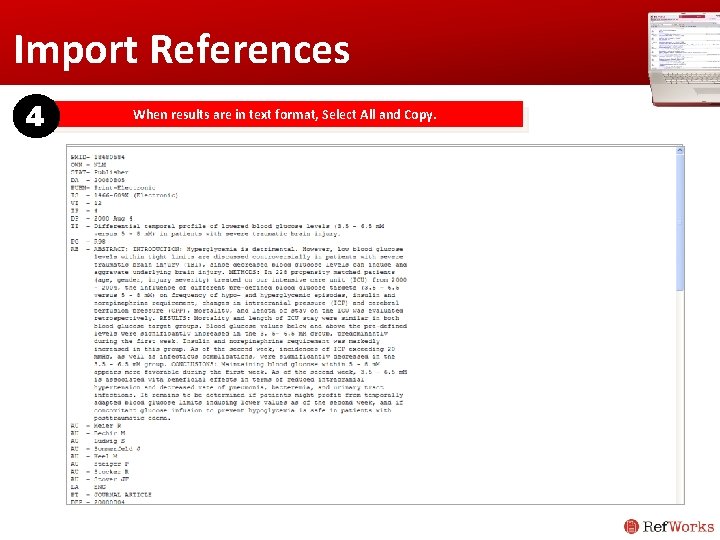
Import References 4 When results are in text format, Select All and Copy.
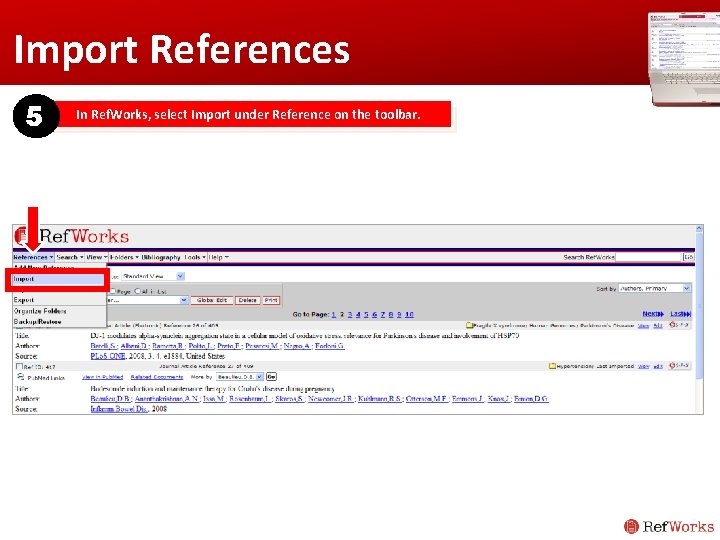
Import References 5 In Ref. Works, select Import under Reference on the toolbar.
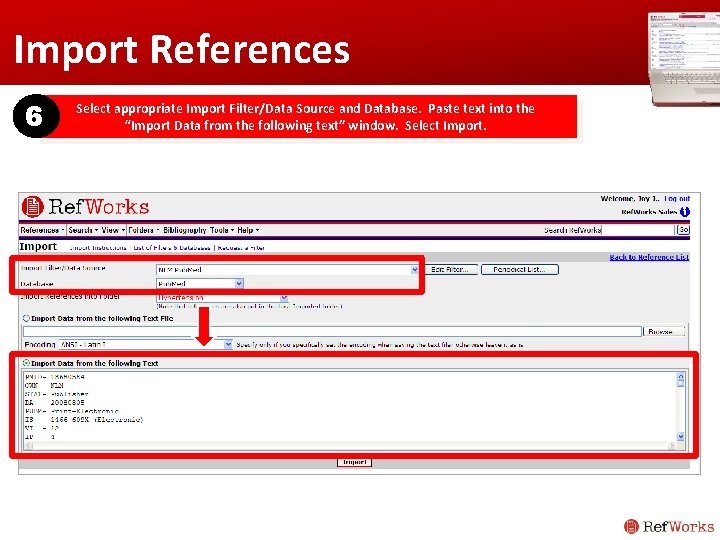
Import References 6 Select appropriate Import Filter/Data Source and Database. Paste text into the “Import Data from the following text” window. Select Import. c
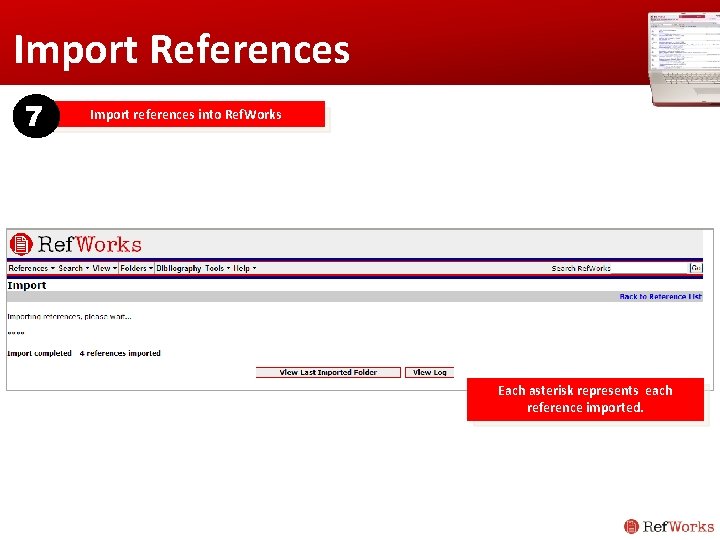
Import References 7 Import references into Ref. Works Each asterisk represents each reference imported.
Create a Bibliography
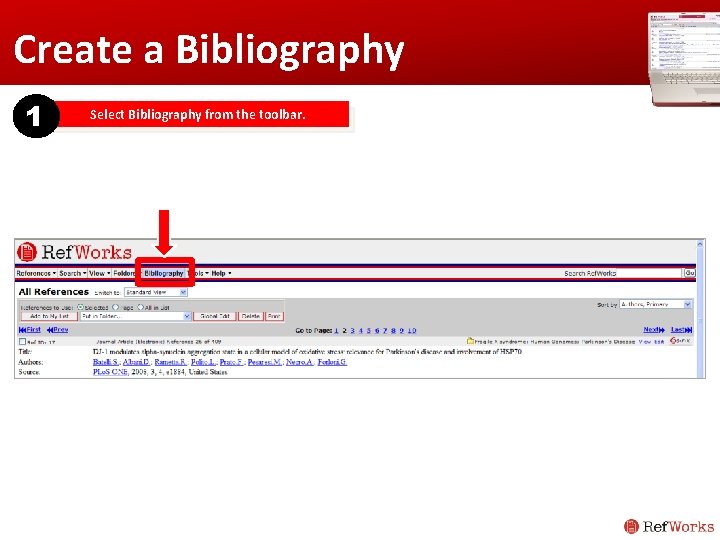
Create a Bibliography 1 Select Bibliography from the toolbar.
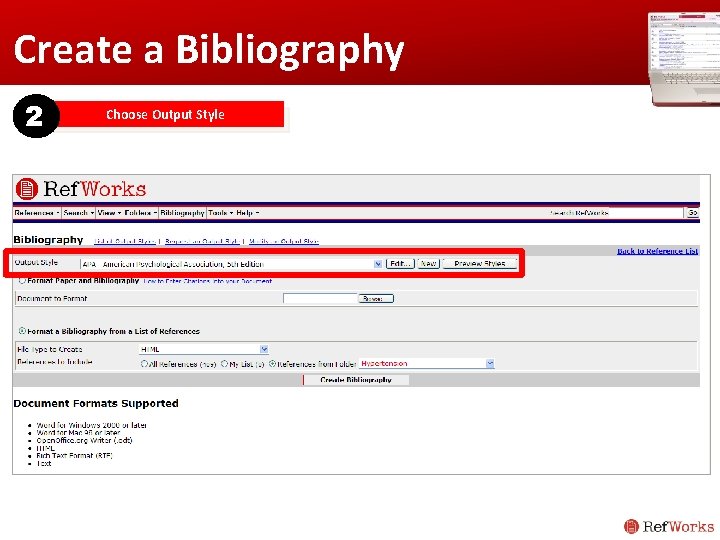
Create a Bibliography 2 Choose Output Style
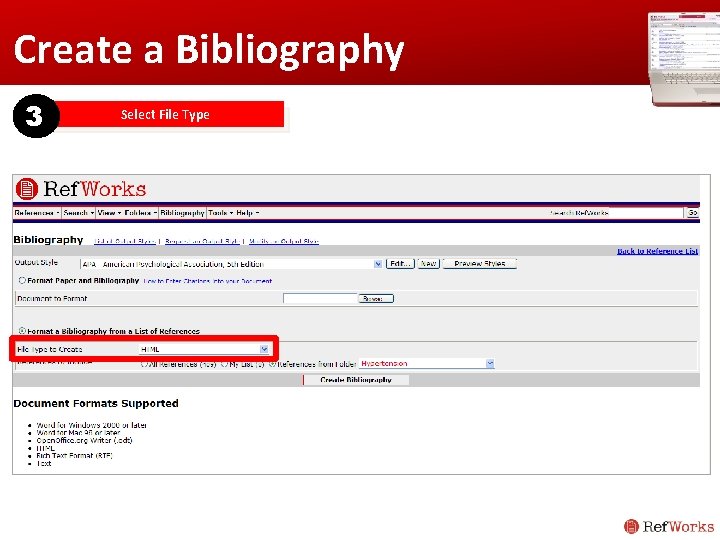
Create a Bibliography 3 Select File Type
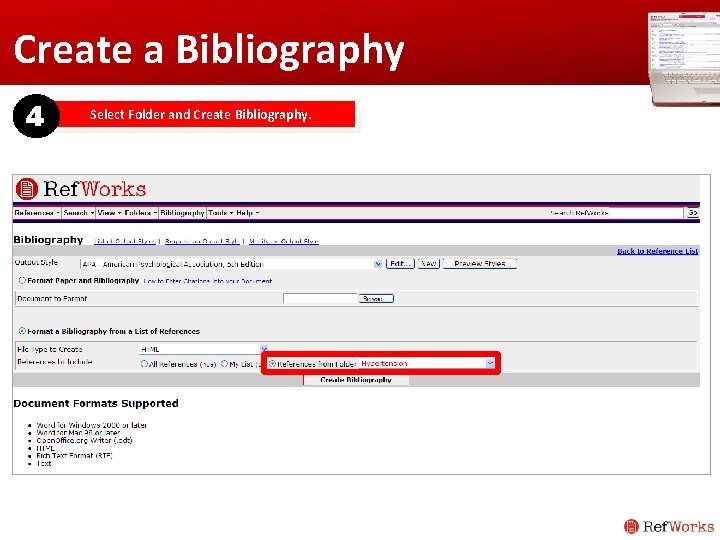
Create a Bibliography 4 Select Folder and Create Bibliography.
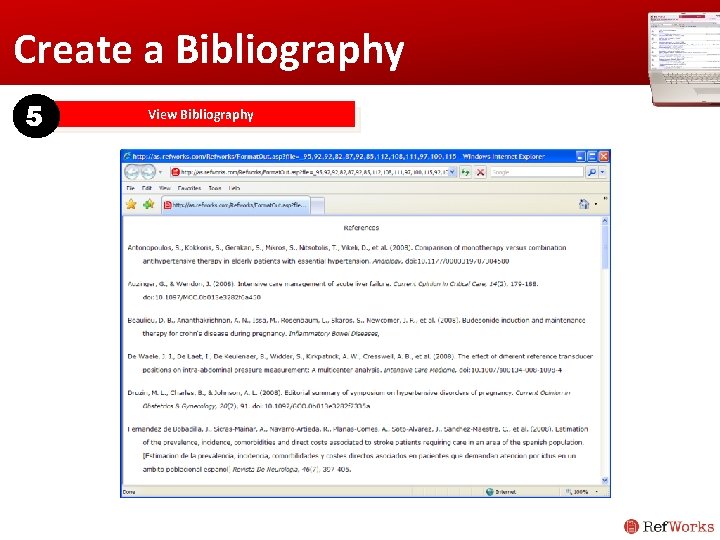
Create a Bibliography 5 View Bibliography
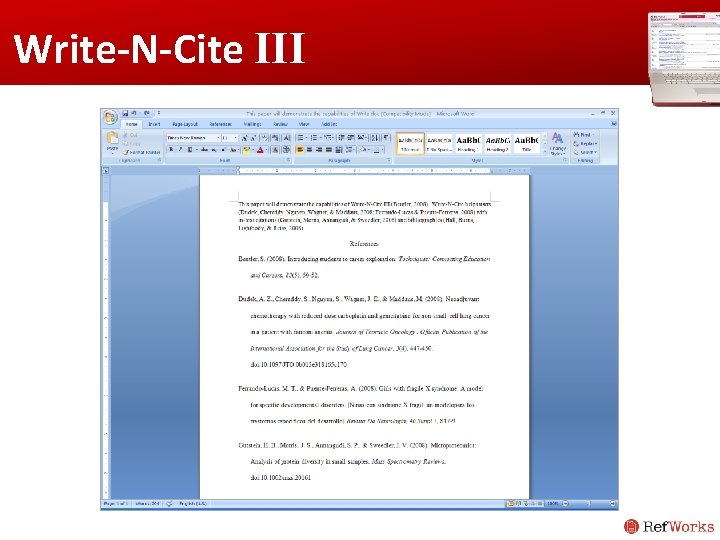
Write-N-Cite III
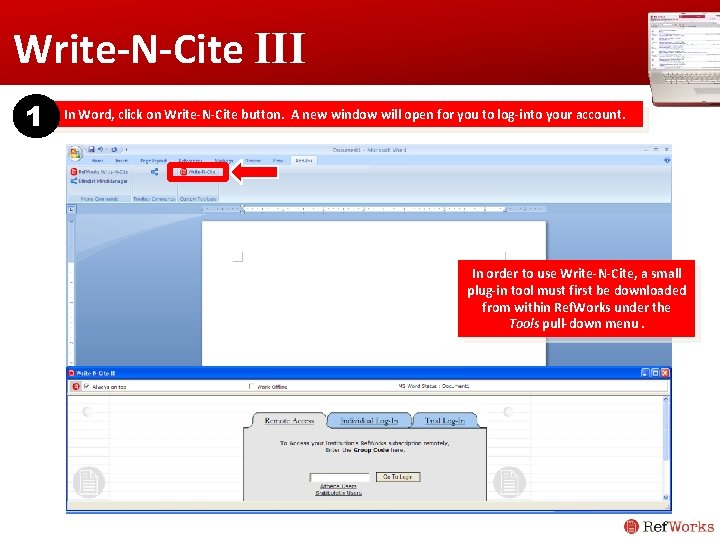
Write-N-Cite III 1 In Word, click on Write-N-Cite button. A new window will open for you to log-into your account. In order to use Write-N-Cite, a small plug-in tool must first be downloaded from within Ref. Works under the Tools pull-down menu.
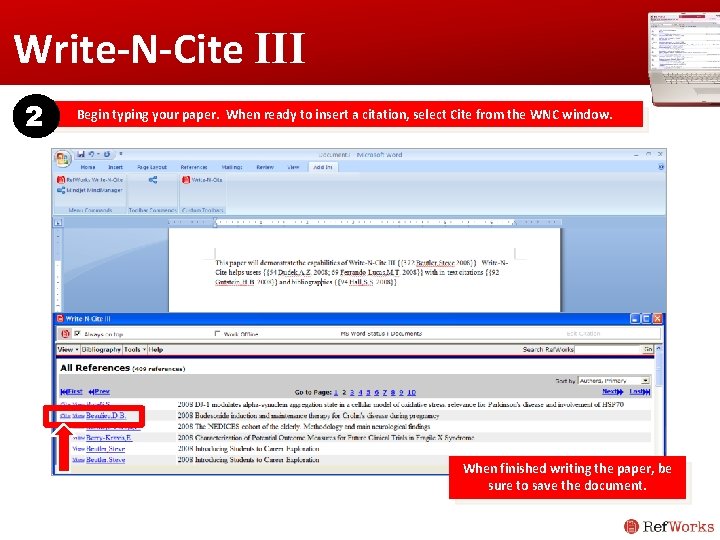
Write-N-Cite III 2 Begin typing your paper. When ready to insert a citation, select Cite from the WNC window. When finished writing the paper, be sure to save the document.
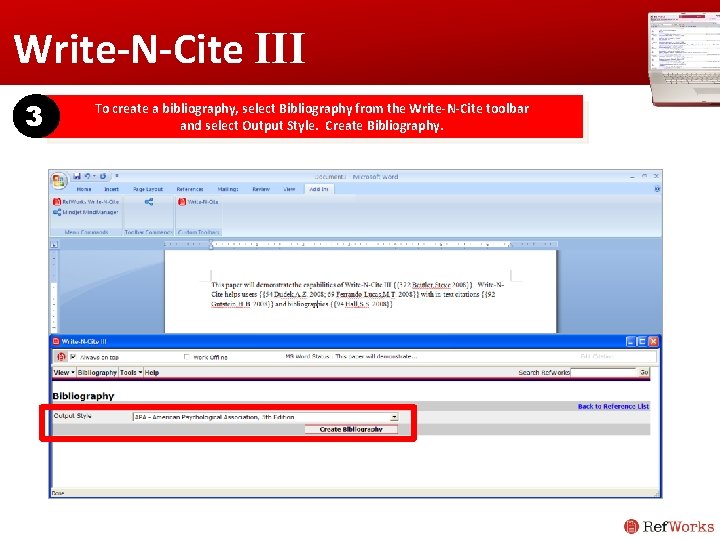
Write-N-Cite III 3 To create a bibliography, select Bibliography from the Write-N-Cite toolbar and select Output Style. Create Bibliography.
Write-N-Cite III
How can I learn more?
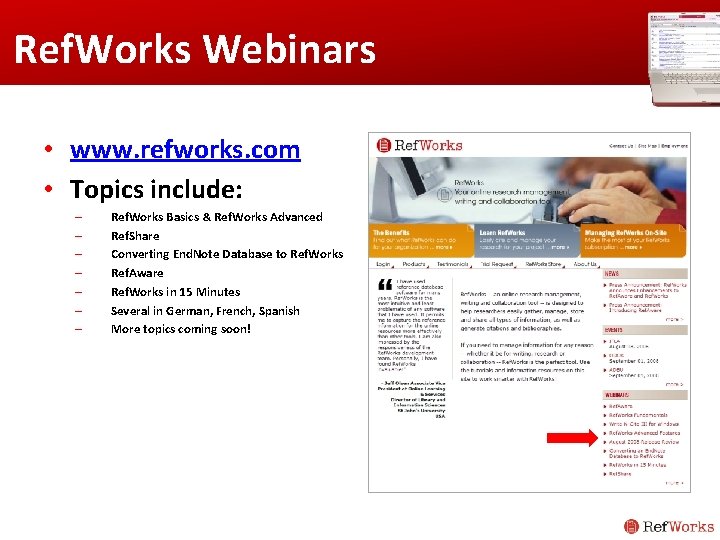
Ref. Works Webinars • www. refworks. com • Topics include: – – – – Ref. Works Basics & Ref. Works Advanced Ref. Share Converting End. Note Database to Ref. Works Ref. Aware Ref. Works in 15 Minutes Several in German, French, Spanish More topics coming soon!
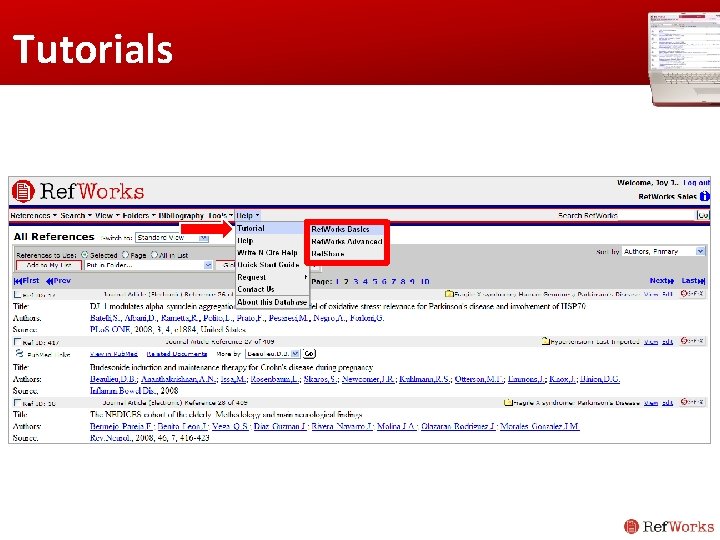
Tutorials
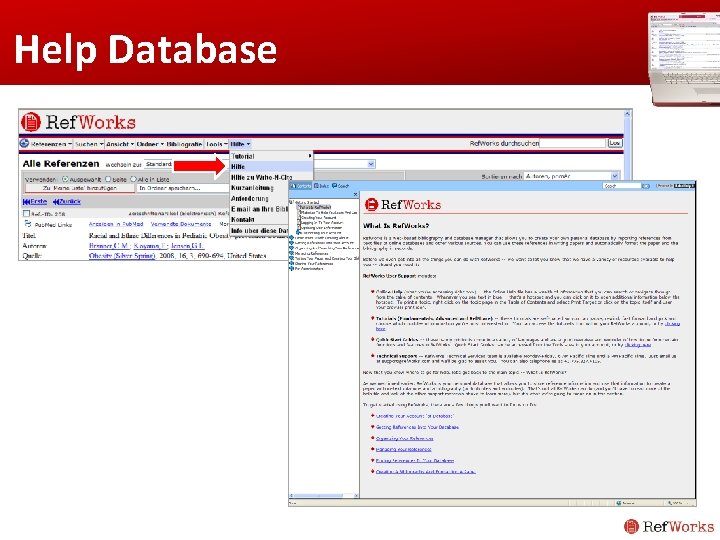
Help Database
www. refworks. com marketing@refworks. com