Open Source Operating System Lecture 8 Dr Samah
![Tutorial (4)Assume you have the following output from the jobs command: [1] Stopped prog](https://slidetodoc.com/presentation_image/e3ba36d36ad23330b1d14bffaf4145a6/image-25.jpg "Tutorial (4)Assume you have the following output from the jobs command: [1] Stopped prog")
- Slides: 25
Open Source Operating System ﻧﻈﻢ ﺗﺸﻐﻴﻞ ﻣﻔﺘﻮﺣﺔ ﺍﻟﻤﺼﺪﺭ Lecture (8) Dr. Samah Mohammed
Objectives • • Batch Mode Monitoring processes The ps command Managing LNUIX processes Priorities for Processes Killing processes Shutdown method
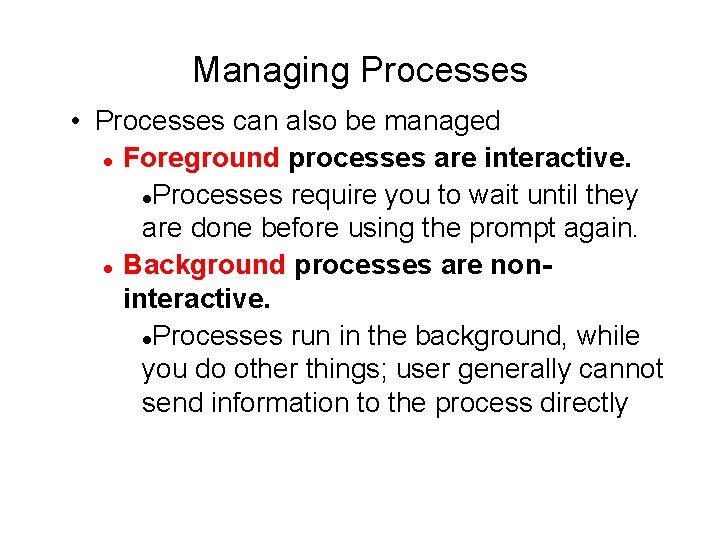
Managing Processes • Processes can also be managed Foreground processes are interactive. Processes require you to wait until they are done before using the prompt again. Background processes are noninteractive. Processes run in the background, while you do other things; user generally cannot send information to the process directly
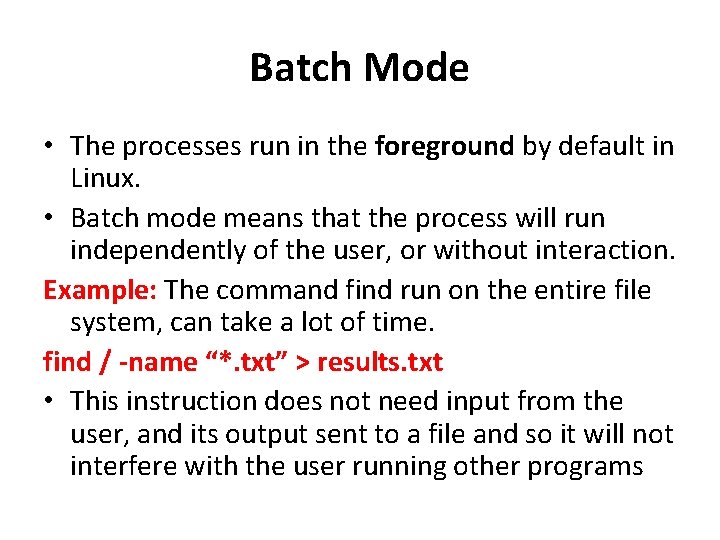
Batch Mode • The processes run in the foreground by default in Linux. • Batch mode means that the process will run independently of the user, or without interaction. Example: The command find run on the entire file system, can take a lot of time. find / -name “*. txt” > results. txt • This instruction does not need input from the user, and its output sent to a file and so it will not interfere with the user running other programs
Batch Mode Cont. . • We can launch it as a batch process by end the command with the character &. • A background process has two different meanings depending on the context: (1) The process runs when the CPU has time for it (when you want to run a time-consuming process) (2) The process will work alongside of other processes (without interaction with the user)
Batch Mode Cont. . • Only one process can be running in the foreground (provides interaction with the user). • While a process is running in the foreground, we able to launch other processes or move background processes to the foreground. • To identify the foreground and background processes in the terminal window and to obtain information about it the command jobs is used. • The jobs command responds with all of the active jobs in the terminal window. • A process will have one of three different statuses: (1) It may be in the foreground (2) It may be in the background (3) Or it may be stopped (suspended)
Example(1) • Note: a process will not be in the foreground if you are executing jobs because jobs require that you have access to the command line. • So the processes listed by jobs either stopped or in the background. • To stop a process that is in the foreground, type control+z in the terminal window. This presents you with information like this: [2]+ Stopped find ~ -name *. txt
Example Cont. . This line tells us that job number 2, find was stopped. To resume this process, type fg The command fg moves process into the foreground. To resume this job in the background, type bg So there are two ways to get a job into the background: (1) Launch it in the background using & (2) Launch the process, stop it and then move it to the background using bg • • •
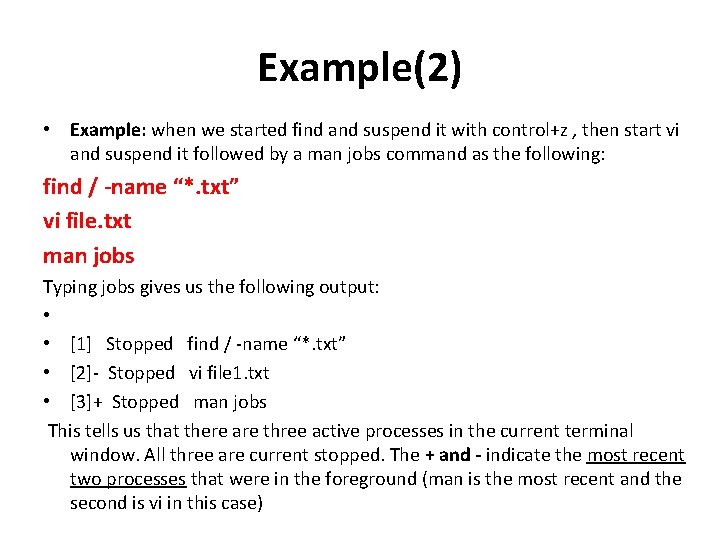
Example(2) • Example: when we started find and suspend it with control+z , then start vi and suspend it followed by a man jobs command as the following: find / -name “*. txt” vi file. txt man jobs Typing jobs gives us the following output: • • [1] Stopped find / -name “*. txt” • [2]- Stopped vi file 1. txt • [3]+ Stopped man jobs This tells us that there are three active processes in the current terminal window. All three are current stopped. The + and - indicate the most recent two processes that were in the foreground (man is the most recent and the second is vi in this case)
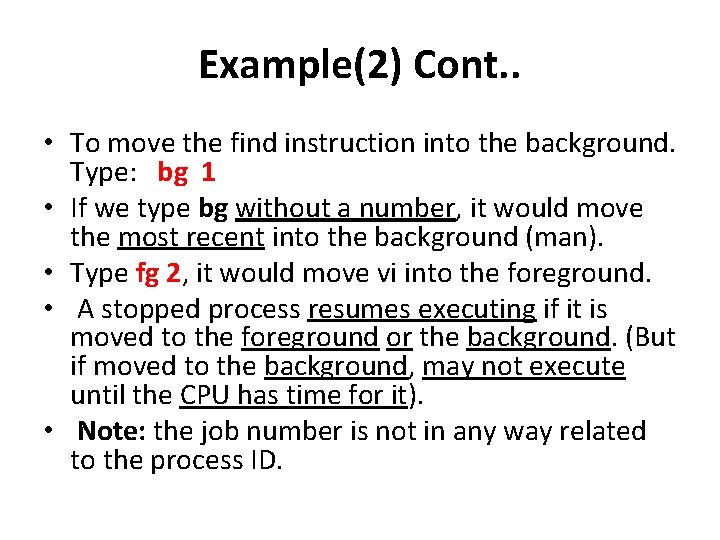
Example(2) Cont. . • To move the find instruction into the background. Type: bg 1 • If we type bg without a number, it would move the most recent into the background (man). • Type fg 2, it would move vi into the foreground. • A stopped process resumes executing if it is moved to the foreground or the background. (But if moved to the background, may not execute until the CPU has time for it). • Note: the job number is not in any way related to the process ID.
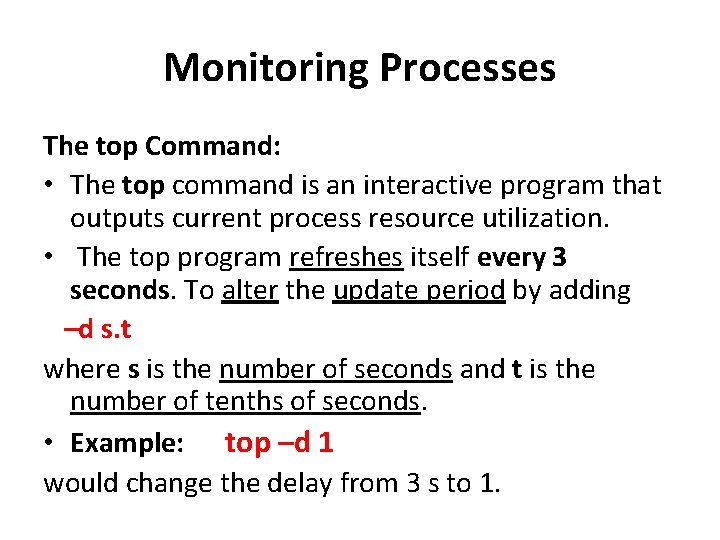
Monitoring Processes The top Command: • The top command is an interactive program that outputs current process resource utilization. • The top program refreshes itself every 3 seconds. To alter the update period by adding –d s. t where s is the number of seconds and t is the number of tenths of seconds. • Example: top –d 1 would change the delay from 3 s to 1.
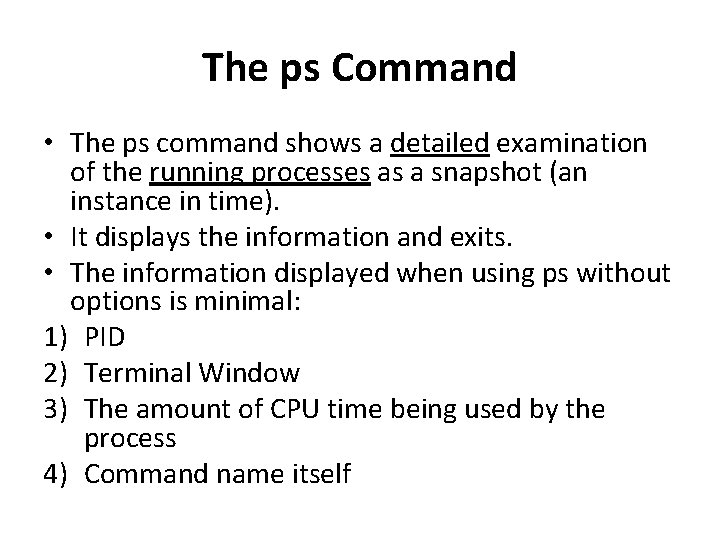
The ps Command • The ps command shows a detailed examination of the running processes as a snapshot (an instance in time). • It displays the information and exits. • The information displayed when using ps without options is minimal: 1) PID 2) Terminal Window 3) The amount of CPU time being used by the process 4) Command name itself
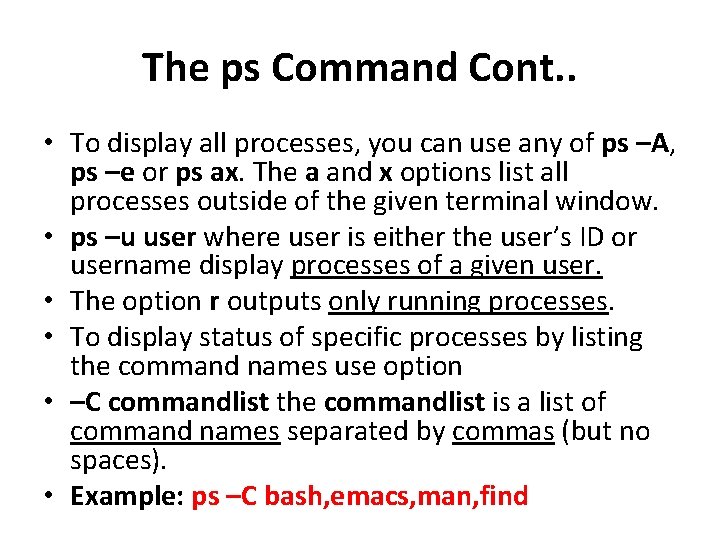
The ps Command Cont. . • To display all processes, you can use any of ps –A, ps –e or ps ax. The a and x options list all processes outside of the given terminal window. • ps –u user where user is either the user’s ID or username display processes of a given user. • The option r outputs only running processes. • To display status of specific processes by listing the command names use option • –C commandlist the commandlist is a list of command names separated by commas (but no spaces). • Example: ps –C bash, emacs, man, find
Managing Linux Processes • Linux runs processes and threads together by switching off between them. • This is known as concurrent processing in that processes (and threads) overlap in execution. • Because of the speed and power of modern processors the user is unaware of the time elapsing in this concurrency. Dictate How Processes Run: (1) Batch processing in Linux defaults to executing only if system load permits it. (2) The command batch used to forces a process to run in batch mode. (3)The user can dictate that certain processes are more important than others by specifying Priorities for Processes
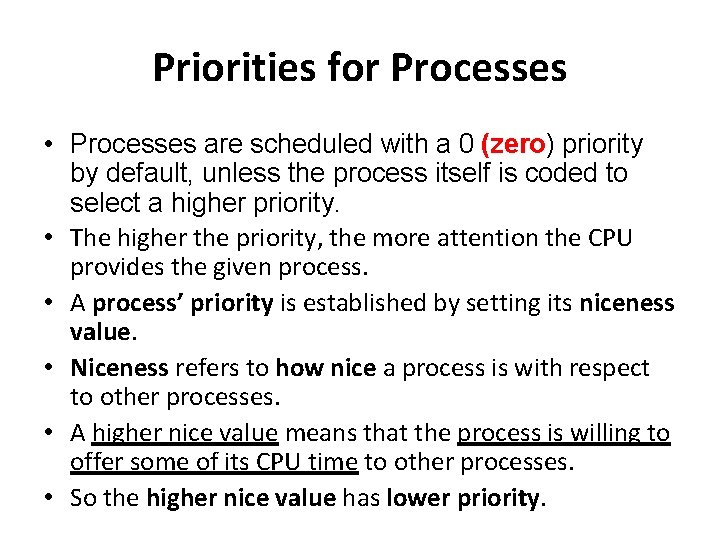
Priorities for Processes • Processes are scheduled with a 0 (zero) priority by default, unless the process itself is coded to select a higher priority. • The higher the priority, the more attention the CPU provides the given process. • A process’ priority is established by setting its niceness value. • Niceness refers to how nice a process is with respect to other processes. • A higher nice value means that the process is willing to offer some of its CPU time to other processes. • So the higher nice value has lower priority.
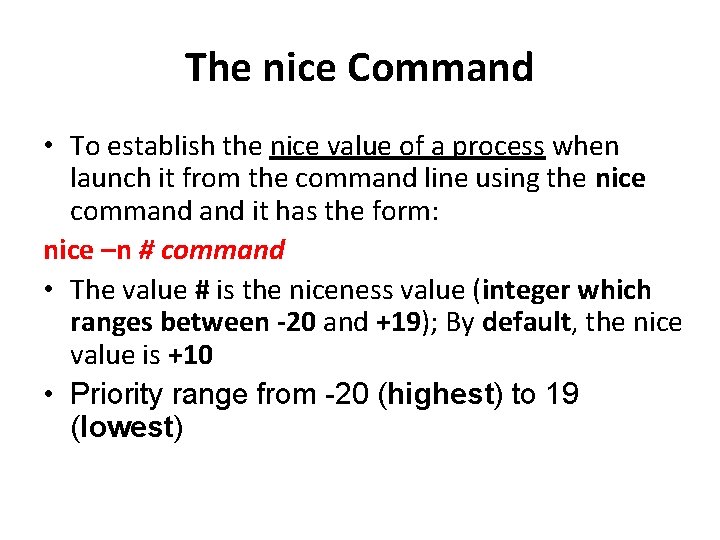
The nice Command • To establish the nice value of a process when launch it from the command line using the nice command it has the form: nice –n # command • The value # is the niceness value (integer which ranges between -20 and +19); By default, the nice value is +10 • Priority range from -20 (highest) to 19 (lowest)
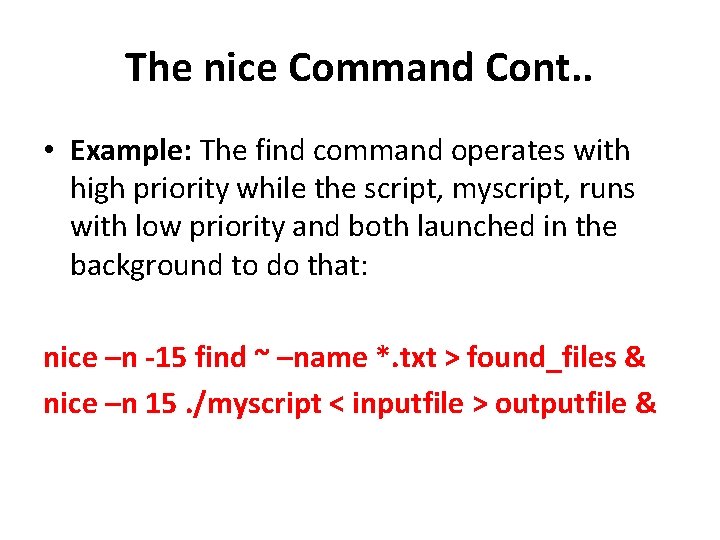
The nice Command Cont. . • Example: The find command operates with high priority while the script, myscript, runs with low priority and both launched in the background to do that: nice –n -15 find ~ –name *. txt > found_files & nice –n 15. /myscript < inputfile > outputfile &
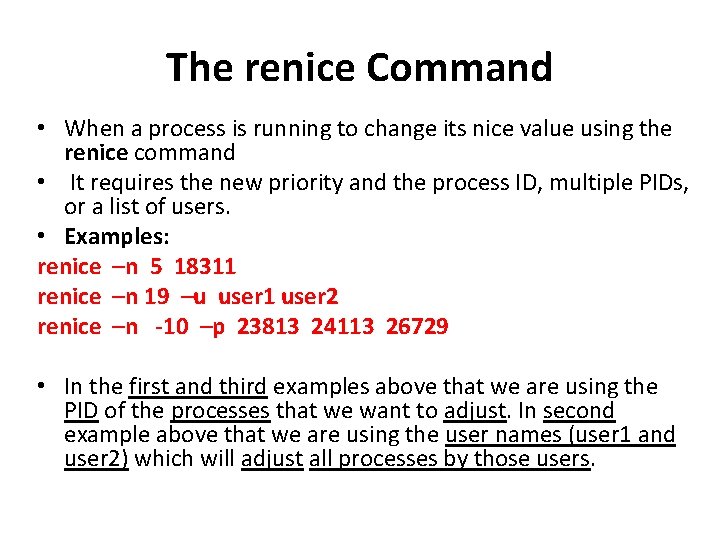
The renice Command • When a process is running to change its nice value using the renice command • It requires the new priority and the process ID, multiple PIDs, or a list of users. • Examples: renice –n 5 18311 renice –n 19 –u user 1 user 2 renice –n -10 –p 23813 24113 26729 • In the first and third examples above that we are using the PID of the processes that we want to adjust. In second example above that we are using the user names (user 1 and user 2) which will adjust all processes by those users.
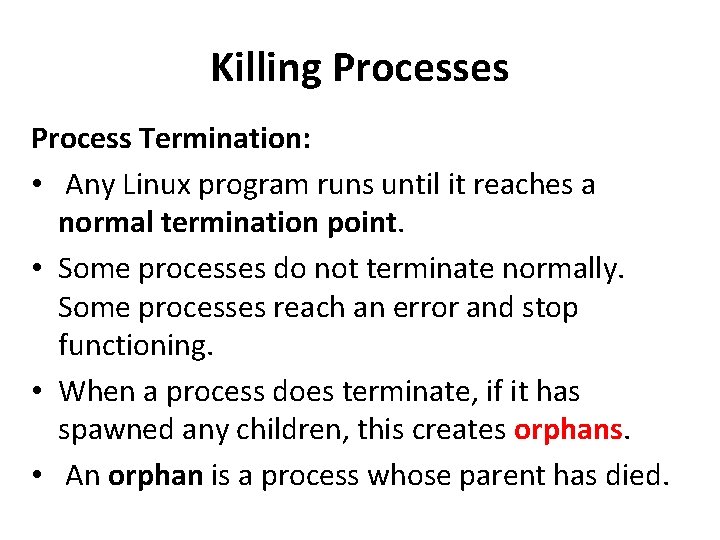
Killing Processes Process Termination: • Any Linux program runs until it reaches a normal termination point. • Some processes do not terminate normally. Some processes reach an error and stop functioning. • When a process does terminate, if it has spawned any children, this creates orphans. • An orphan is a process whose parent has died.
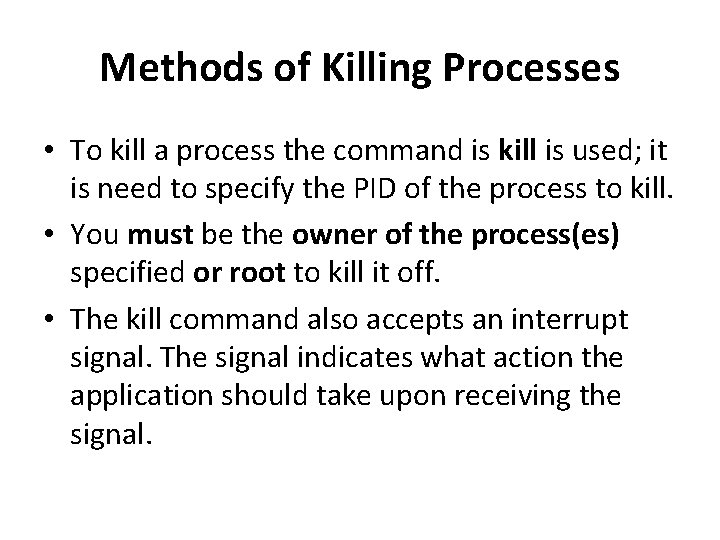
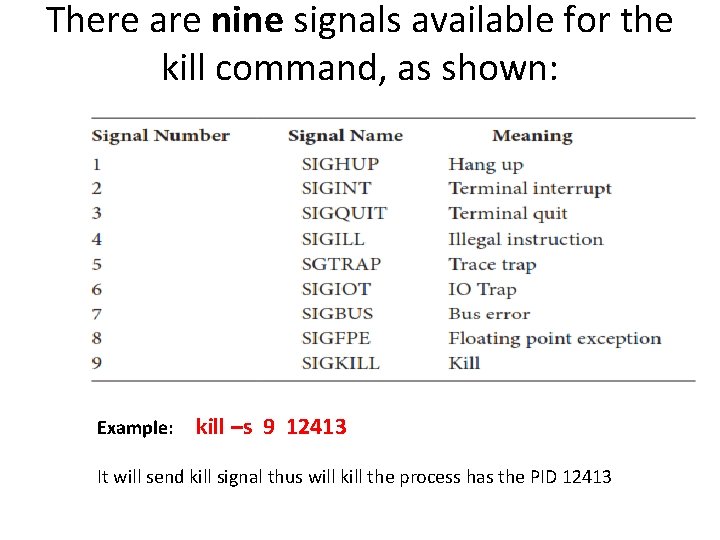
Methods of Killing Processes • To kill a process the command is kill is used; it is need to specify the PID of the process to kill. • You must be the owner of the process(es) specified or root to kill it off. • The kill command also accepts an interrupt signal. The signal indicates what action the application should take upon receiving the signal.
There are nine signals available for the kill command, as shown: Example: kill –s 9 12413 It will send kill signal thus will kill the process has the PID 12413
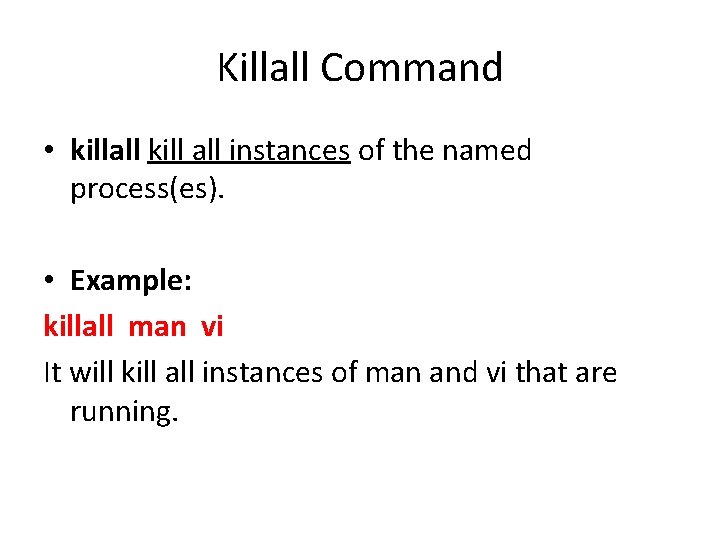
Killall Command • killall kill all instances of the named process(es). • Example: killall man vi It will kill all instances of man and vi that are running.
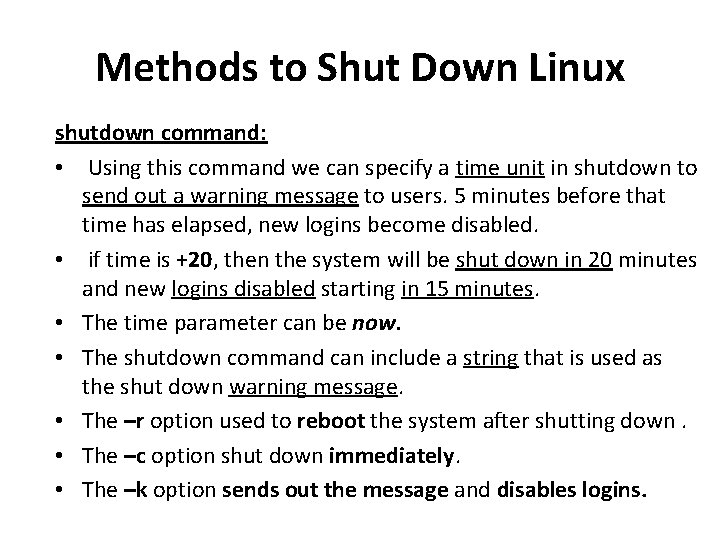
Methods to Shut Down Linux shutdown command: • Using this command we can specify a time unit in shutdown to send out a warning message to users. 5 minutes before that time has elapsed, new logins become disabled. • if time is +20, then the system will be shut down in 20 minutes and new logins disabled starting in 15 minutes. • The time parameter can be now. • The shutdown command can include a string that is used as the shut down warning message. • The –r option used to reboot the system after shutting down. • The –c option shut down immediately. • The –k option sends out the message and disables logins.
Tutorial (1) You have launched the program prog 1 from the command line. This is an interactive program that will take several minutes to run. You wish to suspend it, start prog 2 in the background, and resume prog 1. How do you do this? (2) What is an orphans process? (3) If you have process with the PID=2434, how you will make the process Hang up.
Tutorial (4)Assume you have the following output from the jobs command: [1] Stopped prog 1 [2]− Stopped prog 2 [3]+ Stopped prog 3 [4] Running prog 4 1. Of the processes listed, which one(s) were invoked using & as in prog 1 & ? 2. Which process would resume if you typed fg? 3. What happens if you type bg 1