ONLINE PERMIT APPLICATION SYSTEM OPAS V 1 6
- Slides: 41
ONLINE PERMIT APPLICATION SYSTEM (OPAS) V 1. 6 Company Administrator (CA) 1
INTRODUCTION System Description: Provide an online platform for users to Submit airport permit application Enquiry for application status System requirement: Workstation with internet access Microsoft Internet Explorer Ver. 6 to 11 Min. screen resolution: 1024 x 768 2
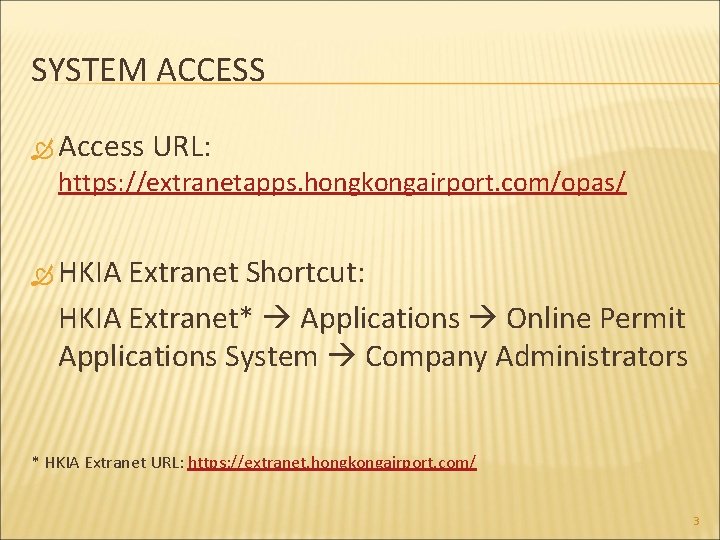
SYSTEM ACCESS Access URL: https: //extranetapps. hongkongairport. com/opas/ HKIA Extranet Shortcut: HKIA Extranet* Applications Online Permit Applications System Company Administrators * HKIA Extranet URL: https: //extranet. hongkongairport. com/ 3
COMPANY ADMINISTRATOR Role: Company Administrator Review and submit airport permit application to authorized signatory for review Main Functions: Application Review Apply Permit Search Downloads Account Maintenance 4
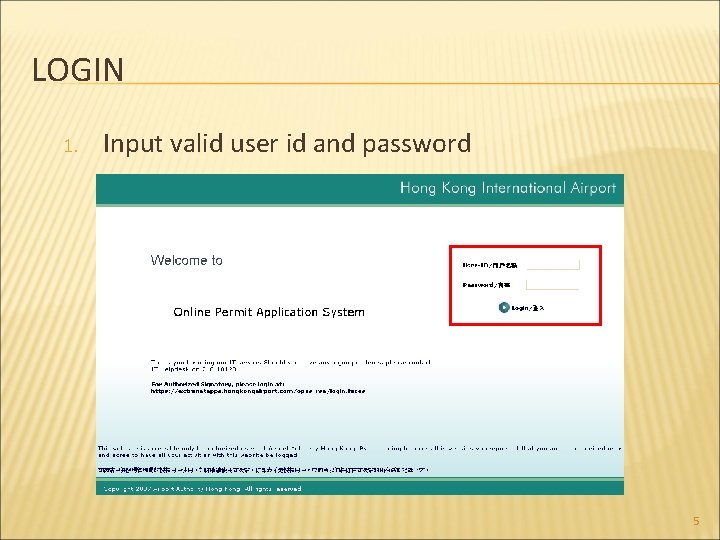
LOGIN 1. Input valid user id and password 5
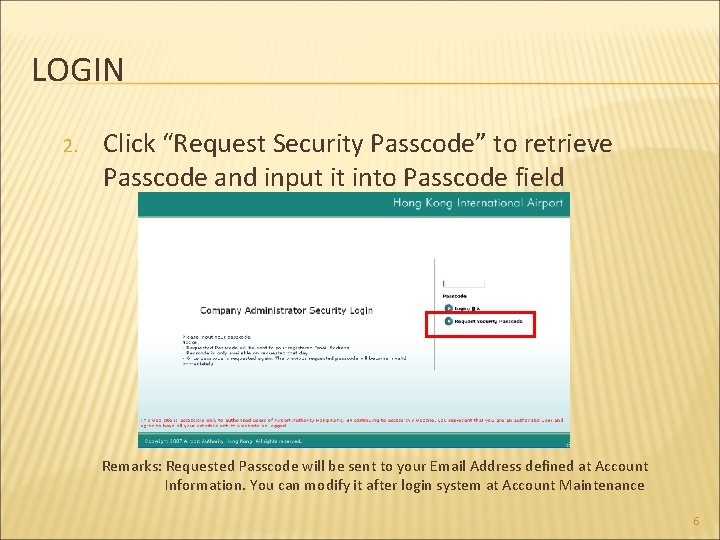
LOGIN 2. Click “Request Security Passcode” to retrieve Passcode and input it into Passcode field Remarks: Requested Passcode will be sent to your Email Address defined at Account Information. You can modify it after login system at Account Maintenance 6
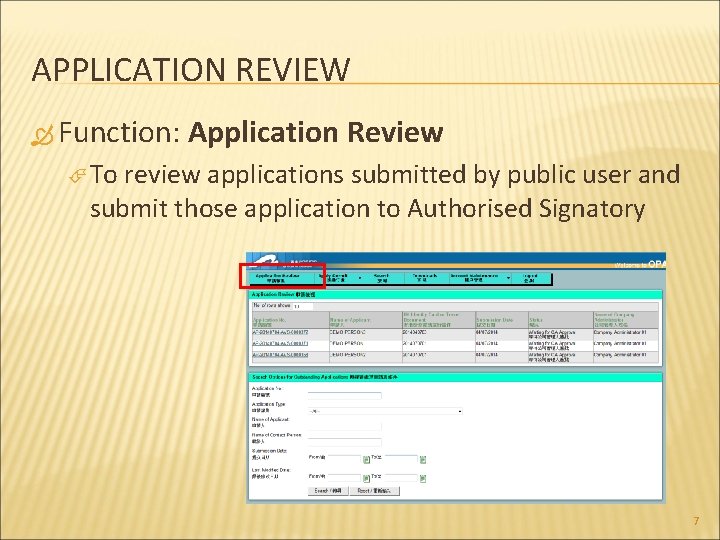
APPLICATION REVIEW Function: Application Review To review applications submitted by public user and submit those application to Authorised Signatory 7
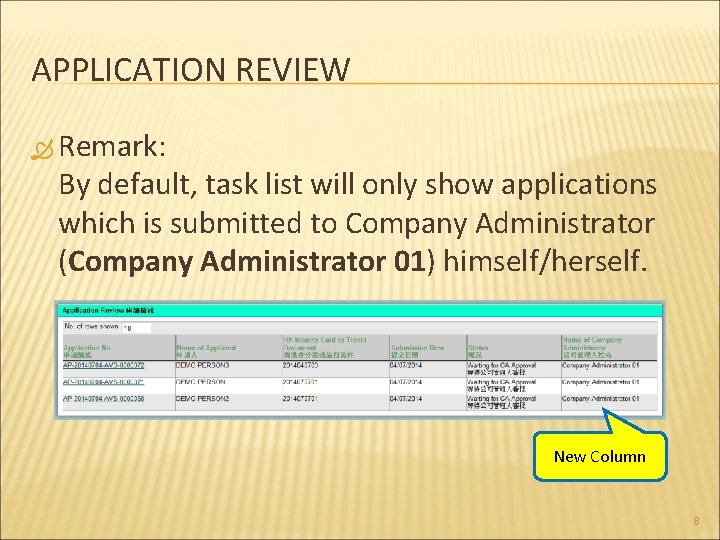
APPLICATION REVIEW Remark: By default, task list will only show applications which is submitted to Company Administrator (Company Administrator 01) himself/herself. New Column 8
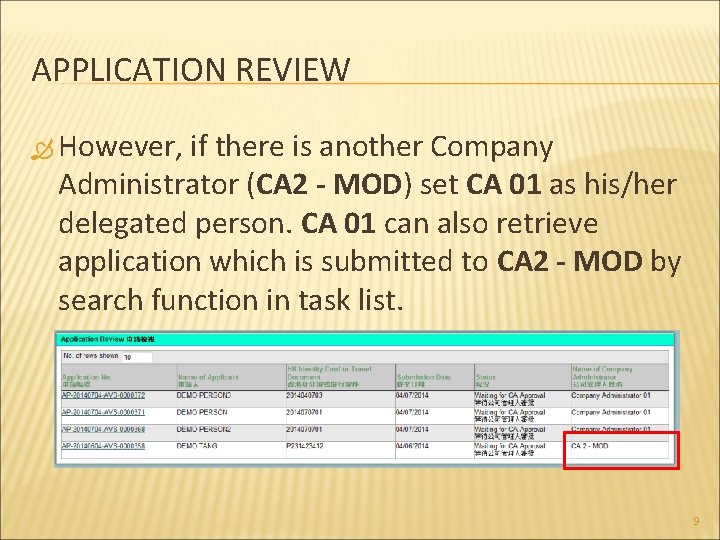
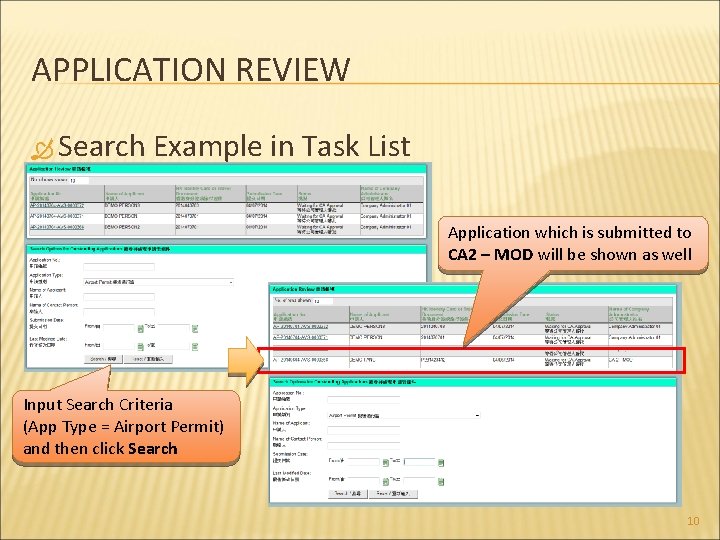
APPLICATION REVIEW However, if there is another Company Administrator (CA 2 - MOD) set CA 01 as his/her delegated person. CA 01 can also retrieve application which is submitted to CA 2 - MOD by search function in task list. 9
APPLICATION REVIEW Search Example in Task List Application which is submitted to CA 2 – MOD will be shown as well Input Search Criteria (App Type = Airport Permit) and then click Search 10
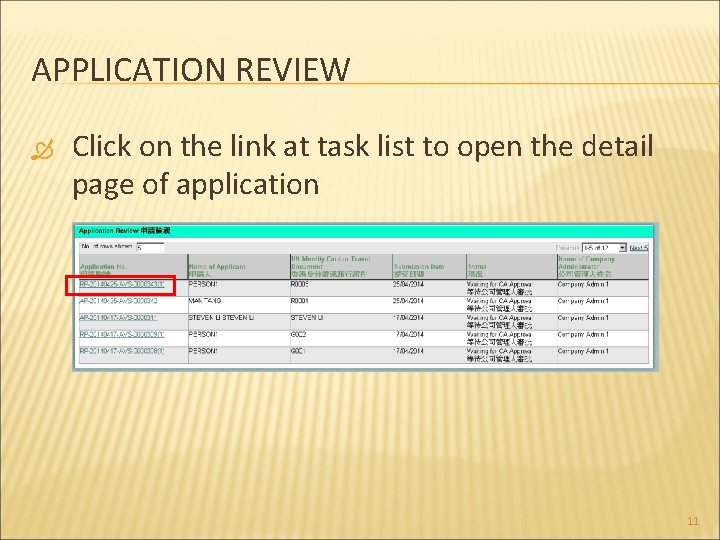
APPLICATION REVIEW Click on the link at task list to open the detail page of application 11
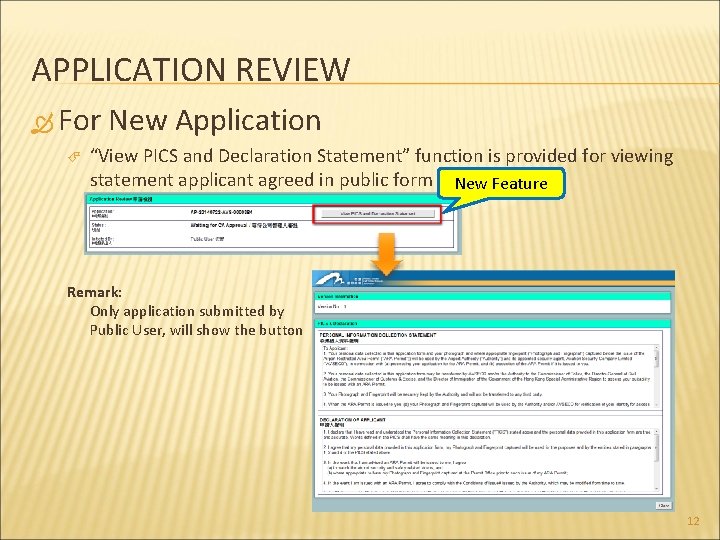
APPLICATION REVIEW For New Application “View PICS and Declaration Statement” function is provided for viewing statement applicant agreed in public form New Feature Remark: Only application submitted by Public User, will show the button 12
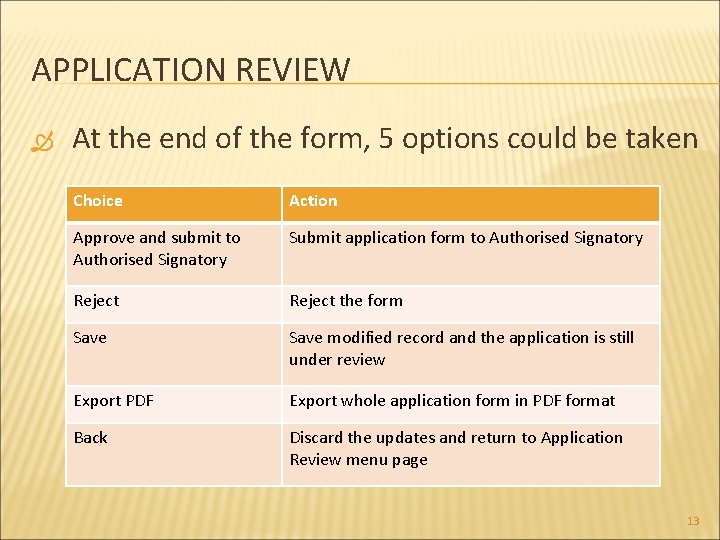
APPLICATION REVIEW At the end of the form, 5 options could be taken Choice Action Approve and submit to Authorised Signatory Submit application form to Authorised Signatory Reject the form Save modified record and the application is still under review Export PDF Export whole application form in PDF format Back Discard the updates and return to Application Review menu page 13
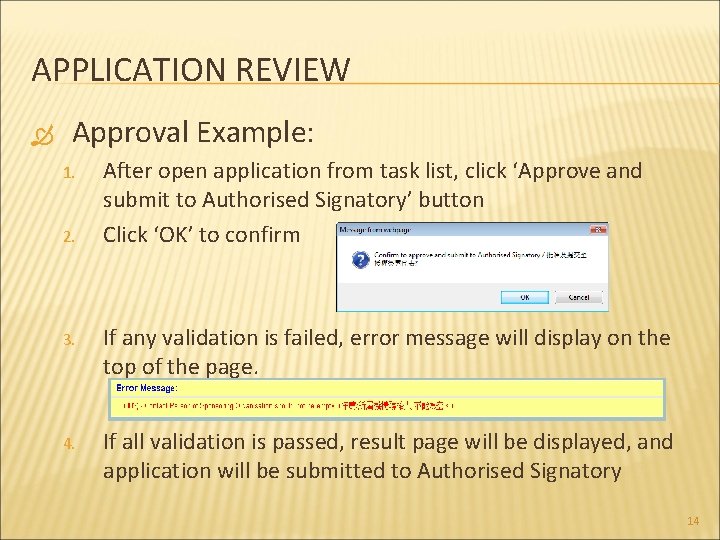
APPLICATION REVIEW Approval Example: 1. 2. After open application from task list, click ‘Approve and submit to Authorised Signatory’ button Click ‘OK’ to confirm 3. If any validation is failed, error message will display on the top of the page. 4. If all validation is passed, result page will be displayed, and application will be submitted to Authorised Signatory 14
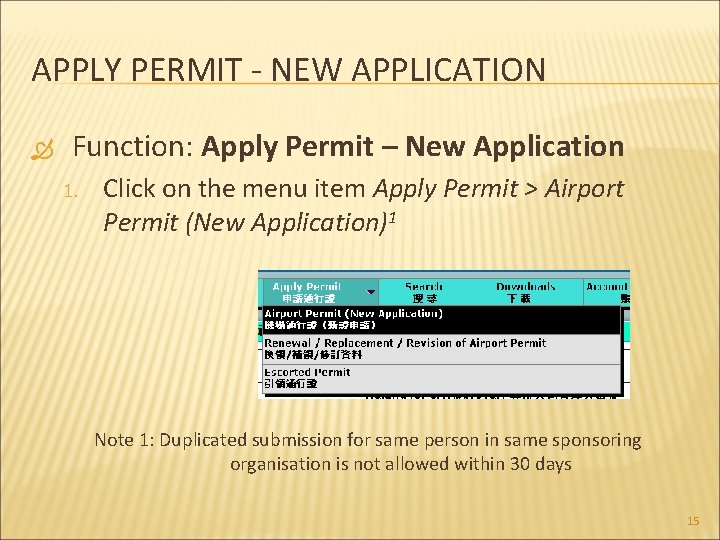
APPLY PERMIT - NEW APPLICATION Function: Apply Permit – New Application 1. Click on the menu item Apply Permit > Airport Permit (New Application)1 Note 1: Duplicated submission for same person in same sponsoring organisation is not allowed within 30 days 15
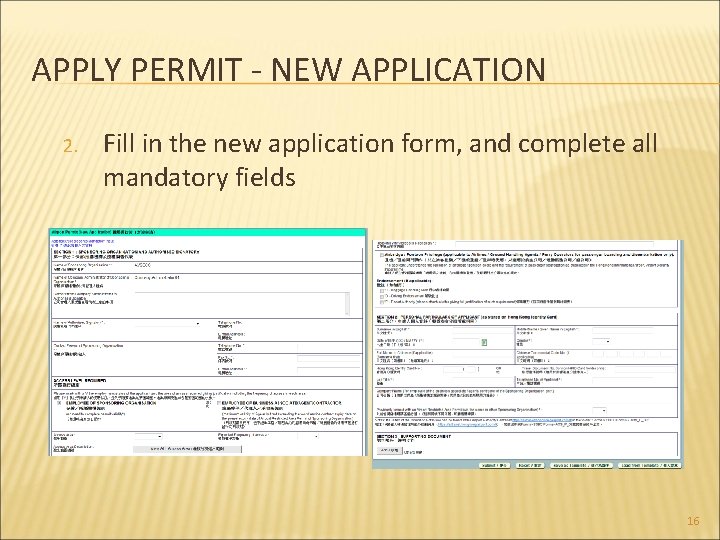
APPLY PERMIT - NEW APPLICATION 2. Fill in the new application form, and complete all mandatory fields 16
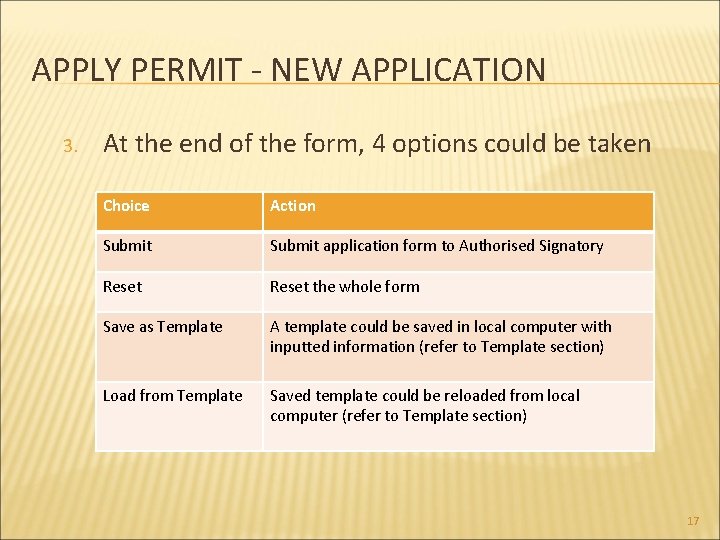
APPLY PERMIT - NEW APPLICATION 3. At the end of the form, 4 options could be taken Choice Action Submit application form to Authorised Signatory Reset the whole form Save as Template A template could be saved in local computer with inputted information (refer to Template section) Load from Template Saved template could be reloaded from local computer (refer to Template section) 17
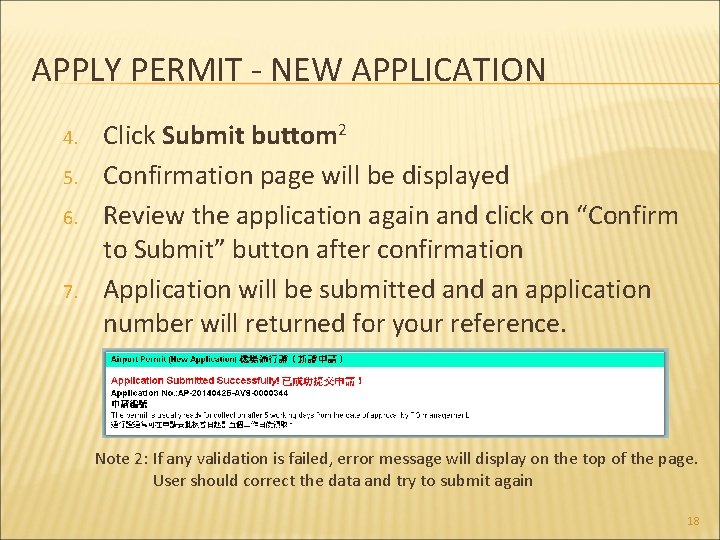
APPLY PERMIT - NEW APPLICATION 4. 5. 6. 7. Click Submit buttom 2 Confirmation page will be displayed Review the application again and click on “Confirm to Submit” button after confirmation Application will be submitted an application number will returned for your reference. Note 2: If any validation is failed, error message will display on the top of the page. User should correct the data and try to submit again 18
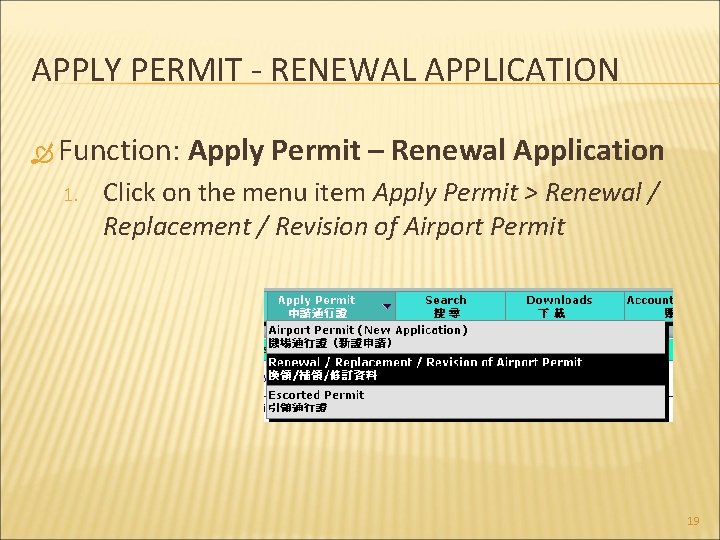
APPLY PERMIT - RENEWAL APPLICATION Function: 1. Apply Permit – Renewal Application Click on the menu item Apply Permit > Renewal / Replacement / Revision of Airport Permit 19
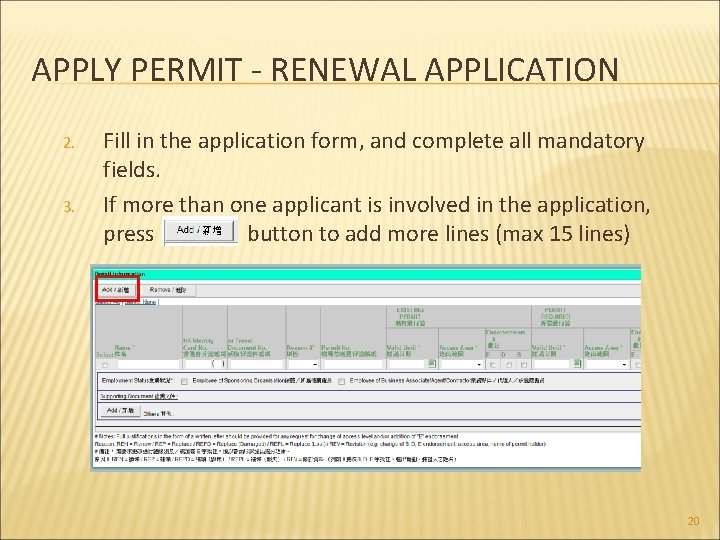
APPLY PERMIT - RENEWAL APPLICATION 2. 3. Fill in the application form, and complete all mandatory fields. If more than one applicant is involved in the application, press button to add more lines (max 15 lines) 20
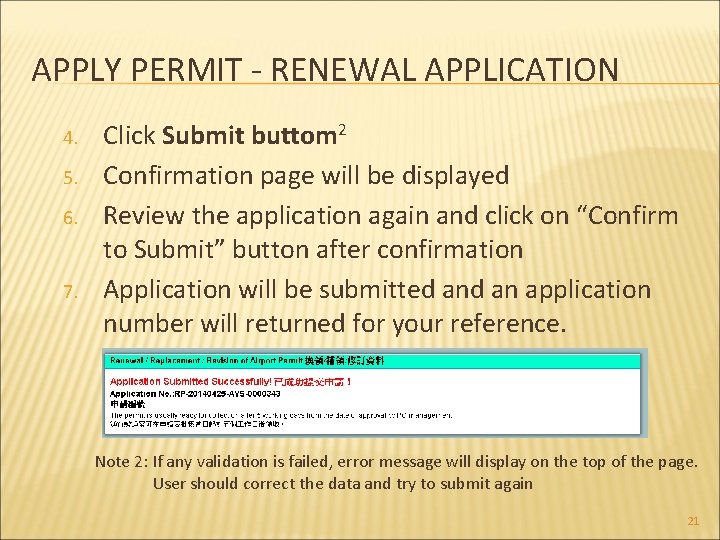
APPLY PERMIT - RENEWAL APPLICATION 4. 5. 6. 7. Click Submit buttom 2 Confirmation page will be displayed Review the application again and click on “Confirm to Submit” button after confirmation Application will be submitted an application number will returned for your reference. Note 2: If any validation is failed, error message will display on the top of the page. User should correct the data and try to submit again 21
APPLY PERMIT - SAVE & LOAD TEMPLATE Function: Save & Load Template CA could save a template of the application form to eliminate the time for inputting repeated information Template would be saved in user’s computer locally Reloading saved template at anytime during application creation 22
APPLY PERMIT - SAVE TEMPLATE Save Template 1. When creating applications, there is a “Save as Template” button on bottom of the form 2. Click “Save as Template” button, and then system will pop up a window 23
APPLY PERMIT - SAVE TEMPLATE 3. 4. 5. 6. Input template name and click on “Save as Template” button System will export template file (in zip file format) for download. Choose the download path and save the file. After downloading template file, close pop up window 24
APPLY PERMIT - LOAD TEMPLATE Load Template 1. When creating applications, there is a “Load from Template” button on bottom of the form 2. Click “Load from Template” button, and then system will pop up a window 25
APPLY PERMIT - LOAD TEMPLATE 3. Click “Browse” button and select the template file, which is exported from OPAS system before 4. Click “Load from Template” button, and then data will be loaded from selected template file 26
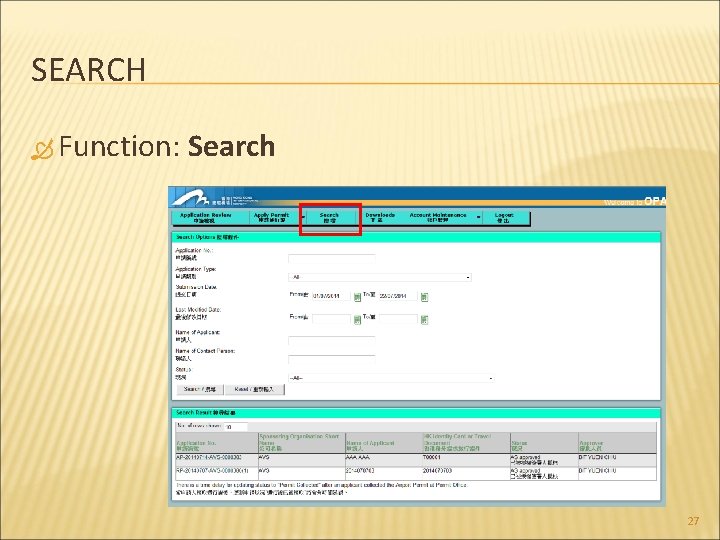
SEARCH Function: Search 27
SEARCH Search Constraint For Company Administrator (User-1), only application submitted by him / her could be searched out. However, if there is another Company Administrator (User-2) set User-1 as his/her delegated person. User-1 can also search application which is submitted by User-2. New Feature Company Administrator only can retrieve the record, which its submission date is within granted retrieval period (Controlled by Permit Office). 28
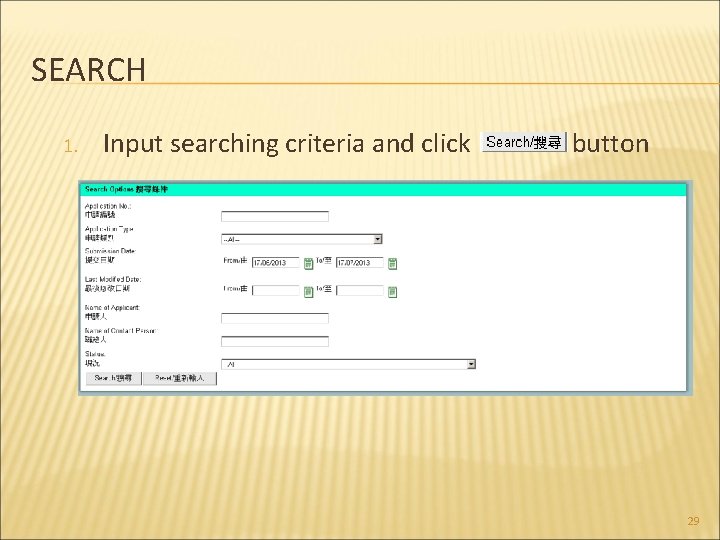
SEARCH 1. Input searching criteria and click button 29
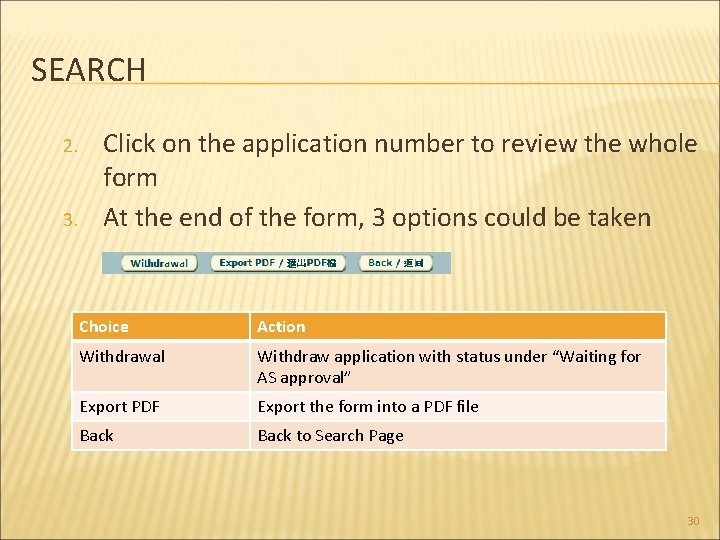
SEARCH 2. 3. Click on the application number to review the whole form At the end of the form, 3 options could be taken Choice Action Withdrawal Withdraw application with status under “Waiting for AS approval” Export PDF Export the form into a PDF file Back to Search Page 30
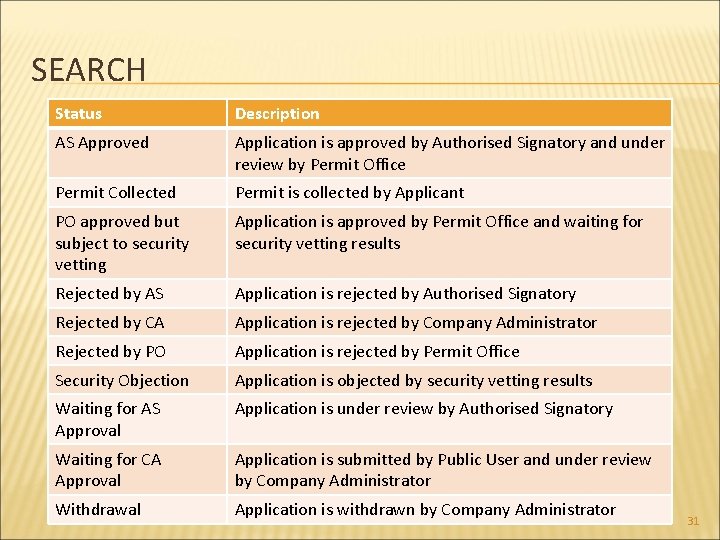
SEARCH Status Description AS Approved Application is approved by Authorised Signatory and under review by Permit Office Permit Collected Permit is collected by Applicant PO approved but subject to security vetting Application is approved by Permit Office and waiting for security vetting results Rejected by AS Application is rejected by Authorised Signatory Rejected by CA Application is rejected by Company Administrator Rejected by PO Application is rejected by Permit Office Security Objection Application is objected by security vetting results Waiting for AS Approval Application is under review by Authorised Signatory Waiting for CA Approval Application is submitted by Public User and under review by Company Administrator Withdrawal Application is withdrawn by Company Administrator 31
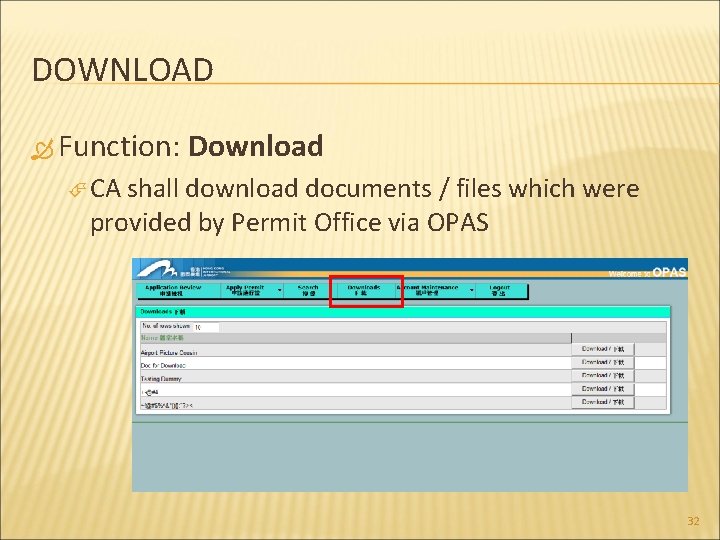
DOWNLOAD Function: Download CA shall download documents / files which were provided by Permit Office via OPAS 32
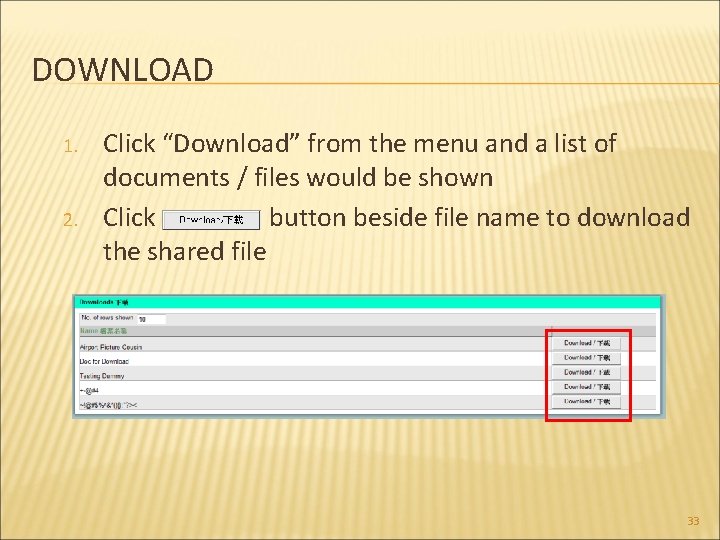
DOWNLOAD 1. 2. Click “Download” from the menu and a list of documents / files would be shown Click button beside file name to download the shared file 33
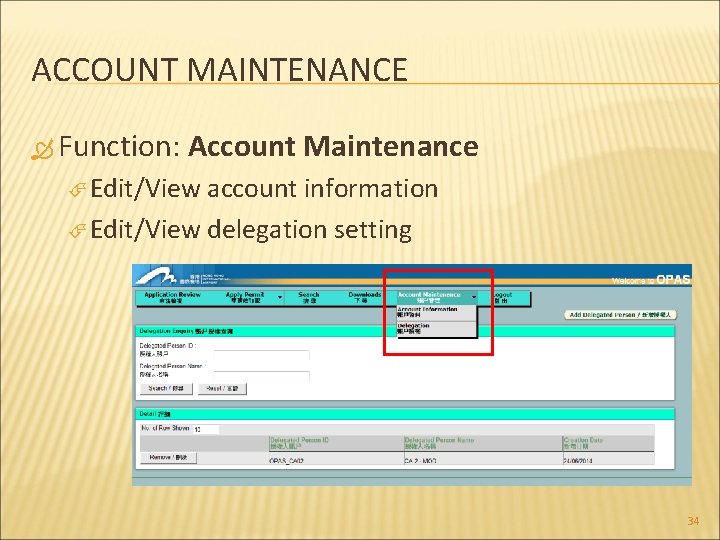
ACCOUNT MAINTENANCE Function: Account Maintenance Edit/View account information Edit/View delegation setting 34
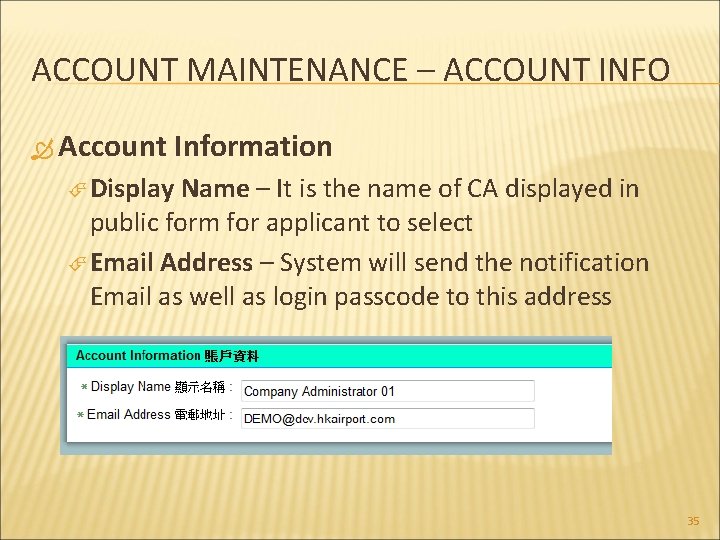
ACCOUNT MAINTENANCE – ACCOUNT INFO Account Information Display Name – It is the name of CA displayed in public form for applicant to select Email Address – System will send the notification Email as well as login passcode to this address 35
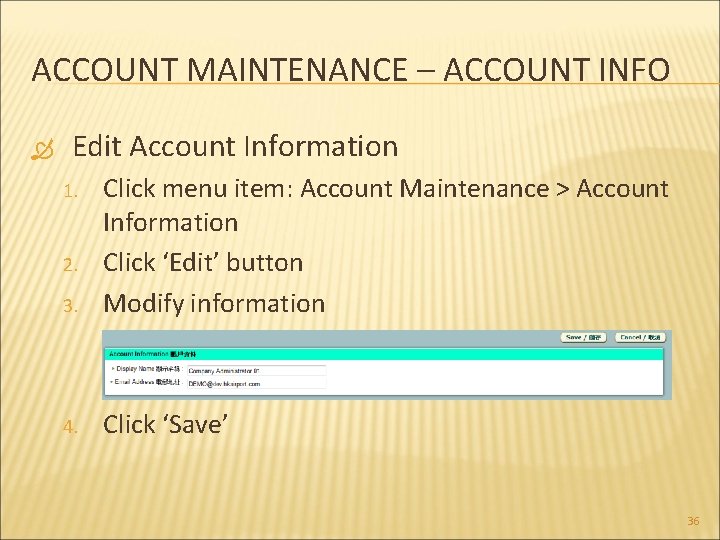
ACCOUNT MAINTENANCE – ACCOUNT INFO Edit Account Information 3. Click menu item: Account Maintenance > Account Information Click ‘Edit’ button Modify information 4. Click ‘Save’ 1. 2. 36
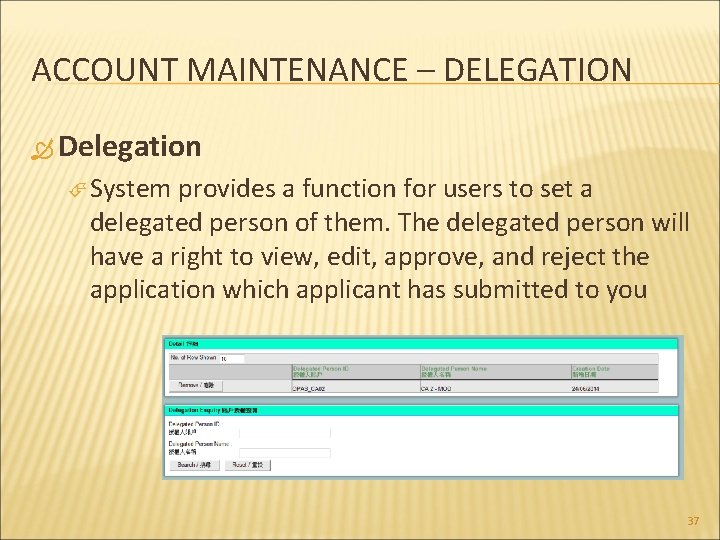
ACCOUNT MAINTENANCE – DELEGATION Delegation System provides a function for users to set a delegated person of them. The delegated person will have a right to view, edit, approve, and reject the application which applicant has submitted to you 37
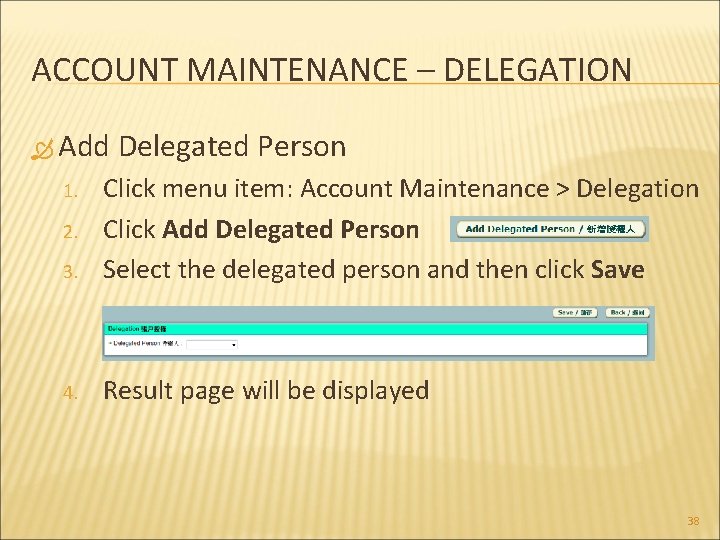
ACCOUNT MAINTENANCE – DELEGATION Add Delegated Person 3. Click menu item: Account Maintenance > Delegation Click Add Delegated Person Select the delegated person and then click Save 4. Result page will be displayed 1. 2. 38
LOGOUT Logout system every time when you leave the application 39
NOTIFICATION EMAIL – RETRIEVE Function: Email 1. 2. 3. Email Notification – Retrieve will be retrieved during following events Application, which you are a selected CA of it, has been submitted by public user Application, which you are a selected CA of it, has been approved by AS Application, which you are a selected CA of it, has been rejected by AS 40
ENQUIRY Login Problem Contact AA IT-Helpdesk by 2181 8128 Application Contact Enquiry Permit Office by 2183 6719 41