Monthly Reconciliation of Grants TRAINING Session Dated 21
- Slides: 19
Monthly Reconciliation of Grants TRAINING Session Dated 21 November, 2017 st
Thank You for Joining Us Please take a moment and Get comfortable Say hello to the person next to you Turn on your computer Turn off or mute your phone Please don’t forget to sign in and complete the evaluation at the end of this training session and sign for your training certificate
Presenters Office of Research and Sponsored Projects Manuela Dokie, ORSPRA Monica Rosskopf, ORSPCGSC Danielle Baeza, ORSPRA Jacob Marquez, ORSPCGSC Tania Licon, CTIS November 2017
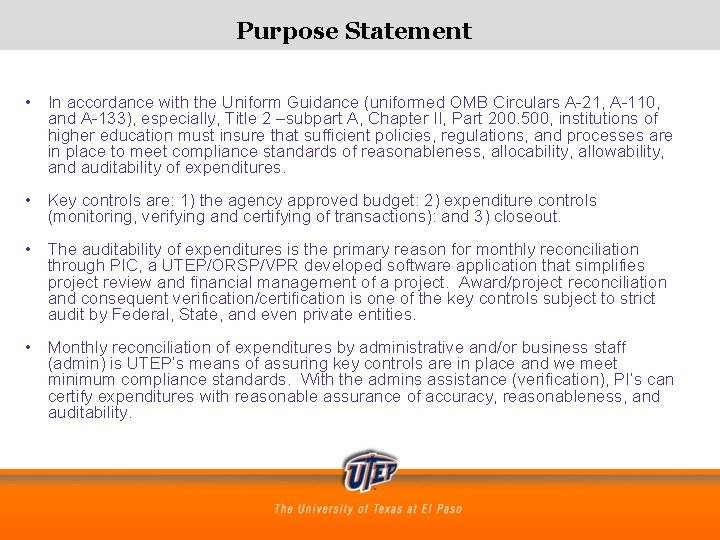
Purpose Statement • In accordance with the Uniform Guidance (uniformed OMB Circulars A-21, A-110, and A-133), especially, Title 2 –subpart A, Chapter II, Part 200. 500, institutions of higher education must insure that sufficient policies, regulations, and processes are in place to meet compliance standards of reasonableness, allocability, allowability, and auditability of expenditures. • Key controls are: 1) the agency approved budget: 2) expenditure controls (monitoring, verifying and certifying of transactions): and 3) closeout. • The auditability of expenditures is the primary reason for monthly reconciliation through PIC, a UTEP/ORSP/VPR developed software application that simplifies project review and financial management of a project. Award/project reconciliation and consequent verification/certification is one of the key controls subject to strict audit by Federal, State, and even private entities. • Monthly reconciliation of expenditures by administrative and/or business staff (admin) is UTEP’s means of assuring key controls are in place and we meet minimum compliance standards. With the admins assistance (verification), PI’s can certify expenditures with reasonable assurance of accuracy, reasonableness, and auditability.
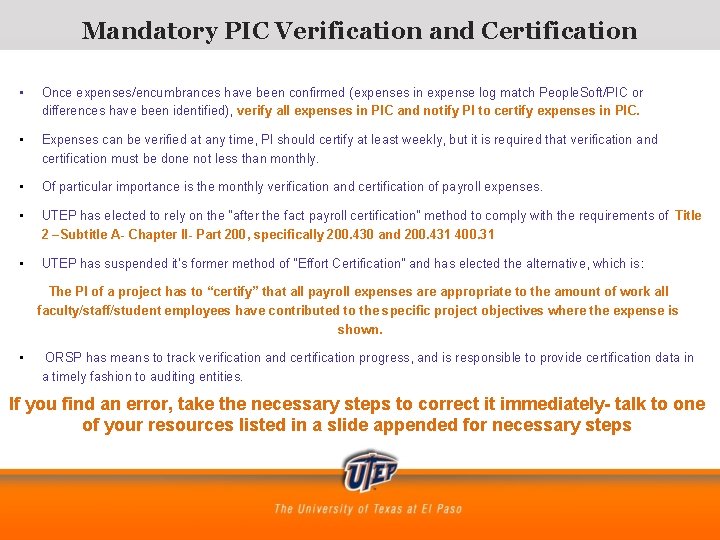
Mandatory PIC Verification and Certification • Once expenses/encumbrances have been confirmed (expenses in expense log match People. Soft/PIC or differences have been identified), verify all expenses in PIC and notify PI to certify expenses in PIC. • Expenses can be verified at any time, PI should certify at least weekly, but it is required that verification and certification must be done not less than monthly. • Of particular importance is the monthly verification and certification of payroll expenses. • UTEP has elected to rely on the “after the fact payroll certification” method to comply with the requirements of Title 2 –Subtitle A- Chapter II- Part 200, specifically 200. 430 and 200. 431 400. 31 • UTEP has suspended it’s former method of “Effort Certification” and has elected the alternative, which is : The PI of a project has to “certify” that all payroll expenses are appropriate to the amount of work all faculty/staff/student employees have contributed to the specific project objectives where the expense is shown. • ORSP has means to track verification and certification progress, and is responsible to provide certification data in a timely fashion to auditing entities. If you find an error, take the necessary steps to correct it immediately- talk to one of your resources listed in a slide appended for necessary steps
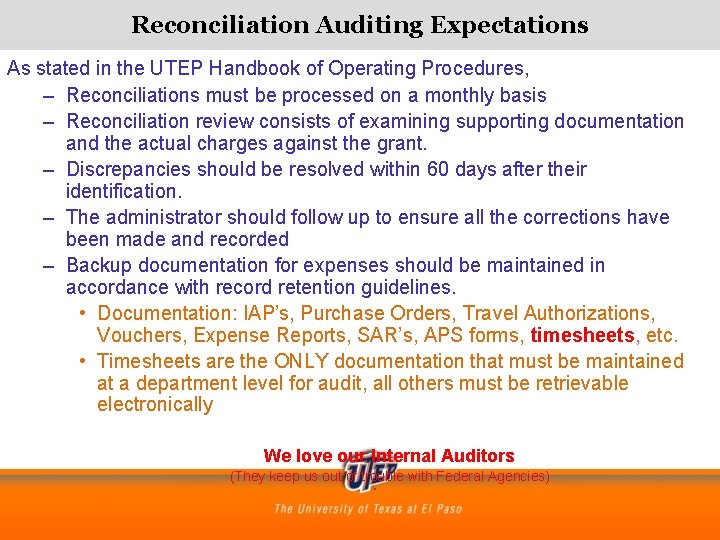
Reconciliation Auditing Expectations As stated in the UTEP Handbook of Operating Procedures, – Reconciliations must be processed on a monthly basis – Reconciliation review consists of examining supporting documentation and the actual charges against the grant. – Discrepancies should be resolved within 60 days after their identification. – The administrator should follow up to ensure all the corrections have been made and recorded – Backup documentation for expenses should be maintained in accordance with record retention guidelines. • Documentation: IAP’s, Purchase Orders, Travel Authorizations, Vouchers, Expense Reports, SAR’s, APS forms, timesheets, etc. • Timesheets are the ONLY documentation that must be maintained at a department level for audit, all others must be retrievable electronically We love our Internal Auditors (They keep us out of trouble with Federal Agencies)
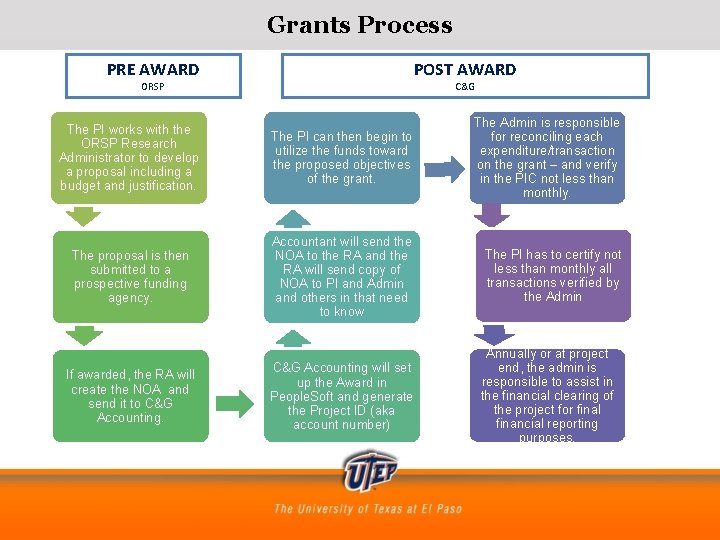
Grants Process PRE AWARD ORSP POST AWARD C&G The PI works with the ORSP Research Administrator to develop a proposal including a budget and justification. The PI can then begin to utilize the funds toward the proposed objectives of the grant. The Admin is responsible for reconciling each expenditure/transaction on the grant – and verify in the PIC not less than monthly. The proposal is then submitted to a prospective funding agency. Accountant will send the NOA to the RA and the RA will send copy of NOA to PI and Admin and others in that need to know The PI has to certify not less than monthly all transactions verified by the Admin C&G Accounting will set up the Award in People. Soft and generate the Project ID (aka account number) Annually or at project end, the admin is responsible to assist in the financial clearing of the project for final financial reporting purposes. If awarded, the RA will create the NOA and send it to C&G Accounting.
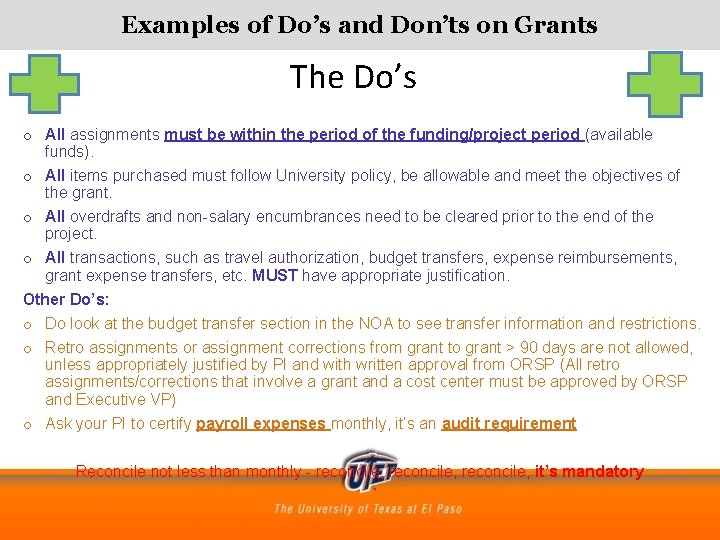
Examples of Do’s and Don’ts on Grants The Do’s o All assignments must be within the period of the funding/project period (available funds). o All items purchased must follow University policy, be allowable and meet the objectives of the grant. o All overdrafts and non-salary encumbrances need to be cleared prior to the end of the project. o All transactions, such as travel authorization, budget transfers, expense reimbursements, grant expense transfers, etc. MUST have appropriate justification. Other Do’s: o Do look at the budget transfer section in the NOA to see transfer information and restrictions. o Retro assignments or assignment corrections from grant to grant > 90 days are not allowed, unless appropriately justified by PI and with written approval from ORSP (All retro assignments/corrections that involve a grant and a cost center must be approved by ORSP and Executive VP) o Ask your PI to certify payroll expenses monthly, it’s an audit requirement Reconcile not less than monthly - reconcile, it’s mandatory
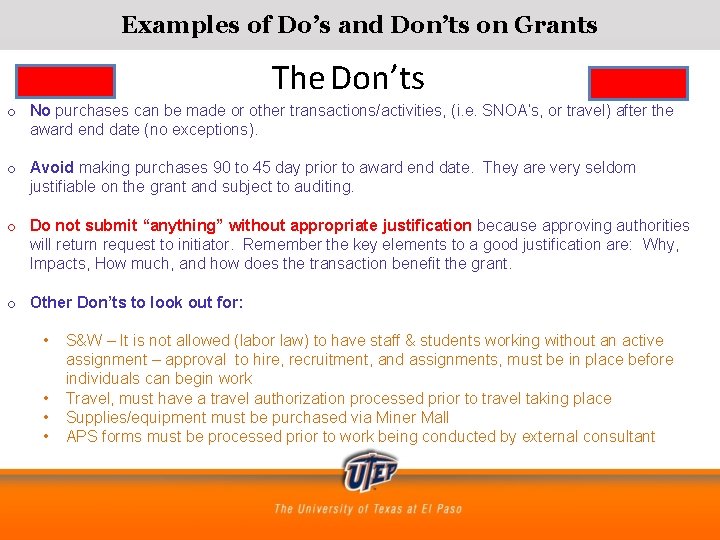
Examples of Do’s and Don’ts on Grants The Don’ts o No purchases can be made or other transactions/activities, (i. e. SNOA’s, or travel) after the award end date (no exceptions). o Avoid making purchases 90 to 45 day prior to award end date. They are very seldom justifiable on the grant and subject to auditing. o Do not submit “anything” without appropriate justification because approving authorities will return request to initiator. Remember the key elements to a good justification are: Why, Impacts, How much, and how does the transaction benefit the grant. o Other Don’ts to look out for: • • S&W – It is not allowed (labor law) to have staff & students working without an active assignment – approval to hire, recruitment, and assignments, must be in place before individuals can begin work Travel, must have a travel authorization processed prior to travel taking place Supplies/equipment must be purchased via Miner Mall APS forms must be processed prior to work being conducted by external consultant
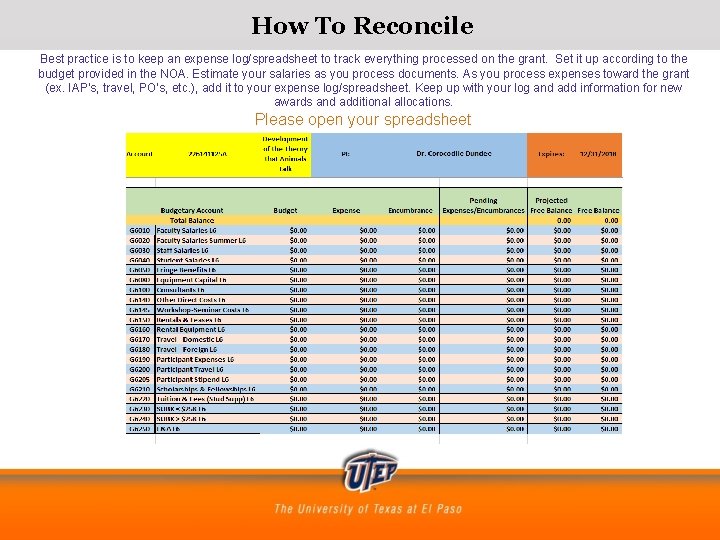
How To Reconcile Best practice is to keep an expense log/spreadsheet to track everything processed on the grant. Set it up according to the budget provided in the NOA. Estimate your salaries as you process documents. As you process expenses toward the grant (ex. IAP’s, travel, PO’s, etc. ), add it to your expense log/spreadsheet. Keep up with your log and add information for new awards and additional allocations. Please open your spreadsheet
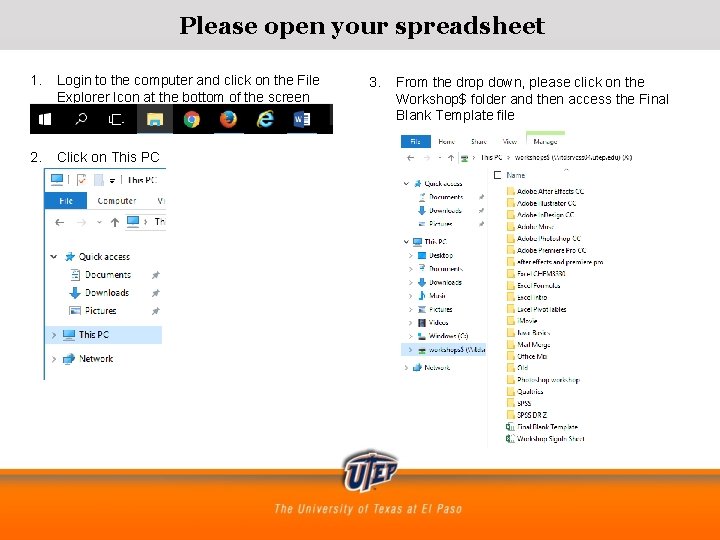
Please open your spreadsheet 1. Login to the computer and click on the File Explorer Icon at the bottom of the screen 2. Click on This PC 3. From the drop down, please click on the Workshop$ folder and then access the Final Blank Template file
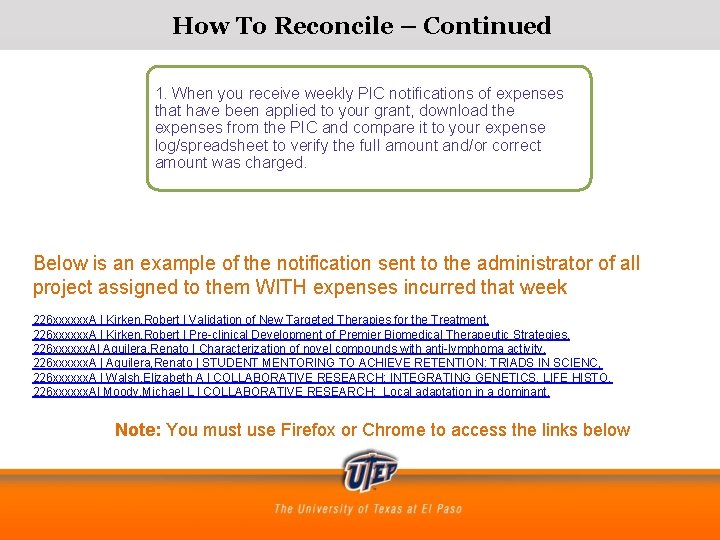
How To Reconcile – Continued 1. When you receive weekly PIC notifications of expenses that have been applied to your grant, download the expenses from the PIC and compare it to your expense log/spreadsheet to verify the full amount and/or correct amount was charged. Below is an example of the notification sent to the administrator of all project assigned to them WITH expenses incurred that week 226 xxxxxx. A | Kirken, Robert | Validation of New Targeted Therapies for the Treatment, 226 xxxxxx. A | Kirken, Robert | Pre-clinical Development of Premier Biomedical Therapeutic Strategies, 226 xxxxxx. A| Aguilera, Renato | Characterization of novel compounds with anti-lymphoma activity, 226 xxxxxx. A | Aguilera, Renato | STUDENT MENTORING TO ACHIEVE RETENTION: TRIADS IN SCIENC, 226 xxxxxx. A | Walsh, Elizabeth A | COLLABORATIVE RESEARCH: INTEGRATING GENETICS, LIFE HISTO, 226 xxxxxx. A| Moody, Michael L | COLLABORATIVE RESEARCH: Local adaptation in a dominant, Note: You must use Firefox or Chrome to access the links below
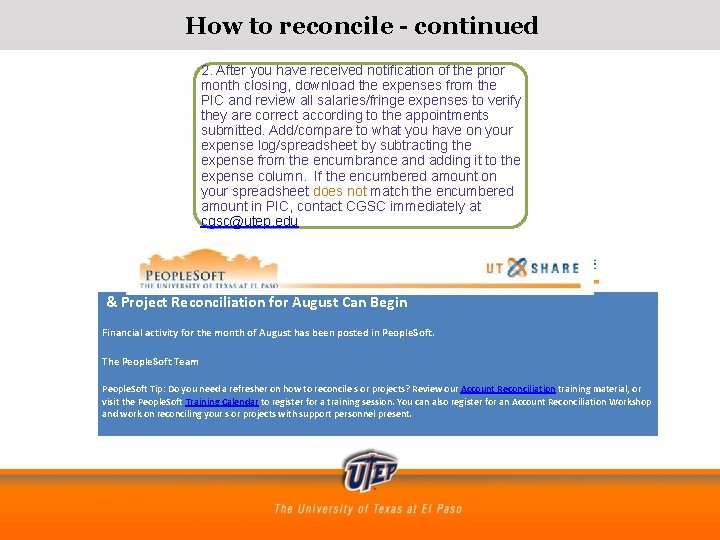
How to reconcile - continued 2. After you have received notification of the prior month closing, download the expenses from the PIC and review all salaries/fringe expenses to verify they are correct according to the appointments submitted. Add/compare to what you have on your expense log/spreadsheet by subtracting the expense from the encumbrance and adding it to the expense column. If the encumbered amount on your spreadsheet does not match the encumbered amount in PIC, contact CGSC immediately at cgsc@utep. edu & Project Reconciliation for August Can Begin Financial activity for the month of August has been posted in People. Soft. The People. Soft Team People. Soft Tip: Do you need a refresher on how to reconcile s or projects? Review our Account Reconciliation training material, or visit the People. Soft Training Calendar to register for a training session. You can also register for an Account Reconciliation Workshop and work on reconciling your s or projects with support personnel present.
Reconciliation Issues • Is the expense that was charged to the project the same as what you had documented in your expense log/spreadsheet? If not, why? – – • Was a PO only partially invoiced/paid? Is there a correction to a document that was noted in your expense log? Was freight added for shipping or did the PI change the order? Did you take longevity (part of staff salary or double deductions (March, April, May for faculty) into consideration? If an expense that is noted in your expense log/spreadsheet did not hit the project, why? – Is a document still routing for approvals? – Has a document been returned for corrections? • Does your running balance on your expense log/spreadsheet match the available balance in People. Soft/PIC? If not, why? – Refer to questions in bullets above • If you find that a salary expense should not be on the project at all, RAISE THE FLAGS EARLY AND IMMEDIATELY contact CGSC@utep. edu
Things To Remember • Remember your Appointment/Encumbrance Training – Estimate your salaries – Double check the data on the IAP’s you submit • Remember your PIC Training – Remember your PIC training – go to: research. utep. edu/pic 2 – Salaries may be separated by regular pay, holiday pay, sick leave, vacation pay, overtime pay, etc. – If a non-salary document is returned, it will show as “not valid” in PIC. – PI’s cannot certify until the admin has verified all expenses. • When choosing an expense account to use, make sure it is mapped to the account you want charged (ex. G 6140) and is classified as an Expense and not a Liability or Revenue. – ***All expense accounts that you have access to use start with a 6 xxxx (supplies) or 8 xxxx (capital expenses). Salary expenses are 5 xxxx but are auto selected by the payroll process***
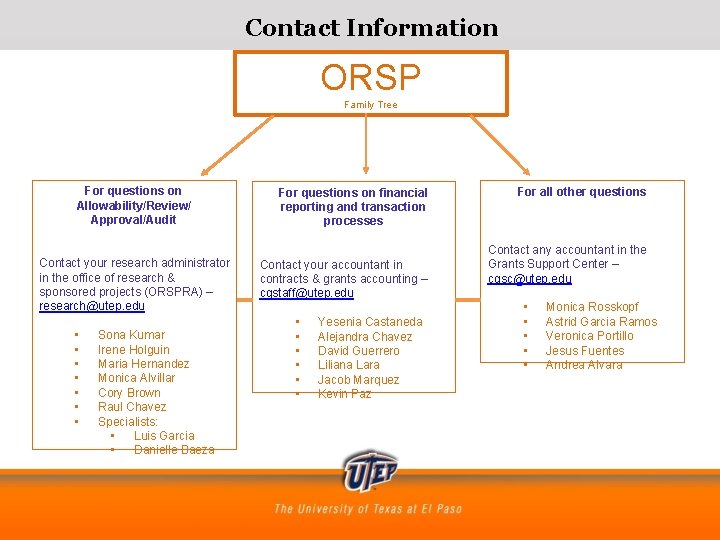
Contact Information ORSP Family Tree For questions on Allowability/Review/ Approval/Audit Contact your research administrator in the office of research & sponsored projects (ORSPRA) – research@utep. edu • Sona Kumar • Irene Holguin • Maria Hernandez • Monica Alvillar • Cory Brown • Raul Chavez • Specialists: • Luis Garcia • Danielle Baeza For questions on financial reporting and transaction processes Contact your accountant in contracts & grants accounting – cgstaff@utep. edu • • • Yesenia Castaneda Alejandra Chavez David Guerrero Liliana Lara Jacob Marquez Kevin Paz For all other questions Contact any accountant in the Grants Support Center – cgsc@utep. edu • • • Monica Rosskopf Astrid Garcia Ramos Veronica Portillo Jesus Fuentes Andrea Alvara
Thank you! Questions? This presentation will be provided via email to all attendance Please sign for your training certificate Please don’t forget to complete the evaluation so we may continue providing accurate and relevant training
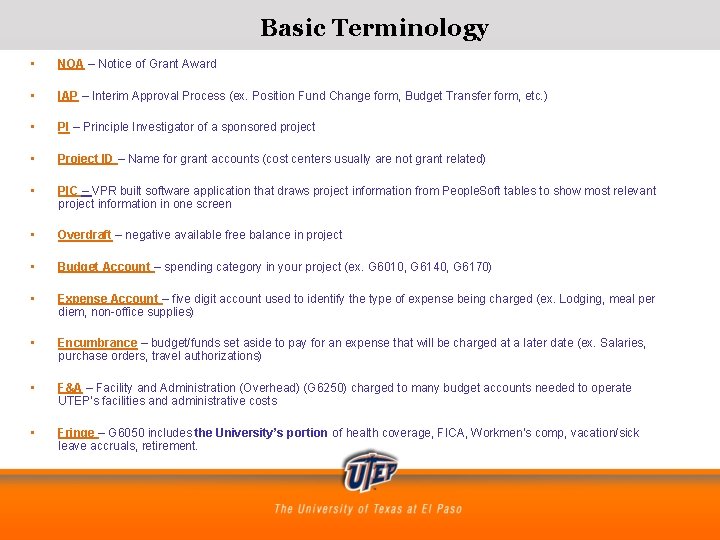
Basic Terminology • NOA – Notice of Grant Award • IAP – Interim Approval Process (ex. Position Fund Change form, Budget Transfer form, etc. ) • PI – Principle Investigator of a sponsored project • Project ID – Name for grant accounts (cost centers usually are not grant related) • PIC – VPR built software application that draws project information from People. Soft tables to show most relevant project information in one screen • Overdraft – negative available free balance in project • Budget Account – spending category in your project (ex. G 6010, G 6140, G 6170) • Expense Account – five digit account used to identify the type of expense being charged (ex. Lodging, meal per diem, non-office supplies) • Encumbrance – budget/funds set aside to pay for an expense that will be charged at a later date (ex. Salaries, purchase orders, travel authorizations) • F&A – Facility and Administration (Overhead) (G 6250) charged to many budget accounts needed to operate UTEP’s facilities and administrative costs • Fringe – G 6050 includes the University’s portion of health coverage, FICA, Workmen’s comp, vacation/sick leave accruals, retirement.
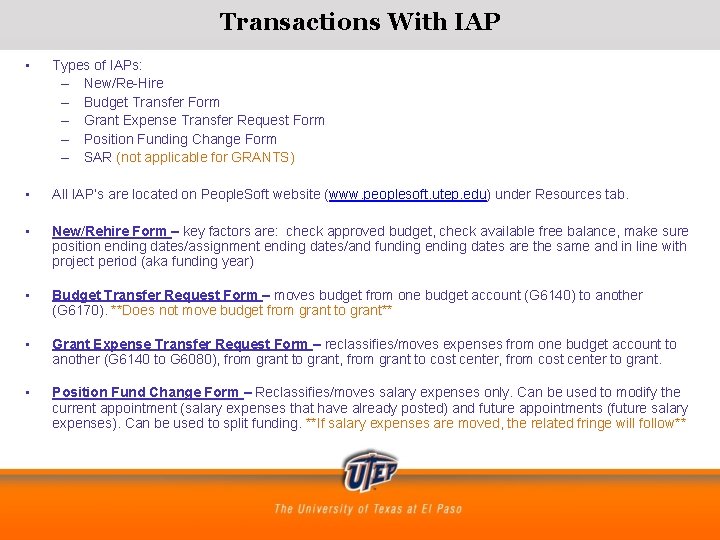
Transactions With IAP • Types of IAPs: – New/Re-Hire – Budget Transfer Form – Grant Expense Transfer Request Form – Position Funding Change Form – SAR (not applicable for GRANTS) • All IAP’s are located on People. Soft website (www. peoplesoft. utep. edu) under Resources tab. • New/Rehire Form – key factors are: check approved budget, check available free balance, make sure position ending dates/assignment ending dates/and funding ending dates are the same and in line with project period (aka funding year) • Budget Transfer Request Form – moves budget from one budget account (G 6140) to another (G 6170). **Does not move budget from grant to grant** • Grant Expense Transfer Request Form – reclassifies/moves expenses from one budget account to another (G 6140 to G 6080), from grant to grant, from grant to cost center, from cost center to grant. • Position Fund Change Form – Reclassifies/moves salary expenses only. Can be used to modify the current appointment (salary expenses that have already posted) and future appointments (future salary expenses). Can be used to split funding. **If salary expenses are moved, the related fringe will follow**