KOK Installation Instruction i OS KOK PLAY Installation
- Slides: 15
KOK Installation Instruction (i. OS)
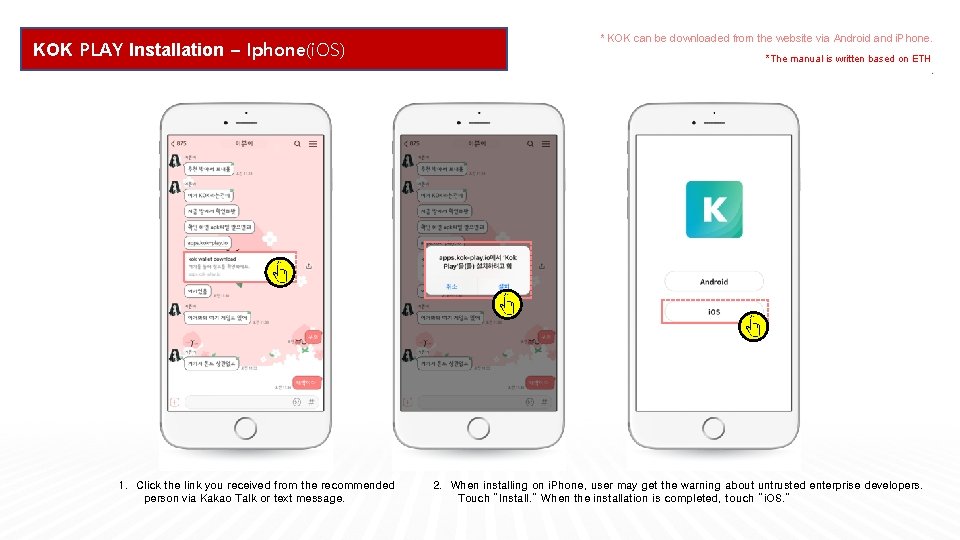
KOK PLAY Installation – Iphone(i. OS) 1. Click the link you received from the recommended person via Kakao Talk or text message. * KOK can be downloaded from the website via Android and i. Phone. *The manual is written based on ETH. 2. When installing on i. Phone, user may get the warning about untrusted enterprise developers. Touch “Install. ” When the installation is completed, touch “i. OS. ”
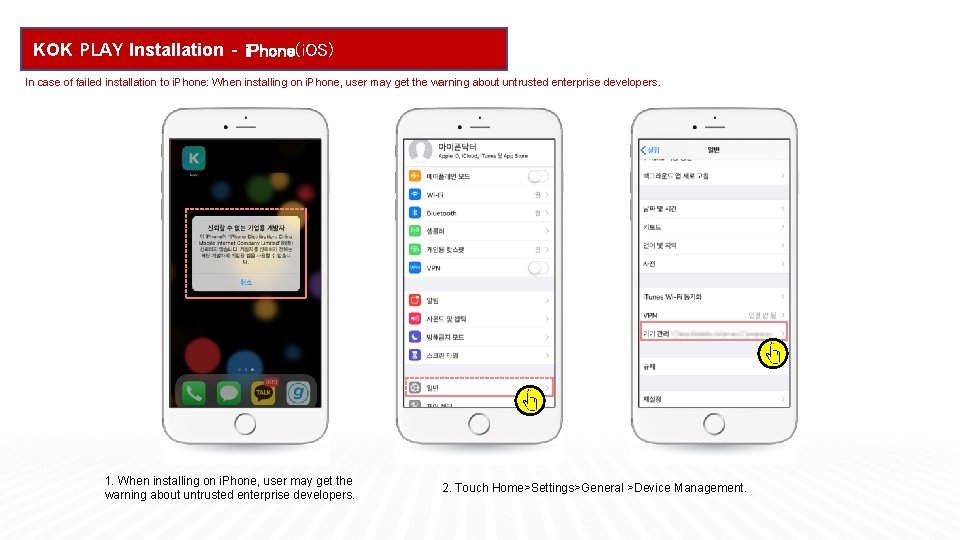
KOK PLAY Installation - i. Phone(i. OS) In case of failed installation to i. Phone: When installing on i. Phone, user may get the warning about untrusted enterprise developers. 1. When installing on i. Phone, user may get the warning about untrusted enterprise developers. 2. Touch Home>Settings>General >Device Management.
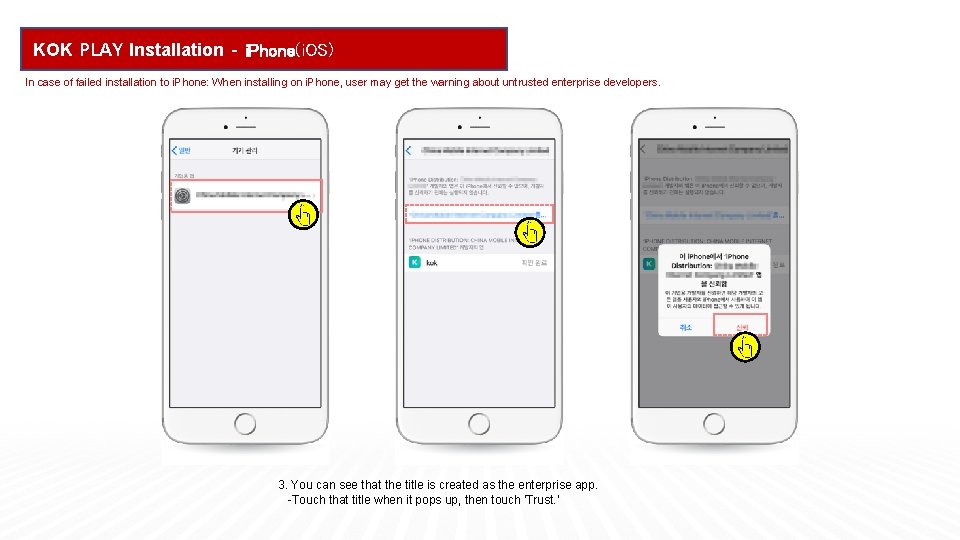
KOK PLAY Installation - i. Phone(i. OS) In case of failed installation to i. Phone: When installing on i. Phone, user may get the warning about untrusted enterprise developers. 3. You can see that the title is created as the enterprise app. -Touch that title when it pops up, then touch 'Trust. ’
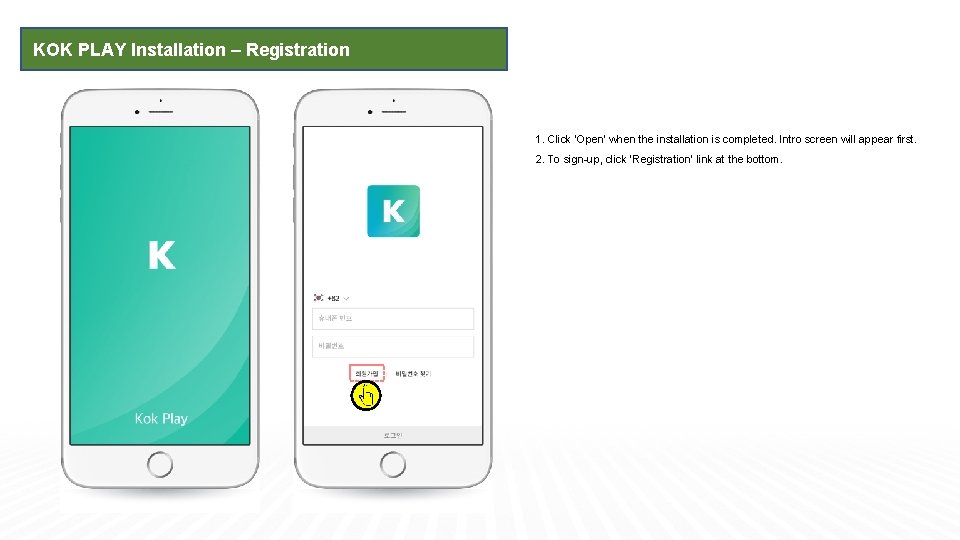
KOK PLAY Installation – Registration 1. Click ‘Open’ when the installation is completed. Intro screen will appear first. 2. To sign-up, click ‘Registration’ link at the bottom.
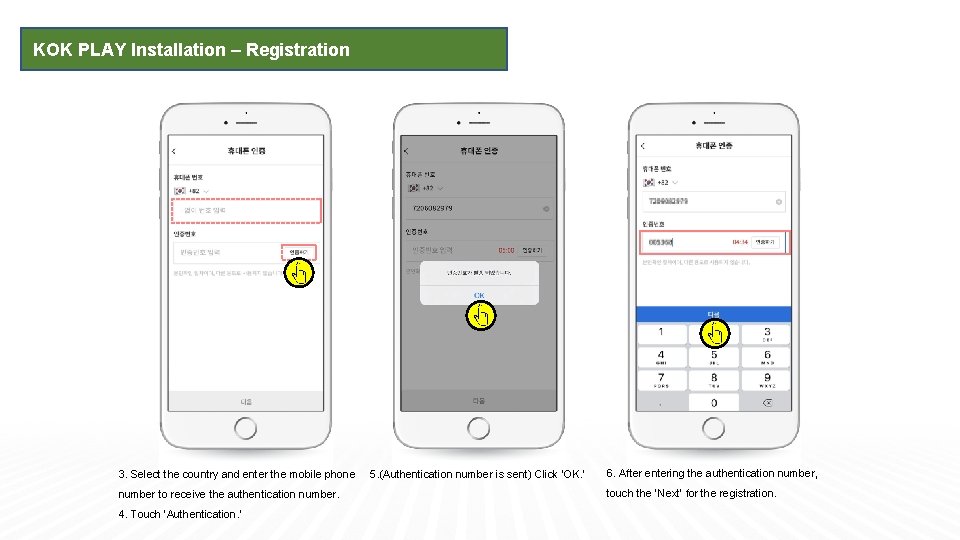
KOK PLAY Installation – Registration 3. Select the country and enter the mobile phone number to receive the authentication number. 4. Touch ‘Authentication. ’ 5. (Authentication number is sent) Click ‘OK. ’ 6. After entering the authentication number, touch the ‘Next’ for the registration.
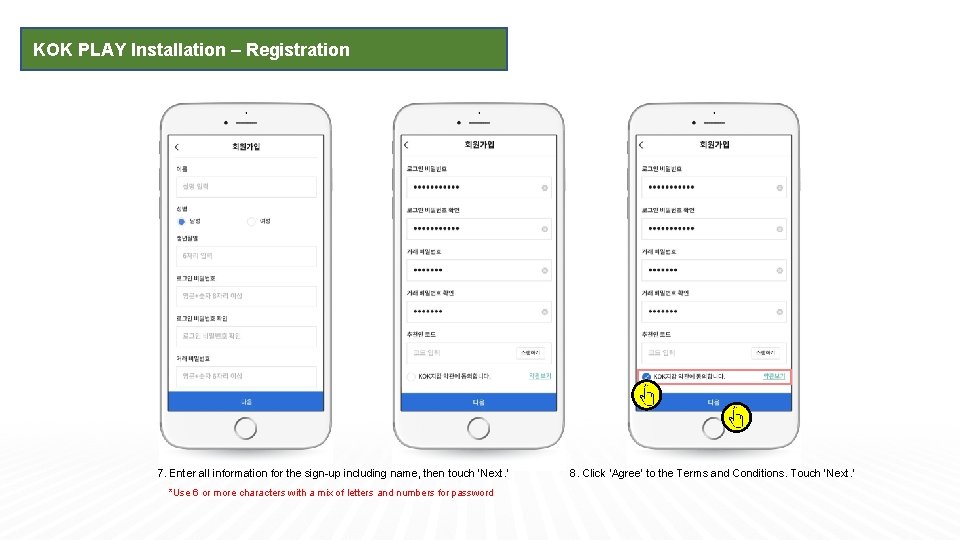
KOK PLAY Installation – Registration 7. Enter all information for the sign-up including name, then touch ‘Next. ’ *Use 6 or more characters with a mix of letters and numbers for password 8. Click ‘Agree’ to the Terms and Conditions. Touch ‘Next. ’
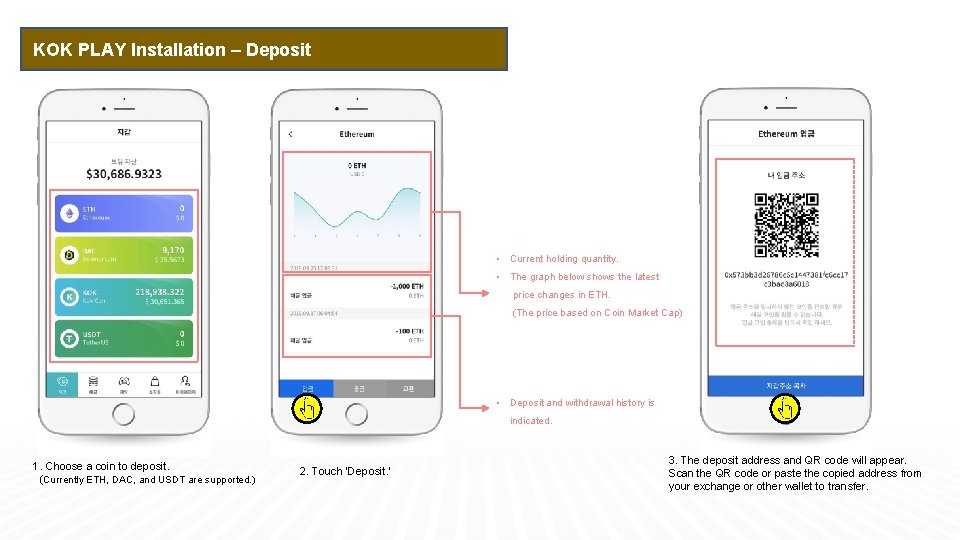
KOK PLAY Installation – Deposit • Current holding quantity. • The graph below shows the latest price changes in ETH. (The price based on Coin Market Cap) • Deposit and withdrawal history is indicated. 1. Choose a coin to deposit. (Currently ETH, DAC, and USDT are supported. ) 2. Touch ‘Deposit. ’ 3. The deposit address and QR code will appear. Scan the QR code or paste the copied address from your exchange or other wallet to transfer.
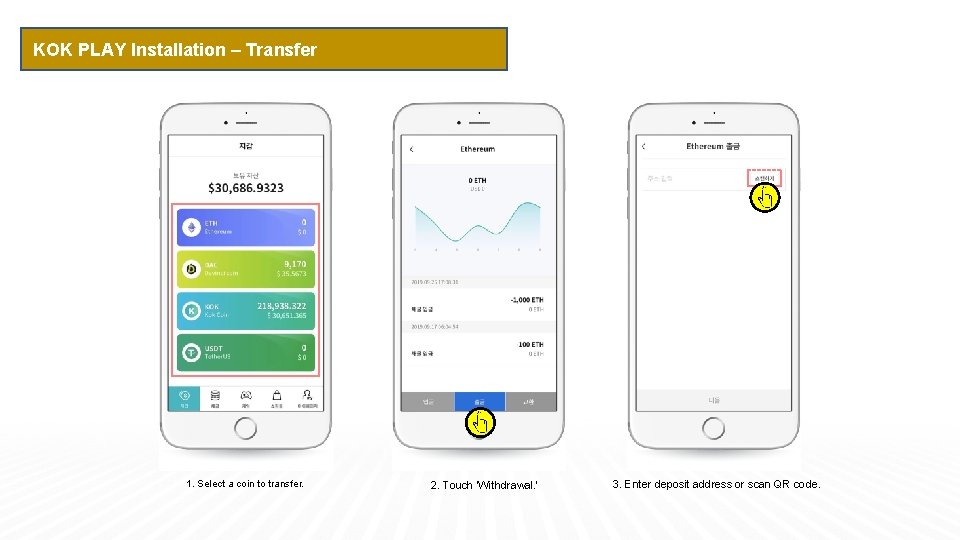
KOK PLAY Installation – Transfer 1. Select a coin to transfer. 2. Touch ‘Withdrawal. ’ 3. Enter deposit address or scan QR code.
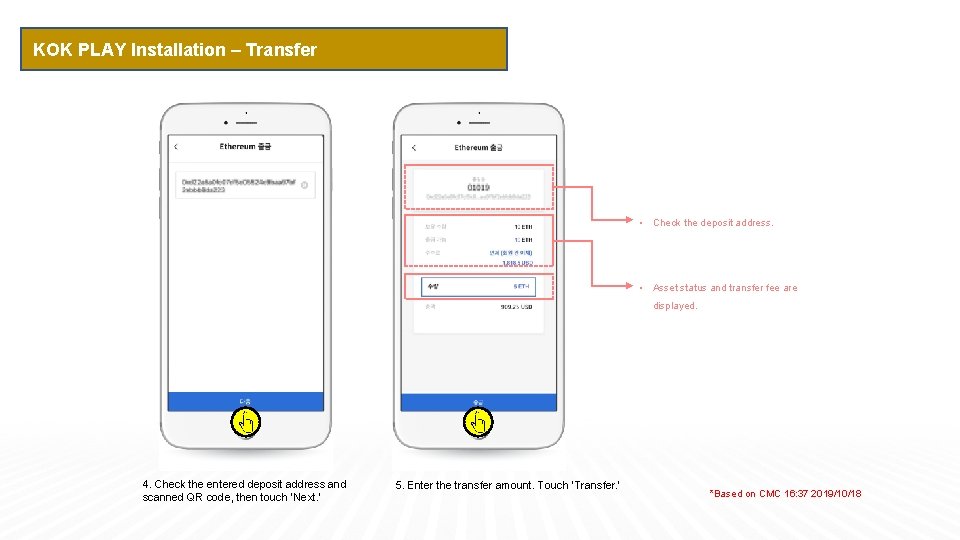
KOK PLAY Installation – Transfer • Check the deposit address. • Asset status and transfer fee are displayed. 4. Check the entered deposit address and scanned QR code, then touch ‘Next. ’ 5. Enter the transfer amount. Touch ‘Transfer. ’ *Based on CMC 16: 37 2019/10/18
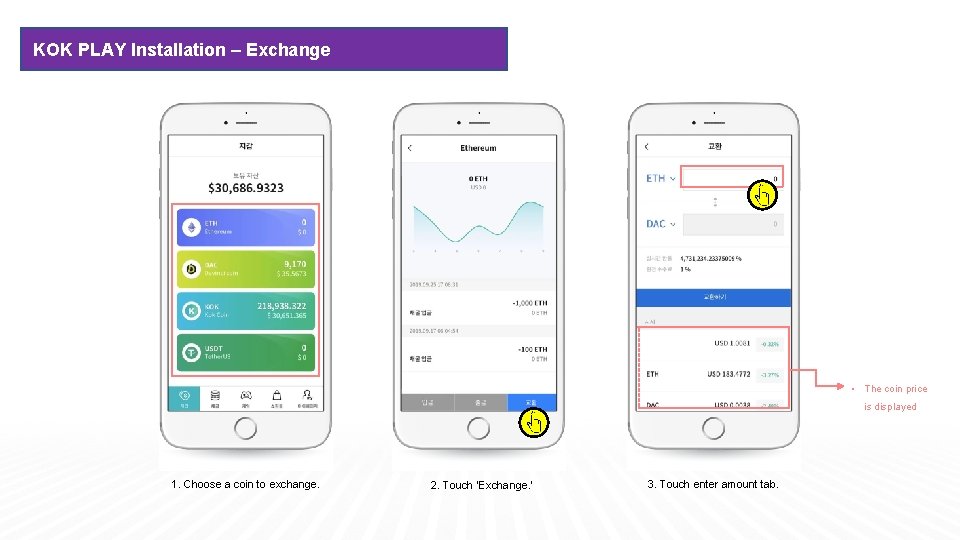
KOK PLAY Installation – Exchange • The coin price is displayed 1. Choose a coin to exchange. 2. Touch ‘Exchange. ’ 3. Touch enter amount tab.
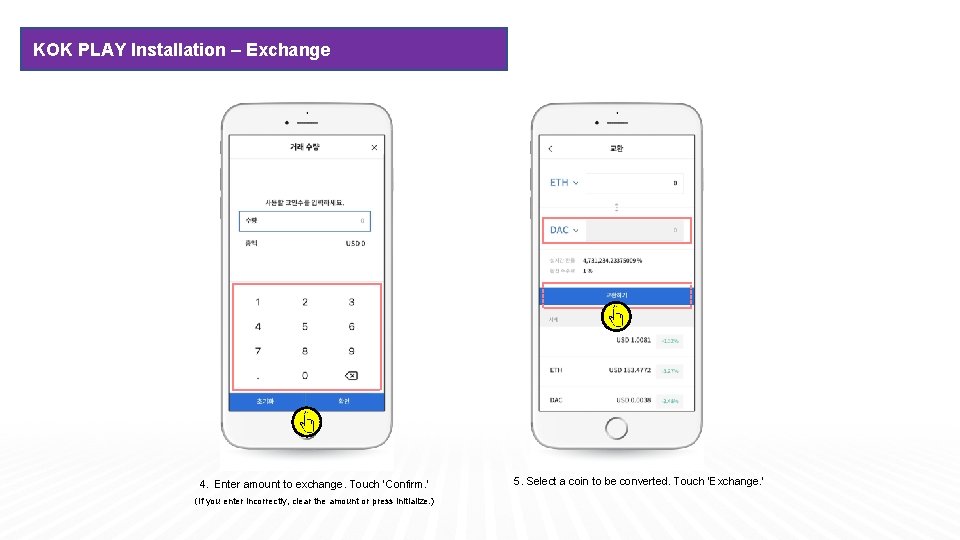
KOK PLAY Installation – Exchange 4. Enter amount to exchange. Touch ‘Confirm. ’ (If you enter incorrectly, clear the amount or press initialize. ) 5. Select a coin to be converted. Touch ‘Exchange. ’
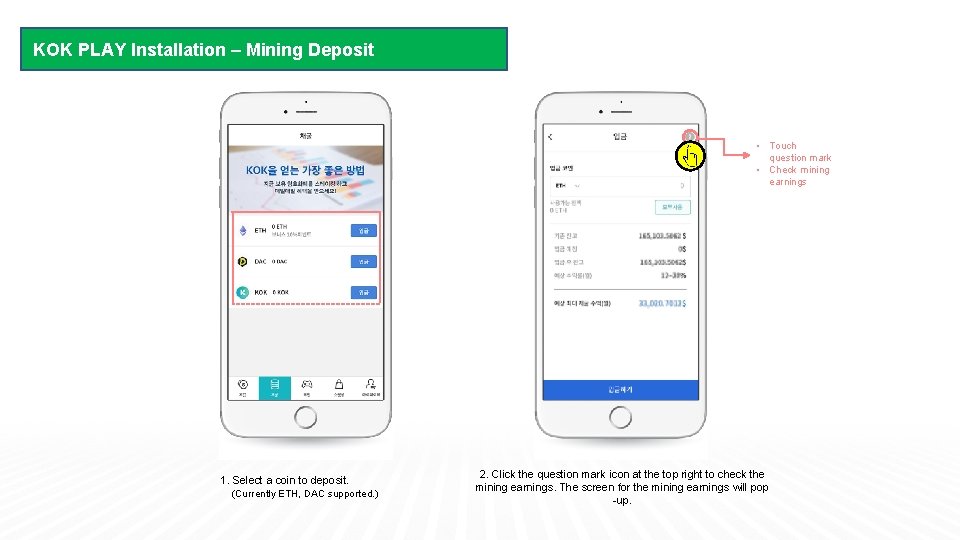
KOK PLAY Installation – Mining Deposit • Touch question mark • Check mining earnings 1. Select a coin to deposit. (Currently ETH, DAC supported. ) 2. Click the question mark icon at the top right to check the mining earnings. The screen for the mining earnings will pop -up.
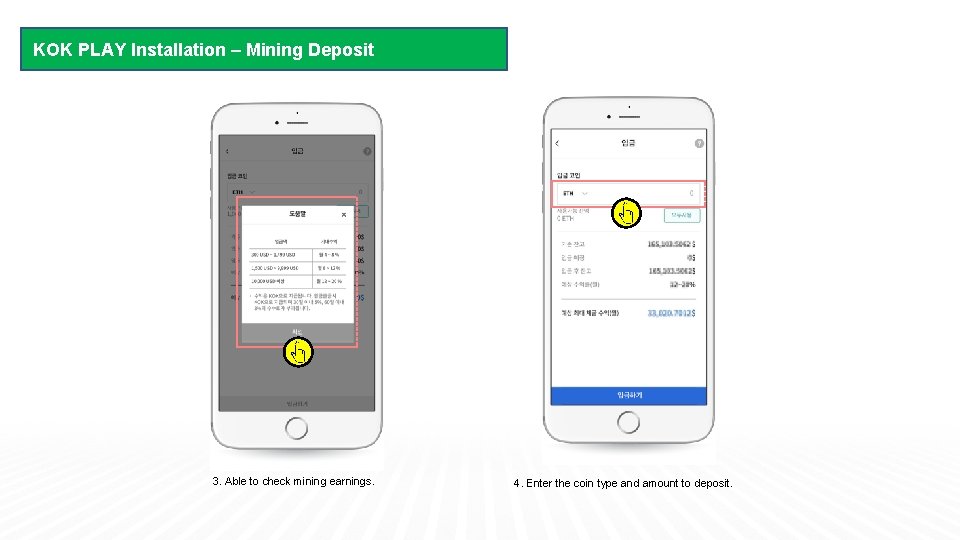
KOK PLAY Installation – Mining Deposit 3. Able to check mining earnings. 4. Enter the coin type and amount to deposit.
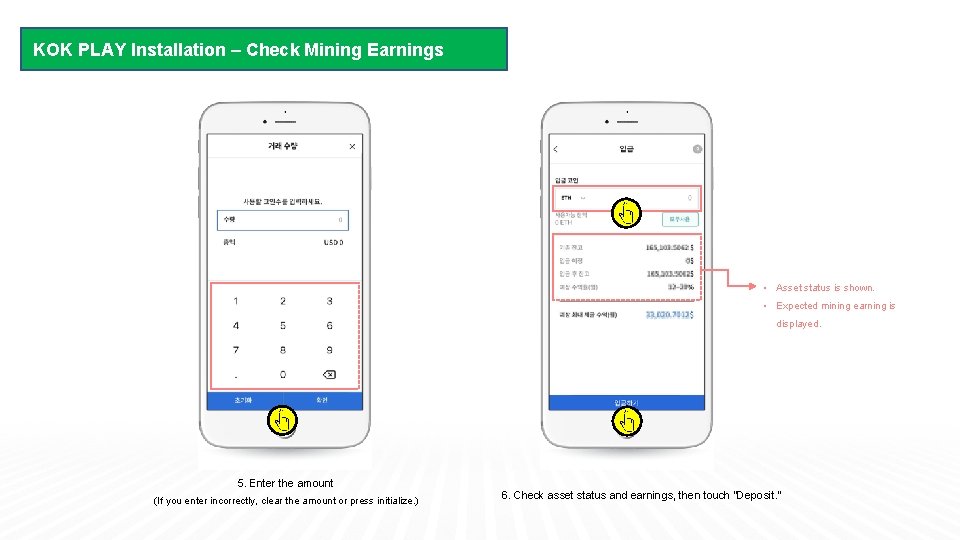
KOK PLAY Installation – Check Mining Earnings • Asset status is shown. • Expected mining earning is displayed. 5. Enter the amount (If you enter incorrectly, clear the amount or press initialize. ) 6. Check asset status and earnings, then touch “Deposit. ”