INDICIUM SYSTEM Skills Module January 2016 SDF Registration

- Slides: 28
INDICIUM SYSTEM Skills Module January 2016
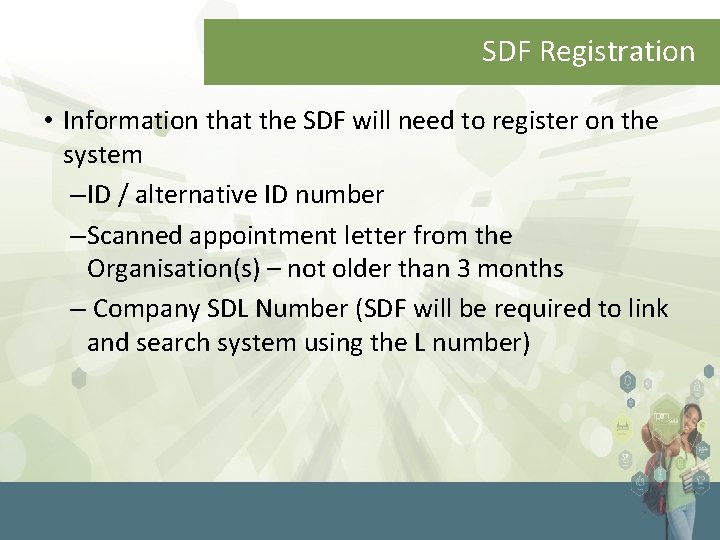
SDF Registration • Information that the SDF will need to register on the system – ID / alternative ID number – Scanned appointment letter from the Organisation(s) – not older than 3 months – Company SDL Number (SDF will be required to link and search system using the L number)
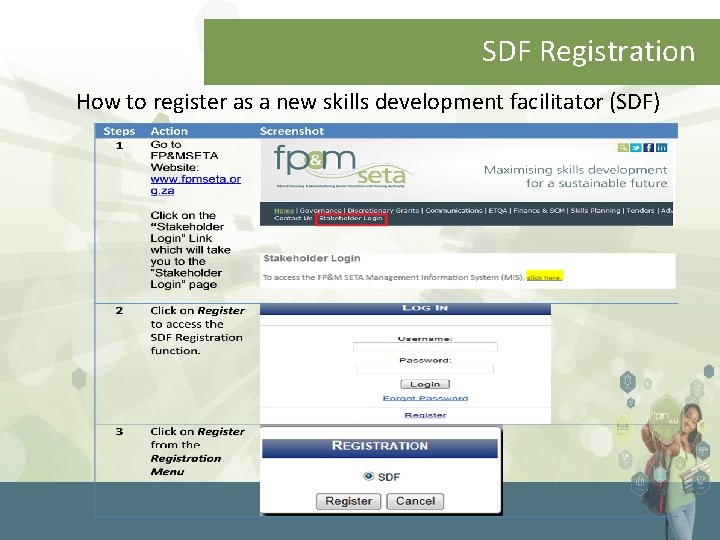
SDF Registration How to register as a new skills development facilitator (SDF)
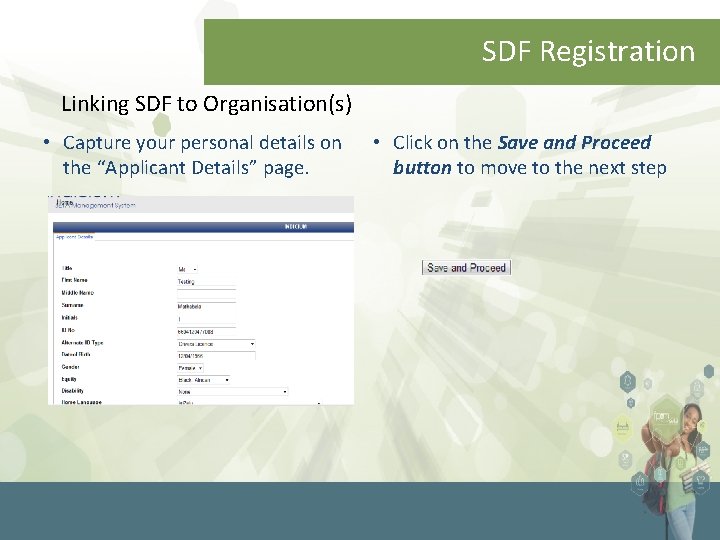
SDF Registration Linking SDF to Organisation(s) • Capture your personal details on the “Applicant Details” page. • Click on the Save and Proceed button to move to the next step
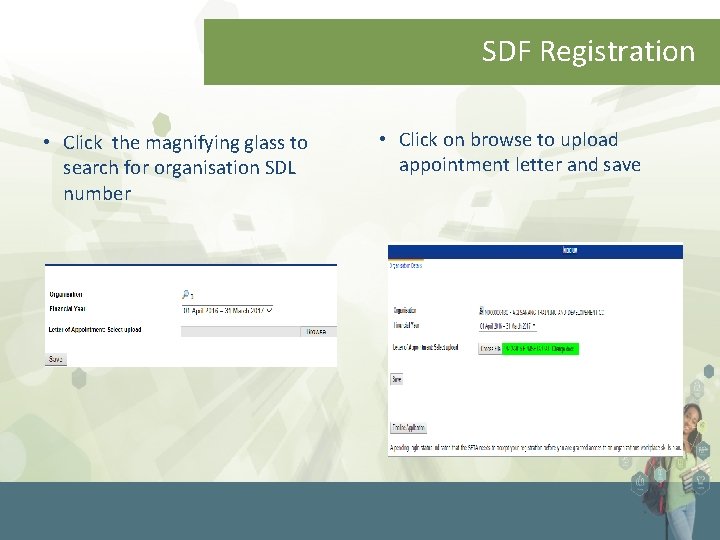
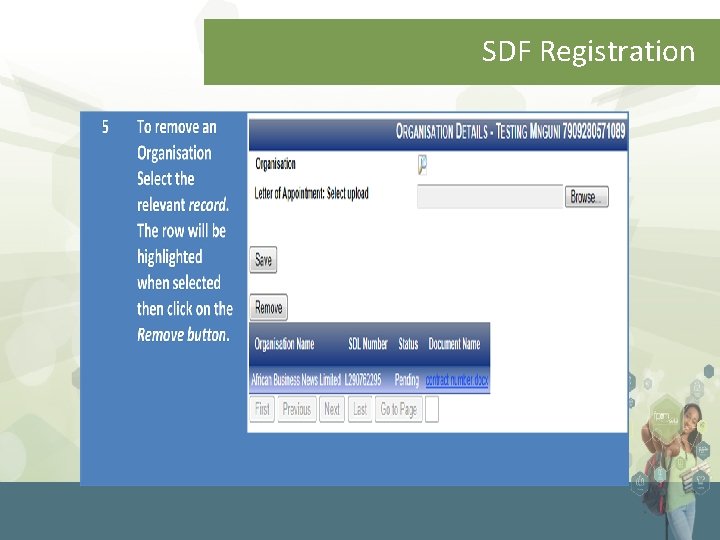
SDF Registration • Click the magnifying glass to search for organisation SDL number • Click on browse to upload appointment letter and save
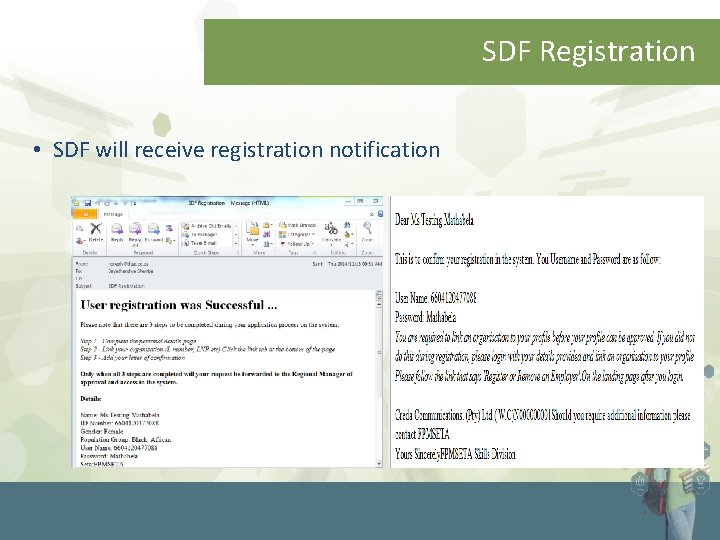
SDF Registration • SDF will receive registration notification
SDF Registration
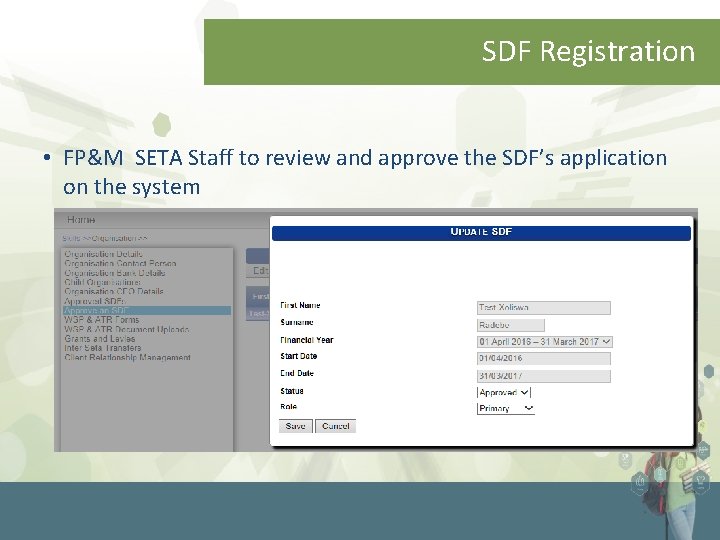
SDF Registration • FP&M SETA Staff to review and approve the SDF’s application on the system
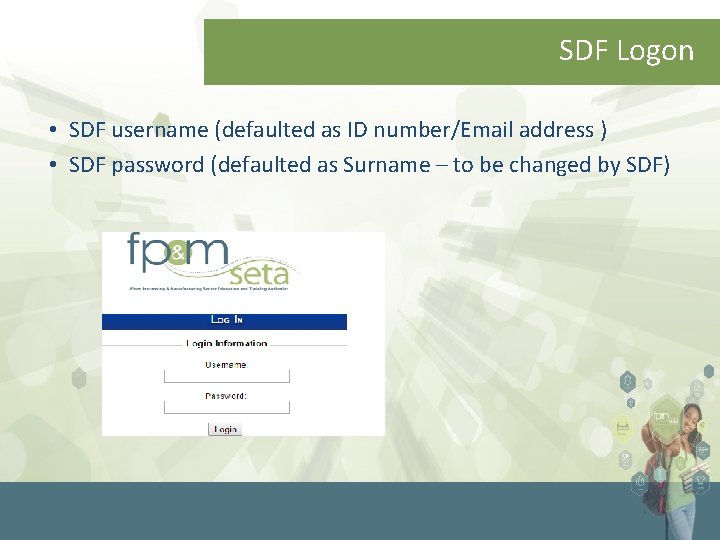
SDF Logon • SDF username (defaulted as ID number/Email address ) • SDF password (defaulted as Surname – to be changed by SDF)
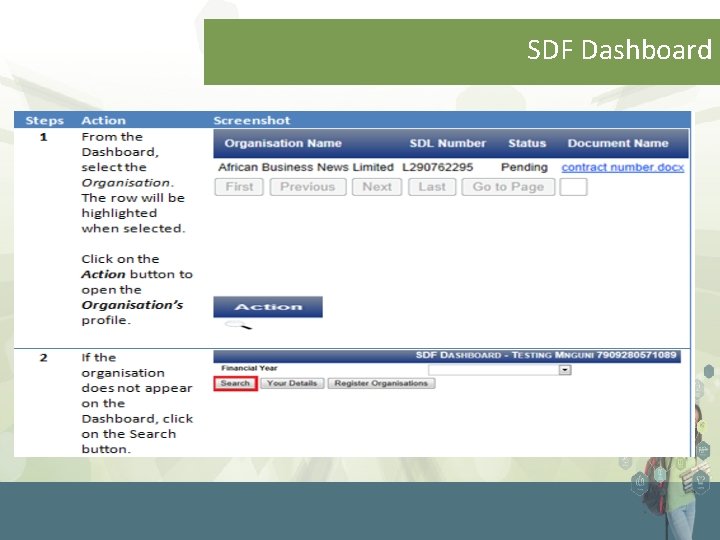
SDF Dashboard
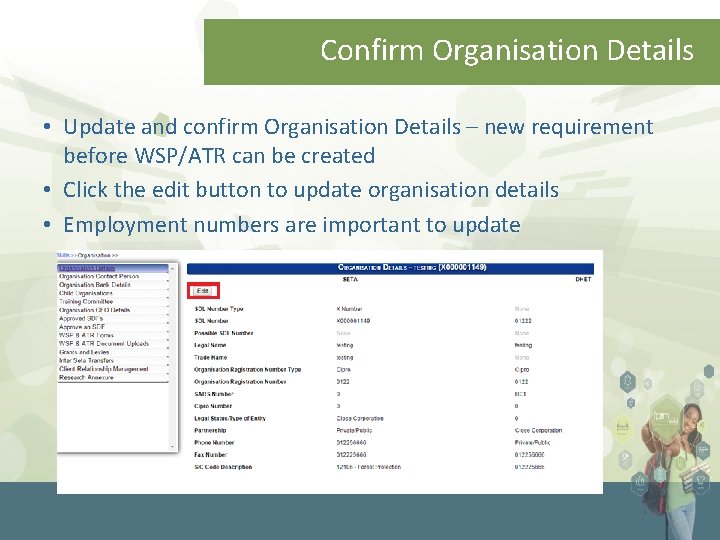
Confirm Organisation Details • Update and confirm Organisation Details – new requirement before WSP/ATR can be created • Click the edit button to update organisation details • Employment numbers are important to update
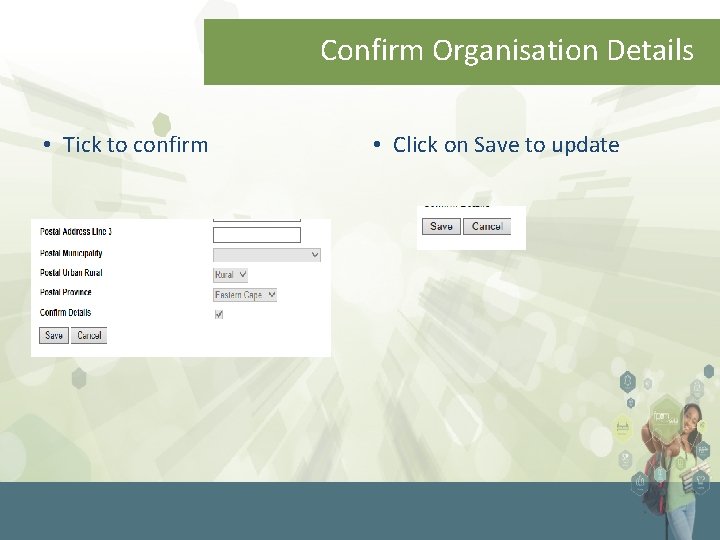
Confirm Organisation Details • Tick to confirm • Click on Save to update
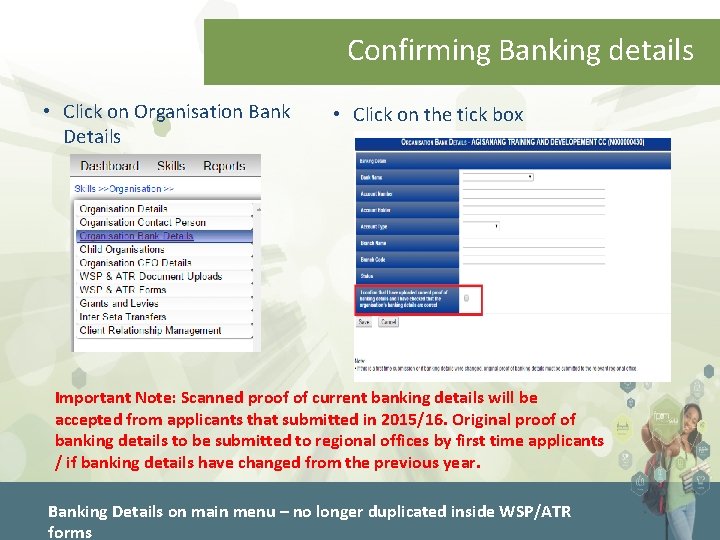
Confirming Banking details • Click on Organisation Bank Details • Click on the tick box Important Note: Scanned proof of current banking details will be accepted from applicants that submitted in 2015/16. Original proof of banking details to be submitted to regional offices by first time applicants / if banking details have changed from the previous year. Banking Details on main menu – no longer duplicated inside WSP/ATR forms
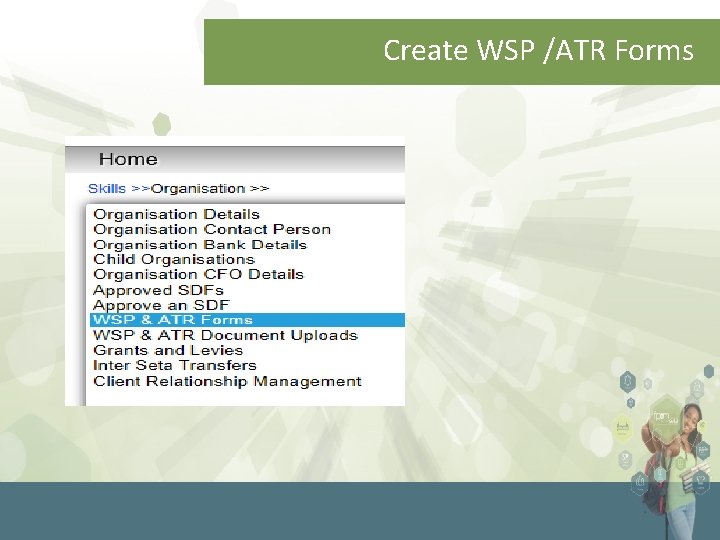
Create WSP /ATR Forms
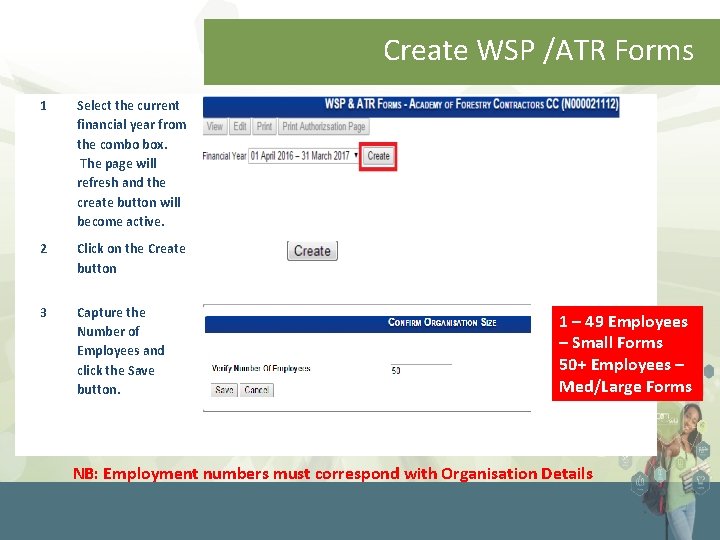
Create WSP /ATR Forms 1 Select the current financial year from the combo box. The page will refresh and the create button will become active. 2 Click on the Create button 3 Capture the Number of Employees and click the Save button. 1 – 49 Employees – Small Forms 50+ Employees – Med/Large Forms NB: Employment numbers must correspond with Organisation Details
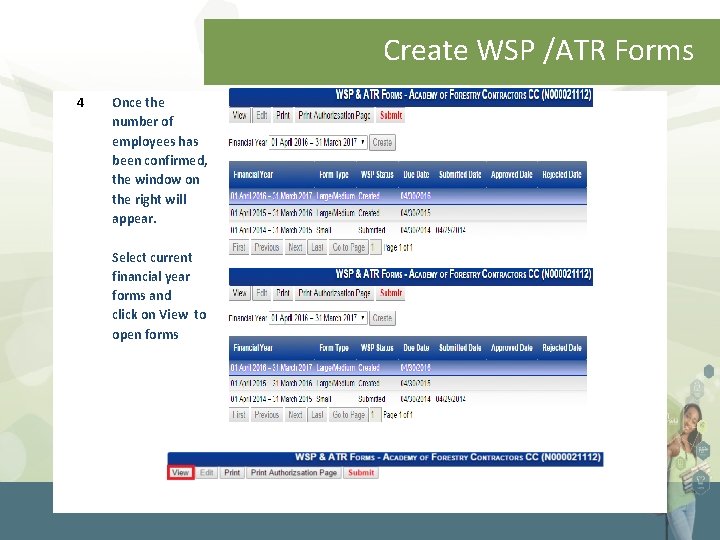
Create WSP /ATR Forms 4 Once the number of employees has been confirmed, the window on the right will appear. Select current financial year forms and click on View to open forms
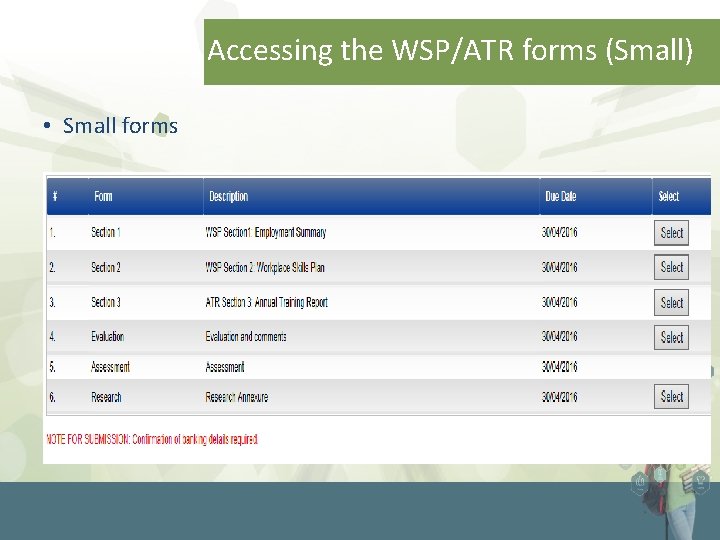
Accessing the WSP/ATR forms (Small) • Small forms
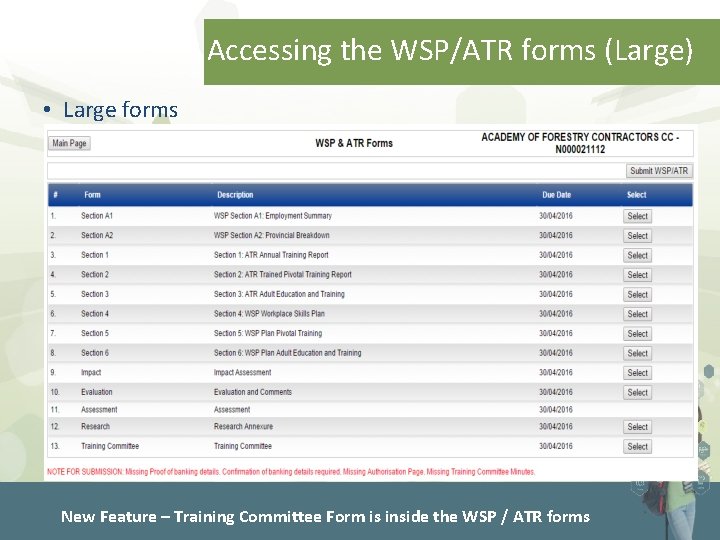
Accessing the WSP/ATR forms (Large) • Large forms New Feature – Training Committee Form is inside the WSP / ATR forms
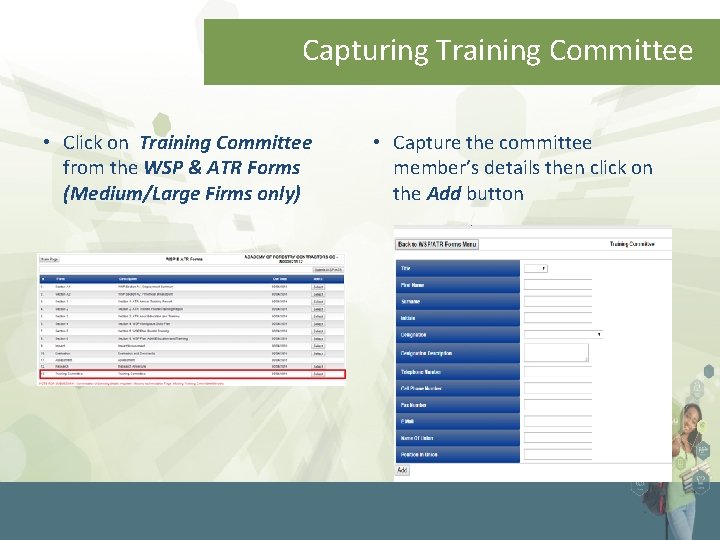
Capturing Training Committee • Click on Training Committee from the WSP & ATR Forms (Medium/Large Firms only) • Capture the committee member’s details then click on the Add button
Capturing Principles on the Forms • Employment Total on Organisation Details must be equal to Employment Summary must be equal to Provincial Breakdown • If not equal, SDF will not be able to submit • Medium / Large Firms – must complete WSP and or PIVOTAL WSP • Medium / Large Firms – must complete ATR and or PIVOTAL ATR • Small Firms – must complete WSP and ATR (unless first time submission) • To qualify for Discretionary grants, Medium / Large firms must complete PIVOTAL WSP and ATR • Number of beneficiaries on WSP / ATR cannot be equal to NIL
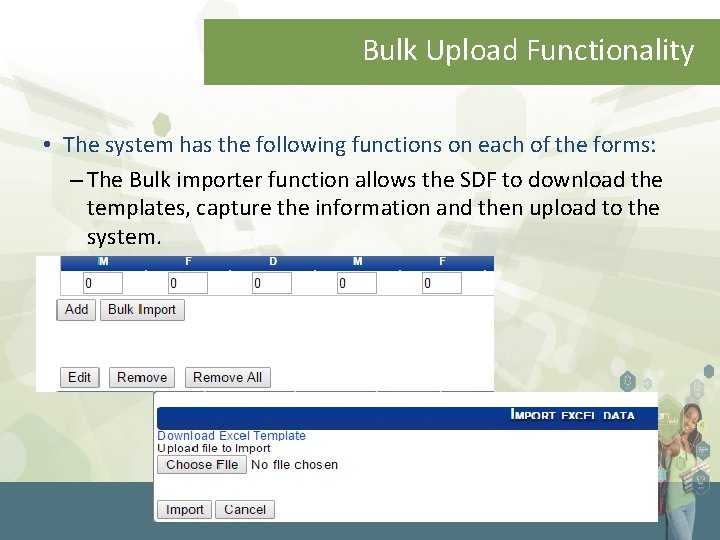
Bulk Upload Functionality • The system has the following functions on each of the forms: – The Bulk importer function allows the SDF to download the templates, capture the information and then upload to the system.
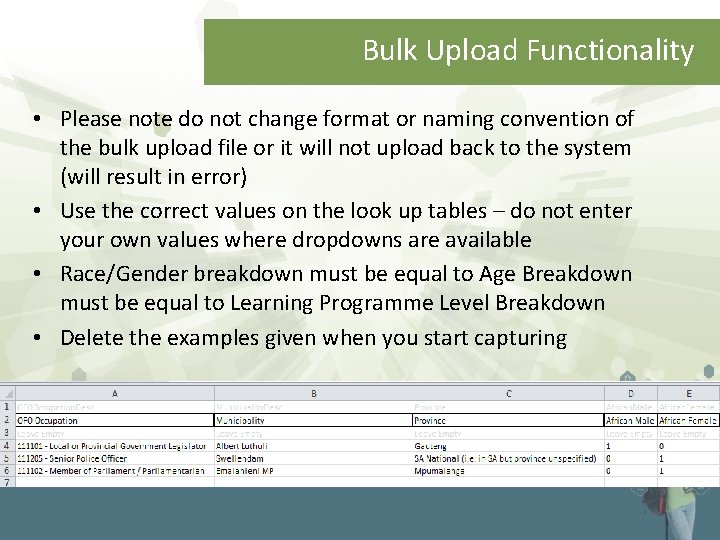
Bulk Upload Functionality • Please note do not change format or naming convention of the bulk upload file or it will not upload back to the system (will result in error) • Use the correct values on the look up tables – do not enter your own values where dropdowns are available • Race/Gender breakdown must be equal to Age Breakdown must be equal to Learning Programme Level Breakdown • Delete the examples given when you start capturing
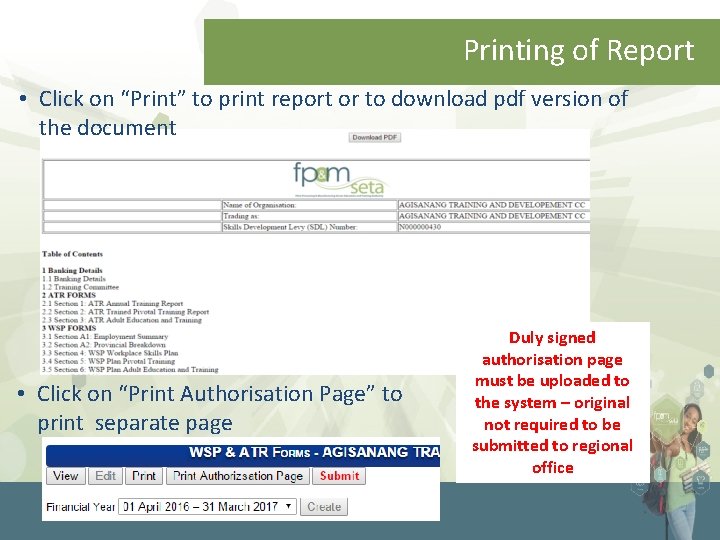
Printing of Report • Click on “Print” to print report or to download pdf version of the document • Click on “Print Authorisation Page” to print separate page - new feature Duly signed authorisation page must be uploaded to the system – original not required to be submitted to regional office
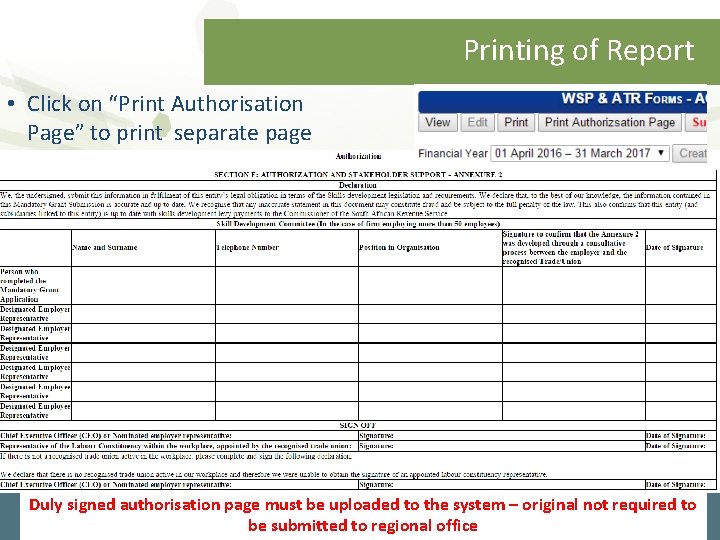
Printing of Report • Click on “Print Authorisation Page” to print separate page - new feature Duly signed authorisation page must be uploaded to the system – original not required to be submitted to regional office
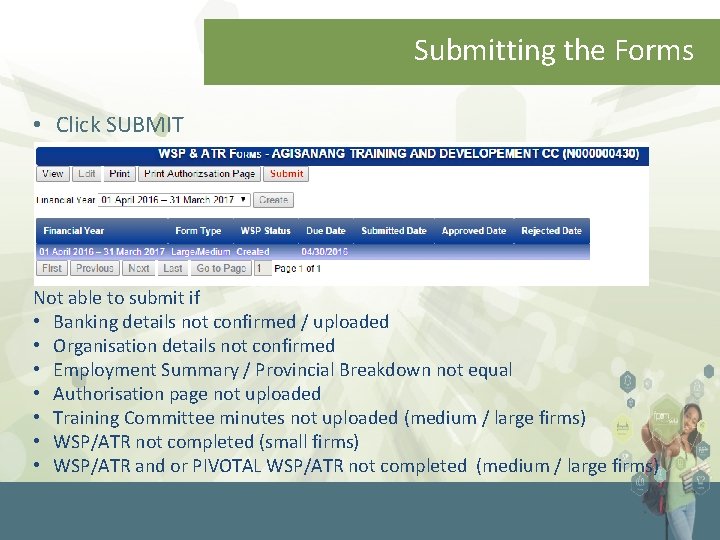
Submitting the Forms • Click SUBMIT Not able to submit if • Banking details not confirmed / uploaded • Organisation details not confirmed • Employment Summary / Provincial Breakdown not equal • Authorisation page not uploaded • Training Committee minutes not uploaded (medium / large firms) • WSP/ATR not completed (small firms) • WSP/ATR and or PIVOTAL WSP/ATR not completed (medium / large firms)
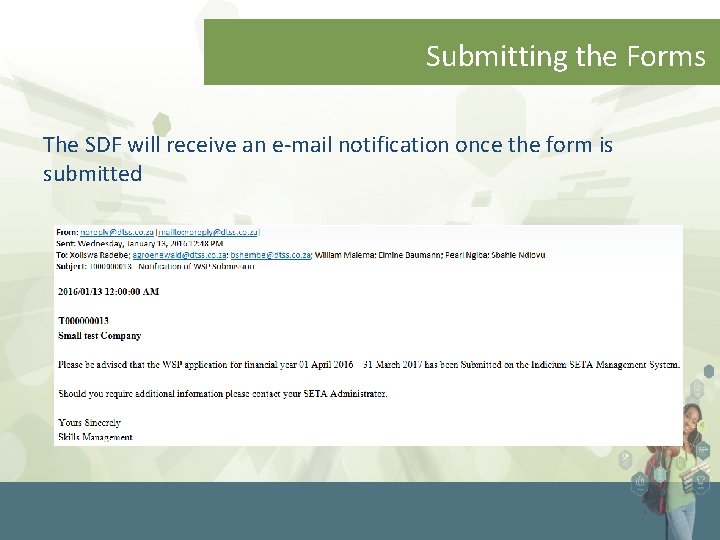
Submitting the Forms The SDF will receive an e-mail notification once the form is submitted
Way Forward • An SDF user manual for download on the Stakeholder Login page on www. fpmseta. org. za • The system is live and all submissions are due by 30 April 2016
Questions Thank you