Eportfolios Introduction to Mahara https eportfolio usask ca

- Slides: 9
Eportfolios Introduction to Mahara: https: //eportfolio. usask. ca/ Modified August 2018
What can an eportfolio do? An eportfolio can help you: ● Collect and organize files such as certificates, past work, photos, CV, class notes, and other artifacts ● Share pages with others if and when you choose ● Document work completed in a course/program ● Display their work to an external audience using a secret URL
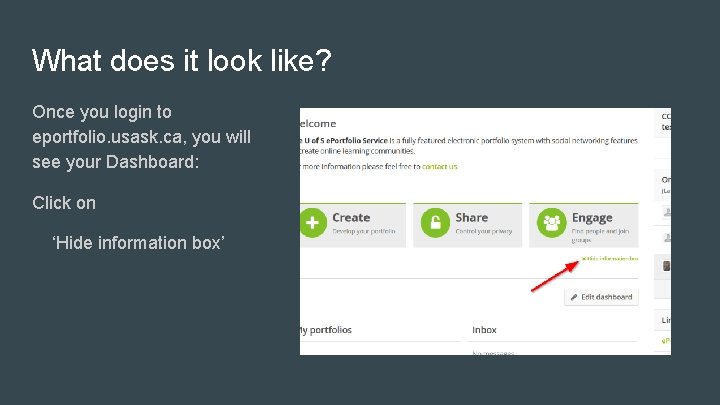
What does it look like? Once you login to eportfolio. usask. ca, you will see your Dashboard: Click on ‘Hide information box’
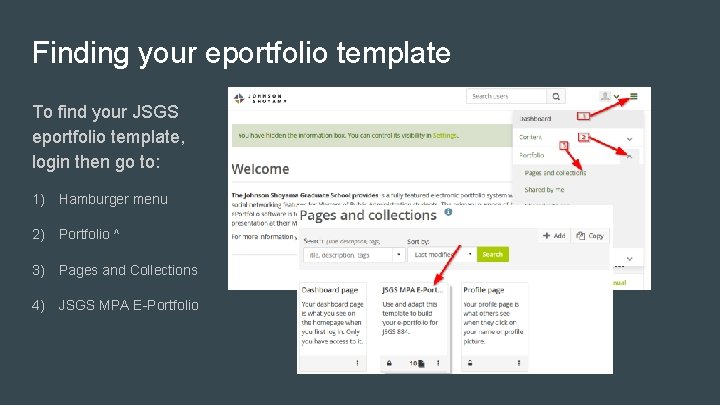
Finding your eportfolio template To find your JSGS eportfolio template, login then go to: 1) Hamburger menu 2) Portfolio ^ 3) Pages and Collections 4) JSGS MPA E-Portfolio
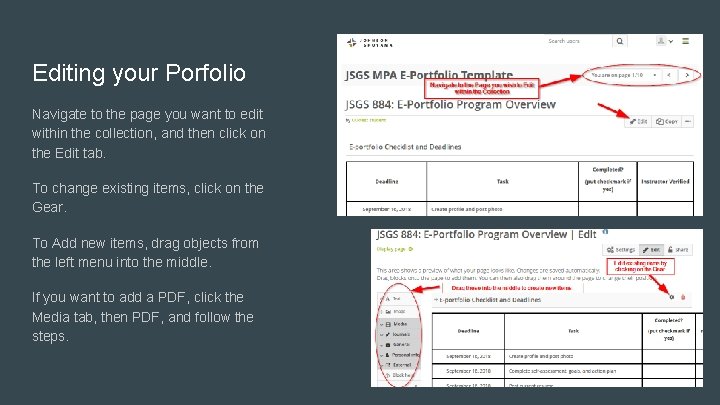
Editing your Porfolio Navigate to the page you want to edit within the collection, and then click on the Edit tab. To change existing items, click on the Gear. To Add new items, drag objects from the left menu into the middle. If you want to add a PDF, click the Media tab, then PDF, and follow the steps.
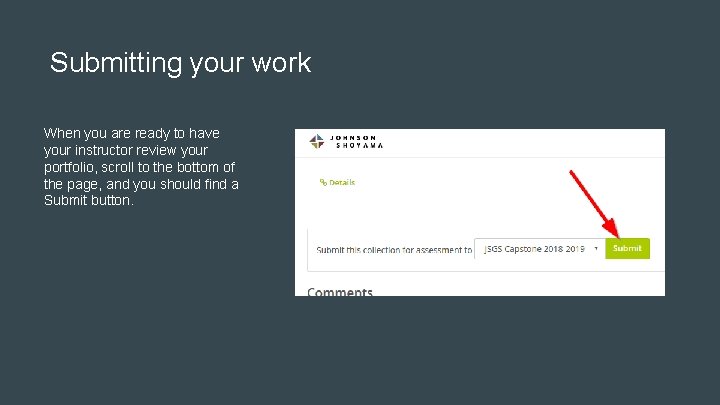
Submitting your work When you are ready to have your instructor review your portfolio, scroll to the bottom of the page, and you should find a Submit button.
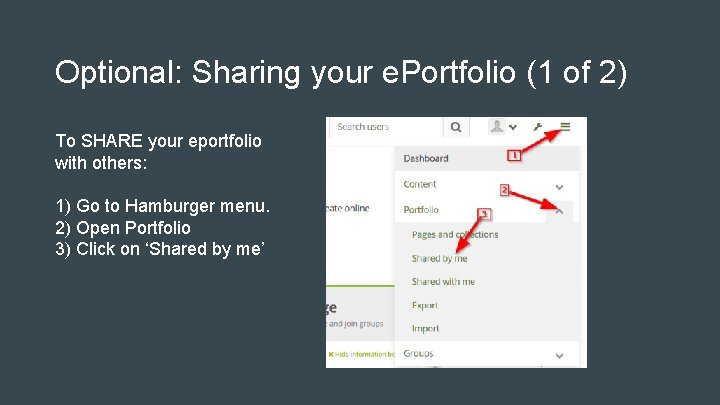
Optional: Sharing your e. Portfolio (1 of 2) To SHARE your eportfolio with others: 1) Go to Hamburger menu. 2) Open Portfolio 3) Click on ‘Shared by me’
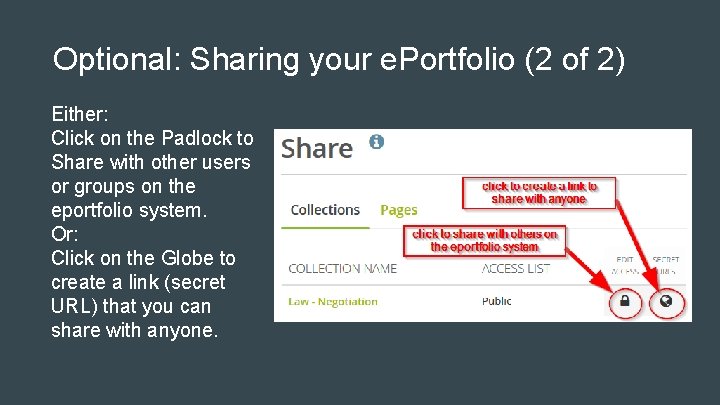
Optional: Sharing your e. Portfolio (2 of 2) Either: Click on the Padlock to Share with other users or groups on the eportfolio system. Or: Click on the Globe to create a link (secret URL) that you can share with anyone.
ALWAYS CLICK SAVE. IF YOU SEE A SAVE BUTTON, ANYWHERE ON ANY PAGE, CLICK IT There is no undo or redo for work you haven’t saved