Contents Getting started with Poll Everywhere Higher Education
- Slides: 21
Contents Getting started with Poll Everywhere Higher Education 2017 -18
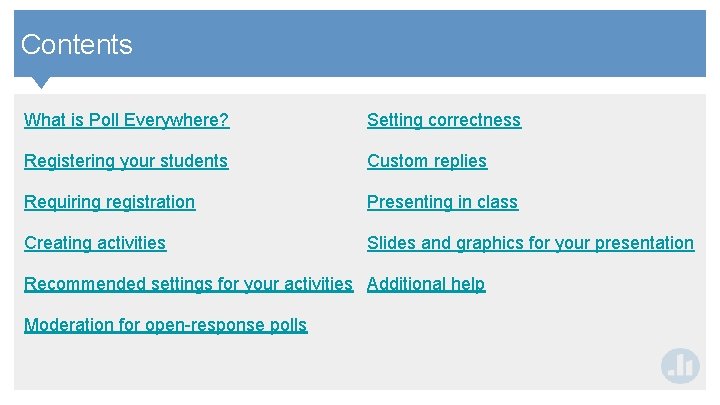
Contents What is Poll Everywhere? Setting correctness Registering your students Custom replies Requiring registration Presenting in class Creating activities Slides and graphics for your presentation Recommended settings for your activities Additional help Moderation for open-response polls
Contents What is Poll Everywhere? Poll Everywhere is a student response system. Instead of using clickers, Poll Everywhere works with the phones and laptops your students already have. All they need is a webenabled device to respond to questions and activities. You can use Poll Everywhere on the web, or in Power. Point, Keynote, or Google Slides. To get started, visit www. polleverywhere. com, or advance to the next slide.
Contents Registering your students Register your students when you want to see who responded to non-anonymous poll activities. You can also restrict activities to only those who register, so students get credit for participation. What do I need to do? Go to the Participants tab at the top of My Polls. Create groups. Many educators create one group for each class, but how you divide up your students is entirely up to you. See how to do it on the next slide
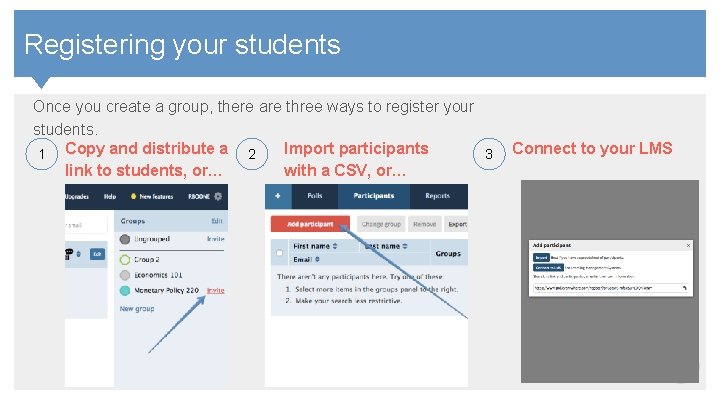
Contents Registering your students Once you create a group, there are three ways to register your students. Import participants 1 Copy and distribute a 2 3 link to students, or… with a CSV, or… Connect to your LMS
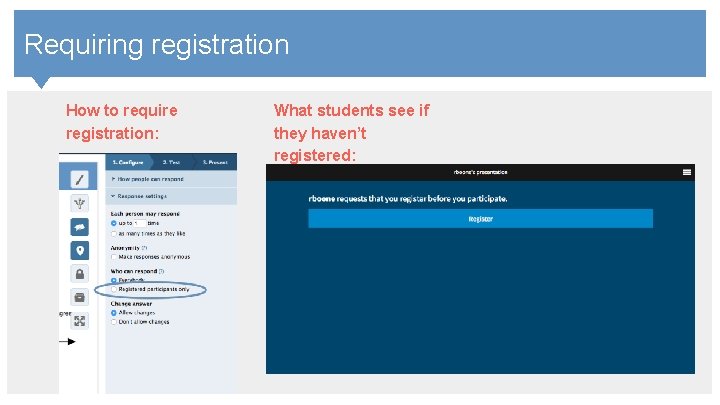
Contents Requiring registration Require registration to identify and credit every student who responds to your questions. You can still make individual polls and activities anonymous — which prevents you from seeing who responded — even if you require registration. What do I need to do? From My Polls, click a question to enter editing mode. When you do, you’ll see a settings panel to the right. Under “Response settings”, select “Registered participants only. ” See how to do it on the next slide
Contents Requiring registration How to require What students see if What is this? You can register your students to see who responded to non-anonymous registration: they haven’t questions. You can also restrict activities to only those who register, so students get credit registered: for participation. What do I need to do? Go to the Participants tab at the top of the My Polls page. Create a group (i. e. class). Optional: Create multiple groups, and organize students into groups as you register them. Once you create a group, there are three ways to register your students: See how to do it on the next slide
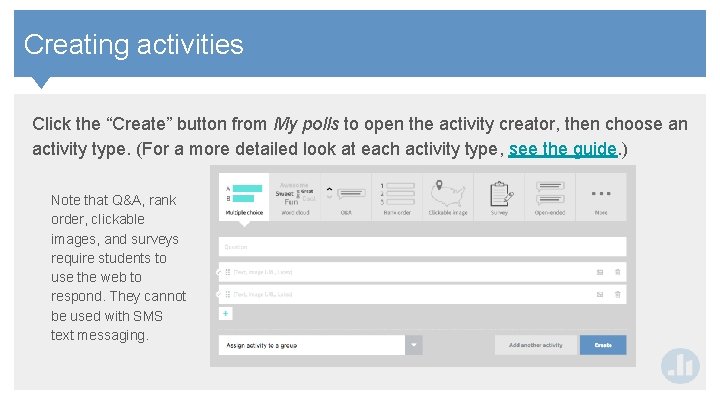
Contents Creating activities Click the “Create” button from My polls to open the activity creator, then choose an activity type. (For a more detailed look at each activity type, see the guide. ) Note that Q&A, rank order, clickable images, and surveys require students to use the web to respond. They cannot be used with SMS text messaging.
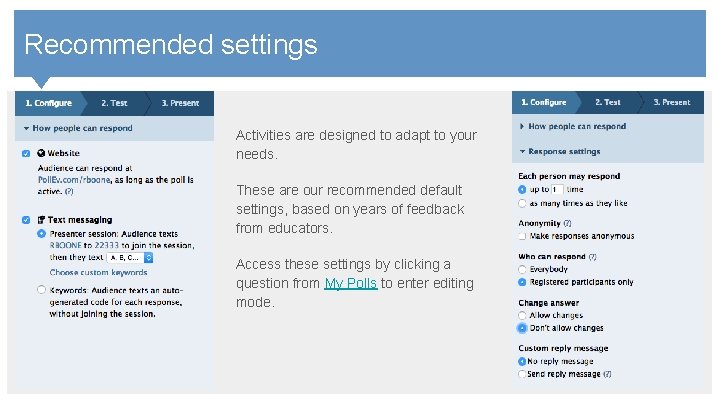
Contents Recommended settings What is this? You can register your students to see who responded to non-anonymous Activities are designed to adapt to your questions. You can also restrict activities to only those who register, so students get credit needs. for participation. What do I need to do? Go to. These the Participants tab at the top of the My Polls page. Create a are our recommended default group (i. e. class). Optional: Create multiple groups, organize students into groups as settings, based on years ofand feedback educators. you register them. Once you from create a group, there are three ways to register your students: Access these settings by clicking a question from My Polls to enter editing mode. See how to do it on the next slide
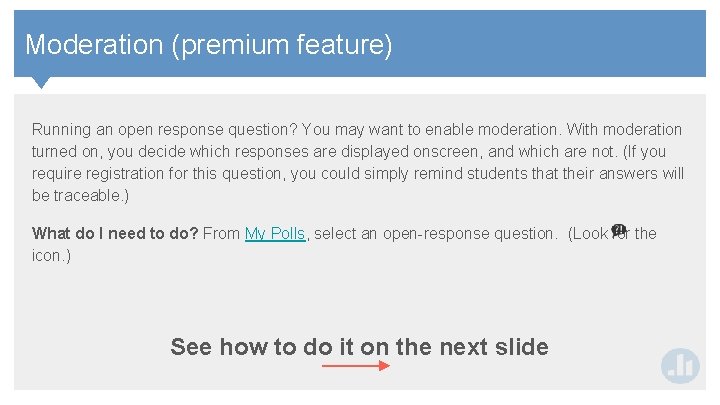
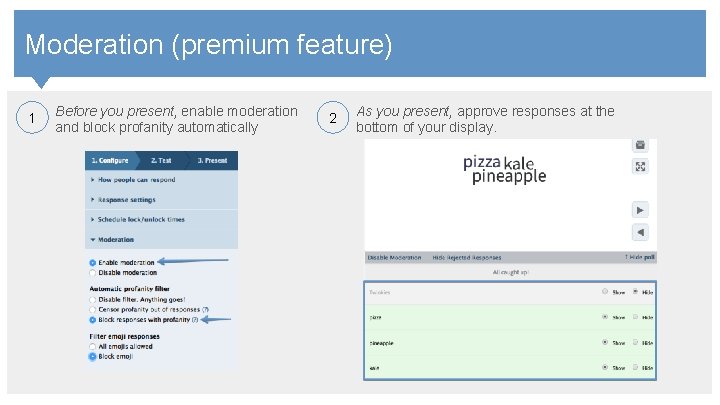
Contents Moderation (premium feature) Running an open response question? You may want to enable moderation. With moderation turned on, you decide which responses are displayed onscreen, and which are not. (If you require registration for this question, you could simply remind students that their answers will be traceable. ) What do I need to do? From My Polls, select an open-response question. (Look for the icon. ) See how to do it on the next slide
Contents Moderation (premium feature) Before you present, enable moderation As you present, approve responses at the 1 What 2 this? You can register your students bottom to see of who to non-anonymous andisblock profanity automatically yourresponded display. questions. You can also restrict activities to only those who register, so students get credit for participation. What do I need to do? Go to the Participants tab at the top of the My Polls page. Create a group (i. e. class). Optional: Create multiple groups, and organize students into groups as you register them. Once you create a group, there are three ways to register your students: See how to do it on the next slide
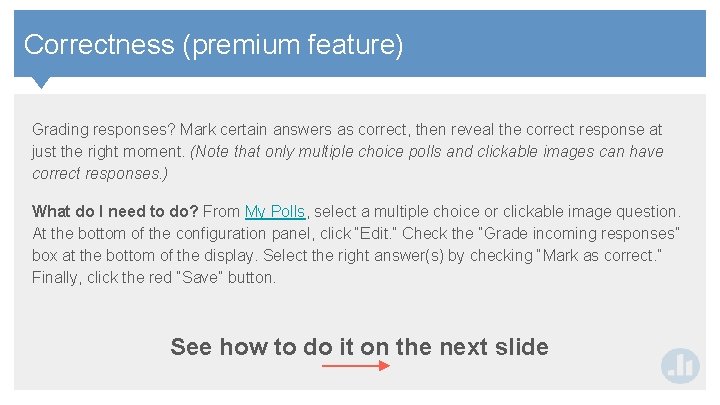
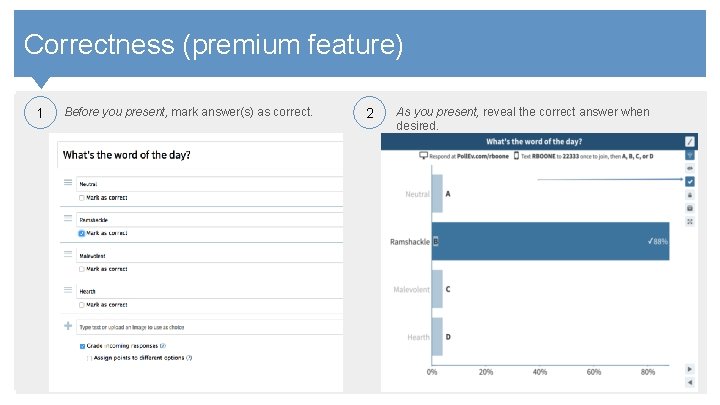
Contents Correctness (premium feature) Grading responses? Mark certain answers as correct, then reveal the correct response at just the right moment. (Note that only multiple choice polls and clickable images can have correct responses. ) What do I need to do? From My Polls, select a multiple choice or clickable image question. At the bottom of the configuration panel, click “Edit. ” Check the “Grade incoming responses” box at the bottom of the display. Select the right answer(s) by checking “Mark as correct. ” Finally, click the red “Save” button. See how to do it on the next slide
Contents Correctness (premium feature) 1 Before you present, mark answer(s) as correct. 2 As you present, reveal the correct answer when seedesired. who responded to non-anonymous What is this? You can register your students to questions. You can also restrict activities to only those who register, so students get credit for participation. What do I need to do? Go to the Participants tab at the top of the My Polls page. Create a group (i. e. class). Optional: Create multiple groups, and organize students into groups as you register them. Once you create a group, there are three ways to register your students: See how to do it on the next slide
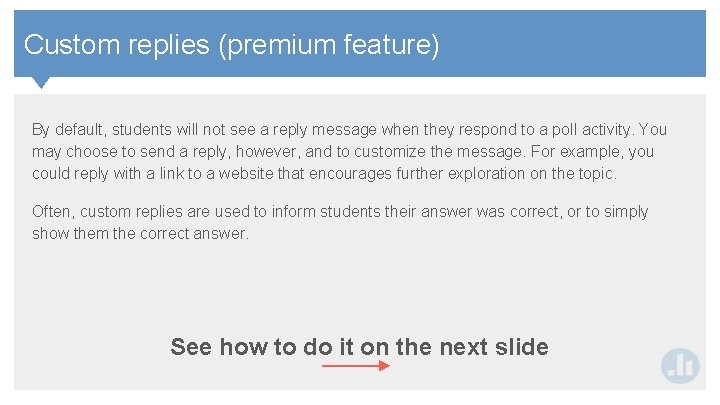
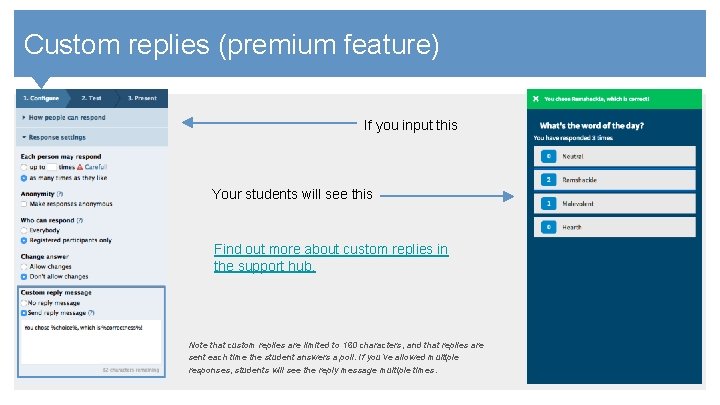
Contents Custom replies (premium feature) By default, students will not see a reply message when they respond to a poll activity. You may choose to send a reply, however, and to customize the message. For example, you could reply with a link to a website that encourages further exploration on the topic. Often, custom replies are used to inform students their answer was correct, or to simply show them the correct answer. See how to do it on the next slide
Contents Custom replies (premium feature) If you input this Your students will see this Find out more about custom replies in the support hub. Note that custom replies are limited to 160 characters, and that replies are sent each time the student answers a poll. If you’ve allowed multiple responses, students will see the reply message multiple times.
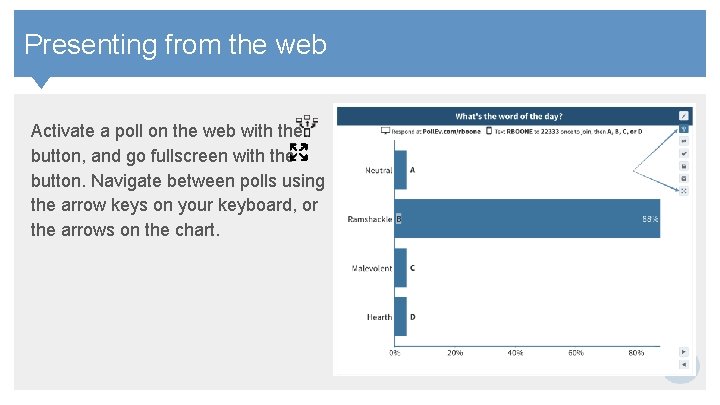
Contents Presenting from the web Activate a poll on the web with the button, and go fullscreen with the button. Navigate between polls using the arrow keys on your keyboard, or the arrows on the chart.
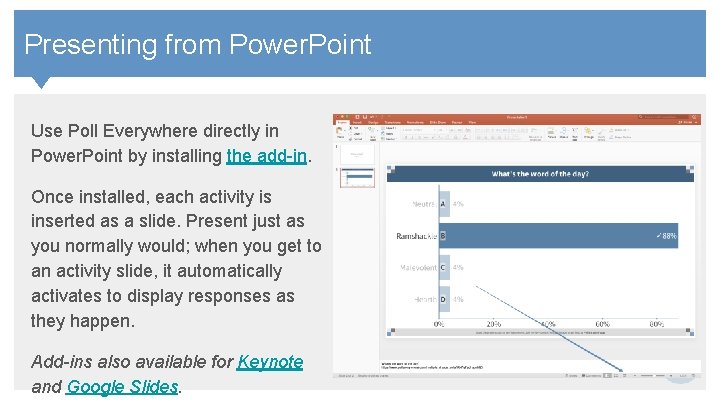
Contents Presenting from Power. Point Use Poll Everywhere directly in Power. Point by installing the add-in. Once installed, each activity is inserted as a slide. Present just as you normally would; when you get to an activity slide, it automatically activates to display responses as they happen. Add-ins also available for Keynote and Google Slides.
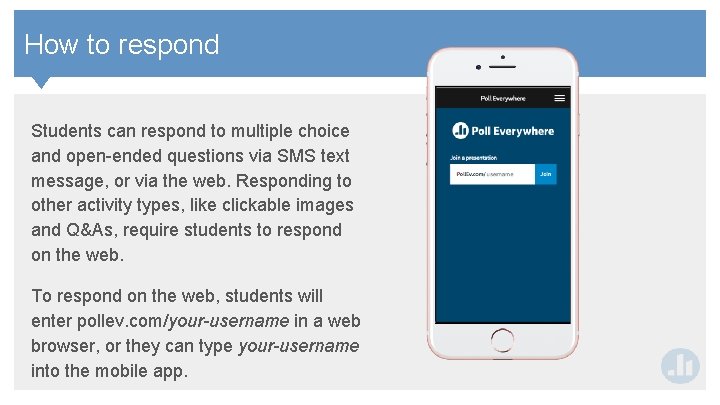
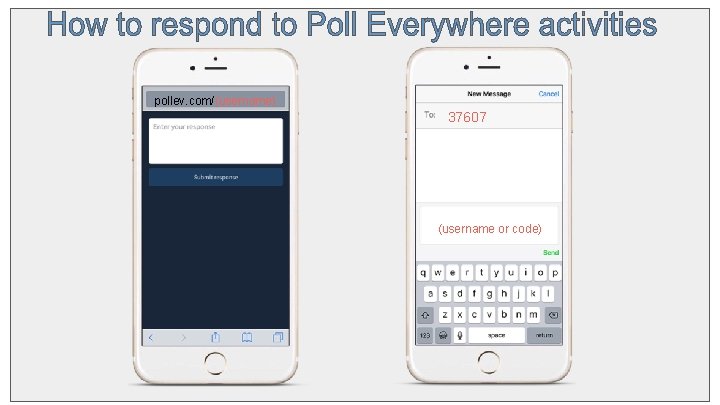
Contents How to respond Students can respond to multiple choice and open-ended questions via SMS text message, or via the web. Responding to other activity types, like clickable images and Q&As, require students to respond on the web. To respond on the web, students will enter pollev. com/your-username in a web browser, or they can type your-username into the mobile app.
Contents Slides and graphics you can use in your presentation The following slide includes instructions to help the class respond via text message and on the web. You can tailor the graphic to match your own presentation, customizing it to match the: 1. Five-digit SMS number (or full phone number in some non-US locations) 2. Name of your personal Poll. Ev. com page (pollev. com/YOURNAME) 3. Optional: Any response codes or keywords particular to your activity. (Response instructions can be customized. If you make changes, mirror those changes in your instructions. )
Contents pollev. com/(username) 37607 (username or code)
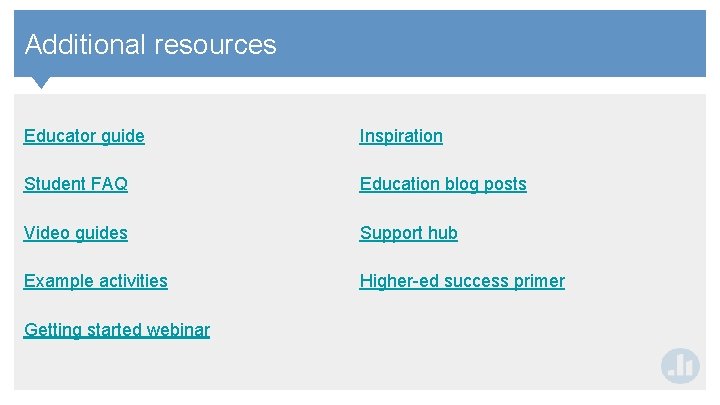
Contents Additional resources Educator guide Inspiration Student FAQ Education blog posts Video guides Support hub Example activities Higher-ed success primer Getting started webinar