Chapter 2 The System Unit Instructor Dr Tarek
- Slides: 26
Chapter 2: The System Unit Instructor: Dr. Tarek Abd Elhamid
Chapter 2: The System Unit Learning Objectives: Recognize how data is processed Understand processors Understand memory types and functions Identify and use ports and buses Troubleshoot common system unit problems 2
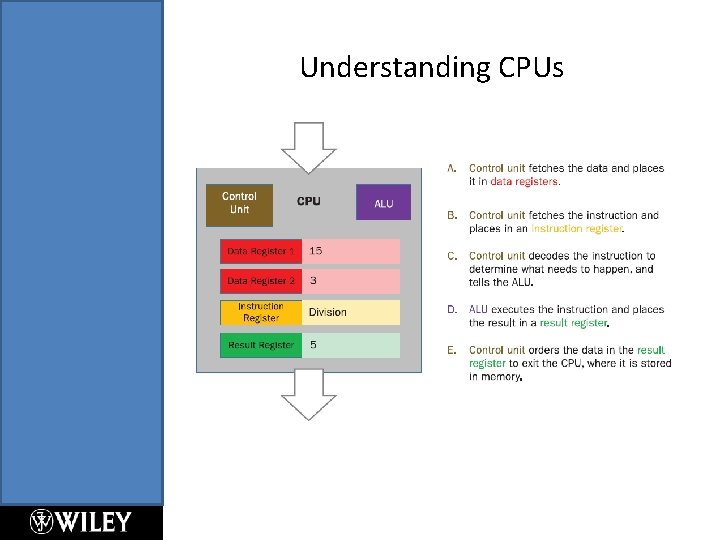
Understanding CPUs Every computer has at least one processor , also called central processing unit. Central Processing Unit (CPU) Each CPU includes the following components: § Control Unit • Manages the flow of data through the CPU, it directs data to and from the other components within the CPU. § Arithmetic Logic Unit (ALU) • Does the actual processing, it receives data and instructions and delivers a result. § Registers • Holding areas for data and instructions, there are many different registers. For example, registers that hold data, registers that hold instructions , registers that store logical states (yes/no), and so on
Understanding CPUs
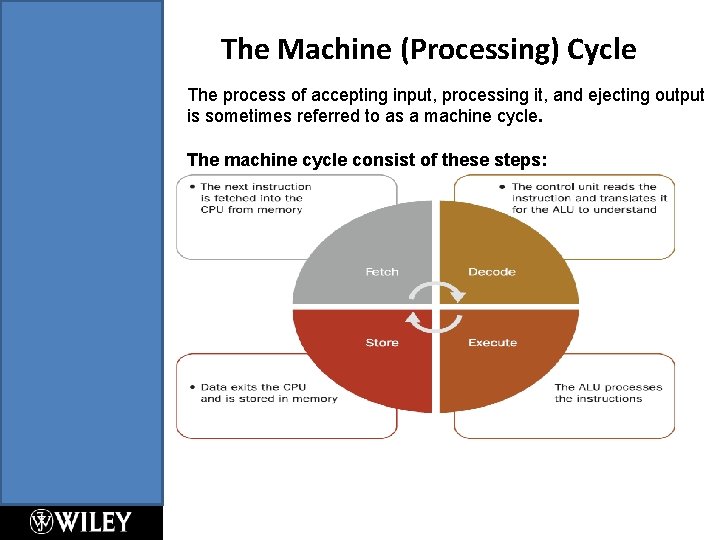
The Machine (Processing) Cycle The process of accepting input, processing it, and ejecting output is sometimes referred to as a machine cycle. The machine cycle consist of these steps:
Cores Most modern PC CPUs have multiple cores, so they can complete multiple tasks at the same time. Common numbers of cores are 2, 4, or 6 Each core consists of a separate set of essential processor components ( Control Unit- ALU – Registers) Multiple cores allows parallel processing for greater throughput
Caches Cache: is a small amount of fast memory located in or near the CPU - Stores recently used data or data soon to be used - Helps limit latency to improve performance Multi-level cache system § L 1, L 2, L 3 § L 1 (Primary cash): is smallest, fastest, closest to core § Fetching from L 3 takes 10 times as long as from L 1
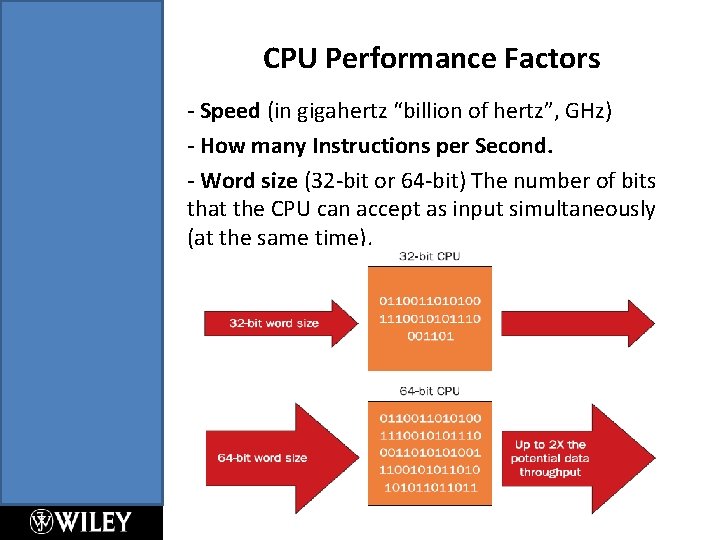
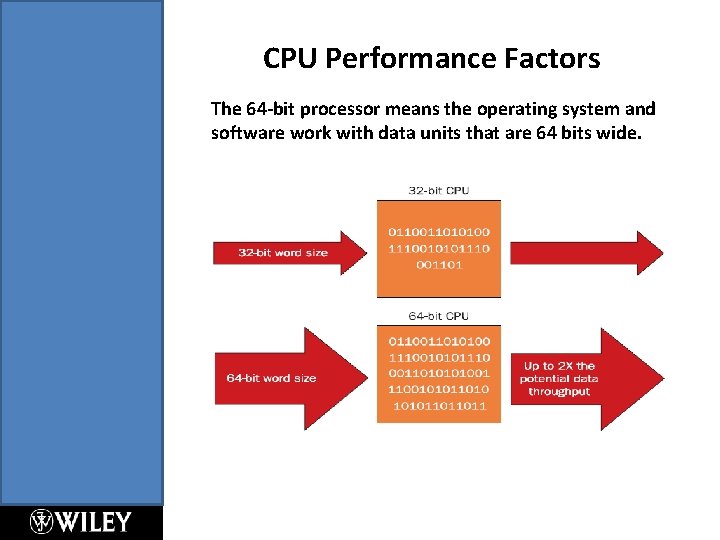
CPU Performance Factors - Speed (in gigahertz “billion of hertz”, GHz) - How many Instructions per Second. - Word size (32 -bit or 64 -bit) The number of bits that the CPU can accept as input simultaneously (at the same time).
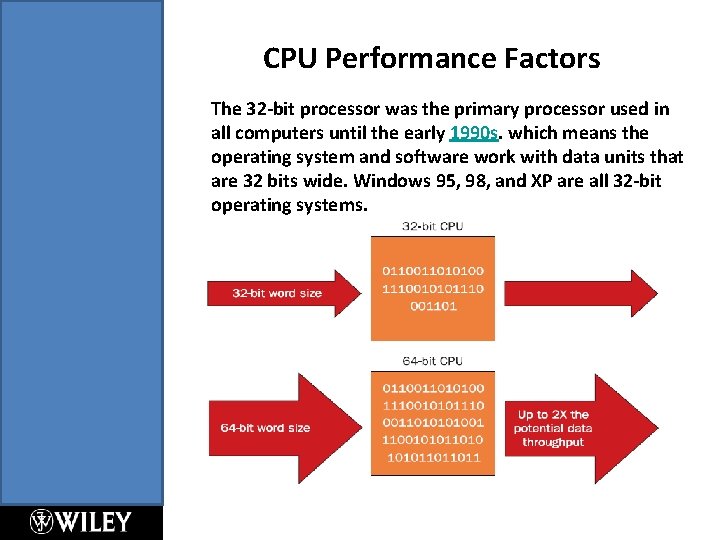
CPU Performance Factors The 32 -bit processor was the primary processor used in all computers until the early 1990 s. which means the operating system and software work with data units that are 32 bits wide. Windows 95, 98, and XP are all 32 -bit operating systems.
CPU Performance Factors The 64 -bit processor means the operating system and software work with data units that are 64 bits wide.
Differences between a 32 -bit and 64 -bit CPU - A big difference between 32 -bit processors and 64 -bit processors is: the number of calculations per second they can perform, which affects the speed at which they can complete tasks. 64 -bit processors can come in multiple cores that allow for an increased number of calculations per second that can be performed, which can increase the processing power and help make a computer run faster. - Another big difference between 32 -bit processors and 64 bit processors is the maximum amount of memory (RAM) that is supported. 32 -bit computers support a maximum of 34 GB of memory, whereas a 64 -bit computer can support memory amounts over 4 GB. This feature is important for software programs used in graphic design, engineering, and video editing.
Understanding Memory Static vs. Dynamic Memory § Static = non-volatile (ROM) § Dynamic = volatile (RAM) Random Access Memory (RAM) vs. Read Only Memory (ROM) § RAM = ( Primary memory – temporary memory) § ROM = (Can’t write on its content- data on it can’t be changed)
Understanding System Memory Main memory is dynamic RAM (DRAM) Virtual memory : is a feature of an operating system that enables a computer to be able to compensate shortage of physical memory by transferring pages of data from random access memory to disk storage (Hard Drive). The computers uses the virtual memory when RAM is gets full. Paging file: is the area of the hard drive set aside for use as virtual memory.
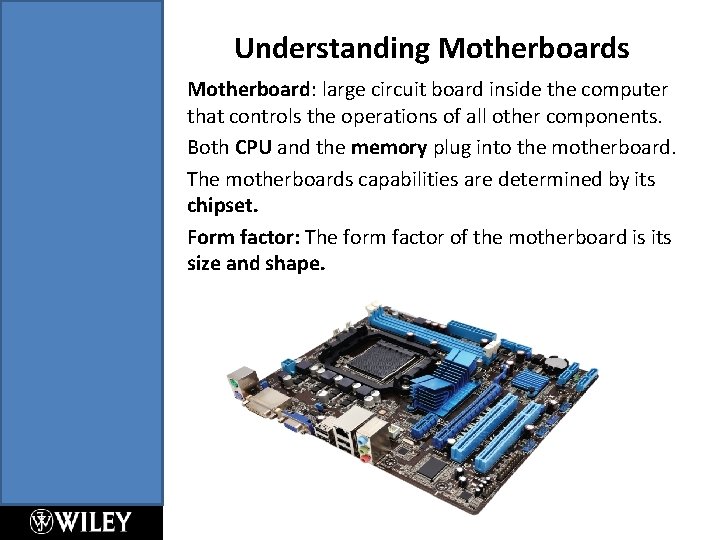
Understanding Motherboards Motherboard: large circuit board inside the computer that controls the operations of all other components. Both CPU and the memory plug into the motherboard. The motherboards capabilities are determined by its chipset. Form factor: The form factor of the motherboard is its size and shape.
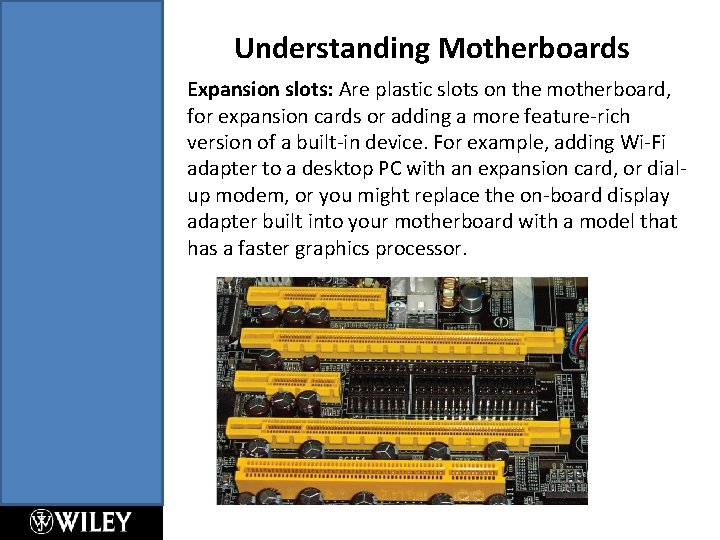
Understanding Motherboards Expansion slots: Are plastic slots on the motherboard, for expansion cards or adding a more feature-rich version of a built-in device. For example, adding Wi-Fi adapter to a desktop PC with an expansion card, or dialup modem, or you might replace the on-board display adapter built into your motherboard with a model that has a faster graphics processor.
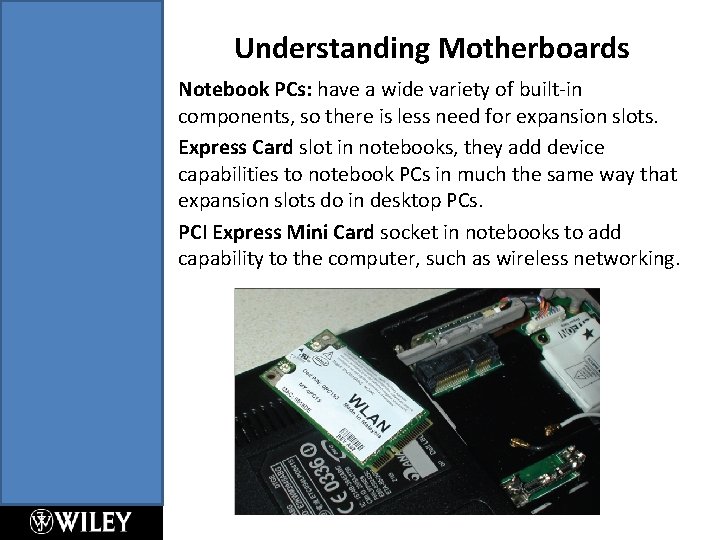
Understanding Motherboards Notebook PCs: have a wide variety of built-in components, so there is less need for expansion slots. Express Card slot in notebooks, they add device capabilities to notebook PCs in much the same way that expansion slots do in desktop PCs. PCI Express Mini Card socket in notebooks to add capability to the computer, such as wireless networking.
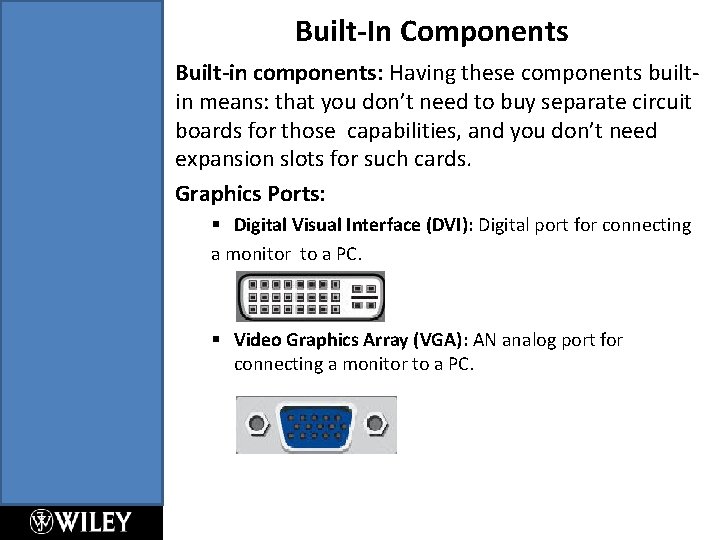
Built-In Components Built-in components: Having these components builtin means: that you don’t need to buy separate circuit boards for those capabilities, and you don’t need expansion slots for such cards. Graphics Ports: § Digital Visual Interface (DVI): Digital port for connecting a monitor to a PC. § Video Graphics Array (VGA): AN analog port for connecting a monitor to a PC.
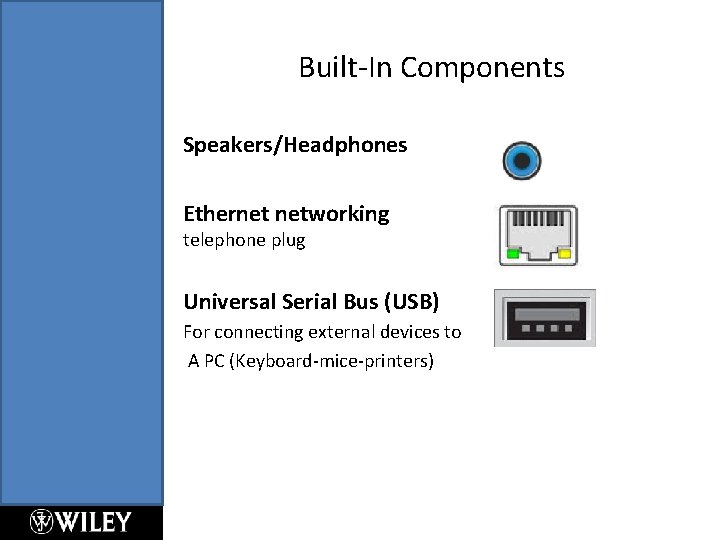
Built-In Components Speakers/Headphones Ethernet networking telephone plug Universal Serial Bus (USB) For connecting external devices to A PC (Keyboard-mice-printers)
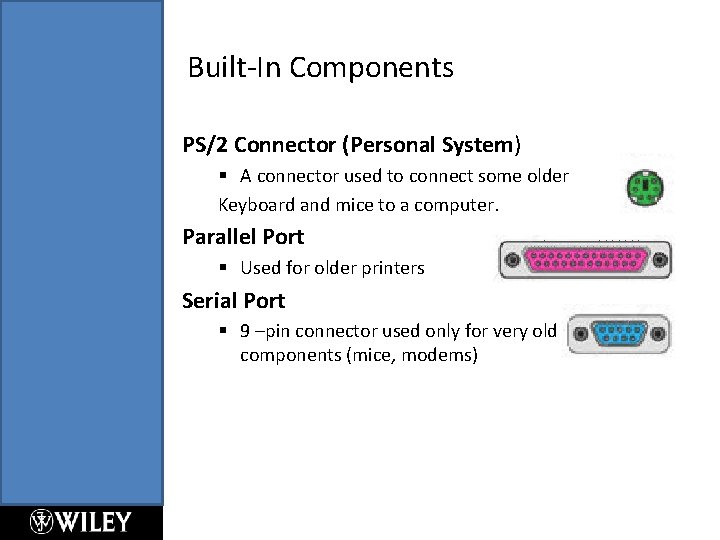
Built-In Components PS/2 Connector (Personal System) § A connector used to connect some older Keyboard and mice to a computer. Parallel Port § Used for older printers Serial Port § 9 –pin connector used only for very old components (mice, modems)
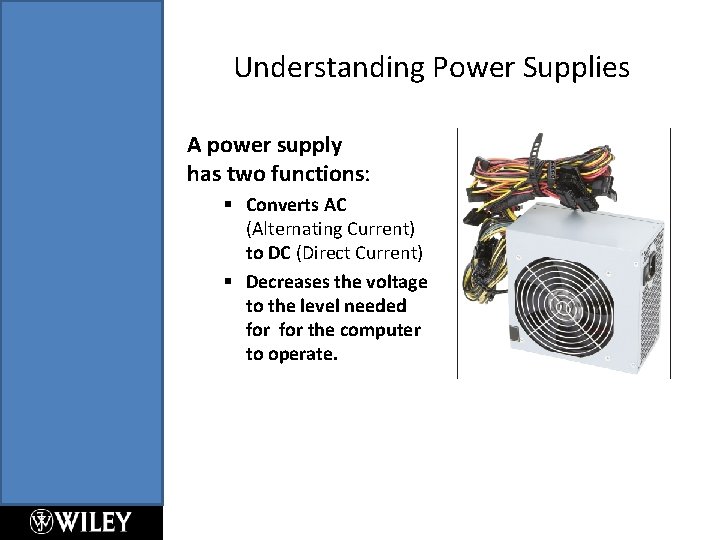
Understanding Power Supplies A power supply has two functions: § Converts AC (Alternating Current) to DC (Direct Current) § Decreases the voltage to the level needed for the computer to operate.
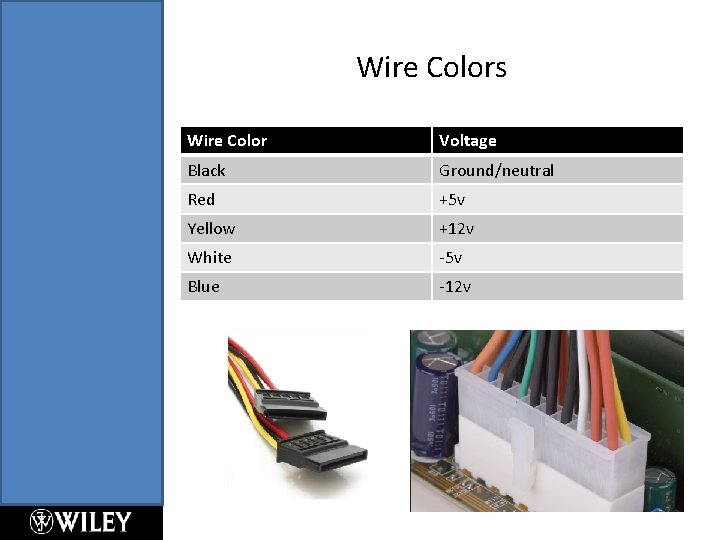
Wire Colors Wire Color Voltage Black Ground/neutral Red +5 v Yellow +12 v White -5 v Blue -12 v
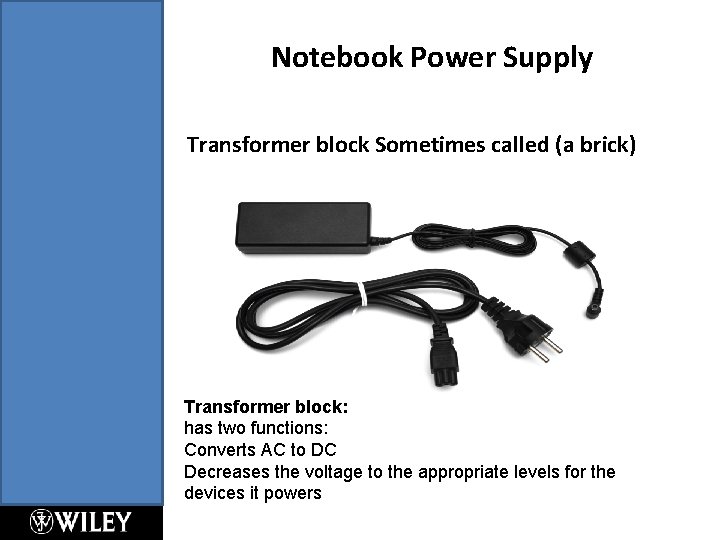
Notebook Power Supply Transformer block Sometimes called (a brick) Transformer block: has two functions: Converts AC to DC Decreases the voltage to the appropriate levels for the devices it powers
Troubleshooting System Unit Problems No Response § Check for power § Hold down Power button for 10 seconds, then press it again § Do a soft reset (mobile device) restart the device and preserve your data. § Do a hard reset (mobile device) wipes out all the data and customization on your device. Fan Noise but Nothing Onscreen § Make sure the monitor is connected. § Remove all non-essential hardware § Remove newly installed hardware
Troubleshooting System Unit Problems Error Message on Black Screen § Troubleshoot according to the message received § Research error message online § Use CMOS Setup (BIOS Setup) to adjust settings or check device status Error Message on Bright Blue Screen § “Blue Screen of Death” (BSOD) § Turn computer off and back on again § If error persists, there may be a hardware incompatibility or failure
Troubleshooting System Unit Problems Windows Hangs at Startup § Restart in Safe Mode § Prevent non-essential drivers and programs from loading PC Shuts Down or Freezes § Most likely overheating
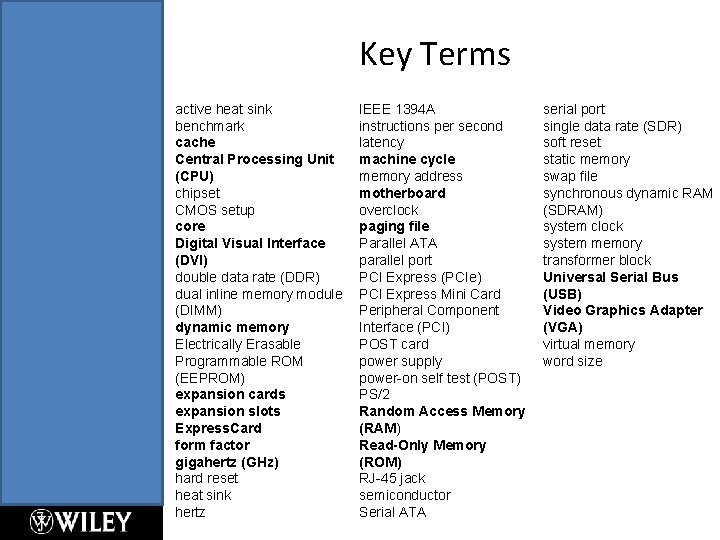
Key Terms active heat sink benchmark cache Central Processing Unit (CPU) chipset CMOS setup core Digital Visual Interface (DVI) double data rate (DDR) dual inline memory module (DIMM) dynamic memory Electrically Erasable Programmable ROM (EEPROM) expansion cards expansion slots Express. Card form factor gigahertz (GHz) hard reset heat sink hertz IEEE 1394 A instructions per second latency machine cycle memory address motherboard overclock paging file Parallel ATA parallel port PCI Express (PCIe) PCI Express Mini Card Peripheral Component Interface (PCI) POST card power supply power-on self test (POST) PS/2 Random Access Memory (RAM) Read-Only Memory (ROM) RJ-45 jack semiconductor Serial ATA serial port single data rate (SDR) soft reset static memory swap file synchronous dynamic RAM (SDRAM) system clock system memory transformer block Universal Serial Bus (USB) Video Graphics Adapter (VGA) virtual memory word size